TECHIE NEWS

How to Delete WINDOWS.OLD on Server

After performing an in-place upgrade on a Windows machine, you will find a WINDOWS.OLD folder in the root of C:. This folder will have a backup of your old program files, appdata and Windows folder… just in case you need to revert back or recover something that might have been lost during the upgrade. When you try to delete it though you are told you don’t have permissions. Just a small point here, it is generally not recommended to do in-place upgrades on servers. In fact there are some products (e.g. Exchange, ConfigMgr) that explicitly state they do not support upgrading the Operating System. There is of course a difference between “what works” and “what is supported”, but we do suggest where possible you do a clean Server install and migrate your application to the new server. Anyway, let’s assume you’ve understand all the risks and have done a successful in-place upgrade, you now find the old WINDOWS.OLD folder of several GB in size sitting there. If all is well, then you might as well just delete it.

SOLUTION

On Desktop OS version, you can just use the disk cleanup tool to remove it, but that is not available (by default) on Servers, so there are a couple of approaches.

Command line tools to take ownership and delete the folder. Make sure to “run as administrator”

How can I delete the windows.old from an upgraded Windows Server?

For a client OS that’s upgraded, the Disk Cleanup utility can be used to delete the very large windows.old folder containing the old OS. This isn’t available on a server OS without installing the Desktop Experience feature.

To delete, it is necessary to take ownership of the folder, give administrators full control, then delete. This can be done with the commands below:

  •  takeown /F c:\Windows.old\* /R /A /D Y
  •  cacls c:\Windows.old\*.* /T /grant administrators:F
  •  rmdir /S /Q c:\Windows.old


Or you can add the “Desktop” features to provide the Disk Cleanup tool:

Step By Step Guide to Enabling “Disk Cleanup Utility”

1. Open The Roles and Features Wizard

To open the roes and feauture wizard. Lauch the “server manager” by pressing the Windows key

and clicking on the server manage please see Screenshot as shown.

Personally, the command line option is less messy and saves having to add features to your server that don’t really need to be there.

2. Click on Add role and Feature

Click on add role and feture to launch the add role and feature wizard.

3.  Choose installation Type

Choose rolebase or feature based installation to install to local machine.

4. Click Next all the way to features

Click “next” all the way to features. Locate “User Interface and Infrastructure”. Click on “Desktop Experience”

and install additional required feature.

5.  Proceed with the installation and Reboot

Make it sure that you reboot the system

6.  Verify that the Utility is indeed installed

Ready to run diskcleanup. See screen shot below.

Disk Cleanup in Action

Below is a sample snapshot of disk cleanup in action.

VPNFilter Malware Hits 500,000 Routers

FBI warns against VPNFilter malware that targets over 500,000 routers

If you have a home or office Internet router, the FBI has issued an urgent request for consumers to reboot now to help disrupt a massive foreign-based malware attack.

Foreign cybercriminals have compromised hundreds of thousands of home and office routers and other networked devices worldwide, the FBI said in a May 25 announcement.

How to help defend yourself from VPNFilter malware:

Turn your router off, then back on. This may temporarily disrupt
the malware and potentially help identify already-infected devices.

Secure the device with a strong, unique, new password.

Upgrade firmware to the latest available version.

Consider getting the Norton™Core Secure Wi-Fi Router designed to
help defend against a variety of possible cyber threats,
including the VPNFilter attack, and is also designed to automatically
update its knowledge of known viruses and other threats.

Microsoft announces the new Teams & Skype for Business Admin Center

To enable IT admins to better manage the various aspects of Microsoft Teams and Skype for Business services, Microsoft is announcing the new Microsoft Teams & Skype for Business Admin Center.

Now, there’s an admin center just for calling and messaging.

This new portal will offer a unified experience to manage both Teams and Skype for Business and will also include Call Analytics and the Call Quality Dashboard. Admins can also get end-to-end insights and the ability to manage Teams settings on a user level in this new portal.

Following features are available in this release:

Microsoft Teams messaging policy: Create custom policies for messaging scenarios for your users.

User management: Assign policies and configure your users.

Microsoft Teams guest messaging settings: Control the messaging capabilities for guest accounts in Microsoft Teams.

Federation settings: Manage federation between tenants for Microsoft Teams and Skype for Business. (Please note that federation for Microsoft Teams and Skype for Business will roll out in stages and this setting might not be visible for you during the initial rollout.)

Audio conferencing: Configure dial-in numbers and settings for Microsoft Teams and Skype for Business.

Office 365 to get enhanced Anti-spoofing capabilities

Enhanced anti-spoofing safeguards are rolling out for Office 365.

Microsoft services like OneDrive for Business, SharePoint Online, and Microsoft Teams are closely guarded by ATP (Advanced Threat Protection). Besides, there are numerous feature updates available in Office 365 threat protection service to address the evolution and advances in the threat landscape. The addition of enhanced Anti-Spoofing capability in Office ATP for protecting against spoofed emails from external domains further strengthens this security framework.

Anti-spoofing in Office 365 Advanced Threat Protection

The newest anti-spoof features help protect organizations from external domain spoof.  Office 365 recognizes emails from external domains having proper SPF, DMARC, and DKIM authentication settings as legitimate/authentic and therefore allow them to pass authentication, uninterrupted.

This normal process is however challenged when external domains do not have these settings properly configured. Without enforcement of these settings, domains show a high likelihood of being manipulated and maliciously spoofed, leaving customers vulnerable to phishing or spam attacks. The new external domain anti-spoofing capabilities help detect and block emails from external domains that do not have the following features,

  1. Correct authentication configuration
  2. An email infrastructure source with an unknown history

How does it work?

A newly enhanced filter in ATP first checks if the email from external domains, passes SPF, DKIM, and DMARC test.  If not, the filter thoroughly checks for historical sending patterns of that domain and associated infrastructure. If any suspicious behavior is noted, ATP assumes the sender does not bear a good reputation and as such, proceeds to junk the message.

Also, a feature worth noticing about Anti-spoofing – The filter constantly evolves and enhances itself based on mail flow patterns it observes.  ATP subscribers can access the spoof intelligence report in their Antispam Policy and take necessary actions if required.

Exclusive offer from BigBeagle.com

Exclusive offer from: BigBeagle.com  |  24/7 Support: (888) 505-1532

Don’t forget to visit our coupon page at http://bigbeagle.com/coupons for the latest and greatest promotions.

Save 5% on all new purchases of $20 or more. Great products just for you. Hurry before the offer expires.

Use promo code rs218a6 in your cart when you order.

*Some limitations apply. Applicable to new purchases only. Enter promo code into shopping cart to see full details. Offer expires Friday, July 13, 2018 at midnight (Mountain Time).

Copyright © 2018 BigBeagle.com. All rights reserved.

Office 365: New capabilities for iPad and iPhone

New features make Office and OneDrive the best place to work on iPad and iPhone
More and more, people around the world are working on the go, changing locations and devices as they create and collaborate with others throughout their day. As they work across their PCs, Macs and mobile devices, they expect an uncompromising experience that is familiar yet optimized for the device they are using.

Microsoft is committed to providing best in class experiences on all devices, and today, we are proud to share with you a set of new Office capabilities across Word, Excel, PowerPoint, and OneDrive on iOS that will delight and make iPad and iPhone users more productive than ever before.

Real-time co-authoring in Word, Excel, and PowerPoint on iOS – We live in a world where we’re often collaborating with multiple people in different locations and Office 365 provides the broadest and deepest toolkit for collaboration between individuals, teams, and entire organizations. Using real-time co-authoring, colleagues, friends, and family can contribute to and edit documents simultaneously in the Word, Excel and PowerPoint iOS apps. This allows you to know who else is working with you in a document, see where they’re working, and view changes automatically within seconds. The co-authoring experiences are also available in Office Online and the latest versions of Word, Excel and PowerPoint on the PC and Mac, all made possible by storing your documents in OneDrive or SharePoint.
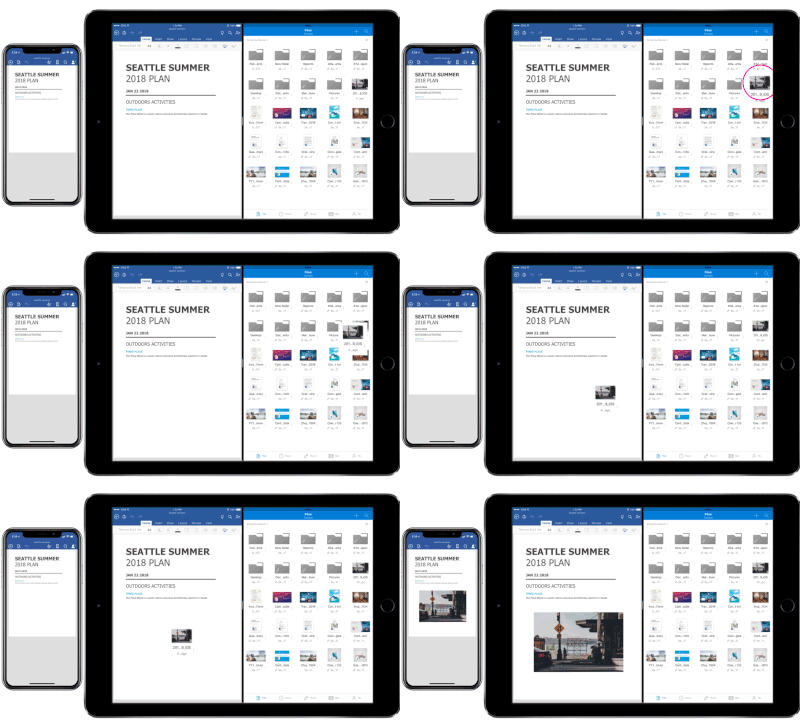
Drag and drop files anywhere with OneDrive – Sometimes your files can get scattered between different folders or even services and applications. Now it’s easier than ever to organize and rearrange your files. You can drag files in between folders in OneDrive and, if your teammates use SharePoint to work together, you can even drag OneDrive files to a SharePoint site giving them immediate access. On iPad, you can also drag files from other apps, such as iMessage, into your OneDrive and drag files out of your OneDrive to other apps.

Drag and drop content between Word, Excel, PowerPoint, and OneDrive on iPad – One of the most common and powerful tasks when creating content is pulling in text, photos, graphs, and other objects from different sources. Now you can pull in content with ease on your iPad with drag and drop support in Office and OneDrive. Easily drag and drop objects from OneDrive or from one Office app to another.

OneDrive Files app support – Today we’re also announcing native support for the Files app in iOS 11. OneDrive integration with the Files app allows you to access, upload, edit, and save your content to OneDrive or SharePoint from apps that support Files app integration. You can also tag and favorite your OneDrive and SharePoint files from within the Files app.
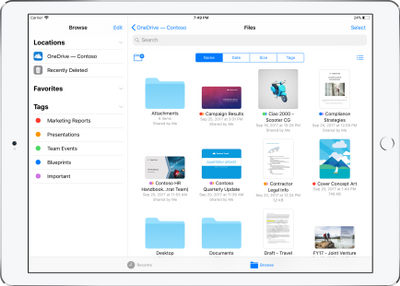
OneDrive redesigned to find the files that matter – The OneDrive iOS app has been redesigned from the ground up with a new layout that uses your screen space more efficiently allowing you to find your files faster. It’s easier to scan across file names, see the information that matters to you, and sort files how you want. New metadata is visible in the list view, so you can easily identify new files and files that have been shared.

Universal link support for shared files – Being able to seamlessly share and securely access files is essential for teamwork. Previously when you received a link to a shared file, you would be directed to a browser and prompted to re-authenticate. Today, we are announcing universal link support, which will open the document directly in the Word, Excel, or PowerPoint iOS apps. Further, if you don’t have a supporting application for the file, you’ll be directed to the OneDrive app to preview the file.

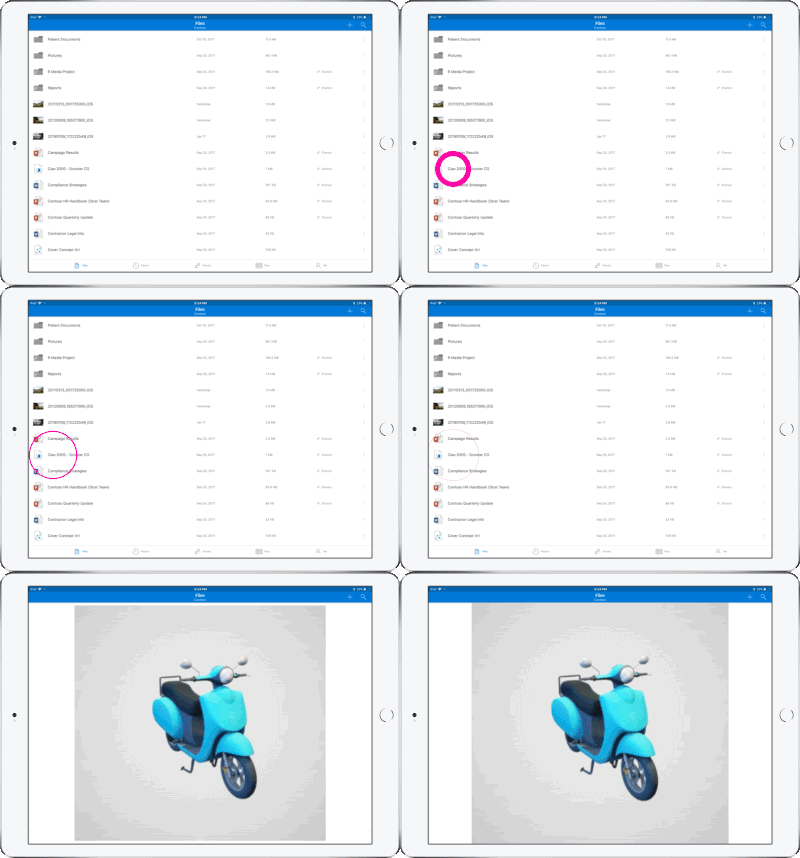
Preview 130+ file types in your OneDrive app – You and the people you work with use a variety of different file formats, but when you’re on your mobile device you might not have access to the native applications for those files. Now, the OneDrive iOS app creates crisp thumbnails and supports large previews of over 130 file types, including Adobe Photoshop and Illustrator, RAW, 3D objects, and high-precision DICOM images. OneDrive lets you open, view, and share all of your files without leaving the app.
New accessibility features for Word, Excel and PowerPoint on iOS 11
The VoiceOver rotor in iOS improves navigation and the accessibility of content. For example, you can use the built-in rotor on iOS to navigate line-by-line or word-by-word and change the speed at which VoiceOver speaks. The new Office-specific rotors also let people with vision impairments navigate more efficiently in Word across tables and links, slides in PowerPoint, and sheets in Excel.

Users can also leverage larger text options in accessibility settings to modify the text size in the core Office apps. Visit the support pages for Excel, Word, and PowerPoint to learn more.

You can use take advantage of these new capabilities in the coming days by updating the Word, Excel, PowerPoint, and OneDrive apps in the Apple App Store.

CALL US NOW!