Microsoft 365 Outage: What Businesses Should Know

Microsoft Outage

A major Microsoft 365 outage recently disrupted Outlook, Teams, Exchange Online, Copilot and other Microsoft cloud services worldwide. The disruption affected businesses, governments, healthcare organizations and other organizations that rely on Microsoft 365 for daily communications. [reuters.com], [apnews.com]

For businesses, the incident provides an important reminder: cloud services are highly resilient, but they are not outage-proof.

Read More

How to Disable or Restrict OneDrive Using Group Policy

How to Disable or Restrict OneDrive Using Group Policy

Microsoft OneDrive is a powerful tool for storing, syncing, and sharing files across devices. But there are situations where a business may not want OneDrive running on every computer or server.

This is particularly common with Remote Desktop servers, hosted desktops, shared computers, specialized application servers, or environments where company data needs to remain in a specific storage location.

Fortunately, Microsoft provides administrative controls for managing how OneDrive operates on Windows devices.

Read More

Office 2010 is Retiring

The popular Microsoft Office 2010 is reaching end of support in a few months. To avoid security risks, it’s time to upgrade to a newer version of Office. The good news is that you have options. drawing of a man holding a laptop in front of a very large laptop with "update" on the screen and a wrench in front

What Does End of Support Mean?

Microsoft Office 2010 has been a popular version of the application over the last decade. The unfortunate news is that support for it ends this fall — on October 13, 2020, to be exact. All of your Office 2010 apps will continue to function. However, using an unsupported version of any software exposes your computer to serious and

Read More

Office 365 Activation: How to Fix

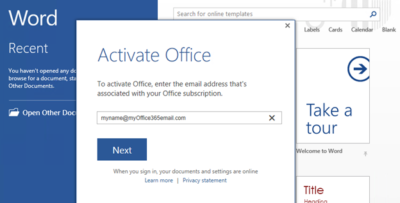
Imagine you are a customer of Microsoft’s Office 365 service, including a subscription to the Office desktop applications like Word, Excel and Outlook.

One day you click on the shortcut for Word, but instead of opening, it just shows a “Starting” splash screen which never progresses.

Being smart, you try to start Word in safe mode by holding down the Ctrl key, but the exact same thing happens.

Annoying, when you want to do your work. What is going on?

We took a look at a case like this. Two things you should do (after the usual reboot):

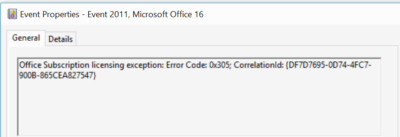
1. Look in the event viewer. Here, we found a clue that the issue is related to software activation, specifically Event 2011 “Office Subscription Licensing exception”:
2. For all things related to Office licensing, open a command prompt, go to (for example) C:\Program Files (x86)\Microsoft Office\Office16, and type:

cscript ospp.vbs /dstatus

In this case we got the following:
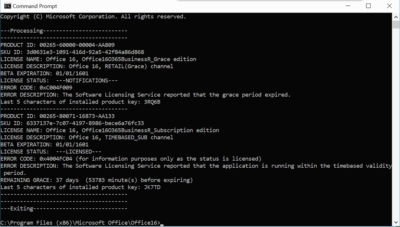
This told us that Windows thinks TWO product keys for Office are installed. One has expired, the other is fine.

The guilty party may (or may not) be the trial version of Office typically pre-installed with a new PC. Or it could be a consequence of changing your Office 365 subscription. Neither would be the fault of the user, who is fully licensed and has done nothing other than follow Microsoft’s normal procedures for installing Office 365.

Solution: we reinstalled Office from the Office 365 portal, and attempted to remove the dud product key with:

cscript ospp.vbs /unpkey:<Last five characters of product key>

as explained here. All is well for the moment.

Activation and subscription license checking is for the benefit of the vendor, not the user, and should never get in the way like this.

Further, cannot Microsoft find some way of informing the user when this happens, and not have Word simply hang on starting? How difficult is it to check for licensing and activation issues, and throw up a message?

What’s new in search in Office 365

SharePoint now serves up search results personalized to your previous activity and permissions.

In SharePoint Online and on office.com, search is personal, and the search results are even easier to explore. Another user will see different results than you, even when you both search for the same words.

You’ll only see results that you already have access to, and other users can’t find your private documents.

Even before you start typing, you’ll see results based on your previous activity in Office 365. The results update as you start typing.

If these results aren’t what you’re looking for, click the link to see more results or press Enter to open the search results page and see and explore all the results. Here’s an example of search results from SharePoint:

Explore the search results to see more details about the people and files you’ve found, or refine your search to get other results. Here’s an expert tip to quickly see more, or less, details of a result – you can actually click anywhere in the empty space of the result.

You can navigate to locations that you want to explore further and, if you’ve searched in SharePoint Online, you can change where the results come from. For example, if you searched from a site, but really meant to search all of SharePoint, then you’re just one click away. Or, if the site you searched from is associated with another site, but you want to search all the associated sites.

When you exit a search results page, you return to the page where you started your search.

CALL US NOW!