Critical iPhone Spyware Fix Released

Apple has updated its software for iPhones to address a critical vulnerability that independent researchers say has been exploited by notorious surveillance software to spy on a Saudi activist.

Researchers from the University of Toronto’s Citizen Lab said the software exploit has been in use since February and has been used to deploy Pegasus, the spyware made by Israeli firm NSO Group that has allegedly been used to surveil journalists and human rights advocates in multiple countries.

The urgent update that Apple (AAPL) released Monday plugs a hole in the iMessage software that allowed hackers to infiltrate a user’s phone without the user clicking on any links, according to Citizen Lab. The Saudi activist chose to remain anonymous, Citizen Lab said.

Apple credited the Citizen Lab researchers for finding the vulnerability.

“Attacks like the ones described are highly sophisticated, cost millions of dollars to develop, often have a short shelf life, and are used to target specific individuals,” Ivan Krsti?, head of Apple Security Engineering and Architecture, said in a statement.

Krsti? said Apple rapidly addressed the issue with a software fix and that the vulnerability is “not a threat to the overwhelming majority of our users.”

Still, security experts encouraged users to update their mobile devices for protection.

In a statement, NSO Group did not address the allegations, only saying, “NSO Group will continue to provide intelligence and law enforcement agencies around the world with life saving technologies to fight terror and crime.”

The firm has previously said its software is only sold to vetted customers for counterterrorism and law enforcement purposes.

Researchers, however, say they have found multiple cases in which the spyware was deployed on dissidents or journalists. In 2019, Citizen Lab analysts alleged that Pegasus was used on the mobile phone of the wife of a slain Mexican journalist.

In a lawsuit filed in 2019, Facebook accused NSO Group of being complicit in a hack of 1,400 mobile devices using WhatsApp. (NSO Group disputed the allegations at the time.)

The proliferation of easy-to-use mobile hacking tools has given governments around the world a new and stealthy means of targeting adversaries. Sophisticated spyware made by NSO Group and other vendors has been reportedly used from Uzbekistan to Morocco.

The surge in spyware prompted a United Nations panel of human rights experts in August to call for a moratorium on the sale of such surveillance tools. The UN panel said the ban should remain in place until governments have “put in place robust regulations that guarantee its use in compliance with international human rights standards.”

Symantec Security Cloud

Symantec Endpoint Protection Cloud Windows client upgrade scheduled for August 5, 2019

The SEP Cloud client for Windows is updated periodically to provide improvements and defect fixes. The next update is scheduled to start on August 5, 2019.

WHAT’S NEW ?

In this release, the SEP Cloud client for Windows will be updated to version 22.18 to provide an enhanced protection framework and client stability.

  • Fixed an issue related to the OS feature on the agent, which was randomly failing with a medium severity while applying the Management policy.
  • Fixed an issue related to the security event: “A process modified a critical system resource.” This event was erroneously displayed in the console as a threat detection/remediation event. The event is now removed and will not be displayed in the console.
  • Enhancement to process HTTP error 429 status code request. The SEP Cloud agent will not attempt to connect with the cloud when the 429 status code is returned, but instead, try to connect based on the timeout information.
  • If the timeout information is not available, then the product will retry to connect in 15 minutes by default.

IMPACT

All Windows devices that are currently enrolled in SEP Cloud will automatically be updated in the background, using LiveUpdate. This update does not affect the security of your devices.

To start, the update is distributed to a small set of clients over the first seven days of the release, and then the remaining clients will get the update. If you want to update sooner, you can run LiveUpdate from the Symantec Endpoint Protection Cloud client UI.

Action Required

  • Windows device restart
    All users with Windows devices will be prompted to restart their devices after the update. Even if they delay the restart, their Windows clients remain Protected.

If no user is logged on the device when the upgrade is made available, then the prompt is provided until the user logs on. The product update will not force the restart of the device.

  • Windows installation package refresh
    Administrators who created a Windows installation package before August 5 should create and distribute a new one after August 5 to use for new Windows package deployments.

If you have any questions, please email us at support@sjtechies.com or call us at (856) 745-9990.

Microsoft hints at September release of Windows 10’s next feature upgrade

Based on the current progress for Windows 10 version 1903, due to arrive next spring, it now looks like the fall update for the OS will arrive around Sept. 10 or Sept. 24.

Microsoft last week released the first preview of what will become Windows 10 version 1903, the opening feature upgrade of next year, slated to ship in the spring.

The debut of what Microsoft calls the “Skip Ahead” build for Windows 10 1903 also hints that the release of this fall’s upgrade, aka 1809, will take place in September. If so, it would be the first time since late-2015 that the actual delivery date matched the numerical label.

On July 25, Microsoft forked the 1809 preview of Windows 10 – as it’s done before when a feature upgrade approaches – so developers could continue to deliver betas for that build while also beginning to work on the next-in-line, 1903. (Microsoft uses a yymm labeling system to mark its Windows 10 feature upgrades; 1809 should indicate a September 2018 release, while 1903 would be a March 2019 release.)

When it forks preview code, Microsoft provides the even-further-in-the-future build, in this case, 1903, to Windows Insider participants who earlier volunteered for Skip Ahead. As the current feature upgrade gets close to release, Microsoft switches Skip Ahead users to the following upgrade, so that engineers can start collecting feedback on that version even as they keep polishing the one set to launch soon. The bulk of Insiders remain on the latter.

Think of the Skip Ahead debut as a warning bell, like the one rung at track meets when racers start the final lap: When Microsoft begins to ship Skip Ahead code, it’s close to wrapping up the impending feature upgrade.

In 2017, as Windows 10 1709 (aka “Fall Creators Update”) neared completion, Microsoft first forked the preview code and distributed a different build to Skip Aheaders on Aug. 31. Windows 10 1709 began its release cycle on Oct. 17, or 47 days later. With this year’s version 1803, Skip Ahead debuted Feb. 14, or 75 days before the April 30 release of that upgrade.

(Windows 10 1803’s original launch date, reportedly April 10 – which was one of two dates Computerworld had forecast in February – was postponed by 20 days after a deal-breaking bug was uncovered at nearly the last minute.)

For one estimate of the release date for Windows 10 1809, Computerworld added 47 days to July 25, arriving at Sept. 10. A second estimate was generated by adding 61 days – the average of the two previous Skip Ahead triggers – to July 25, resulting in a Sept. 24 rollout.

Because the last three feature upgrades launched on either a Monday or Tuesday – April 11, 2017 for version 1703; Oct. 17, 2017 for 1709; April 30, 2018 for 1803 – Sept. 10 or 11 would be the most likely release dates for 1809, absent a show-stopping problem like the bug before 1803’s launch. Computerworld’s alternate forecast would be September 24 or 25, also a Monday/Tuesday combination, because it would match the previous upgrades’ average time-between-Skip-Ahead-and-release.

If Microsoft does release Windows 10 1809 in September, it would be the first time since November 2015 that the company has matched delivery date and the upgrade’s label. Version 1511 debuted Nov. 10, 2015. The four subsequent upgrades, 1607, 1703, 1709 and 1803, all missed their release months by between 2 and 30 days. (Version 1607 came the nearest, releasing Aug. 2, 2016.)

Although Microsoft has never expressly tied itself to March and September release months – in a support document, it gives itself wiggle room by stating that feature upgrades will be released “twice per year, around March and September [emphasis added]” – the disconnect between release and numerical designation has always seemed odd.

Issuing feature upgrades during the appointed months would be a sign that Microsoft has gotten a better handle on the rapid development tempo it has at times struggled with executing. It would also be a step toward a more predictable schedule, which was the point of the pledge it made over a year ago to issue a pair of feature upgrades annually.

How to Delete WINDOWS.OLD on Server

After performing an in-place upgrade on a Windows machine, you will find a WINDOWS.OLD folder in the root of C:. This folder will have a backup of your old program files, appdata and Windows folder… just in case you need to revert back or recover something that might have been lost during the upgrade. When you try to delete it though you are told you don’t have permissions. Just a small point here, it is generally not recommended to do in-place upgrades on servers. In fact there are some products (e.g. Exchange, ConfigMgr) that explicitly state they do not support upgrading the Operating System. There is of course a difference between “what works” and “what is supported”, but we do suggest where possible you do a clean Server install and migrate your application to the new server. Anyway, let’s assume you’ve understand all the risks and have done a successful in-place upgrade, you now find the old WINDOWS.OLD folder of several GB in size sitting there. If all is well, then you might as well just delete it.

SOLUTION

On Desktop OS version, you can just use the disk cleanup tool to remove it, but that is not available (by default) on Servers, so there are a couple of approaches.

Command line tools to take ownership and delete the folder. Make sure to “run as administrator”

How can I delete the windows.old from an upgraded Windows Server?

For a client OS that’s upgraded, the Disk Cleanup utility can be used to delete the very large windows.old folder containing the old OS. This isn’t available on a server OS without installing the Desktop Experience feature.

To delete, it is necessary to take ownership of the folder, give administrators full control, then delete. This can be done with the commands below:

  •  takeown /F c:\Windows.old\* /R /A /D Y
  •  cacls c:\Windows.old\*.* /T /grant administrators:F
  •  rmdir /S /Q c:\Windows.old


Or you can add the “Desktop” features to provide the Disk Cleanup tool:

Step By Step Guide to Enabling “Disk Cleanup Utility”

1. Open The Roles and Features Wizard

To open the roes and feauture wizard. Lauch the “server manager” by pressing the Windows key

and clicking on the server manage please see Screenshot as shown.

Personally, the command line option is less messy and saves having to add features to your server that don’t really need to be there.

2. Click on Add role and Feature

Click on add role and feture to launch the add role and feature wizard.

3.  Choose installation Type

Choose rolebase or feature based installation to install to local machine.

4. Click Next all the way to features

Click “next” all the way to features. Locate “User Interface and Infrastructure”. Click on “Desktop Experience”

and install additional required feature.

5.  Proceed with the installation and Reboot

Make it sure that you reboot the system

6.  Verify that the Utility is indeed installed

Ready to run diskcleanup. See screen shot below.

Disk Cleanup in Action

Below is a sample snapshot of disk cleanup in action.

Office 365: New capabilities for iPad and iPhone

New features make Office and OneDrive the best place to work on iPad and iPhone

More and more, people around the world are working on the go, changing locations and devices as they create and collaborate with others throughout their day. As they work across their PCs, Macs and mobile devices, they expect an uncompromising experience that is familiar yet optimized for the device they are using.

Microsoft is committed to providing best in class experiences on all devices, and today, we are proud to share with you a set of new Office capabilities across Word, Excel, PowerPoint, and OneDrive on iOS that will delight and make iPad and iPhone users more productive than ever before.

Real-time co-authoring in Word, Excel, and PowerPoint on iOS – We live in a world where we’re often collaborating with multiple people in different locations and Office 365 provides the broadest and deepest toolkit for collaboration between individuals, teams, and entire organizations. Using real-time co-authoring, colleagues, friends, and family can contribute to and edit documents simultaneously in the Word, Excel and PowerPoint iOS apps. This allows you to know who else is working with you in a document, see where they’re working, and view changes automatically within seconds. The co-authoring experiences are also available in Office Online and the latest versions of Word, Excel and PowerPoint on the PC and Mac, all made possible by storing your documents in OneDrive or SharePoint.

Drag and drop files anywhere with OneDrive – Sometimes your files can get scattered between different folders or even services and applications. Now it’s easier than ever to organize and rearrange your files. You can drag files in between folders in OneDrive and, if your teammates use SharePoint to work together, you can even drag OneDrive files to a SharePoint site giving them immediate access. On iPad, you can also drag files from other apps, such as iMessage, into your OneDrive and drag files out of your OneDrive to other apps.

Drag and drop content between Word, Excel, PowerPoint, and OneDrive on iPad – One of the most common and powerful tasks when creating content is pulling in text, photos, graphs, and other objects from different sources. Now you can pull in content with ease on your iPad with drag and drop support in Office and OneDrive. Easily drag and drop objects from OneDrive or from one Office app to another.

OneDrive Files app support – Today we’re also announcing native support for the Files app in iOS 11. OneDrive integration with the Files app allows you to access, upload, edit, and save your content to OneDrive or SharePoint from apps that support Files app integration. You can also tag and favorite your OneDrive and SharePoint files from within the Files app.

OneDrive redesigned to find the files that matter – The OneDrive iOS app has been redesigned from the ground up with a new layout that uses your screen space more efficiently allowing you to find your files faster. It’s easier to scan across file names, see the information that matters to you, and sort files how you want. New metadata is visible in the list view, so you can easily identify new files and files that have been shared.

Universal link support for shared files – Being able to seamlessly share and securely access files is essential for teamwork. Previously when you received a link to a shared file, you would be directed to a browser and prompted to re-authenticate. Today, we are announcing universal link support, which will open the document directly in the Word, Excel, or PowerPoint iOS apps. Further, if you don’t have a supporting application for the file, you’ll be directed to the OneDrive app to preview the file.

Preview 130+ file types in your OneDrive app – You and the people you work with use a variety of different file formats, but when you’re on your mobile device you might not have access to the native applications for those files. Now, the OneDrive iOS app creates crisp thumbnails and supports large previews of over 130 file types, including Adobe Photoshop and Illustrator, RAW, 3D objects, and high-precision DICOM images. OneDrive lets you open, view, and share all of your files without leaving the app.

New accessibility features for Word, Excel and PowerPoint on iOS 11
The VoiceOver rotor in iOS improves navigation and the accessibility of content. For example, you can use the built-in rotor on iOS to navigate line-by-line or word-by-word and change the speed at which VoiceOver speaks. The new Office-specific rotors also let people with vision impairments navigate more efficiently in Word across tables and links, slides in PowerPoint, and sheets in Excel.

Users can also leverage larger text options in accessibility settings to modify the text size in the core Office apps. Visit the support pages for Excel, Word, and PowerPoint to learn more.

You can use take advantage of these new capabilities in the coming days by updating the Word, Excel, PowerPoint, and OneDrive apps in the Apple App Store.

Windows 10 quick tips: 10 ways to speed up your PC

Want Windows 10 to run faster? Take a few minutes to try out these tips, and your machine will be zippier and less prone to performance and system issues.


1. Change your power settings

If you’re using Windows 10’s Power saver plan, you’re slowing down your PC. That plan reduces your PC’s performance in order to save energy. (Even desktop PCs typically have a Power saver plan.) Changing your power plan from Power saver to High performance or Balanced will give you an instant performance boost.

To do it, launch Control Panel, then select Hardware and Sound > Power Options. You’ll typically see two options: Balanced (recommended) and Power saver. (Depending on your make and model, you might see other plans here as well, including some branded by the manufacturer.) To see the High performance setting, click the down arrow by Show additional plans.
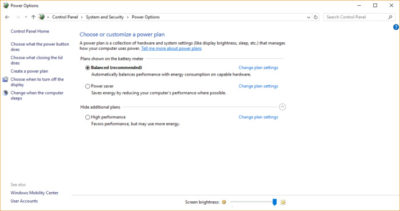
To change your power setting, simply choose the one you want, then exit Control Panel. High performance gives you the most oomph, but uses the most power; Balanced finds a median between power use and better performance; and Power saver does everything it can to give you as much battery life as possible. Desktop users have no reason to choose Power saver, and even laptop users should consider the Balanced option when unplugged and High performance when connected to a power source.


2. Disable programs that run on startup

One reason your Windows 10 PC may feel sluggish is you’ve got too many programs running in the background programs that you may never use, or only rarely use. Stop them from running, and your PC will run more smoothly.

Start by launching the Task Manager: Press Ctrl-Shift-Esc or right-click the lower-right corner of your screen and select Task Manager. If the Task Manager launches as a compact app with no tabs, click “More details” at the bottom of your screen. The Task Manager will then appear in all of its full-tabbed glory. There’s plenty you can do with it, but we’re going to focus only on killing unnecessary programs that run at startup.

Click the Startup tab. You’ll see a list of the programs and services that launch when you start Windows. Included on the list is each program’s name as well as its publisher, whether it’s enabled to run on startup, and its “Startup impact,” which is how much it slows down Windows 10 when the system starts up.

To stop a program or service from launching at startup, right-click it and select “Disable.” This doesn’t disable the program entirely; it only prevents it from launching at startup — you can always run the application after launch. Also, if you later decide you want it to launch at startup, you can just return to this area of the Task Manager, right-click the application and select “Enable.”
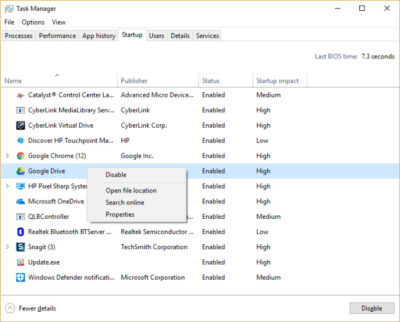
Many of the programs and services that run on startup may be familiar to you, like OneDrive or Evernote Clipper. But you may not recognize many of them. (Anyone who immediately knows what “bzbui.exe” is, please raise your hand. No fair Googling it first.)

The Task Manager helps you get information about unfamiliar programs. Right-click an item and select Properties for more information about it, including its location on your hard disk, whether it has a digital signature, and other information such as the version number, the file size and the last time it was modified.

You can also right-click the item and select “Open file location.” That opens File Explorer and takes it to the folder where the file is located, which may give you another clue about the program’s purpose.

Finally, and most helpfully, you can select “Search online” after you right-click. Bing will then launch with links to sites with information about the program or service.

If you’re really nervous about one of the listed applications, you can go to a site run by Reason Software called Should I Block It? and search for the file name. You’ll usually find very solid information about the program or service.

Now that you’ve selected all the programs that you want to disable at startup, the next time you restart your computer, the system will be a lot less concerned with unnecessary program.


3. Turn off search indexing

Windows 10 indexes your hard disk in the background, allowing you – in theory – to search your PC more quickly than if no indexing were being done. But slower PCs that use indexing can see a performance hit, and you can give them a speed boost by turning off indexing. Even if you have an SSD disk, turning off indexing can improve your speed as well, because the constant writing to disk that indexing does can eventually slow down SSDs.
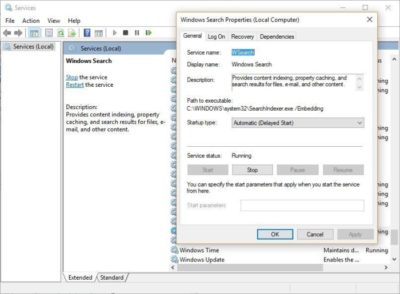
To get the maximum benefit in Windows 10, you need to turn indexing off completely. To do so, first type services.msc in the Start Menu search box, and click the Services result that come up. The Services app then appears. Scroll down to either Indexing Service or Windows Search in the list of services. Double-click it, and from the screen that appears, click Stop. Then reboot. Your searches may be slightly slower, although you may not notice the difference. But you should get an overall performance boost.

If you’d like, you can turn off indexing for only files in certain locations. To do this, first type index in the Start Menu search box, and click the Indexing Options result that appears. The Indexing Options page of Control Panel appears. Click the Modify button and you’ll see a list of locations that are being indexed, such as Microsoft Outlook, your personal files, and so on. Uncheck the boxes next to any location, and it will no longer be indexed.


4. Clean out your hard disk

If you’ve got a bloated hard disk filled with files you don’t need, you could be slowing down your PC. Cleaning it out can give you a speed boost. Windows 10 has a surprisingly useful built-in tool for doing this called Storage Sense. Go to Settings > System > Storage and at the top of the screen – in the Storage Sense section – move the toggle from Off to On. When you do this, Windows constantly monitors your PC, and deletes old junk files you no longer need; temporary files; files in the Downloads folder that haven’t been changed in a month; and old Recycle Bin files.

You can customize how Storage Sense works and also use it to free up even more space than it normally would. Underneath Storage Sense, click “Change how we free up space automatically.” From the screen that appears, you can change how often Storage Sense deletes files (every day, every week, every month or when Windows decides). You can also tell Storage Sense to delete files in your Download folder, depending on how long they’ve been there. And you can also set how long to wait to delete files in the Recycle Bin automatically.
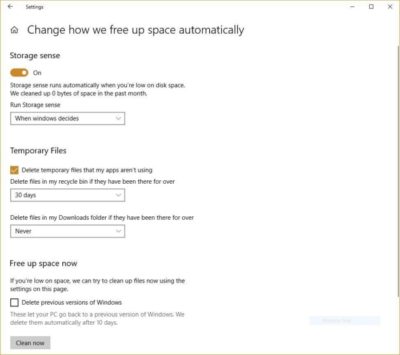
You can also delete old versions of Windows that might be hogging space. At the bottom of the screen, check the box next to “Delete previous versions of Windows.” Storage Sense will then delete old versions of Windows ten days after you’ve installed an upgrade. Note that if you do this, you won’t be able to revert to the older version of Windows.


5. Clean out your Registry

Under the Windows hood, the Registry tracks and controls just about everything about the way Windows works and looks. That includes information about where your programs are stored, which DLLs they use and share, what file types should be opened by which program or just about everything else.

But the Registry is a very messy thing. When you uninstall a program, for example, that program’s settings don’t always get cleaned up in the Registry. So over time, it can get filled with countless outdated settings of all types. And that can lead to system slowdowns.

Don’t even think of trying to clean any of this out yourself. It’s impossible. To do it, you need a Registry Cleaner. There are plenty available, some free and some paid. But there’s really no need to outright buy  one, because the free Auslogics Registry Cleaner does a solid job.

Before using Auslogics or any other Registry Cleaner, you should back up your Registry so you can restore it if anything goes wrong. (Auslogics Registry Cleaner does this for you as well, but it can’t hurt to have it backed up twice.) To do your own Registry backup, type regedit.ext in the search box, then press Enter. That runs the Registry editor.  From the File menu, select Export. From the screen that appears, make sure to choose the “All” option in the Export range section at the bottom of the screen. Then choose a file location and file name and click Save. To restore the Registry, open the Registry editor, select Import from the File menu, then open the file you saved.
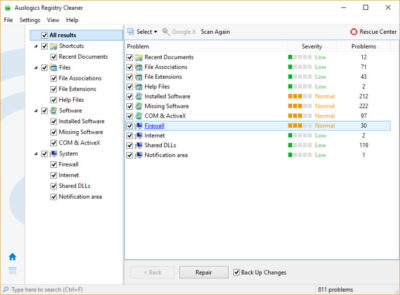
Now download, install and run Auslogics Registry Cleaner. On the left-hand side of the screen you can select the kinds of Registry issues you want to clean up – for example, File Associations, Internet or Fonts. I generally select them all.

Next tell it to scan the Registry for problems. To do that, click “Scan Now” and from a drop-down menu that appears select Scan. That lets you first examine the Registry problems it finds. If you instead choose “Scan and Repair,” it makes the fixes without you checking them.

It now scans your Registry for errors, then shows you what it found. It ranks the errors according to their severity, to help you decide which to fix. Click Repair when you’ve made your decision, and make sure that “Back up Changes” is checked, so you can restore the Registry easily if something goes wrong.


6. Disable shadows, animations and visual effects

Windows 10 has some nice eye candy — shadows, animations and visual effects. On fast, newer PCs, these don’t usually affect system performance. But on slower and older PCs, they can exact a performance hit.
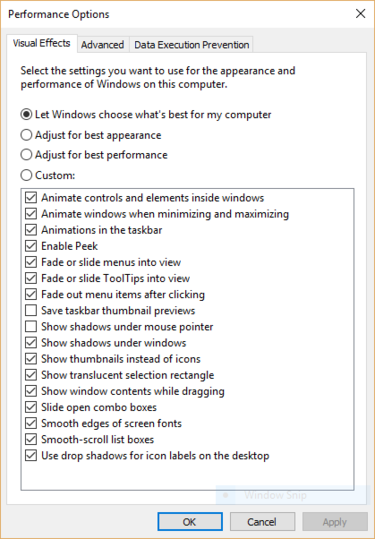
It’s easy to turn them off. In the Windows 10 search box type sysdm.cpl and press Enter. That launches the System Properties dialog box. Click the Advanced tab and click “Settings” in the Performance section. That brings you to the Performance Options dialog box. You’ll see a varied list of animations and special effects.

If you have time on your hands and love to tweak, you can turn individual ones on and off. These are the animations and special effects you’ll probably want to turn off, because they have the greatest effect on system performance:

  • Animate controls and elements inside windows
  • Animate windows when minimizing and maximizing
  • Animations in the taskbar
  • Fade or slide menus into view
  • Fade or slide ToolTips into view
  • Fade out menu items after clicking
  • Show shadows under windows

However, it’s probably a lot easier to just select “Adjust for best performance” at the top of the screen and then click OK. Windows 10 will then turn off the effects that slow down your system.


7. Launch the Windows troubleshooter
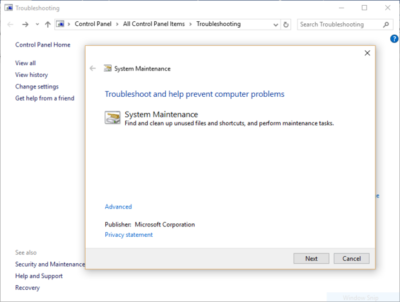
Windows 10 has a very useful, little-known tool that can sniff out performance problems and solve them. To launch it, run Control Panel and select System and Security > Security and Maintenance > Troubleshooting > Run maintenance tasks. A screen titled “Troubleshoot and help prevent computer problems” will appear. Click Next.

The troubleshooter will find files and shortcuts you don’t use, identify any performance and other issues on your PC, report them to you and then fix them. Note that you may get a message that says, “Try troubleshooting as an administrator.” If you have administrative rights to the PC, click it and the troubleshooter will launch and do its work.


8. Get help from the Performance Monitor

There’s a great tool in Windows 10 called the Performance Monitor that can, among other things, create a detailed performance report about your PC, detail any system and performance issues, and suggest fixes.

To get the report, type perfmon /report into your search box and press Enter. (Make sure there’s a space between “perfmon” and the slash mark.) The Resource and Performance Monitor launches and gathers information about your system. It will say that it will take 60 seconds, but I’ve found that it takes several minutes. When the Monitor finishes, it will launch an interactive report.

You’ll find a lot of extremely detailed information in the report, and it can take a lot of time to go through. Your best bet is to first look at the Warnings section, which details the biggest issues (if any) it found on your PC, such as problems with Windows, with drivers and so on. It also tells you how to fix each problem — for example, how to turn on a device that has been disabled.
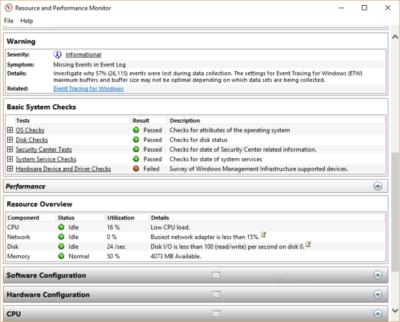
It is also worthwhile to scroll down to the Resource Overview section, where you’ll find an analysis of how well your CPU, network, disk and memory are performing. Each result is color-coded, with green meaning no problems, yellow meaning potential issues, and red showing a problem.

Beyond that, the Resource Overview also reports performance metrics and explanatory details. For example, for the CPU, it might show green and a utilization of 21%, with the details, “Normal CPU load.” Or for Memory, it might show yellow, with 62% utilization and the details, “1520 MB is available.” Based on what you get, you might want to do something about your hardware — for example, add more memory.


9. Kill bloatware

Sometimes the biggest factor slowing down your PC isn’t Windows 10 itself, but bloatware or adware that takes up CPU and system resources. Adware and bloatware are particularly insidious because they may have been installed by your computer’s manufacturer. You’d be amazed at how much more quickly your Windows 10 PC can run if you get rid of it.

First, run a system scan to find adware and malware. If you’ve already installed a security suite such as Norton Security or McAfee LiveSafe, you can use that. You can also use Windows 10’s built in anti-malware app — just type Windows Defender in the search box, press Enter, and then click Scan Now. Windows Defender will look for malware and remove any it finds.

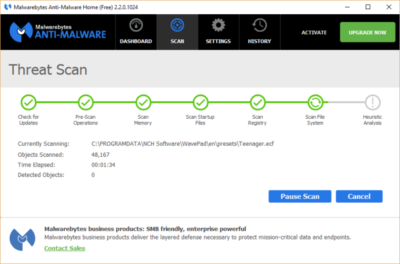
It’s a good idea to get a second opinion, though, so consider a free tool like Malwarebytes Anti-Malware. The free version scans for malware and removes what it finds; the paid version offers always-on protection to stop infections in the first place.

Now you can check for bloatware and get rid of it. Several free programs will do this for you; your best bet is to run several of them, because no single one will find all the bloatware on your PC. Good choices are the PC Decrapifier, Should I Remove It? and SlimComputer.
 

10. Shut down and restart Windows

Here’s one of IT’s not-quite-secret weapons for troubleshooting and speeding up a PC: Shut it down and restart it. Doing that clears out any excess use of RAM that otherwise can’t be cleared. It also kills processes that you might have set in motion and are no longer needed, but that continue running and slow your system. If your Windows 10 PC has turned sluggish over time for no apparent reason, you may be surprised at how much more quickly it will run when you do this.

Try just some of these tricks, and you’ll find that you’ve got a faster Windows 10 PC — and one that is less likely to have any reliability problems.

CALL US NOW!