Office 2010 is Retiring

The popular Microsoft Office 2010 is reaching end of support in a few months. To avoid security risks, it’s time to upgrade to a newer version of Office. The good news is that you have options.

drawing of a man holding a laptop in front of a very large laptop with "update" on the screen and a wrench in front

What Does End of Support Mean?

Microsoft Office 2010 has been a popular version of the application over the last decade. The unfortunate news is that support for it ends this fall — on October 13, 2020, to be exact. All of your Office 2010 apps will continue to function. However, using an unsupported version of any software exposes your computer to serious and potentially harmful security risks. Microsoft will no longer provide technical support, bug fixes, or security fixes for Office 2010 vulnerabilities that may be subsequently reported or discovered. This includes security updates that help protect your PC from harmful viruses, spyware, and other malicious software.

  • You’ll no longer receive Office 2010 software updates from Microsoft Update.
  • You’ll no longer receive phone or chat technical support.
  • No further updates to support content will be provided, and most online help content will be retired.
  • Another difficulty you may face is incompatibility with some of the newer programs and file formats.

If you’re using Office 2010, it’s probably a good time to upgrade your version of Microsoft Office.

Upgrade Options

The best way to protect yourself and your organization is to upgrade to a newer version of Office:

  • Cloud upgrade: Subscriptions to Microsoft 365
  • On-premises upgrade: Office Standard 2019

Microsoft 365

Microsoft 365 is an all-in-one cloud solution with a number of different licensing options to fit your organization’s needs. The best part about cloud-based applications is that you no longer have to worry about retirements, patches, and end of support. Cloud licenses are automatically updated with new features, new applications, and security updates. Many cloud subscriptions also include installed (or desktop) versions of the application, so you can have the same look and feel of the Office applications you are accustomed to using, but built with more robust features and benefits.

Microsoft Office Standard 2019

Microsoft Office Standard 2019 is the latest version of the on-premises version of the office suite and is a good option for you if you are not ready for the cloud version at this time. This version of Office includes Word, Excel, PowerPoint, Outlook, OneNote, and Publisher.

If you have any questions, please email us at support@sjtechies.com or call us at (856) 745-9990.

Office 365 Activation: How to Fix

Imagine you are a customer of Microsoft’s Office 365 service, including a subscription to the Office desktop applications like Word, Excel and Outlook.

One day you click on the shortcut for Word, but instead of opening, it just shows a “Starting” splash screen which never progresses.

Being smart, you try to start Word in safe mode by holding down the Ctrl key, but the exact same thing happens.

Annoying, when you want to do your work. What is going on?

We took a look at a case like this. Two things you should do (after the usual reboot):

1. Look in the event viewer. Here, we found a clue that the issue is related to software activation, specifically Event 2011 “Office Subscription Licensing exception”:

2. For all things related to Office licensing, open a command prompt, go to (for example) C:\Program Files (x86)\Microsoft Office\Office16, and type:

cscript ospp.vbs /dstatus

In this case we got the following:

This told us that Windows thinks TWO product keys for Office are installed. One has expired, the other is fine.

The guilty party may (or may not) be the trial version of Office typically pre-installed with a new PC. Or it could be a consequence of changing your Office 365 subscription. Neither would be the fault of the user, who is fully licensed and has done nothing other than follow Microsoft’s normal procedures for installing Office 365.

Solution: we reinstalled Office from the Office 365 portal, and attempted to remove the dud product key with:

cscript ospp.vbs /unpkey:<Last five characters of product key>

as explained here. All is well for the moment.

Activation and subscription license checking is for the benefit of the vendor, not the user, and should never get in the way like this.

Further, cannot Microsoft find some way of informing the user when this happens, and not have Word simply hang on starting? How difficult is it to check for licensing and activation issues, and throw up a message?

Microsoft Dictate Lets You Type by Voice

Dictate with your voice in Office

This feature is available to Office 365 Subscribers only.


Dictate in Word or PowerPoint

1) Turn on your microphone and make sure it works. Troubleshoot microphone settings

2) In Word 2016 or PowerPoint 2016, select Home > Dictate.

3) Wait for the icon to turn red.

4) Start talking. As you talk, text appears in your document or slide.

5) Speak clearly and conversationally. Insert punctuation by saying the name of the punctuation mark you want to add.

6) If you make a mistake while dictating, move your cursor to the mistake and fix it with your keyboard. No need to turn off the microphone.

7) When finished, select Dictate again to stop typing.


Dictate in Outlook

1) Turn on your microphone and make sure it works. Troubleshoot microphone settings

2) Open a new email message and select Message > Dictate.

3) Wait for the icon to turn red.

4) Start talking. As you talk, text appears in your email message.

5) Speak clearly and conversationally. Insert punctuation, by saying the name of the punctuation mark you want to add.

6) If you make a mistake while dictating, move your cursor to the mistake and fix it with your keyboard. No need to turn off the microphone.

7) When finished, select Dictate again to stop typing.


Troubleshooting

I don’t see Dictate, or it’s not working

If Dictate isn’t working, make sure you’re connected to the Internet.

You can enable or disable Dictate by going to File > Options and look for Office intelligent services on the General tab.


Important information about Dictate

Dictate is one of the Office Intelligent Services, bringing the power of the cloud to Office apps to help save you time and produce better results.

Your speech utterances will be sent to Microsoft to provide you with this service, and may also be used to improve speech recognition services. For more information see, What are Intelligent Services?

Office Dictate is not HIPAA (Health Insurance Portability and Accountability Act) compliant.

Office 365: New capabilities for iPad and iPhone

New features make Office and OneDrive the best place to work on iPad and iPhone
More and more, people around the world are working on the go, changing locations and devices as they create and collaborate with others throughout their day. As they work across their PCs, Macs and mobile devices, they expect an uncompromising experience that is familiar yet optimized for the device they are using.

Microsoft is committed to providing best in class experiences on all devices, and today, we are proud to share with you a set of new Office capabilities across Word, Excel, PowerPoint, and OneDrive on iOS that will delight and make iPad and iPhone users more productive than ever before.

Real-time co-authoring in Word, Excel, and PowerPoint on iOS – We live in a world where we’re often collaborating with multiple people in different locations and Office 365 provides the broadest and deepest toolkit for collaboration between individuals, teams, and entire organizations. Using real-time co-authoring, colleagues, friends, and family can contribute to and edit documents simultaneously in the Word, Excel and PowerPoint iOS apps. This allows you to know who else is working with you in a document, see where they’re working, and view changes automatically within seconds. The co-authoring experiences are also available in Office Online and the latest versions of Word, Excel and PowerPoint on the PC and Mac, all made possible by storing your documents in OneDrive or SharePoint.
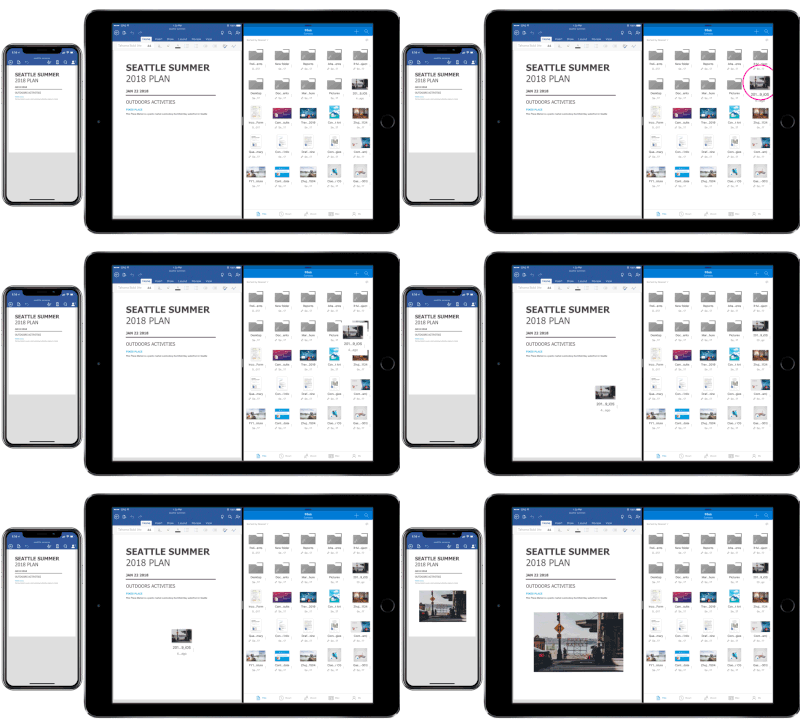
Drag and drop files anywhere with OneDrive – Sometimes your files can get scattered between different folders or even services and applications. Now it’s easier than ever to organize and rearrange your files. You can drag files in between folders in OneDrive and, if your teammates use SharePoint to work together, you can even drag OneDrive files to a SharePoint site giving them immediate access. On iPad, you can also drag files from other apps, such as iMessage, into your OneDrive and drag files out of your OneDrive to other apps.

Drag and drop content between Word, Excel, PowerPoint, and OneDrive on iPad – One of the most common and powerful tasks when creating content is pulling in text, photos, graphs, and other objects from different sources. Now you can pull in content with ease on your iPad with drag and drop support in Office and OneDrive. Easily drag and drop objects from OneDrive or from one Office app to another.

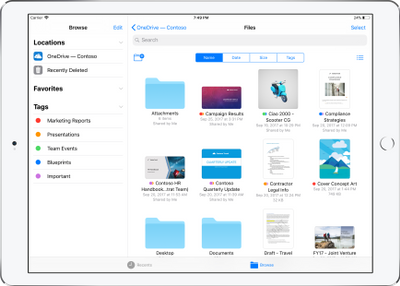
OneDrive Files app support – Today we’re also announcing native support for the Files app in iOS 11. OneDrive integration with the Files app allows you to access, upload, edit, and save your content to OneDrive or SharePoint from apps that support Files app integration. You can also tag and favorite your OneDrive and SharePoint files from within the Files app.
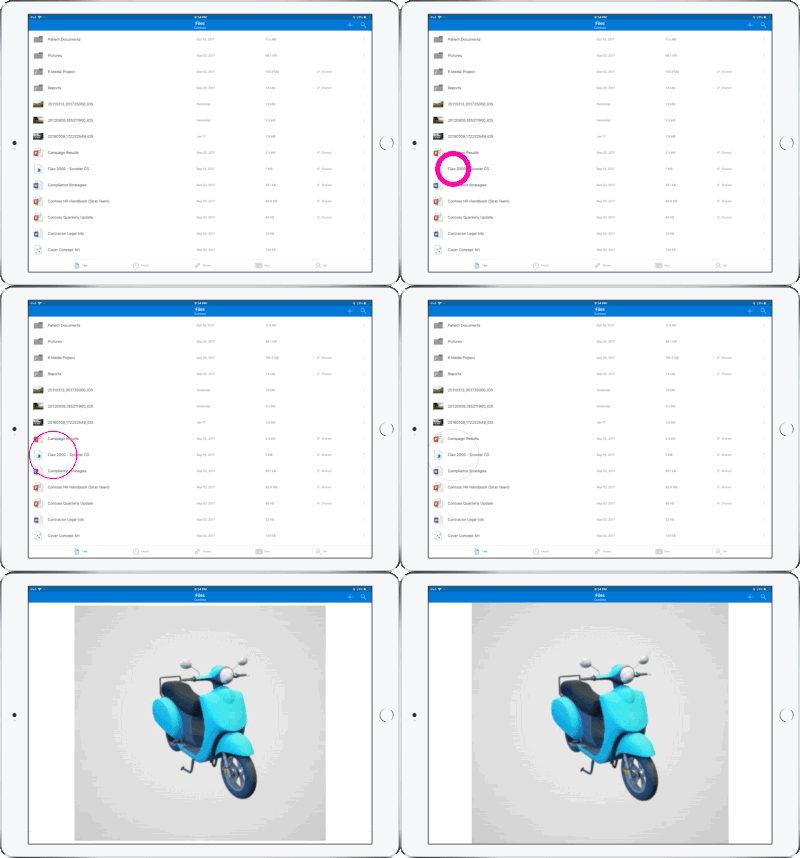
OneDrive redesigned to find the files that matter – The OneDrive iOS app has been redesigned from the ground up with a new layout that uses your screen space more efficiently allowing you to find your files faster. It’s easier to scan across file names, see the information that matters to you, and sort files how you want. New metadata is visible in the list view, so you can easily identify new files and files that have been shared.

Universal link support for shared files – Being able to seamlessly share and securely access files is essential for teamwork. Previously when you received a link to a shared file, you would be directed to a browser and prompted to re-authenticate. Today, we are announcing universal link support, which will open the document directly in the Word, Excel, or PowerPoint iOS apps. Further, if you don’t have a supporting application for the file, you’ll be directed to the OneDrive app to preview the file.

Preview 130+ file types in your OneDrive app – You and the people you work with use a variety of different file formats, but when you’re on your mobile device you might not have access to the native applications for those files. Now, the OneDrive iOS app creates crisp thumbnails and supports large previews of over 130 file types, including Adobe Photoshop and Illustrator, RAW, 3D objects, and high-precision DICOM images. OneDrive lets you open, view, and share all of your files without leaving the app.
New accessibility features for Word, Excel and PowerPoint on iOS 11
The VoiceOver rotor in iOS improves navigation and the accessibility of content. For example, you can use the built-in rotor on iOS to navigate line-by-line or word-by-word and change the speed at which VoiceOver speaks. The new Office-specific rotors also let people with vision impairments navigate more efficiently in Word across tables and links, slides in PowerPoint, and sheets in Excel.

Users can also leverage larger text options in accessibility settings to modify the text size in the core Office apps. Visit the support pages for Excel, Word, and PowerPoint to learn more.

You can use take advantage of these new capabilities in the coming days by updating the Word, Excel, PowerPoint, and OneDrive apps in the Apple App Store.

CALL US NOW!