Symantec Security Cloud

Symantec Endpoint Protection Cloud Windows client upgrade scheduled for August 5, 2019

The SEP Cloud client for Windows is updated periodically to provide improvements and defect fixes. The next update is scheduled to start on August 5, 2019.

WHAT’S NEW ?

In this release, the SEP Cloud client for Windows will be updated to version 22.18 to provide an enhanced protection framework and client stability.

  • Fixed an issue related to the OS feature on the agent, which was randomly failing with a medium severity while applying the Management policy.
  • Fixed an issue related to the security event: “A process modified a critical system resource.” This event was erroneously displayed in the console as a threat detection/remediation event. The event is now removed and will not be displayed in the console.
  • Enhancement to process HTTP error 429 status code request. The SEP Cloud agent will not attempt to connect with the cloud when the 429 status code is returned, but instead, try to connect based on the timeout information.
  • If the timeout information is not available, then the product will retry to connect in 15 minutes by default.

IMPACT

All Windows devices that are currently enrolled in SEP Cloud will automatically be updated in the background, using LiveUpdate. This update does not affect the security of your devices.

To start, the update is distributed to a small set of clients over the first seven days of the release, and then the remaining clients will get the update. If you want to update sooner, you can run LiveUpdate from the Symantec Endpoint Protection Cloud client UI.

Action Required

  • Windows device restart
    All users with Windows devices will be prompted to restart their devices after the update. Even if they delay the restart, their Windows clients remain Protected.

If no user is logged on the device when the upgrade is made available, then the prompt is provided until the user logs on. The product update will not force the restart of the device.

  • Windows installation package refresh
    Administrators who created a Windows installation package before August 5 should create and distribute a new one after August 5 to use for new Windows package deployments.

If you have any questions, please email us at support@sjtechies.com or call us at (856) 745-9990.

Chrome Labels HTTP Sites ‘Not Secure

Google sends a nudge toward the unencrypted web

Starting in July, Google Chrome marked all HTTP sites as “not secure,” according to a blog post published today by Chrome security product manager Emily Schechter. Chrome currently displays a neutral information icon, but starting with version 68, the browser is warning users with an extra notification in the address bar. Chrome currently marks HTTPS-encrypted sites with a green lock icon and “Secure” sign.

Google has been nudging users away from unencrypted sites for years, but this is the most forceful nudge yet. Google search began down-ranking unencrypted sites in 2015, and the following year, the Chrome team instituted a similar warning for unencrypted password fields.

The Chrome team said the announcement was mostly brought on by increased HTTPS adoption. Eighty-one of the top 100 sites on the web default to HTTPS, and a strong majority of Chrome traffic is already encrypted. “Based on the awesome rate that sites have been migrating to HTTPS and the strong trajectory through this year,” Schechter said, “we think that in July the balance was tipped enough so that we can mark all HTTP sites.”

HTTPS encryption protects the channel between your browser and the website you’re visiting, ensuring no one in the middle can tamper with the traffic or spy on what you’re doing. Without that encryption, someone with access to your router or ISP could intercept information sent to websites or inject malware into otherwise legitimate pages.

HTTPS has also become much easier to implement through automated services like Let’s Encrypt, giving sites even less of an excuse not to adopt it. As part of the same post, Google pointed to its own Lighthouse tool, which includes tools for migrating a website to HTTPS.


What’s new in search in Office 365

SharePoint now serves up search results personalized to your previous activity and permissions.

In SharePoint Online and on office.com, search is personal, and the search results are even easier to explore. Another user will see different results than you, even when you both search for the same words.

You’ll only see results that you already have access to, and other users can’t find your private documents.

Even before you start typing, you’ll see results based on your previous activity in Office 365. The results update as you start typing.

If these results aren’t what you’re looking for, click the link to see more results or press Enter to open the search results page and see and explore all the results. Here’s an example of search results from SharePoint:

Explore the search results to see more details about the people and files you’ve found, or refine your search to get other results. Here’s an expert tip to quickly see more, or less, details of a result – you can actually click anywhere in the empty space of the result.

You can navigate to locations that you want to explore further and, if you’ve searched in SharePoint Online, you can change where the results come from. For example, if you searched from a site, but really meant to search all of SharePoint, then you’re just one click away. Or, if the site you searched from is associated with another site, but you want to search all the associated sites.

When you exit a search results page, you return to the page where you started your search.

How to Delete WINDOWS.OLD on Server

After performing an in-place upgrade on a Windows machine, you will find a WINDOWS.OLD folder in the root of C:. This folder will have a backup of your old program files, appdata and Windows folder… just in case you need to revert back or recover something that might have been lost during the upgrade. When you try to delete it though you are told you don’t have permissions. Just a small point here, it is generally not recommended to do in-place upgrades on servers. In fact there are some products (e.g. Exchange, ConfigMgr) that explicitly state they do not support upgrading the Operating System. There is of course a difference between “what works” and “what is supported”, but we do suggest where possible you do a clean Server install and migrate your application to the new server. Anyway, let’s assume you’ve understand all the risks and have done a successful in-place upgrade, you now find the old WINDOWS.OLD folder of several GB in size sitting there. If all is well, then you might as well just delete it.
SOLUTION

On Desktop OS version, you can just use the disk cleanup tool to remove it, but that is not available (by default) on Servers, so there are a couple of approaches.

Command line tools to take ownership and delete the folder. Make sure to “run as administrator”

How can I delete the windows.old from an upgraded Windows Server?

For a client OS that’s upgraded, the Disk Cleanup utility can be used to delete the very large windows.old folder containing the old OS. This isn’t available on a server OS without installing the Desktop Experience feature.

To delete, it is necessary to take ownership of the folder, give administrators full control, then delete. This can be done with the commands below:

  •  takeown /F c:\Windows.old\* /R /A /D Y
  •  cacls c:\Windows.old\*.* /T /grant administrators:F
  •  rmdir /S /Q c:\Windows.old


Or you can add the “Desktop” features to provide the Disk Cleanup tool:

Step By Step Guide to Enabling “Disk Cleanup Utility”

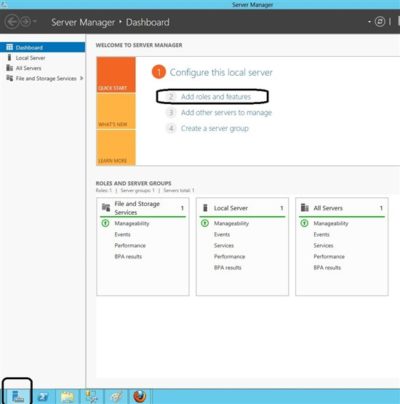
1. Open The Roles and Features Wizard

To open the roes and feauture wizard. Lauch the “server manager” by pressing the Windows key

and clicking on the server manage please see Screenshot as shown.
Personally, the command line option is less messy and saves having to add features to your server that don’t really need to be there.

2. Click on Add role and Feature

Click on add role and feture to launch the add role and feature wizard.

3.  Choose installation Type

Choose rolebase or feature based installation to install to local machine.

4. Click Next all the way to features

Click “next” all the way to features. Locate “User Interface and Infrastructure”. Click on “Desktop Experience”

and install additional required feature.

5.  Proceed with the installation and Reboot

Make it sure that you reboot the system

6.  Verify that the Utility is indeed installed

Ready to run diskcleanup. See screen shot below.
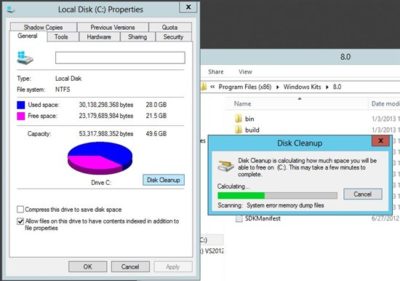
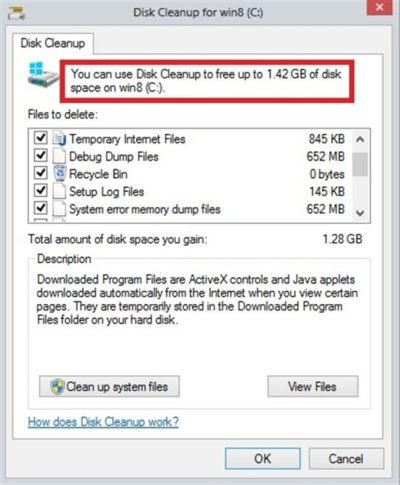
Disk Cleanup in Action

Below is a sample snapshot of disk cleanup in action.
Office 365 to get enhanced Anti-spoofing capabilities

Enhanced anti-spoofing safeguards are rolling out for Office 365.

Microsoft services like OneDrive for Business, SharePoint Online, and Microsoft Teams are closely guarded by ATP (Advanced Threat Protection). Besides, there are numerous feature updates available in Office 365 threat protection service to address the evolution and advances in the threat landscape. The addition of enhanced Anti-Spoofing capability in Office ATP for protecting against spoofed emails from external domains further strengthens this security framework.

Anti-spoofing in Office 365 Advanced Threat Protection

The newest anti-spoof features help protect organizations from external domain spoof.  Office 365 recognizes emails from external domains having proper SPF, DMARC, and DKIM authentication settings as legitimate/authentic and therefore allow them to pass authentication, uninterrupted.

This normal process is however challenged when external domains do not have these settings properly configured. Without enforcement of these settings, domains show a high likelihood of being manipulated and maliciously spoofed, leaving customers vulnerable to phishing or spam attacks. The new external domain anti-spoofing capabilities help detect and block emails from external domains that do not have the following features,

  1. Correct authentication configuration
  2. An email infrastructure source with an unknown history

How does it work?

A newly enhanced filter in ATP first checks if the email from external domains, passes SPF, DKIM, and DMARC test.  If not, the filter thoroughly checks for historical sending patterns of that domain and associated infrastructure. If any suspicious behavior is noted, ATP assumes the sender does not bear a good reputation and as such, proceeds to junk the message.

Also, a feature worth noticing about Anti-spoofing – The filter constantly evolves and enhances itself based on mail flow patterns it observes.  ATP subscribers can access the spoof intelligence report in their Antispam Policy and take necessary actions if required.

Microsoft announced Attack Simulator for Office 365 Threat Intelligence


Admins can send simulated phishing and attack emails to find security and training weaknesses.

A few weeks ago, Microsoft released a public preview for Attack Simulator for Office 365 Threat Intelligence. On April 17th Microsoft announced that Attack Simulator is now generally available. Attack Simulator for Office 365 Threat Intelligence is available to all Office 365 E5 or Office 365 Threat Intelligence customers.

With Attack Simulator, customers can launch simulated attacks on their end users, determine how end users behave in the event of an attack, and update policies and ensure that appropriate security tools are in place to protect the organization from threats.  The GA of Attack Simulator adds a new HTML editor so realistic looking HTML emails can be sent in simulations of spear-phishing.  Also, two spear-phishing templates are available for immediate use in the spear phishing simulation.

Attack Simulator includes the three attack scenarios from our public preview.

Display Name Spear Phishing Attack: Phishing is the generic term for socially engineered attacks designed to harvest credentials or personally identifiable information (PII). Spear phishing is a subset of this phishing and is more targeted, often aimed at a specific group, individual, or organization.  These attacks are customized and tend to leverage a sender name that generates trust with the recipient.

Password Spray Attack: To prevent bad actors from constantly guessing the passwords of user accounts, often there are account lockout policies.  For example, an account will lockout after a certain number of bad passwords are guessed for a user.  However, if you were to take a single password and try it against every single account in an organization, it would not trigger any lockouts.  The password spray attack leverages commonly used passwords and targets many accounts in an organization with the hope that one of the account holder uses a common password that allows a hacker to enter the account and take control of it.  From this compromised account, a hacker can launch more attacks by assuming the identity of account holder.

Brute Force Password Attack: This type of attack consists of a hacker trying many passwords or passphrases with the hope of eventually guessing correctly. The attacker systematically checks all possible passwords and passphrases until the correct one is found.


This video demonstrates how Attack Simulator can help organizations educate users to become more secure from cyber threats.  With Attack Simulator, admins can train all their end users, and especially those who are attacked most often.  This proactive training is a powerful way to ensure that your organization can prevent the impact from advanced threats.  Over the coming months, more threat simulations will be added to Attack Simulator so organizations can simulate the most prevalent threat types from the modern threat landscape.

Experience the benefits of Attack Simulator for Office 365 Threat Intelligence by beginning an Office 365 E5 trial today.  Also, learn more about how Microsoft leverages threat intelligence and the value of threat intelligence.

CALL US NOW!