Archives 2017

Windows 7 PPTP VPN Setup Tutorial

Manual Setup

Step 1

Start by finding the network connections icon in the bottom right corner of the screen (near the clock).
The icon can be in the shape of computer display or wireless signal meter.
Right click on that icon.

Step 2

Select “Open Network and Sharing Center“.
You can also get there by going through “Start” button > “Control Panel” > “View network status and tasks“.

Step 3

Click “Setup a new connection or network“.

Step 4

In the appeared window select “Connect to a workplace“, click “Next“.

Step 5

Click “Use my Internet connection (VPN)“.

Step 6

If you already have other connections configured, select “No, create a new connection” and click “Next” button.
If you don’t see this dialog window just skip this step.


Step 7

“Internet address” is your server address. It is not “sjt-XXXXXX.reliablehosting.com”, that is just an example.
“Destination name” can be any as you like for example SouthJerseyTechiesVPN.
Check “Don’t connect now; just set it up so I can connect later” and click “Next” button.

Step 8

Fill the “User name” and “Password” fields.
Check “Remember this password” and click “Create” button.

Step 9

Click “Close” button.

Step 10

Click “Change adapter settings“.

Step 11

In the connections list find the SouthJerseyTechiesVPN connection, the description should be “WAN Miniport (IKEv2)“.
Right click on it and select “Properties“.

Step 12

Click “Security” tab, for “Type of VPN” select “Point to Point Tunneling Protocol (PPTP)“.
For “Data encryption” select “Require encryption (disconnect if server declines)“.
Click “OK“.

Step 13

Double click on the SouthJerseyTechiesVPN connection icon.

Step 14

It will show the connection window.
Check “Save this user name and password for the following users” and select either your account or all accounts.
Click “Connect” button.

Step 15

After a while it will connect and show you “Connected” status.
You can also check the VPN status in the Network applet (the icon in your system tray at the bottom right). Click on that icon and you will see the connection list and their statuses.

Done. You are connected.

Connecting the PPTP on Windows 7

1. Find the network connections icon in the bottom right corner of the screen (near the clock). The icon can be in the shape of computer display or wireless signal meter.
Click on that icon.

2. You will see the list of connections. Click on SouthJerseyTechiesVPN connection and then click “Connect” button.

3. After that click “Connect” again.

You should see the status messages first and then “Successfully connected to SouthJerseyTechiesVPN“.

Disconnecting the PPTP on Windows 7

Find the network connections icon in the bottom right corner of the screen (near the clock). The icon can be in the shape of computer display or wireless signal meter.
Click on that icon, in the appeared list click on SouthJerseyTechiesVPN connection and then the “Disconnect” button.

Have questions?

Get answers from Microsofts Cloud Solutions Partner!
Call us at: 856-745-9990 or visit: https://southjerseytechies.net/

South Jersey Techies, LL C is a full Managed Web and Technology Services Company providing IT Services, Website Design Services, Server Support, Network Consulting, Internet Phones, Cloud Solutions Provider and much more. Contact for More Information.

Windows 10 PPTP VPN Setup Tutorial

Manual Setup

Step 1

Click Start button in the bottom left corner of the screen (the one with Windows logo). Go to “Settings“.

Step 2

Go to “Network & Internet“.

Step 3

Select “VPN” in the menu on the left.

Step 4

Click “Add a VPN connection“.

Step 5

For the “VPN Provider” select “Windows (built-in)“. Connection name can be any as you like for example SouthJerseyTechiesVPN.
“Server name or address” is your server address. It is not “pptp.sjtechies.com”, that is just an example.
For “VPN type” select “Point to Point Tunneling Protocol (PPTP)“.

Step 6

Scroll the window if needed and fill the “Username” and “Password” fields.
Check “Remember my sign-in info” and click “Save” button.

Step 7

After that you will see the newly created connection. Click on it.

Step 8

Click the “Connect” button.

Step 9

After a while it will connect and show you “Connected” status.

Step 10

You can also check the VPN status in the Network applet (the icon in your system tray at the bottom right).

Connecting the PPTP on Windows 10

Find the network connections icon in the bottom right corner of the screen (near the clock). The icon can be in the shape of computer display or wireless signal meter (you can see it on Step 10). Click on that icon. In the appeared list click on any network connection.
After that you will see another window with the connection list, click on the SouthJerseyTechiesVPN connection (the connection name can be different, you have set it up on Step 5).
Click the “Connect” button under the connection name.

Disconnecting the PPTP on Windows 10

Find the network connections icon in the bottom right corner of the screen (near the clock). The icon can be in the shape of computer display or wireless signal meter (you can see it on Step 10). Click on that icon. In the appeared list click on any network connection.
After that you will see another window with the connection list, click on the SouthJerseyTechiesVPN connection (the connection name can be different, you have set it up on Step 5).
Click the “Disconnect” button under the connection name.

Have questions?

Get answers from Microsofts Cloud Solutions Partner!
Call us at: 856-745-9990 or visit: https://southjerseytechies.net/

South Jersey Techies, LL C is a full Managed Web and Technology Services Company providing IT Services, Website Design Services, Server Support, Network Consulting, Internet Phones, Cloud Solutions Provider and much more. Contact for More Information.

Microsoft teases Windows 10’s sleek new look for the future

“Project Neon” will give your Windows 10 PC a fresh coat of paint later in 2017.

Microsoft’s planning a sleek visual refresh for Windows 10, and the company quietly teased its first official glimpse of what’s coming in the future during the Windows Developer Day keynote on Wednesday.

There aren’t many details being shared about “Project Neon” right now—as the refresh was called in earlier leaks—but the new visual look will focus on animations and transitions. The basic concept is “to add fluidity, animation, and blur to apps and the operating system,” as first reported by Windows Central. The new design language also hopes to make it easier for developers to create attractive apps.

The design refresh should extend to all Windows 10 devices including PCs and tablets, HoloLens, Xbox, and the few surviving Windows Phones, according to Windows Central.

Twitter user Tom Hounsell shared a clean version of Microsoft’s first look at Windows 10’s forthcoming design tweaks. The image shown on the livestream had large text overlaid on top of the screenshot.

As you can see, this isn’t a huge change, but the visual refresh gives Windows 10 a sleeker, more modern feel. The taskbar icons look a little more dynamic and bolder. Cortana is using the icon instead of the search box, though it’s not clear if this will be the default look. The clock on the taskbar is also bolder, and the usual notification area icons including the Action Center are notably absent. The open Groove Music window itself looks more polished and Aero-esque as well, with no title bar to be seen—just unobtrusive options in the app’s upper-right corner.

The impact on you at home: Windows Central says that some of the code for Project Neon is already available in recent Insider Preview builds of Windows 10; however, it’s unlikely the visual refresh will be ready in time for the massive Creators Update this spring. Microsoft is expected to share more information about Neon during the Build conference in May. The Creators Update is expected to roll out in late March or early April, followed by a second major update later in 2017.

Have questions?

Get answers from Microsofts Cloud Solutions Partner!
Call us at: 856-745-9990 or visit: https://southjerseytechies.net/

South Jersey Techies, LL C is a full Managed Web and Technology Services Company providing IT Services, Website Design Services, Server Support, Network Consulting, Internet Phones, Cloud Solutions Provider and much more. Contact for More Information.

To read this article in its entirety click here.

New Website Design – Camden County Partnership for Children

The Website Design team of South Jersey Techies has been constantly working on developing great looking websites using the latest web technologies. The most website developed by the our team is a non profit that provides support services to children in the community, Camden County Partnership for Children.

Camden County Partnership for Children is a non-profit agency funded by the state of NJ to arrange a variety of treatment and support services to children in the community. They coordinate services, resources and supports to children and young adults with the most complex needs that include: behavioral/emotional, intellectual/developmental and substance use. Camden County Partnership for Children works with child-family teams (CFT) to develop individualized service plans (ISP).


Have questions?

Our Web Design team is here to help
Call us at: 856-745-9990 or visit: https://southjerseytechies.net

South Jersey Techies, LLC is a full Managed Web and IT Services Company located in Marlton, NJ providing IT Services, Managed IT Services, Website Design Services, Server Support, IT Consulting, VoIP Phones, Cloud Solutions Provider and much more. Contact Us Today.

New Website Design – Silt Asbestos Abatement | (856) 630-3288

The Website Design team of South Jersey Techies has been constantly working on developing great looking websites using the latest web technologies. The most website developed by the our team is an asbestos abatement service company, Silt Asbestos Abatement.

Silt Asbestos Abatement are experts in the asbestos control process in building materials and removing asbestos building materials entirely. Silt Asbestos Abatement provides complete asbestos removal, encapsulation, repair, enclosure, encasement and maintenance in New Jersey.


Have questions?

Our Web Design team is here to help
Call us at: 856-745-9990 or visit: https://southjerseytechies.net

South Jersey Techies, LLC is a full Managed Web and IT Services Company located in Marlton, NJ providing IT Services, Managed IT Services, Website Design Services, Server Support, IT Consulting, VoIP Phones, Cloud Solutions Provider and much more. Contact Us Today.

If you’ve ever owned a PC with a DVD drive, you may get a $10 settlement

Don’t expect your money anytime soon, however.
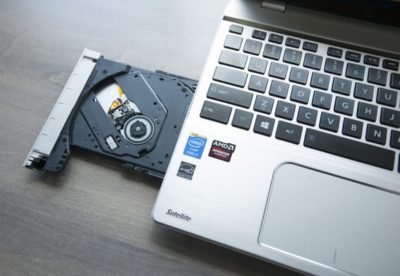
DVD drives may be a thing of the past, but the past could pay you $10 via a proposed settlement from a class-action suit.

If you purchased a DVD-ROM, DVD-RW or combination drive between April, 2003 and December 31, 2008, a collection of DVD drive manufacturers have tentatively agreed to pay you $10 per drive, whether you purchased the drive as part of a PC or by itself. You’ll simply need to visit the claim site and testify (under penalty of perjury) that you indeed purchased those drives within the given time period, and live in one of the 23 states (plus the District of Columbia) covered by the suit. The deadline to file is July 1.

Why this matters: Though the optical drive market continues to decrease—“the physical disk format is somewhat obsolete in the era of content streaming,” IDC wrote last year—that wasn’t the case fourteen years ago, when virtually all software was distributed via DVD-ROM. Fortunately, the settlement site isn’t asking for proof of purchase yet, but it reserves the right to do so. Filing a claim can take literally seconds, but don’t hold your breath—you’ll probably receive compensation, but there’s no guarantee.

The wheels of justice turn slowly

Simply put, a group of 23 plaintiffs sued virtually every DVD drive manufacturer, alleging that they collectively conspired to keep drive prices higher than they normally would be, in violation of antitrust laws. Though the defendants denied they did anything wrong, several—Hitachi-LG, Panasonic, NEC, and Sony—settled and agreed to pay a collective total of $124.5 million into four separate settlement funds.

(Note that only DVD drives for PCs are covered; a DVD player, such as the one gathering dust in your living room, isn’t.)

If you do submit a claim, however, the chances of receiving your settlement soon are slim. That’s because seventeen more defendants, including various subsidiaries of BenQ, Philips, Samsung, TEAC, and Pioneer, have yet to settle, and the suit will continue until all of the claims are resolved.

“Because other defendants remain in this litigation, the plaintiffs are proposing that distribution of the settlement funds not occur at this time,” the settlement site reads. “This is to save the expenses associated with distribution.”

In fact, the settlement hearing to finally approve the Hitachi-LG-Panasonic-NEC-Sony agreement will be held on December 8. After that, payments may begin—which means that you’ll probably receive your $10 or less a year from now. Yes, less: Payments will be “up to” $10 per drive, according to the claims site.

You should probably treat the settlement like one of those “print out your own rebate” slips from the turn of the century. Even under the best of circumstances, chances are you’ll have totally forgotten about your $10 windfall by the time the check arrives.

Have questions?

Get answers from Microsofts Cloud Solutions Partner!
Call us at: 856-745-9990 or visit: https://southjerseytechies.net/

South Jersey Techies, LL C is a full Managed Web and Technology Services Company providing IT Services, Website Design Services, Server Support, Network Consulting, Internet Phones, Cloud Solutions Provider and much more. Contact for More Information.

To read this article in its entirety click here.

CALL US NOW!