Back to Top

Tech, Web, Cloud & Cabling Services

Category: Hardware

Hardware Category

Old Windows PCs can stop WannaCry ransomware with new Microsoft patch

In a rare step, Microsoft published a patch for Windows XP, Windows Server 2003 and Windows 8

Users of old Windows systems can now download a patch to protect them from this week’s massive ransomware attack.

In a rare step, Microsoft published a patch for Windows XP, Windows Server 2003 and Windows 8 — all of them operating systems for which it no longer provides mainstream support.

Users can download and find more information about the patches in Microsoft’s blog post about Friday’s attack from the WannaCry ransomware.

The ransomware, which has spread globally, has been infecting computers by exploiting a Windows vulnerability involving the Server Message Block protocol, a file-sharing feature.

Computers infected with WannaCry will have their data encrypted, and display a ransom note demanding $300 or $600 in bitcoin to free the files.

Fortunately, Windows 10 customers were not targeted in Friday’s attack. In March, Microsoft patched the vulnerability that the ransomware exploits — but only for newer Windows systems. That’s left older Windows machines, or those users who failed to patch newer machines, vulnerable to Friday’s attack.

Researchers originally believed the ransomware was spread through attachments in email phishing campaigns. That no longer appears to be the case.

Infection attempts from the WannaCry ransomware.

Once a vulnerable PC becomes infected, the computer will attempt to spread to other machines over the local network as well as over the internet. The ransomware will specifically scan for unpatched machines that have the Server Message Block vulnerability exposed.

Businesses can prevent this by disabling the Server Message Block protocol in vulnerable PCs. They can also use a firewall to block unrecognized internet traffic from accessing the networking ports the Server Message Block uses.

Fortunately, Friday’s ransomware attack may have been contained. A security researcher who goes by the name MalwareTech has activated a sort of kill-switch in WannaCry that stops it from spreading.

As a result, over 100,000 new infections were prevented, according to U.K.’s National Cyber Security Centre. But experts also warn that WannaCry’s developers may be working on other versions that won’t be easy to disable.

“It’s very important everyone understands that all they (the hackers) need to do is change some code and start again. Patch your systems now!” MalwareTech tweeted.

Unfortunately, the kill-switch’s activation will provide no relief to existing victims. The ransomware will persist on systems already infected.

Friday’s ransomware attack appears to have spread mainly in Europe and Asia, with Russia among those nations hardest hit, according to security researchers.

Security experts are advising victims to wait before paying the ransom. It’s possible that researchers will develop a free solution that can remove the infection.

Have questions?

Get answers from Microsofts Cloud Solutions Partner!
Call us at: 856-745-9990 or visit: https://southjerseytechies.net/

South Jersey Techies, LL C is a full Managed Web and Technology Services Company providing IT Services, Website Design ServicesServer SupportNetwork ConsultingInternet PhonesCloud Solutions Provider and much more. Contact for More Information.

To read this article in its entirety click here.

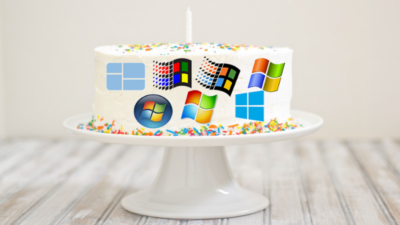
The 16 most pivotal events in Windows history

Thirty years of Windows is a lifetime.

30yearsofwindows-1

Thirty years of Windows

For better or for worse, Windows has defined the modern era of personal computing. Microsoft’s signature OS runs on the vast majority of PCs worldwide, and it has also worked its way into servers, tablets, phones, game consoles, ATMs, and more.

Windows’ 30 years or so of existence has spanned generations of computing and entire lifetimes of companies and their products. Understandably, choosing the most noteworthy moments of Windows’ long life has been a challenging task, but we went for it. On the following slides we present our our list of the obvious, and not-so-obvious, milestones in Windows history.

30yearsofwindows-2

Windows 1.0

On Nov. 20, 1985, Microsoft launched the first iteration of Windows, essentially a graphical shell that overlaid Microsoft’s well-known MS-DOS. Requiring a couple of floppy drives, 192KB of RAM, and, most importantly, a mouse, Windows wasn’t actually that well-received. But Bill Gates told InfoWorld that “only applications that run Windows will be competitive in the long run.” He was right—for a time.

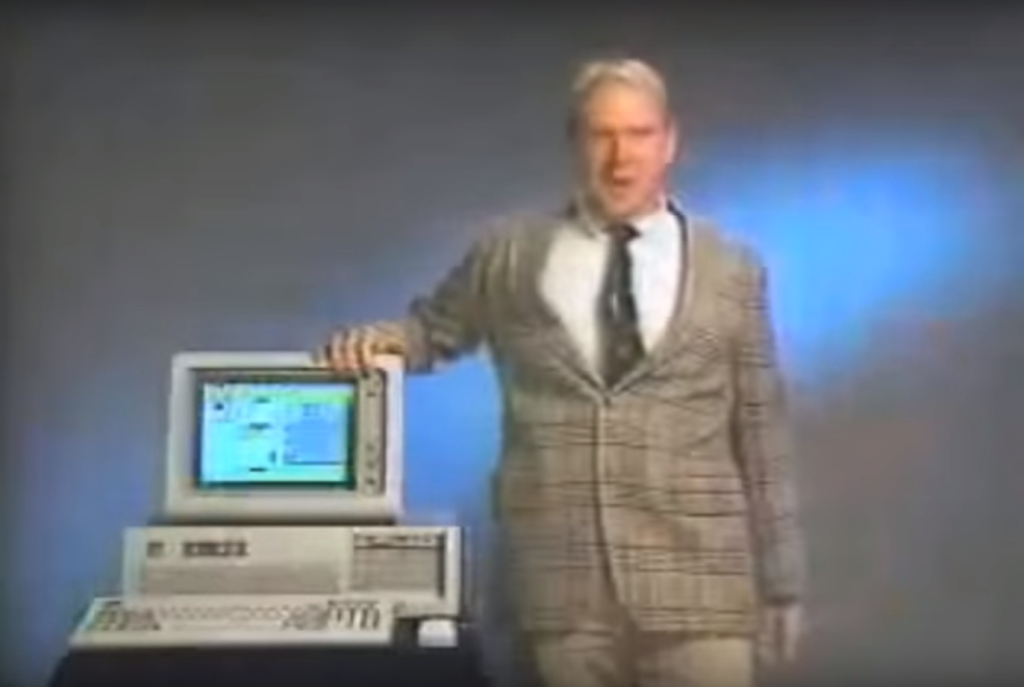
Featuring tiled windows that could be minimized or extended to cover the full screen, plus “apps” like Calendar and Write, Windows was the precursor to what the majority of PC users run today. Oh, and it was sold by Microsoft’s eventual CEO, Steve Ballmer, in perhaps the best computer commercial (Apple’s “1984” ad notwithstanding) ever shown.

30yearsofwindows-3

Windows 3.x

Windows puttered along until May 1990, when the first iconic Windows release, Windows 3.0, was released. It’s difficult to decide whether Windows 3.0 or its immediate successor, Windows 3.1, was more important; Windows 3.0 introduced sound to the Windows platform, but Windows 3.1 added TrueType fonts.

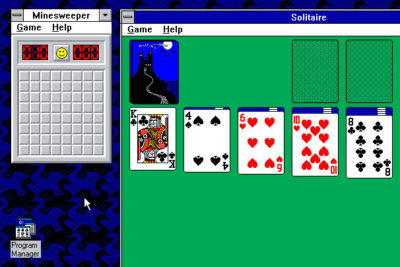
Yes, Windows 3.1 included File Manager (drag and drop!) and Program Manager, but the real innovations were more fun: support for MIDI sound and AVI files.  More importantly, Windows 3.x introduced screensavers (a staple of shovelware for years) and the ultimate timewasters: Solitaire (Windows 3.0) and Minesweeper (Windows 3.1). An entire generation learned how to place digital playing cards, one on top of the other, all for the glory of seeing all the cards bounce when a game was completed.

30yearsofwindows-4

Windows 95

Early iterations of Microsoft’s Windows operating system catered more toward the business user than anyone else. That changed on August 24, 1995 with the launch of Windows 95.

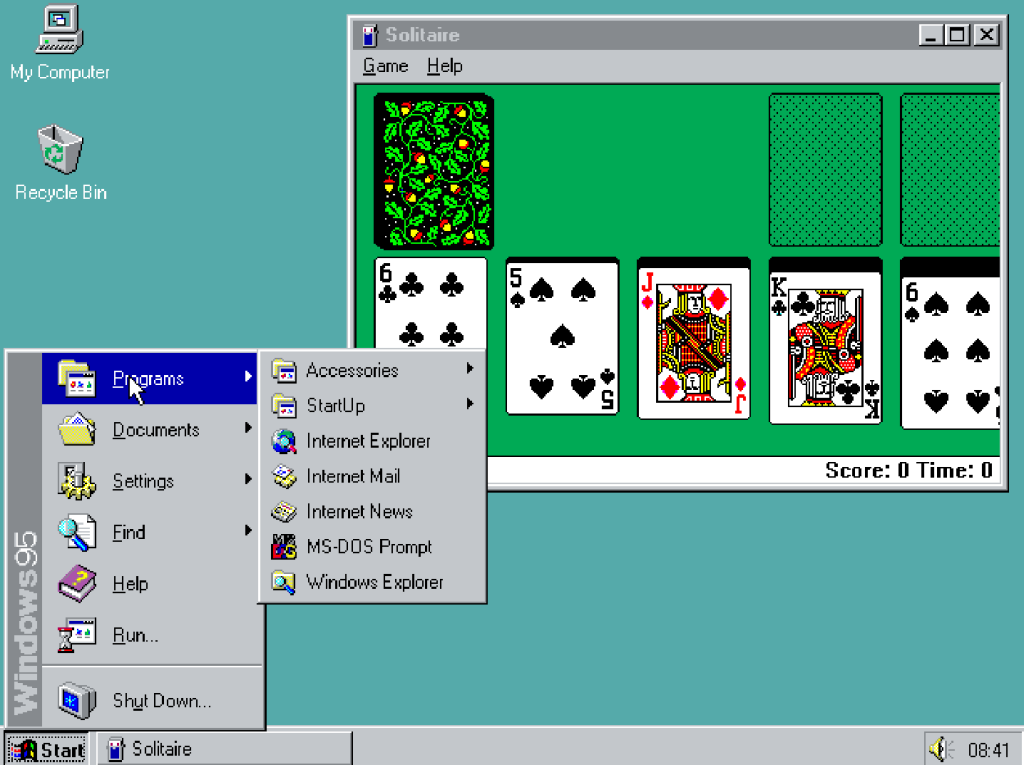
It featured a few key technical upgrades: Windows 95 was Microsoft’s first “mass-market” 32-bit OS. It was the also first to add the Start button that we use today. The first integrated web browser, Internet Explorer, just missed the launch and shipped later.

With a promotional budget of hundreds of millions of dollars, much of what we remember about Windows 95, though, was tied up in the marketing: a midnight launch, an ad campaign built around the The Rolling Stones hit “Start Me Up,” a partnership with Brian Eno that produced the iconic boot melody.

Oh, and Windows 95 also allowed users to pay $19.95 to try out a time-limited beta of the OS, which expired at the launch. Good times.

30yearsofwindows-5

Microsoft Bob

Windows 3.1, however, also gave us Microsoft Bob, a March 1995 release that remodeled Windows as a series of “rooms.” Each was populated by virtual objects that might have a purpose—but you wouldn’t know until you clicked on them. Bob also featured a series of “assistants” that offered to help you perform all sorts of tasks, whether you wanted to or not.

Bob bombed. But Microsoft never quite gave up on trying to humanize Windows, a noble if slightly pathetic effort that would later produce the unfortunately iconic Clippy assistant.

30yearsofwindows-6

Windows NT

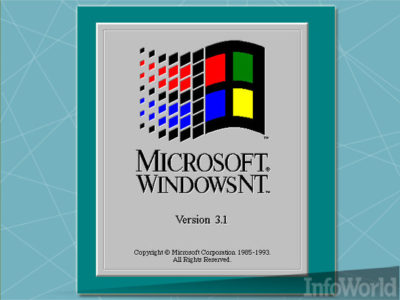
Though PCWorld tends to focus on the PC (natch), we’d be remiss to neglect Windows NT, the precursor to Windows’ expansion into the server and workstation space. Windows NT was Microsoft’s first 32-bit OS designed (and priced) for both the server and workstation market, with specific versions optimized for the X86, DEC Alpha, and MIPS series of microprocessors. It eventually was combined with the standard Windows architecture to form Windows XP.

Today, Microsoft has built a sizeable portion of its business upon Windows Server, SQL Server, and Windows Center, among others, plus its investments in the Azure cloud. All of this originated with Microsoft’s desire to take on UNIX in the server space.

30yearsofwindows-7

Windows XP

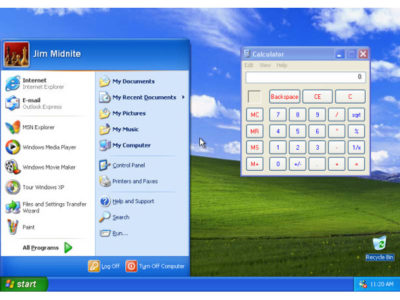
Whether it’s due to nostalgia, good design, or the famous “Bliss” backdrop featuring an emerald-green hillside in California’s wine country, 2001’s Windows XP remains one of the more beloved Windows operating systems. Shoot, it managed to erase the memory of Windows ME, one of Microsoft’s biggest blunders.

Windows XP shipped in two editions: one for professionals, the other for home users, with features stripped out of the “pro” version, such as domain join. But Windows XP also shipped with a Media Center edition that transformed a PC equipped with a TV tuner into a powerful DVR. (Media Center remains one of the more popular, and mourned, features of Windows today—it’s one reason users cite for refusing to upgrade to Windows 10.)

30yearsofwindows-8

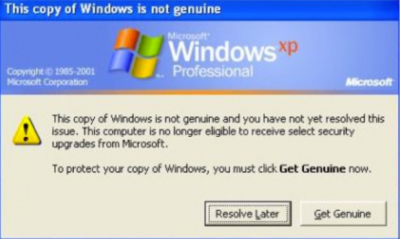
Windows Genuine Advantage

Maybe you thought every pivotal Windows moment was a product release. Not so. As good as it was, Windows XP also unleashed Windows Genuine Advantage—or what we now refer to as “activation”—upon an unsuspecting world. It was the first step in evolving Windows from a “hobby” to what some would refer to as “Micro$oft.”

This attitude was nothing new. In 1976, Bill Gates penned “An Open Letter to Hobbyists,” where he complained that the amount of royalties paid by customers using its BASIC software amounted to about $2 per hour. “Most directly, the thing you do is theft,” Gates wrote, essentially equating sharing code with outright stealing.

Microsoft sought to curtail this activity with the release of Windows Genuine Advantage, which stealthily installed itself onto millions of PCs by way of a high-priority “update.” (Sound familiar?) Windows Genuine Advantage consisted of two parts, one to actually validate the OS and another to inform users whether they had an illegal installation: In 2006, Microsoft said it had found about 60 million illegal installations that failed validation.

Now? Virtually every standalone product Microsoft sells comes with its own software protections and licenses. If you want a “hobby” OS, you run Linux—which Microsoftalso spent millions trying to discredit, to no avail.

30yearsofwindows-9

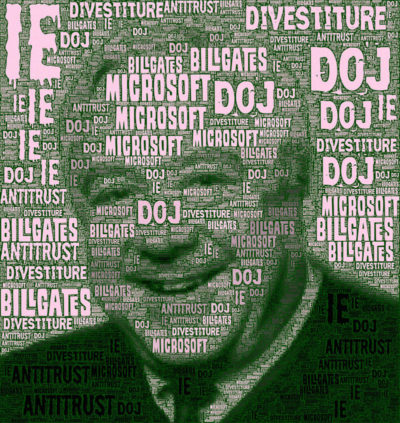
United States v. Microsoft

In May of 1998, following government concerns that bundling Internet Explorer within its operating system gave Microsoft an unfair advantage, the Department of Justice and several states filed a landmark antitrust suit against the company.

The trial lasted 76 days. Cofounder and chief executive Bill Gates appeared on videotape, seemingly dismissing questions put to him by government lawyers. Judge Thomas Penfield Jackson ultimately ruled that Microsoft had acted as a monopoly and should be broken up into two companies, though that ruling was later overturned by an appeals court.

Years later, an integrated browser is generally viewed as part and parcel of an OS, though consumers are free to select any browser they choose. Today, Microsoft and IE still power most older PCs, but consumers selecting new browsers are turning to Chrome.

Judge Penfield argued that consumers would have benefitted from a breakup of Microsoft. But we’ve argued before that Microsoft would have, too.

30yearsofwindows-10

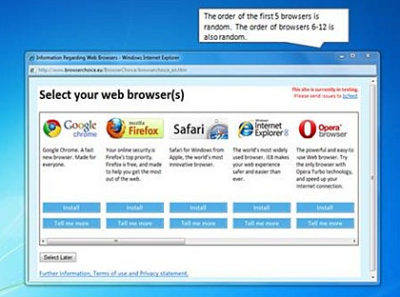
Browser-choice screen

In 2009, Microsoft struck a deal with the European Commission, ending the EU’s own antitrust investigation. That agreement created what became known as the “browser-choice screen,” encouraging European consumers to pick a browser besides Internet Explorer.

The browser-choice screen didn’t kill Internet Explorer; in fact, IE remained the most popular downloaded browser until March 2016, when Windows 10 helped push it out of the top spot. But the browser-choice screen certainly reminded consumers that other browsers existed, and that they could pick and choose whichever they preferred, rather than accepting what Microsoft provided to them.

30yearsofwindows-11

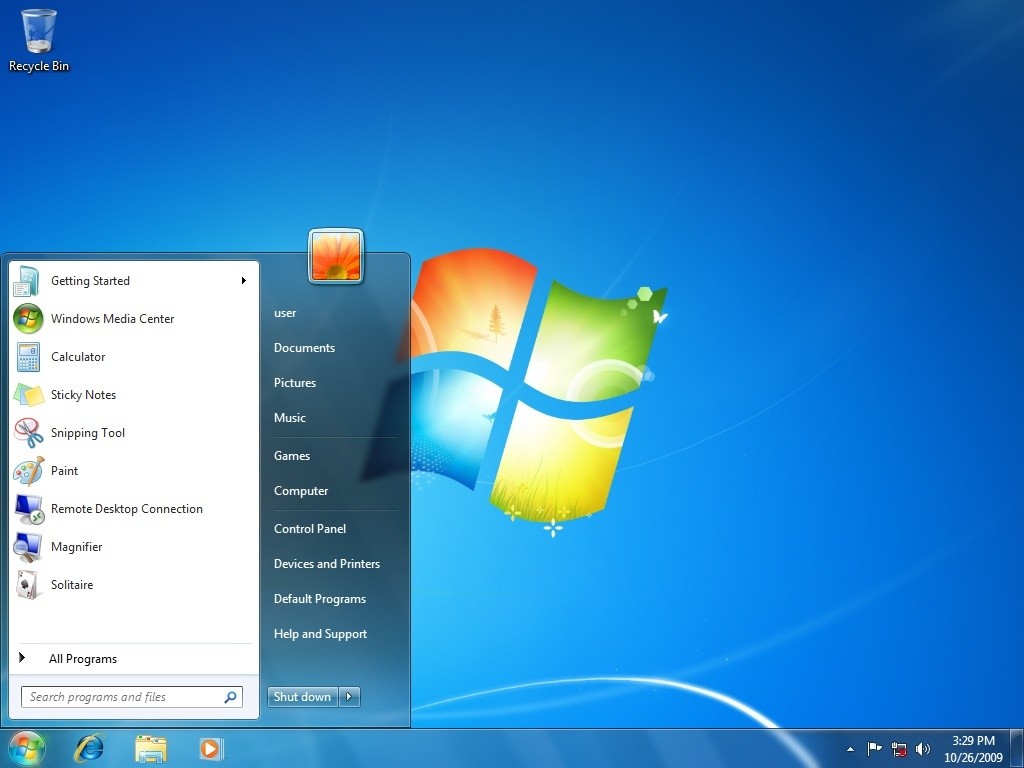
Windows 7

For many, Windows reached its apex with Windows 7, which continues to be the dominant OS in Windows’ history: It reached a high of almost 61 percent market share in June 2015, and still commands about 47 percent of the market today.

Why? Any number of reasons, not the least of which is familiarity: Windows’ UI remained relatively static for almost 11 years, from the 2001 launch of Windows XP on up to the dramatic tiled revamp of 2012’s Windows 8. Windows 7 also added several elements that we take for granted in Windows today: the taskbar, a more evolved Snap function, and support for multiple graphics cards. It’s also important to note that Windows 7 supports DirectX 11.1, which is arguably still the dominant graphics API today. Until DirectX12 supersedes it, gamers won’t have a reason to leave.

Windows 7 also eliminated many of the annoying UAC popups that its predecessor, Windows Vista, had put in place. And (as our commenters have repeatedly pointed out) it lacks the frustratingly frequent updates of the current Windows 10, allowing users to essentially “set it and forget it.”

30yearsofwindows-12

Laptop Hunters ads

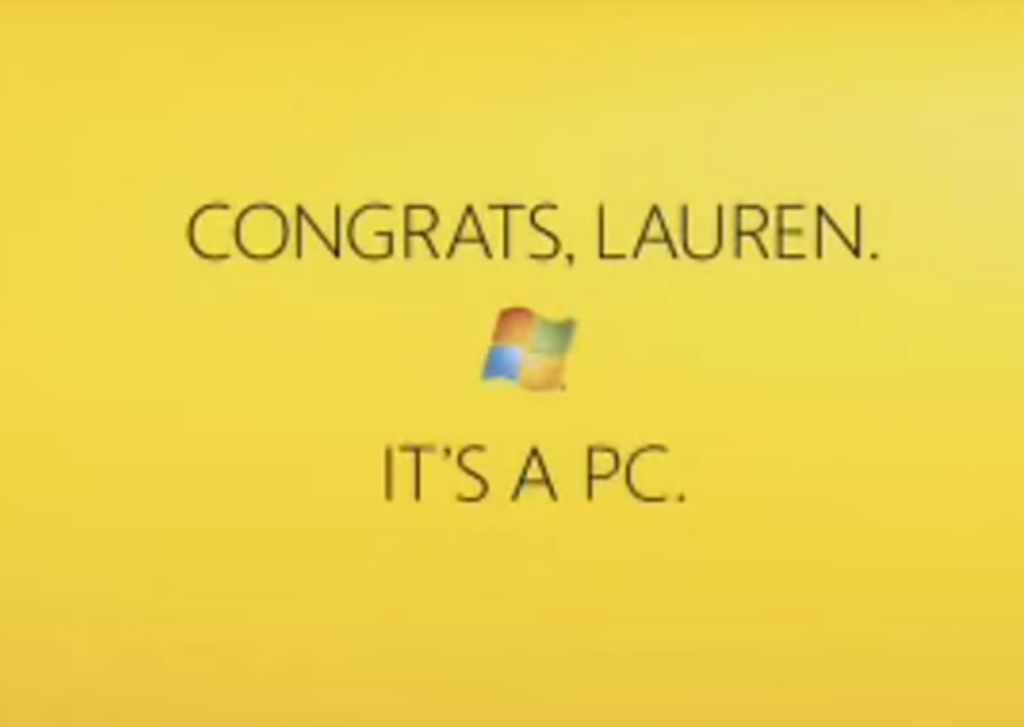
Microsoft ran a series of “Laptop Hunters” ads during 2009, featuring real people buying real laptops from real stores—and consistently picking Windows PCs over the more expensive Apple options. For about three years, Microsoft had been stung by the barrage of “I’m a Mac/I’m a PC” ads portraying PCs as clunky and out of touch, and “Laptop Hunters” effectively skewered that message as pretentious and expensive.

The campaign followed a $300 million “I’m a PC” push a year earlier, which lacked the real-world punch of Lauren and other real-world customers. Both campaigns illustrated Microsoft’s pivot to being the face of the PC. The “Dude, you’re getting a Dell!” days are long gone.

30yearsofwindows-13

Windows 8.1

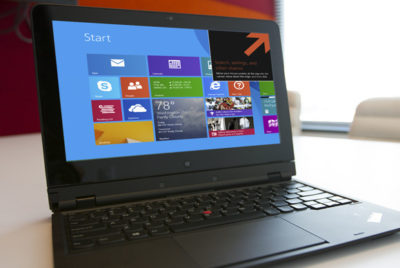
I vividly remember the first time I saw a Windows 7 user try out Windows 8: He stabbed at tile after tile, unable to figure out what to do with Microsoft’s new OS. Most of the public did the same. Today, we barely even talk about Windows 8.

Instead, we talk about Windows 8.1: the “service pack” update that undid at least some of the flaws that plagued Windows 8. In my opinion, the most notable thing about Windows 8.1 was that it showed Microsoft was listening to its customers again, even adding a hidden “boot to desktop” command to remedy one of its users’ biggest complaints. (It also was the last time SkyDrive, later renamed OneDrive, actually acted like the cloud backup we wanted.)

By itself, Windows 8.1 is a relatively minor release. But it stands as an important admission of guilt, and an apology, for the sins of its predecessor.

30yearsofwindows-14

The rise of Android, the fall of Windows Mobile

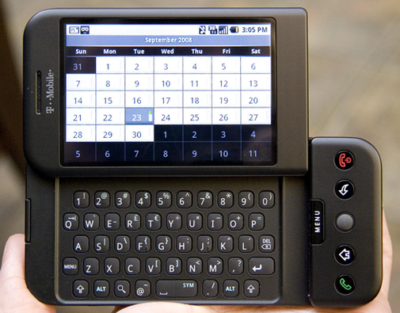
In February 2007, Microsoft debuted Windows Mobile 6, its first mobile operating system for true smartphones and arguably one of the company’s most successful. In November 2007, however, the free Android OS debuted. A year later, HTC launched the first Android smartphone: the HTC Dream, seen here. It was all downhill from there for Microsoft.

Yes, you could make a strong argument that Microsoft’s massive $7.8 billion acquisition of Nokia’s devices business in 2013—which, by now, has been almost completely written off—was actually the last gasp of Microsoft’s mobile vision. But the launch of the Dream, and the hundreds of millions of Android phones that followed it, lured away third-party developers Microsoft needed for its mobile aspirations to thrive.

30yearsofwindows-15

Windows 10: The ‘last Windows’

With Windows 10, Microsoft made the gutsy call to bring beta testers in as partners rather than as guinea pigs. The Windows Insider program lets users try out and evaluate builds almost as quickly as Microsoft can churn them out, fostering an air of camaraderie between users and Microsoft.

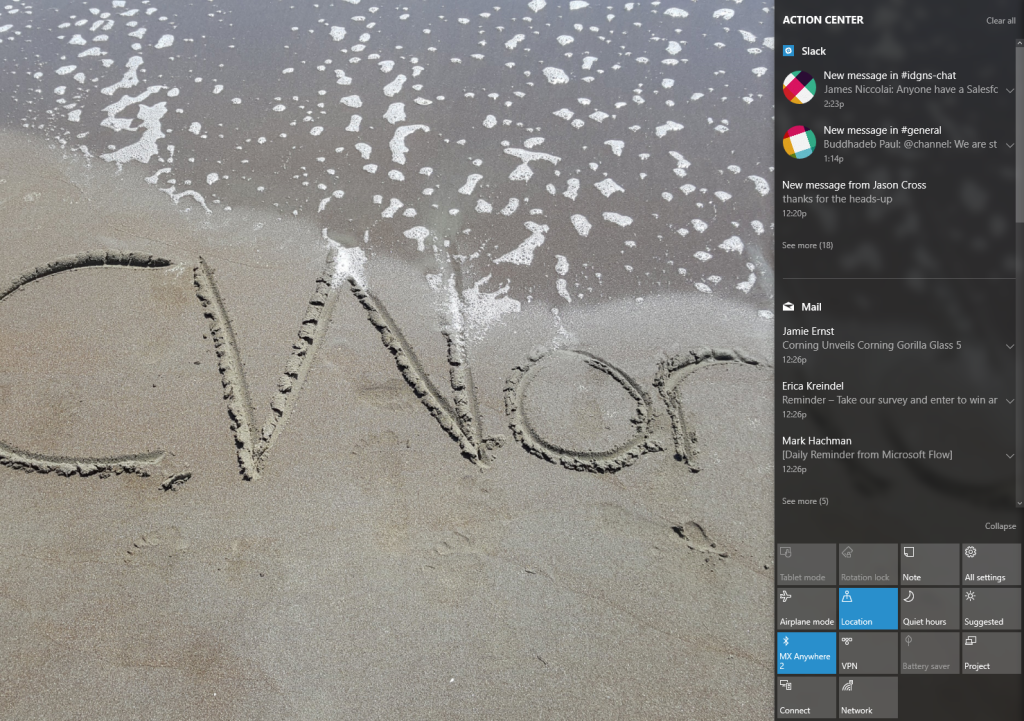
Windows 10 also introduced a number of features: a revamped Start menu, better notifications, virtual desktops, and more. It launched Cortana, a digital assistant that Microsoft hoped would eliminate the grunt work of setting reminders and sending quick texts and email.

But Cortana’s privacy-intruding nature and Microsoft’s aggressive upgrade practiceswashed away some of the goodwill Windows 10 originally engendered. Today, Windows 10 is one of the more polarizing operating systems in recent memory, with many Windows 7 fans loudly criticizing it, and others supporting the direction Microsoft has taken.

30yearsofwindows-16

The evolution of the digital assistant

 Of course, Microsoft has a long, controversial history with digital assistants, beginning way back in 1995 with the debut of Microsoft Bob. That program was meant to help familiarize Windows users with various applications by anticipating the users’ needs. While universally derided, Bob introduced the concept of ostensibly helpful characters, from a superhero dog to a clone of Albert Einstein to the infamous Office assistant  “Clippit,” aka “Clippy.”

You can make the case that Clippy and its ilk evolved, over time and behind the scenes, into the far more sophisticated digital assistant that’s built into Windows 10: Cortana. The difference, of course, is that Cortana is part of a larger trend, joined by Google Now and Siri, digital assistants in their own rights for the Android and iOS platforms, respectively. Indeed, Microsoft is pushing its Bot Framework, which enables the creation of intelligent digital helpers, into all sorts of new applications beyond the OS, such as Skype and Bing.

30yearsofwindows-17

Patches, good and bad

Windows has bugs. Windows requires patches. And while there have been many, many updates over the years to fix bugs, slowdowns, and other incompatibilities, there have also been many, many screwups, too. InfoWorld has an entire list of them.

My favorite? A patch that put a mysterious black bar on one side of Internet Explorer—and if you clicked it—CRASH!—down came your machine with a BSOD. For a time, Microsoft allowed you to refuse Windows patches. Windows 10, unfortunately, did away with all that.

That concludes our list of Windows’ most pivotal moments. We could have spent dozens upon dozens of slides diving deep into Windows’ history, but we had to stop somewhere. Is there anything we missed? Tell us below.

Have questions?

Get answers from Microsofts Cloud Solutions Partner!
Call us at: 856-745-9990 or visit: https://southjerseytechies.net/

South Jersey Techies, LL C is a full Managed Web and Technology Services Company providing IT Services, Website Design ServicesServer SupportNetwork ConsultingInternet PhonesCloud Solutions Provider and much more. Contact for More Information.

To read this article in its entirety click here.

The 50+ best features in iOS 11

With new apps like Files, a desktop-like Dock and countless smaller tweaks and advances, Apple’s new mobile OS offers plenty of enhancements.
credit: Apple

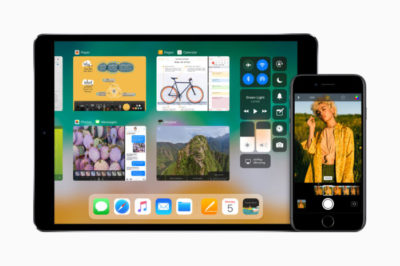
Apple’s upcoming iOS 11, already in public beta and due out this fall in its final form, delivers numerous improvements and changes for iPad and iPhone users. These include a host of new enterprise-useful features — especially for the iPad — as well as a variety of tweaks that will almost any user.

Here’s a rundown of the 50 or so most important things you need to know to get the most from Apple’s mobile platform.

Augmented reality

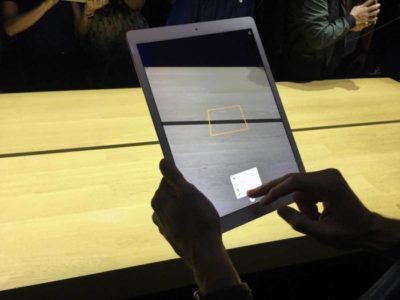
Apple’s newly introduced ARKit framework lets developers create augmented reality experiences that can be accessed using compatible (A9- and A10-processor-powered) iOS devices — meaning iPhones and iPads released since September 2015. The software only recognizes horizontal planes today, but this will change in the future, and it’s expected to help companies explore new opportunities, from online retail to gaming to unified communications. Apple’s AR partners include Valve/SteamVR, Unity and Epic Games.
credit: Apple

What’s critical here is that hundreds of millions of devices will immediately support AR once iOS 11 ships, making this an extremely viable VR platform development opportunity.

Machine intelligence

iOS 11 carries numerous smart features, all wrapped up in Apple’s ultra-private secure shells, in which your identity is protected by technologies including differential privacy. That commitment to privacy means Apple has been crafting smart solutions that work on a device rather than by sharing data with the less secure cloud. Apple also introduced Core ML, a general-purpose machine-learning framework that developers can use to integrate machine learning inside their apps. Here are some of the ways Apple has applied A.I. and machine learning in iOS 11:

  • When you type, the keyboard will suggest words you may have looked at recently, such as restaurant or place names or locations viewed in Safari or Messages.
  • The People folder in Photos becomes more accurate, and information about your friends will sync across all your Apple ID logged-in devices.
  • Photos can now recognize even more “Memories” events, including things such as nights out and anniversaries.
  • Based on what you are doing in other apps, iOS 11 can provide personalized recommendations in Safari, Maps, Messages and News.

Siri is the voice assistant front end to Apple’s systemwide machine intelligence. The latter is what gives Siri the capacity to make recommendations based on what you’ve been doing. iOS 11 adds several Siri-specific improvements.

  • Siri translation: Siri can now translate conversation between English, Chinese, French, German, Italian and Spanish.
  • Siri Kit improvements: Developers can use the SiriKit framework to integrate Siri support inside apps for ride scheduling, bill payments, banking, messaging, image search, VoIP calls, workouts, car controls and to-do lists.
  • Type to Siri: You can now choose to type your Siri requests rather than speak them. To do so, you must first enable the feature in Settings>General>Accessibility>Siri. Then toggle Type to Siri to On (green).

iPad Pro replaces more PCs

Apple has called the PC a “truck” and declared the iPad Pro to be the “only computer” you need. That said, it’s fair to note that while Apple’s tablets can replace computers in some situations, they can’t yet do so in all cases. Apple’s response has been to introduce numerous iPad-only improvements in iOS 11 that make the device far more productive. That means you’ll likely see Apple’s tablets replacing PCs in more scenarios.
credit: Apple

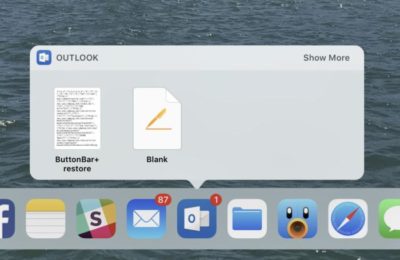
  • The Dock: The new, customizable Dock holds up to 15 apps (or folders containing apps). Three additional slots to the right of the Dock show a trio of the most recently used apps. You get to the Dock by swiping up from within any application.
  • Drag and drop: You can select a single item by tapping it, and if you continue to hold it — and then tap one or more additional items — you can select a number of items. You can then bring up the Dock, tap an app and place those items you selected on/in the app. This feature also works with the newly introduced Files browser (see below). Together, Files and drag-and-drop make working on an iPad feel much more like working on a computer than on a giant iPhone.
  • Split View: Apple has refined Split View on the iPad, introducing a new feature it calls Slide Over. It works like this: Summon the Dock by swiping up the screen (from within any app); you can then tap an app icon and drag it to the right side of the screen to open a narrow version of it. This makes it easy to switch between apps using the Dock and Split View. (If you have a keyboard, you can switch apps using the Mac-familiar Command-Tabbuttons.)
  • App Switcher: When you look at Control Center (swipe all the way up) you’ll also see Apple’s revised App Switcher. Here you’ll find thumbnails showing all your most recent apps and workspaces, giving you easy access to those you want. You’ll spend less time in the Home screen and more time working in the apps you need.
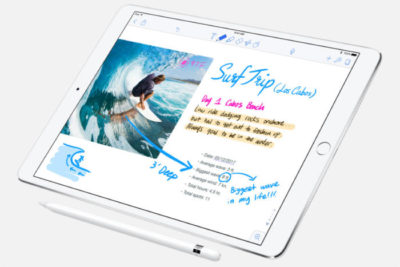
  • Apple Pencil: Tap the screen to instantly open Notes and begin writing. In other Apple apps, you can tap the screen to create an Instant Markup that lets you annotate a PDF or screenshot.
credit: Apple

Files: iOS gains a file system

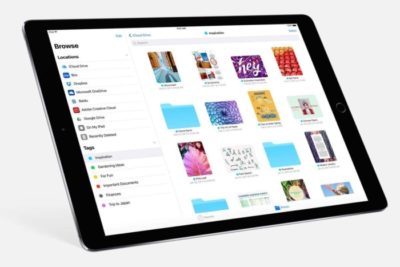
The new Files app delivers something we’ve been hoping for since iOS first appeared in 2007: a file system. Open it up and you’ll find a Search bar and three different areas: LocationsFavorites and Tags.

credit: Apple

Locations lets you access files held in iCloud Drive, on your device or the trash (if they were recently deleted). You can also bring in files held in third-party services such as Dropbox.

Favorites is self-explanatory, but Tags is interesting: When you tap the Share item for any file, you’ll find a new +Tag item to the right of the file name at the top of the screen. Tap this and you can assign a new tag to the file. If you haven’t started using tags, you probably should, since they will help you find items across all your Apple devices.

Files also provides several other features:

  • Create a new folder and use iOS 11’s improved drag-and-drop support to drag multiple itemsinto it.
  • Sort files by namedatesize and tags.
  • Skip between list and icon-based views.
  • Drag items to other apps.
  • Long-press an item and you can Copy, Rename, Move, Share, Tags, Info, or  Delete it in the popover menu that appears.

Enterprise deployment — simplified

iOS 11 brings changes designed to make it easier to deploy Apple devices across the enterprise. Meanwhile, enterprise-focused Apple partners such as Deloitte, IBM, Cisco and JAMF now provide iOS deployment expertise and technologies as a service.

Among the enterprise deployment highlights in iOS 11:

  • MDM services can push iOS updates to supervised devices, even if they’re locked.
  • You can add any device to the Device Enrollment Program.
  • MDM commands can be set to execute only when a device has a wired connection — saving on corporate bandwidth.
  • A new restriction forbids enterprise users from adding their own VPN.
  • You can now enable signing and encryption in Mail and Exchange separately; before you could only enable signing and encryption at once.
  • Sysadmins can now configure home screen layout and app installs on Apple TV.
  • You can easily integrate Cisco Spark and WebEx meetings into iOS 11 apps.

A faster, smarter Safari

Quick and easy browsing of the web has bolstered Apple’s success since the iMac arrived in 1999, so the latest iteration of Safari in iOS will affect millions of users. The focus this year is on speed (you’ll like the faster scrolling) and security.

The security enhancements will likely have the biggest effect on users. These include better, easier cookie blocking and Intelligent Tracking Prevention, which uses built-in machine A.I. to reduce cross-site tracking by identifying and limiting this practice.

Safari supports a new video codec, HEVC (H.265). This will mean higher-quality video at much lower file sizes compared to the older H.264.

The browser’s search bar now allows you to track flights and define words.

PDF creation using the browser is also improved: Just tap Share and choose Markup as PDF to make a PDF you can annotate.

Finally, like the High Sierra version of the browser, Safari on iOS adds support for WebRTC. This opens the doors to cross-platform, browser-based video collaboration.

Business Chat bots

Apple at WWDC 2017 in June announced a key partnership with Nuance to create a bot-based customer service ecosystem for Messages, called “Business Chat.”  Apple’s plan is to integrate Nuance’s Digital Customer Engagement Platform with Apple Business Chat. This will enable new breeds of A.I.-based intelligent assistants in Messages and means you’ll see a little messages icon pop up on brand websites and in search results. Nuance’s asynchronous messaging tech is already used across other messaging platforms that support bots. Major companies, including Bank of America, Domino’s, FedEx and USAA, already use Nuance’s solution.

Enterprises exploring B2C or B2B bot technologies will find that Apple’s solution lets customers find your business and start conversations from Safari, Maps, Spotlight and Siri using tens of millions of mobile devices.

Your iOS, your Control Center
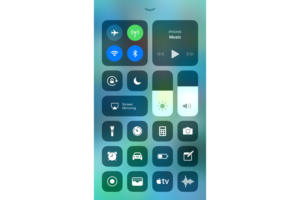
Every iOS user already interacts with Control Center. Swipe up and you can invoke numerous items for quick access. iOS 11 sees significant improvements here, including a redesign that combines everything in one window, brings in a range of new functions, and lets users choose which tools are available in their Control Center (Settings>Control Center).

This customization is limited, however; you can’t add third-party widgets at this time, and you cannot remove certain tools, such as those for Airplane Mode, Wi-Fi, AirDrop, Rotation Lock, AirPlay and Music.

Control Center has another handy talent: You get 3D Touch-like interaction even when using a device that doesn’t support 3D Touch. Force-touch the Torch widget and slide your finger to increase brightness, or touch, hold and slide the timer widget to very swiftly set a time, even if you’re using an iPhone SE.

Mightier Maps

Maps continues to improve, with features such as the introduction of new AR-like city flyover views. These use your iOS device’s camera and sensors to track your position and move you around 3D representations of key cities, such as London or New York. To explore these views, search for a major city and look for a Flyover button. Tap this to access the view. (Not every city is supported, so if the city you chose doesn’t have the button, keep trying.)

It’s an engaging feature that offers more potential as additional cities are added, but Apple has also worked hard to make Maps more effective for getting quickly from point A to point B. iOS 11 offers indoor maps for shopping malls, for instance, as well as airports and transit hubs. It also includes these key items:

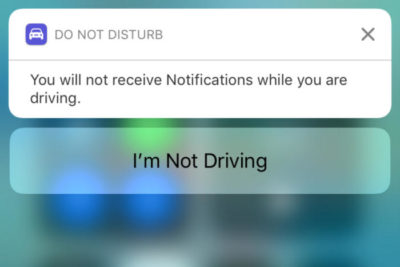
  • A Do Not Disturb When Driving feature designed to keep you from getting distracted by incoming Notifications while behind the wheel.
  • A new Lane Guidance feature that shows you the correct highway lane to be in to make the turns you need to stay on course.
  • A speed limit display in Maps, beginning with those posted for U.S. roads.
  • A new “Light Guidance” mode that provides a bird’s-eye view so you can better scout out the journey ahead when using Maps for travel instructions.
  • A new way to access zoom mode: Just double tap a Map and, while keeping your finger pressed into the display, move your finger up and down to zoom in and out.
credit: Apple

Let’s work (better) together

No one really likes jumping through hoops to make devices work together. iOS 11 makes this a lot easier:

  • Automatic setup: Got a new iOS device? Just hold it near an iOS 11 device (or High Sierra Mac) you already own and are logged into using your Apple ID. Many of your personal settings, preferences and iCloud Keychain passwords will be carried over to your new device, so it is ready to use, fast.
  • Instant Wi-Fi: iOS 11 users can approve others to use their Wi-Fi network by holding the devices close together, authorizing them, and transferring the password automatically. This should help schools and enterprises more easily manage routine Wi-Fi password changes.
  • QR Code scanning: The Camera app will automatically scan and understand QR codes. Point your device at the code, tap to focus, and a notification box will let you respond to that code. This will come in useful for automatic setup of things such as Wi-Fi networks, HomeKit devices, contact cards, website URLs and more.
  • Core NFC: This new iOS 11 framework lets developers create apps that can read NFC tags. It’s a little limited at the moment — it only works one-way, so you can use it to access information about museum exhibits and visitor attractions rather than for more sophisticated payment systems.

The image thing

Apple’s been working hard to improve your images. Last year’s introduction of the bokeh effect in the iPhone 7 Plus was a great example of this, since it basically put a pro-photo portrait camera in your pocket. iOS 11 maintains this tradition:

  • The biggest enhancement is introduction of support for the HEIF photo format. Based on the video-focused HVEC format, HEIF is capable of saving images around half the file size of JPEGs but at much higher quality (up to 16-bit, versus 8-bit).
  • Apple has developed a way to transcode images from HEIF to JPEG on the fly, without performance degradation.
  • If you use an iPhone 7 Plus, Portrait Mode in iOS 11 supports optical image stabilization and HDR, so you can expect much better images in low light.
  • Apple has also added new filters to improve images, including one designed to make skin tones appear more natural.
  • Live Photos gains several improvements. Not only can you now share these live moments with others as GIF files (or as an mp4 on Android), but you get to choose the key image and can apply three new effects: loop, bounce and long exposure. (The latter blurs anything that’s moving within a frame so you can focus on the subject).

Document scanning and Notes

Apple’s Notes app spent years in the wilderness before getting much attention. By the time iOS 10 arrived, Notes had already become a sort of low-budget replacement for Evernote, but it gets much more versatility in iOS 11. Certainly, for business users it has become an excellent tool to keep receipts and other expenses in one place when traveling:

  • You can scan documents from within a Note; just tap the plus sign and choose Scan Documents, then point your device until the document is in focus and highlighted by a yellow tint. You can then keep, share or even sign the scan (the latter on the iPad Pro using an Apple Pencil).
  • Apple has added the capacity to draw inside Notes using the familiar sketch tools interface from the iPad.
  • You can pin notes to the top of your list, more easily search through your notes, and quickly place notes within subject folders.

A few more things

There are many more improvements within iOS 11, including a one-handed keyboard option, person-to-person payments within Messages, the capacity to record and broadcast what’s happening on-screen, and App Offloading, which lets you delete an app you don’t use often while keeping the app data. When you need it, just download the app again to use that data. You’ll also find improved screenshot annotation and significant additions to CareKit and ResearchKit, which provide a platform for health and medical equipment developers.

If this has whetted your appetite enough to try iOS 11 for yourself, you can register to join Apple’s iOS 11 Public Beta program. Otherwise, wait until the final version arrives, when the bugs should have been ironed out.

Have questions?

Get answers from Microsofts Cloud Solutions Partner!
Call us at: 856-745-9990 or visit: https://southjerseytechies.net/

South Jersey Techies, LL C is a full Managed Web and Technology Services Company providing IT Services, Website Design ServicesServer SupportNetwork ConsultingInternet PhonesCloud Solutions Provider and much more. Contact for More Information.

To read this article in its entirety click here.


Symantec Endpoint Protection (SBE)- Upgrading the cloud agent

Symantec has recently become aware of a medium vulnerability in older versions of the server agent. The latest version addresses this vulnerability in new installations and was released February 15th, 2017. Server agents that are not already upgraded will be identified in the SEP SBE cloud management console starting on March 8th. A manual upgrade will be required to ensure you have the latest protection.

Microsoft Office for iPad is here!

ipad-office

Edit, work, create, and get more done from your iPad, for free

ipad-office3

Four new, free apps are available on your iPad®. With both Microsoft OneDrive and Dropbox access, online storage—and access to your files—is always just a click away on your iPad. The new Microsoft Office apps give you the ability to flat out get more done.

  • With the new Microsoft Word app, you can edit, create, and save your docs, wherever work takes you
  • The new Excel app lets you analyze your data on the fly
  • Build and deliver your presentations—right from your tablet or phone—with the new PowerPoint app
  • The new Microsoft OneNote app helps you work collaboratively and stay organized on the go

With these apps, you can now access, edit, and save directly to your Dropbox account. You can even open and edit files that have already been saved in Dropbox.

Adding Dropbox is easy.  When you are in any of the new apps, follow these simple steps:

1. Tap on the arrow in the top left, then tap Open
2. Tap “Add a Place”
3. Select Dropbox

To get the Office apps for iPad®, open www.appstore.com/microsoftoffice from your iPad’s web browser.


Zero-Day Security Vulnerability in Chrome, Firefox and Others

Google Chrome, Microsoft Edge, Mozilla Firefox and Apple’s Safari browser have all been impacted by a single zero-day vulnerability. The flaw, tracked as CVE-2023-4863, is caused by a heap buffer overflow in the WebP code library. Once exploited it can lead to system crashes and arbitrary code execution, where hackers can gain control over an infected device.

Where Does it Originate?

CVE-2023-4863 was first identified by researchers at The Citizen Lab, a research arm of the University of Toronto. The institution subsequently informed Google and Apple of the vulnerability’s existence. Both companies have now released patches. They were joined by Mozilla, which released its own advisory on CVE-2023-4863 yesterday and updates for several versions of its Firefox browser and Thunderbird email client, and Microsoft.


Vulnerability Originates In Webp Reader. Users of the affected browsers should update to the most up-to-date version in order to ensure the zero-day vulnerability is patched on their machines. The problem isn’t with the browsers — the vulnerability originates in the WebP Codec. Many applications use the WebP codec and libwebp library to render WebP images.


In more detail, a heap buffer overflow in WebP allowed attackers to perform an out-of-bounds memory write. A heap buffer overflow allows attackers to insert malicious code by “overflowing” the amount of data in a program. Since this particular heap buffer overflow targets the codec (essentially a translator that lets a computer render WebP images), the attacker could create an image in which malicious code is embedded. From there, they could steal data or infect the computer with malware. The vulnerability was first detected by the Apple Security Engineering and Architecture team and The Citizen Lab at The University of Toronto on September 6.

How Dangerous Is This Flaw?

Since many browsers, including Microsoft Edge, Brave, Opera, and Vivaldi are built on the Chromium platform, the same platform that Chrome is based on, this could affect their users as well. The same risk is also applicable for Firefox browser clones.


Such a widespread exploit in ubiquitously used software is dangerous, widening the attack surface for most organizations.


Patching will mitigate the risk, but users must act quickly as hackers will already be at work. Attackers will be working over the coming days and weeks to make the exploit more reliable meaning remote code execution will be more likely. Modern web browsers are exceptionally good at pushing out security updates rapidly and applying them as quickly as practicable, so users will shortly be protected.


The biggest risk is to organizations which don’t allow automatic updates and push out updates at their own release schedule.

What Steps Should You Take?

Google, Mozilla, Brave, Microsoft and Tor have released security patches for this vulnerability. Individuals running those apps should update to the latest version. In the case of other applications, this is an ongoing vulnerability for which patches may not exist; NIST noted that the vulnerability has not yet received full analysis.


If you are already a Managed Services client, please follow the steps below to check for updates


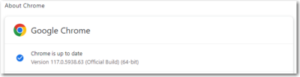
Google Chrome – Click the 3 dots in the top right corner for the menu and choose Help->About Google Chrome.  Chrome will check and install updates automatically from this screen.


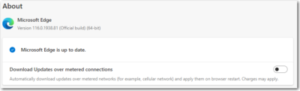
Microsoft Edge – Click the 3 dots in the top right corner for the menu and choose Help and feedback->About Microsoft Edge.  Edge will check and install updates automatically from this screen.


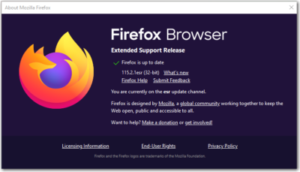
Mozilla Firefox – Click the 3 lines in the top right corner for the menu and choose Help->About Firefox.  Firefox will check and install updates automatically from this screen.


If you have any questions, please email us at support@sjtechies.com or call us at (856) 745-9990

Surface Book: Microsoft just made the PC cool again

The Microsoft Surface Book is the computer you always wanted to have but couldn’t. So now that it is here, will you buy it?

surface-4-surface-book

The latest line of Microsoft Surface personal computers is now available from both the virtual and the bricks-and-mortar Microsoft Store. By most accounts, the Surface Pro 4 and the flagship Surface Book offer impressive performance without sacrificing style or that illusive awe factor typically missing from PCs in general.

With the Surface Book in particular, Microsoft is attempting to change the narrative of the personal computer—to change perceptions in the marketplace. The Surface Book is an aspirational computer and it is intended to inspire desire in the overall PC and computing device market.

Strategic reasons

There are some solid strategic reasons why Microsoft has brought the Surface Book to market.

Giving OEMs a reference for their own hardware and increasing participation in Microsoft cloud services and the ecosystem that goes with it are certainly notable goals of the Surface Book.

But there is even more to it than that.

Hardware

It is important to understand the hardware inside the Microsoft Surface Book. These are the technical specifications of a powerful computing device. You do not buy a Surface Book so your kids can watch movies in the car while you run errands.

With a high resolution screen, SSD storage up to 1TB, up to 16GB RAM, an Intel I5 or I7 CPU, and a customized discreet GPU from Nvidia, the Surface Book is designed for performance and productivity. This is some serious computing power delivered in a small package.

Of course, that power comes at a premium price, but that is where the aspirational part of the strategy comes into play. Microsoft knows it will not sell millions upon millions of Surface Books. That is not its purpose. Instead, Microsoft wants millions upon millions of people to want a Surface Book—to aspire to own one someday.

Microsoft wants the Surface Book to be the notebook computer you would buy if money were not an issue. It wants the Surface Book to be a status symbol PC.

Marketing

This is a bold move by Microsoft and it goes hand-in-hand with the “PC does what?” marketing campaign produced in conjunction with its OEM partners like Dell and Lenovo. These companies are trying to make PCs cool again. They are trying to steal some of the thunder so often associated with Apple.

And while the “PC does what?” campaign gets mocked, mostly by fans of Apple, it is more effective than many believe. Remember the Mac versus PC commercials? People often mocked those as inaccurate oversimplifications of fact, but they still seemed to elevate the “cool” factor of the Mac. It didn’t matter what everyone thought of them; what mattered was the perception they produced.


Bottom line

The Microsoft Surface Book sets a high bar for every other notebook computer that comes to market. Microsoft has carefully crafted a powerful computer with hardware, features, and style no other company can currently match. In a single stroke, Microsoft has made owning a PC cool again. It has made the Windows 10 ecosystem cool again.

Let’s punctuate the point with anecdotal evidence. A number of people have spent much of their professional lives complaining about Microsoft and PCs. They have been working in the Apple’s ecosystem and hating every minute of it. They have been looking for more than what Apple offers for years now. The day Microsoft announced the Surface Book, they ordered one. They haven’t been this excited about buying a computer for a decade.

With this lineup of Surface products, Microsoft has changed the tide and established market momentum. It will be interesting to see how Google and Apple respond. We should see some serious competition now. It also wouldn’t be surprised to see a resurgence in Windows 10 mobile devices later this year. It looks to be an exciting time for consumers. Hang on to your hats.

Have questions?

Get help from IT Experts/Microsofts Cloud Solutions Partner
Call us at: 856-745-9990 or visit: https://southjerseytechies.net/

South Jersey Techies, LLC is a full Managed Web and Technology Services Company providing IT Services, Website Design ServicesServer SupportNetwork ConsultingInternet PhonesCloud Solutions Provider and much more. Contact for More Information.

To read this article in its entirety click here.

Windows 10 will be available via USB flash drive or DVD

USB flash drives

There is a possibility that microsoft will be selling Windows 10 on USB flash drives.

As you may know, installing an operating system from a USB flash drive is easier and faster than installing it from an optical disc. A USB flash drive is not as bulky as an optical disc and doesn’t require an external case. You just take it out of your pocket, pull off the cap, and insert it into your computer’s USB port. USB flash drives are faster than optical drives too. USB flash drives have read and write speeds that measure in 10x megabytes per second (MB/s), while optical disc read and write speeds measure in 1x MB/s.

With that in mind, it’s no surprise that there are a multitude of articles on the web that describe how to create a Windows installation package on a USB flash drive. Microsoft even provides a tool that facilitates the procedure.

With Windows 10 on the horizon, there have been rumors floating around the web that in addition to making the upgrade available as a download, Microsoft will also be selling the retail copies of the new operating system on both DVD and USB flash drive.

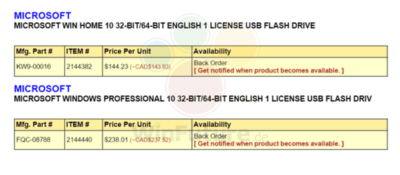
As a regular follower of the German website WinFuture, I recently encountered an article that indicates that Microsoft will indeed be selling the 32-bit and 64-bit versions of Windows 10 Home and Pro on USB flash drives in addition to the DVD option. Having a USB flash drive option makes sense, because tablets don’t come with optical disc drives.

The WinFuture article contained a screen shot (Figure A) showing catalog details of the USB offerings. As you can see, it appears that the USB flash drive will contain both the 32-bit and 64-bit versions. Presumably, the USB flash drives will sell for the same price as the DVDs.

Figure Afigurea

Windows 10 Home and Pro will be sold on USB flash drives.

You can find a number of software reseller sites (mostly Canadian) with advertisements for the USB flash drive offerings of Windows 10 by Googling the part numbers shown in the screenshot: FQC-08788 for the Pro edition and KW9-00016 for the Home edition. However, keep in mind that we’ll have a clearer vision of the USB flash drive offerings once we get closer to the Windows 10 launch date of July 29th.

Have questions?

Get help from Microsofts Cloud Solutions Partner!
Call us at: 856-745-9990 or Visit: https://southjerseytechies.net/

South Jersey Techies, LLC is a full Managed Web and Technology Services Company providing IT Services, Website Design ServicesServer SupportNetwork ConsultingInternet PhonesCloud Solutions Provider and much more. Contact for More Information.

To read thsi article in its entirety click here.

Surface Pro 4 and Surface Book race ahead of iPad Pro and Pixel C at the high end

Microsoft gave its high-end Surface a leap forward on Tuesday with the unveiling of the Surface Pro 4 and the surprise launch of the Surface Book, the company’s first laptop.

surface-4-surface-book

Microsoft’s love affair with hardware just got more intense. If there were any doubts about the software juggernaut staying in the devices game, they were erased on Tuesday with one of the biggest and broadest hardware announcements in the company’s history.

Microsoft showed off a fleet of new and freshly updated Windows 10-powered devices in New York. The stars of the show were the Surface Pro 4 and the new Surface Book laptop, which were a potent answers to Apple’s recently unveiled iPad Pro and Google’s newly announed Pixel C.

According to Microsoft Devices lead engineer Panos Panay there are nearly 110 million devices running Windows 10. Most of the products Microsoft unveiled at Tuesday’s press event were intended to show how important mobile hardware and software integration with Windows 10 is to the company.

The event’s biggest surprise, the Surface Book, and the new Surface Pro 4 are powerful machines, and both aim to connect with both enterprise users and creative professionals. They succeed big time in the specs department. In terms of usability and adoption, we’ll know more after both are released on October 26.

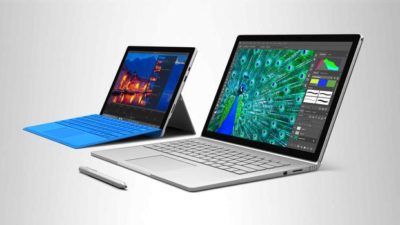
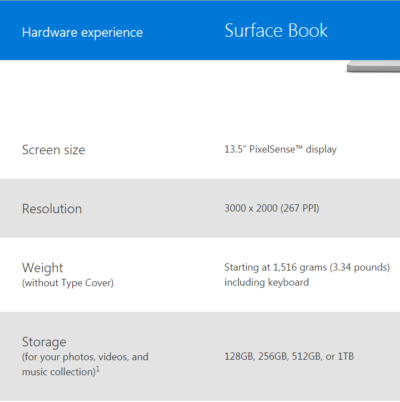
The Surface Book is Microsoft’s first laptop, and it’s a fiery, ambitious device. The specs are decked, particularly given that the price is comparable to a Macbook Pro. The Surface Book starts at $1499, and comes with a full Intel Core i5 or i7 processor, 1TB of storage, 16GB RAM, and a GPU designed for gaming and multimedia editing by the Xbox team. Additionally, the 13.5-inch screen (3000 x 2000 resolution) can detach to become a stand-alone tablet.

The Surface Pro 4 tablet runs Windows 10 and, like its predecessors, can serve as a full-fledged laptop replacement. The Surface Pro 4 is, as expected, somewhat thinner and 30 percent faster than the previous model. It has 16GB of RAM, and comes with up to a terabyte of storage, and a 12.3-inch screen (2736 x 1824 resolution). Microsoft cloud and productivity apps Cortana, Windows Hello, Microsoft Office, and OneDrive are deeply integrated. The Surface Pro 4 starts at $899.

When the Surface debuted in 2012 running Windows 8, the tablet seemed like an awkward, out-of-place device. Today, the Surface Pro has been owning and innovating in the high-end tablet space. It’s become a favorite of design professionals, IT administrators, and others who want a productivity tablet.

Arguably, the success of the Surface Pro helped pull Apple and Google into the high-end professional tablet market. Google’s comparable new Pixel C is similarly powerful, features a keyboard cover, and is deeply tied to the Google cloud ecosystem. Yet, Google’s device does not feel as durable as the Surface Pro 4, and Office is still often an essential tool for business users looking for a full laptop replacement.

Apple’s iPad Pro is a powerful professional and creative tool. Apple’s high-end tablet is larger and slightly more expensive than the Surface Pro 4. Microsoft is banking that the integration of Windows 10 and universal apps will help the Surface stand on par with the iPad Pro.

Microsoft’s attention to detail with peripheral devices like the Type Pro cover and the Surface Pen stylus may lend them a slight edge in the professional tablet market. The new Surface Pro Type Cover, notable for its “precision glass trackpad” is a significant refinement over the previous generation. The cover still costs 130 dollars, but is lighter, more responsive, and features more space between the keys than the previous version.

Microsoft has worked hard to make the stylus seem useful and cool. The new Surface Pen is intended to feel like writing on paper. The stylus features a tip with 1,024 points of pressure sensitivity, an eraser (yes, an eraser!), year-long battery life, and comes in five colors. When not in use the pen is held snugly to the top of the tablet by magnets. Microsoft took great care to display the tablet tilted in portrait mode like a clipboard, with a pen resting on top. The company emphasized the tablet itself “just fades into the background” when used by office workers, doctors, architects, and musicians.

surface-book-two

As with the Surface Pro 4 and Surface Book, the new Lumia 950 and 950 XL phones are powered by Windows 10, with special consideration to mobile productivity. The devices measure at 5.2 and 5.7 inches respectively, and feature an upgraded camera with a dedicated shutter release button.

The most unique and innovative announcement from Microsoft may have been the Display Doc. Intended to maximize workplace flexibility, and uncouple the enterprise user from the constraints of a laptop, the Microsoft Display Doc was initially announced at last spring’s Build conference as the Continuum docking station. The Display Doc is a small, square device that connects to any compatible Windows 10 mobile device like the Lumia 950 using three USB Type-3 ports, a DisplayPort and HDMI. When connected to a monitor using Display Doc, the phone will present a traditional Windows home screen, complete with the familiar Start button and icon tray. Though not as robust as a true desktop PC, the experience resembles desktop Windows and is able to manage productivity tasks like mail and messaging, document creation and sharing, and web browsing.

Windows 10 is at the core of the new Microsoft device environment. The company also announced updates to the Windows 10 universal app ecosystem [LINK], and a launch partnership with Facebook to expand the core Facebook, Messenger, and Instagram applications.

CEO Satya Nadella closed the event by stressing the importance of Windows 10 as a unified platform. Every device Microsoft released on Tuesday is a step towards fulfilling that vision. As impressive as the devices were, the biggest thing standing in their way perhaps is the stability of Windows 10

Have questions?

Get help from IT Experts/Microsofts Cloud Solutions Partner
Call us at: 856-745-9990 or visit: https://southjerseytechies.net/

South Jersey Techies, LLC is a full Managed Web and Technology Services Company providing IT Services, Website Design ServicesServer SupportNetwork ConsultingInternet PhonesCloud Solutions Provider and much more. Contact for More Information.

To read this article in its entirety click here.
Research: Apple rated highest for security on mobile devices

Mobile devices are almost universal in the enterprise in 2016. Tech Pro Research conducted a survey to see what devices employees are using for work, and how safe these devices are.

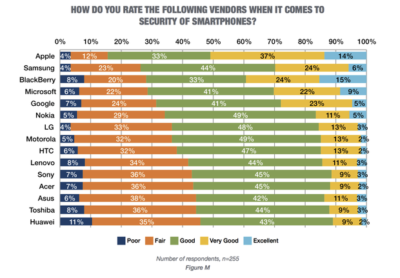
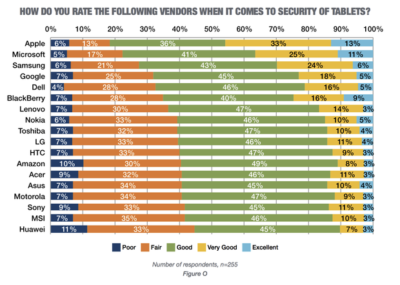
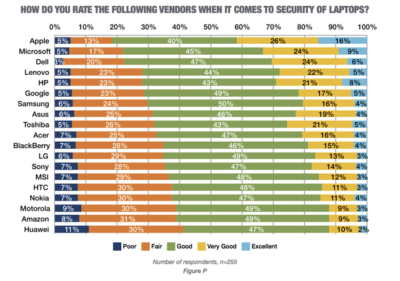
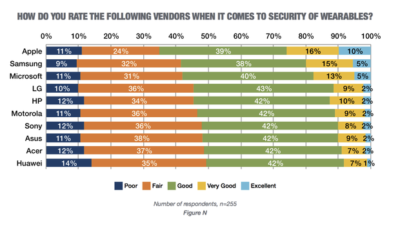
In new research conducted by Tech Pro Research, 98% of respondents said they use mobile devices for work. Smartphones and laptops were the most common, with 94% of respondents who use mobile devices using them. 74% of mobile device users said they work with tablets. Wearables haven’t found a widespread usage base in the workplace, with only 14% reporting using them. When users rated the security of devices based on vendors, Apple got the best ratings in all categories.smartphones

For smartphones Apple’s high ratings could be partially attributed to familiarity since 67% of respondents said employees at their company use iPhones. Only Samsung was close to Apple in terms of prevalence, and the company was way behind Apple in security ratings.

tablets

Apple also had the largest share of tablet use, and the highest security rankings, among respondents. 53% said they and their colleagues use iPads and 46% of users ranked security as very good or excellent.

laptops

Dell was the most popular brand among respondents, in terms of use for work, but it got third place in security ratings.

wearables

Security on wearables appears to still be developing, based on the mediocre security ratings among all brands, and the fact that security feature usage isn’t the norm for wearables yet.

Have questions?

Get answers from Microsofts Cloud Solutions Partner!
Call us at: 856-745-9990 or visit: https://southjerseytechies.net/

South Jersey Techies, LL C is a full Managed Web and Technology Services Company providing IT Services, Website Design ServicesServer SupportNetwork ConsultingInternet PhonesCloud Solutions Provider and much more. Contact for More Information.

To read this article in its entirety click here.

CALL US NOW!