Back to Top

Tech, Web, Cloud & Cabling Services

Category: Hardware

Hardware Category

Use Windows 7 Event Viewer to track down issues that cause slower boot times

Here’s how to use some of the new features in Windows 7’s Event Viewer to investigate a slow boot time.
Overview

Windows 7’s Event Viewer includes a new category of event logs called Applications and Services Logs, which includes a whole host of subcategories that track key elements of the operating system. The majority of these subcategories contain an event log type called Operational that is designed to track events that can be used for analyzing and diagnosing problems. (Other event log types that can be found in these subcategories are Admin, Analytic, and Debug; however, describing them is beyond the scope of this article.)

Now, within the operating system section is a subcategory titled Diagnostic-Performance with an Operational log that contains a set of a Task Category called Boot Performance Monitoring. The Event IDs in this category are 100 through 110. By investigating all the Event ID 100 events, you will be able to find out exactly how long it took to boot up your system every time since the day you installed Windows 7. By investigating all the Event ID 101 thru 110 events, you will be able to identify all instances where boot time slowed down.

Getting started

You can find and launch Event Viewer by opening the Control Panel, accessing the System and Security category, selecting the Administrative Tools item, and double-clicking the Event Viewer icon. However, you can also simply click the Start button, type Event in the Start Search box, and press Enter once Event Viewer appears and the top of the results display.

Creating a Custom View

Once you have Event Viewer up and running, you can, of course, drill down through the Applications and Services Logs and locate the Diagnostic-Performance Operational log and begin manually looking through the events recorded in the log. However, you can save yourself time and energy by taking advantage of the new Custom View feature, which is essentially a filter that you can create and save.

To do so, pull down the Action menu and select the Create Custom View command. When you see the Create Custom View dialog box, leave the Logged option set at the default value of Any Time and select all the Event level check boxes. Next, select the By Log option button, if it is not already selected, and click the dropdown arrow. Then, drill down through the tree following the path: Applications and Services Logs | Microsoft | Windows | Diagnostics-Performance. When you open the Diagnostics-Performance branch, select the Operational check box, as shown in Figure A.

Figure A
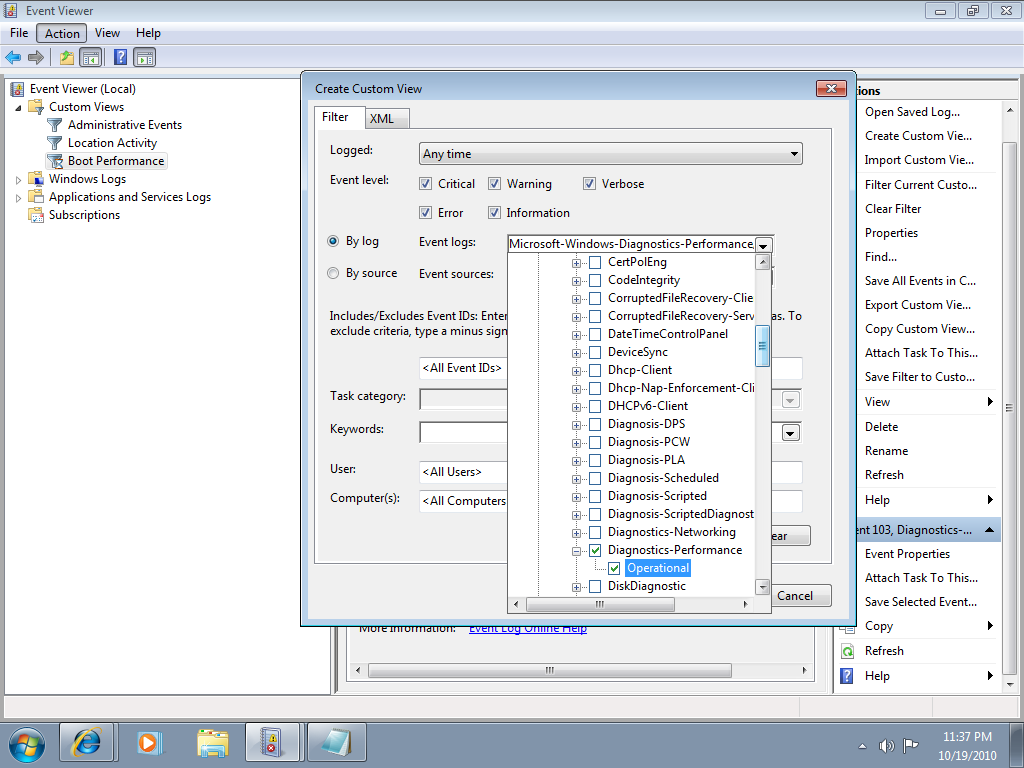
When you get to the Diagnostics-Performance branch, select the Operational check box.

To continue, type 100 in the Includes/Excludes Event IDs box, as shown in Figure B, and then click OK.

Figure B
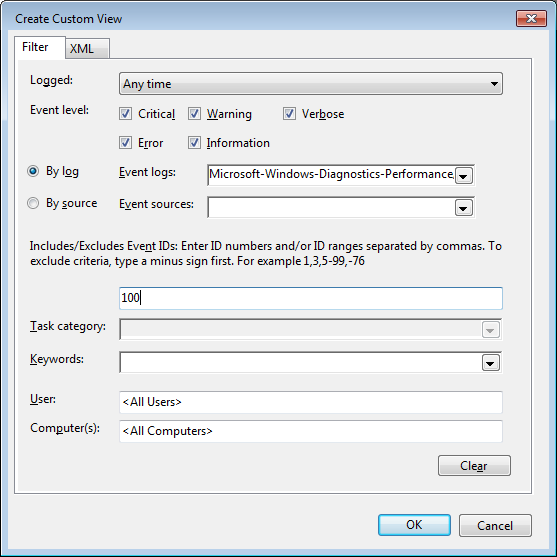
Event ID 100 records how long it takes to boot up your system.

When you see the Save Filter to Custom View dialog box, enter a name, as shown in Figure C, and click OK.

Figure C
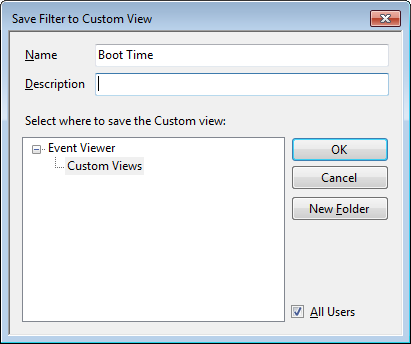
To save the filter as a Custom View, simply provide an appropriate name, such as Boot Time.

You’ll now repeat these steps and create another Custom View, and this time, you’ll type 101-110 in the Includes/Excludes Event IDs box and name it Boot Degradation.

Investigating Boot Time

To investigate your Windows 7 system’s boot time, select Boot Time in the Custom Views tree and then sort the Date and Time column in ascending order. When you do, you’ll see a complete history of every time you have booted your system since the day you installed Windows 7. In Figure D, you can see that we have hidden the Console Tree and the Action Pane to focus on the events.

Figure D
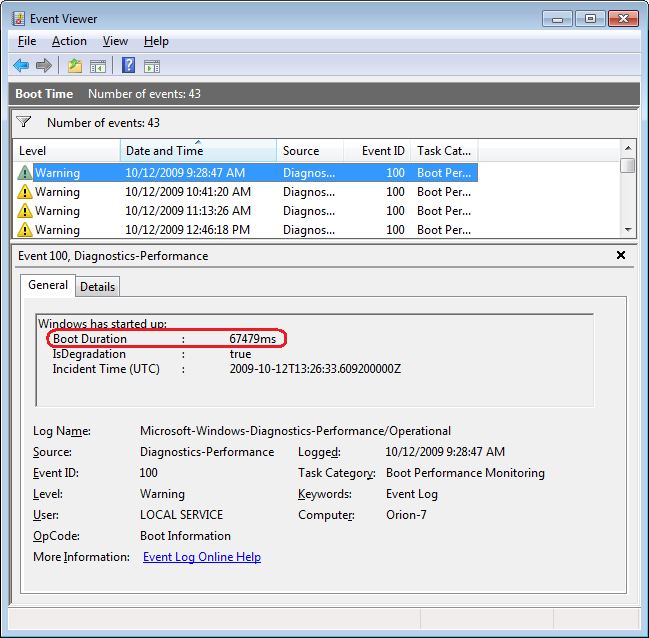
By sorting the Date and Time column in ascending order, you’ll see a complete history of every time you have booted your system since the day you installed Windows 7.

As you can see, the first recorded Boot Time on my sample system was 67479 milliseconds in October 2009. Dividing by 1,000 tells me that it took around 67 seconds to boot up. Of course, this was the first time, and a lot was going on right after installation. For example, drivers were being installed, startup programs were being initialized, and the SuperFetch cache was being built. By December 2009 the average boot time was around 37 seconds.

In any case, by using the Boot Time Custom View, you can scroll through every boot time recorded on your system. Of course, keep in mind that there will be normal occurrences that may lengthen the boot time, such as when updates, drivers, and software is installed.

Now, if you click the Details tab, you’ll see the entire boot process broken down in an incredible amount of detail, as shown in Figure E. (You can find more information about the boot process in the “Windows On/Off Transition Performance Analysis” white paper.) However, for the purposes of tracking the boot time, we can focus on just three of the values listed on the Details tab.

Figure E
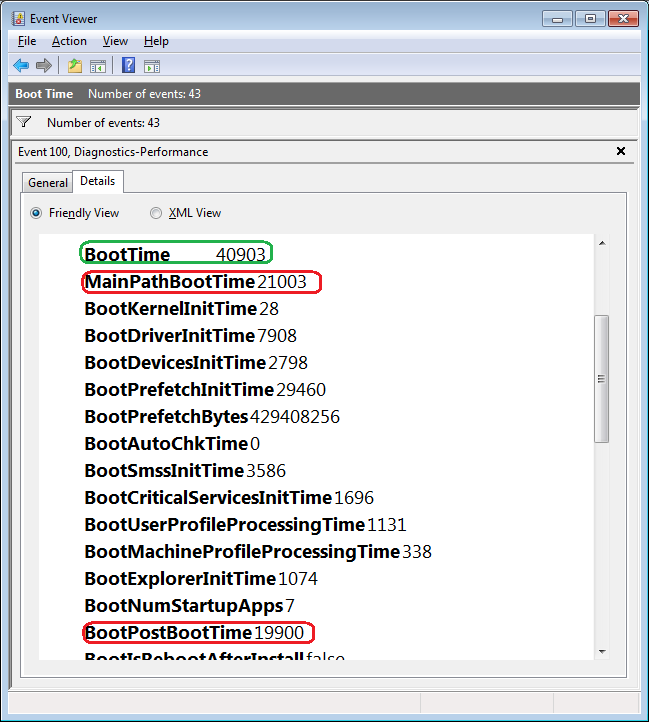
The Details tab contains an incredible amount of detail on the boot time.

MainPathBootTime

MainPathBootTime represents the amount of time that elapses between the time the animated Windows logo first appears on the screen and the time that the desktop appears. Keep in mind that even though the system is usable at this point, Windows is still working in the background loading low-priority tasks.

BootPostBootTime

BootPostBootTime represents the amount of time that elapses between the time that the desktop appears and the time that you can actually begin using the system.

BootTime

Of course, BootTime is the same value that on the General tab is called Boot Duration. This number is the sum of MainPathBootTime and BootPostBootTime. Something that we didn’t tell you before is that Microsoft indicates that your actual boot time is about 10 seconds less that the recorded BootTime. The reason is that it usually takes about 10 seconds for the system to reach an 80-percent idle measurement at which time the BootPostBootTime measurement is recorded.

Investigating Boot Degradation

To investigate instances that cause Windows 7 system’s boot time to slow down, select Boot Degradation in the Custom Views tree and then sort Event ID column in ascending order. Each Event ID, 101 through 110, represents a different type of situation that causes degradation of the boot time.

While there are ten different Event IDs here, not all of them occur on all systems and under all circumstances. As such, I’ll focus on the most common ones that we have encountered and explain some possible solutions.

Event ID 101

Event ID 101 indicates that an application took longer than usual to start up. This is typically the result of an update of some sort. As you can see in Figure F, the AVG Resident Shield Service took longer than usual to start up right after an update to the virus database. If you look at the details, you can see that it took about 15 seconds for the application to load (Total Time), and that is about 9 seconds longer than it normally takes (Degradation Time).

Figure F
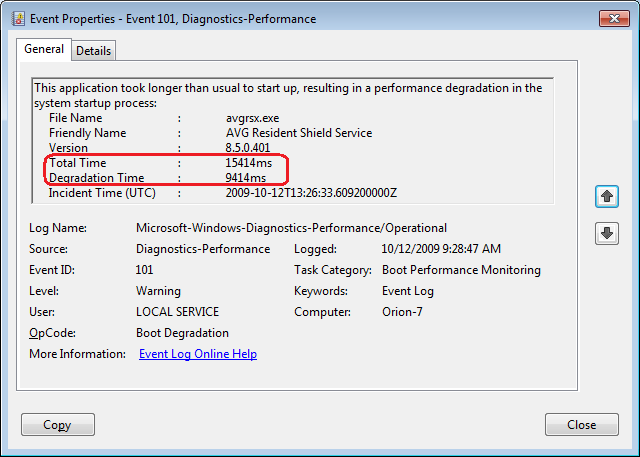
Event ID 101 indicates that an application took longer than usual to start up.

An occasional degradation is pretty normal; however, if you find that a particular application is being reported on a regular basis or has a large degradation time, chances are that there is a problem of some sort. As such, you may want to look for an updated version, uninstall and reinstall the application, uninstall and stop using the application, or maybe find an alternative.

(In the case of my friend’s Windows 7 system, there were several applications that were identified by Event ID 101 as the cause of his system slowdown. Uninstalling them was the solution, and he is currently seeking alternatives.)

Event ID 102

Event ID 102 indicates that a driver took longer to initialize. Again, this could be the result of an update. However, if it occurs regularly for a certain driver or has a large degradation time, you should definitely look in to a newer version of the driver. If a new version is not available, you should uninstall and reinstall the driver.

Event ID 103

Event ID 103 indicates that a service took longer than expected to start up, as shown in Figure G.

Figure G
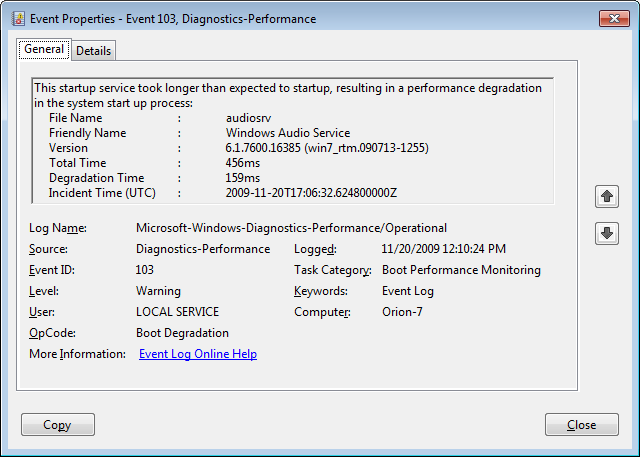
Event ID 103 indicates that a service took longer than expected to start up.

Services can occasionally take longer to start up, but they shouldn’t do so on a regular basis. If you encounter a service that is regularly having problems, you can go to the Services tool and experiment with changing the Startup type to Automatic (Delayed Start) or Manual.

Event ID 106

Event ID 106 indicates that a background optimization operation took longer to complete. On all the Windows 7 systems that we investigated, this event identified the BackgroundPrefetchTime as the culprit, as shown in Figure H. Since the Prefetch cache is a work in progress, this should not really represent a problem.

Figure H
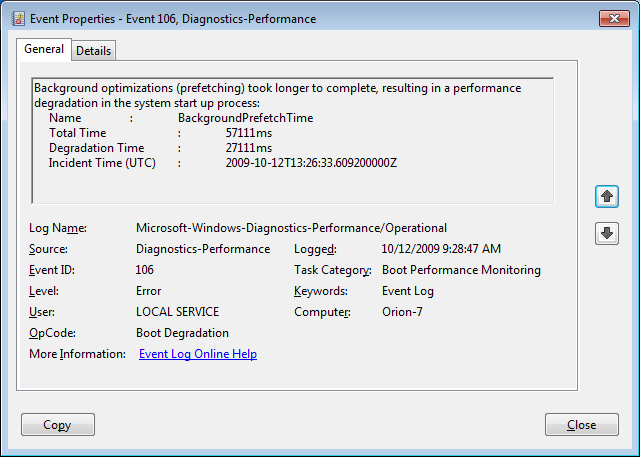
Event ID 106 indicates that a background optimization operation took longer to complete.

If you encounter regular or long degradation times related to Prefetch, you may want to investigate clearing this cache and allowing the operating system to rebuild it from scratch. However bear in mind that doing so can be tricky and instructions on doing so are beyond the scope of this article.

Event ID 109

Event ID 109 indicates that a device took longer to initialize. Again, if this is happening occasionally, there shouldn’t be anything to worry about. But if it is occurring regularly, you should make sure that you regularly back up your hard disk and begin investigating replacing the device in question.

Have questions?

Get answers from Microsofts Cloud Solutions Partner!
Call us at: 856-745-9990 or visit: https://southjerseytechies.net/

South Jersey Techies, LL C is a full Managed Web and Technology Services Company providing IT Services, Website Design ServicesServer SupportNetwork ConsultingInternet PhonesCloud Solutions Provider and much more. Contact for More Information.

To read this article in its entirety click here.
Modifying the Windows 7 boot loader with the Boot Configuration Data Editor tool

In Windows Vista and later versions of Windows, the bootloader was moved from boot.ini to a utility called BCDEdit. Here’s how to modify the boot config data with the new tool.

Sometimes dual-booting a system is a handy way to test new software, a new operating system, or an application that needs to be run in a specific version of Windows. Other reasons to dual-boot might include replication of a client environment.

Windows handles dual-booting by using boot.ini to display a menu of bootable choices or partitions found on the current system. In Windows Vista and later versions of Windows, the bootloader was moved from boot.ini to a utility called BCDEdit.

Recently, we decided we could make better use of some disk space that we had set aside to create a bootable VHD for Windows Server 2008 R2. There was no data other than the OS installation contained within the file because we had used it only to prepare a blog post about booting from Virtual Hard Disks. To free up the space, we deleted the VHD.

Note: Always make sure to back up any data that you want to keep before deleting or modifying partitions on VHDs. Your changes could make the partition unbootable.

Once we had the VHD removed, we thought Windows would be smart enough to clean up the boot loader, but we were not so lucky. We had Windows 7 set as the primary OS, so we were not without a system.

We started looking around for boot.ini and was directed toward the Boot Configuration Data Editor (BCDEdit) as the utility to use when editing boot loader information in Windows 7 (and in Vista too).

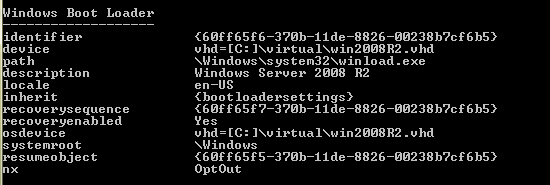
To begin, open the Start menu, select All Programs, and then choose Accessories. Right-click on Command Prompt and select Run As Administrator. Once in the command window, type bcdedit. This will return the current running configuration of your boot loader, showing any and all items that can boot on this system.

In this example, we decided to remove the entry for my Windows 2008 R2 installation, as we wouldn’t need it for the time being. To remove an entry, you will need to know the Boot Loader Identifier (found in curly braces in Figure A).

Figure A

we copied the whole list into Notepad and then selected and copied just the ID, braces included.

Removing an entry from the Boot Loader

One simple command got the Windows Server 2008 R2 entry out of the boot loader. At the command prompt, enter the following:

Bcdedit /delete {boot loader identifier}

Press Enter, and the Boot Configuration Data Editor (BCDEdit) will remove the entry for the ID you specified and display a message when finished. When Windows starts, the only choice available in the boot menu should be the current Windows installation.

Warning: Be careful when editing the boot configuration data. If you mistakenly remove the current instance of Windows, you may render your computer unbootable.

Have questions?

Get answers from Microsofts Cloud Solutions Partner!
Call us at: 856-745-9990 or visit: https://southjerseytechies.net/

South Jersey Techies, LL C is a full Managed Web and Technology Services Company providing IT Services, Website Design ServicesServer SupportNetwork ConsultingInternet PhonesCloud Solutions Provider and much more. Contact for More Information.

To read this article in its entirety click here.
What did Microsoft get right in 2016?

2016 was a very good year for Microsoft in terms of decision making. Here is a  list of five things the company got right.

Since its inception way back in the ancient epoch known as the 1970s, Microsoft has often been ridiculed for making mistakes. Whether it was for bad business strategies, poor products, or unscrupulous practices, Microsoft seemed to bring out the passionate ire in many people.

But what often gets overlooked is what Microsoft does right each year. And by just about any measurement, 2016 was a remarkable year for the company. Under the leadership of Satya Nadella, Microsoft has changed its business strategy to reflect what it describes as a mobile-first, cloud-first business world. And in 2016, that strategy began show results.

Here, in no particular order, are five things Microsoft got right in 2016.

1. Windows 10 Anniversary Update

To mark the one-year anniversary of Windows 10, Microsoft released a large patch it dubbed the Windows 10 Anniversary Update. Okay, so Microsoft is not very clever in naming things. But the patch itself was well received. It included new security measures, new program features, Microsoft Edge browser extensions, and advanced support for digital pens, among many other enhancements. If you were already using Windows 10, the Anniversary Update was a must.

2. Surface Studio

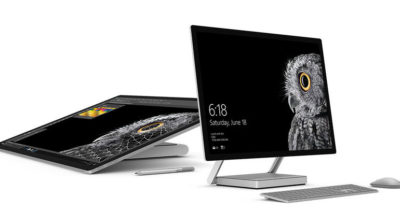
While not its primary business, Microsoft has been developing some noteworthy pieces of hardware the past few years and in 2016, the company generated a large amount of buzz with the release of the Surface Studio. This elegant computer combines the best of the desktop, laptop, and tablet to create a unique and innovative platform perfect for artists, designers, and other creative people. With data visualization becoming ever more important, Microsoft may have invented the perfect tool for the big data generation.

3. Microsoft Office 365

I have been wondering aloud if it is a bit too much, but there can be no doubt that with the dozens of program and feature updates released in 2016, Microsoft Office 365 is the alpha and omega of productivity software. Rather than trying to name all of the new features, it would be best to concentrate on the underlying theme: collaboration. Whether it is Yammer, Skype for Business, or the intelligent cloud, Microsoft is concentrating on features necessary for success in a collaborative environment.

4. LinkedIn

In 2016, Microsoft made several acquisitions of both companies and their technologies. Perhaps the most high-profile of these acquisitions was LinkedIn. Despite all of its efforts to create a collaboration platform with Office 365, the one thing Microsoft needed was a social networking component. LinkedIn gives the company a jump start toward establishing a social networking presence that can compete with the likes of Twitter and Facebook. It will be interesting to see what Microsoft does with this acquisition.

5. IoT, AI, and machine learning

While we may live in a mobile-first, cloud-first world right now, the future may very well revolve around the Internet of Things (IoT), artificial intelligence, and machine learning. To its credit, Microsoft sees the potential of these technologies and has taken steps to get ahead of the curve. In terms of recent history, getting ahead of the curve is not something Microsoft has done very well, so it is difficult to know where the research will lead, but it should prove to be worth watching closely.

Despite what some people may tell you, Microsoft does do some things right. In fact, for the most part, the company does more things right than it does wrong. In 2016, Microsoft did many things right and consumers and businesses have been the beneficiaries. Let’s hope Microsoft can continue the trend in 2017.

Have questions?

Get answers from Microsofts Cloud Solutions Partner!
Call us at: 856-745-9990 or visit: https://southjerseytechies.net/

South Jersey Techies, LL C is a full Managed Web and Technology Services Company providing IT Services, Website Design ServicesServer SupportNetwork ConsultingInternet PhonesCloud Solutions Provider and much more. Contact for More Information.

To read this article in its entirety click here.
Massive Delta outage highlights need for quality data center power, backup plans

Business leaders must prepare for disasters made by man or Mother Nature with extensive, practiced recovery plans to avoid system shutdowns.

A Delta ground stop was lifted Monday morning following a 2:30 a.m. ET power outage in Atlanta that delayed and cancelled flights worldwide. Businesses should view this as a cautionary tale, highlighting the importance of quality data center power and disaster control systems.

Delta cancelled approximately 300 flights due to the outage. As of 10:30 a.m. ET, it operated 800 of its nearly 6,000 scheduled flights. However, Delta customers heading to the airport on Monday should still expect delays and cancellations, according to a press release. As inquiries are high and wait times are long, there may also be some lag time in the display of accurate flight status from the airline, it warned.

Last month, Southwest Airlines cancelled 1,150 flights after a system outage. Though the system came back online within the day, hundreds of flights were backlogged.

Based on recent research, it’s fair to say that what happened to Delta and Southwest could happen to a number of businesses. Some 57% of small and mid-sized businesses have no recovery plan in the event of a network outage, data loss, or other IT disaster, according to a Symantec study.

“Planning and executing disaster recovery exercises is something that should be done on a regular basis to find out these issues before they may be impactful,” said Mark Jaggers, a Gartner data center recovery and continuity analyst. “The issue, which was also the case with Southwest Airlines, is not planning for partial failure scenarios that are harder to get to the root cause of and work around.”

To avoid shutdowns like Delta’s, company data centers should have redundant power and networking, preferably from a grid and provider, respectively, that are completely independent from the primary ones, Jaggers said.

“Data centers are a huge piece of a disaster recovery plan,” said mission-critical facility management professional Christopher Wade. “To have a reliable infrastructure, you have to minimize single points of failure.” Business leaders should also ask about the experience levels of data center staff, as many of these companies are currently understaffed, Wade added.

Usually, large companies have a primary data center in one location and an alternate in another that is far enough away so the two do not experience the same disaster at the same time, said Roberta Witty, risk and security management analyst at Gartner.

“In today’s world, the business expectation is that you’re up and running quickly after a disaster,” Witty said. “The ‘always on’ driver is changing the way organizations deliver IT in general, and so they are building out their data centers to be more resilient.”

Faster recovery times

About 60% of organizations are moving to a recovery time objective of four hours or less, Witty said. Doing so successfully involves extensive planning. First, determine what business operations are mission critical. Then, consider factors that impact recovery time requirements, such as revenue loss, safety, and brand reputation, and build your recovery infrastructure accordingly. As more companies outsource data operations, a key consideration should be the third party’s ability to meet your recovery requirements, she added.

Crisis management practices, such as the procedures Delta used to notify management and deal with customer fallout, usually get exercised every quarter. “The more you practice your crisis management procedure and communicating with your workforce, customers, suppliers, and partners, the better off you are,” Witty said. “A plan that hasn’t been exercised is not a workable plan.”

Disaster recovery can’t be something a company reviews once a year, Witty said, but rather an ongoing part of every new project.

“Your recovery environment has to stay in sync with production, which is where a lot of organizations fail,” Witty said. “Build disaster recovery into a project lifestyle—whether it’s a new product or a change in management, you have to go back and revisit your recovery plans.”

The 3 big takeaways for readers

  1. Delta experienced a massive networked service stoppage Monday morning after a power outage in Atlanta, which offers a lesson in disaster preparedness and recovery for other businesses and data centers.
  2. About 57% of small and mid-sized businesses have no recovery plan in the event of a network outage, data loss, or other IT disaster, but these plans are key for mitigating natural and manmade disasters and keeping business operations running smoothly.
  3. Companies should build crisis management and proper communication into all new projects and management changes to ensure consistency.

Have questions?

Get answers from Microsofts Cloud Solutions Partner!
Call us at: 856-745-9990 or visit: https://southjerseytechies.net/

South Jersey Techies, LL C is a full Managed Web and Technology Services Company providing IT Services, Website Design ServicesServer SupportNetwork ConsultingInternet PhonesCloud Solutions Provider and much more. Contact for More Information.

To read this article in its entirety click here.
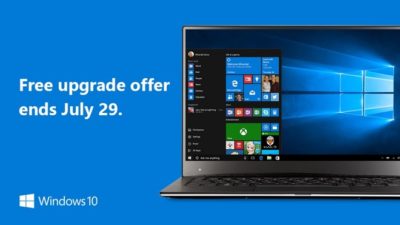
The end is near: Say goodbye to the Windows 10 free upgrade

The deadline for a free Windows 10 upgrade is right around the corner. Find out what happens after the offer expires.

Windows 10-July29

Don’t look now, but July 29, 2016, is coming up fast. That is the one-year anniversary of the release of Windows 10, which means the ability to upgrade to the new operating system for FREE will soon expire. (If you are interested, you can take a look at the official countdown here.)

In a January 21, 2015, Windows Experience blog post titled The next generation of Windows: Windows 10, we learned that Windows 10 would be a free upgrade. Author Terry Myerson said:

Today was a monumental day for us on the Windows team because we shared our desire to redefine the relationship we have with you—our customers. We announced that a free upgrade for Windows 10 will be made available to customers running Windows 7, Windows 8.1, and Windows Phone 8.1 who upgrade in the first year after launch.

A little over six months later, on July 28, 2015, Myerson penned another Windows Experience blog post, titled Windows 10 Free Upgrade Available in 190 Countries Today, in which he reiterated the free upgrade policy:

From the beginning, Windows 10 has been unique—built with feedback from five million Windows Insiders, delivered as a service with ongoing innovations and security updates, and offered as a free upgrade to genuine Windows 7, Windows 8.1 and Windows Phone 8.1 customers.

If you’ve been reading articles by Woody Leonhard or Paul Thurrott in recent months, you know that Microsoft has been upping its game with the Get Windows 10, or GWX, program it built into Windows 7 and Windows 8.1. It really wants every Windows user everywhere to be running Windows 10.

Any holdouts—Windows 7 or Windows 8.1 users who have been sticking to their guns so far—have only a few more weeks to go before losing their chance to get Windows 10 for free.

In a recent Windows Experience blog post titled Windows 10 Now on 300 Million Active Devices – Free Upgrade Offer to End Soon, Yusuf Mehdi, the corporate vice president of Microsoft’s Windows and Devices Group, said:

…we want to remind you that if you haven’t taken advantage of the free upgrade offer, now is the time. The free upgrade offer to Windows 10 was a first for Microsoft, helping people upgrade faster than ever before. And time is running out. The free upgrade offer will end on July 29 and we want to make sure you don’t miss out. After July 29th, you’ll be able to continue to get Windows 10 on a new device, or purchase a full version of Windows 10 Home for $119.

What will Windows 10 cost after July 29?

As Mehdi pointed out in his post, you will be able to purchase a full version of Windows 10 Home for $119.

But how much will Windows 10 Pro cost?

Well, if you head over to the Microsoft Store right now, you’ll find that you can purchase both Windows 10 Home and Windows 10 Pro as a download or on a USB flash drive. Windows 10 Pro will cost you $199.99. And moving past the July 29 deadline for the free upgrade, it’s a pretty safe bet that prices will remain the same—especially since they’re the same price points that the full versions of Windows 8.1 Home and Pro sold for when that operating system was new.

Will there be upgrade versions of Windows 10 after July 29?

Since Microsoft provided free upgrades for a full year, I wonder if there will be upgrade packages for Windows 7 and Windows 8.1 users who decide to upgrade to Windows 10 after July 29. I suppose that it’s possible, but then again, maybe not. When Microsoft introduced Windows 8.1 packages, it offered only the full versions—there were no upgrade versions of Windows 8.1. With that in mind, it’s easy to speculate that this may also be the case with Windows 10.

Have questions?

Get answers from Microsofts Cloud Solutions Partner!
Call us at: 856-745-9990 or visit: https://southjerseytechies.net/

South Jersey Techies, LL C is a full Managed Web and Technology Services Company providing IT Services, Website Design ServicesServer SupportNetwork ConsultingInternet PhonesCloud Solutions Provider and much more. Contact for More Information.

Yammer is on the way to Office 365: Are you ready?

Microsoft is activating Yammer for every Office 365 subscription. But is this one collaboration tool too many?

On February 2, 2016, Kirk Koenigsbauer announced in the official Microsoft Office 365 blog that Yammer is now being activated for every eligible Office 365 subscription. In a nutshell, that means Yammer is going to be another app on the Office 365 app list unless an admin specifically turns off access. Your enterprise should plan accordingly.

Yammer

For those of you unfamiliar with the product, Yammer bills itself as an enterprise internal social network. It mixes the typical chat messenger application with collaboration tools available in Office 365.

Similar to the Delve tool we looked at last week, Yammer can serve as the central hub for team collaboration. From within a Yammer discussion, teams can set up meeting appointments using Outlook, switch to a full-fledged Skype for Business video meeting, and access OneDrive for Business to create collaborative documents.

The initial rollout of Yammer took place on February 2, 2016; the rest of the rollout will take place in stages. The next release is March 1, 2016, and the last is April 1, 2016. According to the blog post, the first wave is for “Office 365 customers with a business subscription who purchased fewer than 150 licenses that includes Yammer and who have zero or one custom domains for Yammer.”

The second wave is for “Office 365 customers with a business subscription who purchased fewer than 5,000 licenses that includes Yammer.” Customers with an education subscription are not included.

The final wave is for “remaining customers with a business subscription and all customers with an education subscription.” For subscribers who have never had a Yammer account, the rollout will take place last, in April. Alas, that is the wave I’ll have to wait for.

Collaboration

Yammer is the latest, and perhaps the last, major teamwork collaboration app to be added to Office 365. In Microsoft’s vision of a mobile-first, cloud-first enterprise, teams collaborate across distances using shared documents, video conferencing, and applications that tie it all together in one virtual location.

YammerForOffice365

With the addition of Yammer, Microsoft is offering several tools teams can use to manage and organize their collaboration activities. Teams can use Yammer, Delve, Groups, Sites, SharePoint, and OneNote to manage their shared conversations and documents across the enterprise. One of those tools should be able to satisfy even the most persnickety of teams.

Bottom line

But then again, that may be where we run into problems. One could argue that there are too many collaboration tools available in Microsoft Office 365. While all these wonderful choices may seem good at first glance, it is possible that subscribers may become overwhelmed.

Microsoft’s idea that teams can choose the best tool for them or for the project they are working on sounds all well and good, but it does still require someone to make an important initial decision. For some people, making a decision that will affect a project from start to finish can be a daunting task.

In the long run, it may be beneficial for organizations to establish guidelines for when each of the collaboration tools works best. They may even decide to block some of the tools from use altogether in favor of a recommended best practice.

Having myriad collaboration tools is generally a good thing, but it might help move things along if the enterprise establishes some well thought out guidelines.

Have questions?

Get answers from Microsofts Cloud Solutions Partner!
Call us at: 856-745-9990 or visit: https://southjerseytechies.net/

South Jersey Techies, LL C is a full Managed Web and Technology Services Company providing IT Services, Website Design ServicesServer SupportNetwork ConsultingInternet PhonesCloud Solutions Provider and much more. Contact for More Information.

Windows 10 is being adopted by business at nearly twice the rate of Windows 8

Microsoft’s latest OS is proving more attractive to firms than Windows 8 – particularly among larger businesses.

Windows 10


Businesses are proving far more willing to experiment with Windows 10 than they were with Windows 8.

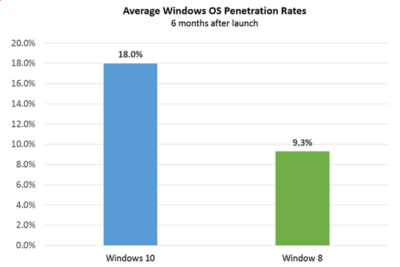
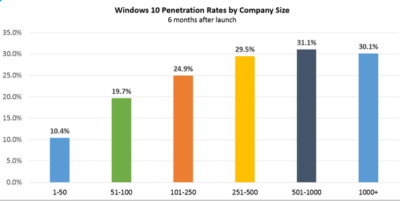
Six months after Windows 10’s launch nearly one in five firms, 18 percent, appear to be testing the OS, research by professional IT network Spiceworks found. In contrast, at the same point after Windows 8’s release, the OS was only being trialled by just over nine percent of businesses.

The anonymised data on what proportion of firms are using at least one Windows 10 machine was gathered from the millions of IT pros that use its software. Spiceworks says businesses of all sizes use the software to inventory devices connected to their networks.

This faster pace of enterprise adoption is backed up by figures from IT asset management company Samanage, told that 62.4 percent of its enterprise customers have at least one managed PC running Windows 10. These are sizeable businesses, with each of Samanage’s enterprise customers having an average of more than 1,000 seats. Microsoft also claims that 76 percent of its enterprise customers are piloting its new OS.

“Our data shows that IT pros were most excited about the return of the familiar start button experience in Windows 10, which reduces the need for end-user training required for Windows 8,” said Peter Tsai, IT analyst at Spiceworks in his assessment of why the new OS is proving more popular than Windows 8.

“Many IT pros also liked the free upgrade offer via Windows Update, which makes it easy for many to test the new OS. And lastly, they were looking forward to new security features that promise to make Windows 10 a more secure operating system than previous versions.”

Windows 10 is benefiting from a comparison to an unpopular OS, demand for Windows 8 was so weak that analyst firm Canalys warned in 2014 that “Microsoft risks losing momentum unless it does something drastic to turn its Windows business around”.

And while a significant proportion of businesses may be experimenting with Windows 10, it is likely to be some time before a large number move to the OS, as business typically lag behind consumers due to the complexity of managing such upgrades at scale. Of those firms testing Windows 10, about 40 percent have three or more devices running the OS, according to Spiceworks’ data.

Medium and large businesses were the most likely to have at least one Windows 10 machine Spiceworks found – with 31 percent of firms with more than 500 people trialling the OS, compared to 10 percent of companies with 50 employees or fewer.

Windows 10


“We also know from many conversations with IT pros that smaller companies tend to have fewer resources for OS migration, so many SMBs could be holding off on Windows 10 until they have the time and manpower to adequately test the OS for hardware and application compatibility,” said Tsai.

Last year, half of the 500 IT pros surveyed by Spiceworks expressed an interest in adopting Windows 10 inside their business.

Microsoft’s decision to phase out support for Windows 7 and 8 on new PC hardware will also put pressure on businesses not to downgrade new Windows 10 machines to an earlier OS, as has been common in the past in order to standardize corporate hardware.

Microsoft is also reporting rapid adoption of Windows 10 by home users, with more than 200 million devices worldwide running the OS.

The popularity of the OS may, in part, be a result of Microsoft’s tactics to get consumers to upgrade. This aggressive approach includes recently implementing changes that will trigger the free upgrade to Windows 10 to begin automatically installing on many Windows 7 and Windows 8.1 PCs used in homes. Microsoft is making this push as part of its drive to get one billion devices running Windows 10 by 2018.

Have questions?

Get help from IT Experts/Microsofts Cloud Solutions Partner
Call us at: 856-745-9990 or visit: https://southjerseytechies.net/

South Jersey Techies, LL C is a full Managed Web and Technology Services Company providing IT Services, Website Design ServicesServer SupportNetwork ConsultingInternet PhonesCloud Solutions Provider and much more. Contact for More Information.

To read this article in its entirety click here.
Windows 10: Ten big things to watch for in 2016

This year will mark the first full year of release for Microsoft’s new OS. A look at what’s in store for Windows 10 this year.

Windows

Windows 10 was described as the “last version of Windows” – an OS that would evolve over time rather than be superceded.

In the few months since Windows 10’s launch Microsoft says it has been installed on more than 110 million devices. But just what lies in store for the OS in 2016, how will it get better and what new devices will it find its way onto?

1. Windows 10 will begin automatically installing on your old machine

Windows 10 is available as a free upgrade to Windows 7 and 8.1 users and Microsoft is getting increasingly aggressive about moving these users to the new OS.

From this year Windows 10 will automatically begin installing on most Windows 7 and 8.1 machines.

Users will still need to confirm the installation manually for it to continue. However, if they choose not to proceed it’s unclear if they can cancel it altogether, with Jeremy Korst, general manager of the Windows and Devices team at Microsoft, saying only that “the customer will have the ability to delay it for some period”.

If users do upgrade but don’t like Windows 10 they will have 31 days to roll back to their previous OS.

The automatic installation, the result of Microsoft changing the status of the Windows 10 upgrade to a Recommended update, will be preceded by increasingly insistent nag messages to upgrade. These notices are already being shown to some Windows users and have been criticised for not offering an easy opt-out.

2. Microsoft Edge will get extensions

Windows 10 launched with Microsoft Edge, a new browser that cast off a lot of the legacy code holding Internet Explorer back.

However, while speedy and capable on paper, the browser suffers from its share of bugs and is missing support for extensions, a key feature found in competitors such as Chrome and Firefox.

Microsoft will rectify this omission “early next year” when Korst said it will add extensions to Edge in test builds of Windows 10, ahead of being made generally available.

Extensions are small software programs, typically written using HTML, CSS and JavaScript, that augment the functionality of a browser.

Earlier this month, Microsoft accidentally published a website announcing the introduction of extensions to test builds of Windows 10. The site, which was taken down, referenced extensions for Pinterest and Reddit.

Microsoft originally planned to add support for extensions to Edge this year.

3. Windows 10 will blur the virtual and real world

Microsoft’s Windows 10-powered augmented reality headset HoloLens will ship to developers in the first quarter of 2016.

The augmented reality headset places 3D virtual images in the wearer’s vision so that they appear part of the real world – for instance, a Minecraft landscape sits on a coffee table or a Skype video sits on the wall.

After trying a demo of the headset this week, TechRepublic senior writer Dan Patterson said that though the headset had a limited “field of vision”, “the 3D animations are smooth, easy to interactive with, and result in only marginal eyestrain”.

The HoloLens doesn’t come cheap, with the developer kit priced at $3,000 – although Microsoft says this early release is meant for developers and commercial customers.

Although HoloLens has obvious consumer and gaming uses, Microsoft is stressing its use for business and is working with NASA, AutoDesk, Volvo, Dassault Aviation, Case Western Reserve University, and other large organisations to develop applications for it.

4. More security for enterprise

The coming year will also see some notable new features added to the enterprise version of Windows 10.

Key among these additions is Enterprise Data Protection, which will allow companies to separate work and personal data on devices using containerisation file techniques. It will also encrypt data as it moves around the organisation – helping to ensure that information isn’t accessed by the wrong people.

The feature will be rolled out to people testing Windows under the Insider Program “early this year”.

5. Testers will get a peek at even earlier builds

Those testing early releases of Windows 10 under the Windows Insider Program will be able to get earlier access to new features from January this year.

Those who choose to be in the “fast” ring of the Insider Program will receive builds of Windows 10 more frequently in 2016, according to Microsoft VP Gabe Aul.

The price of testers getting their hands on early builds more regularly will be that this software will likely include more bugs, he said. Those testers who prefer stability to early access should opt for the “slow” ring, he said.

6. Cortana will be everywhere

Microsoft is planning a major upgrade to Windows 10, codenamed Redstone, next year – with reports the upgrade will put Microsoft’s virtual assistant Cortana at the core of the OS.

An unnamed source told The Verge the new Cortana will help users with a much wider range of tasks inside Windows 10, appearing contextually in documents to provide “information and assistance” and giving Cortana control over a wider range of notifications.

The other major upgrade to Cortana will reportedly be an ability to start a task on one device and pick it up on another, for instance if you get a missed call on an Android phone running the Cortana app you could reply from your Windows 10 PC via text.

7. Microsoft doubles down on Windows 10 phones as desktops

A much touted feature of Windows 10 is its ability to run a desktop OS from a phone.

Microsoft’s new Lumia 950 and 950XL handsets can – wirelessly or via a dock – be hooked up to a monitor, mouse and keyboard and used to run a Windows desktop.

The Windows 10 OS can change the look and feel of certain apps, as well as its own appearance, to suit the phone or the desktop, as well as coping with everyday desktop tasks, such as multitasking and copying files from a USB stick.

The expectation is that Microsoft will further commit to this idea of using your phone as a desktop in 2016, with rumours that Panos Panay and the team behind the high-end Surface Book laptop are working on a Surface Phone that will release next year.

8. No more free upgrade

Windows 10 is available as a free upgrade to everyone running Windows 7 or 8.1 but only for a limited time.

The offer of a free upgrade will expire on 29 July 2016 – after which point it seems that users will have to buy a Windows 10 licence.

However, due to the in-your-face tactics that Microsoft is adopting to persuade people to upgrade, it seems unlikely that Windows 7 and 8.1 users will inadvertently miss out on the offer.

9. Windows 10 replaces its predecessors on new PCs

If you’re not a fan of Windows 10 then you should buy a new PC before October.

From the end of October 2016, PC makers will have to sell new machines with Windows 10, rather than Windows 7 or 8.1.

After that point businesses that want to run older Windows versions on new machines will have to rely on downgrade rights or software assurance rights under volume license agreements.

10. Windows 10 Surface Hub arrives

From January 2016 Windows 10 will power another new piece of hardware,Microsoft’s touchscreen computer the Surface Hub.

The successor to its large-screen Perceptive Pixel displays, the Surface Hub will run a custom version of Windows 10 and various apps needed for workplace communication and collaboration, including OneNote, Skype for Business and Office.

The 55-inch, Intel Core i5-based Surface Hub model will sell for $6,999 (estimated retail price), and the Intel Core i7-based 84-inch version for $19,999 ERP.

Have questions?

Get help from IT Experts/Microsofts Cloud Solutions Partner
Call us at: 856-745-9990 or visit: https://southjerseytechies.net/

South Jersey Techies, LLC is a full Managed Web and Technology Services Company providing IT Services, Website Design ServicesServer SupportNetwork ConsultingInternet PhonesCloud Solutions Provider and much more. Contact for More Information.

To read this article in its entirety click here.
Watch out, Chrome, there’s new browser in town!

browser

With the latest release of Windows 10 and the Edge browser, Microsoft looks increasingly ready to tackle Chrome’s performance lead.

Over the years Microsoft has fallen behind its competitors in the battle to provide the best performing browser.

Google’s focus on making Chrome feel fast and responsive has won the browser millions of users at the expense of the more sluggish-feeling Internet Explorer (IE).

With the release of Windows 10, Microsoft is hoping to change the status quo and offer the fastest on-ramp to the web.

To this end it has been reworking how its new Edge browser handles JavaScript (JS), the default scripting language of the web.

JavaScript is at the core of the modern web, with heavy pages loading in tens of scripts that in turn fetch more JavaScript. If your browser is slow at JavaScript, it’s slow full-stop.

At the heart of every browser is a JavaScript engine that parses the JS, interprets its commands and compiles its instructions into machine code.

Like IE 11 before it, the Edge browser uses the Chakra JS engine, and Microsoft has been tweaking Chakra to give Edge a boost on Windows 10.

This fine tuning has allowed the Edge browser to outgun not only IE, but also the latest experimental builds of Chrome and Mozilla Firefox, according to benchmarks run by Microsoft.

The Octane and JetStream benchmarks measure JavaScript performance and importantly are not produced by Microsoft but by their rivals, Octane by Google and JetStream by Apple.

The tests found Edge to be 2.25 times faster than IE in the Octane 2.0 benchmark and 1.6 times faster in the JetStream benchmark.

“The key is that Microsoft Edge has already come a long way from IE11 in terms of improved JavaScript performance on both, benchmarks and real world web as it exists today,” said Gaurav Seth, principal PM lead for Chakra at Microsoft in blog post.

“As mentioned in the beginning, performance is a never-ending pursuit. We will continue pushing the performance boundaries for JavaScript in Microsoft Edge.”

Edge’s relative performance in Octane is a step above its showing when TechRepublic ran the benchmark earlier this year, which saw Edge achieving an 8.8 percent worse score than IE.

To check this latest performance win, we replicated the benchmark run by Microsoft using the same browsers under build 10122 of a 64-bit version of the Windows 10 Technical Preview.

Tests were run on a Toshiba Portege laptop. The machine has an 2.1GHz Intel Core i7 4600U processor, with 8GB of memory and a 256GB SSD.

Although Edge didn’t come out on top in our tests it did put in a good showing, bettering IE’s score by an impressive 44 percent and Firefox Nightly by five percent in the Octane test. Edge still lagged behind Chrome Canary by just under six percent in Octane, but came within spitting distance of Chrome in JetStream, racking up a benchmark just three percent shy of Google’s browser.While our benchmarks found Edge failing to match Microsoft’s claims, it does appear to be a noticeable step forward, leaving IE in the dust and edging closer to the performance of Chrome.

Edge doesn’t appear to have snatched the performance crown as of yet but with work continuing to improve the browser, Microsoft finally seems to have produced a contender in the browser wars.

Have questions?

Our small business team is here to help.
Call us at: 856-745-9990

South Jersey Techies, LLC is a full Managed Web and Technology Services Company providing IT Services, Website Design ServicesServer SupportNetwork ConsultingInternet PhonesCloud Solutions Provider and much more. Contact for More Information.

Microsoft will let you unlock Windows 10 with your face

Hello
With a quick glance at your Windows 10 laptop, you’ll be able to unlock it — without entering a password.

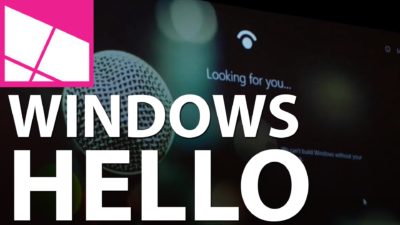
Microsoft introduced the latest new feature for Windows 10, called Windows Hello. The security tool will let you access your PC through facial recognition, an iris scan or a read of your fingerprint.

But before you get ready for your closeup, you’ll need get some special equipment — most PCs don’t come with biometric scanners installed (though some do). Windows Hello is primarily targeted at businesses and government agencies.

Microsoft opted not to rely on your webcam for facial recognition because the photos it captures are not terribly secure, and they’re easy to spoof. Instead, Microsoft got infrared cameras to do facial recognition for Windows Hello.

Facial recognition is possible on a low-grade camera. Google allows its Android phones to be unlocked with facial recognition, but the company warns that someone with a photo of you — or even someone who looks like you — will be able to unlock your phone too.

With the proper tools, faces, irises and fingerprints are possible to spoof, but it’s not easy — someone’s got to really want to break in to your PC to go through the trouble.

Microsoft opted for more robust security in Windows 10, because it wants to meet strict standards that companies and government agencies impose for secure logins. Microsoft said Windows Hello has a 1 in 100,000 false accept rate, which is very high. It’s a lot safer than a password, which, as we know, can easily be forgotten, lost, stolen or hacked.

Though it’s not necessarily aimed at the average PC buyer, consumers will be able to use the Windows Hello feature too.

Microsoft promised “plenty of exciting new Windows 10 devices to choose from which will support Windows Hello.” And if your PC already has a fingerprint reader, you’ll be able to login with a fingerprint scan.

Passport: Windows 10 will also support another new security feature, codenamed “Passport,” which lets you login to participating websites, apps or networks without a password. Microsoft said the list of sites and apps that support Passport is growing, but it didn’t say how many participate.

Microsoft is trying to position Passport as the end of passwords. Since you never enter a password to enter a website, “there is no shared password stored on their servers for a hacker to potentially compromise,” says Microsoft boldly in its press release.

But that’s not quite true. Passwords will still exist. Even if you can login to your email via Passport from your work PC, you’ll still need a password to login from your iPad. So passwords aren’t going away anytime soon — and they’ll still be stored on email providers’ servers, which means hackers could potentially still grab them in a cyberattack.

The primary way that Passport ensures that you’re you is through Windows Hello. Oddly, however, you can also enter a PIN into Passport, which is significantly less secure than a password.

Still, it’s about time that something replaces passwords, and Hello and Passport are good starts.

Have questions?

Get answers from Microsofts Cloud Solutions Partner
Call us at: 856-745-9990 or visit: https://southjerseytechies.net/

South Jersey Techies, LLC is a full Managed Web and Technology Services Company providing IT Services, Website Design ServicesServer SupportNetwork ConsultingInternet PhonesCloud Solutions Provider and much more. Contact for More Information.

To read this article in its entirety click here.
CALL US NOW!