Back to Top

Tech, Web, Cloud & Cabling Services

Category: Hardware

Hardware Category

How To Remove Windows 7 Antispyware

Remove Windows 7 Antispyware 2012, Vista Antivirus 2012, and XP Security 2012 (See Uninstall Guide Below)

Win 7 Antispyware 2012, Vista Antivirus 2012, and XP Security 2012 are all names for the same rogue anti-spyware program. This family of rogues is promoted in two ways. The first is through the use of fake online antivirus scanners that state that your computer is infected and then prompt you to download a file that will install the infection. The other method are hacked web sites that attempt to exploit vulnerabilities in programs that you are running on your computer to install the infection without your knowledge or permission. Regardless of how it is installed, once it is running on your computer it will install itself as a variety of different program names and graphical user interfaces depending on the version of Windows that is running. Regardless of the name, though, they are all ultimately the same program with just a different skin on it. This rogue goes by different program names, which I have listed below based upon the version of Windows that it is installed on:

Windows XP Rogue Name Windows Vista Rogue Name Windows 7 Rogue Name
XP Antispyware 2012 Vista Antispyware 2012 Win 7 Antispyware 2012
XP Antivirus 2012 Vista Antivirus 2012 Win 7 Antivirus 2012
XP Security 2012 Vista Security 2012 Win 7 Security 2012
XP Home Security 2012 Vista Home Security 2012 Win 7 Home Security 2012
XP Internet Security 2012 Vista Internet Security 2012 Win 7 Internet Security 2012

When installed, this rogue pretends to be a security update for Windows installed via Automatic Updates. It will then install itself as a single executable that has a random consisting of three characters, such as kdn.exe, that uses very aggressive techniques to make it so that you cannot remove it. First, it makes it so that if you launch any executable it instead launches Vista Home Security 2012, XP Internet Security 2012, Win 7 Security 2012, or any of the other names it goes under. If the original program that you wanted to launch is deemed safe by the rogue, it will then launch it as well. This allows the rogue to determine what executables it wants to allow you to run in order to protect itself. It will also modify certain keys so that when you launch FireFox or Internet Explorer from the Window Start Menu it will launch the rogue instead and display a fake firewall warning stating that the program is infected.

Win 7 Antispyware 2012 Screen shot
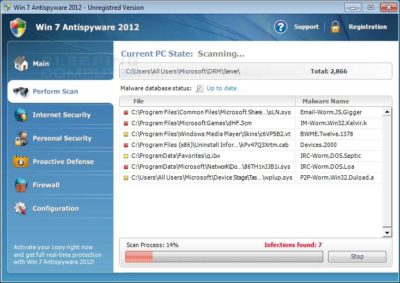
Once started, the rogue itself, like all other rogues, will scan your computer and state that there are numerous infections on it. If you attempt to use the program to remove any of these infections, though, it will state that you need to purchase the program first. In reality, though, the infections that the rogues states are on your computer are all legitimate files that if deleted could cause Windows to not operate correctly. Therefore, please do not manually delete any files based upon the results from this rogue’s scan.

While running, XP Internet Security 2012, Win 7 Antivirus 2012, and Vista Security 2012 will also display fake security alerts on the infected computer. The text of some of these alerts are:

XP Home Security 2012 Firewall Alert
XP Home Security 2012 has blocked a program from accessing the internet
Internet Explorer is infected with Trojan-BNK.Win32.Keylogger.gen
Private data can be stolen by third parties, including credit card details and passwords.

Malware Intrusion
Sensitive areas of your system were found to be under attack. Spy software attack or virus infection possible. Prevent further damage or your private data will get stolen. Run an anti-spyware scan now. Click here to start.

System danger!
Your system security is in danger. Privacy threats detected. Spyware, keyloggers or Trojans may be working the background right now. Perform an in-depth scan and removal now, click here.

System Hijack!
System security threat was detected. Viruses and/or spyware may be damaging your system now. Prevent infection and data loss or stealing by running a free security scan.

Privacy threat!
Spyware intrusion detected. Your system is infected. System integrity is at risk. Private data can be stolen by third parties, including credit card details and passwords. Click here to perform a security repair.

Stealth intrusion!
Infection detected in the background. Your computer is now attacked by spyware and rogue software. Eliminate the infection safely, perform a security scan and deletion now.

XP Antispyware 2012 Alert
Security Hole Detected!
A program is trying to exploit Windows security holes! Passwords and sensitive data may be stolen. Do you want to block this attack?

Just like the scan results, these security warnings and alerts are all fake and should be ignored.

While running, Win 7 Home Security 2012, XP Antivirus 2012, and Vista Antivirus 2012 will also hijack Internet Explorer so that you cannot visit certain sites. It does this so that you cannot receive help or information at sites like BleepingComputer.com on how to remove this infection. When you attempt to visit these sites you will instead be shown a fake alert stating that the site you are visiting is dangerous and that the rogue is blocking it for your protection. The message that you will see is:

Vista Security 2012 Alert
Internet Explorer alert. Visiting this site may pose a security threat to your system!

Possible reasons include:
– Dangerous code found in this site’s pages which installed unwanted software into your system.
– Suspicious and potentially unsafe network activity detected.
– Spyware infections in your system
– Complaints from other users about this site.
– Port and system scans performed by the site being visited.

Things you can do:
– Get a copy of Vista Security 2012 to safeguard your PC while surfing the web (RECOMMENDED)
– Run a spyware, virus and malware scan
– Continue surfing without any security measures (DANGEROUS)

Just like the fake security alerts, the browser hijack is just another attempt to make you think that your computer has a security problem so that you will then purchase the program.

Without a doubt, this rogue is designed to scam you out of your money by hijacking your computer and trying to trick you into thinking you are infected. Therefore, please do not purchase this program , and if you have, please contact your credit card company and dispute the charges stating that the program is a computer infection. Finally, to remove Win 7 Antispyware 2012, Vista Antivirus 2012, and XP Security 2012 please use the guide below, which only contains programs that are free to use.

Tools Needed for this fix:

  • Malwarebytes’ Anti-Malware


Automated Removal Instructions for Win 7 Antispyware 2012 & Vista Antivirus 2012 using Malwarebytes’ Anti-Malware:

  1. Print out these instructions as we will need to close every window that is open later in the fix.
  1. It is possible that the infection you are trying to remove will not allow you to download files on the infected computer. If this is the case, then you will need to download the files requested in this guide on another computer and then transfer them to the infected computer. You can transfer the files via a CD/DVD, external drive, or USB flash drive.
  1. This infection changes settings on your computer so that when you launch an executable, a file ending with .exe, it will instead launch the infection rather than the desired program. To fix this we must first download a Registry file that will fix these changes. From a clean computer, please download the following file and save it to a removable media such as a CD/DVD, external Drive, or USB flash drive. FixNCR.reg.  Once that file is downloaded and saved on a removable devices, insert the removable device into the infected computer and open the folder the drive letter associated with it. You should now see the FixNCR.reg file that you had downloaded onto it. Double-click on the FixNCR.regfile to fix the Registry on your infected computer. You should now be able to run your normal executable programs and can proceed to the next step.If you do not have any removable media or another clean computer that you can download the FixNCR.reg file onto, you can try and download it to your infected computer using another method. On the infected computer, right click on the Internet Explorer’s icon, or any other browser’s icon, and select Run As or Run as Administrator. If you are using Windows XP, you will be prompted to select a user and enter its password. It is suggested that you attempt to login as the Administratoruser. For Windows 7 or Windows Vista, you will be prompted to enter your Administrator account password.Once you enter the password, your browser will start and you can download the above FixNCR.reg file. When saving it, make sure you save it to a folder that can be accessed by your normal account. Remember, that you will be launching the browser as another user, so if you save it to a My Documents folder, it will not be your normal My Documents folder that it is downloaded into. Instead it will be the My Documents folder that belongs to the user you ran the browser as. Once the download has finished, close your browser and find the FixNCR.reg file that you downloaded. Now double-click on it and allow the data to be merged. You should now be able to run your normal executable programs and can proceed to the next step.
  1. Now we must first end the processes that belong to Win 7 Antispyware 2012 & Vista Antivirus 2012 and clean up some Registry settings so they do not interfere with the cleaning procedure. To do this, please download RKill to your desktop from the following link.RKill Download Link.  When at the download page, click on the Download Now button labeled iExplore.exe download link . When you are prompted where to save it, please save it on your desktop.
  1. Once it is downloaded, double-click on the iExplore.exe icon in order to automatically attempt to stop any processes associated with Win 7 Antispyware 2012 & Vista Antivirus 2012 and other Rogue programs. Please be patient while the program looks for various malware programs and ends them. When it has finished, the black window will automatically close and you can continue with the next step. If you get a message that RKill is an infection, do not be concerned. This message is just a fake warning given by Win 7 Antispyware 2012 & Vista Antivirus 2012 when it terminates programs that may potentially remove it. If you run into these infections warnings that close RKill, a trick is to leave the warning on the screen and then run RKill again. By not closing the warning, this typically will allow you to bypass the malware trying to protect itself so that rkill can terminate Win 7 Antispyware 2012 & Vista Antivirus 2012 . So, please try running RKill until the malware is no longer running. You will then be able to proceed with the rest of the guide. If you continue having problems running RKill, you can download the other renamed versions of RKill from the rkill download page. All of the files are renamed copies of RKill, which you can try instead. Please note that the download page will open in a new browser window or tab.Do not reboot your computer after running RKill as the malware programs will start again.
  1. There have been reports of this infection being bundled with the TDSS rootkit infection. To be safe you should also run a program that can be used to scan for this infection. Please follow the steps in the following guide:

How to remove Google Redirects or the TDSS, TDL3, or Alureon rootkit using TDSSKiller

If after running TDSSKiller, you are still unable to update Malwarebytes’ Anti-malware or continue to have Google search result redirects, then you should post a virus removal request using the steps in the following topic rather than continuing with this guide:

Preparation Guide For Use Before Using Malware Removal Tools and Requesting Help Topic

If TDSSKiller requires you to reboot, please allow it to do so. After you reboot, reboot back into Safe Mode with Networking again.

  1. Download Malwarebytes’ Anti-Malware, also referred to as MBAM, from the following location and save it to your desktop:Malwarebytes’ Anti-Malware Download Link (Download page will open in a new window)
  1. Once downloaded, close all programs and Windows on your computer, including this one.
  1. Double-click on the icon on your desktop named mbam-setup.exe. This will start the installation of MBAM onto your computer.
  1. When the installation begins, keep following the prompts in order to continue with the installation process. Do not make any changes to default settings and when the program has finished installing, make sure you leave both the Update Malwarebytes’ Anti-Malware and Launch Malwarebytes’ Anti-Malware checked. Then click on the Finish button.
  1. MBAM will now automatically start and you will see a message stating that you should update the program before performing a scan. As MBAM will automatically update itself after the install, you can press the OK button to close that box and you will now be at the main program as shown below.
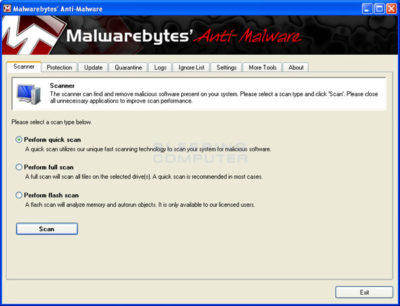


  1. On the Scanner tab, make sure the the Perform full scan option is selected and then click on the Scan button to start scanning your computer for Win 7 Antispyware 2012 & Vista Antivirus 2012 related files.
  1. MBAM will now start scanning your computer for malware. This process can take quite a while, so we suggest you go and do something else and periodically check on the status of the scan. When MBAM is scanning it will look like the image below.
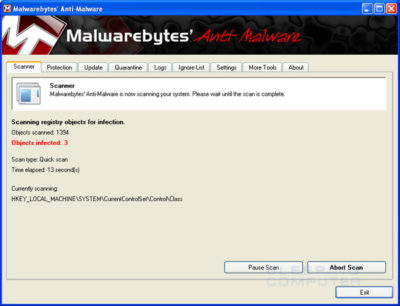


  1. When the scan is finished a message box will appear as shown in the image below.
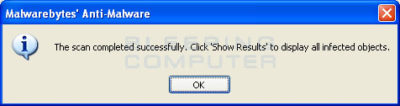
 

You should click on the OK button to close the message box and continue with the Vista AntiSpyware 2012 & Win 7 Home Security removal process.

  1. You will now be back at the main Scanner screen. At this point you should click on the Show Results button.
  2. A screen displaying all the malware that the program found will be shown as seen in the image below. Please note that the infections found may be different than what is shown in the image.
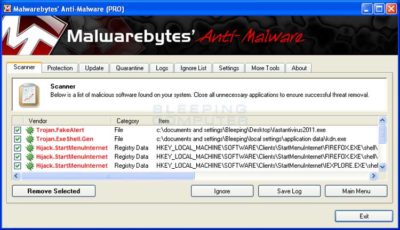
 

You should now click on the Remove Selected button to remove all the listed malware. MBAM will now delete all of the files and registry keys and add them to the programs quarantine. When removing the files, MBAM may require a reboot in order to remove some of them. If it displays a message stating that it needs to reboot, please allow it to do so. Once your computer has rebooted, and you are logged in, please continue with the rest of the steps.

  1. When MBAM has finished removing the malware, it will open the scan log and display it in Notepad. Review the log as desired, and then close the Notepad window.
  1. You can now exit the MBAM program.
  1. As many rogues and other malware are installed through vulnerabilities found in out-dated and insecure programs, it is strongly suggested that you use Secunia PSI to scan for vulnerable programs on your computer. A tutorial on how to use Secunia PSI to scan for vulnerable programs can be found here:How to detect vulnerable and out-dated programs using Secunia Personal Software Inspector

Your computer should now be free of the Vista AntiSpyware 2012 & Win 7 Home Security program. If your current anti-virus solution let this infection through, you may want to consider purchasing the PRO version of Malwarebytes’ Anti-Malware to protect against these types of threats in the future.

If you are still having problems with your computer after completing these instructions, then please follow the steps outlined in the topic linked below:

Preparation Guide For Use Before Using Malware Removal Tools and Requesting Help

To see the original article in its entirety click here.

Microsoft hints at September release of Windows 10’s next feature upgrade

Based on the current progress for Windows 10 version 1903, due to arrive next spring, it now looks like the fall update for the OS will arrive around Sept. 10 or Sept. 24.

Microsoft last week released the first preview of what will become Windows 10 version 1903, the opening feature upgrade of next year, slated to ship in the spring.

The debut of what Microsoft calls the “Skip Ahead” build for Windows 10 1903 also hints that the release of this fall’s upgrade, aka 1809, will take place in September. If so, it would be the first time since late-2015 that the actual delivery date matched the numerical label.

On July 25, Microsoft forked the 1809 preview of Windows 10 – as it’s done before when a feature upgrade approaches – so developers could continue to deliver betas for that build while also beginning to work on the next-in-line, 1903. (Microsoft uses a yymm labeling system to mark its Windows 10 feature upgrades; 1809 should indicate a September 2018 release, while 1903 would be a March 2019 release.)

When it forks preview code, Microsoft provides the even-further-in-the-future build, in this case, 1903, to Windows Insider participants who earlier volunteered for Skip Ahead. As the current feature upgrade gets close to release, Microsoft switches Skip Ahead users to the following upgrade, so that engineers can start collecting feedback on that version even as they keep polishing the one set to launch soon. The bulk of Insiders remain on the latter.

Think of the Skip Ahead debut as a warning bell, like the one rung at track meets when racers start the final lap: When Microsoft begins to ship Skip Ahead code, it’s close to wrapping up the impending feature upgrade.

In 2017, as Windows 10 1709 (aka “Fall Creators Update”) neared completion, Microsoft first forked the preview code and distributed a different build to Skip Aheaders on Aug. 31. Windows 10 1709 began its release cycle on Oct. 17, or 47 days later. With this year’s version 1803, Skip Ahead debuted Feb. 14, or 75 days before the April 30 release of that upgrade.

(Windows 10 1803’s original launch date, reportedly April 10 – which was one of two dates Computerworld had forecast in February – was postponed by 20 days after a deal-breaking bug was uncovered at nearly the last minute.)

For one estimate of the release date for Windows 10 1809, Computerworld added 47 days to July 25, arriving at Sept. 10. A second estimate was generated by adding 61 days – the average of the two previous Skip Ahead triggers – to July 25, resulting in a Sept. 24 rollout.

Because the last three feature upgrades launched on either a Monday or Tuesday – April 11, 2017 for version 1703; Oct. 17, 2017 for 1709; April 30, 2018 for 1803 – Sept. 10 or 11 would be the most likely release dates for 1809, absent a show-stopping problem like the bug before 1803’s launch. Computerworld’s alternate forecast would be September 24 or 25, also a Monday/Tuesday combination, because it would match the previous upgrades’ average time-between-Skip-Ahead-and-release.

If Microsoft does release Windows 10 1809 in September, it would be the first time since November 2015 that the company has matched delivery date and the upgrade’s label. Version 1511 debuted Nov. 10, 2015. The four subsequent upgrades, 1607, 1703, 1709 and 1803, all missed their release months by between 2 and 30 days. (Version 1607 came the nearest, releasing Aug. 2, 2016.)

Although Microsoft has never expressly tied itself to March and September release months – in a support document, it gives itself wiggle room by stating that feature upgrades will be released “twice per year, around March and September [emphasis added]” – the disconnect between release and numerical designation has always seemed odd.

Issuing feature upgrades during the appointed months would be a sign that Microsoft has gotten a better handle on the rapid development tempo it has at times struggled with executing. It would also be a step toward a more predictable schedule, which was the point of the pledge it made over a year ago to issue a pair of feature upgrades annually.

Windows 10 quick tips: 10 ways to speed up your PC

Want Windows 10 to run faster? Take a few minutes to try out these tips, and your machine will be zippier and less prone to performance and system issues.


1. Change your power settings

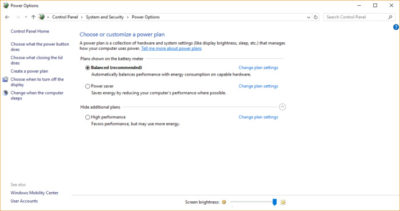
If you’re using Windows 10’s Power saver plan, you’re slowing down your PC. That plan reduces your PC’s performance in order to save energy. (Even desktop PCs typically have a Power saver plan.) Changing your power plan from Power saver to High performance or Balanced will give you an instant performance boost.

To do it, launch Control Panel, then select Hardware and Sound > Power Options. You’ll typically see two options: Balanced (recommended) and Power saver. (Depending on your make and model, you might see other plans here as well, including some branded by the manufacturer.) To see the High performance setting, click the down arrow by Show additional plans.

To change your power setting, simply choose the one you want, then exit Control Panel. High performance gives you the most oomph, but uses the most power; Balanced finds a median between power use and better performance; and Power saver does everything it can to give you as much battery life as possible. Desktop users have no reason to choose Power saver, and even laptop users should consider the Balanced option when unplugged and High performance when connected to a power source.


2. Disable programs that run on startup

One reason your Windows 10 PC may feel sluggish is you’ve got too many programs running in the background programs that you may never use, or only rarely use. Stop them from running, and your PC will run more smoothly.

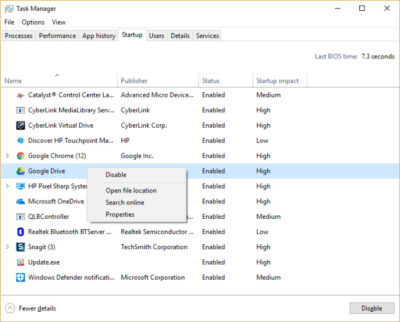
Start by launching the Task Manager: Press Ctrl-Shift-Esc or right-click the lower-right corner of your screen and select Task Manager. If the Task Manager launches as a compact app with no tabs, click “More details” at the bottom of your screen. The Task Manager will then appear in all of its full-tabbed glory. There’s plenty you can do with it, but we’re going to focus only on killing unnecessary programs that run at startup.

Click the Startup tab. You’ll see a list of the programs and services that launch when you start Windows. Included on the list is each program’s name as well as its publisher, whether it’s enabled to run on startup, and its “Startup impact,” which is how much it slows down Windows 10 when the system starts up.

To stop a program or service from launching at startup, right-click it and select “Disable.” This doesn’t disable the program entirely; it only prevents it from launching at startup — you can always run the application after launch. Also, if you later decide you want it to launch at startup, you can just return to this area of the Task Manager, right-click the application and select “Enable.”

Many of the programs and services that run on startup may be familiar to you, like OneDrive or Evernote Clipper. But you may not recognize many of them. (Anyone who immediately knows what “bzbui.exe” is, please raise your hand. No fair Googling it first.)

The Task Manager helps you get information about unfamiliar programs. Right-click an item and select Properties for more information about it, including its location on your hard disk, whether it has a digital signature, and other information such as the version number, the file size and the last time it was modified.

You can also right-click the item and select “Open file location.” That opens File Explorer and takes it to the folder where the file is located, which may give you another clue about the program’s purpose.

Finally, and most helpfully, you can select “Search online” after you right-click. Bing will then launch with links to sites with information about the program or service.

If you’re really nervous about one of the listed applications, you can go to a site run by Reason Software called Should I Block It? and search for the file name. You’ll usually find very solid information about the program or service.

Now that you’ve selected all the programs that you want to disable at startup, the next time you restart your computer, the system will be a lot less concerned with unnecessary program.


3. Turn off search indexing

Windows 10 indexes your hard disk in the background, allowing you – in theory – to search your PC more quickly than if no indexing were being done. But slower PCs that use indexing can see a performance hit, and you can give them a speed boost by turning off indexing. Even if you have an SSD disk, turning off indexing can improve your speed as well, because the constant writing to disk that indexing does can eventually slow down SSDs.

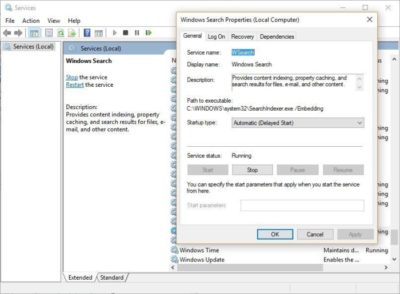
To get the maximum benefit in Windows 10, you need to turn indexing off completely. To do so, first type services.msc in the Start Menu search box, and click the Services result that come up. The Services app then appears. Scroll down to either Indexing Service or Windows Search in the list of services. Double-click it, and from the screen that appears, click Stop. Then reboot. Your searches may be slightly slower, although you may not notice the difference. But you should get an overall performance boost.

If you’d like, you can turn off indexing for only files in certain locations. To do this, first type index in the Start Menu search box, and click the Indexing Options result that appears. The Indexing Options page of Control Panel appears. Click the Modify button and you’ll see a list of locations that are being indexed, such as Microsoft Outlook, your personal files, and so on. Uncheck the boxes next to any location, and it will no longer be indexed.


4. Clean out your hard disk

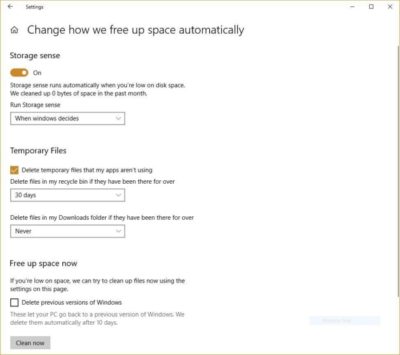
If you’ve got a bloated hard disk filled with files you don’t need, you could be slowing down your PC. Cleaning it out can give you a speed boost. Windows 10 has a surprisingly useful built-in tool for doing this called Storage Sense. Go to Settings > System > Storage and at the top of the screen – in the Storage Sense section – move the toggle from Off to On. When you do this, Windows constantly monitors your PC, and deletes old junk files you no longer need; temporary files; files in the Downloads folder that haven’t been changed in a month; and old Recycle Bin files.

You can customize how Storage Sense works and also use it to free up even more space than it normally would. Underneath Storage Sense, click “Change how we free up space automatically.” From the screen that appears, you can change how often Storage Sense deletes files (every day, every week, every month or when Windows decides). You can also tell Storage Sense to delete files in your Download folder, depending on how long they’ve been there. And you can also set how long to wait to delete files in the Recycle Bin automatically.

You can also delete old versions of Windows that might be hogging space. At the bottom of the screen, check the box next to “Delete previous versions of Windows.” Storage Sense will then delete old versions of Windows ten days after you’ve installed an upgrade. Note that if you do this, you won’t be able to revert to the older version of Windows.


5. Clean out your Registry

Under the Windows hood, the Registry tracks and controls just about everything about the way Windows works and looks. That includes information about where your programs are stored, which DLLs they use and share, what file types should be opened by which program or just about everything else.

But the Registry is a very messy thing. When you uninstall a program, for example, that program’s settings don’t always get cleaned up in the Registry. So over time, it can get filled with countless outdated settings of all types. And that can lead to system slowdowns.

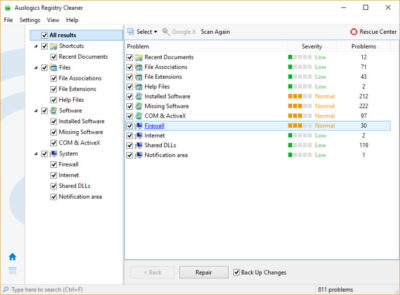
Don’t even think of trying to clean any of this out yourself. It’s impossible. To do it, you need a Registry Cleaner. There are plenty available, some free and some paid. But there’s really no need to outright buy  one, because the free Auslogics Registry Cleaner does a solid job.

Before using Auslogics or any other Registry Cleaner, you should back up your Registry so you can restore it if anything goes wrong. (Auslogics Registry Cleaner does this for you as well, but it can’t hurt to have it backed up twice.) To do your own Registry backup, type regedit.ext in the search box, then press Enter. That runs the Registry editor.  From the File menu, select Export. From the screen that appears, make sure to choose the “All” option in the Export range section at the bottom of the screen. Then choose a file location and file name and click Save. To restore the Registry, open the Registry editor, select Import from the File menu, then open the file you saved.

Now download, install and run Auslogics Registry Cleaner. On the left-hand side of the screen you can select the kinds of Registry issues you want to clean up – for example, File Associations, Internet or Fonts. I generally select them all.

Next tell it to scan the Registry for problems. To do that, click “Scan Now” and from a drop-down menu that appears select Scan. That lets you first examine the Registry problems it finds. If you instead choose “Scan and Repair,” it makes the fixes without you checking them.

It now scans your Registry for errors, then shows you what it found. It ranks the errors according to their severity, to help you decide which to fix. Click Repair when you’ve made your decision, and make sure that “Back up Changes” is checked, so you can restore the Registry easily if something goes wrong.


6. Disable shadows, animations and visual effects

Windows 10 has some nice eye candy — shadows, animations and visual effects. On fast, newer PCs, these don’t usually affect system performance. But on slower and older PCs, they can exact a performance hit.

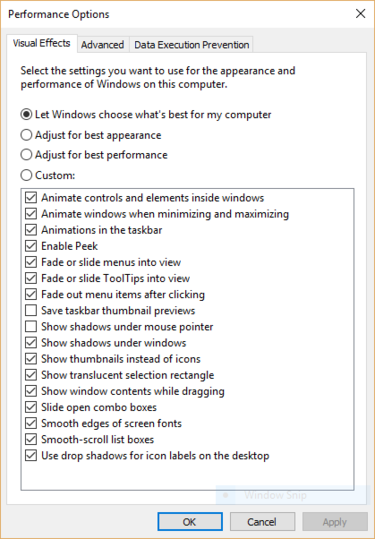
It’s easy to turn them off. In the Windows 10 search box type sysdm.cpl and press Enter. That launches the System Properties dialog box. Click the Advanced tab and click “Settings” in the Performance section. That brings you to the Performance Options dialog box. You’ll see a varied list of animations and special effects.

If you have time on your hands and love to tweak, you can turn individual ones on and off. These are the animations and special effects you’ll probably want to turn off, because they have the greatest effect on system performance:

  • Animate controls and elements inside windows
  • Animate windows when minimizing and maximizing
  • Animations in the taskbar
  • Fade or slide menus into view
  • Fade or slide ToolTips into view
  • Fade out menu items after clicking
  • Show shadows under windows

However, it’s probably a lot easier to just select “Adjust for best performance” at the top of the screen and then click OK. Windows 10 will then turn off the effects that slow down your system.


7. Launch the Windows troubleshooter

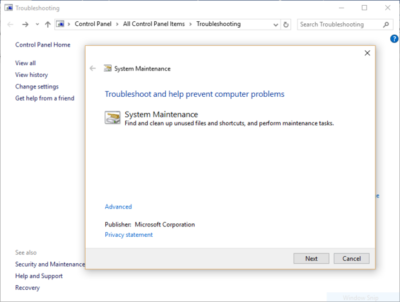
Windows 10 has a very useful, little-known tool that can sniff out performance problems and solve them. To launch it, run Control Panel and select System and Security > Security and Maintenance > Troubleshooting > Run maintenance tasks. A screen titled “Troubleshoot and help prevent computer problems” will appear. Click Next.

The troubleshooter will find files and shortcuts you don’t use, identify any performance and other issues on your PC, report them to you and then fix them. Note that you may get a message that says, “Try troubleshooting as an administrator.” If you have administrative rights to the PC, click it and the troubleshooter will launch and do its work.


8. Get help from the Performance Monitor

There’s a great tool in Windows 10 called the Performance Monitor that can, among other things, create a detailed performance report about your PC, detail any system and performance issues, and suggest fixes.

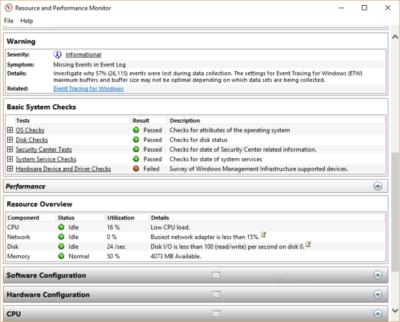
To get the report, type perfmon /report into your search box and press Enter. (Make sure there’s a space between “perfmon” and the slash mark.) The Resource and Performance Monitor launches and gathers information about your system. It will say that it will take 60 seconds, but I’ve found that it takes several minutes. When the Monitor finishes, it will launch an interactive report.

You’ll find a lot of extremely detailed information in the report, and it can take a lot of time to go through. Your best bet is to first look at the Warnings section, which details the biggest issues (if any) it found on your PC, such as problems with Windows, with drivers and so on. It also tells you how to fix each problem — for example, how to turn on a device that has been disabled.

It is also worthwhile to scroll down to the Resource Overview section, where you’ll find an analysis of how well your CPU, network, disk and memory are performing. Each result is color-coded, with green meaning no problems, yellow meaning potential issues, and red showing a problem.

Beyond that, the Resource Overview also reports performance metrics and explanatory details. For example, for the CPU, it might show green and a utilization of 21%, with the details, “Normal CPU load.” Or for Memory, it might show yellow, with 62% utilization and the details, “1520 MB is available.” Based on what you get, you might want to do something about your hardware — for example, add more memory.


9. Kill bloatware

Sometimes the biggest factor slowing down your PC isn’t Windows 10 itself, but bloatware or adware that takes up CPU and system resources. Adware and bloatware are particularly insidious because they may have been installed by your computer’s manufacturer. You’d be amazed at how much more quickly your Windows 10 PC can run if you get rid of it.

First, run a system scan to find adware and malware. If you’ve already installed a security suite such as Norton Security or McAfee LiveSafe, you can use that. You can also use Windows 10’s built in anti-malware app — just type Windows Defender in the search box, press Enter, and then click Scan Now. Windows Defender will look for malware and remove any it finds.

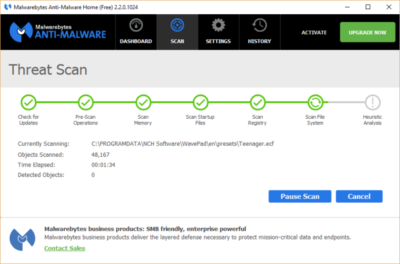
It’s a good idea to get a second opinion, though, so consider a free tool like Malwarebytes Anti-Malware. The free version scans for malware and removes what it finds; the paid version offers always-on protection to stop infections in the first place.

Now you can check for bloatware and get rid of it. Several free programs will do this for you; your best bet is to run several of them, because no single one will find all the bloatware on your PC. Good choices are the PC Decrapifier, Should I Remove It? and SlimComputer.


10. Shut down and restart Windows

Here’s one of IT’s not-quite-secret weapons for troubleshooting and speeding up a PC: Shut it down and restart it. Doing that clears out any excess use of RAM that otherwise can’t be cleared. It also kills processes that you might have set in motion and are no longer needed, but that continue running and slow your system. If your Windows 10 PC has turned sluggish over time for no apparent reason, you may be surprised at how much more quickly it will run when you do this.

Try just some of these tricks, and you’ll find that you’ve got a faster Windows 10 PC — and one that is less likely to have any reliability problems.

When should businesses upgrade to Windows 10?

Looking at upgrading your business PCs to Windows 10 but not sure when to make the leap? Here are some issues to consider.

Business customers can often be years behind the state of the operating system art: right now most businesses are still running Windows 7, launched back in July 2009, having shown limited interest in Windows 8 which arrived in August 2012.Windows 10

Even when they buy new PCs, most companies today still downgrade them to Windows 7, so it’s usually home users that are first to take the plunge with the new software, whether they like it or not.

However, businesses may be significantly faster to adopt Windows 10, which arrives on 29 July (volume licensing customers will be able to download Windows 10 Enterprise and Windows 10 Education on Volume Licensing Service Center from 1 August) than previous versions of Microsoft’s operating system.

Part of the reason for the change is the huge public testing process – five million testers strong – that has preceded the arrival of Windows 10. As a result, the standard policy of waiting for the first service pack to arrive before rolling out a new OS is now longer the right one, says Stephen Kleynhans, research vice president at analyst Gartner.

However, that doesn’t mean firms should be full steam ahead with upgrades. “I’m not one who believes there is a need to rush to a new operating system. You want to let the ecosystem around the operating system mature a little bit before you jump right in,” he says.

Companies should wait until it’s clear if the line of business applications they use work happily with Windows 10, and whether they can find enough expertise to make sure any rollout is a smooth one. “All of that has to build up before you want to jump in and start running it in your production environment,” he said.

Kleynhans said businesses need to spend some time testing out Windows 10 in a controlled fashion: “Bring it into a lab, bring it into a test environment, let some folks run it for the rest of this year. Then, in 2016, get serious about it, start looking at it in a real test environment, start piloting it with some real users to see how it’s performing.”

He said that if all goes well companies should be ready to start deployments in the second half of 2016 or the beginning of 2017, depending on how large and complex their IT environment is.

“If you’re a large company nothing happens really fast. If you’re a small company the timeline is going to be a lot faster – if you’re testing with 10 people you might be testing with ten percent of the company.”

Starting the rollout a year to 18 months after the operating system is launched might seem like a long delay, but it would still be six months to a year faster than with previous upgrades.

Kleynhans said that it took most big companies 18 months of testing and remediation work before they were able to start rolling out Windows 7. In contrast, most companies will get Windows 10 testing and remediation done in less than six months.

The analyst said that some organizations are keen to get moving as soon as Windows 10 is available – such as those that are still using Windows XP or who have plans to deploy hybrid PC devices. But, for most companies, this will be too soon.

“There are pieces of the operating system targeted at the enterprise that we really haven’t had a chance to try out yet. You can’t consider significant production rollouts even in the most aggressive cases until later in the fall.”

He cited Windows Update for Business as a new tool that small and medium sized businesses will want to use, but that wasn’t part of the tech preview. There are also some other security components that haven’t been as broadly tested or available during the tech preview, he said.

As Ed Bott notes over at Tech Pro Research, other missing features will include the new unified sync client for OneDrive (the consumer cloud storage service) and OneDrive for Business (the cloud storage service for business Office 365 subscriptions). He predicts these will be wrapped up by late October, in time for Windows 10 PCs to hit the retail channel for the festive season.

Other factors to consider: at a prosaic level, the upgrade will inevitably cause disruption so don’t plan it for a busy time of year. If you’re in retail, starting the upgrade in November or December might be a career limiting decision for the CIO.

The state of your current infrastructure is another element to take into account. Gartner says that companies planning Windows 8.1 deployments should instead redirect their efforts toward earlier deployment of Windows 10.

“In almost all cases, enterprises currently planning to deploy Windows 8.1 should switch to Windows 10. Enterprises that already have Windows 8.1 deployed should continue with those deployments for the time being. Customers on Windows 7 with no plans for Windows 8.1 should begin evaluating Windows 10 for deployment in 2H16 or later,” the analyst firm said in a research note.

Equally, for some, the upgrade may never take place. David Gewirtz has no plans to upgrade any of his Windows 7 devices to Windows 10: “They work, they’re rock solid, and all their drivers are perfectly tuned to the hardware they’re running on,” he notes.

However long it takes enterprises to take the plunge, Windows 10 is likely to become widely adopted, if only because most firms will need to move off of Windows 7 eventually, while the relatively few who did move to Windows 8 will also update sooner rather than later. The pressures that forced companies to migrate off Windows XP and onto Windows 7 will eventually make them move from Windows 7 to Windows 10.

“Windows 7 comes to end of life in January 2020. That’s only four and half years away so you’re going to see the same sorts of pressures mount to get off of Windows 7. They need to go somewhere and they’ll go to Windows 10,” he said.

Have questions?

Get help from IT Experts/Microsofts Cloud Solutions Partner
Call us at: 856-745-9990 or visit: https://southjerseytechies.net/

South Jersey Techies, LLC is a full Managed Web and Technology Services Company providing IT Services, Website Design ServicesServer SupportNetwork ConsultingInternet PhonesCloud Solutions Provider and much more. Contact for More Information.

To read this article in its entirety click here.
Microsoft Surface: iPad knockoff for enterprise?

As I’ve said many times, I barely have any use for the new iPad. Most technologists I know feel the same way about tablets. However, most of us understand that we’re an anomaly. For tens of millions of people, using a tablet like the iPad is infinitely easier and less frustrating that dealing with a Windows laptop. That’s why tablets are eating the bottom out of the PC market, and the trend is accelerating.

Microsoft knows this. It also knows that an alarming number of companies are allowing their employees to use iPads and some are even running trials to hand out the new iPads to lots of highly mobile employees. What’s even worse for Microsoft is that most of these employees are loving it and are gladly chucking their Windows laptops aside.


While a lot of these employees will still periodically use Windows machines for some of their work, they’re using them less frequently and that means slower PC upgrades and less urgency to jump to Microsoft Windows 8. We’re still only talking about a fraction of the market — iPad will sell 60 million units in 2012 versus 400 million PCs, according to Gartner. Nevertheless, it has Microsoft freaked out because it’s been just a little over two years since the iPad debuted.

That’s a lot of disruption in a short period of time.

Of course, that brings us to the announcement of the Microsoft Surface tablet this week. Microsoft turned a lot of heads by revealing that it is going to build its own line of Microsoft Windows 8 tablet devices, à la Zune and Xbox. The hardware design for the Surface that Microsoft showed off on Monday was impressive enough to pique the interest of the tech press and the public.

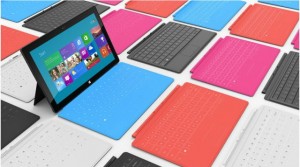
The tablet itself looks a lot like the new iPad and many of the high-end Android tablets, but there were a pair of features that stood out. The first was a sturdy built-in kickstand that stealthily pops out from the back of the tablet. The second is the magnetic cover that doubles as a keyboard and touchpad. When you put these two features together you suddenly have a tablet that easily doubles as a laptop. That eliminates the need for someone to have two devices.

Sure, the hardware of the Microsoft Surface Tablet echoes the iPad. But, Microsoft did use a special magnesium body that makes it light, thin, and durable. Sure, the cover of the Surface is a copy of the iPad’s Smart Cover, but Microsoft did innovate by adding a keyboard on the inside.

There’s plenty about the Microsoft Surface Tablet that screams, “iPad knockoff!” and the failure of Android tablets and the tablet debacles at RIM and HP show that trying to build an iPad competitor for the enterprise can be a brutal business.

Still, the Microsoft Surface Tablet has something going for it that the BlackBerry PlayBook, HP TouchPad, and the parade of Android tablets don’t — it’s going to automatically drop into the Windows networks that most Fortune 500 companies as well as a lot of small and medium businesses already have in place. That’s going to mean a lot fewer worries about compatibility, security, and data protection. In other words, it means a lot less work for IT on the backend and a smoother transition for many users

That doesn’t mean the Microsoft Surface Tablet is a slam dunk. There is still a big question about whether users are going to find the Windows 8 interface as easy to use as the new iPad. And, will spyware and malware become a big problem on the Surface since it’s running the full version of Windows? Above all, how much is it going to cost? The Pro version of the Microsoft Surface Tablet that most businesses are going to want is expected to cost about the same price as an Ultrabook — in the $800-$1000 range.

Ultimately, if you want to think of the Microsoft Surface Tablet as an iPad knockoff with a few key innovations and additions that make it a legitimate option for businesses, that’s fine. A lot of companies will be happy to pay a premium for an iPad look-alike that automatically fits into their current networks and is guaranteed to work with their existing applications.

To View Full Article Click Here

What You Need to Know About the Big Chip Security Problem

According to Intel Corp.,most of the processors running the world’s computers and smartphones have a feature that makes them susceptible to hacker attacks. The chipmaker, working with partners and rivals, says it has already issued updates to protect most processor products introduced in the past five years, but the news sparked concern about this fundamental building block of the internet, PCs and corporate networks.

The revelation of the so-called Meltdown and Spectre vulnerabilities spurred a scramble among technology’s biggest players, from Apple Inc. to Amazon.com Inc., to enact fixes and reassure customers they were on top of the problem.

1. What’s the problem?

Modern processors guess what they’ll have to do next and fetch the data they think they’ll need. That makes everything from supercomputers to smartphones operate very fast. Unfortunately, as Google researchers discovered, it also provides a way for bad actors to read data stored in memory that had been thought to be secure. In a worst-case scenario, that would let someone access your passwords.

2. How bad is it?

The vulnerability won’t stop your computer working and doesn’t provide an avenue for hackers to put malicious software on your machine. Though it could put important data at risk, there’s been no report so far of anyone’s computer being attacked in this manner. More broadly, though, the new fears could undermine longtime assurances that hardware and chip-level security is more tamper-proof than software.

3. How was it discovered?

The weakness was discovered last year by folks Google employs to find such issues before the bad guys do. Usually, solutions are developed in private and announced in a coordinated way. This time the news leaked before the companies involved had a chance to get a fix in place.


4. What’s being done to fix it?

Chipmakers and operating system providers, such as Alphabet Inc.’s Google and Microsoft Corp., are rushing to create software patches that will close the potential window of attack. Intel said that it expects to have issued updates for more than 90 percent of recently introduced processor products. Amazon.com Inc. said “all but a small single-digit percentage” of its servers have already been protected. In a blog post, Google said its security teams immediately “mobilized to defend” its systems and user data. Some customers of Android devices, Google Chromebook laptops and its cloud services still need to take steps to patch security holes, the company said. Patches for Windows devices are out now and the company is securing its cloud services, Microsoft said in a statement.

5. Is this just an Intel problem?

No, though that seems to be what panicky investors initially thought. Intel says it’s an issue for all modern processors. But rival Advanced Micro Devices Inc. stated that its products are at “near-zero risk.” ARM Holdings, which has chip designs that support all smartphones, said that, at worst, the vulnerability could “result in small pieces of data being accessed” and advised users of its technology to keep their software up to date. Google fingered all three companies. Apple said all Mac computers and iOS devices — including iPhones and iPads — were affected, but stressed there were no known exploits impacting users and that steps taken to address the issue haven’t dented performance.

6. What will the fallout be?

Some computers, mostly older ones, could be slowed down by the software patches that will make them more secure. Intel said that in common situations software might be slowed down by as much as 3 percent or not at all. But in other rare situations, performance might be reduced as much as 30 percent. The company doesn’t expect any financial impact and said it thinks customers will keep buying. As the fixes haven’t been widely deployed yet, it’s unclear whether anyone will even notice or whether computer slowdowns will be widespread. Intel has only done lab tests.

iPhone 7 rumors: Goodbye 16GB, hello 256GB and ‘Pro’ line

The new iPhone doesn’t come out until September, but that won’t stop the rumor mill from churning at a furious pace.

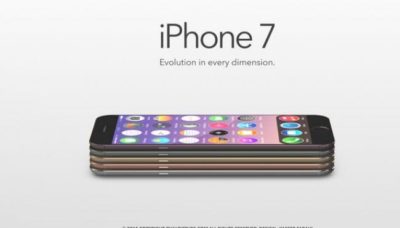
iphone-7

Now that WWDC is over, the iPhone 7 rumors are getting even louder, since its expected unveiling in September is probably the next time we’ll see Tim Cook on stage. Yes, that’s still a good while from now. To help keep track of all the scuttlebutt, we’re collecting every rumor we’ve heard so far—and every new one that crops up between now and the day Tim pulls the new iPhone out of his pocket. Then we’ll assess whether each rumor seems legit or absurd, and we’d love to hear your thoughts too. Sound off in the comments.

What’s the latest?

The rumor: Pricing specs for the upcoming iPhone 7 have allegedly leaked on Weibo, according to 9to5Mac. If believed, the specs show that Apple is looking to release a 256GB model of the iPhone 7 that will be the same price as the 128GB model of the current generation iPhone 6s. Furthermore, Apple would drop the meager 16GB models, offering instead 32GB, 64GB, and 256GB for the iPhone 7 and 32GB, 128GB, and 256GB for iPhone 7 Plus. And that’s not all, the rumor on Weibo has it that Apple is gearing up an iPhone 7 Pro line. This Pro model would be the only one to offer the dual-camera system that’s been rumored before, and a Smart Connector for accessories similar to the iPad Pro.

Plausible: Generation after generation, Apple has mostly retained the same pricing for iPhone models, so the fact that the 256GB iPhone 7 would cost the same as the current 128GB wouldn’t be unheard of. However, we’re a little skeptical that Apple would get rid of the 16GB base models, especially since iOS 10 seems to have been designed to optimize storage. And the Pro line would be an interesting addition, and would certainly make up for the fact that the iPhone 7 is rumored to be almost-identical to the 6s models. Apple is also making some strides in enterprise software, so an iPhone Pro would be a logical next-step.

Headphone jack after all?

The rumor: Via Engadget comes some component photos from Rock Fix, a smartphone repair shop in China. They allegedly show a dual-SIM tray, another shows a dual-lens camera for the larger Plus model, and curiously, there’s even an Lightning assembly that still has the headphone jack attached. People who need a lot of storage will be pleased to hear another photo shows SanDisk memory ships up to 256GB, which would be the most storage Apple’s ever offered in an iPhone.

Plausible? It’s hard to give much weight to photos of components, and as reported in the same Engadget article, conflicting rumors about the dual-lens camera surfaced within days. But it is plausible that these components could be for the iPhone 7—and we know plenty of people who would be thrilled if the new phone had a headphone jack after all.

New colors?

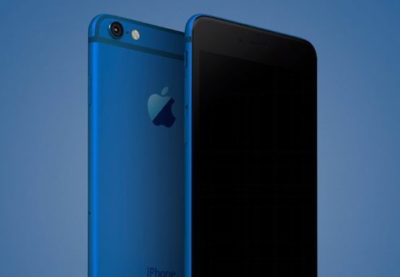
navy-blue-iphone-7-concept

The rumor: It’s not easy being green, and iPhone owners might be starting to get envious of how many colors you can get an Android phone in. iPhones used to be pretty monochromatic, until Apple added gold and then an even brighter splash of color with last year’s rose gold hue (OK, OK, it’s pink). Japanese blog Macotara is reporting that Apple is switching it up this year, swapping the space gray color for navy blue instead.

Plausible? This is absolutely plausible. Apple’s iPhones have never been colorful, but the iPod touch comes in beautiful colored aluminum, and Apple has also set a tradition recently of switching up its Apple Watch bands to fit the season. One of the latest additions is a handsome navy Sport Band, and the Classic Buckle, Leather Loop, Modern Buckle, and two of the Hermès bands come in navy too. Navy looks great on both men and women, but we can’t help being a bit surprised it’s the “basic black” space gray color that’s rumored to be replaced.

A flat Home button?

The rumor:  Blurry, possibly fake spy photos from mobipicker (via 9to5Mac) seem to show a very flat-looking Home button. As in, maybe it’s not a button, maybe it’s just a touch-sensitive place you touch (and/or 3D Touch) instead of physically clicking it.

A fully flat Home button could have 3D Touch potential too.

Plausible? The Touch ID button got a lot faster between the iPhone 6 and 6s, but any button that physically clicks is another opportunity for hardware failure. With the rise of installment plans and the iPhone Upgrade program, we expect Apple to keep making little tweaks that make its phones more durable, so they’re turned in good enough shape to be possibly refurbished and resold. So yes, this is very plausible, and we think Apple could pull it off where the experience is the same, perhaps even using a little haptic feedback to make it feel like the button is clicking but it’s not—just like the Force Touch trackpad.

What about storage size?

The rumor: Apple is ditching the 16GB base model iPhone at long last, at least according to an IHS Technology analyst. The analyst posted on Chinese social media that the base model iPhone 7 will start at 32GB of storage space and 2GB of RAM, based on supply chain research.

Plausible? We sure hope so. Long-time Apple watchers have criticized the company for years over refusing to drop the 16GB model and forcing buyers to choose between the paltry base model and a 64GB option, with no 32GB in between. This is a tale as old as iPhones. In fact, when iOS 8 was released two years ago, many 16GB iPhone owners had to choose between offloading some of their apps, photos, and other files to upgrade to the space-hogging new version or hold off. Apple made iOS 9 a smaller, smarter upgrade, with temporary app deletion making the process easier. But apps easily eat up storage space, and Apple has improved its camera with Live Photos and 4K video-recording, both of which create large files. Sure, you can accept reality and choose the 64GB model, but it’s a lot more expensive. A 32GB base would hit the sweet spot and show Apple can change with the times.

Leaked photos show conflicting design tweaks?

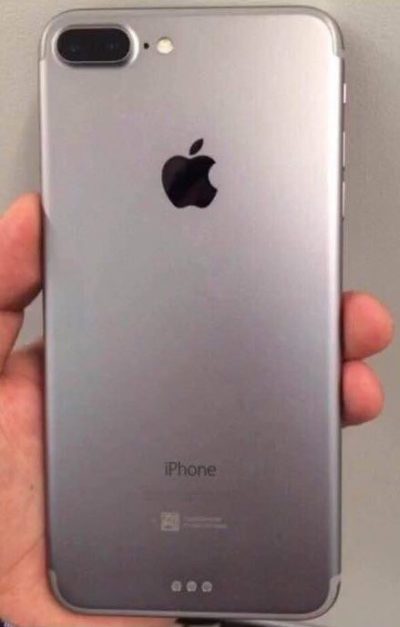
iphone_7_plus_rear

The rumor: Forbes reported on leaked photos that allegedly depict the iPhone 7 chassis. First posted on French tech site NowhereElse.fr, the photos suggest that Apple’s forthcoming iPhone with have double speakers on the top and the bottom, created quad array audio experience similar to the iPad Pro. The photos also seem to confirm, yet again, that the iPhone 7 will not have a headphone jack. Lastly, this iPhone 7 chassis has the flash repositioned underneath the camera, instead of right next to it.

But hold on… according to another recent iPhone 7 photo leak picked up by 9to5Mac, the flash will remain where it is on the 6s. So now we have conflicting rumors. Both sets of photos, however, do show that Apple has redesigned the antenna lines. Instead of horizontal lines, the antenna lines on the iPhone 7 will allegedly be traced along the top and bottom edge of the device.

Plausible? These conflicting Apple rumors could mean a few things. Either both leaked photos are fake, one of them is fake, or both of them are real. According to Forbes, Apple is known for creating several different prototypes of its upcoming products to test, so these photos could both be depicting early but different iterations of the iPhone 7. That both of them would leak, however, seems unlikely.

Smart connector?

The rumor: New images and renderings have surfaced allegedly depicting the iPhone 7 and 7 Plus models. Quoting the Japanese site Mac Otakara, MacRumors reported that these images could be the “real thing.” The leaked image of the iPhone 7 Plus shows a Smart Connector, hinting at the possibility of a Smart Keyboard. While the Mac Otakara report seems to confirm previous rumors the iPhone 7 and 7 Plus will have a similar design to the current generation 6s and 6s Plus, the website also contests previous reports. Most notably, Mac Otakara now refutes the rumor that these new iPhones will have a second speaker to create stereo sound.

Plausible? Apple has been releasing a lot of accessories in the last few months, especially for the iPad Pros. It’s possible the company wants to continue this trend and adding Smart accessories to the 7 Plus. However, a Smart Keyboard suggests that the larger iPhone could have some Pro-style features, and we’re not sure if Apple would want to have it compete with the just-released 9.7-inch iPad Pro.

No headphone jack, really?

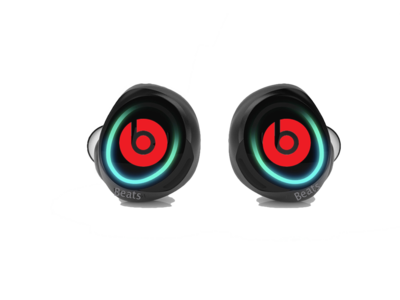
beatsheadphones.1.medium

The rumor: Here it is: a leaked iPhone 7 case… allegedly!9to5Mac reported the leaked images as first posted on the@OnLeaks Twitter account. The leaks seem to corroborate a few other rumors about the iPhone 7. For example, the case has no slot for a 3.5mm audio jack, signaling that Apple might be pushing for only Bluetooth and Lightning-connected headphones. The case also has two equally sized speaker grills on each side of the Lightning port slot, confirming that the iPhone 7 will be the first to sport two speakers for stereo sound. Other than that, the purported case points to an iPhone 7 hardware design that’s nearly identical to the iPhone 6s.

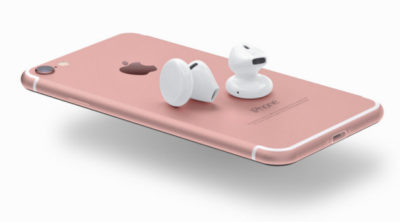
The no-headphone-jack rumor has been around for a while, previously reported by Fast Company and others. Apple is said to be developing wireless EarPods to be sold separately, alongside the iPhone 7. The premium EarPods will reportedly support Siri and wireless phone calls and ship with a carrying case that doubles as a charger.

Plausible? The larger design of the iPhone 6 and 6s lines have proven very successful for Apple, so we can see why the company would want to play it safe design-wise with the iPhone 7. But this similar design may not offer enough reasons to upgrade as we’ve seen with previous numbered upgrades—and if the major innovation requires a lot of people to ditch their 3.5mm headphones or use an adapter, get ready to hear some major griping.

This is the most controversial iPhone rumor in years, even more than the change of sizes with the iPhone 6. Some people love the idea. Others hate it. There’s even a petition to convince Apple that people still love the headphone jack. That petition has just over 300,000 signatures.

How does the dual-lens camera work?

The rumor: We previously reported on the rumor that Apple is looking to bring a dual-lens camera to forthcoming iOS devices. Based on LinX camera technology that Apple acquired last year, the dual-lens incorporates a wide-angle lens and a telephoto lens. According to MacRumors, a recent Apple patent shows for a a split-screen viewfinder where users can see the full image in the wide-angle lens and zoom in with the telephoto lens. The camera will be able to take two separate pics, or use one of the lenses to shoot video and the other to take stills. More impressively, the camera could also implement LinX’s technology to stitch it all together into one really crisp image.

Plausible? The race for bringing DSLR-quality cameras into smartphones is on. Samsung’s recently-unveiled Galaxy S7 garnered rave reviews for its use of Duo Pixel Technology to take photos. Apple may be feeling the heat to create an equally-stunning photo experience to the iPhone 7. If the dual-lens technology as outlined in this patent comes to fruition, it would help the iPhone regain its reputation as the best camera phone on the market.

How thin will the iPhone 7 be?

iphone-7-thickness

The rumor: Macotakara reported this week that the iPhone 7 will be 6.1mm thick. That’s one whole millimeter thinner than the current iPhone 6s, which measures 7.1mm. This new thinner model will be accompanied by a flush rear camera (so not protruding) for a design that’s sleeker overall.

Plausible? If this rumor is true, Apple seems to be under the impression that thinner is better. Apple has already made a device that measures just 6.1mm: the iPod touch. So it makes sense that the company would want to try to make the newest iPhone be just as thin. Hopefully, the iPhone 7 won’t be affected by any “Bendgate” issues because of this thinner design.

Will the thinner Lightning port mean I have to get new cables?

The rumor: In addition to getting rid of the 3.5mm headphone jack to achieve this new thinness, the iPhone 7 is rumored to integrate a thinner Lightning port. This will not affect the actual Lighting cables, however, so you won’t have to get all new connectors for the iPhone 7. What Apple is doing is simply making the cutout around the port smaller, so it should only affect case-makers, according to 9to5Mac.

Plausible? If Apple is already going insofar as to removing the headphone jack, which has already sparked plenty of controversy, then a slight redesign of the Lightning port doesn’t seem like a big deal. Especially if our current Lightning connectors will still be able to hook up to it.

Camera differences between the 7 and 7 Plus?

iphone-7-plus-dual-camera-1

The iPhone 7 Plus might have the most amazing smartphone camera ever.

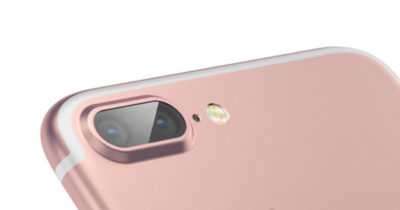
The rumor: The iPhone 7 Plus will have a better camera, to the chagrin of small-handed amateur photographers around the world. According to MacRumors, the 7 Plus may have a dual-lens camera with optical zoom, which means this phone will take better photos than many traditional cameras. Instead of pinching to zoom in digitally, which usually results in a terrible grainy photo, the 7 Plus camera will have an optical zoom. That’s where the second camera lens comes in: It’s essentially a zoom lens.

Plausible? Yes. The iPhone 6s and 6s Plus have most of the same features, but the larger phone has a small but key difference: optical image stabilization. That feature uses the Plus’s gyroscope and camera array to steady your photos even if your hand shakes. The 6 and 6s rely on camera software to achieve the same effect, though the resulting images aren’t quite as clear. If the 7 Plus has a dual-lens camera with optical zoom, it would be a huge differentiator—the Plus could become the phone to beat for serious photographers.

Is that unsightly camera lens bulge going away?

The rumor: Apple redesigned the 6 and 6s models to be thinner and lighter than ever before, but there’s one big problem: The rear-facing camera lens juts out of the body, so the phones won’t sit flat on a surface. For a company that’s all about the details, this seemed like a strange design decision. The iPhone 7 is reportedly getting a camera that sits flush against the phone, according to MacRumors, so your eyes won’t be offended any longer.

Plausible? We sure hope so. That camera protrusion had to happen for a reason, but even Apple design chief Jony Ive is not a fan.

Will the iPhone 7 be waterproof?

The rumor: Making the iPhone thinner than ever and adding a DLSR-quality camera aren’t game-changing enough for Apple, apparently, so the company is reportedly working on ways to waterproof the iPhone 7. Ambitious? Yes. Possible? Definitely. Without a headphone jack to trap water, Apple could coat the iPhone with a waterproof coating and make those third-party rugged, waterproof cases obsolete.

Plausible? Actually, yes. Apple took several steps to waterproof the iPhone 6s without actually calling it waterproof, as detailed here, and word on the street from people who have accidentally submerged a 6s indicates that those techniques worked. All Apple needs is some waterproof buttons (which it’s reportedly working on), and they’re set.

Next year’s iPhone

Yes, you read that right. In this craziest of iPhone rumor cycles, we’re been reading rumors for the 2017 iPhone mixed in with rumors of the iPhone that should come out in September of 2016. Just to keep them all straight, here are the things we may have to look forward tonext year.

An OLED screen and glass on both sides

The rumor: Remember the iPhone 4, encased in glass on both sides, so you’d have twice as many surfaces that could shatter every time it slipped out of your hand? Apple might bring back an all-glass design in 2017. Hopefully it’s a bit more durable this time.

KGI Securities analyst Ming-Chi Kuo thinks that Apple is planning a major iPhone redesign for 2017—not this fall. In a note to investors, he predicted an iPhone with a 5.8-inch OLED screen that’s encased in glass on both sides, yet smaller than the current iPhone 6s Plus, meaning Apple would be looking to eliminate as much bezel and “chin” as possible. DisplayMate President Ray Soneira echoed Kuo’s OLED predictions in a recent report, citing the “rapid improvements” in OLED performance over the last six years.

“Apple simply has no choice in switching,” Soneira said, because OLEDs are thinner, lighter, more responsive, and can be curved or bent in ways that LCD displays just can’t.

Kuo also predicted the all-glass 2017 iPhone would have wireless charging, and some kind of biometrics, like face recognition or iris scanning. The Home button takes up a lot of space on the current iPhones, and replacing it with other biometrics for login and Apple Pay (along with deep-touch gestures for exiting apps) could let Apple expand the screen.

Plausible? In Apple’s usual “tick-tock” cycle, the 2016 iPhone would get a redesign, since the current iPhone 6s and 6s Plus are upgrades to the iPhone 6 and 6 Plus designs that launched in 2014. But if Apple really is switching to OLED, that’s a major shift that might need more time to perfect. It’ll be interesting to see what innovations Apple can add in 2016 to make the iPhone seem exciting even if the overall design stays the same—a better camera and a Smart Connector are a start.

More evidence of OLED

The rumor:  According to a recent Bloomberg report, Applied Materials, an Apple supplier, has received almost four times the amount of orders for its display-making machines. This jump is linked to Apple retooling the iPhone manufacturing process to include OLED screens in the fall of 2017.

Plausible? We’ve already bought into the general rumor that Apple would switch to OLED, and this report supports the 2017 timeline—according to Applied Materials, it takes about 3 quarters for their machines to be build, delivered, and installed.

Have questions?

Get answers from Microsofts Cloud Solutions Partner!
Call us at: 856-745-9990 or visit: https://southjerseytechies.net/

South Jersey Techies, LL C is a full Managed Web and Technology Services Company providing IT Services, Website Design ServicesServer SupportNetwork ConsultingInternet PhonesCloud Solutions Provider and much more. Contact for More Information.

To read this article in its entirety click here.
If Microsoft can’t install Windows 10 on your PC, it’ll give you a new one

Terms and conditions apply, but if the company’s stores can’t perform a same-day upgrade on your Windows 10-compatible PC, it’ll give you a new Dell notebook.

Windows 10- SJTechies

As the free Windows 10 upgrade offer nears its end on July 29, Microsoft is pulling out all the stops to convince users to upgrade. It’s even willing to give you a new laptop.

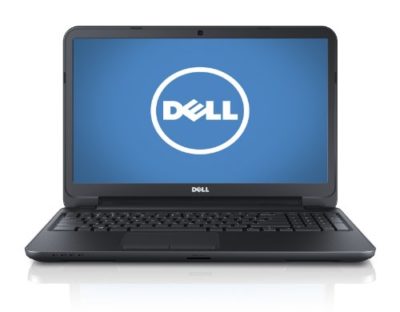
As spotted, Microsoft retail stores are offering to install Windows 10 on any compatible machine for free. If the store’s technicians don’t complete the upgrade by the end of that business day, they’ll give you a free 15-inch Dell Inspiron notebook.

The offer runs between now and July 29.

There is, of course, plenty of fine print. The free installation offer only applies to a single PC that’s capable of running Windows 10 (If it isn’t, you may be eligible for a $150 credit toward a new PC). You also need to check in your computer by noon for the offer to be valid. It’s also limited only to the US and Canada, so customers of the Microsoft Store in Sydney are out of luck.

The story behind the story: This free PC offer is the latest in a series of highly aggressive moves Microsoft has made to get its users onto Windows 10. Its deceptive, malware like pop-ups in Windows 7 and 8.1 effectively trick users into installing Windows 10, whether they want to or not. Windows 10 spiked in market share in June, seemingly as a result of these forced updates, but the company has since admitted that it likely won’t hit its goal of having Windows 10 on one billion devices by mid-2018.

Have questions?

Get answers from Microsofts Cloud Solutions Partner!
Call us at: 856-745-9990 or visit: https://southjerseytechies.net/

South Jersey Techies, LL C is a full Managed Web and Technology Services Company providing IT Services, Website Design ServicesServer SupportNetwork ConsultingInternet PhonesCloud Solutions Provider and much more. Contact for More Information.

To read this article in its entirety click here.
How to Delete WINDOWS.OLD on Server

After performing an in-place upgrade on a Windows machine, you will find a WINDOWS.OLD folder in the root of C:. This folder will have a backup of your old program files, appdata and Windows folder… just in case you need to revert back or recover something that might have been lost during the upgrade. When you try to delete it though you are told you don’t have permissions. Just a small point here, it is generally not recommended to do in-place upgrades on servers. In fact there are some products (e.g. Exchange, ConfigMgr) that explicitly state they do not support upgrading the Operating System. There is of course a difference between “what works” and “what is supported”, but we do suggest where possible you do a clean Server install and migrate your application to the new server. Anyway, let’s assume you’ve understand all the risks and have done a successful in-place upgrade, you now find the old WINDOWS.OLD folder of several GB in size sitting there. If all is well, then you might as well just delete it.

SOLUTION

On Desktop OS version, you can just use the disk cleanup tool to remove it, but that is not available (by default) on Servers, so there are a couple of approaches.

Command line tools to take ownership and delete the folder. Make sure to “run as administrator”

How can I delete the windows.old from an upgraded Windows Server?

For a client OS that’s upgraded, the Disk Cleanup utility can be used to delete the very large windows.old folder containing the old OS. This isn’t available on a server OS without installing the Desktop Experience feature.

To delete, it is necessary to take ownership of the folder, give administrators full control, then delete. This can be done with the commands below:

  •  takeown /F c:\Windows.old\* /R /A /D Y
  •  cacls c:\Windows.old\*.* /T /grant administrators:F
  •  rmdir /S /Q c:\Windows.old


Or you can add the “Desktop” features to provide the Disk Cleanup tool:

Step By Step Guide to Enabling “Disk Cleanup Utility”

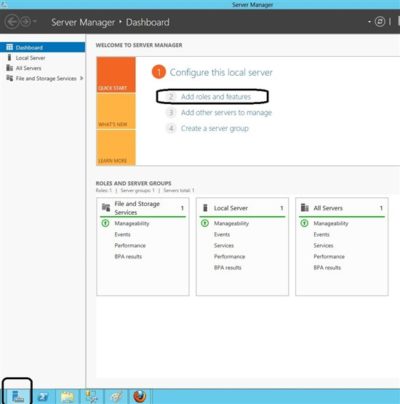
1. Open The Roles and Features Wizard

To open the roes and feauture wizard. Lauch the “server manager” by pressing the Windows key

and clicking on the server manage please see Screenshot as shown.

Personally, the command line option is less messy and saves having to add features to your server that don’t really need to be there.

2. Click on Add role and Feature

Click on add role and feture to launch the add role and feature wizard.

3.  Choose installation Type

Choose rolebase or feature based installation to install to local machine.

4. Click Next all the way to features

Click “next” all the way to features. Locate “User Interface and Infrastructure”. Click on “Desktop Experience”

and install additional required feature.

5.  Proceed with the installation and Reboot

Make it sure that you reboot the system

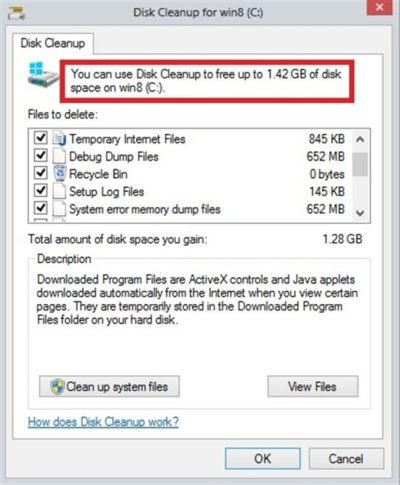
6.  Verify that the Utility is indeed installed

Ready to run diskcleanup. See screen shot below.

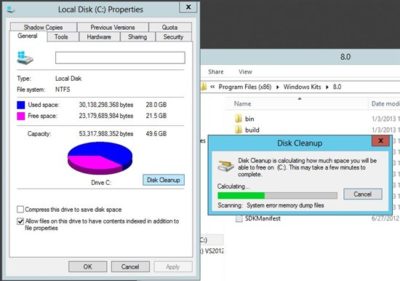
Disk Cleanup in Action

Below is a sample snapshot of disk cleanup in action.

CALL US NOW!