Back to Top

Tech, Web, Cloud & Cabling Services

Tag Archives: Microsoft

Microsoft tag

Organize your intranet with SharePoint hub sites

New SharePoint hub sites make organizing and connecting your intranet easy. 

As business goals and team structures evolve, so too must your sites and the content that lives within them. Ideas must flourish and grow, not become rigid or stale. SharePoint hub sites bring flexible, dynamic building blocks to your company intranet – connecting collaboration and communication. Associating sites together in a hub site enhances discovery and engagement with content, while creating a complete and consistent representation of your project, department or region.

Microsoft first disclosed SharePoint hub sites during Ignite 2017. And recently they announced that they are now rolling out to Targeted Release customers in Office 365. Microsoft encouraged by early adopter feedback, can’t wait for every customer to use and adopt them.

SharePoint hub sites bring the following new capabilities to you and your intranet:

  • Cross-site navigation – increase visibility of and navigation among associated sites
  • Content rollup – read aggregated news and discover related site activities
  • Consistent look-and-feel – establish a common theme to improve visitor awareness of connected sites
  • Scoped search – focus on finding content that resides within the hub site’s associated sites

Hub sites support good governance, giving admins a growth framework to maintain relationships between sites over time. They are easy for admins to establish and bring efficiencies for people who work inside and across the sites on a day-to-day basis. And when managing change within the business, it is easy to move a site from one hub site to another.


Getting started with SharePoint hub sites in Office 365

You can convert an existing communication site or modern team time into a hub site, or you can start with a brand-new modern site. We recommend selecting a communication site as the hub site. You can associate multiple team sites and communication sites to model and promote an intranet that reflects the way your people organize. It is easy for admins to create one or more hub sites. After a hub site is created, approved site owners can associate existing team sites and communication sites with the hub site.


Use the SharePoint Online Management Shell to establish your hub sites

Admins, you are the enablers. And the SharePoint Online Management Shell (aka, PowerShell for SharePoint in Office 365) is your enabling tool of choice.

The PowerShell cmdlet you’ll want to get most familiar with is: Register-SPOHubSite https://contoso.sharepoint.com/sites/HR (where HR URL is the full-path address of the existing site that you want to convert into a hub site). You then will assign a unique security group to designate approved site owners that can associate sites to this new hub. You simply create a mail-enabled security group and add the users. You then run an additional PowerShell command to give that group permissions to associate their sites to the hub site.

Note: You must be a SharePoint administrator or above in Office 365 to create SharePoint hub sites. Site owners, however, can associate a SharePoint site with a hub site that already exists.

Learn more how admins create and manage hub sites.


Associating a site under a hub site

Once a hub site is established, it’s then a two-click process to associate to the hub site.

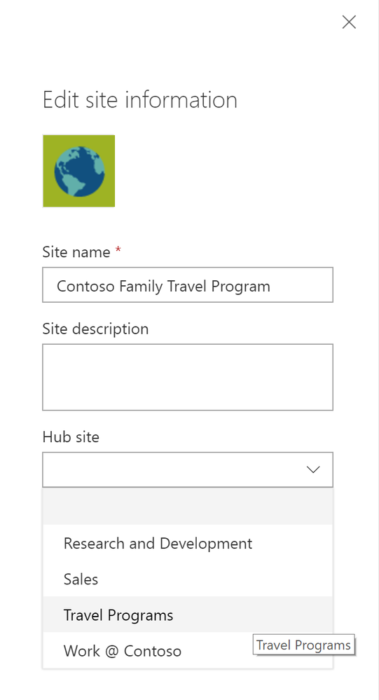
As the site owner, go to the site you want to have associated to the hub site. Click Settings (gear icon) > Site information > hub site association and select the desired hub.  You’ll only see the hubs you have permission to associate to. And then click Save. You will see the hub navigation appear above. The site itself will inherit the hub theme, and news and activities will begin to flow up to the hub site home page – along with a search crawl of content for any site associated to the hub site. And at any time, per a reorg or change in business direction, you can easily move sites between hub sites. This is the power of a dynamic intranet, one that can change and adapt with the ebb and flow of your ever-changing business landscape. Note: individual sites can only be associated to one hub site at a time.

Note: Sites associated with a SharePoint hub site don’t inherit the permissions of the hub site or any other sites associated with it. Each site, including the hub site, will retain their current permission settings. And as easy as it is to associate a site to a hub site, you, too, can dissaciate from one.

Learn more how to associate and dissociate your sites to and from hub sites.


Design your layout and choose you theme

Once the hub site has been established, you’ll then want to further set it up and refine it for that organization — so the hub site carries the right name and logo, the preferred navigation elements, a preferred theme, and the desired layout for news, sites and highlighted content. And all will re-flow and present beautifully within the SharePoint mobile apps.

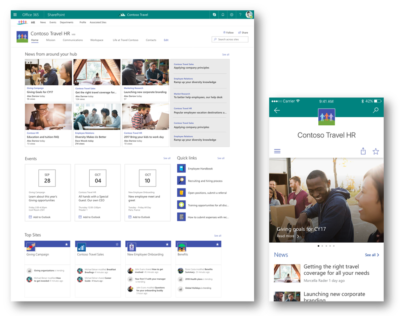
The SharePoint mobile apps will display hub sites, and their pages, news, and content, with smooth navigation between associated sites and the scoped search experience. Find what you need on the go and get going! Install or update the SharePoint mobile app today: aka.ms/getSPmobile.

Ribbon Hero 2: Clippy’s Second Chance

It’s a fun game! No, it’s an Office Tutorial! No, it’s both!

Welcome to Ribbon Hero 2!

You’ve tried games that test your card playing, your imaginary farming skills, and your ability to hurl small birds. Finally there’s a game that will make you better at your job.

Do you feel like you’re using Word, Excel, PowerPoint, and OneNote the same way version after version, or have you avoided using one of these apps because you don’t know how? And you know there’s so much more Office could be doing for you if only you knew how to access it? No more! Straight from the secret lairs of Office Labs we present Ribbon Hero 2: Clippy’s Second Chance.

Yes, we turned Office into a game! If you’re going to spend time immersed in the inner workings of Office, by golly it should be fun. In Ribbon Hero 2, you’ll hop on board Clippy’s stolen time machine and explore different time periods. With each time period, you get to explore a new game board with challenges you must complete to get to the next level. Each challenge takes you into Word, Excel, PowerPoint, or OneNote to complete a task. Discover new Office features by actually using them, with a hint button to fall back on in case you get stuck. Race for a high score with colleagues, classmates and friends, or even put your score on your resume to show off your Office skills!

For those of you who have been paying attention, we’ve done this before. That’s how we got the “2” on the end of the title. So what’s different? *deep breath* Clippy, comic strips, colorful graphics, surprise animations, multiple levels, time travel, upside-down Clippy, space ships, Greek Gods, bow-and-arrow battles, and a ton of useful Office features.

Need more convincing? Get a sneak peek of Ribbon Hero 2 in this video:

Have FUN!

Cheaper Is Not Always Better In IT!

Are we allowed to mention cheaper is not always better?

Takeaway: IT in general becomes a better value with improving technology every single year, but that does not equate to cheaper being best.

The register has published a couple of articles recently that have been gnawing away at me. Brid-Aine Parnell reports that just 5 percent of UK CIOs surveyed by the Corporate IT Forum consider Google a credible supplier to business, citing “missing features” when compared with mainstream offerings from companies like Microsoft.

For the last couple of years it’s seemed that talking disrespectfully about any element of cloud computing was corporate suicide. I’ve sat in meetings where organizations with anywhere from 40 to 100 users have asked us why they can’t use Google docs rather than Office with a fileserver, why we recommend laptops and workstations when PC World or Comet have alternatives for sale that may be hundreds of pounds cheaper, and why, on one occasion, we were recommending a phone system that was costly when Skype did everything an office phone did and cost nothing.

On the September 3, Rik Myslewski commented on Net Applications’ monthly ‘Net Market Share’ survey, which calculates Desktop Operating System Market Share based on internet usage reported by 40,000 websites worldwide.

Microsoft Windows 7 has just overtaken XP with 42.76% of the market share against 42.52% for XP. That’s over 85% of worldwide desktop computers running either Windows 7, the version of Windows currently in the shops and that a number of IT departments have, possibly reluctantly, upgraded their workforce to, or Windows XP, the version that shipped on PC’s between 2003 and 2007 and that plenty of large IT departments still choose to deploy.

Of the remaining 14.72 percent, Vista, reviled by users and IT departments everywhere, claims 6.15%. All flavors of OS X account for 7.13% (the largest single contributor was Lion, with 2.45%) leaving Linux with 1.10%.

Most IT pros have used Linux at some point; its appeal is too great not to. It’s powerful, stable and incredibly configurable, and costs either nothing or very little. Linux is fun to get working and to work with. So why 1.10%? It most likely comes down to the fact that most PC users are not prepared to put much learning time into using their operating system, and Linux is far enough removed from Windows that, other than for standard tasks, navigating the OS will demand at least some investment. Also, the variety of builds and hardware, support (professional or otherwise) has to be more awkward. It’s easy to overlook that one of Apple’s greatest strengths is the benefit of designing both the hardware and software and knowing they function well with the other. Support is simplified.

Most people, particularly those making IT purchasing decisions, will have used a PC. Discussing whether Linux is a good fit for them, especially in a corporate environment, would be fairly straightforward. So why do we struggle with convincing people that Skype is not an alternative to a fully-featured phone system, or that Gmail can only be compared to Microsoft Exchange in the most basic of functions?

Part of the answer lies in the hype of the cloud, promoted as all things to all men (at least IT-wise) while saving money too. Has a concept, gadget, or major software release ever generated the same buzz? The triumvirate of newtechnically advanced and cheap is an extremely powerful lure. The cloud will change how we work and will have relatively low-cost elements, but is not an entity in its own right. Gartner industry analysts report that cloud computing has passed through the hype stage and is now entrenched in the “trough of disillusionment.” This is not a comment on the state of IT in 2012, it’s the expected reaction to the hype created by those intent on making a buck in the short term. In the middle of difficult trading conditions, it was easy for decision makers to be seduced by the promise of better and cheaper, without needing to test a product in action.

This last point is pertinent in the small- and medium-sized business (up to perhaps 500 workstations) marketplace. We can tell our clients where we think cloud solutions will suit them and where they won’t. Actually giving them a working demonstration is significantly harder; there are numerous difficulties to moving an office, department or team over to Gmail, or certain folders off the file server to Google docs. We’ve done it and it’s awkward and clients don’t want awkward from their IT; they want the additional benefits and lower costs advertised.

There’s also an issue with IT departments being reluctant to say no. In those meetings where decision makers are pushing for Skype and Gmail, or cheap laptops and workstations, we want to be as helpful as possible and it’s absolutely our duty to recognize the benefits of lower cost and to either provide an agreed solution (specification and features) at the lowest price, or to be perfectly clear about the different feature sets at different price points. It’s rarely our place to set the budget, but we must be able to deliver the best option at any price point or to demonstrate why a cheaper option may be of lesser value.

That can be a more obvious problem during a recession when companies are receiving dozens of calls every week from IT providers pitching for business offering what they claim is both better and cheaper. We’re in no doubt that the cloud will continue to be a huge benefit at a huge number of price points. A $1,600 workstation will be better value to some users than a $320 netbook, while plenty of users will find Gmail does exactly what they need at a fraction of the cost of Exchange 2010. IT in general becomes a better value with improving technology every single year, but that does not equate to cheaper being best.

To View Full Article Click Here

L2TP VPN Connections Break as part of January 2022 Patch Tuesday

Update 1/28/2022: South Jersey Techies has released OOB updates to fix the Windows L2TP VPN connection issues.

Microsoft released Windows updates to fix security vulnerabilities and bugs as part of the January 2022 Patch Tuesday that came with fixes for six zero-day vulnerabilities and a total of 97 flaws.

These updates also included KB5009566 for Windows 11 and KB5009543 for Windows 10 2004, 20H1, and 21H1.

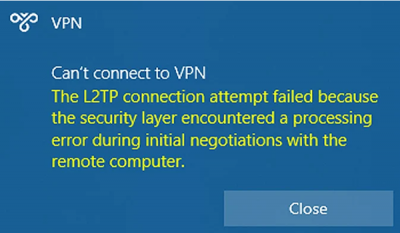
Problems are being reported rapidly from Windows 10 users and administrators who are trying to make L2TP VPN connections after installing the recent Windows 10 KB5009543 and Windows 11 KB5009566 cumulative updates and receiving the error below. L2TP VPN connections are being reported as broken when attempting to connect using the Windows VPN client by Windows users.

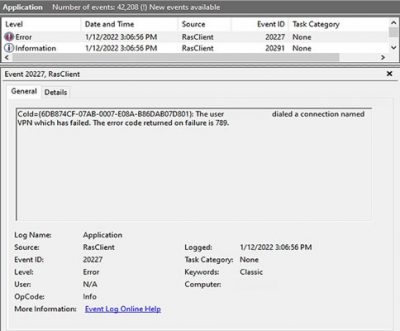
You will also receive an error code in the Event Log entries, code 789, stating that the connection to the VPN failed.

The bug is not affecting all VPN devices and seems only to be affecting users using the built-in Windows VPN client to make the connection. Some users have reported the bug affecting their Ubiquiti Site-to-Site VPN connections for those using the Windows VPN client. The bug also affects connections to SonicWall, Cisco Meraki, and WatchGuard Firewalls, with the latter’s client also affected by the bug.

How to fix the break?

Admins have been forced to remove the KB5009566 and KB5009543 updates, which immediately fixes the L2TP VPN connections on reboot.

However, you face the risk of removing all fixes for vulnerabilities patches released during the January 2022 Patch Tuesday when removing the update due to Microsoft’s bundling of all security updates in a single Windows cumulative update.

Weighing the risks of unpatched vulnerabilities versus the disruption caused by the inability to connect to VPN connections is something all Windows admins need to consider, carefully.

Microsoft’s January 2022 Patch Tuesday fixed numerous vulnerabilities in the Windows Internet Key Exchange (IKE) protocol (CVE-2022-21843, CVE-2022-21890, CVE-2022-21883, CVE-2022-21889, CVE-2022-21848, and CVE-2022-21849) and in the Windows Remote Access Connection Manager (CVE-2022-21914 and CVE-2022-21885) that could be causing the problems.

Unfortunately, there is no known fix or workaround for the L2TP VPN connection issues at this time.

If you have any questions, please email us at support@sjtechies.com or call us at (856) 745-9990.

Pro tip: Sort table data in a Word document

sort word

Microsoft Word


Sorting data in a Word document isn’t something you routinely do. On the other hand, presenting list and table data is, so the potential exists that one day you’ll want to sort something. The good news is that it’s easy to sort data in a table or a list. In this article, I’ll show you how to do just that. We’ll work through a few simple sorting examples. You can use most any table, or you can download the example .docx or .doc file.

Behind the scenes

Word relies on paragraphs when sorting, which seems a bit odd within the context of a table (or list). The paragraph formatting mark determines where one paragraph ends and the next starts. As you can see in Figure A, there’s no paragraph mark in a table. The end-of-cell markers denote the end of each cell’s content. The similar marker at the end of each row (outside the right border) is an end-of-row marker. These markers also contain cell and row formatting. When sorting a table, Word relies on the end-of-row marker to identify where one row ends and the next begins, the same way the paragraph mark does. (To see a document’s formatting symbols, click Show/Hide in the Paragraph group on the Home tab.)

Figure A

Table end-of-row markers are similar to paragraph markers.

Sort by the first column

We’ll start with the simplest sort possible; we’ll sort a table by the values in the first column. To do so, select, the table by clicking its move handle (the small square in the top-left corner). If you don’t see this handle, check the view. It’s available only in Print Layout and Web Layout. With the entire table selected, do the following:

  1. Click the contextual Layout tab. In the Data group, click Sort — or click Sort in the Paragraph group on the Home tab. In Word 2003, choose Sort from the Table menu.
  2. The resulting dialog does a good job of anticipating the sort. Notice that the Header Row option (at the bottom) is selected. As a result, the Sort By field is set to Species — the label in the first column’s header (Figure B).
    Figure B

  3. This is exactly what we want, so click OK. Figure C shows the sorted table.
    Figure C

Before we move on, let’s discuss the Type and Using options to the right. We didn’t need to change either, but sometimes you will. The Type options are Text, Number, and Date. Word usually defaults to the appropriate data type. You can force a specific type by choosing a different option other than the one Word assumes (but you’ll rarely have reason to do so). The Using options defaults to Paragraph — we talked about that earlier.

Sort by the second column

That first exercise was easy. Let’s complicate things a bit by sorting by the second column. Fortunately, it’s just as easy as the first. Repeat steps 1 and 2 from the first exercise. Then, do the following:

  1. In the resulting dialog, click the Sort By drop-down.
  2. Choose Common Name, the header label for the second column.
  3. Click OK. Figure D shows the results of sorting by the second column.
    Figure D

That wasn’t any more difficult that the first sort. Tell Word which column contains the values you want to sort by and click OK — that’s it!

Sort by multiple columns

With only two sort tasks under your belt, you’re beginning to see how simple the sorting process in Word can be. Let’s complicate things a bit so you can see how flexible this feature truly is. Let’s sort by the Class column and then sort the bird and mammal groups in a secondary sort. Repeat steps 1 and 2 from the first two exercises. Then, do the following:

  1. To sort by the Class, choose Class from the Sort By drop-down.
  2. To further sort each class group, click Common Name from the Then by drop-down (Figure E). You could add a third column to the sort if the results warranted the additional grouping.
    Figure E

  3. Click OK to see the results shown in Figure F.
    Figure F

What about lists?

You might be wondering how to sort the same data in list form. Word handles the list sort the same way — the exact same way. Highlight the list and click Sort in the Paragraph group on the Home tab. In the resulting dialog, check the header option and set appropriately (if necessary). Then, determine the sort order by choosing the fields (columns), appropriately.Figure G shows the result of sorting the same data in list form.

Figure G

Sort a columnar list the same way you sort a table.


Teams Vs. Zoom

6 Microsoft Teams features Zoom doesn’t have

One of the major news in March 2016 was that Microsoft was considering bidding $8 billion to purchase Slack. However, Bill Gates and the team decided that instead of buying Slack, they would develop their own chat app tool. Teams is mostly a Slack alternative, but it’s also meant to replace Skype for Business, which up until recently was Microsoft’s corporate video conferencing service. The app’s main functionality is the group chat that comes with plenty of features. Some of these features include editing, deleting, pinning messages, as well as starting a new thread and sharing files. You can even send .gif images, as well as emojis. Possibly due to Skype’s legacy, Teams includes a bunch of video features that Zoom doesn’t. There are real-time captions, built-in meeting notes, and a bizarre feature where you can pretend you’re in the same room as your coworkers!

To be clear: Zoom is a perfectly capable and liked solution. That doesn’t mean other apps are not offering anything interesting, and Microsoft in particular is trying a bunch of new things in the space. Here are a few highlights.

  1. Built-in meeting notes
  2. Persistent chat with rich formatting
  3. Blurred background
  4. Virtual classroom with your coworkers
  5. Live captions
  6. Included with Microsoft subscription

1. Built-in meeting notes

Zoom is a video conferencing app—and that’s about it. What happens if you’re in the middle of an important meeting, but need a way to take some notes? You think you’d have to use Microsoft Word or another program, but did you know that Teams has its own meeting notes feature, too? Microsoft Teams is built around the idea that it will be the all in one tool you use for all collaboration: team chat, video calls, and even internal documentation.

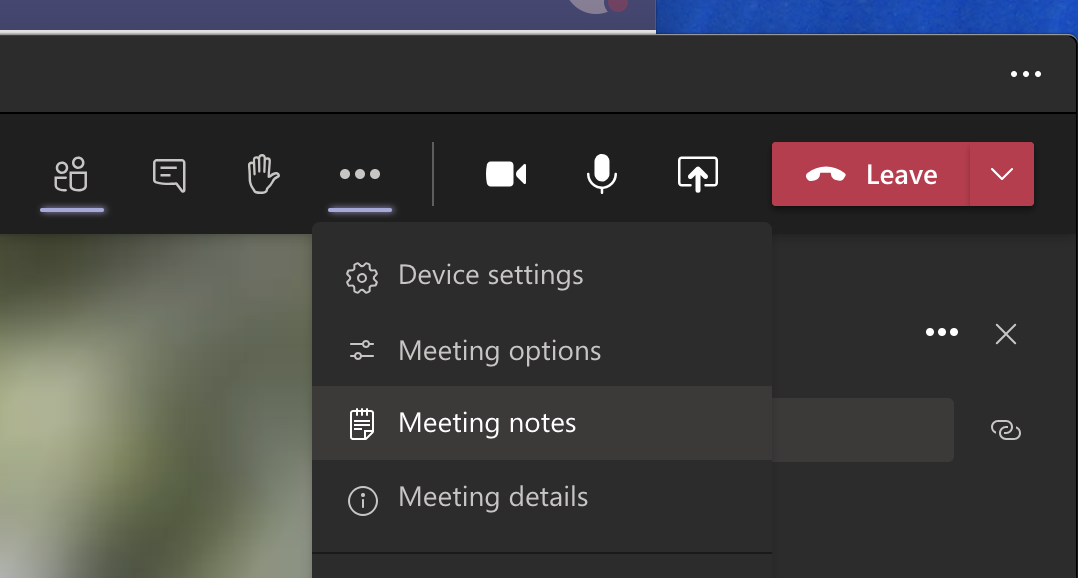
Meeting Notes in Microsoft Teams

Click Meeting notes, and a new tab for meeting minutes will be created in the current channel.

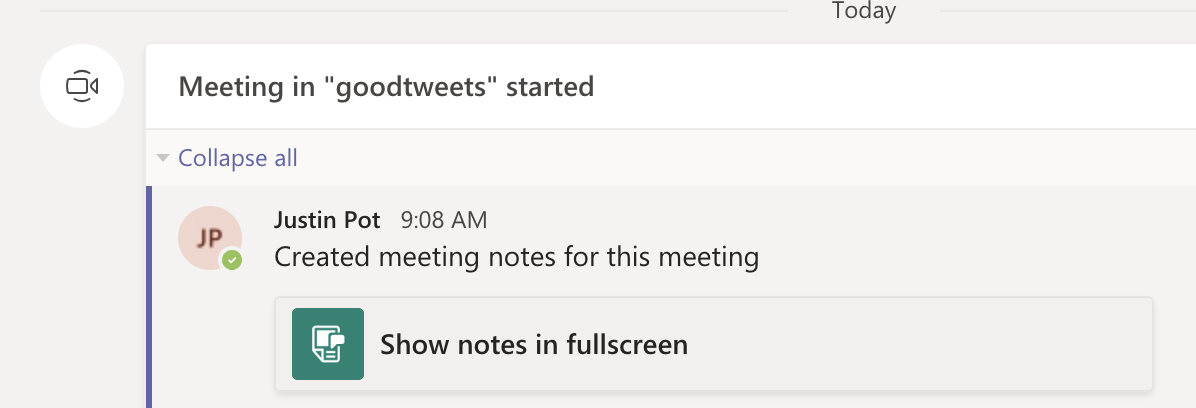
Notes get saved as part of the meeting itself, and can go anywhere with you, and will be saved for later or for sharing with your coworkers.

Meeting notes link in the Teams channel

This is a quick way to ensure there’s a written record of the meeting in a place where everyone can access it, which is very slick.

2. Persistent chat with rich formatting 

Zoom chat is very simple. Microsoft Teams’ chat for meetings, on the other hand, has more formatting features than AIM.

Formatting in Teams' meeting chat

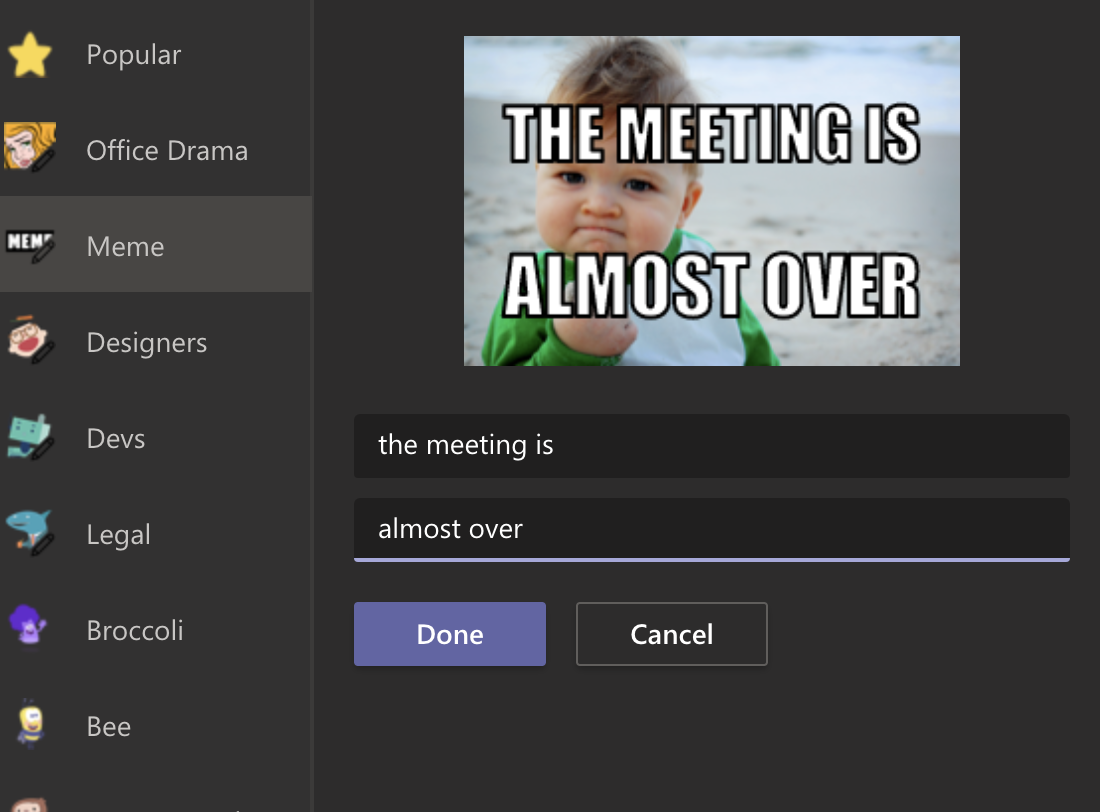
We’re not sure if you have the multitasking skills to format text during a meeting, but it’s there if you want it. And this is just the beginning—there’s a large sticker collection and, for some reason, a meme creator. Imagine how much fun this can make your meetings!

Meme generator in Microsoft Teams

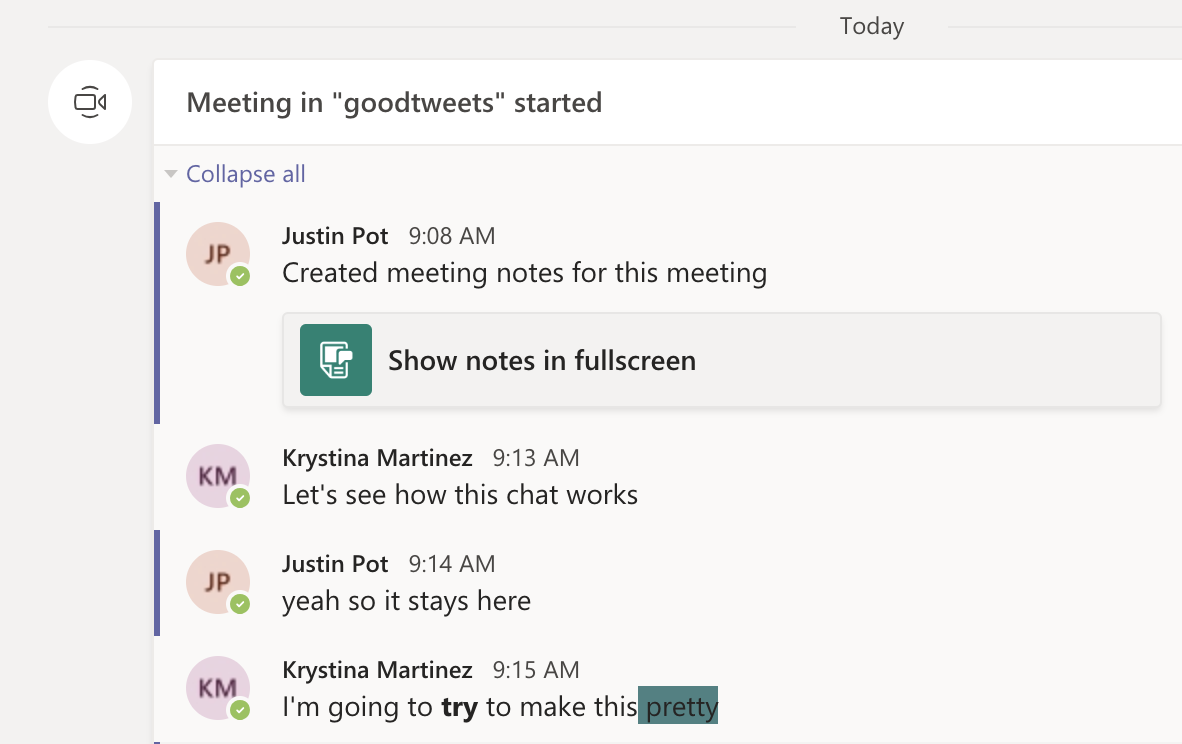
Microsoft Teams also keeps a record of the chat from every meeting and posts all comments in the channel.

Meeting chat record in Microsoft Teams

Have you ever lost track of helpful links and information during a Zoom meeting? With Teams, you can review the comments after the meeting, and any points made there can be found using search alongside the rest of your chats. It’s easy to see why this is useful.

3. Blur your background

Zoom backgrounds are, at this point, an important part of our collective human culture—the ultimate form of self-expression. With this best practice, you can have your meeting almost anywhere, and disguise whatever happens in the background around you. Naturally, Microsoft Teams offers custom backgrounds for meetings.

4. Pretend you’re in the same room as your coworkers

Zoom  has two views that you can switch between. Speaker View and Gallery View: essentially, you can see the person talking right now or see everyone at once. Microsoft Teams adds another: Together Mode. Everyone on the call is shown as though they’re sitting next to each other in some kind of classroom, or sporting event like we’ve seen on TV with the NBA,MLB, NHS and NFL.

Together Mode in Microsoft Teams

This is optional, and turning it on only changes things on your screen. 

Is this useful? No. Will it make you feel slightly less alone during a year in which in-person interaction is rare? No. Is it somewhat amusing? Yes.

5. Live captions

Teams can detect what’s said in a meeting and present real-time captions. And, if you’ve turned on the new meeting experience, your captions will include speaker attribution—so you’ll see not only what’s being said, but who’s saying it. 

Zoom offers a closed captioning feature, but someone has to manually type them out. Microsoft’s system recognizes speech automatically. Live captions can make your meeting more inclusive to participants who are deaf or hard-of-hearing, people with different levels of language proficiency, and participants in loud places by giving them another way to follow along.

6. There’s a good chance you’re already paying for it

Zoom is free, but the free version limits meetings to 40 minutes. Microsoft Teams’ free version has no such restrictions for video meetings.

There’s also a good chance you’re already paying for the full version. Microsoft Teams is included with every version of Microsoft 365 for business. This means that, if your company pays for a Microsoft Office subscription, you already have access to Teams. You should probably give it a chance and consider not paying for Zoom and/or Slack on top of it.

Features

  • Group and private chat.
  • Video calling, audio calling, and screen sharing.
  • Schedule video calling.
  • Thread messaging.
  • Works seamlessly with any other Office app.
  • Up to 250 people per video call.
  • Over 270 integrations.
  • Available in 53 languages.

Best for

  • Microsoft-centric teams.
  • Organizations that want to keep ideas organized and compartmentalized.

If you have any questions, please email us at support@sjtechies.com or call us at (856) 745-9990.


Is Your Organization Using SHA-1 SSL Certificates? If so here’s what you need to know and do:

ssl


Following a recommendation by the National Institute of Standards and Technology (NIST), Microsoft will block Windows from accepting SSL certificates encrypted with the Secure Hash Algorithm-1 (SHA-1) algorithm after 2016. Given the number of mission-critical SSL certificates that are allowed to expire from inattention, administrators have their work cut out for them. By knowing what will happen, why it’s happening, and what you need to do, you won’t be surprised by these important policy changes.

What’s Happening?

On November 12, 2013, Microsoft announced that it’s deprecating the use of the SHA-1 algorithm in SSL and code signing certificates. The Windows PKI blog post “SHA1 Deprecation Policy” states that Windows will stop accepting SHA-1 end-entity certificates by January 1, 2017, and will stop accepting SHA-1 code signing certificates without timestamps after January 1, 2016. This policy officially applies to Windows Vista and later, and Windows Server 2008 and later, but it will also affect Windows XP and Windows Server 2003.

SHA-1 is currently the most widely used digest algorithm. In total, more than 98 percent of all SSL certificates in use on the Web are still using the SHA-1 algorithm and more than 92 percent of the certificates issued in the past year were issued using SHA-1.

Website operators should be aware that Google Chrome has started warning end users when they connect to a secure website using SSL certificates encrypted with the SHA-1 algorithm. Beginning in November 2014 with Chrome 39, end users will see visual indicators in the HTTP Secure (HTTPS) address bar when the site to which they’re connecting doesn’t meet the SHA-2 requirement. Figure 1 shows those indicators.


Figure 1: Visual Indicators in the HTTPS Address Bar


Google is doing this to raise end users’ awareness and to help guide other members of the Internet community to replace their SHA-1 certificates with SHA-2 certificates.

Why Is Microsoft Deprecating SHA-1?

SHA-1 has been in use among Certificate Authorities (CAs) since the U.S. National Security Agency (NSA) and NIST first published the specification in 1995. In January 2011, NIST released Special Publication 800-131A, “Transitions: Recommendation for Transitioning the Use of Cryptographic Algorithms and Key Lengths.” This publication noted that SHA-1 shouldn’t be trusted past January 2016 because of the increasing practicality that a well-funded attacker or government could find a SHA-1 hash collision, allowing them to impersonate any SSL website.

Realizing that it’s highly unlikely that CAs and the industry at large will adopt more powerful encryption algorithms on their own, Microsoft is leading the charge by making Windows reject certificates using SHA-1 after January 1, 2017. Doing this will lead website operators to upgrade to stronger SHA-2 certificates for the betterment of all Windows users and the broader public key infrastructure (PKI) community. The Windows PKI blog post “SHA1 Deprecation Policy” noted that, “The quicker we can make such a transition, the fewer SHA-1 certificates there will be when collisions attacks occur and the sooner we can disable SHA1 certificates.”

In the end, the issue isn’t if SHA-1 encryption will be cracked but rather when it will be cracked.

What Do I Need to Do?

January 1, 2017, might seem like a long way away, but now is the time to understand the problem and how to mitigate it.

As per Microsoft’s SHA-1 deprecation policy, Windows users don’t need to do anything in response to this new technical requirement. XP Service Pack 3 (SP3) and later versions support SHA-2 SSL certificates. Server 2003 SP2 and later versions add SHA-2 functionality to SSL certificates by applying hotfixes (KB968730 and KB938397).

Web administrators must request new certificates to replace SHA-1 SSL and code-signing certificates that expire after January 1, 2017. As of this writing, that would probably affect only public SHA-1 certificates that were purchased with a long expiration date (three years or more) or long-duration certificates issued by internal SHA-1 CAs. Most third-party CAs will rekey their certificates for free, so you simply need to contact the CA to request a rekeyed certificate that uses the SHA-2 algorithm.

When ordering new SSL certificates, you should confirm with the CA that they’re being issued with the SHA-2 algorithm. New certificates with expiration dates after January 1, 2017, can only use SHA-2. Code-signing certificates with expiration dates after December 31, 2015, must also use SHA-2.

Note that the algorithm used in SHA-2 certificates is actually encoded to use SHA-256, SHA-384, or SHA-512. All of these are SHA-2 algorithms; the SHA number (e.g., 256) specifies the number of bits in the hash. The larger the hash, the more secure the certificate but possibly with less compatibility.

It’s important that the certificate chain be encrypted with SHA-2 certificates. (A certificate chain consists of all the certificates needed to certify the end certificate.) This means that any intermediate certificates must also use SHA-2 after January 1, 2017. Typically, your CA will provide the intermediate and root CA certificates when they provide the SHA-2 certificate. Sometimes they provide a link for you to download the certificate chain. It’s important that you update this chain with SHA-2 certificates. Otherwise, Windows might not trust your new SHA-2 certificate.

Root certificates are a different story. These can actually be SHA-1 certificates because Windows implicitly trusts these certificates since the OS trusts the root certificate public key directly. A root certificate is self-signed and isn’t signed by another entity that has been given authority.

For the same reason, any self-signed certificate can use the SHA-1 algorithm. For example, Microsoft Exchange Server generates self-signed SHA-1 certificates during installation. These certificates are exempt from the new SHA-2 policy since they aren’t chained to a CA. I expect, however, that future releases of Exchange will use SHA-2 in self-signed certificates.

What About My Enterprise CAs?

If your organization has its own internal CA PKI, you’ll want to ensure that it’s generating SHA-2 certificates. How this is done depends on whether the CA is running Windows Server 2008 R2 or later and if your CA has subordinate CAs.

If you have a Server 2008 R2 or later single-root CA without subordinates, you should update the CA to use SHA-2. Doing so will ensure that subsequent certificates generated will use the SHA-2 algorithm. To check which hash algorithm is being used, you can right-click the CA and go to the General tab. If SHA-1 is listed, you can run the following certutil command to configure the CA to use the SHA-256 algorithm:

certutil -setreg ca\csp\CNGHashAlgorithm SHA256

You must restart the CertSvc service to apply the change. Now when you view the CA properties, you’ll see that the hash algorithm is SHA-256. All future certificates issued by this CA will use SHA-256, but keep in mind that existing certificates will still be using SHA-1. You need to renew any SHA-1 certificates issued by this CA to upgrade them to SHA-2 certificates.

If your CA is older than Server 2008 R2, you can’t upgrade the CA to use SHA-2. You’ll need to rebuild it with a newer version.

If your organization’s internal CA is multi-tiered with one or more subordinate CAs, you’ll need to reconfigure them to use SHA-2. This is done using the same certutil command just given on each subordinate or issuing CA. Keep in mind that if you use subordinate CAs, you’re not required to update the root CA to SHA-2 since that certificate is at the top of the certificate chain, but it won’t cause any problems if you do. You still need to renew any SHA-1 certificates issued by the subordinate CAs to upgrade them to SHA-2 certificates.

Take Action Now

Administrators and website operators should identify all the SSL certificates used in their organizations and take action, as follows:

  • SHA-1 SSL certificates expiring before January 1, 2017, will need to be replaced with a SHA-2 equivalent certificate.
  • SHA-1 SSL certificates expiring after January 1, 2017, should be replaced with a SHA-2 certificate at the earliest convenience.
  • Any SHA-2 certificate chained to an SHA-1 intermediate certificate should be replaced with another one chained to an SHA-2 intermediate certificate.

The following tools and websites are useful for testing and for further information about SHA-1 remediation:

  • Microsoft Security Advisory 2880823. This website discusses the deprecation policy for the SHA-1 hashing algorithm for the Microsoft Root Certificate Program.
  • Migrating a Certification Authority Key from a Cryptographic Service Provider (CSP) to a Key Storage Provider (KSP). The section “How to migrate a CA from a CSP to a KSP and optionally, from SHA-1 to SHA-2” in this TechNet web page provides detailed instructions for upgrading a CA to use SHA-2.
  • Gradually sunsetting SHA-1.” This Google Online Security Blog post explains how the transition to SHA-2 affects Chrome and details Google’s rollout schedule.
  • SHA-256 Compatibility. This GlobalSign web page lists OS, browser, server, and signing support for SHA-256 certificates.
  • DigiCert SHA-1 Sunset Tool. This free web application tests public websites for SHA-1 certificates that expire after January 1, 2016.
  • DigiCert Certificate Inspector. This tool discovers and analyzes all certificates in an enterprise. It’s free, even if you don’t have a DigiCert account.
  • Qualys SSL Labs’ SSL Server Test. This free online service analyzes the configuration of any SSL web server on the public Internet.

Office Mobile for iPhones

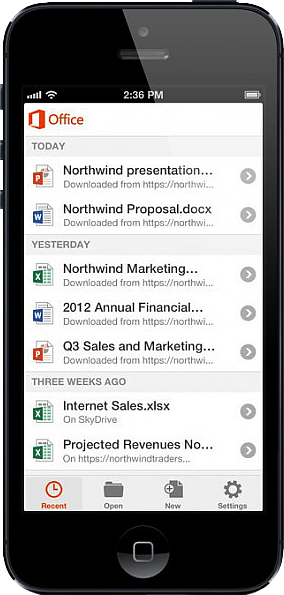
Untitled On June 14, 2013, Microsoft released Office Mobile in the Apple Store for all Office 365 users at no cost.  This app is available for iPhone 4 and up, iPad 3rd generation and up, iPad Mini and iPod Touch 5th generation.  All devices are required to run iOS 6 and up.

Office Mobile allows you to view and edit Word, Excel, and PowerPoint documents.   SkyDrive, SkyDrive Pro and SharePoint are ways to access documents.  “Recent Documents” tracks the most recent documents that you viewed or changed and makes them easily accessible.  Offline editing does not require a constant internet connection but allows you to save your changes once reconnected to a network.

On June 10, 2013 Apple announced that iWork Apps, such as Pages, Numbers and Keynote, can cross platforms to be used on Windows Systems.  Although, iWork Apps are proficient, they can not compare to the Office Suite. 

Microsoft has taken a huge step by crossing platforms with Office software and returning the upper hand to Microsoft.  Office 365 has become more valuable for businesses and home users.  

For more information on Hosted Services and Office 365

 please contact us 856-745-9990 or click here.


Outlook issues in the June 2017 security updates

The problems stems from June 2017 security updates. Microsoft is investigating the issues and will update this page when a fix is available. In the meantime, please use the workarounds suggested for each issue. They have categorized it in seven scenarios.

Issue#1: Error when opening an attachment is an email, contact, or task formatted as Rich Text.

This issue affects Outlook 2007 and Outlook 2010.

When you open an attachment in an email, contact, or task formatted as Rich Text you get the following error:outlook-2010-2007-this-program-used-to-create-is-outlook-not-installed

You may also see:

STATUS: WORKAROUND

  • Forward the email to yourself and then open the attachments from the forwarded email.
  • Change the email format to HTML, or Text format.
  • Save the attachments to your computer, using one of the following methods, then open them from the saved location: Drag and drop the attachments to your desktop.
    Go to File > Save Attachments.
    Copy and paste the attachment to your computer.

Issue#2: Opening Mail Attachment warning when opening an attachment that includes consecutive periods

This issue affects Outlook 2007, Outlook 2010, Outlook 2013, and Outlook 2016.

When opening an attachment that includes consecutive periods (…), or an exclamation point (!), the files are blocked and you receive an Opening Mail Attachment warning.
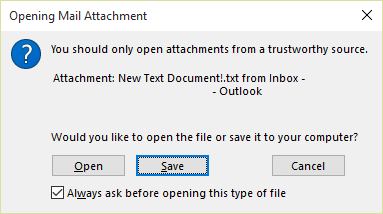
Or if an email message includes an attached email message, and the attached email message’s subject line ends with an unsafe file name extension as listed in the Blocked attachments in Outlook, the email attachment will be blocked for recipients.

STATUS: WORKAROUND

If you get the Opening Mail Attachment warning, and you’re sure the attachment was sent from a trusted source, proceed to Open or Save the attachment.

If the file is blocked because of a potentially unsafe file extension, ask the sender to save the email message to their computer and rename its subject line so that it does not end with an unsafe file name extension. Then, attach it to the email message and resend.

Issue#3: Error when setting ShowLevel1Attach to allow Outlook to display Level 1 attachments

This issue affects Outlook 2013 and Outlook 2016.

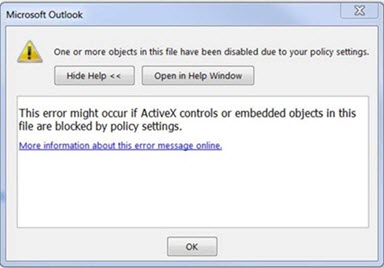
If you set ShowLevel1Attach to allow Outlook to display Level 1 attachments, you may see the error: “One or more objects in this file have been disabled due to your policy settings”.

WARNING: Typically, Level 1 attachments are blocked. If you have enabled this policy, users can see Level 1 attachments in Outlook. If you use any of the workarounds to open the files, please make sure they are safe to open. See: Information for administrators about e-mail security settings in Outlook 2007.
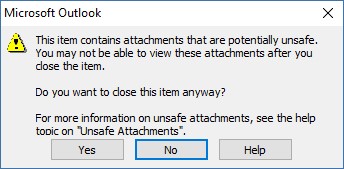
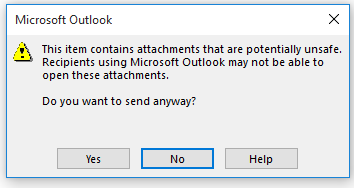
If you set ShowLevel1Attach to allow Outlook to display Level 1 attachments, and you send an email with an attachment you may see this message: “This item contains attachments that are potentially unsafe.  Recipients using Microsoft Outlook may not be able to open these attachments.”
STATUS: WORKAROUND

  • Change the email format to HTML, or Text format.
  • Save the attachments to your computer, using one of the following methods, then open them from the saved location:
    • Drag and drop the attachments to your desktop.
    • Go to File > Save Attachments.
    • Copy and paste the attachment to your computer.

Issue#4: VBScript does not run or you receive malicious code warning when using a custom form for Outlook

This issue affects Outlook 2007, Outlook 2010, Outlook 2013, and Outlook 2016.

When you use a custom form that you have created for Outlook, you see the following two symptoms:

  • VBScript does not run.
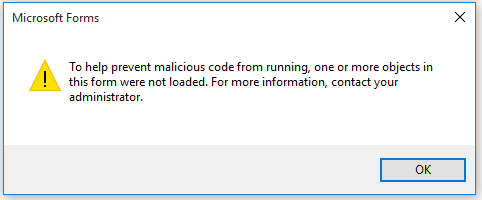
  • You get a malicious code warning: 

STATUS: INVESTIGATING

We’re investigating this issue and will update this page when a fix is available.

Issue#5: “Something went wrong….” or “Search results may be incomplete” error when searching in Outlook

This issue affects all Outlook versions on Windows 7, Windows 8, Windows 10.

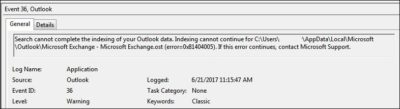
When searching in Outlook, you get this error: “Something went wrong and your search couldn’t be completed.”, or “Search results may be incomplete because items are still being indexed“.

And you’ll see this Event Log warning:
STATUS: WORKAROUND

Until the Windows Update fix release on 6/27, you can set a registry key that will cause Outlook to stop using the local Windows Search service. When this registry key is set, Outlook will use its own built-in search engine. The built-in search will display the message below to indicate it is not using the Windows Search service.

Disable Windows Desktop Search Service for Outlook:

NOTE: The following steps show you how to modify the registry. However, serious problems might occur if you modify the registry incorrectly. Please make sure that you follow these steps carefully. For added protection, back up the registry before you modify it. Then, you can restore the registry if a problem occurs. For more information about how to back up and restore the registry, see this article.

  • Open Registry Editor.
  • Go to: Computer\HKEY_LOCAL_MACHINE\SOFTWARE\Policies\Microsoft\Windows\Windows Search
  • PreventIndexingOutlook
  • Set DWORD: 1

Detailed Instructions:

  1. Click Start, click Run, type regedit in the Open box, and then click OK.
  2. Locate and then click the following subkey in the registry:
    HKEY_LOCAL_MACHINE\SOFTWARE\Policies\Microsoft\Windows
  3. On the Edit menu, point to New, and then click New Key and name the key Windows Search.
  4. Click on the new key Windows Search.
  5. On the Edit menu, point to New, and then click DWORD Value.
  6. Type PreventIndexingOutlook for the name of the DWORD, and then press Enter.
  7. Right-click PreventIndexingOutlook, and then click Modify.
  8. In the Value data box, type 1 to enable the registry entry, and then click OK.
  9. Note to disable the PreventIndexingOutlook setting, type 0 (zero), and then click OK.
  10. Exit Registry Editor, and then restart Outlook.

Issue#6: iCloud fails to load properly in Outlook 2007

iCloud fails to load properly in Outlook 2007.

When accessing Calendar, Contacts, or Tasks in Outlook 2007, you get the following error:

The set of folders cannot be opened. MAPI was unable to load the information service C:\PROGRA~2\COMMON~1\Apple\Internet Services\APLZOD.dll. Be sure the service is correctly installed and configured.”

STATUS: WORKAROUND

The loading of unregistered MAPI services has been disabled by default to make Outlook more secure.

WARNING: This workaround may make your computer or your network more vulnerable to attack by malicious users or by malicious software such as viruses. Microsoft does not recommend this workaround but is providing this information so that you can choose to implement this workaround at your own discretion. Use this workaround at your own risk.

If you have trusted applications that depend on being loaded in this manner, you can re-enable those applications by setting the following registry key:

REG_DWORD HKEY_CURRENT_USER\Software\Microsoft\Office\12.0\Outlook\Security\AllowUnregisteredMapiServices

You can use the following registry subkey to apply the registry setting as a domain policy:

HKCU\Software\Policies\Microsoft\Office\12.0\Outlook\Security\AllowUnregisteredMapiServices

Value 0 (default): Block loading of unregistered MAPI services. This is the recommended setting to avoid unexpected execution of unknown code.

Value 1: Enable loading of unregistered MAPI services.

IMPORTANT: The following steps show you how to modify the registry. However, serious problems might occur if you modify the registry incorrectly. Please make sure that you follow these steps carefully. For added protection, back up the registry before you modify it. Then, you can restore the registry if a problem occurs. For more information about how to back up and restore the registry, see this article.

To make these registry changes, follow these steps:

  1. Click Start, click Run, type regedit in the Open box, and then click OK.
  2. Locate and then click the following subkey in the registry:HKCU\Software\Microsoft\Office\12.0\Outlook\Security\
  3. On the Edit menu, point to New, and then click DWORD Value.
  4. Type AllowUnregisteredMapiServices for the name of the DWORD, and then press Enter.
  5. Right-click AllowUnregisteredMapiServices, and then click Modify.
  6. In the Value data box, type 1 to enable the registry entry, and then click OK.

    NOTE: To disable the AllowUnregisteredMapiServices setting, type 0 (zero), and then click OK.

  7. Exit Registry Editor, and then restart the computer.

Vulnerability information (applies to all versions)

MAPI does not validate that a provider’s DLL that it is requested to load is registered correctly in MapiSVC.inf or even that it comes from the local machine. This can be exploited by creating a file together with an OLE object in such a way to cause MAPI to load a DLL from a network share when the OLE object is activated. This can allow arbitrary code execution to occur.

Issue#7: When printing a specific iframe or frame in a web page, the print output may be blank, or text is printed with a 404

This issue affects all Outlook versions on Windows 7, Windows 8, Windows 10.

When you print a specific iframe or frame in a web page, the print output may be blank, or text is printed that resembles the following:

NOTE: A frame is a part of a web page or browser window that displays content independent of its container. A frame can load content independently.

This problem has also been observed in both Internet Explorer 11, and in applications that host the IE Web Browser Control.

STATUS: INVESTIGATING

There is currently no workaround for this issue. However, if you print the entire web page, it will print correctly. We’re investigating this issue and will update this page when a fix is available.

Option: Uninstall Recent Microsoft Update

It is not recommended to uninstall the update as it applies to some other issues but if none of the workarounds help then you have this option until a new fix is releases.

For Outlook 2010:

  1. Go to the Control Panel – Programs and features and select view installed updates on the left.
  2. Search or look for KB3203467 and highlight it and uninstall it.

For Outlook 2007:

  1. Go to the Control Panel – Programs and features and select view installed updates on the left.
  2. Search or look for KB3191898 and highlight it and uninstall it.

Have any questions?

Call us at: 856-745-9990 or visit: https://southjerseytechies.net/

South Jersey Techies, LLC is a full Managed Web and Technology Services Company providing IT Services, Website Design ServicesServer SupportNetwork ConsultingInternet PhonesCloud Solutions Provider and much more. Contact for More Information.

To read this article in its entirety click here.

Windows 10’s new features, how they work and how you can make them work for you.

The final version of Windows 10 won’t be available until 2015, but that doesn’t mean you can’t live the Windows 10 experience — the extremely pre-final experience — right now.

The technical preview is available right now and although things will likely change drastically between now and release, now’s a good chance to get acquainted.

And keep checking back. As the months close in on the new OS’s final release, expect all our How To coverage to be posted right here.

Windows 10 Technical Preview: 1

spartan

Build 10049 of the Windows 10 Pro Technical Preview just dropped, and with it comes Microsoft’s sexy, speedy new browser: Project Spartan.

The next-gen browser has several new features to try out, including a distraction-free reading view and a fast, secure rendering engine (which was available as an experimental feature in Build 9926). But the coolest new feature is inking — the ability to draw, write on, and generally mark up Web pages from directly within the browser. You can share your marked-up creations via email or through social networks, or you can save them to OneNote.

Start inking

When you see a Web page you want to “ink,” click the small icon that looks like a pen and paper in the upper right corner of the browser window. There are only about five icons total, so this shouldn’t be too difficult to find.

The Web page will refresh and the inking toolbar will appear over the regular toolbar. On the left side of the inking toolbar, you’ll see five icons: Pen, highlighter, eraser, text, and clip. The pen tool is selected by default, so you can just start scribbling away if you’d like (in medium thickness, light blue ink). If you want to change the color of your pen, click the pen icon to choose from 12 colors and three sizes.

To use a highlighter, which will let you highlight text and images instead of drawing over them, click the highlighter button. Click the highlighter button a second time to select your highlighter color and shape (six colors, three shapes).

Type some comments

Drop a connect pin

If you prefer typing to writing or drawing, you can use the text tool to make comments on the webpage. The text tool is a little different from the pen and highlighter tools: Instead of letting you put text wherever you want on the page, this tool lets you drop a comment pin and type text in a corresponding text box on the right side of the page. You can minimize the text box (the pin will remain visible) for less clutter.

When you select the text tool, your pointer will turn into a cross-hair. Click anywhere on the page to drop a comment pin. The pin will appear where you click, and a thin line will connect it to a corresponding text box on the right side of the page.

Click inside the text box to type your comment. To minimize the box, you can either click the minus sign in the upper right corner of the box, or you can click the corresponding comment pin. To delete both the comment pin and the text box, click the trash can icon in the lower right corner of the text box.

The clipping tool will also turn your cursor into a cross-hair, so you can clip out a section of the page. It works similar to the Snipping Tool — click the clipping tool icon, and the page will fade out until you select a section of it. Once you have a section selected, you’ll see a small copy icon in the lower right corner; click this to copy your clip (you can paste it into another program, such as Microsoft Paint, if you want to save it).

Don’t make any mistakes

As of right now, the eraser tool doesn’t do much. If you click on it, nothing happens. If you click on it again, a “Clear All” box appears, which you can click to clear the Web page of annotations.

I assume the eraser tool will be fixed before Project Spartan goes public, because right now there’s no way to fix an annotation mistake without clearing the entire page and starting over.

Share or save your masterpiece

On the right side of the inking toolbar, you’ll see a save icon and a share icon. To save your newly-annotated webpage, click the save icon.

Right now, Project Spartan will let you save your marked-up page as an HTML file – that is, you can add it to your Favorites or your reading list. In the future, you’ll also be able to save your projects in OneNote.

To share your work, click the share icon to open up Windows 10’s sharing sidebar. Because this is such a new build, Project Spartan’s sharing capabilities don’t appear to be turned on – but when they are, you’ll be able to share your creation with any app that supports Windows’ sharing sidebar.

Have questions?

Our small business team is here to help.
Call us at: 856-745-9990

South Jersey Techies, LLC is a full Managed Web and Technology Services Company providing IT Services, Website Design ServicesServer SupportNetwork ConsultingInternet PhonesCloud Solutions Provider and much more. Contact for More Information.

To read this article in its entirety click here.

CALL US NOW!