Back to Top

Tech, Web, Cloud & Cabling Services

Tag Archives: Microsoft

Microsoft tag

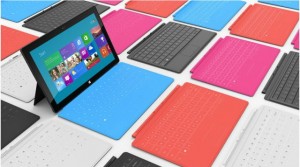
Microsoft Surface: iPad knockoff for enterprise?

As I’ve said many times, I barely have any use for the new iPad. Most technologists I know feel the same way about tablets. However, most of us understand that we’re an anomaly. For tens of millions of people, using a tablet like the iPad is infinitely easier and less frustrating that dealing with a Windows laptop. That’s why tablets are eating the bottom out of the PC market, and the trend is accelerating.

Microsoft knows this. It also knows that an alarming number of companies are allowing their employees to use iPads and some are even running trials to hand out the new iPads to lots of highly mobile employees. What’s even worse for Microsoft is that most of these employees are loving it and are gladly chucking their Windows laptops aside.


While a lot of these employees will still periodically use Windows machines for some of their work, they’re using them less frequently and that means slower PC upgrades and less urgency to jump to Microsoft Windows 8. We’re still only talking about a fraction of the market — iPad will sell 60 million units in 2012 versus 400 million PCs, according to Gartner. Nevertheless, it has Microsoft freaked out because it’s been just a little over two years since the iPad debuted.

That’s a lot of disruption in a short period of time.

Of course, that brings us to the announcement of the Microsoft Surface tablet this week. Microsoft turned a lot of heads by revealing that it is going to build its own line of Microsoft Windows 8 tablet devices, à la Zune and Xbox. The hardware design for the Surface that Microsoft showed off on Monday was impressive enough to pique the interest of the tech press and the public.

The tablet itself looks a lot like the new iPad and many of the high-end Android tablets, but there were a pair of features that stood out. The first was a sturdy built-in kickstand that stealthily pops out from the back of the tablet. The second is the magnetic cover that doubles as a keyboard and touchpad. When you put these two features together you suddenly have a tablet that easily doubles as a laptop. That eliminates the need for someone to have two devices.

Sure, the hardware of the Microsoft Surface Tablet echoes the iPad. But, Microsoft did use a special magnesium body that makes it light, thin, and durable. Sure, the cover of the Surface is a copy of the iPad’s Smart Cover, but Microsoft did innovate by adding a keyboard on the inside.

There’s plenty about the Microsoft Surface Tablet that screams, “iPad knockoff!” and the failure of Android tablets and the tablet debacles at RIM and HP show that trying to build an iPad competitor for the enterprise can be a brutal business.

Still, the Microsoft Surface Tablet has something going for it that the BlackBerry PlayBook, HP TouchPad, and the parade of Android tablets don’t — it’s going to automatically drop into the Windows networks that most Fortune 500 companies as well as a lot of small and medium businesses already have in place. That’s going to mean a lot fewer worries about compatibility, security, and data protection. In other words, it means a lot less work for IT on the backend and a smoother transition for many users

That doesn’t mean the Microsoft Surface Tablet is a slam dunk. There is still a big question about whether users are going to find the Windows 8 interface as easy to use as the new iPad. And, will spyware and malware become a big problem on the Surface since it’s running the full version of Windows? Above all, how much is it going to cost? The Pro version of the Microsoft Surface Tablet that most businesses are going to want is expected to cost about the same price as an Ultrabook — in the $800-$1000 range.

Ultimately, if you want to think of the Microsoft Surface Tablet as an iPad knockoff with a few key innovations and additions that make it a legitimate option for businesses, that’s fine. A lot of companies will be happy to pay a premium for an iPad look-alike that automatically fits into their current networks and is guaranteed to work with their existing applications.

To View Full Article Click Here

Doomsday – Windows XP End of Life


XP

Takeaway:  Risks with staying with Windows XP after April 8, 2014.

Since being release worldwide on October 25, 2001, Windows XP has become one of the most popular versions of Windows.  OEM and retail sales of Windows XP ended in June 2008, while smaller OEMs continued to sell the Operating System until January of 2009.

On April 10, 2012, Microsoft officially announced that as of April 8, 2014 they will end extended support for Windows XP and Office 2003, after which no new bug fixes or patches will be issued.

Organizations may be taking a spontaneous risk and assume that Window’s XP’s prolonged life means major vulnerabilities have been acknowledged and dealt with.  If XP were secure, there still might be application-level vulnerabilities.  Even the ranges of security breaches are inadequate to persuade some organizations that are still using Windows XP to upgrade.  The dynamics that have safeguarded XP’s success are now working against the organizations that stuck by the operating system.

A major aspect attackers assess during their investigation is the operating system and the applications used within an organization.  With Microsoft ending their support, the vendors for applications running on it will most likely end support.

On the other hand, those preparing to continue using XP after the cut-off date, are going to be in a unpleasant situation trying to protect their intellectual property, but can take certain steps to limit exposure to risk.  There are specific technologies you could deploy that will permit you to remain using legacy systems.  Mitigating technologies like Host-Based Intrusion Protection will be able to identify that a vulnerability exists and make that vulnerability difficult/impossible to exploit by applying a virtual patch to those non-supported environments.

However, XP’s acceptance is down to the technology itself and an operating system format that people are content with.  The significant changes with Windows Vista, Windows 7 and especially Windows 8 are the reason people are resistant to change.

To protect and upgrade your home or business

 please contact us 856-745-9990 or click here.


Can’t Change Windows 7 Theme?

Can’t change the Windows 7 theme? Is your Windows 7 theme stuck on “classic”? If it is stuck, then you can try to apply a few fixes and see if if you can unstuck it! Often it is stuck, because your PC is configured to be optimized for best performance, rather than best appearance!


Windows

Overview

Configure PC for better Appearance
Start Windows 7 Themes Service
Problem: Themes Service Cannot Be Started

Use Visual Styles on Windows and Buttons

Often the reason why your Windows 7 theme could be stuck on classic is that your PC is configured to be optimized for better performance. I could imagine that some laptops are even pre-configured that way. Actually, it’s a good setting, but if you want a better appearance I can understand that it’s annoying to be stuck on “classic” theme. So, if you can’t change your Windows 7 theme, you might want to check your PC configuration first:

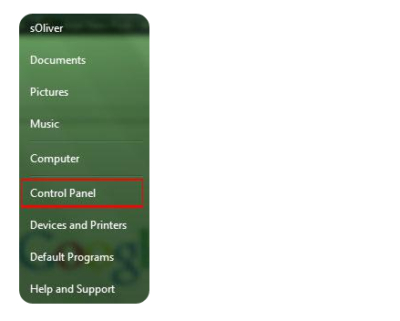
1. StepOpen the Control Panel

Control Panel


2.
Click on “System and Security”:

3. Step Click on “System”.

4. Step In the sidebar, click on “Advanced System Settings”:

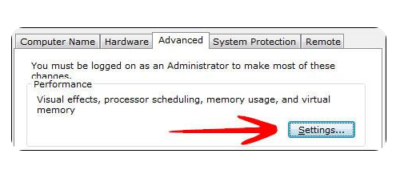
5. Go to the tab “Advanced” and click on “Settings”:

System and Security


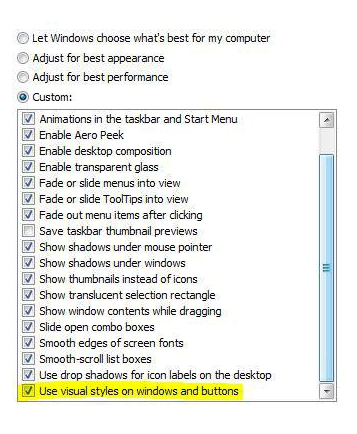
6. Step Scroll down the list, at the bottom double-check that the item “Use Visual Styles on Windows and Buttons” is checked. If this is not checked, your Windows 7 theme will be stuck on “classic” for a long time, because this completely disables your fancy visual Aero appearance.

Windows 7 Themes

This is also often the problem why people can’t seem to be able to active the Windows 7 Aero theme, because their PC is configured to be optimized for the best performance and not the best appearance.

Themes service is not started

If your Windows 7 themes service is not started your Windows 7 theme will be stuck on “classic”. You can’t change your Windows 7 theme when the theme service is disabled. So, let’s check if your themes service is up and running.

1. Step Click on “Start” and enter “services.msc” into the search field. Click on the item that appears.

2. Step Scroll down the list until you find the item “Themes” (or enter Themes while one item is selected)

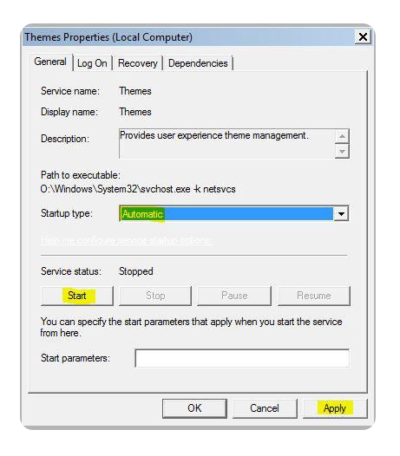
3. StepYou will now see if the Themes service is running currently and what mode it is in (Automatic, Disabled, Manual):

If it’s currently “Disabled” or in “Manual” mode and not started, you have to start it manually and change the mode to “Automatic”.

4. StepDouble-click on “Themes” and from the dropdown select “Automatic”, click on “Start” and then on “Apply”.

Themes Properties

Have questions?

Microsoft’s Cloud Solutions Partner are here to help.
Call us at: 856-745-9990 or visit: http://southjerseytechies.net/

South Jersey Techies, LLC is a full Managed Web and Technology Services Company providing IT Services, Website Design ServicesServer SupportNetwork ConsultingInternet PhonesCloud Solutions Provider and much more. Contact for More Information.

To read this article in its entirety click here.


How to Get Windows 10 for Free

A new notification prompts Windows 7 and 8.1 users to reserve an upgrade to the upcoming OS, due to debut July 29.

Microsoft is now pushing Windows 10 via a notice suggesting you reserve a copy. On Monday, the software giant announced thatWindows 10 will officially roll out July 29. That means it will be available on any PCs you purchase as of that date — and as a free upgrade to your existing Windows 7 or 8.1 tablet or PC.

Microsoft has a lot riding on Windows 10. The new OS has the task of erasing the bad experiences people had with the touchscreen-focused Windows 8, which ultimately failed to catch fire among PC users. Windows 10 comes packed with new features, such as a redesigned Start menu, the Cortana voice assistant and a new browser called Edge, all designed to win over jaded Windows users. The new OS will also offer a more unified experience among PCs, tablets and smartphones as a way to convince consumers to go the Windows route for all their devices. As such, the company wants to make sure that current device owners know they can now get in line to pick up Windows 10.So how can you now reserve your free copy of Windows 10?

Windows 10 Free Upgrade

You can now reserve your free copy of Windows 10, if you meet the necessary requirements.

First, you must be running Windows 7 Service Pack 1 or Windows 8.1, and you must have installed a March the Windows update dubbed KB3035583, according to blog site VentureBeat. That update will already be on your PC as long as you have Automated Updates enabled.

Peek at your Windows system tray in the lower right corner, and you should see a new icon displaying the Windows logo. Hover over it, and the popup messages says: “Get Windows 10.”

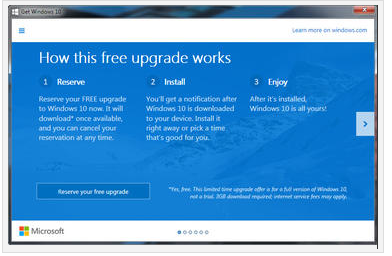
Click that icon, and up pops a window that explains how the free upgrade works. Once it’s available, Windows 10 will automatically download onto your PC. You’ll receive a notification after the download is complete so that you can choose an appropriate time to install it.

You can scroll through the various screens of the Get Windows 10 window to read more about the new OS.

When you’re done, simply click the button to reserve your free upgrade.

The reservation screen asks for your email address so you can receive the notification. Enter your email address and click the Send confirmation button. You can now close the Get Windows 10 window.

Should you change your mind and wish to cancel the reservation, just click the Get Windows 10 icon again.

Click the three horizontal lines in the upper left corner to display the menu and click the link for View confirmation.

Then click the link to Cancel reservation and click the button for Cancel reservation to confirm your choice.

Windows 10 is a free upgrade. The upgrade offers the full version of Windows 10, not simply a trial or limited version. It also ensures that you can run Windows 10 on your specific device for free “for the supported lifetime of your device,” according to Microsoft.

But there are some caveats. The free upgrade applies only to Windows 7 SP1 and Windows 8.1. So if you haven’t upgraded Windows 7 to SP1 or Windows 8 to 8.1, you’ll have to perform those tasks first. Also, you have one year from July 29 to upgrade your PC to Windows 10 for free. After that year is up, you’ll have to purchase Windows 10 yourself.

Those of you running Windows RT or RT 8.1 are out of luck. Microsoft has excluded Windows RT and RT 8.1 from the free upgrade offer.

And what will Windows 10 cost you if the miss the free upgrade window? On Monday, Microsoft revealed the various prices. Windows Home will retail for $119. Windows 10 Pro wil sell for price of $199. And the Windows 10 Pro Pack, which lets you upgrade from Windows 10 Home to Windows 10 Pro, will cost you $99.

Have questions?

Our Upgrade Assistants and IT business team is here to help.
Call us at: 856-745-9990 or visit: https://southjerseytechies.net/

South Jersey Techies, LLC is a full Managed Web and Technology Services Company providing IT Services, Website Design ServicesServer SupportNetwork ConsultingInternet PhonesCloud Solutions Provider and much more. Contact for More Information.

To read this article in its entirety click here.

Google Apps or Office 365: What’s Best?

Microsoft took the beta label off of Office 365 last week, and many consider the cloud-based productivity suite a potshot at Google and Google Apps. Office 365 may offer cloud-based document, storage, and collaboration services that look like Google Apps, but the user experience and price tag are very different. Here’s a look at the major differences between them.

User Experience

The way the user interacts with the application suite may be the biggest difference between Google Apps and Office 365. When you use Google Apps, you live in your Web browser. You edit documents and spreadsheets in Google Docs through your browser, you get your email through Gmail, and you chat with colleagues using Google Talk – all in your browser.

Conversely, Office 365 requires you download a plug-in that will link your desktop with the cloud-based service. You’ll need Microsoft Office installed on your desktop already (to make use of offline and cloud-based features as opposed to webapps,) and you’ll need the .NET framework installed. You’ll also need Lync installed on your system as well if your organization will leverage instant messaging and chat. It’s a hefty list of system requirements you’ll need just to get started, especially compared to Google Apps’ requirements: a supported browser.

Document Collaboration

Microsoft Office documents are the de-facto standard in office environments, so it shouldn’t surprise anyone that Office 365 has an easier time with advanced formatting in Microsoft Word documents and Excel spreadsheets than Google Apps does. Microsoft has put a lot of time and effort into making sure the polish in Microsoft Office made it to Office 365. Office 365 users get the same templates, formatting features, and tools that desktop users get, and since the two services connect, you can create a slideshow in PowerPoint and upload it to Office 365 for editing later without worrying you’ll lose the formatting or images.

If your organization already makes heavy use of Microsoft Exchange for mail and Microsoft Office for productivity, Office 365 will appeal to those who want a familiar, robust tool. Google Apps, and specifically Google Docs, feels barren and plain by comparison, even if it’s more accessible and open.

Google Docs, on the other hand, does a solid job of importing most Microsoft Office documents, auto-saving them, and giving groups a way to all work in and on the same documents and files at the same time without stepping on each other. It’s definitely more bare-bones than Office 365, but it works seamlessly and without the need for desktop software.

Microsoft rolls in Sharepoint to handle document sharing and management, and depending on your opinion, it can be a good or a bad thing. Sharepoint adds a layer of complexity where Google allows more openness. While you do get the benefit of revision history, check-in/check-out, integration with Microsoft Office on the desktop, and integration with Sharepoint Web services with Office 365, Google Docs offers much of the same and lets you and others work in the same document at the same time and see who’s viewing and who edited last, all without the need for another platform.

Chat and Communication

Office 365’s presence tools, including Lync (formerly known as Office Communication Server) integrates with other Microsoft Office and Office 365 products so you can always see if someone is available for chat or a VoIP call, or who’s editing your document or viewing the same files that you are.

Google, on the other hand, already offers this with Google Talk and Google Voice. They’re not as tightly integrated with Google Docs as Lync is with Office 365, but they’re all there.

The only area where Office 365 and Lync outshine Google Talk and Google Voice is in screen-sharing and white-boarding, which Lync has natively but Google Talk does not. Again, Microsoft has more polish and shine on their applications, but feature-for-feature, they’re largely matched. Google Talk and Google Voice may be more Spartan, but they do have broader reach, especially for users who already have large contact lists.

Price

Google Apps Standard for your domain is free. Google Apps for Business offers two pricing plans: a flexible $5/user per month where you can add or remove users at will and pay the difference, and a $50/user per year plan where you commit for a year to get a discounted rate.

Office 365 requires the initial investment in Microsoft Office on your user desktops (as noted above: for use with some enterprise-level features,) some Microsoft Office Servers and services in your environment (like Active Directory if you plan to use those features,) but after that you’ll pay $6/user per month for the small business plan. If you don’t have Microsoft Office on your users’ desktops, you can pay another $12/user per month to get each one of them a copy of Microsoft Office Professional Plus.

Larger enterprises can choose tiered pricing plans that run from $10/user per month up to $27/user per month depending on how many services that want hosted in the cloud versus in their own environments. There’s no two ways about it: Office 365 will be more expensive for almost every business, but Microsoft thinks they have the feature depth to justify the price.

Which One’s Better?

The jury is still out, and even though Office 365 has been in beta for months, Microsoft has a lot of catching up to do if they want to win back enterprises that are looking for affordable cloud-based collaboration products. The familiarity that almost every business has with Microsoft Office may play a big role going forward, but the price tag will be something else they’ll have to overcome.

Feature-for-feature though, the two services offer the same basic functionality, although it can be said that Office 365 shines with polish and flare where Google Apps offers affordability and accessibility.


End of Support: Server 2003

end windows server 2003


A large number of businesses still run Microsoft MSFT -1.71% Windows Server 2003 and it’s unlikely they all will upgrade before Microsoft Corp. ends support on July 14, 2015, say analysts. Companies that don’t upgrade increase their cyber security risks because the company will no longer issue security updates and these systems will be more vulnerable to hackers.

Businesses worldwide run an estimated 23.8 million physical and virtual instances of Windows Server 2003, according to data released by Microsoft in July 2014. Analysts say the technology is more prevalent in industries such as health care, utilities and government. Yet it’s also still used in about 7% of retail point of sale systems, according to a report Thursday by Trend Micro Inc.4704.TO -1.11%

“Microsoft does not plan to extend support for Windows Server 2003 and encourages customers who currently run Windows Server 2003 and have not yet begun migration planning to do so immediately,” said Vivecka Budden, a Microsoft spokesperson, in an email.

South Jersey Techies offers various migration options to include Windows Server 2012 R2, Microsoft Azure, hosting partners and Office 365.

“It is going to be difficult to get this done in time,” said David Mayer, practice director of Microsoft Solutions at Insight Enterprises Inc.NSIT -1.12%, a provider of IT hardware, software and services.

Many of these same industries were impacted by the end of service for the Windows XP operating system on April 8.  Microsoft broadcasts these sorts of moves years in advance, so it shouldn’t come as a surprise to anyone. But, the product was stable and for many companies there simply wasn’t incentive to update.

“In general, everyone has been slow to migrate, especially those with servers that are running applications,” said Rob Helm, vice president of research at Directions on Microsoft consulting firm.

The problem in industries such as health care and utilities is that companies run legacy apps written by vendors who still require Windows Server 2003. For example, there are smaller vendors in health care that have not kept up with development and application modernization, said a health-care CIO who asked not to be identified. A hospital may have an inventory of 100 to 500 different applications and many applications will still require Windows Server 2003, he added.

Electric utilities, for example, widely use Windows Server 2003. There hasn’t been much movement to upgrade those systems, said Patrick C. Miller, founder of the nonprofit Energy Sector Security Consortium and a managing partner at The Anfield Group, a security consulting firm. Instead, utilities are working to better secure and isolate those systems.

“I’m concerned about directory services such as application authentication and user permissions,” said Mr. Miller. “If you compromise an Active Directory server, you get access to everything.”

For now, analysts are recommending that companies work out their risk of exposure and make plans to first migrate those applications that will be most difficult. Companies should make plans to harden servers that can’t be updated. That might entail putting those systems on an isolated network, where they’d be less prone to outside attack, said Mr. Helm.

To protect and upgrade your home or business

 please contact us 856-745-9990 or click here.


Chrome Surpasses IE as Top Browser

Google Chrome Just Passed Internet Explorer To Become The World’s Most Popular Web Browser

After months of chipping away at its lead, Google Chrome has finally overtaken Internet Explorer to become most popular web browser worldwide. Chrome’s share of the market rose to 32.8% in the week ending May 20, while Internet Explorer’s share of the market dropped to 31.9%, according to new data from StatCounter, via TheNextWeb. This marks the first full week that Chrome has beaten Explorer. Google’s browser had previously topped Explorer for a single day back in March. Mozilla’s Firefox is the third most popular browser with just more than a 25% of the market.

Google Chrome:

Google Chrome is a web browser developed by Google that uses the WebKit layout engine and application framework.

It was first released as a beta version for Microsoft Windows on 2 September 2008, and the public stable release was on 11 December 2008.

The name is derived from the graphical user interface frame, or “chrome”, of web browsers. As of October 2010, Chrome was the third most widely used browser, with 8.47% of worldwide usage share of web browsers, according to Net Applications.


In September 2008, Google released a large portion of Chrome’s source code, including its V8 JavaScript engine, as an open source project entitled Chromium. This move enabled third-party developers to study the underlying source code and help port the browser to Mac OS X and Linux.

A Google spokesperson also expressed hope that other browsers would adopt V8 to improve web applications performances. The Google-authored portion of Chromium is released under the permissive BSD license, which allows portions to be incorporated into both open source and closed-source software programs.

Other portions of the source code are subject to a variety of open-source licenses. Chromium implements the same feature set as Chrome, but lacks built in automatic updates and Google branding, and most notably has a blue-colored logo in place of the multicolored Google logo.

History For six years, Google’s Chief Executive Eric Schmidt was against the idea of building an independent web browser. He stated, “At the time, Google was a small company,” and he didn’t want to go through “bruising browser wars”.

However, after co-founders Sergey Brin and Larry Page hired several Firefox developers and built a demonstration of Chrome, Mr. Schmidt admitted that “It was so good that it essentially forced me to change my mind.”

To View Entire Article Click Here

4 WAYS TO SPEED UP YOUR PC

Speed Up Computer

How to make a computer faster: 4 ways to speed up your PC

By following a few simple guidelines, you can maintain your computer, help increase your PC speed, and help keep it running smoothly. This article discusses how to use the tools installed on your computer, plus a few safe and free downloads, to help make your computer faster, maintain your computer efficiently, and help safeguard your privacy when you’re online.

Note: Some of the tools mentioned in this article require you to be logged on as an administrator. If you aren’t logged on as an administrator, you can only change settings that apply to your user account.

1. Remove spyware, and help protect your computer from viruses

Spyware collects personal information without letting you know and without asking for permission. From the websites you visit to user names and passwords, spyware can put you and your confidential information at risk. In addition to privacy concerns, spyware can hamper your computer’s performance. To combat spyware, you might want to consider using Malwarebytes. This scan is a free service that helps check for and remove viruses. You should also download Microsoft Security Essentials for free to help guard your system in the future from viruses, spyware, adware, and other malicious software (also known as malware). Microsoft Security Essentials acts as a spyware removal tool and includes automatic updates to help keep your system protected from emerging threats.

2. Free up disk space

The Disk Cleanup tool helps you to free up space on your hard disk to improve the performance of your computer. The tool identifies files that you can safely delete and then enables you to choose whether you want to delete some or all of the identified files.

Use Disk Cleanup to:

– Remove temporary Internet files.
– Delete downloaded program files, such as Microsoft ActiveX controls and Java applets.
– Empty the Recycle Bin.
– Remove Windows temporary files, such as error reports.
– Delete optional Windows components that you don’t use.
– Delete installed programs that you no longer use.
– Remove unused restore points and shadow copies from System Restore.

Tip: Typically, temporary Internet files take the most amount of space because the browser caches each page you visit for faster access later.

To use Disk Cleanup:

Windows 7 users

1. Click Start, click All Programs, click Accessories, click System Tools, and then click Disk Cleanup. If several drives are available, you might be prompted to specify which drive you want to clean.

2. When Disk Cleanup has calculated how much space you can free up, in the Disk Cleanup for dialog box, scroll through the content of the Files to delete list.

3.  Clear the check boxes for files that you don’t want to delete, and then click OK.

4.  When prompted to confirm that you want to delete the specified files, click Yes.

After a few minutes, the process completes and the Disk Cleanup dialog box closes, leaving your computer cleaner, performing better, and potentially increasing your PC speed.  For more options, such as cleaning up System Restore and Shadow copy files, under Description, click Clean up system files, and then click the More Options tab.

Windows Vista users

1. In the Start menu, click All Programs, click Accessories, click System Tools, and then click Disk Cleanup.

2. In the Disk Cleanup Options dialog box, choose whether you want to clean up your own files only or all of the files on the computer.

3. If the Disk Cleanup: Drive Selection dialog box appears, select the hard disk drive that you want to clean up, and then click OK.

4. Click the Disk Cleanup tab, and then select the check boxes for the files you want to delete.

5. When you finish selecting the files you want to delete, click OK, and then, to confirm the operation, click Delete files. Disk Cleanup then removes all unnecessary files from your computer. This may take a few minutes.

The More Options tab is available when you choose to clean files from all users on the computer.

Windows XP users

1.  Click Start, point to All Programs, point to Accessories, point to System Tools, and then click Disk Cleanup. If several drives are available, you might be prompted to specify which drive you want to clean.

2.  In the Disk Cleanup for dialog box, scroll through the content of the Files to delete list.

3.  Clear the check boxes for files that you don’t want to delete, and then click OK.

4.  When prompted to confirm that you want to delete the specified files, click Yes.

After a few minutes, the process completes and the Disk Cleanup dialog box closes, leaving your computer cleaner and potentially performing better.

3. Speed up access to data

Disk fragmentation slows the overall performance of your system. When files are fragmented, the computer must search the hard disk as a file is opened (to piece it back together). The response time can be significantly longer.

Disk Defragmenter (sometimes shortened to Defrag by users) is a Windows utility that consolidates fragmented files and folders on your computer’s hard disk so that each occupies a single space on the disk. With your files stored neatly end to end, without fragmentation, reading and writing to the disk speeds up.

When to run Disk Defragmenter
In addition to running Disk Defragmenter at regular intervals (weekly is optimal), there are other times you should run it, too, such as when:

– You add a large number of files.
– Your free disk space totals 15 percent or less.
– You install new programs or a new version of the Windows operating system.

To use Disk Defragmenter:

Windows 7 users

1. Click Start, click All Programs, click Accessories, click System Tools, and then click Disk Defragmenter.


2. In the Disk Defragmenter dialog box, click the drives that you want to defragment, and then click the Analyze disk button. After the disk is analyzed, a dialog box appears, letting you know whether you should defragment the analyzed drives.

Tip: You should analyze a volume before defragmenting it to get an estimate of how long the defragmentation process will take.

3.  To defragment the selected drive or drives, click the Defragment disk button. In the Current status area, under the Progress column, you can monitor the process as it happens. After the defragmentation is complete, Disk Defragmenter displays the results.

4.  To display detailed information about the defragmented disk or partition, click View Report.

5.  To close the View Report dialog box, click Close.

6.  You can also schedule the Disk Defragmenter to run automatically. (Your computer might even be set up this way by default.) Under Schedule, it reads Scheduled defragmentation is turned on and then displays the time of day and frequency of defragmentation. If you want to turn off automatic defragmentation or to change the time or frequency, click Configure schedule (or Turn on Schedule, if it is not currently configured to run automatically). Change the settings, and then click OK.

7.  To close the Disk Defragmenter utility, on the title bar of the window, click the Close button.

Windows Vista users

1.  Open Disk Defragmenter: Click the Start button, click All Programs, click Accessories, click System Tools, and then click Disk Defragmenter. If you are prompted for an administrator password or confirmation, type the password or provide confirmation.

2.  In the Disk Defragmenter dialog box, click the drives that you want to defragment and then click the Analyze diskbutton. After the disk is analyzed, a dialog box appears letting you know whether you should defragment the analyzed drives.

Tip: You should analyze a volume before defragmenting it to get an estimate of how long the defragmentation process will take.

3.  To defragment the selected drive or drives, click the Defragment disk button. In the Current status area, under the Progress column, you can monitor the process as it happens. After the defragmentation is complete, Disk Defragmenter displays the results.

4.  To display detailed information about the defragmented disk or partition, click View Report.

5.  To close the View Report dialog box, click Close.

6.  You can also schedule the Disk Defragmenter to run automatically. (Your computer might be set up this way by default.) Click Modify schedule….

7.  In the Disk Defragmenter: Modify Schedule dialog box, choose how often, which day, and at what time of day you want defragmentation to occur, and then click OK.

8.  Click OK again.

Windows XP users

1.  Click Start, point to All Programs, point to Accessories, point to System Tools, and then click Disk Defragmenter.

2.  In the Disk Defragmenter dialog box, click the drives that you want to defragment and then click the Analyze button. After the disk is analyzed, a dialog box appears, letting you know whether you should defragment the analyzed drives.

Tip: You should analyze a volume before defragmenting it to get an estimate of how long the defragmentation process will take.

3.  To defragment the selected drive or drives, click the Defragment button. Note:In Windows Vista, there is no graphical user interface to demonstrate the progress—but your hard drive is still being defragmented.  After the defragmentation is complete, Disk Defragmenter displays the results.

4.  To display detailed information about the defragmented disk or partition, click View Report.

5.  To close the View Report dialog box, click Close.

6.  To close the Disk Defragmenter utility, on the title bar of the window, click the Close button.

Running Disk Cleanup and Disk Defragmenter on a regular basis is a proven way to help keep your computer running quickly and efficiently. If you’d like to learn how to schedule these tools and others to run automatically, please read Speed up your PC: Automate your computer maintenance schedule.

4. Detect and repair disk errors

In addition to running Disk Cleanup and Disk Defragmenter to optimize the performance of your computer, you can check the integrity of the files stored on your hard disk by running the Error Checking utility.

As you use your hard drive, it can develop bad sectors. Bad sectors slow down hard disk performance and sometimes make data writing (such as file saving) difficult or even impossible. The Error Checking utility scans the hard drive for bad sectors and scans for file system errors to see whether certain files or folders are misplaced.

If you use your computer daily, you should run this utility once a week to help prevent data loss.

Run the Error Checking utility:

1.  Close all open files.

2.  Click Start, and then click Computer.

3.  In the Computer window (My Computer in Windows XP), right-click the hard disk you want to search for bad sectors, and then click Properties.

4.  In the Properties dialog box, click the Tools tab.

5.  Click the Check Now button.

6.  In the Check Disk dialog box (called Error-checking in Windows 7), select the Scan for and attempt recovery of bad sectors check box, and then click Start.

7.  If bad sectors are found, choose to fix them.

Tip: Only select the “Automatically fix file system errors” check box if you think that your disk contains bad sectors.

To see the original article in its entirety click here.

How to Make a PowerPoint Countdown

Takeaway: Here’s a cool attention-grabber: a countdown to kick off your presentation or lead into a big announcement. Follow these easy steps or download our ready-to-use slides.

A quick countdown — 5, 4, 3, 2, 1 — can add a bit of excitement to the beginning of your presentation or to an announcement at any point in the presentation. Fortunately, it’s an easy effect to create. In 10 steps, you can add five slides that seem to act as one as they count down from 5 to 1. I’ve kept the graphic elements simple, so as not to distract from the technique. Entrance and exit effects and a simple transition work together to build this countdown. There are other ways to achieve the same result, but this method is the simplest. My instructions will apply to PowerPoint 2010, but I’ll supply alternative steps for PowerPoint 2007/2003 where applicable.

Note: This article and our sample countdown slides are available as a download.

1: Create the slide

Insert a new blank slide and set the background color, which should be a strong contrasting or complementary color to the number elements and the enclosing circle. I used a black background and a white circle and numbers in this example. Right-click the slide, choose Format Background (Background in PowerPoint 2003), click Fill in the left pane (skip this step in PowerPoint 2003), and choose Black from the Color drop-down, as shown in Figure A. Click Close (Apply in PowerPoint 2003) to return to the slide.

Figure A
This black background will contrast nicely to the white numbers we’ll add.

2: Add a circle AutoShape

Next, add a circle AutoShape by clicking the Insert tab and clicking the Shapes drop-down in the Illustrations group. Choose Oval in the Basic Shapes section. (In PowerPoint 2003, click Oval on the Drawing toolbar.) As you draw the circle, hold down the [Shift] key to draw a true circle. Make the circle almost as big as the slide and center it. Then, right-click the circle and choose Format Shape (AutoShape in PowerPoint 2003). In the Fill section, choose No Fill. In the Line section, select Solid Line and choose White from the Color drop-down. In the Line Style section, set the Width property to 5 points. Then, click Close to return to the slide.

3: Add 5

A text box will house the numbers in the countdown. Click the Insert tab and click Text Box in the Text group. (In PowerPoint 2003, choose Text Box from the Insert menu.) Draw the text box inside the circle. Enter a 5 and use the Font group on the Home tab to format the number as Arial, 300 point, and White. (In PowerPoint 2003, the font options are on the Formatting toolbar.) If you use a different font, you may need to adjust the font size. Center the text box in the circle.

4: Set the number’s entrance effect

Now you’re ready to add the entrance effect. Select the text box and click the Animations tab. Click Add Animation in the Advanced Animation group and choose Fade from the Entrance section. (In PowerPoint 2007, click Custom Animation in the Animations group. Then, in the Custom Animation pane, click Add Effect, choose Entrance, and select Fade. In PowerPoint 2003, choose Custom Animation from the Slide Show menu, click Add Effect, and choose Entrance and Fade.)

In the Timing group, change the Start property to With Previous. (In PowerPoint 2007/2003, click the Start drop-down and choose With Previous.) PowerPoint will display an animation tag with the number 0 next to the text box.

5: Set the number’s timing

The next step is to specify how long the number should be displayed. In the Timing group, set the Duration to 01.00. (In PowerPoint 2007/2003, choose Fast from the Speed drop-down.) At this point, your slide should resemble the one in Figure B.

Figure B
PowerPoint displays an animation tag next to the text box.

6: Set the number’s exit effect and timing

To set the number’s exit effect, select the text box and click the Animations tab. Click Add Animation and choose Fade from the Exit section. (In PowerPoint 2007, click Add Effect in the Custom Animation pane, then choose Exit and Fade. In PowerPoint 2003, choose Custom Animation from the Slide Show menu, click Add Effect, and choose Exit and Fade.)

In the Timing group, change the Start setting from On Click to After Previous and change the Duration setting to 01.00 second. (In PowerPoint 2007/2003, choose After Previous from the Start drop-down and Fast from the Speed drop-down.)

7: Add a transition

To add the transition, click the Transition tab. In the Advance Slide section of the Timing group, uncheck On Mouse Click and select After. Don’t change the setting though — leave it at 00:00:00. (In PowerPoint 2007, you’ll find the Advance Slide section at the right end of the Transition To This Slide tab. Select the On Mouse Click and Automatically After check boxes. In PowerPoint 2003, choose Slide Transition from the Slide Show menu. The default speed is Fast; you don’t need to change this, but you can.)

8: Make copies of your slide

Click the Slides pane if necessary (it’s the default) and select slide 1. Right-click the slide and choose Copy. Then, right-click the blank area and choose Keep Source Formatting from the Paste Special options. Repeat this three more times. You’ll have five slides. (In PowerPoint 2007, right-click the first slide in the Slides pane, and choose Duplicate Slide. In PowerPoint 2003, select the first slide and choose Duplicate Slide from the Insert menu.)

9: Change the digits

Now, change the 5 in each of the duplicate slides to the remaining countdown numbers — 4, 3, 2, and 1. When you finish, you’ll have five slides with the numbers 5, 4, 3, 2, 1, as shown in Figure C.

Figure C
The Slides pane shows your five countdown slides.

10: Run the presentation

To run the countdown, press [F5]. Each slide will transition into the next automatically. The current settings keep a constant flow of fading one number into the next. You might want to adjust the fade timing, making it a little faster or a little slower.


To read the original article in it’s entirety, Click Here


10 Missing Features from Outlook 2013

Takeaway:  Ten popular features that are missing from Outlook 2013.
outlook

Right-click Lookup

Outlook 2013 does not include ‘Lookup’ when right-clicking a word.  This feature is still available:

            1. Open a new e-mail message.
            2. Click inside the message body.
            3. Select the Review tab.
            4. Select ‘Research’ in the Proofing section.
            5. Press [ALT] and select the word or phrase that you would like to look up.  Also, you can type the word or phrase in the ‘Search For:’ box.

Right-click AutoCorrect

Outlook 2013 does not include ‘AutoCorrect’ when right-clicking a word. This feature is still available but will have to be entered manually.  (Right-click Add to Dictionary is still available using a right-click.)

Import/Export Formats

Outlook 2013 only allows .pst (Outlook’s data file format) and comma-delimited data as import formats.  Previous versions allowed many file formats to be imported and exported.

Meeting Workspace

Outlook 2013 does not include Meeting Workplace.  Also, this feature cannot be added to the Quick Acces Toolbar.  Meeting Workplace was a website that supplied Attendees, Date, Time and Location for meetings.

Outlook Mobile Service

Outlook 2013 does not support Outlook Mobile Service (OMS).  OMS let you create and send text/multimedia messages to a mobile device from Outlook, similar to e-mail(s).

Windows Search

Windows 8 does not support using Windows Search to search Outlook e-mail. Previously, you could using Windows Search without opening Outlook to search for e-mail(s).

Calendar Publishing

Outlook 2013 does not support Calendar Publishing; the replacement is Office.com.  Microsoft cut service for previous versions on April 5, 2014.

Drag-and-Drop

Office 2013 does not support “dragging-and-dropping” e-mail(s) in the To-Do bar to create a calendar entry.  You can “drag-and-drop” an e-mail to a shortcut to create a calendar or task entry.

Notes and Journal

Office 2013 supports ‘Notes’ but ‘Journal’ is no longer available.

Suggested Contacts

Office 2013 does not support Suggested Contacts.  Suggested contacts gathers contacts that are not in your list and suggests them.


CALL US NOW!