Back to Top

Tech, Web, Cloud & Cabling Services

Tag Archives: Microsoft

Microsoft tag

10 Changes to Office 2013

o13Takeaway: Ten popular tools and options that are unseen or removed from Office 2013.

Office 2013 has made minor adjustments and changes to the new cloud-based suite.

Creating from Existing

nfeIn previous versions of Office it was simple to create a new document from an existing one.  This would allow changes without changing the original.

Using Office 2013, the button “New From Existing” is gone;  there is a section under the File Tab for Recent Documents.

Outlook – Activities

aThere was an option to add a Contact’s Activities in older versions of Office.  For Office 2013, Activities option is replaced by Outlook Social Connection.

Word – Show Mark-Up

smFor Office 2013, the Show Markup drop-down, located in the Review Tab and Tracking Section for older versions, is removed but you can add it to your Quick Access Toolbar.

Backstage Exit

cawIn previous versions, “Exit” on the File Tab would allow you to exit all open documents in one click.  In Office 2013, you can right click the program on your task bar and select “Close all windows” or add “Exit” to your Quick Access Toolbar.

Picture Manager

pmcaUnlike previous versions of Office, Clip Art Organizer and Picture Manager are no longer available.  Clip Art Organizer is replaced with Insert Media Dialog Box.  Picture Manager is replaced with Windows Photo Gallery.

Access – PivotTables & PivotCharts

pcv ptvFor Office 2013, PivotTable and PivotChart are no longer tools in Access;  only Excel 2013 provides the PivotTable and PivotChart. 

Access – Upsizing Wizard

ssutIn previous versions of Access, it was simple to add an Access database to SQL Servers.

Using The Upsizing Wizard to migrate all or some objects to SQL Servers is no longer available with Access in Office 2013.

Excel – Workspace

swsWorkspace files save the layout you have selected.  When you open a saved Workspace Files they are displayed in that layout.

Excel 2013 you can open a Workspace file but you can not save layouts as Workspace files or add it to the Quick Access Toolbar. 

Outlook – Journal

ojJournal tool in Outlook helps you manage your productivity and time spent on projects.  This tool will no longer be available for Office 2013 and will not be replaced by another tool.

Outlook – To-Do Bar

tobThe Pinned Peek feature is replacing the traditional To-Do Bar in Outlook for Office 2013.  The Pinned Peak feature is not as detailed as the To-Do Bar, for example you can only view appointments for one day .  


10 Cool Tech Features for Your Next PC

Takeaway: Impressive new technologies are revolutionizing PC performance, but should you buy now or wait for more improvements? These details will help you decide.

It’s an exciting time for PC enthusiasts. I can’t remember a period when so many existing technologies were being upgraded to the next generation and new technologies were being introduced. Even non-enthusiasts need to know about the changes that are happening to the desktop PC.

But knowing when to upgrade your PC to the latest and greatest can be a difficult decision. Should you buy now or wait for the even more advanced technology that has been promised by the likes of Intel, AMD, and others? For power users, and a lot of IT professionals fall into this category, waiting for a specific technology can have a huge impact on their future productivity and ultimate success. I will list 10 PC-based technologies that are either new or soon to be released and leave it to you whether it is “got to have” or “can do without” technology.

Note: Release schedules, specifications, and prices are subject to change prior to formal release. Use this information as a guideline only.

Extra info: This article is available as a PDF download that includes 11 tables containing additional details on availability, configuration, and technical specifications.

1: USB 3.0

USB devices are ubiquitous, so it’s only natural to want to know more about the successor to USB 2.0. USB 3.0 increases the effective data transfer rate by a factor of more than six — a huge improvement over USB 2.0. It also provides more power than USB 2.0 when devices need it, 4.5 Watts versus 2.5 Watts, respectively, and less when they don’t. USB 3.0 is available now as a chip added to the motherboard or via an add-in card. AMD supports USB 3.0 natively and Intel has announced plans to support USB 3.0 in its 7-series Panther Point chipsets.

Additional resources

  • 10 things you should know about USB 2.0 and 3.0 (TechRepublic)
  • USB 3.0 (Wikipedia)

2: Intel Thunderbolt

Intel, along with Apple, has developed a technology to compete with USB called Thunderbolt — although Intel prefers to think of Thunderbolt as coexisting with USB. Originally codenamed “Light Peak” and making use of optical cables, Thunderbolt is copper-based, allowing for 10 watts of power over the copper. Thunderbolt combines PCI Express and DisplayPort protocols into one shared interface.

There is quite a bit of confusion about the total bandwidth of a Thunderbolt port. According to this Intel Technology Brief, “A Thunderbolt connector is capable of providing two full-duplex channels. Each channel provides bi-directional 10Gbps of bandwidth.” That is 20Gb/s upstream and 20Gb/s downstream. So why is Thunderbolt advertised at 10Gb/s or “only” twice the speed of USB 3.0? An Intel spokesman explained it this way in PC Magazine: “So in summation you have potential for up to 20Gb/s upstream AND 20Gb/s downstream, but any single device maxes out at 10Gb/s (you don’t ‘combine’ the two channels).”

Of course, most consumer storage devices don’t come anywhere near the 10Gb/s data rate, but that is changing with the faster SSDs and flash drives now being produced. Also, up to seven total devices can be daisy-chained to use the remaining 20Gb/s per direction total bandwidth. One or two of these can be high resolution DisplayPort v1.1a displays.

This speed comes at a price, though. A 2.0 meter copper-based Thunderbolt cable costs $49.00 USD, the cost due primarily to the Gennum GN2033 controllers and other electronics built into each end of the cable that performs the data moving and multiplexing magic. You also have to add the cost of the Thunderbolt controllers needed on both the host and peripheral device.

Expect Thunderbolt to be supported on Intel’s Ivy Bridge processors but don’t count on it being available on the 7-series Panther Point chipsets due out in March of 2012. There are limitations I won’t bore you with here, but they are listed in this article, along with other Thunderbolt details.

Thunderbolt using optical cable, also known as 50G Silicon Photonics Link (PDF), continues to be in the works and may appear as early as 2012. According to Dave Salvator of Intel, “Current supported data rate is two channels at 10Gbps bi-directional each.” Thunderbolt ports accept either copper or optical cables.

Additional resources

  • Thunderbolt Technology: The Transformational PC I/O (Intel)
  • Thunderbolt Web site (Intel)
  • Thunderbolt (interface) (Wikipedia)
  • Introducing Thunderbolt (Apple)

3: Serial ATA International Organization: Serial ATA Revision 3.0

That long name is the formal specification name of the follow-on to SATA Revision 2.0. SATA Revision 3.0 or SATA 6Gb/s doubles the effective data transfer rate of SATA Revision 2.0. Looking further out, the SATA Revision 3.2 specification is due by the end of 2011 that creates the SATA Express standard. SATA Express combines SATA software infrastructure and PCI Express to enable 8Gb/s using PCIe 2.0 or 16Gb/s using PCIe 3.0. Both SATA Revision 3.0 and SATA Express are intended to accommodate the increasing data speeds of sold-state and hybrid drives.

Except for Queued TRIM Command, SATA Revision 3.1 includes features primarily for non-PC devices.

Additional resources

  • Fast Just Got Faster:  SATA 6Gb/s (The Serial ATA International Organization [PDF])
  • SATA-IO Releases Revision 3.1 Specification (The Serial ATA International Organization [PDF])
  • SATA revision 3.0 (SATA 6 Gbit/s) (Wikipedia)

4: PCI Express 3.0

PCI Express 3.0 is the next generation standard for the Peripheral Component Interconnect Express, or PCIe. For average PC users, this means that their graphics cards and other extreme I/O add-in cards will be able to transfer data at twice the rate of PCIe 2.0.

PCI Express 3.0 uses a more efficient method of data encoding, 128b/130b, with a 1.5385% overhead versus the 20% overhead of 8b/10b used in the PCIe 2.0 specification. This allows for a doubling of the effective transfer rate even though the total bandwidth increases only 60% from 5GT/s to 8GT/s. Tom’s Hardware is reporting that the first three Sandy Bridge-E processors scheduled for release in November 2011 will have PCIe 3.0 capability but without the PCIe 3.0 certification.

Additional resources

  • PCI Express 3.0 (Wikipedia)
  • PCI Express 3.0 Frequently Asked Questions (PCI-SIG)

5: SSDs & SSD Toolbox

SSDs promise huge increases in performance over the most common bottleneck in a personal computer system, data access to and from hard drives. SSDs are approaching and even exceeding 500MB/s sequential read and write rates. But there are plenty of cons that come with that speedy SSD. SSDs have small capacities and are still expensive compared to hard disk drives. While they are available and have been for quite a while now, the technology is going through birthing pains, as exemplified by the continued compatibility issues with the SandForce SF-2200 series of controllers (see below).

Firmware issues continue to appear, though as in the case of the Intel “Addresses Bad Context 13x Error,” firmware updates to remediate the issue are available. SSDs require a different mindset than with traditional hard disk drives. To maximize life and performance, users need to be educated about defragmentation, Hibernation, AHCI and TRIM and Page File.

The Intel Solid-State Drive Toolbox (PDF) monitors and manages Intel’s SSDs and adds new features. These features include the Intel SSD Optimizer TRIM function, System Configuration Tuner, Secure Erase, access to the SMART data, and running diagnostics to check for read or write errors. OCZ offers a toolbox for their SSDs, and Samsung provides the SSD Magician Tool. SSD Tweaker optimizes Windows for your SSD, and a free version is available.

Additional resources

  • Solid-state drive (Wikipedia)
  • Intel SSD Toolbox Questions and Answers (Intel [PDF])

6: SandForce DuraClass SSD controllers

SandForce has developed a controller for SSDs that adds these DuraClass technology features to the base SSD drive:

  • Five-year expected life using inexpensive MLC flash memory
  • SATA 6Gb/s Interface
  • DuraWrite — Reduces write amplification to 0.5 (typical)
  • SandForce RAISE technology
  • (Redundant Array of Independent Silicon Elements) – Provides RAID-like redundant protection for single SSD computers
  • Automatic AES-128 encryption (SF-1000)
  • Automatic AES-256 encryption (SF-2000)
  • Currently available

Look for the SandForce DRIVEN logo when specing out an SSD or check out this list of SSDs that use the SandForce DuraClass Controllers. Before purchase, be aware that some users have reported problems (including some BSODs) with the SF-2200 controllers. SandForce continues to look into the issue and new firmware updates are in test now.

Additional resources

  • SandForce (Home page)
  • SandForce (Wikipedia)

7: AMD Bulldozer

Power users have been anxiously awaiting the details of AMD’s Bulldozer processors. The desktop processor models are called AMD FX and were officially launched on October 12, 2011. This is not your secretary’s processor — the full AMD FX lineup of CPUs is unlocked. Four models are available at the initial launch, one 4-core model, one 6-core model, and two 8-core models. The processors, codenamed Zambezi, have a 32nm die size. High-end FX models will ship with a sealed liquid cooling system made by Asetek, pictured here, though they will initially be limited to specific markets and not available at launch. Availability of the liquid cooling system in the U.S. is still to be determined.

Before you get too excited, you need to fully understand the exact meaning of a Bulldozer “core.” The Bulldozer microarchitecture employs one module with “two tightly-linked processor cores” that share a fetch, decode, and 256-bit floating-point units and 2MB of L2 memory cache. For example, four Bulldozer modules provide the eight “cores” of the FX-8000 series processors. Testing by AnandTech and Tom’s Hardware of an FX-8150 processor shows that single-threaded performance is similar to that of the Intel Core i5-2500K. Performance is better with higher workloads and multi-threaded applications that can utilize more of its eight “cores.”

Additional resources

  • AMD FX Processors (AMD)
  • AMD Hot Chips Bulldozer & Bobcat Presentation (SlideShare)
  • AMD “Bulldozer” Interactive Series – Introduction (YouTube)
  • Bulldozer (processor) (Wikipedia)

8: Intel Sandy Bridge-E

The next generation of Sandy Bridge processors is dubbed Sandy Bridge-E, with the E meaning Enthusiast. Unlike AMD, which delayed the release of its nex- generation processors, rumors are that the release date of three of the Sandy Bridge-E processors has been pushed up to November 2011. Performance increases of 12% to 65% are expected, compared to similar processors. While the Sandy Bridge-E processors will be built using the 32nm production process, the follow-on processor series, codenamed Ivy Bridge, which is expected in March 2012, will use the 22nm process.

It’s a little confusing, but the Sandy Bridge-E processers will use the new LGA 2011 socket and the X79 Patsburg chipset. The Ivy Bridge processors will use the existing LGA 1155 socket plus the existing 6-series Cougar Point chipset or the yet-to-be-released 7-series Panther Point chipset. As mentioned above, one advantage of the 7-series Panther Point chipset is that it will have native USB 3.0 support.

Like AMD, X-bit labs is reporting that top Sandy Bridge-E models will ship with a new liquid cooling system. The RTS2011C liquid-cooling system looks remarkably like the AMD cooler, which may be more than coincidental, since both are supposedly built by Asetek. This cooling solution will also be sold separately, which is of note since Sandy Bridge-E processors may ship without a cooler.

You will want to wait before purchasing a Sandy Bridge-E processor if you are interested in using hardware accelerated virtualization. Rumors are that the C1 stepping revision has a problem with VT-d, Virtualization Technology for Directed I/O, which will be fixed in the C2 stepping.

Additional resources

  • Intel Core i7-3960X (Sandy Bridge-E) And X79 Platform Preview (Tom’s Hardware)
  • LGA 2011 and Sandy Bridge-E News from IDF 2011 (X-bit labs)

9: DDR4 SDRAM

With publication of the DDR4 SDRAM standard not expected until mid-2012, don’t expect to see DDR4 memory in desktops anytime soon. Availability is confusing since a presentation by the JEDEC director at MemCon 2010 suggested 2015. But BeHardware.com claims that Hynix plans to begin mass production of DDR4 SDRAM in the second half of 2102. Regardless of DDR4 memory module production dates, supporting processors and chipsets may lag well behind — late 2013 is projected for AMD. Unless you are willing to wait until then, your next PC will contain DDR3 SDRAM memory. There is some good news for those wanting faster SDRAM in the near future. The FlyingSuicide Web site is reporting that Sandy Bridge-E processors will officially support DDR3 speeds up to 2133MHz. X-bit labs is reporting that Ivy Bridge processors will support DDR3 memory operating at 2800MHz, even though DDR3 memory at these speeds is not yet available. Either of these would be a great interim solution while waiting for DDR4, assuming of course that the rumors turn out to be accurate.

DDR4 is expected to use a point-to-point approach instead of dual- and triple-channel architecture, though JEDEC has not formally announced that it will be in the final spec. According to JDEC, “The DDR4 standard will be implemented with 3D support from the start.” This means that memory can be stacked using technologies like Through-Silicon Via (TSV). The voltage is expected to eventually decrease from 1.2V to 1.05V.

Additional resources

  • DDR4 SDRAM (Wikipedia)
  • JEDEC Announces Key Attributes of Upcoming DDR4 Standard (JEDEC)
  • DDR4: What we can Expect (bit-tech)

10: Microsoft Windows 8

The major change in Windows 8 begins with the UI, called the Metro UI. A new start screen with Live Tiles replaces shortcut icons. A touch screen monitor will obviously be required if you want to use the new interface with your fingers instead of a mouse. The hints so far are of a UI more befitting a tablet than a personal computer. Yes, you almost certainly will be able to turn off the Metro UI in the final release, but why upgrade to Windows 8 just to turn off its biggest selling feature? It is still too early to tell what other new features will be available that will increase productivity and make for a better user experience on a PC. Windows 8 is expected to support USB 3.0, but as of this time there is no definite news whether Thunderbolt will also be supported. With Thunderbolt coming to the PC in 2012, Microsoft would be remiss to overlook it.

Many questions remain as to whether Windows 8 will be a success on a desktop PC in the workplace:

  • Will users adopt the new interface — with or without a touch screen monitor?
  • Will employers invest in more expensive touch screen monitors?
  • Will Windows 8 be more productive?
  • Will reaching out to touch a monitor eight hours a day cause physiological pain or even harm?

Until more is known, expect businesses to take a cautious, even skeptical approach to Windows 8. Decide for yourself if you like the new interface- – preview Windows 8 by downloading the Windows Developer Preview, a pre-beta version for developers but available to everyone.

Additional resources

  • Windows 8 (Wikipedia)
  • Previewing “Windows 8? (Microsoft)
  • Windows 8 features explained: What’s new and how it works (Digital Trends)
  • Windows 8 features we know about so far (TechRepublic)
  • Building robust USB 3.0 support (Microsoft)

The bottom line

It’s taken 30 years, but I finally have a system that is fast enough for my needs. My Foxconn BlackOps, Intel Core 2 Quad Q9650 with RAID 10 system will more than suffice. Which leads to the obvious question: How much of this technology do you really need? The core wars between AMD and Intel continue, but realistically, how many of those Bulldozer “cores” can you keep busy in a world of single-threaded apps? Other technologies, like USB 3.0, Thunderbolt, SATA Revision 3.0, PCIe 3.0, SSDs, and SandForce promise immediate performance gains. Of course, needs vary, and whatever new technology you include in that next PC should be based on your individual needs.

With all of the buzz about the latest tablet or smart phone, the PC is still the workhorse for most cubicle residents. No matter how careful you are future-proofing your next personal computer, there will always be newer technologies on the horizon. But the next six months look like a great time to upgrade that relic sitting on your desktop you used to call a PC and get the bulk of the new technologies. Happy shopping!

Author’s note: I would like to thank SandForce, Intel, and AMD for their help with this article.


Emergency Fixes for Windows Server, VPN bugs

Microsoft has released emergency out-of-band (OOB) updates to address multiple issues caused by Windows Updates issued during the January 2022 Patch Tuesday.

January 2022 Patch Tuesday

This update addresses issues related to VPN connectivity, Windows Server Domain Controllers restarting, Virtual Machines start failures, and ReFS-formatted removable media failing to mount.

All OOB updates released are available for download on the Microsoft Update Catalog, and some of them can also be installed directly through Windows Update as optional updates. You will have to manually check for updates if you want to install the emergency fixes through Windows Update because they are optional updates and will not install automatically.

Windows 10 – KB5010793
Details Here

Option 1: Run Windows Update, KB5010793 will appear under optional download.

Option 2: Download the patch from there: Microsoft Update Catalog
Please download the matching Windows 10 Version.

Windows 11 – KB5010795 or KB5008353 (may vary based on Windows Edition)
Details Here

Option 1: Run Windows Update, KB5010795 will appear under optional download. Select and install.

Option 2: Download the patch from there: Microsoft Update Catalog

If you have any questions, please call us at (856) 745-9990.


When free Windows 10 becomes Expensive. You Must Know this!!

Is Microsoft really going to charge $100 to $200 to users who want the Pro edition or who don’t qualify for the free upgrade? Lets take a look at some alternative pricing ideas.

In Last week’s article, qw showed you how to reserve your free copy of Windows 10 upgrade from your Windows 7 and Windows 8.1 System. As you may know, the free upgrade will move you to the same edition of Windows that you’re currently running.


Windows 10 cost

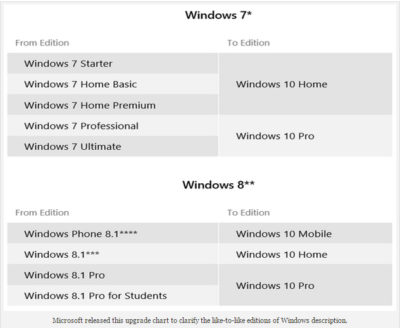
“When you upgrade, you’ll stay on like-to-like editions of Windows. For example, Windows 7 Home Premium will upgrade to Windows 10 Home.”

However, what if you get Windows 10 Home and then decide that you would like Windows 10 Pro? How much will it cost to upgrade? What if you are running Windows Vista or XP? Or, what if you are planning on building your own system and want to install Windows 10 from scratch? How much will you have to pay for Windows 10? Let’s take a closer look.

The free upgrade chart

Along with the like-to-like editions description, Microsoft presented an upgrade chart (Figure A).

Figure A

sjt-blog-photo-windows

As you can see, this is how Microsoft will be doling out the free editions of Windows 10. For those getting the Pro edition of Windows 10, this will be perfect. And for most folks getting the Home edition of Windows 10, this will be a fine deal. However, what if you’re really a Pro type of user who just happened to end up with a Home edition of Windows 7/8? Will you be satisfied with the Home edition of Windows 10?

For example, my main system is running Windows 8.1 Pro with Media Center. However, my laptop is running the standard Windows 8.1, because that’s what was preinstalled when I purchased it last year from Dell. I’ve always wished that it had the Pro edition, as there are certain features that I’ve grown accustomed to on the Pro edition that I sorely miss, such as being able to configure my laptop as a Remote Desktop host.

I know that I won’t be satisfied with the Home edition of Windows 10 on my laptop.

The Windows 10 Pro Pack

Microsoft has released statements to various technology media sites, such as CNET, confirming the existence of an upgrade package called the Windows 10 Pro Pack that will allow you to move up from the Windows 10 Home edition to Pro edition. The Windows 10 Pro Pack will cost $99 (USD).

While that might not sound like a lot, when compared to FREE, it seems kind of unfair.

I understand that I’m getting a like-to-like edition upgrade, but I was hoping for some kind of break. After all, I’ve been a loyal Microsoft customer for years.

How about selling the Windows 10 Pro Pack for $39.99 for a limited time? Say, 90 days after launch? That would be more than acceptable to me–and it’s not unprecedented.

As you may remember, back when Windows 8 was first launched in October of 2012, upgrades to the Pro edition were priced at just $39.99 for anyone using an existing product. That offer ran until January 31, 2013. After that, the price of Windows 8 went up to the regular price point.

Retail packages

Microsoft has also released the MSRP for copies of the new operating system. Windows 10 Home will sell for $119 and Windows 10 Pro will sell for $199. Again, this seems to be a pretty stiff deal when compared to FREE.

This is the price that anyone using Windows XP or Windows Vista on a system that’s capable of running Windows 10 will have to pay for the full install of the new operating system. This also applies to users who are planning on building their own systems.

If the goal is to really get everyone off of old operating systems and onto Windows 10, Microsoft should offer these folks a special price for a limited time.

Again, such a deal is not unprecedented. When Windows 8 first came out, the retail package of the Pro edition cost $69.99.

If Windows XP/Vista users and system builders could get Windows 10 Pro for $69.99 for the first 90 days after launch, I think that a lot more people would go for it than if they have to pay $199.

What’s your take?

If you get a free Windows 10 Home upgrade, will you be satisfied–or will you want to move up to Windows 10 Pro? If so, would you be willing to pay $39 for the upgrade? If you don’t qualify for the free upgrade, would you be willing to pay $69 for Windows 10? Let us know

Have questions?

Microsoft’s Partner are here to help.
Call us at: 856-745-9990 or visit: http://southjerseytechies.net/

South Jersey Techies, LLC is a full Managed Web and Technology Services Company providing IT Services, Website Design ServicesServer SupportNetwork ConsultingInternet PhonesCloud Solutions Provider and much more. Contact for More Information.

To read this article in its entirety click here.

Android Dominates Apple & Microsoft

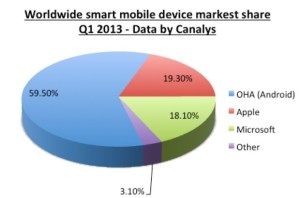
aam1 Takeaway:  Canalys’ Market Shares for Quarter 1 of 2013 showing that Android is dominating the Worldwide Smart Mobile Market.

After being released in 2007, this Linux-based operating system is the most used platform for smartphones. According to BBC News, Android has 900 million activations.

Android has 59.50% Market Share for the first quarter of 2013, according to Canalys.  Apple has 19.30% Market Share and Microsoft has 18.10%, together does not equal to the Android market.  The  Worldwide Smart Mobile Market includes Netbooks, Smarphones and Tablets

Chart

Five Word tips that could change your life

Takeaway: Searching for ways to increase your Word productivity may get in the way of your productivity. So here are a few tricks you don’t need to go looking for. Efficient, simple to use, easy to remember.

Most of us don’t have time to discover all the ins and outs of the software we use on a daily basis. We learn on the fly, we occasionally pick up a tip or shortcut, and we grudgingly plow through the Help system when we absolutely have to.

But sometimes, just a few little tricks can make a big difference. Turning off an annoying feature, learning a keyboard trick that bypasses three dialog boxes, or taking advantage of an obscure option can save you a few headaches and a lot of time. Will they really change your life? Well that might be a stretch. But they could. Try these tips on for size and let me know.

1: Make vertical text selections

Usually, we select text horizontally — a word, a series of words, a paragraph — from left to right or vice versa. But sometimes the selection has to be vertical. For instance, suppose you wanted to delete the leading characters in Figure A.

Figure A

To make a vertical selection, hold down [Alt] as you drag down through the text you want to highlight. Figure B shows the column of unwanted characters selected using this technique. Hit [Delete] and bam, they’re gone.

Figure B


Although we selected text at the beginning of the lines in this example, you can make vertical selections anywhere on the page.

Note: Some users have reported that the Research pane appears when they try this selection technique. Here’s the secret: Release the [Alt] key before you let up on the mouse button. Word should retain the selection. If you hold down [Alt] but release the mouse button, Word may think “[Alt]-click” and open the Research pane in response.

2: Undo automatic changes you don’t want

By default, Word imposes lots of changes on the text you enter in a document. For example, it might convert a Web address to a hyperlink, replace straight apostrophes and quotation marks with their curly counterparts, or turn a pair of hyphens into an em dash. If that’s a welcome convenience, you’re in good shape. If you want to suppress those types of changes, you can disable them. See 10 annoying Word features (and how to turn them off) for details. But if you want to prevent those changes only from time to time, reach for the Undo command — [Ctrl]Z. Undo isn’t just for reversing something you’ve done; it also undoes some of the actions Word takes. Don’t want that em dash? When Word inserts it, hit [Ctrl]Z and change it back to the hyphens you intended to enter.

3: Get rid of a persistent border

This forehead-smacking solution earned considerable gratitude from stymied TechRepublic readers when Susan Harkins first provided it. Word offers a sometimes-handy option that lets you insert a border automatically. Type three hyphens on a blank line and press [Enter]. If the option is enabled, Word will replace the hyphens with a horizontal line. You can get rid of it if you press [Ctrl]Z after Word inserts it (see above). But if you try to select the border and delete it, you’re out of luck. You’re not dealing with a line object here. Word has applied the Bottom Border format to the paragraph.

To remove that format in Word 2003, click in the paragraph and choose No Border from the Borders drop-down list on the Formatting menu. In Word 2007/2010, click in the paragraph and then click the Border button in the Paragraph group of the Home tab. Just select No Border from the drop-down list (Figure C).

Figure C

If you like the automatic border feature, here’s a bonus tip: In addition to typing three hyphens to apply a bottom border (3/4-point), you can trigger different border styles. Typing:

  • Three tilde characters (~) will create a wavy line.
  • Three underscore characters (_) will create a 1.5-point line.
  • Three asterisks (*) will create a dotted line.
  • Three equal signs (=) will create a double line.
  • Three pound signs (#) will produce a “thin thick thin” line.

4: Move selected text up or down

This tip is probably most useful when you’re working in a table, although you can use it to reorder paragraphs outside a table, too. Let’s say you decide you want the third row of a table to be the top row. Just click within the third row, hold down [Alt][Shift] and press the up arrow key twice. Each time you press the arrow key, Word will move the row up one. You can select multiple contiguous rows to move them as a block, and you can use the down arrow key if you want to move text down instead of up.

Using this shortcut gets a little tricky if you’re moving big pieces of text outside a table. It’s easy to lose track of what’s being relocated where, and you might find it easier to take a standard cut-and-paste approach in those situations. But when the text is small and manageable, the shortcut is great. For example, if you need to move an item up or down within a bulleted or numbered list, you can just click in the item’s paragraph and use the [Alt][Shift] and arrow key combo to move the item to the desired spot.

5: Save changes to all open Word documents at one time

This simple technique comes in handy when you’re working in multiple documents and want to make sure you’ve saved your changes to all of them. I actually use it most often when I’ve made a change to a template and want a quick way to save that change on the fly (before I’ve had a chance to forget I made a change I want to keep).

In Word 2003 and earlier, just press the [Shift] key and pull down the File menu. Word will display the Save All command on the menu, above the Save As command. Choose Save All and Word will prompt you to save each document (or template) that has any unsaved changes. This is more efficient than having to navigate to each document individually and click Save.

If you use Word 2007/2010, this won’t work. But you can add the Save All command to your Quick Access Toolbar:

  1. Click the Office button (File in 2010) and click Word Options (Options in 2010).
  2. Click Customize in the left-hand column (Quick Access Toolbar in 2010).
  3. Select Commands Not In The Ribbon from the Choose Commands From drop-down list.
  4. Scroll down and select Save All.
  5. Click the Add button and then click OK.
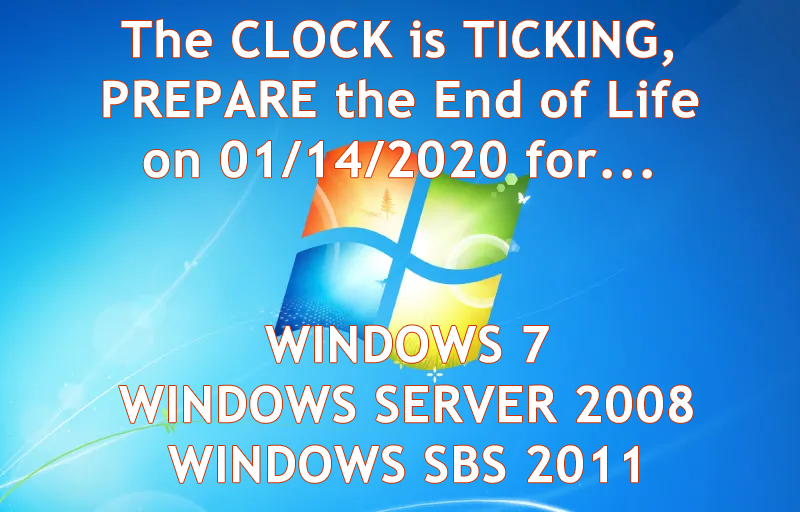
End of Life Windows 7, Server 2008 R2, & Small Business Server 2011

The End of Life for Windows 7, Server 2008 R2, & Small Business Server 2008 + 2011

End of Life Windows 7, Server 2008 R2, & Small Business Server 2011
[wpdevart_countdown text_for_day=”Days” text_for_hour=”Hours” text_for_minut=”Minutes” text_for_second=”Seconds” countdown_end_type=”date” end_date=”13-01-2020 23:59″ start_time=”1556805309″ end_time=”0,1,1″ action_end_time=”hide” content_position=”center” top_ditance=”10″ bottom_distance=”10″ countdown_type=”button” font_color=”#000000″ button_bg_color=”#3DA8CC” circle_size=”130″ circle_border=”5″ border_radius=”8″ font_size=”30″ countdown_font_famaly=”monospace” animation_type=””][/wpdevart_countdown]

Microsoft has announced that its support for Windows 7, Windows Server 2008 R2, and Small Business Server (SBS) 2011 will be coming to an end on January 14, 2020.

What does that mean for you? First, security patches and updates will no longer be implemented, leaving Windows 7 workstations and servers susceptible to security breaches. On January 13, 2015, Microsoft ended mainstream support for Windows 7, but now extended support is ending as well. Extended support is still safe to use until 2020 currently. Normally Microsoft would add new features during the mainstream support phase, but they will not be being doing this anymore. They will however, continue to patch any security treats. South Jersey Techie’s strongly recommends upgrading your business’s servers and workstations before the January 2020 deadline- and to start planning now to avoid the urgency of the deadline. Businesses in the healthcare industry will be impacted by the changes in relation to HIPPA violations if their server isn’t updated before the deadline. The deadline will be here before you know it and updating an IT infrastructure is a large task and shouldn’t be put off until the last minute.

What are the next steps for your business? Many of our clients are starting to upgrade now or are planning to include the upgrades in their 2019 budget. Send us an email or give us a call and we will evaluate your line of business software for Windows 10 and upgraded server compatibility. If your company decides to upgrade its old server and workstations to meet the January 2020 deadline, South Jersey Techie’s has the reliable solutions and experienced technicians you need for managing the data migration and even the retired hardware. You can have peace of mind knowing your old data will be securely erased and destroyed.

Unsure if this deadline will affect your business? South Jersey Techie’s can review your server for you and determine its end of life date or if it will be affected by the 2020 end of support date. If you have any questions or concerns about your office and the 2020 end of support date, please give us a call today: (856)745-9990.

GET STARTED WITH A NEW WINDOWS 10 PC

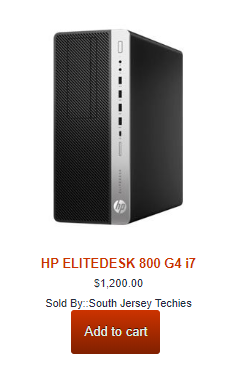
HP ELITEDESK 800 G4 – SFF – CORE I7
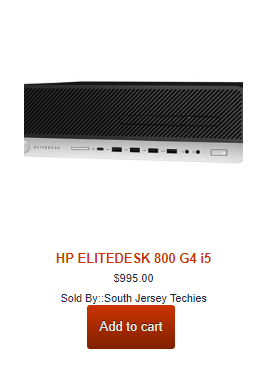
HP ELITEDESK 800 G4 – SFF – CORE I5
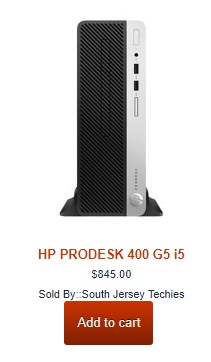
HP ProDesk 400 G5 – SFF – Core i5 8500

Can’t Find What You’re Looking For?

Whether you are upgrading an existing device, buying a new one, or just need support deploying, we have the help you need.


Microsoft Office for iPad is here!

ipad-office

Edit, work, create, and get more done from your iPad, for free

ipad-office3

Four new, free apps are available on your iPad®. With both Microsoft OneDrive and Dropbox access, online storage—and access to your files—is always just a click away on your iPad. The new Microsoft Office apps give you the ability to flat out get more done.

  • With the new Microsoft Word app, you can edit, create, and save your docs, wherever work takes you
  • The new Excel app lets you analyze your data on the fly
  • Build and deliver your presentations—right from your tablet or phone—with the new PowerPoint app
  • The new Microsoft OneNote app helps you work collaboratively and stay organized on the go

With these apps, you can now access, edit, and save directly to your Dropbox account. You can even open and edit files that have already been saved in Dropbox.

Adding Dropbox is easy.  When you are in any of the new apps, follow these simple steps:

1. Tap on the arrow in the top left, then tap Open
2. Tap “Add a Place”
3. Select Dropbox

To get the Office apps for iPad®, open www.appstore.com/microsoftoffice from your iPad’s web browser.


Zero-Day Security Vulnerability in Chrome, Firefox and Others

Google Chrome, Microsoft Edge, Mozilla Firefox and Apple’s Safari browser have all been impacted by a single zero-day vulnerability. The flaw, tracked as CVE-2023-4863, is caused by a heap buffer overflow in the WebP code library. Once exploited it can lead to system crashes and arbitrary code execution, where hackers can gain control over an infected device.

Where Does it Originate?

CVE-2023-4863 was first identified by researchers at The Citizen Lab, a research arm of the University of Toronto. The institution subsequently informed Google and Apple of the vulnerability’s existence. Both companies have now released patches. They were joined by Mozilla, which released its own advisory on CVE-2023-4863 yesterday and updates for several versions of its Firefox browser and Thunderbird email client, and Microsoft.


Vulnerability Originates In Webp Reader. Users of the affected browsers should update to the most up-to-date version in order to ensure the zero-day vulnerability is patched on their machines. The problem isn’t with the browsers — the vulnerability originates in the WebP Codec. Many applications use the WebP codec and libwebp library to render WebP images.


In more detail, a heap buffer overflow in WebP allowed attackers to perform an out-of-bounds memory write. A heap buffer overflow allows attackers to insert malicious code by “overflowing” the amount of data in a program. Since this particular heap buffer overflow targets the codec (essentially a translator that lets a computer render WebP images), the attacker could create an image in which malicious code is embedded. From there, they could steal data or infect the computer with malware. The vulnerability was first detected by the Apple Security Engineering and Architecture team and The Citizen Lab at The University of Toronto on September 6.

How Dangerous Is This Flaw?

Since many browsers, including Microsoft Edge, Brave, Opera, and Vivaldi are built on the Chromium platform, the same platform that Chrome is based on, this could affect their users as well. The same risk is also applicable for Firefox browser clones.


Such a widespread exploit in ubiquitously used software is dangerous, widening the attack surface for most organizations.


Patching will mitigate the risk, but users must act quickly as hackers will already be at work. Attackers will be working over the coming days and weeks to make the exploit more reliable meaning remote code execution will be more likely. Modern web browsers are exceptionally good at pushing out security updates rapidly and applying them as quickly as practicable, so users will shortly be protected.


The biggest risk is to organizations which don’t allow automatic updates and push out updates at their own release schedule.

What Steps Should You Take?

Google, Mozilla, Brave, Microsoft and Tor have released security patches for this vulnerability. Individuals running those apps should update to the latest version. In the case of other applications, this is an ongoing vulnerability for which patches may not exist; NIST noted that the vulnerability has not yet received full analysis.


If you are already a Managed Services client, please follow the steps below to check for updates


Google Chrome – Click the 3 dots in the top right corner for the menu and choose Help->About Google Chrome.  Chrome will check and install updates automatically from this screen.


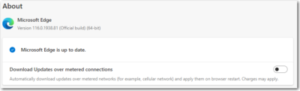
Microsoft Edge – Click the 3 dots in the top right corner for the menu and choose Help and feedback->About Microsoft Edge.  Edge will check and install updates automatically from this screen.


Mozilla Firefox – Click the 3 lines in the top right corner for the menu and choose Help->About Firefox.  Firefox will check and install updates automatically from this screen.


If you have any questions, please email us at support@sjtechies.com or call us at (856) 745-9990

Tools for Office 365

Office-365-New2

PST Capture Tool

Microsoft now offers a free Administrator tool PST Capture Tool.  This tool will discover and import Personal Folders (.pst files) into Exchange 2010 or Exchange Online.  PST Capture will search all computers or specific computers connected to your company network, the .pst files are then sent to PST Capture Central Service, and finally .pst files are sent to Exchange Servers or Exchange Online.

For more information on this tool, click here.

Active Directory Picture

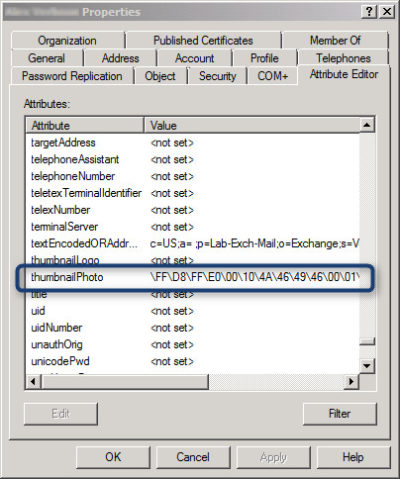
attribute_afterExchange offers an Active Directory attribute (‘thumbnailPhoto’) that allows you to add a picture for each user.  This picture is displayed in Lync Online and on SharePoint.  Currently, Active Directory does not have a way built-in to add images to ‘thumbnailPhoto’ Attribute.

AD Photo Edit is a simple tool that connects to Active Directory and synchronizes with Online Services.  Using AD Photo Edit allows you to upload, edit, update and export images.  There are two options available:

  1. Free Edition
  2. Bulk Edition

Once your photo is uploaded to your “username”  the ‘thumbnailPhoto’ attribute will be properly filled.

To download this tool, click here.

Microsoft Migration Tools

This tool is for Microsoft Online Services only.  Microsoft Online Services Migration Tool forwards copies of Exchange Server mail to Exchange Online mailboxes.  Also, you can copy from other mailboxes such as Exchange Server, POP3 Server and IMAP4 Server to the Exchange Online mailbox.

To download this tool, click here.

Remote Connectivity Analyzer

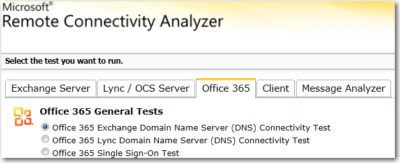
Microsoft Remote Connectivity Analyzer was once called Microsoft Exchange Remote Connectivity analyzer. This tool allows you to test connectivity for multiple services.

MRCA

To use this tool, click here

Mobile Admin

Office 365 Mobile Admin allows you to perform simple Administrator tasks from an application installed on your smartphone.  The tool allows you to create users, modify users, disable users, delete users and reset passwords.

This application is only available for Windows Phone for $1.49 and will be available soon for Android and iPhone.

For more information on Hosted Services and Office 365

 please contact us 856-745-9990 or click here.


CALL US NOW!