Back to Top

Tech, Web, Cloud & Cabling Services

Tag Archives: Microsoft

Microsoft tag

Microsoft – What went wrong?

ET83-screen[1]Touch 10 MonitorMicrosoft has always been key player in the Technology world.  In 2009, Microsoft released Windows 7, for many users it became the best operating system yet.  Not too long after the release of Windows 7, Microsoft predicted that “touch-screens” were the future of technology and focused all of their resources in one place.

On October 26, 2012, Microsoft released their Windows 8 OS and their first tablet, the Surface RT.  Shortly thereafter, on February 9, 2013, Microsoft released the second tablet, the Surface Pro.  For more information regarding the Surface RT or the Surface Pro, click here

“A Windows 8-based PC is really a new kind of device, one that scales from touch-only small screens through to large screens, with or without a keyboard and mouse,” said Julie Larson-Green from Microsoft.

Apple and Android touchscreen devices have been very successful because they are useful on-the-go.  Trying to compete with Apple and Android, Microsoft developed Windows 8, a touch-oriented OS.  Many desktop and laptop users have had problems adjusting to the new OS.   Also, the Surface Tablet users are having trouble adjusting to this device and OS because it is a touch-enabled laptop.  Using the touchscreen features on a laptop is not convenient and very uncomfortable.

How long will it take for Microsoft to regain its position in the technology world?

 

XP will be Non-Compliant

logo_footer_hipaa

Windows XP was released on October 25, 2001 and has become one of the most popular versions of Windows for home and business environments.

The HIPAA Security Rule requires all systems to be updated regularly, as of April 8, 2014 Microsoft will end support for Windows XP, after which no new updates, hotfixes, patches or support will be issued.

This is a major problem within the healthcare industry since many computers are still running XP.  Migrating to a new operating system can be a challenging task because some XP machines have proprietary software that are not compatible with Windows 7+.  

Evaluate the technical infrastructure including servers, workstations and network equipment to create a migration plan.  Communicating with product vendors will help create the migration plan.  Vendors can provide support for updating and upgrading the software/hardware.  Implementing Virtualization within your network is a centralized option to replacing your current setup.  A virtual desktop infrastructure is having 50+ desktops reside on one physical server and sharing the resources, such as CPU, storage and memory.

During the migration, providing an efficient setup for the clinical staff may also include upgrading the manageability of the network and designing a much more scalable and secure IT infrastructure.

To protect and upgrade your home or business

 please contact us 856-745-9990 or click here.


Tips to Troubleshoot Outlook

microsoft-outlook

Microsoft Outlook can connectivity issue with Microsoft Exchange.  Troubleshooting and fixing these issues can range from a simple reboot to creating a new mail profile.

Restart Outlook and/or Computer

Many connectivity problems with Outlook can be resolved by simply restarting Outlook and/or the Computer.

  1. Restart Outlook.
  2. After restarting Outlook, verify connectivity.
  3. If there are still connectivity problems, restart Computer.
  4. Once computer is up and running, verify connectivity in Outlook.

Outlook3

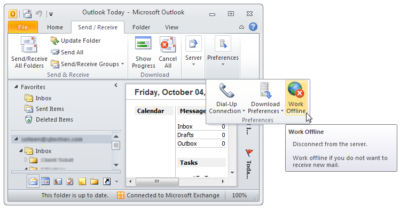
Offline Mode

 Outlook 2010 and newer:

  1. Click the Send/Receive tab.
  2. Locate the Work Offline button.
  3. Click the Offline button. 

Outlook 2007 and older:

  1. Click File Menu.
  2. Uncheck the Offline box.

At the bottom of your Outlook Window there will be a “Trying to Connect” prompt.  If  Outlook is “Connected” the problem is solved.

Rebuild PST or OST File

OST File

  1. Close Outlook.
  2. Open the Control Panel.
  3. Select Mail icon.
  4. In the next window, click Data Files.
  5. Locate your data file, select and click Open File Location.
  6. Locate the data file using Windows Explorer.
  7. Rename the file extension from .OST to .OLD
  8. Close these windows and open Outlook

PST File

  1. Search for scanpst.exe using Windows Explorer.
  2. Double click scanpst.exe to run the application.
  3. In the next window, click Browse.
  4. Locate your .pst file.
  5. Click Start.
  6. Scanpst will scan the data file eight times.  
  7. If the scan finds errors, there will be a prompt to repair. For backup purposes, check the Make Backup Of Scanned File Before Repairing box.
  8. Click Repair.
  9. Close these windows and open Outlook

outlook2

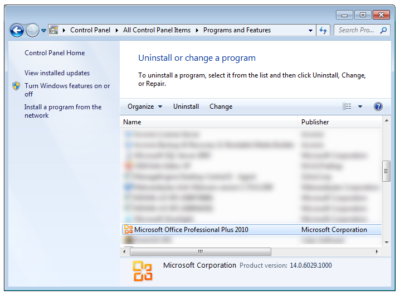
Repair Software Install

  1. Open Control Panel.
  2. Click Programs and Features.
  3. Scroll down and highlight the Microsoft Office installation.
  4. Click Change.
  5. Select Repair.
  6. Click Continue.
  7. Allow the repair to complete.
  8. Reboot your computer. 

outlook

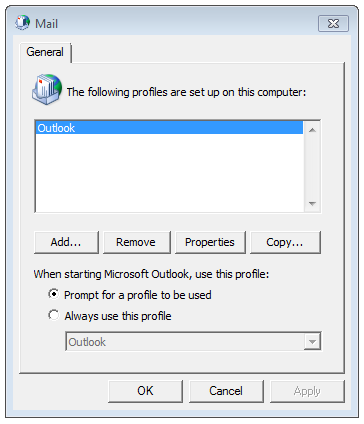
Recreate Mail Profile

  1. Open Control Panel.
  2. Click Mail.
  3. Select Show Profiles.
  4. Click Add.
  5. Name the new profile.
  6. Follow the steps for the Outlook Account Setup Wizard.
  7. Verify the new profile and set as the default or delete old profile. 


CALL US NOW!