Back to Top

Tech, Web, Cloud & Cabling Services

Tag Archives: Microsoft

Microsoft tag

10 ways to control your inbox in Outlook 2010

You can prevail in the seemingly endless battle against email chaos — it’s just a matter of knowing which Outlook tools to use and how to set them up to fit your needs.
When oh when oh when will we ever feel that we are back in control of our Inboxes? It seems that the faster technology moves, the more mail pours in on us from all sides. We get messages from colleagues and peers, from family and friends, from causes and social media sites. Much of this stuff we need to know, of course. But it doesn’t need to take up permanent residence in our Inboxes. Here are some practical ways to use Outlook 2010 features to bring your Inbox back under control.
1: Use Conversation view
Conversation view is a new feature in Outlook 2010 that threads together all e-mail messages in a particular conversation among two or more people. The conversation includes sent and received messages so that you can easily see the whole conversation at a glance. Turn on Conversation view by clicking the View tab and clicking Conversations. Choose Show Messages In Conversations to get started. You can also set other options, such as Always Expand Conversations, in the Conversations list to set up the conversation display the way you want it.
2: Ignore threads that annoy you
Have you ever been cc’d on a conversation that made your eyes roll up in your head? Or perhaps two team members are debating the use of the serial comma and you really have other things you need to focus on today. You can ignore a conversation and remove yourself from receiving further posts in that particular thread. Click the last message in the thread you want to ignore. Then, in the Home tab, click Ignore in the Delete group. A message box appears telling you what to expect. Click Ignore Conversation to complete the job.
You can opt out of future messages in conversations that leave you cold.
3: Automate message management with Quick Steps
Quick Steps are a new feature in Outlook 2010 that enables you to automate mail management tasks with a single click of the mouse. You can use the Quick Steps that come with the program — Add To Calendar, To Manager, Done, Team E-mail, and Reply & Delete — to instantly send messages where they need to go. You can also create your own Quick Steps by clicking the More button in the Quick Steps gallery and choosing Create New.
4: Build your junk mail file
This may seem like a no-brainer, but it is important to right-click any junk message you receive, point to Junk, and click Block Sender. Over time, this creates quite a file of spammers and other unwanted senders you can immediately cut right out of your Inbox real estate. Nice.
5: Make your peace with AutoArchive
Those of us who like to have quick access to important messages may not be too comfortable letting Outlook wrap old messages up in a bundle and tuck them away in an archive file on our computers or the company server. But if you’re game, AutoArchive can help you keep your Inbox uncluttered. By default, AutoArchive is turned off. You can enable the feature and tailor your settings by clicking the Folder tab and clicking AutoArchive Settings in the Properties group. In the AutoArchive tab, select the Archive This Folder Using These Settings option and enter the age of items you want to archive, where you want the older items stored, and whether you want the removed items to be deleted from your Inbox. After you make your choices, click OK to save the changes.
Out with the old and in with the new with AutoArchive.
6: Who makes the rules around here?
Sometimes rules aren’t such a bad idea, especially if you manage huge volumes of email and you need to organize what you receive by client, project, or contact. You can easily create rules that file your messages for you so that you can read them in detail when you get a chance or put your fingers on the one you need quickly when you go searching for it. Start by clicking the message from the sender you want to create a rule to manage. Then, click Rules in the Move group of the Home tab and choose Create Rule. Enter the desired conditions (Who is the message from? What’s in the subject line?) and choose what you want Outlook to do with it. Click OK to create the rule, and Outlook will start carrying out your wishes with the very next email message you receive.
7: Get rid of those invitations
Outlook includes a number of options that make it easy for you to tailor how mail behaves after you receive it. Some messages you really don’t need to leave in your Inbox forever. Case in point: meeting invitations. You can tell Outlook to automatically delete any message you respond to by displaying the Outlook Options dialog box (click File, click Options, and click the Mail tab). Scroll down to the Send Messages area and click the Delete Meeting Requests and Notifications From Inbox After Receiving check box. Click OK to save the change.
8: Clean everything up
So do you have a clean Inbox? One where you can go directly to a message you’re looking for without a lot of searching and scrolling? Do you organize your messages by folder and discard the ones you don’t need right away? I thought so. Me neither.
Outlook includes a few cleanup features that can help you create some breathing room in your Inbox once again. The tool gives you three choices for the item you want to clean up. You can clean up the selected conversation, clean up the current folder, or clean up folders and subfolders (which means everything). When you click the tool, Outlook lets you know that it’s going to delete redundant messages and put them in your Deleted Items folder. You can change that by clicking Settings and entering the settings you’re most comfortable with. Click OK to clean up your selection and gain a little more room for incoming mail.
9: Search smart using filters
People shy away from Outlook filters because they think they are too much trouble to use properly. But actually, the opposite is true. If you consider the time you spend pushing PgDn and scanning the various messages looking for that one you need, you know that any tool that helps you cut to the chase is a good thing. The filters in Outlook help you find messages that meet specific criteria. For example, you can instantly display only messages that have attachments, messages you sent to a specific person, messages with the word “petunia” in the body of the message, and so on. Once you create this focused subset of messages, you can do what you like with them — delete them, put them in a folder that won’t clog up your Inbox, or print them and hang them on your cubicle wall (but why?). You’ll find the filters in the Filter E-mail tool in the Find group of the Home tab. You can click More Filters to display the Search Tools contextual tab so that you can see all the filters together in convenient spot.
10: Combine and conquer
Okay so it may seem counterintuitive, but it actually saves you time to bring all your different Web-based email accounts into Outlook 2010. You can easily set up your accounts by clicking the File tab and choosing Add Account in the top of the center column in the Info tab of Backstage view. Follow the prompts to get the email working properly. This will create a new email folder for your Web-based account. So anytime you check email (or Outlook does it automatically), all accounts are checked and you never have to go out to the various sites, enter your email address and password, and do the checking yourself. Yes, it could give you more messages to deal with. But after reading through the other nine tips in this article, you have a handle on how to do that, right?

Popular Tools in Excel 2013

Excel 2013 has easy access tools that generate professional-looking results quickly.  There are several new features with the new version that should not be overlooked.

Flash Fill

Flash Fill identifies and adapts to basic formatting to automatically input your data.  This tool performs several tasks such as merging information from multiple columns, adding formatting to current column and fixing anomalies with data.  Flash Fill will recognize and apply the selected format to your data but if data differs from row to row, it will not format correctly.

EFF1

Recommended Charts

rcRecommended Charts identifies data guides the user to choose the best chart type for their data.  The main objective of using a chart is to highlight your work in a significant way.

      1. Open the Excel Spreadsheet needed to create a chart.
      2. Select the Insert Tab.
      3. Select the Recommended Charts button to see suggested charts.

Recommended PivotTables

rptRecommended PivotTables are interactive tables that can analyze data, compare data and detect patterns/relationships.  In previous versions, PivotTables were too complex.

      1. Open the Excel Spreadsheet needed to create a table.
      2. Select the Insert Tab.
      3. Select the Recommended Charts PivotTables to see suggested tables. 

Quick Analysis

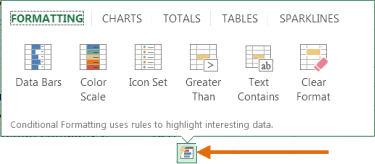
Quick Analysis is an additional way to generate a chart for data. To generate a chart to highlight your work in a significant way, select the data and click the Quick Analysis Icon.

Untitled

Timelines

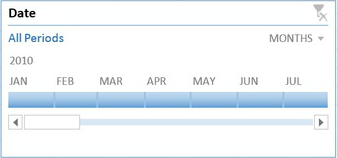
Timelines let you filter through PivotTables, similar to a slicer.  The timeline will be embedded alongside the Pivot Table.

  1. Select the PivotTable.
  2. Click the contextual Analyze Tab.
  3. Select Insert Timeline (in the Filter Group).
  4. Then select OK.
  5. In the upper-right corner you can select years, quarters, months or days.

Excel_New_Ftrs.FigE

Cloud Support

Cloud Support by Microsoft allows users to save Excel files to SkyDrive or SharePoint site.  Saving to SkyDrive or a SharePoint site allows users to review and edit files from any device with an Office 365 subscription.

Apps for Excel

appsMicrosoft offers Apps for Excel to enhance what you can do with Excel.  Categories for Apps include Content Management, Financial Management, Productivity, Workflow and Process Management and many more. 

Present Online

Present Online is a way to share workbooks and allows others to update it.  Present Online requires the installation of Lync (if you have Office Professional Plus; Lync is already installed).

  1. Sign into Lync.
  2. Open all workbooks you need to share. (Close workbooks you do not want to share).
  3. In Excel, click the File Tab.
  4. In the left pane, choose Share.
  5. Click Present Online.
  6. Click Present.
  7. Select a Lync meeting or create a new one.
  8. Click OK.


Windows Phone 8

WP8_2

Takeaway:  Information for and against Windows Phone 8.

The second generation Windows Phone was release in October 2012.  Windows Phone 8 bundles essential functionality including navigation, storage, sharing and apps.

Windows Phone 8 runs Modern UI (Metro) which is typography-style layout also known as Swiss Style.  Microsoft added several new colors as additional options for users such as Cobalt, Olive, Amber, Steel and many others.

The apps collection does not include popular apps such as YouTube, Flash, HBOGO and several others.  Lastly, Windows Phone 8 does not have vocal turn-by-turn navigation.

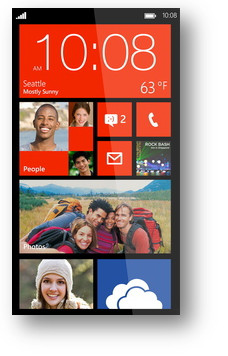
Unlike iOS and Android, the core of social media, such as Facebook and Twitter, are built-in to the operating system.  Windows Phone 8 does not have a notification bar (Android) or disrupting notifications (iOS).  Checking social media updates, e-mail and weather will be a simple task after setting up your home screen by arranging live tiles.


Microsoft Excel 2013 Flash Fill

excel2Takeaway:  New Tool for Excel 2013 is Flash Fill that identifies formatting and applies it to your spreadsheet.

Flash Fill identifies and adapts to basic formatting to automatically input your data.  It does not identify changes in source data.  This tool performs several tasks such as merging information from multiple columns, adding formatting to current column and fixing anomalies with data.

To use Flash Fill:

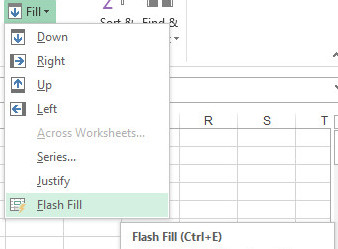
  • From the Menu Screen: FF3
    1. Select the Home Tab
    2. In the Editing
    3. Section, select Fill Button
    4. Select Flash Fill
  • Using the keyboard:
    1. [CTRL] + [E]


Formatting

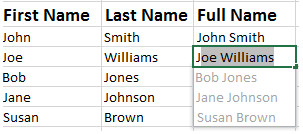
Flash Fill will recognize and apply the selected format to your data.  To use this tool, all information must be added to previous columns.  Flash fill is not perfect.  If data differs from row to row, it will not format correctly (Example:  All phone numbers must have an Area Code or none at all).  After all information is added, move to the next column and enter an example of what you would like done to the data.  Move down to the next row and Flash Fill will initiate when you start typing, press [Enter] to fill column.  Opting out of Flash Fill is just as simple, pressing [Esc] will allow you to continue to enter your data manually. 

EFF1
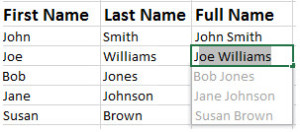
Above is an example of concatenation; joining two columns of information.

When to use Flash Fill

    1. Formatting
    2. Lists
    3. Concatenation (Joining)
    4. Parsing (Break Down)


Surface vs Surface Pro

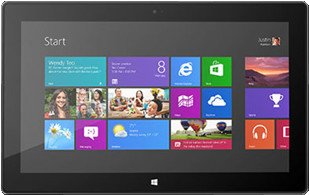
final

Surface RT

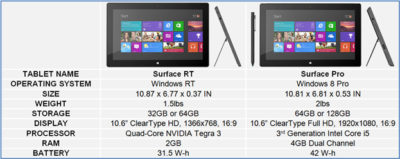
Surface RT was released on October 26, 2012.  Running Windows RT Operating System on a Quad-Core NVIDIA Tegra 3 Processor.  Storage options are 32 GB or 64 GB.  According to recent news, only 16 GB available for the 32 GB hard drive and 46 GB available for 64 GB hard drive.  Bundled with the Surface RT is Office Home & Student 2013 RT Preview.

Office Home & Student 2013 RT includes Word, Excel, PowerPoint and OneNote.  Surface RT does not support Outlook.

The price for the Surface RT is $499.00.

Surface Pro

Surface Pro was release on February 9, 2013.  Running Windows 8 Pro Operating System on Dual-Core Intel i5 Processor.  Storage options are 64 GB or 128 GB.  According to recent news, only 23 GB available for the 64GB hard drive and 83 GB for the 128 GB hard drive.  Bundled with the Surface Pro is Full Office Suite Preview.

Surface Pro is a Business tablet that includes a pen and the pen digitizer.  The stylus helps make taking notes, drawing and marking up documents easy.  The price for the Surface Pen is $29.99.

The price for the Surface Pro is $899.00.

table2

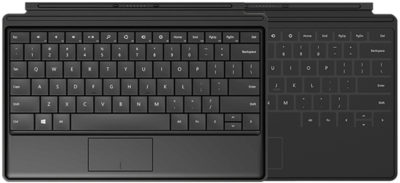
Not included with the purchase of the Surface RT or the Surface Pro is a keyboard.  Microsoft offers two options, Touch cover and Type Cover.  The Touch Cover is a pressure-sensitive keyboard and tablet cover; available in Red, Black, Cyan, White and Magenta.  The price of the Touch Cover is $119.99.  The Type Cover is thin “classic” keyboard and tablet cover; only available in Black.  The price of the Type Cover is $129.99.

typetouchcover2

Type Cover and Touch Cover

Surface 2 for 2014

surface2Technology is a fast paced industry; current technology and devices are just making way for tomorrow’s new technology. With that said, Microsoft is developing their second generation tablet, Surface 2.

Although in the Top Five Tablets for the first quarter of 2013, Microsoft has not been as successful as planned with the Surface Tablets, only selling half of the units required for their intended goal.

inkTo conquer the growing demand for smaller tablets, Surface 2 will have a 7-9 inch display with a higher screen resolution than its competitors, iPad Mini, Nexus 7 and Kindle Fir..  The iPad Mini offers 1024×768 resolution, the Nexus 7 offers 1280×800 resolution and Kindle Fire offers 1024×600 resolution.  Microsoft expects Surface 2 to offer 1400×1050 resolution.

Partners from the Surface RT and Surface Pro development are working together including Pegatron Technology, Ju Teng, Samsung, LG, Corning, Intel and NVIDIA to build the second generation.

The rumored price of the Surface 2 will be approximately $400.  Microsoft’s Build Developer Conference at the end of June will announce more information regarding the Surface 2 including a possible release date, specifications and features.


Tips for Troubleshooting Outlook

outlook-logo-vector2

Takeaway:   The most significant means of communication in the office is email.  Even though Outlook is the most used mail client for businesses, it can develop problems. Using these ten tips will quickly resolve issues that can impact communication.

1.  Scan PST file

When Outlook becomes troubling, you can use the Inbox Repair Tool provided by Microsoft.  This tool will backup, scan and repair your Personal Folder files (.pst).  The entire process could take more than a few minutes to complete.

2.  Archive Data

Archiving your data will prevent common problems that large PST files create.  Archived data will be moved to a different PST to alleviate the size and space of you primary PST.  After an archive is done, running scanpst.exe will be a safe way to check the file. 

3.  Rename OST

Some problems can be resolved by simply renaming the OST file and allowing Outlook to create a new one.  The OST file saves your e-mails, calendar entries, contacts and other items.  Outlook will open like new after renaming an OST file.

4.  Delete/Rebuild Profile

When deleting or rebuilding an Outlook Profile taking precaution is a necessary step; open Control Panel, select Mail option, select Show Profiles and then select Delete.  For POP accounts, you must save the user’s data by exporting a data file from Outlook.  For Exchange and IMAP accounts, you can delete and re-create the account.  

5.  Disable Add-Ons

Another simple fix is to disable add-ons.  To check the speed of Outlook, use outlook.exe /safe command will allow you to open Outlook in Safe Mode (no-add-ons running).  After testing the speed, you can disable add-ons that may be slowing your system down.

6.  Disable Virus Scan

Popular Anti-Virus tools have a feature that will scan all e-mails to and from your system.  Temporarily disabling this feature is a work-around but not a solution.  Outlook will be defenseless when this feature is disabled.

7.  Run in Safe-Mode

Another temporary fix is to open Outlook in Safe Mode.  Use outlook.exe /safe command will allow you to open Outlook in Safe Mode (no-add-ons running).  This is a work-around but not a temporary fix.

8.  Resetnav

Users can arrange their navigation bar according to their needs which sometimes causes Outlook not to work properly.  A fast way to rest the navigation bar is using outlook.exe /resetnavpane command.

9.  Migrate PSTs

 All user PST files should be stored on the C Drive of the user.  If all users are accessing a shared drive for their PST files, it will slow down Outlook and possibly your network.

10.  Adjust Permissions

To adjust user’s calendar permissions – open the calendar in Outlook, right-click the shared calendar, select Properties, and in the Permissions tab you can adjust user’s calendar permissions.

Windows 8.1 Uncovered

Takeaway: Microsoft has created many new features that are included with Windows 8.1 expected to be release before the end of 2013.

Untitled

Windows 8.1 is more than an update to Windows 8; it has new features for both businesses and home users.  Another major step for Microsoft will be annual updates for operating systems; similar to Apple with OS X.

The biggest update will be the traditional Start button on the left side of the screen.  Other features include:

  • Boot-to-desktop is available instead of booting to the Metro Start Screen.
  • Start screen provides additional custom options for tiles.
  • New snap behavior allows up to four Windows 8 Apps to be placed side-by-side without the 320-pixel limitation. 
  • PC Settings section includes settings previously located in Control Panel.
  • SkyDrive Synchronization settings are built into the operating system.
  • & many other features.

Windows 8.1 Preview with Jensen Harris


Smartphone Market Share

spmsTakeaway:  Kantar Worldpanel is an international company that provides market and consumer solutions. 

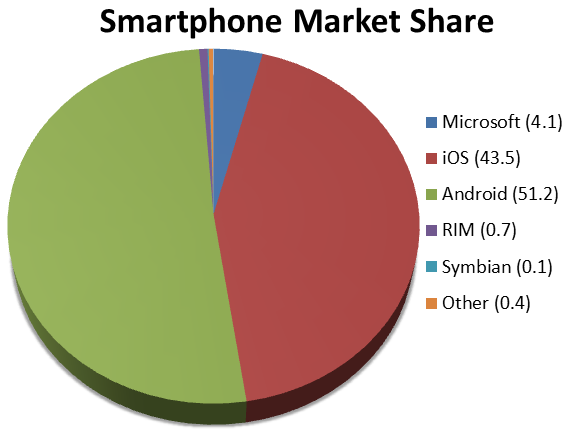
Android is up 13% market share since February 2012, now holding more than half of Smartphone sales.  Within the Android market, Samsung continues to take control over other smartphone manufacturers.  “It’s apparent that Samsung is successful at capturing users from across the competitor set and not just gaining from their own loyalists.”  said Kantar Worldpanel analyst Mary-Ann Parlato.

Apple’s iOS is down 7% market share since February 2012.  Taking more than half of Verizon and AT&T sales, Apple is steadily residing in second place behind Android.

The first quarter of 2013 has been very impacting for Microsoft, jumping into third place for smartphones and fifth place for tablets.  Microsoft has finally made a leap from 2012, bringing their market share up 52%.  Microsoft is now continuously growing in smartphone sales.

Lastly, BlackBerry has taken a “nose-dive” since 2012, dropping from 3.6 to .7 (81%) market share.


Microsoft Word – Undo Automatic Indents Tip

word

Takeaway:  Creating numbered or bulleted lists would be simple with the ability to adjust or remove automatic indents.


Simple Solution

This simple solutions works with the current list only. If you add to this list, Word will remember the indent. When you start a new list later in the document, it won’t.

  1. Create an numbered or bulleted list.
  2. Double-click any number or bullet in the list to select all.
  3. To change the indent position:
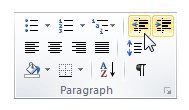
    • Select the Decrease option in the Paragraph group (Aligning all items to the left margin)
    • Select the Increase option in the Paragraph group. (Aligning all items to the right margin)

1

Entire Document Solution

3

The entire document solution will adjust the settings for all numbered/bulleted lists in the document.  Instructions below will default the list to be aligned at the left margin (0), you can adjust accordingly.

  1. Create an numbered or bulleted list.
  2. Double-click any number or bullet in the list to select all.
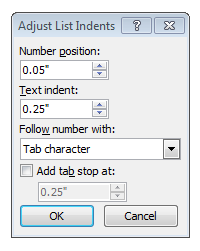
  3. Right-click the selection; select Adjust List Indents.2a
  4. The Adjust List Indents window opens.
    • Number Position:  0 (Where the numbers / bullets will align.)
    • Text Indent:  .25 (Space between numbers/bullets and text.) 


CALL US NOW!