Back to Top

Tech, Web, Cloud & Cabling Services

Category: Software

Software Category

Office 2016 Preview

Office 2016 Preview for existing Office 365 subscribers

For enterprise

Office 365 administrators with an Office 365 ProPlus subscription can now enable the Office 2016 Preview for their organization by turning on First Release. Learn how to turn on First Release.

Once First Release is turned on, users can install the Office 2016 Preview.

Enabled Office 365 ProPlus users

1. Sign in to the My Software page.

2. Go to Try the next version of Office.

3. Click Install.office2016

This will install the Office 2016 Preview on your device.

Note Enabled Office 365 ProPlus users can follow the same process above to install the Project 2016 Preview and the Visio 2016 Preview. On your Software page, select Project or Visio from the Software list. If Project and Visio are not listed, they are not included with your subscription.
Not ready to join First Release? You can still get the Office 2016 Preview,find out how.

For home

  • Go to the Office M Account page.
  • Click Language and install options.
  • Click Additional install options.
  • Open the Version drop-down menu and select the 32-bit or 64-bit Office 2016 Preview.
This will install the Office 2016 Preview on your device. You will stay on the Office 2016 Preview track until you uninstall the Office 2016 Preview or until Office 2016 is released.

CCleaner – Free System Optimization Download!

CCleaner
Optimization and Cleaning

Features
CCleaner is a free SJT recommended system optimization, privacy and cleaning tool. It removes unused files from your system – allowing Windows to run faster and freeing up valuable hard disk space. It also cleans traces of your online activities such as your Internet history. Additionally it contains a fully featured registry cleaner. But the best part is that it’s fast (normally taking less than a second to run) and contains NO Spyware or Adware!

Cleans the following:

Internet Explorer
Temporary files, history, cookies, Autocomplete form history, index.dat.

Firefox
Temporary files, history, cookies, download history, form history.

Google Chrome
Temporary files, history, cookies, download history, form history.

Opera
Temporary files, history, cookies.

Safari
Temporary files, history, cookies, form history.

Windows
Recycle Bin, Recent Documents, Temporary files and Log files.

Registry Cleaner
Advanced features to remove unused and old entries, including File Extensions, ActiveX Controls, ClassIDs, ProgIDs, Uninstallers, Shared DLLs, Fonts, Help Files, Application Paths, Icons, Invalid Shortcuts and more… also comes with a comprehensive backup feature.

Third-party applications
Removes temp files and recent file lists (MRUs) from many apps including Media Player, eMule, Google Toolbar, Netscape, Microsoft Office, Nero, Adobe Acrobat, WinRAR, WinAce, WinZip and many more…

100% Spyware FREE
This software does NOT contain any Spyware, Adware or Viruses.

To download your free copy of this software Click Here

Microsoft Office Coming to Android and Apple

Microsoft Office coming to Android and Apple devices in early 2013

Summary: A Microsoft executive let slip in the Czech Republic that the long-rumored Microsoft Office for Android smartphones and tablets and Apple iPad and iPhones will be arriving in early 2013. Microsoft now denies that their executive was speaking accurately.

We’ve known for months that Microsoft was bringing a version of Microsoft Office 2013 to Android tablets and Apple’s iPad family. Now, according to the Czech tech news site, IHNED, Microsoft product manager Petr Bobek has said that Microsoft is planning to release native iOS and Android versions of Microsoft Office 2013 in the first quarter of 2013

Bobek, a Microsoft Office portfolio manager in the Czech Republic, said that these new versions of Office will be available to larger companies and Microsoft partners In December 2012. small-office/home-office (SOHO) and household users will have to wait until at least February. The online version of Office 365 edition for mobile devices and tablets will appear in early 2013.

In an e-mail, the author of the INHED story clarified that the release would be after March 2013. “We had a slight miscommunication with the MS guys and the timeline for Office for iOS and Android is not a March release, but release sometime after March.”

Officially, the only thing Microsoft had to say at first was that “As we shared previously, Office Mobile will work across Windows Phones, Android phones and iOS, and we have nothing additional to announce today about retail availability of the new Office.”

Later the same day, Microsoft’s head of corporate communications, Frank X. Shaw, denied the whole story. Shaw tweeted, “The information shared by our Czech Republic subsidiary is not accurate. We have nothing further to share.”

No matter when Microsoft delivers the Android and iOS goods, Microsoft’s support of any version of Office on a non-Windows smartphone or tablet strikes me as an odd move. In a shareholder letter, Microsoft CEO Steve Ballmer said that Microsoft is shifting its model to focus on devices and services. This is a radical and dangerous shift for a company that’s always made it money from software licensing. And, now, instead of using Office as a crowbar to pry users from iPads and Android tablets to its Surface tablets, Microsoft is going to offer Microsoft Office 2013 on its device rivals? Odd. Very odd.

Historically, Microsoft has locked its customers into its software ecosystem. Since Microsoft is a non-starter in the mobile space, I find it surprising that they’re not trying to exploit its Office suite in a similar manner in this new market.

That said, given the early reports of Office 2013, which didn’t even have touch enabled for its tablet versions by default, I don’t see Google, with Google Docs and QuickOffice, being worried about Microsoft being a rival on either devices or services anytime soon.

Use AutoText to Save Multiple Return Addresses

Takeaway: If you work with multiple return addresses, you don’t have to enter those addresses manually as you use them; use Word’s AutoText feature instead.

Word uses the Mailing Address entered via the options as the return address on envelopes generated by the Envelope wizard. It’s convenient and efficient. You enter the address once, but the wizard uses it for all your envelopes, until you change or delete the address This is a great setup, unless you have more than one return address. In that case, you can delete the default address and enter the second address, when you need to, but there’s an easier way – save the second address as AutoText.

First, let’s review how to store a return address for the wizard:

  1. Click the File tab and choose Options (under Help). In Office 2007, click the Office button and then click Word Options. In Word 2003, choose Options from the Tools menu.
  2. Click Advanced in the left pane. In Word 2003, click the User Information tab.
  3. In the General section, enter the return address in the Mailing Address control.
  4. Click OK.

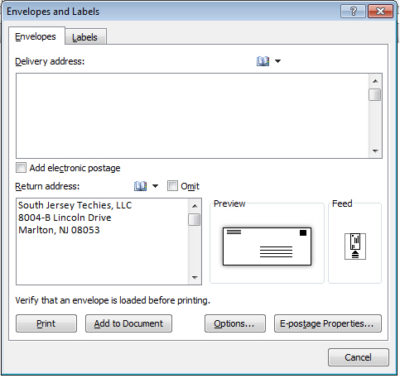
Now you’re ready to execute the wizard by clicking the Mailings tab and then clicking Envelopes in the Create group. In Word 2003, choose Letters and Mailings from the Tools menu, and then select Envelopes and Labels. In the resulting dialog, the wizard uses the address you just entered as the return address.


If you have to replace the default return address occasionally with another, it’s no big deal. If you use another address frequently, create an AutoText entry for it, as follows:

  1. Enter and format the address.
  2. Then, select the address.
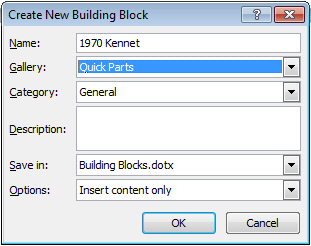
  3. Click the Insert tab, and choose Save Selection To The AutoText Gallery from the Quick Parts dropdown in the Text group. In Word 2003, choose AutoText from the Insert menu and then choose AutoText from the resulting submenu.
  4. Change the name to something simple, such as RT.
  5. If the Save In setting is the Normal.dotx, change it to Building Blocks.dotx.
  6. Click OK.


Now you can use the AutoText entry RT to quickly change the default return address in the envelope wizard, as follows:

  1. Click the mailings tab and choose Envelopes in the Create group. In Word 2003, choose Letters and Mailings from the Tools menu, and then select Envelopes and Labels.
  2. Highlight the default address and type RT.
  3. Immediately press [F3] and Word will replace RT with the AutoText entry of the same name—the second return address.
Replacing the default address with an AutoText entry is temporary. The next time you run the wizard, it will display the default address – not the one you stored as an AutoText entry. Using this simple trick, you can store several addresses as AutoText and use them in multiple spots, not just with the envelope wizard.

Customize Outlook’s To-Do Bar

Three tips for making Outlook’s To-Do bar work for you

Takeaway: If you’re tempted to hide Outlook’s new To-Do bar, stop! Customize it and put it to work for you.

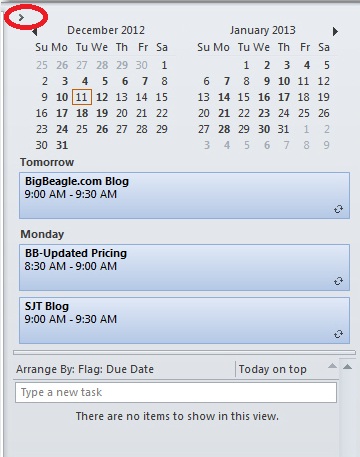
Outlook 2007 introduced the To-Do bar -a means of tracking appointments and tasks with a quick glance. The To-Do bar shows a Date Navigator with upcoming appointments and a list of tasks, but some users don’t take full advantage of it.

Most users spend most of their time in their Mail window and having quick access to other features, via the To-Do bar, without leaving their Inbox is not only convenient, it’s efficient. For instance, the Date Navigator displays upcoming appointments without opening your Calendar. If you decide to open your Calendar, simply click a date. You can also add new tasks, accept or decline meetings, and so on. These three tips will help you learn your way around so that you can customize the feature to suit your work habits.

1: Don’t dismiss it

Outlook displays the full bar, but you can free up space by collapsing it – don’t delete it! To minimize the bar, click the arrow in the top-left corner. You can then expand and collapse the bar, to suit your needs.

2: Customize the settings

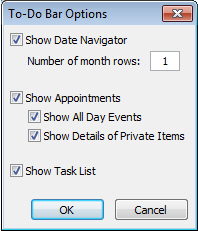
To change the default arrangement of the Date Navigator, appointments, and tasks, right-click the To-Do bar’s header. At this point, you can also turn off the display for all three To-Do bar components, but don’t to so right now. Instead, choose Options. In the resulting dialog box, you can determine the display options that work best for you. For example, you can display more than one month, hide private items, and so on.


3: Customize the Task list

Most of us will use the Task list more than the other two components, so getting this part right will really make you happy. To customize the Task list component, right-click the column header area (Arrange By) and choose View Settings (Custom in Outlook 2007). In the resulting dialog box, you can customize the task features you see. For instance, you might click Columns to add icons to the display. Or, you might want to remove the Follow Up flags.

To display more information about each task, change the single line display. Right-click the column header as before and choose View Settings (or Custom). Click Column and change this setting using the Maximum Number Of Lines dropdown.

You can temporarily filter the tasks you see by clicking the Filter button and entering specific words or choosing existing text from the dropdown. Doing so will display only those tasks that meet your criteria.

I’ve mentioned just a few of the more popular ways to customize the To-Do bar. The key to getting the most out of this feature is to explore its settings and put them to work for you!

Tip For Typing Text Into A Scanned Document

Takeaway: This great quick Microsoft Word Document trick will have you filling in scanned paper forms in just seconds.

Word allows you to fill out scanned paper forms.  A quick easy trick renders most paper forms into an electronic file and isn’t a perfect solution, but works when you are in a jam. 

First, scan the form and save it as a graphics file.  Be sure to save the scanned form in a format that Word can use, such as jpg, png, or bmp. 

Once you have the scanned document file, insert it as a picture as follows:

  1. In a blank document, open the header section. In Word 2007 and 2010, just double-click in the top margin area. In Word 2003, choose Header and Footer from the View menu.
  2. With the header section open, click the Insert tab. Then, click Picture in the Illustrations group. In Word 2003, choose Picture from the Insert menu, and then choose From File. Browse to the file and double-click it or select it and click Insert.
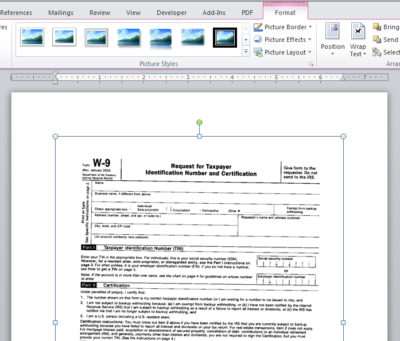
  3. With the picture file selected, choose Behind Text from the Text Wrap dropdown in the Arrange group on the contextual Format tab. In Word 2003, right-click the picture, and choose Format Picture. Click the Layout tab, choose Behind Text, and click OK.
  4. Close the header section.  Don’t worry if the graphic dims a bit.


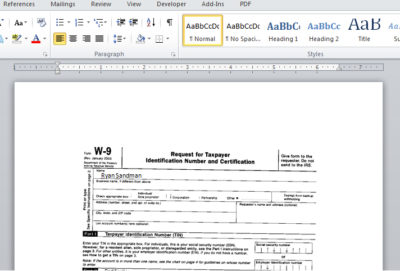
With the graphic in the header’s background, you can now type as you normally would, using the graphic as your guideline. There are no special controls or tabs to position the cursor for you. You can certainly go that route, but that takes a lot of work, and unless you’re going to reuse the form a lot, it’s probably not worth the effort.

Most likely, the form won’t align just right the first time you try. Simply open the header and adjust the position of the form as needed. You can also change the font, font size, and tab stops to accommodate the form’s fill-in positions.

Kill Your Java Plugin Now!

Java Plugin Security Information

Kill your java plugin as soon as possible.

A new Java zero-day security vulnerability is already being actively exploited to compromise PCs. The best way to defend against the attacks is to disable any Java browser plugins on your systems.

The offending bug is present in fully patched and up-to-date installations of the Java platform, now overseen by database giant Oracle, according to Jaime Blasco, head of labs at security tools firm AlienVault.

“The exploit is the same as the zero-day vulnerabilities we have been seeing in the past year in IE, Java and Flash,” Blasco stated.

“The hacker can virtually own your computer if you visit a malicious link thanks to this new vulnerability. At the moment, there is no patch for this vulnerability, so the only way to protect yourself is by disabling Java.”

The exploit targets Java 7 update 10 and prior versions. No fix is available and early indications suggest that exploitation is widespread. Brian Krebs reckons the exploit has found its way into crimeware toolkits, such as the Blackhole Exploit Kit, which will uses the hole to infect victims with software nasties.

Java vulnerabilities were abused by the infamous Flashback Trojan, creating the first botnet on Mac OS X machines in the process last year. In the years before that attacks on Java and Adobe applications have eclipsed browser bugs as hackers’ favourite way into a system.

In all but a limited number of cases Java support in web browsers is not mandatory for home users, unless required by a banking website or similar, so disabling plugins even as a temporary measure is a good idea. Businesses, on the other hand, that rely on Java for particular applications are not so fortunate.

While waiting for a patch from Oracle to plug the gaping hole, you can contact South Jersey Techies by emailing support@sjtechies.com to make sure your systems are protected.

Alternatives to Microsoft Office

Takeaway: Microsoft Office is not the only game in town; South Jersey Techies suggests some suitable alternatives for Microsoft Office.

Although Microsoft Office is one of the most popular productivity suites available, it is far from being the only choice available. Here are five alternatives to Microsoft Office that you might consider the next time you are looking to purchase an office suite.

1. Google Docs

Google Docs is a cloud based productivity suite that lets you create word processing documents, spreadsheets, presentations, and drawings. Because Google Docs is a browser based application, it isn’t quite as full featured as some of the other productivity suites. Even so, Google Docs is free, and there is nothing to install on your computer. The interface is completely intuitive and Google Docs can be used to create and edit Microsoft Office documents.

2. LibreOffice

LibreOffice is a free productivity suite that is designed to act as an alternative to Microsoft Office.  Like Apache Open Office, Libre Office offers a word processor, a spreadsheet, a presentation application, a drawing tool, and a database application. In fact, the launch screen is nearly identical to that of Apache Open Office. The reason for this is that in 2010 some of the OpenOffice developers broke away from OpenOffice and created LibreOffice. As such, there are a lot of similarities between the two suites. LibreOffice even supports the use of OpenOffice documents.

3. Kingsoft Office Suite Free 2012

Kingsoft Office Suite Free 2012 is, as the name implies, a free office suite. The free version includes a word processor, a spreadsheet, and a presentation application. These applications look and feel like Office 2010 applications, and the software fully supports the use of Office documents in addition to its own native file format. Also supported are standard file types such as RTF, TXT, and HTML.

4. Apache Open Office

Apache Open Office is a free office suite that can trace its roots back for well over a decade. This open source suite contains utilities for creating text documents, spreadsheets, presentations, drawings, and formulas. Open Office should be easy to use for anyone who is familiar with Office 2010. The word processor and spreadsheet look a lot like Word and Excel. The presentation application looks different than PowerPoint, but contains familiar controls. The suite is capable of opening (and saving) Microsoft Office documents and other common file formats.

5. Office Web App

The Microsoft Office Web Apps are an alternative to an on-premise Microsoft Office deployment. This free suite of cloud apps includes Word, Excel, PowerPoint, and OneNote. Furthermore, you get 7 GB of free storage space on SkyDrive, which is useful for storing your Office Web App documents. Office Web App that isn’t quite as full featured as Office 2010 or Office 2013, but Microsoft does have the basics covered. Besides, it is hard to argue with the price, which is free.

Alternatives to Outlook

Takeaway:  Alternative options for mail client’s that are not as costly as Outlook but offer the same features.

Outlook is one of the most widely used email clients in the business world.  For smaller companies, there are email clients that provide cost-effective solutions.  Other email clients offer a variety of features that are comparable to Outlook.  The most significant means of communication in the office is email; communication will suffer if the email client does not work well with the organizations requirements. 

Opera Mail

BLOG_OperaMail2Opera Mail is free and offered for Windows, Mac and Linux.  This e-mail client supports POP, IMAP (no Exchange support), newsgroups, RSS, and Atom feed.  Opera mail has a fast and simple user interface, thread views, spam protection and allows you to browse websites.

Dreammail

BLOG_Dreammail2Dreammail is free and offered for Windows XP/Vista/7.  This e-mail client supports POP3, RSS, and ESMTP/Google/Yahoo.  Dreammail has multiple accounts and multiple-users setup, templates, signature options, anti-spam, address book, message filtering and a web-mail tool.

iScribe

BLOG_iScribe2iScribe is free and offered for Windows and Linux.  This e-mail client supports POP3 and IMAP, as well as international standards.  iScribe has built-in baysian span filter, frequent updates and can be used from a portable drive.

Postbox

Blog_PostBox2Postbox is $9.95 per license and offered for Windows and Mac.  This e-mail client is best for Gmail but it also supports POP and IMAP.  Postbox has native Gmail label support, fast access to your favorite accounts, social networking integration and you can add Dropbox services.

Evolution Mail

BLOG_EvolutionMail2Evolution is free and offered for Linux (open source).  This e-mail client supports POP, IMAP and Exchange.  Evolution has calendar, tasks, contacts, memos, LDAP compatibility, folder search, encryption, multiple accounts, server support, default plugins, as well as, additional plugins.


Microsoft Word Formatting Tips

Takeaway:  Save time formatting documents in Microsoft Word by using quick tools and tips.

Copy & Paste Methods:

When copying to Microsoft Word, the original formatting is automatically inserted with text and pictures.

1. Copy the content to the Clipboard: [CTRL]+[C] or Highlight content, right click on highlighted content, and select “Copy”.
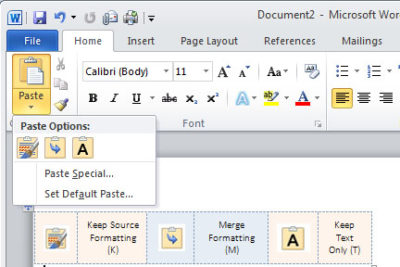
2. Paste the content into a Word document: [CTRL]+[V] or Home Tab, Paste and then select from the three options (see picture below)

–  Keep Source Formatting (K) – Original Formatting
–  Merge Formatting (M) – New content changed to format already in use
–  Keep Text Only (T) – Generic Format and will only Paste text, no pictures
Paste_Blog041013

Changing the default, as follows might be more efficient:

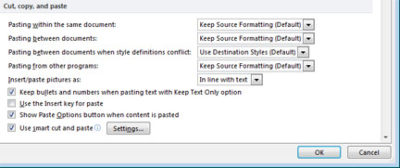
  1. Click the File tab, Help button, Options button and select the Advanced button.
  2. In the Cut, Copy, and Paste section, choose the appropriate option. (Example, you might want to keep formatting when copying from other Word documents but not from any other source)
  3. Click OK.

CCP_Blog041013

In Word 2003, select Tool menu, Options button and Edit Tab, uncheck the “Smart Cut And Paste” option or click the Settings button to customize your settings.

Section Breaks:

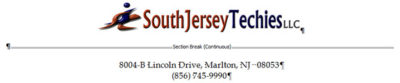
Separating a document with Section Breaks allows you to format each “section” differently.  Also, you can copy a previous Section Break

–  Next Page – Insert a section break and start the new section on the next page
–  Continuous – Insert a section break and start the new section on the same page.
–  Even Page – Insert a section break and start the new section on the next even-numbered page.
–  Odd Page – Insert a section break and start the new section on the next odd-numbered page.
SB_Blog041013

 In Word 2003, you can insert a Section Break from the Insert Menu.

Keeping Words Together:

Whether the word is hyphenated or simply two words you do not want to split up , a proper noun or a date, you can keep them together!

–  Hyphenated Words:  When typing the hyphen between use [CTRL]+[SHIFT]+[-]
–  Non-hyphenated Words:  When typing the space between use [CTRL]+[SHIFT]+[SPACEBAR]

Editing Number/Bullet Styles:

When formatting a list (bullets or numbers) you can simply edit the format of one or multiple bullets or numbers.

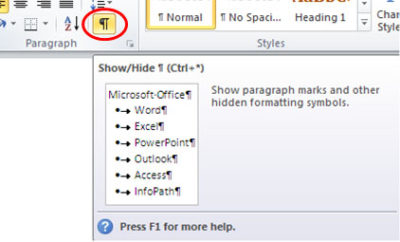
1. Select the Home tab, click Show/Hide in the Paragraph section.
SH_Blog041013

2. Highlight the Paragraph mark(s) at the end of each line you would like to re-format.  For more than one number or bullet, hold [CTRL] while highlighting.
3. Apply format using Style section.

Removing Formats:

You can highlight the entire document or only sections to remove formatting.  If you are trying to remove formatting from a few different sections, hold [CTRL] while selecting the sections.

–  Remove all formatting:  [CTRL]+[SPACEBAR]
–  Remove Paragraph formatting:  [CTRL]+[Q]

Automatically Updating Styles:

When adding a format to text, Word will let you update a style, this can be difficult.

1.  Select the Home tab.
2.  Open the Styles Dialog.
3.  Find the Style from the drop-down list.
4.  Select Modify button.
5.  Uncheck Automatically Update.

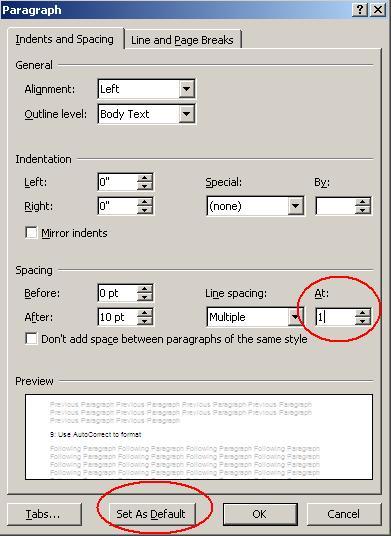
Default Line Spacing:
LS_Blog041013

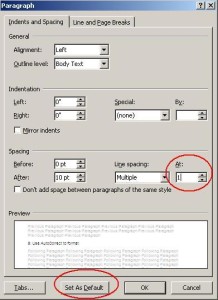
The default line spacing in Word 2007 and 2010 is set for 1.15, commonly used for Web publishing.  You can set your default to 0 or 1 using a few steps.

1.  Select the Home tab.

2.  Right-click Normal in Styles section and select Modify.

3.  Choose Paragraph from the Format list.

4.  In the Spacing section, change the At: setting from 1.15 to 1, Click OK.

5.  You now have the option to set this as your default template for all new documents by selecting “Set As Default” button.

6.  Click OK.


Paragraph Spacing:
PS_Blog041013


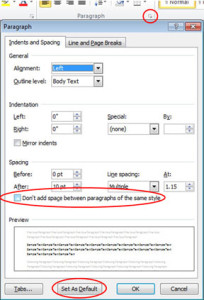
Newest versions of Microsoft Word have increased the spacing between paragraphs.  If you do not want extra space between paragraphs, you can modify it using a few steps.

1.  Select the Home tab.

2.  Open Paragraph Dialog.

3.  Check “Don’t Add Space Between Paragraphs Of the Same Style Option”.

4.  You now have the option to set this as your default template for all new documents by selecting “Set As Default” button

5.  Click OK.


Save Formatted text as AutoCorrect:
AC_Blog041013

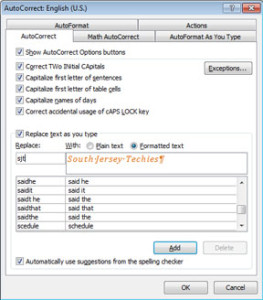
Using AutoCorrect saves time and prevents mistakes.  It can also save the text previously formatted.

1.  Highlight the content you would like to save in AutoCorrect that is pre-formatted.
2.  Open the File tab.
3.  Choose Options and then select Proofing button.
4.  Click AutoCorrect Options button.
5.  Uncheck Automatically Update.
6.  Select the option you would like to use:
–  Plain text (not formatted)
–  Formatted text (keep the format you have already applied)
7.  Enter short key in the Replace control.  (Example:  We use sjt for South Jersey Techies)
8.  Click Add button.
9.  Click OK, twice.


Find and Replace to Edit Format:

Microsoft Word’s Find and Replace tools can be used for more than replacing characters or multiple words, you can also change the format of text.

1.  Copy the text or word you would like to format.
2.  Press [CTRL]+[H] to open tool.
3.  Select More button.
3.  Paste the text or word you previously copied into Find What control.
4.  If the text you paste into Find What is formatted, select the Format button and adjust accordingly.
5.  Paste the same text into Replace With control.
6.  Select the Format button and change to the new format or remove the current Format by leaving the Format Option blank.
7.  You can either, Replace (first instance of the text or word you selected) or you can Replace All (replaces all text or words that are identical).

“Sticky Borders”:

A Sticky Border is when you type three hyphens and press enter directly below text.  This border attaches the the paragraph format or to the bottom of a page.  To easily remove this border follow these steps:

1.  Select the Home tab.
2.  Click inside the paragraph.
3.  In the Paragraph section, choose “No Border” (usually seen with editing tables).


CALL US NOW!