Back to Top

Tech, Web, Cloud & Cabling Services

Category: Software

Software Category

Microsoft Excel 2013 Flash Fill

excel2Takeaway:  New Tool for Excel 2013 is Flash Fill that identifies formatting and applies it to your spreadsheet.

Flash Fill identifies and adapts to basic formatting to automatically input your data.  It does not identify changes in source data.  This tool performs several tasks such as merging information from multiple columns, adding formatting to current column and fixing anomalies with data.

To use Flash Fill:

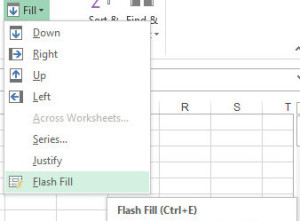
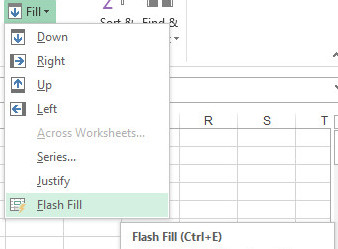
  • From the Menu Screen: FF3
    1. Select the Home Tab
    2. In the Editing
    3. Section, select Fill Button
    4. Select Flash Fill
  • Using the keyboard:
    1. [CTRL] + [E]


Formatting

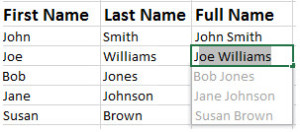
Flash Fill will recognize and apply the selected format to your data.  To use this tool, all information must be added to previous columns.  Flash fill is not perfect.  If data differs from row to row, it will not format correctly (Example:  All phone numbers must have an Area Code or none at all).  After all information is added, move to the next column and enter an example of what you would like done to the data.  Move down to the next row and Flash Fill will initiate when you start typing, press [Enter] to fill column.  Opting out of Flash Fill is just as simple, pressing [Esc] will allow you to continue to enter your data manually. 

EFF1
Above is an example of concatenation; joining two columns of information.

When to use Flash Fill

    1. Formatting
    2. Lists
    3. Concatenation (Joining)
    4. Parsing (Break Down)


Tips for Outlook Calendar

Takeaway:  Tips to change defaults for Outlook Calendar.

outlook-logo-vector2

Work Week View:

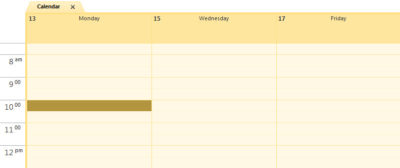
Default “Work Week” is Monday through Friday, 8AM to 5PM.

  1. Select File tab.
  2. Click Options button.
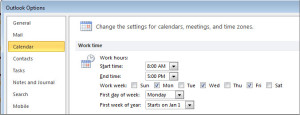
  3. On the left side of the window, click Calendar button (3rd down).WorkWeekView
  4. Under Work Time Section, enter your Start and End time.
  5. Check the days of your Work Week.
  6. Select the First Day of week.
  7. Select the First week of year.
  8. Click OK.

WorkWeekView2

Reminder Alerts:

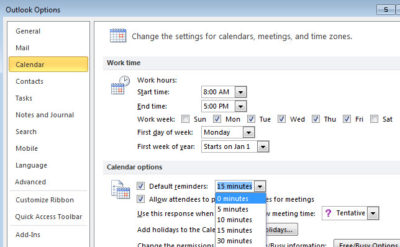
ReminderAlertsAfter creating or accepting an appointment, a “Default Reminder” is automatically set to 15 minutes.  

  1. Select File tab.
  2. Click Options button.
  3. On the left side of the window, click Calendar button (3rd down).
  4.  Under Calendar Options Section, select your reminder times.
  5. Click OK.

Calendar Time Slots:

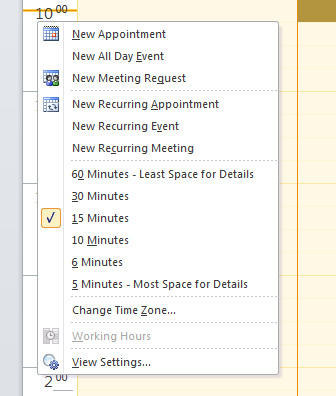
CalendarTimeSlotsTime slots for Calendar Appointments are defaulted to 30 minutes.

  1. Select Calendar View.
  2. Right-Click on Timeline.
  3. Select the interval you prefer.
  4. Outlook will automatically update.
    • 5 minutes:  Most space for details.
    • 60 minutes:  Least space for details


Surface vs Surface Pro

final

Surface RT

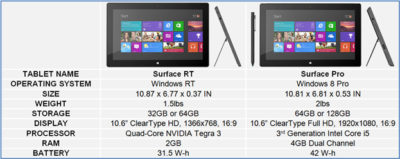
Surface RT was released on October 26, 2012.  Running Windows RT Operating System on a Quad-Core NVIDIA Tegra 3 Processor.  Storage options are 32 GB or 64 GB.  According to recent news, only 16 GB available for the 32 GB hard drive and 46 GB available for 64 GB hard drive.  Bundled with the Surface RT is Office Home & Student 2013 RT Preview.

Office Home & Student 2013 RT includes Word, Excel, PowerPoint and OneNote.  Surface RT does not support Outlook.

The price for the Surface RT is $499.00.

Surface Pro

Surface Pro was release on February 9, 2013.  Running Windows 8 Pro Operating System on Dual-Core Intel i5 Processor.  Storage options are 64 GB or 128 GB.  According to recent news, only 23 GB available for the 64GB hard drive and 83 GB for the 128 GB hard drive.  Bundled with the Surface Pro is Full Office Suite Preview.

Surface Pro is a Business tablet that includes a pen and the pen digitizer.  The stylus helps make taking notes, drawing and marking up documents easy.  The price for the Surface Pen is $29.99.

The price for the Surface Pro is $899.00.

table2

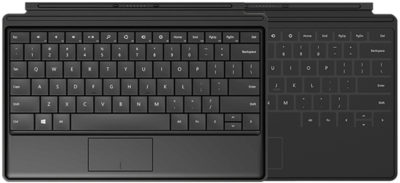
Not included with the purchase of the Surface RT or the Surface Pro is a keyboard.  Microsoft offers two options, Touch cover and Type Cover.  The Touch Cover is a pressure-sensitive keyboard and tablet cover; available in Red, Black, Cyan, White and Magenta.  The price of the Touch Cover is $119.99.  The Type Cover is thin “classic” keyboard and tablet cover; only available in Black.  The price of the Type Cover is $129.99.

typetouchcover2

Type Cover and Touch Cover

Tips for Troubleshooting Outlook

outlook-logo-vector2

Takeaway:   The most significant means of communication in the office is email.  Even though Outlook is the most used mail client for businesses, it can develop problems. Using these ten tips will quickly resolve issues that can impact communication.

1.  Scan PST file

When Outlook becomes troubling, you can use the Inbox Repair Tool provided by Microsoft.  This tool will backup, scan and repair your Personal Folder files (.pst).  The entire process could take more than a few minutes to complete.

2.  Archive Data

Archiving your data will prevent common problems that large PST files create.  Archived data will be moved to a different PST to alleviate the size and space of you primary PST.  After an archive is done, running scanpst.exe will be a safe way to check the file. 

3.  Rename OST

Some problems can be resolved by simply renaming the OST file and allowing Outlook to create a new one.  The OST file saves your e-mails, calendar entries, contacts and other items.  Outlook will open like new after renaming an OST file.

4.  Delete/Rebuild Profile

When deleting or rebuilding an Outlook Profile taking precaution is a necessary step; open Control Panel, select Mail option, select Show Profiles and then select Delete.  For POP accounts, you must save the user’s data by exporting a data file from Outlook.  For Exchange and IMAP accounts, you can delete and re-create the account.  

5.  Disable Add-Ons

Another simple fix is to disable add-ons.  To check the speed of Outlook, use outlook.exe /safe command will allow you to open Outlook in Safe Mode (no-add-ons running).  After testing the speed, you can disable add-ons that may be slowing your system down.

6.  Disable Virus Scan

Popular Anti-Virus tools have a feature that will scan all e-mails to and from your system.  Temporarily disabling this feature is a work-around but not a solution.  Outlook will be defenseless when this feature is disabled.

7.  Run in Safe-Mode

Another temporary fix is to open Outlook in Safe Mode.  Use outlook.exe /safe command will allow you to open Outlook in Safe Mode (no-add-ons running).  This is a work-around but not a temporary fix.

8.  Resetnav

Users can arrange their navigation bar according to their needs which sometimes causes Outlook not to work properly.  A fast way to rest the navigation bar is using outlook.exe /resetnavpane command.

9.  Migrate PSTs

 All user PST files should be stored on the C Drive of the user.  If all users are accessing a shared drive for their PST files, it will slow down Outlook and possibly your network.

10.  Adjust Permissions

To adjust user’s calendar permissions – open the calendar in Outlook, right-click the shared calendar, select Properties, and in the Permissions tab you can adjust user’s calendar permissions.


Microsoft Word – Undo Automatic Indents Tip

word

Takeaway:  Creating numbered or bulleted lists would be simple with the ability to adjust or remove automatic indents.


Simple Solution

This simple solutions works with the current list only. If you add to this list, Word will remember the indent. When you start a new list later in the document, it won’t.

  1. Create an numbered or bulleted list.
  2. Double-click any number or bullet in the list to select all.
  3. To change the indent position:
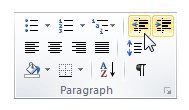
    • Select the Decrease option in the Paragraph group (Aligning all items to the left margin)
    • Select the Increase option in the Paragraph group. (Aligning all items to the right margin)

1

Entire Document Solution

3

The entire document solution will adjust the settings for all numbered/bulleted lists in the document.  Instructions below will default the list to be aligned at the left margin (0), you can adjust accordingly.

  1. Create an numbered or bulleted list.
  2. Double-click any number or bullet in the list to select all.
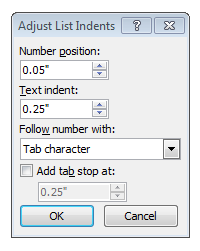
  3. Right-click the selection; select Adjust List Indents.2a
  4. The Adjust List Indents window opens.
    • Number Position:  0 (Where the numbers / bullets will align.)
    • Text Indent:  .25 (Space between numbers/bullets and text.) 


Tips to Troubleshoot Outlook

microsoft-outlook

Microsoft Outlook can connectivity issue with Microsoft Exchange.  Troubleshooting and fixing these issues can range from a simple reboot to creating a new mail profile.

Restart Outlook and/or Computer

Many connectivity problems with Outlook can be resolved by simply restarting Outlook and/or the Computer.

  1. Restart Outlook.
  2. After restarting Outlook, verify connectivity.
  3. If there are still connectivity problems, restart Computer.
  4. Once computer is up and running, verify connectivity in Outlook.

Outlook3

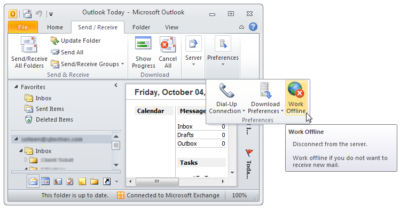
Offline Mode

 Outlook 2010 and newer:

  1. Click the Send/Receive tab.
  2. Locate the Work Offline button.
  3. Click the Offline button. 

Outlook 2007 and older:

  1. Click File Menu.
  2. Uncheck the Offline box.

At the bottom of your Outlook Window there will be a “Trying to Connect” prompt.  If  Outlook is “Connected” the problem is solved.

Rebuild PST or OST File

OST File

  1. Close Outlook.
  2. Open the Control Panel.
  3. Select Mail icon.
  4. In the next window, click Data Files.
  5. Locate your data file, select and click Open File Location.
  6. Locate the data file using Windows Explorer.
  7. Rename the file extension from .OST to .OLD
  8. Close these windows and open Outlook

PST File

  1. Search for scanpst.exe using Windows Explorer.
  2. Double click scanpst.exe to run the application.
  3. In the next window, click Browse.
  4. Locate your .pst file.
  5. Click Start.
  6. Scanpst will scan the data file eight times.  
  7. If the scan finds errors, there will be a prompt to repair. For backup purposes, check the Make Backup Of Scanned File Before Repairing box.
  8. Click Repair.
  9. Close these windows and open Outlook

outlook2

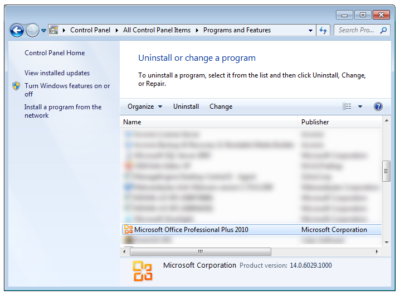
Repair Software Install

  1. Open Control Panel.
  2. Click Programs and Features.
  3. Scroll down and highlight the Microsoft Office installation.
  4. Click Change.
  5. Select Repair.
  6. Click Continue.
  7. Allow the repair to complete.
  8. Reboot your computer. 

outlook

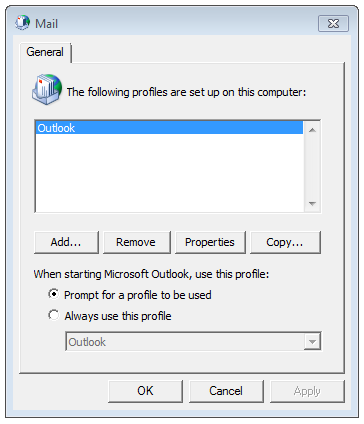
Recreate Mail Profile

  1. Open Control Panel.
  2. Click Mail.
  3. Select Show Profiles.
  4. Click Add.
  5. Name the new profile.
  6. Follow the steps for the Outlook Account Setup Wizard.
  7. Verify the new profile and set as the default or delete old profile. 


CALL US NOW!