Back to Top

Tech, Web, Cloud & Cabling Services

Category: Software

Software Category

South Jersey Techies

Protect Your Data & Backup

Not sure your are protected? Contact us, we can help!

Hackers held two school districts on Long Island hostage over the summer, forcing one of them to pay $88,000 in cryptocurrency in order retrieve student and staff information before the school year started.

Despite using an anti-virus software and other firewalls for cyber security, the School District’s encrypted files were accessed this summer by Ryuk ransomware, which can infiltrate an entire server with one click of a malicious email attachment. The virus encrypts data, essentially locking users out of access to their files, and hackers are blackmailing schools until payment is made, usually in bitcoin, through school insurance to unlock the system’s server.

The Mineola School District was also attacked by the same virus. But they didn’t have to pay because they had a backup that wasn’t compromised.

What are some tips to avoid having to pay the ransomware

The nefarious ransomware business model has turned out to be a lucrative industry for criminals. Over the years its ill repute has made law enforcement team up with international agencies to identify and bring down scam operators.

Most of the ransomware attacks that have taken place in the past have been linked to poor protection practices by employees and businesses. There are ways to prepare and steps you can take to avoid the nuances these hackers are causing.

Here are a few dos and don’ts when it comes to ransomware.

  1. Do not pay the ransom. It only encourages and funds these attackers. Even if the ransom is paid, there is no guarantee that you will be able to regain access to your files.
  2. Restore any impacted files from a known good backup. Restoration of your files from a backup is the fastest way to regain access to your data.
  3. Do not provide personal information when answering an email, unsolicited phone call, text message or instant message. Phishers will try to trick employees into installing malware, or gain intelligence for attacks by claiming to be from IT. Be sure to contact your IT department if you or your coworkers receive suspicious calls or emails.
  4. Use reputable antivirus software and a firewall. Maintaining a strong firewall and keeping your security software up to date are critical. It’s important to use antivirus software from a reputable company because of all the fake software out there.
  5. Do employ content scanning and filtering on your mail servers. Inbound e-mails should be scanned for known threats and should block any attachment types that could pose a threat.
  6. Do make sure that all systems and software are up-to-date with relevant patches. Exploit kits hosted on compromised websites are commonly used to spread malware. Regular patching of vulnerable software is necessary to help prevent infection.
  7. If traveling, alert your IT department beforehand, especially if you’re going to be using public wireless Internet. Make sure you use a trustworthy Virtual Private Network (VPN) when accessing public Wi-Fi like Norton Secure VPN.

Ransomware criminals often attack small and medium sized businesses. Among other cyber attacks, ransomware is one criminal activity that can be easily worked around with the above-mentioned solutions. South Jersey Techies coupled with education about these threats is an excellent protection plan for today’s cyber landscape.

Office 2010 is Retiring

The popular Microsoft Office 2010 is reaching end of support in a few months. To avoid security risks, it’s time to upgrade to a newer version of Office. The good news is that you have options.

drawing of a man holding a laptop in front of a very large laptop with "update" on the screen and a wrench in front

What Does End of Support Mean?

Microsoft Office 2010 has been a popular version of the application over the last decade. The unfortunate news is that support for it ends this fall — on October 13, 2020, to be exact. All of your Office 2010 apps will continue to function. However, using an unsupported version of any software exposes your computer to serious and potentially harmful security risks. Microsoft will no longer provide technical support, bug fixes, or security fixes for Office 2010 vulnerabilities that may be subsequently reported or discovered. This includes security updates that help protect your PC from harmful viruses, spyware, and other malicious software.

  • You’ll no longer receive Office 2010 software updates from Microsoft Update.
  • You’ll no longer receive phone or chat technical support.
  • No further updates to support content will be provided, and most online help content will be retired.
  • Another difficulty you may face is incompatibility with some of the newer programs and file formats.

If you’re using Office 2010, it’s probably a good time to upgrade your version of Microsoft Office.

Upgrade Options

The best way to protect yourself and your organization is to upgrade to a newer version of Office:

  • Cloud upgrade: Subscriptions to Microsoft 365
  • On-premises upgrade: Office Standard 2019

Microsoft 365

Microsoft 365 is an all-in-one cloud solution with a number of different licensing options to fit your organization’s needs. The best part about cloud-based applications is that you no longer have to worry about retirements, patches, and end of support. Cloud licenses are automatically updated with new features, new applications, and security updates. Many cloud subscriptions also include installed (or desktop) versions of the application, so you can have the same look and feel of the Office applications you are accustomed to using, but built with more robust features and benefits.

Microsoft Office Standard 2019

Microsoft Office Standard 2019 is the latest version of the on-premises version of the office suite and is a good option for you if you are not ready for the cloud version at this time. This version of Office includes Word, Excel, PowerPoint, Outlook, OneNote, and Publisher.

If you have any questions, please email us at support@sjtechies.com or call us at (856) 745-9990.

PC Remote App with Windows Mobile 8 Phone

pcremoteappTakeaway:  How to use PC Remote App & Server software to control your PC with a Windows 8 Phone.

PC Remote App is an easy and secure way to remote into your PC from a Windows 8 Phone.  Two versions are available, PC Remote (free) and PC Remote Pro ($2.99).  

Step 1 – Install PC Remote Server

1.  Download the PC Remote Server from http://www.pcremoteserver.com/PCRemoteSetup.msi
2.  Run PCRemoteSetup.msi file
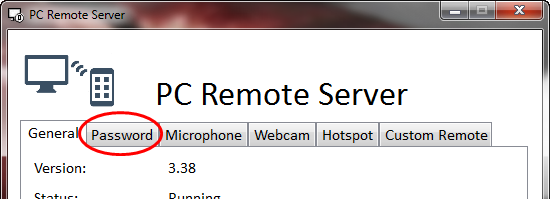
3.  After install, you can setup a password.  Select “Password” Tab.

pcremoteapp_server

5.  Check “Enable”
6.  Enter the password
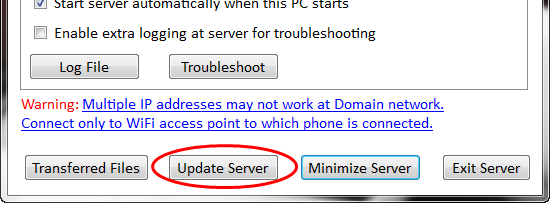
7.  Select the “General” Tab and then Click “Update Server”.

pcremoteapp_server2

Step 2 – Download PC Remote Mobile Client

1.  Open Windows Phone Store App.
2.  Search for “PCRemote” (Select Free version) and tap “Install”.
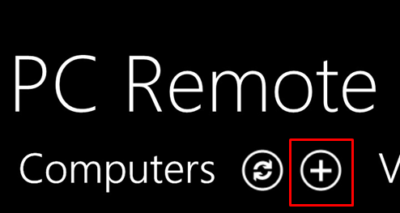
3.  Select “+” to add the IP address of the server machine.

pcremoteapp_mobile

4.  Insert the IP address of the server machine and password you selected in Step 1.
5.  Return to the main screen and select your machine.
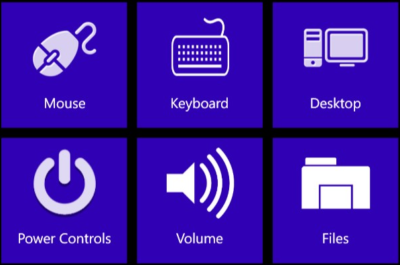
6.  From the control menu you can choose multiple control options.

pcremoteapp_mobile2


Microsoft offers Windows XP, Office XP users 50% percent discount

Microsoft is now offering significant discounts on its product upgrades. Discounts are available for Open License programs.

Microsoft officials are well aware that its biggest Windows 7 and Office 2010 competitors are its own previous product iterations (Windows XP and Office XP/2003). To try and wean users away from older, “good-enough” releases, Microsoft is introducing a new licensing promotion.

The revamped “Up to Date Discount” program is targeted at small/mid-size business (SMB) customers running older versions of Windows and Office. Between January 1 and June 30 of this year, Microsoft is enabling users running Windows XP or Vista (on the operating system side) and Office XP, Office 2003 or Office 2007 (on the productivity suite side) to receive a discount of 50 percent on the cost of their licenses for Windows 7 and Office 2007 (or Office 2010, once it is released by June 2010).

The 50% discount calculations “are based on estimated retail prices and reseller prices may vary,” Microsoft officials acknowledge. But the Softies say U.S. customers who sign up for the program “would be paying $35.00 for a Windows 7 Professional Upgrade and/or $91.00 for Office 2007 Professional Plus in year 1, plus receiving all of the Software Assurance benefits (such as an automatic upgrade to Office 2010 when it launches, Office Home Use Rights, and much more) for that price.”

As you’d expect, there are lots of caveats. First,customers get the 50 percent discount only for the first year of their Open Value Subscription (OVS) payment. (OVS is a Microsoft licensing program, introduced last year for SMBs, which allows users to pay for software licenses over time and includes many of the same provisions as Microsoft’s Software Assurance licensing program.) The new deal applies only to those customers using the Professional versions of Windows and/or the Professional versions of Office.

The new promotion, which Eric Ligman, Global Partner Experience Lead with Microsoft’s Worldwide Partner Group, announced via the Microsoft SMB Community Blog on January 1, goes beyond the current Up-to-Date Discount offer. Before the new so-called “N-2? update to the program was put in place, Windows XP users and Office XP users were ineligible for the discount. But Microsoft is now offering users of the older Windows and Office releases coverage if they’re willing to sign up for the Open Volume Subscription plan.

Meanwhile, speaking of new Microsoft licensing promotions, Microsoft is introducing “version 4.0? of another SMB promotional licensing offer, known as “The Big Easy,” according to Ligman.

Starting January 3, SMB customers can increase dollars available for them to spend with Microsoft partners  “by purchasing multiple qualifying product groups, adding Software Assurance to their orders and/or acquiring advanced, premium or Enterprise editions of the MIcrosoft Solutions.” To qualify, customers need to buy products through their Microsoft partners between January 3 and March 31 via the Microsoft Open License, Open Value and/or Open Value Subscription programs.

Products included under the program include Dynamics CRM, Office Communications Server, SharePoint Server, SQL Server, Systems Center and Windows Server, among others.

Article located here to read more.

Microsoft Office 2010 and Microsoft SharePoint 2010 released

At the end of the day on April 16, Microsoft officials said Office 2010 and SharePoint 2010 were released today to manufacturing.

According to the company, more than 7.5 million people have downloaded the beta of the “2010 set of products” for the PC, mobile phone and browser. That’s more than three times the number of individuals who tested Office 2007, company officials said in a post to the Office 2010 Engineering blog.

MSDN and TechNet subscribers will be able to download the final bits starting April 22, company officials said.

Volume licensees with Software Assurance for these products will be able to download them in English from the Volume Licensing Service Center on April 27. Customers without SA will be able to get these products through the VLSC starting May 1.

The launch of Office 2010 is on May 12 in New York City. Virtual launch events also kick off that day. Office 2010 will be available in retail stores in June in the U.S.

Article located here to read more.

Symantec Security Cloud

Symantec Endpoint Protection Cloud Windows client upgrade scheduled for August 5, 2019

The SEP Cloud client for Windows is updated periodically to provide improvements and defect fixes. The next update is scheduled to start on August 5, 2019.

WHAT’S NEW ?

In this release, the SEP Cloud client for Windows will be updated to version 22.18 to provide an enhanced protection framework and client stability.

  • Fixed an issue related to the OS feature on the agent, which was randomly failing with a medium severity while applying the Management policy.
  • Fixed an issue related to the security event: “A process modified a critical system resource.” This event was erroneously displayed in the console as a threat detection/remediation event. The event is now removed and will not be displayed in the console.
  • Enhancement to process HTTP error 429 status code request. The SEP Cloud agent will not attempt to connect with the cloud when the 429 status code is returned, but instead, try to connect based on the timeout information.
  • If the timeout information is not available, then the product will retry to connect in 15 minutes by default.

IMPACT

All Windows devices that are currently enrolled in SEP Cloud will automatically be updated in the background, using LiveUpdate. This update does not affect the security of your devices.

To start, the update is distributed to a small set of clients over the first seven days of the release, and then the remaining clients will get the update. If you want to update sooner, you can run LiveUpdate from the Symantec Endpoint Protection Cloud client UI.

Action Required

  • Windows device restart
    All users with Windows devices will be prompted to restart their devices after the update. Even if they delay the restart, their Windows clients remain Protected.

If no user is logged on the device when the upgrade is made available, then the prompt is provided until the user logs on. The product update will not force the restart of the device.

  • Windows installation package refresh
    Administrators who created a Windows installation package before August 5 should create and distribute a new one after August 5 to use for new Windows package deployments.

If you have any questions, please email us at support@sjtechies.com or call us at (856) 745-9990.

Office Mobile for iPhones

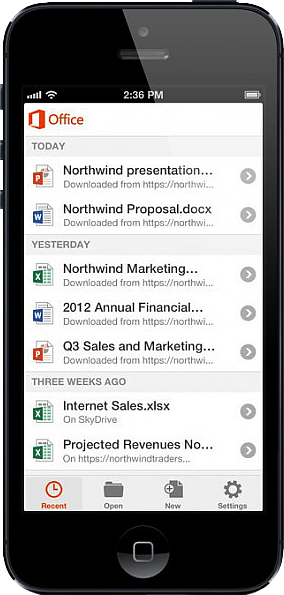
Untitled On June 14, 2013, Microsoft released Office Mobile in the Apple Store for all Office 365 users at no cost.  This app is available for iPhone 4 and up, iPad 3rd generation and up, iPad Mini and iPod Touch 5th generation.  All devices are required to run iOS 6 and up.

Office Mobile allows you to view and edit Word, Excel, and PowerPoint documents.   SkyDrive, SkyDrive Pro and SharePoint are ways to access documents.  “Recent Documents” tracks the most recent documents that you viewed or changed and makes them easily accessible.  Offline editing does not require a constant internet connection but allows you to save your changes once reconnected to a network.

On June 10, 2013 Apple announced that iWork Apps, such as Pages, Numbers and Keynote, can cross platforms to be used on Windows Systems.  Although, iWork Apps are proficient, they can not compare to the Office Suite. 

Microsoft has taken a huge step by crossing platforms with Office software and returning the upper hand to Microsoft.  Office 365 has become more valuable for businesses and home users.  

For more information on Hosted Services and Office 365

 please contact us 856-745-9990 or click here.


Outlook issues in the June 2017 security updates

The problems stems from June 2017 security updates. Microsoft is investigating the issues and will update this page when a fix is available. In the meantime, please use the workarounds suggested for each issue. They have categorized it in seven scenarios.

Issue#1: Error when opening an attachment is an email, contact, or task formatted as Rich Text.

This issue affects Outlook 2007 and Outlook 2010.

When you open an attachment in an email, contact, or task formatted as Rich Text you get the following error:outlook-2010-2007-this-program-used-to-create-is-outlook-not-installed

You may also see:

STATUS: WORKAROUND

  • Forward the email to yourself and then open the attachments from the forwarded email.
  • Change the email format to HTML, or Text format.
  • Save the attachments to your computer, using one of the following methods, then open them from the saved location: Drag and drop the attachments to your desktop.
    Go to File > Save Attachments.
    Copy and paste the attachment to your computer.

Issue#2: Opening Mail Attachment warning when opening an attachment that includes consecutive periods

This issue affects Outlook 2007, Outlook 2010, Outlook 2013, and Outlook 2016.

When opening an attachment that includes consecutive periods (…), or an exclamation point (!), the files are blocked and you receive an Opening Mail Attachment warning.
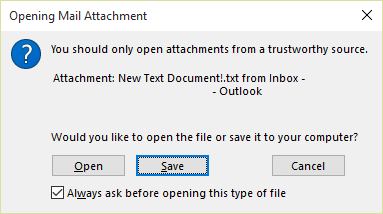
Or if an email message includes an attached email message, and the attached email message’s subject line ends with an unsafe file name extension as listed in the Blocked attachments in Outlook, the email attachment will be blocked for recipients.

STATUS: WORKAROUND

If you get the Opening Mail Attachment warning, and you’re sure the attachment was sent from a trusted source, proceed to Open or Save the attachment.

If the file is blocked because of a potentially unsafe file extension, ask the sender to save the email message to their computer and rename its subject line so that it does not end with an unsafe file name extension. Then, attach it to the email message and resend.

Issue#3: Error when setting ShowLevel1Attach to allow Outlook to display Level 1 attachments

This issue affects Outlook 2013 and Outlook 2016.

If you set ShowLevel1Attach to allow Outlook to display Level 1 attachments, you may see the error: “One or more objects in this file have been disabled due to your policy settings”.

WARNING: Typically, Level 1 attachments are blocked. If you have enabled this policy, users can see Level 1 attachments in Outlook. If you use any of the workarounds to open the files, please make sure they are safe to open. See: Information for administrators about e-mail security settings in Outlook 2007.
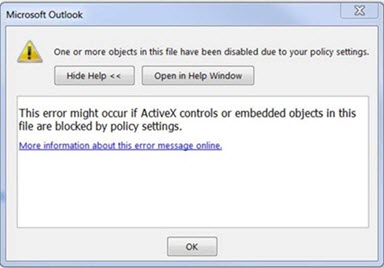
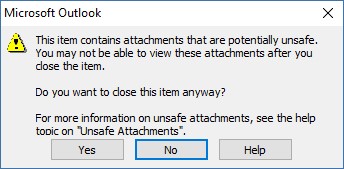
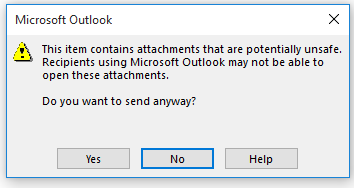
If you set ShowLevel1Attach to allow Outlook to display Level 1 attachments, and you send an email with an attachment you may see this message: “This item contains attachments that are potentially unsafe.  Recipients using Microsoft Outlook may not be able to open these attachments.”
STATUS: WORKAROUND

  • Change the email format to HTML, or Text format.
  • Save the attachments to your computer, using one of the following methods, then open them from the saved location:
    • Drag and drop the attachments to your desktop.
    • Go to File > Save Attachments.
    • Copy and paste the attachment to your computer.

Issue#4: VBScript does not run or you receive malicious code warning when using a custom form for Outlook

This issue affects Outlook 2007, Outlook 2010, Outlook 2013, and Outlook 2016.

When you use a custom form that you have created for Outlook, you see the following two symptoms:

  • VBScript does not run.
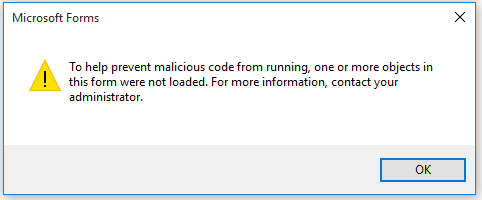
  • You get a malicious code warning: 

STATUS: INVESTIGATING

We’re investigating this issue and will update this page when a fix is available.

Issue#5: “Something went wrong….” or “Search results may be incomplete” error when searching in Outlook

This issue affects all Outlook versions on Windows 7, Windows 8, Windows 10.

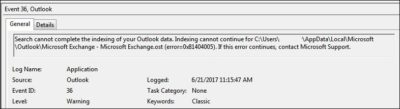
When searching in Outlook, you get this error: “Something went wrong and your search couldn’t be completed.”, or “Search results may be incomplete because items are still being indexed“.

And you’ll see this Event Log warning:
STATUS: WORKAROUND

Until the Windows Update fix release on 6/27, you can set a registry key that will cause Outlook to stop using the local Windows Search service. When this registry key is set, Outlook will use its own built-in search engine. The built-in search will display the message below to indicate it is not using the Windows Search service.

Disable Windows Desktop Search Service for Outlook:

NOTE: The following steps show you how to modify the registry. However, serious problems might occur if you modify the registry incorrectly. Please make sure that you follow these steps carefully. For added protection, back up the registry before you modify it. Then, you can restore the registry if a problem occurs. For more information about how to back up and restore the registry, see this article.

  • Open Registry Editor.
  • Go to: Computer\HKEY_LOCAL_MACHINE\SOFTWARE\Policies\Microsoft\Windows\Windows Search
  • PreventIndexingOutlook
  • Set DWORD: 1

Detailed Instructions:

  1. Click Start, click Run, type regedit in the Open box, and then click OK.
  2. Locate and then click the following subkey in the registry:
    HKEY_LOCAL_MACHINE\SOFTWARE\Policies\Microsoft\Windows
  3. On the Edit menu, point to New, and then click New Key and name the key Windows Search.
  4. Click on the new key Windows Search.
  5. On the Edit menu, point to New, and then click DWORD Value.
  6. Type PreventIndexingOutlook for the name of the DWORD, and then press Enter.
  7. Right-click PreventIndexingOutlook, and then click Modify.
  8. In the Value data box, type 1 to enable the registry entry, and then click OK.
  9. Note to disable the PreventIndexingOutlook setting, type 0 (zero), and then click OK.
  10. Exit Registry Editor, and then restart Outlook.

Issue#6: iCloud fails to load properly in Outlook 2007

iCloud fails to load properly in Outlook 2007.

When accessing Calendar, Contacts, or Tasks in Outlook 2007, you get the following error:

The set of folders cannot be opened. MAPI was unable to load the information service C:\PROGRA~2\COMMON~1\Apple\Internet Services\APLZOD.dll. Be sure the service is correctly installed and configured.”

STATUS: WORKAROUND

The loading of unregistered MAPI services has been disabled by default to make Outlook more secure.

WARNING: This workaround may make your computer or your network more vulnerable to attack by malicious users or by malicious software such as viruses. Microsoft does not recommend this workaround but is providing this information so that you can choose to implement this workaround at your own discretion. Use this workaround at your own risk.

If you have trusted applications that depend on being loaded in this manner, you can re-enable those applications by setting the following registry key:

REG_DWORD HKEY_CURRENT_USER\Software\Microsoft\Office\12.0\Outlook\Security\AllowUnregisteredMapiServices

You can use the following registry subkey to apply the registry setting as a domain policy:

HKCU\Software\Policies\Microsoft\Office\12.0\Outlook\Security\AllowUnregisteredMapiServices

Value 0 (default): Block loading of unregistered MAPI services. This is the recommended setting to avoid unexpected execution of unknown code.

Value 1: Enable loading of unregistered MAPI services.

IMPORTANT: The following steps show you how to modify the registry. However, serious problems might occur if you modify the registry incorrectly. Please make sure that you follow these steps carefully. For added protection, back up the registry before you modify it. Then, you can restore the registry if a problem occurs. For more information about how to back up and restore the registry, see this article.

To make these registry changes, follow these steps:

  1. Click Start, click Run, type regedit in the Open box, and then click OK.
  2. Locate and then click the following subkey in the registry:HKCU\Software\Microsoft\Office\12.0\Outlook\Security\
  3. On the Edit menu, point to New, and then click DWORD Value.
  4. Type AllowUnregisteredMapiServices for the name of the DWORD, and then press Enter.
  5. Right-click AllowUnregisteredMapiServices, and then click Modify.
  6. In the Value data box, type 1 to enable the registry entry, and then click OK.

    NOTE: To disable the AllowUnregisteredMapiServices setting, type 0 (zero), and then click OK.

  7. Exit Registry Editor, and then restart the computer.

Vulnerability information (applies to all versions)

MAPI does not validate that a provider’s DLL that it is requested to load is registered correctly in MapiSVC.inf or even that it comes from the local machine. This can be exploited by creating a file together with an OLE object in such a way to cause MAPI to load a DLL from a network share when the OLE object is activated. This can allow arbitrary code execution to occur.

Issue#7: When printing a specific iframe or frame in a web page, the print output may be blank, or text is printed with a 404

This issue affects all Outlook versions on Windows 7, Windows 8, Windows 10.

When you print a specific iframe or frame in a web page, the print output may be blank, or text is printed that resembles the following:

NOTE: A frame is a part of a web page or browser window that displays content independent of its container. A frame can load content independently.

This problem has also been observed in both Internet Explorer 11, and in applications that host the IE Web Browser Control.

STATUS: INVESTIGATING

There is currently no workaround for this issue. However, if you print the entire web page, it will print correctly. We’re investigating this issue and will update this page when a fix is available.

Option: Uninstall Recent Microsoft Update

It is not recommended to uninstall the update as it applies to some other issues but if none of the workarounds help then you have this option until a new fix is releases.

For Outlook 2010:

  1. Go to the Control Panel – Programs and features and select view installed updates on the left.
  2. Search or look for KB3203467 and highlight it and uninstall it.

For Outlook 2007:

  1. Go to the Control Panel – Programs and features and select view installed updates on the left.
  2. Search or look for KB3191898 and highlight it and uninstall it.

Have any questions?

Call us at: 856-745-9990 or visit: https://southjerseytechies.net/

South Jersey Techies, LLC is a full Managed Web and Technology Services Company providing IT Services, Website Design ServicesServer SupportNetwork ConsultingInternet PhonesCloud Solutions Provider and much more. Contact for More Information.

To read this article in its entirety click here.

Mozilla Joins Google and Facebook in Phasing Out Adobe Flash

Web browsers don’t like the security and stability problems that come with Flash.

Another popular web browser has had it with Adobe Flash.

Mozilla said this week that it plans to gradually wean its Firefox web browser from Adobe’s ADBE -1.07% multimedia player. In August, Firefox will no longer support “certain Flash content” that it deems “not essential to the user experience,” although Mozilla did not specify what type of Flash content it was referring to.

Mozilla will still support “legacy Flash content” for an unspecified time, but the company urged websites that use Flash or Microsoft MSFT -0.25% Silverlight, another multimedia web player similar to Flash, for their videos or online games to adopt newer “HTML technologies as soon as possible.”

In May, Google GOOG -0.59% detailed its plans to end support of Flash for its Chrome web browser, and it hopes to completely rid itself of Flash advertisements by the beginning of 2017.

Google, like Adobe, is urging website operators to switch to the HTML5 coding language to display multimedia like video on their sites.

Flash is notoriously buggy and prone to many security vulnerabilities. Firefox believes that by ending support for Flash, its users will see “enhanced security, improved battery life, faster page load, and better browser responsiveness.”

Still, Mozilla is not totally cutting ties with Adobe. Mozilla said it would “continue to work closely with Adobe to deliver the best possible Flash experience for our users” as it phases the multimedia player out, and said that an engineering partnership between the two companies has improved some performance and stability in Firefox when it displays Flash content.

Last summer, Facebook’s FB -0.27% chief security officer Alex Stamos urged Adobe via Twitter to disable Flash because of its security vulnerabilities.

In April, Adobe issued an emergency update to Flash after security researchers found a flaw that allowed hackers to distribute so-called ransomware to owners of Microsoft Windows personal computers. Ransomware is basically a form of malware that lets hackers block people from accessing their computer or related computer networks so that a hacker can demand payment in return for access.

In 2010, legendary Apple AAPL -1.32% CEO Steve Jobs wrote a 1,700 word essay on Flash and why Apple’s problems with the multimedia player, which he claimed hurt the “reliability and security of our iPhones, iPods and iPads.”

Have questions?

Get answers from Microsofts Cloud Solutions Partner!
Call us at: 856-745-9990 or visit: https://southjerseytechies.net/

South Jersey Techies, LL C is a full Managed Web and Technology Services Company providing IT Services, Website Design ServicesServer SupportNetwork ConsultingInternet PhonesCloud Solutions Provider and much more. Contact for More Information.

To read this article in its entirety click here.

Microsoft updates support policy: New CPUs will require Windows 10

In a change to its longstanding support policy, Microsoft says PCs based on new CPU architectures, including Intel’s Skylake chips, will require Windows 10. A list of preferred systems will support older Windows versions on new hardware, but only for 18 months.

Windows 10

Enterprise customers are still the bulwark of Microsoft’s Windows business, in both the client and server segments.

Historically, those customers have also been among the most conservative, lagging years behind the latest releases of an operating system release. Those practices have been encouraged by Microsoft’s support lifecycle, which offers a generous ten years of support for each Windows release.

Effective today, that policy is changing in a subtle but significant way, with the addition of new hardware requirements for support of pre-Windows 10 releases. The company’s also publishing a preferred list of systems that will receive special attention for updates and support.

Yes, Windows 7 (currently in the Extended support phase) will continue to receive updates until January 14, 2020, and Windows 8.1 will be supported until January 10, 2023. But in a series of “clarifications” to its support policy today, the company announced that support for those older Windows versions will be available only for “previous generations of silicon.”

Going forward, as new silicon generations are introduced, they will require the latest Windows platform at that time for support… Windows 10 will be the only supported Windows platform on Intel’s upcoming “Kaby Lake” silicon, Qualcomm’s upcoming “8996” silicon, and AMD’s upcoming “Bristol Ridge” silicon.

The policy will be phased in beginning with systems based on Intel’s new 6th-generation CPUs (code-named Skylake), which debuted a few months ago. New consumer-based Skylake devices must run Windows 10 to be supported.

For enterprise customers that want to buy “future proof” new hardware based on Skylake processors running older Windows versions, Microsoft will publish “a list of specific new Skylake devices we will support to run Windows 7 and Windows 8.1.” That support will run for a period 18 months, until July 17, 2017, after which those enterprise customers will be expected to upgrade to Windows 10.

Examples of systems that will be on the initial release of the list include Dell’s Latitude 12, Latitude 13 7000 Ultrabook, and XPS 13; HP’s EliteBook Folio, EliteBook 1040 G3; and Lenovo’s ThinkPad T460s, X1 Carbon, and P70 models.

The list will continue to be updated, Microsoft says.

Any machine that earns a place on the elite enterprise support list will get very special treatment indeed, with the idea being to reassure corporate customers that these models are especially likely to perform well on Windows 10 in the new era of continuous updates:

For the listed systems, along with our OEM partners, we will perform special testing to help future proof customers’ investments, ensure regular validation of Windows Updates with the intent of reducing potential regressions including security concerns, and ensure all drivers will be on Windows Update with published BIOS/UEFI upgrading tools, which will help unlock the security and power management benefits of Windows 10 once the systems are upgraded.

These models also get special treatment for enterprises that are still planning their Windows 10 migration, with an 18-month grace period where the older OS versions are fully supported.

Through July 17, 2017, Skylake devices on the supported list will also be supported with Windows 7 and 8.1. During the 18-month support period, these systems should be upgraded to Windows 10 to continue receiving support after the period ends. After July 2017, the most critical Windows 7 and Windows 8.1 security updates will be addressed for these configurations, and will be released if the update does not risk the reliability or compatibility of the Windows 7/8.1 platform on other devices.

Of course, enterprise customers who want to stick with earlier Windows versions beyond that mid-2017 deadline have lots and lots of options, based on current generations of Intel processors such as the Broadwell and Haswell lines. Those systems, which are based on what Microsoft calls “downlevel silicon,” will continue to be fully supported for pre-Windows 10 operating systems.

In today’s blog post, Microsoft says it’s seeing “unprecedented demand from our enterprise customers” in Windows 10. Enterprise customers are especially interested in new Windows 10 security features like Credential Guard, which uses hardware virtualization to safeguard credentials from attack.

Windows 8-era enhancements like Secure Boot, which protects systems from being compromised by rootkits and bootkits, also require new hardware.

Not surprisingly, today’s announcement contains the usual cheery statements from Microsoft’s three biggest hardware partners: Dell, HP, and Lenovo. All three companies compete aggressively in the low-margin consumer market, where virtually all new systems will run Windows 10. But enterprises will pay premium prices for the improvements in battery life and security in Skylake-based mobile systems, making this the most attractive segment to target.

Have questions?

Get help from IT Experts/Microsofts Cloud Solutions Partner
Call us at: 856-745-9990 or visit: https://southjerseytechies.net/

South Jersey Techies, LL C is a full Managed Web and Technology Services Company providing IT Services, Website Design ServicesServer SupportNetwork ConsultingInternet PhonesCloud Solutions Provider and much more. Contact for More Information.

To read this article in its entirety click here.

CALL US NOW!