Back to Top

Tech, Web, Cloud & Cabling Services

Category: Software

Software Category

Five Uninstall Tools That Really Work

Takeaway: Remove all traces of unwanted programs with the help of these uninstall tools.

It never ceases to amaze me how many applications include built-in uninstallers, yet leave fragments behind when you remove them. Fortunately, you don’t have to be at the mercy of an application’s own uninstall tool. A number of commercial uninstall tools are available that do a good job cleaning up your computer. Here are five to consider.

1. Revo Uninstaller:

When you launch Revo Uninstaller, it automatically displays a list of the applications it can uninstall (Figure A). However, this is far from being the software’s only useful function. The Tools section provides access to commonly used operating system tools, such as the Registry Editor, Group Policy Editor, and the System Properties Sheet. Even better, the software offers an option for getting rid of junk files. This includes things like temporary files that were created upon opening Microsoft Office documents but that were never removed. The software also features something called Hunter Mode, in which you can drag a bull’s-eye icon over a file or an icon and then click the mouse to remove that particular item. You can download a free trial of Revo Uninstaller.

2: Your Uninstall Tool

Another uninstall tool worth considering is Your Uninstaller. As with the Revo Uninstall Tool, launching Your Uninstaller displays a list of the items that can be removed. On my lab system, however, your uninstall tool found significantly more software than The Revo Uninstall Tool did.

In addition to its software removal capabilities, Your Uninstaller contains a disk cleaner, which gets rid of junk files. There is also a feature called Trace Erase, which helps protect your privacy by clearing your history.

My two personal favorite features are the File Shredder, which securely deletes files, and the Startup Manager. The Startup Manager allows you to control what gets launched at system startup. This feature could prove invaluable in cleaning malware infections. You can download a trial version of Your Uninstall tool.

3: IObit Uninstaller

Like the other uninstall tools, IObit Uninstaller starts by listing all the programs that can be uninstalled. Although this program lacks the bells and whistles of some of the other utilities, it has two features that make it worthwhile. One is the Forced Uninstall button, which is great for removing stubborn applications. The other is the way that IOBit Uninstaller categorizes applications. The software will tell you which applications are rarely used, recently installed, or consume a lot of disk space. IOBit Uninstaller is FREE.

4: Advanced Uninstaller Pro

Advanced Uninstaller Pro is a more comprehensive software removal application than some of the others. In addition to offering basic removal capabilities, this free tool can monitor the installation of an application to ensure that the application can be completely removed later on without leaving behind any fragments. Advanced Uninstaller Pro also offers several specialized cleaning utilities that are designed to clean up things like the Windows Start menu, the registry, and even your fonts.

5: Cleanse Uninstaller Pro

Cleanse Uninstaller Pro offers basic software removal capabilities, along with a number of other useful features. It includes a Force Uninstall option and a Startup Manager, as well as a junk finder. It also provides some more unusual features, such as registry backup capabilities (as well as the ability to do a system-level restore) and even a file burner that lets you burn files to disk prior to removing them. You can download a free trial of Cleanse Uninstaller Pro.

To View Full Article Click Here

10 tools that simplify collaboration

Takeaway: The key to collaborating effectively is to find tools that make working with others easy and efficient. Jack Wallen shares a list of tools that have greatly improved the collaborative process for his projects.

You might notice that not all tools listed were actually designed specifically for the task of collaboration. Some are communication tools, whereas others serve a much broader purpose. No matter their original purpose, each one makes collaboration much easier. In the end, all that matters is that you can work with your collaborators without having to leave town, host a face-to-face meeting, or run up your phone bill.

1: Google Docs
That’s right. The mighty Google has finally added a level of collaboration to its documents. Google documents now have a discussion feature, which allows the creator of a document to invite participants to collaborate (discuss) on it. What’s nice about this feature is that it is in real time and can be saved for later reference. Google docs are gaining ground, people!

2: Track Changes
In both Microsoft Office and LibreOffice, anyone who is collaborating on a document can take advantage of track changes. If you’re collaborating on a document in either of these office suites and you aren’t using track changes, you have no idea what you are missing. The ability to show what has been changed (and by whom), as well as to easily accept or reject those changes, goes a long way toward streamlining the collaboration process. The only downfall to track changes is that it is not in real time. But not many tools allow you to collaborate in real time on documents.

3: Comments
Another collaboration feature in both Microsoft Office and LibreOffice is the ability to insert comments into text. This is often used in conjunction with track changes to explain a change or ask a question. Anyone who plans on collaborating must have this feature in their toolbox. If you don’t use comments, you wind up sticking notes inline — which often ends badly when the comments are not removed before publication.

4: Gobby/Kobby
Gobby and Kobby offer the same function — real-time collaboration on text documents in Linux. These tools serve as a sort of chat client with a built-in text editor. The primary audience for both Gobby and Kobby is the developer, but that doesn’t mean they can’t be used for ordinary document collaboration. The downfall? Neither one supports the most popular word processor formats (such as .doc, .rtf, .and odt).

5: Instant messaging
I know, I know. IM isn’t technically a collaboration tool. But if you really think about it, how is it not? You can fire up your document, log on to your instant messaging client, and start chatting with your collaborators in real time about the work. No, you do not see changes as they are made, and any updates to the document are not made for all to see. But the truth of the matter is, the primary function of collaboration is communication, and using an instant messaging tool is a fantastic way to communicate.

6: Zoho
Zoho is an incredible Web-based collaboration tool. With Zoho, you can collaborate via chats, discussions, email, meetings, projects, wikis, and more. There are so many ways that Zoho helps you to collaborate, it would be serious feat to actually use them all for a single project. Although Zoho has a free plan for its service, you get only 1 GB of space for files. But its premium service is only $5 per month, so if you are a frequent collaborator and you’re looking for a great Web-based tool to facilitate collaboration, Zoho might be the perfect fit.

7: Campfire
Campfire is another Web-based collaboration tool, but it’s aimed at the corporate or enterprise-level crowds. With plans that reach all the way to 100 chatters and 25 GB of storage (a plan that costs $99 per month), Campfire can enable collaboration in larger settings or even classrooms. Campfire also packs in other enterprise-friendly features, such as searchability and an iPhone app for mobile collaboration. An extra benefit of the pricier plans is that they incorporated SSL for higher security.

8: MindMeister
MindMeister is a Web-based mind-mapping tool. Not all collaborators are familiar with (or comfortable with) mind-mapping tools. But for those who are, there is no better way to brainstorm an idea than a mind-mapping tool. Having a tool for mind-mapping available online is a brilliant way to get those ideas out of your head and into reality. MindMeister has three plans: Free (three maps), Premium — $59 per year (unlimited maps, enhanced security, upload files), and Business — $9 per month (unlimited maps, edit maps offline, branded subdomain, auto backups). MindMeister also has an app for iPhone and iPad.

9: TextFlow
TextFlow is an online document comparison tool. It allows you to generate change reports from Word and PDF documents. You can compare up to seven documents at once, see the changes in context, view the changes in a summary report, and even view the change history. Although the layout of the changes can take a bit of acclimation, the benefits of using such a tool far outweigh the somewhat awkward layout.

10: Kablink
Kablink is a set of open source, online collaboration tools. The set consists of Teaming, iFolder, and Conferencing. Teaming includes document management, workflow, expertise location, federated search, and a custom Web form generator. ifolder is a secure storage solution similar to that of Dropbox, but it also allows you to invite other iFolder users to share your folders. Conferencing is a real-time meeting solution that allows application sharing, whiteboards, presentations, and more. All three of the Kablink tools are cross platform.

Other tools?
If you try out the tools on this list, you should be able to find a collaboration solution that meets your needs. Although you may have to use a combination of tools, you should be able to find everything you need to get your collaboration up and running with very little effort.

Have you worked successfully with some of these tools? What other solutions would you add to the list?

To view the original article in it’s entirety Click Here

Microsoft Windows 7 Service Pack 1 released

Takeaway: On February 22, 2011, Microsoft released Service Pack 1 for Windows 7 to the general public. Should you download and install it?

As of February 22, 2011, Service Pack 1 for Windows 7 is available to the general public from the Microsoft Service Pack Center. Windows 7 SP1 includes previously released security, performance, and stability updates, plus some improvements to features and services.

Microsoft suggests that individuals just let the normal Windows update system handle installation of the service pack. However, if you’d like to accelerate the process you can download the file and install it manually. The install will take around 30 minutes and you will have to reboot the PC during the process.

Depending on what method is used to install the service pack, you will need anywhere from 750MB to 7400MB of available disk space storage to complete the installation procedure, so plan accordingly. If you have a pre-release version of SP1 installed, you will have to uninstall it before you install the latest version.

Also note that some antivirus software will prevent SP1 from being installed properly, so you may want to temporarily turn off your antivirus while the installation takes place

To view the original article in it’s entirety Click Here

Ribbon Hero 2: Clippy’s Second Chance

It’s a fun game! No, it’s an Office Tutorial! No, it’s both!

Welcome to Ribbon Hero 2!

You’ve tried games that test your card playing, your imaginary farming skills, and your ability to hurl small birds. Finally there’s a game that will make you better at your job.

Do you feel like you’re using Word, Excel, PowerPoint, and OneNote the same way version after version, or have you avoided using one of these apps because you don’t know how? And you know there’s so much more Office could be doing for you if only you knew how to access it? No more! Straight from the secret lairs of Office Labs we present Ribbon Hero 2: Clippy’s Second Chance.

Yes, we turned Office into a game! If you’re going to spend time immersed in the inner workings of Office, by golly it should be fun. In Ribbon Hero 2, you’ll hop on board Clippy’s stolen time machine and explore different time periods. With each time period, you get to explore a new game board with challenges you must complete to get to the next level. Each challenge takes you into Word, Excel, PowerPoint, or OneNote to complete a task. Discover new Office features by actually using them, with a hint button to fall back on in case you get stuck. Race for a high score with colleagues, classmates and friends, or even put your score on your resume to show off your Office skills!

For those of you who have been paying attention, we’ve done this before. That’s how we got the “2” on the end of the title. So what’s different? *deep breath* Clippy, comic strips, colorful graphics, surprise animations, multiple levels, time travel, upside-down Clippy, space ships, Greek Gods, bow-and-arrow battles, and a ton of useful Office features.

Need more convincing? Get a sneak peek of Ribbon Hero 2 in this video:

Have FUN!

Microsoft Office 365: The smart person’s guide

Office 365 provides the productivity tools required by a modern enterprise workforce. This guide covers key details, including available applications, system requirements, and subscription options.

Office-365-SJTechies2

For just about any enterprise of any size, the productivity of its modern workforce revolves around the basic office suite of email, calendar, word processor, and spreadsheet. But as the enterprise workforce has become more mobile, the basic productivity toolset has had to adapt and change to match new requirements. This is why Microsoft updated Office 365 to be a mobile collaborative platform ready to get work done wherever and whenever it happens.

Microsoft Office 365 is the de facto productivity suite for many enterprises and it is the suite all the other competitors are measured against. So as a leader in information technology for your enterprise, it’s in your best interest to know everything there is to know about Office 365. To help you achieve that goal, TechRepublic compiled the most important details and related resources on Microsoft Office 365 into this “living” guide, which we’ll periodically update as new information becomes available.

Executive summary

What is it? Microsoft Office 365 provides users with the basic productivity applications necessary to get work done in the modern enterprise. It includes applications like Word, Excel, Outlook, PowerPoint, OneNote, and OneDrive, just to name a few.

Why does it matter? As the standard for productivity suites, competing products are generally measured against applications from the Office 365 suite.

Who does it affect? In the modern mobile-centric enterprise, Office 365 provides the tools used to get work done. This makes Office 365 important to just about every working individual.

When is it available? The latest version of Microsoft Office 365 is available right now. The current subscription includes Office 2016 applications.

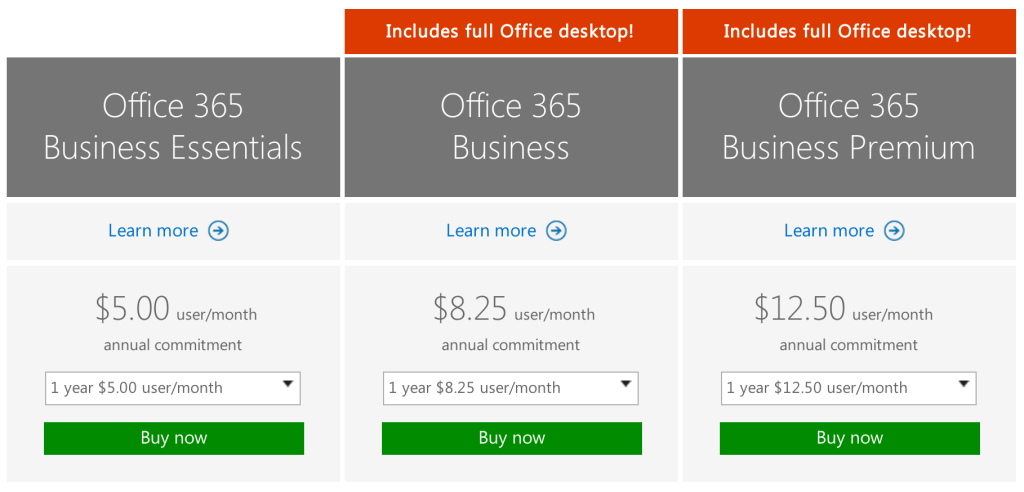
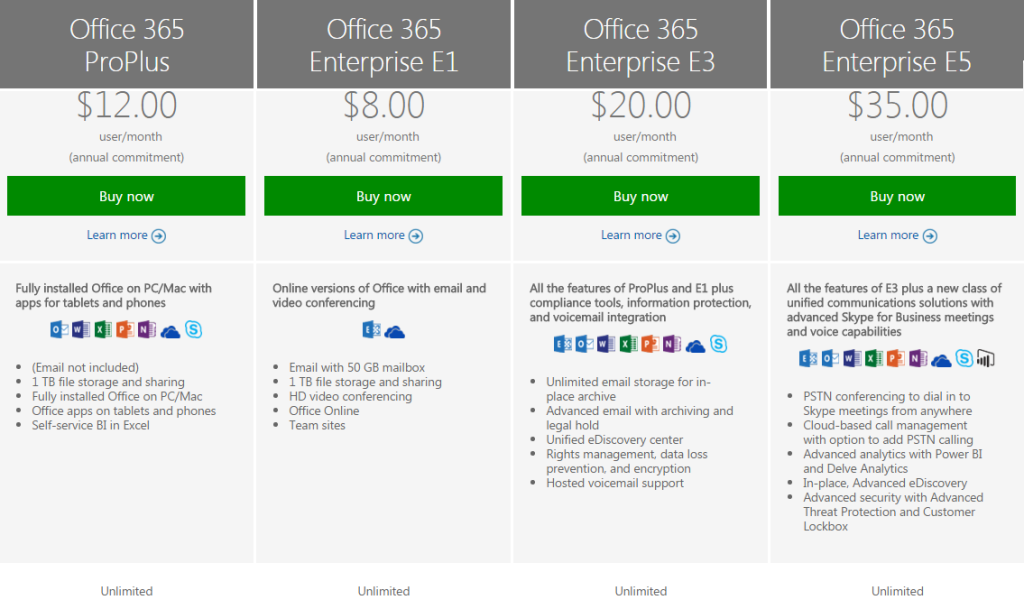
How do you get it? Enterprises can purchase a subscription to Office 365 via the Microsoft website. Subscriptions range from $8/user/month to $35/user/month.

What is it?

Microsoft Office 365 is a subscription service that provides users with the basic productivity applications necessary to get work done in the modern enterprise. Productivity applications include, but are not limited to, a word processor, a spreadsheet, an email client, a calendar, and a presentation application.
Office365-OneDrive

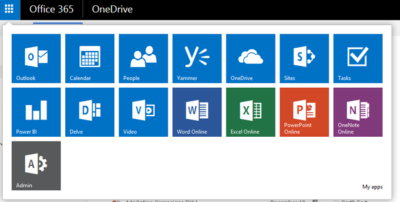
As an example, a Business Premium subscription to Office 365 ($12.50 per person per month) includes these applications:

Word: This app sets the standard for word processors and is available with Office 365 for both Business and Premium. If users in your enterprise need to create documents, this is the tool they will use.

Excel: The spreadsheet has been the workhorse for basic data analysis since its invention back in the previous century. Excel is the current standard-bearer and comes with Office 365 for Business and Premium.

Outlook: Office 365’s solution for managing email and an appointment calendar is called Outlook. The app has been around for many years and its busy interface tends to be either loved or hated by users. It’s available with both the Business and Premium subscriptions.

PowerPoint: Communicating information to a group of individuals at a meeting often involves a presentation. Office 365’s PowerPoint allows users to create, display, and disseminate information in formats ranging from the basic slide to animation to video.

Publisher: Sometimes communicating information to a broader audience requires something more permanent and more formal than a presentation at a meeting. The Publisher app in Office 365 provides users with the tools they need to publish professional-looking newsletters, brochures, and booklets.

OneNote: As the workforce has become more mobile, the need to capture information on the go has become increasingly important. Applications like OneNote allow users to take notes on any device and then retrieve those notes from any other device. It’s your basic productivity cloud app.

OneDrive: The other basic and fundamental cloud-based application is storage. With each Office 365 Business subscription, Microsoft provides users with up to 1TB of cloud storage in the form of an application called OneDrive for Business.

SharePoint: A subscription to Office 365 Business Premium also provides an enterprise with a few applications for backend infrastructure management. SharePoint, for example, can be used to host intranet websites for the enterprise. It also can be used to host smaller sites designed for smaller teams or divisions. The permissions for these sites can be designated by the users themselves or by appointed administrators.

Exchange: Each Office 365 for Business subscription includes an Exchange Server, which handles all the email management duties. By default, each user is granted 50GB of storage for email. Maintenance of the Exchange Server is generally handled at the administrator level.

Collaboration tools: Along with the typical productivity applications, Office 365 includes many collaboration tools—like Delve, Skype, Yammer, and Sway. These tools allow users to communicate, brainstorm ideas, share documents, and have video meetings while on the go.

Power BI: One of the most powerful tools any enterprise can have, regardless of size, is reliable business intelligence gathering applications. Office 365 for Business, through its Power BI application, provides enterprises with a set of tools for collecting, sorting, and presenting business intelligence data.

Infrastructure: All Office 365 subscriptions include a reliability guarantee of 99.9% uptime. In addition, permissions for internal access control are handled by administrators designated by the enterprise using tools supplied by Active Directory. Each Office 365 subscription includes five layers of security and proactive monitoring to help safeguard your data.

System requirements

  • CPU: 1GHz or faster
  • Memory: 2GB RAM
  • Hard drive: 3GB of available space (6GB for Mac)
  • Display: 1280 X 800 screen resolution
  • Operating system: PC-Windows 7, 8, or 10. Mac-Mac OS X 10.10
  • Connectivity: Internet connection

Why does it matter?

Collaboration and communication are the key components of productivity in the modern enterprise, and productivity is the lifeblood of the enterprise. Microsoft Office 365 provides the tools necessary to bring collaboration and communication—and by extension, productivity—to each individual in an enterprise.

For many companies, Office 365 is the de facto standard for productivity software. The performance of all competing products is generally measured against applications from the Office 365 suite.

Who does it affect?

Just about every knowledge worker in every enterprise is required to have an email account and a calendar application. Beyond that, most individuals in an enterprise will need to use, at least once in a while, a word processor. And a significant number of individuals in an enterprise will also find themselves needing to use presentation software or a spreadsheet at some point in their career.

These are the productivity tools of any enterprise. These are the tools used to get work done. That means Office 365 is important to just about every working individual.

When is it available?

Microsoft Office 365 is available right now. The current subscription includes applications updated to the Office 2016 versions. Of course, the key to the subscription model is that each user will always be using the most current and most secure version of each application because each application is continuously updated.

How do you get it?

Enterprises with fewer than 300 users can purchase a subscription to Office 365 and download the appropriate applications via the Microsoft website. The Premium version costs $12.50 per user per month ($150/year). There are also versions of Office 365 available for individuals ($69.99/year) and households ($99.99/year).
Office-365-SJTechies

For large enterprises, unlimited user versions of Office 365 are available, ranging from $12 per person per month to $35 per person per month. Each subscription caters to a particular type of enterprise. More expensive enterprise versions of Office 365 add features like voicemail, compliance auditing, rights management, encryption, and Advanced Threat Protection.
Office-365-SJTechies1

Have questions?

Get answers from Microsofts Cloud Solutions Partner!
Call us at: 856-745-9990 or visit: https://southjerseytechies.net/

South Jersey Techies, LL C is a full Managed Web and Technology Services Company providing IT Services, Website Design ServicesServer SupportNetwork ConsultingInternet PhonesCloud Solutions Provider and much more. Contact for More Information.

To read this article in its entirety click here.

Exclusive Offer from BigBeagle.com

Exclusive offer from: BigBeagle.com  |  24/7 Support: 8885051532
Amit Shah — Customer Number: 57156051

BigBeagle is a reseller of GoDaddy and offers GoDaddy products at a discounted price. Don’t forget to visit our coupon page at http://bigbeagle.com/coupons for the latest and greatest promotions.

Looking to Save money on Web projects? Make a purchase of $90 or more with BigBeagle and get GoDaddy products at 15% off. Offer valid for limited period only.

coupon

Use promo code rs51228a in your cart when you order.

*Some limitations apply. Applicable to new purchases only. Enter promo code into shopping cart to see full details. Minimum purchase of $50 required. Offer expires Sunday, December 20, 2015 at midnight (Mountain Time).

Copyright © 2015 BigBeagle.com. All rights reserved.

Exclusive Offer from BigBeagle.com

Exclusive offer from: BigBeagle.com  |  24/7 Support: 8885051532
Amit Shah — Customer Number: 57156051

BigBeagle is a reseller of GoDaddy and offers GoDaddy products at a discounted price. Don’t forget to visit our coupon page at http://bigbeagle.com/coupons for the latest and greatest promotions.

Looking to Save money on Web projects? Make a purchase of $50 or more with BigBeagle and get GoDaddy products at 10% off. Offer valid for limited period only.

Coupons

Use promo code rs51316a in your cart when you order.

*Some limitations apply. Applicable to new purchases only. Enter promo code into shopping cart to see full details. Minimum purchase of $50 required. Offer expires Sunday, October 11, 2015 at midnight (Mountain Time).

Copyright © 2015 BigBeagle.com. All rights reserved.

Exclusive Offer from BigBeagle.com

Exclusive offer from: BigBeagle.com  |  24/7 Support: 8885051532
Amit Shah — Customer Number: 57156051

BigBeagle is a reseller of GoDaddy and offers GoDaddy products at a discounted price. Don’t forget to visit our coupon page at http://bigbeagle.com/coupons for the latest and greatest promotions.

Looking to Save money on Web projects? Make a purchase of $80 or more with BigBeagle and get GoDaddy products at 15% off. Offer valid for limited period only.

coupon

Use promo code rs51338a in your cart when you order.

*Some limitations apply. Applicable to new purchases only. Enter promo code into shopping cart to see full details. Minimum purchase of $50 required. Offer expires Sunday, November 15, 2015 at midnight (Mountain Time).

Copyright © 2015 BigBeagle.com. All rights reserved.

Thursday night NFL games now stream on Amazon Prime, and that sucks for cord-cutters

Thursday Night Football games are dumping Twitter for Amazon Prime.

Thursday night NFL games streamed with stunning success on Twitter last year, but for the season, football’s jumping ship. The NFL and Amazon announced they’ve reached a $50 million agreement for streaming rights to 10 Thursday Night Football games for the 2017 season—a five-fold increase over the $10 million Twitter paid for last year’s games.

The agreement’s a major win for Amazon, which has been pushing hard to expand its TV offerings. It’s a bummer for folks who’ve ditched cable, though. While Twitter streamed TNF games to the world, making them freely available to cord-cutters even if watchers weren’t Twitter users, Amazon’s NFL livestreams will be limited to paying Amazon Prime subscribers. An Amazon Prime subscription costs $100 per year.

CBS and NBC will still be able to stream the Thursday night games they broadcast, but those channels lock their streams behind the CBS All Access premium service and cable authentication, respectively. Likewise, Verizon will still be able to stream TNF games to mobile devices, but that’s limited to Verizon users and it’s a pain to try and get Verizon’s streams on your big screen.

The best bet for NFL-loving cord-cutters who don’t want to buy into a handful of different services may be to invest in an over-the-air TV antenna. The NFL still doesn’t offer a widespread subscription plan for live streaming games inside the U.S., as NFL Sunday Ticket is essentially limited to DirecTV subscribers alone.

Amazon says it may sell ads for the NFL streams, but also use the games to promote Amazon’s other video services, Recode reports. Amazon’s always using its services and features to entice you to embrace Amazon even more.

Have questions?

Get answers from Microsofts Cloud Solutions Partner!
Call us at: 856-745-9990 or visit: https://southjerseytechies.net/

South Jersey Techies, LL C is a full Managed Web and Technology Services Company providing IT Services, Website Design ServicesServer SupportNetwork ConsultingInternet PhonesCloud Solutions Provider and much more. Contact for More Information.

To read this article in its entirety click here.

Pro tip: Sort table data in a Word document

sort word

Microsoft Word


Sorting data in a Word document isn’t something you routinely do. On the other hand, presenting list and table data is, so the potential exists that one day you’ll want to sort something. The good news is that it’s easy to sort data in a table or a list. In this article, I’ll show you how to do just that. We’ll work through a few simple sorting examples. You can use most any table, or you can download the example .docx or .doc file.

Behind the scenes

Word relies on paragraphs when sorting, which seems a bit odd within the context of a table (or list). The paragraph formatting mark determines where one paragraph ends and the next starts. As you can see in Figure A, there’s no paragraph mark in a table. The end-of-cell markers denote the end of each cell’s content. The similar marker at the end of each row (outside the right border) is an end-of-row marker. These markers also contain cell and row formatting. When sorting a table, Word relies on the end-of-row marker to identify where one row ends and the next begins, the same way the paragraph mark does. (To see a document’s formatting symbols, click Show/Hide in the Paragraph group on the Home tab.)

Figure A

Table end-of-row markers are similar to paragraph markers.

Sort by the first column

We’ll start with the simplest sort possible; we’ll sort a table by the values in the first column. To do so, select, the table by clicking its move handle (the small square in the top-left corner). If you don’t see this handle, check the view. It’s available only in Print Layout and Web Layout. With the entire table selected, do the following:

  1. Click the contextual Layout tab. In the Data group, click Sort — or click Sort in the Paragraph group on the Home tab. In Word 2003, choose Sort from the Table menu.
  2. The resulting dialog does a good job of anticipating the sort. Notice that the Header Row option (at the bottom) is selected. As a result, the Sort By field is set to Species — the label in the first column’s header (Figure B).
    Figure B

  3. This is exactly what we want, so click OK. Figure C shows the sorted table.
    Figure C

Before we move on, let’s discuss the Type and Using options to the right. We didn’t need to change either, but sometimes you will. The Type options are Text, Number, and Date. Word usually defaults to the appropriate data type. You can force a specific type by choosing a different option other than the one Word assumes (but you’ll rarely have reason to do so). The Using options defaults to Paragraph — we talked about that earlier.

Sort by the second column

That first exercise was easy. Let’s complicate things a bit by sorting by the second column. Fortunately, it’s just as easy as the first. Repeat steps 1 and 2 from the first exercise. Then, do the following:

  1. In the resulting dialog, click the Sort By drop-down.
  2. Choose Common Name, the header label for the second column.
  3. Click OK. Figure D shows the results of sorting by the second column.
    Figure D

That wasn’t any more difficult that the first sort. Tell Word which column contains the values you want to sort by and click OK — that’s it!

Sort by multiple columns

With only two sort tasks under your belt, you’re beginning to see how simple the sorting process in Word can be. Let’s complicate things a bit so you can see how flexible this feature truly is. Let’s sort by the Class column and then sort the bird and mammal groups in a secondary sort. Repeat steps 1 and 2 from the first two exercises. Then, do the following:

  1. To sort by the Class, choose Class from the Sort By drop-down.
  2. To further sort each class group, click Common Name from the Then by drop-down (Figure E). You could add a third column to the sort if the results warranted the additional grouping.
    Figure E

  3. Click OK to see the results shown in Figure F.
    Figure F

What about lists?

You might be wondering how to sort the same data in list form. Word handles the list sort the same way — the exact same way. Highlight the list and click Sort in the Paragraph group on the Home tab. In the resulting dialog, check the header option and set appropriately (if necessary). Then, determine the sort order by choosing the fields (columns), appropriately.Figure G shows the result of sorting the same data in list form.

Figure G

Sort a columnar list the same way you sort a table.


CALL US NOW!