Back to Top

Tech, Web, Cloud & Cabling Services

Category: Quick Reference Guides

Quick Reference Guides Category

Is Your Organization Using SHA-1 SSL Certificates? If so here’s what you need to know and do:

ssl


Following a recommendation by the National Institute of Standards and Technology (NIST), Microsoft will block Windows from accepting SSL certificates encrypted with the Secure Hash Algorithm-1 (SHA-1) algorithm after 2016. Given the number of mission-critical SSL certificates that are allowed to expire from inattention, administrators have their work cut out for them. By knowing what will happen, why it’s happening, and what you need to do, you won’t be surprised by these important policy changes.

What’s Happening?

On November 12, 2013, Microsoft announced that it’s deprecating the use of the SHA-1 algorithm in SSL and code signing certificates. The Windows PKI blog post “SHA1 Deprecation Policy” states that Windows will stop accepting SHA-1 end-entity certificates by January 1, 2017, and will stop accepting SHA-1 code signing certificates without timestamps after January 1, 2016. This policy officially applies to Windows Vista and later, and Windows Server 2008 and later, but it will also affect Windows XP and Windows Server 2003.

SHA-1 is currently the most widely used digest algorithm. In total, more than 98 percent of all SSL certificates in use on the Web are still using the SHA-1 algorithm and more than 92 percent of the certificates issued in the past year were issued using SHA-1.

Website operators should be aware that Google Chrome has started warning end users when they connect to a secure website using SSL certificates encrypted with the SHA-1 algorithm. Beginning in November 2014 with Chrome 39, end users will see visual indicators in the HTTP Secure (HTTPS) address bar when the site to which they’re connecting doesn’t meet the SHA-2 requirement. Figure 1 shows those indicators.


Figure 1: Visual Indicators in the HTTPS Address Bar


Google is doing this to raise end users’ awareness and to help guide other members of the Internet community to replace their SHA-1 certificates with SHA-2 certificates.

Why Is Microsoft Deprecating SHA-1?

SHA-1 has been in use among Certificate Authorities (CAs) since the U.S. National Security Agency (NSA) and NIST first published the specification in 1995. In January 2011, NIST released Special Publication 800-131A, “Transitions: Recommendation for Transitioning the Use of Cryptographic Algorithms and Key Lengths.” This publication noted that SHA-1 shouldn’t be trusted past January 2016 because of the increasing practicality that a well-funded attacker or government could find a SHA-1 hash collision, allowing them to impersonate any SSL website.

Realizing that it’s highly unlikely that CAs and the industry at large will adopt more powerful encryption algorithms on their own, Microsoft is leading the charge by making Windows reject certificates using SHA-1 after January 1, 2017. Doing this will lead website operators to upgrade to stronger SHA-2 certificates for the betterment of all Windows users and the broader public key infrastructure (PKI) community. The Windows PKI blog post “SHA1 Deprecation Policy” noted that, “The quicker we can make such a transition, the fewer SHA-1 certificates there will be when collisions attacks occur and the sooner we can disable SHA1 certificates.”

In the end, the issue isn’t if SHA-1 encryption will be cracked but rather when it will be cracked.

What Do I Need to Do?

January 1, 2017, might seem like a long way away, but now is the time to understand the problem and how to mitigate it.

As per Microsoft’s SHA-1 deprecation policy, Windows users don’t need to do anything in response to this new technical requirement. XP Service Pack 3 (SP3) and later versions support SHA-2 SSL certificates. Server 2003 SP2 and later versions add SHA-2 functionality to SSL certificates by applying hotfixes (KB968730 and KB938397).

Web administrators must request new certificates to replace SHA-1 SSL and code-signing certificates that expire after January 1, 2017. As of this writing, that would probably affect only public SHA-1 certificates that were purchased with a long expiration date (three years or more) or long-duration certificates issued by internal SHA-1 CAs. Most third-party CAs will rekey their certificates for free, so you simply need to contact the CA to request a rekeyed certificate that uses the SHA-2 algorithm.

When ordering new SSL certificates, you should confirm with the CA that they’re being issued with the SHA-2 algorithm. New certificates with expiration dates after January 1, 2017, can only use SHA-2. Code-signing certificates with expiration dates after December 31, 2015, must also use SHA-2.

Note that the algorithm used in SHA-2 certificates is actually encoded to use SHA-256, SHA-384, or SHA-512. All of these are SHA-2 algorithms; the SHA number (e.g., 256) specifies the number of bits in the hash. The larger the hash, the more secure the certificate but possibly with less compatibility.

It’s important that the certificate chain be encrypted with SHA-2 certificates. (A certificate chain consists of all the certificates needed to certify the end certificate.) This means that any intermediate certificates must also use SHA-2 after January 1, 2017. Typically, your CA will provide the intermediate and root CA certificates when they provide the SHA-2 certificate. Sometimes they provide a link for you to download the certificate chain. It’s important that you update this chain with SHA-2 certificates. Otherwise, Windows might not trust your new SHA-2 certificate.

Root certificates are a different story. These can actually be SHA-1 certificates because Windows implicitly trusts these certificates since the OS trusts the root certificate public key directly. A root certificate is self-signed and isn’t signed by another entity that has been given authority.

For the same reason, any self-signed certificate can use the SHA-1 algorithm. For example, Microsoft Exchange Server generates self-signed SHA-1 certificates during installation. These certificates are exempt from the new SHA-2 policy since they aren’t chained to a CA. I expect, however, that future releases of Exchange will use SHA-2 in self-signed certificates.

What About My Enterprise CAs?

If your organization has its own internal CA PKI, you’ll want to ensure that it’s generating SHA-2 certificates. How this is done depends on whether the CA is running Windows Server 2008 R2 or later and if your CA has subordinate CAs.

If you have a Server 2008 R2 or later single-root CA without subordinates, you should update the CA to use SHA-2. Doing so will ensure that subsequent certificates generated will use the SHA-2 algorithm. To check which hash algorithm is being used, you can right-click the CA and go to the General tab. If SHA-1 is listed, you can run the following certutil command to configure the CA to use the SHA-256 algorithm:

certutil -setreg ca\csp\CNGHashAlgorithm SHA256

You must restart the CertSvc service to apply the change. Now when you view the CA properties, you’ll see that the hash algorithm is SHA-256. All future certificates issued by this CA will use SHA-256, but keep in mind that existing certificates will still be using SHA-1. You need to renew any SHA-1 certificates issued by this CA to upgrade them to SHA-2 certificates.

If your CA is older than Server 2008 R2, you can’t upgrade the CA to use SHA-2. You’ll need to rebuild it with a newer version.

If your organization’s internal CA is multi-tiered with one or more subordinate CAs, you’ll need to reconfigure them to use SHA-2. This is done using the same certutil command just given on each subordinate or issuing CA. Keep in mind that if you use subordinate CAs, you’re not required to update the root CA to SHA-2 since that certificate is at the top of the certificate chain, but it won’t cause any problems if you do. You still need to renew any SHA-1 certificates issued by the subordinate CAs to upgrade them to SHA-2 certificates.

Take Action Now

Administrators and website operators should identify all the SSL certificates used in their organizations and take action, as follows:

  • SHA-1 SSL certificates expiring before January 1, 2017, will need to be replaced with a SHA-2 equivalent certificate.
  • SHA-1 SSL certificates expiring after January 1, 2017, should be replaced with a SHA-2 certificate at the earliest convenience.
  • Any SHA-2 certificate chained to an SHA-1 intermediate certificate should be replaced with another one chained to an SHA-2 intermediate certificate.

The following tools and websites are useful for testing and for further information about SHA-1 remediation:

  • Microsoft Security Advisory 2880823. This website discusses the deprecation policy for the SHA-1 hashing algorithm for the Microsoft Root Certificate Program.
  • Migrating a Certification Authority Key from a Cryptographic Service Provider (CSP) to a Key Storage Provider (KSP). The section “How to migrate a CA from a CSP to a KSP and optionally, from SHA-1 to SHA-2” in this TechNet web page provides detailed instructions for upgrading a CA to use SHA-2.
  • Gradually sunsetting SHA-1.” This Google Online Security Blog post explains how the transition to SHA-2 affects Chrome and details Google’s rollout schedule.
  • SHA-256 Compatibility. This GlobalSign web page lists OS, browser, server, and signing support for SHA-256 certificates.
  • DigiCert SHA-1 Sunset Tool. This free web application tests public websites for SHA-1 certificates that expire after January 1, 2016.
  • DigiCert Certificate Inspector. This tool discovers and analyzes all certificates in an enterprise. It’s free, even if you don’t have a DigiCert account.
  • Qualys SSL Labs’ SSL Server Test. This free online service analyzes the configuration of any SSL web server on the public Internet.

Plan for Additional Area Code in New Jersey Announced

NJ to get New Area Code

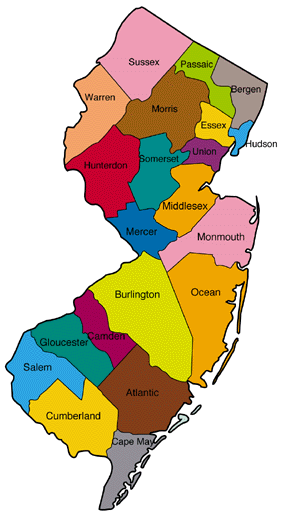
Neustar, Inc., serving in its capacity as the North American Numbering Plan Administrator (NANPA), announced that an additional area code, 640, has been assigned to the existing 609 area code that serves the Central and Southeastern area of New Jersey, including the cities of Atlantic City, Hammonton, Princeton and Trenton.

Neustar forecasts that numbering resources in the 609 area code will be exhausted by the third quarter of 2018. The New Jersey Board of Public Utilities has directed all local exchange service providers to activate the new area code to ensure the availability of numbering resources in a manner that is most efficient and least confusing for consumers, while minimizing possible disruption to consumers and businesses.

The Federal Communications Commission (FCC) selected Neustar to serve as the NANPA, the neutral third-party administrator that works with the telecommunications industry in developing area code relief plans. NANPA also oversees the assignment of area codes, central office codes, carrier identification codes, and other numbering resources throughout the United States, Canada, Bermuda and various Caribbean countries.

Have questions?

Get answers from Microsofts Cloud Solutions Partner!
Call us at: 856-745-9990 or visit: https://southjerseytechies.net/

South Jersey Techies, LL C is a full Managed Web and Technology Services Company providing IT Services, Website Design ServicesServer SupportNetwork ConsultingInternet PhonesCloud Solutions Provider and much more. Contact for More Information.

To read this article in its entirety click here.

Microsoft’s new Surface Laptops unveiled

Microsoft’s most direct shot at the MacBook yet

This slideshow requires JavaScript.

The one Surface product that fans have been clamoring over for years, a straight up Surface Laptop, is finally here. But, in taking design cues from both the Surface Pro and Surface Book lines, Microsoft has set lofty expectations for its first dedicated laptop device.

Priced at $999 (about £770, AU$1,330), the Surface Laptop clearly aims to chip at the MacBook and MacBook Air models that dominate college campuses practically worldwide. In fact, Microsoft claims that its cheaper (and larger) Surface Laptop can last far longer on a charge than Apple’s 12-inch MacBook: 14.5 hours.

However, every Surface Laptop shipped will come with Windows 10 S installed, Microsoft’s new version of Windows 10 that only accepts app installs downloaded from the Windows Store.

With the ability to switch from Windows 10 S to the 100% open Windows 10 Pro for $49 if you miss the chance in 2017 for free, should you need an app outside of the Windows Store that badly (spoiler: you probably will).

Regardless, at that price, can Microsoft garner enough interest from college students (or more likely their parents), who are often already strapped from the cost of an education?

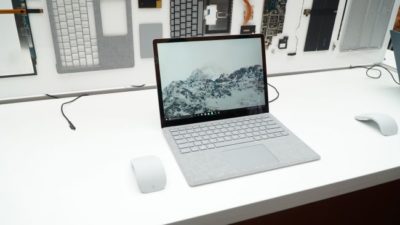
The Surface Laptop in traditional ‘Platinum’

Design

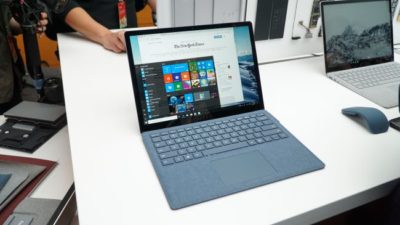
Clearly, part of Microsoft’s plan is to lure those folks in with an incredibly gorgeous, and potentially trendsetting, design. The 13.5-inch Surface Laptop may very well be Microsoft’s most attractive computing product yet.

And, with four colors to choose from – Burgundy, Platinum, Cobalt Blue and Graphite Gold – there’s bound to be one that appeals to you.

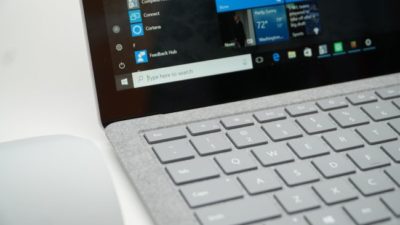
A full aluminum lid and base wrap the laptop in much the same way it does a Surface Book, but ditches the aluminum in the keyboard deck for a Alcantara fabric that surrounds every plastic key and meets with the aluminum base in a seemingly airtight seal.

The fabric, according to Microsoft, is imported from Italy and laser cut to fit every Surface Laptop. Now, while many of the design elements are the same, the 13.5-inch (2,256 x 1,504) PixelSense touch display, the smooth glass-coated Precision touchpad, the chrome logo centered on the aluminum lid, we’re told that very few parts from previous parts are found within the Surface Laptop.

That much is obvious in the nature of the felt used for this keyboard deck compared against that which the Type Covers from Microsoft utilize. It’s smoother and more plush than those Type Covers, and we’re told it’s spill resistant.

The Surface Laptop’s keyboard deck is awfully comfortable

Plus, the additional height afforded by this traditional laptop design allowed Microsoft to equip the keyboard with 1.5mm of travel, and the difference in typing between that and the Surface Pro 4 is night and day. Finally, Microsoft devised a speaker system beneath the keyboard that radiates sound through the spaces between the keys and the keyboard deck.

The result isn’t much better audio than you’d find in a MacBook Air, perhaps a bit fuller, but at least it’s consistently in an uninterrupted position. Naturally, the audio gets a bit muffled when typing, but since the sound radiates throughout the laptop base, there isn’t a major loss in audio detail.

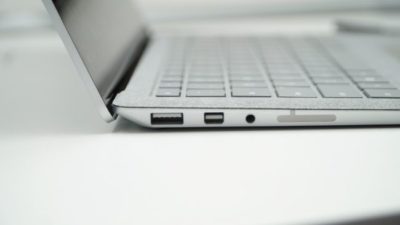
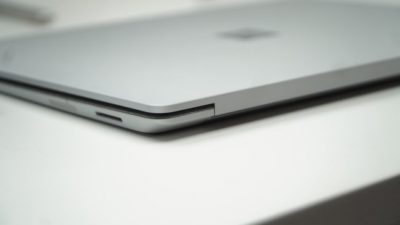
That leaves the side of the laptop base to house Microsoft’s proprietary power and docking port found on other Surface devices, as well as a USB 3.0 and Mini DisplayPort, not to mention an audio jack. If you’re already asking, “where’s the USB-C,” we’ve already been there.

Microsoft tells us that it intends for its own port to handle concerns of connectivity expansion via the Surface Connect port and its Surface Dock, while refraining from alienating customers that have yet to completely update to USB-C.

A fine explanation, but that doesn’t tell us why USB 3.0 and not USB 3.1 at least, as you’re missing out on some major data transfer speed improvements there.

Those strange strips of plastic on the base? They’re Wi-Fi antennae

Performance and battery life

Microsoft can pack the Surface Laptop with the latest Intel Core i5 or Core i7 processors (Kaby Lake), up to 512GB of PCIe solid-state storage (SSD) and as much as 16GB of RAM.

That’s a mighty powerful laptop on paper, likely stronger than either the MacBook Air or 12-inch MacBook, while rising above even the latest 13-inch MacBook Pro that still utilizes Skylake processors.

(The $999 model comes packing a 128GB SSD and 4GB of RAM with the Intel Core i5.)

As for how Microsoft fit that kind of power a laptop just 0.57 inches (14.48mm) thin, a brand new, proprietary vapor chamber cooling system helps a whole lot. The system changes the physical state of the heat as it’s taken in through the center of a fan vent in the rear of the laptop base and spits it out of the sides of that same vent.

While we obviously weren’t able to stress-test the Surface Laptop, we were able to test out how it feels to use. For starters, at just 2.76 pounds (1.25kg), this thing is super light, which is all the more impressive considering it’s a 13.5-inch, Gorilla Glass 3 touchscreen you’re looking at.

Note the Surface Connect dock port – Microsoft’s answer to USB-C

Microsoft chalks this up to, in part, the thinnest LCD touch module ever used in a laptop design. This, in turn, helps the lid to lift with just one finger. However, perhaps the hinge design needs refinement.

While you can open the display with just a finger, that slightness in the hinge is felt when the screen bounces with every tap of the touchscreen. It’s the very reason we question the inclusion of touchscreens in traditional laptops to begin with. Unfortunately, it seems Microsoft hasn’t found a better solution here.

That said, typing on the keyboard is the best time we’ve had doing such on a Surface product yet, and the portability of the whole thing is right there with Apple’s best.

As for battery life, Microsoft is, again, claiming 14.5 hours on a single charge. Microsoft later clarified for us that this number was achieved via local video playback with all radios but Wi-Fi disabled.

That testing environment sounds very similar to how TechRadar tests for battery life, so we might see battery life results in a full review fall much closer to this claim. If so, then Surface Laptop will be very tough to beat in longevity and be a potentially major driver for sales.

This is the Surface Laptop in Cobalt Blue

Early verdict

The fact that the Surface Laptop ships with a limited – sorry, “streamlined” – operating system and costs more than some previous Surface systems that come with full fat Windows 10 cannot go unnoticed – regardless of the free upgrade through this year. Unless Microsoft changes its tune come 2018, folks buying one of these with holiday gift money at the turn of the year would be wise to tack 50 bucks on top of whichever configuration they choose to get Windows 10 Pro.

While this switch will be free for any Surface Laptops bought in the education sector, that won’t help the Surface Laptop’s target audience come 2018: late high school and college students.

That said, the Surface Laptop’s incredible, potentially trendsetting design cannot go unnoticed either. Frankly, this is a laptop that appears to outclass the MacBook Air and 12-inch MacBook – and possibly even the 13-inch MacBook Pro – for hundreds less.

Save for a questionable platform versus pricing decision, the Surface Laptop has all the makings of yet another winning piece of hardware from Microsoft.

Have questions?

Get answers from Microsofts Cloud Solutions Partner!
Call us at: 856-745-9990 or visit: https://southjerseytechies.net/

South Jersey Techies, LL C is a full Managed Web and Technology Services Company providing IT Services, Website Design ServicesServer SupportNetwork ConsultingInternet PhonesCloud Solutions Provider and much more. Contact for More Information.

To read this article in its entirety click here.

Windows Tip of the week: How to turn hibernation on and off

How to turn hibernation on and off:

When your PC goes to sleep, it enters a low-power state, ready to spring back into action when Windows detects a tap on the keyboard or determines that it’s time to run a scheduled task. If you’re planning to be away from the PC for a while, you might prefer to save the current state so that you can restore it quickly, without the chance that the computer will wake up on its own.

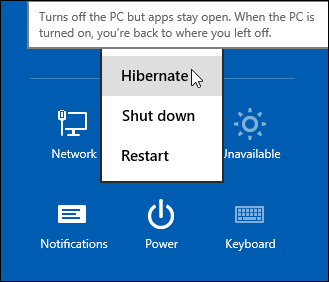
There’s an option that lets you save the contents of memory to a hibernation file and then shuts down the PC, so it uses no power at all. When you restart, Windows restores the system state from the hibernation file.

To enable or disable hibernation, open a Command Prompt window and enter the powercfg command with the -h switch. Type powercfg -h on to enable hibernation; substitute the word off to disable it.

Normally, the Hibernate option is hidden from the Shutdown menu. To make it visible, open Power Options in Control Panel and then click Choose What The Power Buttons Do. Under the Shutdown Settings heading, select the Hibernate checkbox to display it in the Power menu.

Have questions?

For More Tips & Info from Microsofts Cloud Solutions Partner!
Call us at: 856-745-9990 or visit: https://southjerseytechies.net/

South Jersey Techies, LL C is a full Managed Web and Technology Services Company providing IT Services, Website Design ServicesServer SupportNetwork ConsultingInternet PhonesCloud Solutions Provider and much more. Contact for More Information.

Windows Tip of the week: How to wipe a disk clean


Wipe a disk clean:

If you’re planning to dispose of a PC by giving it away, selling it, or discarding it, your top priority should be making sure that no personal information is left on the device. The same is true if you’re recycling a hard disk drive or USB flash drive.

The first step with a PC is to reinstall Windows, using the option to delete the existing partitions on the device and then do a clean install. For a secondary disk, you can use the Format command to erase any existing content. But that still leaves the possibility that some data will still be available in the erased space, where a determined spy could recover it using a disk utility.

The solution? Encrypt the disk before formatting it. Without a recovery key, any recovered data will be unreadable. The easiest way to accomplish this on the system drive is to open an elevated command prompt and run the following command:

cipher /w:c:

If you’re working with a secondary disk, substitute the drive letter for that drive.

The /w switch stands for wipe, and the result is the effective obliteration of every bit of data in unused disk space, leaving existing files untouched.

Have questions?

For More Tips & Info from Microsofts Cloud Solutions Partner!
Call us at: 856-745-9990 or visit: https://southjerseytechies.net/

South Jersey Techies, LL C is a full Managed Web and Technology Services Company providing IT Services, Website Design ServicesServer SupportNetwork ConsultingInternet PhonesCloud Solutions Provider and much more. Contact for More Information.

Windows Tip of the week: How to keep your desktop clutter-free

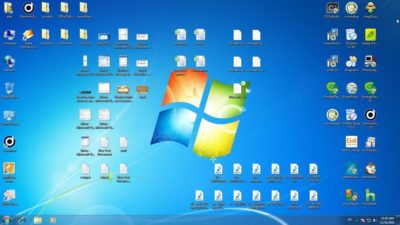
cluttered-desktop-screenshot

Clean up your desktop:

There’s nothing wrong with a messy desktop, but at some point you might need to impose a little order on the chaos. Cleaning the piles of paper and junk from your real-life office might take a weekend of labor. Fortunately, cleaning up the Windows desktop is considerably simpler.

If you like the convenience of using the Desktop folder as a temporary storage place, you can hide the clutter in seconds: Right-click any empty space on the desktop, click View, and then click to remove the checkmark from Show Desktop Icons.

All your desktop shortcuts and files are still there, but they’re no longer covering up your carefully chosen background image. To get to those files, open File Explorer and type Desktop in the address bar. Even quicker: Pin a Desktop shortcut to Start.

Other options on the desktop’s View menu allow you to change icon size (warning: The Large Icons setting is really large) and to align those icons to a grid so they snap neatly into position.

Have questions?

For More Tips & Info from Microsofts Cloud Solutions Partner!
Call us at: 856-745-9990 or visit: https://southjerseytechies.net/

South Jersey Techies, LL C is a full Managed Web and Technology Services Company providing IT Services, Website Design ServicesServer SupportNetwork ConsultingInternet PhonesCloud Solutions Provider and much more. Contact for More Information.

Windows Tip of the week: Keyboard shortcuts that work for all major browsers

browsers

Keyboard shortcuts that work with every major browser:

The major browsers might have different rendering engines and user interface designs, but they have at least a few things in common. And surprisingly, keyboard shortcuts are on that list. Regardless of whether you use Google Chrome, Mozilla Firefox, Internet Explorer, or the new Microsoft Edge, the following keyboard shortcuts will work:

Ctrl+D?Add current page to Bookmarks/Favorites

Ctrl+J?Open Downloads list

Ctrl+H?Show history

Ctrl+I?Show Bookmarks/Favorites

Ctrl+T?Open a new tab

Ctrl+W?Close the current tab

Ctrl+Shift+T?Reopen most recently closed tab

Have questions?

For More Tips & Info from Microsofts Cloud Solutions Partner!
Call us at: 856-745-9990 or visit: https://southjerseytechies.net/

South Jersey Techies, LL C is a full Managed Web and Technology Services Company providing IT Services, Website Design ServicesServer SupportNetwork ConsultingInternet PhonesCloud Solutions Provider and much more. Contact for More Information.

Windows Tip of the week: Create a system image backup

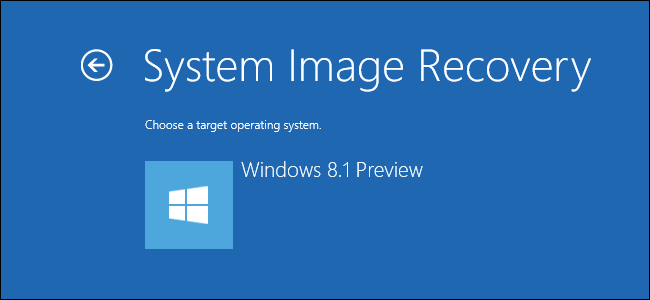
systemImageRecoveryWindows

Create a system image backup:

The surest way to recover from a data disaster, such as a system drive failure, is to restore that drive from an image-based backup. You’ll need an external hard disk–at least as large as the amount of space in use on the system drive and ideally the same size as your system drive.

The capability to back up and restore a system image is in the Windows 7 Backup And Restore program. That same program is also in Windows 8, 8.1, and 10, although it’s somewhat hidden. (In Windows 10, you can find it by typing backup in the search box.)

To start the program, press Windows key + R to open the Run box, type sdclt, and press Enter. Click Create A System Image from the column on the left, choose your external hard disk as the location where you want to save the backup, and click Next. On the following page, all partitions on the system drive should be selected. Just click Next and then click Start Backup.

Have questions?

For More Tips & Info from Microsofts Cloud Solutions Partner!
Call us at: 856-745-9990 or visit: https://southjerseytechies.net/

South Jersey Techies, LL C is a full Managed Web and Technology Services Company providing IT Services, Website Design ServicesServer SupportNetwork ConsultingInternet PhonesCloud Solutions Provider and much more. Contact for More Information.

Windows Tip of the week: Benefits of the Shutdown command

The surprisingly useful Shutdown command:

shutdown

If you want to shut down a PC, you can always use the Power menu on Start. But the Shutdown command, which runs from a Command Prompt window, can help with a few tasks you can’t do from any menu.

To see the full syntax, open a Command Prompt window and type Shutdown /? Here are a few options you might find especially useful:

  • Shutdown /i – Show a graphical interface (note that this does not include all options available via command-line switches)
  • Shutdown /s – Full shutdown
  • Shutdown /r – Full shutdown and restart
  • Shutdown /h – Hibernate the local computer
  • For UEFI-based Windows 10 PCs, you have two extra options that can be invaluable:
  • Shutdown /s /fw – After a full shutdown, opens firmware user interface on next start
  • Shutdown /r /o – Restarts and displays the advanced boot options menu

Have questions?

For More Tips & Info from Microsofts Cloud Solutions Partner!
Call us at: 856-745-9990 or visit: https://southjerseytechies.net/

South Jersey Techies, LL C is a full Managed Web and Technology Services Company providing IT Services, Website Design ServicesServer SupportNetwork ConsultingInternet PhonesCloud Solutions Provider and much more. Contact for More Information.

Windows Tip of the week: Reduce clutter with a mouse gesture

Shake the clutter away:

Windows-Macbook

On a modern Windows PC with gobs of memory, it’s easy to have dozens of windows open at one time. But all that multitasking can create a distracting mess of overlapping panes that makes it difficult to concentrate on the task at hand.

The solution is a little gesture that debuted in Windows 7. Bring the app you want to focus on to the foreground, point to its title bar, hold down the left mouse button, and make a gentle left-right-left shaking gesture. It doesn’t need to be violent; just make sure you move the window an inch or so in each direction. Do it right, and every other open window is minimized to the taskbar. Shake again to restore all windows to their previous position.

Want to minimize every window, including the current one? Aim for a narrow strip at the end of the taskbar, just to the right of the system clock, and click once. Click again to restore all windows.

Have questions?

For More Tips & Info from Microsofts Cloud Solutions Partner!
Call us at: 856-745-9990 or visit: https://southjerseytechies.net/

South Jersey Techies, LL C is a full Managed Web and Technology Services Company providing IT Services, Website Design ServicesServer SupportNetwork ConsultingInternet PhonesCloud Solutions Provider and much more. Contact for More Information.

CALL US NOW!