Back to Top

Tech, Web, Cloud & Cabling Services

Category: Quick Reference Guides

Quick Reference Guides Category

Microsoft’s latest Windows 10 ad annoys Chrome users with taskbar pop-ups

Ads on the Windows 10 taskbar aren’t just for Microsoft Edge anymore.

Microsoft’s aggressive advertising push inside Windows 10 is going beyond pop-ups for Microsoft Edge.

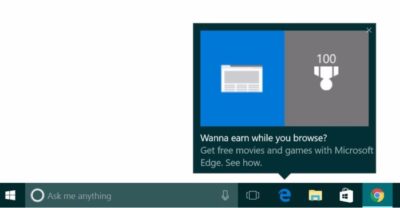
Myce recently spotted yet another pop-up ad on the taskbar in Windows 10. This time around Microsoft was advertising its extension for Chrome dubbed the Personal Shopping Assistant (Beta). The extension is a Microsoft Garage project that lets you compare prices across shopping sites.

Prior to the Chrome extension pop-up, Microsoft was advertising its rewards program for Microsoft Edge, which we spotted in early November. The earlier ad appeared to be targeted at people who didn’t use Edge that frequently.

A pop-up ad that promotes Windows 10’s Edge browser and Bing Rewards. The pop-up for the Chrome extension looks similar, as you can see on Myce.

The Chrome one, by comparison, is probably targeted at people who use Chrome as their default browser. Microsoft’s likely thinking that if people won’t stop using Chrome on Windows, at least they can use some Microsoft software while they’re doing it.

Microsoft told Thurrott.com that ads like the one for the Chrome extension are part of the company’s tests to provide, “new features and information that can help people enhance their Windows 10 experience.”

Tests or not, it’s unlikely that Microsoft will ever stop these taskbar ads even though users pay $100 or more for Windows. Thus far, Microsoft has advertised its own software and services.

The impact on you at home: If you want to make sure you don’t get pop-up ads on your taskbar you can turn them off. Open the Settings app and go to System > Notifications & Actions. On this screen under “Notifications” turn off Get tips, stricks, and suggestions as you use Windows. That’s not the only way Microsoft can advertise to you.

Have questions?

Get answers from Microsofts Cloud Solutions Partner!
Call us at: 856-745-9990 or visit: https://southjerseytechies.net/

South Jersey Techies, LL C is a full Managed Web and Technology Services Company providing IT Services, Website Design ServicesServer SupportNetwork ConsultingInternet PhonesCloud Solutions Provider and much more. Contact for More Information.

To read this article in its entirety click here.

Microsoft withdraws update causing Outlook to start in Safe Mode (with fix)

outlook-safe-mode

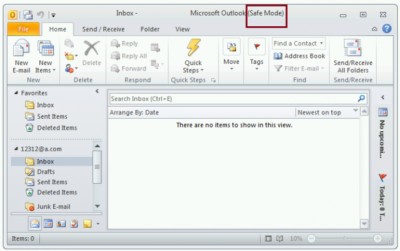
Microsoft has withdrawn the released Windows Update KB3114409 because it causes Outlook to start in Safe Mode. This loads the email client without customizations and plugins. Fortunately it can be easily fixed.

The patch was actually released to stop Outlook from starting in Safe Mode, but it appears something didn’t go the right way. Microsoft has decided to withdraw the update for now.

Users affected by the update can easily stop Outlook from starting in safe mode by uninstalling the KB3114409 update.

This can be done this way: Go to your Control Panel. Go to ‘Programs and Features’ and left click ‘View installed updates’. Find KB3114409. Once you’ve found the appropriate update, click ‘Uninstall’.

(Tip: copy/paste KB3114409 and enter it in the search field at the top right.)

After a reboot of the computer Outlook will no longer start in safe mode.

Have questions?

Get help from IT Experts/Microsofts Cloud Solutions Partner
Call us at: 856-745-9990 or visit: https://southjerseytechies.net/

South Jersey Techies, LLC is a full Managed Web and Technology Services Company providing IT Services, Website Design ServicesServer SupportNetwork ConsultingInternet PhonesCloud Solutions Provider and much more. Contact for More Information.

To read this article in its entirety click here.

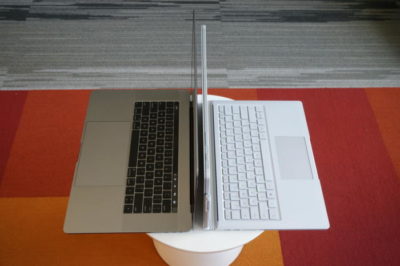
Surface Book i7 vs. MacBook Pro: Fight!

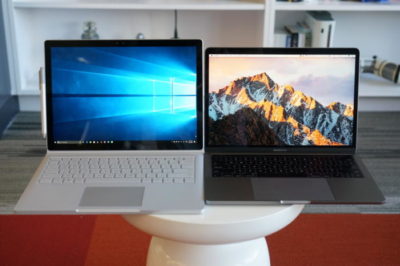
Now that Apple’s introduced the first major update to its MacBook Pro lineup in years, it’s time to square off the best of the best in Mac and PC laptops to see who currently prevails in this age-old rivalry. 
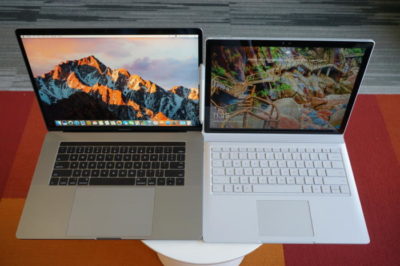
The contenders

The newest Surface Book is a top-of-the-line model with a Core i7-6600U, a GeForce GTX 965M, 16GB of RAM, and a 1TB SSD. The updated product line varies from $2,400 to $3,300 (our model) in price. All three net you a 6th-gen Skylake dual-core Core i7 chip, and all three get you the same Performance Base with a GeForce GTX 965M. The only differences are in the size of the SSD and how much RAM you get. Only the SSD would affect performance significantly.

On the Apple side, the contender is a $2,400 MacBook Pro 15 with a quad-core Core i7-6700HQ, 16GB of LPDDR/2133, and a 256GB SSD. I also had partial access to two MacBook Pro 13’s. The first was the non-touch bar model with a Core i5-6360U, 8GB of LPDDR/1866, and a 256GB SSD ($1,500). The second was the Touch Bar version with a Core i5-6267U, 8GB of LPDDR/2133, and a 256GB SSD ($1,800).
Why this contest isn’t rigged

Let’s make it clear from the outset: This isn’t a direct comparison of the laptops based on cost, but an attempt to compare the performance of the new MacBook Pros to that of similar PC laptops.

For those who’ve noticed the considerable price delta between the Surface Book i7 and the 15-inch MacBook Pro, the stack of other PCs used in this comparison will help smooth out that line. You might argue that it’s silly to compare a $3,300 Surface Book i7 against an $1,800 MacBook Pro 13, or a $1,100 Dell XPS 13 against an $1,800 MacBook Pro 13, or a $1,400 Dell XPS 15 against a $2,400 MacBook Pro 15. But these are all real-world models that you’ll find in a store, rather than configurations contrived to hit a number. Price differences are just part of the comparison puzzle.

For the same reason, we’re not loading the same OS on all the laptops—no OSX on PCs, no Windows on Macs. Real people wouldn’t do that, and neither will we.
Cinebench R15 multi-threaded performance

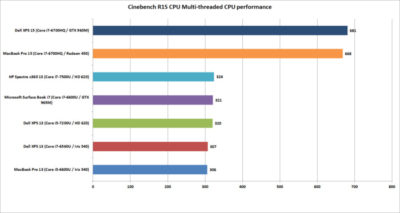
Our first test is Cinebench R15. This is a 3D rendering test based on Maxon’s Cinema4D engine. The test is heavily multi-threaded, and the more cores or threads you can throw at it, the better the performance. The test is is a pretty harsh reminder that if your tasks demand a quad-core, listen to them.

Between the two quad-cores, the Dell XPS 15 crosses the finish line first—but not by much. Let’s just call it mostly a tie.

Among the dual-cores, the Core i5-based MacBook Pro 13 is last, but not by much. It’s basically the same as the last-gen XPS 13 with a similar Core i7-6560U.

The surprise is where the Surface Book i7 finishes. Its 6th-gen CPU is hanging right with the 7th-generation Kaby Lake CPUs in the new HP Spectre x360 13 and the new Dell XPS 13.
Cinebench R15 single-threaded performance

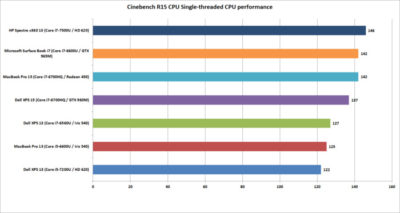
Cinebench R15 has an optional test that lets you measure the single-threaded performance. It’s a valuable way to gauge how fast a laptop will be in applications or tasks that don’t use all the cores available.

The surprise to many will be the result from the Dell XPS 13. Its 7th-generation Core i5 CPU could hang with the Core i7 chips on heavier loads, but on lighter loads, it ends up being last. That’s because Core i7 chips in laptops excel at short, “bursty” loads. Once you heat them up, the clock speeds crank back. When running a test in single-threaded mode, the Core i7’s advantage with short burst loads shows up big-time.

The real shocker is how the HP Spectre x360 with a 7th-gen CPU comes out the clear winner. The quad-core MacBook Pro 15 or Dell XPS 15 were expected to lead the pack, but nope. That Kaby Lake CPU is indeed pulling its weight.
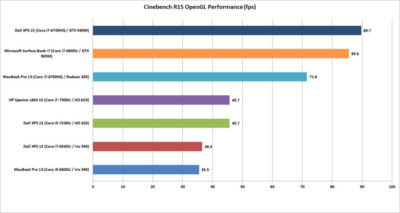
Cinebench R15 OpenGL performance

Our last Cinebench R15 test measures performance with OpenGL, a popular graphics API used for rendering professional CAD/CAM applications and a few games.

The results here break down into three bands. At the bottom is the new MacBook Pro 13 and an older Dell XPS 13 model. Both use Intel’s Skylake CPU and include “faster” Iris 540 graphics with 64MB of embedded DRAM inside the CPU. Both are nearly dead-even, which validates this test for comparing OSX to Windows 10 performance.

The second band up is a shocker to me. The pair of 7th-gen Kaby Lake laptops from Dell and HP are a good 25 percent faster than the 6th-gen Skylake laptops in OpenGL. The Iris 540 laptops were expected to come out in front. The results made us wonder whether this isn’t some driver optimization that Intel put into Kaby Lake but not Skylake.

The last band is the graphics performance of the discrete-GPU laptops. Unexpectedly, the GeForce GTX 960M in the XPS 15 finishes just ahead of the GTX 965M in the Surface Book i7. The MacBook Pro 15, with its Radeon Pro 450, finishes in a firm third place. Some MacBook Pro reviews have said the graphics don’t measure up in games, while in “work”-related tasks, they rules. So far, no one has seen that to be true.
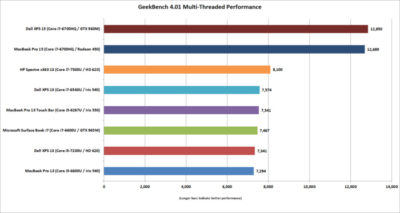
GeekBench 4.01 multi-threaded performance

Another popular cross-platform benchmark is Primate Lab’s GeekBench. Experts may disdain its cross-platform results between ARM and x86. Within the same micro-architecture, however, it’s pretty kosher, especially when running the newest 4.01 version of the popular test. There is  also a score to report for the MacBook Pro 13 with Touch Bar

The first result we’ll look at is the multi-threaded performance. Like Cinebench R15, you can see the quad-core XPS 15 and MacBook Pro 15 step away from the dual-core laptops. It’s just more proof that if your tasks really need a quad-core chip, pay for it.

On the dual-cores, the redesigned HP Spectre x360 13 again shows the newest 7th-gen Core i7’s clock speed advantage over the Skylake models. The Surface Book i7 and MacBook Pro are pretty much dead-even. For MacBook Pro 13 fans that might be something to crow about, because we’re talking about a Core i5 MacBook Pro 13 vs. a Core i7 Surface Book.
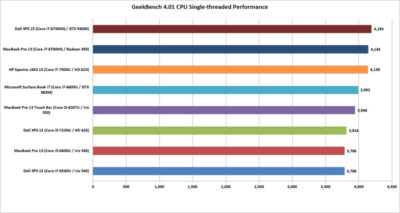
GeekBench 4.01 single-threaded performance

Moving on to the single-threaded performance in GeekBench 4.01, there are a few patterns we can discern. First, that 7th-gen Core i7 in the HP Spectre x360 13 is indeed faster in lighter loads, outpacing the Surface Book i7 and the Core i5-equipped MacBook Pro 13 with Touch Bar.

The Dell XPS 15 inches over the MacBook Pro 15, but the real takeaway is this: If you don’t do many multi-threaded tasks on your laptop, you don’t need a quad-core CPU.
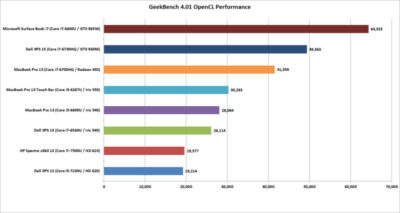
GeekBench 4.01 OpenCL performance

GeekBench also has an OpenCL test that simulates popular Computer Language tasks on a GPU that would normally be handled by the CPU.

The first takeaway: Unlike in the OpenGL performance tests, the older Iris 540 in the Skylake dual-cores is faster than the Kaby Lake integrated graphics for whatever tasks Prime Labs thinks best represent OpenCL.

The second takeaway: OpenCL loves fast GPUs. The Surface Book i7 and its GTX 965M run away with this test, and trash the MacBook Pro 13. For those who didn’t pony up for the MacBook Pro’s faster Radeon Pro 455 or 460 GPU, it’s hard to watch how thoroughly the the Surface Book i7 smokes the 450-equipped MacBook Pro. The Surface Book’s GTX 965M even makes a mockery of the GTX 960M in the XPS 15.
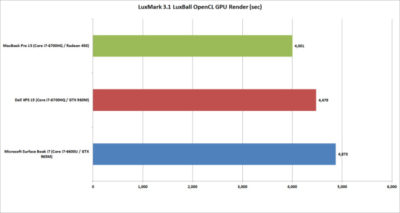
LuxMark 3.1 OpenCL GPU Render Performance

When you play the benchmarketing game, one truth that’s often overlooked is that no one test defines the entire category. You can’t take the results from Geek Bench 4.01 OpenCL and declare it representative of all OpenCL performance.

To balance Geek Bench 4.01, I also ran the free LuxMark 3.1 OpenCL test. This takes a scene and renders it using the LuxRender engine on the GPU (or CPU if you ask it to.)

The results put these GPUs a lot closer than the OpenCL numbers from Geek Bench 4.01 would have you believe. In the end, both the XPS 15 and Surface Book i7 again both clearly win. But would this be true if it were a Radeon 460 in the MacBook Pro 15? Probably not.
Blender 2.78 Performance

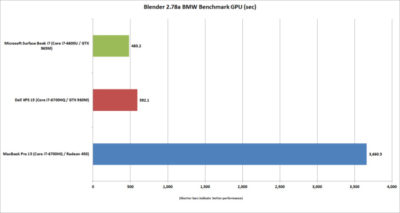
The last “work”-related graphics test we’ll run is Blender 2.78. This a free rendering application popular in a lot of indie movies. For a test render file, I used Mike Pan’s BMW Benchmark and set Blender to ray-trace the scene on the GPU rather than the CPU. The result is, frankly, beyond ugly. The Surface Book i7 finished in about eight minutes, and the XPS 15 took another two more minutes. The MacBook Pro 15 took more than an hour to complete the task.

This doesn’t mean the MacBook Pro 15’s Radeon Pro 450 is a dog. The other benchmarks should tell you that the Apple isn’t that bad in some tasks. Still, this kind of performance disparity indicates a serious problem at the OS or driver level, or something with this compile of Blender. Unless or until that mystery is solved, you’ll want to do your Blender renders on a PC laptop.
Tomb Raider performance

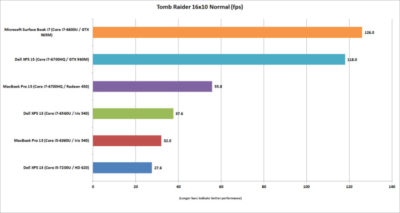
The last graphics test is Tomb Raider. It’s an older game available in both OSX and Windows and includes a built-in benchmark. While we could set the graphics settings the same on both platforms, we couldn’t quite sync the resolutions. Depending on the laptop, we could set the horizontal resolution at 1680-, 1650-, or 1600×1050 (the latter, for the Macs). The graphics setting on all of the laptops was Normal.

If you can’t bear to look, don’t: The Surface Book i7 and XPS 15 soundly thrashed the MacBook Pro 15. The Radeon Pro 460 would not make a difference here, either. If you want gaming performance at any decent levels, no surprise—buy a PC.
Battery life

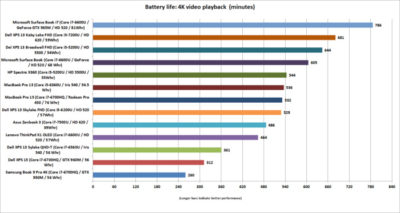
The final test is for all-important battery life. The same 4K-resolution were used, open-source Tears of Steel short video, looping continuously. On the Windows laptops, we used the Movies & TV player, and on OSX Sierra, we used QuickTime.

All of the laptops had their screens set at 250 to 260 nits in brightness. All laptops had the adaptive brightness setting turned off. All were tested with Wi-Fi disabled and with earbuds plugged into the analog ports. One thing to note: The Windows laptops are left in their default power settings, which means they use their last bits of battery life to shut off unused apps and slightly dim the screen. OSX was set not to dim the display on battery—otherwise, it immediately dims the screen once unplugged.

Our results on the pair of MacBook Pros were amazingly similar. Started both early in the morning and watched until they died in the early evening. Both were minutes apart.

Apple claims about 10 hours of run time in iTunes. We were pretty close in QuickTime at nearly 9 hours. The variance can be attributed to the video file and the settings the company uses.

For the MacBook Pro 15, that’s pretty impressive. The battery life for 15-inch laptops with quad-core CPUs, discrete graphics, and high-resolution screens tends to be mediocre. For example, look at the XPS 15 and its six hours of run time. (Dell offers an XPS 15 battery with about 50 percent more capacity—but it’s also heavier.)

Even worse is the Samsung Notebook 9 Pro, another quad-core laptop with the addition of a 4K screen. Ouch. Overall, I’d say the MacBook Pro 15 has decent battery life for a quad-core.

Moving to the MacBook Pro 13, the result is a little more nuanced. With roughly nine hours of run time, it compares well to some laptops, such as the XPS 13 with a QHD+ touchscreen. But there are a lot more PCs ahead of it. You know, like the Surface Book i7, which sets the bar at an amazing 13 hours of video run time. Other laptops with better video stamina include the newest XPS 13, HP’s redesigned Spectre x360 13, and even the older Surface Book. When you consider that all three are also generally faster, it’s not good.
The cost equation

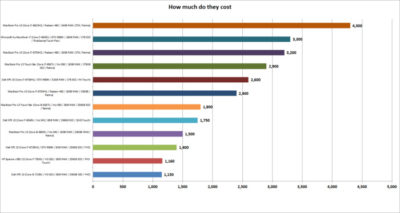
The most important question for users isn’t related to an obscure OpenCL benchmark but to how much these laptops cost. To help you understand just how much of a premium Apple and Microsoft are charging, I mapped out the cost of most of the laptops that appeared here, along with other configurations worth highlighting.

That top-spec Surface Book i7, formally known as Surface Book with Performance Base,  really pushes the boundaries of what people will pay for a dual-core laptop. To be fair, this is no ordinary laptop. It has a 1TB SSD and 16GB of RAM, plus pen support, a tablet mode, and probably class-leading GPU performance. But umm, yeah, 3,300 bucks.

Apple is no stranger to nose-bleed altitudes. When you throw a Core i7, 1TB SSD, and 16GB of RAM into the MacBook Pro 13 with Touch Bar, you’re looking at  $2,900. And you don’t even get the discrete GPU, touch, and tablet or pen support of the Surface Book. Apple’s most powerful MacBook Pro 15 tilts the meter all the way to $4,300. Granted, that’s with one of Intel’s priciest mobile CPUs and a whopping 2TB SSD, but that’s also the price of a modest used car.

Compared to a “normal” PC, both Microsoft and Apple give you a lot less performance for your cash. The Dell XPS 15, which pretty much aces the new MacBook Pro 15 except in battery life, is $1,400.

Take that Dell XPS 15 and load it up with a 1TB M.2 SSD, 32GB of RAM (which isn’t available on the MacBook Pro 15), a GTX 960M, 4K touchscreen, and a larger battery: $2,600. That’s only $200 more than what Apple charges for a machine with 16GB of RAM, a 256GB SSD, and the slowest Radeon Pro GPU.

You can do the same with the new HP Spectre x360 or Dell’s current XPS 13. Both give you a lot more value than either the MacBook Pro 13 or the MacBook Pro 13 Touch Bar.
Conclusion

Ten tests and one price comparison later, the PC wins. Again.

That’s no surprise. The MacBooks are caught in a tough spot—even if they were running higher-performance configurations. They’re both ultra-expensive compared to most PCs, and at the top-end, outclassed in GPU performance by Microsoft’s comparably expensive Surface Book i7.

It’s not all bad news for the Mac, though. The MacBook Pro 15’s battery life is impressive for a 15-inch laptop with a quad-core CPU and discrete GPU. Comparably powerful quad-core laptops we’ve seen can’t touch it in battery life. Even the MacBook Pro 13s do relatively well in battery life compared to a similar PC.

The problem for Apple and Mac fans is PC makers just don’t ever stand still. And as we know, Apple seemingly does that now with its Macs.

Have questions?

Get answers from Microsofts Cloud Solutions Partner!
Call us at: 856-745-9990 or visit: https://southjerseytechies.net/

South Jersey Techies, LL C is a full Managed Web and Technology Services Company providing IT Services, Website Design ServicesServer SupportNetwork ConsultingInternet PhonesCloud Solutions Provider and much more. Contact for More Information.

To read this article in its entirety click here.


Windows Server 2003 end of life guide

How to organize your migration from Windows Server 2003


Following on from end of support for Windows XP in April 2014, we are now rapidly approaching Windows Server 2003 end of life.

Despite Microsoft warning about end of life for Windows Server 2003 as early as April 2013, many organisations are yet to begin their migration away from the server platform. Worse still, many organisations and IT pros are unaware of the huge financial costs and security risks should they continue running Windows Server 2003 past the end of life date.

Reports from HP claim that more than 11 million systems are still running Windows Server 2003. With fewer than 240 days left until end of life, this a huge problem as the estimated time required to migrate a datacentre of 100 or more servers can range from a minimum of three months and upwards of 18 months.

If you own even one of those 11 million servers and you have yet to begin migration, you should be worried. Luck for you, the following guide will migrate you to a position of safety. We will cover the following:

• Windows Server 2003 End of Life date
• Understanding what end of support means for Windows Server 2003 and the associated impacts
• An outline of how to migrate Windows Server 2003
• Resources to aid migration

Windows Server 2003 End of Life date

According to the Microsoft Support Lifecyle section on 14 July 2015, Microsoft will end extended support on all versions of Windows Server 2003/R2.

Understanding what end of support means for Windows Server 2003

From then on, this means no more updates or patches from Microsoft, which can result a less secure and less stable infrastructure for your business. What this really means:

• Maintenance Costs – running legacy servers is expensive. Intrusion detection systems, advanced firewalls and network segmentation are required to protect a now vulnerable Windows Server 2003 platform. You will also have increasing cost from maintaining aging hardware. Current estimates in a TechNet post from Alex Fu place the cost of custom support post end of life at US$200,000 on average. In a Q&A with David Mayer, practice director of Microsoft Solutions for Insight Enterprises, he estimated a support cost of $1500 per server per year.

• No Updates – there will be no more updates to fix bugs, performance issues and security vulnerabilities. To put this into perspective, 2013 saw the release of 37 critical updates for Windows Server 2003/R2. Past the end of life date, these critical issues will remain unfixed leaving you open to cybersecurity dangers such as malicious attacks or electronic data loss.

• No Compliance – once support ends, your organisation will almost certainly fail to meet industry wide compliance standards. Regulations such as HIPAA, PCI, SOX & Dodd-Frank all require regulated industries to run on supported platforms. The impact is twofold: Non-compliance could result in the loss of business, while high transaction fees and penalties from non-compliance could dramatically increase the cost of doing business.

• Software and Hardware Compatibility Issues – new software and hardware devices will not be built to integrate with Windows Server 2003. Sticking with a legacy server means you will likely run into compatibility issues and may not be able to run new instances of software or communicate with the latest devices.

• No Safe Haven – without continued support from Microsoft, virtualized and physical instances of Windows Server 2003/R2 and Microsoft Small Business Server (SBS) 2003 will not pass a compliance audit.

How to migrate from Windows Server 2003

Do not underestimate the task that lies ahead. Migrating applications and server workloads is no easy task. Worryingly, a study by App Zero suggests that 62 per cent of organisations do not have a plan to upgrade or migrate, or even know that EOS is coming.

• Discover – first up is discovering and cataloguing all the software and workloads that are running on Windows Server 2003/R2 at present. Download the Microsoft Assessment and Planning toolkit as this will be a worthy support document.

• Assess – now you have a list it’s time to analyse and categorise all your applications and workloads based on type, criticality, complexity and risk. This helps you prioritise for migration as well as identify issues and opportunities.

• Target – in this step, you must choose a destination for each application and workload. This could be the perfect time to evolve your organisation to the next level and embrace the cloud. Microsoft offers a series of destinations for each application or workload which could include:

billionphotos-1008218 (1)

o Windows Server 2012 R2
o System Center 2012 R2 (Private Cloud)
o Microsoft Azure (Public Cloud)
o SQL Server 2014
o Office 365

• Migrate – now is the time choose a migration plan. Microsoft offers a fantastic Migration Planning Assistant which covers all four steps. Look for official Microsoft training courses to give you an in-depth understanding of the new platforms you are planning to migrate to.

Resources to aid migration

Due to the widespread requirement to migrate, there is a range of fantastic resources to aid migration. These include:

Microsoft Virtual Academy – arguably the largest and best collection of free self-study resources from Microsoft experts including videos, slide decks and self-assessments. Check out the section on migrating to Windows Server 2012, or the Microsoft zure JumpStart.

Windows Server 2003 Roles Migration Processdownload this document and turn it into an A3 poster, stick it on your wall and use it to visualise the whole process.

Microsoft Deployment Toolkitdownload this fantastic resource, which provides a collection of processes, tools and guidance for automating new desktop and server deployments.

Free Software Trials – Microsoft have a series of trials so you can check out the new software. Here they are:

Windows Server 2012 R2 trial
System Center 2012 R2 trial
Microsoft Azure one-month trial
Office 365 trial
SQL Server 2014 trial

Windows Server Migration Services – there are a series of organisations that offer assistance in migrating away from Windows Server 2003. Big players include:

• Dell
• RackSpace
• HP

Time is running out — start your migration away from Windows Server 2003 today. Fail to do so and you find yourself facing some organisation-crippling consequences

Have questions?

Our Business IT Server Migration Specialists in NJ, PA & DE are here to help.
Call us at: 856-745-9990 or visit: https://southjerseytechies.net/server-support/

South Jersey Techies, LLC is a full Managed Web and Technology Services Company providing IT Services, Website Design ServicesServer SupportNetwork ConsultingInternet PhonesCloud Solutions Provider and much more. Contact for More Information.

To read this article in its entirety click here.

Windows Tip of the week: Search for files and folders by date

Search for files and folders by date:

The more files you have, the more frustrating it can be to find the exact one you’re looking for. That’s especially true when you’re using search terms that are common to dozens or even hundreds of saved documents.

One great way to narrow the list is to enter a date-related search operator along with matching parameters, using the search box in the upper-right portion of File Explorer (Windows Explorer in Windows 7). For example, datemodified:2013 tax allows you to filter search results to show only files that contain the word tax and were last saved in 2013.

The search parameter you enter after the colon can be any date, even a partial one. So datemodified: June 2016 works even with the space included. To find only files before or after a given date, use the > and < operators, as in datemodified: >1/1/2016

If you prefer a point-and-click interface, just type datemodified: by itself and use the calendar or predefined options below it.

In Windows 8.1 and Windows 10, you’ll find date-related shortcuts on the Search tab, which appears on the File Explorer ribbon when you click in the search box.

Have questions?

For More Tips & Info from Microsofts Cloud Solutions Partner!
Call us at: 856-745-9990 or visit: https://southjerseytechies.net/

South Jersey Techies, LL C is a full Managed Web and Technology Services Company providing IT Services, Website Design ServicesServer SupportNetwork ConsultingInternet PhonesCloud Solutions Provider and much more. Contact for More Information.

Windows Tip of the week: Check your System Restore settings

Check your System Restore settings:

For many years, System Restore has been one of the most useful tools available for diagnosing and repairing Windows problems. Using System Restore (especially in Safe Mode), you can undo troublesome app installations or driver updates.

But System Restore only works if it’s turned on and properly configured. On Windows 10 devices, you might find that System Restore is disabled for the system (C:) drive.

Unless you’re convinced you’ll never need to use System Restore, I strongly recommend that you turn this feature on. From any supported Windows version, you can check the current configuration and change it if necessary by opening Control Panel > System And Security > System. Click Advanced System Settings in the sidebar on the left and then click the System Protection tab.

Select the C: drive from the Protection Settings list and click Configure. In Windows 8.1 and 10, this leads to a simple on-off switch. In Windows 7, you can choose whether to save previous versions of files as well as system settings. In either case, make sure you reserve enough space for the last restore point.

Have questions?

For More Tips & Info from Microsofts Cloud Solutions Partner!
Call us at: 856-745-9990 or visit: https://southjerseytechies.net/

South Jersey Techies, LL C is a full Managed Web and Technology Services Company providing IT Services, Website Design ServicesServer SupportNetwork ConsultingInternet PhonesCloud Solutions Provider and much more. Contact for More Information.

Windows Tip of the week: Add more places to send files

Add more places to send files:

When you are working in File Explorer and you right-click a file and navigate to the Send To menu item, you’ll see a small list of suggested places where you can send the file. If you Shift + right-click that file instead and then navigate to the Send To Menu item, you will be shown a much more extensive list of places where you can send that file.

Have questions?

For More Tips & Info from Microsofts Cloud Solutions Partner!
Call us at: 856-745-9990 or visit: https://southjerseytechies.net/

South Jersey Techies, LL C is a full Managed Web and Technology Services Company providing IT Services, Website Design ServicesServer SupportNetwork ConsultingInternet PhonesCloud Solutions Provider and much more. Contact for More Information.

Windows Tip of the week: How to Switch from Bing

Switch from Bing:
Microsoft would like you, and your personal assistant Cortana, to use Bing as your default search engine and not Google, etc. You can force Cortana to use a different search engine, but first you have to change your default web browser.

If Firefox is your default browser in Windows 10, Cortana should be using Google Search. If Chrome is your default browser, you have to install the Chrometana extension and change the default; otherwise, Cortana will be stubborn and keep using Bing.

Have questions?

For More Tips & Info from Microsofts Cloud Solutions Partner!
Call us at: 856-745-9990 or visit: https://southjerseytechies.net/

South Jersey Techies, LL C is a full Managed Web and Technology Services Company providing IT Services, Website Design ServicesServer SupportNetwork ConsultingInternet PhonesCloud Solutions Provider and much more. Contact for More Information.

Five Uninstall Tools That Really Work

Takeaway: Remove all traces of unwanted programs with the help of these uninstall tools.

It never ceases to amaze me how many applications include built-in uninstallers, yet leave fragments behind when you remove them. Fortunately, you don’t have to be at the mercy of an application’s own uninstall tool. A number of commercial uninstall tools are available that do a good job cleaning up your computer. Here are five to consider.

1. Revo Uninstaller:

When you launch Revo Uninstaller, it automatically displays a list of the applications it can uninstall (Figure A). However, this is far from being the software’s only useful function. The Tools section provides access to commonly used operating system tools, such as the Registry Editor, Group Policy Editor, and the System Properties Sheet. Even better, the software offers an option for getting rid of junk files. This includes things like temporary files that were created upon opening Microsoft Office documents but that were never removed. The software also features something called Hunter Mode, in which you can drag a bull’s-eye icon over a file or an icon and then click the mouse to remove that particular item. You can download a free trial of Revo Uninstaller.

2: Your Uninstall Tool

Another uninstall tool worth considering is Your Uninstaller. As with the Revo Uninstall Tool, launching Your Uninstaller displays a list of the items that can be removed. On my lab system, however, your uninstall tool found significantly more software than The Revo Uninstall Tool did.

In addition to its software removal capabilities, Your Uninstaller contains a disk cleaner, which gets rid of junk files. There is also a feature called Trace Erase, which helps protect your privacy by clearing your history.

My two personal favorite features are the File Shredder, which securely deletes files, and the Startup Manager. The Startup Manager allows you to control what gets launched at system startup. This feature could prove invaluable in cleaning malware infections. You can download a trial version of Your Uninstall tool.

3: IObit Uninstaller

Like the other uninstall tools, IObit Uninstaller starts by listing all the programs that can be uninstalled. Although this program lacks the bells and whistles of some of the other utilities, it has two features that make it worthwhile. One is the Forced Uninstall button, which is great for removing stubborn applications. The other is the way that IOBit Uninstaller categorizes applications. The software will tell you which applications are rarely used, recently installed, or consume a lot of disk space. IOBit Uninstaller is FREE.

4: Advanced Uninstaller Pro

Advanced Uninstaller Pro is a more comprehensive software removal application than some of the others. In addition to offering basic removal capabilities, this free tool can monitor the installation of an application to ensure that the application can be completely removed later on without leaving behind any fragments. Advanced Uninstaller Pro also offers several specialized cleaning utilities that are designed to clean up things like the Windows Start menu, the registry, and even your fonts.

5: Cleanse Uninstaller Pro

Cleanse Uninstaller Pro offers basic software removal capabilities, along with a number of other useful features. It includes a Force Uninstall option and a Startup Manager, as well as a junk finder. It also provides some more unusual features, such as registry backup capabilities (as well as the ability to do a system-level restore) and even a file burner that lets you burn files to disk prior to removing them. You can download a free trial of Cleanse Uninstaller Pro.

To View Full Article Click Here

Pro tip: Sort table data in a Word document

sort word

Microsoft Word


Sorting data in a Word document isn’t something you routinely do. On the other hand, presenting list and table data is, so the potential exists that one day you’ll want to sort something. The good news is that it’s easy to sort data in a table or a list. In this article, I’ll show you how to do just that. We’ll work through a few simple sorting examples. You can use most any table, or you can download the example .docx or .doc file.

Behind the scenes

Word relies on paragraphs when sorting, which seems a bit odd within the context of a table (or list). The paragraph formatting mark determines where one paragraph ends and the next starts. As you can see in Figure A, there’s no paragraph mark in a table. The end-of-cell markers denote the end of each cell’s content. The similar marker at the end of each row (outside the right border) is an end-of-row marker. These markers also contain cell and row formatting. When sorting a table, Word relies on the end-of-row marker to identify where one row ends and the next begins, the same way the paragraph mark does. (To see a document’s formatting symbols, click Show/Hide in the Paragraph group on the Home tab.)

Figure A

Table end-of-row markers are similar to paragraph markers.

Sort by the first column

We’ll start with the simplest sort possible; we’ll sort a table by the values in the first column. To do so, select, the table by clicking its move handle (the small square in the top-left corner). If you don’t see this handle, check the view. It’s available only in Print Layout and Web Layout. With the entire table selected, do the following:

  1. Click the contextual Layout tab. In the Data group, click Sort — or click Sort in the Paragraph group on the Home tab. In Word 2003, choose Sort from the Table menu.
  2. The resulting dialog does a good job of anticipating the sort. Notice that the Header Row option (at the bottom) is selected. As a result, the Sort By field is set to Species — the label in the first column’s header (Figure B).
    Figure B

  3. This is exactly what we want, so click OK. Figure C shows the sorted table.
    Figure C

Before we move on, let’s discuss the Type and Using options to the right. We didn’t need to change either, but sometimes you will. The Type options are Text, Number, and Date. Word usually defaults to the appropriate data type. You can force a specific type by choosing a different option other than the one Word assumes (but you’ll rarely have reason to do so). The Using options defaults to Paragraph — we talked about that earlier.

Sort by the second column

That first exercise was easy. Let’s complicate things a bit by sorting by the second column. Fortunately, it’s just as easy as the first. Repeat steps 1 and 2 from the first exercise. Then, do the following:

  1. In the resulting dialog, click the Sort By drop-down.
  2. Choose Common Name, the header label for the second column.
  3. Click OK. Figure D shows the results of sorting by the second column.
    Figure D

That wasn’t any more difficult that the first sort. Tell Word which column contains the values you want to sort by and click OK — that’s it!

Sort by multiple columns

With only two sort tasks under your belt, you’re beginning to see how simple the sorting process in Word can be. Let’s complicate things a bit so you can see how flexible this feature truly is. Let’s sort by the Class column and then sort the bird and mammal groups in a secondary sort. Repeat steps 1 and 2 from the first two exercises. Then, do the following:

  1. To sort by the Class, choose Class from the Sort By drop-down.
  2. To further sort each class group, click Common Name from the Then by drop-down (Figure E). You could add a third column to the sort if the results warranted the additional grouping.
    Figure E

  3. Click OK to see the results shown in Figure F.
    Figure F

What about lists?

You might be wondering how to sort the same data in list form. Word handles the list sort the same way — the exact same way. Highlight the list and click Sort in the Paragraph group on the Home tab. In the resulting dialog, check the header option and set appropriately (if necessary). Then, determine the sort order by choosing the fields (columns), appropriately.Figure G shows the result of sorting the same data in list form.

Figure G

Sort a columnar list the same way you sort a table.


CALL US NOW!