Tag Microsoft Network Partner

10 ways to speed up Windows 7

You don’t have to live with a Windows 7 machine that’s becoming unbearably slow. Here are 10 basic steps that will optimize system performance.

With Windows 7, Microsoft did a really good job making the system perform well. However, over time, Windows 7 systems can slow down and need some care and feeding to regain their former glory. Further, some Windows 7 features can be leveraged to improve overall system performance. In this article, we will outline 10 steps you can take to boost the performance of your Windows 7 systems.

1: Disable unnecessary services

Not every system service that is running on a stock Windows 7 machine is necessary. A number of services can either be disabled or modified to run only when needed. Once you make these changes, the service no longer has to consume system resources and the system no longer has to spend time starting the service.

2: Reduce the number of startup items

Windows 7 systems eventually begin to suffer under the weight of software that is installed in the normal course of business. Many software titles install more than is necessary and include helper applications designed solely to make the software start up more quickly or facilitate other communication (e.g., iTunes helper). And new software installations might add a permanent presence to the system tray, even if it’s not absolutely necessary for the system to function (Steam games, for example).

You could go through your system tool by tool and remove the offending software, but you might want to keep the underlying tool around and just prevent the helper from loading. This and more can be accomplished through the use of MSconfig, a tool that has long been a part of Windows. MSconfig allows you to selectively disable startup items and take other steps toward improving overall system performance.

To use MSconfig, go to Start and in the search box, type MSconfig. From the Startup tab (Figure A), you can disable items. Just be careful about what you choose.

Figure A

Disable items to improve overall system performance.

3: Remove the bloatware installed by vendors

Microsoft’s OEMs sometimes actively work against the Redmond behemoth and sully the company’s name. Nowhere is this more evident than in the case of what has become known as “bloatware.” In the never-ending race to the bottom of the PC market, lower cost PCs have had their profit margins bolstered by OEMs through the inclusion of mostly junk software – short-term trials and the like — that does nothing but add a few dollars of profit while bringing performance to a crawl. Frankly, this is one of the reasons that I believe that Microsoft’s Surface announcement, in which Microsoft noted that it would make its own device, is brilliant. The company needs to start with a clean slate in some ways (no pun intended).

If your PC shipped with a bunch of stuff you’ll never use, get rid of that software. Generally, you can go to Start | Control Panel | Programs And Features (Figure B) and remove software you no longer plan to use. If the software adds items to the startup process, getting rid of it will make the PC start faster and, ultimately, perform better overall.

Figure B

Use Programs And Features to remove unwanted software.

4: Keep viruses and spyware off your system

If you’re running Windows, you need to be running an anti-malware program to keep viruses and spyware off your system. Nothing will ruin good performance like a boatload of spyware. Our personal favorite (and free!) tool for combating malware is Microsoft Security Essentials. In my experience, it’s been successful in catching bad stuff while not significantly degrading system performance itself.

5: Check your memory

How much RAM do you have? Is your system consuming all or most of your RAM? Does the system page out to disk? If so, you’re suffering a massive performance hit, which can be solved by adding more memory to your PC.

6: Go solid state

Solid state is all the rage these days, and with good reason. It’s fast! More and more laptops and even desktops are moving to the technology because of the performance benefits. Solid state disks use memory cells from which data can be read very quickly, as opposed to the relatively plodding nature of rotational storage. By moving to SSD, you can give your Windows 7 system renewed life — and give yourself a whole new user experience.

7: Ensure that power settings favor performance

This one is easy! When you’re plugged in, configure Windows 7’s power plans to favor performance over power savings. When you choose to use Windows 7′ high performance power plan, you might increase the computer’s performance in some (but not all) circumstances. It really depends on the kind of work you’re doing and how often you allow the computer to sit idle.

To change power plans, go to Start | Control Panel | Power Options and choose your power plan settings (Figure C).

Figure C

Go to Power Options to choose Windows 7 power plan settings.

8: Keep your system defragmented (unless you’ve followed item 6)

If you’re using a traditional spinning disk in your Windows 7 system, you can keep your system operating at peak efficiency by periodically defragmenting the hard drive. If, however, you’ve opted to go with SSD-based storage, don’t do this. First, you won’t get any performance benefit and second, you’ll significantly reduce the life of that expensive SSD.

Disk defragmentation is scheduled to take place once per week, but you can change this by going to Start | Accessories | System Tools | Disk Defragmenter (Figure D). In addition to changing the schedule, you can run an on-demand defrag from here. You can also run a defrag from the command line instead of from a GUI.

Figure D

You can schedule a defrag in the Disk Defragmenter dialog box.

9: Disable or tune search indexing

Windows 7’s search is good, but it can also affect system performance. If you really need to run a tool at full tilt, you can disable indexing altogether. Or you can tune the indexer to meet your specific needs, possibly reducing its overall impact on system performance.

10: Use ReadyBoost

Perhaps you don’t want to jump into the solid-state game right away but would like some of the benefit that can be had from flash-based storage. Using nothing more than a USB stick, you can do so through a Windows 7 feature known as ReadyBoost. (Note that if you’re already using an SSD as your system drive, ReadyBoost won’t be available, since there would be no performance gain.)

ReadyBoost allows the system to make use of one of these speedy storage devices as a cache, improving overall performance of the system. The flash storage device that you choose to use for ReadyBoost should meet the following specifications set by Microsoft:

  • Capacity of at least 256 MB, with at least 64 kilobytes (KB) of free space
  • At least a 2.5 MB/sec throughput for 4-KB random reads
  • At least a 1.75 MB/sec throughput for 1MB random writes

Have questions?

Get answers from Microsofts Cloud Solutions Partner!
Call us at: 856-745-9990 or visit: https://southjerseytechies.net/

South Jersey Techies, LL C is a full Managed Web and Technology Services Company providing IT Services, Website Design Services, Server Support, Network Consulting, Internet Phones, Cloud Solutions Provider and much more. Contact for More Information.

To read this article in its entirety click here.


Exclusive offer from BigBeagle.com

Exclusive offer from: BigBeagle.com  |  24/7 Support: 8885051532

BigBeagle is a reseller of GoDaddy and offers GoDaddy products at a discounted price. Don’t forget to visit our coupon page at http://bigbeagle.com/coupons for the latest and greatest promotions.

Save upto 5% on all new purchases of $20 or more. Hurry before the offer expires.

Use promo code rs217a6 in your cart when you order.

*Some limitations apply. Applicable to new purchases only. Enter promo code into shopping cart to see full details. Minimum purchase of $20 required. Offer expires Wednesday, July 19, 2017 at midnight (Mountain Time).

Copyright © 2017 BigBeagle.com. All rights reserved.

New Website Design – Custom Coats Painting

The Website Design team of South Jersey Techies has been constantly working on developing great looking websites using the latest web technologies. The most recent website developed by our team is for a painting company, serving the Tri-State area, Custom Coats Painting.

Custom Coats Painting is a full service, fully licensed and insured painting company, serving New Jersey & Pennsylvania. They specialize in interior and exterior house painting as well as pressure washing, wooden deck restoration and wallpaper removal for commercial and residential projects. Custom Coats Painting takes pride in giving the best possible service to each of its customers. They give the best painting service at the best price and above all, do a job that exceeds your expectations.


Have questions?

Our Web Design team is here to help
Call us at: 856-745-9990 or visit: https://southjerseytechies.net

South Jersey Techies, LLC is a full Managed Web and IT Services Company located in Marlton, NJ providing IT Services, Managed IT Services, Website Design Services, Server Support, IT Consulting, VoIP Phones, Cloud Solutions Provider and much more. Contact Us Today.

Exclusive offer from BigBeagle.com

Exclusive offer from: BigBeagle.com  |  24/7 Support: 8885051532

BigBeagle is a reseller of GoDaddy and offers GoDaddy products at a discounted price. Don’t forget to visit our coupon page at http://bigbeagle.com/coupons for the latest and greatest promotions.

Save upto 10% on all new purchases of $40 or more, great products just for you. Hurry before the offer expires.

Use promo code rs217a5 in your cart when you order.

*Some limitations apply. Applicable to new purchases only. Enter promo code into shopping cart to see full details. Minimum purchase of $40 required. Offer expires Tuesday, July 11, 2017 at midnight (Mountain Time).

Copyright © 2017 BigBeagle.com. All rights reserved.

Use Windows 7 Event Viewer to track down issues that cause slower boot times

Here’s how to use some of the new features in Windows 7’s Event Viewer to investigate a slow boot time.
Overview

Windows 7’s Event Viewer includes a new category of event logs called Applications and Services Logs, which includes a whole host of subcategories that track key elements of the operating system. The majority of these subcategories contain an event log type called Operational that is designed to track events that can be used for analyzing and diagnosing problems. (Other event log types that can be found in these subcategories are Admin, Analytic, and Debug; however, describing them is beyond the scope of this article.)

Now, within the operating system section is a subcategory titled Diagnostic-Performance with an Operational log that contains a set of a Task Category called Boot Performance Monitoring. The Event IDs in this category are 100 through 110. By investigating all the Event ID 100 events, you will be able to find out exactly how long it took to boot up your system every time since the day you installed Windows 7. By investigating all the Event ID 101 thru 110 events, you will be able to identify all instances where boot time slowed down.

Getting started

You can find and launch Event Viewer by opening the Control Panel, accessing the System and Security category, selecting the Administrative Tools item, and double-clicking the Event Viewer icon. However, you can also simply click the Start button, type Event in the Start Search box, and press Enter once Event Viewer appears and the top of the results display.

Creating a Custom View

Once you have Event Viewer up and running, you can, of course, drill down through the Applications and Services Logs and locate the Diagnostic-Performance Operational log and begin manually looking through the events recorded in the log. However, you can save yourself time and energy by taking advantage of the new Custom View feature, which is essentially a filter that you can create and save.

To do so, pull down the Action menu and select the Create Custom View command. When you see the Create Custom View dialog box, leave the Logged option set at the default value of Any Time and select all the Event level check boxes. Next, select the By Log option button, if it is not already selected, and click the dropdown arrow. Then, drill down through the tree following the path: Applications and Services Logs | Microsoft | Windows | Diagnostics-Performance. When you open the Diagnostics-Performance branch, select the Operational check box, as shown in Figure A.

Figure A
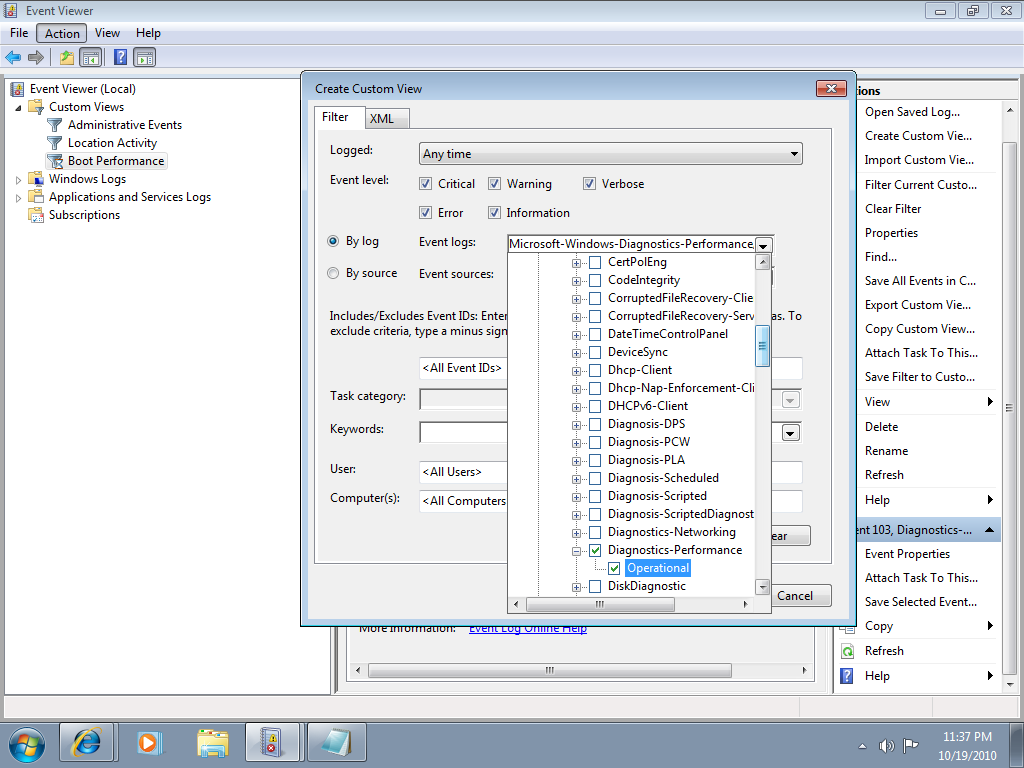
When you get to the Diagnostics-Performance branch, select the Operational check box.

To continue, type 100 in the Includes/Excludes Event IDs box, as shown in Figure B, and then click OK.

Figure B
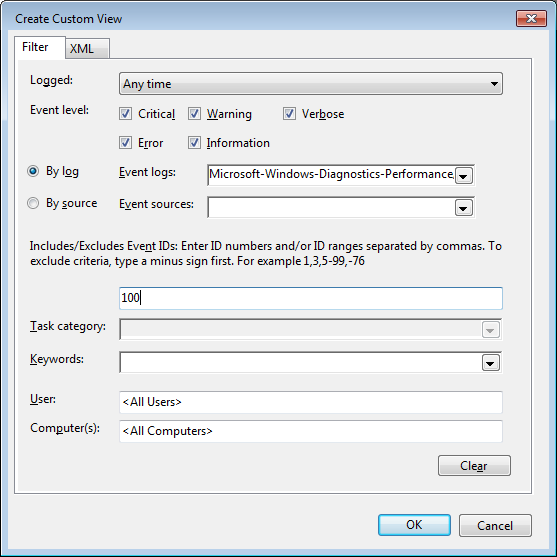
Event ID 100 records how long it takes to boot up your system.

When you see the Save Filter to Custom View dialog box, enter a name, as shown in Figure C, and click OK.

Figure C
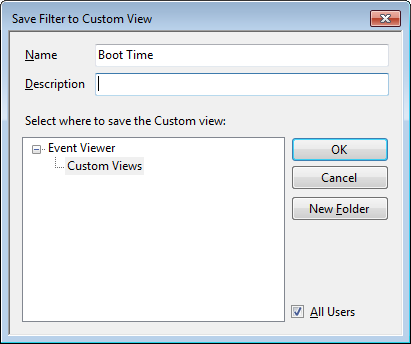
To save the filter as a Custom View, simply provide an appropriate name, such as Boot Time.

You’ll now repeat these steps and create another Custom View, and this time, you’ll type 101-110 in the Includes/Excludes Event IDs box and name it Boot Degradation.

Investigating Boot Time

To investigate your Windows 7 system’s boot time, select Boot Time in the Custom Views tree and then sort the Date and Time column in ascending order. When you do, you’ll see a complete history of every time you have booted your system since the day you installed Windows 7. In Figure D, you can see that we have hidden the Console Tree and the Action Pane to focus on the events.

Figure D
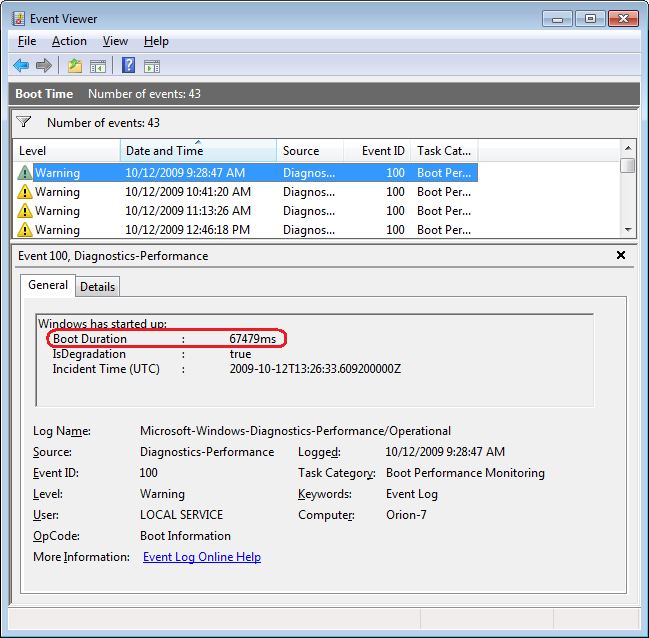
By sorting the Date and Time column in ascending order, you’ll see a complete history of every time you have booted your system since the day you installed Windows 7.

As you can see, the first recorded Boot Time on my sample system was 67479 milliseconds in October 2009. Dividing by 1,000 tells me that it took around 67 seconds to boot up. Of course, this was the first time, and a lot was going on right after installation. For example, drivers were being installed, startup programs were being initialized, and the SuperFetch cache was being built. By December 2009 the average boot time was around 37 seconds.

In any case, by using the Boot Time Custom View, you can scroll through every boot time recorded on your system. Of course, keep in mind that there will be normal occurrences that may lengthen the boot time, such as when updates, drivers, and software is installed.

Now, if you click the Details tab, you’ll see the entire boot process broken down in an incredible amount of detail, as shown in Figure E. (You can find more information about the boot process in the “Windows On/Off Transition Performance Analysis” white paper.) However, for the purposes of tracking the boot time, we can focus on just three of the values listed on the Details tab.

Figure E
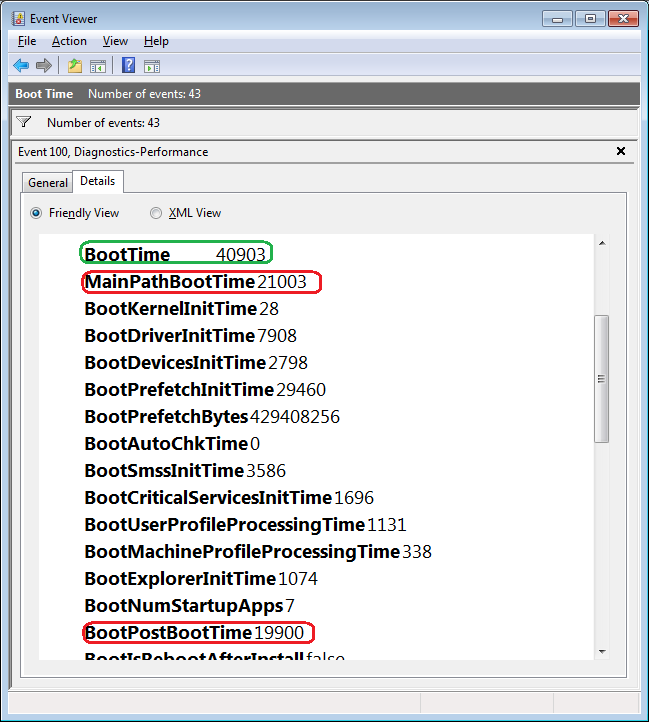
The Details tab contains an incredible amount of detail on the boot time.

MainPathBootTime

MainPathBootTime represents the amount of time that elapses between the time the animated Windows logo first appears on the screen and the time that the desktop appears. Keep in mind that even though the system is usable at this point, Windows is still working in the background loading low-priority tasks.

BootPostBootTime

BootPostBootTime represents the amount of time that elapses between the time that the desktop appears and the time that you can actually begin using the system.

BootTime

Of course, BootTime is the same value that on the General tab is called Boot Duration. This number is the sum of MainPathBootTime and BootPostBootTime. Something that we didn’t tell you before is that Microsoft indicates that your actual boot time is about 10 seconds less that the recorded BootTime. The reason is that it usually takes about 10 seconds for the system to reach an 80-percent idle measurement at which time the BootPostBootTime measurement is recorded.

Investigating Boot Degradation

To investigate instances that cause Windows 7 system’s boot time to slow down, select Boot Degradation in the Custom Views tree and then sort Event ID column in ascending order. Each Event ID, 101 through 110, represents a different type of situation that causes degradation of the boot time.

While there are ten different Event IDs here, not all of them occur on all systems and under all circumstances. As such, I’ll focus on the most common ones that we have encountered and explain some possible solutions.

Event ID 101

Event ID 101 indicates that an application took longer than usual to start up. This is typically the result of an update of some sort. As you can see in Figure F, the AVG Resident Shield Service took longer than usual to start up right after an update to the virus database. If you look at the details, you can see that it took about 15 seconds for the application to load (Total Time), and that is about 9 seconds longer than it normally takes (Degradation Time).

Figure F
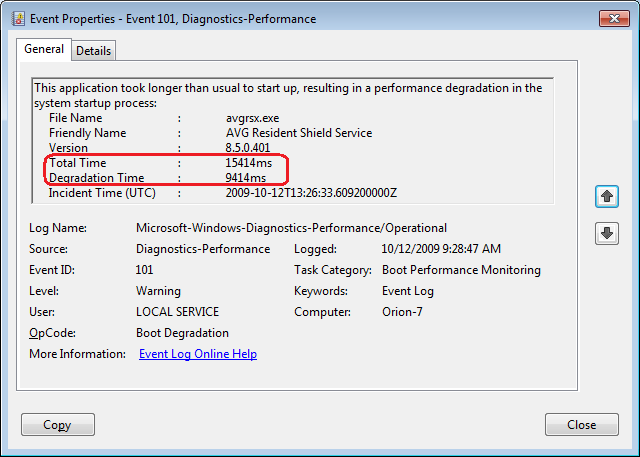
Event ID 101 indicates that an application took longer than usual to start up.

An occasional degradation is pretty normal; however, if you find that a particular application is being reported on a regular basis or has a large degradation time, chances are that there is a problem of some sort. As such, you may want to look for an updated version, uninstall and reinstall the application, uninstall and stop using the application, or maybe find an alternative.

(In the case of my friend’s Windows 7 system, there were several applications that were identified by Event ID 101 as the cause of his system slowdown. Uninstalling them was the solution, and he is currently seeking alternatives.)

Event ID 102

Event ID 102 indicates that a driver took longer to initialize. Again, this could be the result of an update. However, if it occurs regularly for a certain driver or has a large degradation time, you should definitely look in to a newer version of the driver. If a new version is not available, you should uninstall and reinstall the driver.

Event ID 103

Event ID 103 indicates that a service took longer than expected to start up, as shown in Figure G.

Figure G
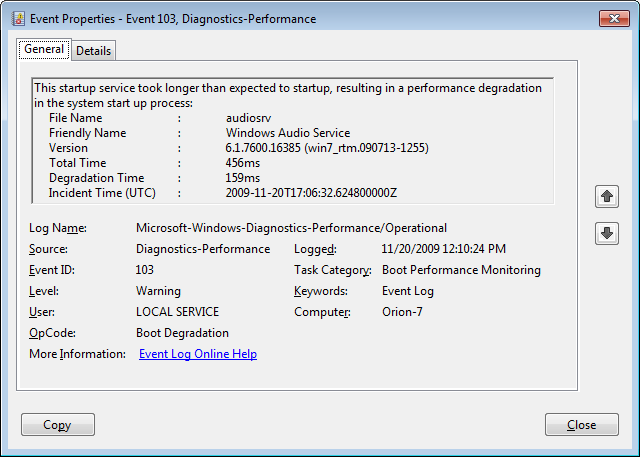
Event ID 103 indicates that a service took longer than expected to start up.

Services can occasionally take longer to start up, but they shouldn’t do so on a regular basis. If you encounter a service that is regularly having problems, you can go to the Services tool and experiment with changing the Startup type to Automatic (Delayed Start) or Manual.

Event ID 106

Event ID 106 indicates that a background optimization operation took longer to complete. On all the Windows 7 systems that we investigated, this event identified the BackgroundPrefetchTime as the culprit, as shown in Figure H. Since the Prefetch cache is a work in progress, this should not really represent a problem.

Figure H
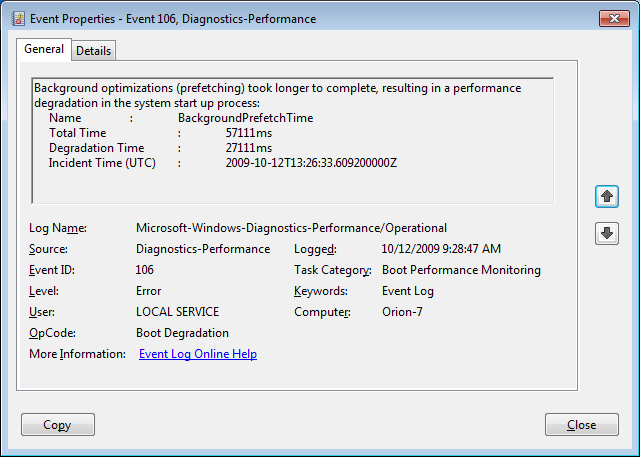
Event ID 106 indicates that a background optimization operation took longer to complete.

If you encounter regular or long degradation times related to Prefetch, you may want to investigate clearing this cache and allowing the operating system to rebuild it from scratch. However bear in mind that doing so can be tricky and instructions on doing so are beyond the scope of this article.

Event ID 109

Event ID 109 indicates that a device took longer to initialize. Again, if this is happening occasionally, there shouldn’t be anything to worry about. But if it is occurring regularly, you should make sure that you regularly back up your hard disk and begin investigating replacing the device in question.

Have questions?

Get answers from Microsofts Cloud Solutions Partner!
Call us at: 856-745-9990 or visit: https://southjerseytechies.net/

South Jersey Techies, LL C is a full Managed Web and Technology Services Company providing IT Services, Website Design Services, Server Support, Network Consulting, Internet Phones, Cloud Solutions Provider and much more. Contact for More Information.

To read this article in its entirety click here.

New Website Design – Chen Gray Law Group, LLC

The Website Design team of South Jersey Techies has been constantly working on developing great looking websites using the latest web technologies. The most recent website developed by our team is for an Immigration Law Firm in South Jersey, Chen Gray Law Group LLC

Chen Gray Law Group provides services in all aspects of immigration issues, including non-immigrant and immigrant visa processing; PERM/Labor Certification cases; EB-1 extraordinary individuals with abilities in the arts, sciences, athletics or business; multinational executives; naturalization; waivers; and exchange visitors – to name a few categories. The Chen Gray Law Group is located in Marlton, NJ, is a minority-owned boutique immigration law firm. Firm clients include health care employers and employees, global corporations and local companies, professional athletes, opera stars, high net worth investors, golf courses and resorts along with nonprofit organizations – including temples and shrines across the U.S.


Have questions?

Our Web Design team is here to help
Call us at: 856-745-9990 or visit: https://southjerseytechies.net

South Jersey Techies, LLC is a full Managed Web and IT Services Company located in Marlton, NJ providing IT Services, Managed IT Services, Website Design Services, Server Support, IT Consulting, VoIP Phones, Cloud Solutions Provider and much more. Contact Us Today.

CALL US NOW!