Back to Top

Tech, Web, Cloud & Cabling Services

Category: Tips & Info

Tips & Info Category

Microsoft announced Attack Simulator for Office 365 Threat Intelligence


Admins can send simulated phishing and attack emails to find security and training weaknesses.

A few weeks ago, Microsoft released a public preview for Attack Simulator for Office 365 Threat Intelligence. On April 17th Microsoft announced that Attack Simulator is now generally available. Attack Simulator for Office 365 Threat Intelligence is available to all Office 365 E5 or Office 365 Threat Intelligence customers.

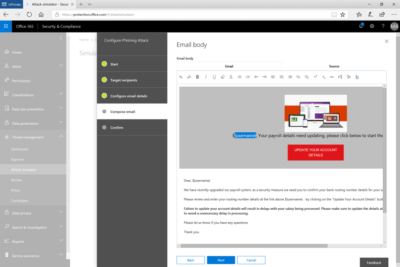
With Attack Simulator, customers can launch simulated attacks on their end users, determine how end users behave in the event of an attack, and update policies and ensure that appropriate security tools are in place to protect the organization from threats.  The GA of Attack Simulator adds a new HTML editor so realistic looking HTML emails can be sent in simulations of spear-phishing.  Also, two spear-phishing templates are available for immediate use in the spear phishing simulation.

Attack Simulator includes the three attack scenarios from our public preview.

Display Name Spear Phishing Attack: Phishing is the generic term for socially engineered attacks designed to harvest credentials or personally identifiable information (PII). Spear phishing is a subset of this phishing and is more targeted, often aimed at a specific group, individual, or organization.  These attacks are customized and tend to leverage a sender name that generates trust with the recipient.

Password Spray Attack: To prevent bad actors from constantly guessing the passwords of user accounts, often there are account lockout policies.  For example, an account will lockout after a certain number of bad passwords are guessed for a user.  However, if you were to take a single password and try it against every single account in an organization, it would not trigger any lockouts.  The password spray attack leverages commonly used passwords and targets many accounts in an organization with the hope that one of the account holder uses a common password that allows a hacker to enter the account and take control of it.  From this compromised account, a hacker can launch more attacks by assuming the identity of account holder.

Brute Force Password Attack: This type of attack consists of a hacker trying many passwords or passphrases with the hope of eventually guessing correctly. The attacker systematically checks all possible passwords and passphrases until the correct one is found.


This video demonstrates how Attack Simulator can help organizations educate users to become more secure from cyber threats.  With Attack Simulator, admins can train all their end users, and especially those who are attacked most often.  This proactive training is a powerful way to ensure that your organization can prevent the impact from advanced threats.  Over the coming months, more threat simulations will be added to Attack Simulator so organizations can simulate the most prevalent threat types from the modern threat landscape.

Experience the benefits of Attack Simulator for Office 365 Threat Intelligence by beginning an Office 365 E5 trial today.  Also, learn more about how Microsoft leverages threat intelligence and the value of threat intelligence.

Quick Tips: Flush the ARP cache in Windows 7

Here’s how to clear the Address Resolution Protocol cache and how to manage that cache with a few command switches.

The Address Resolution Protocol (ARP) cache is a crucial component of IP networking on any operating system. What ARP does is link Ethernet addressing (IP addressing) to hardware addressing (MAC addressing). Without this system, a machine could not communicate to the outside world as one addressing scheme could not communicate with the other.

The ARP Cache is a collection of ARP entries (mostly dynamic) that are created when a hostname is resolved to an IP address and then an IP address is resolved to a MAC address (so the computer can effectively communicate with the IP address).

When this happens, the PC will store that newly mapped address in the ARP cache, and it will stay there until the ARP cache entry timeout expires. This isn’t usually a problem, but sometimes a bad ARP entry can cause issues with Internet connections and Web page loading. When this occurs, one step that can be taken toward resolution is to clear the ARP cache. Yes, this means the ARP cache has to be rebuilt, which means a little more work for the PC, but that cache will rebuild fairly quickly.

Clearing the ARP cache is done completely through the command line, so stretch out those fingers and get ready to type. After we show you how to clear the ARP cache, we will show you how to manage that cache with a few command switches.

Flush the cache

Step 1: Open the command prompt

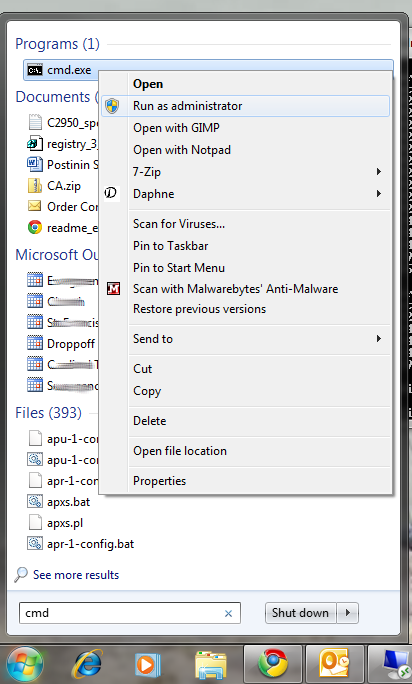
Click Start and then type “cmd” (no quotes) in the search dialog box, but don’t hit Enter yet. Right-click the cmd.exe icon and select Run as Administrator (Figure A). After answering the UAC, the terminal window will open offering up the command prompt.

Figure A

If the icon is already pinned in the Start menu, entering cmd is not necessary.

Step 2: Run the commands

The first command to run is

arp -a

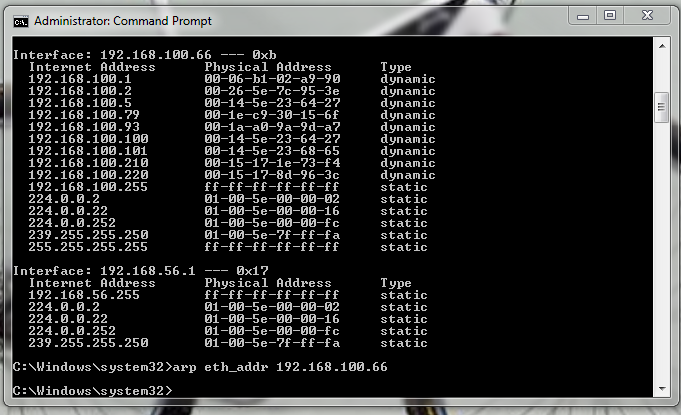
This command will display all your ARP entries (Figure B). Naturally the -a option is not the only option available. The arp command also allows for the following switches:

-d Delete an IP address (arp -d 192.168.100.10)
-d -a Delete all entries in the ARP table
-s Add an entry to the ARP table (arp -s ADDRESS MAC_ADDRESS – Where ADDRESS is the address to be added and MAC_ADDRESS is the MAC address of the machine)

Figure B

Here you see the arp cache for two different interfaces on a single machine.

To flush the entire cache, issue the following command:

netsh interface ip delete arpcache

The above command will flush the entire ARP cache on your system. Now as soon as network connections are made, the ARP cache will begin to repopulate.

Verify the flush

Once you have flushed the ARP cache, make sure to issue the command arp -a to see if the cache has, in fact, been flushed. If it does not flush, it could be the system is a victim of a Windows bug caused when Routing and Remote Services is enabled. This is a simple bug to fix:

1.           Click Start | Control Panel.

2.           Click Administrative Tools.

3.           Click Computer Management.

4.           Double-click Services and Applications.

5.           Double-click Services.

6.           Scroll down to Routing and Remote Services.

7.           Double-click Routing and Remote Services.

8.           Set the Startup Type to Disable.

9.           Make sure the service is stopped.

Now try flushing the ARP cache again. It should work this time.

Troubleshooting

It is also possible to troubleshoot network connections using the ARP cache. For example, it is important to look out for invalid ARP entries that go to a MAC address of 00-00-00-00-00-00. If one such entry shows up, make sure to delete it from the cache using the -d switch. Say you have an ARP entry that looks like:

224.0.0.24           00-00-00-00-00-00 static

In order to delete this entry, use the arp command like so:

arp -d 224.0.0.24

And that invalid entry will be gone.

Final thoughts

There are so many ways to troubleshoot networking connections. Flushing the ARP cache is just one of those methods that is rarely thought of, but when all else fails this might be the last-gasp effort that makes you the hero of the day.

Have questions?

Get answers from Microsofts Cloud Solutions Partner!
Call us at: 856-745-9990 or visit: https://southjerseytechies.net/

South Jersey Techies, LL C is a full Managed Web and Technology Services Company providing IT Services, Website Design ServicesServer SupportNetwork ConsultingInternet PhonesCloud Solutions Provider and much more. Contact for More Information.

To read this article in its entirety click here.
Windows 10 hack: How to beef up your jump lists to show more pinned items

The Windows 10 jump lists feature offers a convenient way to start your apps–but there’s no easy way to increase the size of the list. Here’s a hack for that.

giphy

Microsoft Windows 10 gives users several choices when it comes to how and where to start their applications. Some people use the desktop exclusively and some swear by the Start Menu, while others, prefer the pinned lists that hang off the icons on the Taskbar.

However, there is one small problem with the Taskbar pinned list in Windows 10—by default, there is a 12-slot limit.

Windows 7 allowed users to extend that number with a simple change to a configuration setting. But that feature is currently missing in Windows 10 for reasons no one has been able to explain. The workaround involves editing the Windows Registry file.

Standard disclaimer: Incorrectly editing the Windows Registry file could break your computer. Create a Restore Point before making any changes.

Jump listItems

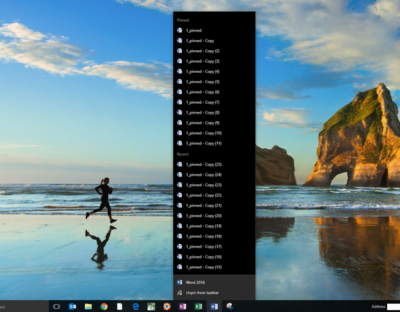
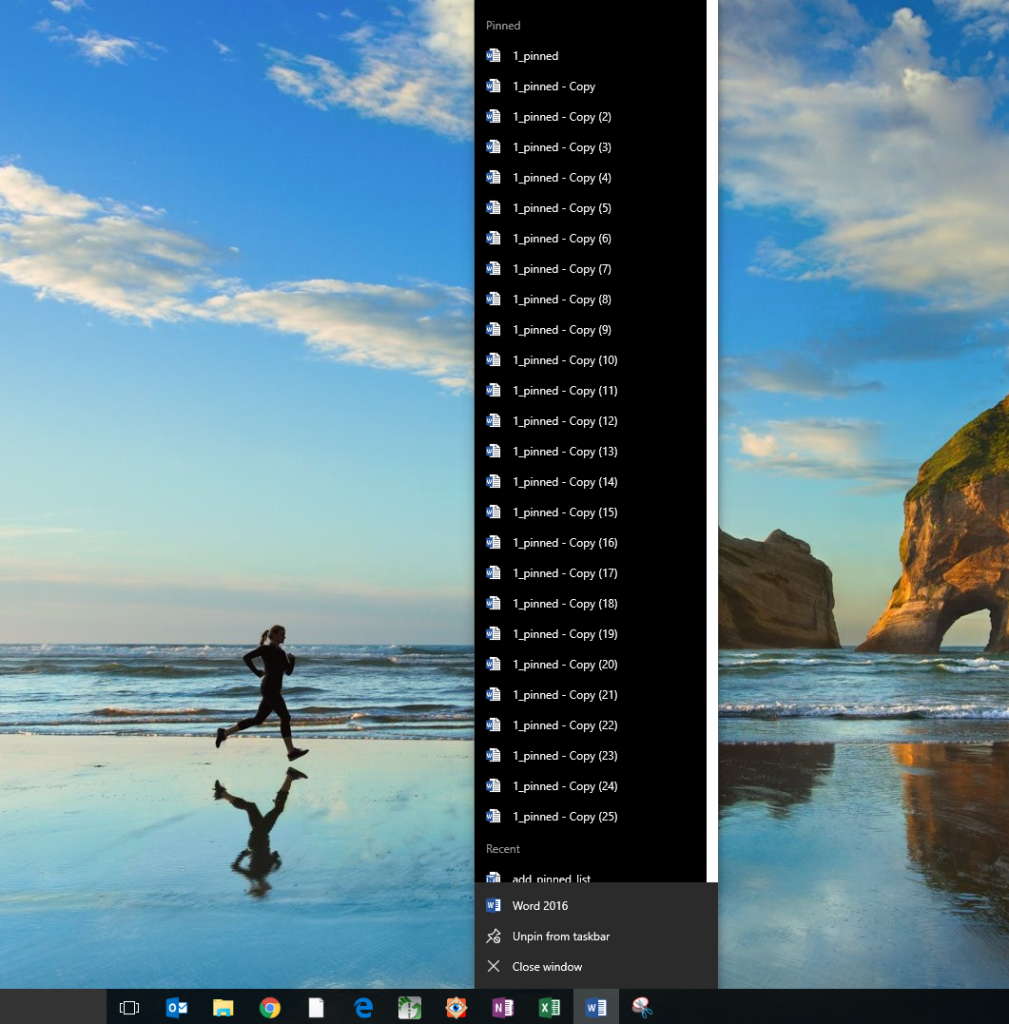
Figure A shows an example of the default jump list hanging off the Word icon in a typical Windows 10 Taskbar. Note that there are 26 copies of the example file, but only 12 are listed in the pinned section. This is despite the fact that I have actually pinned them all, which is why the Recent section is fully populated.

Figure A

addpinnedlist

To increase the number of pinned items displayed, we’ll have to change the maximum number of jump list items associated with a particular key in the Windows Registry file.

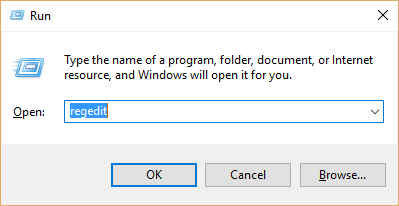
Press Windows key + R or right-click the Start Menu icon and navigate to the Run command to open the Run prompt (Figure B). Type regedit into the box and click OK.

Figure B

addpinnedlist1

Navigate to this set of keys in the Windows Registry:

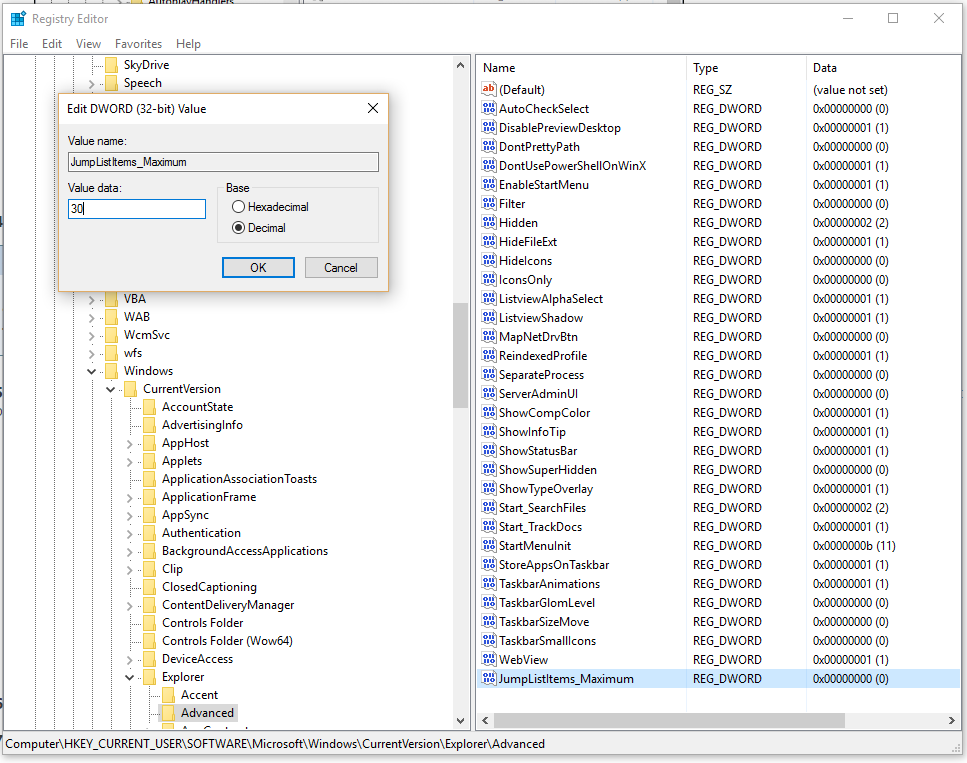
HKEY_CURRENT_USER\SOFTWARE\Microsoft\Windows\CurrentVersion\Explorer\Advanced

Look through the list in the right-hand pane until you find this DWORD: JumpListItems_Maximum

In case, the JumpListItems_Maximum DWORD is not there, create it.

Right-click the JumpListItems_Maximum DWORD and select Modify. Click the Decimal radio button and change the number to a value that works for you. As you can see in (Figure C).

Figure C

addpinnedlist2

To complete the change, you may need to restart your computer. You should now be able to see the number of pinned items you specified (Figure D).

Figure D

addpinnedlist4

Have questions?

Get answers from Microsofts Cloud Solutions Partner!
Call us at: 856-745-9990 or visit: https://southjerseytechies.net/

South Jersey Techies, LL C is a full Managed Web and Technology Services Company providing IT Services, Website Design ServicesServer SupportNetwork ConsultingInternet PhonesCloud Solutions Provider and much more. Contact for More Information.

To read this article in its entirety click here.
The best new features coming to Microsoft’s latest OS: Windows 10

Windows10

Microsoft continues to build out Windows 10 – with a bumper crop of new features announced at its Build conference last week.

These enhancements will be pushed to to Windows 10 users over the coming months, with many arriving in summer when the OS will get a major upgrade dubbed the Windows 10 Anniversary Edition.

Here are the key upgrades heading to Windows 10.

The write stuff

ink-SJTechies

Using a digital pen to write and scribble on the screen of Windows 10 PCs and tablets will get easier.

In a boost to devices that support such pens, such as the Microsoft’s Surface tablet, the OS’ new Windows Ink feature will allow users to jot down notes on the screen without unlocking the device.

Windows Ink will also allow users to write messages on sticky notes and, if appropriate, have them automatically translated into calendar appointments and reminders.

Support for Windows Ink in Microsoft Office, Maps, the Edge browser and other apps will allow users to draw, write and annotate using their pen. Windows Ink will make using the pen in Office more satisfying than it currently is, for example tidying up highlighted marks on documents so they neatly align with text.

Windows 10 will also gain the Ink Workspace, a hub for launching apps that support writing and sketching using the Surface Pen.

Ink everywhere

win10-inking-SJTechies

Support for drawing, writing and annotating using digital pens will likely come to many apps.

Microsoft says that support for Microsoft Ink will be easily added to Universal Windows Platform apps, requiring just two lines of XAML code.

Digital ruler

win10-ruler-SJTechies

It sounds simple, but the new on-screen ruler should prove to be a useful addition for those who want to draw straight lines using a digital pen.

Smarter Cortana

cortana-SJTechies

The attraction of a virtual assistant is the simplicity with which they allow you to carry out tasks.

To ease the process of using Windows 10’s Cortana, the voice-controlled assistant will no longer require you to log into Windows, with users able to make a note, play music or set a reminder from the lock screen.

Cortana will also become more proactive and make suggestions based on a user’s past behaviour – offering to order lunch or to arrange transportation.

More apps will also be able to use Cortana to automatically complete tasks for users or to carry out actions based on context, such as the user’s current location or time of day.

Windows Hello comes to apps and the web

hello-SJTechies

Windows 10 already lets you log into the OS using your face.

The anniversary edition will extend this biometric log-in to Windows apps and websites via Microsoft Edge. As with the OS, users will be able to authenticate their identity using a facial, iris or fingerprint scan.

Another new feature will allow users to unlock a PC running Windows 10 Enterprise Edition by tapping a Windows Hello-enabled phone, although Microsoft has said the feature will only be available on “select premium phones”.

Android app notifications on Windows 10

android-SJTechies

In future, notifications on Android devices will be able to show on Windows 10 PCs.

Any notification popping up on the Android notification panel can, via the Cortana Android app, also appear as a notification on a linked Windows 10 desktop.

Microsoft demoed the ability at its recent Build conference for developers.

Browser extensions

extensions-SJTechies

Microsoft’s Edge browser will soon gain support for extensions.

Extensions are small programs that can be downloaded to add new functionality to a browser, and are already found in Chrome, Firefox and other browsers today.

Support for extensions has already been added to Edge for those testing pre-release builds of Windows 10 under the Insider program.

The first extensions to be supported by Edge are Microsoft Translator, an extension that automatically translates pages in over 50 different languages, an extension to augment mouse gestures support, and a preview version of the Reddit Enhancement Suite.

Microsoft promises more extensions will be added later this year, including AdBlock, LastPass and Evernote.

Pinned browser tabs

pinned-tabs-SJTechies

Microsoft is also adding to Edge the ability to pin your favorite sites and web apps so they always have a tab open in the browser.

Updated Maps app

maps-app-pc-SJTechies

The Maps app has several new features, as well as UI and performance improvements.

Additions include one-tap access to search and directions, the ability to view multiple searches and directions at the same time, labels for search results on the map and turn-by-turn directions read by Cortana.

The improved app is available now to those testing Windows 10 under the Insider program.

Access Linux command-line tools in Windows

bash-win10-SJTechies

More one for developers, Microsoft is also bringing the ability to run the Bash shell to Windows.

The Bash shell is a command line interpreter that is available on many different Linux distributions, as well as Mac OS X.

The shell includes a host of tools that allow power users to carry out and orchestrate complex chains of commands.

Bash will be available via a Universal Windows Platform app, which will provide an image of the Linux distribution Ubuntu and run on the Windows 10 desktop.

Users will be able to use the Bash shell to download and install programs from the command line, as they do from inside Ubuntu. Microsoft says Ubuntu software will run as fast in the Windows app as it does natively, thanks to a software subsystem for handling Linux system calls.

Microsoft has described the app as offering a developer toolset. While it has access to the files on the Windows PC, the app only provides access to a command line — not a graphical desktop — and reportedly has limits on what it can be used for, such as not being able to run a server.

Have questions?

Get answers from Microsofts Cloud Solutions Partner!
Call us at: 856-745-9990 or visit: https://southjerseytechies.net/

South Jersey Techies, LL C is a full Managed Web and Technology Services Company providing IT Services, Website Design ServicesServer SupportNetwork ConsultingInternet PhonesCloud Solutions Provider and much more. Contact for More Information.

To read this article in its entirety click here.
Wi-Fi-enabled ‘Hello Barbie’ records conversations with kids and uses AI to talk back

Today, Mattel released Hello Barbie, a WiFi-enabled doll that detects language and ‘talks back.’ But how will this high-tech toy impact real-life relationships?

Hello-barbie

She wears black flats, a motorcycle jacket, and skinny jeans. Her curly, bleach-blonde hair falls just past her shoulders. She has a permanent smile and large blue eyes. And, when you talk to her, she listens.

But this young woman isn’t an ordinary friend. “Hello Barbie” is less than a foot tall, weighs just under two pounds, and is made of plastic. And she is on sale for $74.99.

Mattel’s latest Barbie, marketed for children six and up, has just hit the shelves. She is unlike any doll before her—not only does she listen, but she can talk back.

To get started, kids simply download the Hello Barbie companion app. And to turn her on, you push a button on her silver belt buckle. Hello Barbie’s necklace is both a recorder and a microphone. Using WiFi, the jewelry will pick up a child’s questions and conversations—and transmit them back to a control center for processing. Speech-recognition software, operated through ToyTalk, will detect the input. Then, Hello Barbie will reply, using one of 8,000 pre-programmed lines. Examples include:

  • You know, I really appreciate my friends who have a completely unique sense of style…like you!
  • Here’s what’s up: I’m worried my sister Stacie is having a hard time finishing her homework. Does that ever happen to you?
  • I think Santa is real. There’s something very magical about the holiday season and I think he helps bring that magic to all of us!
  • So if you were planning the biggest, raddest, most unforgettable party of the year, what would it be like?
  • Of course we’re friends! Actually, you’re one of my best friends. I feel like we could talk about anything!

Hello Barbie’s dialogue, while perky and fashion-focused, reflects an attempt by Mattel to create a more well-rounded character than in the past. In 1992, Mattel pulled its string-operated Teen Talk Barbie from shelves after being criticized by The American Association of University Women for the inclusion of an unfortunate line: “math class is tough.” It is no mistake that Hello Barbie’s lines includes: “Oh nice! Fun with numbers! Teaching math sounds like a lot of fun. What kinds of things would you teach—Counting? Addition? Subtraction?”

Still, the implication that Barbie is being sold as a ‘friend’ is unsettling. “Hello Barbie can interact uniquely with each child by holding conversations, playing games, sharing stories, and even telling jokes!” boasts Mattel’s website. Hello Barbie, claims Mattel, is “Just like a real friend. [She] listens and remembers the user’s likes and dislikes, giving everyone their own unique experience.”

But is she really listening?

While Barbie may appear to listen and respond, “pretend empathy is not empathy,” said Sherry Turkle, professor at MIT and author of Reclaiming Conversation. Turkle worries about how children will understand their new ‘friend.’

“They are drawn into thinking that pretend empathy is the real thing,” said Turkle. “But objects that have not known the arc of a human life have no empathy to give. We put our children in a compromised position.”

Beyond the social implications of the doll, the capabilities of the recording technology raise privacy issues.

Using Hello Barbie involves recording voice data (see the privacy policy here) and requires parental consent. However, Mattel states that “parents and guardians are in control of their child’s data and can manage this data through the ToyTalk account.” The company also states that the recordings are protected under the “Children’s Online Privacy Protection Act,” and recordings containing personal information will be deleted once they “become aware of it.”

Still, the potential for misuse of this private data is a legitimate concern. “Obviously it is a security and privacy nightmare,” said Roman Yampolskiy, director of the Cybersecurity Lab at the University of Louisville. “[The] company [is] collecting data from kids—hackers [could be] getting access to private info.”

However, like Turkle, Yampolskiy is “more concerned about social development of the children interacting with it.”

“We are basically running an experiment on our kids and have no idea if it will make them socially awkward, incapable of understanding body language, tone of voice and properly empathize with others,” he said.

It all raises the question of what is meant, exactly by ‘real’ conversation? Turkle said, “Why would we take such risks with something so delicate, so crucial: Our children’s ability to relate to each other as human beings?”

Despite concerns, Hello Barbie is here, being shipped to homes across the globe beginning today. She is being turned on, spoken to, and listened to. And when children are finished with her, she is shut down, stood on a charger (Hello Barbie cannot stand on her own) and charged back up.

When she is turned on again, Barbie might ask: “Did you miss me at all?”

“Not even an itsy bitsy, eensy weensy bit?”

How children will respond remains to be seen.

Mattel did not respond to repeated requests for comment for this story.

Have questions?

Get help from IT Experts/Microsofts Cloud Solutions Partner
Call us at: 856-745-9990 or visit: https://southjerseytechies.net/

South Jersey Techies, LLC is a full Managed Web and Technology Services Company providing IT Services, Website Design ServicesServer SupportNetwork ConsultingInternet PhonesCloud Solutions Provider and much more. Contact for More Information.

To read this article in its entirety click here.
Use Windows 7 Event Viewer to track down issues that cause slower boot times

Here’s how to use some of the new features in Windows 7’s Event Viewer to investigate a slow boot time.

Overview

Windows 7’s Event Viewer includes a new category of event logs called Applications and Services Logs, which includes a whole host of subcategories that track key elements of the operating system. The majority of these subcategories contain an event log type called Operational that is designed to track events that can be used for analyzing and diagnosing problems. (Other event log types that can be found in these subcategories are Admin, Analytic, and Debug; however, describing them is beyond the scope of this article.)

Now, within the operating system section is a subcategory titled Diagnostic-Performance with an Operational log that contains a set of a Task Category called Boot Performance Monitoring. The Event IDs in this category are 100 through 110. By investigating all the Event ID 100 events, you will be able to find out exactly how long it took to boot up your system every time since the day you installed Windows 7. By investigating all the Event ID 101 thru 110 events, you will be able to identify all instances where boot time slowed down.

Getting started

You can find and launch Event Viewer by opening the Control Panel, accessing the System and Security category, selecting the Administrative Tools item, and double-clicking the Event Viewer icon. However, you can also simply click the Start button, type Event in the Start Search box, and press Enter once Event Viewer appears and the top of the results display.

Creating a Custom View

Once you have Event Viewer up and running, you can, of course, drill down through the Applications and Services Logs and locate the Diagnostic-Performance Operational log and begin manually looking through the events recorded in the log. However, you can save yourself time and energy by taking advantage of the new Custom View feature, which is essentially a filter that you can create and save.

To do so, pull down the Action menu and select the Create Custom View command. When you see the Create Custom View dialog box, leave the Logged option set at the default value of Any Time and select all the Event level check boxes. Next, select the By Log option button, if it is not already selected, and click the dropdown arrow. Then, drill down through the tree following the path: Applications and Services Logs | Microsoft | Windows | Diagnostics-Performance. When you open the Diagnostics-Performance branch, select the Operational check box, as shown in Figure A.

Figure A

When you get to the Diagnostics-Performance branch, select the Operational check box.

To continue, type 100 in the Includes/Excludes Event IDs box, as shown in Figure B, and then click OK.

Figure B

Event ID 100 records how long it takes to boot up your system.

When you see the Save Filter to Custom View dialog box, enter a name, as shown in Figure C, and click OK.

Figure C

To save the filter as a Custom View, simply provide an appropriate name, such as Boot Time.

You’ll now repeat these steps and create another Custom View, and this time, you’ll type 101-110 in the Includes/Excludes Event IDs box and name it Boot Degradation.

Investigating Boot Time

To investigate your Windows 7 system’s boot time, select Boot Time in the Custom Views tree and then sort the Date and Time column in ascending order. When you do, you’ll see a complete history of every time you have booted your system since the day you installed Windows 7. In Figure D, you can see that we have hidden the Console Tree and the Action Pane to focus on the events.

Figure D

By sorting the Date and Time column in ascending order, you’ll see a complete history of every time you have booted your system since the day you installed Windows 7.

As you can see, the first recorded Boot Time on my sample system was 67479 milliseconds in October 2009. Dividing by 1,000 tells me that it took around 67 seconds to boot up. Of course, this was the first time, and a lot was going on right after installation. For example, drivers were being installed, startup programs were being initialized, and the SuperFetch cache was being built. By December 2009 the average boot time was around 37 seconds.

In any case, by using the Boot Time Custom View, you can scroll through every boot time recorded on your system. Of course, keep in mind that there will be normal occurrences that may lengthen the boot time, such as when updates, drivers, and software is installed.

Now, if you click the Details tab, you’ll see the entire boot process broken down in an incredible amount of detail, as shown in Figure E. (You can find more information about the boot process in the “Windows On/Off Transition Performance Analysis” white paper.) However, for the purposes of tracking the boot time, we can focus on just three of the values listed on the Details tab.

Figure E

The Details tab contains an incredible amount of detail on the boot time.

MainPathBootTime

MainPathBootTime represents the amount of time that elapses between the time the animated Windows logo first appears on the screen and the time that the desktop appears. Keep in mind that even though the system is usable at this point, Windows is still working in the background loading low-priority tasks.

BootPostBootTime

BootPostBootTime represents the amount of time that elapses between the time that the desktop appears and the time that you can actually begin using the system.

BootTime

Of course, BootTime is the same value that on the General tab is called Boot Duration. This number is the sum of MainPathBootTime and BootPostBootTime. Something that we didn’t tell you before is that Microsoft indicates that your actual boot time is about 10 seconds less that the recorded BootTime. The reason is that it usually takes about 10 seconds for the system to reach an 80-percent idle measurement at which time the BootPostBootTime measurement is recorded.

Investigating Boot Degradation

To investigate instances that cause Windows 7 system’s boot time to slow down, select Boot Degradation in the Custom Views tree and then sort Event ID column in ascending order. Each Event ID, 101 through 110, represents a different type of situation that causes degradation of the boot time.

While there are ten different Event IDs here, not all of them occur on all systems and under all circumstances. As such, I’ll focus on the most common ones that we have encountered and explain some possible solutions.

Event ID 101

Event ID 101 indicates that an application took longer than usual to start up. This is typically the result of an update of some sort. As you can see in Figure F, the AVG Resident Shield Service took longer than usual to start up right after an update to the virus database. If you look at the details, you can see that it took about 15 seconds for the application to load (Total Time), and that is about 9 seconds longer than it normally takes (Degradation Time).

Figure F

Event ID 101 indicates that an application took longer than usual to start up.

An occasional degradation is pretty normal; however, if you find that a particular application is being reported on a regular basis or has a large degradation time, chances are that there is a problem of some sort. As such, you may want to look for an updated version, uninstall and reinstall the application, uninstall and stop using the application, or maybe find an alternative.

(In the case of my friend’s Windows 7 system, there were several applications that were identified by Event ID 101 as the cause of his system slowdown. Uninstalling them was the solution, and he is currently seeking alternatives.)

Event ID 102

Event ID 102 indicates that a driver took longer to initialize. Again, this could be the result of an update. However, if it occurs regularly for a certain driver or has a large degradation time, you should definitely look in to a newer version of the driver. If a new version is not available, you should uninstall and reinstall the driver.

Event ID 103

Event ID 103 indicates that a service took longer than expected to start up, as shown in Figure G.

Figure G

Event ID 103 indicates that a service took longer than expected to start up.

Services can occasionally take longer to start up, but they shouldn’t do so on a regular basis. If you encounter a service that is regularly having problems, you can go to the Services tool and experiment with changing the Startup type to Automatic (Delayed Start) or Manual.

Event ID 106

Event ID 106 indicates that a background optimization operation took longer to complete. On all the Windows 7 systems that we investigated, this event identified the BackgroundPrefetchTime as the culprit, as shown in Figure H. Since the Prefetch cache is a work in progress, this should not really represent a problem.

Figure H

Event ID 106 indicates that a background optimization operation took longer to complete.

If you encounter regular or long degradation times related to Prefetch, you may want to investigate clearing this cache and allowing the operating system to rebuild it from scratch. However bear in mind that doing so can be tricky and instructions on doing so are beyond the scope of this article.

Event ID 109

Event ID 109 indicates that a device took longer to initialize. Again, if this is happening occasionally, there shouldn’t be anything to worry about. But if it is occurring regularly, you should make sure that you regularly back up your hard disk and begin investigating replacing the device in question.

Have questions?

Get answers from Microsofts Cloud Solutions Partner!
Call us at: 856-745-9990 or visit: https://southjerseytechies.net/

South Jersey Techies, LL C is a full Managed Web and Technology Services Company providing IT Services, Website Design ServicesServer SupportNetwork ConsultingInternet PhonesCloud Solutions Provider and much more. Contact for More Information.

To read this article in its entirety click here.
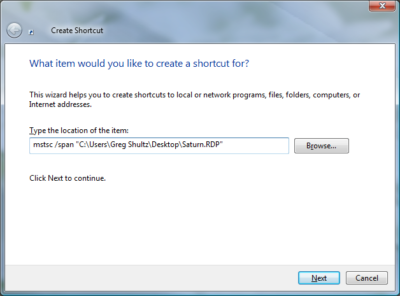
Modifying the Windows 7 boot loader with the Boot Configuration Data Editor tool

In Windows Vista and later versions of Windows, the bootloader was moved from boot.ini to a utility called BCDEdit. Here’s how to modify the boot config data with the new tool.

Sometimes dual-booting a system is a handy way to test new software, a new operating system, or an application that needs to be run in a specific version of Windows. Other reasons to dual-boot might include replication of a client environment.

Windows handles dual-booting by using boot.ini to display a menu of bootable choices or partitions found on the current system. In Windows Vista and later versions of Windows, the bootloader was moved from boot.ini to a utility called BCDEdit.

Recently, we decided we could make better use of some disk space that we had set aside to create a bootable VHD for Windows Server 2008 R2. There was no data other than the OS installation contained within the file because we had used it only to prepare a blog post about booting from Virtual Hard Disks. To free up the space, we deleted the VHD.

Note: Always make sure to back up any data that you want to keep before deleting or modifying partitions on VHDs. Your changes could make the partition unbootable.

Once we had the VHD removed, we thought Windows would be smart enough to clean up the boot loader, but we were not so lucky. We had Windows 7 set as the primary OS, so we were not without a system.

We started looking around for boot.ini and was directed toward the Boot Configuration Data Editor (BCDEdit) as the utility to use when editing boot loader information in Windows 7 (and in Vista too).

To begin, open the Start menu, select All Programs, and then choose Accessories. Right-click on Command Prompt and select Run As Administrator. Once in the command window, type bcdedit. This will return the current running configuration of your boot loader, showing any and all items that can boot on this system.

In this example, we decided to remove the entry for my Windows 2008 R2 installation, as we wouldn’t need it for the time being. To remove an entry, you will need to know the Boot Loader Identifier (found in curly braces in Figure A).

Figure A

we copied the whole list into Notepad and then selected and copied just the ID, braces included.

Removing an entry from the Boot Loader

One simple command got the Windows Server 2008 R2 entry out of the boot loader. At the command prompt, enter the following:

Bcdedit /delete {boot loader identifier}

Press Enter, and the Boot Configuration Data Editor (BCDEdit) will remove the entry for the ID you specified and display a message when finished. When Windows starts, the only choice available in the boot menu should be the current Windows installation.

Warning: Be careful when editing the boot configuration data. If you mistakenly remove the current instance of Windows, you may render your computer unbootable.

Have questions?

Get answers from Microsofts Cloud Solutions Partner!
Call us at: 856-745-9990 or visit: https://southjerseytechies.net/

South Jersey Techies, LL C is a full Managed Web and Technology Services Company providing IT Services, Website Design ServicesServer SupportNetwork ConsultingInternet PhonesCloud Solutions Provider and much more. Contact for More Information.

To read this article in its entirety click here.
Trump administration to move all federal IT into the cloud: Is it realistic?

US president Donald Trump recently signed an executive order on cyber-security that mandated federal systems move to the cloud. But, questions remain on the feasibility of that goal.

On Thursday, US President Donald Trump signed his long-awaited executive order on cyber-security, laying out his plans for addressing security in federal IT and across US infrastructure. The most ambitious mandate was that all federal IT systems move to the cloud.

President Trump’s homeland security adviser, Tom Bossert, said in a announcement that the government had spent too much time and money “protecting antiquated and outdated systems.” Bossert cited the Office of Personnel Management (OPM) hack as evidence of failing legacy systems.

Bossert said, “From this point forward, the President has issued a preference in federal procurement in federal IT for shared systems. We’ve got to move to the cloud and try to protect ourselves instead of fracturing our security posture.”

The executive order officially states: “Agency heads shall show preference in their procurement for shared IT services, to the extent permitted by law, including email, cloud, and cyber-security services.” It also calls for a report to be completed within 90 days describing the legal, budgetary, technical considerations for “shared IT services, including email, cloud, and cyber-security services,” along with a timeline for the initiatives and their potential cost-effectiveness.

Peter Tran, the senior director of worldwide advanced cyber defense practice at RSA and former US Department of Defense employee, said the anchor for the executive order will initially be the NIST Cybersecurity Framework (CSF), to both assess current risk gaps and determine a strategy moving forward. This will be the pacesetter by which all building blocks will either rise or fall specifically on the call to action to go cloud in an expedited manner…..security being a forethought,” Tran said.

However, the effectiveness of a move to the cloud to improve security among these federal systems remains up to debate. John Pironti, cyber-security expert and president of IP Architects, said that it could create a double-edged sword.

“The idea of standardization of security controls and capabilities through a cloud-only mandate in theory may make sense to establish an enhanced baseline for security, but at the same time creates a central target and common set of controls and capabilities that adversaries can then focus their attention on in order to be successful in their attacks,” Pironti said.

Following a central set of control standards and common technology platforms, combined with the centralized nature of the cloud, could actually make the federal IT systems weaker than their current iteration, Pironti said, which utilizes “distributed and varied computing assets and security controls.” And if hackers can find and exploit a weakness in this kind of system, it could lead to a bigger impact.

Pironti said that he believes the mandate will start out with the proper intentions, but if the affected government agencies simply follow the prescribed behaviors with no deviation, they may not be able to keep up with the changing threat landscape. While Pironti said that he’s in favor of accountability, he believes that the approach should be risk-based instead of mandated.

“I do not believe all agencies should be forced into a cloud model or required to follow the same set of prescriptive security controls,” Pironti said. “If an agency can prove that they are effectively operating in a reliable, available, and secure fashion then they should be allowed to continue to do so.”

Another question raised by the mandate is the feasibility of moving these systems to the cloud. Tran said that the executive order builds on an existing foundation, but the “proof is in the pudding.” The order, like other security plans, must be executed in a timely manner and show clear improvements in boosting security visibility and early threat detection, but it also must clearly show what “good” and “bad” security looks like in cloud infrastructure, Tran said.

“That’s really hard to do under an average planning and deployment timeline. Your compass needs to be ‘dead on,'” Tran said.

The impact of the executive order could also be seen in the private sector, Tran said, driving the growth of stronger policy, compliance, and governance around cybersecurity.

“The unique aspect of this current environment is security can’t effectively operate in a ‘de-regulated’ fashion by the mere nature that it’s security… Imagine if the TSA and FAA had no security protocols and structure?” Tran said. “Cybersecurity is no different whether it’s brick-and-mortar or click-and-mortar.”

The 3 big takeaways for readers

  1. Trump recently signed an executive order on cybersecurity mandating all federal IT systems move to the cloud, but questions remain about the feasibility and effectiveness of such a mandate.
  2. The move to the cloud could help modernize the systems’ approach to security, but it could also create a central point of attack for hackers, an expert said.
  3. The executive order could also impact the private sector, leading to more regulation and compliance around cyber-security initiatives, an expert said.

Have questions?

Get answers from Microsofts Cloud Solutions Partner!
Call us at: 856-745-9990 or visit: https://southjerseytechies.net/

South Jersey Techies, LL C is a full Managed Web and Technology Services Company providing IT Services, Website Design ServicesServer SupportNetwork ConsultingInternet PhonesCloud Solutions Provider and much more. Contact for More Information.

To read this article in its entirety click here.

Windows 10 Anniversary Update: Watch out for these nasty surprises

A major update to Windows 10 is being rolled out. These are the gotchas that are catching out early users.

windows-10-anniversary-update

Windows 10 users are getting the first major update to the operating system in just under a year, with the release of the Anniversary Update.

But alongside the new features and fixes are some more unwelcome changes, ranging from less control for users to frozen machines.

Here are the main gotchas to look out for, as well as some fixes.

Less time to change your mind

With the arrival of the Anniversary Update, those upgrading to Windows 10 from Windows 7 or 8 have less time to switch back to the earlier OS.

Prior to the Anniversary Update, Windows 10 users had 30 days during which they could choose to reset their machine and restore their original OS. However, following the update Microsoft has reduced this period to 10 days.

Microsoft claims it reduced the period after noticing that most users who chose to switch back did so within a few days of upgrading, adding the change will free storage space on users’ machines.

The reduction also coincides with the end of period during which Windows 7 and 8 users could upgrade to Windows 10 for free – meaning those now paying $120 or more to upgrade will likely be less keen to switch back.

Frozen computers and broken systems

When you update software there is always risk that something will break, and that’s exactly what seems to be happening for some who have received the Windows 10 Anniversary Update.

The most common complaint seems to be that the update causes the computer to lock-up soon after loading the desktop.

In response to the problem, Microsoft has been advising users to run Windows 10’s Maintenance Troubleshooter and if that doesn’t work, to perform a clean boot of the system.

Meanwhile, users are reporting the most reliable fix has been to roll back to an earlier build of Windows 10.

Another repeated complaint is that Microsoft’s virtual assistant Cortana is missing from the Task Bar, replaced instead with a search box. In affected systems, Cortana also seems to be disabled inside the Edge web browser.

Some users of Avast and McAfee anti-virus – both widely used products – are also reporting problems after the upgrade, as are gamers trying to use Xbox One controllers.

Cortana is more difficult to get rid of

If you’re not a fan of Microsoft’s virtual assistant Cortana then prepare to dislike the Anniversary Update.

Following the update, it is no longer possible to turn off Cortana from the virtual assistant’s in-built Settings menu.

Instead, if users want to ditch Cortana they will need access to specific admin tools or to edit the registry.

Users can also minimise the information that Cortana collects, although thisdoes require altering various settings.

Harder for admins to block ads

Another less welcome change is that Windows 10 Pro users lose the ability to use admin tools to block ads.

Prior to the update, admins could edit Group Policy settings to stop ads for apps showing in the Start menu and on the lock screen.

However, Windows 10 Pro users will lose that ability, and, following the update, disabling these ads via Group Policy settings will only be available to those running Windows 10 Enterprise, Windows 10 Pro Education, or Windows 10 Education editions.

Individual users should be able to turn off many of these ads by disabling Windows 10 tips, tricks, and suggestions and Windows Store suggestions in the Settings app, however.

Following the Windows 10 Anniversary Update, new installs of Windows 10 will show double the number of ads for Windows Store apps in the Start Menu. Some users have also reported a possible increase in the number of ads shown on the lock screen following the update.

Have questions?

Get answers from Microsofts Cloud Solutions Partner!
Call us at: 856-745-9990 or visit: https://southjerseytechies.net/

South Jersey Techies, LL C is a full Managed Web and Technology Services Company providing IT Services, Website Design ServicesServer SupportNetwork ConsultingInternet PhonesCloud Solutions Provider and much more. Contact for More Information.

Windows 10 Start menu will soon show twice as many ads. Here’s how to get rid of them

Want to never see a promoted app in the Start menu again? Follow this step-by-step guide for home users and businesses.

windows10giffy

Microsoft is to double the number of adverts for apps that appear in Windows 10’s Start menu.

Windows 10’s Start menu currently has five tiles that display ‘promoted apps’, which are Windows Store apps the user hasn’t installed on their PC. Three of these tiles are links to apps on the Windows Store and two are Windows Store apps that Windows 10 has previously automatically installed on the machine.

In future versions of Windows 10, the number of ‘promoted apps’ tiles in the Start menu will rise to 10. To make room, the number of tiles linking to apps installed on the machine will decrease, from 17 to 12.

Microsoft discussed the changes at the Windows Hardware Engineering Conference in late April, as part of a briefing on new features in the Windows 10 Anniversary Update, due out this summer.

It remains unclear whether all versions of Windows 10 will eventually see the Start menu changes or just new installs. Microsoft has been contacted for clarification.

If you don’t want adverts appearing in your Windows 10 Start menu, here’s how to remove them.

For home users

One option for removing these tiles is to install Classic Shell. The software will allow you to customize the look and feel of Windows, including changing the Start menu to resemble that of Windows 7 or earlier Microsoft operating systems.

If you don’t want to do that, here’s how to manually remove each tile from the Start menu.

In the slides below, you can see which tiles you will want to remove to get rid of promoted apps. Figure A shows the layout of promoted app tiles before the Anniversary Update changes and Figure B shows after.

Figure A
win10before
Figure B
win10after

Depending on which version of Windows you’re running, you’ll want to remove each of the tiles highlighted in Figure A or B. Let’s start by removing promoted apps that are installed on your machine. Right clicking on these tiles will show a drop down menu with an ‘Uninstall’ option at the bottom, as shown in Figure C. Click on this option to remove the app.

Figure C

cons5

Next to get rid of those promoted apps that link to the Windows Store. Right clicking on these apps will again show a drop down menu but this time click ‘Unpin from Start’ at the top, as shown in Figure D.

Figure D

consumerlatest

Finally, to remove suggested apps from the sidebar in the Start menu, you’ll need to make a change in Settings. Go to Settings->Personalization->Start and click the slider to ‘Off’ that sits under ‘Occasionally show suggestions in Start’, as shown in Figure E.

Figure E

consumerremoveads

For businesses

If you are running the Education or Enterprise versions of Windows 10 then promoted apps can also be disabled by changing a Group Policy setting. First open the Local Group Policy Editor. Next, as shown in Figure F, open the following folders in the left hand menu: Administrative templates->Windows Components->Cloud Content.

Figure F

cons4


Next double click Turn off Microsoft consumer experiences, as shown in Figure G.

Figure G

biz5

Inside the Turn off Microsoft consumer experiences window, click the radio button marked ‘Disabled’ and then click ‘Ok’ at the bottom of the window, as shown in Figure H.

Figure H

biz3

Have questions?

Get answers from Microsofts Cloud Solutions Partner!
Call us at: 856-745-9990 or visit: https://southjerseytechies.net/

South Jersey Techies, LL C is a full Managed Web and Technology Services Company providing IT Services, Website Design ServicesServer SupportNetwork ConsultingInternet PhonesCloud Solutions Provider and much more. Contact for More Information.

To read this article in its entirety click here.
CALL US NOW!