Back to Top

Tech, Web, Cloud & Cabling Services

Category: Quick Reference Guides

Quick Reference Guides Category

Tech Tip

Cisco ASA – How to View pre-shared keys in plain text

Tech Tip

As engineers, you don’t always document things as well as we should OR someone you work with is always “too busy” to document their work. This little trick will show you how to recover pre-shared keys on a Cisco Pix or ASA firewall.

Normally, you use the ’show run’ command to view the running configuration. Pre-shared keys are marked with an asterisk (*). To view the password unencrypted, type ‘more system:running-config’. This will display the full configuration with unencrypted passwords.

To bad actually that the pre-shared key of an Cisco VPN Client doesn’t show up in the latest ASA software version 8.2.2. the pre-shared keys of the VPN Tunnels are showed.

Have questions?

Get answers from Microsofts Cloud Solutions Partner!
Call us at: 856-745-9990 or visit: https://southjerseytechies.net/

South Jersey Techies, LLC is a full Managed Web and Technology Services Company providing IT Services, Website Design ServicesServer SupportNetwork ConsultingInternet PhonesCloud Solutions Provider and much more. Contact for More Information.

Windows 10 & network share access denied – Solution

Network Share access denial is another issue that users are facing with Windows 10.

Recent upgrade to Windows 10 all of a sudden makes network share no longer accessible on Windows machines you may have in your environment.

Here is the tutorial that solves the issue.

Problem

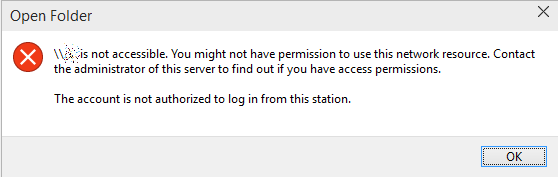
This is what you see when you try to go to any \\something network share:

\\something is not accessible. You might not have permission to use this network resource. Contact the administrator of this server to find out if you have access permissions. The account is not authorized to log in from this station.

open folder

There’s some changes in the Windows 10 internals which results in the access denial. The new build does not allow anonymous (guest) access to shares by default, as a security measure.It can be resolved by creating a new registry key in the right hive and rebooting.

Solution

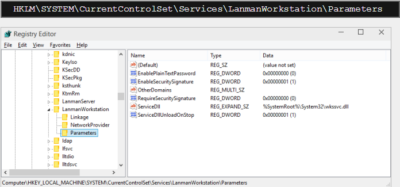
Fire up the registry editor (regedit). Navigate to:

Registry editor

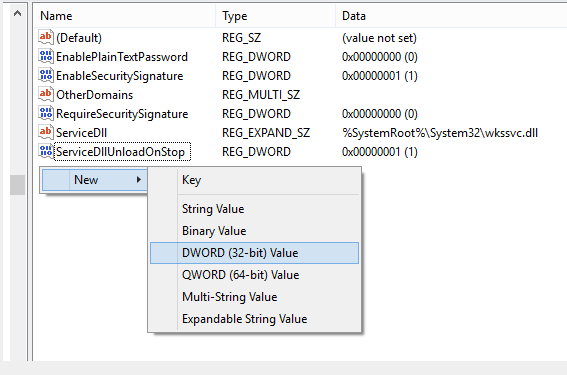
Here, you will need to create a new parameter (32-bit DWORD). Right-click:

Parameter

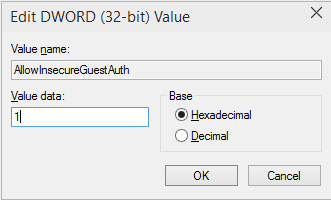
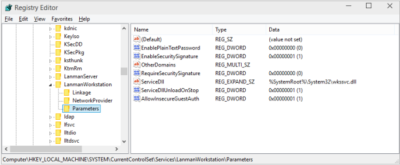
Then, name it AllowInsecureGuestAuth and assign it a value of 1.

DWORD

The hive should look thusly:

Registry Editor

And you’re done. Reboot, and enjoy your network access.

Have questions?

Get answers from Microsofts Cloud Solutions Partner!
Call us at: 856-745-9990 or visit: https://southjerseytechies.net/

South Jersey Techies, LLC is a full Managed Web and Technology Services Company providing IT Services, Website Design ServicesServer SupportNetwork ConsultingInternet PhonesCloud Solutions Provider and much more. Contact for More Information.

To read this article in its entirety click here.

Office 2016 for Mac is here!

Kirk Koenigsbauer, corporate vice president for the Office Client Applications and Services team said “Today we are taking a big step forward for Mac® users—Office 2016 for Mac is now available in 139 countries and 16 languages. Based on feedback from the great Mac Office community, we’ve made major updates to each of the apps, and we couldn’t be more pleased to deliver it first to our Office 365 customers.”

Unmistakably Office, designed for Mac

The new versions of Word, Excel, PowerPoint, Outlook and OneNote provide the best of both worlds for Mac users—the familiar Office experience paired with the best of Mac.

If you already use Office on a PC or iPad, you will find yourself right at home in Office 2016 for Mac. It works the way you expect, with the familiar ribbon interface and powerful task panes. Mac users will appreciate the modernized Office experience and the integration of Mac capabilities like Full Screen view and Multi-TouchTM gestures. With full Retina® display support, your Office documents look sharper and more vibrant than ever.

Office for Mac is cloud-connected, so you can quickly get to the documents you’ve recently used on other devices and pick up where you left off. New, built-in document sharing tools make it easy to invite teammates to work on a document together. When sharing documents, you won’t have to worry about losing content or formatting, as Office for Mac offers unparalleled compatibility with Office on PCs, tablets, phones and online.

Five modern, first-class applications
Word for Mac


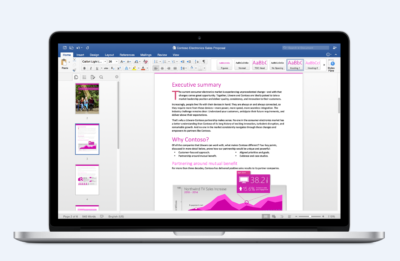
Word for Mac—Word’s powerful writing and reviewing tools make it easy to create great-looking documents. The new Design tab lets you easily apply designer-quality layouts, colors and fonts throughout your document. You can work on the same document simultaneously with your teammates and use threaded comments to have a conversation right next to the corresponding text.
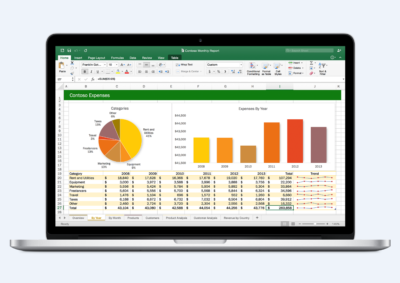
 

Excel for Mac


Excel for Mac—The new Excel for Mac helps you visualize your information by recommending charts best suited for your data with chart previews. Familiar keyboard shortcuts, autocomplete and an improved formula builder save you time when creating spreadsheets or entering data. For deeper analysis, new PivotTable Slicers help you filter large volumes of data and discover patterns.
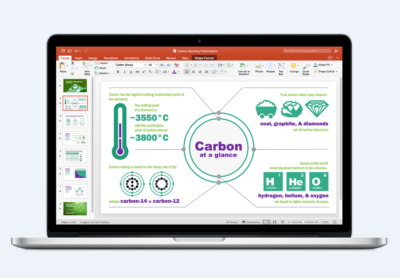
PowerPoint for Mac

PowerPoint for Mac—PowerPoint’s improved Presenter View gives you full control when you present by showing you the current slide, next slide, speaker notes and a timer on your Mac screen, while the audience only sees your presentation on the big screen. The new animation pane helps you design and fine-tune animations, and the latest set of slide transitions add polish to your presentations.
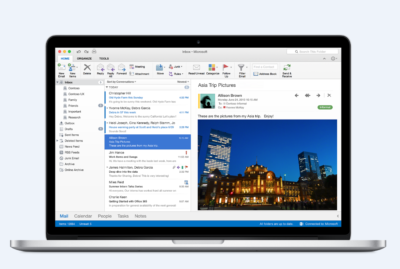
Outlook for Mac

Outlook for Mac—Managing your email, calendar, contacts and tasks has never been easier. The new Outlook for Mac has push mail support so your inbox is always up-to-date. The improved conversation view automatically organizes your inbox around threaded conversations, so you won’t have to hunt for related messages. And the new message preview shows you the first sentence of an email just below the subject line so you can quickly decide if you want to read it now or come back later.
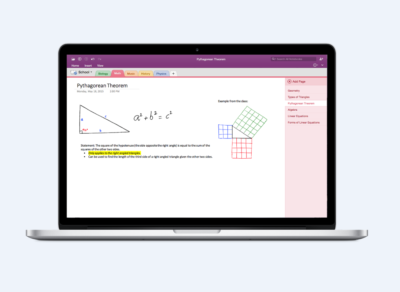
One Notebook for Mac

OneNote for Mac—OneNote is the newest addition to Office for Mac. You can capture your ideas in digital notebooks and access them on any device. Find things quickly with the OneNote search engine that tracks your tags, indexes your typed notes and recognizes text in images and handwritten notes. Bold, italicize, underline or highlight notes, insert files, pictures and tables and organize your notes however you want. You can also share notebooks with friends, family or colleagues so everyone can work together on travel plans, household tasks or work projects.

Made better by Mac users

The customer participation in Office for Mac preview since its launch in March exceeded expectations, making it largest Office for Mac beta ever. Thanks to everyone who participated in the preview program and helped improve the product.

Mac preview participants provided with over 100,000 pieces of feedback. Based on this feedback, Office released seven updates in four months with significant improvements in performance and stability. Also added features like improved Mail Merge in Word, Propose New Time in Outlook and support for External Data Connections in Excel.

And the best news is that Office for Mac will continue to see ongoing improvements over time. With released updates and new features for Office 365 customers at least once per quarter.

Available today for Office 365 customers

Office 365 subscribers can get the newest version of Office for Mac today. All you need is an Office 365 subscription (Office 365 Home, Personal, Business, Business Premium, E3 or ProPlus), which includes the rights and access to use Office applications on Mac, Windows, iOS and Android devices, along with additional value in OneDrive and Skype.

Here are a few different ways to get Office 2016 for Mac today:

  • Already an Office 365 customer? On your Mac, just browse to your account page (office.com/myaccount), sign in and follow the installation instructions. If you have Office 365 through your organization, go to portal.office.com/OLS/MySoftware.aspx.
  • Are you a student? You may get Office 2016 for Mac for free or at a substantial discount. It takes only 30 seconds to find out at office.com/student.
  • Otherwise, go to office.com/mac or buy an Office 365 subscription at your local retailer.

Office 2016 for Mac will become available as a one-time purchase option this September.

We hope you’re as excited as we are about the new Office for Mac. It’s one of many important releases this summer. “We released Word, Excel and PowerPoint for Android phones just two weeks ago, which join Outlook and OneNote for Android phones, and we are just weeks away from delivering Office Mobile apps for Windows 10.” said Kirk Koenigsbauer

Have questions?

Get help from Microsoft’s Cloud Solutions Partner.
Call us at: 856-745-9990 or visit: https://southjerseytechies.net/

South Jersey Techies, LLC is a full Managed Web and Technology Services Company providing IT Services, Website Design ServicesServer SupportNetwork ConsultingInternet PhonesCloud Solutions Provider and much more. Contact for More Information.

To read this article in its entirety click here.

Windows 10’s features

The new Windows 10 notifications will follow you everywhere

Windows 10 has a new notifications center for your apps — even the ones from your Windows Phone.

When you’re poking around Windows 10, you’ll notice something new: A small taskbar button that, when clicked, reveals a sidebar full of app notifications.

Welcome to the new notifications center, which is basically the Windows 10 version of the Action center in Windows Phone 8.1. The notifications center is part of Microsoft’s dream of “Windows everywhere” — it’s a universal notifications center that will pop up your app notifications across multiple platforms. Because who doesn’t want to be alerted about new Twitter followers on their phone, tablet, and now PC?

The new notifications center consists of two parts: The notifications area at the top, and the “quick actions” bar at the bottom. In the notifications area you’ll see notifications from various apps, including Twitter, Facebook, and your email account, as well as notifications from phone apps (e.g. alarms) if applicable.


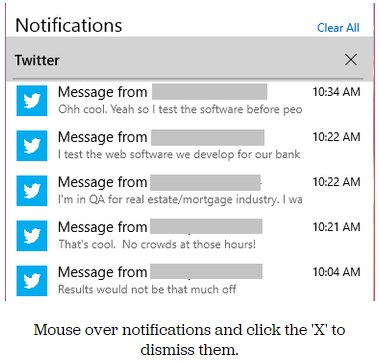
Mouse over notifications and click the ‘X’ to dismiss them.

You can dismiss notifications three different ways: You can mouse over the app name (e.g. Twitter) and click the ‘X’ next to it to dismiss all notifications from that app. You can also mouse over each individual notification and click the ‘X’ next to it to dismiss that specific notification. Or you can click Clear All in the upper right corner of the notifications center to dismiss all notifications from all apps. Because this is a “Windows everywhere” feature, notifications you dismiss in the notifications center will also be dismissed on your other Windows devices, such as your phone.

In the quick actions bar, you’ll see four quick-access buttons as well as an Expand link. Click Expand to see all quick actions. Actions include things like a Tablet Mode toggle button, a link to the Display settings, a link to all settings, and toggle buttons for Location and Wi-Fi. Tap a quick action button to toggle a setting (tablet mode, location, Wi-Fi) on or off, or to go directly to the settings menu so you can configure your display, connection, or VPN.

x4
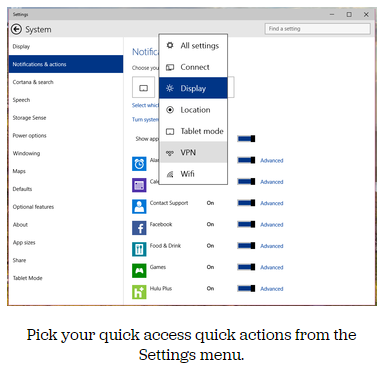
Pick your quick access quick actions from the Settings menu.

To choose which quick actions appear above the break, go to Settings > Notifications & actions > Choose your quick actions. Here, you’ll see four small buttons that you can click on to swap out actions. If you’d prefer to have your Wi-Fi toggle on hand whenever you open the notifications bar, you can switch it for the Display button. Of course, you’ll always be able to see all of the quick actions by clicking Expand in the notifications bar.

x5
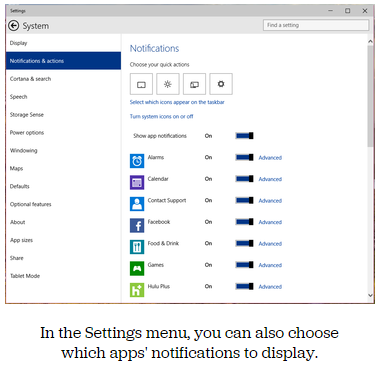
In the Settings menu, you can also choose which apps’ notifications to display.

Here, you can also pick and choose which app notifications you’ll see in the notifications bar. If you want to turn all notifications off, you can simply click the toggle next to Show App Notifications. You’ll no longer see pop-up banner notifications, nor will you see app notifications when you open the notifications center.

If you’d prefer to just turn off notifications for specific apps, you can do that, too — find the app in the list and click its toggle to Off. Next to each app in the list you’ll see a link to Advanced notifications settings for that app. Go into Advanced to turn off specific notifications for that app — either banner notifications (pop-ups in the lower right corner of your screen) or notifications in the notifications center.

Want to turn your clock off? You can do that, too.

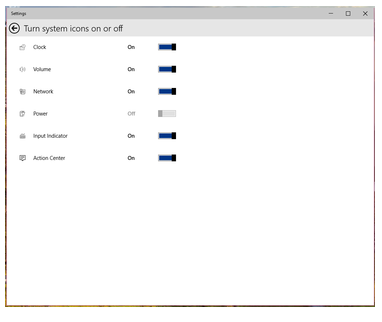
In the Notifications & Actions section, you can also clean up your taskbar by clicking “Select which icons to appear in the taskbar” (you can turn on and off things like the Network icon and the Volume icon), or by clicking “Turn system icons on or off.” In “Turn system icons on or off,” you can turn off the clock, input indicator or action center — in other words, you can turn off all system tray icons and have a completely icon-less system tray, if you so choose.

Have questions?

Want to get Windows 10?

Contact Our Expert IT business team
Call us at: 856-745-9990 or Visit: https://southjerseytechies.net/

South Jersey Techies, LLC is a full Managed Web and Technology Services Company providing IT Services, Website Design ServicesServer SupportNetwork ConsultingInternet PhonesCloud Solutions Provider and much more. Contact for More Information.

To read this article in its entirety click here.

American Red Cross – Mobile Apps

Untitled

September is National Preparedness Month sponsored by the Federal Emergency Management Agency in the US Department of Homeland Security.  American Red Cross now offers Mobile Apps that include a Volunteer App, First Aid App, Shelter Finder App and multiple natural disaster Apps.  Prepare your company and family for emergency situations using ‘Make a Plan’ feature in each App.

vaVolunteer App

Team Red Cross wants you! Join Team Red Cross to help provide care and comfort to your local community when the unthinkable occurs. Team Red Cross is looking for people with various backgrounds, talents, and skill levels. Make a difference, support your community and join Team Red Cross!

taTornado App

Get your family and home ready for a tornado with the official Tornado App from the American Red Cross. The Tornado app puts everything you need to know prepare for a tornado – and all that comes with it – in the palm of your hand.

haHurricane App 

Monitor conditions in your area or throughout the storm track, prepare your family and home, find help and let others know you are safe even if the power is out – a must have for anyone who lives in an area where a hurricane may strike or has loved ones who do. 

sfaShelter Finder App 

The Red Cross Shelter Finder is available in the iTunes store and works on iOS devices. The Shelter Finder displays open Red Cross shelters and their current population on an easy to use map interface.

faaFirst Aid App

The official American Red Cross First Aid app puts expert advice for everyday emergencies in your hand. The official American Red Cross First Aid app offers videos, interactive quizzes and simple step-by-step advice it’s never been easier to know first aid. 

eaEarthquake App 

Be ready for an earthquake with Earthquake by American Red Cross. Get notified when an earthquake occurs, prepare your family and home, find help and let others know you are safe even if the power is out – a must have for anyone who lives in an earthquake-prone area or has loved ones who do.

wfaWildfire App 

Be ready for wildfires with the official Red Cross wildfire app. Blaze Warnings, Blaze Alerts” and Blaze Path Tracker are tools included with the Wildfire App. You can also let loved ones know that you are safe even if the power is out and learn what steps you should take to prepare your family, home and pets – all from the palm of your hand.

Download these Apps:  Android and Apple

Scams that Target Small Businesses and How to Spot Them

Consumers are not the only ones vulnerable to scams.  If you own a small business or are part of a nonprofit organization, you could be open to several different types of cons without even realizing it.

The Federal Trade Commission (FTC) has put together a list of some of the more common scams and posted them on the website along with plenty of resources to help you spot con artists and keep them from taking advantage of you and your business.

“Your best protection? Learn the signs of scams that target businesses,” the FTC says. “Then tell your employees and colleagues what to look for so they can avoid scams.”

From the FTC website:

Fake Invoices

Scammers create phony invoices that look like they’re for products or services your business uses — maybe office or cleaning supplies or domain name registrations. Scammers hope the person who pays your bills will assume the invoices are for things the company actually ordered. Scammers know that when the invoice is for something critical, like keeping your website up and running, you may pay first and ask questions later. Except it’s all fake and if you pay, your money may be gone.

Unordered Office Supplies and Other Products

Someone calls to confirm an existing order of office supplies or other merchandise, verify an address, or offer a free catalog or sample. If you say yes, then comes the surprise — unordered merchandise arrives at your doorstep, followed by high-pressure demands to pay for it. If you don’t pay, the scammer may even play back a tape of the earlier call as “proof” that the order was placed. Keep in mind that if you receive merchandise you didn’t order, you have a legal right to keep it for free.

Directory Listing and Advertising Scams

Con artists try to fool you into paying for nonexistent advertising or a listing in a nonexistent directory. They often pretend to be from the Yellow Pages. They may ask you to provide contact information for a “free” listing or say the call is simply to confirm your information for an existing order. Later, you’ll get a big bill, and the scammers may use details or even a recording of the earlier call to pressure you to pay.

Utility Company Imposter Scams

Scammers pretend to call from a gas, electric, or water company saying your service is about to be interrupted. They want to scare you into believing a late bill must be paid immediately, often with a wire transfer or a reloadable card or gift card. Their timing is often carefully planned to create the greatest urgency — like just before the dinner rush in a restaurant.

Government Agency Imposter Scams

Scammers impersonate government agents, threatening to suspend business licenses, impose fines, or even take legal action if you don’t pay taxes, renew government licenses or registrations, or other fees. Some businesses have been scared into buying workplace compliance posters that are available for free from the U.S. Department of Labor. Others have been tricked into paying to receive nonexistent business grants from fake government programs. Businesses have received letters, often claiming to be from the U.S. Patent and Trademark Office, warning that they’ll lose their trademarks if they don’t pay a fee immediately, or saying that they owe money for additional registration services.

Tech Support Scams

Tech support scams start with a call or an alarming pop-up message pretending to be from a well-known company, telling you there is a problem with your computer security. Their goal is to get your money, access to your computer, or both. They may ask you to pay them to fix a problem you don’t really have, or enroll your business in a nonexistent or useless computer maintenance program. They may even access sensitive data like passwords, customer records, or credit card information.

Social Engineering, Phishing and Ransomware

Cyber scammers can trick employees into giving up confidential or sensitive information, such as passwords or bank information. It often starts with a phishing email, social media contact, or a call that seems to come from a trusted source, such as a supervisor or other senior employee, but creates urgency or fear. Scammers tell employees to wire money or provide access to sensitive company information. Other emails may look like routine password update requests or other automated messages but are actually attempts to steal your information. Scammers also can use malware to lock organizations’ files and hold them for ransom.

Business Promotion and Coaching Scams

Some scammers sell bogus business coaching and internet promotion services. Using fake testimonials, videos, seminar presentations, and telemarketing calls, the scammers falsely promise amazing results and exclusive market research for people who pay their fees. They also may lure you in with low initial costs, only to ask for thousands of dollars later. In reality, the scammers leave budding entrepreneurs without the help they sought and with thousands of dollars of debt.

Changing Online Reviews

Some scammers claim they can replace negative reviews of your product or service, or boost your scores on ratings sites. However, posting fake reviews is illegal. FTC guidelines say endorsements — including reviews — must reflect the honest opinions and experiences of the endorser.

Credit Card Processing and Equipment Leasing Scams

Scammers know that small businesses are looking for ways to reduce costs. Some deceptively promise lower rates for processing credit card transactions, or better deals on equipment leasing. These scammers resort to fine print, half-truths, and flat-out lies to get a business owner’s signature on a contract. Some unscrupulous sales agents ask business owners to sign documents that still have key terms left blank. Don’t do it. Others have been known to change terms after the fact. If a sales person refuses to give you copies of all documents right then and there — or tries to put you off with a promise to send them later — that could be a sign that you’re dealing with a scammer.

Fake Check Scams

Fake check scams happen when a scammer overpays with a check and asks you to wire the extra money to a third party. Scammers always have a good story to explain the overpayment — they’re stuck out of the country, they need you to cover taxes or fees, you’ll need to buy supplies, or something else. By the time the bank discovers you’ve deposited a bad check, the scammer already has the money you sent them, and you’re stuck repaying the bank. This can happen even after the funds are made available in your account and the bank has told you the check has “cleared.”

Important: Internet Explorer Vulnerability

IEIMPORTANT INFORMATION: US-CERT and UK security agencies warn users to stop using Internet Explorer because of the severity in this security hole that has been used in “limited, targeted attacks”.

United States Computer Emergency Readiness Team released an alert on April 28, 2014 regarding vulnerabilities in Microsoft’s Internet Explorer.  Internet Explorer versions 6 through 11 are susceptible to be victims of attacks to exploit the Remote Code Execution Vulnerability.

US-CERT Vulnerability Note VU#22292

Microsoft Security Advisory 2963983

Workarounds:

Basic protection includes the installation of Anti-malware software, enabling a Firewall and applying all Windows/Microsoft updates.  In addition to basic protection, we recommend taking extra preventative steps listed below.  It is not necessary to apply all of the following workarounds, apply one to help protect your system and data.

Enable Enhanced Protection Mode

    1. Open IE 10 or IE 11.
    2. Click the Tools menu and select Internet Options.
    3. In the Internet Options window, click the Advanced tab.
    4. Scroll down the list of options until you see the Security section, click the checkbox to Enable Enhanced Protected Mode.  For IE 11 in a 64-bit version of Windows, you also need to click the checkbox to “Enable 64-bit processes for Enhanced Protected Mode”.
    5. Restart IE to force the new settings.

Change Access Control List and unregister VGX.DLL:

32-Bit Systems:

      1. Open elevated Command Prompt (Run as Administrator)
      2. Run the following command:
        “%SystemRoot%\System32\regsvr32.exe” -u “%CommonProgramFiles%\Microsoft Shared\VGX\vgx.dll”
      3. Click OK to close Dialog Box confirming un-registration has succeeded.

64-Bit Systems:

      1. Open elevated Command Prompt (Run as Administrator)
      2. Run the following command(s) separately:
        “%SystemRoot%\System32\regsvr32.exe” -u “%CommonProgramFiles%\Microsoft Shared\VGX\vgx.dll” “%SystemRoot%\System32\regsvr32.exe” -u “%CommonProgramFiles(x86)%\Microsoft Shared\VGX\vgx.dll”
      3. Click OK to close Dialog Box confirming un-registration has succeeded.

Windows XP and all other users.

For all user(s) that cannot follow recommendations from Microsoft are urged to use a different web browser.  For secure download(s) of Google Chrome or Mozilla Firefox, please follow the links provided.

For assistance with Changing IE Settings or Install a new Browser

 please contact us 856-745-9990 or click here.
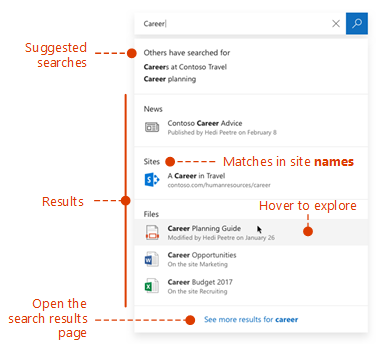
 

What’s new in search in Office 365

SharePoint now serves up search results personalized to your previous activity and permissions.

In SharePoint Online and on office.com, search is personal, and the search results are even easier to explore. Another user will see different results than you, even when you both search for the same words.

You’ll only see results that you already have access to, and other users can’t find your private documents.

Even before you start typing, you’ll see results based on your previous activity in Office 365. The results update as you start typing.

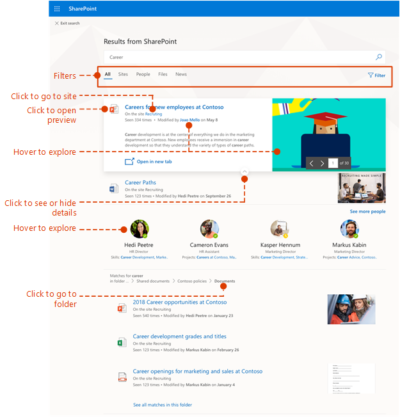
If these results aren’t what you’re looking for, click the link to see more results or press Enter to open the search results page and see and explore all the results. Here’s an example of search results from SharePoint:

Explore the search results to see more details about the people and files you’ve found, or refine your search to get other results. Here’s an expert tip to quickly see more, or less, details of a result – you can actually click anywhere in the empty space of the result.

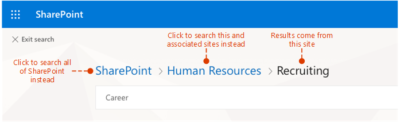
You can navigate to locations that you want to explore further and, if you’ve searched in SharePoint Online, you can change where the results come from. For example, if you searched from a site, but really meant to search all of SharePoint, then you’re just one click away. Or, if the site you searched from is associated with another site, but you want to search all the associated sites.

When you exit a search results page, you return to the page where you started your search.

Microsoft announces the new Teams & Skype for Business Admin Center

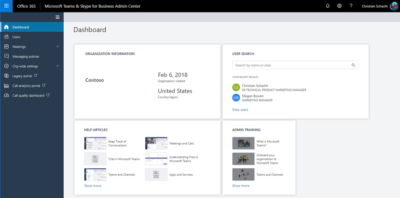
To enable IT admins to better manage the various aspects of Microsoft Teams and Skype for Business services, Microsoft is announcing the new Microsoft Teams & Skype for Business Admin Center.

Now, there’s an admin center just for calling and messaging.

This new portal will offer a unified experience to manage both Teams and Skype for Business and will also include Call Analytics and the Call Quality Dashboard. Admins can also get end-to-end insights and the ability to manage Teams settings on a user level in this new portal.

Following features are available in this release:

Microsoft Teams messaging policy: Create custom policies for messaging scenarios for your users.

User management: Assign policies and configure your users.

Microsoft Teams guest messaging settings: Control the messaging capabilities for guest accounts in Microsoft Teams.

Federation settings: Manage federation between tenants for Microsoft Teams and Skype for Business. (Please note that federation for Microsoft Teams and Skype for Business will roll out in stages and this setting might not be visible for you during the initial rollout.)

Audio conferencing: Configure dial-in numbers and settings for Microsoft Teams and Skype for Business.

Office 365 to get enhanced Anti-spoofing capabilities

Enhanced anti-spoofing safeguards are rolling out for Office 365.

Microsoft services like OneDrive for Business, SharePoint Online, and Microsoft Teams are closely guarded by ATP (Advanced Threat Protection). Besides, there are numerous feature updates available in Office 365 threat protection service to address the evolution and advances in the threat landscape. The addition of enhanced Anti-Spoofing capability in Office ATP for protecting against spoofed emails from external domains further strengthens this security framework.

Anti-spoofing in Office 365 Advanced Threat Protection

The newest anti-spoof features help protect organizations from external domain spoof.  Office 365 recognizes emails from external domains having proper SPF, DMARC, and DKIM authentication settings as legitimate/authentic and therefore allow them to pass authentication, uninterrupted.

This normal process is however challenged when external domains do not have these settings properly configured. Without enforcement of these settings, domains show a high likelihood of being manipulated and maliciously spoofed, leaving customers vulnerable to phishing or spam attacks. The new external domain anti-spoofing capabilities help detect and block emails from external domains that do not have the following features,

  1. Correct authentication configuration
  2. An email infrastructure source with an unknown history

How does it work?

A newly enhanced filter in ATP first checks if the email from external domains, passes SPF, DKIM, and DMARC test.  If not, the filter thoroughly checks for historical sending patterns of that domain and associated infrastructure. If any suspicious behavior is noted, ATP assumes the sender does not bear a good reputation and as such, proceeds to junk the message.

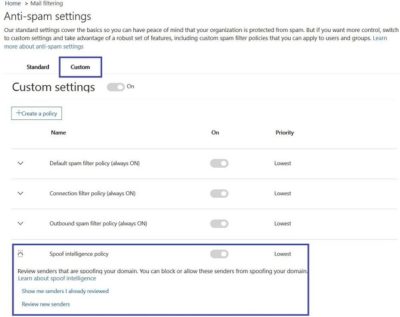
Also, a feature worth noticing about Anti-spoofing – The filter constantly evolves and enhances itself based on mail flow patterns it observes.  ATP subscribers can access the spoof intelligence report in their Antispam Policy and take necessary actions if required.

CALL US NOW!