Back to Top

Tech, Web, Cloud & Cabling Services

Category: Hardware

Hardware Category

What you need to know about the WannaCry Ransomware

What has happened?

On May 12, 2017 a new variant of the Ransom.CryptXXX ransomware family (detected as Ransom.Wannacry) began spreading widely, impacting a large number of organizations, particularly in Europe.

What is the WannaCry ransomware?

WannaCry encrypts data files and asks users to pay a US$300 ransom in bitcoins. The ransom note indicates that the payment amount will be doubled after three days. If payment is not made after seven days, the encrypted files will be deleted.

Figure 1. Ransom demand screen displayed by the WannaCry Trojan

It also drops a file named !Please Read Me!.txt which contains the ransom note.
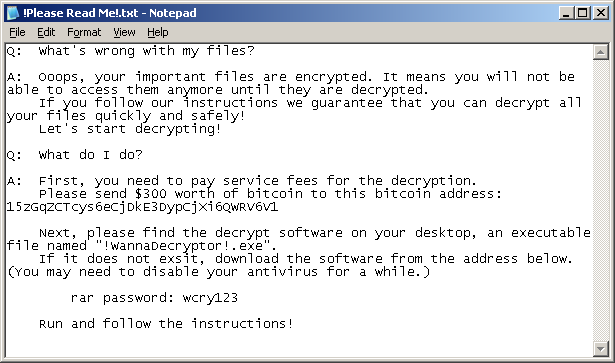
Figure 2. Ransom demand note from WannaCry Trojan

It propagates to other computers by exploiting a known SMB remote code execution vulnerability (MS17-010) in Microsoft Windows computers.

Are you protected against this threat?

South Jersey Techies, LLC recommends and offers Symantec Endpoint Protection to its clients. Symantec Endpoint Protection customers are protected against WannaCry using a combination of technologies: Antivirus, SONAR protection, Network-based protection.

All South Jersey Techies Managed IT Services client computers have the latest Windows security updates installed, in particular MS17-010, to prevent spreading. If your business / organization is not on our Managed IT Services plan please check or contact us to ensure that you have the latest updates installed.

Who is impacted?

A number of organizations globally have been affected, the majority of which are in Europe.

Is this a targeted attack?

No, this is not believed to be a targeted attack at this time. Ransomware campaigns are typically indiscriminate.

Can I recover the encrypted files?

Decryption is not available at this time but companies are investigating. South Jersey Techies, LLC does not recommend paying the ransom. Encrypted files should be restored from back-ups where possible. South Jersey Techies offers a number of backup solutions including Carbonite Online Backup and cloud storage solutions. If you are unsure about your computer / server backups, please check or contact us to discuss the best solution for your business.

What are best practices for protecting against ransomware?

  • New ransomware variants appear on a regular basis. Always keep your security software up to date to protect yourself against them.
  • Keep your operating system and other software updated. Software updates will frequently include patches for newly discovered security vulnerabilities that could be exploited by ransomware attackers.
  • Email is one of the main infection methods. Be wary of unexpected emails especially if they contain links and/or attachments.
  • Be extremely wary of any Microsoft Office email attachment that advises you to enable macros to view its content. Unless you are absolutely sure that this is a genuine email from a trusted source, do not enable macros and instead immediately delete the email.
  • Backing up important data is the single most effective way of combating ransomware infection. Attackers have leverage over their victims by encrypting valuable files and leaving them inaccessible. If the victim has backup copies, they can restore their files once the infection has been cleaned up. However organizations should ensure that back-ups are appropriately protected or stored off-line so that attackers can’t delete them.
  • Using cloud services could help mitigate ransomware infection, since many retain previous versions of files, allowing you to “roll back” to the unencrypted form.

Have additional questions?

Feel free to call us at contact us or (856) 745-9990 with any questions you may have.

Set Up Microsoft Exchange E-Mail on iPhone

Set Up Microsoft Exchange E-Mail on an Apple iPhone, iPad, or iPod Touch3

You can set up Exchange e-mail on an Apple iPhone, iPad, or iPod Touch. When you set up an Exchange account on your device, you’ll be able to access and synchronize your e-mail, calendar, and contacts. If you have a different device, or if you want to connect using POP or IMAP.

How do I set up Microsoft Exchange e-mail on an Apple iPhone, iPad, or iPod Touch?


  1. Tap Settings > Mail, Contacts, Calendars > Add Account.
  2. Tap Microsoft Exchange.
  3. You don’t need to enter anything in the Domain box. Enter the information requested in the Email,Username, and Password boxes. You need to enter your full e-mail address in the Email and Usernameboxes (for example, tony@contoso.com).
  4. Tap Next on the upper-right corner of the screen. Your iPhone will try to find the settings it needs to set up your account. Go to step 7 if your iPhone finds your settings.
  5. If your iPhone can’t find your settings, you’ll need to manually look up your Exchange ActiveSync server name. For instructions for how to determine your Exchange ActiveSync server name, see the Finding My Server Name section below.
  6. In the Server box, enter your server name, and then tap Next.
  7. Choose the type of information you want to synchronize between your account and your device, and then touch Save. By default, Mail, Contacts, and Calendar information are synchronized.
    Caution:
    If you’re prompted to create a passcode, tap Continue and enter a numeric passcode. If you don’t set up a passcode, you can’t view your e-mail account on your iPhone. You can set up a passcode later in iPhone Settings.

Finding My Server Name


If your email program isn’t able to automatically find your Exchange ActiveSync server name, you may need to look it up.

  1. Sign in to your e-mail account using Outlook Web App. For help signing in, see How to Sign In to Outlook Web App.
  2. If you’re connecting to an Exchange mailbox, your Exchange ActiveSync server name is contained in the address bar in your browser when you are signed in to Outlook Web App, but without the leadinghttps:// and without the trailing /owa. For example, if the address you use to access Outlook Web App is https://mail.contoso.com/owa, your Exchange ActiveSync server name is mail.contoso.com.
  3. If you’re unable to connect to your mailbox using the information earlier in this section, you can try using the server name value that you can view in Outlook Web App options. Do the following:
    1. In Outlook Web App, click Options > See All Options > Account > My Account > Settings for POP, IMAP, and SMTP access.
      Note:
      Although you’re not setting up a POP3 account, you will use this value to determine your Exchange ActiveSync server name.
    2. Under POP setting, view the value for Server name.
    3. Try setting up your email using the server name listed on your options page. For example if the value for Server name under POP setting is mail.contoso.com, try using mail.contoso.com as your Exchange server name.

What else do I need to know?

  • If you’re prompted to create a passcode and don’t create one, you won’t be able to send and receive e-mail.

Nokia Lumia 1020 vs. iPhone 5s

Takeaway:  Before rushing out to buy the new iPhone 5s, take a look at the Nokia Lumia Specifications compared to the iPhone 5s.
wa2

Nokia Lumia 1020 is equipt with dynamic live tiles, Office Mobile, a 4.5 Puremotion HD+ AMOLED display and is the winner of the Best Smartphone Camera Award by Gizmodo for the 41-megapixel camera.

Apple’s iPhone 5s will be released on Today, September 20, 2013. The iPhone 5s is available in three colors and will run the recently released, iOS 7.

Compare the iPhone 5s to Nokia Lumia 1020:

iPhone 5s

Nokia Lumia 1020

Price (2-YR Contract) $199.99 – $399 $199.99
Carrier Verizon, AT&T, Sprint, T-Mobile AT&T
Operating System iOS 7 Windows Phone 8
Dimensions 4.87 x 2.31 x .30 5.13 x 2.81 x .41
Weight 3.95 ounces 5.57 ounces
Display 4 inch, 326 ppi, 1136×640 4.5 inch, 334 ppi, 1280×768
Battery Life 10 hours Browsing, 10 hours Talking and 10.4 days Standby 6.7 hours Browsing, 12.5 hours Talking and 16 days Standby
Camera (Back) 8 MP, f/2.2 aperture, LED Flash, 5-Element Lens, 3X Zoom, Digital Image Stabilization, Backside Illumination Sensor 41 MP, f/2.2 aperture, Xenon Flash, 6-Element Lens, 3X Zoom, Optical Image Stabilization, Backside Illumination Sensor
Camera (Front) 1.2 MP, 1280×960, Backside Illumination Sensor 1.2 MP, f/2.4 aperture, 1280×960, Backside Illumination Sensor
Colors  Gold, Gray, Silver Yellow, White, Black
Audio iTune Store for music, Support AAC, Protected AAC, HE-AAC, MP3, MP3 VBR, AIFF, WAV, Apple Losssless and Audible (2, 3, 4, Enhanched Audio, AAX and AAX+) Xbox music or Nokia music; Supports MP3, AMR-NB, ASF, MP4, AAC, AMR, MP3, M4A, WMA, 3GP, 3G2, WMA 10 Pro, GSM FR, WMA 9, AAC LC, AAC+/HEAAC and eAAC+/HEAACv2 codecs
Video 1080p, Full HD, 1920×1080 at 60 frames per second, 3X Zoom, Slow-Motion video, Video Stabilization, Face Detection, Geotagging, Still Photos while Recording 1080p, Full HD, 1920×1080 at 30 frames per second, 6X Zoom, Video Streaming, Five White Balance Modes, Video Stabilization, Autofocus
Memory  N/A  2 GB
Storage 16, 32 or 64 GB local (5 GB Free – Cloud) 32 GB local (7 GB Free – Cloud)
Processor Apple A7, dual-core, 1.7 GHz Qualcomm Snapdragon S4, dual-core, 1.5 GHz
Connectivity Lightning (Charge), Nano SIM (Storage), 3.5 mm audio, USB, Bluetooth 4.0, 802.11 a/b/g/n Wi-Fi Micro USB (Charge), Micro SIM (Storage), 3.5 mm audio, USB 2.0, Bluetooth 3.0, 802.11 a/b/g/n Wi-Fi

Five Must-Have Apps For Your USB Stick

Takeaway: Don’t get caught out in the field without the tools you need. A USB stick equipped with a few essential apps might just save the day.

Ah, the USB stick — one of the IT admin’s best friends. It travels with you and helps you rescue machines, work magic, and make end users sigh with relief. Some of these USB apps you copy to the hard drive and install; others can be run from the USB stick itself. A few of them are full-blown operating systems that can help you completely recover a corrupted or infected platform.

Whatever the style and purpose, there are plenty of portable apps for the USB stick that can be hard to live without. Here are five tools I deem must-haves.

1: SystemRescueCD

SystemRescueCD  is the Linux distribution to have if you’re going to carry one around on a USB stick. With this distribution, you can recover partitions, recover data, image a disk, test a hard disk, edit configuration files, burn a disk, check for rootkits, run an antivirus scan, securely wipe a hard drive, and much more.

2: Portable Firefox

Portable Firefox is there when you need it. Sometimes, a Web browser is a necessity for solving a problem. But when the browser on the desktop won’t run, what do you do? You break out your portable edition of Firefox. This version of Firefox has all the great features you’re used to. In fact, some will be hard-pressed to figure out that Firefox is running from a USB stick.

3: ComboFix

ComboFix makes almost every recovery tool list for me. No admin kit is complete without this powerhouse. It is my go-to tool when I encounter some of the nastier viruses and rootkits. Almost without fail, if an antivirus can’t catch it, ComboFix can. Unlike common antivirus and anti-malware applications, ComboFix will display (upon completion of running) a detailed report of exactly what it took action on. Note: To run ComboFix, you’ll need to copy the .exe over to the computer and install it.

4: FileZilla Portable

FileZilla Portable is the one and only FTP client to carry around with you. Why would you need an FTP client? There will be times when you must load a file from a troubled computer to another machine. The easiest way to do this (when all other methods fail) is by using a portable FTP client. This is especially crucial when the file is too large to fit on a USB drive or if the file must be loaded to a remote machine you do not have physical access to. This application is run directly from the USB drive and isn’t installed on the PC.

5: Explorer++ Portable

Explorer++ Portable is a file manager with all the usual features you’ve grown to expect from a file manager. But why should you carry a file manager with you? Have you ever had to repair a machine where Explorer won’t run? Makes for a major challenge. Having a portable file manager gets around that issue with ease. And why not have a file manager with features like tabs, keyboard shortcuts, a customizable UI, drag-and-drop support, and merging and splitting? In the end, the file manager is one of the most important tools on a PC. Without it, a machine can easily become crippled.

6: PortableApps

You might have noticed some of these apps link directly to the PortableApps site. That is a tool designed to make your life much easier. You can install PortableApps on your USB drive and then have a user-friendly system to add and remove apps to and from that USB drive with ease. I highly recommend this application for any and all IT admins.

Tips for Supporting iOS 7

ios7

September 18, 2013 was the official release of iOS 7.  Complementary to iOS 7 are several support questions for corporate-owned iOS devices, including Bring Your Own Device (BYOD) and Corporate Owned Personally Enabled (COPE) devices.

COPE devices are corporately compliant prior to distribution to employees; this allows consistency and higher security for all enterprise devices.

There may be a few problems when upgrading to iOS 7 such as older iPhone/iPad devices may not support iOS 7 and not all features are available on all devices or in all countries. 

Here are some tips for supporting iOS 7 in the enterprise. 

Implement VPP

Apple now offers a Volume Purchase Program (VPP) for business.  VPP can retain volume licenses for Apps and Books.  Download Apple’s VPP Guide.

Third-Party iOS Apps

Configuring third-party apps can be completed in iOS 7,  Mobile Device Management (MDM) distributes the third-party configuration and the developer needs to enables it.

Test and Troubleshoot

The most important step before deploying in-house developed enterprise app(s) is to test and troubleshoot.  Testing and troubleshooting will save time and resources after deployment.

Per App VPN

Per app VPN ensures that only managed app data travels through VPN.  iOS 7 apps can automatically be connected to VPN when launched.  Also, for security purposes this tool will separate corporate data and personal data.


Office 2016 Preview

Office 2016 Preview for existing Office 365 subscribers

For enterprise

Office 365 administrators with an Office 365 ProPlus subscription can now enable the Office 2016 Preview for their organization by turning on First Release. Learn how to turn on First Release.

Once First Release is turned on, users can install the Office 2016 Preview.

Enabled Office 365 ProPlus users

1. Sign in to the My Software page.

2. Go to Try the next version of Office.

3. Click Install.office2016

This will install the Office 2016 Preview on your device.

Note Enabled Office 365 ProPlus users can follow the same process above to install the Project 2016 Preview and the Visio 2016 Preview. On your Software page, select Project or Visio from the Software list. If Project and Visio are not listed, they are not included with your subscription.
Not ready to join First Release? You can still get the Office 2016 Preview,find out how.

For home

  • Go to the Office M Account page.
  • Click Language and install options.
  • Click Additional install options.
  • Open the Version drop-down menu and select the 32-bit or 64-bit Office 2016 Preview.
This will install the Office 2016 Preview on your device. You will stay on the Office 2016 Preview track until you uninstall the Office 2016 Preview or until Office 2016 is released.

Microsoft CEO Ballmer: Devices, Devices!

Summary: In case you didn’t get the memo — or CEO Steve Ballmer’s latest shareholder letter — Microsoft officially is a devices and services company now.

Microsoft really wants to make sure its shareholders, customers, partners and competitors realize it’s not just a big software company any more.

In an October 9 letter to shareholders, part of Microsoft’s just-released fiscal 2012 annual report, CEO Steve Ballmer repeated his new “devices and services company” mantra to drive it home.

Ballmer hasn’t (yet) chanted “devices, devices, devices” in front of any public or private audiences (that we know of, at least) in the way he once infamously chanted “developers, developers, developers.”

But Ballmer told The Seattle Times a few weeks back that Microsoft can and should be considered a devices and services company. The latest Ballmer shareholder letter re-emphasizes that message.

From the letter:

“Last year in this letter I said that over time, the full value of our software will be seen and felt in how people use devices and services at work and in their personal lives. This is a significant shift, both in what we do and how we see ourselves — as a devices and services company. It impacts how we run the company, how we develop new experiences, and how we take products to market for both consumers and businesses. The work we have accomplished in the past year and the roadmap in front of us brings this to life.”

The Ballmer shareholder letter also claimed again that Microsoft is still counting on its partners to produce business and consumer devices and hardware that customers want. But it’s clear Microsoft isn’t getting into the hardware game on a lark or just to incent its OEMs to make more well-designed products, as some company watchers and partners have said.

Ballmer noted that, going forward, Microsoft plans to continue to focus on the development of “new form factors that have increasingly natural ways to use them including touch, gestures and speech.”

Along with the Xbox, the Microsoft Surface — which Microsoft described as “a series of Microsoft-designed and manufactured hardware devices” in its latest proxy statement (also released today) — are here to stay and seemingly will include more products as part of the family.

Mobile Application Management (MAM)

Mobile Device Management does not stop with configuring policies, getting asset information, and securing a mobile device. The MDM solution should also provide the administrators the ability to manage the Apps that are installed on the devices.

SJT Support also provides the Mobile Application Management (MAM) capability that helps administrators perform the following management functions:

  • App Management
  • App Distribution
  • VPP Integration
  • Reports 

App management:

  • Manage the Apps over the Air (OTA) to groups/devices.
  • Automatically get App information from App Store
  • Maintain a repository of all Apps used in the network
  • View the list of Apps and their installation count on mobile devices.

App distribution:

  • Seamless distribution of both in-house and App Store Apps to devices and group of devices
  • Advertise Apps on App Catalog and make user choose to install themselves
  • Get the status of the deployed Apps on the users’ devices
  • Remove Apps when not required anymore

Integrate with Volume Purchase Program (VPP):

  • Integrates with Apple Volume Purchase Program to install commercial apps.
  • Automatically assign redemption codes to users upon installation or revoke when not installed
  • Get notified on insufficient redemption codes

Reports:

  • Comprehensive reports helps to monitor apps installed in device.
  • Specific reports can be extracted like:
    • Apps by Devices – Generates the report based on apps available in the device.
    • Devices with/without specific app – Generates report based on specific app.

How to Get Rid of Computer Equipment

computersTakeawayWhen equipment reaches the end of its useful life, IT must either dispose of it or find it a new home. Here are several good ways to handle the situation.

Few companies amortize their computing equipment for more than three years of useful life. So once computing assets reach the end of the line, what do you do with them? In 2013, some best practice answers remain the same, but others are new. Here’s a checklist for dealing with old IT equipment.

1: Meet Your Green Requirements

In some industries and geographical areas, companies are now required to demonstrate adherence to green standards and environmental sustainability. One way to show compliance is by having environmentally effective policies for disposing of old computing equipment. In doing so, you also contribute to corporate sustainability compliance. There is value in that.

2: Work with Local Schools

Corporate IT can partner with local schools by donating good but used equipment that they can use for technology projects. Some companies take this goodwill effort even further by partnering with schools in tech development programs that include student internships with the company. “Proven” interns from these programs can make excellent IT hires. The company also develops a great reputation in the community.

3: Use Older Equipment for Training and Testing

Especially in thin client application environments that don’t depend on compute-in-the-box (think cloud), older equipment is ideal for training, which historically operates on thin budgets and is always looking for a resource infusion.

You can also use older equipment for testing purposes, as long as your test results will accurately emulate the production environment they are targeted for.

4: Cannibalize

Some older equipment can be used as spare part sources if there is enough version compatibility between the old and the new equipment. Replacement disk drives are a great example.

5: Work your Trade-ins (lease/buy)

Never underestimate your ability to trade up to new equipment by turning in your old equipment. You can secure a discount that may be as much as one-third of your new equipment retail price. If you lease equipment instead of buying it, a mechanism in the lease contract allows you to get credit for older equipment on the lease that you are exchanging for new.

6: Sell to the Third-party Market

Especially for power servers, mainframes, and disk drives, you can usually find a third-party reseller of older equipment that will buy it from you (only to resell it to another company). However, to qualify your equipment for this market, you must first recertify it with its original vendor. In the equipment re-certification process, the vendor examines and (if necessary) repairs the equipment to make sure it is production-ready.

7: Cycle Down Older Equipment to Low Power Users

In most companies, the high power users are in areas like finance and engineering. Users requiring desktop or laptop computers with fewer bells and whistles might be in the warehouse, the factory, or in work locations where there is a lot of environmental interference (dust, etc.), which you don’t want to subject your newest equipment to. Many companies have a downward rotation cycle they apply to desktop and laptop computers that cycles these assets into lower-power user groups after a certain time frame. By using this strategy, companies can often extend the life cycles of these assets for two or more years.

8: Sell or Auction Older Equipment to Employee

Many employees look for inexpensive laptops that they and their children can use at home or at school. If they can purchase a nice computer that might not be the latest and greatest but that still works and fits their budgets, they are happy to take an older piece of equipment off your hands.

9: Donate to Charities

Charities are always looking for free computing equipment that can run their operations. However, never approach them with an eye toward dumping off equipment that is so antiquated it won’t support Internet or run a current word processor or spreadsheet program. In fact, many charities have wised up to the old “dump it” approach and now set minimum standards for accepting older equipment (e.g., “must at least run a Windows 7 operating system”).

10: Sell for Scrap

Companies used to give away old equipment to recycling.  But in today’s lucrative scrap metal market, the goal instead should be to sell this equipment to scrappers.

If you are looking to purchase new equipment please contact us at (856) 745-9990. 

Top 4 Smartphones

Takeaway:  Specifications break down of the top four prominent smartphones.

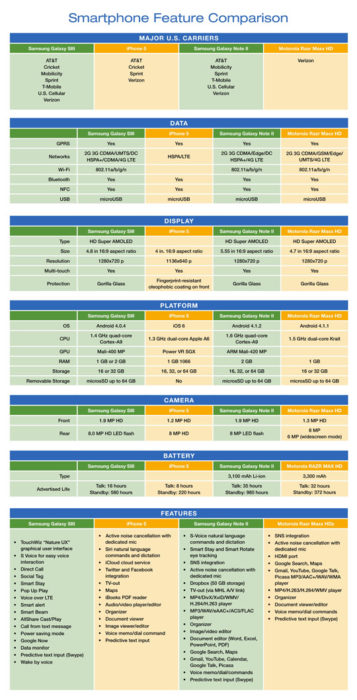
In the United States the top four smartphones are Samsung Galaxy SIII, iPhone 5, Samsung Galaxy Note II and Motorola Razr Maxx HD.  The chart compares mobile carriers, platform, hardware, networks/ Wi-Fi, display, camera and battery for all four leading phones.

If you’re thinking about buying a new smartphone, the chart below will be a quick guide with the necessary feature-to-feature comparisons to make a worthy choice.

Smartphone_Blog_040813_2


CALL US NOW!