Back to Top

Tech, Web, Cloud & Cabling Services

Tag Archives: South Jersey Techies

South Jersey Techies tag

Windows tip of the week: How to customize the Send To menu

Customize the Send To menu:

The Send To menu is a particularly useful feature in File Explorer. You can right-click any file or folder, choose Send To, and copy or move those objects to a folder of your choosing. You can also open compatible files by sending them to an application shortcut.

Unfortunately, the default list of Send To destinations is sketchy to say the least. But if you create a shortcut, you can customize that list to your heart’s content. The secret is to open the Run box (Windows key + R), type the command shell:sendto, and then press Enter.

The folder with all the items you see on the Send To list will pop up. To delete an item, just right click it and select delete. To add destinations, like the Videos or Music folders, by dragging them from the menu on the left.

Have questions?

For More Tips & Info from Microsofts Cloud Solutions Partner!
Call us at: 856-745-9990 or visit: https://southjerseytechies.net/

South Jersey Techies, LL C is a full Managed Web and Technology Services Company providing IT Services, Website Design ServicesServer SupportNetwork ConsultingInternet PhonesCloud Solutions Provider and much more. Contact for More Information.

Microsoft updates support policy: New CPUs will require Windows 10

In a change to its longstanding support policy, Microsoft says PCs based on new CPU architectures, including Intel’s Skylake chips, will require Windows 10. A list of preferred systems will support older Windows versions on new hardware, but only for 18 months.
Windows 10

Enterprise customers are still the bulwark of Microsoft’s Windows business, in both the client and server segments.

Historically, those customers have also been among the most conservative, lagging years behind the latest releases of an operating system release. Those practices have been encouraged by Microsoft’s support lifecycle, which offers a generous ten years of support for each Windows release.

Effective today, that policy is changing in a subtle but significant way, with the addition of new hardware requirements for support of pre-Windows 10 releases. The company’s also publishing a preferred list of systems that will receive special attention for updates and support.

Yes, Windows 7 (currently in the Extended support phase) will continue to receive updates until January 14, 2020, and Windows 8.1 will be supported until January 10, 2023. But in a series of “clarifications” to its support policy today, the company announced that support for those older Windows versions will be available only for “previous generations of silicon.”

Going forward, as new silicon generations are introduced, they will require the latest Windows platform at that time for support… Windows 10 will be the only supported Windows platform on Intel’s upcoming “Kaby Lake” silicon, Qualcomm’s upcoming “8996” silicon, and AMD’s upcoming “Bristol Ridge” silicon.

The policy will be phased in beginning with systems based on Intel’s new 6th-generation CPUs (code-named Skylake), which debuted a few months ago. New consumer-based Skylake devices must run Windows 10 to be supported.

For enterprise customers that want to buy “future proof” new hardware based on Skylake processors running older Windows versions, Microsoft will publish “a list of specific new Skylake devices we will support to run Windows 7 and Windows 8.1.” That support will run for a period 18 months, until July 17, 2017, after which those enterprise customers will be expected to upgrade to Windows 10.

Examples of systems that will be on the initial release of the list include Dell’s Latitude 12, Latitude 13 7000 Ultrabook, and XPS 13; HP’s EliteBook Folio, EliteBook 1040 G3; and Lenovo’s ThinkPad T460s, X1 Carbon, and P70 models.

The list will continue to be updated, Microsoft says.

Any machine that earns a place on the elite enterprise support list will get very special treatment indeed, with the idea being to reassure corporate customers that these models are especially likely to perform well on Windows 10 in the new era of continuous updates:

For the listed systems, along with our OEM partners, we will perform special testing to help future proof customers’ investments, ensure regular validation of Windows Updates with the intent of reducing potential regressions including security concerns, and ensure all drivers will be on Windows Update with published BIOS/UEFI upgrading tools, which will help unlock the security and power management benefits of Windows 10 once the systems are upgraded.

These models also get special treatment for enterprises that are still planning their Windows 10 migration, with an 18-month grace period where the older OS versions are fully supported.

Through July 17, 2017, Skylake devices on the supported list will also be supported with Windows 7 and 8.1. During the 18-month support period, these systems should be upgraded to Windows 10 to continue receiving support after the period ends. After July 2017, the most critical Windows 7 and Windows 8.1 security updates will be addressed for these configurations, and will be released if the update does not risk the reliability or compatibility of the Windows 7/8.1 platform on other devices.

Of course, enterprise customers who want to stick with earlier Windows versions beyond that mid-2017 deadline have lots and lots of options, based on current generations of Intel processors such as the Broadwell and Haswell lines. Those systems, which are based on what Microsoft calls “downlevel silicon,” will continue to be fully supported for pre-Windows 10 operating systems.

In today’s blog post, Microsoft says it’s seeing “unprecedented demand from our enterprise customers” in Windows 10. Enterprise customers are especially interested in new Windows 10 security features like Credential Guard, which uses hardware virtualization to safeguard credentials from attack.

Windows 8-era enhancements like Secure Boot, which protects systems from being compromised by rootkits and bootkits, also require new hardware.

Not surprisingly, today’s announcement contains the usual cheery statements from Microsoft’s three biggest hardware partners: Dell, HP, and Lenovo. All three companies compete aggressively in the low-margin consumer market, where virtually all new systems will run Windows 10. But enterprises will pay premium prices for the improvements in battery life and security in Skylake-based mobile systems, making this the most attractive segment to target.

Have questions?

Get help from IT Experts/Microsofts Cloud Solutions Partner
Call us at: 856-745-9990 or visit: https://southjerseytechies.net/

South Jersey Techies, LL C is a full Managed Web and Technology Services Company providing IT Services, Website Design ServicesServer SupportNetwork ConsultingInternet PhonesCloud Solutions Provider and much more. Contact for More Information.

To read this article in its entirety click here.

Safari on iOS and Mac crashing, bug related to Safari Suggestions, here’s how to fix

A strange bug is affecting many Safari users today, causing crashes on iPhone, iPad and Mac. For many users, simply tapping in the URL bar will cause the browser app to crash completely.  The exact issue causing the crashing has not been locked down, but it appears to be related to Apple’s Safari Suggestions service. It’s a very annoying bug that is affecting a lot of people all of sudden today.

sjt-blog-safari-crash-ios

When you type a URL, Apple sends what you type to its servers, returning a response with autocomplete search queries, Top Sites and other info. There appears to be a bug in this server request that is causing Safari to randomly crash. Users are discovering some potential workarounds until Apple fixes the problem properly …

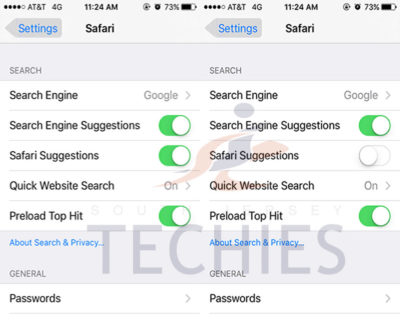
Disabling Safari Suggestions seems to be helping resolve the bug for many people on iOS. On your iPhone or iPad, go into Settings, tap Safari, and toggle off the ‘Safari Suggestions’ switch. This will fix the crashing, obviously its only a temporary fix until Apple sorts its servers out as it will disable the Safari Suggestions functionality.

Another option is to enter Private Browsing mode. In private browsing, by design Safari does not contact the suggestions server for intelligent completion options, so the server is never contacted and the crash never arises.

The bug is affecting users in many countries, but not all. It also depends on the state of your Safari, whether it has certain data cached already. The crash has been seen on iOS 8, iOS 9 and OS X 10.11. The bug could be even more widespread beyond these platforms however. It is pretty crazy flaw that is affecting so many people this morning, with many reports across European iOS customers.

We have contacted Apple about the issue for clarification, but it’s such a serious functional flaw that we expect a fix very shortly. Please note: this is an unrelated incident to the prank site CrashSafari.com.

Update: The Safari crash bug has now been fixed, according to Apple.

Have questions?

Get help from IT Experts/Microsofts Cloud Solutions Partner
Call us at: 856-745-9990 or visit: https://southjerseytechies.net/

South Jersey Techies, LL C is a full Managed Web and Technology Services Company providing IT Services, Website Design ServicesServer SupportNetwork ConsultingInternet PhonesCloud Solutions Provider and much more. Contact for More Information.

To read this article in its entirety click here.

Microsoft prices high-end Office 365 E5 at $420 per user per year

Microsoft begins selling its new highest-end Office 365 business plan, E5, on December 1 for $420 per user per year. Here’s what’s included.

Ofice 365-Plans

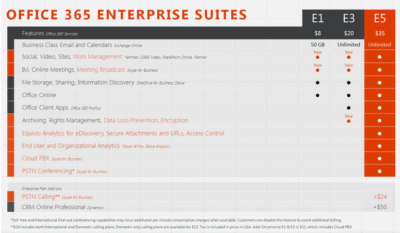
Microsoft will charge users $35 per user per month, or $420 per year, for its new highest-end Office 365 business plan.

Microsoft officials went public with the pricing for Office 365 E5, its top-of-the-line commercial Office 365 offering, on November 30 during the company’s Convergence EMEA conference. Office 365 E5 is available to customers for purchase starting, December 1.

Office 365 E4 — the current high-end version of Microsoft’s Office 365 line — sells for $22 per user per month, or $264 per user, per year.

The Office 365 E5 SKU will include Skype for Business (Lync) with support for features including Cloud PBX and Meeting Broadcast; new analytics features, like Power BI Pro and Delve Organizational Analytics; and new advanced security features, such as eDiscovery, Customer Lockbox, and Safe Attachments.

Office 365 E4 includes Skype for Business with Enterprise Voice and unified messaging; the full suite of locally downloadable Office apps; and Power BI for Office 365 (which is being superseded by Power BI pro).

Microsoft is planning to retire E4 and replace it with E5. However, Office 365 E4 will remain on the price list till June 30, 2016, Microsoft officials have said.

The E1 and E3 versions of Office 365 will retain their current prices of $8 per user per month, and $20 per user per month, respectively.

Office 365 E1 users will get new work-management capabilities, as well as Skype for Business’s Meeting Broadcast functionality added to their plans for no additional charge. Office 365 E3 users will get those same two new features, as well as the option to purchase Equivio Analytics for eDiscovery. (Microsoft bought Equivio in January 2015.)

Skype Meeting Broadcast enables users to broadcast of a Skype for Business meeting on the Internet to up to 10,000 people, who can attend in a browser.

Office 365 E5 users get all the features that E1 and E3 users get, plus other analytics and networking functionality, including Cloud PBX and PSTN Conferencing.

The Skype for Business Cloud PBX with PSTN Calling service provides users with the ability to make and receive traditional phone calls in their Skype for Business client, and to manage these calls using hold, resume, forward and transfer.

PSTN Conferencing is initially available to 15 countries on December 1, with a phased roll out to international markets in the future. Cloud PBX is available worldwide starting December 1. PSTN Calling is available in the U.S. starting December 1, with a phased roll out to international markets in the future.

The fine print: PSTN Conferencing users may incur additional per-minute consumption charges, but customer can disable this feature to avoid additional billing. PSTN Calling is paid add-on for E1, E3 and E5. For E5 users, PSTN Calling costs $24 extra (per user, per month) for international and domestic calling, and $12 for domestic calling only. For E1 and E3, the international and domestic calling plan is $32 extra.

Have questions?

Get help from IT Experts/Microsofts Cloud Solutions Partner
Call us at: 856-745-9990 or visit: https://southjerseytechies.net/

South Jersey Techies, LLC is a full Managed Web and Technology Services Company providing IT Services, Website Design ServicesServer SupportNetwork ConsultingInternet PhonesCloud Solutions Provider and much more. Contact for More Information.

To read this article in its entirety click here.

 

Bailey Landscape Services

Developed by,
South Jersey Techies, LLC.

The Web Design team of South Jersey Techies has been constantly working on developing the best websites including easy mobile approach and the latest website developed by the team is Bailey Landscape Services which are a family owned and operated full service landscape design and construction company serving all of South Jersey and the surrounding area.

bls01

The image below gives an idea how the website developed by our team looks on your smartphone.

bls02

Have questions?

Our Web Design team is here to help
Call us at: 856-745-9990 or visit: https://www.sjtechies.com

South Jersey Techies, LLC is a full Managed Web and Technology Services Company providing IT Services, Website Design ServicesServer SupportNetwork ConsultingInternet PhonesCloud Solutions Provider and much more. Contact for More Information.

Tech Tip

Cisco ASA – How to View pre-shared keys in plain text

Tech Tip

As engineers, you don’t always document things as well as we should OR someone you work with is always “too busy” to document their work. This little trick will show you how to recover pre-shared keys on a Cisco Pix or ASA firewall.

Normally, you use the ’show run’ command to view the running configuration. Pre-shared keys are marked with an asterisk (*). To view the password unencrypted, type ‘more system:running-config’. This will display the full configuration with unencrypted passwords.

To bad actually that the pre-shared key of an Cisco VPN Client doesn’t show up in the latest ASA software version 8.2.2. the pre-shared keys of the VPN Tunnels are showed.

Have questions?

Get answers from Microsofts Cloud Solutions Partner!
Call us at: 856-745-9990 or visit: https://southjerseytechies.net/

South Jersey Techies, LLC is a full Managed Web and Technology Services Company providing IT Services, Website Design ServicesServer SupportNetwork ConsultingInternet PhonesCloud Solutions Provider and much more. Contact for More Information.

Narberth Ambulance

Developed by,
South Jersey Techies, LLC.

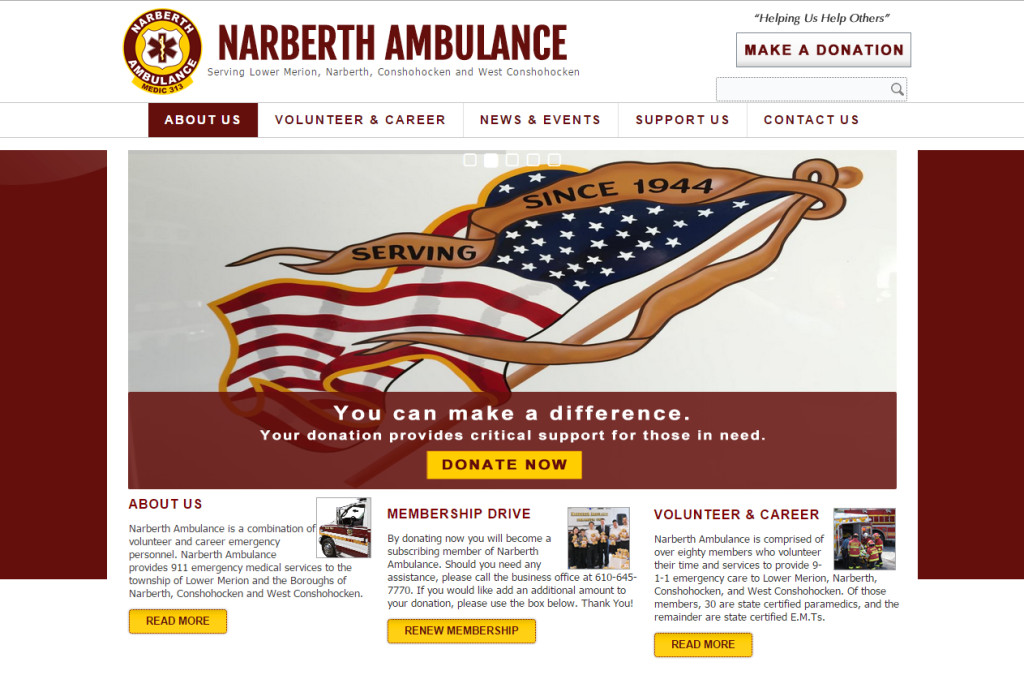
This month our website team launched a website for Narberth Ambulance. Narberth Ambulance is an organization built on the countless hour of work over 70 years and now responds to over 6100 calls a year and provides most qualified EMT’s and Paramedics. Like the majority of websites we develop, Narberth Ambulance is fully responsive and is helping thousands of people.

Narberth Ambulance

Have questions?

Our Web Design team is here to help
Call us at: 856-745-9990 or visit: https://southjerseytechies.net/

South Jersey Techies, LLC is a full Managed Web and Technology Services Company providing IT Services, Website Design ServicesServer SupportNetwork ConsultingInternet PhonesCloud Solutions Provider and much more. Contact for More Information.

Windows 10’s features

The new Windows 10 notifications will follow you everywhere

Windows 10 has a new notifications center for your apps — even the ones from your Windows Phone.

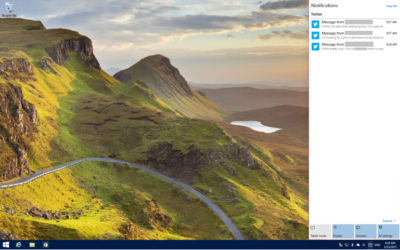
When you’re poking around Windows 10, you’ll notice something new: A small taskbar button that, when clicked, reveals a sidebar full of app notifications.

Welcome to the new notifications center, which is basically the Windows 10 version of the Action center in Windows Phone 8.1. The notifications center is part of Microsoft’s dream of “Windows everywhere” — it’s a universal notifications center that will pop up your app notifications across multiple platforms. Because who doesn’t want to be alerted about new Twitter followers on their phone, tablet, and now PC?

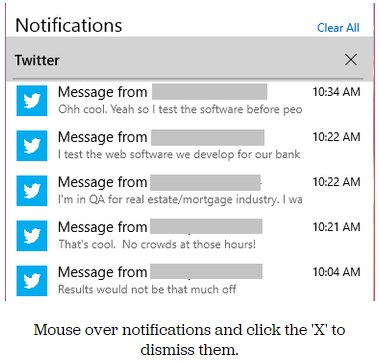
The new notifications center consists of two parts: The notifications area at the top, and the “quick actions” bar at the bottom. In the notifications area you’ll see notifications from various apps, including Twitter, Facebook, and your email account, as well as notifications from phone apps (e.g. alarms) if applicable.


Mouse over notifications and click the ‘X’ to dismiss them.

You can dismiss notifications three different ways: You can mouse over the app name (e.g. Twitter) and click the ‘X’ next to it to dismiss all notifications from that app. You can also mouse over each individual notification and click the ‘X’ next to it to dismiss that specific notification. Or you can click Clear All in the upper right corner of the notifications center to dismiss all notifications from all apps. Because this is a “Windows everywhere” feature, notifications you dismiss in the notifications center will also be dismissed on your other Windows devices, such as your phone.

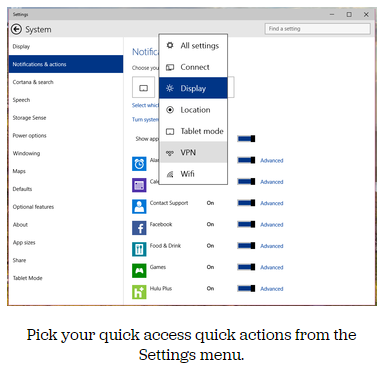
In the quick actions bar, you’ll see four quick-access buttons as well as an Expand link. Click Expand to see all quick actions. Actions include things like a Tablet Mode toggle button, a link to the Display settings, a link to all settings, and toggle buttons for Location and Wi-Fi. Tap a quick action button to toggle a setting (tablet mode, location, Wi-Fi) on or off, or to go directly to the settings menu so you can configure your display, connection, or VPN.

x4
Pick your quick access quick actions from the Settings menu.

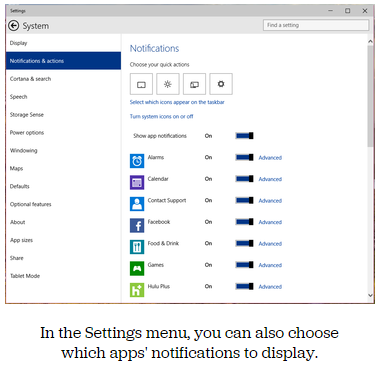
To choose which quick actions appear above the break, go to Settings > Notifications & actions > Choose your quick actions. Here, you’ll see four small buttons that you can click on to swap out actions. If you’d prefer to have your Wi-Fi toggle on hand whenever you open the notifications bar, you can switch it for the Display button. Of course, you’ll always be able to see all of the quick actions by clicking Expand in the notifications bar.

x5
In the Settings menu, you can also choose which apps’ notifications to display.

Here, you can also pick and choose which app notifications you’ll see in the notifications bar. If you want to turn all notifications off, you can simply click the toggle next to Show App Notifications. You’ll no longer see pop-up banner notifications, nor will you see app notifications when you open the notifications center.

If you’d prefer to just turn off notifications for specific apps, you can do that, too — find the app in the list and click its toggle to Off. Next to each app in the list you’ll see a link to Advanced notifications settings for that app. Go into Advanced to turn off specific notifications for that app — either banner notifications (pop-ups in the lower right corner of your screen) or notifications in the notifications center.

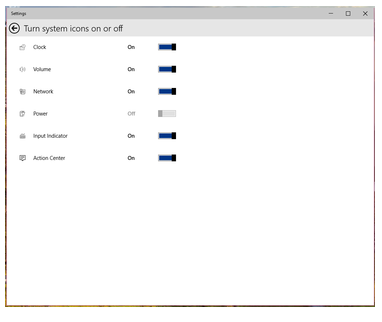
Want to turn your clock off? You can do that, too.

In the Notifications & Actions section, you can also clean up your taskbar by clicking “Select which icons to appear in the taskbar” (you can turn on and off things like the Network icon and the Volume icon), or by clicking “Turn system icons on or off.” In “Turn system icons on or off,” you can turn off the clock, input indicator or action center — in other words, you can turn off all system tray icons and have a completely icon-less system tray, if you so choose.

Have questions?

Want to get Windows 10?

Contact Our Expert IT business team
Call us at: 856-745-9990 or Visit: https://southjerseytechies.net/

South Jersey Techies, LLC is a full Managed Web and Technology Services Company providing IT Services, Website Design ServicesServer SupportNetwork ConsultingInternet PhonesCloud Solutions Provider and much more. Contact for More Information.

To read this article in its entirety click here.
Windows 10’s new features, how they work and how you can make them work for you.

The final version of Windows 10 won’t be available until 2015, but that doesn’t mean you can’t live the Windows 10 experience — the extremely pre-final experience — right now.

The technical preview is available right now and although things will likely change drastically between now and release, now’s a good chance to get acquainted.

And keep checking back. As the months close in on the new OS’s final release, expect all our How To coverage to be posted right here.

Windows 10 Technical Preview: 1

spartan

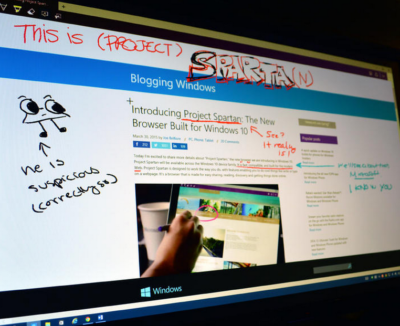
Build 10049 of the Windows 10 Pro Technical Preview just dropped, and with it comes Microsoft’s sexy, speedy new browser: Project Spartan.

The next-gen browser has several new features to try out, including a distraction-free reading view and a fast, secure rendering engine (which was available as an experimental feature in Build 9926). But the coolest new feature is inking — the ability to draw, write on, and generally mark up Web pages from directly within the browser. You can share your marked-up creations via email or through social networks, or you can save them to OneNote.

Start inking

When you see a Web page you want to “ink,” click the small icon that looks like a pen and paper in the upper right corner of the browser window. There are only about five icons total, so this shouldn’t be too difficult to find.

The Web page will refresh and the inking toolbar will appear over the regular toolbar. On the left side of the inking toolbar, you’ll see five icons: Pen, highlighter, eraser, text, and clip. The pen tool is selected by default, so you can just start scribbling away if you’d like (in medium thickness, light blue ink). If you want to change the color of your pen, click the pen icon to choose from 12 colors and three sizes.

To use a highlighter, which will let you highlight text and images instead of drawing over them, click the highlighter button. Click the highlighter button a second time to select your highlighter color and shape (six colors, three shapes).

Type some comments

Drop a connect pin

If you prefer typing to writing or drawing, you can use the text tool to make comments on the webpage. The text tool is a little different from the pen and highlighter tools: Instead of letting you put text wherever you want on the page, this tool lets you drop a comment pin and type text in a corresponding text box on the right side of the page. You can minimize the text box (the pin will remain visible) for less clutter.

When you select the text tool, your pointer will turn into a cross-hair. Click anywhere on the page to drop a comment pin. The pin will appear where you click, and a thin line will connect it to a corresponding text box on the right side of the page.

Click inside the text box to type your comment. To minimize the box, you can either click the minus sign in the upper right corner of the box, or you can click the corresponding comment pin. To delete both the comment pin and the text box, click the trash can icon in the lower right corner of the text box.

The clipping tool will also turn your cursor into a cross-hair, so you can clip out a section of the page. It works similar to the Snipping Tool — click the clipping tool icon, and the page will fade out until you select a section of it. Once you have a section selected, you’ll see a small copy icon in the lower right corner; click this to copy your clip (you can paste it into another program, such as Microsoft Paint, if you want to save it).

Don’t make any mistakes

As of right now, the eraser tool doesn’t do much. If you click on it, nothing happens. If you click on it again, a “Clear All” box appears, which you can click to clear the Web page of annotations.

I assume the eraser tool will be fixed before Project Spartan goes public, because right now there’s no way to fix an annotation mistake without clearing the entire page and starting over.

Share or save your masterpiece

On the right side of the inking toolbar, you’ll see a save icon and a share icon. To save your newly-annotated webpage, click the save icon.

Right now, Project Spartan will let you save your marked-up page as an HTML file – that is, you can add it to your Favorites or your reading list. In the future, you’ll also be able to save your projects in OneNote.

To share your work, click the share icon to open up Windows 10’s sharing sidebar. Because this is such a new build, Project Spartan’s sharing capabilities don’t appear to be turned on – but when they are, you’ll be able to share your creation with any app that supports Windows’ sharing sidebar.

Have questions?

Our small business team is here to help.
Call us at: 856-745-9990

South Jersey Techies, LLC is a full Managed Web and Technology Services Company providing IT Services, Website Design ServicesServer SupportNetwork ConsultingInternet PhonesCloud Solutions Provider and much more. Contact for More Information.

To read this article in its entirety click here.
Paul’s Tree Service

Check out a recently developed and designed website by South Jersey Techies Website Team for Paul‘s Tree Service in Delran, NJ.

Paul's Tree Services

Have questions?

Our small business team is here to help.
Call us at: 856-745-9990

South Jersey Techies, LLC is a full Managed Web and Technology Services Company providing IT Services, Website Design ServicesServer SupportNetwork ConsultingInternet PhonesCloud Solutions Provider and much more. Contact for More Information.

CALL US NOW!