Back to Top

Tech, Web, Cloud & Cabling Services

Category: Tips & Info

Tips & Info Category

Windows Server 2003: Dangerous to use but still surprisingly popular

One in 10 web-facing computers is still running Microsoft Windows Server 2003, according to a report – despite the OS no longer being patched by Microsoft.
Windows 10

Hundreds of thousands of computers are still using the Windows Server 2003 operating system – despite it no longer being patched against hacks.

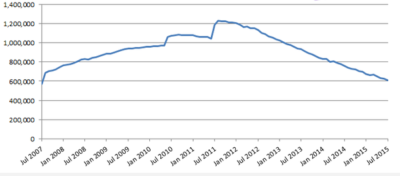
Internet services found more than 600,000 web-facing computers, together hosting millions of websites, still running the OS that Microsoft ceased supporting in July this year.

The end of support means the OS no longer receives patches against viruses, spyware and other malware that might seek to exploit the system. The US Computer Emergency Readiness Team warns that those running Windows Server 2003 risk “loss of confidentiality, integrity, and or availability of data, system resources and business assets”.

Despite these risks, 175 million websites – what it terms “one-fifth of the internet” – are hosted on machines running Windows Server 2003. The OS also appears to be in use on computers sitting behind web servers for a further 1.7 million sites.

Together accounting for 55 percent, the US and China are home to the bulk of the machines running Windows Server 2003, with 166,000 in the US and 169,000 in China.

The unsupported nature of Windows Server 2003 makes it a tempting target for attackers – which is why it is important for firms to switch away from the OS as soon as possible.

“As time goes by, there will be some vulnerabilities that affect Windows Server 2003 and if those allow things like remote code execution and so on, we’re likely to see a massive number of web-facing computers and a much larger number of websites getting hacked. These could then go on to distribute malware and even be made into botnets to enable other attacks.

“Of course, because Windows Server 2003 is now unsupported, those people who try to find vulnerabilities might even now be particularly focusing on this platform because they know it won’t be fixed.”

Windows Server 2012 R2 is the most recent version of Microsoft’s server-targeted operating system – with a variety of options for licensing. In part, the cost of moving to a more recent Microsoft OS for the proportion of machines still running Windows Server 2003.

“[That proportion] is over 10 percent of all web-facing computers, and shows the true potential cost of migration,” the report states.

Moving a server to a Linux-based OS can be difficult for organisations that have traditionally used Windows Server, Mutton said, particularly if they rely heavily on scripts written for ASP.NET, Microsoft’s server-side web application framework.

The report lists several major firms and banks still running Windows Server 2003 machines, including UK bank NatWest, part of the larger publicly-owned Royal Bank of Scotland (RBS).

However, while Microsoft is no longer supporting the OS for most users, it will offer fixes for the OS to organisations willing to pay for a custom-support deal.

Such a deal was recently struck by the US Navy, which agreed to pay at least $9m to Microsoft to provide ongoing support for Windows XP, Office 2003, Exchange 2003 and Server 2003. A spokesman for RBS said NatWest is also covered by a custom support deal with Microsoft that began in March this year.

Firms without such a custom support deal in place that use Windows Server 2003 to serve sites that handle financial information could be in breach of data security standards, which carries out security testing and assessments for companies.

The requirement under Payment Card Industry Data Security Standard (PCI DSS) 6.2 that “all system components and software to be protected from known vulnerabilities by installing vendor-supplied

“Many merchants still using Windows Server 2003 are likely to be noncompliant and could face fines, increased transaction fees, reputational damage, or other potentially disastrous penalties such as cancelled accounts.”

Microsoft advises several options for machines still running Windows Server 2003 – including switching to Windows Server 2012 R2 or its cloud platform Microsoft Azure. It provides an interactive Windows Server 2003 Migration Planning Assistant.

Have questions?

Get help from IT Experts/Microsofts Cloud Solutions Partner
Call us at: 856-745-9990 or visit: https://southjerseytechies.net/

South Jersey Techies, LLC is a full Managed Web and Technology Services Company providing IT Services, Website Design ServicesServer SupportNetwork ConsultingInternet PhonesCloud Solutions Provider and much more. Contact for More Information.

IRS launches iPhone, Android apps for taxpayers

Everyone’s favorite government agency, the Internal Revenue Service, has launched its own mobile application.

Released last week to iPhone and Android users, the free IRS2Go provides a few tidbits of information that could make April 15 a bit less stressful.

Those of us fortunate enough to qualify for a refund can find out exactly when Uncle Sam will be sending out that check. Entering your Social Security number (which the IRS says is masked and encrypted), filing status, and expected refund amount delivers the due date for your payment.

People who file their federal taxes electronically can check their refund status about 72 hours after they get an e-mail from the IRS acknowledging the receipt of their tax return. Those still doing things the old-fashioned way–on paper–will have to wait around three or four weeks after filing before they can learn when their refund check will arrive.

According to the agency, around 70 percent of the 142 million individual tax returns filed last year were done electronically.

Beyond providing the refund status, the app lets you subscribe to tax tips and updates sent each day during tax season and less frequently the rest of the year. IRS2Go also points you to the agency’s own Twitter feed where you can learn even more about filing your taxes.

“This new smart phone app reflects our commitment to modernizing the agency and engaging taxpayers where they want when they want it,” IRS Commissioner Doug Shulman said in a statement. “As technology evolves and younger taxpayers get their information in new ways, we will keep innovating to make it easy for all taxpayers to access helpful information.”

The IRS has increasingly been moving taxpayers toward e-filing and encouraging them to access more information electronically as a way to cut costs. Last year, the agency announced that it would no longer mail paper income tax packages to individuals and businesses since all of that information is freely available online or through libraries and post offices. The IRS is also looking for other ways to take advantage of technology, especially the move toward mobile.

This phone app is a first step for us,” Shulman said. “We will look for additional ways to expand and refine our use of smartphones and other new technologies to help meet the needs of taxpayers.”

To view the original article in it’s entirety, Click Here

South Jersey Techies

Shark Tank host, Barbara Corcoran loses $388,700 in phishing scam

Barbara Corcoran of ABC’s “Shark Tank” has lost nearly $400,000 in a phishing scam this week. Corcoran told “People” that she was tricked as a result of an email scheme sent to her team.

The high-powered businesswoman told People that she received a scam invoice approving a real estate renovation, but she didn’t think twice about verifying it because she invests in real estate. It was only until her bookkeeper caught Corcoran’s assistant’s email was misspelled by 1 letter and it was later found to be the address used by the scammer.

“I was upset at first, but then remembered it was only money,” Corcoran told the magazine.

Corcoran’s assistant Emily Burke told CNN Business that the “Shark Tank” star wouldn’t provide any additional comment “at the advisement of her attorneys until the authorities are done investigating.”

However, Corcoran tweeted: “Lesson learned: Be careful when you wire money!” with a link to a TMZ story.

In addition to being an investor and a judge on the hit ABC show, Corcoran formerly owned the global real estate agency that shares her name. She sold it for $66 million in 2001.

Corcoran fell for a phishing scam. It’s common, too: Nearly 30,000 people reported being a victim of that type of scam last year. Together they reported nearly $50 million in losses, according to the FBI’s 2018 Internet Crime Report.

Phishing attacks are common methods of stealing usernames, passwords and money. Hackers pretend to be a trustworthy source to convince you to share personal data. To be safe, it’s important to make sure the sender is authentic before clicking on a link. Google has rolled out security protections that warns people of potential unsafe emails.

If you or your team have any questions or concerns please contact support at (856) 745-9990.


FAA Reconsiders Electronic Device Policy

FAA could reconsider electronic device policy for flights!

The Federal Aviation Administration is forming an industry group to study when smartphones and tables can be turned on during a flight.

Airline passengers may soon be able to use their smartphones and tablets during flights with fewer interruptions.

The Federal Aviation Administration has formed a committee to reconsider its policy on when electronic devices can be turned on during a flight.

“With so many different types of devices available, we recognize that this is an issue of consumer interest,” Transportation Secretary Ray LaHood said in a statement released today. “Safety is our highest priority, and we must set appropriate standards as we help the industry consider when passengers can use the latest technologies safely during a flight.”

And, travelers who are worried that this may mean they’ll have to listen to the person sitting next to them chat on the phone incessantly don’t need to worry — this policy review will not include allowing calls from cell phones during flights.

Airlines currently prohibit passengers from using devices during takeoff and landing in fear that transmissions would interferer with the airplane’s equipment, but the FAA’s call for comments said consumers expect a much more fluid experience. The formation of an industry group to take on the consumer desire versus safety concern issue comes after the FAA said earlier this year that it was going to research the issue.

The group — which will includes members from the mobile industry, aviation manufacturing, as well as pilot and flight attendant groups, airlines, and passenger associations — will begin soliciting comments from the public tomorrow.

The committee is interested in hearing from aircraft operators, flight crews, security, smartphone and tablet device manufacturers, and passengers.

To View Full Article Click Here

Avoid Phishing Scams with Three Simple Tips

Phishing scams are online messages designed to look like they’re from a trusted source. We may open what we thought was a safe email, attachment or image only to find ourselves exposed to malware or a scammer looking for our personal data. The good news is we can take precautions to protect our important data. Learn to recognize the signs and report phishing to protect devices and data.


  1. Recognize Common Signs | Be wary of requests from unknown parties, especially if they ask for money or other sensitive information.

• Urgent or emotionally appealing language
• Requests to send personal or financial information
• Unexpected attachments
• Untrusted shortened URLs
• Email addresses that do not match the supposed sender
• Poor writing/misspellings (less common)

  1. Resist and Report | Report suspicious messages by using the “report spam” feature. If the message is designed to resemble an organization you trust, report the message by alerting the organization using their contact information found on their webpage. You can also forward your email to support@sjtechies.com for one of our Security Team members to review.
  2. Delete | Delete the message. Don’t reply or click on any attachment or link, including any “unsubscribe” link. The unsubscribe button could also carry a link used for phishing. Just delete.

If a message looks suspicious, it’s probably phishing.


Have questions?


Our team is here to help. Call us at: 856-745-9990 or visit: https://southjerseytechies.net.


South Jersey Techies, LLC is a full Managed Web and IT Services Company located in Marlton, NJ providing IT ServicesManaged IT ServicesWebsite Design ServicesServer SupportIT ConsultingVoIP PhonesCloud Solutions Provider and much more. Contact Us Today.


Let’s work together to build a safer digital environment for your business. We can increase your online safety through four simple actions, and whether at home or work, these tips make us more secure when connected. Take time to discuss them with your team so you can all become safer online!


  1. Use Strong Passwords | Strong passwords are long, random, and unique and include all four-character types (uppercase, lowercase, numbers, and symbols).
  2. Turn On Multi-Factor Authentication | You need more than a password to protect your online accounts; enabling MFA makes you significantly less likely to get hacked. Enable MFA on all your online accounts that offer it, especially email, social media, and financial accounts.
  3. Recognize & Report Phishing | Be cautious of unsolicited messages asking for personal information. Avoid sharing sensitive information or credentials with unknown sources. Report phishing attempts and delete the message.
  4. Update Software | Ensuring your software is up to date is the best way to make sure you have the latest security patches and updates on your devices. Regularly check for updates if automatic updates are unavailable.

In today’s digital landscape, protecting your business doesn’t have to be complicated. By adopting these simple cybersecurity practices—using strong passwords, enabling multi-factor authentication, staying vigilant against phishing, and keeping software up to date—you can safeguard your business against common threats. Remember, cybersecurity is a shared responsibility, and small actions today can make a big difference tomorrow. Stay proactive, stay protected!


Have questions?


Our team is here to help. Call us at: 856-745-9990 or visit: https://southjerseytechies.net.


South Jersey Techies, LLC is a full Managed Web and IT Services Company located in Marlton, NJ providing IT ServicesManaged IT ServicesWebsite Design ServicesServer SupportIT ConsultingVoIP PhonesCloud Solutions Provider and much more. Contact Us Today.

Save Big on Toner!

toner

TECHIEDEPOT.COM

Your #1 Source for the Best Printer Ink Cartridges

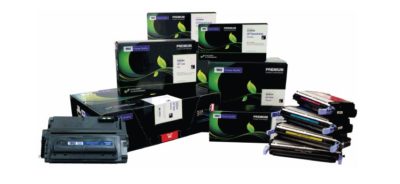
Looking to save on toner ?  Save upto 35% when you order Re-manufactured Toner Cartridges with TECHIE DEPOT. Our toner cartridges are intelligently re-engineered and environmentally friendly.   We offer a 3 year 100% warranty whereas most OEMs only offer a 1 year warranty.

We guarantee our products will perform better than any other aftermarket imaging product.  Rest assure you never have to worry about leaking cartridges because of our Patented Ultrasonic and Gasket Seal Technologies.  Our Secondary cleaning System also eliminates streaking.  Our toner cartridges are ISO Certified for OEM page yield and quality.  With our Extended Yield Cartridges you will get up to 100% more yield.

You will find that we are different because everyone is not as committed to quality like we are and our product is better built and more consistent.  Our cartridges have a documented 99.2% success rate and for 7 consecutive years we were awarded the best quality supplier in the aftermarket  by Recharger Magazine.

Pay less for great quality, we are sure you won’t be disappointed with our product.  Contact us and place your order today!

Tips for a Green PC

Takeaway:  Tips for making environmental choices whether buying a new computer or maintaining your current one.

To reduce energy intake you can use a power strip, monitor usage with utilities and unplug components when not in use.  Deciding to go green for current computers or buying a new computer can help with power management to cut down on wasted energy and costs.

Energy Star is a voluntary energy efficiency program that prevents greenhouse gas emissions with strict guidelines.  EPEAT is an assessment tool to help users compare and purchase computer equipment.  Both provide tools to help make an environmental choice.

epeat-logoenergystar-logo

Buying a New Computer Tips:

  • Research:  Find out if it is Energy Star rated, how much energy the computer will use and power management options.
  • Recommendations:  Check out product reviews from previous purchasers and from non-profit organizations that provide accurate feedback (Such as EPEAT and Energy Star)
  • Purify New PC:  Read the Hazardous Material Use Policy on manufacturer’s site.
  • Don’t be Greenwashed:  Research the company to make sure that their “Green Computer” is not a marketing campaign with few benefits towards the environment.
  • Green Guide:  If you would like user ratings and reviews for products, several websites provide these options as well as advice for purchasing new equipment. 

Upgrading Current Machine Tips:

  • General Health Check:  The three major components that play a role in energy are graphics card, microprocessor and monitor.
  • Replace CRT Monitor:  CRT Monitors may contain Lead, Mercury, Barium and more toxins.  Replace your old monitor with a new LCD or LED Monitor to save energy and money. 
  • Upgrading Memory:  Upgrading your RAM will increase the speed of your machine while lowering the power intake, which is a quick, inexpensive fix.
  • Greener Battery:  Similar to CRT Monitors, older laptop batteries contain hazardous chemicals such as lead.  Companies are starting to manufacturer Green Batteries that have a longer life expectancy using earth-friendly features.
  • Greener Power Supply:  The ability to scale the power required for particular actions with your power supply is an efficient way to save energy; while regular power supplies emit a steady rate of power at all times.


Increase Sales & More with Site Analytics

Get the insight you need to succeed on the Web.

The key to any successful website is knowing your visitors. Site Analytics gives you the valuable, real-time data you need – information you can use to spotlight popular products, target new customers, track offer responses and much more. With over 30 detailed reports, you can find out where your visitors are coming from, what paths they take through your site, even where in the world they live.

Stats at-a-glance

  • Get the information you want – without having to click through countless screens – with our customizable dashboard view.

Real-time results

  • With Site Analytics’ real-time statistics, you don’t have to wait until tomorrow to find out if changes to your site are working. Plus, heat mapping and pinpoint functionality tell you which sections or links are getting the most attention.

In-depth reporting

  • Dig into the details and get a better understating of your customers with more than 30 reports. Find out who’s visiting, when they’re on your site, how they’re getting there and much more.

Choose your view

  • Site Analytics lets you decide how you want to view your data with three graphing options (Bar, Area and Line) as well as the ability to export to Microsoft Excel® or Adobe® PDF.

Powerful, easy-to-use features let you dig as deep as you want.

Everyone wants something different from their site statistics. Some people want a quick, birds-eye view; others want to get lost in the details. That’s the beauty of Site Analytics; it works for everyone. Our user-friendly interface and intuitive features put you in control so you can get exactly what you want.

See what’s happening

  • Get a quick overview of your site’s traffic and visitors with a selection of dashboard widgets.
  • Real-time statistics let you see, almost instantly, how changes to your site impact your traffic.
  • Improve your site’s structure and usability by seeing where people click and which links get the most attention with heat mapping.

Organize your data

  • Find the information you need with more than 30 reports in several categories: Visitor, Page, Referrer and Server.
  • Visualize the data the way you want with three different graphing options: Bar, Area and Line. Plus, set custom date ranges to target your results!
  • Share your data with co-workers and clients by exporting to Microsoft Excel® or Adobe® PDF. You can even create a schedule to email customized reports.
  • Get separate reports for each alias and subdomain — simply add them as separate Site Analytics accounts.

And much more

  • Easily collect stats on your WordPress® site with our free Site Analytics plugin.
  • Enable secure (SSL) mode to encrypt your data so it can’t be viewed by others during transmission.
  • Analyze long-term trends and improvements with up to 6 months of Log File data.
  • Use Site Analytics with any website, whether you host with us or a third party.


Our highly trained, courteous support staff is waiting to take your call. Whatever time it takes to assist you, that’s the time you’ll receive. We’ll resolve any issue to your complete satisfaction.

Call (888) 505-1532 to get started now or click here

The 10 elite smartphones of 2010

Takeaway: With the rise of Android, the reboot of BlackBerry, and the redesigned iPhone, 2010 can rightly be called the year of the smartphone. Here are the best devices of the year.

10. BlackBerry Torch

BlackBerry came under intense pressure in 2010 from the rapid growth of iPhone and Android. The smartphone incumbent fired back with the release of the BlackBerry 6 OS and a new form factor with a slide-down keyboard in the BlackBerry Torch. The device is a bit underpowered, the OS isn’t a huge step forward, and overall it hasn’t been enough to stem the losses to Apple and Google. But, there are still a lot of BlackBerry fans out there — not to mention all of the enterprises locked into BlackBerry — and for them, the Torch is now the pre-eminent device on the market.

9. Motorola Droid 2

This shows how much progress the smartphone market has made in one year. Last year, I would have ranked the original Motorola Droid and the Apple iPhone 3GS as the two best smartphones on the market. This year, the Droid got a very nice upgrade but still struggled to make the top 10. Still, due to its increased specs, solid build quality, and very usable form factor, the Droid 2 belongs on this list. Also, don’t miss its cousins, the Droid Pro and the Droid 2 Global.

8. HTC Incredible

With much the same innards as the Google Nexus One (although not nearly as strong of a build quality), the HTC Incredible was a consolation prize for those who had been salivating for the Nexus One on Verizon. Unfortunately, Google and Verizon pulled the plug on those plans and instead HTC offered the Incredible through Verizon with the traditional two-year contract. The Incredible did get one thing that the Nexus One didn’t have: HTC’s Sense UI. Some viewed that as a bonus over the stock Android OS on the Nexus One, while others saw it as a detractor.

7. Samsung Focus

Microsoft finally got itself back in the smartphone game in 2010 with the launch of Windows Phone 7, and the first widely-available WP7 device was the Samsung Focus, which didn’t disappoint. The Focus sported nice hardware specs in an attractive, futuristic form factor (albeit with a lot of plastic, similar to the Galaxy S). And, Windows Phone 7 offered a new take on smartphone UI that is a little but more polished and fluid than Android or BlackBerry, although not quite as finished as the iPhone.

6. Motorola Droid X

Verizon Wireless went all-in on Android in 2010, launching a steady stream of new Android-powered devices throughout the year and replacing BlackBerry with Android as its primary smartphone platform. The Droid X served as Verizon’s flagship Android phone, with its huge screen, 8MP camera, enterprise-class hardware, and extensive list of high-end features.

5. HTC Desire

While the HTC Incredible had the same guts as the Nexus One but a much different outer shell, the HTC Desire had similar internals and an outer shell that closely resembled the high quality metal casing on the Nexus One. The Desire quickly became one of the most popular smartphones in Europe and Australia by mid-2010 and has spread to other carriers through the globe since then. Along with the Nexus One and the iPhone 4, the Desire feels like the most substantial and high quality smartphone on the market. You should also keep an eye on the HTC Desire HD and the HTC Desire Z.

4. Samsung Galaxy S

Samsung joined the Android movement with all guns blazing in the middle of 2010 by releasing its line of Galaxy S smartphones in a variety of different form factors (and a confusing array of product names) on all four US wireless carriers and a fleet of international carriers. In the US, the Samsung Vibrant and the Samsung Epic 4G were the most impressive of the Galaxy S phones, but all of the models across the globe have same technology base and generally provide a very good Android experience.

3. Google Nexus One

The first big smartphone of 2010 was the Google Nexus One, launched just after the new year and right before CES 2010. As a product, the long-rumored “Google Phone” wasn’t a disappointment. It had excellent build quality (developed by HTC) and ran the stock Android OS, which got all of the latest Android updates directly from Google. However, the phone failed in its larger mission of moving the US telecom market toward the European model of being able to buy phones and wireless service separately. The Nexus One was sold as an unlocked device at full price ($500) through Google’s online store. Google was not well prepared to handle customer service and didn’t give US consumers enough time to warm up to the idea of buying a full price device. It also never released the promised CDMA version of the Nexus One. Eventually, Google abandoned the product altogether and replaced it in December with the Nexus S, built by Samsung and available under traditional contract with T-Mobile.

2. HTC EVO 4G

The premier Android device of 2010 was the HTC EVO 4G. It was the first major smartphone to break the 4-inch screen barrier. It was the first 4G smartphone in the US. It was the first major smartphone with an 8.0 megapixel camera. It was the first major smartphone to feature a kickstand (for video viewing). I pejoratively called it the “Hummer of smartphones” because of its massive size and the fact that it’s such as battery hog, but there’s no arguing that the EVO 4G stretched the boundaries of what was possible in a smartphone and forced all of its competitors to play catch-up.

1. Apple iPhone 4

With all of the momentum that was gathering around Android during the first half of 2010, Apple’s iPhone 3GS was starting to look pretty stale by mid-year — especially since it was only a slight upgrade over the iPhone 3G from 2008. Then, Apple unveiled iOS4 and the iPhone 4 and launched itself back to the head of the class with top-quality hardware and a software experience that still outpaces all of its rivals in terms of ease of use, responsiveness, polish, and third-party software. The iPhone 4 antenna problem, which was more severe than Apple acknowledged but a lot less severe than the tech press portrayed it, was a wart for the iPhone 4. It also still lacks the widget capability of Android (and now Windows Phone 7). But, overall, the iPhone 4 remains the gold standard of the smartphone market.

Honorable mentions

  • Motorola Droid Pro
  • HTC HD7
  • Dell Venue Pro
  • T-Mobile G2
  • BlackBerry Bold 9780
  • HTC Aria


CALL US NOW!