Back to Top

Tech, Web, Cloud & Cabling Services

Category: Software

Software Category

10 Word Defaults You Can Customize

Takeaway: Change a few key default settings in Word and you won’t have to make the same tweaks over and over.

Word does a good job of assuming how the average user works, but some of Word’s default settings can be annoying and inefficient. Some users don’t know they can permanently change these settings, so they continue to reset them for each new document or just struggle along. Users should consider resetting the following defaults to work more productively. Of course, there are more defaults to set.

1: Line spacing

The default line spacing setting in Word 2007 and 2010 is 1.15, not 1, as it is in 2003. Microsoft believes 1.15 is more readable online. If you’re not generating Web content, adjust the style(s) you use in Word’s template (Normal.dotx), as follows:

  1. Click the Home tab.
  2. Right-click Normal in the Styles Quick gallery and choose Modify.
  3. Choose Paragraph from the Format list.
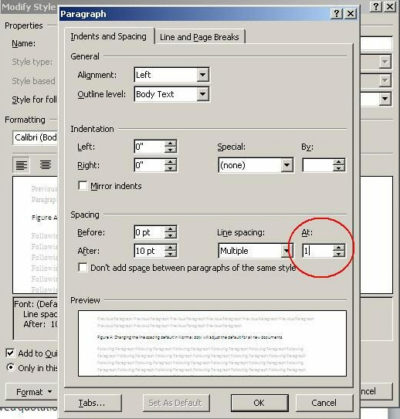
  4. In the Spacing section, change the At setting from 1.15 to 1, as shown in Figure A.
  5. Click OK.
  6. Check the New Documents Based On This Template option.
  7. Click OK.

Figure A


This change will adjust all Word styles based on Normal, so be sure that’s what you want.

2: Smart quotes

If you generate Web content or other published material, you probably have to undo Word’s smart quotes in favor of straight quotes. You can do so quickly enough by pressing [Ctrl]+Z, but that becomes tedious after a while and you might forget. If you use straight quotes more than smart quotes, disable smart quotes as follows:

  1. Click the File menu and choose Options under Help. In Word 2007, click the Office button and click Word Options. In Word 2003, choose Auto Correct Options from the Tools menu and skip to step 4.
  2. Choose Proofing in the left pane.
  3. Click AutoCorrect Options in the AutoCorrect Options section.
  4. Click the AutoFormat As You Type tab.
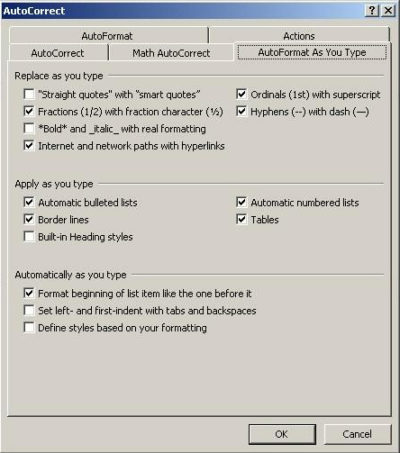
  5. Deselect the Straight Quotes With Smart Quotes option in the Replace As You Type section, shown in Figure B.
  6. Click OK.

Figure B


Disable smart quotes for all new documents.

3: Paste special

Word’s paste special feature retains the source formatting. If you’re pasting from foreign sources, you probably reformat it once it’s in your Word document. If you do this a lot, change the Paste Special default as follows:

  1. Click the File tab and choose Options. In Word 2007, click the Office button and then click Word Options.
  2. Select Advanced in the left pane.
  3. In the Cut, Copy, and Paste section, choose Use Destination Styles from the Pasting Between Documents When Style Definitions Conflict drop-down.
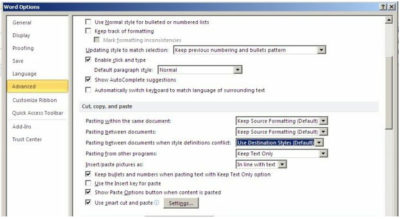
  4. Choose Keep Text Only from the Pasting From Other Programs drop-down, as shown in Figure C.
  5. Click OK.

Figure C


Several paste settings make this a flexible feature; choose the setting that’s most efficient for you.

This feature is significantly different in Word 2003. From the Tools menu, choose Options, and click the Edit tab. In the Cut And Paste section, click the Settings button to display the options shown in Figure D.

Figure D
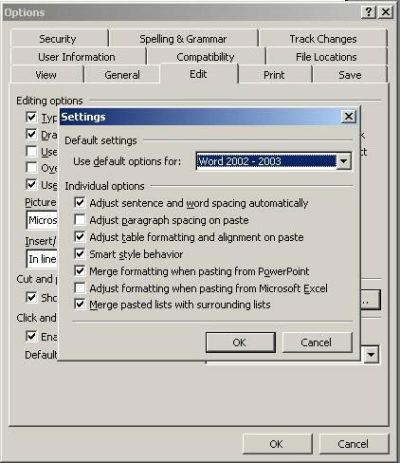


Word 2003 is more specific, but it allows some control.

4: File Location

Word saves your documents in My Documents. If you find yourself resetting the save location a lot, reset the default as follows:

  1. Click the File tab and choose Options. In Word 2007, click the Office button and then click the Word Options button. In Word 2003, choose Options from the Tools menu.
  2. Select Save in the left pane. In Word 2003, click the File Locations tab.
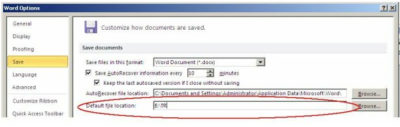
  3. Specify the new folder in the Default File Location field shown in Figure E. Or click Browse and locate it that way. In Word 2003, highlight the Documents item and click Modify. Use the Modify Location dialog to specify the new folder and click OK.
  4. Click OK.

Figure E


Word will save documents to the specified folder instead of My Documents.

5: Spacing between paragraphs

When you press [Enter], Word increases the line spacing to add a bit more white space between paragraphs. This extra space isn’t the same as a blank line, so you can’t delete it by pressing Backspace. To eliminate this extra spacing, do the following:

  1. Click the Home tab. In Word 2003, select Paragraph from the Format menu.
  2. Click the Paragraph group’s dialog launcher (the small arrow in the lower-right corner). In Word 2003, click the Indents And Spacing tab.
  3. Check the Don’t Add Space Between Paragraphs Of The Same Style option.
  4. Click Set As Default, as shown in Figure F. (Not available in Word 2003, but you can change this format for the current document.)
  5. Click OK.

Figure F


Eliminate the additional white space between paragraphs.

6: Mini toolbar

When you select text, Word displays the mini toolbar, which hosts several formatting options. Even though it’s dimmed, it still annoys some users. You can press [Esc] to hide it or you can permanently disable it, as follows:

  1. Click the File menu and choose Options. In Word 2007, click the Office button and then click Word Options.
  2. Choose General in the left pane (if necessary).
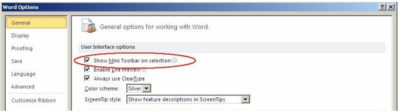
  3. In the User Interface Options section, uncheck the Show Mini Toolbar On Selection option, shown in Figure G.
  4. Click OK.

Figure G

Uncheck this option to disable the mini toolbar.

7: Drawing canvas

Word’s drawing canvas is a distinct layer for drawing. Objects placed in a canvas have an absolute position and remain together as a group. Most users find the canvas layer difficult to work with and frankly, most users don’t need it. If you’re still using Word 2003, disable the canvas layer as follows:

  1. From the Tools menu, choose Options.
  2. Click the General tab.
  3. Uncheck Automatically Create Drawing Canvas When Inserting AutoShapes in the General Options section.
  4. Click OK.
  5. Word 2007 and 2010 disables the canvas layer by default. If you happen to be working with the drawing canvas enabled, disable it as follows:
  6. Click the File menu and then choose Options. In Word 2007, click the Office button and then click Word Options.
  7. In the left pane, choose Advanced.
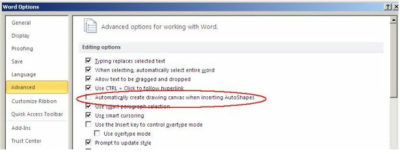
  8. In the Editing section, uncheck the Automatically Create Drawing Canvas When Inserting AutoShapes option, shown in Figure H.
  9. Click OK.

Figure H

The drawing canvas is annoying enough that Microsoft finally disabled it by default in the Ribbon versions.

8: Normal.dotx

Word bases new documents on Normal.dotx, but the template’s settings might not fit your needs. If you have just a few changes, customize Normal.dotx. A common customization is to change the font and size. To make the change at the template level, do the following:

  1. Open a new document and click the Home tab.
  2. Click the Font group’s dialog launcher (the arrow in the bottom-right corner). In Word 2003, choose Font from the Format menu.
  3. Make the necessary font changes. For instance, you might choose Arial, 12.
  4. Before closing the dialog, click the Set As Default button. In Word 2003, click Default.
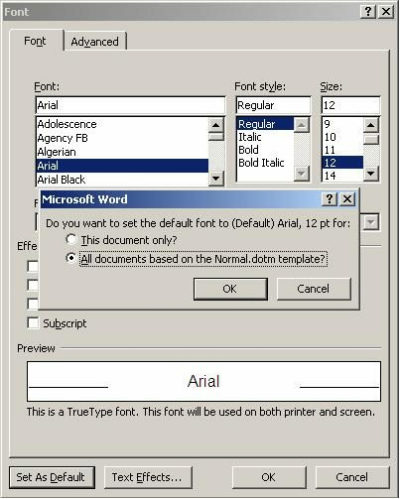
  5. In the resulting confirmation dialog, select the option to set the default for all documents based on the Normal template, as shown in Figure I.
  6. Click OK twice.

Figure I


Make a font change at the template level.

Other template customizations you might want to make include margins and styles. Use a custom template, rather than Normal.dotx, to meet requirements that are more complex.

9: Word selection

When you select part of a word and then part of the next, Word selects the whole word for you — whether you meant to or not. To disable this selection option, do the following:

  1. Click the File tab and choose Options. In Word 2007, click the Office button and then click Word Options. In Word 2003, choose Options from the Tools menu.
  2. Choose Advanced in the left pane. In Word 2003, click the Edit tab.
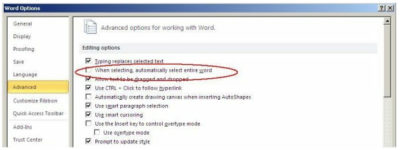
  3. In the Editing Options section, deselect the When Selecting, Automatically Select Entire Word option, as shown in Figure J.
  4. Click OK.

Figure J

Ridding yourself of this annoying selection behavior is easy.

10: Spelling, grammar, and formatting

Word identifies misspelled words, grammatical errors, and formatting inconsistencies, as you type:

  • A red line indicates a word not found in the dictionary (possibly misspelled).
  • A green line indicates a possible grammatical error.
  • A wavy blue line indicates an inconsistent format.

I recommend that you get used to the display and not disable these features — they’re a helpful indication that something might be wrong. On the other hand, if you find them distracting, you candisable them. To disable the red and green lines, do the following:

  1. Click the File tab and then choose Options. In Word 2007, click the Office button and then click Word Options. In Word 2003, choose Options from the Tools menu.
  2. Select Proofing in the left pane. In Word 2003, click the Spelling & Grammar tab.
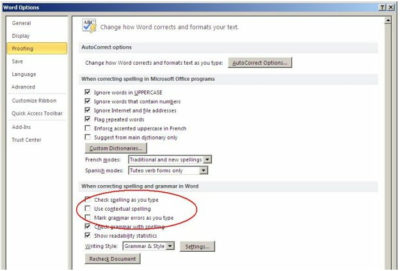
  3. In the When Correcting Grammar and Spelling In Word section, uncheck the first three options: Check Spelling As You Type, Use Contextual Spelling, and Mark Grammar Errors As You Type, as shown in Figure K. (There’s no contextual spelling option in Word 2003.)
  4. Click OK.

Figure K

You can disable Word’s spelling and grammar indicators.

To rid documents of the wavy blue line, do the following:

  1. Click the File tab and then choose Options. In Word 2007, click the Office button and then click Word Options. In Word 2003, choose Options from the Tools menu.
  2. Select Advanced in the left Pane. In Word 2003, click the Edit tab.
  3. In the Editing Options section, uncheck the Mark Formatting Inconsistencies option under Keep Track Of Formatting. In Word 2003, deselect the Mark Formatting Inconsistencies check box in the Editing Options section.
  4. Click OK

Even the most competent users make an occasional error and these features identify potential problems. Adjusting to them will probably serve most users better than turning them off.

To View Full Article Click Here
10 Ways to Make Outlook Faster

Takeaway: Does Outlook’s pokey performance have you gnashing your teeth with frustration? Try these simple fixes to give it a kick in the pants.

If you’ve used Microsoft Outlook for a while, you know that it can slow down… way down. In fact, when not looked after, Outlook can become nearly useless. Fortunately, there are several things you can do to make Outlook not only usable, but significantly improved. And none of these techniques requires a single configuration change to your Exchange server (IMAP or POP3).

Of course, some of these suggestions might seem to have a bit more “‘duh” factor than others. But you never know what level of skills you’re dealing with, so we’ll cover all the bases. In the end, you should have a much faster Outlook experience.

1: Update Windows

Many people don’t realize that with Windows updates, the updates for Microsoft Office are also “hidden.” But it’s not just the Office updates that can help speed up Outlook. Make sure you allow the updates to happen. Why? There are times when Microsoft might update Exchange. In some cases, those updates can either break or cause problems with the communication between Outlook and Exchange. Or Microsoft might issue a patch to the application to resolve a speed issue or security hole.

2: Download Complete Items

When you connect Microsoft Outlook with either IMAP or POP3, you should have Outlook set up to download the complete message (instead of just the header). If you do this, Outlook won’t have to sync with the server every time you click on a new item (as it will already be in the data file.) How you do this will depend upon which version of Outlook you’re using. But basically, you’re looking for the setting Download Complete Item Including Attachments.

3: Archive your Inbox

I can’t tell you how many times I see clients with thousands upon thousands (and in some cases tens of thousands) of emails in their Inbox. This can cause serious issues, especially when using PST files. Instead of just letting those Inbox folders grow to outrageous proportions, set up auto archiving so that your Inbox retains only a portion of those emails. I like to tell clients to keep the current and previous months’ email in the Inbox and archive everything else. When you archive, you effectively create a new data file, so Outlook doesn’t have to strain against the weight of an oversize PST or OST file

4: Use Cached Exchange Mode

If you use Cached Exchange Mode in Outlook, you effectively take the data file from the server (PST) and cache it on your local machine (OST). This can go a long way toward speeding up your Outlook experience because Outlook doesn’t have to read its data file across a network. Instead, all it has to do is read the locally stored data file. This option (obviously) is available only when connecting Outlook with an Exchange server.

5: Compact your PST File

When the Outlook PST file gets out of hand, a built-in tool can keep the size of that file under control. One of the issues is that even when you delete email from your Inbox, the size of the PST file may remain the same. If you’re using Outlook 2010, you can go to Account Settings | Data Files and select the data file to be compacted. Once you’ve selected the file click Settings | Advanced | Outlook Data File Settings and click Compact Now. Depending on the size of your data file, this process can take some time.

6: Repair your PST File

Scanpst is often my go-to tool when Outlook is acting off kilter. It will scan through your data file and look for data inconsistencies and errors. Here’s the thing about Scanpst — it’s not always the easiest tool to find. Do yourself a favor and search through your C drive to locate the Scanpst.exe file. Make note of its location (usually within the Office installation folder). But be forewarned: This tool can cause PST files to become unusable. Make sure you back up that data file before you start the repair tool. Fortunately, should Scanpst find errors, it will prompt you to make a backup before it attempts to fix the errors.

7: Cut down on the published and shared calendars

Yes, it’s easy to publish and share your calendars with others. The problem is, the more you do it, the more drag you’re putting on Outlook. The more data Outlook has to share and pull down from the Internet, the slower it will perform. Sure, it’s fine to have one or two shared calendars (and even more if you have a lightning-fast data pipe). Just know that the more data you have to push and pull, the slower your connection will be.

8: Disable RSS

By default, Microsoft Outlook will sync RSS feeds from Internet Explorer to the RSS reader in Outlook. If you have a lot of RSS feeds bookmarked in Internet Explorer, that syncing could easily bring Outlook to a crawl. Disable this feature (if you don’t use Outlook as an RSS reader) from within Outlook 2010 by going to Options | Advanced and then unchecking both options under RSS Feeds.

9: Disable add-ins

How many times have you installed some program only to find it installed something else behind your back? This can happen to Outlook as well as Internet Explorer. Sometimes those add-ins can cause major Outlook slowdowns. To find out what add-ins you have installed in Outlook 2010, go to Options | Add-ins. Select COM Add-ins from the drop-down and click the Go button. The resultant window will list all add-ins available to Outlook. Search through this list and uncheck any that might seem suspect.

10: Fix ShoreTel Windows 7 Integration

If you use the ShoreTel Communicator, you might notice some issues when trying to open and use Outlook. The problem lies in an incompatibility issue between ShoreTel and Windows 7. The fix is simple. Open up the Task Manager and look for a process called Agent.exe. Right-click that entry and click Properties |Compatibility. Choose the Run This Program In Compatibility Mode For option and then select Windows XP (Service Pack 3).

Other Tricks?

There’s no reason why anyone should have to struggle with a bogged down Outlook that will have you pulling your hair out strand by strand. These tips should help you enjoy a much speedier and reliable Outlook experience.

What other methods have you found for improving Outlook performance? Share your suggestions with fellow TechRepublic members.

How to Make a PowerPoint Countdown

Takeaway: Here’s a cool attention-grabber: a countdown to kick off your presentation or lead into a big announcement. Follow these easy steps or download our ready-to-use slides.

A quick countdown — 5, 4, 3, 2, 1 — can add a bit of excitement to the beginning of your presentation or to an announcement at any point in the presentation. Fortunately, it’s an easy effect to create. In 10 steps, you can add five slides that seem to act as one as they count down from 5 to 1. I’ve kept the graphic elements simple, so as not to distract from the technique. Entrance and exit effects and a simple transition work together to build this countdown. There are other ways to achieve the same result, but this method is the simplest. My instructions will apply to PowerPoint 2010, but I’ll supply alternative steps for PowerPoint 2007/2003 where applicable.

Note: This article and our sample countdown slides are available as a download.

1: Create the slide

Insert a new blank slide and set the background color, which should be a strong contrasting or complementary color to the number elements and the enclosing circle. I used a black background and a white circle and numbers in this example. Right-click the slide, choose Format Background (Background in PowerPoint 2003), click Fill in the left pane (skip this step in PowerPoint 2003), and choose Black from the Color drop-down, as shown in Figure A. Click Close (Apply in PowerPoint 2003) to return to the slide.

Figure A
This black background will contrast nicely to the white numbers we’ll add.

2: Add a circle AutoShape

Next, add a circle AutoShape by clicking the Insert tab and clicking the Shapes drop-down in the Illustrations group. Choose Oval in the Basic Shapes section. (In PowerPoint 2003, click Oval on the Drawing toolbar.) As you draw the circle, hold down the [Shift] key to draw a true circle. Make the circle almost as big as the slide and center it. Then, right-click the circle and choose Format Shape (AutoShape in PowerPoint 2003). In the Fill section, choose No Fill. In the Line section, select Solid Line and choose White from the Color drop-down. In the Line Style section, set the Width property to 5 points. Then, click Close to return to the slide.

3: Add 5

A text box will house the numbers in the countdown. Click the Insert tab and click Text Box in the Text group. (In PowerPoint 2003, choose Text Box from the Insert menu.) Draw the text box inside the circle. Enter a 5 and use the Font group on the Home tab to format the number as Arial, 300 point, and White. (In PowerPoint 2003, the font options are on the Formatting toolbar.) If you use a different font, you may need to adjust the font size. Center the text box in the circle.

4: Set the number’s entrance effect

Now you’re ready to add the entrance effect. Select the text box and click the Animations tab. Click Add Animation in the Advanced Animation group and choose Fade from the Entrance section. (In PowerPoint 2007, click Custom Animation in the Animations group. Then, in the Custom Animation pane, click Add Effect, choose Entrance, and select Fade. In PowerPoint 2003, choose Custom Animation from the Slide Show menu, click Add Effect, and choose Entrance and Fade.)

In the Timing group, change the Start property to With Previous. (In PowerPoint 2007/2003, click the Start drop-down and choose With Previous.) PowerPoint will display an animation tag with the number 0 next to the text box.

5: Set the number’s timing

The next step is to specify how long the number should be displayed. In the Timing group, set the Duration to 01.00. (In PowerPoint 2007/2003, choose Fast from the Speed drop-down.) At this point, your slide should resemble the one in Figure B.

Figure B
PowerPoint displays an animation tag next to the text box.

6: Set the number’s exit effect and timing

To set the number’s exit effect, select the text box and click the Animations tab. Click Add Animation and choose Fade from the Exit section. (In PowerPoint 2007, click Add Effect in the Custom Animation pane, then choose Exit and Fade. In PowerPoint 2003, choose Custom Animation from the Slide Show menu, click Add Effect, and choose Exit and Fade.)

In the Timing group, change the Start setting from On Click to After Previous and change the Duration setting to 01.00 second. (In PowerPoint 2007/2003, choose After Previous from the Start drop-down and Fast from the Speed drop-down.)

7: Add a transition

To add the transition, click the Transition tab. In the Advance Slide section of the Timing group, uncheck On Mouse Click and select After. Don’t change the setting though — leave it at 00:00:00. (In PowerPoint 2007, you’ll find the Advance Slide section at the right end of the Transition To This Slide tab. Select the On Mouse Click and Automatically After check boxes. In PowerPoint 2003, choose Slide Transition from the Slide Show menu. The default speed is Fast; you don’t need to change this, but you can.)

8: Make copies of your slide

Click the Slides pane if necessary (it’s the default) and select slide 1. Right-click the slide and choose Copy. Then, right-click the blank area and choose Keep Source Formatting from the Paste Special options. Repeat this three more times. You’ll have five slides. (In PowerPoint 2007, right-click the first slide in the Slides pane, and choose Duplicate Slide. In PowerPoint 2003, select the first slide and choose Duplicate Slide from the Insert menu.)

9: Change the digits

Now, change the 5 in each of the duplicate slides to the remaining countdown numbers — 4, 3, 2, and 1. When you finish, you’ll have five slides with the numbers 5, 4, 3, 2, 1, as shown in Figure C.

Figure C
The Slides pane shows your five countdown slides.

10: Run the presentation

To run the countdown, press [F5]. Each slide will transition into the next automatically. The current settings keep a constant flow of fading one number into the next. You might want to adjust the fade timing, making it a little faster or a little slower.


To read the original article in it’s entirety, Click Here


10 Reasons Windows 10 May Not Be Right

The end of Microsoft’s free Windows 10 upgrade offer is right around the corner. But while Windows 10 is great, there are valid reasons to reject it.

windows-7-to-windows-10

An offer you can refuse

The clock is ticking, folks. If you want to upgrade to Windows 10 for free, you only have until July 29, 2016 to do so. And most people should! Windows 10 is the best Windows yet, chock full of handy new features, sleek under-the-hood improvements, andheadache-killing extras.

But it’s not for everybody. There are some very real, very valid reasons not to upgrade to Windows 10.

If you’re on the fence about whether to accept or reject Microsoft’s freebie, read on for some concrete justifications for staying put.

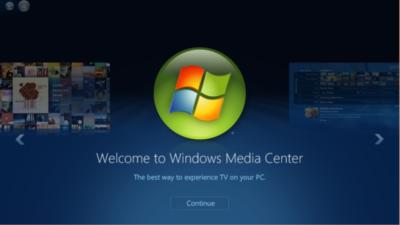
windows-media-center

No Windows Media Center or DVD support

Before we dig into the meatier stuff, let’s take a look at what you’ll potentially give up if you upgrade to Windows 10, starting with some robust media playback options.

Windows 10 kills Windows Media Center off completely, after Windows 8 pushed it into a dark corner. There’s a reason for that: Windows Media Center is fairly niche, and not a lot of people use it. But if you do, you won’t want to upgrade to Windows 10 unless you’re prepared to dive into alternatives like Kodi, Plex, and DVR workarounds.

Oh, and if you’re on Windows 7, be aware that Windows 10 doesn’t offer native DVD playback, though there are no-cost alternatives you can use.

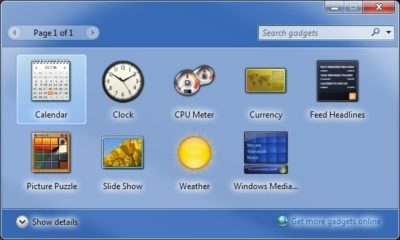
windows-gadgets

No desktop gadgets or widgets

Likewise, if you’re a big fan of Windows 7’s gadgets and widgets for the desktop, they aren’t available in Windows 10. Which is good, because they’re horribly insecure. Whether you choose to stay on Windows 7 or upgrade to Windows 10, you’d probably be better off using Rainmeter’s seriously slick interactive desktop software.

onedrive

No OneDrive placeholders

Windows 8.1 offered a handy feature for hardcore OneDrive users: placeholders. Placeholders showed everything stored in your OneDrive account in the Windows 8.1 file system, but only downloaded files to your PC when you opened them. It was a wonderful way to stay on top of your cloud-stored files without downloading all of them to every Windows device you logged into with your Microsoft account, especially if you’ve stashed dozens of gigabytes’ worth of stuff into OneDrive.

Unfortunately, users found it confusing, and Microsoft ripped placeholders out of Windows 10. There are hints that a similar feature may make an appearance someday, but it hasn’t yet, so if placeholders are a must-have feature for you, you’ll want to avoid upgrading to Windows 10. The new operating system’s less granular selective sync options just aren’t the same.

windows-10-updates

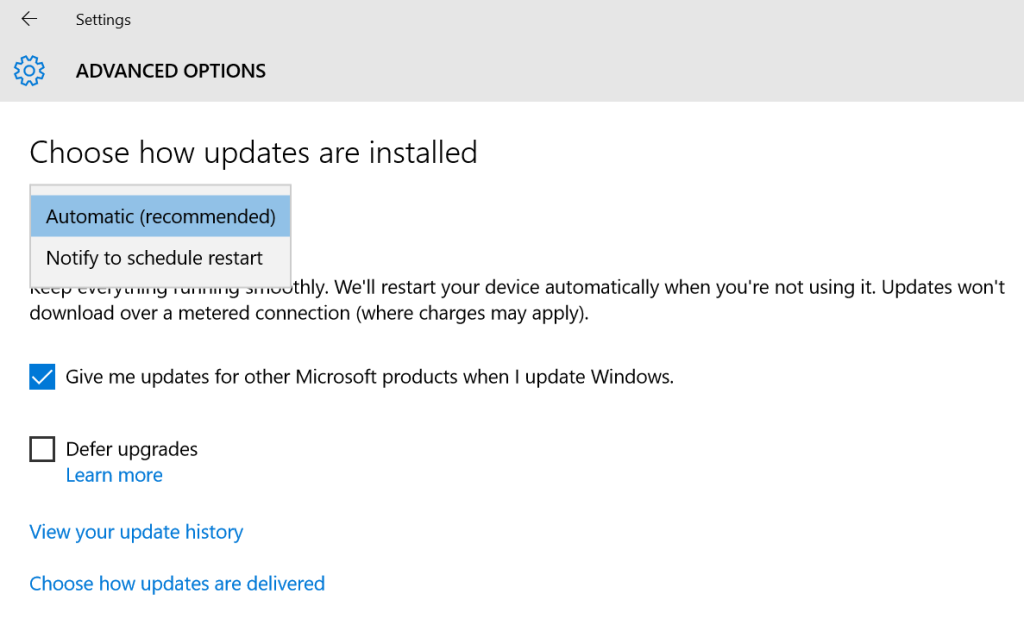
No control over Windows Updates

Aaaaaand here’s the biggie. Windows 10 utterly eradicates the ability to manually control your system updates. Windows 10 Pro will let you defer updates for a few months, but that’s the extent of it. If Microsoft pushes out an update, your system willinstall it eventually (though identifying your Wi-Fi connection as “metered” lets youchoose when updates download, at least).

This isn’t a big deal for people who stuck with Windows 7 and 8’s default Windows Update options, which downloaded patches automatically. But if you like to control your own update destiny, this could be a showstopper.

privacy

Privacy concerns

That segues nicely into another controversial Windows 10 “feature.” Microsoft’s new operating system tracks you far more closely than previous versions of Windows, especially if you use the express settings during the initial setup. The search bar utilizes Cortana, Windows 10’s digital assistant, and sends all your queries to Microsoft servers. Your Windows Store app usage is tracked for ad targeting. Windows 10 tracks your typing, location, Edge browser behavior, program installations and more.

It’s a lot. To be fair, a lot of the concern roaring around this is overblown; most of Windows 10’s potential privacy concerns can be disabled. But there’s no way to turn off some of the telemetry data Windows 10 collects about your system and beams back to the mothership. Microsoft executives don’t consider this a privacy issue. If you do, Windows 10 isn’t for you.

get-office-windows-10-pop-up

Ads and more ads

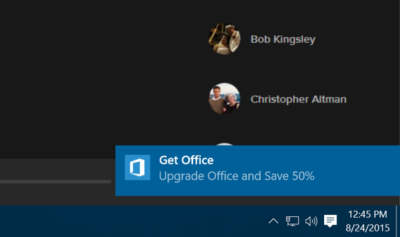
Windows 10 doesn’t only track your Windows Store app usage for improved ad targeting; it frequently pushes ads of its own at you. By default, you’ll see pop-up notification ads imploring you to get Skype or Office (even if you have Office), ads for suggested Windows Store apps slipped into your Start menu, and even occasional full-screen lockscreen ads for high-profile Windows Store releases.

I loathe the idea that my paid-for operating system—and yes, Windows 10 isn’t truly free—is pushing ads in my face. Fortunately, all of the offenders can be disabled. But doing so requires diving into arcane system settings located in different far-flung corners of the operating system.

 windows-10-full-screen-prompt

Microsoft’s aggressive upgrade tactics

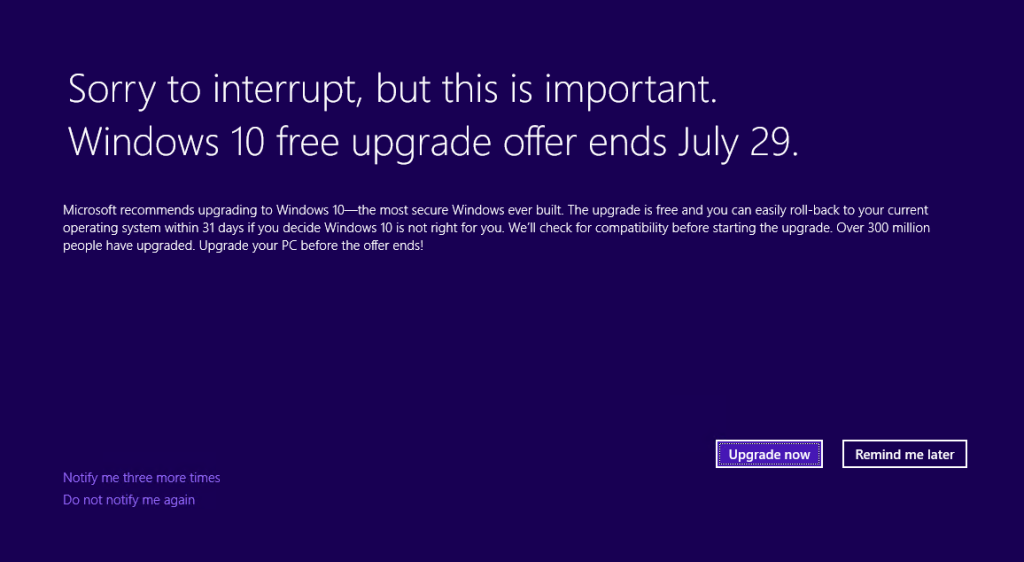
Microsoft’s been acting pretty shady in its aggressive quest to push Windows 7 and 8 users to Windows 10, employing unstoppable pop-ups, malware-like tactics, forced upgrades, intrusive full-screen takeovers, and nasty tricks to coax—and sometimes outright deceive—people into adopting the new OS. It eventually became so heavy-handed that some users have disabled Windows Updates entirely rather than suffer the barrage.

But you know that. If you’re still considering upgrading to Windows 10, you’ve lived through it.

None of that detracts from Windows 10’s underlying awesomeness. But it may have detracted from your desire to upgrade to Windows 10—and rightfully so. If you’re unhappy with Microsoft’s ethics and tactics in handling Windows 10 upgrades, you’re well within your rights to stay put where you’re at.

windows-xp-mode-windows-7

Software compatibility

In the wake of those forced upgrades, dozens and dozens of readers reached out to me with tales of woe, many revolving around software that simply doesn’t work with Windows 10. As my colleague Glenn Fleishman recently pointed out at Macworld, old software isn’t inherently bad software—but some of it won’t work in Windows 10.

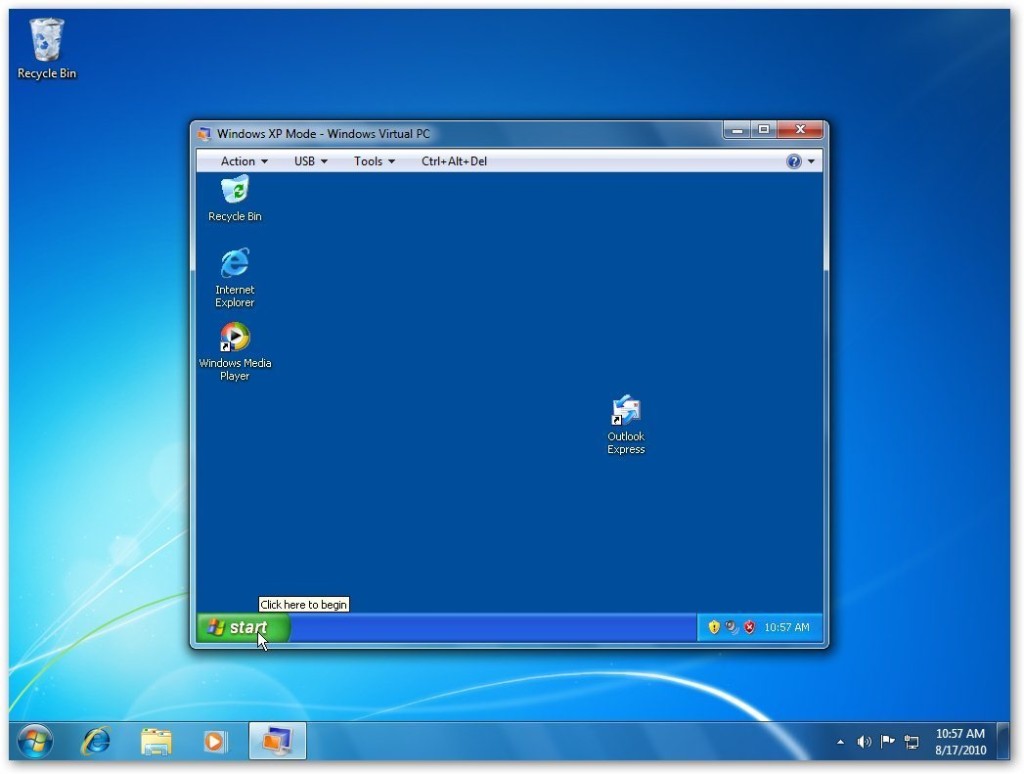
If you rely on particular pieces of software, do a quick Google search to make sure they’ll work in Windows 10 before you upgrade. Office 2003—the last pre-Ribbon UI Office—isn’t compatible, for instance, nor is software that requires the use of Windows 7’s “XP Mode” compatibility, which isn’t available in Windows 10. Microsoft’s upgrade advisor is supposed to let you know if any software won’t work with Windows 10, but users report that it isn’t very reliable. Doing some homework now could save you some big headaches in the future.

printers

Hardware compatibility

Similarly, you’ll want to make sure Windows 10 works with your PC, too. No matter whether you’re running Windows 7 or Windows 8.1, I’d recommend running Microsoft’s hardware compatibility tool to scan your system. To do so, open the Get Windows 10 app—the taskbar icon that’s been tossing out all the upgrade pop-ups—and click on the compatibility report option.

But wait! That’s not all. The tool only checks your core PC reliably. Some people who upgrade to Windows 10 discover that their hardware peripherals won’t work, particularly older printers and scanners. If you have any aging peripherals connected to your PC, be it a printer or a beloved keyboard, I’d again suggest conducting some quick Google searches to ensure your gear won’t become paperweights if you decide to upgrade.

 windows-10-samsung-laptop

Ain’t broke, don’t fix it

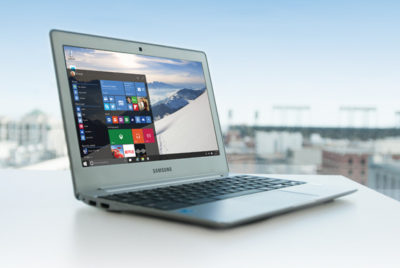
This final reason applies more to people who resist change or aren’t very technically savvy. Yes, Windows 10 is stellar and absolved Windows 8’s worst sins. Getting used to the new operating system shouldn’t be too difficult for many PC users—but the transition isn’t entirely seamless. From Cortana to the introduction of the Edge browser to the radically new-look Start menu, and Windows 10’s evolution into being a more cloud-centric operating system, there are some big changes you’ll need to wrap your head around.

Do Windows 10’s new features and under-the-hood improvements make upgrading worthwhile? I think so. But if you aren’t comfortable dealing with changes on your computer, you might want to stay put. I know several less technically inclined people who paid technicians to revert their PCs to Windows 7 after they couldn’t wrap their heads around Windows 10.

Conversely, if you’ve perfected your workflow on your current operating system and don’t see much benefit in marquee Windows 10 features such as Cortana, the Windows Store, DirectX 12, and virtual desktops, it may not be worth the hassle to switch over to Windows 10.

Have questions?

Get answers from Microsofts Cloud Solutions Partner!
Call us at: 856-745-9990 or visit: https://southjerseytechies.net/

South Jersey Techies, LL C is a full Managed Web and Technology Services Company providing IT Services, Website Design ServicesServer SupportNetwork ConsultingInternet PhonesCloud Solutions Provider and much more. Contact for More Information.

To read this article in its entirety click here.


10 Must-Have Purchases for SMBs

Saving-Money

Small and Medium-Size Businesses (SMBs) will often take shortcuts to cut costs when purchasing.  To avoid disasters such as a loss of data or work, SMBs are strongly suggested to focus on the ten points below.

Hardware

Considering the rapid change of technology requirements, a pro-active approach for replacing desktops, laptops, servers, and networking hardware is to look five years into the future.

Backup Software

Although built-in backup software and Windows Server backup are adequate, purchasing a third-party backup solution will have the ability to recover from an image.

Internet Connection

Providing your SMB with a consumer-grade DSL line would not be an efficient business plan. Setting up a network that provides your business with more bandwidth than required will prevent a network bottleneck from occuring.

Firewall

Securing your business with only Windows built-in firewall is not ideal.  Configuring a Cisco, Fortinet, or Sonicwall is more secure, reliable and flexible in a SMB environment.

Cloud Storage

Cloud storage provides scalability, reliability and portability.  Cloud storage is divided into three categories:  Infrastructure-as-a-Service (IaaS), Platform-as-a-Service (PaaS) and Software-as-a-Service (SaaS).  Many companies are transferring to Cloud services for access to data outside the network.

Website

Online presence has become an important key for all businesses.  A solid solution is to have a strong website, blogging and effectively using social media.

Redundancy

Redundancy is an appropriate investment towards ensuring that your SMBs network does not go down.  Similar to backups, redundancy does not affect everyday business but should an incident arise, you’ll be glad it’s there.

Support

IT Support is a necessity, whether it’s an in-house department, third-party service provider, or support for software.

Mobile Devices

The ability to work from outside the office and accessing data from anywhere  is now an important key for businesses.  Setting up a virtual private network enables laptops, tablets and smartphones to connect and work from anywhere.

Printers

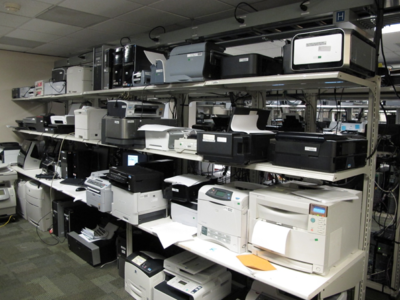
Supply your SMB with a printer that has the sustainability and features required for business use.


10 New Security Products to Check Out

1. IBM z13s mainframeIBM z13s mainframe

Image: IBM

Security standards are constantly changing. Here are some of the latest software and hardware products to help keep your organization secure.

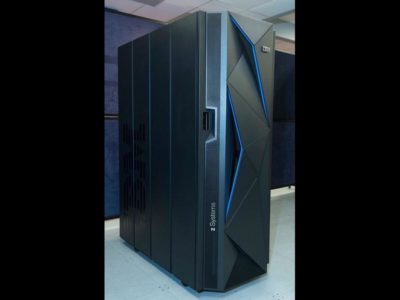
In February 2016, IBM announced the IBM z13s, a mainframe with cryptographic features built directly into the hardware. According to IBM it can decrypt at twice the speed of the generations before it.

2. Cisco Firepower NGFW

Cisco Firepower NGFW

Image: Cisco

Cisco recently announced its Firepower series appliances with its next-generation firewall (NGFW) technology. There are 16 models in the series that include integrated NGIPS and advanced malware protection.

3. Illumio

Illumio

Image: Illumio

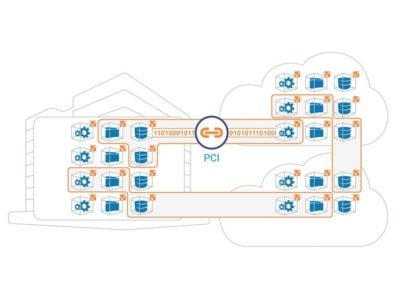
Illumio is a startup that provides adaptive security for the data center and cloud environments. The company recently achieved unicorn status as its value topped $1 billion, and it is consistently named a top enterprise security provider.

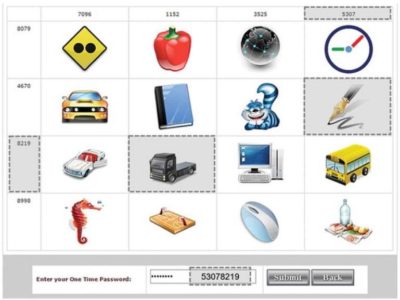
4. GOTPass

GOTPass

Image: University of Plymouth, H. Alsaiari, M. Papadaki, P. Dowland, and S. Furnell

GOTPass is a graphical authentication system developed by researchers at the University of Plymouth. It uses images to authenticate instead of traditional passwords.

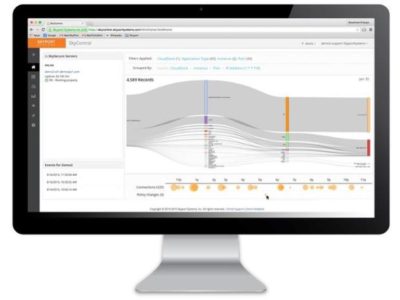
5. Skyport Systems SkySecure

Skyport Systems SkySecure

Image: Skyport Systems

SkySecure is an out-of-the-box enterprise security solution to protect application workloads. The systems includes hardware, software, and management tools.

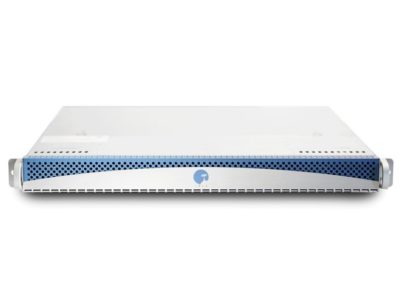
6. Spikes Security Isla

Spikes Security Isla

Image: Spikes Security

The Isla is an enterprise appliance that “isolates and eliminates all browser-borne malware.” It was launched in mid-2015, but it was independently certified as invulnerable to web malware exploits in early 2016.

7. Blackphone 2

Blackphone 2

Image: Zack Whittaker/CNET

The Blackphone by Silent Circle is an Android-powered smartphone with a built-in security center to lock down your data. The most recent iteration, the Blackphone 2, released late last year.

8. Imation IronKey Enterprise H350

Imation IronKey Enterprise H350

Image: Imation

The IronKey Enterprise H350 is a rugged, military-grade encrypted hard drive. It is available in multiple capacities and is FIPS 140-2 Level 3 certified.

9. Bitdefender Total Security 2016

Bitdefender Total Security 2016

Image: Bitdefender

For home users and small businesses, the Total Security 2016 by Bitdefender is a great option. It stacks up well against key competitors and includes device anti-theft features.

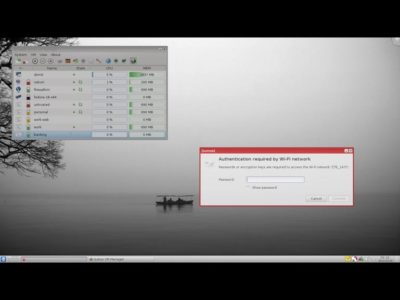
10. Qubes OS 3.1 rc2

Qubes OS 3.1 rc2

Image: Qubes

Qubes OS is a Linux-based, security-oriented OS that is focused on compartmentalization using VMs. It’s been around for a few years, but the latest version released in January 2016.

Have questions?

Get answers from Microsofts Cloud Solutions Partner!
Call us at: 856-745-9990 or visit: https://southjerseytechies.net/

South Jersey Techies, LL C is a full Managed Web and Technology Services Company providing IT Services, Website Design ServicesServer SupportNetwork ConsultingInternet PhonesCloud Solutions Provider and much more. Contact for More Information.

To read this article in its entirety click here.

10 Missing Features from Outlook 2013

Takeaway:  Ten popular features that are missing from Outlook 2013.
outlook

Right-click Lookup

Outlook 2013 does not include ‘Lookup’ when right-clicking a word.  This feature is still available:

            1. Open a new e-mail message.
            2. Click inside the message body.
            3. Select the Review tab.
            4. Select ‘Research’ in the Proofing section.
            5. Press [ALT] and select the word or phrase that you would like to look up.  Also, you can type the word or phrase in the ‘Search For:’ box.

Right-click AutoCorrect

Outlook 2013 does not include ‘AutoCorrect’ when right-clicking a word. This feature is still available but will have to be entered manually.  (Right-click Add to Dictionary is still available using a right-click.)

Import/Export Formats

Outlook 2013 only allows .pst (Outlook’s data file format) and comma-delimited data as import formats.  Previous versions allowed many file formats to be imported and exported.

Meeting Workspace

Outlook 2013 does not include Meeting Workplace.  Also, this feature cannot be added to the Quick Acces Toolbar.  Meeting Workplace was a website that supplied Attendees, Date, Time and Location for meetings.

Outlook Mobile Service

Outlook 2013 does not support Outlook Mobile Service (OMS).  OMS let you create and send text/multimedia messages to a mobile device from Outlook, similar to e-mail(s).

Windows Search

Windows 8 does not support using Windows Search to search Outlook e-mail. Previously, you could using Windows Search without opening Outlook to search for e-mail(s).

Calendar Publishing

Outlook 2013 does not support Calendar Publishing; the replacement is Office.com.  Microsoft cut service for previous versions on April 5, 2014.

Drag-and-Drop

Office 2013 does not support “dragging-and-dropping” e-mail(s) in the To-Do bar to create a calendar entry.  You can “drag-and-drop” an e-mail to a shortcut to create a calendar or task entry.

Notes and Journal

Office 2013 supports ‘Notes’ but ‘Journal’ is no longer available.

Suggested Contacts

Office 2013 does not support Suggested Contacts.  Suggested contacts gathers contacts that are not in your list and suggests them.


10 Compelling Windows 10 Upgrade Reasons

The deadline for Microsoft’s free Windows 10 upgrade looms. Here’s why you don’t want to let it pass by.

windows-7-to-windows-10

An offer you shouldn’t refuse

The deadline cometh. July 29 looms, and after that, Windows 7 and 8 users will no longer be able to upgrade to Windows 10 for free. If you’ve been waiting for Microsoft to polish out the operating system’s initial bugs, it’s time to make the leap.

This article’s more for the fence-sitters—the folks who haven’t decided whether to stick with what they know or embrace Microsoft’s new-school operating system. There are some very valid reasons not to upgrade to Windows 10, to be honest. But Windows 10 is the best Windows yet, and most people should claim the free upgrade while there’s still time.

Here’s why.

Improved desktop experience
windows-10-desktop-1

Let’s be frank: Windows 8’s fugly, unfunctional, and obnoxiously colored Start screen sucked. So did the way Windows 8 hid crucial information behind hidden “charms,” which had no on-screen hints for how to access them. It scared a lot of people away from upgrading, and rightfully so.

You don’t have to worry about that with Windows 10.

Windows 10 takes the same core ideas behind Windows 8, but makes them palatable for the desktop audience. Windows Store apps are still present, but they’re in desktop windows that can be resized and used like any other. The Start menu’s back, with a pop-out section that puts information-delivering Live Tiles to better use—and yes, they can all be deleted if you want.

True, there are some changes to wrap your head around if you upgrade from Windows 7 to Windows 10. But the basic building blocks of the operating system will be largely familiar.

Enthusiast-friendly additions
windows-10-virtual-desktops-2

More than simply being familiar, Windows 10 is superior to Windows 7 for PC enthusiasts, because Microsoft made an active effort to woo desktop diehards.

Windows 10’s hardcore tools range from virtual desktops (pictured) to improved high-DPI monitor support to pasting text inside the command prompt. Easy file version recovery? Better storage management tools? Windows 10 has it all.

The operating system even provides power-user tools for Windows Updates, letting you schedule updates to run at a specific time or distribute patches across your local network using peer-to-peer technology. It’s great.

Under-the-hood improvements
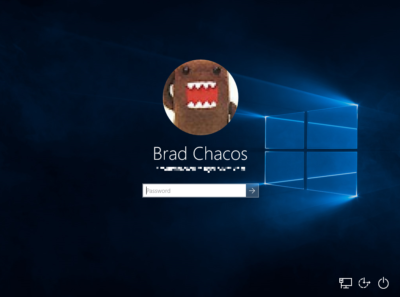
windows-10-login-screen-3

If you’re upgrading from Windows 7, you’ll be amazed at just how quick and modern Windows 10 feels. Microsoft optimized Windows’ underlying code in Windows 8, resulting in an operating system that boots like greased lightning—especially if you have an SSD—and just plain feels faster.

It’s just one of the many Windows 8 improvements that Windows 7 holdouts will enjoy in Windows 10.

Native security protection
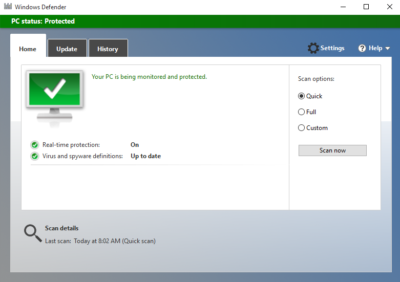
windows-defender-windows-4

This appeals more to everyday PC users than hardcore enthusiasts, but Windows 10 is inherently much more secure than Windows 7. The operating system ships with Microsoft’s Windows Defender antivirus software and the Windows Firewall installed and enabled by default, which provides many PCs with a huge security uplift. (You’d be amazed how many people never bother to install new security software after their free Norton or McAfee trial runs out.)

But Microsoft didn’t stop there. Windows 10’s UEFI Secure Boot requirement protects against low-level rootkits that could infect your PC, the SmartScreen filter guards against malicious websites, and Windows Hello makes biometric-based authentication easy-peasy.

Better security is always a good thing.

Cortana
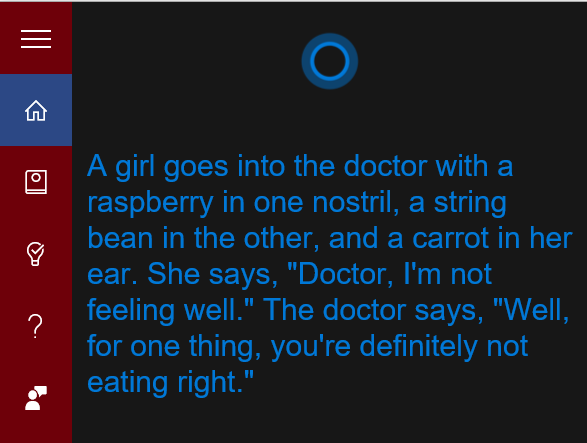
cortana-call-jennifer-5

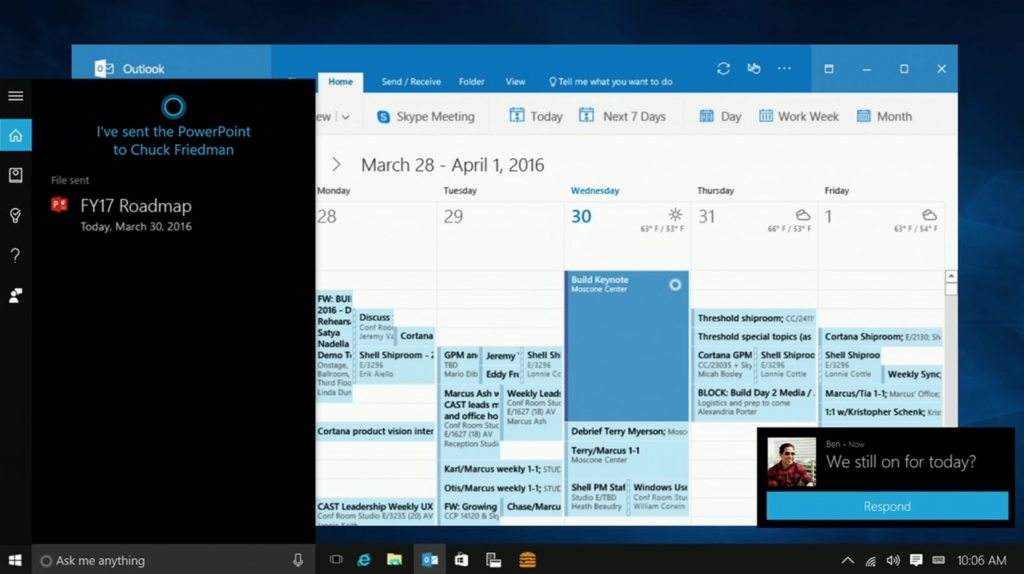
Cortana, Microsoft’s answer to Apple’s Siri and Google Now replaces Windows 10’s basic search functionality, and I couldn’t be happier. Cortana mixes good humor with web-based smarts that can help you set reminders and alarms, stay on top of sports scores and news, navigate and operate your operating system, track packages, plan trips, and more. Even better: Cortana’s going to become more proactive and usefulwhen the Windows 10 Anniversary Update rolls around August 2.

DirectX 12
ashes-of-the-singularity-6

Microsoft’s powerful, next-generation DirectX 12 graphics technology is exclusive to Windows 10 devices. If you’re a PC gamer, this feature alone is worth the upgrade.

We’re still in the early days of DirectX 12 adoption. Most PC games still release in DirectX 11. We’re not really sure of the graphics API’s full potential, but early DX12 implementations in games tend to result in smoother experiences and higher overall frame rates. That’s especially so on PCs with AMD Radeon graphics cards, thus far—check out our Radeon RX 480 review for hard benchmarks—but Nvidia’s GeForce cards enjoy DX12 benefits, too.

More and more games are starting to embrace DirectX 12. Seriously: If you’re a gamer, upgrade now. This isn’t coming to Windows 7 or 8.

Universal Windows apps
universal-windows-apps-7

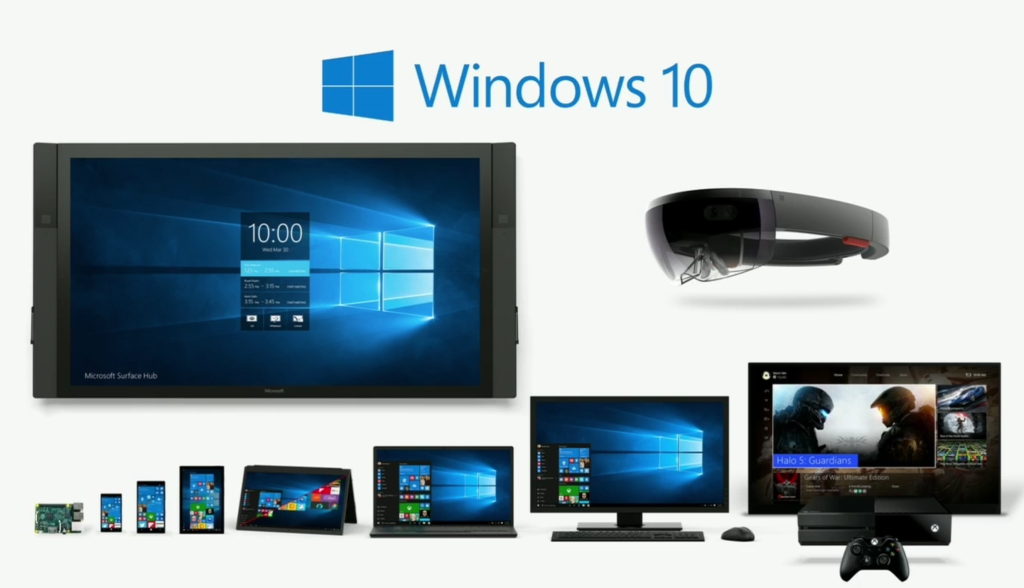
But DirectX 12 has come to the Xbox One. That’s because Microsoft’s console runs Windows 10 under the hood, and Windows 10 devices can all run universal Windows apps. One tangible benefit of the cross-device compatibility is the forthcoming Xbox Play Anywhere feature, which lets you buy a game once and play it on both Windows 10 and the Xbox One, as well as transfer saves and play multiplayer games across the two platforms. Nifty!

Play Anywhere is definitely the highlight so far, but universal Windows apps likewise morph to fit the screens of tablets, phones, and even Microsoft’s HoloLens augmented reality headset. The one caveat: Microsoft hasn’t yet convinced developers to embrace the Windows Store en masse.

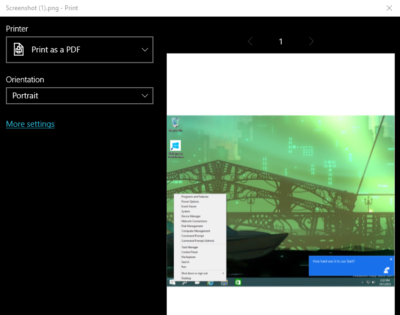
The little extraswindows-10-print-as-pdf-8

Windows 10 quietly eliminates many of the biggest little irritations present in previous versions of Windows. You can finally print to PDF natively now, and hovering your mouse over a background window lets you scroll that, rather than the in-focus program. Per-monitor display scaling eliminates visual oddities with multi-monitor setups. Cortana’s natural language search—“Hey Cortana, show my pictures from last Christmas”—can be a serious time-saver when used correctly.

All in all, these little touches add up to a big usability difference. Check out PCWorld’s story on the 12 obscure new Windows 10 features that eliminate everyday hassles for all the details.

It’s free!
windows-10-free-upgrade-9
C’mon. It’s a free upgrade until July 29. If you’re considering upgrading to Windows 10 at any point in the future, now’s the time to do it. Just be aware of what you’re giving in return.
It’ll keep getting better
windows-10-anniversary-edition-cortana-10


Microsoft isn’t resting on its laurels now that Windows 10 is out in the wild. A majorWindows 10 Anniversary Update is due to land on August 2, stuffed with new features and bug fixes, and Microsoft’s continually updating the operating system with the help of its legion of Windows Insider preview testers.

Windows 7, meanwhile, is solidly past the new-feature phase of life, though security updates will keep on a-rolling until 2020. Windows 8 is still ostensibly in its mainstream support phase through the beginning of 2018, but don’t expect to see any new goodies added there.

Counterpoint
windows-10-to-windows-7-11

That’s a pretty compelling list of reasons to upgrade to Windows 10—and the security boost might even push you into encouraging your non-geeky friends (you know, the ones always asking you for unofficial tech support) into accepting the upgrade, too. A safer environment for normal people is a safer world for everybody.

But again, there are some valid justifications for rejecting Microsoft’s offer. Most people should embrace the new operating system with open arms, but before you make the leap, be sure to read PCWorld’s list of the 10 reasons why you shouldn’t upgrade to Windows 10—especially if you’re using older hardware or software.

Have questions?

Get answers from Microsofts Cloud Solutions Partner!
Call us at: 856-745-9990 or visit: https://southjerseytechies.net/

South Jersey Techies, LL C is a full Managed Web and Technology Services Company providing IT Services, Website Design ServicesServer SupportNetwork ConsultingInternet PhonesCloud Solutions Provider and much more. Contact for More Information.

To read this article in its entirety click here.

10 Commandments of Windows Security

With the introduction of Windows 7, many PC and notebook users may feel more secure than they did using older versions of the Microsoft operating system. Newer OSs have more security features, offer better out-of-the-box security settings and have closed many of the historical security holes. Windows 7, for example, has changed the default User Account Control level so that it’s harder for rogue programs to run without first explicitly gaining the user’s permission.

[Also read 3 steps to protect your personal data]

However, feeling too secure can be dangerous. With that in mind, here are 10 tips–commandments, if you will–for ensuring your desktop or notebook computer can be used productively as well as safely. Many of the recommended tools are free, and all are affordable–and certainly less expensive than the potential problems of an unsecured computer. Similarly, many will take you only a minute or two to perform–again, far less time than you’d spend recovering from a security problem.

Yes, Windows 8 is on the way; it’ll be many years before that version runs on a majority of the installed base. So these tips are focused at the computers you are actually using today–especially Windows 7 computers, though most of the advice also applies to Windows Vista or XP machines.

1st commandment: Start with new hardware

Today’s new hardware–motherboards, BIOS, CPUs, hard drives, and the system as a whole–includes more security “baked in,” even before the operating system is installed. Examples include Trusted Platform Modules (TPM), which embed cryptographic security directly into the hard drive or other component, Unified Extensible Hardware Interface (UEFI) firmware instead of the traditional BIOS, and Intel’s vPro security and management technologies. For example, machines with UEFI and TPM will, as part of each boot-up, check the computer’s firmware and boot-up binaries to confirm they have not been infected with malware.

If you are working with an existing machine, consider doing a fresh install of the operating system, after completing one (or several) full backup. Ideally, the operating system would be the newest version rather than what was previously installed. (Products like LapLink’s PC-Mover can reduce the effort of saving and migrating settings and even application software–although applications should be freshly installed if possible, as well.)

Even if you’re working with an existing machine, consider swapping in new hard drives that include built-in encryption. Drives that support the OPAL Storage Specification standard enable companies to manage encrypted drives from multiple vendors–and have also helped reduce the extra cost for an encrypted drive from $100 to nearly zero. After-market drives often include migration tools to speed and simplify a drive swap.

If a self-encrypted drive isn’t an option, look at using full-disk encryption software, such as Windows’ BitLocker (available only on Enterprise or Ultimate Windows Vista, 7 or 8 ) or a third-party tool.

2nd commandment: Use current OS versions and automatically get OS and application updates

If you aren’t using the most current commercial version of the operating system, it’s time to upgrade. Additionally, make sure you set the software to automatically apply updates (not just the OS, but all applications) and periodically turn off the computer, which is when many updates are auto-applied. An appalling number of security breaches occur because applications lack important security fixes that have been available for a year or more.

The computer vendor may also include helpful update tools. For example, Lenovo includes an update process that is designed to show all BIOS and driver updates available for that particular model. You can also manually start the update-check apps process. This may take several cycles, particularly for the first time around, if some updates require other updates.

“Third-party software is usually the vector that security intrusions come through, not the operating system,” says Ed Bott, a Windows expert and ZDNet blogger. Flash, Adobe Reader and Java are three of the biggest targets, Bott says. While many programs include their own automatic update checker, Bott urges using a tool like Ninite orSecunia Personal Software Inspector, which automate update checking for all the applications on your computer.

3rd commandment: Use Windows’ new security tools (and/or third party software)

Windows 7 includes a number of security controls and tools through its Actions Center (which replaces the Security Center), and other tools are available via the Control Panel, including:

  • Windows Firewall: With its basic settings, this wards off basic attacks, and you can use its advanced settings for more specific control. There are also third-party firewall programs available.
  • Microsoft’s Microsoft Security Essentials and Windows Defender. These tools secure your computer against viruses, spyware
    and other malware.

Obviously another option is to invest in third-party security software, like individual anti-virus, anti-spam and other programs, or a security suite, such as Symantec’s.

4th commandment: Set up (or remove) user accounts

Historically in Windows, the default account had administrator privileges–meaning that programs capable of taking unwanted insecure actions wouldn’t have to first ask the user if they could run. Starting with Vista, Microsoft added User Account Control (UAC), which asked non-administrator users for permission to run certain programs or actions. With Windows 7, UAC still protects systems but less intrusively.

Even so, managing which user accounts are–and aren’t–available contributes to security in the following ways:

  • Establishes non-administrative user account(s) for each user.
  • Disables or removes user accounts that aren’t used or shouldn’t be there.
  • Disables the “guest” account, unless it’s needed. If it is needed, a password should be required for elevating privileges, to prevent unauthorized changes to the system.

Consider renaming the administrator account so that it’s not obvious to an intruder. Since this account can’t be “locked out,” password attacks can be performed indefinitely; changing the name makes the account less of a target.

5th commandment: Set passwords

Set the main Windows password, as well as the Power/Time to lock the system, with a screen saver, and require a password to resume activity.

Also, depending on the sensitivity of information on your system (did someone say “online banking”?), consider password alternatives, such as:

  • Smartcard reader (contact or contactless)
  • Biometric facial recognition
  • RSA software and external token
  • Password “gesture” (e.g., Android tablets)

Another option is two-factor authentication, such as requiring both a fingerprint and a password.

6th commandment: Add/activate anti-theft tools

Invest in, install and activate anti-theft tools that can either lock the system; conduct an IP trace; report, take and send pictures; and even wipe the computer when a lost or stolen computer reconnects to the Internet. An example is Absolute Software’s Lojack for Laptops.

Vendors like Lenovo are embedding Absolute’s CompuTrace Agent into the BIOS, so even if somebody erases or replaces the hard drive, the agent is automatically re-installed.

Computers that include Intel Anti-Theft technology in their hardware let you add additional security services, such as automatically locking the main board until it receives the “unlock” password, lock or wipe if a machine goes too long without connecting to the Internet or if a user fails the login process too many times. Intel Anti-Theft is typically part of third-party security products like CompuTrace, adding perhaps $3/year, and as the anti-theft option on WinMagic’s full disk encryption product.

7th commandment: Turn off sharing and other unneeded services

Windows allows you to share resources that are on your computer, like file-sharing (Shared Folders) and print sharing. Your computer’s Internet connection management utility (Windows includes one, but many systems have their own) lets you define each network as either Public, Home or Work. If you mis-set a connection, your Shared Folders will be visible to other computers on the network.

Suggested Desktop Security Reading

  • Windows 7: Explore New and Improved Security Features (Microsoft)
  • Security checklist for Windows 7 (Microsoft)
  • Enhancing Endpoint Security for Windows Desktops,” Derek Melber, President and CTO of BrainCore.Net
  • Best Practices: Windows Desktop, IT Security for the University of Missouri

If you are behind a firewall, when your computer’s Internet connection manager tool asks you what kind of location/connect it is, you can call it either a Home or Work network, Bott says. But specify Public network if you are connecting directly to the Internet (e.g., at home or in the office), if you don’t have a hardware router but instead are directly connected to the cable modem, or if you are connecting to a public network like a Wi-Fi hotspot or a hotel or conference Ethernet. This will ensure that no local sharing is allowed.

In general, disable any services and remove programs you don’t need. For example, if you’re sure your applications won’t need it, you may want to uninstall Java. If your machine has Internet Information Services (IIS) running but doesn’t need it, disable that, as well.

8th commandment: Secure your Web browser and other applications

Web browsers access Web sites that neither you nor your company control (and these sites, in turn, may have ads or link to other content that they don’t control). Any of these may try to inject malware onto your computer.

[Also read 10 ways to secure browsing in the enterprise]

Today’s browsers include more security, like “private browsing” session modes that prevent any personal information from being stored, or don’t save cookies or history for a session. However, this may interfere with productivity.

Check each browser’s security options and select the ones that look useful, like Firefox’s “Warn me when sites try to install add-ons” and “Block reported attack sites.”

Set Microsoft Internet Explorer to have the highest security setting you can tolerate (since higher security often means you have to click more often), suggests Tom Henderson, Managing Director of ExtremeLabs.com, an Indianapolis, Indiana technology testing lab.

Additionally, look for browser “extensions” and add-ons that increase your browser’s security, in a more per-tab, per-site or per-tab-session way. For example, the popular NoScript Firefox add-on allows JavaScript, Java, Flash and other plug-ins to be executed only by trusted Web sites of your choice.

PDF readers may also be vulnerable to JavaScript attacks within the documents they’re rendering. Make sure your PDF reader is secure; consider disabling JavaScript within it.

9th commandment: Rope in Autorun

AutoRun is a major threat vector for viruses and other malware in Windows XP and Windows Vista. [Editor’s note: Simson Garfinkel called Autorun an “OS design flaw” all the way back in 2006.] With this function, the operating systems automatically begins executing a program when it sees an autorun.inf file in the root directory of a new drive, such as a network drive, a CD or a flash drive. So, if you haven’t yet moved to Windows 7, make sure you’ve got all the security updates for the OS version you are running. (See MS Security Advisory: Update for Windows Autorun.

With Windows 7, all the security settings are “No Autorun.” When you attach external media like CDs, DVDs, SD cards and USB flash drives, they will give you a dialog box offering to run a program, but by default, nothing happens automatically.

10th commandment: Consider application whitelisting and other controls “Whitelisting” refers to a list of everything you allow on your computer, including e-mail addresses your mail program can accept, Web sites your browser is allowed to connect to and applications the operating system is allowed to run. Whitelisting may not be a match for e-mail or Web browsing, but for preventing unwanted applications from running–such as malware or zero-day attacks–it may be a good additional tool.

Windows 7 includes AppLocker, a whitelisting utility, or you can buy third-party white-listing products for either individual computers or groups of networked computers. For home users, Windows 7 has fairly robust parental controls that can restrict access by time-of-day or by site, and log Web access, Bott says.

Conclusion: It’s easy to become more secure

As you can see, there is a lot you can do affordably, even to existing Windows systems, to increase their security. It shouldn’t take a lot of time or money to do; however, it may take a lot of both if you don’t do anything and something avoidable goes wrong.

To View Entire Article Click Here

10 Changes to Office 2013

o13Takeaway: Ten popular tools and options that are unseen or removed from Office 2013.

Office 2013 has made minor adjustments and changes to the new cloud-based suite.

Creating from Existing

nfeIn previous versions of Office it was simple to create a new document from an existing one.  This would allow changes without changing the original.

Using Office 2013, the button “New From Existing” is gone;  there is a section under the File Tab for Recent Documents.
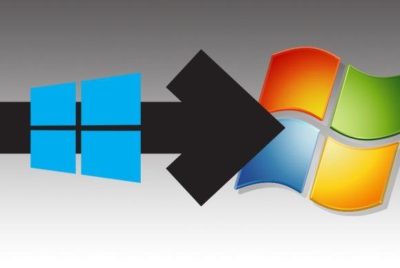
Outlook – Activities

aThere was an option to add a Contact’s Activities in older versions of Office.  For Office 2013, Activities option is replaced by Outlook Social Connection.
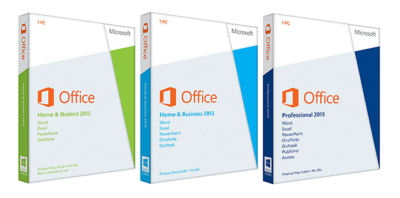

Word – Show Mark-Up

smFor Office 2013, the Show Markup drop-down, located in the Review Tab and Tracking Section for older versions, is removed but you can add it to your Quick Access Toolbar.

Backstage Exit

cawIn previous versions, “Exit” on the File Tab would allow you to exit all open documents in one click.  In Office 2013, you can right click the program on your task bar and select “Close all windows” or add “Exit” to your Quick Access Toolbar.

Picture Manager

pmcaUnlike previous versions of Office, Clip Art Organizer and Picture Manager are no longer available.  Clip Art Organizer is replaced with Insert Media Dialog Box.  Picture Manager is replaced with Windows Photo Gallery.

Access – PivotTables & PivotCharts

pcv ptvFor Office 2013, PivotTable and PivotChart are no longer tools in Access;  only Excel 2013 provides the PivotTable and PivotChart. 

Access – Upsizing Wizard

ssutIn previous versions of Access, it was simple to add an Access database to SQL Servers.

Using The Upsizing Wizard to migrate all or some objects to SQL Servers is no longer available with Access in Office 2013.

Excel – Workspace

swsWorkspace files save the layout you have selected.  When you open a saved Workspace Files they are displayed in that layout.

Excel 2013 you can open a Workspace file but you can not save layouts as Workspace files or add it to the Quick Access Toolbar. 

Outlook – Journal

ojJournal tool in Outlook helps you manage your productivity and time spent on projects.  This tool will no longer be available for Office 2013 and will not be replaced by another tool.

Outlook – To-Do Bar

tobThe Pinned Peek feature is replacing the traditional To-Do Bar in Outlook for Office 2013.  The Pinned Peak feature is not as detailed as the To-Do Bar, for example you can only view appointments for one day .  


CALL US NOW!