Back to Top

Tech, Web, Cloud & Cabling Services

Category: Microsoft

Microsoft Stream: The future of secure business video

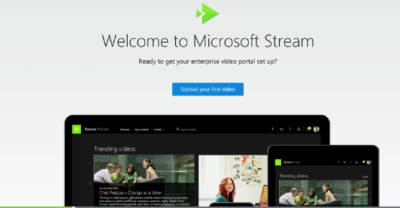
Microsoft is previewing Stream, a new service for publishing and managing business videos. One day it will be the default video publishing system for Office 365.

MicrosoftStream


On July 18, 2016, Microsoft announced that a preview version of a new service called Microsoft Stream was available. Like most of you, I passed over the news with an indifferent “whatever” attitude. But later I realized that the news was actually more important than I had first thought.

Microsoft Stream fulfills a niche by providing a secure place to share videos created within, and for, businesses. By using a cloud-based service like this, businesses can reap the benefits of video communication without the threat of anonymous forum trolls trashing the brand or harassing employees.

Upload and forget it

While it is still a preview version, Microsoft Stream seems mostly ready for prime time. All you have to do is set up an account with a valid business email—One can use a personal domain email—and then log in. To test how easy Stream is to work with, you can make a 10-second video with a smartphone. Upload your video to Google Drive and then drag and drop it on the Stream portal website.

The web service processes the video while you give it a title and a brief description. Stream then asks if you are ready to publish and when you say yes, it publishes the video after a few seconds of grinding. It takes all of two minutes from start to finish and requires nothing more technical than knowing how to drag and drop a file.

Gone are the days of worrying about file format, aspect ratio, preferred playback applications, and all the other minutia we had to go through in years past to get a video published. You just take the video and then publish the video.

Video management

The key features of Microsoft Stream have to do with managing videos after they are published. Videos can be classified and placed into specific channels. Those channels can have their access restricted to certain individuals or certain groups, like a specific department, for instance. Access is controlled via the Azure Active Directory system.

According to the blog post, Microsoft plans to integrate Stream into the existing Office 365 Video system. Once the integration is complete, Microsoft Stream will be the default system for publishing video in an Office 365 environment.

There are plans in the works to add intelligent search to Stream by taking advantage of tools like audio transcription and face recognition. Developers are also working on ways to integrate Stream with other tools, like PowerApps, Microsoft Flow, and SharePoint.

Bottom line

We are aware of Microsoft Bookings and how that application attempts to cut out other third-party developers by integrating appointment scheduling for small businesses with the standard Office 365 subscription. By offering Stream, a secure video publishing and management service, Microsoft is attempting to execute the same strategy for video publishing.

Microsoft Stream gives businesses a secure system for publishing videos. Through Stream, businesses control access and manage who can see what and when they can see it. And because it is all handled internally, problems with anonymous forum trolls are likely to be reduced.

It seems that Microsoft’s grand strategy is to become the only software company a business needs—ever. The glaring application that Office 365 is missing now is a double-entry accounting system that includes payroll, accounts receivable, accounts payable, and the general ledger. Should we be looking for an announcement regarding those applications soon, Microsoft?

Have questions?

Get answers from Microsofts Cloud Solutions Partner!
Call us at: 856-745-9990 or visit: https://southjerseytechies.net/

South Jersey Techies, LL C is a full Managed Web and Technology Services Company providing IT Services, Website Design ServicesServer SupportNetwork ConsultingInternet PhonesCloud Solutions Provider and much more. Contact for More Information.

To read this article in its entirety click here.

Here’s how Microsoft will integrate LinkedIn into its products

Microsoft’s massive $26.2 billion acquisition of LinkedIn finally closed, and CEO Satya Nadella explained how the companies will begin working together.

Microsoft’s $26.2 billion purchase of professional networking site LinkedIn officially came to a close on Thursday, after the deal was approved by regulators. Following the close, Microsoft CEO Satya Nadella penned a blog post on LinkedIn detailing how the website would begin integrating with Microsoft’s products.

For starters, LinkedIn identity and network capabilities will be coming to Microsoft Outlook, and to the Office suite in general, the post stated. Additionally, LinkedIn notifications will be available to users in the Windows action center as well.

Since LinkedIn is known as a digital CV of sorts, Microsoft will enable LinkedIn members who draft a résumé in Word to directly update their LinkedIn profile page, and more easily search for and apply to relevant job postings, the post said.

One of the potentially troubling integrations is “extending the reach of Sponsored Content across Microsoft properties,” as Nadella wrote on his blog. Whether that means that users will begin seeing ads in their Office apps remains to be seen, but it sets the stage for a potentially tricky user experience.

Enterprise LinkedIn Lookup will soon be powered by Active Directory and Office 365, which could make it easier for employees to connect with one another. Nadella’s blog post also noted that LinkedIn Learning will be made available across the Office 365 and Windows ecosystem, giving Microsoft shops access to new forms of training and continued learning that could prove valuable to their employees.

Additionally, Nadella wrote that the two companies would begin developing a business news desk across their existing ecosystem of content, and for MSN.com. Sales Navigator and Dynamics 365 will also be integrated in hopes of improving social selling capabilities.

Since the acquisition was first announced, it’s been fairly clear that data was the driving force behind the deal. The two companies had non-overlapping, complementary data graphs, and these integrations show just the first steps that Microsoft is taking to leverage LinkedIn’s data, along with its own, to build out a more holistic ecosystem of business technologies and services.

Current LinkedIn CEO Jeff Weiner will continue to lead the company after the acquisition, and theNew York Times reported that roughly 10,000 LinkedIn employees will join Microsoft.

The 3 big takeaways for readers

  1. Microsoft closed its $26.2 billion acquisition of social networking site LinkedIn on Thursday, with Microsoft CEO Satya Nadella outlining how the two companies will merge.
  2. LinkedIn features and services will be coming to Outlook, Office 365, Dynamics 365, and even MSN.com, with LinkedIn search getting a boost from Active Directory.
  3. The deal has always been about data, and the integrations are just the start of how the two companies will merge their individual data graphs.

Have questions?

Get answers from Microsofts Cloud Solutions Partner!
Call us at: 856-745-9990 or visit: https://southjerseytechies.net/

South Jersey Techies, LL C is a full Managed Web and Technology Services Company providing IT Services, Website Design ServicesServer SupportNetwork ConsultingInternet PhonesCloud Solutions Provider and much more. Contact for More Information.

Microsoft hints at September release of Windows 10’s next feature upgrade

Based on the current progress for Windows 10 version 1903, due to arrive next spring, it now looks like the fall update for the OS will arrive around Sept. 10 or Sept. 24.

Microsoft last week released the first preview of what will become Windows 10 version 1903, the opening feature upgrade of next year, slated to ship in the spring.

The debut of what Microsoft calls the “Skip Ahead” build for Windows 10 1903 also hints that the release of this fall’s upgrade, aka 1809, will take place in September. If so, it would be the first time since late-2015 that the actual delivery date matched the numerical label.

On July 25, Microsoft forked the 1809 preview of Windows 10 – as it’s done before when a feature upgrade approaches – so developers could continue to deliver betas for that build while also beginning to work on the next-in-line, 1903. (Microsoft uses a yymm labeling system to mark its Windows 10 feature upgrades; 1809 should indicate a September 2018 release, while 1903 would be a March 2019 release.)

When it forks preview code, Microsoft provides the even-further-in-the-future build, in this case, 1903, to Windows Insider participants who earlier volunteered for Skip Ahead. As the current feature upgrade gets close to release, Microsoft switches Skip Ahead users to the following upgrade, so that engineers can start collecting feedback on that version even as they keep polishing the one set to launch soon. The bulk of Insiders remain on the latter.

Think of the Skip Ahead debut as a warning bell, like the one rung at track meets when racers start the final lap: When Microsoft begins to ship Skip Ahead code, it’s close to wrapping up the impending feature upgrade.

In 2017, as Windows 10 1709 (aka “Fall Creators Update”) neared completion, Microsoft first forked the preview code and distributed a different build to Skip Aheaders on Aug. 31. Windows 10 1709 began its release cycle on Oct. 17, or 47 days later. With this year’s version 1803, Skip Ahead debuted Feb. 14, or 75 days before the April 30 release of that upgrade.

(Windows 10 1803’s original launch date, reportedly April 10 – which was one of two dates Computerworld had forecast in February – was postponed by 20 days after a deal-breaking bug was uncovered at nearly the last minute.)

For one estimate of the release date for Windows 10 1809, Computerworld added 47 days to July 25, arriving at Sept. 10. A second estimate was generated by adding 61 days – the average of the two previous Skip Ahead triggers – to July 25, resulting in a Sept. 24 rollout.

Because the last three feature upgrades launched on either a Monday or Tuesday – April 11, 2017 for version 1703; Oct. 17, 2017 for 1709; April 30, 2018 for 1803 – Sept. 10 or 11 would be the most likely release dates for 1809, absent a show-stopping problem like the bug before 1803’s launch. Computerworld’s alternate forecast would be September 24 or 25, also a Monday/Tuesday combination, because it would match the previous upgrades’ average time-between-Skip-Ahead-and-release.

If Microsoft does release Windows 10 1809 in September, it would be the first time since November 2015 that the company has matched delivery date and the upgrade’s label. Version 1511 debuted Nov. 10, 2015. The four subsequent upgrades, 1607, 1703, 1709 and 1803, all missed their release months by between 2 and 30 days. (Version 1607 came the nearest, releasing Aug. 2, 2016.)

Although Microsoft has never expressly tied itself to March and September release months – in a support document, it gives itself wiggle room by stating that feature upgrades will be released “twice per year, around March and September [emphasis added]” – the disconnect between release and numerical designation has always seemed odd.

Issuing feature upgrades during the appointed months would be a sign that Microsoft has gotten a better handle on the rapid development tempo it has at times struggled with executing. It would also be a step toward a more predictable schedule, which was the point of the pledge it made over a year ago to issue a pair of feature upgrades annually.

Windows 10 quick tips: 10 ways to speed up your PC

Want Windows 10 to run faster? Take a few minutes to try out these tips, and your machine will be zippier and less prone to performance and system issues.


1. Change your power settings

If you’re using Windows 10’s Power saver plan, you’re slowing down your PC. That plan reduces your PC’s performance in order to save energy. (Even desktop PCs typically have a Power saver plan.) Changing your power plan from Power saver to High performance or Balanced will give you an instant performance boost.

To do it, launch Control Panel, then select Hardware and Sound > Power Options. You’ll typically see two options: Balanced (recommended) and Power saver. (Depending on your make and model, you might see other plans here as well, including some branded by the manufacturer.) To see the High performance setting, click the down arrow by Show additional plans.
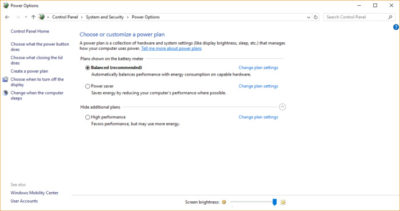
To change your power setting, simply choose the one you want, then exit Control Panel. High performance gives you the most oomph, but uses the most power; Balanced finds a median between power use and better performance; and Power saver does everything it can to give you as much battery life as possible. Desktop users have no reason to choose Power saver, and even laptop users should consider the Balanced option when unplugged and High performance when connected to a power source.


2. Disable programs that run on startup

One reason your Windows 10 PC may feel sluggish is you’ve got too many programs running in the background programs that you may never use, or only rarely use. Stop them from running, and your PC will run more smoothly.

Start by launching the Task Manager: Press Ctrl-Shift-Esc or right-click the lower-right corner of your screen and select Task Manager. If the Task Manager launches as a compact app with no tabs, click “More details” at the bottom of your screen. The Task Manager will then appear in all of its full-tabbed glory. There’s plenty you can do with it, but we’re going to focus only on killing unnecessary programs that run at startup.

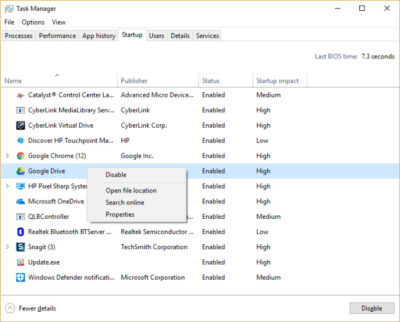
Click the Startup tab. You’ll see a list of the programs and services that launch when you start Windows. Included on the list is each program’s name as well as its publisher, whether it’s enabled to run on startup, and its “Startup impact,” which is how much it slows down Windows 10 when the system starts up.

To stop a program or service from launching at startup, right-click it and select “Disable.” This doesn’t disable the program entirely; it only prevents it from launching at startup — you can always run the application after launch. Also, if you later decide you want it to launch at startup, you can just return to this area of the Task Manager, right-click the application and select “Enable.”
Many of the programs and services that run on startup may be familiar to you, like OneDrive or Evernote Clipper. But you may not recognize many of them. (Anyone who immediately knows what “bzbui.exe” is, please raise your hand. No fair Googling it first.)

The Task Manager helps you get information about unfamiliar programs. Right-click an item and select Properties for more information about it, including its location on your hard disk, whether it has a digital signature, and other information such as the version number, the file size and the last time it was modified.

You can also right-click the item and select “Open file location.” That opens File Explorer and takes it to the folder where the file is located, which may give you another clue about the program’s purpose.

Finally, and most helpfully, you can select “Search online” after you right-click. Bing will then launch with links to sites with information about the program or service.

If you’re really nervous about one of the listed applications, you can go to a site run by Reason Software called Should I Block It? and search for the file name. You’ll usually find very solid information about the program or service.

Now that you’ve selected all the programs that you want to disable at startup, the next time you restart your computer, the system will be a lot less concerned with unnecessary program.


3. Turn off search indexing

Windows 10 indexes your hard disk in the background, allowing you – in theory – to search your PC more quickly than if no indexing were being done. But slower PCs that use indexing can see a performance hit, and you can give them a speed boost by turning off indexing. Even if you have an SSD disk, turning off indexing can improve your speed as well, because the constant writing to disk that indexing does can eventually slow down SSDs.
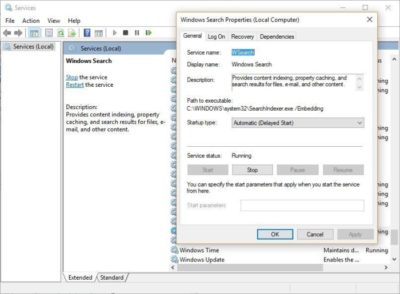
To get the maximum benefit in Windows 10, you need to turn indexing off completely. To do so, first type services.msc in the Start Menu search box, and click the Services result that come up. The Services app then appears. Scroll down to either Indexing Service or Windows Search in the list of services. Double-click it, and from the screen that appears, click Stop. Then reboot. Your searches may be slightly slower, although you may not notice the difference. But you should get an overall performance boost.

If you’d like, you can turn off indexing for only files in certain locations. To do this, first type index in the Start Menu search box, and click the Indexing Options result that appears. The Indexing Options page of Control Panel appears. Click the Modify button and you’ll see a list of locations that are being indexed, such as Microsoft Outlook, your personal files, and so on. Uncheck the boxes next to any location, and it will no longer be indexed.


4. Clean out your hard disk

If you’ve got a bloated hard disk filled with files you don’t need, you could be slowing down your PC. Cleaning it out can give you a speed boost. Windows 10 has a surprisingly useful built-in tool for doing this called Storage Sense. Go to Settings > System > Storage and at the top of the screen – in the Storage Sense section – move the toggle from Off to On. When you do this, Windows constantly monitors your PC, and deletes old junk files you no longer need; temporary files; files in the Downloads folder that haven’t been changed in a month; and old Recycle Bin files.

You can customize how Storage Sense works and also use it to free up even more space than it normally would. Underneath Storage Sense, click “Change how we free up space automatically.” From the screen that appears, you can change how often Storage Sense deletes files (every day, every week, every month or when Windows decides). You can also tell Storage Sense to delete files in your Download folder, depending on how long they’ve been there. And you can also set how long to wait to delete files in the Recycle Bin automatically.
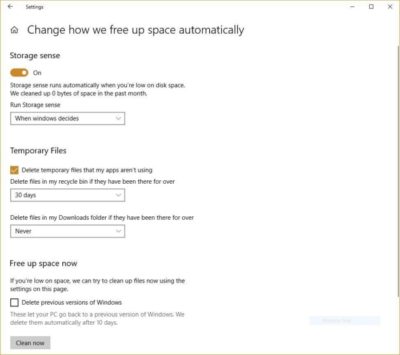
You can also delete old versions of Windows that might be hogging space. At the bottom of the screen, check the box next to “Delete previous versions of Windows.” Storage Sense will then delete old versions of Windows ten days after you’ve installed an upgrade. Note that if you do this, you won’t be able to revert to the older version of Windows.


5. Clean out your Registry

Under the Windows hood, the Registry tracks and controls just about everything about the way Windows works and looks. That includes information about where your programs are stored, which DLLs they use and share, what file types should be opened by which program or just about everything else.

But the Registry is a very messy thing. When you uninstall a program, for example, that program’s settings don’t always get cleaned up in the Registry. So over time, it can get filled with countless outdated settings of all types. And that can lead to system slowdowns.

Don’t even think of trying to clean any of this out yourself. It’s impossible. To do it, you need a Registry Cleaner. There are plenty available, some free and some paid. But there’s really no need to outright buy  one, because the free Auslogics Registry Cleaner does a solid job.

Before using Auslogics or any other Registry Cleaner, you should back up your Registry so you can restore it if anything goes wrong. (Auslogics Registry Cleaner does this for you as well, but it can’t hurt to have it backed up twice.) To do your own Registry backup, type regedit.ext in the search box, then press Enter. That runs the Registry editor.  From the File menu, select Export. From the screen that appears, make sure to choose the “All” option in the Export range section at the bottom of the screen. Then choose a file location and file name and click Save. To restore the Registry, open the Registry editor, select Import from the File menu, then open the file you saved.
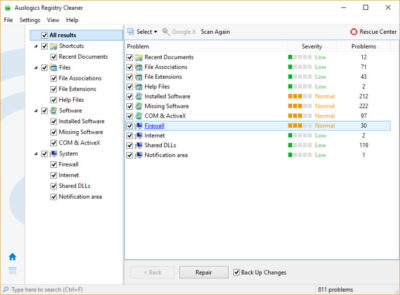
Now download, install and run Auslogics Registry Cleaner. On the left-hand side of the screen you can select the kinds of Registry issues you want to clean up – for example, File Associations, Internet or Fonts. I generally select them all.

Next tell it to scan the Registry for problems. To do that, click “Scan Now” and from a drop-down menu that appears select Scan. That lets you first examine the Registry problems it finds. If you instead choose “Scan and Repair,” it makes the fixes without you checking them.

It now scans your Registry for errors, then shows you what it found. It ranks the errors according to their severity, to help you decide which to fix. Click Repair when you’ve made your decision, and make sure that “Back up Changes” is checked, so you can restore the Registry easily if something goes wrong.


6. Disable shadows, animations and visual effects

Windows 10 has some nice eye candy — shadows, animations and visual effects. On fast, newer PCs, these don’t usually affect system performance. But on slower and older PCs, they can exact a performance hit.
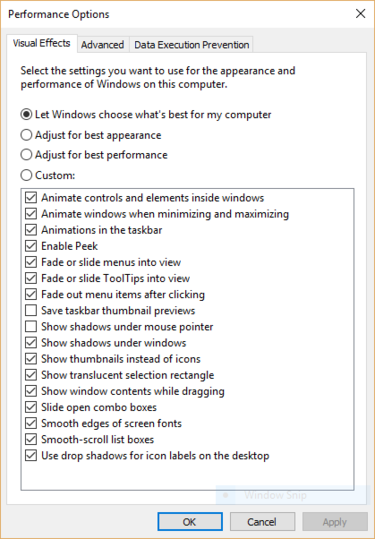
It’s easy to turn them off. In the Windows 10 search box type sysdm.cpl and press Enter. That launches the System Properties dialog box. Click the Advanced tab and click “Settings” in the Performance section. That brings you to the Performance Options dialog box. You’ll see a varied list of animations and special effects.

If you have time on your hands and love to tweak, you can turn individual ones on and off. These are the animations and special effects you’ll probably want to turn off, because they have the greatest effect on system performance:

  • Animate controls and elements inside windows
  • Animate windows when minimizing and maximizing
  • Animations in the taskbar
  • Fade or slide menus into view
  • Fade or slide ToolTips into view
  • Fade out menu items after clicking
  • Show shadows under windows

However, it’s probably a lot easier to just select “Adjust for best performance” at the top of the screen and then click OK. Windows 10 will then turn off the effects that slow down your system.


7. Launch the Windows troubleshooter
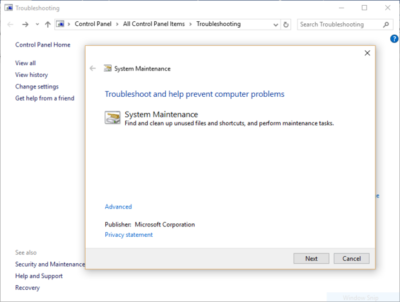
Windows 10 has a very useful, little-known tool that can sniff out performance problems and solve them. To launch it, run Control Panel and select System and Security > Security and Maintenance > Troubleshooting > Run maintenance tasks. A screen titled “Troubleshoot and help prevent computer problems” will appear. Click Next.

The troubleshooter will find files and shortcuts you don’t use, identify any performance and other issues on your PC, report them to you and then fix them. Note that you may get a message that says, “Try troubleshooting as an administrator.” If you have administrative rights to the PC, click it and the troubleshooter will launch and do its work.


8. Get help from the Performance Monitor

There’s a great tool in Windows 10 called the Performance Monitor that can, among other things, create a detailed performance report about your PC, detail any system and performance issues, and suggest fixes.

To get the report, type perfmon /report into your search box and press Enter. (Make sure there’s a space between “perfmon” and the slash mark.) The Resource and Performance Monitor launches and gathers information about your system. It will say that it will take 60 seconds, but I’ve found that it takes several minutes. When the Monitor finishes, it will launch an interactive report.

You’ll find a lot of extremely detailed information in the report, and it can take a lot of time to go through. Your best bet is to first look at the Warnings section, which details the biggest issues (if any) it found on your PC, such as problems with Windows, with drivers and so on. It also tells you how to fix each problem — for example, how to turn on a device that has been disabled.
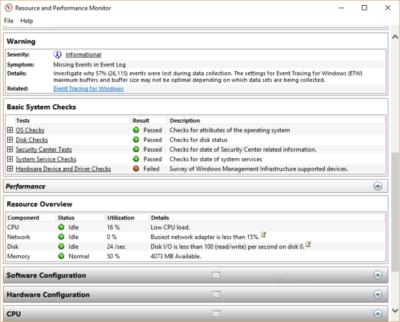
It is also worthwhile to scroll down to the Resource Overview section, where you’ll find an analysis of how well your CPU, network, disk and memory are performing. Each result is color-coded, with green meaning no problems, yellow meaning potential issues, and red showing a problem.

Beyond that, the Resource Overview also reports performance metrics and explanatory details. For example, for the CPU, it might show green and a utilization of 21%, with the details, “Normal CPU load.” Or for Memory, it might show yellow, with 62% utilization and the details, “1520 MB is available.” Based on what you get, you might want to do something about your hardware — for example, add more memory.


9. Kill bloatware

Sometimes the biggest factor slowing down your PC isn’t Windows 10 itself, but bloatware or adware that takes up CPU and system resources. Adware and bloatware are particularly insidious because they may have been installed by your computer’s manufacturer. You’d be amazed at how much more quickly your Windows 10 PC can run if you get rid of it.

First, run a system scan to find adware and malware. If you’ve already installed a security suite such as Norton Security or McAfee LiveSafe, you can use that. You can also use Windows 10’s built in anti-malware app — just type Windows Defender in the search box, press Enter, and then click Scan Now. Windows Defender will look for malware and remove any it finds.

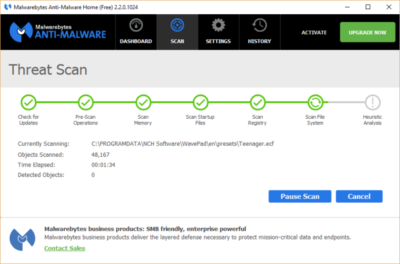
It’s a good idea to get a second opinion, though, so consider a free tool like Malwarebytes Anti-Malware. The free version scans for malware and removes what it finds; the paid version offers always-on protection to stop infections in the first place.

Now you can check for bloatware and get rid of it. Several free programs will do this for you; your best bet is to run several of them, because no single one will find all the bloatware on your PC. Good choices are the PC Decrapifier, Should I Remove It? and SlimComputer.
 

10. Shut down and restart Windows

Here’s one of IT’s not-quite-secret weapons for troubleshooting and speeding up a PC: Shut it down and restart it. Doing that clears out any excess use of RAM that otherwise can’t be cleared. It also kills processes that you might have set in motion and are no longer needed, but that continue running and slow your system. If your Windows 10 PC has turned sluggish over time for no apparent reason, you may be surprised at how much more quickly it will run when you do this.

Try just some of these tricks, and you’ll find that you’ve got a faster Windows 10 PC — and one that is less likely to have any reliability problems.


If Microsoft can’t install Windows 10 on your PC, it’ll give you a new one

Terms and conditions apply, but if the company’s stores can’t perform a same-day upgrade on your Windows 10-compatible PC, it’ll give you a new Dell notebook.

Windows 10- SJTechies

As the free Windows 10 upgrade offer nears its end on July 29, Microsoft is pulling out all the stops to convince users to upgrade. It’s even willing to give you a new laptop.

As spotted, Microsoft retail stores are offering to install Windows 10 on any compatible machine for free. If the store’s technicians don’t complete the upgrade by the end of that business day, they’ll give you a free 15-inch Dell Inspiron notebook.

The offer runs between now and July 29.

There is, of course, plenty of fine print. The free installation offer only applies to a single PC that’s capable of running Windows 10 (If it isn’t, you may be eligible for a $150 credit toward a new PC). You also need to check in your computer by noon for the offer to be valid. It’s also limited only to the US and Canada, so customers of the Microsoft Store in Sydney are out of luck.

The story behind the story: This free PC offer is the latest in a series of highly aggressive moves Microsoft has made to get its users onto Windows 10. Its deceptive, malware like pop-ups in Windows 7 and 8.1 effectively trick users into installing Windows 10, whether they want to or not. Windows 10 spiked in market share in June, seemingly as a result of these forced updates, but the company has since admitted that it likely won’t hit its goal of having Windows 10 on one billion devices by mid-2018.

Have questions?

Get answers from Microsofts Cloud Solutions Partner!
Call us at: 856-745-9990 or visit: https://southjerseytechies.net/

South Jersey Techies, LL C is a full Managed Web and Technology Services Company providing IT Services, Website Design ServicesServer SupportNetwork ConsultingInternet PhonesCloud Solutions Provider and much more. Contact for More Information.

To read this article in its entirety click here.

200M Now Use Windows 10 In The Enterprise

The latest numbers from the company show businesses are close to schedule to move away from Windows 7 before the older OS retires in early 2020.

Windows10 Enterprise

Microsoft on Tuesday said that some 200 million enterprise workers now run Windows 10, a sign that corporations and other businesses are close to schedule to scrub Windows 7 from their machines before that older OS retires in about 20 months, an analyst argued.

“The 200 million resonates with me, based on what I’m hearing from clients,” said Stephen Kleynhans of Gartner Research. Migrations to Windows 10, he added, are progressing “pretty aggressively.”

Joe Belfiore, a corporate vice president who leads the Windows 10 team, revealed the number at Microsoft’s Build developers conference Tuesday. “Right now, there are over 200 million people in corporate accounts using Windows 10,” Belfiore said as he claimed deployment is “really ramping up” in the enterprise. “We’ve seen that [Windows 10] adoption rate increase now at 79% year-over-year growth.”

The day before, Microsoft contended that “nearly 700 million” devices are running Windows 10 worldwide. On that basis, enterprises accounted for less than 30% of all copies of Windows 10.

(Although the two numbers – Belfiore’s 200 million people using Windows 10 in corporate settings and Microsoft’s 700 million devices powered by the operating system – measured two different things, it’s not uncommon for Microsoft to obfuscate this way to prevent direct comparisons. In actuality, because Microsoft typically sells licenses on a per user basis, with multiple devices allowed for each user, 200 million people may be using more than that number of Windows 10 devices.)

While neither the percentage nor the 200 million are to be sneezed at, the former is significantly less than the average overall for commercial PCs, which have historically accounted for more than half – 55% has been an often-cited figure – of all personal computers.

And while Kleynhans did not dispute Microsoft’s claim of 200 people running Windows 10 in the enterprise, he sounded a bit disappointed in the number. “Is it a low number? It’s a little behind where I thought it would be,” Kleynhans said, noting that he expected it to be around 250 million by this point, perhaps even close to 300 million.

That 2009 operating system will fall off Microsoft’s support list on Jan. 14, 2020, meaning that while Windows 7 will continue to work as before, the Redmond, Wash. will stop distributing security updates to it.

It’s unrealistic to expect that all commercial customers will have purged Windows 7 by the retirement date, Kleynhans said, pointing out that he has recently spoken with clients who still run some instances of Windows XP (retired from support in 2014) and even Windows 98 (2006).

“What we [Gartner] expect is that enterprises will get to the 85%-90% level by the deadline,” Kleynhans said of the percentage of corporate devices shifted to Windows 7, “maybe even a little higher than that.” Nothing that’s happened has changed that estimate, he added.

“There are always laggards,” Kleynhans said.

According to other metrics, there may be a considerable number of them.

Estimates from analytics vendors, including U.S.-based Net Applications, which measure user and usage shares, signal that a large resorvoir of Windows 7 users will remain after the operating system’s retirement in 20 months. Net Applications’ latest data, for example, drove a Computerworld forecast that of the world’s Windows personal computers – all the PCs, not just those in the enterprise – 42% would still be running Windows 7 in January 2020, a much larger percentage than the 29% powered by Windows XP when that edition fell off the support list in April 2014.

In the end, large organizations will do what it takes to get off Windows 7 and onto Windows 10 by the former’s support cut-off date. The 200 million touted by Belfiore this week will be quite different a year from now, Kleynhans was certain.

“The speed with which I see Windows 10 moving now, it’s not going to be an issue,” he said.

Windows 10 deployment is, like previous iterations of the OS, on a timetable not of its own making. Instead, because of the vagarities of Microsoft’s historical release schedule and corporate acceptance (or rejection) of some editions, there is a clock ticking on Windows 10 because of the impending retirement of the current corporate standard, Windows 7.

Have questions?

Get answers from Microsofts Cloud Solutions Partner!
Call us at: 856-745-9990 or visit: https://southjerseytechies.net/

South Jersey Techies, LL C is a full Managed Web and Technology Services Company providing IT Services, Website Design ServicesServer SupportNetwork ConsultingInternet PhonesCloud Solutions Provider and much more. Contact for More Information.


How to Delete WINDOWS.OLD on Server

After performing an in-place upgrade on a Windows machine, you will find a WINDOWS.OLD folder in the root of C:. This folder will have a backup of your old program files, appdata and Windows folder… just in case you need to revert back or recover something that might have been lost during the upgrade. When you try to delete it though you are told you don’t have permissions. Just a small point here, it is generally not recommended to do in-place upgrades on servers. In fact there are some products (e.g. Exchange, ConfigMgr) that explicitly state they do not support upgrading the Operating System. There is of course a difference between “what works” and “what is supported”, but we do suggest where possible you do a clean Server install and migrate your application to the new server. Anyway, let’s assume you’ve understand all the risks and have done a successful in-place upgrade, you now find the old WINDOWS.OLD folder of several GB in size sitting there. If all is well, then you might as well just delete it.

SOLUTION

On Desktop OS version, you can just use the disk cleanup tool to remove it, but that is not available (by default) on Servers, so there are a couple of approaches.

Command line tools to take ownership and delete the folder. Make sure to “run as administrator”

How can I delete the windows.old from an upgraded Windows Server?

For a client OS that’s upgraded, the Disk Cleanup utility can be used to delete the very large windows.old folder containing the old OS. This isn’t available on a server OS without installing the Desktop Experience feature.

To delete, it is necessary to take ownership of the folder, give administrators full control, then delete. This can be done with the commands below:

  •  takeown /F c:\Windows.old\* /R /A /D Y
  •  cacls c:\Windows.old\*.* /T /grant administrators:F
  •  rmdir /S /Q c:\Windows.old


Or you can add the “Desktop” features to provide the Disk Cleanup tool:

Step By Step Guide to Enabling “Disk Cleanup Utility”

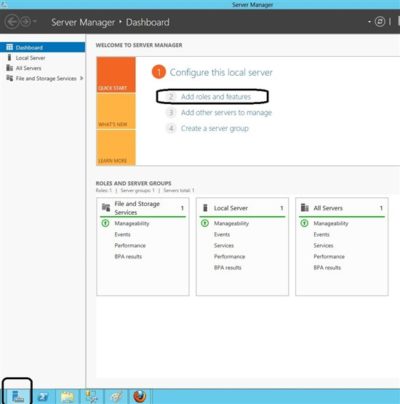
1. Open The Roles and Features Wizard

To open the roes and feauture wizard. Lauch the “server manager” by pressing the Windows key

and clicking on the server manage please see Screenshot as shown.

Personally, the command line option is less messy and saves having to add features to your server that don’t really need to be there.

2. Click on Add role and Feature

Click on add role and feture to launch the add role and feature wizard.

3.  Choose installation Type

Choose rolebase or feature based installation to install to local machine.

4. Click Next all the way to features

Click “next” all the way to features. Locate “User Interface and Infrastructure”. Click on “Desktop Experience”

and install additional required feature.

5.  Proceed with the installation and Reboot

Make it sure that you reboot the system

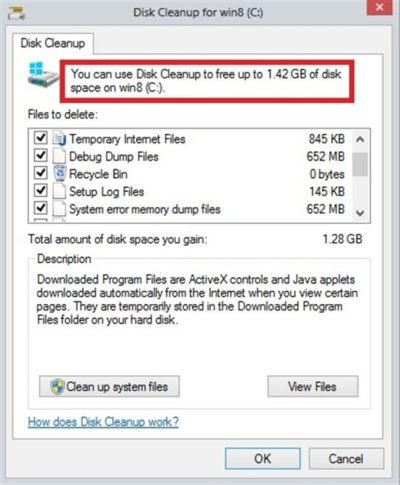
6.  Verify that the Utility is indeed installed

Ready to run diskcleanup. See screen shot below.

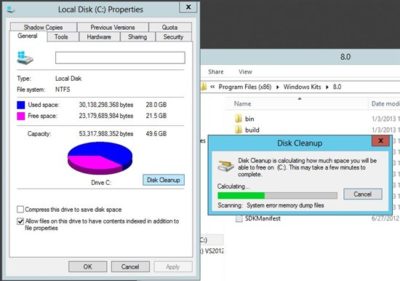
Disk Cleanup in Action

Below is a sample snapshot of disk cleanup in action.

Windows 10 Privacy Settings Guide

Where do you draw the line on personal privacy? The right options are different for everyone. This guide shows the privacy settings that will help you to create the right balance of privacy and convenience in Windows 10.

Over the past year, We’ve read countless “privacy guides” for Windows 10. Most are well-intentioned, but they invariably take a simplistic approach to privacy: Just turn off every switch in the Privacy section of the Settings app.

If you do that, you’re not understanding the privacy landscape, which encompasses far more than just those settings. You’re also missing some important additional steps.

Windows 10 is a mix of software and services. With every session, a Windows 10 device exchanges a great deal of information with Microsoft’s servers. That’s neither unusual nor alarming. Microsoft’s chief rivals, Google and Apple, are also blending services into their software, with the goal of making your life easier and making that software more reliable.

So are other tech companies that you don’t think of as software companies: Amazon, with the Echo. Tesla, with its self-updating, software-driven cars. Your thermostat and your home security system.

There’s something profoundly satisfying about a service that anticipates your every move, reminding you when to leave for an appointment to arrive on time, or to pick up flowers for your anniversary tomorrow. Your digital personal assistant, whether it’s Siri or Cortana or Alexa or Google, needs to be able to see your calendar and contacts to make that magic happen.

But when that sort of personal attention goes too far, it “crosses the creepy line,” to use a phrase that Eric Schmidt probably regrets uttering when he was Google’s CEO.

The thing about that line is that it’s drawn in a different place for everyone. There are people who are thrilled at the idea that their PC or mobile device is so familiar with their actions that it can anticipate what they’ll do next. I know others who would like to build a virtual Faraday cage around their computing hardware so that none of their personal details can escape.

Both of those viewpoints, and everything in between, are perfectly valid. That’s why the software and services we use are loaded with switches and dials designed to help you take control of their potential privacy impact.

In this post, We’ll walk you through the big privacy questions for Windows 10, with enough context to help you decide which settings are right for you.

Note that this guide assumes you are using Windows 10 on a personal PC or one in your small business. If you are in an enterprise setting, or if you are in a regulated industry, you should seek professional assistance to ensure that you’re meeting proper standards.

Let’s start with the part of your PC that has the biggest impact on your personal privacy.

THE NETWORK

No one knows more about your online identity than your Internet service provider. Every packet you send or receive from anywhere online goes through their servers. When you travel and connect to Wi-Fi networks that are under the control of others, the owners of those networks can see every connection you make and can intercept their contents.

Regardless of the platform you use, that’s why it’s important you use encrypted connections for any kind of sensitive communications. Using a virtual private network whenever possible is an excellent best practice.

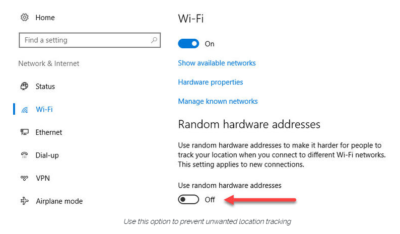
Windows 10 does offer one obscure option that can help protect third parties from tracking your movements based on your connections to Wi-Fi networks. (Note that this feature requires support from your Wi-Fi adapter, so if you don’t see this option, the most likely explanation is that your hardware doesn’t support it.) Under Settings > Network & Internet > Wi-Fi, turn the Use random hardware addresses setting to On.

windowsprivacy02

That step keeps third parties from matching your Wi-Fi adapter’s hardware address with your personal information, making it more difficult to track your location.

THE BROWSER

Countless third-party ad networks and analytics companies use cookies and other tracking technology to record your movements around the web and to correlate your online activities with your offline identity.

The result is a digital fingerprint that can be extraordinarily detailed and, unfortunately, outside of your ability to change.

To limit the amount of information that those ad and analytics companies know about you from your web browsing, consider third-party anti-tracking software such as Abine’s Blur, which is available for every web browser except Microsoft Edge. (That lack of solid support for add-ons is one reason I can’t yet recommend Edge as a full-time browser for most Windows 10 users.)

Another privacy product worth considering is Ghostery, although some are suspicious of this browser extension because of its uncomfortably close ties to the online advertising industry.

Ad-blocking software can also provide some privacy protection as a side-effect of performing its basic function. Here, too, watch out for close ties between some ad-blocking add-ins and the third-party trackers they supposedly protect you from.

Note that none of these steps is unique to Windows 10. Anti-tracking software is typically a browser add-in and works with most popular browsers.

THE OPERATING SYSTEM

With those two big, platform-independent factors out of the way, we can now turn to Windows 10 itself. When you use a Windows 10 device, it is capable of sharing the following types of information with Microsoft’s servers:

Your location

Windows 10 can determine your location to help with actions like automatically setting your current time zone. It can also record a location history on a per-device basis. Go to Settings > Privacy > Location to control the following:

  • Location on/off?Use the master switch at the top of this page to disable all location features for all users of the current device.
  • Location service on/off?If location is on for Windows, you can still turn it off for your user account here.
  • General location?This allows you to set a city, zip code, or region so that apps can deliver relevant content.
  • Default location?Click Set default to open the Maps app and specify the location you want Windows to use when a more precise location is not available.
  • Location history?Click Clear to erase the saved history for a Windows 10 device.

If location is on, a list at the bottom of the Settings > Privacy > Location page allows you to disable access to that data on a per-app basis.

Your input

If you enable Cortana, Windows 10 uploads some info from your devices, such as your calendar, contacts, and location and browsing history, so that Cortana can make personalized recommendations. If you don’t want any accounts on your PC to use Cortana, follow the steps in this article to disable the feature completely: Turn off Cortana completely.

Windows 10 uses some feedback from the way you type, write, and speak to improve performance for you and as a way to improve the overall platform. This isn’t keystroke logging; rather, the operating system uses a very small amount of information. A separate feature uses your speech and writing history to make better suggestions in Windows and Cortana.

You can control this collection with two sets of controls:

Under Settings > Privacy > General, click Info about how I write and turn it off so that your typos aren’t used to improve things like the built-in spell checker.

Under Settings > Privacy > Speech, inking, & typing, under the Getting to know you heading, click Stop getting to know me to turn off personalization.

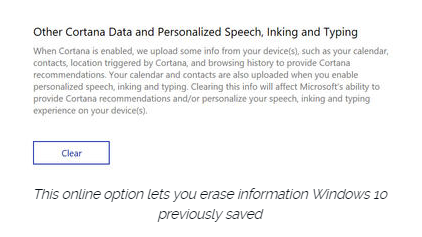
To clear previously saved information associated with your Microsoft account, click the first link under the Manage cloud info heading. That takes you to this Bing Personalization page, which includes this prominent button:

windows-privacy01

Click Clear to remove that saved information from the cloud.

Files and settings

When you sign in with a Microsoft account, you have the option to save files to the cloud using OneDrive. Windows 10 also syncs some settings to OneDrive, allowing you to have the same desktop background, saved passwords, and other personalized settings when you sign in with that account on multiple PCs.

If you use a local account, of course, none of your settings are synced. If you use a Microsoft account, you can turn off syncing completely or remove certain settings from the sync list by going to Settings > Accounts > Sync Your Settings.

OneDrive is an opt-in service. If you don’t sign in, it does nothing. You can’t save files to OneDrive accidentally, and no files are uploaded without your explicit permission, which you can revoke any time. To disable OneDrive for all users on your PC, follow these instructions: Shut down OneDrive completely.

Telemetry

Microsoft, like all modern software companies, uses feedback from its installed base to identify problems and improve performance. In Windows 10, this feedback mechanism produces diagnostics data (aka telemetry) that is uploaded to Microsoft at regular intervals. The data is anonymized and is not used to create a profile of you.

The default telemetry setting for all consumer and small business versions of Windows 10 is Full, which means that the uploaded data also includes details (also anonymized) about app usage. If you are concerned about possible inadvertent leakage of personal information, I recommend that you go to Settings > Privacy > Feedback & diagnostics and change the Diagnostic and usage data setting to Basic.

THE APPS

Although the number of subcategories under the Privacy heading in Settings seems daunting, most of them govern access to your information by Windows Store apps. That set of apps includes those that are preinstalled (Mail, Calendar, Groove Music, Photos, and so on) as well as those you acquire from the Store.

Most of the categories offer a single on-off switch at the top, which you can use to disable all access to that feature by all apps. If you leave the feature enabled, you can use a list of apps at the bottom of the page to enable or disable access on a per-app basis.

This capability works the same with the following categories: Camera, Microphone, Notifications, Account Info, Call History, and Radios. The Other Devices category lets apps automatically share and sync info with wireless devices that aren’t explicitly paired with your PC. Use the Background Apps category to specify which apps are allowed to work in the background.

If Location is enabled, you have the option to disable location access on a per-app basis and to disable Geofencing.

The Contacts, Calendar, Email, and Messaging categories allow you to control which apps can have access to these features. If you want to share content from an app using email or messaging, this option has to be on for that app. Note that Mail and Calendar, People, and Phone always have access to your contacts; Mail and Calendar are always allowed to access and send email and always have access to your calendar.

Finally, one horribly misunderstood setting is available under Settings > Privacy > General. Advertising ID controls whether Microsoft serves personalized ads to ad-supported apps. If you turn this option off, you still get ads, but they’re not personalized. In any case, your information is not shared with advertisers.

Have questions?

Get answers from Microsofts Cloud Solutions Partner!
Call us at: 856-745-9990 or visit: https://southjerseytechies.net/

South Jersey Techies, LL C is a full Managed Web and Technology Services Company providing IT Services, Website Design ServicesServer SupportNetwork ConsultingInternet PhonesCloud Solutions Provider and much more. Contact for More Information.

To read this article in its entirety click here.

Office 365 Activation: How to Fix

Imagine you are a customer of Microsoft’s Office 365 service, including a subscription to the Office desktop applications like Word, Excel and Outlook.

One day you click on the shortcut for Word, but instead of opening, it just shows a “Starting” splash screen which never progresses.

Being smart, you try to start Word in safe mode by holding down the Ctrl key, but the exact same thing happens.

Annoying, when you want to do your work. What is going on?

We took a look at a case like this. Two things you should do (after the usual reboot):

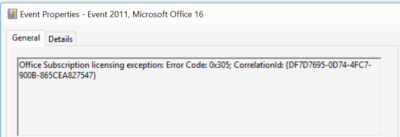
1. Look in the event viewer. Here, we found a clue that the issue is related to software activation, specifically Event 2011 “Office Subscription Licensing exception”:

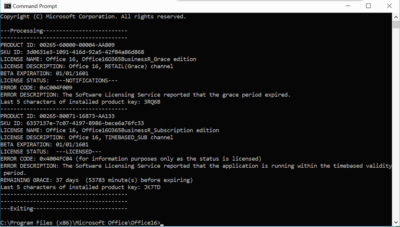
2. For all things related to Office licensing, open a command prompt, go to (for example) C:\Program Files (x86)\Microsoft Office\Office16, and type:

cscript ospp.vbs /dstatus

In this case we got the following:

This told us that Windows thinks TWO product keys for Office are installed. One has expired, the other is fine.

The guilty party may (or may not) be the trial version of Office typically pre-installed with a new PC. Or it could be a consequence of changing your Office 365 subscription. Neither would be the fault of the user, who is fully licensed and has done nothing other than follow Microsoft’s normal procedures for installing Office 365.

Solution: we reinstalled Office from the Office 365 portal, and attempted to remove the dud product key with:

cscript ospp.vbs /unpkey:<Last five characters of product key>

as explained here. All is well for the moment.

Activation and subscription license checking is for the benefit of the vendor, not the user, and should never get in the way like this.

Further, cannot Microsoft find some way of informing the user when this happens, and not have Word simply hang on starting? How difficult is it to check for licensing and activation issues, and throw up a message?

Install & Activate Windows 10 Easily

windowsproductkey

Summary

Microsoft recently announced the first major update to Windows 10 which includes numerous improvements for end users and businesses. One of the welcome improvements is the compliance check when qualifying for the Windows 10 upgrade. Previously, Windows 7, Windows 8.0 and Windows 8.1 users needed to have either of those versions Windows installed and activated in order to qualify for the free upgrade offer. For persons who needed to perform a clean install of Windows 10 from the outset, it was a two step process of first validating the machine through the upgrade routine, ensure the Windows 10 Upgrade was activated, then proceed to perform a Reset. With the latest November Update (1511), users no longer have to go through this process. In this article, we take a look at how to install and activate Windows 10 using your Windows 7 or Windows 8 product key.

Details

For the purposes of this article, We are using a Windows 7 license to perform clean install using Windows 10.

Please note: The copy of Windows 10 you download must correspond with the edition of Windows you are licensed for:

  • Windows 7 Starter, Home Basic, Home Premium, Windows 8.0 Core, Windows 8.1 Core must use a Windows 10 Home ISO
  • Windows 7 Professional, Windows 7 Ultimate, Windows 8.0 Pro, Windows 8.1 Pro must use a Windows 10 Pro ISO
  • If you are using Windows 7 Enterprise, Windows 8.0 Enterprise, Windows 8.1 Enterprise editions you won’t be able to use the free upgrade offer.

Review complete instructions how to download the Windows 10 ISO in the following article:

How to download official Windows 10 ISO files

Review instructions here how to start a clean install if you desire, if you want to perform an upgrade, clickhere.

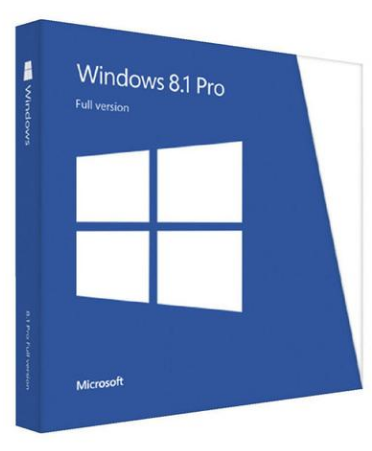
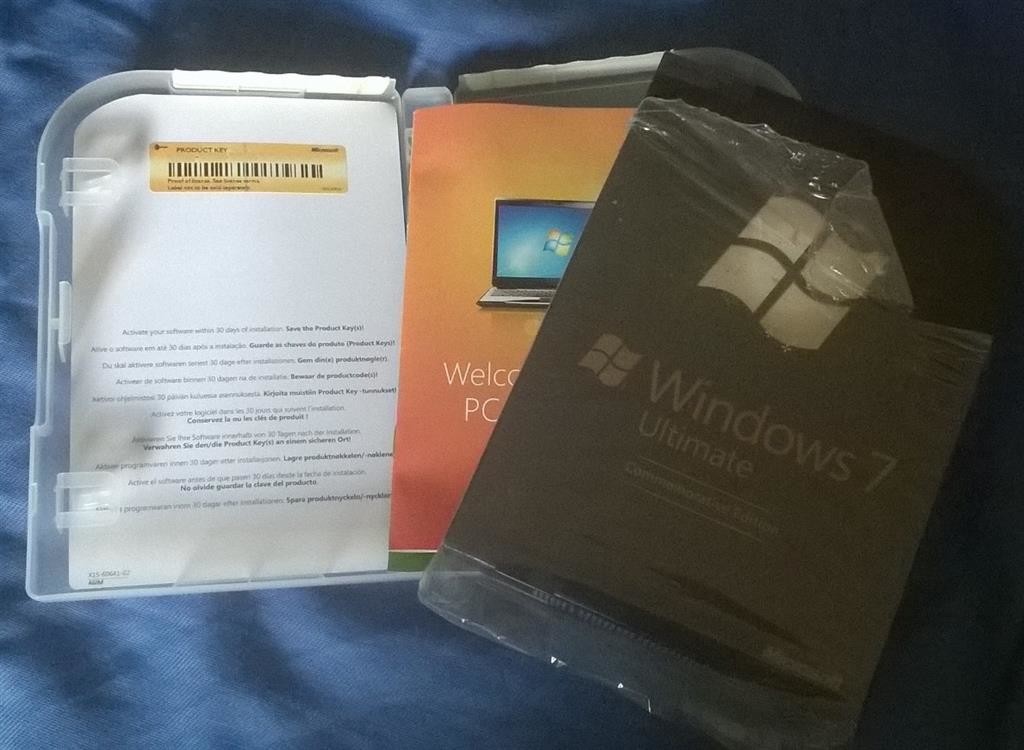
Have your Windows 7 or 8/8.1 product key ready. If you purchased a retail license, you can find the product key within the product box. The Windows 7 product key is normally found on an orange sticker attached to a pamphlet inside the box. The Windows 8/8.1 product key is found on a small business size card. See examples below. Please note, you can also use your OEM product key too if Windows came preinstalled on your computer.

Retail:

retail

Windows 8/8.1

windows-8

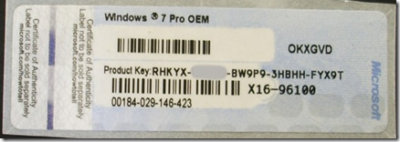
If your computer came preinstalled with an OEM version of Windows 7, look for the Certificate of Authenticity sticker attached to the chassis of your computer. Normally this can be at the side or top of the system unit. For laptops, look at the bottom of the chassis or inside the battery or memory compartment. It looks like the following:

productkey

If you are running an OEM preinstalled Windows 8/8.1 license, Windows 10 setup should automatically detect the product key and install it automatically.

With Windows 8, Microsoft had changed from stickers that have the product key that the user has to type in when installing the operating system to new BIOS embedded product keys. The idea is that by eliminating the sticker, you eliminate one of the easier ways for nefarious users to get a legitimate product key. Eliminating the product key sticker also removes any worry that the sticker might get damaged while at the same time eliminating the long and irritating process of typing in various letters and numbers when installing the operating system.

If the user has to reinstall the operating system on a machine that came with Windows 8, the installation process automatically grabs the software product key from the motherboard BIOS with no input from the user. This means that those familiar Windows product key stickers will no longer appear on the Windows 8 computers.

If you have lost your Windows product key, Microsoft recommends you purchase a new one. 

http://windows.microsoft.com/en-gb/windows/where-find-windows-product-key#where-find-windows-product-key=windows-7

You might be lucky by contacting Microsoft Support who might be sympathetic to your situation:
http://support2.microsoft.com/kb/326246/en-us

Contact the Microsoft store:
US: http://www.store.microsoft.com/Help/Contact-Us
1-877-696-77861-877-696-7786 FREE
Canada: https://www.microsoftstore.ca/shop/en-CA/Contact-Us

Microsoft Support Contact Information:
http://support.microsoft.com/contactus/?ws=support

General Microsoft contact site: http://support.microsoft.com/contactus#tab0

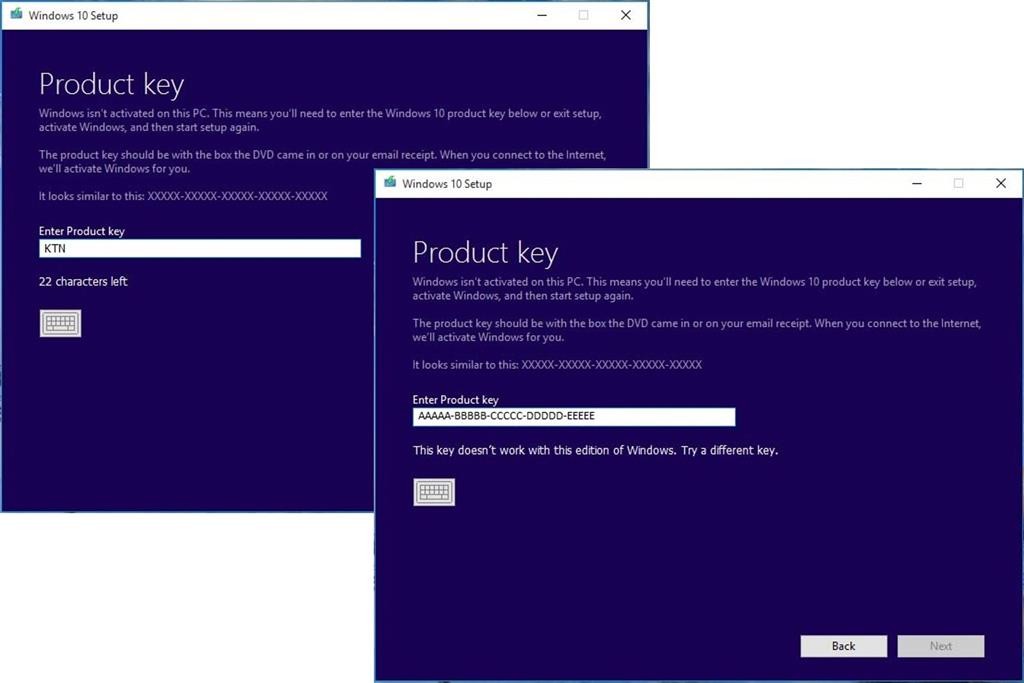
If you are prompted to enter a product key during Windows 10 setup (November Update aka 1511) from within a running version of Windows, your Windows 7 or Windows 8/8.1 product key will not work. Instead, you should activate your Windows 7 or Windows 8/8.1 first, then re-run Windows 10 setup. You will not be prompted to enter a product key.

windows10productkey

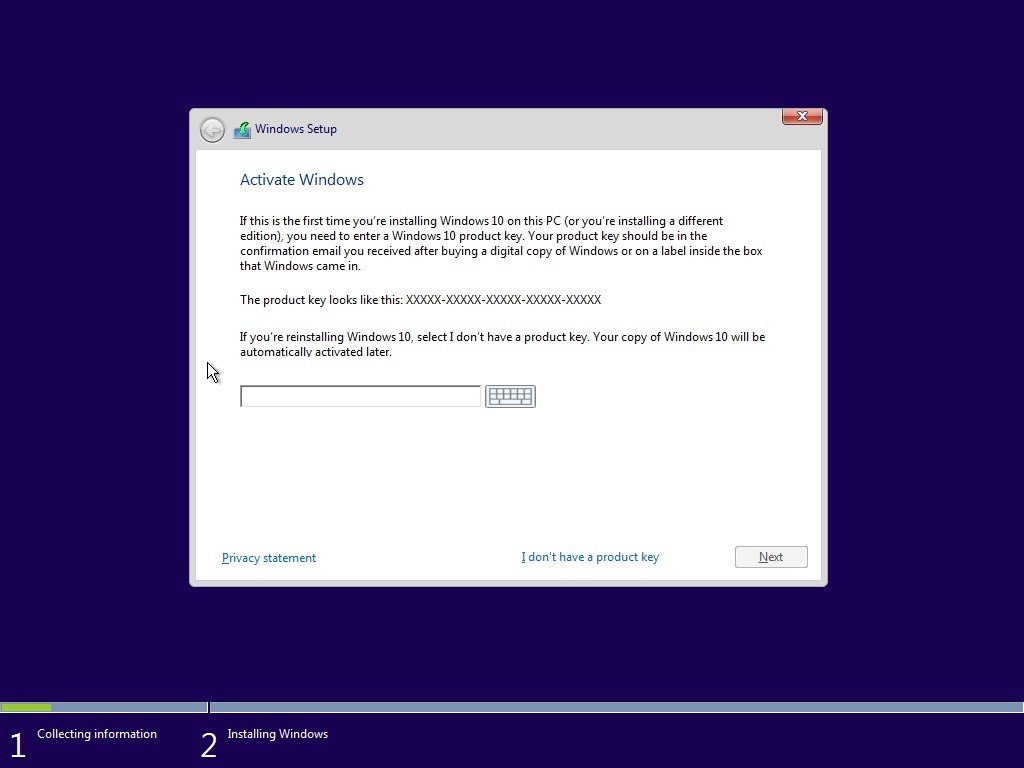
During Setup: If you are prompted to enter a product key when you boot from the Windows 10 setup installation media, click the option ‘I don’t have a product key’. Select the appropriate edition you are licensed for.

Windows 7 Starter, Home Basic, Home Premium, Windows 8.0 Core, Windows 8.1 Core will install Windows 10 Home ISO

  • Windows 7 Professional, Windows 7 Ultimate, Windows 8.0 Pro, Windows 8.1 Pro will installWindows 10 Pro ISO

setup

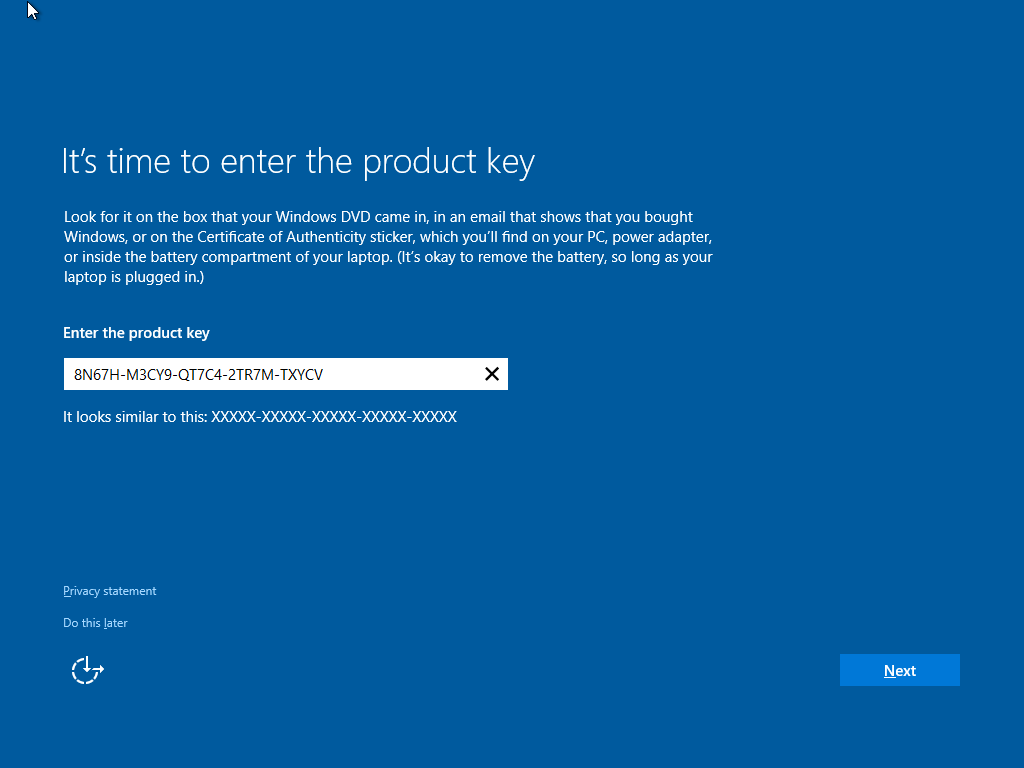
  • Out of Box Experience, if you are prompted for a product key, Click Do this Later.Complete the installationReview instructions how to activateHow to troubleshoot Product Activation in Windows 10windowstroubleshootSuppose you decide to reinstall Windows 7 or Windows 8?You can reinstall or restore a system image of your previous version of Windows and continue using it, this will not affect the validity of the license.If you continue to experience problems entering your product key:
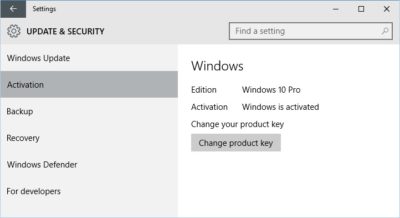
    Click Start > Settings (press Windows key + i) > Update & security > Activation then click Change product key

    windowsupdatekey

    OR

    Press Windows key + X

    Click Command Prompt (Admin)

    At the command prompt, type the following commands:

    slmgr.vbs -ipk xxxx-xxxx-xxxx-xxxx (allows you to replace the current product key with the specified)

    xxxx-xxxx-xxxx-xxxx – represents your product key

    Hit Enter on your keyboard

    Exit the command prompt

    Restart your computer

    Wait a while and it should activate, if not, give it a few days.

Have questions?

Get answers from Microsofts Cloud Solutions Partner!
Call us at: 856-745-9990 or visit: https://southjerseytechies.net/

South Jersey Techies, LL C is a full Managed Web and Technology Services Company providing IT Services, Website Design ServicesServer SupportNetwork ConsultingInternet PhonesCloud Solutions Provider and much more. Contact for More Information.

To read this article in its entirety click here.

CALL US NOW!