Back to Top

Tech, Web, Cloud & Cabling Services

Author Archives: Website Admin

Microsoft prices high-end Office 365 E5 at $420 per user per year

Microsoft begins selling its new highest-end Office 365 business plan, E5, on December 1 for $420 per user per year. Here’s what’s included.
Ofice 365-Plans

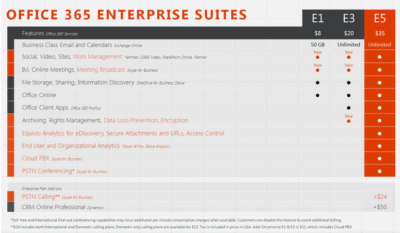
Microsoft will charge users $35 per user per month, or $420 per year, for its new highest-end Office 365 business plan.

Microsoft officials went public with the pricing for Office 365 E5, its top-of-the-line commercial Office 365 offering, on November 30 during the company’s Convergence EMEA conference. Office 365 E5 is available to customers for purchase starting, December 1.

Office 365 E4 — the current high-end version of Microsoft’s Office 365 line — sells for $22 per user per month, or $264 per user, per year.

The Office 365 E5 SKU will include Skype for Business (Lync) with support for features including Cloud PBX and Meeting Broadcast; new analytics features, like Power BI Pro and Delve Organizational Analytics; and new advanced security features, such as eDiscovery, Customer Lockbox, and Safe Attachments.

Office 365 E4 includes Skype for Business with Enterprise Voice and unified messaging; the full suite of locally downloadable Office apps; and Power BI for Office 365 (which is being superseded by Power BI pro).

Microsoft is planning to retire E4 and replace it with E5. However, Office 365 E4 will remain on the price list till June 30, 2016, Microsoft officials have said.

The E1 and E3 versions of Office 365 will retain their current prices of $8 per user per month, and $20 per user per month, respectively.

Office 365 E1 users will get new work-management capabilities, as well as Skype for Business’s Meeting Broadcast functionality added to their plans for no additional charge. Office 365 E3 users will get those same two new features, as well as the option to purchase Equivio Analytics for eDiscovery. (Microsoft bought Equivio in January 2015.)

Skype Meeting Broadcast enables users to broadcast of a Skype for Business meeting on the Internet to up to 10,000 people, who can attend in a browser.

Office 365 E5 users get all the features that E1 and E3 users get, plus other analytics and networking functionality, including Cloud PBX and PSTN Conferencing.

The Skype for Business Cloud PBX with PSTN Calling service provides users with the ability to make and receive traditional phone calls in their Skype for Business client, and to manage these calls using hold, resume, forward and transfer.

PSTN Conferencing is initially available to 15 countries on December 1, with a phased roll out to international markets in the future. Cloud PBX is available worldwide starting December 1. PSTN Calling is available in the U.S. starting December 1, with a phased roll out to international markets in the future.

The fine print: PSTN Conferencing users may incur additional per-minute consumption charges, but customer can disable this feature to avoid additional billing. PSTN Calling is paid add-on for E1, E3 and E5. For E5 users, PSTN Calling costs $24 extra (per user, per month) for international and domestic calling, and $12 for domestic calling only. For E1 and E3, the international and domestic calling plan is $32 extra.

Have questions?

Get help from IT Experts/Microsofts Cloud Solutions Partner
Call us at: 856-745-9990 or visit: https://southjerseytechies.net/

South Jersey Techies, LLC is a full Managed Web and Technology Services Company providing IT Services, Website Design ServicesServer SupportNetwork ConsultingInternet PhonesCloud Solutions Provider and much more. Contact for More Information.

To read this article in its entirety click here.

 

Bailey Landscape Services

Developed by,
South Jersey Techies, LLC.

The Web Design team of South Jersey Techies has been constantly working on developing the best websites including easy mobile approach and the latest website developed by the team is Bailey Landscape Services which are a family owned and operated full service landscape design and construction company serving all of South Jersey and the surrounding area.

bls01

The image below gives an idea how the website developed by our team looks on your smartphone.

bls02

Have questions?

Our Web Design team is here to help
Call us at: 856-745-9990 or visit: https://www.sjtechies.com

South Jersey Techies, LLC is a full Managed Web and Technology Services Company providing IT Services, Website Design ServicesServer SupportNetwork ConsultingInternet PhonesCloud Solutions Provider and much more. Contact for More Information.

Office 365 – the easiest way to get the new Office.

Microsoft
Partner Network

Office 2016

Now, there’s more opportunities than ever to build your business.Office 216 is the latest addition to Office 365—taking the work out of working together. The new Office is built for teamwork. Perfect for Windows 10. Smart. Secure. Full of new features.

Consider the opportunities.

Exciting new advances in Office open new opportunities for you to deepen your role as trusted advisor and to expand your practice—and your revenue potential. Here are a few paths to consider:

  • Reach new customers by leveraging the innovative user experiences in Office 2016 apps
  • Grow your hybrid practice with cloud-inspired infrastructure in Office 2016 servers
  • Capitalize on Office 2016 launch momentum to renew or upsell Office 365

We think that Office 2016 is an important step in empowering every organization on the planet to achieve more. Action Pack and Competency partners can get started right away by using your internal use rights (IUR) benefits to download Office 365. Once you’re familiar with the new Office you can show your customers how to get the most from the new features.

Quick steps to get started:

Let’s do great work together.Your Microsoft Partner Network Team

Have questions?

Get help from IT Experts/Microsofts Cloud Solutions Partner
Call us at: 856-745-9990 or visit: https://southjerseytechies.net/

South Jersey Techies, LLC is a full Managed Web and Technology Services Company providing IT Services, Website Design ServicesServer SupportNetwork ConsultingInternet PhonesCloud Solutions Provider and much more. Contact for More Information.

Tech Tip

Cisco ASA – How to View pre-shared keys in plain text

Tech Tip

As engineers, you don’t always document things as well as we should OR someone you work with is always “too busy” to document their work. This little trick will show you how to recover pre-shared keys on a Cisco Pix or ASA firewall.

Normally, you use the ’show run’ command to view the running configuration. Pre-shared keys are marked with an asterisk (*). To view the password unencrypted, type ‘more system:running-config’. This will display the full configuration with unencrypted passwords.

To bad actually that the pre-shared key of an Cisco VPN Client doesn’t show up in the latest ASA software version 8.2.2. the pre-shared keys of the VPN Tunnels are showed.

Have questions?

Get answers from Microsofts Cloud Solutions Partner!
Call us at: 856-745-9990 or visit: https://southjerseytechies.net/

South Jersey Techies, LLC is a full Managed Web and Technology Services Company providing IT Services, Website Design ServicesServer SupportNetwork ConsultingInternet PhonesCloud Solutions Provider and much more. Contact for More Information.

Narberth Ambulance

Developed by,
South Jersey Techies, LLC.

This month our website team launched a website for Narberth Ambulance. Narberth Ambulance is an organization built on the countless hour of work over 70 years and now responds to over 6100 calls a year and provides most qualified EMT’s and Paramedics. Like the majority of websites we develop, Narberth Ambulance is fully responsive and is helping thousands of people.

Narberth Ambulance

Have questions?

Our Web Design team is here to help
Call us at: 856-745-9990 or visit: https://southjerseytechies.net/

South Jersey Techies, LLC is a full Managed Web and Technology Services Company providing IT Services, Website Design ServicesServer SupportNetwork ConsultingInternet PhonesCloud Solutions Provider and much more. Contact for More Information.

Windows 10 & network share access denied – Solution

Network Share access denial is another issue that users are facing with Windows 10.

Recent upgrade to Windows 10 all of a sudden makes network share no longer accessible on Windows machines you may have in your environment.

Here is the tutorial that solves the issue.

Problem

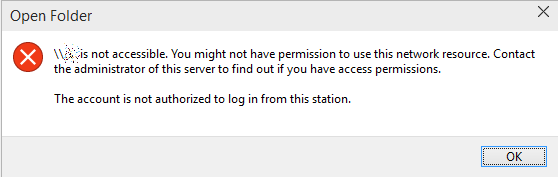
This is what you see when you try to go to any \\something network share:

\\something is not accessible. You might not have permission to use this network resource. Contact the administrator of this server to find out if you have access permissions. The account is not authorized to log in from this station.

open folder

There’s some changes in the Windows 10 internals which results in the access denial. The new build does not allow anonymous (guest) access to shares by default, as a security measure.It can be resolved by creating a new registry key in the right hive and rebooting.

Solution

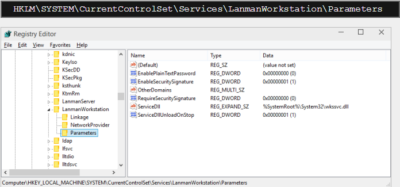
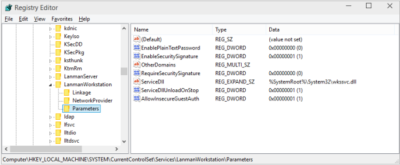
Fire up the registry editor (regedit). Navigate to:

Registry editor

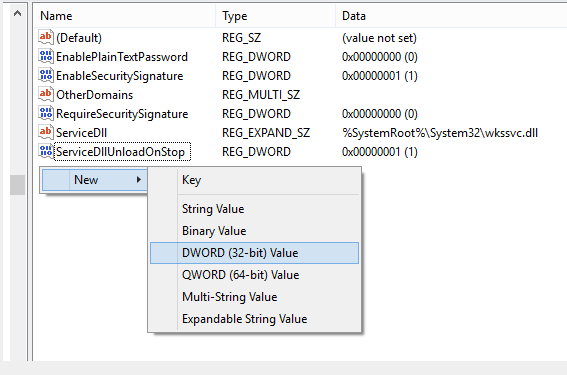
Here, you will need to create a new parameter (32-bit DWORD). Right-click:

Parameter

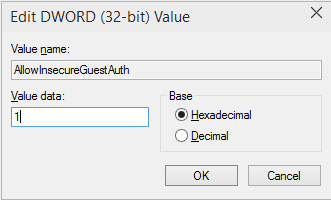
Then, name it AllowInsecureGuestAuth and assign it a value of 1.

DWORD

The hive should look thusly:

Registry Editor

And you’re done. Reboot, and enjoy your network access.

Have questions?

Get answers from Microsofts Cloud Solutions Partner!
Call us at: 856-745-9990 or visit: https://southjerseytechies.net/

South Jersey Techies, LLC is a full Managed Web and Technology Services Company providing IT Services, Website Design ServicesServer SupportNetwork ConsultingInternet PhonesCloud Solutions Provider and much more. Contact for More Information.

To read this article in its entirety click here.

Apple Updates iPod Touch

New iPod uses same chip as iPhone 6 and will come in an array of colors

Varieties of the new iPod Touch

Apple Inc. introduced its updated iPod Touch that features the same chip used in the iPhone 6 and other upgrades that bring the device’s capabilities more in line with those of its smartphones.

The update also includes a new color lineup—including space gray, silver, gold, pink and blue—for the iPod Touch, as well as the iPod Nano and iPod Shuffle models.

The iPod was a breakthrough portable music player when it was introduced in 2001, but it has been displaced by smartphones in recent years.

Starting at $199, Apple said the iPod Touch has 10-times faster graphics performance and improved fitness tracking. The company said the upgraded iPod also offers three-times faster Wi-Fi connectivity.

Apple also touted the iPod Touch’s new 8-megapixel iSight camera and an improved FaceTime HD camera, with features including slo-mo and burst mode, as well as improved face detection for higher quality selfies.

Have questions?

Call us at: 856-745-9990 or Visit: https://southjerseytechies.net/

South Jersey Techies, LLC is a full Managed Web and Technology Services Company providing IT Services, Website Design ServicesServer SupportNetwork ConsultingInternet PhonesCloud Solutions Provider and much more. Contact for More Information.

To read thsi article in its entirety click here.

Office 2016 for Mac is here!

Kirk Koenigsbauer, corporate vice president for the Office Client Applications and Services team said “Today we are taking a big step forward for Mac® users—Office 2016 for Mac is now available in 139 countries and 16 languages. Based on feedback from the great Mac Office community, we’ve made major updates to each of the apps, and we couldn’t be more pleased to deliver it first to our Office 365 customers.”

Unmistakably Office, designed for Mac

The new versions of Word, Excel, PowerPoint, Outlook and OneNote provide the best of both worlds for Mac users—the familiar Office experience paired with the best of Mac.

If you already use Office on a PC or iPad, you will find yourself right at home in Office 2016 for Mac. It works the way you expect, with the familiar ribbon interface and powerful task panes. Mac users will appreciate the modernized Office experience and the integration of Mac capabilities like Full Screen view and Multi-TouchTM gestures. With full Retina® display support, your Office documents look sharper and more vibrant than ever.

Office for Mac is cloud-connected, so you can quickly get to the documents you’ve recently used on other devices and pick up where you left off. New, built-in document sharing tools make it easy to invite teammates to work on a document together. When sharing documents, you won’t have to worry about losing content or formatting, as Office for Mac offers unparalleled compatibility with Office on PCs, tablets, phones and online.

Five modern, first-class applications

Word for Mac


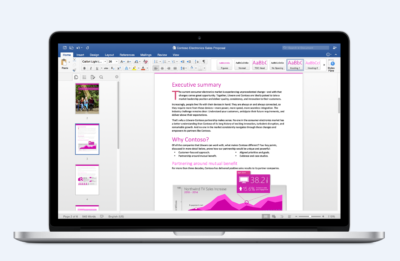
Word for Mac—Word’s powerful writing and reviewing tools make it easy to create great-looking documents. The new Design tab lets you easily apply designer-quality layouts, colors and fonts throughout your document. You can work on the same document simultaneously with your teammates and use threaded comments to have a conversation right next to the corresponding text.


Excel for Mac


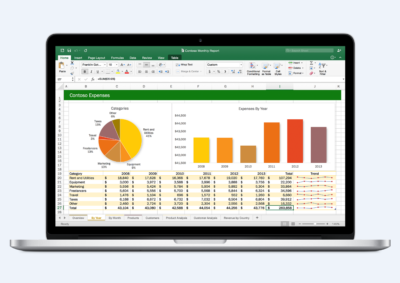
Excel for Mac—The new Excel for Mac helps you visualize your information by recommending charts best suited for your data with chart previews. Familiar keyboard shortcuts, autocomplete and an improved formula builder save you time when creating spreadsheets or entering data. For deeper analysis, new PivotTable Slicers help you filter large volumes of data and discover patterns.

PowerPoint for Mac

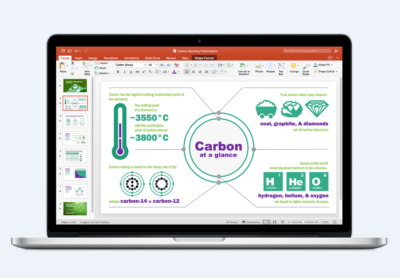
PowerPoint for Mac—PowerPoint’s improved Presenter View gives you full control when you present by showing you the current slide, next slide, speaker notes and a timer on your Mac screen, while the audience only sees your presentation on the big screen. The new animation pane helps you design and fine-tune animations, and the latest set of slide transitions add polish to your presentations.

Outlook for Mac

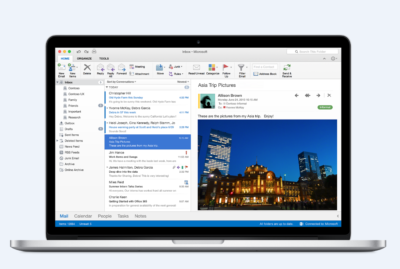
Outlook for Mac—Managing your email, calendar, contacts and tasks has never been easier. The new Outlook for Mac has push mail support so your inbox is always up-to-date. The improved conversation view automatically organizes your inbox around threaded conversations, so you won’t have to hunt for related messages. And the new message preview shows you the first sentence of an email just below the subject line so you can quickly decide if you want to read it now or come back later.

One Notebook for Mac

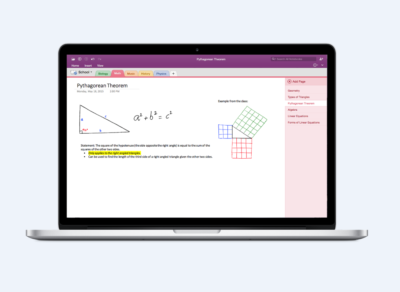
OneNote for Mac—OneNote is the newest addition to Office for Mac. You can capture your ideas in digital notebooks and access them on any device. Find things quickly with the OneNote search engine that tracks your tags, indexes your typed notes and recognizes text in images and handwritten notes. Bold, italicize, underline or highlight notes, insert files, pictures and tables and organize your notes however you want. You can also share notebooks with friends, family or colleagues so everyone can work together on travel plans, household tasks or work projects.

Made better by Mac users

The customer participation in Office for Mac preview since its launch in March exceeded expectations, making it largest Office for Mac beta ever. Thanks to everyone who participated in the preview program and helped improve the product.

Mac preview participants provided with over 100,000 pieces of feedback. Based on this feedback, Office released seven updates in four months with significant improvements in performance and stability. Also added features like improved Mail Merge in Word, Propose New Time in Outlook and support for External Data Connections in Excel.

And the best news is that Office for Mac will continue to see ongoing improvements over time. With released updates and new features for Office 365 customers at least once per quarter.

Available today for Office 365 customers

Office 365 subscribers can get the newest version of Office for Mac today. All you need is an Office 365 subscription (Office 365 Home, Personal, Business, Business Premium, E3 or ProPlus), which includes the rights and access to use Office applications on Mac, Windows, iOS and Android devices, along with additional value in OneDrive and Skype.

Here are a few different ways to get Office 2016 for Mac today:

  • Already an Office 365 customer? On your Mac, just browse to your account page (office.com/myaccount), sign in and follow the installation instructions. If you have Office 365 through your organization, go to portal.office.com/OLS/MySoftware.aspx.
  • Are you a student? You may get Office 2016 for Mac for free or at a substantial discount. It takes only 30 seconds to find out at office.com/student.
  • Otherwise, go to office.com/mac or buy an Office 365 subscription at your local retailer.

Office 2016 for Mac will become available as a one-time purchase option this September.

We hope you’re as excited as we are about the new Office for Mac. It’s one of many important releases this summer. “We released Word, Excel and PowerPoint for Android phones just two weeks ago, which join Outlook and OneNote for Android phones, and we are just weeks away from delivering Office Mobile apps for Windows 10.” said Kirk Koenigsbauer

Have questions?

Get help from Microsoft’s Cloud Solutions Partner.
Call us at: 856-745-9990 or visit: https://southjerseytechies.net/

South Jersey Techies, LLC is a full Managed Web and Technology Services Company providing IT Services, Website Design ServicesServer SupportNetwork ConsultingInternet PhonesCloud Solutions Provider and much more. Contact for More Information.

To read this article in its entirety click here.
Windows 10’s features

The new Windows 10 notifications will follow you everywhere

Windows 10 has a new notifications center for your apps — even the ones from your Windows Phone.

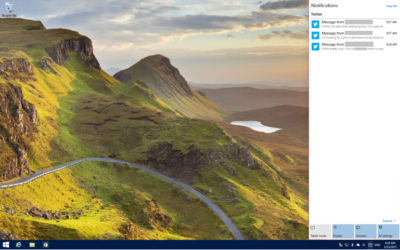
When you’re poking around Windows 10, you’ll notice something new: A small taskbar button that, when clicked, reveals a sidebar full of app notifications.

Welcome to the new notifications center, which is basically the Windows 10 version of the Action center in Windows Phone 8.1. The notifications center is part of Microsoft’s dream of “Windows everywhere” — it’s a universal notifications center that will pop up your app notifications across multiple platforms. Because who doesn’t want to be alerted about new Twitter followers on their phone, tablet, and now PC?

The new notifications center consists of two parts: The notifications area at the top, and the “quick actions” bar at the bottom. In the notifications area you’ll see notifications from various apps, including Twitter, Facebook, and your email account, as well as notifications from phone apps (e.g. alarms) if applicable.


Mouse over notifications and click the ‘X’ to dismiss them.

You can dismiss notifications three different ways: You can mouse over the app name (e.g. Twitter) and click the ‘X’ next to it to dismiss all notifications from that app. You can also mouse over each individual notification and click the ‘X’ next to it to dismiss that specific notification. Or you can click Clear All in the upper right corner of the notifications center to dismiss all notifications from all apps. Because this is a “Windows everywhere” feature, notifications you dismiss in the notifications center will also be dismissed on your other Windows devices, such as your phone.

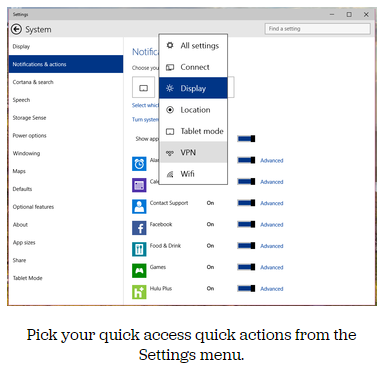
In the quick actions bar, you’ll see four quick-access buttons as well as an Expand link. Click Expand to see all quick actions. Actions include things like a Tablet Mode toggle button, a link to the Display settings, a link to all settings, and toggle buttons for Location and Wi-Fi. Tap a quick action button to toggle a setting (tablet mode, location, Wi-Fi) on or off, or to go directly to the settings menu so you can configure your display, connection, or VPN.

x4
Pick your quick access quick actions from the Settings menu.

To choose which quick actions appear above the break, go to Settings > Notifications & actions > Choose your quick actions. Here, you’ll see four small buttons that you can click on to swap out actions. If you’d prefer to have your Wi-Fi toggle on hand whenever you open the notifications bar, you can switch it for the Display button. Of course, you’ll always be able to see all of the quick actions by clicking Expand in the notifications bar.

x5
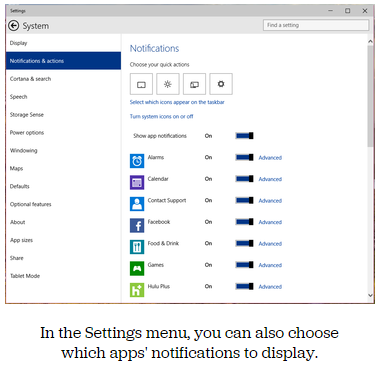
In the Settings menu, you can also choose which apps’ notifications to display.

Here, you can also pick and choose which app notifications you’ll see in the notifications bar. If you want to turn all notifications off, you can simply click the toggle next to Show App Notifications. You’ll no longer see pop-up banner notifications, nor will you see app notifications when you open the notifications center.

If you’d prefer to just turn off notifications for specific apps, you can do that, too — find the app in the list and click its toggle to Off. Next to each app in the list you’ll see a link to Advanced notifications settings for that app. Go into Advanced to turn off specific notifications for that app — either banner notifications (pop-ups in the lower right corner of your screen) or notifications in the notifications center.

Want to turn your clock off? You can do that, too.

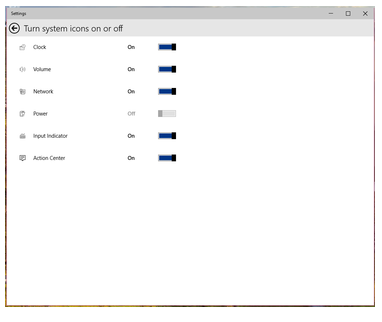
In the Notifications & Actions section, you can also clean up your taskbar by clicking “Select which icons to appear in the taskbar” (you can turn on and off things like the Network icon and the Volume icon), or by clicking “Turn system icons on or off.” In “Turn system icons on or off,” you can turn off the clock, input indicator or action center — in other words, you can turn off all system tray icons and have a completely icon-less system tray, if you so choose.

Have questions?

Want to get Windows 10?

Contact Our Expert IT business team
Call us at: 856-745-9990 or Visit: https://southjerseytechies.net/

South Jersey Techies, LLC is a full Managed Web and Technology Services Company providing IT Services, Website Design ServicesServer SupportNetwork ConsultingInternet PhonesCloud Solutions Provider and much more. Contact for More Information.

To read this article in its entirety click here.

Windows 10’s new features, how they work and how you can make them work for you.

The final version of Windows 10 won’t be available until 2015, but that doesn’t mean you can’t live the Windows 10 experience — the extremely pre-final experience — right now.

The technical preview is available right now and although things will likely change drastically between now and release, now’s a good chance to get acquainted.

And keep checking back. As the months close in on the new OS’s final release, expect all our How To coverage to be posted right here.

Windows 10 Technical Preview: 1

spartan

Build 10049 of the Windows 10 Pro Technical Preview just dropped, and with it comes Microsoft’s sexy, speedy new browser: Project Spartan.

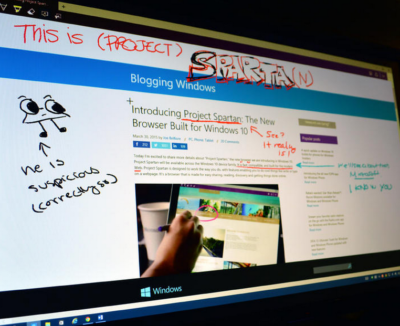
The next-gen browser has several new features to try out, including a distraction-free reading view and a fast, secure rendering engine (which was available as an experimental feature in Build 9926). But the coolest new feature is inking — the ability to draw, write on, and generally mark up Web pages from directly within the browser. You can share your marked-up creations via email or through social networks, or you can save them to OneNote.

Start inking

When you see a Web page you want to “ink,” click the small icon that looks like a pen and paper in the upper right corner of the browser window. There are only about five icons total, so this shouldn’t be too difficult to find.

The Web page will refresh and the inking toolbar will appear over the regular toolbar. On the left side of the inking toolbar, you’ll see five icons: Pen, highlighter, eraser, text, and clip. The pen tool is selected by default, so you can just start scribbling away if you’d like (in medium thickness, light blue ink). If you want to change the color of your pen, click the pen icon to choose from 12 colors and three sizes.

To use a highlighter, which will let you highlight text and images instead of drawing over them, click the highlighter button. Click the highlighter button a second time to select your highlighter color and shape (six colors, three shapes).

Type some comments

Drop a connect pin

If you prefer typing to writing or drawing, you can use the text tool to make comments on the webpage. The text tool is a little different from the pen and highlighter tools: Instead of letting you put text wherever you want on the page, this tool lets you drop a comment pin and type text in a corresponding text box on the right side of the page. You can minimize the text box (the pin will remain visible) for less clutter.

When you select the text tool, your pointer will turn into a cross-hair. Click anywhere on the page to drop a comment pin. The pin will appear where you click, and a thin line will connect it to a corresponding text box on the right side of the page.

Click inside the text box to type your comment. To minimize the box, you can either click the minus sign in the upper right corner of the box, or you can click the corresponding comment pin. To delete both the comment pin and the text box, click the trash can icon in the lower right corner of the text box.

The clipping tool will also turn your cursor into a cross-hair, so you can clip out a section of the page. It works similar to the Snipping Tool — click the clipping tool icon, and the page will fade out until you select a section of it. Once you have a section selected, you’ll see a small copy icon in the lower right corner; click this to copy your clip (you can paste it into another program, such as Microsoft Paint, if you want to save it).

Don’t make any mistakes

As of right now, the eraser tool doesn’t do much. If you click on it, nothing happens. If you click on it again, a “Clear All” box appears, which you can click to clear the Web page of annotations.

I assume the eraser tool will be fixed before Project Spartan goes public, because right now there’s no way to fix an annotation mistake without clearing the entire page and starting over.

Share or save your masterpiece

On the right side of the inking toolbar, you’ll see a save icon and a share icon. To save your newly-annotated webpage, click the save icon.

Right now, Project Spartan will let you save your marked-up page as an HTML file – that is, you can add it to your Favorites or your reading list. In the future, you’ll also be able to save your projects in OneNote.

To share your work, click the share icon to open up Windows 10’s sharing sidebar. Because this is such a new build, Project Spartan’s sharing capabilities don’t appear to be turned on – but when they are, you’ll be able to share your creation with any app that supports Windows’ sharing sidebar.

Have questions?

Our small business team is here to help.
Call us at: 856-745-9990

South Jersey Techies, LLC is a full Managed Web and Technology Services Company providing IT Services, Website Design ServicesServer SupportNetwork ConsultingInternet PhonesCloud Solutions Provider and much more. Contact for More Information.

To read this article in its entirety click here.

CALL US NOW!