Back to Top

Tech, Web, Cloud & Cabling Services

Author Archives: Website Admin

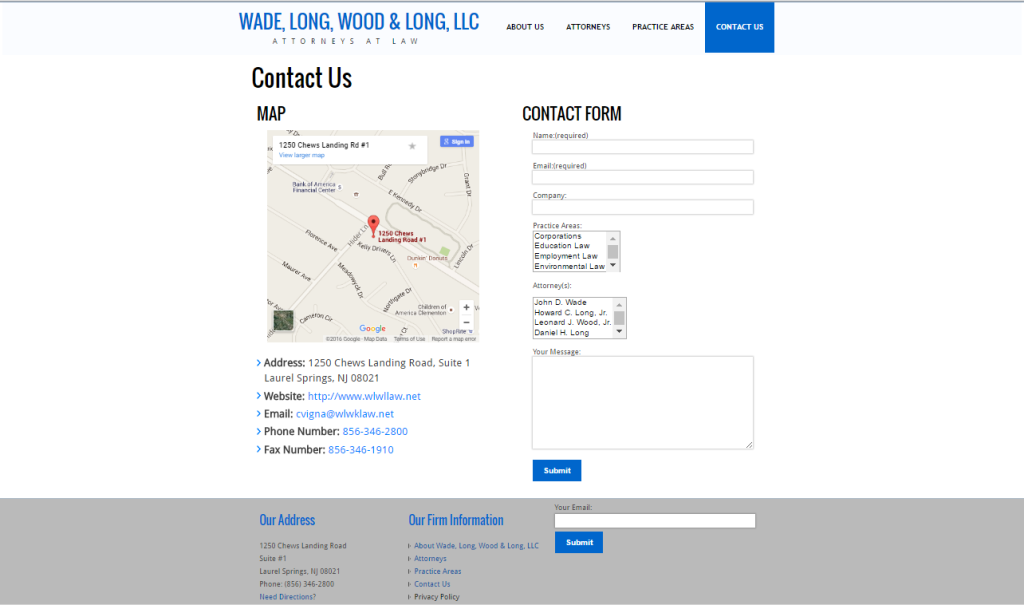
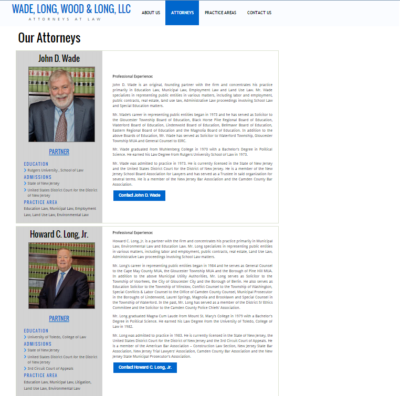
New Website Design – WADE, LONG, WOOD & LONG, LLC

Developed by,
South Jersey Techies, LLC.

The Web Design team of South Jersey Techies has been constantly working on developing the best websites including easy mobile approach and the latest website developed by the team is WADE, LONG, WOOD & LONG, LLC. The law firm of Wade, Long, Wood & Long, LLC concentrates its practice in the areas of Education Law, Municipal Law, Employment Law, Land Use Law, Enviromental Law, Family Law, Wills & Estates, Corporations, OPRA, Civil Litigation and Commercial Litigation. Wade, Long, Wood & Long, LLC is committed to doing whatever it takes to solve a legal problem, add perspective to a business strategy, develop a solution to avoid litigation in the future and work with clients whenever possible.

 

Wade,LongWebsite2


Wade,LongWebsite1


Wade,LongWebsite3


Have questions?

Our Web Design team is here to help
Call us at: 856-745-9990 or visit: https://www.sjtechies.com

South Jersey Techies, LLC is a full Managed Web and Technology Services Company providing IT Services, Website Design ServicesServer SupportNetwork ConsultingInternet PhonesCloud Solutions Provider and much more. Contact for More Information.
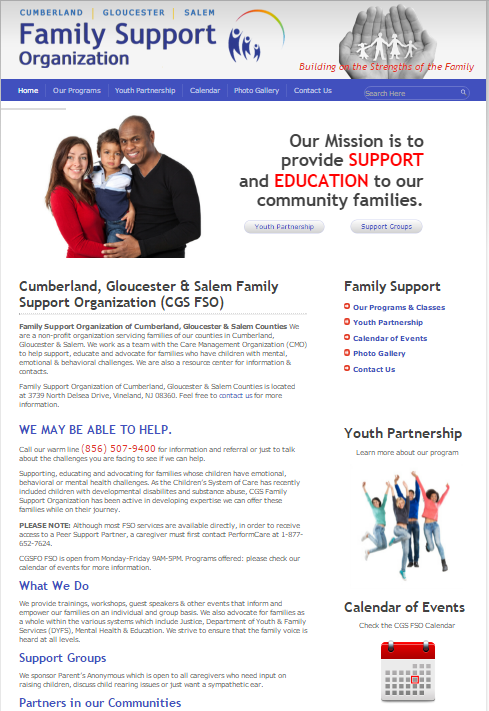
New Website Design – CGSFSO.ORG

Developed by,
South Jersey Techies, LLC.

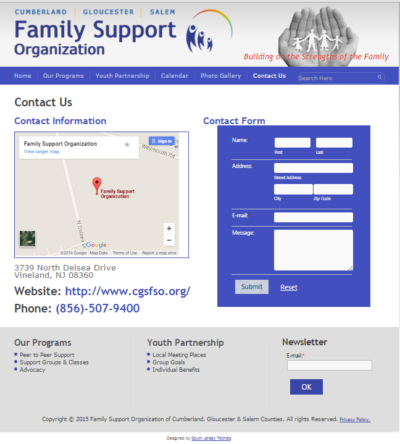
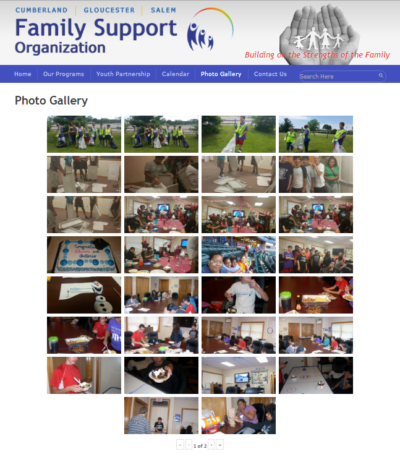
The Web Design team of South Jersey Techies has been constantly working on developing the best websites including easy mobile approach and the latest website developed by the team is Cumberland, Gloucester & Salem Family Support Organization (CGS FSO). Family Support Organization of Cumberland, Gloucester & Salem Counties is a non-profit organization servicing families of our counties in Cumberland, Gloucester & Salem. Their team works with the Care Management Organization (CMO) to help support, educate and advocate for families who have children with mental, emotional & behavioral challenges. They also have a resource center for information & contacts.

What They Do

They provide trainings, workshops, guest speakers & other events that inform and empower families on an individual and group basis. They also advocate for families as a whole within the various systems which include Justice, Department of Youth & Family Services (DYFS), Mental Health & Education. They work hard to ensure that the family voice is heard at all levels.


FSO1


FSO2

FSO3


Have questions?

Our Web Design team is here to help
Call us at: 856-745-9990 or visit: https://www.sjtechies.com

South Jersey Techies, LLC is a full Managed Web and Technology Services Company providing IT Services, Website Design ServicesServer SupportNetwork ConsultingInternet PhonesCloud Solutions Provider and much more. Contact for More Information.
Windows Tip of the week: Create a custom shortcut folder

Create a custom shortcut folder:

If you use the Windows 10 Start Menu to get to your apps, this next advanced tip may be for you. You can create a custom Start Menu folder to contain shortcuts to any apps, documents, etc., that you care to include. You can then pin that folder to the Start Screen or the Taskbar.

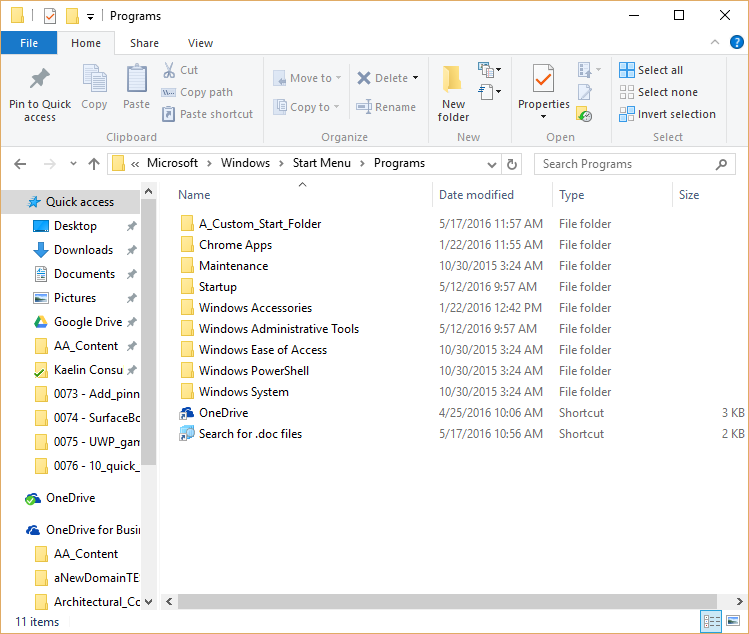
Begin by opening File Explorer and navigating to this folder (Figure):

C:\Users\mark.MRKM11X\AppData\Roaming\Microsoft\Windows\Start Menu\Programs

Note: AppData is a hidden file, so you will have to select the Show Hidden Files check box on the Ribbon. Of course, your username will be different from mine.

Figure

f10quicktips

In the Programs folder, you can add your own subfolder. In my example I used the folder name A_Custom_Start_Folder so it would display in the “A” section of the Start Menu. You can put any shortcuts to apps in that folder you want.

Have questions?

For More Tips & Info from Microsofts Cloud Solutions Partner!
Call us at: 856-745-9990 or visit: https://southjerseytechies.net/

South Jersey Techies, LL C is a full Managed Web and Technology Services Company providing IT Services, Website Design ServicesServer SupportNetwork ConsultingInternet PhonesCloud Solutions Provider and much more. Contact for More Information.
Windows Tip of the week: Change the location where apps install

Change the location where apps install:

Many computers these days are shipping with a combination of SSD and large capacity mechanical data drives. A great idea, but it does require a bit more management, particularly when it comes to where to install new apps. In most cases, you will want new apps installed on the data drive, not the smaller capacity solid-state boot drive.

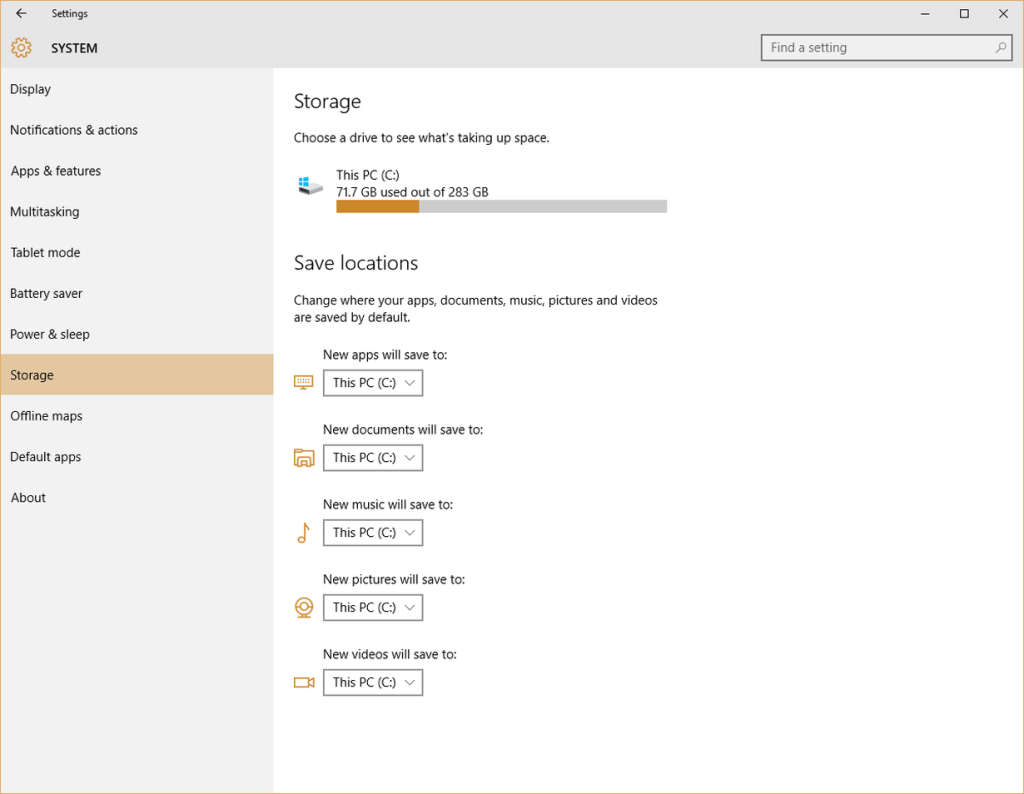
To change the default drive for apps, click the Start Button and navigate to All Apps | Settings | System | Storage. You should see a screen similar to the one shown in Figure. From this screen you can change the default locations for apps, documents, music, pictures, and video.

Figure

e10quicktips

Have questions?

For More Tips & Info from Microsofts Cloud Solutions Partner!
Call us at: 856-745-9990 or visit: https://southjerseytechies.net/

South Jersey Techies, LL C is a full Managed Web and Technology Services Company providing IT Services, Website Design ServicesServer SupportNetwork ConsultingInternet PhonesCloud Solutions Provider and much more. Contact for More Information.

Windows Tip of the week: Take advantage of OneDrive Fetch

Take advantage of OneDrive Fetch:

When you create a Microsoft account, one of the best perks is that you also get OneDrive cloud storage at no additional cost. But a little-used feature called Fetch can get you even more than that.
Note: This does not apply to OneDrive for Business.

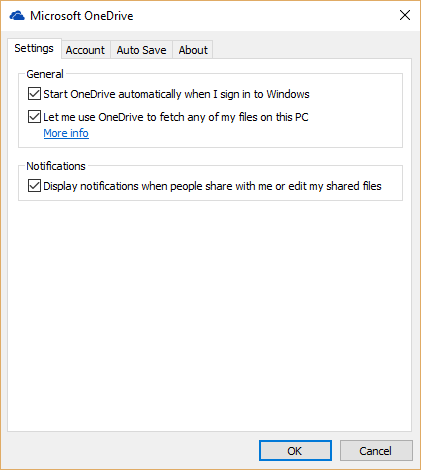
Right-click the OneDrive icon and navigate to Settings. On the next screen, click the Settings tab to get to the screen shown in Figure. Look for the checkbox called Let Me Use OneDrive To Fetch Any Of My Files On This PC. This will allow you to access any file on that PC from any computer using any browser simply by logging into your online version of OneDrive.

Figure

d10quicktips

Have questions?

For More Tips & Info from Microsofts Cloud Solutions Partner!
Call us at: 856-745-9990 or visit: https://southjerseytechies.net/

South Jersey Techies, LL C is a full Managed Web and Technology Services Company providing IT Services, Website Design ServicesServer SupportNetwork ConsultingInternet PhonesCloud Solutions Provider and much more. Contact for More Information.
Windows Tip of the week: Limit Cortana’s reach

Limit Cortana’s reach:

If you want to change Cortana’s search behavior even more, you can limit the parameters of the search itself. For example, Cortana can be told not to search the internet at all.

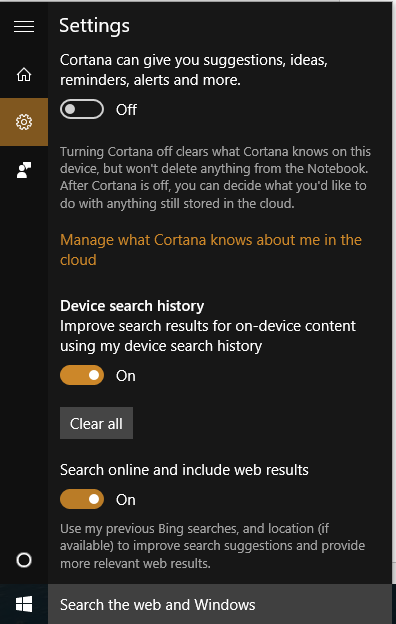
Click the Cortana search box in the Taskbar and then navigate to the Cortana settings screen, as shown in Figure. At the bottom should be a setting that says Search Online And Include Web Results. Switch that to Off and Cortana won’t display any more web results no matter which search engine is the default.

Figure

c10quicktips

Have questions?

For More Tips & Info from Microsofts Cloud Solutions Partner!
Call us at: 856-745-9990 or visit: https://southjerseytechies.net/

South Jersey Techies, LL C is a full Managed Web and Technology Services Company providing IT Services, Website Design ServicesServer SupportNetwork ConsultingInternet PhonesCloud Solutions Provider and much more. Contact for More Information.
Windows Tip of the week: Pin File Explorer searches

Pin File Explorer searches:

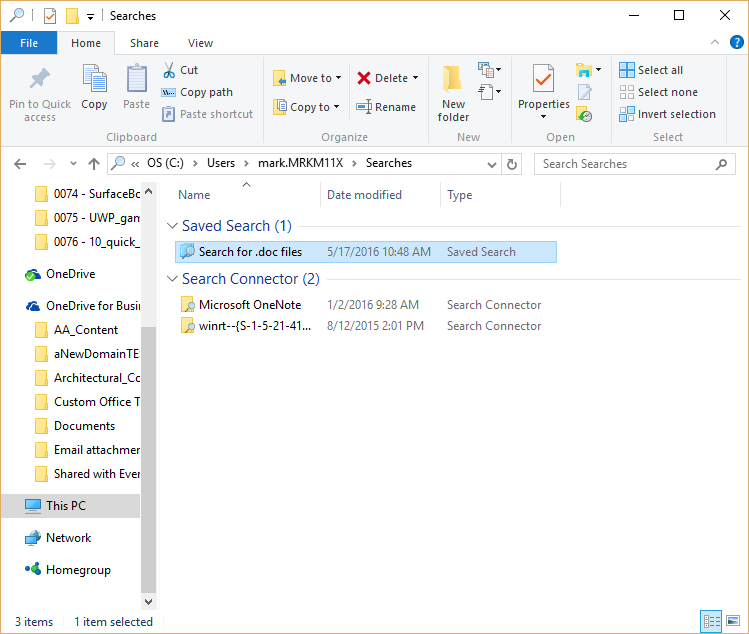
One of the more powerful features of the Windows 10 File Explorer is the ability to save searches. Figure shows a saved search that identifies all the Word documents in a specific folder. When you have as many .doc files as I do, this is a handy search to have around. However, it would be even more convenient if that search was pinned to the Start Menu, where I can get to it even faster.

Figure

b10quicktips

Open File Explorer and navigate to your Users folder and then to your Searches subfolder. Right-click the saved search and pin it to your Start Menu for easy access.

Have questions?

For More Tips & Info from Microsofts Cloud Solutions Partner!
Call us at: 856-745-9990 or visit: https://southjerseytechies.net/

South Jersey Techies, LL C is a full Managed Web and Technology Services Company providing IT Services, Website Design ServicesServer SupportNetwork ConsultingInternet PhonesCloud Solutions Provider and much more. Contact for More Information.
Windows Tip of the week: Get a closer look with the Magnifier tool

Use the Windows Magnifier tool to zoom in:


You don’t have to be myopic to occasionally need a closer look at something on your Windows screen. Maybe you want to see more details in a picture. Maybe the font on the web page is too small to read comfortably.

Whatever the reason, help is a keystroke away. Hold down the Windows key and tap the plus sign (on the top row or on the numeric keypad; it doesn’t matter). That instantly zooms the display to 200% of normal. Keep tapping the plus sign to zoom in further. Moving the mouse to the edges of the screen will pan to areas that aren’t visible.

To zoom back out, hold down the Windows key as you tap the minus sign.

Have questions?

For More Tips & Info from Microsofts Cloud Solutions Partner!
Call us at: 856-745-9990 or visit: https://southjerseytechies.net/

South Jersey Techies, LL C is a full Managed Web and Technology Services Company providing IT Services, Website Design ServicesServer SupportNetwork ConsultingInternet PhonesCloud Solutions Provider and much more. Contact for More Information.
Windows Tip of the week: Maximize CPU performance

Maximize CPU Performance:

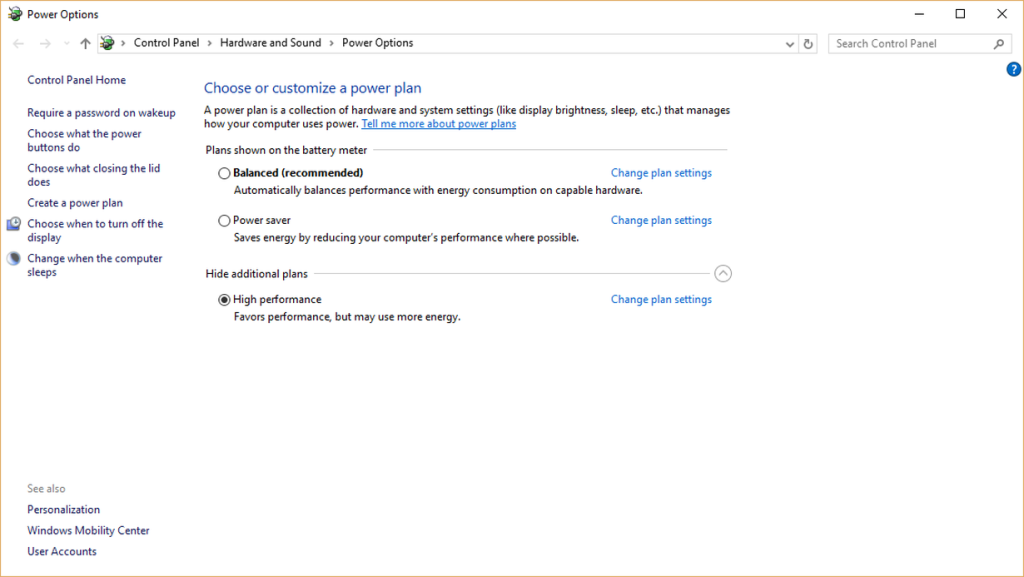
If you are using a desktop PC or a notebook that is always plugged in, you might want to maximize your CPU performance by changing your Power Options. Right-click the Start button in the lower-left corner on the Desktop (Or Windows key + X) and navigate to the Power Options menu item. On the screen shown in Figure, click the High Performance radio button. Remember, changing this setting will burn through a battery charge quickly—use it wisely. Oh, and you might want to make changes to the Plan settings too while you are here.

Figure

WindowsQuickTips

Have questions?

For More Tips & Info from Microsofts Cloud Solutions Partner!
Call us at: 856-745-9990 or visit: https://southjerseytechies.net/

South Jersey Techies, LL C is a full Managed Web and Technology Services Company providing IT Services, Website Design ServicesServer SupportNetwork ConsultingInternet PhonesCloud Solutions Provider and much more. Contact for More Information.
Windows Tip of the week: Add a second clock to the taskbar

Add a second clock to the taskbar:

Quick: What time is it in Dublin right now? How about Sydney? Mumbai? Cape Town?

Sometimes, that question is just a curiosity. But if you or any of your regular contacts are traveling, it’s good to be able to look up a foreign time zone at a glance.

All modern versions of Windows allow you to add up to two extra clocks to the taskbar. The time you see on the taskbar is the local time zone. But hover the mouse pointer over that time and you’ll see the extra clocks you defined. Click the time to see analog (Windows 7) or digital (Windows 10) clocks for all time zones.

To add an extra clock, right-click the taskbar clock and then click Adjust Date/Time. In Windows 7, click the Additional Clocks tab. In Windows 10, click Add Clocks For Different Time Zones. Select Show This Clock, pick a time zone, and add a descriptive label for each custom clock.

Have questions?

For More Tips & Info from Microsofts Cloud Solutions Partner!
Call us at: 856-745-9990 or visit: https://southjerseytechies.net/

South Jersey Techies, LL C is a full Managed Web and Technology Services Company providing IT Services, Website Design ServicesServer SupportNetwork ConsultingInternet PhonesCloud Solutions Provider and much more. Contact for More Information.
CALL US NOW!