Back to Top

Tech, Web, Cloud & Cabling Services

Author Archives: Website Admin

New Website Design – NJ Concrete Work

Developed by,
South Jersey Techies, LLC.

The Web Design team of South Jersey Techies has been constantly working on developing the best websites including easy mobile approach and the latest website developed by the team is Custom Concrete Designs. Custom Concrete Designs has been a family owned and operated stamped concrete business in South New Jersey and after spending more than 25 years in the business they know that quality work, affordable pricing, and superior customer service is what customers want. Their high standard of service, craftsmanship and top quality concrete products has been propelling the business since 1989.

CustomConcreteDesigns

Want to know how the websites developed by our team appears on your smartphone? Take a look.

CustomConcreteDesignsMobile

Have questions?

Our Web Design team is here to help
Call us at: 856-745-9990 or visit: https://www.sjtechies.com

South Jersey Techies, LLC is a full Managed Web and Technology Services Company providing IT Services, Website Design ServicesServer SupportNetwork ConsultingInternet PhonesCloud Solutions Provider and much more. Contact for More Information.

Windows Tip of the week: Move your specialized data folders to a different drive

Move Documents, Downloads, and other data folders to a different drive:


Every supported version of Windows includes a group of “known folders” for storing specific data types–Documents, Downloads, Music, Pictures, and so on.

By default, these folders are stored on the system drive in your user profile folder, typically C:Users[username]. But you might want to move them to a more appropriate location if you have multiple physical drives. For example, say you have a relatively small SSD as a system drive (C:) on a desktop PC and a much larger conventional hard disk (D:) for data files. In that configuration, it makes sense to move your folders to the D: drive. (This procedure also works if you’ve expanded storage with a MicroSD card.)

Just open your user profile folder by entering %userprofile% in the Run box to display a list of all the folders in that location. Right-click the first folder you want to move, click Properties, and then click the Location tab. Enter the path of the location you want to use. (I created a new folder on the D: drive to hold data files, so my Downloads folder is at D:EdDownloads.)

If the folder name you entered doesn’t exist, Windows will create it. Be sure to click Yes when asked if you want to move all current data files to the new folder.

Have questions?

For More Tips & Info from Microsofts Cloud Solutions Partner!
Call us at: 856-745-9990 or visit: https://southjerseytechies.net/

South Jersey Techies, LL C is a full Managed Web and Technology Services Company providing IT Services, Website Design ServicesServer SupportNetwork ConsultingInternet PhonesCloud Solutions Provider and much more. Contact for More Information.

Windows tip of the week: Simplify password management

Manage your saved passwords:

Windows regularly offers to save passwords on your behalf. When you connect to a server on your network with a username and password other than the one you logged in with, for example, you’re prompted to save the credentials for reuse. Likewise, Internet Explorer and Edge allow you to save passwords so you can enter them automatically when you return to that page.

Those passwords are saved in a secure location that only you can open, using a well-hidden tool called Credential Manager.

You’ll find this option in Control Panel, under the User Accounts heading. In Windows 8.1 and Windows 10, it’s easier to just type credential in the search box and click Credential Manager at the top of the search results.

Separate icons at the top of the Credential Manager list let you view and manage saved Web credentials and Windows credentials. The Web Passwords list can’t be sorted and there’s no search option, so you’ll have to scroll through the list to find a specific entry. Click the down arrow to the right of any entry to see the saved username and password and click Remove if you don’t want that password stored. (The only way to change a saved password is to remove it and then save it by entering the new password in your web browser.)

The Windows Credentials screen offers Edit and Remove buttons for every entry, along with a handy option to back up and restore saved credentials. That’s a small timesaver when you’re setting up a new PC.

Have questions?

For More Tips & Info from Microsofts Cloud Solutions Partner!
Call us at: 856-745-9990 or visit: https://southjerseytechies.net/

South Jersey Techies, LL C is a full Managed Web and Technology Services Company providing IT Services, Website Design ServicesServer SupportNetwork ConsultingInternet PhonesCloud Solutions Provider and much more. Contact for More Information.

Windows tip of the week: Find out how your PC is managing power

Get the inside story on how your PC is managing power:


One of the most powerful diagnostic tools in Windows doesn’t have a graphical interface.

The Powercfg command, which is available only from a command line, allows you to manage, save, and export power settings. But its best trick is the ability to produce a detailed report of energy usage on your PC, including clues about devices or services that are preventing your system from going to sleep when it should.

To produce the energy report, open an administrative Command Prompt window. (From Windows 8.1 or Windows 10, right-click Start and then click Command Prompt (Admin).)

At the command prompt, type cd %temp% and then press Enter to switch to the Temp folder, where your report will be saved.

Enter the command powercfg /energy to begin generating the report. The process monitors your system for 60 seconds and then analyzes the results, saving the report as a document called energy-report.html in the current folder.

To open that report in your default browser, just enter the command start energy-report.html.

Have questions?

For More Tips & Info from Microsofts Cloud Solutions Partner!
Call us at: 856-745-9990 or visit: https://southjerseytechies.net/

South Jersey Techies, LL C is a full Managed Web and Technology Services Company providing IT Services, Website Design ServicesServer SupportNetwork ConsultingInternet PhonesCloud Solutions Provider and much more. Contact for More Information.

Windows tip of the week: Tap into these Software licensing secrets


Software Licensing secrets:

Every version of Windows dating back to Windows Vista has included the Windows Software Licensing Management Tool, a script file found in the Windows System 32 folder as Slmgr.vbs. The script is designed for a local administrator to run in an elevated Command Prompt window.

Most people never need to use this tool, but it can come in handy when you’re trying to resolve activation problems or upgrade a Windows PC. The secret is knowing which switches to add to the end of the command to achieve the desired result.

If you just type the command, with no switches, you get a series of five dialog boxes that list all those switches. Network administrators who manage a Key Management server for Volume Licensing will find a goldmine here. For the rest of us, the three most commonly used switches are the following:

Slmgr.vbs /dli Displays basic license information, including the last five characters of the product key

Slmgr.vbs /dlv Displays much more detailed license information

Slmgr.vbs /cpky Removes the product key from the registry so that it can’t be copied and reused

Have questions?

For More Tips & Info from Microsofts Cloud Solutions Partner!
Call us at: 856-745-9990 or visit: https://southjerseytechies.net/

South Jersey Techies, LL C is a full Managed Web and Technology Services Company providing IT Services, Website Design ServicesServer SupportNetwork ConsultingInternet PhonesCloud Solutions Provider and much more. Contact for More Information.

Windows tip of the week: Organize your cloud files the easy way

How to set up a Cloud Files library:

Cloud Solutions

You probably have two, three, or maybe even more folders that sync files from cloud to your PC right now: Dropbox, Google Drive, OneDrive, and so on. How do you keep track of all that cloud content? Set up a Cloud Files library in File Explorer. Here’s how:

In Windows 8.1 or Windows 10, right-click any empty space in the navigation pane on the left and make sure Show Libraries is selected. (Libraries are visible by default in Windows 7’s Explorer.)

Right-click the Libraries heading and then click New | Library. Change the default name to something descriptive, like Cloud Files.

Right-click the first locally synced cloud folder and select Include In Library, choosing the name of your newly created library.

Repeat that step for each additional local folder.

That’s it. You can now get a unified view of all your cloud files by selecting that library in File Explorer. Use the search box to quickly find any file, regardless of where it’s stored.

Have questions?

For More Tips & Info from Microsofts Cloud Solutions Partner!
Call us at: 856-745-9990 or visit: https://southjerseytechies.net/

South Jersey Techies, LL C is a full Managed Web and Technology Services Company providing IT Services, Website Design ServicesServer SupportNetwork ConsultingInternet PhonesCloud Solutions Provider and much more. Contact for More Information.

Windows tip of the week: How to save time with environment variables

Save time and keystrokes with environment variables:

When asked to open your user profile in File Explorer, you’ll probably type its full path: C, colon, backslash, Users, backslash, followed by your user name. But there’s a much faster way:

Type %userprofile% and press Enter.

Congratulations, you just saved a half-dozen keystrokes or so by using one of many useful environment variables in Windows. These are reserved names, enclosed between percent signs, that represent the current location of a specific system folder.

Here are a few other useful ones to know:

%localappdata% The hidden folder in your user profile where Windows apps store your data

%windir% The folder containing Windows system files; usually C:Windows

%public% A special user profile that contains folders for Documents, Downloads, Music, Pictures, and Videos, intended for sharing on a home network

%temp% or %tmp% The normally hidden folder where Windows and apps can store files necessary for one-time tasks

Some people write these variables using mixed case (%ProgramFiles%, for example) to make them easier to read. But they’re not case sensitive, so skip the Shift key if you want.

Have questions?

For More Tips & Info from Microsofts Cloud Solutions Partner!
Call us at: 856-745-9990 or visit: https://southjerseytechies.net/

South Jersey Techies, LL C is a full Managed Web and Technology Services Company providing IT Services, Website Design ServicesServer SupportNetwork ConsultingInternet PhonesCloud Solutions Provider and much more. Contact for More Information.

Windows tip of the week: How to customize the Send To menu

Customize the Send To menu:

The Send To menu is a particularly useful feature in File Explorer. You can right-click any file or folder, choose Send To, and copy or move those objects to a folder of your choosing. You can also open compatible files by sending them to an application shortcut.

Unfortunately, the default list of Send To destinations is sketchy to say the least. But if you create a shortcut, you can customize that list to your heart’s content. The secret is to open the Run box (Windows key + R), type the command shell:sendto, and then press Enter.

The folder with all the items you see on the Send To list will pop up. To delete an item, just right click it and select delete. To add destinations, like the Videos or Music folders, by dragging them from the menu on the left.

Have questions?

For More Tips & Info from Microsofts Cloud Solutions Partner!
Call us at: 856-745-9990 or visit: https://southjerseytechies.net/

South Jersey Techies, LL C is a full Managed Web and Technology Services Company providing IT Services, Website Design ServicesServer SupportNetwork ConsultingInternet PhonesCloud Solutions Provider and much more. Contact for More Information.

Safari on iOS and Mac crashing, bug related to Safari Suggestions, here’s how to fix

A strange bug is affecting many Safari users today, causing crashes on iPhone, iPad and Mac. For many users, simply tapping in the URL bar will cause the browser app to crash completely.  The exact issue causing the crashing has not been locked down, but it appears to be related to Apple’s Safari Suggestions service. It’s a very annoying bug that is affecting a lot of people all of sudden today.

sjt-blog-safari-crash-ios

When you type a URL, Apple sends what you type to its servers, returning a response with autocomplete search queries, Top Sites and other info. There appears to be a bug in this server request that is causing Safari to randomly crash. Users are discovering some potential workarounds until Apple fixes the problem properly …

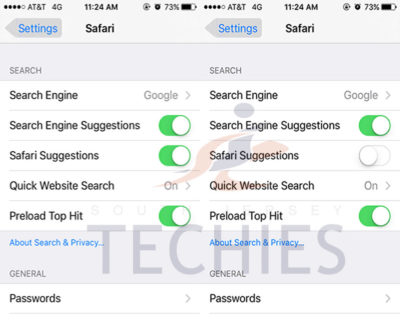
Disabling Safari Suggestions seems to be helping resolve the bug for many people on iOS. On your iPhone or iPad, go into Settings, tap Safari, and toggle off the ‘Safari Suggestions’ switch. This will fix the crashing, obviously its only a temporary fix until Apple sorts its servers out as it will disable the Safari Suggestions functionality.

Another option is to enter Private Browsing mode. In private browsing, by design Safari does not contact the suggestions server for intelligent completion options, so the server is never contacted and the crash never arises.

The bug is affecting users in many countries, but not all. It also depends on the state of your Safari, whether it has certain data cached already. The crash has been seen on iOS 8, iOS 9 and OS X 10.11. The bug could be even more widespread beyond these platforms however. It is pretty crazy flaw that is affecting so many people this morning, with many reports across European iOS customers.

We have contacted Apple about the issue for clarification, but it’s such a serious functional flaw that we expect a fix very shortly. Please note: this is an unrelated incident to the prank site CrashSafari.com.

Update: The Safari crash bug has now been fixed, according to Apple.

Have questions?

Get help from IT Experts/Microsofts Cloud Solutions Partner
Call us at: 856-745-9990 or visit: https://southjerseytechies.net/

South Jersey Techies, LL C is a full Managed Web and Technology Services Company providing IT Services, Website Design ServicesServer SupportNetwork ConsultingInternet PhonesCloud Solutions Provider and much more. Contact for More Information.

To read this article in its entirety click here.

Microsoft updates support policy: New CPUs will require Windows 10

In a change to its longstanding support policy, Microsoft says PCs based on new CPU architectures, including Intel’s Skylake chips, will require Windows 10. A list of preferred systems will support older Windows versions on new hardware, but only for 18 months.
Windows 10

Enterprise customers are still the bulwark of Microsoft’s Windows business, in both the client and server segments.

Historically, those customers have also been among the most conservative, lagging years behind the latest releases of an operating system release. Those practices have been encouraged by Microsoft’s support lifecycle, which offers a generous ten years of support for each Windows release.

Effective today, that policy is changing in a subtle but significant way, with the addition of new hardware requirements for support of pre-Windows 10 releases. The company’s also publishing a preferred list of systems that will receive special attention for updates and support.

Yes, Windows 7 (currently in the Extended support phase) will continue to receive updates until January 14, 2020, and Windows 8.1 will be supported until January 10, 2023. But in a series of “clarifications” to its support policy today, the company announced that support for those older Windows versions will be available only for “previous generations of silicon.”

Going forward, as new silicon generations are introduced, they will require the latest Windows platform at that time for support… Windows 10 will be the only supported Windows platform on Intel’s upcoming “Kaby Lake” silicon, Qualcomm’s upcoming “8996” silicon, and AMD’s upcoming “Bristol Ridge” silicon.

The policy will be phased in beginning with systems based on Intel’s new 6th-generation CPUs (code-named Skylake), which debuted a few months ago. New consumer-based Skylake devices must run Windows 10 to be supported.

For enterprise customers that want to buy “future proof” new hardware based on Skylake processors running older Windows versions, Microsoft will publish “a list of specific new Skylake devices we will support to run Windows 7 and Windows 8.1.” That support will run for a period 18 months, until July 17, 2017, after which those enterprise customers will be expected to upgrade to Windows 10.

Examples of systems that will be on the initial release of the list include Dell’s Latitude 12, Latitude 13 7000 Ultrabook, and XPS 13; HP’s EliteBook Folio, EliteBook 1040 G3; and Lenovo’s ThinkPad T460s, X1 Carbon, and P70 models.

The list will continue to be updated, Microsoft says.

Any machine that earns a place on the elite enterprise support list will get very special treatment indeed, with the idea being to reassure corporate customers that these models are especially likely to perform well on Windows 10 in the new era of continuous updates:

For the listed systems, along with our OEM partners, we will perform special testing to help future proof customers’ investments, ensure regular validation of Windows Updates with the intent of reducing potential regressions including security concerns, and ensure all drivers will be on Windows Update with published BIOS/UEFI upgrading tools, which will help unlock the security and power management benefits of Windows 10 once the systems are upgraded.

These models also get special treatment for enterprises that are still planning their Windows 10 migration, with an 18-month grace period where the older OS versions are fully supported.

Through July 17, 2017, Skylake devices on the supported list will also be supported with Windows 7 and 8.1. During the 18-month support period, these systems should be upgraded to Windows 10 to continue receiving support after the period ends. After July 2017, the most critical Windows 7 and Windows 8.1 security updates will be addressed for these configurations, and will be released if the update does not risk the reliability or compatibility of the Windows 7/8.1 platform on other devices.

Of course, enterprise customers who want to stick with earlier Windows versions beyond that mid-2017 deadline have lots and lots of options, based on current generations of Intel processors such as the Broadwell and Haswell lines. Those systems, which are based on what Microsoft calls “downlevel silicon,” will continue to be fully supported for pre-Windows 10 operating systems.

In today’s blog post, Microsoft says it’s seeing “unprecedented demand from our enterprise customers” in Windows 10. Enterprise customers are especially interested in new Windows 10 security features like Credential Guard, which uses hardware virtualization to safeguard credentials from attack.

Windows 8-era enhancements like Secure Boot, which protects systems from being compromised by rootkits and bootkits, also require new hardware.

Not surprisingly, today’s announcement contains the usual cheery statements from Microsoft’s three biggest hardware partners: Dell, HP, and Lenovo. All three companies compete aggressively in the low-margin consumer market, where virtually all new systems will run Windows 10. But enterprises will pay premium prices for the improvements in battery life and security in Skylake-based mobile systems, making this the most attractive segment to target.

Have questions?

Get help from IT Experts/Microsofts Cloud Solutions Partner
Call us at: 856-745-9990 or visit: https://southjerseytechies.net/

South Jersey Techies, LL C is a full Managed Web and Technology Services Company providing IT Services, Website Design ServicesServer SupportNetwork ConsultingInternet PhonesCloud Solutions Provider and much more. Contact for More Information.

To read this article in its entirety click here.

CALL US NOW!