Back to Top

Tech, Web, Cloud & Cabling Services

Tag Archives: South Jersey Techies

South Jersey Techies tag

Microsoft Office 2016: Lots of upgrade questions and some answers

Microsoft began rolling out Office 2016 for Windows on September 22. Since then, there have been a lot of questions around timing and installation techniques from those attempting to move to the latest version of Microsoft’s Office suite.
Office 2016

It turns out that not everyone has been able to upgrade to the latest release this week, in spite of Microsoft declaring the suite generally available. Instead, as many have discovered, the Office 2016 rollout is a staggered one, and one which has resulted in some OneDrive, Skype for Business and other app and service installation and compatibility issues.

While Microsoft officials did say a week ago that the company would be moving to a servicing/branch model with Office 2016 similar to the one the Windows 10 team is using, details on exactly how that would play out for Office users were scarce. But thanks to Microsoft pages and KB articles — we now know more.
Office 2016

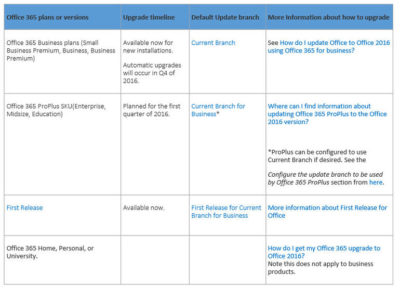
It turns out anyone in the Office 365 First Release program was able to get the latest Office 2016 apps for Windows as of this week. The same is true of those on the existing Office 365 Small Business Premium, Business and/or Business Premium — but only for those who are buying new subscriptions, according to the chart from a Microsoft community answers post, embedded above. Automatic updates to Office 2016 for those on these three plans won’t begin until the fourth quarter of 2016..

Just to add a little more complexity to this already complex set of rules, Microsoft is in the midst of replacing its Office 365 Small Business, Small Business Premium and Midsize Busines plans with three new ones. The three: Office 365 Business, Business Essentials and Business Premium. Microsoft has pushed the suggested migration date kick-off for these new plans back from October 1 to December 1, 2015, The reason for the date change: “The renewal experience will be best for users who have the latest version of Office,” meaning Office 2016.

Those with Office 365 ProPlus SKUs — meaning Office 365 Enterprise, Midsize and Education — are on the Current Branch for Business. This means these users cannot upgrade to the new Office 2016 for Windows bits right now unless the administrators change the update branch to be used by some/all of their users to Current Branch.

“For Office 365 ProPlus subscribers, administrators can opt to upgrade by manually rolling out to their users with Office deployment tools available today, September 22. Automatic updates for Office 365 ProPlus customers will begin early next year,” a Microsoft spokesperson confirmed when I asked.

Here are some more links that might help those interested in making the move to Office 2016:

Microsoft made the Office 2016 for Windows release available to MSDN subscribers on September 22. Volume licensees will have access to the new release via the Volume License Servicing Center (VLSC) as of October 1.

DreamSpark users got access to Office 2016 on September 22. Microsoft Action Pack and MPN subscribers will get access on October 1. And Home Use Rights for Office 2016 for Windows and Mac, both, will be available as of October 7, according to Microsoft.

Have questions?

Get help from IT Experts/Microsofts Cloud Solutions Partner
Call us at: 856-745-9990 or visit: https://southjerseytechies.net/

South Jersey Techies, LLC is a full Managed Web and Technology Services Company providing IT Services, Website Design ServicesServer SupportNetwork ConsultingInternet PhonesCloud Solutions Provider and much more. Contact for More Information.

To read this article in its entirety click here.

New Website Design – Devikon Group, LLC

Developed by,
South Jersey Techies, LLC.

The Web Design team of South Jersey Techies has been constantly working on developing the best websites including easy mobile approach and the latest website developed by the team is Devikon Group, LLC.  At Devikon Custom Contracting, we’ve built our livelihoods on remodeling people’s homes. From the simple to the lavish, we’ve experienced it all and we can help you every step of the way. No job is too small or too big for our knowledgeable crews.

Devikon Group, LLC

Have questions?

Our Web Design team is here to help
Call us at: 856-745-9990 or visit: https://www.sjtechies.com

South Jersey Techies, LLC is a full Managed Web and Technology Services Company providing IT Services, Website Design ServicesServer SupportNetwork ConsultingInternet PhonesCloud Solutions Provider and much more. Contact for More Information.


Change the Processor Affinity setting in Windows 7 to gain a performance edge

Under specific circumstances and with careful tweaking, you can increase Windows 7’s performance using the Processor Affinity setting.

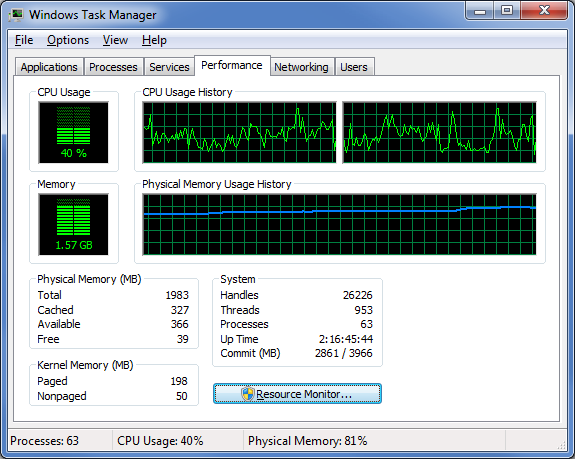
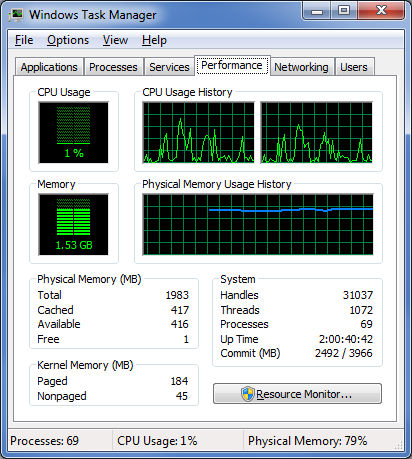
If you have a multi-core processor, chances are good that on the Performance tab in Windows Task Manager, you have noticed that the CPU Usage History graphs look about the same for each core, as shown in Figure A. The reason for this is that most applications you run these days have been designed with multi-core processors in mind and will work with the operating system to distribute their operations as evenly as possible across all the available cores.

Figure A

In most cases, you’ll notice that the CPU Usage History graphs look about the same for each core.

In most cases this even distribution provides you with the best performance possible. However, that’s not always going to be the case. For instance, older applications that were designed for single-core processors can behave irrationally — they may all of a sudden begin maxing out the CPU usage at 100 percent and appear to be locked up. In other circumstances, you might be able to achieve better overall performance from certain applications by configuring each of them to run on different processor cores.

Fortunately, Windows 7 allows you to configure applications to use only one, or several, of the processor cores in a multi-core system by using the Processor Affinity setting.

In this edition of the Windows Desktop Report, Iwe’ll show you two ways to change the Processor Affinity setting in Windows 7.

From Task Manager

Changing the Processor Affinity setting from within Task Manager is a pretty straightforward operation once you know how to do it. To launch Task Manger, you can use the keystroke combination [Ctrl] + [Shift] + [Esc] or you can simply right-click on the taskbar and select Task Manager from the context menu.

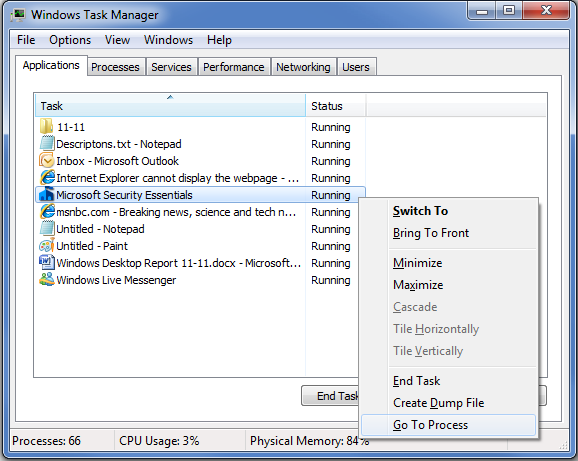
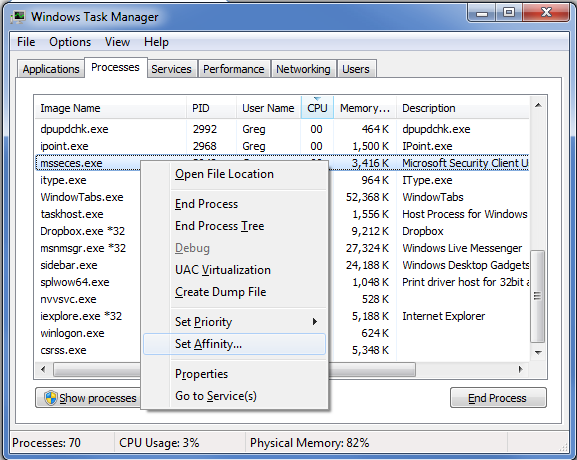
Once Task Manager is up and running, select the Applications tab, right-click on the application that you want to work with, and select the Go to Process command, as shown in Figure B. When you get to the Processes tab, right-click on the process and from that context menu, select the Set Affinity command, as shown in Figure C. (If the processes are jumping around, it may be hard to select the correct process, so you might just want to press the Application key or [Shift]+[F10].)

Figure B

Right-click on an application and select the Go to Process command.

Figure C

Right-click on the process and select the Set Affinity command.

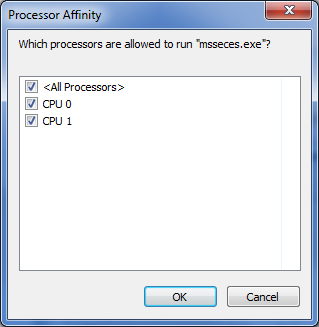
After you select the Set Affinity command, you’ll see the Processor Affinity dialog box shown in Figure D. As you can see, the default setting is All Processors, which in the case of my example system are CPU 0 and CPU 1. At this point, you can clear the All Processors check box and then select the CPU on which you want the process to run.

Figure D

The Processor Affinity dialog box allows you to choose which processor(s) you want to use.

An example

To take a look at the effects of using the Set Affinity command, we launched two applications: Microsoft Security Essentials and Disk Defragmenter. Next we used the Set Affinity command to assign Microsoft Security Essentials to CPU 0 and Disk Defragmenter to CPU 1. We then started each application running — Microsoft Security Essentials performing a full scan and Disk Defragmenter defragging a 500GB disk.

Once each application began working, they started sucking up CPU time, so we went to the Performance tab in Windows Task Manager to look at the CPU Usage History graphs. When we did, we could see that each graph was showing different measurements, as shown in Figure E.

Figure E

Each of the CPU Usage History graphs shows different measurements.

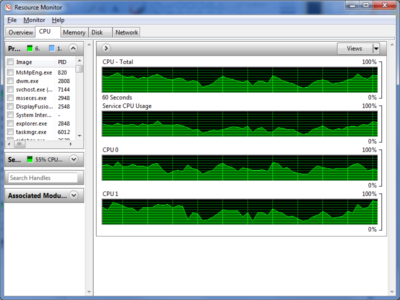
To specifically see how each CPU core was faring, we launched Resource Monitor and selected the CPU tab. Again, we could see that each CPU core was showing different usage measurements, as shown in Figure F.

Figure F

Resource Monitor’s CPU tab specifically identifies each CPU core and its usage.

Now, of course, my example combination is purely for the sake of showing each CPU handling a separate process. However, there are instances where running Microsoft Security Essentials on a separate CPU core would be beneficial.

From a shortcut

Now if you find that running an application on a specific CPU core works well, you might want to use it again in the future. If so, chances are that you won’t want to have to go through the Task Manager each time. Fortunately you can create a shortcut to launch an application with a specific affinity setting.

For example, to launch Disk Defragmenter so that it runs only on CPU 0, you would create a shortcut with the following command line:

C:\Windows\System32\cmd.exe /C start /affinity 1 dfrgui.exe

To launch Disk Defragmenter on CPU 1, you would create a shortcut with the following command line:

C:\Windows\System32\cmd.exe /C start /affinity 2 dfrgui.exe

The number that follows the start /affinity command is called the affinity mask and is defined as a hexadecimal number. However, the CPU core number can be calculated more easily using binary numbers. For instance, the command

C:\Windows\System32\cmd.exe /C start /affinity 3 dfrgui.exe

will launch Disk Defragmenter on both CPU 0 and CPU 1. If you convert 3 into a binary number you will get 0011. Under the affinity mask system, processors are numbered from the right to left beginning with 0 and since there are 1’s in the first two places, this indicates CPU 0 and CPU 1.

Suppose you have a Quad core processor. If so and you use an affinity mask of 4, that will convert into binary 0100, which indicates CPU 2. If you use an affinity mask of 9, that will convert into binary 1001, which indicates CPU 0 and CPU 3.

For more information on the start /affinity command, open a Command Prompt window and type the command

start /?

Have questions?

Get answers from Microsofts Cloud Solutions Partner!
Call us at: 856-745-9990 or visit: https://southjerseytechies.net/

South Jersey Techies, LL C is a full Managed Web and Technology Services Company providing IT Services, Website Design ServicesServer SupportNetwork ConsultingInternet PhonesCloud Solutions Provider and much more. Contact for More Information.

To read this article in its entirety click here.
Now Microsoft Office 365 tackles ‘fake CEO’ email spoofing attacks

Microsoft is rolling out a host of new email security features for Office 365 later this quarter, as it looks to thwart hackers and criminals.

‘Insider spoofing’ or faking the CEO’s email address to trick the CFO into transferring millions to criminal bank accounts is big business. Now Microsoft is using big data and reputation filters to try and squish the threat.

According to the FBI, between October 2013 and August 2015, 7,066 US businesses have fallen prey to ‘business email compromise’, netting criminals an estimated $747m.

Non-US victims lost a further $51m over the period, with the FBI estimating a 270 percent increase in identified victims since January 2015, when it first released figures about the threat category.

As Microsoft notes, when a corporate email domain is spoofed, it makes it hard for existing filters to identify the bogus email as malicious.

However, Microsoft reckons it has achieved a 500 percent improvement in counterfeit detection using a blend of big data, strong authentication checks, and reputation filters in Exchange Online Protection for Office 365.

It’s also rolling out new phishing and trust notifications to indicate whether an email is from a known sender or if a message is from an untrusted source, and therefore could be a phishing email.

The company is also promising a faster email experience as it vets attachments for malware and new tools to auto-correct messages that are mis-classified as spam. The aim is to boost defences without impairing end-user productivity.

Malicious email attachments remain a popular way for attackers to gain a foothold in an organization and, as RSA’s disastrous SecurID breach in 2011 showed, a little social engineering can go a long way to ensuring someone opens it.

Microsoft’s new attachment scanner, called Dynamic Delivery of Safe Attachments, looks to reduce delays as it checks attachments for potential threats.

Currently it captures suspicious looking attachments in a sandbox with a ‘detonation chamber’ where it analyses it for malware in a process takes five to seven minutes.

Microsoft hasn’t figured out a faster way to analyse the attachment, but instead of holding up the email as it conducts the scan, it will send the body of the email with a placeholder attachment. If the attachment is deemed safe, it will replace the placeholder and if not, the admin can filter out the attachment.

The feature is part of Microsoft’s Office 365 Exchange Online Protection and Advanced Threat Protection services.

The company is also tackling false-positive spam, or legitimate messages that are mis-identified as spam, and vice versa, with a new feature called Zero-hour Auto Purge, which allows admins to “change that verdict”.

“If a message is delivered to your inbox and later found to be spam, Zero-hour Auto Purge moves that message from the inbox to the spam folder; the reverse is true for messages misclassified as spam,” Microsoft notes.

Microsoft is testing this approach with 50 customers and says it will be rolled out for all Exchange Online Protection global clients in the first quarter of 2016.

Have questions?

Get help from IT Experts/Microsofts Cloud Solutions Partner
Call us at: 856-745-9990 or visit: https://southjerseytechies.net/

South Jersey Techies, LLC is a full Managed Web and Technology Services Company providing IT Services, Website Design ServicesServer SupportNetwork ConsultingInternet PhonesCloud Solutions Provider and much more. Contact for More Information.

To read this article in its entirety click here.

Microsoft’s latest Windows 10 ad annoys Chrome users with taskbar pop-ups

Ads on the Windows 10 taskbar aren’t just for Microsoft Edge anymore.

Microsoft’s aggressive advertising push inside Windows 10 is going beyond pop-ups for Microsoft Edge.

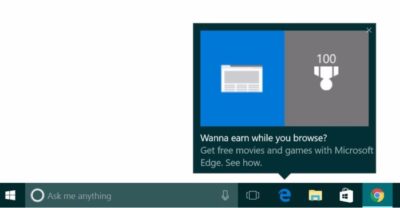
Myce recently spotted yet another pop-up ad on the taskbar in Windows 10. This time around Microsoft was advertising its extension for Chrome dubbed the Personal Shopping Assistant (Beta). The extension is a Microsoft Garage project that lets you compare prices across shopping sites.

Prior to the Chrome extension pop-up, Microsoft was advertising its rewards program for Microsoft Edge, which we spotted in early November. The earlier ad appeared to be targeted at people who didn’t use Edge that frequently.

A pop-up ad that promotes Windows 10’s Edge browser and Bing Rewards. The pop-up for the Chrome extension looks similar, as you can see on Myce.

The Chrome one, by comparison, is probably targeted at people who use Chrome as their default browser. Microsoft’s likely thinking that if people won’t stop using Chrome on Windows, at least they can use some Microsoft software while they’re doing it.

Microsoft told Thurrott.com that ads like the one for the Chrome extension are part of the company’s tests to provide, “new features and information that can help people enhance their Windows 10 experience.”

Tests or not, it’s unlikely that Microsoft will ever stop these taskbar ads even though users pay $100 or more for Windows. Thus far, Microsoft has advertised its own software and services.

The impact on you at home: If you want to make sure you don’t get pop-up ads on your taskbar you can turn them off. Open the Settings app and go to System > Notifications & Actions. On this screen under “Notifications” turn off Get tips, stricks, and suggestions as you use Windows. That’s not the only way Microsoft can advertise to you.

Have questions?

Get answers from Microsofts Cloud Solutions Partner!
Call us at: 856-745-9990 or visit: https://southjerseytechies.net/

South Jersey Techies, LL C is a full Managed Web and Technology Services Company providing IT Services, Website Design ServicesServer SupportNetwork ConsultingInternet PhonesCloud Solutions Provider and much more. Contact for More Information.

To read this article in its entirety click here.
Tools for Office 365

Office-365-New2

PST Capture Tool

Microsoft now offers a free Administrator tool PST Capture Tool.  This tool will discover and import Personal Folders (.pst files) into Exchange 2010 or Exchange Online.  PST Capture will search all computers or specific computers connected to your company network, the .pst files are then sent to PST Capture Central Service, and finally .pst files are sent to Exchange Servers or Exchange Online.

For more information on this tool, click here.

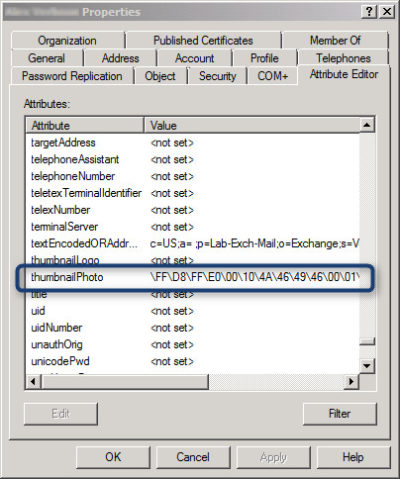
Active Directory Picture

attribute_afterExchange offers an Active Directory attribute (‘thumbnailPhoto’) that allows you to add a picture for each user.  This picture is displayed in Lync Online and on SharePoint.  Currently, Active Directory does not have a way built-in to add images to ‘thumbnailPhoto’ Attribute.

AD Photo Edit is a simple tool that connects to Active Directory and synchronizes with Online Services.  Using AD Photo Edit allows you to upload, edit, update and export images.  There are two options available:

  1. Free Edition
  2. Bulk Edition

Once your photo is uploaded to your “username”  the ‘thumbnailPhoto’ attribute will be properly filled.

To download this tool, click here.

Microsoft Migration Tools

This tool is for Microsoft Online Services only.  Microsoft Online Services Migration Tool forwards copies of Exchange Server mail to Exchange Online mailboxes.  Also, you can copy from other mailboxes such as Exchange Server, POP3 Server and IMAP4 Server to the Exchange Online mailbox.

To download this tool, click here.

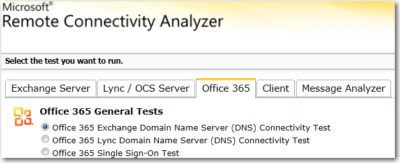
Remote Connectivity Analyzer

Microsoft Remote Connectivity Analyzer was once called Microsoft Exchange Remote Connectivity analyzer. This tool allows you to test connectivity for multiple services.

MRCA

To use this tool, click here

Mobile Admin

Office 365 Mobile Admin allows you to perform simple Administrator tasks from an application installed on your smartphone.  The tool allows you to create users, modify users, disable users, delete users and reset passwords.

This application is only available for Windows Phone for $1.49 and will be available soon for Android and iPhone.

For more information on Hosted Services and Office 365

 please contact us 856-745-9990 or click here.


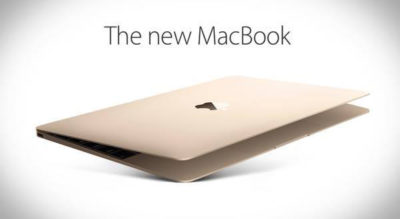
See what’s new with Macbook

A Retina display that takes everything to the edge.

The moment you open your MacBook, its gorgeous 12-inch Retina display with edge-to-edge glass brings everything into focus. Every photo leaps off the screen in rich, vibrant detail. Over 3 million pixels render each letter with crystal clarity. And it all comes to light on the thinnest Retina display ever on a Mac, meticulously honed to deliver a bold visual experience within an impossibly minimal design.

Learn more about Design

Retina Display

A full-size keyboard.
In a fraction of the space.

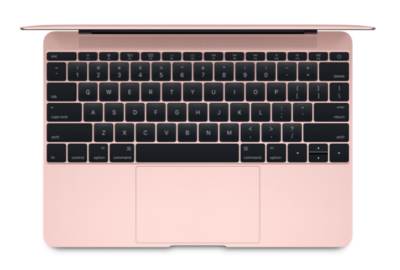
We believe that a comfortable, full-size keyboard is essential for a great notebook experience. But to fit one into the elegantly thin MacBook, we had to completely rethink how a keyboard is engineered and constructed. We redesigned each key and its underlying mechanism — not only making the whole keyboard much thinner, but also allowing for more comfortable, precise, and responsive typing that just feels right.

Learn more about Design

keyboard MacBook2016

The trackpad, pushed even further with Force Touch.

MacBook comes with a different way to experience a trackpad. The Force Touch trackpad is engineered to deliver a responsive, uniform click no matter where you press the surface. And underneath, force sensors detect how much pressure you’re applying. You can now use a Force click to enable useful capabilities, like quickly looking up the definition of a word or previewing a file just by clicking and continuing to press the trackpad. You’ll also experience haptic feedback — a tactile vibration from the trackpad that adds the sense of touch to what you see on the screen. These advanced capabilities work in addition to all the intuitive Multi-Touch gestures Mac users love. You’ll be more in touch with your Mac than ever before. Without lifting a finger.

Learn more about Design

Fully equipped for a wireless world.

MacBook is designed to fit effortlessly into our increasingly wireless world. Just about anything you do with a notebook can now be done over the air, thanks to Apple software that takes full advantage of the latest Wi-Fi and Bluetooth wireless technology. So no matter where you are, you can connect to the web, transfer files, organize your photos, listen to music, and more — without being tied down.

Learn more about Design

MacBook2016


USB-C.Singularly versatile.

As long as we were including a port for charging your MacBook, we wanted to make sure it was the most advanced and versatile one available. The USB-C port puts just about everything you need in a port all in one place. This amazing port provides charging, speedy USB 3 data transfer, and video output in a reversible design that’s one-third the size of a USB 3 port, giving you the flexibility to easily connect your favorite devices.

The capability to connect to everything you need.

We gave a lot of consideration to the way MacBook connects to peripherals and power. We chose USB-C for its compact design and versatility. This single port lets you connect your charger; HDMI, DisplayPort, and VGA displays; USB devices like external drives; and your iPhone or iPad. All of which goes to show that sometimes less really is more.

Mackbook2016

A range of accessories lets you connect virtually any device to your MacBook. For instance, the USB-C Digital AV Multiport Adapter lets you connect your MacBook to an HDMI display, as well as a standard USB device and a USB-C charging cable.

Quietly astonishing.

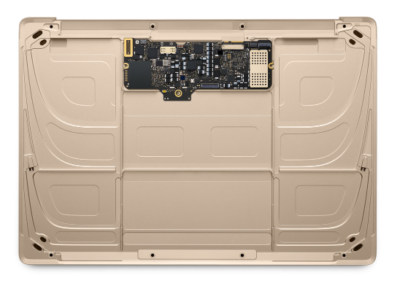
MacBook has been engineered from the ground up for silent, efficient performance. It includes sixth-generation Intel Core M processors that run on just 5 watts of power, made even more efficient by optimizations throughout OS X. Together the processor and OS X sip so little energy that the system generates very little heat, so no fan is required to cool the computer. That means when your MacBook is working, you won’t hear a thing. And the logic board on which the processor sits has been painstakingly engineered to pack all the capability you expect in a Mac into as little space as possible.

Measurably faster.

MacBook features sixth-generation Intel Core m3, m5, and m7 processors with speeds of up to 1.3GHz and up to 25 percent faster graphics. It also comes with faster 1866MHz memory. So your MacBook is quicker and more responsive.

Learn more about Design

MacBook

All-day battery life.
Now even longer.

With the slim MacBook enclosure, all-day battery life simply would not be achievable using traditional rectangular batteries. So we developed our own battery technology specifically designed to make use of every last millimeter of available space. The result is a terraced, contoured battery design that not only fits perfectly inside the incredibly slim MacBook, but also is unlike anything seen before in a notebook. And now, thanks to more efficient processors and improved battery chemistry, battery life has been extended by an hour.

Learn more about Design

OS X

OS X is the operating system that powers everything you do on a Mac. With OS X El Capitan, it’s simple to do amazing things and delightful to do all the everyday things. And it works seamlessly with your apps and iOS devices.

Built-in Apps

Every Mac comes with apps for creativity and apps for productivity. It also comes with a collection of great apps for things you do every day, like surfng the web, sending mail and messages, and organizing your calendar. It even comes with an app for finding new apps. Your Mac is more than fully featured, it’s fully loaded.

Learn more about Built-in Apps

Pure invention.

Learn more about the
design of MacBook

Have questions?

Get answers from Microsofts Cloud Solutions Partner!
Call us at: 856-745-9990 or visit: https://southjerseytechies.net/

South Jersey Techies, LL C is a full Managed Web and Technology Services Company providing IT Services, Website Design ServicesServer SupportNetwork ConsultingInternet PhonesCloud Solutions Provider and much more. Contact for More Information.

To read this article in its entirety click here.
Surface Book pre-orders sold out at Microsoft’s online store

If you were still thinking about placing an order for a new Microsoft Surface Book, then you will have to look somewhere other than the Microsoft store.

surfacebook

While there doesn’t seem to be a massive supply issue with the new Apple iPhone 6s smartphone, in the past we have seen Apple products sell out quickly and deliveries move from days, to weeks, to months. It seems that Microsoft’s new Surface Book may be generating more interest than planned.

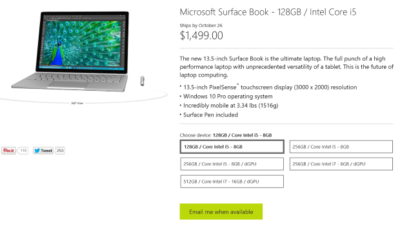
Last night I went to the online Microsoft Store to place an order for a base model Surface Book. I found that the only available status when choosing that model was, “Email me when available.” I jumped through the other four models and discovered the same thing. It seems Microsoft is sold out of pre-order stock for all models at its online store.

We reached out to Microsoft to try to find out more about stock status and when buyers could expect to place pre-orders. I also asked if there will be units in Microsoft retail stores on launch day, 26 October. Given that units are sold out online, we may even see people queue up for possible stock in stores.

A Microsoft spokesperson provided the following statement, “We’ve seen strong demand for Surface Book and have sold out of pre-order supply for October 26 availability. We will have limited quantities of Surface Book available in store on October 26 and will be updating online availability with new product ship dates soon.”

UPDATE: Microsoft updated its store and is no allowing customers to pre-order the five Surface Book variations. What you will find instead of an email me when available button is updated delivery expectations, ranging from five to six weeks for three models and seven to eight weeks for two models.

While I was disappointed that I couldn’t purchase a Surface Book through Microsoft directly, I found that Best Buy and Amazon will also be selling this new computer. Best Buy did not appear to be taking pre-orders, but I was able to purchase the Intel Core i5, 8GB, 128GB model from Amazon for $1,499.

The Amazon website does not appear to carry the 256GB i5 without dGPU or 256GB i7 models. The 256GB i5 with dGPU looks to be the only other model available for pre-order. The 512GB i7 model is on the site as an option, but redirects you to the Microsoft Store for purchase and it’s not avaialable there.

Have questions?

Get help from IT Experts/Microsofts Cloud Solutions Partner
Call us at: 856-745-9990 or visit: https://southjerseytechies.net/

South Jersey Techies, LLC is a full Managed Web and Technology Services Company providing IT Services, Website Design ServicesServer SupportNetwork ConsultingInternet PhonesCloud Solutions Provider and much more. Contact for More Information.

To read this article in its entirety click here.
Microsoft withdraws update causing Outlook to start in Safe Mode (with fix)

outlook-safe-mode

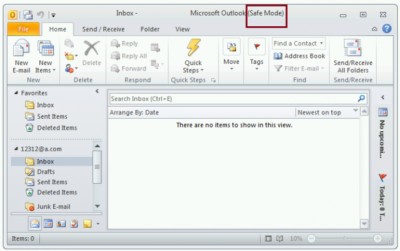
Microsoft has withdrawn the released Windows Update KB3114409 because it causes Outlook to start in Safe Mode. This loads the email client without customizations and plugins. Fortunately it can be easily fixed.

The patch was actually released to stop Outlook from starting in Safe Mode, but it appears something didn’t go the right way. Microsoft has decided to withdraw the update for now.

Users affected by the update can easily stop Outlook from starting in safe mode by uninstalling the KB3114409 update.

This can be done this way: Go to your Control Panel. Go to ‘Programs and Features’ and left click ‘View installed updates’. Find KB3114409. Once you’ve found the appropriate update, click ‘Uninstall’.

(Tip: copy/paste KB3114409 and enter it in the search field at the top right.)

After a reboot of the computer Outlook will no longer start in safe mode.

Have questions?

Get help from IT Experts/Microsofts Cloud Solutions Partner
Call us at: 856-745-9990 or visit: https://southjerseytechies.net/

South Jersey Techies, LLC is a full Managed Web and Technology Services Company providing IT Services, Website Design ServicesServer SupportNetwork ConsultingInternet PhonesCloud Solutions Provider and much more. Contact for More Information.

To read this article in its entirety click here.
Goodbye, Hotmail. Hello, Outlook.com

Summary: Microsoft’s flagship mail service for consumers gets a new name and a “modern” Metro-style interface. Here’s how to sign up for a preview and what to expect. So long, Hotmail. It was nice to know you. Microsoft unveiled a major update to its consumer mail platform today, with a new look, a slew of new features, and a new name that is surprisingly familiar.

The “modern email” service has been in super stealth mode for several months under the codename NewMail. With its formal launch as an open-to-the-public preview, the service gets a new name: Outlook.com. I’ve been using the NewMail beta for a week now and can share some first impressions here. Outlook, of course, is the serious, business-focused mail client included with Office. Microsoft used the brand with Outlook Express, its lightweight email client in Windows XP, but dumped the name with the launch of Windows Vista in 2006. Restoring the Outlook name to Microsoft’s consumer email service accomplishes two goals. First, it dumps the Hotmail brand, which is tarnished beyond redemption, especially among technically sophisticated users who have embraced Google’s Gmail as the default standard for webmail. More importantly, it replaces the Hotmail domain with a fresh top-level domain that’s serious enough for business use. (If you have an existing Hotmail.com or Live.com address, you can continue to use it with the new Outlook interface. But new addresses in the Outlook.com domain are up for grabs. if you have a common name, I recommend that you get yourself over to Outlook.com now to claim your preferred email address while it’s still available.) The Outlook.com preview will run alongside Hotmail for now, but when the preview ends, this will be the replacement for all Hotmail and Live Mail users. With Outlook.com, Microsoft is taking dead aim at Gmail, positioning Google’s flagship service as the old and tired player that is ready for retirement. Gmail, they point out, is eight years old, and its interface and feature set aren’t exactly modern. It doesn’t play well with any social media except its own, it handles attachments in a stodgy and traditional way, and it’s not particularly elegant when it comes to managing the deluge of email we all have to deal with every day. So what’s new about NewMail—sorry, Outlook.com? And why would anyone consider switching from Gmail? The most obvious change in the web interface, of course, is the overall design, which gets the full Metro treatment.

That three-pane layout follows the familiar Outlook standard, but the typography is definitely new. It’s clean and crisp with no wasted ornamentation or clutter. It should come as no surprise that the default organization is optimized for use on touch-enabled devices. A pane on the right shows different content, depending on the context. If you’re communicating with a friend of colleague who’s in your address book or connected via a social-media service, you’ll see updates about that person on the right side, with the option to chat with them (via Messenger or Facebook chat) in that pane. In a demo, Microsoft showed off Skype integration and said it will be coming later in the preview. If you’ve selected no message, the right pane might show ads, which appear in Metro style boxes with text–an image preview appears if you hover over the ad. As part of its positioning against Google, Microsoft has taken pains to note that your messages aren’t scanned to provide context-sensitive ads, as they are with Gmail. This is a pure HTML interface, which means the functionality is consistent across different browsers and on alternative platforms. I tested NewMail on a Mac using Safari and Chrome and in both Firefox and Chrome on several Windows PCs. Everything worked as expected. I also tested the web-based interface in mobile Safari on an iPad, where it also displayed perfectly (after switching from the default mobile layout). On mobile devices, you’ll be able to use native apps. An app for iOS devices should be available immediately. Microsoft promises an Android app “soon” that will enable Exchange ActiveSync support for older Android versions. A command bar at the top of the page provides access to commands as needed. If a command isn’t available in the current context, it’s not visible on the screen.

The preview pane (a feature that’s still experimental in Gmail even after eight years) lets you read and reply to messages without leaving the main screen. Action icons that appear when you move the mouse over an item in the message list let you file, delete, or flag the message with a single click or tap.

The new Outlook has some impressive mail management smarts built in. It automatically recognizes newsletters and other recurring types of mail. A Schedule cleanup option in the message header (also available on the command bar), lets you create rules on the fly that automatically delete or file similar messages to reduce clutter. You can specify, for example, that you want to keep only the most recent message from a “daily deals” site. You can also define how many messages you want to keep from a particular sender or automatically delete/file newsletters after a set number of days.

For newsletters that don’t contain an obvious unsubscribe link, the new Outlook adds a universal unsubscribe feature at the bottom of the message. When you select this option the web service sends an unsubscribe request on your behalf and creates a message-blocking rule. One huge differentiator between old-school webmail services like Gmail is the new Unified Address Book in Outlook.com. It takes a page from Microsoft’s People hubs in Windows 8 and the Windows Phone platform to pull together your traditional address book—where you manage names and details—and combine it with social media services of which you’re a member.

The advantage, of course, is that you always have the most up-to-date contact information for friends and colleagues, assuming they update their profiles. The new Outlook does a pretty good job of combining records. If you have contacts that appear in multiple locations, you can manually link or unlink those records as needed. Supported services include anything you can link to your Microsoft account, including Facebook, Twitter, LinkedIn, and Flickr. You can import contacts from Google and Facebook if you want to keep them locally. In terms of creating and sending photos and file attachments, the new Outlook integrates exceptionally well with SkyDrive, so that you can email large attachments and photo albums, storing them on SkyDrive with well-integrated links that the recipient can access with a click. The spec sheet says single attachments can be up to 300 MB in size. If they’re stored on SkyDrive, you don’t have to worry about the message being rejected by the recipient’s mail service. And of course, the service incorporates all of the Office Web Apps, which makes the process of sharing Word documents, PowerPoint slide decks, and Excel workbooks much more seamless. On the back end, the interface for managing an email account is cleaner. You can still create aliases that you use for sites and contacts where you don’t want to share your real address. And if you just want to experiment with the new service, you can redirect your Gmail messages temporarily to the new account or sign in with an existing Hotmail or Live address. (I’ve had my Gmail account redirected to Hotmail for a year without problems.)

To View Full Article Click Here

CALL US NOW!