Back to Top

Tech, Web, Cloud & Cabling Services

Tag Archives: iPhone

iPhone tag

Apple iOS 7

FINALiOS7.2

Apple iOS 7 is expected to be released this Fall for both, iPhone and iPad users.  Apple created a simple and more useful experience with iOS 7 that includes many new features.

Control Center

Control Center allows access to common controls and apps from any screen with just one swipe.  Controls included are turning on/off Wi-Fi, turning on/off Bluetooth and adjusting the display brightness.  Apps included are Camera, Flashlight, Calculator and many more.

Notification Center

Notification Center allows you to view new messages, mail, to-dos and missed calls from any screen with just one swipe.  The Notification Center has a new feature called Today.  Today allows you to view everything for “Today” including weather, appointments and local traffic.  Also, this feature gives you a glance at Tomorrow. 

Multitasking

Multitasking is smart way to switch between apps quickly.  To access “Multitasking” press the “Home” button twice.  Multitasking with iOS 7 is more efficient because it learns how you use your apps.  If you check a specific app every day at the same time, your app will be waiting for you.

AirDrop

AirDrop allows you to easily share photos, videos, contacts with the app and a Share button.  AirDrop transfers are encrypted and use Wi-Fi or Bluetooth to share data securely.

Siri

Siri has a redesigned user interface with a new sound and many new capabilities.  Siri has a more natural sounding voice (female/male) and is easier to understand.  Siri’s great new look fades on top of your screen.  Additionally, Siri can answer questions using Bing and Wikipedia, control iTunes radio, return phone calls, play voicemails and many more.

Mail

Mail has a redesigned user interface with many new features and controls.  New features  include the ability to view PDF comments and annotations, add/reorganize the mailbox list, and Mac and PC users with Microsoft Exchange 2010 can also now sync notes.

 

Which Cell Phone is Right for You?

There are so many choices these days when it comes to choosing a new cellphone or smartphone. Believe it or not there are now utilities out there that can help you make an educated decision based on your answers to a handful of questions. WWW.TopTenREVIEWS.com has a great Mobile Phone Configuration that can guide you in the direction to your perfect phone match. Click Here to be directed to their site to try out this very helpful utility.

Set Up Microsoft Exchange E-Mail on iPhone

Set Up Microsoft Exchange E-Mail on an Apple iPhone, iPad, or iPod Touch3

You can set up Exchange e-mail on an Apple iPhone, iPad, or iPod Touch. When you set up an Exchange account on your device, you’ll be able to access and synchronize your e-mail, calendar, and contacts. If you have a different device, or if you want to connect using POP or IMAP.

How do I set up Microsoft Exchange e-mail on an Apple iPhone, iPad, or iPod Touch?


  1. Tap Settings > Mail, Contacts, Calendars > Add Account.
  2. Tap Microsoft Exchange.
  3. You don’t need to enter anything in the Domain box. Enter the information requested in the Email,Username, and Password boxes. You need to enter your full e-mail address in the Email and Usernameboxes (for example, tony@contoso.com).
  4. Tap Next on the upper-right corner of the screen. Your iPhone will try to find the settings it needs to set up your account. Go to step 7 if your iPhone finds your settings.
  5. If your iPhone can’t find your settings, you’ll need to manually look up your Exchange ActiveSync server name. For instructions for how to determine your Exchange ActiveSync server name, see the Finding My Server Name section below.
  6. In the Server box, enter your server name, and then tap Next.
  7. Choose the type of information you want to synchronize between your account and your device, and then touch Save. By default, Mail, Contacts, and Calendar information are synchronized.
    Caution:
    If you’re prompted to create a passcode, tap Continue and enter a numeric passcode. If you don’t set up a passcode, you can’t view your e-mail account on your iPhone. You can set up a passcode later in iPhone Settings.

Finding My Server Name


If your email program isn’t able to automatically find your Exchange ActiveSync server name, you may need to look it up.

  1. Sign in to your e-mail account using Outlook Web App. For help signing in, see How to Sign In to Outlook Web App.
  2. If you’re connecting to an Exchange mailbox, your Exchange ActiveSync server name is contained in the address bar in your browser when you are signed in to Outlook Web App, but without the leadinghttps:// and without the trailing /owa. For example, if the address you use to access Outlook Web App is https://mail.contoso.com/owa, your Exchange ActiveSync server name is mail.contoso.com.
  3. If you’re unable to connect to your mailbox using the information earlier in this section, you can try using the server name value that you can view in Outlook Web App options. Do the following:
    1. In Outlook Web App, click Options > See All Options > Account > My Account > Settings for POP, IMAP, and SMTP access.
      Note:
      Although you’re not setting up a POP3 account, you will use this value to determine your Exchange ActiveSync server name.
    2. Under POP setting, view the value for Server name.
    3. Try setting up your email using the server name listed on your options page. For example if the value for Server name under POP setting is mail.contoso.com, try using mail.contoso.com as your Exchange server name.

What else do I need to know?

  • If you’re prompted to create a passcode and don’t create one, you won’t be able to send and receive e-mail.

Top 4 Smartphones

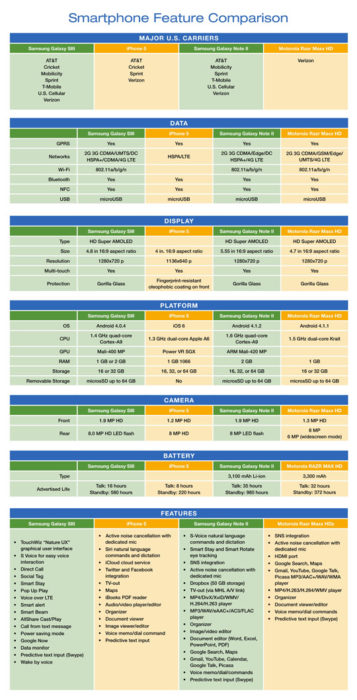
Takeaway:  Specifications break down of the top four prominent smartphones.

In the United States the top four smartphones are Samsung Galaxy SIII, iPhone 5, Samsung Galaxy Note II and Motorola Razr Maxx HD.  The chart compares mobile carriers, platform, hardware, networks/ Wi-Fi, display, camera and battery for all four leading phones.

If you’re thinking about buying a new smartphone, the chart below will be a quick guide with the necessary feature-to-feature comparisons to make a worthy choice.

Smartphone_Blog_040813_2


Protection for WiFi

Takeaway:  Five simple ways to protect your information when using WiFi and Hotspots.LOCK2

WiFi is exchanging data through a wireless local area network (WLAN) from electronic devices including smartphones, laptops and tablets.

Also, WiFi is available in public places such as Airports and Restaurants.  Identity Thieves, Hackers and Criminals take advantage of WiFi because it is convenient for users to access personal information.

1.  Avoid accessing your bank accounts & online stores:

When using public WiFi, it is best to avoid using your credit card or banking information.

2.  Double check the WiFi name:

Prior to connecting to a public network double check with an employee for their network name.  Identity thieves can create a false Hot-Spot, have users connect and then steal personal information.

3.  Turn-Off “Auto Connect”:

Stay in control of what networks you connect to, smartphones have a setting that automatically connects you to the closest open network.  Simply, turn this setting off to decide what networks to connect to.

4.  Never use the same Password:

An additional step you can take to keep online accounts safe is to use different passwords for each account.   Using the same password makes stealing your information easier for criminals.

5.  Check the Lock:

The extra layer of security is the locked padlock in the address bar of your browser or “https” which means that your information has been encrypted.

Apple iOS 7

ios7_2On Monday, June 10, 2013 Apple exposed iOS 7 at the Worldwide Developers Conference.  The new OS will be available for multiple devices including  iPhone 4 and up, iPad 2 and up and the iPad Mini.

New features for iOS 7 include:

Control Center:  By swiping from the bottom to the top will now allow you to adjust your settings

AirDrop:  For Apps that allow sharing, AirDrop will encrypt data that a user shares to friends within a close distance.

Activation Lock:  To prevent smartphone crimes, when disabling “Find My iPhone” the phone will be locked and only the correct Apple credentials will unlock the phone.

Multitasking:  Apps can develop patterns based on usage.  These patterns will allow the iOS 7 to update apps in the background based on network connections.

Car integrated iOS:  For 2014, many car manufacturers are integrating iOS with the car display.

Safari:  Safari has been updated with navigation, smart search and iCloud Keychain.

Siri:  Siri can now operate more of the iPhone including voicemail, Wikipedia, Twitter, Bing and many others.

Camera:  Photos are well-organized as Moments.  Also, the camera has new photo filter options.

App Store:  The App Store can organize Apps based on age and geographical location.  Also, background updating will eliminate manual updating. 

Music:  Music, Movies and TV Shows are now stored together in your Library.  

iTunes Radio:  A streaming music service that will be available with iOS 7.


Apple: Larger Screens for iPhones & iPads

Apple-LogoApple, Inc. offers innovative products that continue to grow its customer base.  Testing new designs for current products is a consistent task for Apple, Inc.

“Apple has been slow to react to consumer desire for larger smartphone screens, [and] entry level price points on new phones,” said BGC Financial’s Colin Gillis. “Waiting and waiting, for the new products to launch, has become painful,” he wrote.

Currently, Apple is testing various sizes for iPhone and iPad screens.  Samsung has become the world’s largest smartphone maker because Samsung offers a variety of smartphones with display sizes that range up to 5.5-inches.   Continuing to compete with Samsung, Apple is testing for a 5-inch iPhone screen expected to be released in 2014.

A new tablet design is also being tested by Apple with a display that is a little less than 13-inches.  This would be a great addition to the iPad that has a 9.7-inch display and the iPad Mini that has a 7.8-inch display.

Lastly, Apple has been developing an iPhone that would be cheaper than the current iPhone.  According to many articles, the cheaper iPhone will be made from plastic instead of the traditional metal casing that will be available in different colors.

Apple, Inc. could climb back to the top of both smartphone and tablet sales by releasing a larger display for the iPhone/iPad and releasing an iPhone that is reasonably priced.


Features the iPhone Could Use

Untitled2

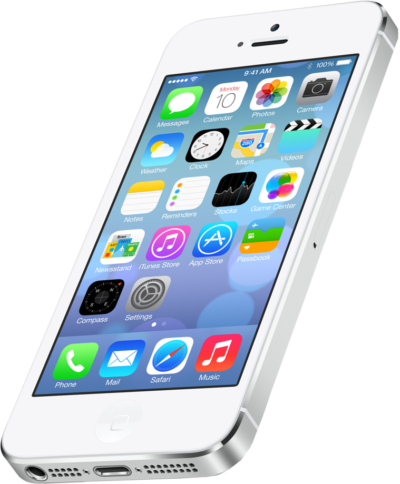
iPhone 5 is the fastest, thinnest and lightest iPhone;  nevertheless many features remain absent that are provided by Apple’s competitors. 

NFS Built-In

Apple prefers to use Passbook system instead of Near Field Communication (NFC).  Passbook is not capable of performing all tasks that NFC can handle such as the ability to beam content by touching devices or send money via PayPal wirelessly.

Swypeswype-symbian

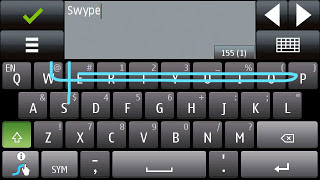
“Swype is a faster and easier way to input text on any screen.”

Swype gives your phone the capability to input text by sliding your finger from letter to letter accross the screen.  Only Android smartphones offer this input ability.

SD Cards

iPhone’s are not built to extend device storage using external SD Cards, Micro SD Cards or Mini SD Cards.

Storage

Many iPhone user’s have replaced their iPod’s with their smartphone.  The storage capacity for an iPhone (64GB) versus an iPod Classic (160GB) is not comparable. 

USB

iPhones have never used a standard USB cable to sync.  Currently, iPhone 5 uses a new MicroDock connection that will not allow older sync cables to connect without a specific adapter.

Micro HDMIUntitled3

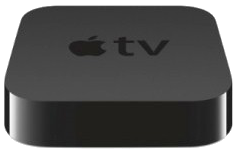
Android devices have a Micro-HDMI port for retrieving video from your phone. iPhone 5 requires a special adapter or an Apple TV to retrieve video.

Changing the Battery

Although, iPhone 5 provides a stronger battery, some users require more power but replacing an iPhone battery is challenging.  To replace the battery it requires a special screw driver and special tools to lift the screen 90°.

Battery Life

While the iPhone 5’s battery is larger that the iPhone 4S, it produces the same battery life because of the bigger screen and power to run 4G LTE.

Important Privacy Settings in iOS 7

The new iOS 7 upgrade resets original settings and adds new settings that users should be aware of.

System Services

The System Services is difficult to find at the bottom of the Privacy > Location Services panel.

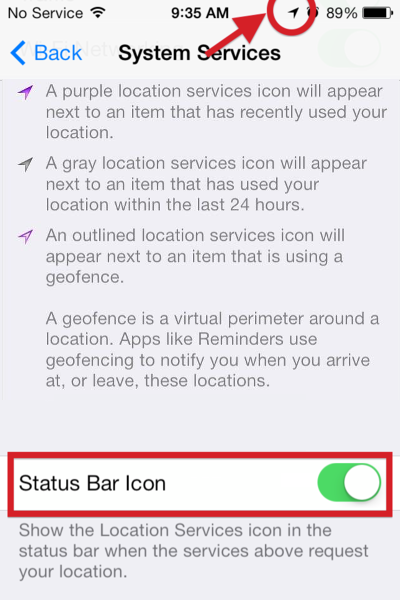
Status Bar Icon

Settings > Privacy > Location Services > System Services

The Status Bar Icon setting will appear in three ways:  Purple for Recently Used, Gray for Used within 24 Hours and Outlined for Geofence.  Turn ON this setting.

SBI

Diagnositcs & Usage

Settings > Privacy > Location Services > System Services > Diagnostics & Usage

DU

The Diagnostics & Usage setting detects/records iPhone usage and anonymously sends a report to Apple to improve the device.  Turn OFF this setting.

Frequent Locations

Settings > Privacy > Location Services > System Services > Frequent Locations

FLThe Frequent Locations setting detects/records data about your locations, using GPS coordinates of frequently visited locations.  Turn OFF this setting.

Location-Based iAds

Settings > Privacy > Location Services > System Services > Location-Based iAds

LBIA

The Location-Based iAds collect and share location data based on real-time geographic location of your Apple device.  Turn OFF this setting.

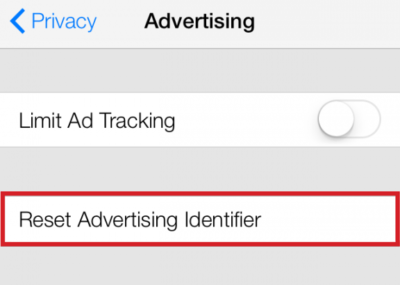
Advertising

Settings > Privacy > Advertising

The Limit Ad Tracking setting prevents adverizers  from targeting your device. Turn Limit Ad Tracking ON.

The Advertising Identifier gives users control over advertisers’ capability to use tracking systems by resetting the Advertising ID.  Reset Advertising Identifier.

RAI

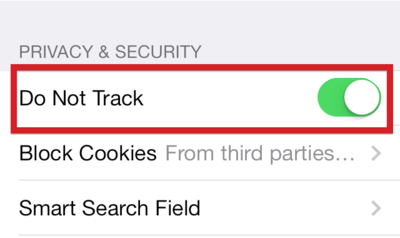
Do Not Track

Settings > Safari > Do Not Track

The Do Not Track setting allows users to have privacy while using Safari.  Turn ON this setting.

DNT


CALL US NOW!