Back to Top

Tech, Web, Cloud & Cabling Services

Category: Smartphones

Telecommunication / Smartphones Category

10 Ways Mobile Devices Are Changing Life

mobile devices

Mobile Devices

Humanity is evolving in many ways thanks to mobile devices. But are all the changes for the better?

I was raking leaves in my yard the other weekend when I observed a black SUV slowly idling down the street. I didn’t recognize the vehicle and it looked out of place as though the driver were confused about where to go… or possibly casing houses to rob (hey, I’m a crime writer by nature).

The car pulled up to me and the passenger window went down. An older gentleman politely inquired if I knew where a certain nearby street was located. I told him how to get there and he thanked me profusely then drove off.

That got me thinking that I hadn’t been asked for directions in years, since most people now rely on their mobile devices for maps and directions. I reflected that I wouldn’t have had the pleasant encounter with that grateful driver if he had been using a device to guide him, and that started a train of thought about how mobile devices are changing society. What has improved us, and what are we missing out on?

1. We always know how to get there

It’s great to throw out the paper maps and not have to call people to find out how to get anywhere, nor to be called when they’re coming to my house. All we need is the address and presto! We’re there.

But… we’re also missing out on the unique dialogue we only get from people who know their own neighborhoods. Google Maps won’t tell us that our turn is right after the red mailbox and that it’s a tricky one so slow down. It can also be vague when it directs us through confusing areas like rotaries or 5-way intersections. And as someone who used to get “Triptiks” from AAA, it was pretty cool not only having the entire route for a trip laid out for us by an expert (in a visual form), but to get some one-on-one advice from them such as the best time to travel through D.C. to avoid traffic (trick question, there is no “best time.”) Sure, you can look this up online… where ten different opinions will be available, requiring you to pick and choose the most plausible.

2. We can buy almost anything immediately

Mobile devices are commonly used for purchasing, and according to Adweek.com”smartphones and tablets will account for $1.6 billion in sales on Thanksgiving, Black Friday and Cyber Monday combined.” It’s great that we can buy stuff we’re interested in as we please.

But… this can pose a problem for compulsive shoppers or people who may be less than responsible for their actions (I’m thinking inebriated college students after 2 am). Obviously this is an issue that can impact anyone with low impulse control and mobile devices are simply the conduit for their problem, not the problem itself. But I’ve also found real-life clerks can be extremely helpful in providing advice – the paint guy at my local hardware store, for instance, knows more about paint than anyone I’ve met. Sure, online advice and reviews are available to help you figure out what to buy but the human touch from knowledgeable experts you can talk to in person can’t be replaced.

3. We’re always available

Whether through a phone call, text, email, social media or some other form of communication, we’re always at the beck and call of those we know so long as we have a mobile device with us. Sure, the devices have “mute” functions and off buttons, but the constant flow of input can make many people reluctant to use these options (or to rely on them for long), especially if our mobile devices are used for work or emergency contact from loved ones. In fact, if we contact someone on their cell and they don’t pick up it can be disappointing or irritating. That’s what they’re there for, right?

But… people who want to concentrate and remain focused on a single task at a time have to exert rigid discipline on themselves (and likely those in their inner circle) lest they wander from one interruption to the next, checking that Facebook message a friend just sent or seeing if their spouses replied to that text. It’s like trying to work in an office with the door open while a big party is going on outside in the hallway. I’ve found it’s best to either close the door and focus or knock off for the day (if possible) and officially attend the party; working halfway in between is a recipe for low productivity.

4. No more waiting for the 11 p.m. news

Nowadays if something significant happens (no, but the Kardashians aren’t remotely significant) we whip out our devices and see what’s afoot, whether it’s a weather emergency, a crisis, or some historic moment. Even if the website we’re visiting is overloaded or sluggish there are plenty of others available. It’s all part of our “need to know now” mindset, right?

But… needing to know now can detract from the present moment if the news isn’t exactly earth-shattering. If it’s just another interruption it’s one more thing that takes away from what we’re doing (or trying to get done). I can’t help but feel like many news stories are played up or overemphasized as part of a “Hey! Look over here!” distraction, whether to promote ads, news sources or some other ulterior motive. This only contributes to the short attention span which is becoming a real problem for many people.

5. We’re never bored

Our mobile devices can hold or connect to an endless amount of entertainment. Thanks to streaming audio, video, copious storage capacities and zippy processors, it’s possible to listen to music, watch movies, read e-books, browse the web, engage with others and play games in just a few taps. With this much variety nobody need ever be bored again, right?

But… I think it’s important for people to learn how to handle boredom. So many of us feel like the phrase “I have nothing to do” is something to be feared rather than embraced. I’ve been guilty of it as well, such as during car trips where I was driving while my family slept and I shut the radio off since I didn’t want to disturb them. Being bored is an opportunity to reflect, consider and plan: to revisit the past or map out the future. It can be healthy, not frightening. At the time I was immersed in the TV show “LOST” and used several hours going over all the clues, details and plot elements that had yet to be unraveled (as it turned out, I never got close to the actual story behind the island).

6. We never have to take chances

My wife and I went out the other week and during the course of our evening decided on the spur of the moment to get tickets for the WWII film “Fury.” I lined up tickets on my smartphone at a theater in the next town over – the only one that still had seats for the show – and we picked them up then entered the movie. Great that we didn’t have to just drive over and hope we could get lucky by scoring a pair of seats, right?

But… there is something to be said for just gambling and taking a shot at something without using what is the real-life equivalent of a “cheat code.” Sure, it’s better than getting to the theater to find all the seats sold out, but that would have opened up some other options: see another film? Go somewhere else nearby? View a later show? Don’t get me wrong – if my smartphone can help up my odds of doing something I really want, I’ll play that card, but it does detract from the unpredictability of life with its themes of give and take or wins and losses.

7. We don’t need to know all this useless trivia

Numerous others have discussed this as well: thanks to mobile devices there’s no need to know silly little things like which planet is the sixth one from the sun, who won the War of 1812, or how many digits are in Pi (hint: a lot). We can just look it up right away, so as to save our brains for something more important like what Kim Kardashian is up to (not to beat a dead horse).

But… this access to information also has the capacity to erode our own personal knowledge stores as well as critical thinking ability. If we offload all that data elsewhere and access it only as (or if) needed, we’ll miss out on a lot of interesting and useful things that will hamstring us if we don’t have our mobile devices. In essence, we’re delegating our brain’s skills to an artificial brain, which can’t reason or meaningfully apply its talents to improve our lives or activities – other than just spitting out the facts we ask for. Information is more valuable when applied to the appropriate contexts by a brain actually engaged with what’s happening.

8. We never have to disconnect from friends or family

Social media can truly be amazing. I use it to connect with family across the country whom I’m not able to see regularly. I have built and strengthened friendships with people in my town because of it. And I’ve kept in touch with people who have literally known me all my life; in the era before social media we would simply have fallen out of touch, eventually forgetting each other’s names and all past interactions.

But… stories are rampant about social media wrecking marriages, working relationships and familial ties. Used correctly by well-adjusted folks, it’s a way to bring people together. Used inappropriately by those with underlying issues, it’s a way for them to alienate others (political battles, anyone?) or lose focus on their face-to-face loved ones in favor of their online community. I’m not blaming mobile devices or social media; as with online shopping I’m pointing out that this concept can wind up causing harm to people who misuse it, or misuse others with it.

9. We don’t have to drop off film for processing

Anyone remember Fotomats? If so, you were probably a child of the 80’s. These were drive-thru film processing kiosks where you could drop off your photo film and pick up the processed photos a day later. I haven’t seen one of these in years, and while it’s certainly true that photo film still exists and can be processed at other stores, this is usually done by professional photographers or photography enthusiasts. I’ve been using digital cameras and my smartphone for years now to take pictures; they’re easy to store on my hard drive, they are backed up automatically on my phone, and I can see how the shots turned out instantly.

But… there was something nice about dropping film off knowing it would be ready the next day (unlike in today’s instant gratification society, where we get impatient if something’s not immediately available). There was a sense of anticipation along with the hope all the shots came out OK. We had more patience. And we didn’t waste pictures goofing around, and the ones we kept were generally worth keeping.

Back in the 80’s I probably took one-tenth the pictures I do now, and, while hard drive space is cheap and plentiful, organizing photos by year or occasion (and in some case which one of my kids is involved in the shot) is tedious. I rarely delete digital photos unless they’re blurry or extremely poor quality, so there’s more of a “quantity over quality” element now, whereas it was the reverse back then, at least for me.

10. We don’t ever see payphones or telephone booths around any more

When I was a kid my elementary school had a fantastic old (even for the time) payphone which had three slots at the top for feeding in coins: a nickel slot, a dime slot and a quarter slot. Putting in money and hearing the electronic tones as the coins registered (actually I think it only cost a dime to make a call) was like seeing a magic trick. Now payphones and telephone booths – a famous landmark for Superman fans – have gone the way of the passenger pigeon; I think the last one I saw was in Europe this summer. We just make calls on our smartphones; no hunting for coins, dealing with missing phone books or finding public phones out of order. My kids will likely grow up never having used one of these artifacts.

But… actually, there is no ‘but’. This one was a tongue-in-cheek one; everyone is better off with payphones and phone booths relegated to the dust heaps of history (even the phone carriers are likely making more money off smartphone sales/data plans than they ever raked in with coin-operated telephones). Some progress is truly inarguable.
 

iOS 9.3: 3 Features Businesses Need

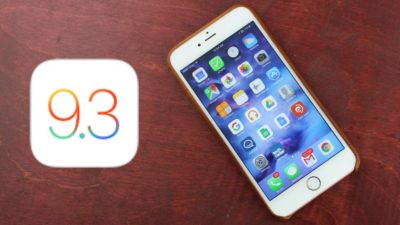
iOS 9.3 offers several features that might appeal to business-oriented Apple users.

Apple introduced a new version of iOS on Monday. The update includes several new features, including updates to CarPlay and HealthKit, as well as a feature to make it easier for iPads to be used in schools for educational purposes. There are several other new features which are particularly appealing to the business-oriented user.

Here are 3 new features business users should check out.

ios93SJTechies

Night Shift

The proliferation of devices like tablets and smartphones means that some sort of screen is never far away. For many, looking at a screen is the first and last thing they do in the morning and evening.

The problem with that is screens emit blue light, which reduces the amount of melatonin produced in the body. Melatonin is a chemical that helps people fall asleep. The light emitted from smartphones can also cause eye strain, which carries symptoms like headaches and blurred vision.

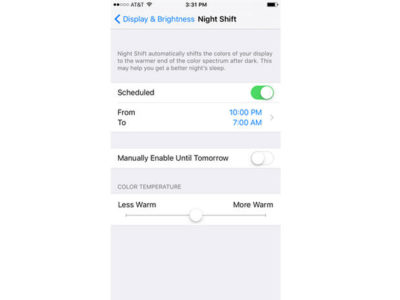
With this latest version of iOS 9, Apple introduced Night Shift, a feature that automatically adjusts the colors of your display at night. You can schedule times for it to go into effect, manually turn it on and off, and adjust colors on a scale of less warm to more warm.

You can access Night Shift through Settings | Display & Brightness, or through the menu that swipes up from the bottom of the device’s screen.

ios9SJTechies

Password-protected Notes

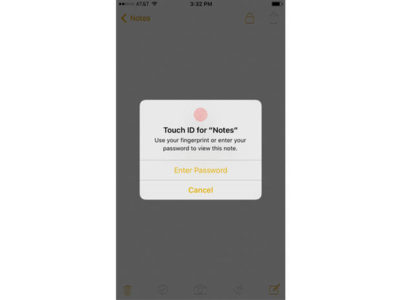
Notes is iOS’ app for taking, well, notes. iOS 9.3 updates it by allowing users a layer of security. Now, users can lock their notes using either a password or the Touch ID, which makes the app that much more useful.

In order to lock a note, tap the button in the top right corner (the one you might use if you were going to email the note) and then tap Lock Note. When prompted, enter a password, confirm it, and decide if you want to enable the Touch ID. A lock button will appear at the top of the note and in the future if you want to open it, enter the password or use the Touch ID.

ios92SJTechies

More personalized News

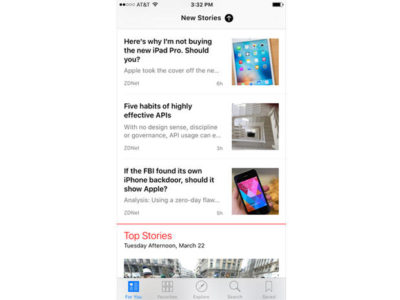
The News app now offers more personalization for users, and on a range of topics and publications. So for example, you can select a topic like mobile apps or internet privacy. You can access news by opening the News app, or by swiping right from your main screen.

Have questions?

Get answers from Microsofts Cloud Solutions Partner!
Call us at: 856-745-9990 or visit: https://southjerseytechies.net/

South Jersey Techies, LL C is a full Managed Web and Technology Services Company providing IT Services, Website Design ServicesServer SupportNetwork ConsultingInternet PhonesCloud Solutions Provider and much more. Contact for More Information.

To read this article in its entirety click here.

10 Places To Recycle Your Cell Phone

EcoAtm

Here are 10 places to take your phones so they can be refurbished, reused, or recycled and diverted from the landfill.

1. EcoATM

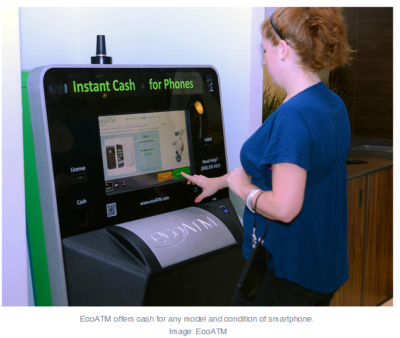
EcoATM is an automated kiosk that collects your unwanted cell phones and tablets and gives you cash for them. It’s made by the same people that make CoinStar, so you’ll find them by the checkout lines at various grocery store chains. It accepts devices from any era or in any condition, and offers anywhere between a few bucks to a few hundred dollars in return. EcoATM partners with R2 certified e-waste reclamation facilities to ensure they are recycled, or gives the phones a second life.

2. Eco-Cell

Eco-Cell is a Louisville, Kentucky-based e-waste recycling company. It partners with nonprofits and organizations such as the Jane Goodall Institute. Bins are located in coffee shops and other businesses around the country, where the collected phones are shipped to Eco-Cell in Louisville. If the phones are reusable, they resell them and pass some of the money back to the owner. If they are not reusable, the phones are recycled and the owner is paid the money for the value of the recycled materials.

3. Best Buy

Best Buy has recycling kiosks in their stores in the US, as well as recycling in-store for no charge to you. They typically limit it to three items per family, per day. From there, they work with recycling companies to make sure the phones and other electronics don’t end up in landfills.

4. Hope Phones

The Hope Phones campaign was started in 2009 by Medic Mobile, which works to advance health care in 16 countries by using mobile technology. Individuals, nonprofits, groups, or businesses can host a Hope Phones campaign to donate old phones. They are recycled and valued so the nonprofit can get new technology for the field. Most old models are valued at $5, but newer smartphones are regularly valued at $80, according to the website.

5. Cell Phones for Soldiers

Cell Phones for Soldiers is a nonprofit that works to provide cost-free communication services to active-duty military and veterans. New or gently used mobile phones are accepted and each device valued at $5 turns into 2.5 hours of free talk time for the soldiers.

6. Gazelle

Gazelle is one of the most popular trade-in options for old cell phones. The company is headquartered in Boston, with locations in Louisville, Kentucky and in Texas. Pick your brand, model, carrier, and plug in what kind of shape it’s in, then get an offer. Ship it for free, and receive a check or gift card to Amazon.com or PayPal after they check it out and make sure it’s worth what you say it is.

7. Call2Recycle

Call2Recyle  is a no-cost recycling program for batteries and cell phones in the US and Canada. It has collection boxes that can be placed anywhere, which have shipping permits so mailing them is easy. They also have bulk shipping if there is a large amount of recyclables.

8. Your carrier

AT&T has a trade-in program for unwanted phones and accessories regardless of manufacturer or carrier. The owner gets a “promotion card” which can then be used to take money off a new phone or other purchase. Make sure you erase all your information before you turn them in, though.

Verizon also offers a trade-in program where the owner can receive an electronic gift card once they send in the phone and have it appraised.

9. Local places

Your city undoubtedly has places to recycle old phones. Most local government websites, like New York’s, have directions of where to go to recycle phones. A lot of cities usually have nonprofits that donate old phones as well. The EPA also has an option to find out what electronics you can recycle with mail-in options.

10. Recycling for Charities

This nonprofit features one charity at a time, for which they donate money from recycling old phones. All makes and models are welcome at Recycling for Charities, and the phone condition is not an issue. They make an attempt to refurbish it first, then find recycling centers to ensure the materials won’t go into landfills if the phones cannot be reused.

These 10 services are well-researched and well-known options, but make sure to research on your own where your phone is going to make sure it is going to a certified e-waste recycler, so it doesn’t end up in a landfill despite your efforts.


Simple steps to stay on top of your mobile data usage

Apps not required

Businessman in suit, jacket,shirt, tie, using his smart phone

Who said you needed to install something to control your mobile data use? Your iOS and Android devices come with all the tools you need to stay below your data cap. It takes a few taps to turn them on and configure them, which is exactly what we’re going to help you with.

Easy in Android

MobileDataUsage2

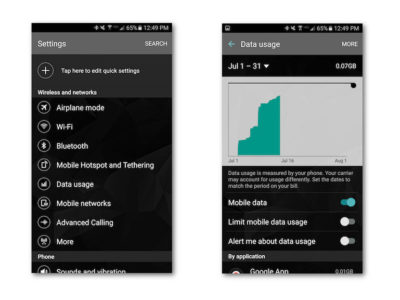
Tracking and limiting your data usage is easy on an Android device. There are a number of options available to stop yourself from going over the data limit.

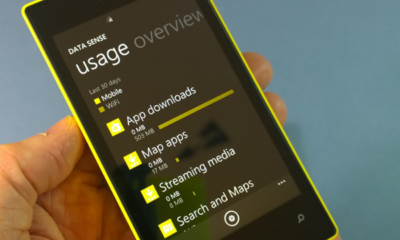
The simplest solution is to activate two options under the Data Usage menu in your phone’s Settings app: Limit Mobile Data Usage and Alert Me About Data Usage. Toggle these two switches to on and your phone will turn off cell data once you reach a certain point, as well as warn you when you start getting close. Adjusting those thresholds is as simple as dragging a little line up or down.

Control data use per app

MobileDataUsage3

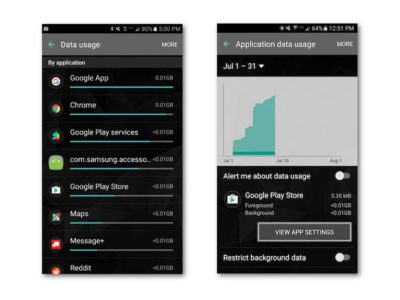
Scroll a bit further down in the Data Usage menu and you’ll find a list of apps sorted by how much mobile data they use. Click on one of those apps and you’ll see a few more options. Toggling Restrict Background Data on will stop the app from doing anything in the background, unless you’re connected to Wi-Fi.

App-specific options

MobileDataUsage4

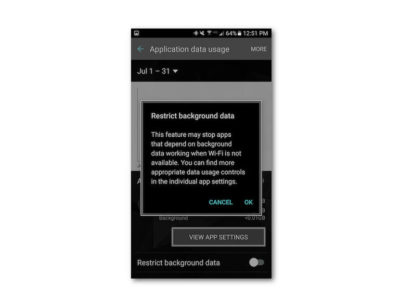
Turning the Background Data Restriction on brings you face to face with a popup warning you that doing so might mess with the app’s performance. It also directs you to the View App Settings button, where you can change the settings right in the app.

In my experience going into the app hasn’t been necessary—just toggle the data restriction option on, but know that your weather, email, Twitter feed, and other apps that require a constant connection might not update without your telling them to (provided you’re not on Wi-Fi).

Other Android tips

MobileDataUsage-5

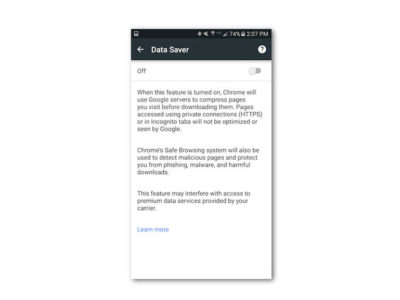
There are two other nifty things you can do on Android to save data: use the Chrome Data Saver and store frequently used Google Maps locations offline.

Chrome Data Saver is turned on by opening Settings in Chrome. Swipe down to the bottom of the menu and you’ll see Data Saver. Open that menu and turn it on—that’s it! Data Saver compresses incoming web traffic to save space, and it really doesn’t have that much effect on your experience.

Google Maps offline

MobileDataUsage6

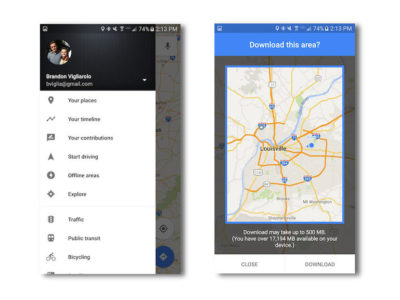
Storing map data offline is a good idea whether you want to save data or not. It makes your commute smoother, and longer trips will never leave you without a map in unfamiliar territory. It’s easy to do, too.

Open the menu in Google Maps. You’ll see Offline Areas right in the first few options—that’s what you want to select. From there click the plus sign and you’ll see a map highlighted with a blue circle. Pinch to zoom in or out, tap download, and it will download anything inside the square.

Managing data on an iPhone

MobileDataUsage-7

iOS users aren’t nearly as fortunate as Android users when it comes to built-in data capping options. There are still a few ways to track and limit your data use, but if you’re hoping for an Android-like option that terminates data once you near your cap you’re out of luck.

Controlling background data

MobileDataUsage8

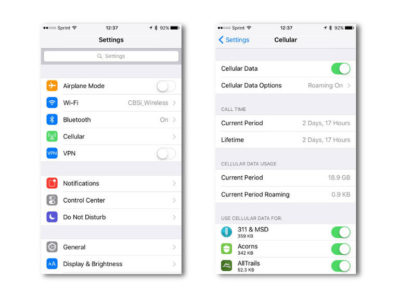
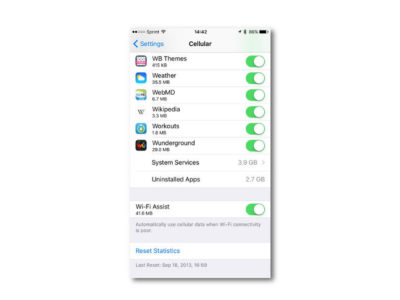
It’s simple to disable background app data in iOS. Open up the Settings app, and tap Cellular. Once you’re there, scroll down a bit and you’ll see a list of every single app you have installed. Tap to turn off the ones you want to stop from using cell data—that’s it!

App-specific options

MobileDataUsage-9

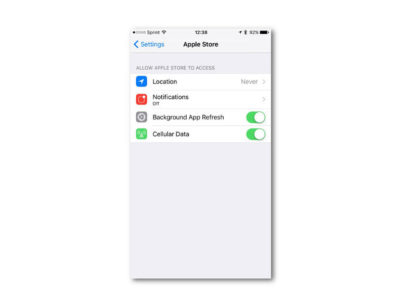
Disabling background use is one thing, but you can save even more data by tweaking options specifically to different apps. In the Settings app, scroll down a bit to see a list of all the apps you have installed. Tap one and you’ll see a list of app-specific options.

You can turn off cellular data for an app, background refresh, and location services, all which will eat up your data bit by bit.

Disable Wi-Fi Assist
MobileDataUsage-10

iOS devices have the option to hop to their cell networks when Wi-Fi signal is weak. Disabling this can save you a bit of data, but it’s all dependent on how often you have to deal with weak Wi-Fi.

You’ll find the toggle for Wi-Fi Assist at the bottom of the Cellular page.

Good luck saving that data

Mobile payment

Seven or eight gigs might seem like a lot, but constant travel, mobile gaming, and video streaming can eat that up before you know it. Hopefully some of these options will help save you megs and bucks!

Have questions?

Get answers from Microsofts Cloud Solutions Partner!
Call us at: 856-745-9990 or visit: https://southjerseytechies.net/

South Jersey Techies, LL C is a full Managed Web and Technology Services Company providing IT Services, Website Design ServicesServer SupportNetwork ConsultingInternet PhonesCloud Solutions Provider and much more. Contact for More Information.

To read this article in its entirety click here.

Wi-Fi-enabled ‘Hello Barbie’ records conversations with kids and uses AI to talk back

Today, Mattel released Hello Barbie, a WiFi-enabled doll that detects language and ‘talks back.’ But how will this high-tech toy impact real-life relationships?

Hello-barbie

She wears black flats, a motorcycle jacket, and skinny jeans. Her curly, bleach-blonde hair falls just past her shoulders. She has a permanent smile and large blue eyes. And, when you talk to her, she listens.

But this young woman isn’t an ordinary friend. “Hello Barbie” is less than a foot tall, weighs just under two pounds, and is made of plastic. And she is on sale for $74.99.

Mattel’s latest Barbie, marketed for children six and up, has just hit the shelves. She is unlike any doll before her—not only does she listen, but she can talk back.

To get started, kids simply download the Hello Barbie companion app. And to turn her on, you push a button on her silver belt buckle. Hello Barbie’s necklace is both a recorder and a microphone. Using WiFi, the jewelry will pick up a child’s questions and conversations—and transmit them back to a control center for processing. Speech-recognition software, operated through ToyTalk, will detect the input. Then, Hello Barbie will reply, using one of 8,000 pre-programmed lines. Examples include:

  • You know, I really appreciate my friends who have a completely unique sense of style…like you!
  • Here’s what’s up: I’m worried my sister Stacie is having a hard time finishing her homework. Does that ever happen to you?
  • I think Santa is real. There’s something very magical about the holiday season and I think he helps bring that magic to all of us!
  • So if you were planning the biggest, raddest, most unforgettable party of the year, what would it be like?
  • Of course we’re friends! Actually, you’re one of my best friends. I feel like we could talk about anything!

Hello Barbie’s dialogue, while perky and fashion-focused, reflects an attempt by Mattel to create a more well-rounded character than in the past. In 1992, Mattel pulled its string-operated Teen Talk Barbie from shelves after being criticized by The American Association of University Women for the inclusion of an unfortunate line: “math class is tough.” It is no mistake that Hello Barbie’s lines includes: “Oh nice! Fun with numbers! Teaching math sounds like a lot of fun. What kinds of things would you teach—Counting? Addition? Subtraction?”

Still, the implication that Barbie is being sold as a ‘friend’ is unsettling. “Hello Barbie can interact uniquely with each child by holding conversations, playing games, sharing stories, and even telling jokes!” boasts Mattel’s website. Hello Barbie, claims Mattel, is “Just like a real friend. [She] listens and remembers the user’s likes and dislikes, giving everyone their own unique experience.”

But is she really listening?

While Barbie may appear to listen and respond, “pretend empathy is not empathy,” said Sherry Turkle, professor at MIT and author of Reclaiming Conversation. Turkle worries about how children will understand their new ‘friend.’

“They are drawn into thinking that pretend empathy is the real thing,” said Turkle. “But objects that have not known the arc of a human life have no empathy to give. We put our children in a compromised position.”

Beyond the social implications of the doll, the capabilities of the recording technology raise privacy issues.

Using Hello Barbie involves recording voice data (see the privacy policy here) and requires parental consent. However, Mattel states that “parents and guardians are in control of their child’s data and can manage this data through the ToyTalk account.” The company also states that the recordings are protected under the “Children’s Online Privacy Protection Act,” and recordings containing personal information will be deleted once they “become aware of it.”

Still, the potential for misuse of this private data is a legitimate concern. “Obviously it is a security and privacy nightmare,” said Roman Yampolskiy, director of the Cybersecurity Lab at the University of Louisville. “[The] company [is] collecting data from kids—hackers [could be] getting access to private info.”

However, like Turkle, Yampolskiy is “more concerned about social development of the children interacting with it.”

“We are basically running an experiment on our kids and have no idea if it will make them socially awkward, incapable of understanding body language, tone of voice and properly empathize with others,” he said.

It all raises the question of what is meant, exactly by ‘real’ conversation? Turkle said, “Why would we take such risks with something so delicate, so crucial: Our children’s ability to relate to each other as human beings?”

Despite concerns, Hello Barbie is here, being shipped to homes across the globe beginning today. She is being turned on, spoken to, and listened to. And when children are finished with her, she is shut down, stood on a charger (Hello Barbie cannot stand on her own) and charged back up.

When she is turned on again, Barbie might ask: “Did you miss me at all?”

“Not even an itsy bitsy, eensy weensy bit?”

How children will respond remains to be seen.

Mattel did not respond to repeated requests for comment for this story.

Have questions?

Get help from IT Experts/Microsofts Cloud Solutions Partner
Call us at: 856-745-9990 or visit: https://southjerseytechies.net/

South Jersey Techies, LLC is a full Managed Web and Technology Services Company providing IT Services, Website Design ServicesServer SupportNetwork ConsultingInternet PhonesCloud Solutions Provider and much more. Contact for More Information.

To read this article in its entirety click here.

Windows 10: The top 10 features headed your way in 2017

A look at the most significant changes due to hit Microsoft’s evolving OS in the coming year.

Microsoft has made many promises about what Windows 10 will do, and while some have materialized, others still remain ambitions.

As a perpetual work-in-progress, Windows 10 continues to accrue new features, as Windows catches up with Microsoft’s vision of it being an OS that runs anywhere, syncs with the cloud and has an intelligent assistant at its core.

While Windows 10 will be buffed up by the arrival of the Windows 10 Creators Update early next year, 2017 as a whole will see the OS undergo significant changes, some of which are long-awaited. Here’s what to look out for.

Windows 10 phones edge closer to replacing desktop PCs

Microsoft has long pushed the idea that Windows 10 on phones will be so powerful, it’ll be akin to carrying a full PC in your pocket, courtesy of the OS’ Continuum feature.

“With Continuum for phones, we believe that any screen can be your PC,” Joe Belfiore, Microsoft’s corporate VP of the operating systems group, told the Microsoft Build Developer Conference in 2015, going on to add:

“Imagine the effect this could have on mobile first countries, where individuals could be as effective with the phone that they’re buying.”

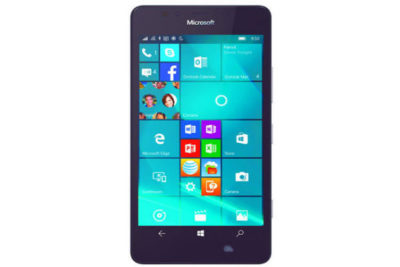
Today the reality of using Continuum on Windows 10 falls somewhat short of Belfiore’s future-gazing. While a select Windows 10 phones, such as the Lumia 950, can be hooked up to mouse, keyboard and monitor and used as a Windows desktop there are significant limitations. Only one fullscreen app can be used at a time, legacy Windows apps won’t run on existing handsets and even Universal Windows Platform apps need to explicitly support Continuum.

However, in addition to the possibility of legacy apps running on smartphones, see below, various improvements to Continuum are due to land with the Creators Update in early 2017.

These include support for more PC features, such as running multiple Windows side-by-side on the desktop, pinning apps to the Taskbar and hitting the Windows button to bring up the search box. Other improvements include the ability to keep your phone in your pocket and have it connect wirelessly to a docking station and to independently customize the Windows Start screen on the phone display and on a PC monitor.

Running classic Windows software on your phone

This one’s a rumor but based on solid foundations, and with the potential to transform Windows 10’s appeal on mobile if correct.

The big fly in the ointment when it comes to using Windows 10’s Continuum feature to run a phone as a PC is that Windows 10 phones only run Universal Windows Platform apps. This incompatibility means that widely-used Windows apps from desktop PCs can’t be used on handsets.

However, by sniffing around inside Windows 10’s code, users have uncovered signs that Microsoft is working on bringing these apps to Windows phones.

The code in question suggests that Microsoft is building an emulator that would allow desktop x86 apps to work on the ARM64-based handsets.

As reported by ZDNet’s Mary Jo Foley last month, Twitter user WalkingCat found a reference to what he termed “Windows’s hybrid x86-on-ARM64 tech” in Windows’ codebase, which also referenced the term, “CHPE.”

The clue chimed with Foley, who said her sources had told her that Windows 10 will gain this x86 on ARM64 emulation capability, but not until Fall 2017.

Foley guesses that C stands for Cobalt, the codename for x86 emulation on ARM, and that HP relates to the tech giant HP, which has been working with Microsoft on its the HP Elite x3 Windows Phone, a Windows 10 handset that can serve as a desktop PC via Continuum.

Microsoft certainly has good reasons for wanting such emulation to work. If Windows 10 phones could run as Windows desktops with full support for legacy apps, without having to resort to remote desktop software, Windows 10 phones could suddenly be far more appealing to business.

Return of OneDrive placeholders

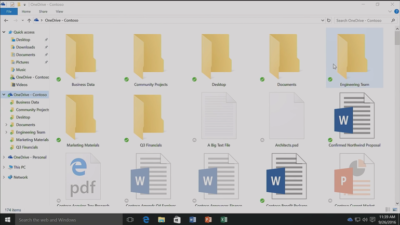
Since the launch of Windows 10, many users have been petitioning Microsoft to reintroduce placeholders to the OS’ built-in OneDrive cloud storage service.

In Windows 8.1, placeholders, also called smart files, let users see all of their files stored on OneDrive, whether those files were stored on the device or not.

This feature was removed from Windows 10 but is now due to be bought back in Windows 10 File Explorer when browsing OneDrive. The returning feature will work in a similar fashion to Windows 8.1’s placeholders, showing users files both stored locally and on OneDrive, allowing them to download files and folders to the device and keep them in sync with OneDrive.

Orchestrate Windows apps using Linux tools

Microsoft recently updated Windows 10 to let users run a range of Linux tools from inside the OSand seems committed to continuing to improve support for Linux command-line software in Windows.

In Windows 10, Ubuntu/Linux software runs on top of the Windows Subsystem for Linux (WSL). Users run Linux software and issue commands at the command line via the Bash shell.

Microsoft is working to increase the range of commands that can be run via the shell but perhaps the most significant change on the horizon is increased interoperability between the Bash and Windows environments. Effectively this will let developers call Windows applications from within Bash — allowing them to write a Bash script to automate a complex build that includes Windows applications — and to invoke Bash applications from Windows PowerShell.

These changes will be generally available in Windows 10 after the Creators Update early next year.

Easy communication with friends and family

Next year’s Creators Update will boost Windows 10’s social credentials, with a series of changes to make it simpler to stay in touch and share content with friends and family.

The Windows MyPeople feature will allow users to pin their favorite contacts to the right-hand side of Windows taskbar. Clicking on a pinned contact’s face brings up email or Skype messages from only that person and files can be dragged files to that person’s face for quick sharing. Informal check-ins also become easier, with the Shoulder Taps feature allowing pinned contacts to send friends animated emojis and other clipart, which pop up above that contact’s face on the taskbar.

Focusing Windows around virtual and augmented reality

Microsoft plans to put 3D and virtual reality at the heart of Windows 10, as it bets on the success of low-cost headsets due out next year.

Acer, Asus, Dell, HP and Lenovo will release virtual reality head-mounted displays, with prices starting from $299.

Some of these headsets will be released in March, to coincide with the release of the Windows 10 Creators Update, which will include various tools to simplify the creation and sharing of 3D content, including a new version of Microsoft Paint.

In a demo earlier this year, Microsoft showed how Windows 10 could work on virtual reality headsets, demonstrating a mock-up of a virtual space with a large TV screen and virtual shelves stocked with apps and 3D models, and with the Edge browser appearing as a large window in the wearer’s view.

Another demo, this time using the far more expensive Microsoft HoloLens, showed Microsoft’s Edge browser as a window in the user’s vision, from which the demoer dropped actual-sized 3D models of stools from the furniture site Houzz around the room, in order to see what they looked like in real life.

Allowing Windows to function in this way is Windows Holographic, a variant of the Microsoft OS that provides a platform for virtual and augmented reality headsets to run Universal Windows Platform apps.

More detail on Microsoft’s VR and AR plans are expected this week at the WinHEC conference in China.

Better battery life

Windows 10 PCs and tablets should have better battery life after the Creators Update lands in March, thanks to changes to how the OS is patched.

The steady stream of updates isn’t going to slow down but they are going to suck up less bandwidth and reduce strain on phone and laptop batteries.

Download sizes for major updates will be cut by about 35 percent and battery life of Windows 10 mobile devices will improve, due to each device spending less time checking for updates.

The improvements will stem from Windows 10’s new Unified Update Platform, already used for Windows 10 on phones, which only updates each device with the files it needs, rather than delivering all updates to date, and doesn’t rely so heavily on the user’s device to process update data.

Windows Defender Application Guard

Coming to Windows 10 Enterprise users early next year, Windows Defender Application Guard is designed to help protect firms against online threats.

The new safeguard will add container-based isolation to Windows 10’s Edge browser.

Application Guard will ensure that when Edge accesses a website not designated as trusted, the browser will be launched inside a container, a virtualized environment isolated from the rest of the Windows OS.

If the site tries to download and run malicious code on the device, that code remains within the container, unable to permanently compromise the Windows device or the wider network, and disappears when the browser session shuts down.

Unlike the software-based sandboxes that are offered by other browsers, Microsoft says that Application Guard provides a hardware-based container that offers greater protection to the device.

Other enterprise-focused changes in the forthcoming Creators Update include improvements to Windows Defender Advanced Threat Protection’s ability to detect and respond to network attacks, an upgrade to the Windows Analytics dashboard to display additional information about the composition of IT estates, a new tool for in-place UEFI conversion, and a mobile application management feature for protecting data on employees’ personal devices.

Home Hub

Rather than building hardware to challenge voice-controlled virtual assistants such as Amazon Echo and Google Home, it seems as if Microsoft is working on transforming Windows 10 into what it calls a Home Hub.

Evidence of this shift comes from a Windows Central interview with unnamed sources. These sources claim that Home Hub will turn Windows into a shared computing environment for the home, allowing family members to more easily share calendars, apps and services.

A future-gazing Microsoft video from 2013, dug out by ZDNet’s Mary Jo Foley, shows how this system might eventually work. In it, family members share access to photos, apps and calendars on a screen attached to a wall and interact with computers around the home, for example scanning carrots to find appropriate recipes. Adding credence to the Home Hub rumor are references to Home Hub being a shared family account in Windows 10, as discovered by Twitter user WalkingCat.

ZDNet’s Foley also references a recent Microsoft job posting for a software engineer in the Windows and Devices Group, which is seeking someone to expand Windows’ “family” credentials.

According to the ad, this engineer will play a critical role in helping families to “share pictures, videos, applications, games, and other purchases easily” and to “communicate freely and stay in touch” using Windows 10.

Blue light reduction

One more unconfirmed new feature appears to be aimed at helping Windows 10 users get a good night’s sleep.

Being exposed to blue light from computer screens late at night can supposedly disrupt the body’s sleep cycle.

To counter this disturbance, Windows 10 already has f.lux software that reduces blue light emitted by screens close to bedtime.

But it seems that Microsoft may be working on its own feature to address the issue.

Twitter user Core has discovered references to “BlueLightReduction” hidden within early builds of the OS being tested under the Windows Insider Program, a setting which appears as if would be toggled from Windows 10’s Action Center.

Have questions?

Get answers from Microsofts Cloud Solutions Partner!
Call us at: 856-745-9990 or visit: https://southjerseytechies.net/

South Jersey Techies, LL C is a full Managed Web and Technology Services Company providing IT Services, Website Design ServicesServer SupportNetwork ConsultingInternet PhonesCloud Solutions Provider and much more. Contact for More Information.

To read this article in its entirety click here.

FAA Reconsiders Electronic Device Policy

FAA could reconsider electronic device policy for flights!

The Federal Aviation Administration is forming an industry group to study when smartphones and tables can be turned on during a flight.

Airline passengers may soon be able to use their smartphones and tablets during flights with fewer interruptions.

The Federal Aviation Administration has formed a committee to reconsider its policy on when electronic devices can be turned on during a flight.

“With so many different types of devices available, we recognize that this is an issue of consumer interest,” Transportation Secretary Ray LaHood said in a statement released today. “Safety is our highest priority, and we must set appropriate standards as we help the industry consider when passengers can use the latest technologies safely during a flight.”

And, travelers who are worried that this may mean they’ll have to listen to the person sitting next to them chat on the phone incessantly don’t need to worry — this policy review will not include allowing calls from cell phones during flights.

Airlines currently prohibit passengers from using devices during takeoff and landing in fear that transmissions would interferer with the airplane’s equipment, but the FAA’s call for comments said consumers expect a much more fluid experience. The formation of an industry group to take on the consumer desire versus safety concern issue comes after the FAA said earlier this year that it was going to research the issue.

The group — which will includes members from the mobile industry, aviation manufacturing, as well as pilot and flight attendant groups, airlines, and passenger associations — will begin soliciting comments from the public tomorrow.

The committee is interested in hearing from aircraft operators, flight crews, security, smartphone and tablet device manufacturers, and passengers.

To View Full Article Click Here

Android Dominates Apple & Microsoft

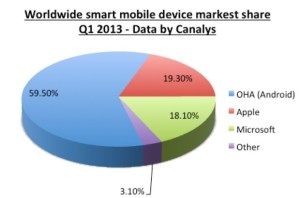
aam1 Takeaway:  Canalys’ Market Shares for Quarter 1 of 2013 showing that Android is dominating the Worldwide Smart Mobile Market.

After being released in 2007, this Linux-based operating system is the most used platform for smartphones. According to BBC News, Android has 900 million activations.

Android has 59.50% Market Share for the first quarter of 2013, according to Canalys.  Apple has 19.30% Market Share and Microsoft has 18.10%, together does not equal to the Android market.  The  Worldwide Smart Mobile Market includes Netbooks, Smarphones and Tablets

Chart

Windows phones’ free-fall may force Microsoft to push harder on Windows 10 adoption

Microsoft needs to protect its access to your wallet.

Windows_Phone_logo


Poor little Windows phone could have a bigger effect on Microsoft’s business than you’d think. As the company’s mobile device strategy continues to disintegrate, Microsoft may feel compelled to push harder on Windows 10 adoption and paid services to prove it can survive without a viable smartphone—and that could be bad news for consumers.

The raw numbers are shocking: Microsoft sold a minuscule 2.3 million Lumia phones last quarter, down from 8.6 million a year ago. Phone revenue declines will only “steepen” during the current quarter, chief financial officer Amy Hood warned during a conference call. That’s dragged down Microsoft’s results as a company, too.

Chief executive Satya Nadella opened his remarks to analysts optimistically, however, by noting that Windows 10 now powers 270 million devices in active use, a steady increase in its user base since the formal launch of Windows 10 last July. Later on, he summed up Microsoft’s message: “In this world, what matters most is the mobility of a person’s experience, not any one single device,” he said.

Will Wall Street buy it? If it does, Nadella will be free to continue. But if investors begin to get cold feet, you might see Microsoft push Windows 10 more aggressively to keep its numbers up.

Microsoft

Selling hardware to sell services

Nadella’s strategy is simple enough: grow Microsoft’s revenues, in part by convincing customers to adopt its paid subscription services. The most direct way is through sales of Surface or Lumia hardware. If that fails, then a third-party Windows 10 PC will suffice. Failing that, Microsoft apps like Bing or Cortana running on iOS or Android are acceptable as well.

But what Microsoft really wants is to sign you up for paid subscription services: Office 365 and Xbox Live, plus the corresponding enterprise licenses for Windows 10, Office 365, and Azure. ”Overall, the thing that we’re most focused on with Office 365 is how do we make sure we have the Office 365 endpoints everywhere, [with] good usage,” Nadella said.

bing-home-page

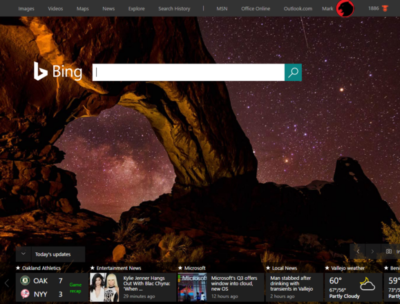
According to Verto, which measures online audience across all devices, Microsoft has four online properties with more than 100 million users per month: Microsoft Live (177.1 million), Bing (138.9 million), Microsoft Office (136.3 million), and MSN (121.5 million). Skype has 83.7 million users.

Viewed through the lens of “constant currency” adjustments that discount inflation, Microsoft’s strategy seems to be working: commercial Office 365 license revenue was up 7 percent, consumer Office 365 license revenue by 6 percent. Windows non-Pro revenue growth was 15 percent, though Pro revenue to the commercial market dipped by 11 percent. Xbox Live active users are now at 46 million, up 24 percent from a year ago.

Hidden dangers

Peer a little closer, though, and you begin to see signals that may be worrying the more impatient sectors of Wall Street. For one, device revenue is expected to continue falling. Save for a $12.7 billion holiday quarter, revenue in Microsoft’s “More Personal Computing” group has bumped along each quarter for the past year at about $9.3 billion or so. It’s expected to fall to between $8.7 billion and $9 billion this quarter, CFO Amy Hood said, apparently all attributable to the decline in phone sales.

The PC is the most frequently used device to access Microsoft services, Verto found, with 195.6 million monthly users. The smartphone is second, with 85.8 million users—but few of those devices are Windows phones.

lumia950

”Microsoft is clearly in an interesting position,” said Hannu Verkasalo, the chief executive of Verto, in an emailed statement.Microsoft has said in the past that the service matters more than the device, and the company does have software traction. “They have quickly pushed their mobile reach with their new device agnostic strategy,” Verkasalo continued.

Here’s the catch: “Even though they still have twice as many users using Microsoft services on PCs versus smartphones,” Verksala pointed out, “the mobile segment is the growth area.”Lacking a viable mobile device, Microsoft is missing out on opportunities to get even closer to users—and their wallets—in this growth area.

There’s also some evidence that Microsoft isn’t selling services as quickly as it could. Microsoft added just 1.6 million Office 365 consumer subscribers during the quarter, for a total of just 22.2 million users. Remember, at least 60 million Windows 10 PCs were sold during that quarter alone.

Keep your eyes open

All this means that the process of locking in customers to the Microsoft platform might be taking longer than expected. To date, investors haven’t minded, generally cheering Nadella’s leadership and sending the company’s stock up to near its all-time high in 1999.

But given Microsoft’s lower earnings and revenue—and downward guidance in key business units—it’s possible Microsoft may come under greater pressure to make its Windows 10 vision a reality. That’s not necessarily great news for consumers.

We all know how Microsoft originally made Windows 10 a free update, then began essentially forcing upgrades on users. To be fair, the company hasn’t stopped rolling out updates and new features, with the so-called Anniversary Update on the horizon.

So far, the company has taken the same “softly, softly” approach to Office 365: New Skype for Business features essentially require Office 365, as do new unsafe email warnings for Outlook. But what might Microsoft do if it feels it needs to make Office 365 stickier—put all of Office Online behind a paywall, perhaps?

Several analysts questioned Microsoft about potential profit margin declines. Nadella and other Microsoft executives indicated they’re staying the course. Eventually, though, Wall Street is going to take a harder look at how Microsoft’s strategy is playing out—and the one-year anniversary of Windows 10 could be the ideal time.

Say what you will about Windows 10 and privacy—Microsoft remains generally benign. But if investors start putting the screws in, you can’t help but wonder if there will be more pressure to pay up.

Have questions?

Get answers from Microsofts Cloud Solutions Partner!
Call us at: 856-745-9990 or visit: https://southjerseytechies.net/

South Jersey Techies, LL C is a full Managed Web and Technology Services Company providing IT Services, Website Design ServicesServer SupportNetwork ConsultingInternet PhonesCloud Solutions Provider and much more. Contact for More Information.

To read this article in its entirety click here.

The 50+ best features in iOS 11

With new apps like Files, a desktop-like Dock and countless smaller tweaks and advances, Apple’s new mobile OS offers plenty of enhancements.

credit: Apple

Apple’s upcoming iOS 11, already in public beta and due out this fall in its final form, delivers numerous improvements and changes for iPad and iPhone users. These include a host of new enterprise-useful features — especially for the iPad — as well as a variety of tweaks that will almost any user.

Here’s a rundown of the 50 or so most important things you need to know to get the most from Apple’s mobile platform.

Augmented reality

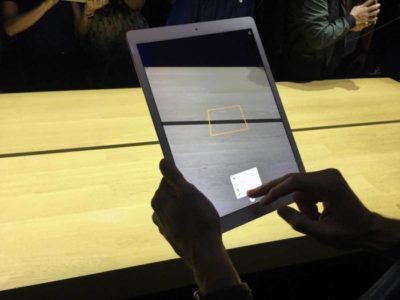
Apple’s newly introduced ARKit framework lets developers create augmented reality experiences that can be accessed using compatible (A9- and A10-processor-powered) iOS devices — meaning iPhones and iPads released since September 2015. The software only recognizes horizontal planes today, but this will change in the future, and it’s expected to help companies explore new opportunities, from online retail to gaming to unified communications. Apple’s AR partners include Valve/SteamVR, Unity and Epic Games.

credit: Apple

What’s critical here is that hundreds of millions of devices will immediately support AR once iOS 11 ships, making this an extremely viable VR platform development opportunity.

Machine intelligence

iOS 11 carries numerous smart features, all wrapped up in Apple’s ultra-private secure shells, in which your identity is protected by technologies including differential privacy. That commitment to privacy means Apple has been crafting smart solutions that work on a device rather than by sharing data with the less secure cloud. Apple also introduced Core ML, a general-purpose machine-learning framework that developers can use to integrate machine learning inside their apps. Here are some of the ways Apple has applied A.I. and machine learning in iOS 11:

  • When you type, the keyboard will suggest words you may have looked at recently, such as restaurant or place names or locations viewed in Safari or Messages.
  • The People folder in Photos becomes more accurate, and information about your friends will sync across all your Apple ID logged-in devices.
  • Photos can now recognize even more “Memories” events, including things such as nights out and anniversaries.
  • Based on what you are doing in other apps, iOS 11 can provide personalized recommendations in Safari, Maps, Messages and News.

Siri is the voice assistant front end to Apple’s systemwide machine intelligence. The latter is what gives Siri the capacity to make recommendations based on what you’ve been doing. iOS 11 adds several Siri-specific improvements.

  • Siri translation: Siri can now translate conversation between English, Chinese, French, German, Italian and Spanish.
  • Siri Kit improvements: Developers can use the SiriKit framework to integrate Siri support inside apps for ride scheduling, bill payments, banking, messaging, image search, VoIP calls, workouts, car controls and to-do lists.
  • Type to Siri: You can now choose to type your Siri requests rather than speak them. To do so, you must first enable the feature in Settings>General>Accessibility>Siri. Then toggle Type to Siri to On (green).

iPad Pro replaces more PCs

Apple has called the PC a “truck” and declared the iPad Pro to be the “only computer” you need. That said, it’s fair to note that while Apple’s tablets can replace computers in some situations, they can’t yet do so in all cases. Apple’s response has been to introduce numerous iPad-only improvements in iOS 11 that make the device far more productive. That means you’ll likely see Apple’s tablets replacing PCs in more scenarios.

credit: Apple

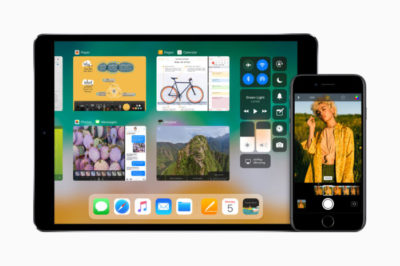
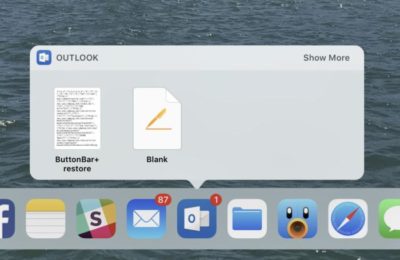
  • The Dock: The new, customizable Dock holds up to 15 apps (or folders containing apps). Three additional slots to the right of the Dock show a trio of the most recently used apps. You get to the Dock by swiping up from within any application.
  • Drag and drop: You can select a single item by tapping it, and if you continue to hold it — and then tap one or more additional items — you can select a number of items. You can then bring up the Dock, tap an app and place those items you selected on/in the app. This feature also works with the newly introduced Files browser (see below). Together, Files and drag-and-drop make working on an iPad feel much more like working on a computer than on a giant iPhone.
  • Split View: Apple has refined Split View on the iPad, introducing a new feature it calls Slide Over. It works like this: Summon the Dock by swiping up the screen (from within any app); you can then tap an app icon and drag it to the right side of the screen to open a narrow version of it. This makes it easy to switch between apps using the Dock and Split View. (If you have a keyboard, you can switch apps using the Mac-familiar Command-Tabbuttons.)
  • App Switcher: When you look at Control Center (swipe all the way up) you’ll also see Apple’s revised App Switcher. Here you’ll find thumbnails showing all your most recent apps and workspaces, giving you easy access to those you want. You’ll spend less time in the Home screen and more time working in the apps you need.
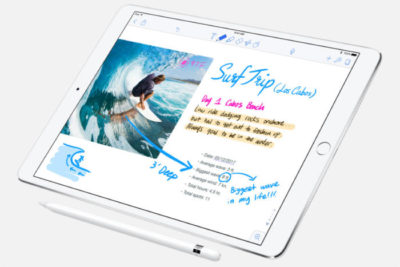
  • Apple Pencil: Tap the screen to instantly open Notes and begin writing. In other Apple apps, you can tap the screen to create an Instant Markup that lets you annotate a PDF or screenshot.

credit: Apple

Files: iOS gains a file system

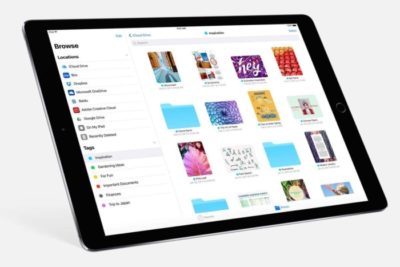
The new Files app delivers something we’ve been hoping for since iOS first appeared in 2007: a file system. Open it up and you’ll find a Search bar and three different areas: LocationsFavorites and Tags.

credit: Apple

Locations lets you access files held in iCloud Drive, on your device or the trash (if they were recently deleted). You can also bring in files held in third-party services such as Dropbox.

Favorites is self-explanatory, but Tags is interesting: When you tap the Share item for any file, you’ll find a new +Tag item to the right of the file name at the top of the screen. Tap this and you can assign a new tag to the file. If you haven’t started using tags, you probably should, since they will help you find items across all your Apple devices.

Files also provides several other features:

  • Create a new folder and use iOS 11’s improved drag-and-drop support to drag multiple itemsinto it.
  • Sort files by namedatesize and tags.
  • Skip between list and icon-based views.
  • Drag items to other apps.
  • Long-press an item and you can Copy, Rename, Move, Share, Tags, Info, or  Delete it in the popover menu that appears.

Enterprise deployment — simplified

iOS 11 brings changes designed to make it easier to deploy Apple devices across the enterprise. Meanwhile, enterprise-focused Apple partners such as Deloitte, IBM, Cisco and JAMF now provide iOS deployment expertise and technologies as a service.

Among the enterprise deployment highlights in iOS 11:

  • MDM services can push iOS updates to supervised devices, even if they’re locked.
  • You can add any device to the Device Enrollment Program.
  • MDM commands can be set to execute only when a device has a wired connection — saving on corporate bandwidth.
  • A new restriction forbids enterprise users from adding their own VPN.
  • You can now enable signing and encryption in Mail and Exchange separately; before you could only enable signing and encryption at once.
  • Sysadmins can now configure home screen layout and app installs on Apple TV.
  • You can easily integrate Cisco Spark and WebEx meetings into iOS 11 apps.

A faster, smarter Safari

Quick and easy browsing of the web has bolstered Apple’s success since the iMac arrived in 1999, so the latest iteration of Safari in iOS will affect millions of users. The focus this year is on speed (you’ll like the faster scrolling) and security.

The security enhancements will likely have the biggest effect on users. These include better, easier cookie blocking and Intelligent Tracking Prevention, which uses built-in machine A.I. to reduce cross-site tracking by identifying and limiting this practice.

Safari supports a new video codec, HEVC (H.265). This will mean higher-quality video at much lower file sizes compared to the older H.264.

The browser’s search bar now allows you to track flights and define words.

PDF creation using the browser is also improved: Just tap Share and choose Markup as PDF to make a PDF you can annotate.

Finally, like the High Sierra version of the browser, Safari on iOS adds support for WebRTC. This opens the doors to cross-platform, browser-based video collaboration.

Business Chat bots

Apple at WWDC 2017 in June announced a key partnership with Nuance to create a bot-based customer service ecosystem for Messages, called “Business Chat.”  Apple’s plan is to integrate Nuance’s Digital Customer Engagement Platform with Apple Business Chat. This will enable new breeds of A.I.-based intelligent assistants in Messages and means you’ll see a little messages icon pop up on brand websites and in search results. Nuance’s asynchronous messaging tech is already used across other messaging platforms that support bots. Major companies, including Bank of America, Domino’s, FedEx and USAA, already use Nuance’s solution.

Enterprises exploring B2C or B2B bot technologies will find that Apple’s solution lets customers find your business and start conversations from Safari, Maps, Spotlight and Siri using tens of millions of mobile devices.

Your iOS, your Control Center

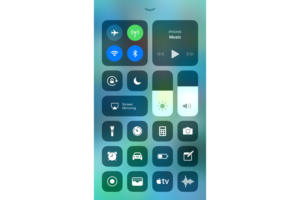
Every iOS user already interacts with Control Center. Swipe up and you can invoke numerous items for quick access. iOS 11 sees significant improvements here, including a redesign that combines everything in one window, brings in a range of new functions, and lets users choose which tools are available in their Control Center (Settings>Control Center).

This customization is limited, however; you can’t add third-party widgets at this time, and you cannot remove certain tools, such as those for Airplane Mode, Wi-Fi, AirDrop, Rotation Lock, AirPlay and Music.

Control Center has another handy talent: You get 3D Touch-like interaction even when using a device that doesn’t support 3D Touch. Force-touch the Torch widget and slide your finger to increase brightness, or touch, hold and slide the timer widget to very swiftly set a time, even if you’re using an iPhone SE.

Mightier Maps

Maps continues to improve, with features such as the introduction of new AR-like city flyover views. These use your iOS device’s camera and sensors to track your position and move you around 3D representations of key cities, such as London or New York. To explore these views, search for a major city and look for a Flyover button. Tap this to access the view. (Not every city is supported, so if the city you chose doesn’t have the button, keep trying.)

It’s an engaging feature that offers more potential as additional cities are added, but Apple has also worked hard to make Maps more effective for getting quickly from point A to point B. iOS 11 offers indoor maps for shopping malls, for instance, as well as airports and transit hubs. It also includes these key items:

  • A Do Not Disturb When Driving feature designed to keep you from getting distracted by incoming Notifications while behind the wheel.
  • A new Lane Guidance feature that shows you the correct highway lane to be in to make the turns you need to stay on course.
  • A speed limit display in Maps, beginning with those posted for U.S. roads.
  • A new “Light Guidance” mode that provides a bird’s-eye view so you can better scout out the journey ahead when using Maps for travel instructions.
  • A new way to access zoom mode: Just double tap a Map and, while keeping your finger pressed into the display, move your finger up and down to zoom in and out.

credit: Apple

Let’s work (better) together

No one really likes jumping through hoops to make devices work together. iOS 11 makes this a lot easier:

  • Automatic setup: Got a new iOS device? Just hold it near an iOS 11 device (or High Sierra Mac) you already own and are logged into using your Apple ID. Many of your personal settings, preferences and iCloud Keychain passwords will be carried over to your new device, so it is ready to use, fast.
  • Instant Wi-Fi: iOS 11 users can approve others to use their Wi-Fi network by holding the devices close together, authorizing them, and transferring the password automatically. This should help schools and enterprises more easily manage routine Wi-Fi password changes.
  • QR Code scanning: The Camera app will automatically scan and understand QR codes. Point your device at the code, tap to focus, and a notification box will let you respond to that code. This will come in useful for automatic setup of things such as Wi-Fi networks, HomeKit devices, contact cards, website URLs and more.
  • Core NFC: This new iOS 11 framework lets developers create apps that can read NFC tags. It’s a little limited at the moment — it only works one-way, so you can use it to access information about museum exhibits and visitor attractions rather than for more sophisticated payment systems.

The image thing

Apple’s been working hard to improve your images. Last year’s introduction of the bokeh effect in the iPhone 7 Plus was a great example of this, since it basically put a pro-photo portrait camera in your pocket. iOS 11 maintains this tradition:

  • The biggest enhancement is introduction of support for the HEIF photo format. Based on the video-focused HVEC format, HEIF is capable of saving images around half the file size of JPEGs but at much higher quality (up to 16-bit, versus 8-bit).
  • Apple has developed a way to transcode images from HEIF to JPEG on the fly, without performance degradation.
  • If you use an iPhone 7 Plus, Portrait Mode in iOS 11 supports optical image stabilization and HDR, so you can expect much better images in low light.
  • Apple has also added new filters to improve images, including one designed to make skin tones appear more natural.
  • Live Photos gains several improvements. Not only can you now share these live moments with others as GIF files (or as an mp4 on Android), but you get to choose the key image and can apply three new effects: loop, bounce and long exposure. (The latter blurs anything that’s moving within a frame so you can focus on the subject).

Document scanning and Notes

Apple’s Notes app spent years in the wilderness before getting much attention. By the time iOS 10 arrived, Notes had already become a sort of low-budget replacement for Evernote, but it gets much more versatility in iOS 11. Certainly, for business users it has become an excellent tool to keep receipts and other expenses in one place when traveling:

  • You can scan documents from within a Note; just tap the plus sign and choose Scan Documents, then point your device until the document is in focus and highlighted by a yellow tint. You can then keep, share or even sign the scan (the latter on the iPad Pro using an Apple Pencil).
  • Apple has added the capacity to draw inside Notes using the familiar sketch tools interface from the iPad.
  • You can pin notes to the top of your list, more easily search through your notes, and quickly place notes within subject folders.

A few more things

There are many more improvements within iOS 11, including a one-handed keyboard option, person-to-person payments within Messages, the capacity to record and broadcast what’s happening on-screen, and App Offloading, which lets you delete an app you don’t use often while keeping the app data. When you need it, just download the app again to use that data. You’ll also find improved screenshot annotation and significant additions to CareKit and ResearchKit, which provide a platform for health and medical equipment developers.

If this has whetted your appetite enough to try iOS 11 for yourself, you can register to join Apple’s iOS 11 Public Beta program. Otherwise, wait until the final version arrives, when the bugs should have been ironed out.

Have questions?

Get answers from Microsofts Cloud Solutions Partner!
Call us at: 856-745-9990 or visit: https://southjerseytechies.net/

South Jersey Techies, LL C is a full Managed Web and Technology Services Company providing IT Services, Website Design ServicesServer SupportNetwork ConsultingInternet PhonesCloud Solutions Provider and much more. Contact for More Information.

To read this article in its entirety click here.


CALL US NOW!