In today’s digital age, cybersecurity is at the forefront of technology, both at the workplace and in our personal lives. With the increasing frequency and sophistication of cyber threats, it is essential that we all play a role in protecting sensitive information both business and personal.
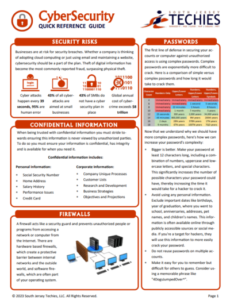
To help you stay informed and vigilant about cybersecurity best practices, we have created a Quick Reference Guide for Cybersecurity to be shared with your users as a courtesy to better protect themselves from cyber threats and contribute to a safer digital environment.
The EU GDPR is a law designed to protect and empower residents of the EU by guiding business usage of personal data. In essence, it is reshaping the way corporations handle personal data by controlling its collection, use, and storage. It will replace the regulations and frameworks of the existing 20-year-old directive (95/46/EC).
Who Is the GDPR Protecting and Empowering?
The data subject: This is any individual that can be directly or indirectly identified or uniquely singled out in a group of individuals, from any stored data.
What Is the GDPR Protecting?
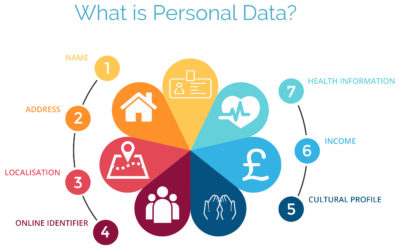
Personal data: This is any information relating to an individual, whether in reference to their private, professional, or public life. It includes things like names, photos, email addresses, location data, online identifiers, a person’s bank details, posts on social networking websites, medical information, work performance details, subscriptions, purchases, tax numbers, education or competencies, locations, usernames and passwords, hobbies, habits, lifestyles, or a person’s computer’s IP address.
Who Is the GDPR Regulating?
The data controller: This is the person who, alone or jointly with others, determines the purposes for, and means of, processing personal data. A data controller is not responsible for the act of processing (this falls to the data processor); they can be defined as the entity that determines motivation, condition, and means of processing.
Generally, the role of the controller is derived from the organization’s functional relation with the individual. That is, a business is the controller for the customer data it processes in relation to its sales, and an employer is the controller for the employee data they process in connection with the employment relationship.
Who Else Is the GDPR Regulating?
Data processors: This is the person who processes personal data on behalf of the controller. Typical processors are IT service providers (including hosting providers) and payroll administrators. The processor is required to process the personal data in accordance with the controller’s instructions and take adequate measures to protect the personal data. The GDPR does not allow data processors to use the personal data for other purposes beyond providing the services requested by the controller.
What Does the GDPR Consider “Processing?”
Processing refers to any operation or set of operations performed upon personal data, whether or not by automatic means—such as collection, recording, organization, storage, adaptation or alteration, retrieval, consultation, use, disclosure by transmission, dissemination or otherwise making available, alignment or combination, blocking, erasure, or destruction. Processing must be fair and lawful, although transparency is significantly strengthened. The processor may not use the personal data for their own purposes.
What Rights Do the Data Subjects Have?
Under the GDPR, data subjects can request the following:
To be informed about the data processing
To consent to the processing of their personal data (opt in) or object to the processing of their personal data (opt out)
To obtain their personal data in a structured and commonly used format in order to transfer that data, in certain circumstances, to another controller (data portability)
To not be subject to fully automated data processing or profiling
To know what data is processed (right of access)
To correct where any data is incorrect
To have data erased under certain circumstances, for example, where the retention period has lapsed or where consent for the processing has been withdrawn (referred to commonly as the “right to be forgotten”) and to register a complaint with the supervisory authority
Other Key Elements to Consider in Preparing for GDPR
We’re not done yet. There are four more important elements to consider with GDPR as you become ready.
1) Data Breach Notification
For controllers, GDPR requires that breach notice must be provided, where feasible, within 72 hours of becoming aware of a breach; processors need to provide notice to controllers without undue delay. Any data breaches must be documented.
2) Data Minimization
This requires the level and type of data being processed to be limited to the minimum amount of data necessary. This requires you to ensure that the purpose in which the data is agreed and the purpose in which the data was collected are materially similar. The processors should ensure that individuals’ privacy is considered at the outset of each new processing, product, service, or application, and only minimum amounts of data are processed for the specific purposes collected and processed.
3) Data Pseudonymization
The GDPR defines pseudonymization as “the processing of personal data in such a way that the data can no longer be attributed to a specific data subject without the use of additional information.” To pseudonymize data, the “additional information” must be “kept separately and subject to technical and organizational measures to ensure non-attribution to an identified or identifiable person.” In other words, it is a strategy designed to enhance protection and privacy for applicable identifying data.
Although similar, anonymization and pseudonymization are two distinct techniques that permit data controllers and processors to use de-identified data. The difference between the two techniques rests on whether the data can be re-identified.
4) Fair Processing of Personal Data
This requires the processing of personal data to be fair and lawful. Generally, only the level and type of data collected should be limited to the minimum amount of data necessary (see data minimization above). There are a number of methods in which the data may be processed, including: express consent (which may be withdrawn at any time), legitimate interest basis (the subject of which legitimacy may be challenged by the data subject), honoring obligations under the agreement with the data subject, or any other legal basis that may apply.
What We Can Do to Help
We know this information can be overwhelming, but taking the proper steps now will save you headaches later. SolarWinds provides products that can help you with getting ready. Our Risk Intelligence software is one of them, providing you with hard data on:
A business’ quantified financial risk
Personally identifiable information (PII)
Protected health information
Payment information located in storage
Access permissions for sensitive data
Search your ‘data at rest’ for risk areas and start the data mapping you need to get ready for GDPR.
October is National Cyber Security Awareness Month by Department of Homeland Security.
National Cyber Security Awareness Month encourages vigilance and protection by sharing tips and best practices in regard to how to stay safe.
Small businesses are a large target for criminals because they have limited resources dedicated to information system security. Cyber criminals look for access to sensitive data.
Create a cyber security plan
The Federal Communications Commission offers a Cyber Planner for small businesses. The planner guide allows specific sections to be added to your guide, including Privacy and Data Security, Scams/Fraud, Network Security, Website Security, Email, Mobile Devices, Employees, Facility Security, Operational Security, Payment Cards, Incident Response/Reporting and Policy Development/Management.
Generate a personalized Small Biz Cyber Planner Guide.
Establish Rules and Educate Employees
Create rules and guidelines for protecting information. Educate employees on how to post online in a way that does not share intellectual property. Clearly explain the penalties for violating security policies.
Network Protection
Deploy and update protection software, such a antivirus and antispyware software, on each computer within your network. Create a regularly scheduled full computer scan.
Manage and assess risk
Cyber criminals often use small businesses that are less-protected to get to larger businesses. Being a victim of a cyber-attack can have a huge impact on any business including financial issues, loss of possible business partner(s) and many more issues.
Download and install software updates
Installing software updates from vendors can protect your network for unwanted viruses and malware. Vendors frequently release patches/updates for their software to improve performance and fine-tune software security. (Example: Adobe Reader, Adobe Flash and Java updates are critical for protection.)
Backup important business data and information
Create a backup plan for all data including documents, databases, files, HR records and accounting files. A regularly scheduled backup can be a full, differential or incremental.
Full Backup: Backup of all data.
Differential Backup: Backup of all data that has changed since the last full backup.
Incremental Backup: Backup of all data that has changed since the last full or incremental backup.
Control physical access
Protecting physical property is a very important role in protecting intellectual data. Create a physical security plan to prevent unauthorized access to business computers and components.
Secure Wi-Fi
Securing your Wi-Fi network consists of a few configurations. Configure a device administrator password for your wireless access point (WAP) or router, require a password for Wi-Fi access and do not allow the WAP or router to broadcast the Service Set Identifier (SSID), also known, as network name.
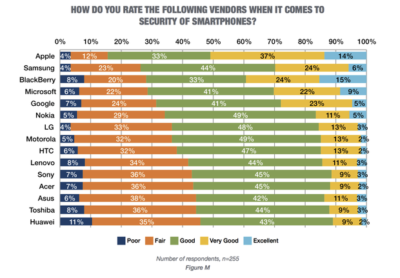
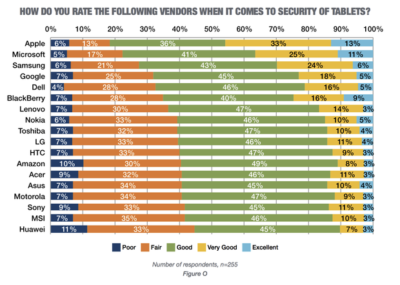
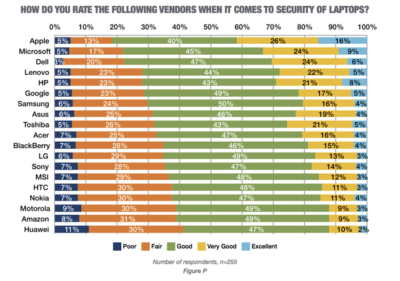
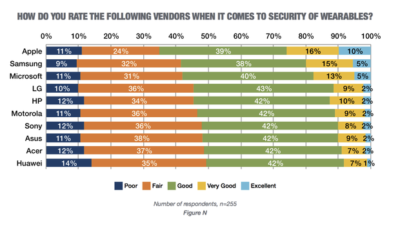
Mobile devices are almost universal in the enterprise in 2016. Tech Pro Research conducted a survey to see what devices employees are using for work, and how safe these devices are.
In new research conducted by Tech Pro Research, 98% of respondents said they use mobile devices for work. Smartphones and laptops were the most common, with 94% of respondents who use mobile devices using them. 74% of mobile device users said they work with tablets. Wearables haven’t found a widespread usage base in the workplace, with only 14% reporting using them. When users rated the security of devices based on vendors, Apple got the best ratings in all categories.
For smartphones Apple’s high ratings could be partially attributed to familiarity since 67% of respondents said employees at their company use iPhones. Only Samsung was close to Apple in terms of prevalence, and the company was way behind Apple in security ratings.
Apple also had the largest share of tablet use, and the highest security rankings, among respondents. 53% said they and their colleagues use iPads and 46% of users ranked security as very good or excellent.
Dell was the most popular brand among respondents, in terms of use for work, but it got third place in security ratings.
Security on wearables appears to still be developing, based on the mediocre security ratings among all brands, and the fact that security feature usage isn’t the norm for wearables yet.
Microsoft is rolling out a host of new email security features for Office 365 later this quarter, as it looks to thwart hackers and criminals.
‘Insider spoofing’ or faking the CEO’s email address to trick the CFO into transferring millions to criminal bank accounts is big business. Now Microsoft is using big data and reputation filters to try and squish the threat.
According to the FBI, between October 2013 and August 2015, 7,066 US businesses have fallen prey to ‘business email compromise’, netting criminals an estimated $747m.
Non-US victims lost a further $51m over the period, with the FBI estimating a 270 percent increase in identified victims since January 2015, when it first released figures about the threat category.
As Microsoft notes, when a corporate email domain is spoofed, it makes it hard for existing filters to identify the bogus email as malicious.
However, Microsoft reckons it has achieved a 500 percent improvement in counterfeit detection using a blend of big data, strong authentication checks, and reputation filters in Exchange Online Protection for Office 365.
It’s also rolling out new phishing and trust notifications to indicate whether an email is from a known sender or if a message is from an untrusted source, and therefore could be a phishing email.
The company is also promising a faster email experience as it vets attachments for malware and new tools to auto-correct messages that are mis-classified as spam. The aim is to boost defences without impairing end-user productivity.
Malicious email attachments remain a popular way for attackers to gain a foothold in an organization and, as RSA’s disastrous SecurID breach in 2011 showed, a little social engineering can go a long way to ensuring someone opens it.
Microsoft’s new attachment scanner, called Dynamic Delivery of Safe Attachments, looks to reduce delays as it checks attachments for potential threats.
Currently it captures suspicious looking attachments in a sandbox with a ‘detonation chamber’ where it analyses it for malware in a process takes five to seven minutes.
Microsoft hasn’t figured out a faster way to analyse the attachment, but instead of holding up the email as it conducts the scan, it will send the body of the email with a placeholder attachment. If the attachment is deemed safe, it will replace the placeholder and if not, the admin can filter out the attachment.
The feature is part of Microsoft’s Office 365 Exchange Online Protection and Advanced Threat Protection services.
The company is also tackling false-positive spam, or legitimate messages that are mis-identified as spam, and vice versa, with a new feature called Zero-hour Auto Purge, which allows admins to “change that verdict”.
“If a message is delivered to your inbox and later found to be spam, Zero-hour Auto Purge moves that message from the inbox to the spam folder; the reverse is true for messages misclassified as spam,” Microsoft notes.
Microsoft is testing this approach with 50 customers and says it will be rolled out for all Exchange Online Protection global clients in the first quarter of 2016.
Have questions?
Get help from IT Experts/Microsofts Cloud Solutions Partner
Call us at: 856-745-9990 or visit: https://southjerseytechies.net/
We have been alerted to a new Phishing scam that effects Quickbook and Intuit customers. Recently, Intuit published a security notice on their website warning customers of a Phishing scam which appears to be a direct email from Intuit’s customer service department using the domain of “intuit-solution”. This sender is not associated with Intuit nor is it an authorized agent of Intuit. If you receive an email from this domain or any other email that appears suspicious, do not click on any links or attachments, do not reply to the email and do not forward it to anyone. It is recommended that you delete the email. If you mistakenly click or have already clicked on a link or downloaded something from the email, immediately (1) delete the download (2) scan your system using an up-to-date anti-virus program and (3) change your passwords. If you experience any issues and are worried you may have fallen subject to this scam, contact South Jersey Techies for immediate support.
Phishing is a cybercrime aimed to lure individuals into revealing personal information or expose them to downloads of malware that will infect their computer and networks. Phishing baits will impersonate real companies. The imposters are getting harder to spot and not all phishing scams work the same way. You should never enter your username or password into a Login if you are not 100% confident of the source. These scams are designed to retrieve sensitive information such as SSNs, credit card information and user names and passwords.
Following basic safety tips can help you keep your information safe:
Protect your computer with anti-virus software.
Keep your browser up to date and install any updates as they are pushed.
Contact your bank and any other financial institutions you use if you are a victim of identity theft. Check with your credit reporting agencies often and spot check for any inconsistencies.
Report any suspicious emails to your technology provider or third-party vendor so they may be tracked and logged.
If you have any questions, please email us at support@sjtechies.com or call us at (856) 745-9990.
I realized handing over my entire life to one platform had its downsides.
I deleted Google from my life, and I can show you how to do it, too.
After being a devoted Googler for many years, I realized putting all my data on one platform had its downsides. A couple of factors in particular drove me to make a clean break.
Deleting Google for privacy and security
The appeal of escaping Google comes down to privacy. Google collects an alarming amount of data about you. It’s safe to say that if you’re not a paying customer then you’re the product being sold, and that’s Google’s business model.
Security goes hand-in-hand with that. I’m sure Google’s servers are closely guarded, but I still didn’t want all my data to be concentrated in one place.
To Google’s credit, the company gives you tools to opt out of the give-us-your-private-data-for-our-services game altogether. We cover the basics in these two articles:
How to download your Google data so you can see what’s being recorded.
How to delete your Google data to protect yourself.
Deleting Google for social impact
Another reason to get rid of Google is make your choice as a consumer for a healthier, more responsible media. As a working journalist, I’m acutely aware that Google and Facebook jointly dominate the media distribution and discovery landscape. With no strong competitors to Google Search in particular, Google’s algorithms hold unprecedented sway over the discourse in our society.
The importance of search discovery means that publishers and journalists must write stories to match the queries typed in by readers. That means coverage is guided by readers’ preconceived notions about a news event, not by objective reporting. That’s a deeply disturbing state of affairs for any democratic society.
Google outwardly seems as dedicated to responsible stewardship as one could hope, but it’s still concerning enough to merit supporting alternatives and competitors.
How my Google-free experiment started
When I decided to drop Google, I had just left a full-time job at a company that used Google mail and other apps. I stopped using all Google products while I freelanced. Note: If you’re an Android user, this is basically a no-go. Fortunately, I use a combination of Windows PCs, Macs, and iOS devices, so I wasn’t trapped.
Everyone uses Google differently, but I focused on forgoing the services that are core to the experience: Gmail, Docs, Drive, Calendar, Maps, and Search.
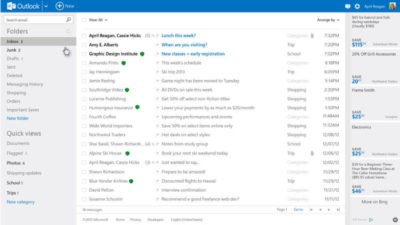
Dropping Gmail was easier than expected. I tried Yahoo! Mail, but there were too many ads for my taste. The web interface for Apple Mail at icloud.com was just adequate. I found Microsoft’s overhauled Outlook web interface (and truly excellent mobile app) was the best alternative.
Apple’s iWork for iCloud lets you use its productivity applications and share content across devices.
Instead of Docs, I tried Office 365 and iWork for iCloud. I liked them both better than Docs because I prefer native apps to web apps, and because I think both have more elegant designs—especially iCloud. Apple’s iWork for iCloud is similar to Docs in that it’s online-only, and designed for collaboration. It also has a mobile app. Office 365 will be pretty familiar to anyone who’s worked with Office’s desktop versions.
It was also pretty easy to kick Drive to the curb. Cloud storage competitors abound. I always preferred Dropbox to Drive anyway because I find that its OS X and Windows apps are better-integrated into the OS’s normal file browsing experience. Google Drive feels like it’s meant to be a place to store documents and back up files, not seamlessly augment your local storage—even though it does that in some ways.
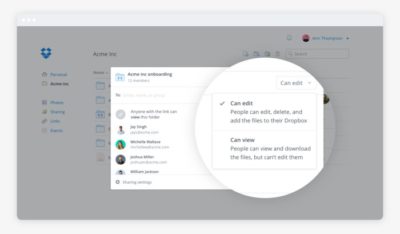
Dropbox’s file-sharing features are competitive and in some ways better than those in Google Docs.
Google Calendar has plenty of competition. This is a more personal choice, and people can get very attached—consider the furor when Microsoft shuttered Sunrise Calendar. On the other hand, it inspired us to find third-party alternative calendars, which could also replace Google Calendar.
What didn’t go well
I tried Apple Maps. I tried Waze. Google Maps is still the best.
I couldn’t quit everything Google offered so easily. Google Maps alternatives were a challenge. Your best bets are Waze or Apple Maps, but let’s be honest—they have nothing on Google Maps. Unlike Apple Maps, Waze has a web app, and powerful community-sourced data is its biggest selling point. But guess what? Google uses Waze’s data in Maps! So rather than gaining that feature, you’re just losing all the stuff Maps has that Waze doesn’t.
Google Search rules for a reason. The only two decent alternatives I found were Bing and DuckDuckGo.
Bing is as good or better than Google in many respects, but Google’s algorithms and semantic search win hands-down.
Bing is a strong competitor. Some features, like video search, are even better than what Google offers. But Bing’s algorithm and the semantic search show more cracks than Google’s do.
DuckDuckGo isn’t as full-featured, but it records no user data—that’s the primary selling point of the platform. Both search options were passable, but Google has nailed semantic search with a precision that no one else can touch.
Back in Google’s grasp
I lived Google-free for five months, compromises and all. Then I was hired at a new job that required me to use Google. I considered the experiment a success, to the point that I was dismayed to abandon it at the new gig.
Google has us in its grasp for good reason. Looking back at my life without it, I can honestly say some alternatives couldn’t compare. Your mileage may vary based on which services you value most. If you decide to delete Google from your life, too, let us know how it goes on our Facebook page.
Takeaway:Understanding Cloud Computing for technological infrastructures.
Cloud computing is the delivery of computing resources as a service over the Internet. The varieties of services offered are Infrastructure as a Service (IaaS), Platform as a Service (PaaS), Software as a Service (SaaS) Desktop as a Service (DaaS) and Network as a Service (NaaS).
Scalability, fast provisioning and agility help all organizations, big and small, reach monetary growth.
There are a few major misunderstandings associated with joining the Cloud Computing revolution, such as:
It’s A Trend:
Cloud computing is a credible and efficient tool with longevity. If you use social media, eBay, Gmail or Online Banking, you are already using Cloud Computing.
It’s not as Secure:
Cloud computing is a significantly safe way to store, share and secure your data. Client’s are highly recommended to use the Cloud’s host-based firewall. Also available are host-based intrusion protection programs specialized for virtual machines and Cloud Clients
(Example – Trend Micro Deep Security or Symantec O3).
It’s Costly:
Even with the move to the cloud and monthly costs, organizations could save money long term on IT Management Services.
It’s Complicated:
There are many different types of Cloud Computing to choose from that should make executing hassle-free.
It’s only for Large Organizations:
The Cloud is not reserved for Large Organizations only. Virtual Desktop Infrastructure (SaaS or DaaS) can be a cost-effective solution for organizations of any size.
Changes are not strategic:
Plans are setup to acquire full benefits offered by Cloud Computing by integrating corporate strategy and technology with the advantage of using internal resources.
Cloud is inoperable if the Internet goes down:
Having another provider with a secondary connection is a logical setup for all companies. Most organizations already operate with a connectivity “safety net”.
To migrate your business to Cloud Computing, please visit BigBeagle.com
Not sure your are protected? Contact us, we can help!
Hackers held two school districts on Long Island hostage
over the summer, forcing one of them to pay $88,000 in cryptocurrency in order
retrieve student and staff information before the school year started.
Despite using an anti-virus software and other firewalls for cyber security, the School District’s encrypted files were accessed this summer by Ryuk ransomware, which can infiltrate an entire server with one click of a malicious email attachment. The virus encrypts data, essentially locking users out of access to their files, and hackers are blackmailing schools until payment is made, usually in bitcoin, through school insurance to unlock the system’s server.
The Mineola School District was also attacked by the same
virus. But they didn’t have to pay because they had a backup that wasn’t
compromised.
What are some tips to avoid having to pay the ransomware
The nefarious ransomware business model has turned out to be a lucrative industry for criminals. Over the years its ill repute has made law enforcement team up with international agencies to identify and bring down scam operators.
Most of the ransomware attacks that have taken place in the past have been linked to poor protection practices by employees and businesses. There are ways to prepare and steps you can take to avoid the nuances these hackers are causing.
Here are a few dos and don’ts when it comes to ransomware.
Do not pay the ransom. It only encourages and funds these attackers. Even if the ransom is paid, there is no guarantee that you will be able to regain access to your files.
Restore any impacted files from a known good backup. Restoration of your files from a backup is the fastest way to regain access to your data.
Do not provide personal information when answering an email, unsolicited phone call, text message or instant message. Phishers will try to trick employees into installing malware, or gain intelligence for attacks by claiming to be from IT. Be sure to contact your IT department if you or your coworkers receive suspicious calls or emails.
Use reputable antivirus software and a firewall. Maintaining a strong firewall and keeping your security software up to date are critical. It’s important to use antivirus software from a reputable company because of all the fake software out there.
Do employ content scanning and filtering on your mail servers. Inbound e-mails should be scanned for known threats and should block any attachment types that could pose a threat.
Do make sure that all systems and software are up-to-date with relevant patches. Exploit kits hosted on compromised websites are commonly used to spread malware. Regular patching of vulnerable software is necessary to help prevent infection.
If traveling, alert your IT department beforehand, especially if you’re going to be using public wireless Internet. Make sure you use a trustworthy Virtual Private Network (VPN) when accessing public Wi-Fi like Norton Secure VPN.
Ransomware criminals often attack small and medium sized businesses. Among other cyber attacks, ransomware is one criminal activity that can be easily worked around with the above-mentioned solutions. South Jersey Techies coupled with education about these threats is an excellent protection plan for today’s cyber landscape.
As school, socializing, and many aspects of life have moved online this year, it’s more important than ever that you protect your digital devices and steer clear of cybercriminals. Computer security threats are relentlessly inventive. Masters of disguise and manipulation, these threats constantly evolve to find new ways to annoy, steal and harm. Arm yourself with information and resources to safeguard against complex and growing computer security threats and stay safe online.
Examples of Online Cybersecurity Threats
Computer Viruses
Probably the most eminent computer security threat, a computer virus is a program written to alter the way a computer operates, without the permissionor knowledge of the user. A virus replicates and executes itself, usually doing damage to your computer in the process.
What can you do to avoid computer viruses? Carefully evaluate free software, downloads from peer-to-peer file sharing sites, and emails from unknown senders. These things are critical to avoiding viruses. Most web browsers have security settings which can be configured for top defense against online threats. But, as we’ll say again and again, the single most-effective way of fending off viruses is up-to-date antivirus software and monitoring agent, like we include in our Managed Service Plans.
Spyware Threats
A serious computer security threat, spyware is any program that monitors your online activities or installs programs without your consent for profit or to capture personal information.
While many users won’t want to hear it, reading terms and conditions is a good way to build an understanding of how your activity is tracked online. As always, if a company you do not recognize is advertising for a deal that seems too good to be true, be sure you have an internet security solution in place and click with caution.
Hackers and Predators
People, not computers, create computer security threats and malware. Hackers and predators are programmers who victimize others for their own gain by breaking into computer systems to steal, change, or destroy information as a form of cyber-terrorism. These online predators can compromise credit card information, lock you out of your data, and steal your identity. As you may have guessed, online security tools with identity theft protection are one of the most effective ways to protect yourself from this brand of cybercriminal.
Phishing
Masquerading as a trustworthy person or business, phishers attempt to steal sensitive financial or personal information through fraudulent email or instant messages. Phishing attacks are some of the most successful methods for cybercriminals looking to pull off a data breach. Antivirus solutions with identity theft protection can be taught to recognize phishing threats in fractions of a second.
Cyber Safety Tips
Keep software systems up to date and use a good anti-virus program.
Examine the email address and URLs in all correspondence. Scammers often mimic a legitimate site or email address by using a slight variation in spelling.
If an unsolicited text message, email, or phone call asks you to update, check, or verify your account information, do not follow the link provided in the message itself or call the phone numbers provided in the message. Go to the company’s website to log into your account or call the phone number listed on the official website to see if something does in fact need your attention.
Do not open any attachments unless you are expecting the file, document, or invoice and have verified the sender’s email address.
Scrutinize all electronic requests for a payment or transfer of funds.
Be extra suspicious of any message that urges immediate action.
Confirm requests for wire transfers or payment in person or over the phone as part of a two-factor authentication process. Do not verify these requests using the phone number listed in the request for payment.
If you have any questions, please email us at support@sjtechies.com or call us at (856) 745-9990.