Back to Top

Tech, Web, Cloud & Cabling Services

Category: BigBeagle.com

BigBeagle.com Category

Now Microsoft Office 365 tackles ‘fake CEO’ email spoofing attacks

Microsoft is rolling out a host of new email security features for Office 365 later this quarter, as it looks to thwart hackers and criminals.

‘Insider spoofing’ or faking the CEO’s email address to trick the CFO into transferring millions to criminal bank accounts is big business. Now Microsoft is using big data and reputation filters to try and squish the threat.

According to the FBI, between October 2013 and August 2015, 7,066 US businesses have fallen prey to ‘business email compromise’, netting criminals an estimated $747m.

Non-US victims lost a further $51m over the period, with the FBI estimating a 270 percent increase in identified victims since January 2015, when it first released figures about the threat category.

As Microsoft notes, when a corporate email domain is spoofed, it makes it hard for existing filters to identify the bogus email as malicious.

However, Microsoft reckons it has achieved a 500 percent improvement in counterfeit detection using a blend of big data, strong authentication checks, and reputation filters in Exchange Online Protection for Office 365.

It’s also rolling out new phishing and trust notifications to indicate whether an email is from a known sender or if a message is from an untrusted source, and therefore could be a phishing email.

The company is also promising a faster email experience as it vets attachments for malware and new tools to auto-correct messages that are mis-classified as spam. The aim is to boost defences without impairing end-user productivity.

Malicious email attachments remain a popular way for attackers to gain a foothold in an organization and, as RSA’s disastrous SecurID breach in 2011 showed, a little social engineering can go a long way to ensuring someone opens it.

Microsoft’s new attachment scanner, called Dynamic Delivery of Safe Attachments, looks to reduce delays as it checks attachments for potential threats.

Currently it captures suspicious looking attachments in a sandbox with a ‘detonation chamber’ where it analyses it for malware in a process takes five to seven minutes.

Microsoft hasn’t figured out a faster way to analyse the attachment, but instead of holding up the email as it conducts the scan, it will send the body of the email with a placeholder attachment. If the attachment is deemed safe, it will replace the placeholder and if not, the admin can filter out the attachment.

The feature is part of Microsoft’s Office 365 Exchange Online Protection and Advanced Threat Protection services.

The company is also tackling false-positive spam, or legitimate messages that are mis-identified as spam, and vice versa, with a new feature called Zero-hour Auto Purge, which allows admins to “change that verdict”.

“If a message is delivered to your inbox and later found to be spam, Zero-hour Auto Purge moves that message from the inbox to the spam folder; the reverse is true for messages misclassified as spam,” Microsoft notes.

Microsoft is testing this approach with 50 customers and says it will be rolled out for all Exchange Online Protection global clients in the first quarter of 2016.

Have questions?

Get help from IT Experts/Microsofts Cloud Solutions Partner
Call us at: 856-745-9990 or visit: https://southjerseytechies.net/

South Jersey Techies, LLC is a full Managed Web and Technology Services Company providing IT Services, Website Design ServicesServer SupportNetwork ConsultingInternet PhonesCloud Solutions Provider and much more. Contact for More Information.

To read this article in its entirety click here.

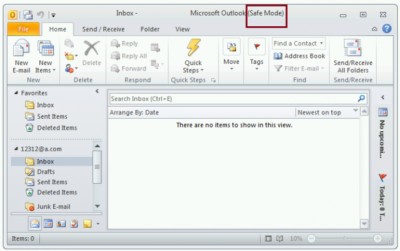
Microsoft withdraws update causing Outlook to start in Safe Mode (with fix)

outlook-safe-mode

Microsoft has withdrawn the released Windows Update KB3114409 because it causes Outlook to start in Safe Mode. This loads the email client without customizations and plugins. Fortunately it can be easily fixed.

The patch was actually released to stop Outlook from starting in Safe Mode, but it appears something didn’t go the right way. Microsoft has decided to withdraw the update for now.

Users affected by the update can easily stop Outlook from starting in safe mode by uninstalling the KB3114409 update.

This can be done this way: Go to your Control Panel. Go to ‘Programs and Features’ and left click ‘View installed updates’. Find KB3114409. Once you’ve found the appropriate update, click ‘Uninstall’.

(Tip: copy/paste KB3114409 and enter it in the search field at the top right.)

After a reboot of the computer Outlook will no longer start in safe mode.

Have questions?

Get help from IT Experts/Microsofts Cloud Solutions Partner
Call us at: 856-745-9990 or visit: https://southjerseytechies.net/

South Jersey Techies, LLC is a full Managed Web and Technology Services Company providing IT Services, Website Design ServicesServer SupportNetwork ConsultingInternet PhonesCloud Solutions Provider and much more. Contact for More Information.

To read this article in its entirety click here.

Goodbye, Hotmail. Hello, Outlook.com

Summary: Microsoft’s flagship mail service for consumers gets a new name and a “modern” Metro-style interface. Here’s how to sign up for a preview and what to expect. So long, Hotmail. It was nice to know you. Microsoft unveiled a major update to its consumer mail platform today, with a new look, a slew of new features, and a new name that is surprisingly familiar.

The “modern email” service has been in super stealth mode for several months under the codename NewMail. With its formal launch as an open-to-the-public preview, the service gets a new name: Outlook.com. I’ve been using the NewMail beta for a week now and can share some first impressions here. Outlook, of course, is the serious, business-focused mail client included with Office. Microsoft used the brand with Outlook Express, its lightweight email client in Windows XP, but dumped the name with the launch of Windows Vista in 2006. Restoring the Outlook name to Microsoft’s consumer email service accomplishes two goals. First, it dumps the Hotmail brand, which is tarnished beyond redemption, especially among technically sophisticated users who have embraced Google’s Gmail as the default standard for webmail. More importantly, it replaces the Hotmail domain with a fresh top-level domain that’s serious enough for business use. (If you have an existing Hotmail.com or Live.com address, you can continue to use it with the new Outlook interface. But new addresses in the Outlook.com domain are up for grabs. if you have a common name, I recommend that you get yourself over to Outlook.com now to claim your preferred email address while it’s still available.) The Outlook.com preview will run alongside Hotmail for now, but when the preview ends, this will be the replacement for all Hotmail and Live Mail users. With Outlook.com, Microsoft is taking dead aim at Gmail, positioning Google’s flagship service as the old and tired player that is ready for retirement. Gmail, they point out, is eight years old, and its interface and feature set aren’t exactly modern. It doesn’t play well with any social media except its own, it handles attachments in a stodgy and traditional way, and it’s not particularly elegant when it comes to managing the deluge of email we all have to deal with every day. So what’s new about NewMail—sorry, Outlook.com? And why would anyone consider switching from Gmail? The most obvious change in the web interface, of course, is the overall design, which gets the full Metro treatment.

That three-pane layout follows the familiar Outlook standard, but the typography is definitely new. It’s clean and crisp with no wasted ornamentation or clutter. It should come as no surprise that the default organization is optimized for use on touch-enabled devices. A pane on the right shows different content, depending on the context. If you’re communicating with a friend of colleague who’s in your address book or connected via a social-media service, you’ll see updates about that person on the right side, with the option to chat with them (via Messenger or Facebook chat) in that pane. In a demo, Microsoft showed off Skype integration and said it will be coming later in the preview. If you’ve selected no message, the right pane might show ads, which appear in Metro style boxes with text–an image preview appears if you hover over the ad. As part of its positioning against Google, Microsoft has taken pains to note that your messages aren’t scanned to provide context-sensitive ads, as they are with Gmail. This is a pure HTML interface, which means the functionality is consistent across different browsers and on alternative platforms. I tested NewMail on a Mac using Safari and Chrome and in both Firefox and Chrome on several Windows PCs. Everything worked as expected. I also tested the web-based interface in mobile Safari on an iPad, where it also displayed perfectly (after switching from the default mobile layout). On mobile devices, you’ll be able to use native apps. An app for iOS devices should be available immediately. Microsoft promises an Android app “soon” that will enable Exchange ActiveSync support for older Android versions. A command bar at the top of the page provides access to commands as needed. If a command isn’t available in the current context, it’s not visible on the screen.

The preview pane (a feature that’s still experimental in Gmail even after eight years) lets you read and reply to messages without leaving the main screen. Action icons that appear when you move the mouse over an item in the message list let you file, delete, or flag the message with a single click or tap.

The new Outlook has some impressive mail management smarts built in. It automatically recognizes newsletters and other recurring types of mail. A Schedule cleanup option in the message header (also available on the command bar), lets you create rules on the fly that automatically delete or file similar messages to reduce clutter. You can specify, for example, that you want to keep only the most recent message from a “daily deals” site. You can also define how many messages you want to keep from a particular sender or automatically delete/file newsletters after a set number of days.

For newsletters that don’t contain an obvious unsubscribe link, the new Outlook adds a universal unsubscribe feature at the bottom of the message. When you select this option the web service sends an unsubscribe request on your behalf and creates a message-blocking rule. One huge differentiator between old-school webmail services like Gmail is the new Unified Address Book in Outlook.com. It takes a page from Microsoft’s People hubs in Windows 8 and the Windows Phone platform to pull together your traditional address book—where you manage names and details—and combine it with social media services of which you’re a member.

The advantage, of course, is that you always have the most up-to-date contact information for friends and colleagues, assuming they update their profiles. The new Outlook does a pretty good job of combining records. If you have contacts that appear in multiple locations, you can manually link or unlink those records as needed. Supported services include anything you can link to your Microsoft account, including Facebook, Twitter, LinkedIn, and Flickr. You can import contacts from Google and Facebook if you want to keep them locally. In terms of creating and sending photos and file attachments, the new Outlook integrates exceptionally well with SkyDrive, so that you can email large attachments and photo albums, storing them on SkyDrive with well-integrated links that the recipient can access with a click. The spec sheet says single attachments can be up to 300 MB in size. If they’re stored on SkyDrive, you don’t have to worry about the message being rejected by the recipient’s mail service. And of course, the service incorporates all of the Office Web Apps, which makes the process of sharing Word documents, PowerPoint slide decks, and Excel workbooks much more seamless. On the back end, the interface for managing an email account is cleaner. You can still create aliases that you use for sites and contacts where you don’t want to share your real address. And if you just want to experiment with the new service, you can redirect your Gmail messages temporarily to the new account or sign in with an existing Hotmail or Live address. (I’ve had my Gmail account redirected to Hotmail for a year without problems.)

To View Full Article Click Here

Windows Server 2003 end of life guide

How to organize your migration from Windows Server 2003


Following on from end of support for Windows XP in April 2014, we are now rapidly approaching Windows Server 2003 end of life.

Despite Microsoft warning about end of life for Windows Server 2003 as early as April 2013, many organisations are yet to begin their migration away from the server platform. Worse still, many organisations and IT pros are unaware of the huge financial costs and security risks should they continue running Windows Server 2003 past the end of life date.

Reports from HP claim that more than 11 million systems are still running Windows Server 2003. With fewer than 240 days left until end of life, this a huge problem as the estimated time required to migrate a datacentre of 100 or more servers can range from a minimum of three months and upwards of 18 months.

If you own even one of those 11 million servers and you have yet to begin migration, you should be worried. Luck for you, the following guide will migrate you to a position of safety. We will cover the following:

• Windows Server 2003 End of Life date
• Understanding what end of support means for Windows Server 2003 and the associated impacts
• An outline of how to migrate Windows Server 2003
• Resources to aid migration

Windows Server 2003 End of Life date

According to the Microsoft Support Lifecyle section on 14 July 2015, Microsoft will end extended support on all versions of Windows Server 2003/R2.

Understanding what end of support means for Windows Server 2003

From then on, this means no more updates or patches from Microsoft, which can result a less secure and less stable infrastructure for your business. What this really means:

• Maintenance Costs – running legacy servers is expensive. Intrusion detection systems, advanced firewalls and network segmentation are required to protect a now vulnerable Windows Server 2003 platform. You will also have increasing cost from maintaining aging hardware. Current estimates in a TechNet post from Alex Fu place the cost of custom support post end of life at US$200,000 on average. In a Q&A with David Mayer, practice director of Microsoft Solutions for Insight Enterprises, he estimated a support cost of $1500 per server per year.

• No Updates – there will be no more updates to fix bugs, performance issues and security vulnerabilities. To put this into perspective, 2013 saw the release of 37 critical updates for Windows Server 2003/R2. Past the end of life date, these critical issues will remain unfixed leaving you open to cybersecurity dangers such as malicious attacks or electronic data loss.

• No Compliance – once support ends, your organisation will almost certainly fail to meet industry wide compliance standards. Regulations such as HIPAA, PCI, SOX & Dodd-Frank all require regulated industries to run on supported platforms. The impact is twofold: Non-compliance could result in the loss of business, while high transaction fees and penalties from non-compliance could dramatically increase the cost of doing business.

• Software and Hardware Compatibility Issues – new software and hardware devices will not be built to integrate with Windows Server 2003. Sticking with a legacy server means you will likely run into compatibility issues and may not be able to run new instances of software or communicate with the latest devices.

• No Safe Haven – without continued support from Microsoft, virtualized and physical instances of Windows Server 2003/R2 and Microsoft Small Business Server (SBS) 2003 will not pass a compliance audit.

How to migrate from Windows Server 2003

Do not underestimate the task that lies ahead. Migrating applications and server workloads is no easy task. Worryingly, a study by App Zero suggests that 62 per cent of organisations do not have a plan to upgrade or migrate, or even know that EOS is coming.

• Discover – first up is discovering and cataloguing all the software and workloads that are running on Windows Server 2003/R2 at present. Download the Microsoft Assessment and Planning toolkit as this will be a worthy support document.

• Assess – now you have a list it’s time to analyse and categorise all your applications and workloads based on type, criticality, complexity and risk. This helps you prioritise for migration as well as identify issues and opportunities.

• Target – in this step, you must choose a destination for each application and workload. This could be the perfect time to evolve your organisation to the next level and embrace the cloud. Microsoft offers a series of destinations for each application or workload which could include:

billionphotos-1008218 (1)

o Windows Server 2012 R2
o System Center 2012 R2 (Private Cloud)
o Microsoft Azure (Public Cloud)
o SQL Server 2014
o Office 365

• Migrate – now is the time choose a migration plan. Microsoft offers a fantastic Migration Planning Assistant which covers all four steps. Look for official Microsoft training courses to give you an in-depth understanding of the new platforms you are planning to migrate to.

Resources to aid migration

Due to the widespread requirement to migrate, there is a range of fantastic resources to aid migration. These include:

Microsoft Virtual Academy – arguably the largest and best collection of free self-study resources from Microsoft experts including videos, slide decks and self-assessments. Check out the section on migrating to Windows Server 2012, or the Microsoft zure JumpStart.

Windows Server 2003 Roles Migration Processdownload this document and turn it into an A3 poster, stick it on your wall and use it to visualise the whole process.

Microsoft Deployment Toolkitdownload this fantastic resource, which provides a collection of processes, tools and guidance for automating new desktop and server deployments.

Free Software Trials – Microsoft have a series of trials so you can check out the new software. Here they are:

Windows Server 2012 R2 trial
System Center 2012 R2 trial
Microsoft Azure one-month trial
Office 365 trial
SQL Server 2014 trial

Windows Server Migration Services – there are a series of organisations that offer assistance in migrating away from Windows Server 2003. Big players include:

• Dell
• RackSpace
• HP

Time is running out — start your migration away from Windows Server 2003 today. Fail to do so and you find yourself facing some organisation-crippling consequences

Have questions?

Our Business IT Server Migration Specialists in NJ, PA & DE are here to help.
Call us at: 856-745-9990 or visit: https://southjerseytechies.net/server-support/

South Jersey Techies, LLC is a full Managed Web and Technology Services Company providing IT Services, Website Design ServicesServer SupportNetwork ConsultingInternet PhonesCloud Solutions Provider and much more. Contact for More Information.

To read this article in its entirety click here.

Upgrade to Windows Server 2012

10 Compelling Reasons to Upgrade to Windows Server 2012

Takeaway: Windows Server 2012 is generating a significant buzz among IT pros. Deb Shinder highlights several notable enhancements and new capabilities.

We’ve had a chance to play around a bit with the release preview of Windows Server 2012. Some have been put off by the interface-formerly-known-as-Metro, but with more emphasis on Server Core and the Minimal Server Interface, the UI is unlikely to be a “make it or break it” issue for most of those who are deciding whether to upgrade. More important are the big changes and new capabilities that make Server 2012 better able to handle your network’s workloads and needs. That’s what has many IT pros excited.

Here are 10 reasons to give serious consideration to upgrading to Windows Server 2012 sooner rather than later.

1: Freedom of interface choice

A Server Core installation provides security and performance advantages, but in the past, you had to make a commitment: If you installed Server Core, you were stuck in the “dark place” with only the command line as your interface. Windows Server 2012 changes all that. Now we have choices.

The truth that Microsoft realized is that the command line is great for some tasks and the graphical interface is preferable for others. Server 2012 makes the graphic user interface a “feature” — one that can be turned on and off at will. You do it through the Remove Roles Or Features option in Server Manager.

2: Server Manager

Speaking of Server Manager (Figure A), even many of those who dislike the new tile-based interface overall have admitted that the design’s implementation in the new Server Manager is excellent.

One of the nicest things about the new Server Manager is the multi-server capabilities, which makes it easy to deploy roles and features remotely to physical and virtual servers. It’s easy to create a server group — a collection of servers that can be managed together. The remote administration improvements let you provision servers without having to make an RDP connection.

3: SMB 3.0

The Server Message Block (SMB) protocol has been significantly improved in Windows Server 2012 and Windows 8. The new version of SMB supports new file server features, such as SMB transparent failover , SMB Scale Out, SMB Multichannel, SMB Direct, SMB encryption, VSS for SMB file sharing, SMB directory leasing, and SMB PowerShell. That’s a lot of bang for the buck. It works beautifully with Hyper-V, so that VHD files and virtual machine configuration files can be hosted on SMB 3.0 shares. A SQL system database can be stored on an SMB share, as well, with improvements to performance. For more details about what’s new in SMB 3.0, see this blog post.

4: Dynamic Access Control (DAC)

Even though some say Microsoft has shifted the focus away from security in recent years, it would be more accurate to say it has shifted the focus from separate security products to a more “baked in” approach of integrating security into every part of the operating system.

Dynamic Access Control is one such example, helping IT pros create more centralized security models for access to network resources by tagging sensitive data both manually and automatically, based on factors such as the file content or the creator. Then claims based access controls can be applied. Read more about DAC in my “First Look” article over on Windowsecurity.com.

5: Storage Spaces

Storage is a hot — and complex — topic in the IT world these days. Despite the idea that we’re all going to be storing everything in the public cloud one day, that day is a long way off (and for many organizations concerned about security and reliability, it may never happen). There are myriad solutions for storing data on your network in a way that provides better utilization of storage resources, centralized management, and better scalability, along with security and reliability. Storage area networks (SANs) and network attached storage (NAS) do that, but they can be expensive and difficult to set up.

Storage Spaces is a new feature in Server 2012 that lets you use inexpensive hard drives to create a storage pool, which can then be divided into spaces that are used like physical disks. They can include hot standby drives and use redundancy methods such as 2- or 3-way mirroring or parity. You can add new disks any time, and a space can be larger than the physical capacity of the pool. When you add new drives, the space automatically uses the extra capacity. Read more about Storage Spaces in this MSDN blog post.

6: Hyper-V Replica

Virtualization is the name of the game in the server world these days, and Hyper-V is Microsoft’s answer to VMware. Although the latter had a big head start, Microsoft’s virtualization platform has been working hard at catching up, and many IT pros now believe it has surpassed its rival in many key areas. With each iteration, the Windows hypervisor gets a little better, and Hyper-V in Windows Server 2012 brings a number of new features to the table. One of the most interesting is Hyper-V Replica.

This is a replication mechanism that will be a disaster recovery godsend to SMBs that may not be able to deploy complex and costly replication solutions. It logs changes to the disks in a VM and uses compression to save on bandwidth, replicating from a primary server to a replica server. You can store multiple snapshots of a VM on the replica server and then select the one you want to use. It works with both standalone hosts and clusters in any combination (standalone to standalone, cluster to cluster, standalone to cluster or cluster to standalone). To find out more about Hyper-V replica, see this TechNet article.

7: Improvements to VDI

Windows Terminal Services has come a long way, baby, since I first met it in Windows NT TS Edition. Renamed Remote Desktop Services, it has expanded to encompass much more than the ability to RDP into the desktop of a remote machine. Microsoft offered a centralized Virtual Desktop Infrastructure (VDI) solution in Windows Server 2008 R2, but it was still a little rough around the edges. Significant improvements have been made in Server 2012.

You no longer need a dedicated GPU graphics card in the server to use RemoteFX, which vastly improves the quality of graphics over RDP. Instead, you can use a virtualized GPU on standard server hardware. USB over RDP is much better, and the Fair Share feature can manage how CPU, memory, disk space, and bandwidth are allocated among users to thwart bandwidth hogs. Read more about Server 2012 VDI and RDP improvements here.

8: DirectAccess without the hassle factor

DirectAccess was designed to be Microsoft’s “VPN replacement,” a way to create a secure connection from client to corporate network without the performance drain and with a more transparent user experience than a traditional VPN. Not only do users not have to deal with making the VPN work, but administrators get more control over the machines, with the ability to manage them even before users log in. You apply group policy using the same tools you use to manage computers physically located on the corporate network.

So why hasn’t everyone been using DirectAccess with Server 2008 R2 instead of VPNs? One big obstacle was the dependency on IPv6. Plus, it couldn’t be virtualized. Those obstacles are gone now. In Windows Server 2012, DirectAccess works with IPv4 without having to fool with conversion technologies, and the server running DirectAccess at the network edge can now be a Hyper-V virtual machine. The Server 2012 version of DA is also easier to configure, thanks to the new wizard.

9: ReFS

Despite the many advantages NTFS offers over early FAT file systems, it’s been around since 1993, and Windows aficionados have been longing for a new file system for quite some time. Way back in 2004, we were eagerly looking forward to WinFS, but Vista disappointed us by not including it. Likewise, there was speculation early on that a new file system would be introduced with Windows 7, but it didn’t happen.

Windows Server 2012 brings us our long-awaited new file system, ReFS or the Resilient File System. It supports many of the same features as NTFS, although it leaves behind some others, perhaps most notably file compression, EFS, and disk quotas. In return, ReFS gives us data verification and auto correction, and it’s designed to work with Storage Spaces to create shrinkable/expandable logical storage pools. The new file system is all about maximum scalability, supporting up to 16 exabytes in practice. (This is the theoretical maximum in the NTFS specifications, but in the real world, it’s limited to 16 terabytes.) ReFS supports a theoretical limit of 256 zetabytes (more than 270 billion terabytes). That allows for a lot of scaling.

10: Simplified Licensing

Anyone who has worked with server licenses might say the very term “simplified licensing” is an oxymoron. But Microsoft really has listened to customers who are confused and frustrated by the complexity involved in finding the right edition and figuring out what it’s really going to cost. Windows Server 2012 is offered in only four editions: Datacenter, Standard, Essentials, and Foundation. The first two are licensed per-processor plus CAL, and the latter two (for small businesses) are licensed per-server with limits on the number of user accounts (15 for Foundation and 25 for Essentials).

To View Full Article Click Here

Microsoft Office 365: The smart person’s guide

Office 365 provides the productivity tools required by a modern enterprise workforce. This guide covers key details, including available applications, system requirements, and subscription options.

Office-365-SJTechies2

For just about any enterprise of any size, the productivity of its modern workforce revolves around the basic office suite of email, calendar, word processor, and spreadsheet. But as the enterprise workforce has become more mobile, the basic productivity toolset has had to adapt and change to match new requirements. This is why Microsoft updated Office 365 to be a mobile collaborative platform ready to get work done wherever and whenever it happens.

Microsoft Office 365 is the de facto productivity suite for many enterprises and it is the suite all the other competitors are measured against. So as a leader in information technology for your enterprise, it’s in your best interest to know everything there is to know about Office 365. To help you achieve that goal, TechRepublic compiled the most important details and related resources on Microsoft Office 365 into this “living” guide, which we’ll periodically update as new information becomes available.

Executive summary

What is it? Microsoft Office 365 provides users with the basic productivity applications necessary to get work done in the modern enterprise. It includes applications like Word, Excel, Outlook, PowerPoint, OneNote, and OneDrive, just to name a few.

Why does it matter? As the standard for productivity suites, competing products are generally measured against applications from the Office 365 suite.

Who does it affect? In the modern mobile-centric enterprise, Office 365 provides the tools used to get work done. This makes Office 365 important to just about every working individual.

When is it available? The latest version of Microsoft Office 365 is available right now. The current subscription includes Office 2016 applications.

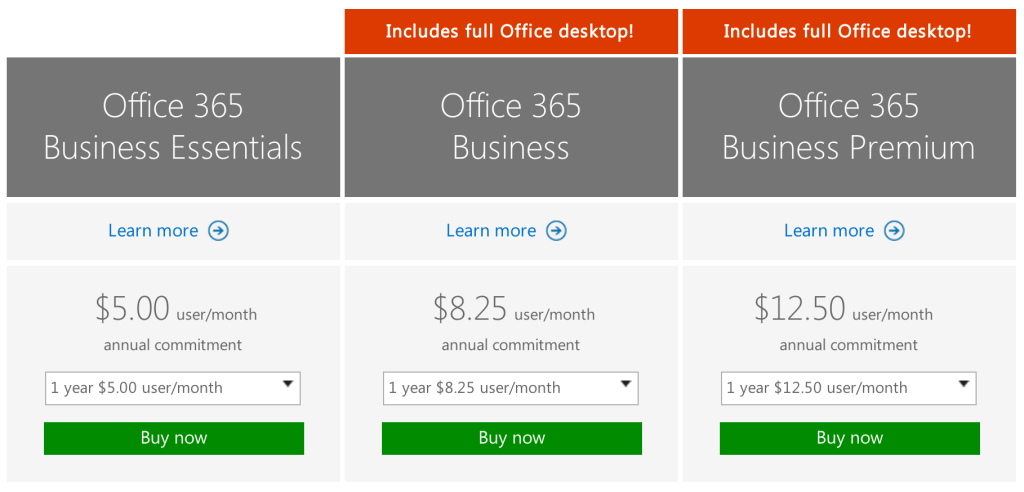
How do you get it? Enterprises can purchase a subscription to Office 365 via the Microsoft website. Subscriptions range from $8/user/month to $35/user/month.

What is it?

Microsoft Office 365 is a subscription service that provides users with the basic productivity applications necessary to get work done in the modern enterprise. Productivity applications include, but are not limited to, a word processor, a spreadsheet, an email client, a calendar, and a presentation application.
Office365-OneDrive

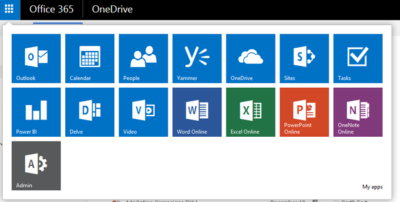
As an example, a Business Premium subscription to Office 365 ($12.50 per person per month) includes these applications:

Word: This app sets the standard for word processors and is available with Office 365 for both Business and Premium. If users in your enterprise need to create documents, this is the tool they will use.

Excel: The spreadsheet has been the workhorse for basic data analysis since its invention back in the previous century. Excel is the current standard-bearer and comes with Office 365 for Business and Premium.

Outlook: Office 365’s solution for managing email and an appointment calendar is called Outlook. The app has been around for many years and its busy interface tends to be either loved or hated by users. It’s available with both the Business and Premium subscriptions.

PowerPoint: Communicating information to a group of individuals at a meeting often involves a presentation. Office 365’s PowerPoint allows users to create, display, and disseminate information in formats ranging from the basic slide to animation to video.

Publisher: Sometimes communicating information to a broader audience requires something more permanent and more formal than a presentation at a meeting. The Publisher app in Office 365 provides users with the tools they need to publish professional-looking newsletters, brochures, and booklets.

OneNote: As the workforce has become more mobile, the need to capture information on the go has become increasingly important. Applications like OneNote allow users to take notes on any device and then retrieve those notes from any other device. It’s your basic productivity cloud app.

OneDrive: The other basic and fundamental cloud-based application is storage. With each Office 365 Business subscription, Microsoft provides users with up to 1TB of cloud storage in the form of an application called OneDrive for Business.

SharePoint: A subscription to Office 365 Business Premium also provides an enterprise with a few applications for backend infrastructure management. SharePoint, for example, can be used to host intranet websites for the enterprise. It also can be used to host smaller sites designed for smaller teams or divisions. The permissions for these sites can be designated by the users themselves or by appointed administrators.

Exchange: Each Office 365 for Business subscription includes an Exchange Server, which handles all the email management duties. By default, each user is granted 50GB of storage for email. Maintenance of the Exchange Server is generally handled at the administrator level.

Collaboration tools: Along with the typical productivity applications, Office 365 includes many collaboration tools—like Delve, Skype, Yammer, and Sway. These tools allow users to communicate, brainstorm ideas, share documents, and have video meetings while on the go.

Power BI: One of the most powerful tools any enterprise can have, regardless of size, is reliable business intelligence gathering applications. Office 365 for Business, through its Power BI application, provides enterprises with a set of tools for collecting, sorting, and presenting business intelligence data.

Infrastructure: All Office 365 subscriptions include a reliability guarantee of 99.9% uptime. In addition, permissions for internal access control are handled by administrators designated by the enterprise using tools supplied by Active Directory. Each Office 365 subscription includes five layers of security and proactive monitoring to help safeguard your data.

System requirements

  • CPU: 1GHz or faster
  • Memory: 2GB RAM
  • Hard drive: 3GB of available space (6GB for Mac)
  • Display: 1280 X 800 screen resolution
  • Operating system: PC-Windows 7, 8, or 10. Mac-Mac OS X 10.10
  • Connectivity: Internet connection

Why does it matter?

Collaboration and communication are the key components of productivity in the modern enterprise, and productivity is the lifeblood of the enterprise. Microsoft Office 365 provides the tools necessary to bring collaboration and communication—and by extension, productivity—to each individual in an enterprise.

For many companies, Office 365 is the de facto standard for productivity software. The performance of all competing products is generally measured against applications from the Office 365 suite.

Who does it affect?

Just about every knowledge worker in every enterprise is required to have an email account and a calendar application. Beyond that, most individuals in an enterprise will need to use, at least once in a while, a word processor. And a significant number of individuals in an enterprise will also find themselves needing to use presentation software or a spreadsheet at some point in their career.

These are the productivity tools of any enterprise. These are the tools used to get work done. That means Office 365 is important to just about every working individual.

When is it available?

Microsoft Office 365 is available right now. The current subscription includes applications updated to the Office 2016 versions. Of course, the key to the subscription model is that each user will always be using the most current and most secure version of each application because each application is continuously updated.

How do you get it?

Enterprises with fewer than 300 users can purchase a subscription to Office 365 and download the appropriate applications via the Microsoft website. The Premium version costs $12.50 per user per month ($150/year). There are also versions of Office 365 available for individuals ($69.99/year) and households ($99.99/year).
Office-365-SJTechies

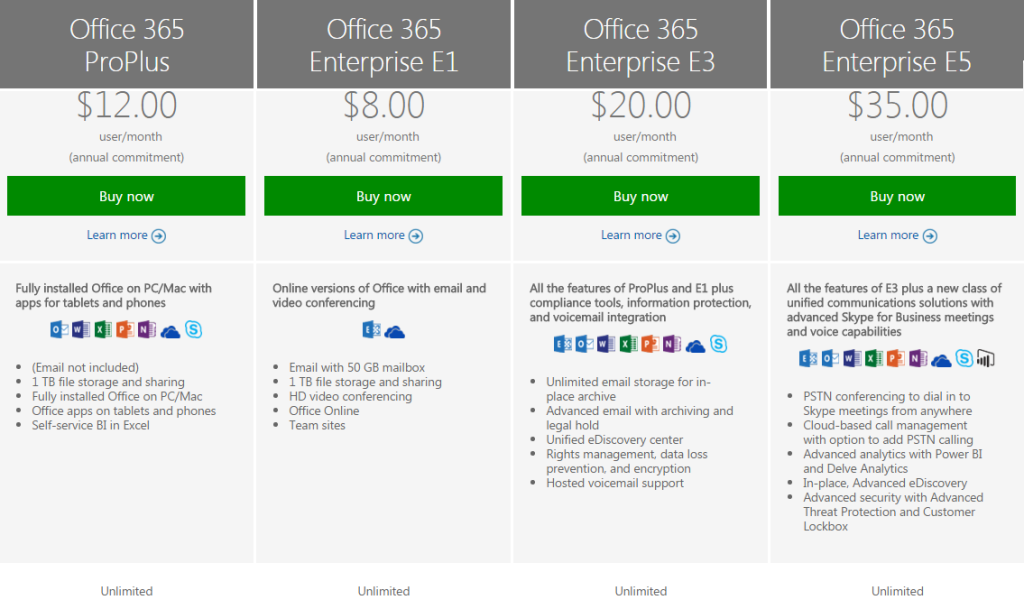
For large enterprises, unlimited user versions of Office 365 are available, ranging from $12 per person per month to $35 per person per month. Each subscription caters to a particular type of enterprise. More expensive enterprise versions of Office 365 add features like voicemail, compliance auditing, rights management, encryption, and Advanced Threat Protection.
Office-365-SJTechies1

Have questions?

Get answers from Microsofts Cloud Solutions Partner!
Call us at: 856-745-9990 or visit: https://southjerseytechies.net/

South Jersey Techies, LL C is a full Managed Web and Technology Services Company providing IT Services, Website Design ServicesServer SupportNetwork ConsultingInternet PhonesCloud Solutions Provider and much more. Contact for More Information.

To read this article in its entirety click here.

Exclusive offer from BigBeagle.com

Exclusive offer from: BigBeagle.com  |  24/7 Support: 8885051532

BigBeagle is a reseller of GoDaddy and offers GoDaddy products at a discounted price. Don’t forget to visit our coupon page at http://bigbeagle.com/coupons for the latest and greatest promotions.

Save upto 15% on all new purchases, great products just for you. Hurry before the offer expires.

Use promo code in your cart when you order.

*Some limitations apply. Applicable to new purchases only. Enter promo code into shopping cart to see full details. Offer expires Wednesday, June 14, 2017 at midnight (Mountain Time).

Copyright © 2017 BigBeagle.com. All rights reserved.

Exclusive offer from BigBeagle.com

Exclusive offer from: BigBeagle.com  |  24/7 Support: 8885051532

BigBeagle is a reseller of GoDaddy and offers GoDaddy products at a discounted price. Don’t forget to visit our coupon page at http://bigbeagle.com/coupons for the latest and greatest promotions.

Save upto 10% on all new purchases of $40 or more, great products just for you. Hurry before the offer expires.

Use promo code rs217a5 in your cart when you order.

*Some limitations apply. Applicable to new purchases only. Enter promo code into shopping cart to see full details. Minimum purchase of $40 required. Offer expires Tuesday, July 11, 2017 at midnight (Mountain Time).

Copyright © 2017 BigBeagle.com. All rights reserved.

Exclusive offer from BigBeagle.com

Exclusive offer from: BigBeagle.com  |  24/7 Support: 8885051532
Amit Shah — Customer Number: 57156051

BigBeagle is a reseller of GoDaddy and offers GoDaddy products at a discounted price. Don’t forget to visit our coupon page at http://bigbeagle.com/coupons for the latest and greatest promotions.

Save upto 10% on new purchases of $40 or more and get everything you need. Hurry before the offer expires.

coupon-11-16-16

Use promo code rs416a2 in your cart when you order.

*Some limitations apply. Applicable to new purchases only. Enter promo code into shopping cart to see full details. Minimum purchase of $40 required. Offer expires Wednesday, November 16, 2016 at midnight (Mountain Time).

Copyright © 2016 BigBeagle.com. All rights reserved.

CALL US NOW!