Back to Top

Tech, Web, Cloud & Cabling Services

Category: BigBeagle.com

BigBeagle.com Category

Create Your Own Online Web Store

Everything you need to open your own online store.

You don’t need technical skills to build a successful Web store. Quick Shopping Cart makes it easy to create an eye-catching store that accepts credit cards, integrates with Google® and eBay® and offers multiple shipping options – all with no set-up fees!

Powerful features that are there when you need them.

Quick Shopping Cart makes it easy for anyone to build an online web store, but it also has a rich collection of advanced features that allow you to enhance, manage and promote your store.

Easy, Flexible Web Store Design:

  • Select from over 1,500 design and color combinations, 14 Category page styles and 11 Product Detail page styles.
  • Personalize with your logo, brand and product images.
  • Make changes easily with click-&-type editing.
  • Easily customize navigation to integrate your store with your main Website.
  • Add impact to your shopping cart with royalty-free photos from Fotolia®. All plans include 10 free download credits.

Simple Catalog Set Up:

  • Navigate quickly and easily with a step-by-step Store Setup wizard.
  • Specify product details, including SKU, description, pricing, options and inventory tracking.
  • Add and manage product images, including enlargements. Deluxe and Premium plans support up to five images per product.
  • Configure your product search options.
  • Create nested categories to help your customers browse through your catalog.

Multiple Payment & Shipping Options:

  • Accept all major credit cards through FrontStream Payments®, Intuit® Authorize.net®, Innovative Merchant Solutions®, PayPal Express Checkout, PayPal Website Payments Pro, PayPay Website Payments Standard.
  • Pay no setup or percentage-of-sales fees.2
  • Get real-time U.S. and international shipping rate quotes from UPS, FedEx and the USPS – or create your own custom shipping rate table.
  • Use built-in shipping and tax calculators.

Coupons, up-sells & Featured Products:

  • Showcase featured products in your sidebar navigation. Specify multiple products for a rotating display.
  • Create product cross-sells and up-sells that suggest related products (ie: “You may also like…”).
  • Create coupon codes for an amount-off, percent-off or free shipping. Coupons can also require a minimum purchase amount.
  • Create product bundles with special discounts.

Market your Online Store:

  • Increase the visibility of your online store with search engine-friendly page URLs.
  • Track the response of your marketing campaigns with auto-generated links that include your promotional code.
  • Easily add your products to Google® Product Search and eBay®.

Manage your Orders & Customer:

  • See new orders, inventory status and member activity at a glance.
  • Search and filter orders and export information to a Microsoft® Excel file.
  • Capture credit card payments, enter shipping and tracking information and print shipping labels.
  • Receive email notification for orders.
  • Track product inventory and set minimum thresholds.

Hosting & Security:

  • FREE web hosting with guaranteed 99.9% network uptime.
  • Phone and online support.
  • SSL Certificate enabled to securely process credit cards.
  • PCI compliance verified by independent auditor.
  • Fraud Module
  • Offer easy and secure customer login and checkout.

Integrate your Store:

  • WebSite Tonight: Combine your store with a content-rich website using one of more than 200 common designs.
  • eBay: Quick Shopping Cart is a certified eBay listing tool.
  • Google Product Search: Help customers find your products online.
  • Microsoft Excel: Import and export data with ease.
  • Atandra T-HUB: Integrate with QuickBooks, UPS, USPS, and FedEx with T-HUB multi-channel order manager.

All Plans Include:

  • 1,500+ quick-start design and color combinations
  • Fast and easy setup
  • No set-up or per-sale fees
  • Accept credit cards, PayPal Express® or phone orders
  • UPS®, USPS®, and FedEx® shipping with real-time rates
  • Add your products to eBay and Google Product Search
  • FREE web hosting with guaranteed 99.9% network uptime!
  • Phone, email and Web support

Call (888) 505-1532 to get started now

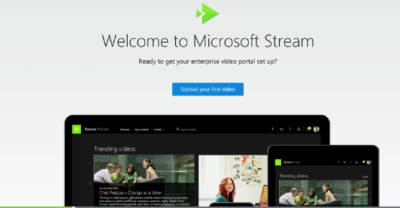
Microsoft Stream: The future of secure business video

Microsoft is previewing Stream, a new service for publishing and managing business videos. One day it will be the default video publishing system for Office 365.

MicrosoftStream


On July 18, 2016, Microsoft announced that a preview version of a new service called Microsoft Stream was available. Like most of you, I passed over the news with an indifferent “whatever” attitude. But later I realized that the news was actually more important than I had first thought.

Microsoft Stream fulfills a niche by providing a secure place to share videos created within, and for, businesses. By using a cloud-based service like this, businesses can reap the benefits of video communication without the threat of anonymous forum trolls trashing the brand or harassing employees.

Upload and forget it

While it is still a preview version, Microsoft Stream seems mostly ready for prime time. All you have to do is set up an account with a valid business email—One can use a personal domain email—and then log in. To test how easy Stream is to work with, you can make a 10-second video with a smartphone. Upload your video to Google Drive and then drag and drop it on the Stream portal website.

The web service processes the video while you give it a title and a brief description. Stream then asks if you are ready to publish and when you say yes, it publishes the video after a few seconds of grinding. It takes all of two minutes from start to finish and requires nothing more technical than knowing how to drag and drop a file.

Gone are the days of worrying about file format, aspect ratio, preferred playback applications, and all the other minutia we had to go through in years past to get a video published. You just take the video and then publish the video.

Video management

The key features of Microsoft Stream have to do with managing videos after they are published. Videos can be classified and placed into specific channels. Those channels can have their access restricted to certain individuals or certain groups, like a specific department, for instance. Access is controlled via the Azure Active Directory system.

According to the blog post, Microsoft plans to integrate Stream into the existing Office 365 Video system. Once the integration is complete, Microsoft Stream will be the default system for publishing video in an Office 365 environment.

There are plans in the works to add intelligent search to Stream by taking advantage of tools like audio transcription and face recognition. Developers are also working on ways to integrate Stream with other tools, like PowerApps, Microsoft Flow, and SharePoint.

Bottom line

We are aware of Microsoft Bookings and how that application attempts to cut out other third-party developers by integrating appointment scheduling for small businesses with the standard Office 365 subscription. By offering Stream, a secure video publishing and management service, Microsoft is attempting to execute the same strategy for video publishing.

Microsoft Stream gives businesses a secure system for publishing videos. Through Stream, businesses control access and manage who can see what and when they can see it. And because it is all handled internally, problems with anonymous forum trolls are likely to be reduced.

It seems that Microsoft’s grand strategy is to become the only software company a business needs—ever. The glaring application that Office 365 is missing now is a double-entry accounting system that includes payroll, accounts receivable, accounts payable, and the general ledger. Should we be looking for an announcement regarding those applications soon, Microsoft?

Have questions?

Get answers from Microsofts Cloud Solutions Partner!
Call us at: 856-745-9990 or visit: https://southjerseytechies.net/

South Jersey Techies, LL C is a full Managed Web and Technology Services Company providing IT Services, Website Design ServicesServer SupportNetwork ConsultingInternet PhonesCloud Solutions Provider and much more. Contact for More Information.

To read this article in its entirety click here.

Ransomware-as-a-service is exploding: Be ready to pay

RaaS has outgrown smaller targets and now threatens governments, NGOs, and SMBs.

ransomware

It starts with a fast click on a link in a harmless-looking email. Then your PC slows to a crawl. A message suddenly pops up and takes over your screen. “Your files and hard drive have been locked by strong encryption. Pay us a fee in 12 hours, or we will delete everything.” Then a bright red clock begins counting down. No antivirus will save your machine. Pay the fee or lose everything.

You’re the latest victim of a ransomware attack. The scary thing is, you’re not alone. The ransomware market ballooned quickly, from a $400,000 US annual haul in 2012, to nearly $18 million in 2015. The average ransom—the sweet spot of affordability for individuals and SMBs—is about $300 dollars, often paid in cash vouchers or Bitcoin.

The ransomware market scaled up so quickly, claims a recent report by Imperva, due to the rise of ransomware-as-a-service, or RaaS. Here’s how it works:

  • Ransomware authors are marketing on-demand versions of code, using traditional malware distributors in a classic affiliate model.
  • The ransomware author collects the ransom and shares it with the distributor.
  • Malware is distributed through spam email messages, malicious advertisements, and BlackHat SEO sites.
  • According to the Imperva report, “in classical affiliate marketing, the larger cut goes to the possessor of the product. In RaaS … the ransomware author gets a small cut of the funds (5%-25%) while the rest goes to the distributor (affiliate).”
  • Using the deep web, TOR, and Bitcoin, the report says, “this model, based on TOR and Bitcoins, is designed to keep the identity of the author and the distributor hidden from law enforcement agencies.”

Phishing in particular, is a highly effective tactic for malware distribution.

The well-worded email appears to come from a legitimate email address and domain name, and raises very few irregularities. The email comes with a demand for money for an arbitrary service, along with a link that purports to be an “overdue invoice.”

Click that link and open the file (which looks like a Word document), and you’ll become the latest victim of ransomware — that is, malware that encrypts your files and locks you out of your computer until you pay a ransom.

Phishing attacks have also helped ransomware move into the enterprise. In 2015 the medical records system at Hollywood Presbyterian Medical Center was attacked. The hospital paid $17,000 in Bitcoin to unlock the sensitive records. In early 2016 the Lincolnshire County Council was snagged by a phishing scheme and held up for 500 dollars.

To prevent your business from attack, make sure the IT department and communication team are in sync, keep your company’s security systems updated, and remind employees to use caution when clicking on email links from unknown addresses.

If you’ve been hacked, the ransomware rescue kit provides a suite of tools designed to help clean particularly pugnacious malware.

Businesses that suffer ransomware attacks face a tough choice. Paying the fee could restore access to mission-critical data, but there’s no guarantee the extortionists will honor the deal. And of course, paying a ransom provides incentive to hackers and validates the attack.

Have questions?

Get answers from Microsofts Cloud Solutions Partner!
Call us at: 856-745-9990 or visit: https://southjerseytechies.net/

South Jersey Techies, LL C is a full Managed Web and Technology Services Company providing IT Services, Website Design ServicesServer SupportNetwork ConsultingInternet PhonesCloud Solutions Provider and much more. Contact for More Information.

The 10 most important lessons IT learned in 2015

Every year brings with it new challenges, and new lessons, for IT in the enterprise. Here are 10 of the lessons IT learned this past year.

IT lessons


The end of a year is always a good time for reflection, especially so if you’re evaluating what your business did right and what you can improve upon. In an increasingly digital world, IT has quickly become one of, if not the most, important aspects of an organization. So, it should be with great care that executives and admins look back on their year and try to glean some wisdom about what can be done differently in the year to come.

Here are 10 of the most important lessons that IT learned in 2015.

1. BYOX is here to stay

As smartphone use grew to near ubiquity in the enterprise, it brought with it the trend of BYOD, or, bring your own device. While that originally referred to mobile devices such as smartphones and tablets, it spawned as host of “bring your own” everything else.

“BYOX is the new mantra with consumers bringing their own applications, cloud sharing tools, social media into the enterprise; essentially bringing their own expectations of which technology they want to use and how and where they want to work in a corporate environment,” said Chuck Pol, president of Vodafone Americas.

2. DevOps is no longer just a buzzword

The term “DevOps” gained huge popularity in 2015 as a reference to an agile method that stresses the collaboration of development and operations. The goal is to connect the writers of the code with those who maintain the systems that run it. However, DevOps continues to evolve and, although it has its own set of challenges, it could be poised to become the method of choice for enterprise IT starting in 2016.

3. Data is currency

Data, especially as it relates to big data has been steadily growing in value but 2015 felt like a tipping point. Tools for both structured and unstructured data exploded in popularity and major data service providers went public, adding credibility to the field and likely creating a better inroad into the enterprise. Also, businesses got better at distinguishing between relevant and irrelevant data.

“It is no longer credible to look at data as big static objects in a deep lake, but rather be considered a set of fast moving assets in a raging river,” said Neil Jarvis, CIO of Fujitsu America. “In 2016 and beyond, companies need to look at the data that creates business-relevant information for today and tomorrow.”

4. Finding talent is problematic

Talent shortages don’t just affect startups on the West Coast. CompTIA CIO Randy Gross said that current estimates suggest there are more than one million IT job opening across the US alone, ranging across skill level from support specialists to network admins. Enterprises are going to have to work harder to attract and retain talent.

“Wise employers with IT jobs to fill have engaged in a self-examination of the tactics and strategies they’re using to attract new talent—and adjusting accordingly,” Gross said. “For some companies, new telecommuting and remote work options have helped them fill their talent gaps.”

5. SMAC is still relevant

The SMAC stack, which stands for social, mobile, analytics, and cloud, is also known by some as the “third platform.” As all of these individual components continue to grow and thrive in the workplace, their interdependencies will grow along with them.

“Senior management must become well versed about these technologies and their possibilities to create new value and new competitive advantages in their own business and markets,” Pol said.

6. Cloud lost its fear factor

Cloud acceptance was a mixed bag for a long time, but 2015 brought a more widespread embrace of cloud technologies and services in the enterprise. In fact, some trends are making it almost a necessity.

“The complete adoption of virtualization, as well as investigation into cloud and other strategies, is far more advanced than expected—particularly amongst SMBs,” said Patrick Hubbard, technical product marketing director at SolarWinds. “Making operating systems and applications truly mobile is redefining how companies think about their IT infrastructure.”

7. The security mindset is changing

Anthem BlueCross BlueShield and Harvard University were among the major organizations that dealt with a public security breach in 2015. With today’s social media, you can almost guarantee any data breach that occurs in the enterprise won’t stay a secret. And, with the risk of a breach high, Intel Security CTO Steve Grobman said that teams must adopt a new way of thinking.

“IT must embrace the mindset that they have already been breached, now how do you protect your environment with this new default outlook?,” Grobman said.

8. Shadow IT is a line item

Shadow IT carries nowhere near the same amount of scorn it once did in the enterprise. Some organizations are even openly embracing it, and making it a foundational part of their IT strategy. And, as shadow IT continues to grow, Pol said, it needs to be properly accounted for in the budget.

“As technology continues to transform business, IT infrastructure will become more complex and more difficult to have a complete view of technology across the business,” Pol said. “The role of IT will need to become more strategic and set clear lines of accountability between IT and line of business budget holders.”

9. Employees are the biggest security risk

When most people think about security risks to their organization, the image of the hooded hacker furiously typing away in a dark room. However, employees themselves pose a real threat to the security of an organization as well. Issues such as poor password practices and using unsecured networks with company devices are a real problem. Kelly Ricker, senior vice president of events and education at CompTIA, said mobile, while helping with agility and productivity, is a cybersecurity nightmare.IT

“Every device that employees use to conduct business—smartphones and smartwatches, tablets and laptops—is a potential security vulnerability,” Ricker said. “Companies that fail to acknowledge and address this fact face the very real risk of becoming a victim of cyber criminals and hackers.”

10. Commoditization is a threat

With the plethora of tools available to build and replicate popular tech, it is increasingly important for organizations to guard against the threat of commoditization.

“As development cycles become shorter and the potential for intellectual property to be recreated and copied increases, it is becoming more difficult to create a sustainable competitive advantage for your products and services,” Pol said.

Have questions?

Get help from IT Experts/Microsofts Cloud Solutions Partner
Call us at: 856-745-9990 or visit: https://southjerseytechies.net/

South Jersey Techies, LLC is a full Managed Web and Technology Services Company providing IT Services, Website Design ServicesServer SupportNetwork ConsultingInternet PhonesCloud Solutions Provider and much more. Contact for More Information.

To read this article in its entirety click here.

What You Need to Know About the Big Chip Security Problem

According to Intel Corp.,most of the processors running the world’s computers and smartphones have a feature that makes them susceptible to hacker attacks. The chipmaker, working with partners and rivals, says it has already issued updates to protect most processor products introduced in the past five years, but the news sparked concern about this fundamental building block of the internet, PCs and corporate networks.

The revelation of the so-called Meltdown and Spectre vulnerabilities spurred a scramble among technology’s biggest players, from Apple Inc. to Amazon.com Inc., to enact fixes and reassure customers they were on top of the problem.

1. What’s the problem?

Modern processors guess what they’ll have to do next and fetch the data they think they’ll need. That makes everything from supercomputers to smartphones operate very fast. Unfortunately, as Google researchers discovered, it also provides a way for bad actors to read data stored in memory that had been thought to be secure. In a worst-case scenario, that would let someone access your passwords.

2. How bad is it?

The vulnerability won’t stop your computer working and doesn’t provide an avenue for hackers to put malicious software on your machine. Though it could put important data at risk, there’s been no report so far of anyone’s computer being attacked in this manner. More broadly, though, the new fears could undermine longtime assurances that hardware and chip-level security is more tamper-proof than software.

3. How was it discovered?

The weakness was discovered last year by folks Google employs to find such issues before the bad guys do. Usually, solutions are developed in private and announced in a coordinated way. This time the news leaked before the companies involved had a chance to get a fix in place.


4. What’s being done to fix it?

Chipmakers and operating system providers, such as Alphabet Inc.’s Google and Microsoft Corp., are rushing to create software patches that will close the potential window of attack. Intel said that it expects to have issued updates for more than 90 percent of recently introduced processor products. Amazon.com Inc. said “all but a small single-digit percentage” of its servers have already been protected. In a blog post, Google said its security teams immediately “mobilized to defend” its systems and user data. Some customers of Android devices, Google Chromebook laptops and its cloud services still need to take steps to patch security holes, the company said. Patches for Windows devices are out now and the company is securing its cloud services, Microsoft said in a statement.

5. Is this just an Intel problem?

No, though that seems to be what panicky investors initially thought. Intel says it’s an issue for all modern processors. But rival Advanced Micro Devices Inc. stated that its products are at “near-zero risk.” ARM Holdings, which has chip designs that support all smartphones, said that, at worst, the vulnerability could “result in small pieces of data being accessed” and advised users of its technology to keep their software up to date. Google fingered all three companies. Apple said all Mac computers and iOS devices — including iPhones and iPads — were affected, but stressed there were no known exploits impacting users and that steps taken to address the issue haven’t dented performance.

6. What will the fallout be?

Some computers, mostly older ones, could be slowed down by the software patches that will make them more secure. Intel said that in common situations software might be slowed down by as much as 3 percent or not at all. But in other rare situations, performance might be reduced as much as 30 percent. The company doesn’t expect any financial impact and said it thinks customers will keep buying. As the fixes haven’t been widely deployed yet, it’s unclear whether anyone will even notice or whether computer slowdowns will be widespread. Intel has only done lab tests.

Microsoft IIS: Disabling the SSL v3 Protocol


Depending on how your Windows servers are configured, you may need to disable SSL v3.

Note that older versions of Internet Explorer may not have the TLS protocol enabled by default. If you disable SSL versions 2.0 and 3.0, the older versions of Internet Explorer will need to enable the TLS protocol before they can connect to your site.

For a Simpler Way to Disable the SSL v3 Protocol:

DigiCert is not responsible for any complications or problems if you decide to use this .zip file to disable the SSL v3 protocol on your server.

  1. Log into your server as a user with Administrator privileges.
  2. Download DisableSSL3.zip, extract the .zip file contents, and then double-click DisableSSL3.reg.
  3. In the Registry Editor caution window, click Yes.
  4. Restart server.

If you prefer to do it yourself, follow the steps in the instruction below.

Microsoft IIS: How to Disable the SSL v3 Protocol

  1. Open the Registry Editor and run it as administrator.For example, in Windows 2012:
    1. On the Start screen type regedit.exe.
    2. Right-click on regedit.exe and click Run as administrator.
  2. In the Registry Editor window, go to:HKEY_LOCAL_MACHINE\SYSTEM\CurrentControlSet\Control\SecurityProviders\Schannel\Protocols\
  3. In the navigation tree, right-click on Protocols, and in the pop-up menu, click New > Key.
  4. Name the key, SSL 3.0.
  5. In the navigation tree, right-click on the new SSL 3.0 key that you just created, and in the pop-up menu, click New > Key.
  6. Name the key, Client.
  7. In the navigation tree, right-click on the new SSL 3.0 key again, and in the pop-up menu, click New > Key.
  8. Name the key, Server.
  9. In the navigation tree, under SSL 3.0, right-click on Client, and in the pop-up menu, click New > DWORD (32-bit) Value.
  10. Name the value DisabledByDefault.
  11. In the navigation tree, under SSL 3.0, select Client and then, in the right pane, double-click the DisabledByDefault DWORD value.Windows Registry Key
  12. In the Edit DWORD (32-bit) Value window, in the Value Data box change the value to 1 and then, click OK.
  13. In the navigation tree, under SSL 3.0, right-click on Server, and in the pop-up menu, click New > DWORD (32-bit) Value.
  14. Name the value Enabled.
  15. In the navigation tree, under SSL 3.0, select Server and then, in the right pane, double-click the Enabled DWORD value.
  16. In the Edit DWORD (32-bit) Value window, in the Value Data box leave the value at 0 and then, click OK.
  17. Restart your Windows server.You have successfully disabled the SSL v3 protocol.

For instructions about disabling browser support for the SSL v3 protocol, see Disabling Browser Support for the SSL 3.0.


Windows 10 Privacy Settings Guide

Where do you draw the line on personal privacy? The right options are different for everyone. This guide shows the privacy settings that will help you to create the right balance of privacy and convenience in Windows 10.

Over the past year, We’ve read countless “privacy guides” for Windows 10. Most are well-intentioned, but they invariably take a simplistic approach to privacy: Just turn off every switch in the Privacy section of the Settings app.

If you do that, you’re not understanding the privacy landscape, which encompasses far more than just those settings. You’re also missing some important additional steps.

Windows 10 is a mix of software and services. With every session, a Windows 10 device exchanges a great deal of information with Microsoft’s servers. That’s neither unusual nor alarming. Microsoft’s chief rivals, Google and Apple, are also blending services into their software, with the goal of making your life easier and making that software more reliable.

So are other tech companies that you don’t think of as software companies: Amazon, with the Echo. Tesla, with its self-updating, software-driven cars. Your thermostat and your home security system.

There’s something profoundly satisfying about a service that anticipates your every move, reminding you when to leave for an appointment to arrive on time, or to pick up flowers for your anniversary tomorrow. Your digital personal assistant, whether it’s Siri or Cortana or Alexa or Google, needs to be able to see your calendar and contacts to make that magic happen.

But when that sort of personal attention goes too far, it “crosses the creepy line,” to use a phrase that Eric Schmidt probably regrets uttering when he was Google’s CEO.

The thing about that line is that it’s drawn in a different place for everyone. There are people who are thrilled at the idea that their PC or mobile device is so familiar with their actions that it can anticipate what they’ll do next. I know others who would like to build a virtual Faraday cage around their computing hardware so that none of their personal details can escape.

Both of those viewpoints, and everything in between, are perfectly valid. That’s why the software and services we use are loaded with switches and dials designed to help you take control of their potential privacy impact.

In this post, We’ll walk you through the big privacy questions for Windows 10, with enough context to help you decide which settings are right for you.

Note that this guide assumes you are using Windows 10 on a personal PC or one in your small business. If you are in an enterprise setting, or if you are in a regulated industry, you should seek professional assistance to ensure that you’re meeting proper standards.

Let’s start with the part of your PC that has the biggest impact on your personal privacy.

THE NETWORK

No one knows more about your online identity than your Internet service provider. Every packet you send or receive from anywhere online goes through their servers. When you travel and connect to Wi-Fi networks that are under the control of others, the owners of those networks can see every connection you make and can intercept their contents.

Regardless of the platform you use, that’s why it’s important you use encrypted connections for any kind of sensitive communications. Using a virtual private network whenever possible is an excellent best practice.

Windows 10 does offer one obscure option that can help protect third parties from tracking your movements based on your connections to Wi-Fi networks. (Note that this feature requires support from your Wi-Fi adapter, so if you don’t see this option, the most likely explanation is that your hardware doesn’t support it.) Under Settings > Network & Internet > Wi-Fi, turn the Use random hardware addresses setting to On.
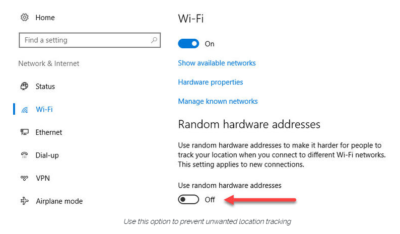
windowsprivacy02

That step keeps third parties from matching your Wi-Fi adapter’s hardware address with your personal information, making it more difficult to track your location.

THE BROWSER

Countless third-party ad networks and analytics companies use cookies and other tracking technology to record your movements around the web and to correlate your online activities with your offline identity.

The result is a digital fingerprint that can be extraordinarily detailed and, unfortunately, outside of your ability to change.

To limit the amount of information that those ad and analytics companies know about you from your web browsing, consider third-party anti-tracking software such as Abine’s Blur, which is available for every web browser except Microsoft Edge. (That lack of solid support for add-ons is one reason I can’t yet recommend Edge as a full-time browser for most Windows 10 users.)

Another privacy product worth considering is Ghostery, although some are suspicious of this browser extension because of its uncomfortably close ties to the online advertising industry.

Ad-blocking software can also provide some privacy protection as a side-effect of performing its basic function. Here, too, watch out for close ties between some ad-blocking add-ins and the third-party trackers they supposedly protect you from.

Note that none of these steps is unique to Windows 10. Anti-tracking software is typically a browser add-in and works with most popular browsers.

THE OPERATING SYSTEM

With those two big, platform-independent factors out of the way, we can now turn to Windows 10 itself. When you use a Windows 10 device, it is capable of sharing the following types of information with Microsoft’s servers:

Your location

Windows 10 can determine your location to help with actions like automatically setting your current time zone. It can also record a location history on a per-device basis. Go to Settings > Privacy > Location to control the following:

  • Location on/off?Use the master switch at the top of this page to disable all location features for all users of the current device.
  • Location service on/off?If location is on for Windows, you can still turn it off for your user account here.
  • General location?This allows you to set a city, zip code, or region so that apps can deliver relevant content.
  • Default location?Click Set default to open the Maps app and specify the location you want Windows to use when a more precise location is not available.
  • Location history?Click Clear to erase the saved history for a Windows 10 device.

If location is on, a list at the bottom of the Settings > Privacy > Location page allows you to disable access to that data on a per-app basis.

Your input

If you enable Cortana, Windows 10 uploads some info from your devices, such as your calendar, contacts, and location and browsing history, so that Cortana can make personalized recommendations. If you don’t want any accounts on your PC to use Cortana, follow the steps in this article to disable the feature completely: Turn off Cortana completely.

Windows 10 uses some feedback from the way you type, write, and speak to improve performance for you and as a way to improve the overall platform. This isn’t keystroke logging; rather, the operating system uses a very small amount of information. A separate feature uses your speech and writing history to make better suggestions in Windows and Cortana.

You can control this collection with two sets of controls:

Under Settings > Privacy > General, click Info about how I write and turn it off so that your typos aren’t used to improve things like the built-in spell checker.

Under Settings > Privacy > Speech, inking, & typing, under the Getting to know you heading, click Stop getting to know me to turn off personalization.

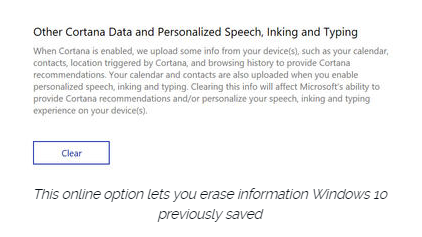
To clear previously saved information associated with your Microsoft account, click the first link under the Manage cloud info heading. That takes you to this Bing Personalization page, which includes this prominent button:
windows-privacy01

Click Clear to remove that saved information from the cloud.

Files and settings

When you sign in with a Microsoft account, you have the option to save files to the cloud using OneDrive. Windows 10 also syncs some settings to OneDrive, allowing you to have the same desktop background, saved passwords, and other personalized settings when you sign in with that account on multiple PCs.

If you use a local account, of course, none of your settings are synced. If you use a Microsoft account, you can turn off syncing completely or remove certain settings from the sync list by going to Settings > Accounts > Sync Your Settings.

OneDrive is an opt-in service. If you don’t sign in, it does nothing. You can’t save files to OneDrive accidentally, and no files are uploaded without your explicit permission, which you can revoke any time. To disable OneDrive for all users on your PC, follow these instructions: Shut down OneDrive completely.

Telemetry

Microsoft, like all modern software companies, uses feedback from its installed base to identify problems and improve performance. In Windows 10, this feedback mechanism produces diagnostics data (aka telemetry) that is uploaded to Microsoft at regular intervals. The data is anonymized and is not used to create a profile of you.

The default telemetry setting for all consumer and small business versions of Windows 10 is Full, which means that the uploaded data also includes details (also anonymized) about app usage. If you are concerned about possible inadvertent leakage of personal information, I recommend that you go to Settings > Privacy > Feedback & diagnostics and change the Diagnostic and usage data setting to Basic.

THE APPS

Although the number of subcategories under the Privacy heading in Settings seems daunting, most of them govern access to your information by Windows Store apps. That set of apps includes those that are preinstalled (Mail, Calendar, Groove Music, Photos, and so on) as well as those you acquire from the Store.

Most of the categories offer a single on-off switch at the top, which you can use to disable all access to that feature by all apps. If you leave the feature enabled, you can use a list of apps at the bottom of the page to enable or disable access on a per-app basis.

This capability works the same with the following categories: Camera, Microphone, Notifications, Account Info, Call History, and Radios. The Other Devices category lets apps automatically share and sync info with wireless devices that aren’t explicitly paired with your PC. Use the Background Apps category to specify which apps are allowed to work in the background.

If Location is enabled, you have the option to disable location access on a per-app basis and to disable Geofencing.

The Contacts, Calendar, Email, and Messaging categories allow you to control which apps can have access to these features. If you want to share content from an app using email or messaging, this option has to be on for that app. Note that Mail and Calendar, People, and Phone always have access to your contacts; Mail and Calendar are always allowed to access and send email and always have access to your calendar.

Finally, one horribly misunderstood setting is available under Settings > Privacy > General. Advertising ID controls whether Microsoft serves personalized ads to ad-supported apps. If you turn this option off, you still get ads, but they’re not personalized. In any case, your information is not shared with advertisers.

Have questions?

Get answers from Microsofts Cloud Solutions Partner!
Call us at: 856-745-9990 or visit: https://southjerseytechies.net/

South Jersey Techies, LL C is a full Managed Web and Technology Services Company providing IT Services, Website Design ServicesServer SupportNetwork ConsultingInternet PhonesCloud Solutions Provider and much more. Contact for More Information.

To read this article in its entirety click here.

Hosted Exchange Email: Quick Setup

Hosted ExchangeArm your business for success!
Let us show you how simple,
quick & affordable it can be.


With the unbeatable combination of Microsoft Exchange®, Microsoft SharePoint®, Microsoft Outlook® 2010 and Outlook 2011 for Mac, you can now:


  • Manage email and share contacts and calendars across your entire organization–and across PCs and Macs.
  • Schedule meetings and synchronize tasks in an instant by easily viewing and comparing availability of coworkers across multiple calendars.
  • Stay on top of vital information–from home, or on the road, or virtually anywhere else—via Outlook Web Access or any Windows-enabled mobile device.
  • Use Microsoft SharePoint® as a shared environment for project collaboration, and to manage and backup essential business information.
  • Streamline search functions to reclaim the big part your day that is now spent just tracking down information.
  • Protect your business from junk mail, viruses and phishing websites – with our 100% data protection guarantee.
  • Organize your day automatically with the To-Do Bar that displays your flagged emails and tasks.
  • Far more powerful than POP email, Microsoft’s corporate-class email (MAPI protocol) not only lets your users access and share critical information from any web browser, it also allows you to establish public folders and centrally set and manage the rules for your company’s email.
  • Keep your business ahead of the curve–and the competition: with our hosted packages, updates are automatic, so you always have the most advanced Microsoft Exchange® and Microsoft SharePoint® capabilities.
  • Gain peace of mind, because it’s all managed and supported for you 24X7 at a low monthly cost.

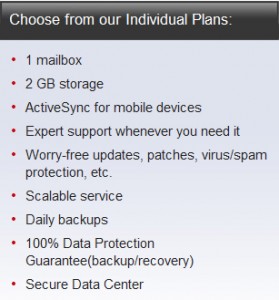
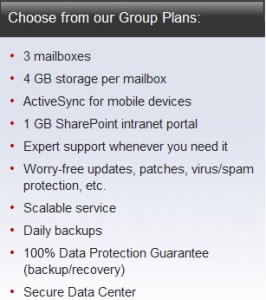
Two Types of Plans:

Individual Plan

Group Plans

CALL NOW:  (856) 745-9990

Win10 Available Starting July 29

billionphotos-1856284

From today, Windows users will be able to reserve their upgrade to the new operating system, which has seen its icons revamped by Microsoft.

Microsoft’s next operating system will be available for PCs and tablets from 29th July – with existing Windows users able to reserve their upgrade from today.

Windows 10 will be available both on new PCs and as a free upgrade for those running Windows 7 and 8.1. Owners of these operating systems will see a Windows icon in their taskbar that will allow them to “reserve” their upgrade. The 3GB file can be downloaded from 29th July.

The free upgrade will be available until July next year and those choosing to switch to Windows 10 can cancel their reservations at “at any time”, according to Microsoft.

While Windows 7 Enterprise, Windows 8/8.1 Enterprise and Windows RT/RT 8.1 releases can’t be upgraded in this way, Microsoft has said that “Active Software Assurance customers in volume licensing” will be able to “upgrade to Windows 10 enterprise offerings outside of this offer”. Microsoft are yet to clarify when users of Enterprise versions of Windows will be able to move to Windows 10 Enterprise.

Microsoft is betting Windows 10 will win over users with its ability to run on a variety of platforms, allowing users to use the same cloud services and software as they swap between fixed and mobile computers.

“We designed Windows 10 to run our broadest device family ever, including Windows PCs, Windows tablets, Windows phones, Windows for the Internet of Things, Microsoft Surface Hub, Xbox One and Microsoft HoloLens-all working together to empower you to do great things,” said Terry Myerson, VP of Microsoft’s operating systems group in a blog post.

Features such as Continuum mode will detect when mobile Windows 10 devices are docked with a mouse, keyboard and monitor and reorient the UI to suit – for example switching from tap-friendly tiles to smaller icons suited to a mouse pointer – whileUniversal Apps will tailor their interface to the device they are being used on.

Myerson is keen to stress that “Windows 10 brings back the Start menu” familiar to Windows 7 users, following the backlash against Windows 8’s fullscreen Start menu.

Microsoft is also hoping users will take to Cortana, the built-in virtual assistant that users can talk to in order to set appointments, search for information and answer rudimentary queries, and which should become more capable as it learns more about you.

Windows 10 will include the free anti-malware software Windows Defender, which will have free updates for the lifetime of the OS, as well as its new faster and more capable Edge web browser.

While the operating system will launch on PCs and tablets in July, it is expected tolaunch on phones, small tablets, Xbox, and Hololens at unspecified later dates.

Microsoft said it had refined the OS using feedback from more than four million Windows Insiders testing early builds of the OS.

The firm revealed a new, or at least slightly tweaked, look for Windows 10, in its latest Build 10130, which has just been made available via the Windows Insider programme.

The update overhauls the rather plain icons present in earlier builds and replaces them with what Microsoft describes as “more modern and lightweight” alternatives. The revamp means that app icons will also be more consistent between desktop and mobile in apps such as Word and Excel.

While the new icons may not look vastly different, Microsoft said extensive work had gone into the redesign.

“Between the legacy aero-style icons and new app icons, several thousand icons were designed and redesigned. We explored Swiss graphic design, Dutch product design, and modern architecture (among other design fields and styles) to inform and inspire the design process. The icon evolution will continue as we push more consistency and better functionality,” according to a blog post.

Other improvements in the latest build include the ability to customise the Start menu, a new look for Jump Lists on the Taskbar, new swipe shortcuts for Tablet mode, the addition of a Favorites pane and other features to the Edge browser, Taskbar settings for Virtual Desktops, a Cortana keyboard shortcut, Print to PDF feature and fullscreen playback for the Movies & TV app.

Have questions?

Our small business team is here to help.
Call us at: 856-745-9990

South Jersey Techies, LLC is a full Managed Web and Technology Services Company providing IT Services, Website Design ServicesServer SupportNetwork ConsultingInternet PhonesCloud Solutions Provider and much more. Contact for More Information.

Hillary Clinton Email Server: 6 Facts

Hillary Clinton’s use of a private email server when she served as US secretary of state has been a major issue for the 2016 presidential candidate. Here are the six most critical facts about it.

hillary_clinton3_3_3

The FBI recently wrapped up its investigation into Hillary Clinton’s use of a personal email server while she was serving as secretary of state. FBI director James Comey called the actions “extremely careless,” but recommended that no charges be brought against Clinton.

She is now the presumptive Democratic nominee for the upcoming presidential election in November, and her actions relative to the email server have become a hot-button issue among her opponents. The situation, however, is nuanced; and there are a lot of details to understand about the scenario. Here are the most important facts.

1. What happened?

While serving as secretary of state under President Barack Obama, Hillary Clinton used multiple private email servers to communicate regarding government business, according to the State Department. Additionally, it was revealed that Clinton never had a government (.gov) email address while she was serving in her post—we’ll talk about which email address she used in a moment—and her aides did not take any actions to preserve the emails sent through her personal account. This prompted an investigation by the FBI to determine if Clinton intentionally put classified information at risk.

2. Why does it matter?

Clinton handed over 30,000 emails to the State Department, of which 110 contained classified information at the time they either were sent or received, according to the FBI’s findings. During the investigation, though, Clinton asserted that none of the emails she sent or received were classified at the time. The biggest implication has been the potential threat to national security. While the contents of the emails have not fully been released, if they had contained sensitive information it could have possibly fallen into the wrong hands. As noted by the New York Times, Comey said it was “possible” that enemy foreign governments had accessed Clinton’s personal email account.

The second biggest implication is that of transparency. The Federal Records Act requires that all communication in certain branches of government be recorded on government servers, and it forbids the use of a personal email account for government business, unless those emails are then copied and archived. However, there are a lot of technicalities involved, and there is evidence that other government officials had violated the act. As Alex Howardwrote for the Sunlight Foundation, there is also evidence that Clinton tried to control the discoverability of the emails under the Freedom of Information Act (FOIA), which could set a precedent for limiting public access to government records. It is also believed that Clinton deleted 31,000 emails deemed personal in nature before turning the emails over to the State Department.

3. When did it start?

When she was appointed secretary of state in 2009, Clinton began using the email address hdr22@clintonmail.com, tied to a personal server. Clinton’s personal email server was first discovered in 2012, by a House committee investigating the attack on the American Consulate in Benghazi. In 2013, hacker Guccifer claimed to have accessed Clinton’s personal email account and released emails that were allegedly related to the Benghazi attack.

The next year, in the summer of 2015, the State Department began asking Clinton for her emails correspondence, and she responded by delivering boxes containing more than 30,000 printed emails. In early 2015, the New York Times reported that Clinton had been using her personal email exclusively, and never had a government email address. A federal watchdog group issued an 83-page report condemning the “systemic weaknesses” of Clinton’s email practices in May. On Tuesday, the FBI concluded its investigation and recommended against any charges.

4. What tech was used

When Clinton was running for president in 2008, she had a private server installed at her home in Chappaqua, New York. The domains clintonemail.com, wjcoffice.com, and presidentclinton.com, which were registered to a man named Eric Hoteham, all pointed to that server. In 2013, a Denver-based IT company called Platte River Networks was hired to manage the server, but wasn’t cleared to work with classified information. The company executivesreceived death threats for taking on the contract. It was later discovered that multiple private servers were used for Clinton’s email.

Clinton used a BlackBerry phone to communicate during her tenure as secretary of state, including sending and receiving emails through her private server in New York. The State Department expressed concern about the security of the device. Clinton had requested the NSA provide a strengthened BlackBerry, similar to the one used by President Obama. But, her request was denied. Instead, the NSA requested that Clinton use a secure Windows Phone known as the Sectera Edge, but she opted to continue using her personal BlackBerry.

5. Will she be prosecuted?

Right now, it’s too early to tell whether or not Clinton will be charged for her use of private email servers. While Comey’s recommendation that no charges be brought will likely weigh in the decision, it is ultimately up to the US Department of Justice to make the call. However, a recent Politico analysis of multiple, similar cases spanning the past 20 years, seem to point to an indictment being “highly unlikely.” According to a former senior FBI official quoted in the analysis, the Justice Department tends to avoid prosecution in cases that are not “clear-cut.”

6. What can businesses and IT leaders learn?

The first lesson that IT can learn from this situation is that transparency is critical, at all levels in your business. This isn’t to say that the CEO should be broadcasting his or her emails to all employees every week, but steps should be taken to ensure that information can be accessed if need be. As part of adigital leak protection program, security expert John Pironti said that organizations need to know if users are using a personal email account to conduct business.

“This behavior is often a violation of acceptable use policies and can expose an organization’s sensitive information to unsecured systems and e-mail accounts,” Pironti said. “Without this visibility an organization may not be aware that their intellectual property, customer data, or sensitive data assets are not being protected appropriately and they also may be in violation of contractual agreements with their clients regarding the security of their data as well as regulatory requirements.”

The second takeaway for IT is that policies should be enforced from the top down. Sure, a CXO may get their support tickets expedited, but that doesn’t mean that exceptions should be made that could compromise the security or integrity of the organization for the sake of comfort or convenience. Leaders should model the policies that are in place to showcase the importance of adhering to them, especially regarding security and privacy policies.

Finally, the importance of records management should not be overlooked. In Clinton’s case, since multiple servers were used, the FBI had to piece together “millions of email fragments” before they could look into them. Proper labeling and management of all records will make for a more cohesive environment and assist in accountability.

Have questions?

Get answers from Microsofts Cloud Solutions Partner!
Call us at: 856-745-9990 or visit: https://southjerseytechies.net/

South Jersey Techies, LL C is a full Managed Web and Technology Services Company providing IT Services, Website Design ServicesServer SupportNetwork ConsultingInternet PhonesCloud Solutions Provider and much more. Contact for More Information.

To read this article in its entirety click here.

CALL US NOW!