Back to Top

Tech, Web, Cloud & Cabling Services

If you’ve ever owned a PC with a DVD drive, you may get a $10 settlement

Don’t expect your money anytime soon, however.
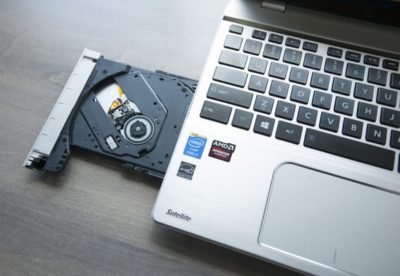
DVD drives may be a thing of the past, but the past could pay you $10 via a proposed settlement from a class-action suit.

If you purchased a DVD-ROM, DVD-RW or combination drive between April, 2003 and December 31, 2008, a collection of DVD drive manufacturers have tentatively agreed to pay you $10 per drive, whether you purchased the drive as part of a PC or by itself. You’ll simply need to visit the claim site and testify (under penalty of perjury) that you indeed purchased those drives within the given time period, and live in one of the 23 states (plus the District of Columbia) covered by the suit. The deadline to file is July 1.

Why this matters: Though the optical drive market continues to decrease—“the physical disk format is somewhat obsolete in the era of content streaming,” IDC wrote last year—that wasn’t the case fourteen years ago, when virtually all software was distributed via DVD-ROM. Fortunately, the settlement site isn’t asking for proof of purchase yet, but it reserves the right to do so. Filing a claim can take literally seconds, but don’t hold your breath—you’ll probably receive compensation, but there’s no guarantee.

The wheels of justice turn slowly

Simply put, a group of 23 plaintiffs sued virtually every DVD drive manufacturer, alleging that they collectively conspired to keep drive prices higher than they normally would be, in violation of antitrust laws. Though the defendants denied they did anything wrong, several—Hitachi-LG, Panasonic, NEC, and Sony—settled and agreed to pay a collective total of $124.5 million into four separate settlement funds.

(Note that only DVD drives for PCs are covered; a DVD player, such as the one gathering dust in your living room, isn’t.)

If you do submit a claim, however, the chances of receiving your settlement soon are slim. That’s because seventeen more defendants, including various subsidiaries of BenQ, Philips, Samsung, TEAC, and Pioneer, have yet to settle, and the suit will continue until all of the claims are resolved.

“Because other defendants remain in this litigation, the plaintiffs are proposing that distribution of the settlement funds not occur at this time,” the settlement site reads. “This is to save the expenses associated with distribution.”

In fact, the settlement hearing to finally approve the Hitachi-LG-Panasonic-NEC-Sony agreement will be held on December 8. After that, payments may begin—which means that you’ll probably receive your $10 or less a year from now. Yes, less: Payments will be “up to” $10 per drive, according to the claims site.

You should probably treat the settlement like one of those “print out your own rebate” slips from the turn of the century. Even under the best of circumstances, chances are you’ll have totally forgotten about your $10 windfall by the time the check arrives.

Have questions?

Get answers from Microsofts Cloud Solutions Partner!
Call us at: 856-745-9990 or visit: https://southjerseytechies.net/

South Jersey Techies, LL C is a full Managed Web and Technology Services Company providing IT Services, Website Design ServicesServer SupportNetwork ConsultingInternet PhonesCloud Solutions Provider and much more. Contact for More Information.

To read this article in its entirety click here.
Windows 10 Anniversary Update: Ready for business

The Windows 10 Anniversary Update that was released to Home users in the summer is now available under the Current Branch for Business servicing option.

The Windows 10 Anniversary Update that was released to Home users in the summer is now available for widespread enterprise deployments.

The Anniversary release, version 1607, has been designated as available to Windows 10 machines that receive updates under the Current Branch for Business (CBB) servicing option.

Apart from the Home version of Windows 10, most other flavors of the OS can be set to receive updates under the CBB. A PC on the CBB path will be updated about four months after the Home version of Windows 10, allowing additional time to validate an update’s quality and application compatibility.

This delay to allow bugs to be fixed would seem to be particularly important in the case of the Anniversary Update, which triggered complaints about frozen systems and broken web cams among home users. A group of Windows 10 Home users have previously petitioned Microsoft to allow them to delay updates.

Describing the Anniversary Update’s availability under the CBB, Michael Niehaus, director of product marketing at Microsoft, said in a blog post: “This is an important milestone and signifies that this version has been validated by customers, OEMs and partners giving organizations the confidence to further accelerate deployments at scale.”

The release addresses 1,000 items of feedback from home users and enterprises performing pilot deployments.

The Anniversary Update can be downloaded to PCs on the CBB and will be available to CBB machines via Windows Update and Windows Server Update Services (WSUS) in January. Unlike machines that use Windows Update, computers that are managed using WSUS or System Center Configuration Manager, will require IT admins to choose when to apply the update.

The other version of Windows 10 designated as a supported CBB release is 1511, released in November last year. The launch version of Windows 10, 1507, won’t be patched or updated after March next year.

Niehaus says there has been a 3x increase in deployments of Windows 10 by enterprise over the past six months, but doesn’t reveal the size of these deployments or the number. Businesses rolling out Windows 10 include the Australian Department of Human Services, Hendrick Motorsports and Crystal Group of Companies.

However, some third-party figures on Windows 10 roll-outs have been less rosy, with an audit of more than 400,000 business PCs in North America finding that 99 percent of had not been upgraded to Windows 10.

Have questions?

Get answers from Microsofts Cloud Solutions Partner!
Call us at: 856-745-9990 or visit: https://southjerseytechies.net/

South Jersey Techies, LL C is a full Managed Web and Technology Services Company providing IT Services, Website Design ServicesServer SupportNetwork ConsultingInternet PhonesCloud Solutions Provider and much more. Contact for More Information.

To read this article in its entirety click here.

Simple steps to stay on top of your mobile data usage

Apps not required

Businessman in suit, jacket,shirt, tie, using his smart phone

Who said you needed to install something to control your mobile data use? Your iOS and Android devices come with all the tools you need to stay below your data cap. It takes a few taps to turn them on and configure them, which is exactly what we’re going to help you with.

Easy in Android

MobileDataUsage2

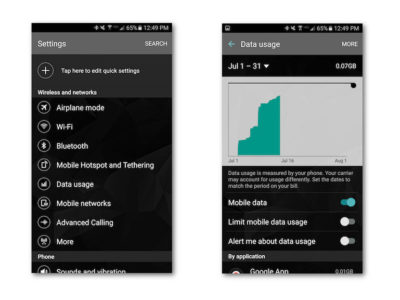
Tracking and limiting your data usage is easy on an Android device. There are a number of options available to stop yourself from going over the data limit.

The simplest solution is to activate two options under the Data Usage menu in your phone’s Settings app: Limit Mobile Data Usage and Alert Me About Data Usage. Toggle these two switches to on and your phone will turn off cell data once you reach a certain point, as well as warn you when you start getting close. Adjusting those thresholds is as simple as dragging a little line up or down.

Control data use per app

MobileDataUsage3

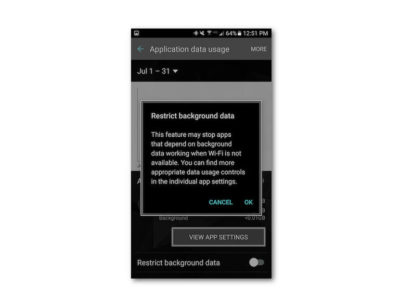
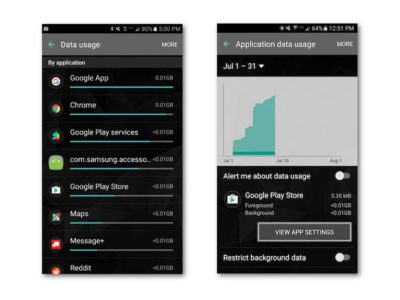
Scroll a bit further down in the Data Usage menu and you’ll find a list of apps sorted by how much mobile data they use. Click on one of those apps and you’ll see a few more options. Toggling Restrict Background Data on will stop the app from doing anything in the background, unless you’re connected to Wi-Fi.

App-specific options

MobileDataUsage4

Turning the Background Data Restriction on brings you face to face with a popup warning you that doing so might mess with the app’s performance. It also directs you to the View App Settings button, where you can change the settings right in the app.

In my experience going into the app hasn’t been necessary—just toggle the data restriction option on, but know that your weather, email, Twitter feed, and other apps that require a constant connection might not update without your telling them to (provided you’re not on Wi-Fi).

Other Android tips

MobileDataUsage-5

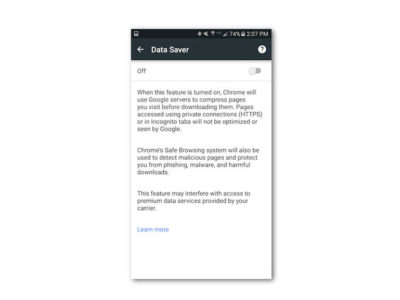
There are two other nifty things you can do on Android to save data: use the Chrome Data Saver and store frequently used Google Maps locations offline.

Chrome Data Saver is turned on by opening Settings in Chrome. Swipe down to the bottom of the menu and you’ll see Data Saver. Open that menu and turn it on—that’s it! Data Saver compresses incoming web traffic to save space, and it really doesn’t have that much effect on your experience.

Google Maps offline

MobileDataUsage6

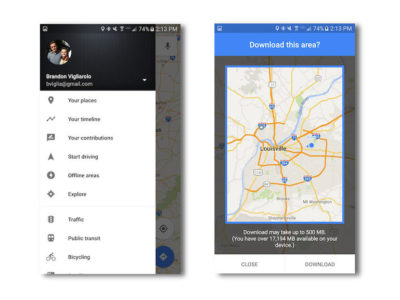
Storing map data offline is a good idea whether you want to save data or not. It makes your commute smoother, and longer trips will never leave you without a map in unfamiliar territory. It’s easy to do, too.

Open the menu in Google Maps. You’ll see Offline Areas right in the first few options—that’s what you want to select. From there click the plus sign and you’ll see a map highlighted with a blue circle. Pinch to zoom in or out, tap download, and it will download anything inside the square.

Managing data on an iPhone

MobileDataUsage-7

iOS users aren’t nearly as fortunate as Android users when it comes to built-in data capping options. There are still a few ways to track and limit your data use, but if you’re hoping for an Android-like option that terminates data once you near your cap you’re out of luck.

Controlling background data

MobileDataUsage8

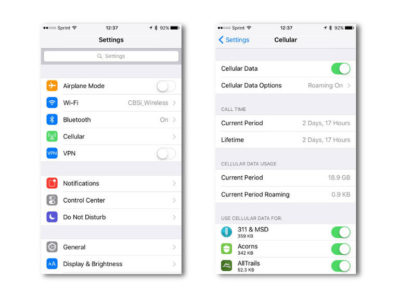
It’s simple to disable background app data in iOS. Open up the Settings app, and tap Cellular. Once you’re there, scroll down a bit and you’ll see a list of every single app you have installed. Tap to turn off the ones you want to stop from using cell data—that’s it!

App-specific options

MobileDataUsage-9

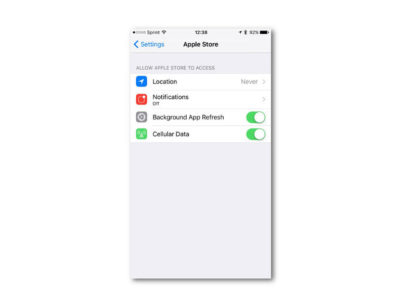
Disabling background use is one thing, but you can save even more data by tweaking options specifically to different apps. In the Settings app, scroll down a bit to see a list of all the apps you have installed. Tap one and you’ll see a list of app-specific options.

You can turn off cellular data for an app, background refresh, and location services, all which will eat up your data bit by bit.

Disable Wi-Fi Assist
MobileDataUsage-10

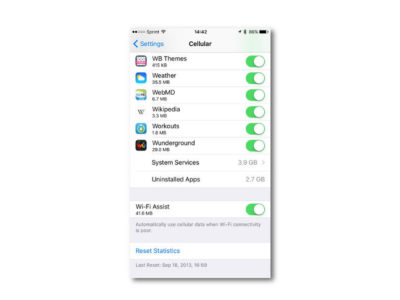
iOS devices have the option to hop to their cell networks when Wi-Fi signal is weak. Disabling this can save you a bit of data, but it’s all dependent on how often you have to deal with weak Wi-Fi.

You’ll find the toggle for Wi-Fi Assist at the bottom of the Cellular page.

Good luck saving that data

Mobile payment

Seven or eight gigs might seem like a lot, but constant travel, mobile gaming, and video streaming can eat that up before you know it. Hopefully some of these options will help save you megs and bucks!

Have questions?

Get answers from Microsofts Cloud Solutions Partner!
Call us at: 856-745-9990 or visit: https://southjerseytechies.net/

South Jersey Techies, LL C is a full Managed Web and Technology Services Company providing IT Services, Website Design ServicesServer SupportNetwork ConsultingInternet PhonesCloud Solutions Provider and much more. Contact for More Information.

To read this article in its entirety click here.
Internet doesn’t work on Windows 10?

PPTP VPN Blocks Internet Connection on Windows 10

After setting up a PPTP VPN from new Windows 10 computer our team couldn’t get internet access.

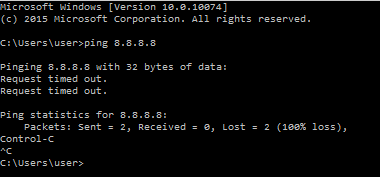
So we tested to make sure it wasn’t just DNS playing up and pinged 8.8.8.8 but no good.

DNS settings

So we tested pinging my default gateway and that worked, so then we tested pinging the default gateway of the remote network that we were connected to via the VPN and that also worked.

So we figured it must have something to do with Windows 10 not allowing split tunnels by default.

Configure Split Tunnel In Windows 10 PPTP VPN


You must be connected to the PPTP VPN for the network settings below to be available, if you are not connected to the VPN from Windows 10 then the network settings will not work.


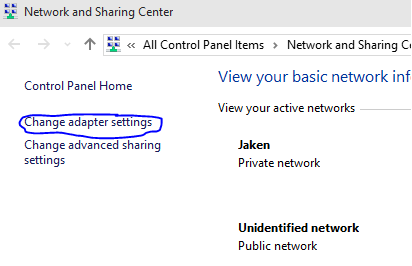
Go to network and sharing center, you can get here by right clicking the network icon on the taskbar and selecting “Open Network and Sharing center”

Network and Sharing center

Select “Change adapter settings”

Right click on the PPTP VPN connection and select properties

Select “Networking” on the top menu

Select “Internet Protocol Version 4(IPv4)” and click the “Properties” button

Another window will open, in this windows select “Advanced”

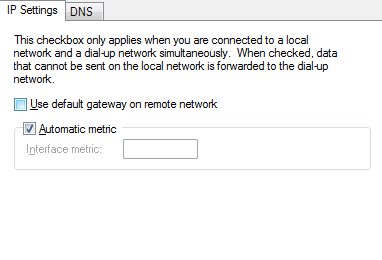
Tick the box that says “Use default gateway on remote network” and hit “OK”


IP settingsNow you will be able to browse the internet through the VPN on Windows 10.

Found a solution using Powershell (Run as administrator):

Get-VpnConnection
That will get you the name, and other info, of the vpn

then run

Set-VpnConnection -Name MY_VPN_NAME -SplitTunneling $true

replace MY_VPN_NAME with the name of your vpn connection.

Have questions?

Get answers from Microsofts Cloud Solutions Partner!
Call us at: 856-745-9990 or visit: https://southjerseytechies.net/

South Jersey Techies, LLC is a full Managed Web and Technology Services Company providing IT Services, Website Design ServicesServer SupportNetwork ConsultingInternet PhonesCloud Solutions Provider and much more. Contact for More Information.

To read this article in its entirety click here.

The 15 most frightening data breaches

data breaches


Ashley Madison (2015)

All data breaches are scary, but some just have that extra scream factor.

In arguably the most embarrassing data breach of the bunch, a group calling itself “The Impact Team” stole 37 million records from adultery website Ashley Madison, including many records that customers had paid to have deleted.

Virtually all of the company’s data was stolen in the hack, including records that suggest most female accounts on the site are fake, and that the company used female chat bots to trick men into spending money.

LivingSocial (2013)

Daily deals company LivingSocial had its network compromised in 2013, with hackers stealing roughly 50 million names, email addresses, birthdays, and encrypted passwords from its SQL database.

Sony PlayStation Network (2011)

Game over, man. In April 2011, hackers raided Sony’s PlayStation Network (PSN) service, stealing personally identifiable information from more than 77 million gamers.

Sony was further criticized for delaying the release of public information about the theft and for storing customer data in an unencrypted form.

The attack took Sony’s PSN out of service for 23 days.

Internal Revenue Service (2015)

Nigerian scammers pilfered more than $50 million from the U.S. Treasury via an embarrassingly simple 2015 hack of the Internal Revenue Service website.

Information scraped from previous data hacks was used to steal Americans’ identities and request copies of past tax returns on the IRS website. The crooks then filed new tax returns with falsified data, requesting big refunds.

The hack caused massive nightmares for the estimated 334,000 people whose records were stolen before the IRS shut down the transcript request service.

Target (2013)

Hackers installed point-of-sale malware on Target’s computer network sometime in 2013, resulting in the theft of more than 70 million customer records. Stolen data included payment card numbers, expiration dates, and CVV codes.

The retailer reached out to affected customers by offering free data monitoring (standard practice) and a 10% off discount on a future shopping trip. But it was too little, too late; same-store sales slid in the quarter following the hack.

Anthem (2015)

Anthem, the United States’ second largest for-profit health insurer, disclosed in February 2015 that it had lost 78.8 million unencrypted customer records to criminals. Names, social security numbers, email addresses, and income data was stolen.

The rare piece of good news: Financial and medical records were not affected.

Adobe (2013)

Adobe revealed in October 2013 that hackers had stolen 38 million active customer IDs and passwords, forcing the company to send out a wave of password reset warnings.

Weeks after, the news got worse for the company: The thieves also made off with the source code for its popular Adobe Photoshop software.

eBay (2014)

Talk about an inside job: In 2004, online auction house eBay suffered the largest hack in U.S. history, losing 145 million login credentials to a hacker using an internal eBay corporate account.

Names, email and street addresses, phone numbers, and birth dates were compromised, but thankfully, passwords were stored in encrypted form.

Home Depot (2014)

In September 2014, Home Depot admitted that it fell prey to hackers who installed antivirus-evading malware on its self-checkout registers. An estimated 56 million sets of customer payment card data were stolen in the attack.

The company’s losses related to the event are expected to top $1 billion when all of the lawsuits are finally settled. Only $100 million of that will be covered by insurance.

JP Morgan Chase (2014)

The September 2014 breach of JP Morgan Chase proved that even the largest U.S. banks are vulnerable to data theft. Online banking login details were not stolen, but crooks did get their hands on 76 million sets of names, emails, addresses, and phone numbers of bank customers, creating serious phishing concerns.

A group of Russian hackers is believed to be responsible for the attack.

PNI Digital Media (2015)

PNI Digital Media, the company that handles online photo printing for CVS, Walgreens, Rite Aid, Costco, and many more national chains, lost an unknown number of customer records to hackers in 2015.

Given that the company boasted more than 18 million transactions in 2014, it’s likely that this breach affected tens of millions of Americans.

Heartland (2008)

Credit and debit card processing firm Heartland Payment Systems became one of the largest data breach victims in U.S. history when hackers compromised more than 130 million accounts in 2008.

The criminal ring involved in the Heartland data theft was also found to be responsible for the 2005 hack of TJX Companies involving 94 million records.

TJX Companies (2005)

In a 2005 scheme dubbed “Operation Get Rich or Die Tryin,” a group of hackers used an unsecured Wi-Fi network at a Marshalls store to break into parent TJX Companies’ computer system and steal 94 million customer records, including payment card data.

Albert Gonzalez, the ringleader of the hack, is serving a 20-year sentence in Leavenworth.

U.S. Office of Personnel Management (2015)

Earlier this year, the United States Office of Personnel Management admitted that hackers had taken 21.5 million records belonging to those who had undergone government background checks or otherwise applied for federal employment. The hackers stole a wealth of sensitive data, including security clearance information and fingerprint data belonging to secret agents.

The Washington Post reported that the attack is believed to have originated in China.

Zappos (2012)

In January 2012, online shoe retailer Zappos stated that cybercriminals had stolen data of 24 million customers, including names, addresses, and the last four digits of their payment cards.

After the announcement, Zappos had to disconnect its phone lines to keep upset customers from calling in and overloading its phone system.

Have questions?

Get help from IT Experts/Microsofts Cloud Solutions Partner
Call us at: 856-745-9990 or visit: https://southjerseytechies.net/

South Jersey Techies, LLC is a full Managed Web and Technology Services Company providing IT Services, Website Design ServicesServer SupportNetwork ConsultingInternet PhonesCloud Solutions Provider and much more. Contact for More Information.

To read this article in its entirety click here.
Preparing Your IT Network For A Severe Storm

South Jersey Techies wanted to provide you with some suggested preparations to safely secure your workstations and networks from any storm damage.

Suggestions for Storm Preparations in Your Office:

  • Time to do backups of all data: Make back-ups of all data processing software, files, records, etc.  and transport back-ups off-site, via disk, USB drive or in the cloud.
  • Document the layout: Get all of the network addresses, the router and firewall configurations.
  • Shut off all sensitive electrical equipment, such as computers.
  • Ideally all electronic devices should be unplugged or plugged into surge protectors.
  • Review inside storage arrangements and relocate all important materials and equipment to safe areas away from windows.
  • Update call lists and contact info: All key personnel need to register their updated cell numbers, home email addresses, and physical addresses.
  • Leave before you need to: Don’t get stuck in traffic, airports, train stations and in queues. Give yourself ample time.

If you need your data backed up or are unsure as to the last time a backup occurred, please contact our Support Team.  We are here to help ensure that your data is safe and that you are able to be up and operating as soon as the storm passes. Our Support Team can be reached at (856) 745-9990 or by emailing us at support@sjtechies.com.

Suggestions for Storm Preparations in Your Home:

  • Monitor National Weather Service forecasts at http://weather.gov .
  • Bring outdoor objects, such as lawn furniture, garbage cans and other loose items, inside the house or tie them down securely.
  • Make backups of computer data (consider storing in the cloud or on a USB drive), keep computers or other sensitive electronic devises plugged into a surge protector or unplug entirely.
  • If you have a sump pump for your basement, make sure it’s working.
  • If the power goes off, unplug appliances like refrigerators and freezers and sensitive electronic equipment like TVs and computers so that they won’t overload when power is restored.
  • Keep family supplies on hand, such as:
    • Water, one gallon per day, per person
    • Food, non-perishable food (keep a manual can opener handy) and pet supplies, if needed
    • Medications, contact lenses, glasses and first aid kit
    • Batteries, flashlights and battery operated radios
  • Keep cell phones charged while possible, and if possible, have extra charged cell phone batteries.
  • Keep copies of any important documents either scanned or digitally saved on a USB drive, off-site or in a plastic bag.
  • Car filled up with gas; keep some water, food, first aid kits, contacts, blankets and pet supplies in the car as well.

If you have any issues or questions, please feel free to contact our support team by email at support@sjtechies.com or telephone at (856) 745-9990.

Don’t Get Hooked – Avoid Phishing

dont-get-hooked

Did you know more than 90% of data breaches start with a phishing email?

A successful ransomware attack can devastate any size organization. As examples from a recent survey, 50% of law firms, 42% of insurance brokers, 37% of non-profit organizations and 27% of retail companies lack a written incident response plan. And 34% said they don’t give employees phishing tests to determine their exposure to risk.

We have been actively recommending and implementing layers of security from the hosted level, firewall level, server level, computer level, policy level and now by the user level.

Organizations who have incident response plan (IRP) are able to respond more quickly and more effective than those without one. And for organizations in healthcare or financial services, having a plan may be required by law. If you don’t yet have an IRP, we can provide template plans for a variety of types of organizations and even can assist in writing one if need be.

We want to reduce your organization’s chance of experiencing a cybersecurity disaster by 70% security awareness training and provide an IRP if an attempt is made.

What is “phishing”?

Phishing emails look like they came from a person or organization you trust, but in reality they’re sent by hackers to get you to click on or open something that will give the hackers access to your computer.

Why are you at risk?

Hackers are actively targeting organizations because you have information that is valuable to them. Specifically, they may be interested in any type of valuable data, such as customer, patient, student, or employee data, intellectual property, financial account information, or payment card data.  If one employee falls for a phishing attack, the systems the employee uses can potentially be accessed. (We can run a report on your account to assess phishing attempts per account, contact us if you are interested in obtaining this report)

How to spot a phishing email

Hackers have gotten clever in how they design the emails they send out to make them look legitimate.  But phishing emails often have the following characteristics:

  • Ask you for your username and password, either by replying to the email or clicking on a link that takes you to a site where you’re asked to input the information.
  • Look like they come from the HR or IT Team
  • Have grammatical errors
  • Contain email addresses that don’t match between the header and the body, are misspelled (like @gmaill.com), or have unusual formats @company-othersite.com)
  • Have links or email addresses that show a different destination if you hover over them
  • Try to create a sense of urgency about responding

How can you prevent phishing emails?

Employees responding to phishing emails is still one of the biggest risks we see. Training your employees is an essential first step in making sure your data is never encrypted or held for ransom.

  1. To help educate your employees about what to watch for, we’ve attached an employee tip sheet. You can download it HERE
  2. The Department of Homeland Security (DHS) and the Cybersecurity and Infrastructure Security Agency (CISA) within DHS also have useful collections that include tip sheets. Click here.
  3. In addition to tips we do have a solution that is a cloud-based training software that allows your business to train employees to aid with security awareness and phishing resistance. The platform allows us to setup and deliver simulated security threats and phishing incidents to educate and test employees. The training can be required and simulated emails will be sent, and if an employee falls for the threat testing, you would know and the employee can go through further testing. The cost is based per organization and is very reasonable. If there is an interest let us know.
  4. Last year we started “hardening” in Microsoft 365 to prevent phishing email attempts as a preventative measure for protecting your accounts.
  5. Similar to the “365 hardening” in #4 we have a new solution that is similar to the hardening but with more bells and whistles. The system works in an A.I. setup learning the types of emails you get and where they are coming from. Example. If you got an email from us regularly, but one email originated from a country in Europe not our usual IP address it would flag it. This system ties into 365 very nicely and even give the employees the ability to mark things phishing or safe, if needed. But once a message is marked safe the “outside email” banner will be removed for that email for the entire organization. The solution is a very reasonable cost per account, if there is an interest let us know.

CALL US TODAY @ (856) 745-9990

Microsoft announced Attack Simulator for Office 365 Threat Intelligence


Admins can send simulated phishing and attack emails to find security and training weaknesses.

A few weeks ago, Microsoft released a public preview for Attack Simulator for Office 365 Threat Intelligence. On April 17th Microsoft announced that Attack Simulator is now generally available. Attack Simulator for Office 365 Threat Intelligence is available to all Office 365 E5 or Office 365 Threat Intelligence customers.

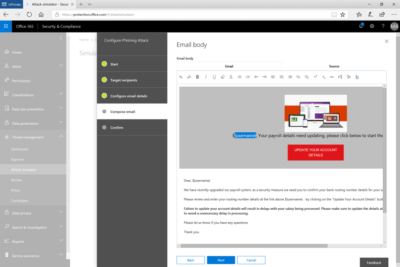
With Attack Simulator, customers can launch simulated attacks on their end users, determine how end users behave in the event of an attack, and update policies and ensure that appropriate security tools are in place to protect the organization from threats.  The GA of Attack Simulator adds a new HTML editor so realistic looking HTML emails can be sent in simulations of spear-phishing.  Also, two spear-phishing templates are available for immediate use in the spear phishing simulation.

Attack Simulator includes the three attack scenarios from our public preview.

Display Name Spear Phishing Attack: Phishing is the generic term for socially engineered attacks designed to harvest credentials or personally identifiable information (PII). Spear phishing is a subset of this phishing and is more targeted, often aimed at a specific group, individual, or organization.  These attacks are customized and tend to leverage a sender name that generates trust with the recipient.

Password Spray Attack: To prevent bad actors from constantly guessing the passwords of user accounts, often there are account lockout policies.  For example, an account will lockout after a certain number of bad passwords are guessed for a user.  However, if you were to take a single password and try it against every single account in an organization, it would not trigger any lockouts.  The password spray attack leverages commonly used passwords and targets many accounts in an organization with the hope that one of the account holder uses a common password that allows a hacker to enter the account and take control of it.  From this compromised account, a hacker can launch more attacks by assuming the identity of account holder.

Brute Force Password Attack: This type of attack consists of a hacker trying many passwords or passphrases with the hope of eventually guessing correctly. The attacker systematically checks all possible passwords and passphrases until the correct one is found.


This video demonstrates how Attack Simulator can help organizations educate users to become more secure from cyber threats.  With Attack Simulator, admins can train all their end users, and especially those who are attacked most often.  This proactive training is a powerful way to ensure that your organization can prevent the impact from advanced threats.  Over the coming months, more threat simulations will be added to Attack Simulator so organizations can simulate the most prevalent threat types from the modern threat landscape.

Experience the benefits of Attack Simulator for Office 365 Threat Intelligence by beginning an Office 365 E5 trial today.  Also, learn more about how Microsoft leverages threat intelligence and the value of threat intelligence.

Quick Tips: Flush the ARP cache in Windows 7

Here’s how to clear the Address Resolution Protocol cache and how to manage that cache with a few command switches.

The Address Resolution Protocol (ARP) cache is a crucial component of IP networking on any operating system. What ARP does is link Ethernet addressing (IP addressing) to hardware addressing (MAC addressing). Without this system, a machine could not communicate to the outside world as one addressing scheme could not communicate with the other.

The ARP Cache is a collection of ARP entries (mostly dynamic) that are created when a hostname is resolved to an IP address and then an IP address is resolved to a MAC address (so the computer can effectively communicate with the IP address).

When this happens, the PC will store that newly mapped address in the ARP cache, and it will stay there until the ARP cache entry timeout expires. This isn’t usually a problem, but sometimes a bad ARP entry can cause issues with Internet connections and Web page loading. When this occurs, one step that can be taken toward resolution is to clear the ARP cache. Yes, this means the ARP cache has to be rebuilt, which means a little more work for the PC, but that cache will rebuild fairly quickly.

Clearing the ARP cache is done completely through the command line, so stretch out those fingers and get ready to type. After we show you how to clear the ARP cache, we will show you how to manage that cache with a few command switches.

Flush the cache

Step 1: Open the command prompt

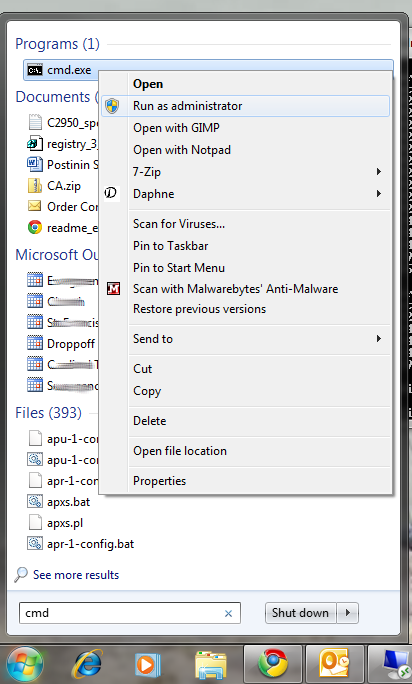
Click Start and then type “cmd” (no quotes) in the search dialog box, but don’t hit Enter yet. Right-click the cmd.exe icon and select Run as Administrator (Figure A). After answering the UAC, the terminal window will open offering up the command prompt.

Figure A

If the icon is already pinned in the Start menu, entering cmd is not necessary.

Step 2: Run the commands

The first command to run is

arp -a

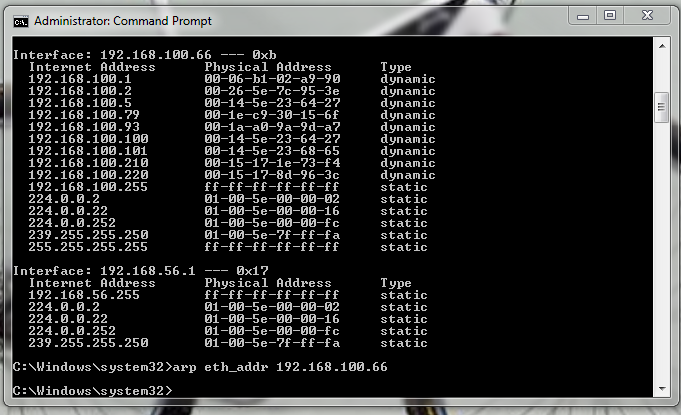
This command will display all your ARP entries (Figure B). Naturally the -a option is not the only option available. The arp command also allows for the following switches:

-d Delete an IP address (arp -d 192.168.100.10)
-d -a Delete all entries in the ARP table
-s Add an entry to the ARP table (arp -s ADDRESS MAC_ADDRESS – Where ADDRESS is the address to be added and MAC_ADDRESS is the MAC address of the machine)

Figure B

Here you see the arp cache for two different interfaces on a single machine.

To flush the entire cache, issue the following command:

netsh interface ip delete arpcache

The above command will flush the entire ARP cache on your system. Now as soon as network connections are made, the ARP cache will begin to repopulate.

Verify the flush

Once you have flushed the ARP cache, make sure to issue the command arp -a to see if the cache has, in fact, been flushed. If it does not flush, it could be the system is a victim of a Windows bug caused when Routing and Remote Services is enabled. This is a simple bug to fix:

1.           Click Start | Control Panel.

2.           Click Administrative Tools.

3.           Click Computer Management.

4.           Double-click Services and Applications.

5.           Double-click Services.

6.           Scroll down to Routing and Remote Services.

7.           Double-click Routing and Remote Services.

8.           Set the Startup Type to Disable.

9.           Make sure the service is stopped.

Now try flushing the ARP cache again. It should work this time.

Troubleshooting

It is also possible to troubleshoot network connections using the ARP cache. For example, it is important to look out for invalid ARP entries that go to a MAC address of 00-00-00-00-00-00. If one such entry shows up, make sure to delete it from the cache using the -d switch. Say you have an ARP entry that looks like:

224.0.0.24           00-00-00-00-00-00 static

In order to delete this entry, use the arp command like so:

arp -d 224.0.0.24

And that invalid entry will be gone.

Final thoughts

There are so many ways to troubleshoot networking connections. Flushing the ARP cache is just one of those methods that is rarely thought of, but when all else fails this might be the last-gasp effort that makes you the hero of the day.

Have questions?

Get answers from Microsofts Cloud Solutions Partner!
Call us at: 856-745-9990 or visit: https://southjerseytechies.net/

South Jersey Techies, LL C is a full Managed Web and Technology Services Company providing IT Services, Website Design ServicesServer SupportNetwork ConsultingInternet PhonesCloud Solutions Provider and much more. Contact for More Information.

To read this article in its entirety click here.
CALL US NOW!