Shop all the new products!
Save up to 10% on new purchases of $60 or more.
Visit: www.bigbeagle.com
Promo code: rs65214a. Offer expires Sunday, June 22, 2014.

Tech, Web, Cloud & Cabling Services

South Jersey Techies tag

Promo code: rs65214a. Offer expires Sunday, June 22, 2014.

Offer expires Sunday, September 1, 2013. Promo code rsa863a.

Exclusive offer from: BigBeagle.com | 24/7 Support: 8885051532
Amit Shah — Customer Number: 57156051
BigBeagle is a reseller of GoDaddy and offers GoDaddy products at a discounted price. Don’t forget to visit our coupon page at http://bigbeagle.com/coupons for the latest and greatest promotions.
*Some limitations apply. Applicable to new purchases only. Enter promo code into shopping cart to see full details. Minimum purchase of $50 required. Offer expires Sunday, October 11, 2015 at midnight (Mountain Time).
Copyright © 2015 BigBeagle.com. All rights reserved.
 Takeaway: Understanding Cloud Computing for technological infrastructures.
Cloud computing is the delivery of computing resources as a service over the Internet. The varieties of services offered are Infrastructure as a Service (IaaS), Platform as a Service (PaaS), Software as a Service (SaaS) Desktop as a Service (DaaS) and Network as a Service (NaaS).
Scalability, fast provisioning and agility help all organizations, big and small, reach monetary growth.
There are a few major misunderstandings associated with joining the Cloud Computing revolution, such as:
Cloud computing is a credible and efficient tool with longevity. If you use social media, eBay, Gmail or Online Banking, you are already using Cloud Computing.
Cloud computing is a significantly safe way to store, share and secure your data. Client’s are highly recommended to use the Cloud’s host-based firewall. Also available are host-based intrusion protection programs specialized for virtual machines and Cloud Clients
(Example – Trend Micro Deep Security or Symantec O3).
Even with the move to the cloud and monthly costs, organizations could save money long term on IT Management Services.
There are many different types of Cloud Computing to choose from that should make executing hassle-free.
The Cloud is not reserved for Large Organizations only. Virtual Desktop Infrastructure (SaaS or DaaS) can be a cost-effective solution for organizations of any size.
Plans are setup to acquire full benefits offered by Cloud Computing by integrating corporate strategy and technology with the advantage of using internal resources.
Having another provider with a secondary connection is a logical setup for all companies. Most organizations already operate with a connectivity “safety net”.

Offer expires Sunday, July 21, 2013. Coupon Code: rsa751a
Sling TV CEO Roger Lynch talks pricing, DVR, and certified hardware.
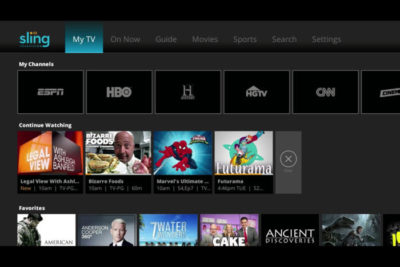
A lot’s changed in the two years since Sling TV made its grand debut at CES 2015. Instead of being the only streaming option for cable channels like ESPN and CNN, Sling is now one of three options alongside PlayStation Vue and DirecTV Now, and it will soon have a fourth competitor in Hulu.
Accordingly, Sling has changed with the times. The company, a subsidiary of Dish Network, has added new channels, created a second base package with a different mix of channels, and is working on a cloud DVR feature.
What else is in store for Sling this year? Here’s what we learned from Roger Lynch, Sling’s CEO, during CES 2017:
Sling began testing DVR service in an invite-only beta on Roku devices last month, and while it’s clearly a work in progress, Lynch says feedback has been positive. “The only feedback that isn’t positive is, ‘I wish I had this feature or that feature,’ all of which are being built already anyway,” Lynch says.
For now, Sling is prioritizing simple improvements like grouping recordings from a series into a folder, rather than listing them all separately. The eventual goal is to list all episodes from a series—whether it’s on-demand, recorded, or live—in a single window.
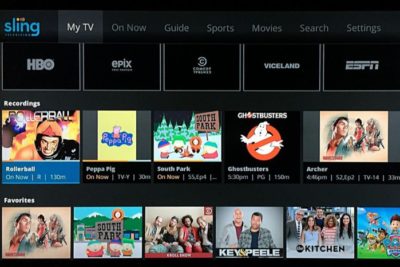
Still, Lynch gave only a rough time frame for when DVR might launch publicly, “It’s not in weeks. It’s not in years. It’s in months,” he says. “We want to get it out as quickly as possible.”
Just before CES began, Dish announced a new brand called AirTV. Its first product, the AirTV player, puts Sling TV front-and-center, while integrating over-the-air channels and Netflix recommendations into the Sling guide.
Lynch sees AirTV as an example for other device makers to follow. “I’m hopeful that other device partners will make devices similar to this, and do similar types of integrations for Sling, and that it’ll spur innovation in the ecosystem,” he says.
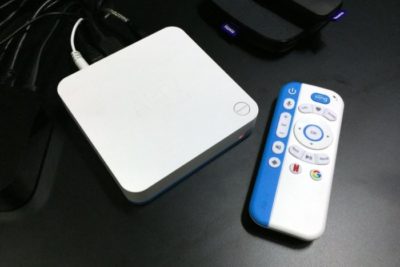
To that end, Sling’s sole CES announcement was an “Optimized for Sling TV” certification program, which will help consumers know whether a device works well with the service. With streaming devices, for instance, criteria could include a Sling button on the remote control, integration with over-the-air broadcasts in the Sling guide, and a way to auto-launch Sling when users turn on the device.
Lynch says Sling is still finalizing how it’ll enforce those criteria. Roku, for instance, pre-loads the Sling app and includes a quick-launch remote button on some models, and that might be enough to earn Sling’s approval. Other types of devices may have different criteria.
“There’s router companies that are looking to be optimized for Sling. So what does that mean for router companies? It doesn’t meant they’re going to integrate OTA and put a button on the remote. It means they’re going to do something to optimize for the experience,” Lynch says.
Last year, Sling introduced a second base package, separate from its original $20-per-month plan. The newer plan is called Sling Blue, and it starts at $25 per month, while the original is now called Sling Orange. (Subscribers can bundle the two plans, which have different channel lineups with some overlap, for $40 per month.)
Might Sling eventually try to merge these two plans?
“We work really, really hard not to combine them,” Lynch says. “The problem with combining them is, you end up with a $35 to $40 package because there’s so much content, and you price yourself out of the market from where I think the big opportunities [are].”
That sounds like a shot at rivals like PlayStation Vue, DirecTV Now, and Hulu, none of whom are attempting to match Sling’s base prices. “For us, the Sling Orange product is the perfect cord-cutter product. It’s great for people who use antennas because you’re not forced to buy locals, and locals are really expensive,” Lynch says.
Sling Blue, meanwhile, will likely compete more directly with those larger bundles over time. “That’ll become a broader content package at a higher price point,” Lynch says.
Since its launch in 2015, Sling has offered a “Replay” feature that lets users rewind live TV and watch several days’ worth of past programming. It’s a nice alternative to setting up a DVR, but not every channel supports the feature.
As you might expect, that’s partly because of issues with streaming rights. But Sling is working on accommodating those issues so it can support Replay on more channels.
“Every program has different requirements, like, can you fast forward, can you not fast forward, yes you can fast forward, but not through commercials,” Lynch says. “There are channels that have granted us rights to Replay, but we haven’t made Replay available on the channel yet, because we still have to put in some technology to enable that, because of the business rules that channel has.”

On the whole, though, negotiating those sorts of features with TV networks is getting easier. Lynch notes that two years ago, Sling was scrambling just to get a basic package together—the service launched with a mere 11 channels—but now TV networks are much more interested.
“When we first launched,” Lynch says, “we didn’t have as much leverage to demand things like that as we do now.”
Get answers from Microsofts Cloud Solutions Partner!
Call us at: 856-745-9990 or visit: https://southjerseytechies.net/
South Jersey Techies, LL C is a full Managed Web and Technology Services Company providing IT Services, Website Design Services, Server Support, Network Consulting, Internet Phones, Cloud Solutions Provider and much more. Contact for More Information.
To read this article in its entirety click here.
Thursday Night Football games are dumping Twitter for Amazon Prime.

Thursday night NFL games streamed with stunning success on Twitter last year, but for the season, football’s jumping ship. The NFL and Amazon announced they’ve reached a $50 million agreement for streaming rights to 10 Thursday Night Football games for the 2017 season—a five-fold increase over the $10 million Twitter paid for last year’s games.
The agreement’s a major win for Amazon, which has been pushing hard to expand its TV offerings. It’s a bummer for folks who’ve ditched cable, though. While Twitter streamed TNF games to the world, making them freely available to cord-cutters even if watchers weren’t Twitter users, Amazon’s NFL livestreams will be limited to paying Amazon Prime subscribers. An Amazon Prime subscription costs $100 per year.
CBS and NBC will still be able to stream the Thursday night games they broadcast, but those channels lock their streams behind the CBS All Access premium service and cable authentication, respectively. Likewise, Verizon will still be able to stream TNF games to mobile devices, but that’s limited to Verizon users and it’s a pain to try and get Verizon’s streams on your big screen.
The best bet for NFL-loving cord-cutters who don’t want to buy into a handful of different services may be to invest in an over-the-air TV antenna. The NFL still doesn’t offer a widespread subscription plan for live streaming games inside the U.S., as NFL Sunday Ticket is essentially limited to DirecTV subscribers alone.
Amazon says it may sell ads for the NFL streams, but also use the games to promote Amazon’s other video services, Recode reports. Amazon’s always using its services and features to entice you to embrace Amazon even more.
Get answers from Microsofts Cloud Solutions Partner!
Call us at: 856-745-9990 or visit: https://southjerseytechies.net/
South Jersey Techies, LL C is a full Managed Web and Technology Services Company providing IT Services, Website Design Services, Server Support, Network Consulting, Internet Phones, Cloud Solutions Provider and much more. Contact for More Information.
To read this article in its entirety click here.
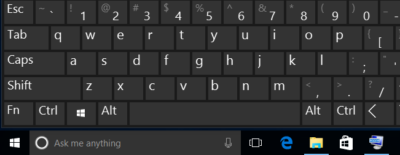 Despite notable advancements in speech-recognition technology and voice input, and the popularity of tablets, the humble PC continues to be the workhorse device of choice for many workers around the world. And whether you’re an office-bound professional slouched behind a desktop PC, or a globetrotting executives armed with the latest ultrabook, the “physical” hardware keyboard continues to play a crucial role in productivity.The last thing you want in the heat of the moment is to fumble around for a mouse or have to take multiple steps to complete a task that could be done with a quick keyboard shortcut. Of course, learning and remembering such shortcuts can be hard work, and you’ll need to take some time to find the appropriate shortcuts for you.We’re here to assist. This list of valuable Windows keyboard shortcuts will help you work smarter and faster.
Keyboard shortcuts for the Windows surfer
If you hope to master Windows keyboard shortcuts, you should start with the Windows desktop. The following shortcuts let you toggle between app windows and quickly resize them without having to reach for a mouse or align your apps.
Windows keyboard shortcuts for the Kung Fu typer
These useful shortcuts help zoom the cursor around your page much quicker than if you use a mouse or trackpad.
Windows keyboard shortcuts for virtual desktop Jujutsu
Long a staple feature in Linux and the Mac, Microsoft finally officially incorporated virtual desktops into its Windows 10 OS. The indispensable feature lets you create additional desktops to better manage multiple app windows.
Windows keyboard shortcuts for the browser ninja
You’ve probably used a web browser for as long as you’ve had a computer, but do you take full advantage of keyboard shortcuts for browser navigation? These browser shortcuts all work the in latest versions of Internet Explorer, Microsoft Edge, Mozilla Firefox and Google Chrome.
Windows keyboard shortcuts for locking up and shutting down
This guide wouldn’t be complete without some shortcuts that help you shut down your PC and then lock things up.
Get answers from Microsofts Cloud Solutions Partner!
Call us at: 856-745-9990 or visit: https://southjerseytechies.net/
South Jersey Techies, LL C is a full Managed Web and Technology Services Company providing IT Services, Website Design Services, Server Support, Network Consulting, Internet Phones, Cloud Solutions Provider and much more. Contact for More Information.
To read this article in its entirety click here.
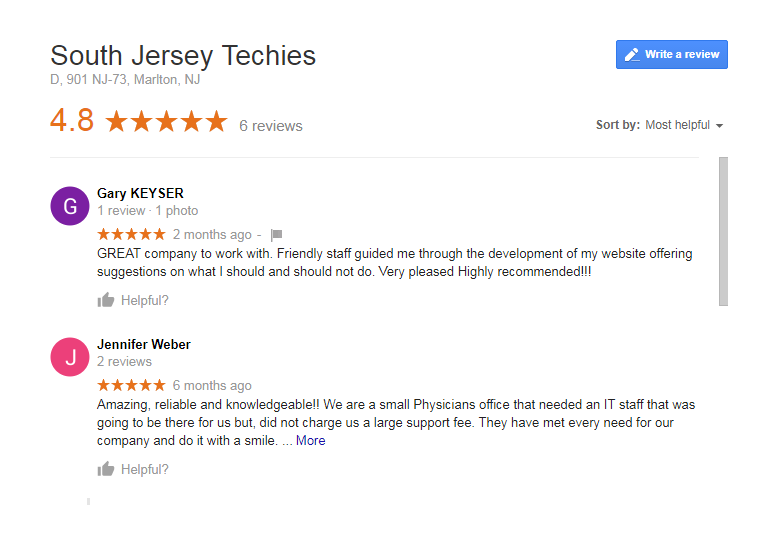
On Google Maps, you can write reviews for South Jersey Techies. Your reviews are public, so anyone can see what you write. You can’t add an anonymous review.
Note: Google has a zero tolerance policy for fake reviews. Google reserves the right to take down any review that they deem to be fake or which doesn’t comply with their user content and conduct policies.

At South Jersey Techies, we recognize the challenges businesses face and can help you improve your technology with affordable professional Managed IT Services and Website Maintenance Plans.We’ll help your company save time and money while giving you excellent service and tech support. In return we would like to know if we are doing our optimum best to help you and your business thrive
Here are some other things that others will be able to see:
> Your name that appears on your About me page
> Other reviews you’ve written on Google Maps
> Photos you’ve added to Google Maps
Tip: If you like adding place information or writing reviews, join the Local Guides community. By contributing to Google Maps, you can earn points and get a special badge next to your reviews. For more info and answers to your other questions, check out the Local Guides forum.
Tip: If you want to see a translated review in another language, go to your languages 

 .
.Tips:
> To find high-quality reviews, look for Local Guides 
> If you want to see a translated review in another language, go to your languages
scroll down until you see 5 empty stars.Tips:
> To find high-quality reviews, look for Local Guide
> If you want to see a translated review in another language, go to your languages
If you have Location History turned on, you can see a list of places you’ve visited or places that you might want to review.
 Your contributions.
Your contributions Reviews. scroll down until you see your review at the bottom of your review, tap Share . Edit review. Delete review. Report review.
Your contributions.
Your contributions Reviews. scroll down until you see your review at the bottom of your review, tap Share . Edit review. Delete review. Report review.Get answers from Microsofts Cloud Solutions Partner!
Call us at: 856-745-9990 or visit: https://southjerseytechies.net/
South Jersey Techies, LL C is a full Managed Web and Technology Services Company providing IT Services, Website Design Services, Server Support, Network Consulting, Internet Phones, Cloud Solutions Provider and much more. Contact for More Information.
The latter half of 2012 should see some exciting developments in tech including a new iPhone,Windows Phone 8 smartphones, Microsoft’s Windows 8-powered Surface, Android 4.1 devices, and tablets, lots and lots of tablets.
Apple is expected to introduce a smaller iPad before December, Amazon may roll out its follow-up to the original Kindle Fire, and Samsung may be one of the first companies to get on board with Windows RT.
Here’s a look at some of the hottest tablet speculation that we may see turn into actual products before the holidays.
Apple may be getting ready to stop competitors from invading the iPad’s turf with a low-priced 7-inch iPad to take on Amazon’s Kindle Fire and Google’s Nexus 7. Bloomberg recently reported that Apple was prepping a 7-inch tablet that would launch in October for $200. On Sunday the The New York Times reported a similar story to the news wire, but added the new iPad Mini will have a 7.85-inch screen.
The Kindle Fire and Google’s Nexus 7 are seeing some success against the iPad by not taking on the iPad. The two companies sell $200 tablets designed largely for content consumption instead of trying to offer an iPad-like device that can replace your laptop in a pinch.
The Fire and Nexus 7 each operate by providing deep hooks into each company’s content stores to make it easy for people to buy more movies, TV shows, apps, and games. The strategy of focusing on content consumption appeared to work for Amazon, and critics are already saying good things about Google’s Nexus 7.
Amazon announced the original Kindle Fire in September 2011 and, as we close in on the tablet’s one year anniversary, thoughts turn to what Amazon may have planned as a follow-up to this tablet.
A May Reuters report in May claimed the next Kindle Fire will offer an 8.9-inch display. Earlier in July, an analyst for NPD DisplaySearch told CNET that Amazon was prepping three versions of the Kindle Fire 2, including a 7-inch tablet with a screen with 1280-pixel-by-800-pixel resolution, a camera, and a 4G option.
The current Kindle Fire features a 7-inch display with a resolution of 1024 pixels by 600 pixels.
The Times’ Sunday report about the mini iPad also claimed that Amazon is prepping a bigger version of the Fire to take on Apple’s tablet. There are no details about screen size or functionality, so it’s not clear what the purported device would be like or if it would actually be designed to take on the iPad.
More likely–at least in my view–is that Amazon would prep a larger version of the Kindle Fire that is better adapted to consuming visual content such as movies and gaming. But to keep the price low, Amazon would offer fewer hardware features than Apple’s tablet such as GPS, Bluetooth, and front- and rear-facing cameras.
Rumblings about a bigger Kindle Fire have been circulating for some time. The latest report before the Times claim was from BGR in June saying the new Amazon device would have a 10-inch display and quad-core processor.
Samsung will have one of the first tablets out of the gate loaded with Windows RT, the version of Microsoft Windows 8 designed for ARM processors, according to Bloomberg.
The device will purportedly feature a Qualcomm Snapdragon processor, but no other device details are known. Samsung’s Windows RT tablet should debut in October when Windows 8 is set for a public launch.
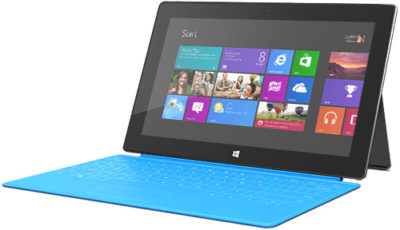
We already know that Microsoft will roll out its Surface tablets later in 2012 and into 2013, and Acer in June said it plans to launch a Windows RT tablet in early 2013. As we get closer to the Windows 8 launch in October, more details should be announced about the upcoming crop of Windows 8-powered tablets.
To View Full Article Click Here
 CALL US NOW!