Back to Top

Tech, Web, Cloud & Cabling Services

Tag Archives: Security

Security tag

Rogue Anti-Virus Software Explained

What Is Rogue Anti-virus Software?

It is almost unheard of in this day and age to be online without using anti-spyware and anti-virus software to safeguard your computer against viruses and other malicious code. It’s not surprising to see the prevalence of rogue anti-virus software.

Also called scareware, or rogue security software, or smitfraud, this type of software is also most commonly defined as malware—it is designed specifically to damage or disrupt your computer system. In this case, not only is the software going to disrupt your system, it’s going to try and trick you into making an unsecure credit card purchase.
Rogue anti-virus programs usually appears in the form of a fake Windows warning on your computer system that reads something like, you have a specific number of viruses on your computer (usually in the hundreds) and that this software has detected those viruses. To get rid of these viruses, you’re prompted to buy the full-version of the antivirus software (which is really rogue antivirus software).

The good news is that you probably do not have a computer that is infested with hundreds of viruses as the rouge software claims. The bad news is that the rogue antivirus software itself is on your computer and you must remove it. Removal is hindered as rouge software can lock the control panel and the the Add/Remove Programs function to prevent you from removing it easily.

Other things that may be disrupted by the rogue software include being unable to visit reputable and valid anti-virus and malware Web sites, being able to install legitimate antivirus software and also being unable to access your desktop.

The rogue software wants to stop users from removing the program and proceeding with the purchase instead. It’s important to remember that by purchasing the “claimed full version to remove the viruses” you will be submitting your personal information to unscrupulous persons and may also end up being a victim of credit card or identity theft.

Common names of rogue antivirus software include; AntiVirus (2007, 2008, and 2009), MS-Antispyware, XP AntiVirus (2007, 2008, and 2009), Home Antivirus 2009, SpyWareGuard, Malware Cleaner, Extra Antivirus, AV AntiSpyware, SpywareProtect2009, WinPC Defender as well as many other names.

How Does a Computer Get Infected with Rogue Antivirus Programs?
The reason these rogue anti-virus programs are successful (for the malicious coders) is because the warning screens very closely resemble legitimate Windows warning screens, plus the rouge software program names closely resemble or sound like legitimate antivirus programs.

When you load an infected Web site you might see a warning screen pop up and think that it is a legitimate Windows warning. Users unknowingly are tricked into downloading the software because they believe the warning to be a legitimate Windows messages.

You might also be on a Web site trying to view a video and a screen may pop-up telling you that you need to download a codec to view the file. The window prompting you to download the codec looks legitimate, however you are not going to download a codec—instead you will receive one of the many rogue antivirus software programs.

In April of this year, it was also reported that systems that had been previously infected with Conficker, found this worm had began installing rogue antivirus programs on infected machines. In the early cases this turned out to be a rogue application called SpywareProtect2009. Kaspersky researchers reported this was a typical rogue program that offered to clean the computer for $49.95.

Lastly, if you use file sharing networks you also risk downloading a rogue antivirus as it can be easily hidden inside a legitimate program—that you may or may not be legitimately downloading.
How to Spot Rogue Antivirus Warnings

For the most part, you need to look at the windows that are popping up and the name of the program being shown. If you know the program name of the antivirus and spyware software you use, then seeing a different name in the warning window is the first clue. Also, Windows itself doesn’t warn you of a virus. Legitimate warnings on your system would come from the anti-virus program you have installed, not a random Windows operating system style pop-up window. A great resource for learning how to spot these malicious programs through fake warning messages can be found on bleepingcomputer.com. This page lists the text of some of the more common false warning screens, including the following:

Malware Cleaner: Trojan detected! A piece of malicious code was found in your system that can replicate itself if no action is taken. Click here to have your system cleaned by Malware Cleaner.

AV AntiSpyware: Spyware Alert! Your computer is infected with spyware. It could damage your critical files or expose your private data on the Internet. Click here to register your copy of AV AntiSpyware and remove spyware threats from your PC.
How Do I Get Rid of Rogue Antivirus Programs?

It can be a difficult task to get rogue anti-virus programs off your computer. To complicate the matter, there are many variations of this malicious program and not all variants can be removed in the same way. This is not something that novice computer users may be able to deal with on their own.

Also, due to the popularity of these infections and people searching for answers on how to remove the program a number of scam programs also exist that lead users to believe it will remove the infection. Yes, these programs that claim to rid your system of Antivirus 2009 (or whichever variant you have been infected with) will scan your system and then prompt you for a credit card number so you can download a full version to remove the infection. Sound familiar? It should. This is a vicious cycle that users can unwittingly become trapped in.

Still, the good news is that in many instances you can get rid of the rouge antivirus program without wiping and formatting your hard drive. If you are already infected and you cannot access legitimate security related Web sites, you will need to download the following programs from a second computer and burn them to CD to run on the infected computer.

WARNING: Before running any of the following programs, you should turn off System Restore (you won’t be able to use System Restore as this deletes all restore points). If you don’t turn it off, the programs may not be able to access those system files to clean them. If you are infected the System Restore is not going to return you to an earlier uninfected date anyway. You can turn it back on after you have successfully removed the rouge antivirus program.

The quickest way, and first thing to try is to download Malwarebytes Anti-Malware to get rid of the rogue antivirus. On it’s own this will usually rid your computer of the problem. If Malwarebytes didn’t have the desired results, or you simply want to do a total and complete system clean, you will want to use a combination of CCleaner, Malwarebytes, Asquared, and SpyBot Search and Destroy. These programs all offer freeware versions.

NOTE: In some cases, the rogue anti-virus may block one or more of these legitimate programs. If this is the case, you will need to open the folder where you installed the program on your hard drive and rename the executable file (.exe) to anything other than the program’s name. (e.g. rename mbam.exe to aaa.exe).

Once you have run all the programs, be sure to go back and run CCleaner a final time to get rid of dead registry links from having the rouge antivirus removed. Continue to run the registry option of this program until no problems are found.

Here are additional removal resources:
bleepingcomputer.com: How to remove Extra Antivirus
bleepingcomputer.com: How to uninstall and remove AV AntiSpyware
bleepingcomputer.com: How to uninstall and remove WiniBlueSoft
bleepingcomputer.com: How to uninstall and remove HomeAntivirus 2009
bleepingcomputer.com: How to uninstall and remove Antivirus 2009 (Antivirus 09)
bleepingcomputer.com: How to uninstall and remove PAntispyware09
bleepingcomputer.com: How to uninstall and remove Virus Sweeper
bleepingcomputer.com: How to uninstall and remove WinPC Antivirus
Kaspersky Technical Support and Knowledge Base: How to disinfect rogue spyware

DID YOU KNOW…

In December 2008 it was reported that a Google sponsored link pointed to a malicious Web site where users were redirected to a spoofed CNET Download.com site with offers to download a “spyware free” copy of Winrar. This file included the rogue antivirus program “AntiSpyware2008” (Source)

To read the original article in it’s entirety Click Here
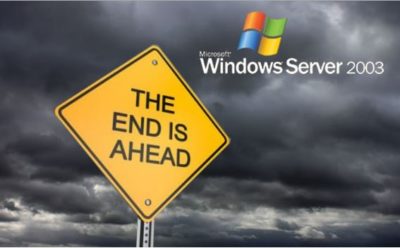
End of Support: Server 2003

end windows server 2003


A large number of businesses still run Microsoft MSFT -1.71% Windows Server 2003 and it’s unlikely they all will upgrade before Microsoft Corp. ends support on July 14, 2015, say analysts. Companies that don’t upgrade increase their cyber security risks because the company will no longer issue security updates and these systems will be more vulnerable to hackers.

Businesses worldwide run an estimated 23.8 million physical and virtual instances of Windows Server 2003, according to data released by Microsoft in July 2014. Analysts say the technology is more prevalent in industries such as health care, utilities and government. Yet it’s also still used in about 7% of retail point of sale systems, according to a report Thursday by Trend Micro Inc.4704.TO -1.11%

“Microsoft does not plan to extend support for Windows Server 2003 and encourages customers who currently run Windows Server 2003 and have not yet begun migration planning to do so immediately,” said Vivecka Budden, a Microsoft spokesperson, in an email.

South Jersey Techies offers various migration options to include Windows Server 2012 R2, Microsoft Azure, hosting partners and Office 365.

“It is going to be difficult to get this done in time,” said David Mayer, practice director of Microsoft Solutions at Insight Enterprises Inc.NSIT -1.12%, a provider of IT hardware, software and services.

Many of these same industries were impacted by the end of service for the Windows XP operating system on April 8.  Microsoft broadcasts these sorts of moves years in advance, so it shouldn’t come as a surprise to anyone. But, the product was stable and for many companies there simply wasn’t incentive to update.

“In general, everyone has been slow to migrate, especially those with servers that are running applications,” said Rob Helm, vice president of research at Directions on Microsoft consulting firm.

The problem in industries such as health care and utilities is that companies run legacy apps written by vendors who still require Windows Server 2003. For example, there are smaller vendors in health care that have not kept up with development and application modernization, said a health-care CIO who asked not to be identified. A hospital may have an inventory of 100 to 500 different applications and many applications will still require Windows Server 2003, he added.

Electric utilities, for example, widely use Windows Server 2003. There hasn’t been much movement to upgrade those systems, said Patrick C. Miller, founder of the nonprofit Energy Sector Security Consortium and a managing partner at The Anfield Group, a security consulting firm. Instead, utilities are working to better secure and isolate those systems.

“I’m concerned about directory services such as application authentication and user permissions,” said Mr. Miller. “If you compromise an Active Directory server, you get access to everything.”

For now, analysts are recommending that companies work out their risk of exposure and make plans to first migrate those applications that will be most difficult. Companies should make plans to harden servers that can’t be updated. That might entail putting those systems on an isolated network, where they’d be less prone to outside attack, said Mr. Helm.

To protect and upgrade your home or business

 please contact us 856-745-9990 or click here.


Check Out These Tools

Hopefully, why you should never trust Facebook is obvious by now. Perhaps you feel like you still need it, though — or stubbornly refuse to believe it is really all that bad, whether because you think it is not much of a risk or just do not believe the evidence.

You may take all reasonable precautions, including using no personally identifiable or sensitive information in your account or profile data. Maybe you use a password and email address for the account that you use for nothing else, and refuse to communicate with anyone who actually knows any personally identifiable information or secrets about you on Facebook. Even so, there are risks.

Facebook clearly is not concerned with your privacy any more than the absolute minimum required to keep itself in business. There’s no such thing as a trusted brand, but there is certainly such a thing as a brand that is thoroughly suspicious — and Facebook seems to fit the description when it comes to personal privacy. Any time Facebook appears to care about your privacy, keep in mind that it took Congressional posturing to keep the corporation in line even to that small degree.

It is clear that even when Facebook offers something that looks like some kind of privacy protection, the offer is not a promise, and relying on it is a recipe for disappointment. With that in mind, the problem of protecting even the most minimal sense of privacy while using Facebook seems insurmountable. Thanks to the efforts of a number of hackers and entrepreneurs who actually care about privacy — not only theirs, but that of others as well, even if only because it serves as a convenient business model — there are some options that can help at least a little.

In no particular order:

1. SaveFace
Untangle offers the SaveFace bookmarklet, a script that can be saved as a bookmark in your browser. When you click a bookmarklet, it does “something” — usually involving whatever page you happen to be visiting at that moment. In the case of SaveFace, you can visit your Facebook page then click on the bookmarklet to rest your privacy settings to Private. According to Untangle, it currently covers Contact Information; Search Settings; Friends, Tags, and Connections; and Personal Information and Posts.

2. ReclaimPrivacy.org
A similar bookmarklet is offered by ReclaimPrivacy.org. Unlike SaveFace, the purpose of ReclaimPrivacy.org’s tool is to scan your Facebook settings and detect certain types of privacy vulnerabilities in your account settings. In theory, at least, it should be more thorough than SaveFace — but less automated as a means of protecting yourself.

3. Connect In Private
At ConnectInPrivate there is an annoying tablike thing floating over the left-hand side of the page. Take a closer look: it reads “Secure Your Facebook Profile”. If you click on that, it takes you to a Facebook application that offers a fairly comprehensive Facebook privacy feature set. Of course, what it provides is little more than a convenience layer over manually adjusting your own Facebook privacy settings, but it can be used for free and, if you like that kind of thing, you might find it valuable.

Using Connect In Private’s Facebook privacy scanner is a remarkably tedious and uncomfortable process for something so simple. It involves reading, and thinking about, a series of questions about what kind of privacy preferences you have — in ways that are poorly defined, and requiring Facebook account access that should make the average security concerned user hesitate. Access to the source code is not exactly a matter of easy access the way it is with the JavaScript in the ReclaimPrivacy.org bookmarklet and the .js page it references, either.

A final word
Connect In Private has one definite advantage over the other tools, though: it is more actively maintained. As of this writing, ReclaimPrivacy.org’s script is not compatible with current Facebook privacy settings, and there is a note on the page to that effect. SaveFace is far from a complete solution, for that matter. None of them are perfect, and there is always a risk if you trust your private data to a site like Facebook. Each of them might help a little, though.

In the end, I for one find it difficult to trust the Facebook application offered by Connect In Private. Your mileage may vary.

To read the original article in it’s entirety Click Here

BBB Advises Caution for Web Surfers

Protecting your identity is important and with Wi-Fi networks popping up nearly everywhere, many consumers don’t realize the dangers that come with using a Wi-Fi connection that is not their own. According to a recent poll conducted by Wakefield Research and Wi-Fi Alliance, 32 percent of respondents said they have tried to get on a Wi-Fi network that was not their own, a startling 18 percent more than a December 2008 poll. The Better Business Bureau, along with the Federal Trade Commission (FTC), urges consumers to think ahead before surfing the Web on a Wi-Fi hotspot.

Wi-Fi hotpots like coffee shops, libraries, airports, hotels and universities are all breeding grounds for hackers. According to the FTC, new hacking tools—available for free online—make hacking easy, even for users with limited technical know-how.

Consumers should be cautious before using a non-secure wireless network and before sending personal information via unencrypted websites. When surfing on a non-secure Internet connection, an individual’s personal information, private documents, contacts, photos and even login information can be up for grabs as other users on the network have the capability of seeing what is being sent.

Steve Cox, President and CEO of the Council of Better Business Bureaus, warns consumers against two popular security scams that can be associated with using an unsecure Internet connection. “Many consumers don’t realize the repercussions that come from using a Wi-Fi hotspot. Phishing, a popular e-mailing scam, and smishing, a SMS texting scam, grow exponentially when hackers obtain access to personal information on the Web via an unsecure Wi-Fi network.” BBB urges consumers to protect themselves from such scams by securing their Internet surfing.

In order to confirm that an Internet connection is secure, BBB advises consumers to follow the FTC’s top Wi-Fi tips:

Make sure the connection is protected by a unique password. If a Wi-Fi hotspot doesn’t ask for a password, the Internet connection is not secure. If a hotspot asks for a password just to grant access, consumers should proceed as if the connection were unsecured. Only trust home and work internet connections that are protected by a customized user password. Wi-Fi hotspot connections with generic passwords are vulnerable to hackers.

Transmitted information should be encrypted. When sending personal information like addresses, credit card numbers and Social Security numbers over the Internet, make sure the website is fully encrypted and the network is secure. Look for https (the “s” stands for secure) at the beginning of the URL address to confirm its security.

Don’t stay permanently logged-in to wireless hotspots. Never leave your Internet connection running while your computer is unattended and make sure to log-off after every use.

Change your passwords frequently. When creating new accounts, make sure you use different passwords. Do not use the same password for different sites. If one password is hacked, the chances of other accounts being hacked becomes greater with repeated passwords.

For more advice on security scams, visit www.bbb.org or to learn more about protecting your privacy online and what to do if your information is compromised, visit www.OnGuardOnline.gov and http://www.ftc.gov/opa/2011/02/wireless.shtm

Critical iPhone Spyware Fix Released

Apple has updated its software for iPhones to address a critical vulnerability that independent researchers say has been exploited by notorious surveillance software to spy on a Saudi activist.

Researchers from the University of Toronto’s Citizen Lab said the software exploit has been in use since February and has been used to deploy Pegasus, the spyware made by Israeli firm NSO Group that has allegedly been used to surveil journalists and human rights advocates in multiple countries.

The urgent update that Apple (AAPL) released Monday plugs a hole in the iMessage software that allowed hackers to infiltrate a user’s phone without the user clicking on any links, according to Citizen Lab. The Saudi activist chose to remain anonymous, Citizen Lab said.

Apple credited the Citizen Lab researchers for finding the vulnerability.

“Attacks like the ones described are highly sophisticated, cost millions of dollars to develop, often have a short shelf life, and are used to target specific individuals,” Ivan Krsti?, head of Apple Security Engineering and Architecture, said in a statement.

Krsti? said Apple rapidly addressed the issue with a software fix and that the vulnerability is “not a threat to the overwhelming majority of our users.”

Still, security experts encouraged users to update their mobile devices for protection.

In a statement, NSO Group did not address the allegations, only saying, “NSO Group will continue to provide intelligence and law enforcement agencies around the world with life saving technologies to fight terror and crime.”

The firm has previously said its software is only sold to vetted customers for counterterrorism and law enforcement purposes.

Researchers, however, say they have found multiple cases in which the spyware was deployed on dissidents or journalists. In 2019, Citizen Lab analysts alleged that Pegasus was used on the mobile phone of the wife of a slain Mexican journalist.

In a lawsuit filed in 2019, Facebook accused NSO Group of being complicit in a hack of 1,400 mobile devices using WhatsApp. (NSO Group disputed the allegations at the time.)

The proliferation of easy-to-use mobile hacking tools has given governments around the world a new and stealthy means of targeting adversaries. Sophisticated spyware made by NSO Group and other vendors has been reportedly used from Uzbekistan to Morocco.

The surge in spyware prompted a United Nations panel of human rights experts in August to call for a moratorium on the sale of such surveillance tools. The UN panel said the ban should remain in place until governments have “put in place robust regulations that guarantee its use in compliance with international human rights standards.”

4 WAYS TO SPEED UP YOUR PC

Speed Up Computer

How to make a computer faster: 4 ways to speed up your PC

By following a few simple guidelines, you can maintain your computer, help increase your PC speed, and help keep it running smoothly. This article discusses how to use the tools installed on your computer, plus a few safe and free downloads, to help make your computer faster, maintain your computer efficiently, and help safeguard your privacy when you’re online.

Note: Some of the tools mentioned in this article require you to be logged on as an administrator. If you aren’t logged on as an administrator, you can only change settings that apply to your user account.

1. Remove spyware, and help protect your computer from viruses

Spyware collects personal information without letting you know and without asking for permission. From the websites you visit to user names and passwords, spyware can put you and your confidential information at risk. In addition to privacy concerns, spyware can hamper your computer’s performance. To combat spyware, you might want to consider using Malwarebytes. This scan is a free service that helps check for and remove viruses. You should also download Microsoft Security Essentials for free to help guard your system in the future from viruses, spyware, adware, and other malicious software (also known as malware). Microsoft Security Essentials acts as a spyware removal tool and includes automatic updates to help keep your system protected from emerging threats.

2. Free up disk space

The Disk Cleanup tool helps you to free up space on your hard disk to improve the performance of your computer. The tool identifies files that you can safely delete and then enables you to choose whether you want to delete some or all of the identified files.

Use Disk Cleanup to:

– Remove temporary Internet files.
– Delete downloaded program files, such as Microsoft ActiveX controls and Java applets.
– Empty the Recycle Bin.
– Remove Windows temporary files, such as error reports.
– Delete optional Windows components that you don’t use.
– Delete installed programs that you no longer use.
– Remove unused restore points and shadow copies from System Restore.

Tip: Typically, temporary Internet files take the most amount of space because the browser caches each page you visit for faster access later.

To use Disk Cleanup:

Windows 7 users

1. Click Start, click All Programs, click Accessories, click System Tools, and then click Disk Cleanup. If several drives are available, you might be prompted to specify which drive you want to clean.

2. When Disk Cleanup has calculated how much space you can free up, in the Disk Cleanup for dialog box, scroll through the content of the Files to delete list.

3.  Clear the check boxes for files that you don’t want to delete, and then click OK.

4.  When prompted to confirm that you want to delete the specified files, click Yes.

After a few minutes, the process completes and the Disk Cleanup dialog box closes, leaving your computer cleaner, performing better, and potentially increasing your PC speed.  For more options, such as cleaning up System Restore and Shadow copy files, under Description, click Clean up system files, and then click the More Options tab.

Windows Vista users

1. In the Start menu, click All Programs, click Accessories, click System Tools, and then click Disk Cleanup.

2. In the Disk Cleanup Options dialog box, choose whether you want to clean up your own files only or all of the files on the computer.

3. If the Disk Cleanup: Drive Selection dialog box appears, select the hard disk drive that you want to clean up, and then click OK.

4. Click the Disk Cleanup tab, and then select the check boxes for the files you want to delete.

5. When you finish selecting the files you want to delete, click OK, and then, to confirm the operation, click Delete files. Disk Cleanup then removes all unnecessary files from your computer. This may take a few minutes.

The More Options tab is available when you choose to clean files from all users on the computer.

Windows XP users

1.  Click Start, point to All Programs, point to Accessories, point to System Tools, and then click Disk Cleanup. If several drives are available, you might be prompted to specify which drive you want to clean.

2.  In the Disk Cleanup for dialog box, scroll through the content of the Files to delete list.

3.  Clear the check boxes for files that you don’t want to delete, and then click OK.

4.  When prompted to confirm that you want to delete the specified files, click Yes.

After a few minutes, the process completes and the Disk Cleanup dialog box closes, leaving your computer cleaner and potentially performing better.

3. Speed up access to data

Disk fragmentation slows the overall performance of your system. When files are fragmented, the computer must search the hard disk as a file is opened (to piece it back together). The response time can be significantly longer.

Disk Defragmenter (sometimes shortened to Defrag by users) is a Windows utility that consolidates fragmented files and folders on your computer’s hard disk so that each occupies a single space on the disk. With your files stored neatly end to end, without fragmentation, reading and writing to the disk speeds up.

When to run Disk Defragmenter
In addition to running Disk Defragmenter at regular intervals (weekly is optimal), there are other times you should run it, too, such as when:

– You add a large number of files.
– Your free disk space totals 15 percent or less.
– You install new programs or a new version of the Windows operating system.

To use Disk Defragmenter:

Windows 7 users

1. Click Start, click All Programs, click Accessories, click System Tools, and then click Disk Defragmenter.


2. In the Disk Defragmenter dialog box, click the drives that you want to defragment, and then click the Analyze disk button. After the disk is analyzed, a dialog box appears, letting you know whether you should defragment the analyzed drives.

Tip: You should analyze a volume before defragmenting it to get an estimate of how long the defragmentation process will take.

3.  To defragment the selected drive or drives, click the Defragment disk button. In the Current status area, under the Progress column, you can monitor the process as it happens. After the defragmentation is complete, Disk Defragmenter displays the results.

4.  To display detailed information about the defragmented disk or partition, click View Report.

5.  To close the View Report dialog box, click Close.

6.  You can also schedule the Disk Defragmenter to run automatically. (Your computer might even be set up this way by default.) Under Schedule, it reads Scheduled defragmentation is turned on and then displays the time of day and frequency of defragmentation. If you want to turn off automatic defragmentation or to change the time or frequency, click Configure schedule (or Turn on Schedule, if it is not currently configured to run automatically). Change the settings, and then click OK.

7.  To close the Disk Defragmenter utility, on the title bar of the window, click the Close button.

Windows Vista users

1.  Open Disk Defragmenter: Click the Start button, click All Programs, click Accessories, click System Tools, and then click Disk Defragmenter. If you are prompted for an administrator password or confirmation, type the password or provide confirmation.

2.  In the Disk Defragmenter dialog box, click the drives that you want to defragment and then click the Analyze diskbutton. After the disk is analyzed, a dialog box appears letting you know whether you should defragment the analyzed drives.

Tip: You should analyze a volume before defragmenting it to get an estimate of how long the defragmentation process will take.

3.  To defragment the selected drive or drives, click the Defragment disk button. In the Current status area, under the Progress column, you can monitor the process as it happens. After the defragmentation is complete, Disk Defragmenter displays the results.

4.  To display detailed information about the defragmented disk or partition, click View Report.

5.  To close the View Report dialog box, click Close.

6.  You can also schedule the Disk Defragmenter to run automatically. (Your computer might be set up this way by default.) Click Modify schedule….

7.  In the Disk Defragmenter: Modify Schedule dialog box, choose how often, which day, and at what time of day you want defragmentation to occur, and then click OK.

8.  Click OK again.

Windows XP users

1.  Click Start, point to All Programs, point to Accessories, point to System Tools, and then click Disk Defragmenter.

2.  In the Disk Defragmenter dialog box, click the drives that you want to defragment and then click the Analyze button. After the disk is analyzed, a dialog box appears, letting you know whether you should defragment the analyzed drives.

Tip: You should analyze a volume before defragmenting it to get an estimate of how long the defragmentation process will take.

3.  To defragment the selected drive or drives, click the Defragment button. Note:In Windows Vista, there is no graphical user interface to demonstrate the progress—but your hard drive is still being defragmented.  After the defragmentation is complete, Disk Defragmenter displays the results.

4.  To display detailed information about the defragmented disk or partition, click View Report.

5.  To close the View Report dialog box, click Close.

6.  To close the Disk Defragmenter utility, on the title bar of the window, click the Close button.

Running Disk Cleanup and Disk Defragmenter on a regular basis is a proven way to help keep your computer running quickly and efficiently. If you’d like to learn how to schedule these tools and others to run automatically, please read Speed up your PC: Automate your computer maintenance schedule.

4. Detect and repair disk errors

In addition to running Disk Cleanup and Disk Defragmenter to optimize the performance of your computer, you can check the integrity of the files stored on your hard disk by running the Error Checking utility.

As you use your hard drive, it can develop bad sectors. Bad sectors slow down hard disk performance and sometimes make data writing (such as file saving) difficult or even impossible. The Error Checking utility scans the hard drive for bad sectors and scans for file system errors to see whether certain files or folders are misplaced.

If you use your computer daily, you should run this utility once a week to help prevent data loss.

Run the Error Checking utility:

1.  Close all open files.

2.  Click Start, and then click Computer.

3.  In the Computer window (My Computer in Windows XP), right-click the hard disk you want to search for bad sectors, and then click Properties.

4.  In the Properties dialog box, click the Tools tab.

5.  Click the Check Now button.

6.  In the Check Disk dialog box (called Error-checking in Windows 7), select the Scan for and attempt recovery of bad sectors check box, and then click Start.

7.  If bad sectors are found, choose to fix them.

Tip: Only select the “Automatically fix file system errors” check box if you think that your disk contains bad sectors.

To see the original article in its entirety click here.

10 Commandments of Windows Security

With the introduction of Windows 7, many PC and notebook users may feel more secure than they did using older versions of the Microsoft operating system. Newer OSs have more security features, offer better out-of-the-box security settings and have closed many of the historical security holes. Windows 7, for example, has changed the default User Account Control level so that it’s harder for rogue programs to run without first explicitly gaining the user’s permission.

[Also read 3 steps to protect your personal data]

However, feeling too secure can be dangerous. With that in mind, here are 10 tips–commandments, if you will–for ensuring your desktop or notebook computer can be used productively as well as safely. Many of the recommended tools are free, and all are affordable–and certainly less expensive than the potential problems of an unsecured computer. Similarly, many will take you only a minute or two to perform–again, far less time than you’d spend recovering from a security problem.

Yes, Windows 8 is on the way; it’ll be many years before that version runs on a majority of the installed base. So these tips are focused at the computers you are actually using today–especially Windows 7 computers, though most of the advice also applies to Windows Vista or XP machines.

1st commandment: Start with new hardware

Today’s new hardware–motherboards, BIOS, CPUs, hard drives, and the system as a whole–includes more security “baked in,” even before the operating system is installed. Examples include Trusted Platform Modules (TPM), which embed cryptographic security directly into the hard drive or other component, Unified Extensible Hardware Interface (UEFI) firmware instead of the traditional BIOS, and Intel’s vPro security and management technologies. For example, machines with UEFI and TPM will, as part of each boot-up, check the computer’s firmware and boot-up binaries to confirm they have not been infected with malware.

If you are working with an existing machine, consider doing a fresh install of the operating system, after completing one (or several) full backup. Ideally, the operating system would be the newest version rather than what was previously installed. (Products like LapLink’s PC-Mover can reduce the effort of saving and migrating settings and even application software–although applications should be freshly installed if possible, as well.)

Even if you’re working with an existing machine, consider swapping in new hard drives that include built-in encryption. Drives that support the OPAL Storage Specification standard enable companies to manage encrypted drives from multiple vendors–and have also helped reduce the extra cost for an encrypted drive from $100 to nearly zero. After-market drives often include migration tools to speed and simplify a drive swap.

If a self-encrypted drive isn’t an option, look at using full-disk encryption software, such as Windows’ BitLocker (available only on Enterprise or Ultimate Windows Vista, 7 or 8 ) or a third-party tool.

2nd commandment: Use current OS versions and automatically get OS and application updates

If you aren’t using the most current commercial version of the operating system, it’s time to upgrade. Additionally, make sure you set the software to automatically apply updates (not just the OS, but all applications) and periodically turn off the computer, which is when many updates are auto-applied. An appalling number of security breaches occur because applications lack important security fixes that have been available for a year or more.

The computer vendor may also include helpful update tools. For example, Lenovo includes an update process that is designed to show all BIOS and driver updates available for that particular model. You can also manually start the update-check apps process. This may take several cycles, particularly for the first time around, if some updates require other updates.

“Third-party software is usually the vector that security intrusions come through, not the operating system,” says Ed Bott, a Windows expert and ZDNet blogger. Flash, Adobe Reader and Java are three of the biggest targets, Bott says. While many programs include their own automatic update checker, Bott urges using a tool like Ninite orSecunia Personal Software Inspector, which automate update checking for all the applications on your computer.

3rd commandment: Use Windows’ new security tools (and/or third party software)

Windows 7 includes a number of security controls and tools through its Actions Center (which replaces the Security Center), and other tools are available via the Control Panel, including:

  • Windows Firewall: With its basic settings, this wards off basic attacks, and you can use its advanced settings for more specific control. There are also third-party firewall programs available.
  • Microsoft’s Microsoft Security Essentials and Windows Defender. These tools secure your computer against viruses, spyware
    and other malware.

Obviously another option is to invest in third-party security software, like individual anti-virus, anti-spam and other programs, or a security suite, such as Symantec’s.

4th commandment: Set up (or remove) user accounts

Historically in Windows, the default account had administrator privileges–meaning that programs capable of taking unwanted insecure actions wouldn’t have to first ask the user if they could run. Starting with Vista, Microsoft added User Account Control (UAC), which asked non-administrator users for permission to run certain programs or actions. With Windows 7, UAC still protects systems but less intrusively.

Even so, managing which user accounts are–and aren’t–available contributes to security in the following ways:

  • Establishes non-administrative user account(s) for each user.
  • Disables or removes user accounts that aren’t used or shouldn’t be there.
  • Disables the “guest” account, unless it’s needed. If it is needed, a password should be required for elevating privileges, to prevent unauthorized changes to the system.

Consider renaming the administrator account so that it’s not obvious to an intruder. Since this account can’t be “locked out,” password attacks can be performed indefinitely; changing the name makes the account less of a target.

5th commandment: Set passwords

Set the main Windows password, as well as the Power/Time to lock the system, with a screen saver, and require a password to resume activity.

Also, depending on the sensitivity of information on your system (did someone say “online banking”?), consider password alternatives, such as:

  • Smartcard reader (contact or contactless)
  • Biometric facial recognition
  • RSA software and external token
  • Password “gesture” (e.g., Android tablets)

Another option is two-factor authentication, such as requiring both a fingerprint and a password.

6th commandment: Add/activate anti-theft tools

Invest in, install and activate anti-theft tools that can either lock the system; conduct an IP trace; report, take and send pictures; and even wipe the computer when a lost or stolen computer reconnects to the Internet. An example is Absolute Software’s Lojack for Laptops.

Vendors like Lenovo are embedding Absolute’s CompuTrace Agent into the BIOS, so even if somebody erases or replaces the hard drive, the agent is automatically re-installed.

Computers that include Intel Anti-Theft technology in their hardware let you add additional security services, such as automatically locking the main board until it receives the “unlock” password, lock or wipe if a machine goes too long without connecting to the Internet or if a user fails the login process too many times. Intel Anti-Theft is typically part of third-party security products like CompuTrace, adding perhaps $3/year, and as the anti-theft option on WinMagic’s full disk encryption product.

7th commandment: Turn off sharing and other unneeded services

Windows allows you to share resources that are on your computer, like file-sharing (Shared Folders) and print sharing. Your computer’s Internet connection management utility (Windows includes one, but many systems have their own) lets you define each network as either Public, Home or Work. If you mis-set a connection, your Shared Folders will be visible to other computers on the network.

Suggested Desktop Security Reading

  • Windows 7: Explore New and Improved Security Features (Microsoft)
  • Security checklist for Windows 7 (Microsoft)
  • Enhancing Endpoint Security for Windows Desktops,” Derek Melber, President and CTO of BrainCore.Net
  • Best Practices: Windows Desktop, IT Security for the University of Missouri

If you are behind a firewall, when your computer’s Internet connection manager tool asks you what kind of location/connect it is, you can call it either a Home or Work network, Bott says. But specify Public network if you are connecting directly to the Internet (e.g., at home or in the office), if you don’t have a hardware router but instead are directly connected to the cable modem, or if you are connecting to a public network like a Wi-Fi hotspot or a hotel or conference Ethernet. This will ensure that no local sharing is allowed.

In general, disable any services and remove programs you don’t need. For example, if you’re sure your applications won’t need it, you may want to uninstall Java. If your machine has Internet Information Services (IIS) running but doesn’t need it, disable that, as well.

8th commandment: Secure your Web browser and other applications

Web browsers access Web sites that neither you nor your company control (and these sites, in turn, may have ads or link to other content that they don’t control). Any of these may try to inject malware onto your computer.

[Also read 10 ways to secure browsing in the enterprise]

Today’s browsers include more security, like “private browsing” session modes that prevent any personal information from being stored, or don’t save cookies or history for a session. However, this may interfere with productivity.

Check each browser’s security options and select the ones that look useful, like Firefox’s “Warn me when sites try to install add-ons” and “Block reported attack sites.”

Set Microsoft Internet Explorer to have the highest security setting you can tolerate (since higher security often means you have to click more often), suggests Tom Henderson, Managing Director of ExtremeLabs.com, an Indianapolis, Indiana technology testing lab.

Additionally, look for browser “extensions” and add-ons that increase your browser’s security, in a more per-tab, per-site or per-tab-session way. For example, the popular NoScript Firefox add-on allows JavaScript, Java, Flash and other plug-ins to be executed only by trusted Web sites of your choice.

PDF readers may also be vulnerable to JavaScript attacks within the documents they’re rendering. Make sure your PDF reader is secure; consider disabling JavaScript within it.

9th commandment: Rope in Autorun

AutoRun is a major threat vector for viruses and other malware in Windows XP and Windows Vista. [Editor’s note: Simson Garfinkel called Autorun an “OS design flaw” all the way back in 2006.] With this function, the operating systems automatically begins executing a program when it sees an autorun.inf file in the root directory of a new drive, such as a network drive, a CD or a flash drive. So, if you haven’t yet moved to Windows 7, make sure you’ve got all the security updates for the OS version you are running. (See MS Security Advisory: Update for Windows Autorun.

With Windows 7, all the security settings are “No Autorun.” When you attach external media like CDs, DVDs, SD cards and USB flash drives, they will give you a dialog box offering to run a program, but by default, nothing happens automatically.

10th commandment: Consider application whitelisting and other controls “Whitelisting” refers to a list of everything you allow on your computer, including e-mail addresses your mail program can accept, Web sites your browser is allowed to connect to and applications the operating system is allowed to run. Whitelisting may not be a match for e-mail or Web browsing, but for preventing unwanted applications from running–such as malware or zero-day attacks–it may be a good additional tool.

Windows 7 includes AppLocker, a whitelisting utility, or you can buy third-party white-listing products for either individual computers or groups of networked computers. For home users, Windows 7 has fairly robust parental controls that can restrict access by time-of-day or by site, and log Web access, Bott says.

Conclusion: It’s easy to become more secure

As you can see, there is a lot you can do affordably, even to existing Windows systems, to increase their security. It shouldn’t take a lot of time or money to do; however, it may take a lot of both if you don’t do anything and something avoidable goes wrong.

To View Entire Article Click Here

Don’t Get Hooked – Avoid Phishing

dont-get-hooked

Did you know more than 90% of data breaches start with a phishing email?

A successful ransomware attack can devastate any size organization. As examples from a recent survey, 50% of law firms, 42% of insurance brokers, 37% of non-profit organizations and 27% of retail companies lack a written incident response plan. And 34% said they don’t give employees phishing tests to determine their exposure to risk.

We have been actively recommending and implementing layers of security from the hosted level, firewall level, server level, computer level, policy level and now by the user level.

Organizations who have incident response plan (IRP) are able to respond more quickly and more effective than those without one. And for organizations in healthcare or financial services, having a plan may be required by law. If you don’t yet have an IRP, we can provide template plans for a variety of types of organizations and even can assist in writing one if need be.

We want to reduce your organization’s chance of experiencing a cybersecurity disaster by 70% security awareness training and provide an IRP if an attempt is made.

What is “phishing”?

Phishing emails look like they came from a person or organization you trust, but in reality they’re sent by hackers to get you to click on or open something that will give the hackers access to your computer.

Why are you at risk?

Hackers are actively targeting organizations because you have information that is valuable to them. Specifically, they may be interested in any type of valuable data, such as customer, patient, student, or employee data, intellectual property, financial account information, or payment card data.  If one employee falls for a phishing attack, the systems the employee uses can potentially be accessed. (We can run a report on your account to assess phishing attempts per account, contact us if you are interested in obtaining this report)

How to spot a phishing email

Hackers have gotten clever in how they design the emails they send out to make them look legitimate.  But phishing emails often have the following characteristics:

  • Ask you for your username and password, either by replying to the email or clicking on a link that takes you to a site where you’re asked to input the information.
  • Look like they come from the HR or IT Team
  • Have grammatical errors
  • Contain email addresses that don’t match between the header and the body, are misspelled (like @gmaill.com), or have unusual formats @company-othersite.com)
  • Have links or email addresses that show a different destination if you hover over them
  • Try to create a sense of urgency about responding

How can you prevent phishing emails?

Employees responding to phishing emails is still one of the biggest risks we see. Training your employees is an essential first step in making sure your data is never encrypted or held for ransom.

  1. To help educate your employees about what to watch for, we’ve attached an employee tip sheet. You can download it HERE
  2. The Department of Homeland Security (DHS) and the Cybersecurity and Infrastructure Security Agency (CISA) within DHS also have useful collections that include tip sheets. Click here.
  3. In addition to tips we do have a solution that is a cloud-based training software that allows your business to train employees to aid with security awareness and phishing resistance. The platform allows us to setup and deliver simulated security threats and phishing incidents to educate and test employees. The training can be required and simulated emails will be sent, and if an employee falls for the threat testing, you would know and the employee can go through further testing. The cost is based per organization and is very reasonable. If there is an interest let us know.
  4. Last year we started “hardening” in Microsoft 365 to prevent phishing email attempts as a preventative measure for protecting your accounts.
  5. Similar to the “365 hardening” in #4 we have a new solution that is similar to the hardening but with more bells and whistles. The system works in an A.I. setup learning the types of emails you get and where they are coming from. Example. If you got an email from us regularly, but one email originated from a country in Europe not our usual IP address it would flag it. This system ties into 365 very nicely and even give the employees the ability to mark things phishing or safe, if needed. But once a message is marked safe the “outside email” banner will be removed for that email for the entire organization. The solution is a very reasonable cost per account, if there is an interest let us know.

CALL US TODAY @ (856) 745-9990

National Cyber Security Awareness Month Tips

360px-US_Department_of_Homeland_Security_Seal.svg

October is National Cyber Security Awareness Month by Department of Homeland Security.

National Cyber Security Awareness Month encourages vigilance and protection by sharing tips and best practices in regard to how to stay safe.

Small businesses are a large target for criminals because they have limited resources dedicated to information system security.  Cyber criminals look for access to sensitive data.

Create a cyber security plan

The Federal Communications Commission offers a Cyber Planner for small businesses.  The planner guide allows specific sections to be added to your guide, including Privacy and Data Security, Scams/Fraud, Network Security, Website Security, Email, Mobile Devices, Employees, Facility Security, Operational Security, Payment Cards, Incident Response/Reporting and Policy Development/Management.

Generate a personalized Small Biz Cyber Planner Guide.

Establish Rules and Educate Employees

Create rules and guidelines for protecting information.  Educate employees on how to post online in a way that does not share intellectual property.  Clearly explain the penalties for violating security policies.

Network Protection

Deploy and update protection software, such a antivirus and antispyware software, on each computer within your network.  Create a regularly scheduled full computer scan.

Manage and assess risk

Cyber criminals often use small businesses that are less-protected to get to larger businesses.  Being a victim of a cyber-attack can have a huge impact on any business including financial issues, loss of possible business partner(s) and many more issues.

Download and install software updates

Installing software updates from vendors can protect your network for unwanted viruses and malware.  Vendors frequently release patches/updates for their software to improve performance and fine-tune software security.  (Example:  Adobe Reader, Adobe Flash and Java updates are critical for protection.)

Backup important business data and information

Create a backup plan for all data including documents, databases, files, HR records and accounting files.  A regularly scheduled backup can be a full, differential or incremental.

  • Full Backup:  Backup of all data.
  • Differential Backup:  Backup of all data that has changed since the last full backup.
  • Incremental Backup:  Backup of all data that has changed since the last full or incremental backup.

Control physical access

Protecting physical property is a very important role in protecting intellectual data.  Create a physical security plan to prevent unauthorized access to business computers and components. 

Secure Wi-Fi

Securing your Wi-Fi network consists of a few configurations.  Configure a device administrator password for your wireless access point (WAP) or router, require a password for Wi-Fi access and do not allow the WAP or router to broadcast the Service Set Identifier (SSID), also known, as network name.


Cyber Security Awareness

As school, socializing, and many aspects of life have moved online this year, it’s more important than ever that you protect your digital devices and steer clear of cybercriminals. Computer security threats are relentlessly inventive. Masters of disguise and manipulation, these threats constantly evolve to find new ways to annoy, steal and harm. Arm yourself with information and resources to safeguard against complex and growing computer security threats and stay safe online.

Examples of Online Cybersecurity Threats

Computer Viruses

Probably the most eminent computer security threat, a computer virus is a program written to alter the way a computer operates, without the permission or knowledge of the user. A virus replicates and executes itself, usually doing damage to your computer in the process.

What can you do to avoid computer viruses? Carefully evaluate free software, downloads from peer-to-peer file sharing sites, and emails from unknown senders. These things are critical to avoiding viruses. Most web browsers have security settings which can be configured for top defense against online threats. But, as we’ll say again and again, the single most-effective way of fending off viruses is up-to-date antivirus software and monitoring agent, like we include in our Managed Service Plans.

Spyware Threats

A serious computer security threat, spyware is any program that monitors your online activities or installs programs without your consent for profit or to capture personal information.

While many users won’t want to hear it, reading terms and conditions is a good way to build an understanding of how your activity is tracked online. As always, if a company you do not recognize is advertising for a deal that seems too good to be true, be sure you have an internet security solution in place and click with caution.

Hackers and Predators

People, not computers, create computer security threats and malware. Hackers and predators are programmers who victimize others for their own gain by breaking into computer systems to steal, change, or destroy information as a form of cyber-terrorism. These online predators can compromise credit card information, lock you out of your data, and steal your identity. As you may have guessed, online security tools with identity theft protection are one of the most effective ways to protect yourself from this brand of cybercriminal.

Phishing

Masquerading as a trustworthy person or business, phishers attempt to steal sensitive financial or personal information through fraudulent email or instant messages. Phishing attacks are some of the most successful methods for cybercriminals looking to pull off a data breach. Antivirus solutions with identity theft protection can be taught to recognize phishing threats in fractions of a second.

Cyber Safety Tips

  • Keep software systems up to date and use a good anti-virus program.
  • Examine the email address and URLs in all correspondence. Scammers often mimic a legitimate site or email address by using a slight variation in spelling.
  • If an unsolicited text message, email, or phone call asks you to update, check, or verify your account information, do not follow the link provided in the message itself or call the phone numbers provided in the message. Go to the company’s website to log into your account or call the phone number listed on the official website to see if something does in fact need your attention.
  • Do not open any attachments unless you are expecting the file, document, or invoice and have verified the sender’s email address.
  • Scrutinize all electronic requests for a payment or transfer of funds.
  • Be extra suspicious of any message that urges immediate action.
  • Confirm requests for wire transfers or payment in person or over the phone as part of a two-factor authentication process. Do not verify these requests using the phone number listed in the request for payment.


If you have any questions, please email us at support@sjtechies.com or call us at (856) 745-9990.

CALL US NOW!