
Back to Top

Tech, Web, Cloud & Cabling Services

Tag Archives: Security

Security tag

Is Your Organization Using SHA-1 SSL Certificates? If so here’s what you need to know and do:

ssl


Following a recommendation by the National Institute of Standards and Technology (NIST), Microsoft will block Windows from accepting SSL certificates encrypted with the Secure Hash Algorithm-1 (SHA-1) algorithm after 2016. Given the number of mission-critical SSL certificates that are allowed to expire from inattention, administrators have their work cut out for them. By knowing what will happen, why it’s happening, and what you need to do, you won’t be surprised by these important policy changes.

What’s Happening?

On November 12, 2013, Microsoft announced that it’s deprecating the use of the SHA-1 algorithm in SSL and code signing certificates. The Windows PKI blog post “SHA1 Deprecation Policy” states that Windows will stop accepting SHA-1 end-entity certificates by January 1, 2017, and will stop accepting SHA-1 code signing certificates without timestamps after January 1, 2016. This policy officially applies to Windows Vista and later, and Windows Server 2008 and later, but it will also affect Windows XP and Windows Server 2003.

SHA-1 is currently the most widely used digest algorithm. In total, more than 98 percent of all SSL certificates in use on the Web are still using the SHA-1 algorithm and more than 92 percent of the certificates issued in the past year were issued using SHA-1.

Website operators should be aware that Google Chrome has started warning end users when they connect to a secure website using SSL certificates encrypted with the SHA-1 algorithm. Beginning in November 2014 with Chrome 39, end users will see visual indicators in the HTTP Secure (HTTPS) address bar when the site to which they’re connecting doesn’t meet the SHA-2 requirement. Figure 1 shows those indicators.


Figure 1: Visual Indicators in the HTTPS Address Bar


Google is doing this to raise end users’ awareness and to help guide other members of the Internet community to replace their SHA-1 certificates with SHA-2 certificates.

Why Is Microsoft Deprecating SHA-1?

SHA-1 has been in use among Certificate Authorities (CAs) since the U.S. National Security Agency (NSA) and NIST first published the specification in 1995. In January 2011, NIST released Special Publication 800-131A, “Transitions: Recommendation for Transitioning the Use of Cryptographic Algorithms and Key Lengths.” This publication noted that SHA-1 shouldn’t be trusted past January 2016 because of the increasing practicality that a well-funded attacker or government could find a SHA-1 hash collision, allowing them to impersonate any SSL website.

Realizing that it’s highly unlikely that CAs and the industry at large will adopt more powerful encryption algorithms on their own, Microsoft is leading the charge by making Windows reject certificates using SHA-1 after January 1, 2017. Doing this will lead website operators to upgrade to stronger SHA-2 certificates for the betterment of all Windows users and the broader public key infrastructure (PKI) community. The Windows PKI blog post “SHA1 Deprecation Policy” noted that, “The quicker we can make such a transition, the fewer SHA-1 certificates there will be when collisions attacks occur and the sooner we can disable SHA1 certificates.”

In the end, the issue isn’t if SHA-1 encryption will be cracked but rather when it will be cracked.

What Do I Need to Do?

January 1, 2017, might seem like a long way away, but now is the time to understand the problem and how to mitigate it.

As per Microsoft’s SHA-1 deprecation policy, Windows users don’t need to do anything in response to this new technical requirement. XP Service Pack 3 (SP3) and later versions support SHA-2 SSL certificates. Server 2003 SP2 and later versions add SHA-2 functionality to SSL certificates by applying hotfixes (KB968730 and KB938397).

Web administrators must request new certificates to replace SHA-1 SSL and code-signing certificates that expire after January 1, 2017. As of this writing, that would probably affect only public SHA-1 certificates that were purchased with a long expiration date (three years or more) or long-duration certificates issued by internal SHA-1 CAs. Most third-party CAs will rekey their certificates for free, so you simply need to contact the CA to request a rekeyed certificate that uses the SHA-2 algorithm.

When ordering new SSL certificates, you should confirm with the CA that they’re being issued with the SHA-2 algorithm. New certificates with expiration dates after January 1, 2017, can only use SHA-2. Code-signing certificates with expiration dates after December 31, 2015, must also use SHA-2.

Note that the algorithm used in SHA-2 certificates is actually encoded to use SHA-256, SHA-384, or SHA-512. All of these are SHA-2 algorithms; the SHA number (e.g., 256) specifies the number of bits in the hash. The larger the hash, the more secure the certificate but possibly with less compatibility.

It’s important that the certificate chain be encrypted with SHA-2 certificates. (A certificate chain consists of all the certificates needed to certify the end certificate.) This means that any intermediate certificates must also use SHA-2 after January 1, 2017. Typically, your CA will provide the intermediate and root CA certificates when they provide the SHA-2 certificate. Sometimes they provide a link for you to download the certificate chain. It’s important that you update this chain with SHA-2 certificates. Otherwise, Windows might not trust your new SHA-2 certificate.

Root certificates are a different story. These can actually be SHA-1 certificates because Windows implicitly trusts these certificates since the OS trusts the root certificate public key directly. A root certificate is self-signed and isn’t signed by another entity that has been given authority.

For the same reason, any self-signed certificate can use the SHA-1 algorithm. For example, Microsoft Exchange Server generates self-signed SHA-1 certificates during installation. These certificates are exempt from the new SHA-2 policy since they aren’t chained to a CA. I expect, however, that future releases of Exchange will use SHA-2 in self-signed certificates.

What About My Enterprise CAs?

If your organization has its own internal CA PKI, you’ll want to ensure that it’s generating SHA-2 certificates. How this is done depends on whether the CA is running Windows Server 2008 R2 or later and if your CA has subordinate CAs.

If you have a Server 2008 R2 or later single-root CA without subordinates, you should update the CA to use SHA-2. Doing so will ensure that subsequent certificates generated will use the SHA-2 algorithm. To check which hash algorithm is being used, you can right-click the CA and go to the General tab. If SHA-1 is listed, you can run the following certutil command to configure the CA to use the SHA-256 algorithm:

certutil -setreg ca\csp\CNGHashAlgorithm SHA256

You must restart the CertSvc service to apply the change. Now when you view the CA properties, you’ll see that the hash algorithm is SHA-256. All future certificates issued by this CA will use SHA-256, but keep in mind that existing certificates will still be using SHA-1. You need to renew any SHA-1 certificates issued by this CA to upgrade them to SHA-2 certificates.

If your CA is older than Server 2008 R2, you can’t upgrade the CA to use SHA-2. You’ll need to rebuild it with a newer version.

If your organization’s internal CA is multi-tiered with one or more subordinate CAs, you’ll need to reconfigure them to use SHA-2. This is done using the same certutil command just given on each subordinate or issuing CA. Keep in mind that if you use subordinate CAs, you’re not required to update the root CA to SHA-2 since that certificate is at the top of the certificate chain, but it won’t cause any problems if you do. You still need to renew any SHA-1 certificates issued by the subordinate CAs to upgrade them to SHA-2 certificates.

Take Action Now

Administrators and website operators should identify all the SSL certificates used in their organizations and take action, as follows:

  • SHA-1 SSL certificates expiring before January 1, 2017, will need to be replaced with a SHA-2 equivalent certificate.
  • SHA-1 SSL certificates expiring after January 1, 2017, should be replaced with a SHA-2 certificate at the earliest convenience.
  • Any SHA-2 certificate chained to an SHA-1 intermediate certificate should be replaced with another one chained to an SHA-2 intermediate certificate.

The following tools and websites are useful for testing and for further information about SHA-1 remediation:

  • Microsoft Security Advisory 2880823. This website discusses the deprecation policy for the SHA-1 hashing algorithm for the Microsoft Root Certificate Program.
  • Migrating a Certification Authority Key from a Cryptographic Service Provider (CSP) to a Key Storage Provider (KSP). The section “How to migrate a CA from a CSP to a KSP and optionally, from SHA-1 to SHA-2” in this TechNet web page provides detailed instructions for upgrading a CA to use SHA-2.
  • Gradually sunsetting SHA-1.” This Google Online Security Blog post explains how the transition to SHA-2 affects Chrome and details Google’s rollout schedule.
  • SHA-256 Compatibility. This GlobalSign web page lists OS, browser, server, and signing support for SHA-256 certificates.
  • DigiCert SHA-1 Sunset Tool. This free web application tests public websites for SHA-1 certificates that expire after January 1, 2016.
  • DigiCert Certificate Inspector. This tool discovers and analyzes all certificates in an enterprise. It’s free, even if you don’t have a DigiCert account.
  • Qualys SSL Labs’ SSL Server Test. This free online service analyzes the configuration of any SSL web server on the public Internet.

SharePoint Online

sponline

Share Point Online

SharePoint Online

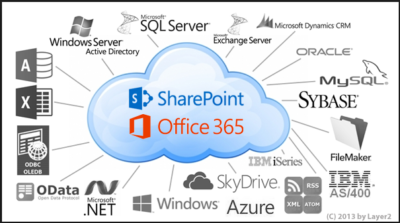
You can also get SharePoint Online with Office 365.  SharePoint Online delivers the powerful features of SharePoint without the associated overhead of managing the infrastructure on your own. Flexible management options ensure that you still retain the control you need to meet the compliance requirements of your organization. You can purchase SharePoint in the cloud as a standalone offering or as part of an Office 365 suite where you could also get access to Exchange, Lync, the Office clients and web apps.

Cross device availability

Easily access and interact with your SharePoint news feed, wherever you go using the SharePoint mobile apps available across various devices.

Easy to Manage

You can get setup in virtually no time! The powerful admin console allows your organization to easily manage capabilities, policies and security for all the content and features within SharePoint. Automated maintenance of the servers ensure that you are always up to date with the latest features with minimal downtime.

Enterprise grade reliability and standards

Safeguard your data by hosting it in geographically distributed data centers with continuous data backup, premier disaster recovery capabilities and a team of experts monitoring the servers around the clock.

Office 365 FastTrack and adoption offer

FastTrack is the onboarding service benefit included for qualified Office 365 customers. Microsoft onboarding experts will provide personalized assistance ensuring the service is ready to use company-wide.

To see all the features that are included, view the detailed service descriptions.

If you are interested in SharePoint Online please contact us at 856-745-9990.

Important: Internet Explorer Vulnerability

IEIMPORTANT INFORMATION: US-CERT and UK security agencies warn users to stop using Internet Explorer because of the severity in this security hole that has been used in “limited, targeted attacks”.

United States Computer Emergency Readiness Team released an alert on April 28, 2014 regarding vulnerabilities in Microsoft’s Internet Explorer.  Internet Explorer versions 6 through 11 are susceptible to be victims of attacks to exploit the Remote Code Execution Vulnerability.

US-CERT Vulnerability Note VU#22292

Microsoft Security Advisory 2963983

Workarounds:

Basic protection includes the installation of Anti-malware software, enabling a Firewall and applying all Windows/Microsoft updates.  In addition to basic protection, we recommend taking extra preventative steps listed below.  It is not necessary to apply all of the following workarounds, apply one to help protect your system and data.

Enable Enhanced Protection Mode

    1. Open IE 10 or IE 11.
    2. Click the Tools menu and select Internet Options.
    3. In the Internet Options window, click the Advanced tab.
    4. Scroll down the list of options until you see the Security section, click the checkbox to Enable Enhanced Protected Mode.  For IE 11 in a 64-bit version of Windows, you also need to click the checkbox to “Enable 64-bit processes for Enhanced Protected Mode”.
    5. Restart IE to force the new settings.

Change Access Control List and unregister VGX.DLL:

32-Bit Systems:

      1. Open elevated Command Prompt (Run as Administrator)
      2. Run the following command:
        “%SystemRoot%\System32\regsvr32.exe” -u “%CommonProgramFiles%\Microsoft Shared\VGX\vgx.dll”
      3. Click OK to close Dialog Box confirming un-registration has succeeded.

64-Bit Systems:

      1. Open elevated Command Prompt (Run as Administrator)
      2. Run the following command(s) separately:
        “%SystemRoot%\System32\regsvr32.exe” -u “%CommonProgramFiles%\Microsoft Shared\VGX\vgx.dll” “%SystemRoot%\System32\regsvr32.exe” -u “%CommonProgramFiles(x86)%\Microsoft Shared\VGX\vgx.dll”
      3. Click OK to close Dialog Box confirming un-registration has succeeded.

Windows XP and all other users.

For all user(s) that cannot follow recommendations from Microsoft are urged to use a different web browser.  For secure download(s) of Google Chrome or Mozilla Firefox, please follow the links provided.

For assistance with Changing IE Settings or Install a new Browser

 please contact us 856-745-9990 or click here.


Top IT skills wanted for 2012


Takeaway: A new Computerworld survey indicates the nine IT skills that will be in demand in 2012.

Nearly 29 percent of the 353 IT executives who were polled in Computerworld’s annual Forecast survey said they plan to increase IT staffing through next summer. (That’s up from 23% in the 2010 survey and 20% in the 2009 survey.)

Here are the skills that the IT executives say they will be hiring for:

  1. Programming and Application Development61% plan to hire for this skill in the next 12 months, up from 44% in the 2010 survey. This covers the gamut from website development to upgrading internal systems and meeting the needs of mobile users.
  2. Project Management (but with a twist) The twist is that they’re not going to just be looking for people who can oversee and monitor projects. They also want people who can identify users’ needs and translate them for the IT staffers-the increasingly popular business analysts.
  3. Help Desk/Technical SupportMobile operating systems have added a new dimension to help desk and tech support.
  4. NetworkingThis demand is being fueled partially by virtualization and cloud computing projects. The survey also revealed that execs will be looking for people with VMware and Citrix experience.
  5. Business IntelligenceComputerworld interprets this uptick to a focus shift in many companies, from cost savings to investing in technology. That will be nice if it pans out that way.
  6. Data CenterVirtualization and the Cloud could also be behind the increased need for IT professionals with backgrounds in data center operations and systems integration.
  7. Web 2.0Tech skills centered around social media will be in demand, with .Net, AJAX and PHP as key back-end skills, with HTML, XML, CSS, Flash and Javascript, among others, on the front end.
  8. SecurityAlthough down from 32 percent in the 2010 survey, security stays a top concern of IT executives.
  9. TelecommunicationsThe survey indicates a demand for people with IP telephony skills, and for those familiar with Cisco IPCC call center systems.

Tips for Supporting iOS 7

ios7

September 18, 2013 was the official release of iOS 7.  Complementary to iOS 7 are several support questions for corporate-owned iOS devices, including Bring Your Own Device (BYOD) and Corporate Owned Personally Enabled (COPE) devices.

COPE devices are corporately compliant prior to distribution to employees; this allows consistency and higher security for all enterprise devices.

There may be a few problems when upgrading to iOS 7 such as older iPhone/iPad devices may not support iOS 7 and not all features are available on all devices or in all countries. 

Here are some tips for supporting iOS 7 in the enterprise. 

Implement VPP

Apple now offers a Volume Purchase Program (VPP) for business.  VPP can retain volume licenses for Apps and Books.  Download Apple’s VPP Guide.

Third-Party iOS Apps

Configuring third-party apps can be completed in iOS 7,  Mobile Device Management (MDM) distributes the third-party configuration and the developer needs to enables it.

Test and Troubleshoot

The most important step before deploying in-house developed enterprise app(s) is to test and troubleshoot.  Testing and troubleshooting will save time and resources after deployment.

Per App VPN

Per app VPN ensures that only managed app data travels through VPN.  iOS 7 apps can automatically be connected to VPN when launched.  Also, for security purposes this tool will separate corporate data and personal data.


Kill Your Java Plugin Now!

Java Plugin Security Information

Kill your java plugin as soon as possible.

A new Java zero-day security vulnerability is already being actively exploited to compromise PCs. The best way to defend against the attacks is to disable any Java browser plugins on your systems.

The offending bug is present in fully patched and up-to-date installations of the Java platform, now overseen by database giant Oracle, according to Jaime Blasco, head of labs at security tools firm AlienVault.

“The exploit is the same as the zero-day vulnerabilities we have been seeing in the past year in IE, Java and Flash,” Blasco stated.

“The hacker can virtually own your computer if you visit a malicious link thanks to this new vulnerability. At the moment, there is no patch for this vulnerability, so the only way to protect yourself is by disabling Java.”

The exploit targets Java 7 update 10 and prior versions. No fix is available and early indications suggest that exploitation is widespread. Brian Krebs reckons the exploit has found its way into crimeware toolkits, such as the Blackhole Exploit Kit, which will uses the hole to infect victims with software nasties.

Java vulnerabilities were abused by the infamous Flashback Trojan, creating the first botnet on Mac OS X machines in the process last year. In the years before that attacks on Java and Adobe applications have eclipsed browser bugs as hackers’ favourite way into a system.

In all but a limited number of cases Java support in web browsers is not mandatory for home users, unless required by a banking website or similar, so disabling plugins even as a temporary measure is a good idea. Businesses, on the other hand, that rely on Java for particular applications are not so fortunate.

While waiting for a patch from Oracle to plug the gaping hole, you can contact South Jersey Techies by emailing support@sjtechies.com to make sure your systems are protected.

Java Update Coming Tuesday

Oracle says Java Update Coming Tuesday!

Oracle is working on an update to address a flaw in its Java software.

The company says it will release a patch that will fix 86 vulnerabilities in Java 7 on Tuesday.

The Department of Homeland Security last week said computer users should disable the program in web browsers because hackers were using a zero-day vulnerability to attack computer systems. Criminals were using the flaw to stealthily install malware on the computers of users who visit compromised websites.

The problem, which affects Oracle Java 7 update 10 and earlier, can allow an untrusted Java applet to escalate its privileges, without requiring code signing.


Java, which is running on 850 million computers, is a computer language that lets programmers write software using just one set of codes for computers running Windows, Apple OS X and Linux. Internet browsers use it to access web content and computers and other devices use it to run a plethora of programs.


In fact, Java is so ubiquitous that the software has become a major bull’s-eye for hackers. Last year, Java overtook Adobe Reader as the most frequently attacked software, according to computer security firm Kaspersky Lab.

Mac users probably don’t have to worry because Apple already removed Java plug-ins from OS X browsers. Apple apparently learned a lesson last year when it took its time making a Java patch available and as a result more than 600,000 Macs were infected with malware.

Last February, Oracle released a fix for a targeted vulnerability identified as CVE-2012-0507 and included it in an update for the Windows version of Java. However, since Apple distributes a self-compiled version of Java for Macs, it ports Oracle’s patches to it according to its own schedule, which can be months behind the one for Java on Windows.

Mozilla also has blacklisted all current releases of Java.

LivingSocial’s Cyber Attack

living-social-logo

Recent victim of a cyber-attack is the local daily deal site, LivingSocial.  Protected during the attack was merchant and customer banking and credit card information.  Regrettably, 50 million subscriber names, date of birth, e-mail addresses and hashed passwords were compromised.

Steps to further protect your personal information:

  1. An e-mail from LivingSocial will provide you with the necessary steps to create a new password.
  2. If you are using the same password for multiple accounts it is strongly recommended to change all passwords.
  3. After an attack, hackers try to use phishing to extract additional information.  Before changing your password make sure that you are directed to www.livingsocial.com.
  4. Always protect yourself by never sending personal information via e-mail to any person or organization.

Protection for WiFi

Takeaway:  Five simple ways to protect your information when using WiFi and Hotspots.LOCK2

WiFi is exchanging data through a wireless local area network (WLAN) from electronic devices including smartphones, laptops and tablets.

Also, WiFi is available in public places such as Airports and Restaurants.  Identity Thieves, Hackers and Criminals take advantage of WiFi because it is convenient for users to access personal information.

1.  Avoid accessing your bank accounts & online stores:

When using public WiFi, it is best to avoid using your credit card or banking information.

2.  Double check the WiFi name:

Prior to connecting to a public network double check with an employee for their network name.  Identity thieves can create a false Hot-Spot, have users connect and then steal personal information.

3.  Turn-Off “Auto Connect”:

Stay in control of what networks you connect to, smartphones have a setting that automatically connects you to the closest open network.  Simply, turn this setting off to decide what networks to connect to.

4.  Never use the same Password:

An additional step you can take to keep online accounts safe is to use different passwords for each account.   Using the same password makes stealing your information easier for criminals.

5.  Check the Lock:

The extra layer of security is the locked padlock in the address bar of your browser or “https” which means that your information has been encrypted.

Implementing BYOD

BYOD

Bring-Your-Own-Device (BYOD) is permitting employees to bring personal devices (laptops, tablets, and smart phones) to their workplace, and use those devices to access company information and applications.

Create a Private App Store

Designing a private App Store provides the ability to manage custom and purchased apps.  Businesses can manage apps by pushing mandatory apps, approving recommended apps and blocking rouge or unrelated apps.

Policy Compliance

Policies ensure security, productivity, protection of resources and reduce risks.  Implementing a location-based service (LBS) such as Geo-Fencing and GPS will set limitations on access to data based on location.

Strong Security

There are many layers of security for a BYOD environment.  Device enrollment can be a one-time passcode and/or Active Directory credentials.  Applying user profiles will distribute policies, restrictions and Apps based on logical groups (department/location/device type).  Other types of security are tracking device locations, Remote Lock, Complete Wipe and Corporate Wipe.

Track Usage

Usage thresholds can be monitored based on talk, text, data and roaming for each user.  Setting up alerts and reports for misuse, excessive bandwidth, additional charges and security exposures will help track usage appropriately. 

Banning Rouge Devices

Compromised devices such as “jail broken” iPhone or a rooted Android should be restricted from accessing enterprise data and resources.  Compromised devices are susceptible to virus attacks.

For more information on Mobile Device Management

Contact us at 856-745-9990 or click here.


CALL US NOW!