Back to Top

Tech, Web, Cloud & Cabling Services

Category: Microsoft Word

Software / Microsoft Word Category

10 Word Defaults You Can Customize

Takeaway: Change a few key default settings in Word and you won’t have to make the same tweaks over and over.

Word does a good job of assuming how the average user works, but some of Word’s default settings can be annoying and inefficient. Some users don’t know they can permanently change these settings, so they continue to reset them for each new document or just struggle along. Users should consider resetting the following defaults to work more productively. Of course, there are more defaults to set.

1: Line spacing

The default line spacing setting in Word 2007 and 2010 is 1.15, not 1, as it is in 2003. Microsoft believes 1.15 is more readable online. If you’re not generating Web content, adjust the style(s) you use in Word’s template (Normal.dotx), as follows:

  1. Click the Home tab.
  2. Right-click Normal in the Styles Quick gallery and choose Modify.
  3. Choose Paragraph from the Format list.
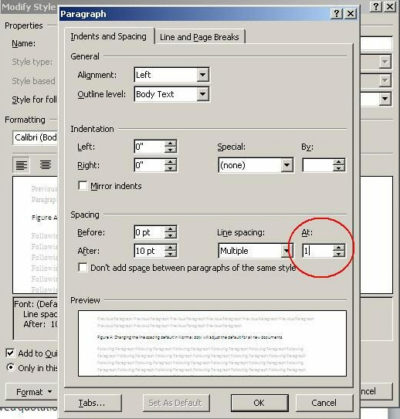
  4. In the Spacing section, change the At setting from 1.15 to 1, as shown in Figure A.
  5. Click OK.
  6. Check the New Documents Based On This Template option.
  7. Click OK.

Figure A


This change will adjust all Word styles based on Normal, so be sure that’s what you want.

2: Smart quotes

If you generate Web content or other published material, you probably have to undo Word’s smart quotes in favor of straight quotes. You can do so quickly enough by pressing [Ctrl]+Z, but that becomes tedious after a while and you might forget. If you use straight quotes more than smart quotes, disable smart quotes as follows:

  1. Click the File menu and choose Options under Help. In Word 2007, click the Office button and click Word Options. In Word 2003, choose Auto Correct Options from the Tools menu and skip to step 4.
  2. Choose Proofing in the left pane.
  3. Click AutoCorrect Options in the AutoCorrect Options section.
  4. Click the AutoFormat As You Type tab.
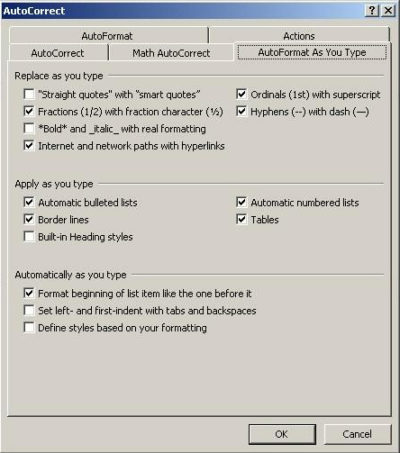
  5. Deselect the Straight Quotes With Smart Quotes option in the Replace As You Type section, shown in Figure B.
  6. Click OK.

Figure B


Disable smart quotes for all new documents.

3: Paste special

Word’s paste special feature retains the source formatting. If you’re pasting from foreign sources, you probably reformat it once it’s in your Word document. If you do this a lot, change the Paste Special default as follows:

  1. Click the File tab and choose Options. In Word 2007, click the Office button and then click Word Options.
  2. Select Advanced in the left pane.
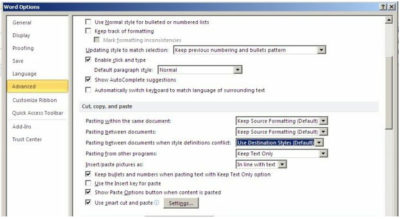
  3. In the Cut, Copy, and Paste section, choose Use Destination Styles from the Pasting Between Documents When Style Definitions Conflict drop-down.
  4. Choose Keep Text Only from the Pasting From Other Programs drop-down, as shown in Figure C.
  5. Click OK.

Figure C


Several paste settings make this a flexible feature; choose the setting that’s most efficient for you.

This feature is significantly different in Word 2003. From the Tools menu, choose Options, and click the Edit tab. In the Cut And Paste section, click the Settings button to display the options shown in Figure D.

Figure D
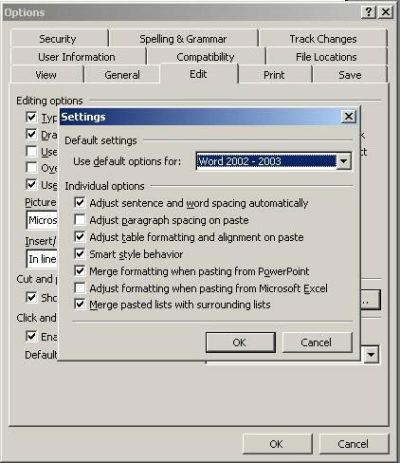


Word 2003 is more specific, but it allows some control.

4: File Location

Word saves your documents in My Documents. If you find yourself resetting the save location a lot, reset the default as follows:

  1. Click the File tab and choose Options. In Word 2007, click the Office button and then click the Word Options button. In Word 2003, choose Options from the Tools menu.
  2. Select Save in the left pane. In Word 2003, click the File Locations tab.
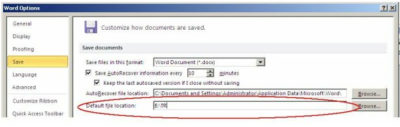
  3. Specify the new folder in the Default File Location field shown in Figure E. Or click Browse and locate it that way. In Word 2003, highlight the Documents item and click Modify. Use the Modify Location dialog to specify the new folder and click OK.
  4. Click OK.

Figure E


Word will save documents to the specified folder instead of My Documents.

5: Spacing between paragraphs

When you press [Enter], Word increases the line spacing to add a bit more white space between paragraphs. This extra space isn’t the same as a blank line, so you can’t delete it by pressing Backspace. To eliminate this extra spacing, do the following:

  1. Click the Home tab. In Word 2003, select Paragraph from the Format menu.
  2. Click the Paragraph group’s dialog launcher (the small arrow in the lower-right corner). In Word 2003, click the Indents And Spacing tab.
  3. Check the Don’t Add Space Between Paragraphs Of The Same Style option.
  4. Click Set As Default, as shown in Figure F. (Not available in Word 2003, but you can change this format for the current document.)
  5. Click OK.

Figure F


Eliminate the additional white space between paragraphs.

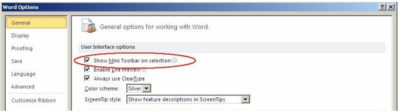
6: Mini toolbar

When you select text, Word displays the mini toolbar, which hosts several formatting options. Even though it’s dimmed, it still annoys some users. You can press [Esc] to hide it or you can permanently disable it, as follows:

  1. Click the File menu and choose Options. In Word 2007, click the Office button and then click Word Options.
  2. Choose General in the left pane (if necessary).
  3. In the User Interface Options section, uncheck the Show Mini Toolbar On Selection option, shown in Figure G.
  4. Click OK.

Figure G

Uncheck this option to disable the mini toolbar.

7: Drawing canvas

Word’s drawing canvas is a distinct layer for drawing. Objects placed in a canvas have an absolute position and remain together as a group. Most users find the canvas layer difficult to work with and frankly, most users don’t need it. If you’re still using Word 2003, disable the canvas layer as follows:

  1. From the Tools menu, choose Options.
  2. Click the General tab.
  3. Uncheck Automatically Create Drawing Canvas When Inserting AutoShapes in the General Options section.
  4. Click OK.
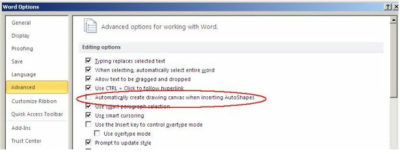
  5. Word 2007 and 2010 disables the canvas layer by default. If you happen to be working with the drawing canvas enabled, disable it as follows:
  6. Click the File menu and then choose Options. In Word 2007, click the Office button and then click Word Options.
  7. In the left pane, choose Advanced.
  8. In the Editing section, uncheck the Automatically Create Drawing Canvas When Inserting AutoShapes option, shown in Figure H.
  9. Click OK.

Figure H

The drawing canvas is annoying enough that Microsoft finally disabled it by default in the Ribbon versions.

8: Normal.dotx

Word bases new documents on Normal.dotx, but the template’s settings might not fit your needs. If you have just a few changes, customize Normal.dotx. A common customization is to change the font and size. To make the change at the template level, do the following:

  1. Open a new document and click the Home tab.
  2. Click the Font group’s dialog launcher (the arrow in the bottom-right corner). In Word 2003, choose Font from the Format menu.
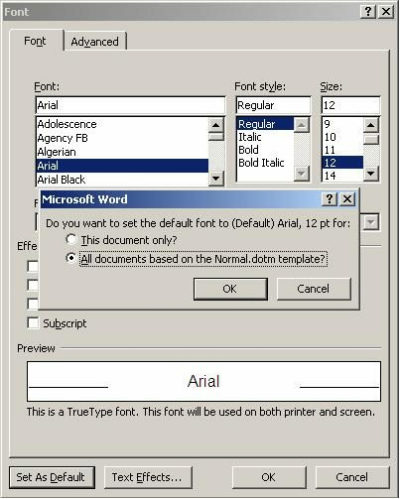
  3. Make the necessary font changes. For instance, you might choose Arial, 12.
  4. Before closing the dialog, click the Set As Default button. In Word 2003, click Default.
  5. In the resulting confirmation dialog, select the option to set the default for all documents based on the Normal template, as shown in Figure I.
  6. Click OK twice.

Figure I


Make a font change at the template level.

Other template customizations you might want to make include margins and styles. Use a custom template, rather than Normal.dotx, to meet requirements that are more complex.

9: Word selection

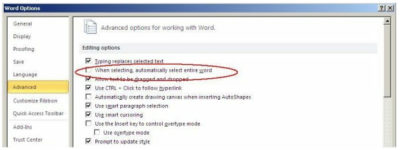
When you select part of a word and then part of the next, Word selects the whole word for you — whether you meant to or not. To disable this selection option, do the following:

  1. Click the File tab and choose Options. In Word 2007, click the Office button and then click Word Options. In Word 2003, choose Options from the Tools menu.
  2. Choose Advanced in the left pane. In Word 2003, click the Edit tab.
  3. In the Editing Options section, deselect the When Selecting, Automatically Select Entire Word option, as shown in Figure J.
  4. Click OK.

Figure J

Ridding yourself of this annoying selection behavior is easy.

10: Spelling, grammar, and formatting

Word identifies misspelled words, grammatical errors, and formatting inconsistencies, as you type:

  • A red line indicates a word not found in the dictionary (possibly misspelled).
  • A green line indicates a possible grammatical error.
  • A wavy blue line indicates an inconsistent format.

I recommend that you get used to the display and not disable these features — they’re a helpful indication that something might be wrong. On the other hand, if you find them distracting, you candisable them. To disable the red and green lines, do the following:

  1. Click the File tab and then choose Options. In Word 2007, click the Office button and then click Word Options. In Word 2003, choose Options from the Tools menu.
  2. Select Proofing in the left pane. In Word 2003, click the Spelling & Grammar tab.
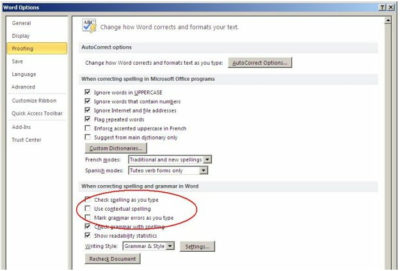
  3. In the When Correcting Grammar and Spelling In Word section, uncheck the first three options: Check Spelling As You Type, Use Contextual Spelling, and Mark Grammar Errors As You Type, as shown in Figure K. (There’s no contextual spelling option in Word 2003.)
  4. Click OK.

Figure K

You can disable Word’s spelling and grammar indicators.

To rid documents of the wavy blue line, do the following:

  1. Click the File tab and then choose Options. In Word 2007, click the Office button and then click Word Options. In Word 2003, choose Options from the Tools menu.
  2. Select Advanced in the left Pane. In Word 2003, click the Edit tab.
  3. In the Editing Options section, uncheck the Mark Formatting Inconsistencies option under Keep Track Of Formatting. In Word 2003, deselect the Mark Formatting Inconsistencies check box in the Editing Options section.
  4. Click OK

Even the most competent users make an occasional error and these features identify potential problems. Adjusting to them will probably serve most users better than turning them off.

To View Full Article Click Here
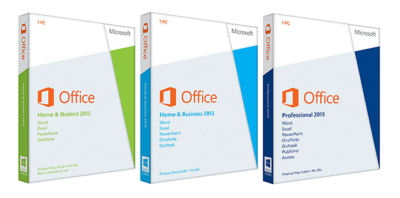
10 Changes to Office 2013

o13Takeaway: Ten popular tools and options that are unseen or removed from Office 2013.

Office 2013 has made minor adjustments and changes to the new cloud-based suite.

Creating from Existing

nfeIn previous versions of Office it was simple to create a new document from an existing one.  This would allow changes without changing the original.

Using Office 2013, the button “New From Existing” is gone;  there is a section under the File Tab for Recent Documents.

Outlook – Activities

aThere was an option to add a Contact’s Activities in older versions of Office.  For Office 2013, Activities option is replaced by Outlook Social Connection.

Word – Show Mark-Up

smFor Office 2013, the Show Markup drop-down, located in the Review Tab and Tracking Section for older versions, is removed but you can add it to your Quick Access Toolbar.

Backstage Exit

cawIn previous versions, “Exit” on the File Tab would allow you to exit all open documents in one click.  In Office 2013, you can right click the program on your task bar and select “Close all windows” or add “Exit” to your Quick Access Toolbar.

Picture Manager

pmcaUnlike previous versions of Office, Clip Art Organizer and Picture Manager are no longer available.  Clip Art Organizer is replaced with Insert Media Dialog Box.  Picture Manager is replaced with Windows Photo Gallery.

Access – PivotTables & PivotCharts

pcv ptvFor Office 2013, PivotTable and PivotChart are no longer tools in Access;  only Excel 2013 provides the PivotTable and PivotChart. 

Access – Upsizing Wizard

ssutIn previous versions of Access, it was simple to add an Access database to SQL Servers.

Using The Upsizing Wizard to migrate all or some objects to SQL Servers is no longer available with Access in Office 2013.

Excel – Workspace

swsWorkspace files save the layout you have selected.  When you open a saved Workspace Files they are displayed in that layout.

Excel 2013 you can open a Workspace file but you can not save layouts as Workspace files or add it to the Quick Access Toolbar. 

Outlook – Journal

ojJournal tool in Outlook helps you manage your productivity and time spent on projects.  This tool will no longer be available for Office 2013 and will not be replaced by another tool.

Outlook – To-Do Bar

tobThe Pinned Peek feature is replacing the traditional To-Do Bar in Outlook for Office 2013.  The Pinned Peak feature is not as detailed as the To-Do Bar, for example you can only view appointments for one day .  


Windows 10 hack: How to beef up your jump lists to show more pinned items

The Windows 10 jump lists feature offers a convenient way to start your apps–but there’s no easy way to increase the size of the list. Here’s a hack for that.

giphy

Microsoft Windows 10 gives users several choices when it comes to how and where to start their applications. Some people use the desktop exclusively and some swear by the Start Menu, while others, prefer the pinned lists that hang off the icons on the Taskbar.

However, there is one small problem with the Taskbar pinned list in Windows 10—by default, there is a 12-slot limit.

Windows 7 allowed users to extend that number with a simple change to a configuration setting. But that feature is currently missing in Windows 10 for reasons no one has been able to explain. The workaround involves editing the Windows Registry file.

Standard disclaimer: Incorrectly editing the Windows Registry file could break your computer. Create a Restore Point before making any changes.

Jump listItems

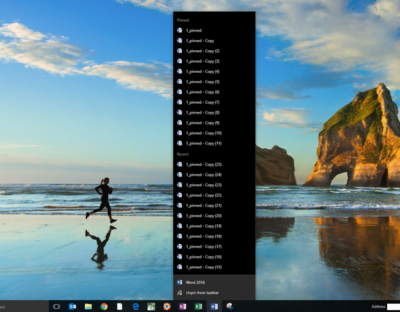
Figure A shows an example of the default jump list hanging off the Word icon in a typical Windows 10 Taskbar. Note that there are 26 copies of the example file, but only 12 are listed in the pinned section. This is despite the fact that I have actually pinned them all, which is why the Recent section is fully populated.

Figure A

addpinnedlist

To increase the number of pinned items displayed, we’ll have to change the maximum number of jump list items associated with a particular key in the Windows Registry file.

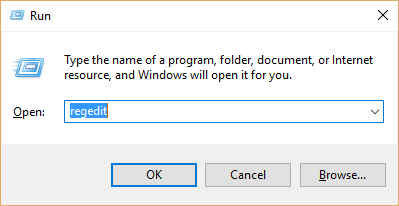
Press Windows key + R or right-click the Start Menu icon and navigate to the Run command to open the Run prompt (Figure B). Type regedit into the box and click OK.

Figure B

addpinnedlist1

Navigate to this set of keys in the Windows Registry:

HKEY_CURRENT_USER\SOFTWARE\Microsoft\Windows\CurrentVersion\Explorer\Advanced

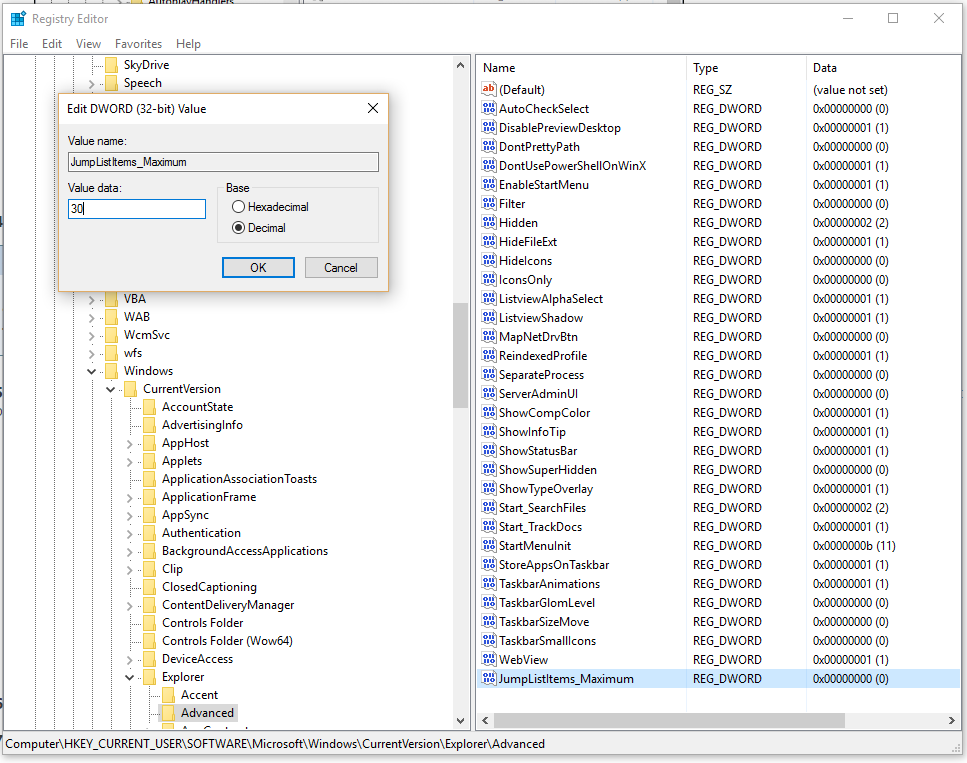
Look through the list in the right-hand pane until you find this DWORD: JumpListItems_Maximum

In case, the JumpListItems_Maximum DWORD is not there, create it.

Right-click the JumpListItems_Maximum DWORD and select Modify. Click the Decimal radio button and change the number to a value that works for you. As you can see in (Figure C).

Figure C

addpinnedlist2

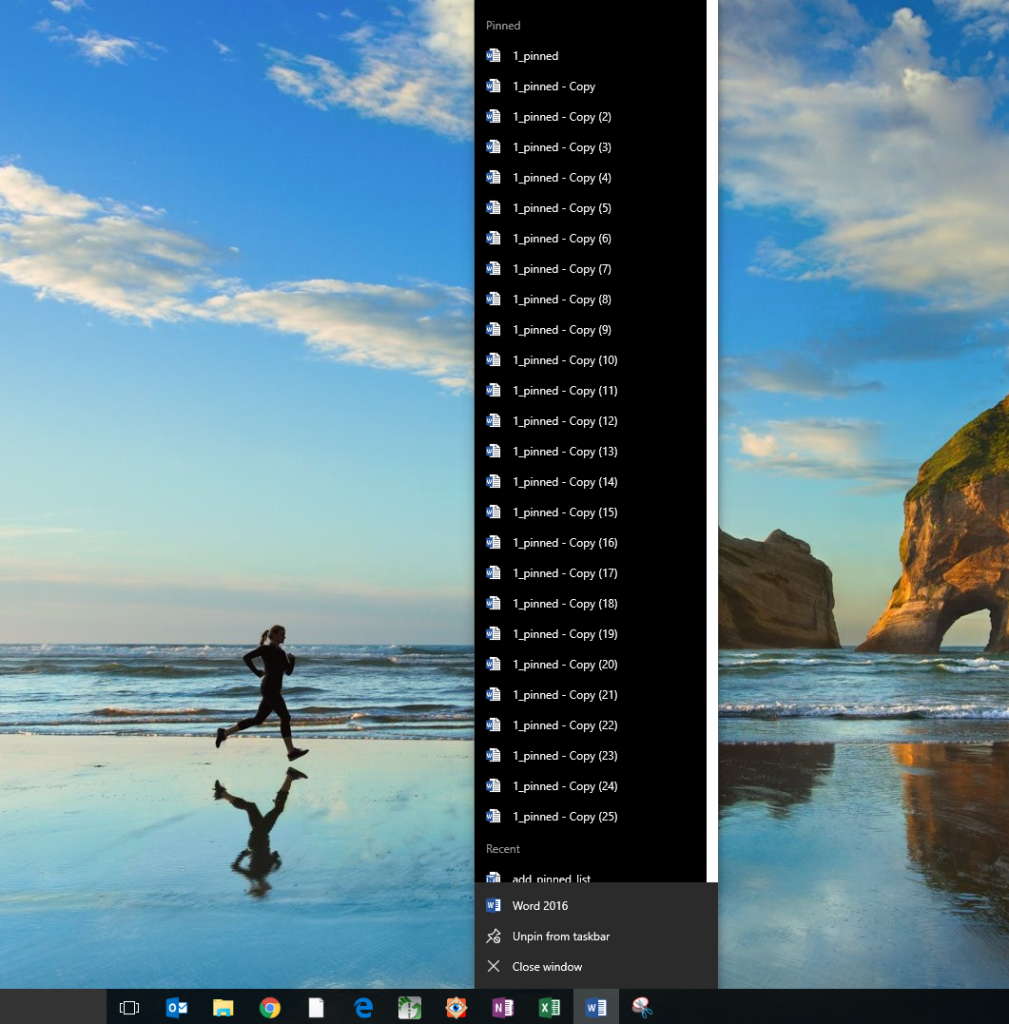
To complete the change, you may need to restart your computer. You should now be able to see the number of pinned items you specified (Figure D).

Figure D

addpinnedlist4

Have questions?

Get answers from Microsofts Cloud Solutions Partner!
Call us at: 856-745-9990 or visit: https://southjerseytechies.net/

South Jersey Techies, LL C is a full Managed Web and Technology Services Company providing IT Services, Website Design ServicesServer SupportNetwork ConsultingInternet PhonesCloud Solutions Provider and much more. Contact for More Information.

To read this article in its entirety click here.

The best new features coming to Microsoft’s latest OS: Windows 10

Windows10

Microsoft continues to build out Windows 10 – with a bumper crop of new features announced at its Build conference last week.

These enhancements will be pushed to to Windows 10 users over the coming months, with many arriving in summer when the OS will get a major upgrade dubbed the Windows 10 Anniversary Edition.

Here are the key upgrades heading to Windows 10.
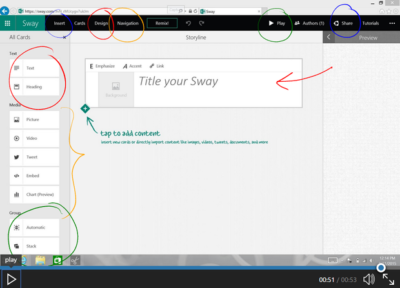
The write stuff

ink-SJTechies

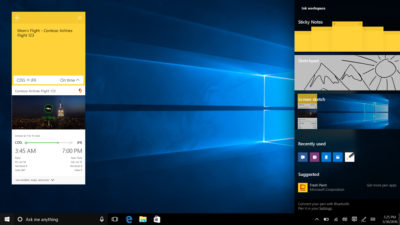
Using a digital pen to write and scribble on the screen of Windows 10 PCs and tablets will get easier.

In a boost to devices that support such pens, such as the Microsoft’s Surface tablet, the OS’ new Windows Ink feature will allow users to jot down notes on the screen without unlocking the device.

Windows Ink will also allow users to write messages on sticky notes and, if appropriate, have them automatically translated into calendar appointments and reminders.

Support for Windows Ink in Microsoft Office, Maps, the Edge browser and other apps will allow users to draw, write and annotate using their pen. Windows Ink will make using the pen in Office more satisfying than it currently is, for example tidying up highlighted marks on documents so they neatly align with text.

Windows 10 will also gain the Ink Workspace, a hub for launching apps that support writing and sketching using the Surface Pen.

Ink everywhere

win10-inking-SJTechies

Support for drawing, writing and annotating using digital pens will likely come to many apps.

Microsoft says that support for Microsoft Ink will be easily added to Universal Windows Platform apps, requiring just two lines of XAML code.

Digital ruler

win10-ruler-SJTechies

It sounds simple, but the new on-screen ruler should prove to be a useful addition for those who want to draw straight lines using a digital pen.

Smarter Cortana

cortana-SJTechies

The attraction of a virtual assistant is the simplicity with which they allow you to carry out tasks.

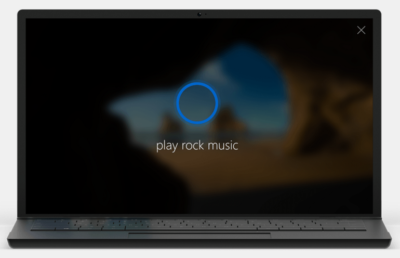
To ease the process of using Windows 10’s Cortana, the voice-controlled assistant will no longer require you to log into Windows, with users able to make a note, play music or set a reminder from the lock screen.

Cortana will also become more proactive and make suggestions based on a user’s past behaviour – offering to order lunch or to arrange transportation.

More apps will also be able to use Cortana to automatically complete tasks for users or to carry out actions based on context, such as the user’s current location or time of day.

Windows Hello comes to apps and the web

hello-SJTechies

Windows 10 already lets you log into the OS using your face.

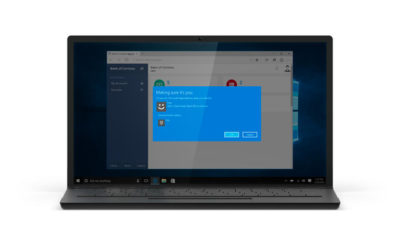
The anniversary edition will extend this biometric log-in to Windows apps and websites via Microsoft Edge. As with the OS, users will be able to authenticate their identity using a facial, iris or fingerprint scan.

Another new feature will allow users to unlock a PC running Windows 10 Enterprise Edition by tapping a Windows Hello-enabled phone, although Microsoft has said the feature will only be available on “select premium phones”.

Android app notifications on Windows 10

android-SJTechies

In future, notifications on Android devices will be able to show on Windows 10 PCs.

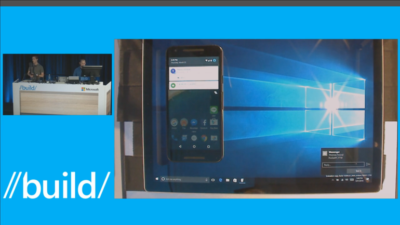
Any notification popping up on the Android notification panel can, via the Cortana Android app, also appear as a notification on a linked Windows 10 desktop.

Microsoft demoed the ability at its recent Build conference for developers.

Browser extensions

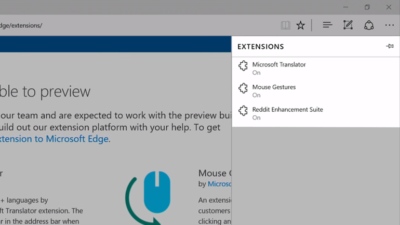
extensions-SJTechies

Microsoft’s Edge browser will soon gain support for extensions.

Extensions are small programs that can be downloaded to add new functionality to a browser, and are already found in Chrome, Firefox and other browsers today.

Support for extensions has already been added to Edge for those testing pre-release builds of Windows 10 under the Insider program.

The first extensions to be supported by Edge are Microsoft Translator, an extension that automatically translates pages in over 50 different languages, an extension to augment mouse gestures support, and a preview version of the Reddit Enhancement Suite.

Microsoft promises more extensions will be added later this year, including AdBlock, LastPass and Evernote.

Pinned browser tabs

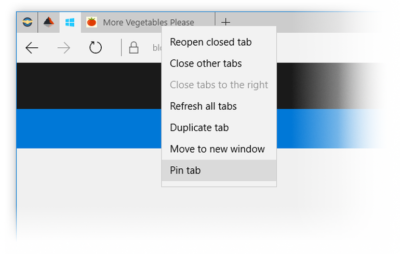
pinned-tabs-SJTechies

Microsoft is also adding to Edge the ability to pin your favorite sites and web apps so they always have a tab open in the browser.

Updated Maps app

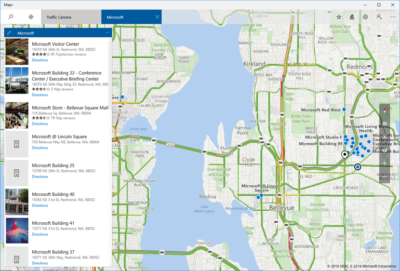
maps-app-pc-SJTechies

The Maps app has several new features, as well as UI and performance improvements.

Additions include one-tap access to search and directions, the ability to view multiple searches and directions at the same time, labels for search results on the map and turn-by-turn directions read by Cortana.

The improved app is available now to those testing Windows 10 under the Insider program.

Access Linux command-line tools in Windows

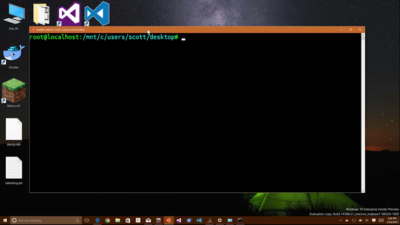
bash-win10-SJTechies

More one for developers, Microsoft is also bringing the ability to run the Bash shell to Windows.

The Bash shell is a command line interpreter that is available on many different Linux distributions, as well as Mac OS X.

The shell includes a host of tools that allow power users to carry out and orchestrate complex chains of commands.

Bash will be available via a Universal Windows Platform app, which will provide an image of the Linux distribution Ubuntu and run on the Windows 10 desktop.

Users will be able to use the Bash shell to download and install programs from the command line, as they do from inside Ubuntu. Microsoft says Ubuntu software will run as fast in the Windows app as it does natively, thanks to a software subsystem for handling Linux system calls.

Microsoft has described the app as offering a developer toolset. While it has access to the files on the Windows PC, the app only provides access to a command line — not a graphical desktop — and reportedly has limits on what it can be used for, such as not being able to run a server.

Have questions?

Get answers from Microsofts Cloud Solutions Partner!
Call us at: 856-745-9990 or visit: https://southjerseytechies.net/

South Jersey Techies, LL C is a full Managed Web and Technology Services Company providing IT Services, Website Design ServicesServer SupportNetwork ConsultingInternet PhonesCloud Solutions Provider and much more. Contact for More Information.

To read this article in its entirety click here.

Microsoft Snip brings Windows screenshots to life with voice and ink

Microsoft released a free app for capturing, annotating, and explaining screenshots.

Snip

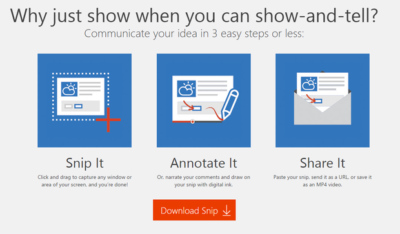
In late August 2015, Microsoft released a free screen capture and annotation application called Snip (Figure A). But the twist in the story is the fact that Snip is not part of some master strategic plan.

Figure A

Snip

Snip

While the name is a bit confusing, Snip is not the same thing as the improved Snipping Tool that comes free with Windows 10. The Snipping Tool will capture screenshots, but it does not have any annotation features.

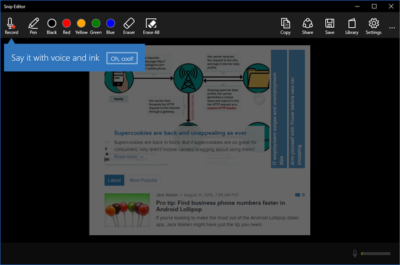
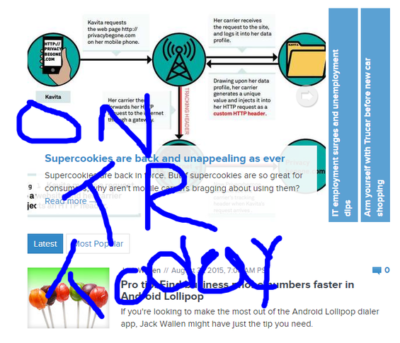
Snip, on the other hand, is a free tool developed through a Microsoft Garage project that allows users to capture screenshots and then annotate them (Figure B). With the Snip app, users can draw on their captured screenshots using a software pen, which is available in various colors and sizes.

Figure B

Snip

Snip can also record the annotation, and your vocal description of it, to create a short video that users can share as a URL or as an MP4 video (Figure C). These features make Snip very useful for creating and sharing short instructional videos.

Figure C

Snip

Cultural shift

The important thing to note about Snip is the way it was developed and released. Under the Garage program, Microsoft employees are encouraged to work on projects outside of their official duties. The idea is to create an environment where employees can experiment, innovate, and exercise their creativity.

Releasing an app like Snip in beta form to the general public indicates a shift in attitude when it comes to app development at Microsoft. Snip has been released without worrying about whether it will generate a revenue stream or ever make a profit. As far as I can tell, there are no expectations regarding Snip and how it fits into the overall corporate strategy.

Snip is just a nice little program that Microsoft thinks people will find useful, and they’d appreciate some feedback on how to make it even better. No promises, no expectations, no quid pro quo. Microsoft is trying hard not to be the stodgy old software company anymore.

Snip also fits in well with Microsoft’s major theme for Office 365, which postulates that a modern productive workforce needs better collaboration tools. When you consider recent app releases like Edge, Sway, and now Snip, you can begin to see where Microsoft is heading.

If you need to communicate an idea in a simple but effective way, Microsoft is saying it has the tool you seek. It would not  be a surprise if Snip become an integrated part of Office 365 in the near future.

Have questions?

Get answers from Microsofts Cloud Solutions Partner!
Call us at: 856-745-9990 or visit: https://southjerseytechies.net/

South Jersey Techies, LLC is a full Managed Web and Technology Services Company providing IT Services, Website Design ServicesServer SupportNetwork ConsultingInternet PhonesCloud Solutions Provider and much more. Contact for More Information.

To read this article in its entirety click here.

What did Microsoft get right in 2016?

2016 was a very good year for Microsoft in terms of decision making. Here is a  list of five things the company got right.
Since its inception way back in the ancient epoch known as the 1970s, Microsoft has often been ridiculed for making mistakes. Whether it was for bad business strategies, poor products, or unscrupulous practices, Microsoft seemed to bring out the passionate ire in many people.

But what often gets overlooked is what Microsoft does right each year. And by just about any measurement, 2016 was a remarkable year for the company. Under the leadership of Satya Nadella, Microsoft has changed its business strategy to reflect what it describes as a mobile-first, cloud-first business world. And in 2016, that strategy began show results.

Here, in no particular order, are five things Microsoft got right in 2016.

1. Windows 10 Anniversary Update

To mark the one-year anniversary of Windows 10, Microsoft released a large patch it dubbed the Windows 10 Anniversary Update. Okay, so Microsoft is not very clever in naming things. But the patch itself was well received. It included new security measures, new program features, Microsoft Edge browser extensions, and advanced support for digital pens, among many other enhancements. If you were already using Windows 10, the Anniversary Update was a must.

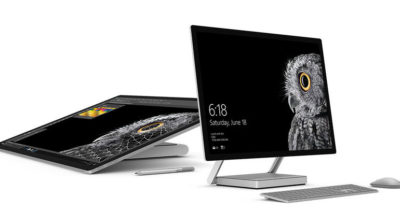
2. Surface Studio

While not its primary business, Microsoft has been developing some noteworthy pieces of hardware the past few years and in 2016, the company generated a large amount of buzz with the release of the Surface Studio. This elegant computer combines the best of the desktop, laptop, and tablet to create a unique and innovative platform perfect for artists, designers, and other creative people. With data visualization becoming ever more important, Microsoft may have invented the perfect tool for the big data generation.
3. Microsoft Office 365

I have been wondering aloud if it is a bit too much, but there can be no doubt that with the dozens of program and feature updates released in 2016, Microsoft Office 365 is the alpha and omega of productivity software. Rather than trying to name all of the new features, it would be best to concentrate on the underlying theme: collaboration. Whether it is Yammer, Skype for Business, or the intelligent cloud, Microsoft is concentrating on features necessary for success in a collaborative environment.

4. LinkedIn

In 2016, Microsoft made several acquisitions of both companies and their technologies. Perhaps the most high-profile of these acquisitions was LinkedIn. Despite all of its efforts to create a collaboration platform with Office 365, the one thing Microsoft needed was a social networking component. LinkedIn gives the company a jump start toward establishing a social networking presence that can compete with the likes of Twitter and Facebook. It will be interesting to see what Microsoft does with this acquisition.

5. IoT, AI, and machine learning

While we may live in a mobile-first, cloud-first world right now, the future may very well revolve around the Internet of Things (IoT), artificial intelligence, and machine learning. To its credit, Microsoft sees the potential of these technologies and has taken steps to get ahead of the curve. In terms of recent history, getting ahead of the curve is not something Microsoft has done very well, so it is difficult to know where the research will lead, but it should prove to be worth watching closely.

Despite what some people may tell you, Microsoft does do some things right. In fact, for the most part, the company does more things right than it does wrong. In 2016, Microsoft did many things right and consumers and businesses have been the beneficiaries. Let’s hope Microsoft can continue the trend in 2017.

Have questions?

Get answers from Microsofts Cloud Solutions Partner!
Call us at: 856-745-9990 or visit: https://southjerseytechies.net/

South Jersey Techies, LL C is a full Managed Web and Technology Services Company providing IT Services, Website Design ServicesServer SupportNetwork ConsultingInternet PhonesCloud Solutions Provider and much more. Contact for More Information.

To read this article in its entirety click here.

The end is near: Say goodbye to the Windows 10 free upgrade

The deadline for a free Windows 10 upgrade is right around the corner. Find out what happens after the offer expires.

Windows 10-July29

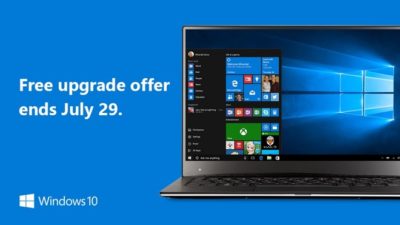
Don’t look now, but July 29, 2016, is coming up fast. That is the one-year anniversary of the release of Windows 10, which means the ability to upgrade to the new operating system for FREE will soon expire. (If you are interested, you can take a look at the official countdown here.)

In a January 21, 2015, Windows Experience blog post titled The next generation of Windows: Windows 10, we learned that Windows 10 would be a free upgrade. Author Terry Myerson said:

Today was a monumental day for us on the Windows team because we shared our desire to redefine the relationship we have with you—our customers. We announced that a free upgrade for Windows 10 will be made available to customers running Windows 7, Windows 8.1, and Windows Phone 8.1 who upgrade in the first year after launch.

A little over six months later, on July 28, 2015, Myerson penned another Windows Experience blog post, titled Windows 10 Free Upgrade Available in 190 Countries Today, in which he reiterated the free upgrade policy:

From the beginning, Windows 10 has been unique—built with feedback from five million Windows Insiders, delivered as a service with ongoing innovations and security updates, and offered as a free upgrade to genuine Windows 7, Windows 8.1 and Windows Phone 8.1 customers.

If you’ve been reading articles by Woody Leonhard or Paul Thurrott in recent months, you know that Microsoft has been upping its game with the Get Windows 10, or GWX, program it built into Windows 7 and Windows 8.1. It really wants every Windows user everywhere to be running Windows 10.

Any holdouts—Windows 7 or Windows 8.1 users who have been sticking to their guns so far—have only a few more weeks to go before losing their chance to get Windows 10 for free.

In a recent Windows Experience blog post titled Windows 10 Now on 300 Million Active Devices – Free Upgrade Offer to End Soon, Yusuf Mehdi, the corporate vice president of Microsoft’s Windows and Devices Group, said:

…we want to remind you that if you haven’t taken advantage of the free upgrade offer, now is the time. The free upgrade offer to Windows 10 was a first for Microsoft, helping people upgrade faster than ever before. And time is running out. The free upgrade offer will end on July 29 and we want to make sure you don’t miss out. After July 29th, you’ll be able to continue to get Windows 10 on a new device, or purchase a full version of Windows 10 Home for $119.

What will Windows 10 cost after July 29?

As Mehdi pointed out in his post, you will be able to purchase a full version of Windows 10 Home for $119.

But how much will Windows 10 Pro cost?

Well, if you head over to the Microsoft Store right now, you’ll find that you can purchase both Windows 10 Home and Windows 10 Pro as a download or on a USB flash drive. Windows 10 Pro will cost you $199.99. And moving past the July 29 deadline for the free upgrade, it’s a pretty safe bet that prices will remain the same—especially since they’re the same price points that the full versions of Windows 8.1 Home and Pro sold for when that operating system was new.

Will there be upgrade versions of Windows 10 after July 29?

Since Microsoft provided free upgrades for a full year, I wonder if there will be upgrade packages for Windows 7 and Windows 8.1 users who decide to upgrade to Windows 10 after July 29. I suppose that it’s possible, but then again, maybe not. When Microsoft introduced Windows 8.1 packages, it offered only the full versions—there were no upgrade versions of Windows 8.1. With that in mind, it’s easy to speculate that this may also be the case with Windows 10.

Have questions?

Get answers from Microsofts Cloud Solutions Partner!
Call us at: 856-745-9990 or visit: https://southjerseytechies.net/

South Jersey Techies, LL C is a full Managed Web and Technology Services Company providing IT Services, Website Design ServicesServer SupportNetwork ConsultingInternet PhonesCloud Solutions Provider and much more. Contact for More Information.

Windows 10: Here’s Microsoft’s new look Start menu

Microsoft has changed the look of the Start menu in Windows 10.

The revamped Start menu is due to be added to Windows 10 this summer, as part of a major update coined the ‘Windows 10 Anniversary Edition’.

Microsoft revealed the updated appearance in an early build of the OS, which it released to testers in the Windows 10 Insider program on Friday.

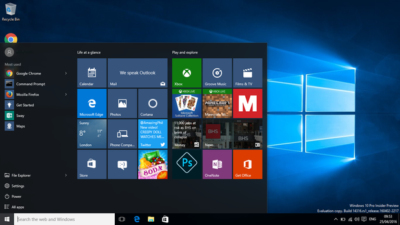
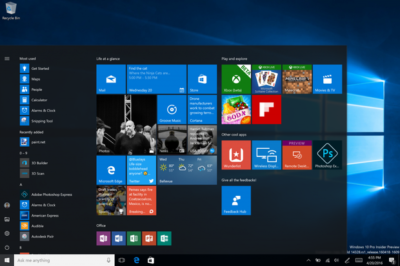
The new look Start menu makes the ‘All Apps’ list visible by default on the left-hand side. In another new addition, a selection of the user’s ‘Most-used’ apps are shown at the top of this permanently visible ‘All Apps’ list. Microsoft says the change should reduce the clicking and scrolling needed to access apps.

The Power, Settings and File Explorer icons are also always visible in the left rail of the Start menu and the ‘Recently added’ section will display three entries, instead of one. Any folders that users have added to the Start menu are now immediately accessible without having to click the hamburger icon.

win10

The old look start menu

updated-startmenu-windows10

The new look start menu

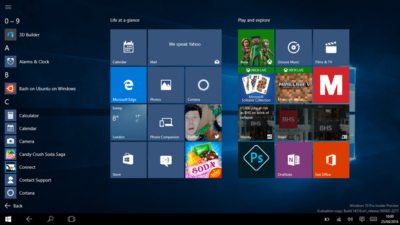
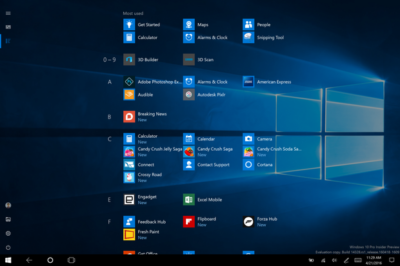
The look of the Start menu in tablet mode has also been overhauled, turning the ‘All Apps’ list into a fullscreen menu, reminiscent of the Windows 8.1 Start screen. Gabe Aul, VP for Microsoft’s engineering systems team, says the switch to fullscreen was a ‘top request from Windows Insiders’, adding that ‘the grid-like implementation of the full-screen ‘All Apps’ list aims to provide efficiency while taking advantage of the additional real estate on the Start screen on a tablet’.

win10tab

The old look ‘All Apps’ list in tablet mode.

full-screen-allapps-windows10

The new look ‘All Apps’ list in tablet mode.

The final Start menu change is designed to make it easier to toggle between pinned tiles and the ‘All Apps’ list, by providing the option to do so in the menu’s left rail.

More helpful Cortana and other changes

The latest Windows Insider build, 14328, also includes a raft of features that will be available to all users following the Anniversary Update.

These new components include Windows Ink, which allows users to more easily write notes on touchscreen PCs and tablets using a digital pen. The addition of Windows Ink to Windows 10 allows users to write on digital sticky notes, draw on digital whiteboards and annotate content in a variety of apps, including Maps, Microsoft Edge, and Office. Microsoft wants support for drawing and writing using a digital pen to be present in many Windows 10 apps and says that adding support for Windows Ink only requires developers to write two lines of code.

Windows 10’s digital assistant Cortana has also been tweaked. Users will no longer have to log into Windows to use Cortana and instead will be able to use voice commands to get Cortana to make notes, play music or set a reminder from the lock screen.

Cortana can now also be used to set photo reminders, for example the user could take a picture of a cheese they want to buy next time they’re in a store, and add reminders based on content from another Windows 10 app, for example telling a user to read an article they flagged as interesting in the Edge browser. Cortana is now also accessible to all users, with Windows 10 no longer requiring users to sign-in before they can ask simple questions of the digital assistant.

Other changes include the ability to search files on OneDrive cloud storage that aren’t synced locally, tweaks to the look of and what is displayed in the Action Center and via notifications, various changes to the Taskbar — including easier access to the calendar and the removal of the File Explorer icon, as well as updates to the Settings app and lock screen.

As this is an early build of Windows 10, some of these features may change before reaching the general public, based on feedback from testers in the Windows Insider program.

Have questions?

Get answers from Microsofts Cloud Solutions Partner!
Call us at: 856-745-9990 or visit: https://southjerseytechies.net/

South Jersey Techies, LL C is a full Managed Web and Technology Services Company providing IT Services, Website Design ServicesServer SupportNetwork ConsultingInternet PhonesCloud Solutions Provider and much more. Contact for More Information.

Yammer is on the way to Office 365: Are you ready?

Microsoft is activating Yammer for every Office 365 subscription. But is this one collaboration tool too many?

On February 2, 2016, Kirk Koenigsbauer announced in the official Microsoft Office 365 blog that Yammer is now being activated for every eligible Office 365 subscription. In a nutshell, that means Yammer is going to be another app on the Office 365 app list unless an admin specifically turns off access. Your enterprise should plan accordingly.

Yammer

For those of you unfamiliar with the product, Yammer bills itself as an enterprise internal social network. It mixes the typical chat messenger application with collaboration tools available in Office 365.

Similar to the Delve tool we looked at last week, Yammer can serve as the central hub for team collaboration. From within a Yammer discussion, teams can set up meeting appointments using Outlook, switch to a full-fledged Skype for Business video meeting, and access OneDrive for Business to create collaborative documents.

The initial rollout of Yammer took place on February 2, 2016; the rest of the rollout will take place in stages. The next release is March 1, 2016, and the last is April 1, 2016. According to the blog post, the first wave is for “Office 365 customers with a business subscription who purchased fewer than 150 licenses that includes Yammer and who have zero or one custom domains for Yammer.”

The second wave is for “Office 365 customers with a business subscription who purchased fewer than 5,000 licenses that includes Yammer.” Customers with an education subscription are not included.

The final wave is for “remaining customers with a business subscription and all customers with an education subscription.” For subscribers who have never had a Yammer account, the rollout will take place last, in April. Alas, that is the wave I’ll have to wait for.

Collaboration

Yammer is the latest, and perhaps the last, major teamwork collaboration app to be added to Office 365. In Microsoft’s vision of a mobile-first, cloud-first enterprise, teams collaborate across distances using shared documents, video conferencing, and applications that tie it all together in one virtual location.

YammerForOffice365

With the addition of Yammer, Microsoft is offering several tools teams can use to manage and organize their collaboration activities. Teams can use Yammer, Delve, Groups, Sites, SharePoint, and OneNote to manage their shared conversations and documents across the enterprise. One of those tools should be able to satisfy even the most persnickety of teams.

Bottom line

But then again, that may be where we run into problems. One could argue that there are too many collaboration tools available in Microsoft Office 365. While all these wonderful choices may seem good at first glance, it is possible that subscribers may become overwhelmed.

Microsoft’s idea that teams can choose the best tool for them or for the project they are working on sounds all well and good, but it does still require someone to make an important initial decision. For some people, making a decision that will affect a project from start to finish can be a daunting task.

In the long run, it may be beneficial for organizations to establish guidelines for when each of the collaboration tools works best. They may even decide to block some of the tools from use altogether in favor of a recommended best practice.

Having myriad collaboration tools is generally a good thing, but it might help move things along if the enterprise establishes some well thought out guidelines.

Have questions?

Get answers from Microsofts Cloud Solutions Partner!
Call us at: 856-745-9990 or visit: https://southjerseytechies.net/

South Jersey Techies, LL C is a full Managed Web and Technology Services Company providing IT Services, Website Design ServicesServer SupportNetwork ConsultingInternet PhonesCloud Solutions Provider and much more. Contact for More Information.

Windows 10 is being adopted by business at nearly twice the rate of Windows 8

Microsoft’s latest OS is proving more attractive to firms than Windows 8 – particularly among larger businesses.

Windows 10


Businesses are proving far more willing to experiment with Windows 10 than they were with Windows 8.

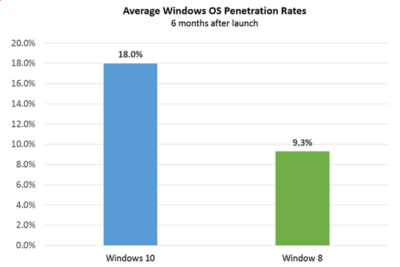
Six months after Windows 10’s launch nearly one in five firms, 18 percent, appear to be testing the OS, research by professional IT network Spiceworks found. In contrast, at the same point after Windows 8’s release, the OS was only being trialled by just over nine percent of businesses.

The anonymised data on what proportion of firms are using at least one Windows 10 machine was gathered from the millions of IT pros that use its software. Spiceworks says businesses of all sizes use the software to inventory devices connected to their networks.

This faster pace of enterprise adoption is backed up by figures from IT asset management company Samanage, told that 62.4 percent of its enterprise customers have at least one managed PC running Windows 10. These are sizeable businesses, with each of Samanage’s enterprise customers having an average of more than 1,000 seats. Microsoft also claims that 76 percent of its enterprise customers are piloting its new OS.

“Our data shows that IT pros were most excited about the return of the familiar start button experience in Windows 10, which reduces the need for end-user training required for Windows 8,” said Peter Tsai, IT analyst at Spiceworks in his assessment of why the new OS is proving more popular than Windows 8.

“Many IT pros also liked the free upgrade offer via Windows Update, which makes it easy for many to test the new OS. And lastly, they were looking forward to new security features that promise to make Windows 10 a more secure operating system than previous versions.”

Windows 10 is benefiting from a comparison to an unpopular OS, demand for Windows 8 was so weak that analyst firm Canalys warned in 2014 that “Microsoft risks losing momentum unless it does something drastic to turn its Windows business around”.

And while a significant proportion of businesses may be experimenting with Windows 10, it is likely to be some time before a large number move to the OS, as business typically lag behind consumers due to the complexity of managing such upgrades at scale. Of those firms testing Windows 10, about 40 percent have three or more devices running the OS, according to Spiceworks’ data.

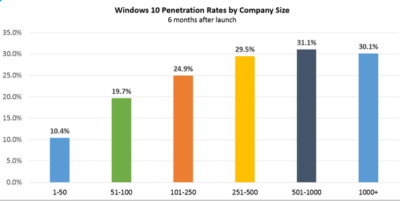
Medium and large businesses were the most likely to have at least one Windows 10 machine Spiceworks found – with 31 percent of firms with more than 500 people trialling the OS, compared to 10 percent of companies with 50 employees or fewer.

Windows 10


“We also know from many conversations with IT pros that smaller companies tend to have fewer resources for OS migration, so many SMBs could be holding off on Windows 10 until they have the time and manpower to adequately test the OS for hardware and application compatibility,” said Tsai.

Last year, half of the 500 IT pros surveyed by Spiceworks expressed an interest in adopting Windows 10 inside their business.

Microsoft’s decision to phase out support for Windows 7 and 8 on new PC hardware will also put pressure on businesses not to downgrade new Windows 10 machines to an earlier OS, as has been common in the past in order to standardize corporate hardware.

Microsoft is also reporting rapid adoption of Windows 10 by home users, with more than 200 million devices worldwide running the OS.

The popularity of the OS may, in part, be a result of Microsoft’s tactics to get consumers to upgrade. This aggressive approach includes recently implementing changes that will trigger the free upgrade to Windows 10 to begin automatically installing on many Windows 7 and Windows 8.1 PCs used in homes. Microsoft is making this push as part of its drive to get one billion devices running Windows 10 by 2018.

Have questions?

Get help from IT Experts/Microsofts Cloud Solutions Partner
Call us at: 856-745-9990 or visit: https://southjerseytechies.net/

South Jersey Techies, LL C is a full Managed Web and Technology Services Company providing IT Services, Website Design ServicesServer SupportNetwork ConsultingInternet PhonesCloud Solutions Provider and much more. Contact for More Information.

To read this article in its entirety click here.

CALL US NOW!