Back to Top

Tech, Web, Cloud & Cabling Services

Category: Office 365

Hosted Services / Office 365 Category

Surface Book pre-orders sold out at Microsoft’s online store

If you were still thinking about placing an order for a new Microsoft Surface Book, then you will have to look somewhere other than the Microsoft store.

surfacebook

While there doesn’t seem to be a massive supply issue with the new Apple iPhone 6s smartphone, in the past we have seen Apple products sell out quickly and deliveries move from days, to weeks, to months. It seems that Microsoft’s new Surface Book may be generating more interest than planned.

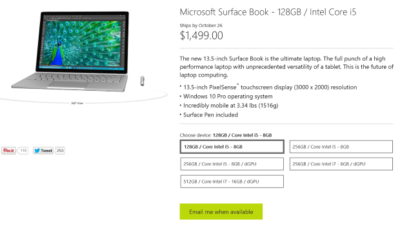
Last night I went to the online Microsoft Store to place an order for a base model Surface Book. I found that the only available status when choosing that model was, “Email me when available.” I jumped through the other four models and discovered the same thing. It seems Microsoft is sold out of pre-order stock for all models at its online store.

We reached out to Microsoft to try to find out more about stock status and when buyers could expect to place pre-orders. I also asked if there will be units in Microsoft retail stores on launch day, 26 October. Given that units are sold out online, we may even see people queue up for possible stock in stores.

A Microsoft spokesperson provided the following statement, “We’ve seen strong demand for Surface Book and have sold out of pre-order supply for October 26 availability. We will have limited quantities of Surface Book available in store on October 26 and will be updating online availability with new product ship dates soon.”

UPDATE: Microsoft updated its store and is no allowing customers to pre-order the five Surface Book variations. What you will find instead of an email me when available button is updated delivery expectations, ranging from five to six weeks for three models and seven to eight weeks for two models.

While I was disappointed that I couldn’t purchase a Surface Book through Microsoft directly, I found that Best Buy and Amazon will also be selling this new computer. Best Buy did not appear to be taking pre-orders, but I was able to purchase the Intel Core i5, 8GB, 128GB model from Amazon for $1,499.

The Amazon website does not appear to carry the 256GB i5 without dGPU or 256GB i7 models. The 256GB i5 with dGPU looks to be the only other model available for pre-order. The 512GB i7 model is on the site as an option, but redirects you to the Microsoft Store for purchase and it’s not avaialable there.

Have questions?

Get help from IT Experts/Microsofts Cloud Solutions Partner
Call us at: 856-745-9990 or visit: https://southjerseytechies.net/

South Jersey Techies, LLC is a full Managed Web and Technology Services Company providing IT Services, Website Design ServicesServer SupportNetwork ConsultingInternet PhonesCloud Solutions Provider and much more. Contact for More Information.

To read this article in its entirety click here.

First look: Five Office 2016 preview apps

At the Microsoft Ignite 2015 conference last month, the company showcased the latest iteration of its Office suite. Here’s a quick look at what you can expect.

Office 2016

Each month I compile lists of five apps that fall into various categories, such as apps to save you airfare, process monitors, and tools for protecting online privacy. This time around, however, I wanted to do something a little bit different and give you a glimpse of five applications that will eventually make up Microsoft Office 2016.

1: Word 2016

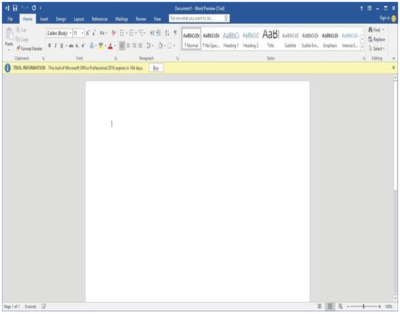
Microsoft is introducing two versions of Word 2016: a feature-rich desktop version and a lightweight, touch-optimized version. The desktop version looks and feels a lot like the previous version (Figure A), but Microsoft is introducing some new features, such as real-time co-authoring.

Figure A

Word 2016 Desktop Version

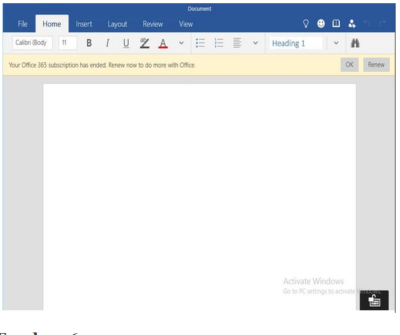
The touch-optimized version of Word (Figure B) is currently available only for use on the Windows 10 preview. It contains the essential features that users most commonly need to do their jobs, with a clean interface that’s ideal for touch screens, small screens, or for anyone who is intimidated by the desktop version’s exhaustive feature set.

Figure B

Word 2016 Touch-Optimized Version

2: Excel 2016

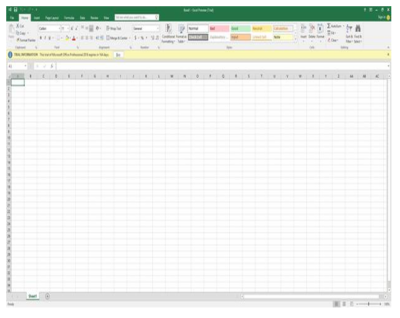
As is the case with Word, Microsoft is releasing two versions of Excel. The desktop version (Figure C) is much more feature rich and will likely be the best choice for hard-core Excel users. It includes new capabilities, such as business intelligence integrated directly into Excel and some data loss prevention features.

Figure C

Excel 2016 Desktop Version

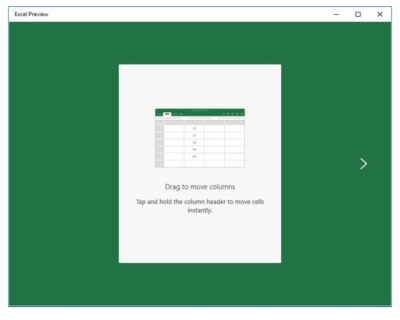
The touch-optimized version of Excel (Figure D) is similar to its Word counterpart, in that it’s designed to be lightweight and includes only the most commonly used features. Although more capable, this version of Excel reminds me a lot of the version that is included with Windows Phone 8.1.

Figure D

Excel 2016 Touch-Optimized Version

3: PowerPoint 2016

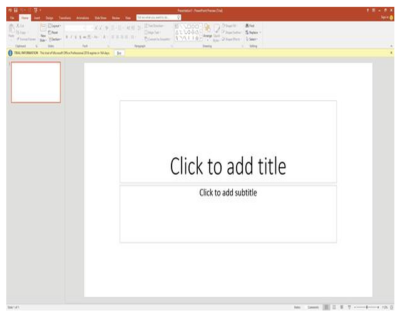
The PowerPoint 2016 preview doesn’t seem to have changed all that much from the previous version, either (Figure E). The most noticeable change to the interface is the addition of the Tell Me bar, a Cortana-like interface that will be shared by all of the Office 2016 applications. It allows users ask Office how to perform a particular task.

Figure E

PowerPoint 2016 Desktop Version

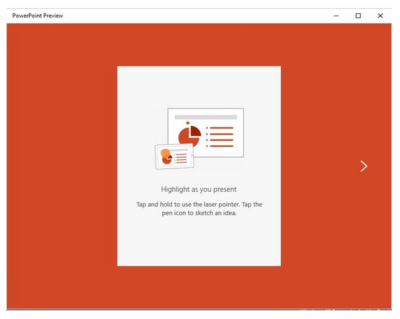
As with Word and Excel, Microsoft has also created a lighter weight, touch-optimized version of PowerPoint (Figure F).

Figure F

PowerPoint 2016 Touch-Optimized Version

4: OneNote 2016

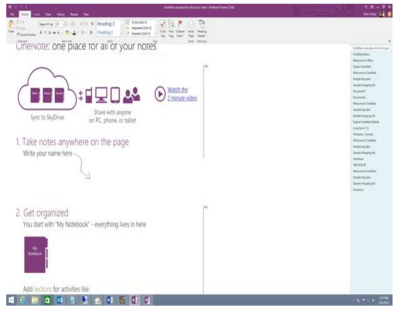
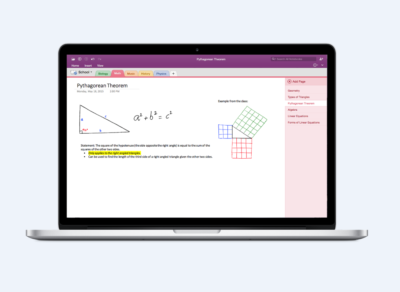
On the surface it is difficult to tell what, if anything is new in OneNote 2016 (Figure G), beyond the enhancements that exist for all the Office applications. Web searches for OneNote 2016 features have as yet failed to reveal anything significant. I admit that I don’t use OneNote often, so it is entirely possible that new features exist and I simply have not found them.

Figure G

OneNote 2016 Desktop Version

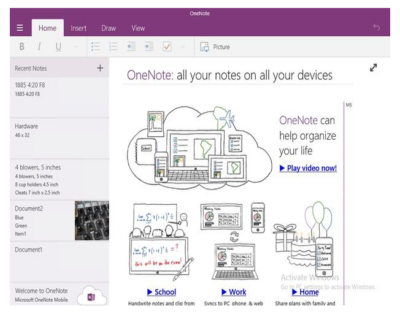
Although the desktop version of OneNote seems to be similar to OneNote 2013, the touch-optimized version (Figure H) has an intuitive interface that’s easy to use. The touch version is more full-featured than the version that was included with Windows Phone 8.1, but it doesn’t contain all the features of the desktop version.

Figure H

OneNote 2016 Touch-Optimized Version

5: Sway

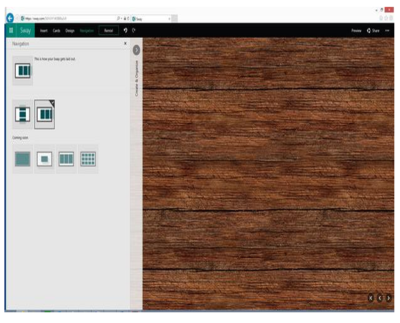
Microsoft PowerPoint has been around in one form or another for what seems like forever. During that time, it has become more refined, but it’s still basically just a slideshow tool. In Microsoft Office 2016, Microsoft is introducing Sway (Figure I) as a next-generation alternative to PowerPoint.

Figure I

Sway (Next Generation Alternative To PowerPoint)

There are two main differences between PowerPoint and Sway. First of all, PowerPoint is linear. A PowerPoint presentation has a first slide and it has a last slide and usually, a number of slides in between. In contrast, Sway is designed to be more organic and allow for more free-form presentations.

The other major difference between PowerPoint and Sway is that Sway is designed for Web content. A Sway presentation can include photos, YouTube videos, and items from Facebook, Twitter, OneDrive, etc. Some have argued that Sway is like OneNote because it aggregates information. However, OneNote is more of an organizational application, while Sway is designed for presentations.

Have questions?

Get help from Microsofts Cloud Solutions Partner!
Call us at: 856-745-9990

South Jersey Techies, LLC is a full Managed Web and Technology Services Company providing IT Services, Website Design ServicesServer SupportNetwork ConsultingInternet PhonesCloud Solutions Provider and much more. Contact for More Information.

To read this article in its entirety click here.

Microsoft Office 365: The smart person’s guide

Office 365 provides the productivity tools required by a modern enterprise workforce. This guide covers key details, including available applications, system requirements, and subscription options.

Office-365-SJTechies2

For just about any enterprise of any size, the productivity of its modern workforce revolves around the basic office suite of email, calendar, word processor, and spreadsheet. But as the enterprise workforce has become more mobile, the basic productivity toolset has had to adapt and change to match new requirements. This is why Microsoft updated Office 365 to be a mobile collaborative platform ready to get work done wherever and whenever it happens.

Microsoft Office 365 is the de facto productivity suite for many enterprises and it is the suite all the other competitors are measured against. So as a leader in information technology for your enterprise, it’s in your best interest to know everything there is to know about Office 365. To help you achieve that goal, TechRepublic compiled the most important details and related resources on Microsoft Office 365 into this “living” guide, which we’ll periodically update as new information becomes available.

Executive summary

What is it? Microsoft Office 365 provides users with the basic productivity applications necessary to get work done in the modern enterprise. It includes applications like Word, Excel, Outlook, PowerPoint, OneNote, and OneDrive, just to name a few.

Why does it matter? As the standard for productivity suites, competing products are generally measured against applications from the Office 365 suite.

Who does it affect? In the modern mobile-centric enterprise, Office 365 provides the tools used to get work done. This makes Office 365 important to just about every working individual.

When is it available? The latest version of Microsoft Office 365 is available right now. The current subscription includes Office 2016 applications.

How do you get it? Enterprises can purchase a subscription to Office 365 via the Microsoft website. Subscriptions range from $8/user/month to $35/user/month.

What is it?

Microsoft Office 365 is a subscription service that provides users with the basic productivity applications necessary to get work done in the modern enterprise. Productivity applications include, but are not limited to, a word processor, a spreadsheet, an email client, a calendar, and a presentation application.

Office365-OneDrive

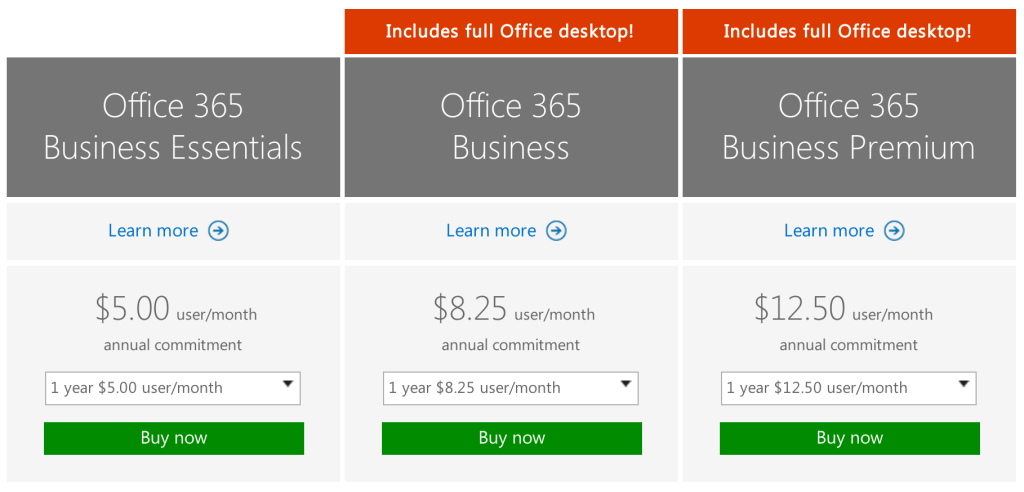
As an example, a Business Premium subscription to Office 365 ($12.50 per person per month) includes these applications:

Word: This app sets the standard for word processors and is available with Office 365 for both Business and Premium. If users in your enterprise need to create documents, this is the tool they will use.

Excel: The spreadsheet has been the workhorse for basic data analysis since its invention back in the previous century. Excel is the current standard-bearer and comes with Office 365 for Business and Premium.

Outlook: Office 365’s solution for managing email and an appointment calendar is called Outlook. The app has been around for many years and its busy interface tends to be either loved or hated by users. It’s available with both the Business and Premium subscriptions.

PowerPoint: Communicating information to a group of individuals at a meeting often involves a presentation. Office 365’s PowerPoint allows users to create, display, and disseminate information in formats ranging from the basic slide to animation to video.

Publisher: Sometimes communicating information to a broader audience requires something more permanent and more formal than a presentation at a meeting. The Publisher app in Office 365 provides users with the tools they need to publish professional-looking newsletters, brochures, and booklets.

OneNote: As the workforce has become more mobile, the need to capture information on the go has become increasingly important. Applications like OneNote allow users to take notes on any device and then retrieve those notes from any other device. It’s your basic productivity cloud app.

OneDrive: The other basic and fundamental cloud-based application is storage. With each Office 365 Business subscription, Microsoft provides users with up to 1TB of cloud storage in the form of an application called OneDrive for Business.

SharePoint: A subscription to Office 365 Business Premium also provides an enterprise with a few applications for backend infrastructure management. SharePoint, for example, can be used to host intranet websites for the enterprise. It also can be used to host smaller sites designed for smaller teams or divisions. The permissions for these sites can be designated by the users themselves or by appointed administrators.

Exchange: Each Office 365 for Business subscription includes an Exchange Server, which handles all the email management duties. By default, each user is granted 50GB of storage for email. Maintenance of the Exchange Server is generally handled at the administrator level.

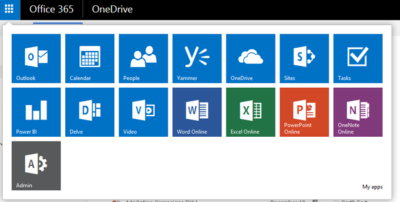
Collaboration tools: Along with the typical productivity applications, Office 365 includes many collaboration tools—like Delve, Skype, Yammer, and Sway. These tools allow users to communicate, brainstorm ideas, share documents, and have video meetings while on the go.

Power BI: One of the most powerful tools any enterprise can have, regardless of size, is reliable business intelligence gathering applications. Office 365 for Business, through its Power BI application, provides enterprises with a set of tools for collecting, sorting, and presenting business intelligence data.

Infrastructure: All Office 365 subscriptions include a reliability guarantee of 99.9% uptime. In addition, permissions for internal access control are handled by administrators designated by the enterprise using tools supplied by Active Directory. Each Office 365 subscription includes five layers of security and proactive monitoring to help safeguard your data.

System requirements

  • CPU: 1GHz or faster
  • Memory: 2GB RAM
  • Hard drive: 3GB of available space (6GB for Mac)
  • Display: 1280 X 800 screen resolution
  • Operating system: PC-Windows 7, 8, or 10. Mac-Mac OS X 10.10
  • Connectivity: Internet connection

Why does it matter?

Collaboration and communication are the key components of productivity in the modern enterprise, and productivity is the lifeblood of the enterprise. Microsoft Office 365 provides the tools necessary to bring collaboration and communication—and by extension, productivity—to each individual in an enterprise.

For many companies, Office 365 is the de facto standard for productivity software. The performance of all competing products is generally measured against applications from the Office 365 suite.

Who does it affect?

Just about every knowledge worker in every enterprise is required to have an email account and a calendar application. Beyond that, most individuals in an enterprise will need to use, at least once in a while, a word processor. And a significant number of individuals in an enterprise will also find themselves needing to use presentation software or a spreadsheet at some point in their career.

These are the productivity tools of any enterprise. These are the tools used to get work done. That means Office 365 is important to just about every working individual.

When is it available?

Microsoft Office 365 is available right now. The current subscription includes applications updated to the Office 2016 versions. Of course, the key to the subscription model is that each user will always be using the most current and most secure version of each application because each application is continuously updated.

How do you get it?

Enterprises with fewer than 300 users can purchase a subscription to Office 365 and download the appropriate applications via the Microsoft website. The Premium version costs $12.50 per user per month ($150/year). There are also versions of Office 365 available for individuals ($69.99/year) and households ($99.99/year).

Office-365-SJTechies

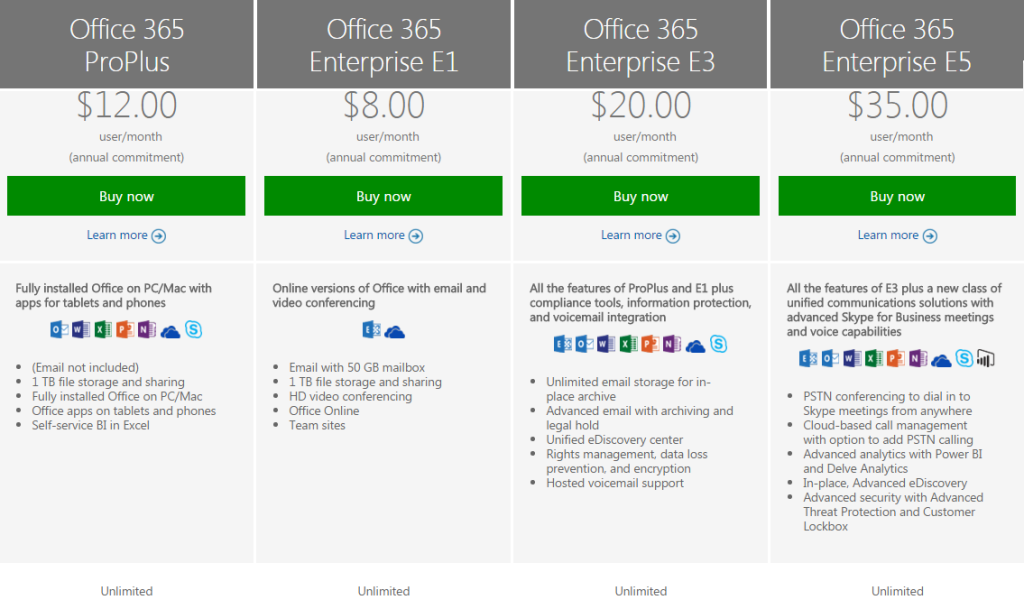
For large enterprises, unlimited user versions of Office 365 are available, ranging from $12 per person per month to $35 per person per month. Each subscription caters to a particular type of enterprise. More expensive enterprise versions of Office 365 add features like voicemail, compliance auditing, rights management, encryption, and Advanced Threat Protection.

Office-365-SJTechies1

Have questions?

Get answers from Microsofts Cloud Solutions Partner!
Call us at: 856-745-9990 or visit: https://southjerseytechies.net/

South Jersey Techies, LL C is a full Managed Web and Technology Services Company providing IT Services, Website Design ServicesServer SupportNetwork ConsultingInternet PhonesCloud Solutions Provider and much more. Contact for More Information.

To read this article in its entirety click here.

Office Mobile for iPhones

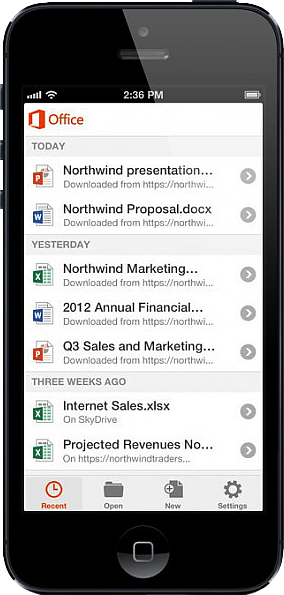
Untitled On June 14, 2013, Microsoft released Office Mobile in the Apple Store for all Office 365 users at no cost.  This app is available for iPhone 4 and up, iPad 3rd generation and up, iPad Mini and iPod Touch 5th generation.  All devices are required to run iOS 6 and up.

Office Mobile allows you to view and edit Word, Excel, and PowerPoint documents.   SkyDrive, SkyDrive Pro and SharePoint are ways to access documents.  “Recent Documents” tracks the most recent documents that you viewed or changed and makes them easily accessible.  Offline editing does not require a constant internet connection but allows you to save your changes once reconnected to a network.

On June 10, 2013 Apple announced that iWork Apps, such as Pages, Numbers and Keynote, can cross platforms to be used on Windows Systems.  Although, iWork Apps are proficient, they can not compare to the Office Suite. 

Microsoft has taken a huge step by crossing platforms with Office software and returning the upper hand to Microsoft.  Office 365 has become more valuable for businesses and home users.  

For more information on Hosted Services and Office 365

 please contact us 856-745-9990 or click here.


Microsoft’s new Surface Laptops unveiled

Microsoft’s most direct shot at the MacBook yet

This slideshow requires JavaScript.

The one Surface product that fans have been clamoring over for years, a straight up Surface Laptop, is finally here. But, in taking design cues from both the Surface Pro and Surface Book lines, Microsoft has set lofty expectations for its first dedicated laptop device.

Priced at $999 (about £770, AU$1,330), the Surface Laptop clearly aims to chip at the MacBook and MacBook Air models that dominate college campuses practically worldwide. In fact, Microsoft claims that its cheaper (and larger) Surface Laptop can last far longer on a charge than Apple’s 12-inch MacBook: 14.5 hours.

However, every Surface Laptop shipped will come with Windows 10 S installed, Microsoft’s new version of Windows 10 that only accepts app installs downloaded from the Windows Store.

With the ability to switch from Windows 10 S to the 100% open Windows 10 Pro for $49 if you miss the chance in 2017 for free, should you need an app outside of the Windows Store that badly (spoiler: you probably will).

Regardless, at that price, can Microsoft garner enough interest from college students (or more likely their parents), who are often already strapped from the cost of an education?

The Surface Laptop in traditional ‘Platinum’

Design

Clearly, part of Microsoft’s plan is to lure those folks in with an incredibly gorgeous, and potentially trendsetting, design. The 13.5-inch Surface Laptop may very well be Microsoft’s most attractive computing product yet.

And, with four colors to choose from – Burgundy, Platinum, Cobalt Blue and Graphite Gold – there’s bound to be one that appeals to you.

A full aluminum lid and base wrap the laptop in much the same way it does a Surface Book, but ditches the aluminum in the keyboard deck for a Alcantara fabric that surrounds every plastic key and meets with the aluminum base in a seemingly airtight seal.

The fabric, according to Microsoft, is imported from Italy and laser cut to fit every Surface Laptop. Now, while many of the design elements are the same, the 13.5-inch (2,256 x 1,504) PixelSense touch display, the smooth glass-coated Precision touchpad, the chrome logo centered on the aluminum lid, we’re told that very few parts from previous parts are found within the Surface Laptop.

That much is obvious in the nature of the felt used for this keyboard deck compared against that which the Type Covers from Microsoft utilize. It’s smoother and more plush than those Type Covers, and we’re told it’s spill resistant.
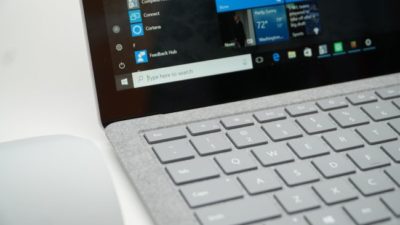
The Surface Laptop’s keyboard deck is awfully comfortable

Plus, the additional height afforded by this traditional laptop design allowed Microsoft to equip the keyboard with 1.5mm of travel, and the difference in typing between that and the Surface Pro 4 is night and day. Finally, Microsoft devised a speaker system beneath the keyboard that radiates sound through the spaces between the keys and the keyboard deck.

The result isn’t much better audio than you’d find in a MacBook Air, perhaps a bit fuller, but at least it’s consistently in an uninterrupted position. Naturally, the audio gets a bit muffled when typing, but since the sound radiates throughout the laptop base, there isn’t a major loss in audio detail.

That leaves the side of the laptop base to house Microsoft’s proprietary power and docking port found on other Surface devices, as well as a USB 3.0 and Mini DisplayPort, not to mention an audio jack. If you’re already asking, “where’s the USB-C,” we’ve already been there.

Microsoft tells us that it intends for its own port to handle concerns of connectivity expansion via the Surface Connect port and its Surface Dock, while refraining from alienating customers that have yet to completely update to USB-C.

A fine explanation, but that doesn’t tell us why USB 3.0 and not USB 3.1 at least, as you’re missing out on some major data transfer speed improvements there.

Those strange strips of plastic on the base? They’re Wi-Fi antennae

Performance and battery life

Microsoft can pack the Surface Laptop with the latest Intel Core i5 or Core i7 processors (Kaby Lake), up to 512GB of PCIe solid-state storage (SSD) and as much as 16GB of RAM.

That’s a mighty powerful laptop on paper, likely stronger than either the MacBook Air or 12-inch MacBook, while rising above even the latest 13-inch MacBook Pro that still utilizes Skylake processors.

(The $999 model comes packing a 128GB SSD and 4GB of RAM with the Intel Core i5.)

As for how Microsoft fit that kind of power a laptop just 0.57 inches (14.48mm) thin, a brand new, proprietary vapor chamber cooling system helps a whole lot. The system changes the physical state of the heat as it’s taken in through the center of a fan vent in the rear of the laptop base and spits it out of the sides of that same vent.

While we obviously weren’t able to stress-test the Surface Laptop, we were able to test out how it feels to use. For starters, at just 2.76 pounds (1.25kg), this thing is super light, which is all the more impressive considering it’s a 13.5-inch, Gorilla Glass 3 touchscreen you’re looking at.
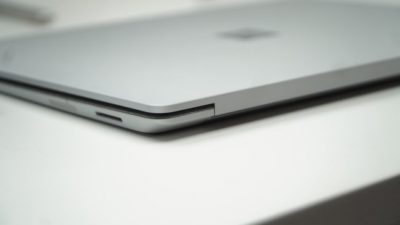
Note the Surface Connect dock port – Microsoft’s answer to USB-C

Microsoft chalks this up to, in part, the thinnest LCD touch module ever used in a laptop design. This, in turn, helps the lid to lift with just one finger. However, perhaps the hinge design needs refinement.

While you can open the display with just a finger, that slightness in the hinge is felt when the screen bounces with every tap of the touchscreen. It’s the very reason we question the inclusion of touchscreens in traditional laptops to begin with. Unfortunately, it seems Microsoft hasn’t found a better solution here.

That said, typing on the keyboard is the best time we’ve had doing such on a Surface product yet, and the portability of the whole thing is right there with Apple’s best.

As for battery life, Microsoft is, again, claiming 14.5 hours on a single charge. Microsoft later clarified for us that this number was achieved via local video playback with all radios but Wi-Fi disabled.

That testing environment sounds very similar to how TechRadar tests for battery life, so we might see battery life results in a full review fall much closer to this claim. If so, then Surface Laptop will be very tough to beat in longevity and be a potentially major driver for sales.
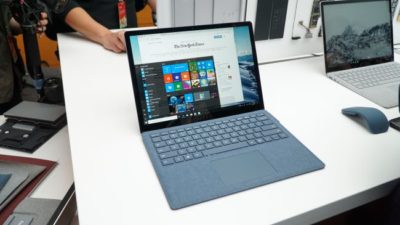
This is the Surface Laptop in Cobalt Blue

Early verdict

The fact that the Surface Laptop ships with a limited – sorry, “streamlined” – operating system and costs more than some previous Surface systems that come with full fat Windows 10 cannot go unnoticed – regardless of the free upgrade through this year. Unless Microsoft changes its tune come 2018, folks buying one of these with holiday gift money at the turn of the year would be wise to tack 50 bucks on top of whichever configuration they choose to get Windows 10 Pro.

While this switch will be free for any Surface Laptops bought in the education sector, that won’t help the Surface Laptop’s target audience come 2018: late high school and college students.

That said, the Surface Laptop’s incredible, potentially trendsetting design cannot go unnoticed either. Frankly, this is a laptop that appears to outclass the MacBook Air and 12-inch MacBook – and possibly even the 13-inch MacBook Pro – for hundreds less.

Save for a questionable platform versus pricing decision, the Surface Laptop has all the makings of yet another winning piece of hardware from Microsoft.

Have questions?

Get answers from Microsofts Cloud Solutions Partner!
Call us at: 856-745-9990 or visit: https://southjerseytechies.net/

South Jersey Techies, LL C is a full Managed Web and Technology Services Company providing IT Services, Website Design ServicesServer SupportNetwork ConsultingInternet PhonesCloud Solutions Provider and much more. Contact for More Information.

To read this article in its entirety click here.

Microsoft updates support policy: New CPUs will require Windows 10

In a change to its longstanding support policy, Microsoft says PCs based on new CPU architectures, including Intel’s Skylake chips, will require Windows 10. A list of preferred systems will support older Windows versions on new hardware, but only for 18 months.

Windows 10

Enterprise customers are still the bulwark of Microsoft’s Windows business, in both the client and server segments.

Historically, those customers have also been among the most conservative, lagging years behind the latest releases of an operating system release. Those practices have been encouraged by Microsoft’s support lifecycle, which offers a generous ten years of support for each Windows release.

Effective today, that policy is changing in a subtle but significant way, with the addition of new hardware requirements for support of pre-Windows 10 releases. The company’s also publishing a preferred list of systems that will receive special attention for updates and support.

Yes, Windows 7 (currently in the Extended support phase) will continue to receive updates until January 14, 2020, and Windows 8.1 will be supported until January 10, 2023. But in a series of “clarifications” to its support policy today, the company announced that support for those older Windows versions will be available only for “previous generations of silicon.”

Going forward, as new silicon generations are introduced, they will require the latest Windows platform at that time for support… Windows 10 will be the only supported Windows platform on Intel’s upcoming “Kaby Lake” silicon, Qualcomm’s upcoming “8996” silicon, and AMD’s upcoming “Bristol Ridge” silicon.

The policy will be phased in beginning with systems based on Intel’s new 6th-generation CPUs (code-named Skylake), which debuted a few months ago. New consumer-based Skylake devices must run Windows 10 to be supported.

For enterprise customers that want to buy “future proof” new hardware based on Skylake processors running older Windows versions, Microsoft will publish “a list of specific new Skylake devices we will support to run Windows 7 and Windows 8.1.” That support will run for a period 18 months, until July 17, 2017, after which those enterprise customers will be expected to upgrade to Windows 10.

Examples of systems that will be on the initial release of the list include Dell’s Latitude 12, Latitude 13 7000 Ultrabook, and XPS 13; HP’s EliteBook Folio, EliteBook 1040 G3; and Lenovo’s ThinkPad T460s, X1 Carbon, and P70 models.

The list will continue to be updated, Microsoft says.

Any machine that earns a place on the elite enterprise support list will get very special treatment indeed, with the idea being to reassure corporate customers that these models are especially likely to perform well on Windows 10 in the new era of continuous updates:

For the listed systems, along with our OEM partners, we will perform special testing to help future proof customers’ investments, ensure regular validation of Windows Updates with the intent of reducing potential regressions including security concerns, and ensure all drivers will be on Windows Update with published BIOS/UEFI upgrading tools, which will help unlock the security and power management benefits of Windows 10 once the systems are upgraded.

These models also get special treatment for enterprises that are still planning their Windows 10 migration, with an 18-month grace period where the older OS versions are fully supported.

Through July 17, 2017, Skylake devices on the supported list will also be supported with Windows 7 and 8.1. During the 18-month support period, these systems should be upgraded to Windows 10 to continue receiving support after the period ends. After July 2017, the most critical Windows 7 and Windows 8.1 security updates will be addressed for these configurations, and will be released if the update does not risk the reliability or compatibility of the Windows 7/8.1 platform on other devices.

Of course, enterprise customers who want to stick with earlier Windows versions beyond that mid-2017 deadline have lots and lots of options, based on current generations of Intel processors such as the Broadwell and Haswell lines. Those systems, which are based on what Microsoft calls “downlevel silicon,” will continue to be fully supported for pre-Windows 10 operating systems.

In today’s blog post, Microsoft says it’s seeing “unprecedented demand from our enterprise customers” in Windows 10. Enterprise customers are especially interested in new Windows 10 security features like Credential Guard, which uses hardware virtualization to safeguard credentials from attack.

Windows 8-era enhancements like Secure Boot, which protects systems from being compromised by rootkits and bootkits, also require new hardware.

Not surprisingly, today’s announcement contains the usual cheery statements from Microsoft’s three biggest hardware partners: Dell, HP, and Lenovo. All three companies compete aggressively in the low-margin consumer market, where virtually all new systems will run Windows 10. But enterprises will pay premium prices for the improvements in battery life and security in Skylake-based mobile systems, making this the most attractive segment to target.

Have questions?

Get help from IT Experts/Microsofts Cloud Solutions Partner
Call us at: 856-745-9990 or visit: https://southjerseytechies.net/

South Jersey Techies, LL C is a full Managed Web and Technology Services Company providing IT Services, Website Design ServicesServer SupportNetwork ConsultingInternet PhonesCloud Solutions Provider and much more. Contact for More Information.

To read this article in its entirety click here.

Microsoft prices high-end Office 365 E5 at $420 per user per year

Microsoft begins selling its new highest-end Office 365 business plan, E5, on December 1 for $420 per user per year. Here’s what’s included.

Ofice 365-Plans

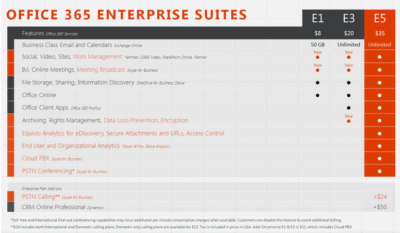
Microsoft will charge users $35 per user per month, or $420 per year, for its new highest-end Office 365 business plan.

Microsoft officials went public with the pricing for Office 365 E5, its top-of-the-line commercial Office 365 offering, on November 30 during the company’s Convergence EMEA conference. Office 365 E5 is available to customers for purchase starting, December 1.

Office 365 E4 — the current high-end version of Microsoft’s Office 365 line — sells for $22 per user per month, or $264 per user, per year.

The Office 365 E5 SKU will include Skype for Business (Lync) with support for features including Cloud PBX and Meeting Broadcast; new analytics features, like Power BI Pro and Delve Organizational Analytics; and new advanced security features, such as eDiscovery, Customer Lockbox, and Safe Attachments.

Office 365 E4 includes Skype for Business with Enterprise Voice and unified messaging; the full suite of locally downloadable Office apps; and Power BI for Office 365 (which is being superseded by Power BI pro).

Microsoft is planning to retire E4 and replace it with E5. However, Office 365 E4 will remain on the price list till June 30, 2016, Microsoft officials have said.

The E1 and E3 versions of Office 365 will retain their current prices of $8 per user per month, and $20 per user per month, respectively.

Office 365 E1 users will get new work-management capabilities, as well as Skype for Business’s Meeting Broadcast functionality added to their plans for no additional charge. Office 365 E3 users will get those same two new features, as well as the option to purchase Equivio Analytics for eDiscovery. (Microsoft bought Equivio in January 2015.)

Skype Meeting Broadcast enables users to broadcast of a Skype for Business meeting on the Internet to up to 10,000 people, who can attend in a browser.

Office 365 E5 users get all the features that E1 and E3 users get, plus other analytics and networking functionality, including Cloud PBX and PSTN Conferencing.

The Skype for Business Cloud PBX with PSTN Calling service provides users with the ability to make and receive traditional phone calls in their Skype for Business client, and to manage these calls using hold, resume, forward and transfer.

PSTN Conferencing is initially available to 15 countries on December 1, with a phased roll out to international markets in the future. Cloud PBX is available worldwide starting December 1. PSTN Calling is available in the U.S. starting December 1, with a phased roll out to international markets in the future.

The fine print: PSTN Conferencing users may incur additional per-minute consumption charges, but customer can disable this feature to avoid additional billing. PSTN Calling is paid add-on for E1, E3 and E5. For E5 users, PSTN Calling costs $24 extra (per user, per month) for international and domestic calling, and $12 for domestic calling only. For E1 and E3, the international and domestic calling plan is $32 extra.

Have questions?

Get help from IT Experts/Microsofts Cloud Solutions Partner
Call us at: 856-745-9990 or visit: https://southjerseytechies.net/

South Jersey Techies, LLC is a full Managed Web and Technology Services Company providing IT Services, Website Design ServicesServer SupportNetwork ConsultingInternet PhonesCloud Solutions Provider and much more. Contact for More Information.

To read this article in its entirety click here.
 

Office 365 – the easiest way to get the new Office.

Microsoft
Partner Network

Office 2016

Now, there’s more opportunities than ever to build your business.Office 216 is the latest addition to Office 365—taking the work out of working together. The new Office is built for teamwork. Perfect for Windows 10. Smart. Secure. Full of new features.

Consider the opportunities.

Exciting new advances in Office open new opportunities for you to deepen your role as trusted advisor and to expand your practice—and your revenue potential. Here are a few paths to consider:

  • Reach new customers by leveraging the innovative user experiences in Office 2016 apps
  • Grow your hybrid practice with cloud-inspired infrastructure in Office 2016 servers
  • Capitalize on Office 2016 launch momentum to renew or upsell Office 365

We think that Office 2016 is an important step in empowering every organization on the planet to achieve more. Action Pack and Competency partners can get started right away by using your internal use rights (IUR) benefits to download Office 365. Once you’re familiar with the new Office you can show your customers how to get the most from the new features.

Quick steps to get started:

Let’s do great work together.Your Microsoft Partner Network Team

Have questions?

Get help from IT Experts/Microsofts Cloud Solutions Partner
Call us at: 856-745-9990 or visit: https://southjerseytechies.net/

South Jersey Techies, LLC is a full Managed Web and Technology Services Company providing IT Services, Website Design ServicesServer SupportNetwork ConsultingInternet PhonesCloud Solutions Provider and much more. Contact for More Information.

Office 2016 for Mac is here!

Kirk Koenigsbauer, corporate vice president for the Office Client Applications and Services team said “Today we are taking a big step forward for Mac® users—Office 2016 for Mac is now available in 139 countries and 16 languages. Based on feedback from the great Mac Office community, we’ve made major updates to each of the apps, and we couldn’t be more pleased to deliver it first to our Office 365 customers.”

Unmistakably Office, designed for Mac

The new versions of Word, Excel, PowerPoint, Outlook and OneNote provide the best of both worlds for Mac users—the familiar Office experience paired with the best of Mac.

If you already use Office on a PC or iPad, you will find yourself right at home in Office 2016 for Mac. It works the way you expect, with the familiar ribbon interface and powerful task panes. Mac users will appreciate the modernized Office experience and the integration of Mac capabilities like Full Screen view and Multi-TouchTM gestures. With full Retina® display support, your Office documents look sharper and more vibrant than ever.

Office for Mac is cloud-connected, so you can quickly get to the documents you’ve recently used on other devices and pick up where you left off. New, built-in document sharing tools make it easy to invite teammates to work on a document together. When sharing documents, you won’t have to worry about losing content or formatting, as Office for Mac offers unparalleled compatibility with Office on PCs, tablets, phones and online.

Five modern, first-class applications

Word for Mac


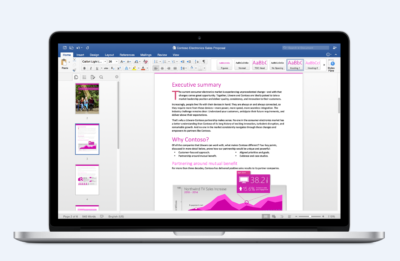
Word for Mac—Word’s powerful writing and reviewing tools make it easy to create great-looking documents. The new Design tab lets you easily apply designer-quality layouts, colors and fonts throughout your document. You can work on the same document simultaneously with your teammates and use threaded comments to have a conversation right next to the corresponding text.


Excel for Mac


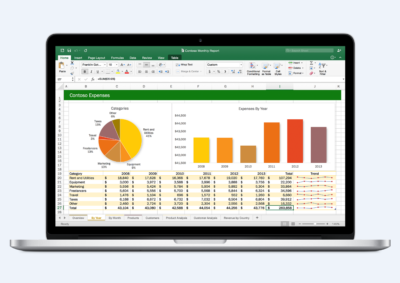
Excel for Mac—The new Excel for Mac helps you visualize your information by recommending charts best suited for your data with chart previews. Familiar keyboard shortcuts, autocomplete and an improved formula builder save you time when creating spreadsheets or entering data. For deeper analysis, new PivotTable Slicers help you filter large volumes of data and discover patterns.

PowerPoint for Mac

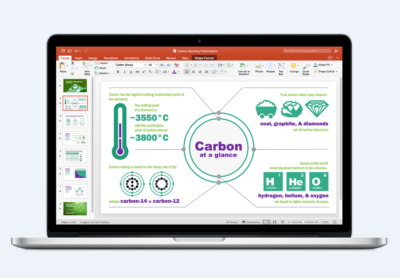
PowerPoint for Mac—PowerPoint’s improved Presenter View gives you full control when you present by showing you the current slide, next slide, speaker notes and a timer on your Mac screen, while the audience only sees your presentation on the big screen. The new animation pane helps you design and fine-tune animations, and the latest set of slide transitions add polish to your presentations.

Outlook for Mac

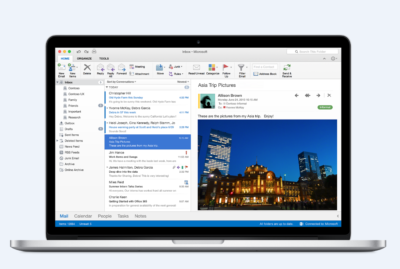
Outlook for Mac—Managing your email, calendar, contacts and tasks has never been easier. The new Outlook for Mac has push mail support so your inbox is always up-to-date. The improved conversation view automatically organizes your inbox around threaded conversations, so you won’t have to hunt for related messages. And the new message preview shows you the first sentence of an email just below the subject line so you can quickly decide if you want to read it now or come back later.

One Notebook for Mac

OneNote for Mac—OneNote is the newest addition to Office for Mac. You can capture your ideas in digital notebooks and access them on any device. Find things quickly with the OneNote search engine that tracks your tags, indexes your typed notes and recognizes text in images and handwritten notes. Bold, italicize, underline or highlight notes, insert files, pictures and tables and organize your notes however you want. You can also share notebooks with friends, family or colleagues so everyone can work together on travel plans, household tasks or work projects.

Made better by Mac users

The customer participation in Office for Mac preview since its launch in March exceeded expectations, making it largest Office for Mac beta ever. Thanks to everyone who participated in the preview program and helped improve the product.

Mac preview participants provided with over 100,000 pieces of feedback. Based on this feedback, Office released seven updates in four months with significant improvements in performance and stability. Also added features like improved Mail Merge in Word, Propose New Time in Outlook and support for External Data Connections in Excel.

And the best news is that Office for Mac will continue to see ongoing improvements over time. With released updates and new features for Office 365 customers at least once per quarter.

Available today for Office 365 customers

Office 365 subscribers can get the newest version of Office for Mac today. All you need is an Office 365 subscription (Office 365 Home, Personal, Business, Business Premium, E3 or ProPlus), which includes the rights and access to use Office applications on Mac, Windows, iOS and Android devices, along with additional value in OneDrive and Skype.

Here are a few different ways to get Office 2016 for Mac today:

  • Already an Office 365 customer? On your Mac, just browse to your account page (office.com/myaccount), sign in and follow the installation instructions. If you have Office 365 through your organization, go to portal.office.com/OLS/MySoftware.aspx.
  • Are you a student? You may get Office 2016 for Mac for free or at a substantial discount. It takes only 30 seconds to find out at office.com/student.
  • Otherwise, go to office.com/mac or buy an Office 365 subscription at your local retailer.

Office 2016 for Mac will become available as a one-time purchase option this September.

We hope you’re as excited as we are about the new Office for Mac. It’s one of many important releases this summer. “We released Word, Excel and PowerPoint for Android phones just two weeks ago, which join Outlook and OneNote for Android phones, and we are just weeks away from delivering Office Mobile apps for Windows 10.” said Kirk Koenigsbauer

Have questions?

Get help from Microsoft’s Cloud Solutions Partner.
Call us at: 856-745-9990 or visit: https://southjerseytechies.net/

South Jersey Techies, LLC is a full Managed Web and Technology Services Company providing IT Services, Website Design ServicesServer SupportNetwork ConsultingInternet PhonesCloud Solutions Provider and much more. Contact for More Information.

To read this article in its entirety click here.
Windows 10’s features

The new Windows 10 notifications will follow you everywhere

Windows 10 has a new notifications center for your apps — even the ones from your Windows Phone.

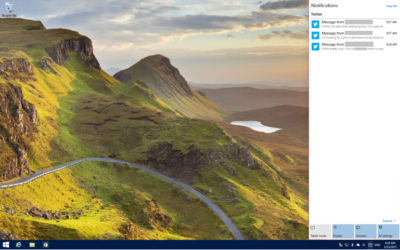
When you’re poking around Windows 10, you’ll notice something new: A small taskbar button that, when clicked, reveals a sidebar full of app notifications.

Welcome to the new notifications center, which is basically the Windows 10 version of the Action center in Windows Phone 8.1. The notifications center is part of Microsoft’s dream of “Windows everywhere” — it’s a universal notifications center that will pop up your app notifications across multiple platforms. Because who doesn’t want to be alerted about new Twitter followers on their phone, tablet, and now PC?

The new notifications center consists of two parts: The notifications area at the top, and the “quick actions” bar at the bottom. In the notifications area you’ll see notifications from various apps, including Twitter, Facebook, and your email account, as well as notifications from phone apps (e.g. alarms) if applicable.


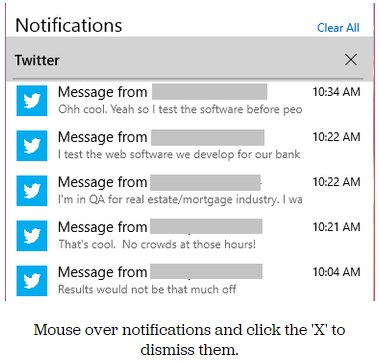
Mouse over notifications and click the ‘X’ to dismiss them.

You can dismiss notifications three different ways: You can mouse over the app name (e.g. Twitter) and click the ‘X’ next to it to dismiss all notifications from that app. You can also mouse over each individual notification and click the ‘X’ next to it to dismiss that specific notification. Or you can click Clear All in the upper right corner of the notifications center to dismiss all notifications from all apps. Because this is a “Windows everywhere” feature, notifications you dismiss in the notifications center will also be dismissed on your other Windows devices, such as your phone.

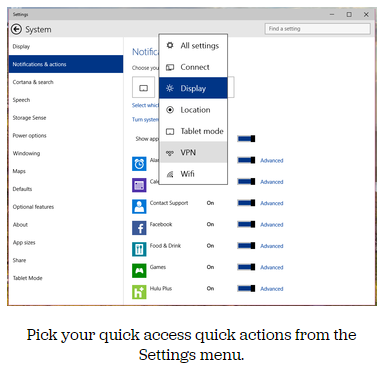
In the quick actions bar, you’ll see four quick-access buttons as well as an Expand link. Click Expand to see all quick actions. Actions include things like a Tablet Mode toggle button, a link to the Display settings, a link to all settings, and toggle buttons for Location and Wi-Fi. Tap a quick action button to toggle a setting (tablet mode, location, Wi-Fi) on or off, or to go directly to the settings menu so you can configure your display, connection, or VPN.

x4
Pick your quick access quick actions from the Settings menu.

To choose which quick actions appear above the break, go to Settings > Notifications & actions > Choose your quick actions. Here, you’ll see four small buttons that you can click on to swap out actions. If you’d prefer to have your Wi-Fi toggle on hand whenever you open the notifications bar, you can switch it for the Display button. Of course, you’ll always be able to see all of the quick actions by clicking Expand in the notifications bar.

x5
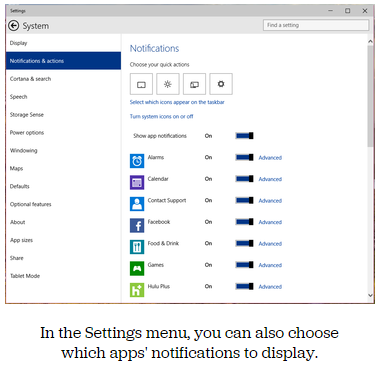
In the Settings menu, you can also choose which apps’ notifications to display.

Here, you can also pick and choose which app notifications you’ll see in the notifications bar. If you want to turn all notifications off, you can simply click the toggle next to Show App Notifications. You’ll no longer see pop-up banner notifications, nor will you see app notifications when you open the notifications center.

If you’d prefer to just turn off notifications for specific apps, you can do that, too — find the app in the list and click its toggle to Off. Next to each app in the list you’ll see a link to Advanced notifications settings for that app. Go into Advanced to turn off specific notifications for that app — either banner notifications (pop-ups in the lower right corner of your screen) or notifications in the notifications center.

Want to turn your clock off? You can do that, too.

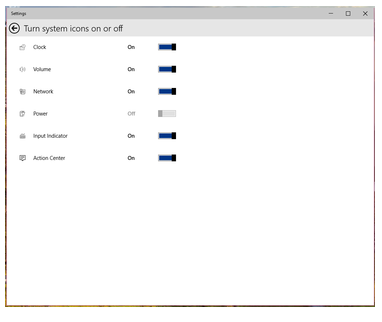
In the Notifications & Actions section, you can also clean up your taskbar by clicking “Select which icons to appear in the taskbar” (you can turn on and off things like the Network icon and the Volume icon), or by clicking “Turn system icons on or off.” In “Turn system icons on or off,” you can turn off the clock, input indicator or action center — in other words, you can turn off all system tray icons and have a completely icon-less system tray, if you so choose.

Have questions?

Want to get Windows 10?

Contact Our Expert IT business team
Call us at: 856-745-9990 or Visit: https://southjerseytechies.net/

South Jersey Techies, LLC is a full Managed Web and Technology Services Company providing IT Services, Website Design ServicesServer SupportNetwork ConsultingInternet PhonesCloud Solutions Provider and much more. Contact for More Information.

To read this article in its entirety click here.
CALL US NOW!