Back to Top

Tech, Web, Cloud & Cabling Services

Category: Processor

Hardware / Processor Category

When should businesses upgrade to Windows 10?

Looking at upgrading your business PCs to Windows 10 but not sure when to make the leap? Here are some issues to consider.

Business customers can often be years behind the state of the operating system art: right now most businesses are still running Windows 7, launched back in July 2009, having shown limited interest in Windows 8 which arrived in August 2012.Windows 10

Even when they buy new PCs, most companies today still downgrade them to Windows 7, so it’s usually home users that are first to take the plunge with the new software, whether they like it or not.

However, businesses may be significantly faster to adopt Windows 10, which arrives on 29 July (volume licensing customers will be able to download Windows 10 Enterprise and Windows 10 Education on Volume Licensing Service Center from 1 August) than previous versions of Microsoft’s operating system.

Part of the reason for the change is the huge public testing process – five million testers strong – that has preceded the arrival of Windows 10. As a result, the standard policy of waiting for the first service pack to arrive before rolling out a new OS is now longer the right one, says Stephen Kleynhans, research vice president at analyst Gartner.

However, that doesn’t mean firms should be full steam ahead with upgrades. “I’m not one who believes there is a need to rush to a new operating system. You want to let the ecosystem around the operating system mature a little bit before you jump right in,” he says.

Companies should wait until it’s clear if the line of business applications they use work happily with Windows 10, and whether they can find enough expertise to make sure any rollout is a smooth one. “All of that has to build up before you want to jump in and start running it in your production environment,” he said.

Kleynhans said businesses need to spend some time testing out Windows 10 in a controlled fashion: “Bring it into a lab, bring it into a test environment, let some folks run it for the rest of this year. Then, in 2016, get serious about it, start looking at it in a real test environment, start piloting it with some real users to see how it’s performing.”

He said that if all goes well companies should be ready to start deployments in the second half of 2016 or the beginning of 2017, depending on how large and complex their IT environment is.

“If you’re a large company nothing happens really fast. If you’re a small company the timeline is going to be a lot faster – if you’re testing with 10 people you might be testing with ten percent of the company.”

Starting the rollout a year to 18 months after the operating system is launched might seem like a long delay, but it would still be six months to a year faster than with previous upgrades.

Kleynhans said that it took most big companies 18 months of testing and remediation work before they were able to start rolling out Windows 7. In contrast, most companies will get Windows 10 testing and remediation done in less than six months.

The analyst said that some organizations are keen to get moving as soon as Windows 10 is available – such as those that are still using Windows XP or who have plans to deploy hybrid PC devices. But, for most companies, this will be too soon.

“There are pieces of the operating system targeted at the enterprise that we really haven’t had a chance to try out yet. You can’t consider significant production rollouts even in the most aggressive cases until later in the fall.”

He cited Windows Update for Business as a new tool that small and medium sized businesses will want to use, but that wasn’t part of the tech preview. There are also some other security components that haven’t been as broadly tested or available during the tech preview, he said.

As Ed Bott notes over at Tech Pro Research, other missing features will include the new unified sync client for OneDrive (the consumer cloud storage service) and OneDrive for Business (the cloud storage service for business Office 365 subscriptions). He predicts these will be wrapped up by late October, in time for Windows 10 PCs to hit the retail channel for the festive season.

Other factors to consider: at a prosaic level, the upgrade will inevitably cause disruption so don’t plan it for a busy time of year. If you’re in retail, starting the upgrade in November or December might be a career limiting decision for the CIO.

The state of your current infrastructure is another element to take into account. Gartner says that companies planning Windows 8.1 deployments should instead redirect their efforts toward earlier deployment of Windows 10.

“In almost all cases, enterprises currently planning to deploy Windows 8.1 should switch to Windows 10. Enterprises that already have Windows 8.1 deployed should continue with those deployments for the time being. Customers on Windows 7 with no plans for Windows 8.1 should begin evaluating Windows 10 for deployment in 2H16 or later,” the analyst firm said in a research note.

Equally, for some, the upgrade may never take place. David Gewirtz has no plans to upgrade any of his Windows 7 devices to Windows 10: “They work, they’re rock solid, and all their drivers are perfectly tuned to the hardware they’re running on,” he notes.

However long it takes enterprises to take the plunge, Windows 10 is likely to become widely adopted, if only because most firms will need to move off of Windows 7 eventually, while the relatively few who did move to Windows 8 will also update sooner rather than later. The pressures that forced companies to migrate off Windows XP and onto Windows 7 will eventually make them move from Windows 7 to Windows 10.

“Windows 7 comes to end of life in January 2020. That’s only four and half years away so you’re going to see the same sorts of pressures mount to get off of Windows 7. They need to go somewhere and they’ll go to Windows 10,” he said.

Have questions?

Get help from IT Experts/Microsofts Cloud Solutions Partner
Call us at: 856-745-9990 or visit: https://southjerseytechies.net/

South Jersey Techies, LLC is a full Managed Web and Technology Services Company providing IT Services, Website Design ServicesServer SupportNetwork ConsultingInternet PhonesCloud Solutions Provider and much more. Contact for More Information.

To read this article in its entirety click here.

What You Need to Know About the Big Chip Security Problem

According to Intel Corp.,most of the processors running the world’s computers and smartphones have a feature that makes them susceptible to hacker attacks. The chipmaker, working with partners and rivals, says it has already issued updates to protect most processor products introduced in the past five years, but the news sparked concern about this fundamental building block of the internet, PCs and corporate networks.

The revelation of the so-called Meltdown and Spectre vulnerabilities spurred a scramble among technology’s biggest players, from Apple Inc. to Amazon.com Inc., to enact fixes and reassure customers they were on top of the problem.

1. What’s the problem?

Modern processors guess what they’ll have to do next and fetch the data they think they’ll need. That makes everything from supercomputers to smartphones operate very fast. Unfortunately, as Google researchers discovered, it also provides a way for bad actors to read data stored in memory that had been thought to be secure. In a worst-case scenario, that would let someone access your passwords.

2. How bad is it?

The vulnerability won’t stop your computer working and doesn’t provide an avenue for hackers to put malicious software on your machine. Though it could put important data at risk, there’s been no report so far of anyone’s computer being attacked in this manner. More broadly, though, the new fears could undermine longtime assurances that hardware and chip-level security is more tamper-proof than software.

3. How was it discovered?

The weakness was discovered last year by folks Google employs to find such issues before the bad guys do. Usually, solutions are developed in private and announced in a coordinated way. This time the news leaked before the companies involved had a chance to get a fix in place.


4. What’s being done to fix it?

Chipmakers and operating system providers, such as Alphabet Inc.’s Google and Microsoft Corp., are rushing to create software patches that will close the potential window of attack. Intel said that it expects to have issued updates for more than 90 percent of recently introduced processor products. Amazon.com Inc. said “all but a small single-digit percentage” of its servers have already been protected. In a blog post, Google said its security teams immediately “mobilized to defend” its systems and user data. Some customers of Android devices, Google Chromebook laptops and its cloud services still need to take steps to patch security holes, the company said. Patches for Windows devices are out now and the company is securing its cloud services, Microsoft said in a statement.

5. Is this just an Intel problem?

No, though that seems to be what panicky investors initially thought. Intel says it’s an issue for all modern processors. But rival Advanced Micro Devices Inc. stated that its products are at “near-zero risk.” ARM Holdings, which has chip designs that support all smartphones, said that, at worst, the vulnerability could “result in small pieces of data being accessed” and advised users of its technology to keep their software up to date. Google fingered all three companies. Apple said all Mac computers and iOS devices — including iPhones and iPads — were affected, but stressed there were no known exploits impacting users and that steps taken to address the issue haven’t dented performance.

6. What will the fallout be?

Some computers, mostly older ones, could be slowed down by the software patches that will make them more secure. Intel said that in common situations software might be slowed down by as much as 3 percent or not at all. But in other rare situations, performance might be reduced as much as 30 percent. The company doesn’t expect any financial impact and said it thinks customers will keep buying. As the fixes haven’t been widely deployed yet, it’s unclear whether anyone will even notice or whether computer slowdowns will be widespread. Intel has only done lab tests.

Most Business PCs Haven’t Upgraded to Win10

According to a new study released by Softchoice, less than 1% of business machines have upgraded to Windows 10, opting instead for Windows 7.

Windows10controversy

Windows 10 has been one of the more controversial OS releases of recent memory, bringing privacy concerns, bugs that disable certain hardware, and other nasty surprises. And the enterprise, it seems, is avoiding it altogether.

According to a recent study by IT services firm Softchoice, less than 1% of Windows machines were actually running Windows 10. That means that, one year after the release of the latest Microsoft OS, more than 99% of machines haven’t yet made the switch.

The study was performed as part of a TechCheck analysis by Softchoice, which looked at more than 402,814 Windows devices operating among 169 organizations. So, what were these firms choosing instead of Windows 10? Overwhelmingly, they were running Windows 7.

“It appears businesses are hesitant to take advantage of the various Windows 10 upgrades and, at least for now, are satisfied with Windows 7,” Softchoice’s David Brisbois wrote in a press release. “Historically, OS upgrades have been viewed as major time and resource-consuming undertakings, and this may be influencing the decision today to hold off on Windows 10.”

The Softchoice looked at these Windows machines in both US and Canadian firms from January 1, 2016 through May 31, 2016. At the time, only 2,999 devices were running Windows 10, which accounted for a grand total of 0.75% of the whole.

In terms of business break down, 42 of the 169 businesses (25%) had no trace of Windows 10 in their environment. Additionally, 73 of the 169 (43%) had fewer than 10 devices running Windows 10 present in their environment.

In contrast, 91% of the machines were operating with Windows 7, which marked an 18% increase over the same period of time in 2015. The next largest group were the Windows XP holdouts, which counted for 5% of the devices. Devices running Windows 8 were at 4%, which is double from the 2% measured the year prior.

“It seems businesses don’t see an urgent need to move operating systems, so long as their cloud-based applications are still running fine on Windows 7,” Softchoice’s Microsoft director Craig McQueen wrote in a press release. “In addition to the security benefits, I think once organizations grasp the user benefits—such as touch and Cortana—we will start to see a boost in adoption.”

Although, some of those features may not be enough to sway some users. Cortana, for example, has proven very difficult to get rid of, and other updates have led to frozen machines. The most recent Windows 10 Anniversary Update actually broke some third-party webcams, without a workaround or fix until September. That’s bad news for a business that relies heavily on video conferencing.

Still, there are a host of new features and tools that could make it easier to get work done.

The 3 big takeaways for Readers

  • 1. A recent study by Softchoice has shown that less than 1% of enterprise organizations have upgraded their Windows devices to Windows 10, even a full year after the OS was released.
  • 2. Most business were still running Windows 7, according to the study, as Windows 8 also saw poor adoption rates after its release.
  • 3. A plethora of concerns over privacy and functionality, combined with the effort it takes to upgrade a whole organization, likely led to the low adoption numbers for Windows 10.

Have questions?

Get answers from Microsofts Cloud Solutions Partner!
Call us at: 856-745-9990 or visit: https://southjerseytechies.net/

South Jersey Techies, LL C is a full Managed Web and Technology Services Company providing IT Services, Website Design ServicesServer SupportNetwork ConsultingInternet PhonesCloud Solutions Provider and much more. Contact for More Information.

To read this article in its entirety click here.

5 Malware Tools and VR Terms to Know

There’s plenty of free, effective anti-malware protection available. Just don’t let it push your browser around.

Although malware was once predicted to become extinct, it remains a constant threat. Thankfully, countless tools are available to help protect your PC against such security threats—including the popular (and free) anti-malware products on this list.

: AVG AntiVirus Free

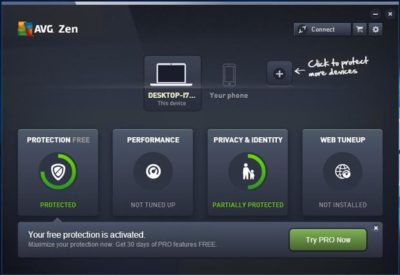
AVG AntiVirus Free (Figure A) provides protection for your computer, your browser, and your mail client. Like many other free products, AVG AntiVirus Free tries to sell you a paid license, which includes an enhanced firewall, anti-spam protection, and a few other features.

Figure A

AVG-SJTechies

Although AVG AntiVirus Free seems to do a good job protecting systems against viruses, you have to be careful about the options you choose when installing and configuring this product. Otherwise, AVG will attempt to “hijack” your browser by installing AVG Web TuneUp, changing your search page, changing your new tab pages, and changing your home page.

2: Malwarebytes Anti-Malware Free

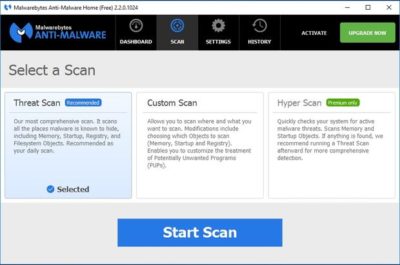
Malwarebytes Anti-Malware Free (Figure B) offers basic protection against malware. There are two main things I like about this app. First, unlike some of the other free anti-malware products, it doesn’t try to change your browser settings or install unwanted toolbars. Second, it has a clean and intuitive interface that doesn’t leave you guessing about what to do.

Figure B

antimalware-SJTechies

The disadvantage to using Malwarebytes Anti-Malware Free is that unlike the premium version, it does not support real-time protection. You can scan your PC for malware at any time, but you won’t be alerted to infections in real time unless you upgrade to the paid version.

3: Avast Free Antivirus 2016

Avast Free Antivirus 2016 (Figure C) is probably the most comprehensive antivirus tool on this list. It offers 12 components, including Rescue Disk, Browser Cleaner, Web Shield, and File Shield. The installer lets you choose which components to install.

Figure C

Avast-SJTechies

During the hour or so that I used Avast Free Antivirus, it did not attempt to take over my browser or engage in any other obnoxious behavior. The software does, however, prominently display a warning message during the installation process telling you in no uncertain terms that Avast Free Antivirus 2016 collects personal information. At least it gives you a way to opt out of this data collection.

4: Panda Free Antivirus

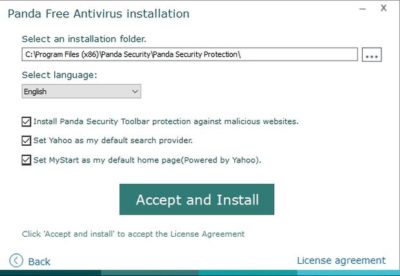
Panda Free Antivirus (Figure D) is another free anti-malware solution that requires a bit of caution during the installation process—otherwise, Panda will install a browser toolbar and change your home page and your default search provider.

Figure D

PandaAntivirus-SJTechies

The free version of Panda Antivirus offers real-time protection against malware, but it does try to get you to upgrade to the paid version. That version, which Panda refers to as the Pro Edition, adds a firewall, Wi-Fi protection, and VIP support.

5: YAC

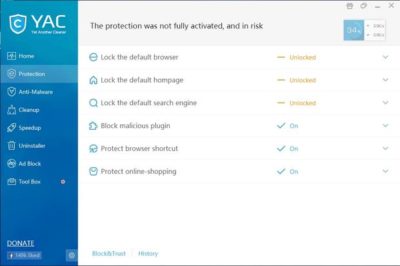
YAC (Figure E) stands for Yet Another Cleaner and—you guessed it—it’s yet another free tool for blocking threats and removing malware from an infected system. It offers a simple, easy-to-follow interface, and it doesn’t try to hijack your browser (which is a personal pet peeve, in case you hadn’t noticed). In fact, the software gives you a way to lock your browser settings so that your preferred home page, default browser, and default search engine can’t be changed without your consent.

Figure E

YAC-SJTechies

In addition to its basic anti-malware capabilities, YAC includes some nice extras, such as a tool for speeding up your computer, an uninstaller, and an ad blocker. The primary disadvantage to using YAC is that you have to upgrade to the paid version if you want to receive real-time protection. Otherwise, you’ll have to initiate anti-malware scans manually.

Have questions?

Get answers from Microsofts Cloud Solutions Partner!
Call us at: 856-745-9990 or visit: https://southjerseytechies.net/

South Jersey Techies, LL C is a full Managed Web and Technology Services Company providing IT Services, Website Design ServicesServer SupportNetwork ConsultingInternet PhonesCloud Solutions Provider and much more. Contact for More Information.

To read this article in its entirety click here.

3 Ways to Boost Password Security

The must-read IT business eNewsletter

Encrypted passwords

“There is no such thing as perfect security,” says Jim Waldron, Senior Architect for Platform Security at HP. If you can access a website or server, consider it vulnerable to security breaches. That’s why so many businesses account for fraud in their business models—they expect to lose a certain amount each year to security leaks, lost IP, and more.

While you can never be 100% secure from hackers while connected to the internet, there are steps you can take to help protect your personal and professional data. All you need to do is activate features that are increasingly common (or easy to manage) on modern business-class PCs: Multi-factor authentication, client-based user authentication, and password best practices.

Multi-factor authentication
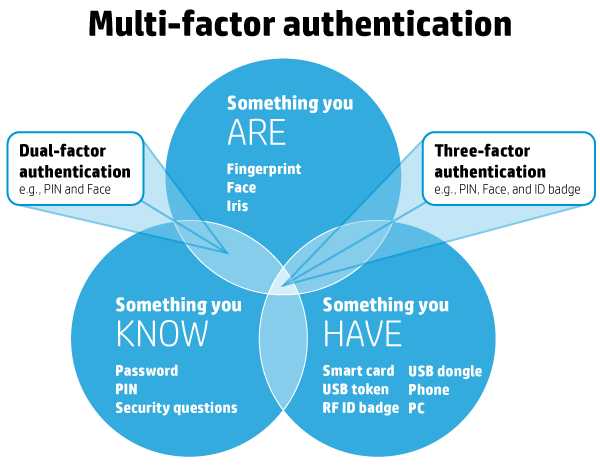
Multi-factor authentication is a simple but effective security system that involves the use of at least two factors (or methods) of authentication. It groups different factors together so that even if one is compromised, the data remains protected. Under this system, factors are divided into three domains:

HP support


  • Something you know: Password, PIN, etc.
  • Something you have: ATM card, smartcard, etc.
  • Something you are: Fingerprint, iris, etc.

For multi-factor authentication to be successful, you want to pull from at least two different domains, with a maximum of three domains. A common example of multi-factor authentication is when you withdraw cash from an ATM. To do so, you insert your ATM card (something you have) and enter your PIN (something you know). Without both factors you can’t access your account—and neither should anyone else.

Businesses are taking notice too, and multi-factor authentication’s popularity is rising. In 2014, 37% of enterprise organizations surveyed used multi-factor authentication for the majority of their employees, and that number is expected to grow to 56% by 2016.

What you can do now
If you have a business-grade PC, chances are your PC already includes the technologies you need to start using multi-factor authentication. In fact, HP offers multi-factor authentication on all of its business PCs. Consult your manual or HP Support, and identify the factors your PC supports in addition to traditional passwords, such as fingerprint or smartcard readers. Just make sure to choose factors from separate domains.

Client-based user authentication
Every time you log into a system, your identity needs to be authenticated by that system. This process occurs one of two ways: server-side authentication or client-based authentication. With server-side authentication your unencrypted information—such as your password or fingerprint—is sent to a server where it is compared against that server’s records. With client-based authentication, the authentication process—e.g., “Does this fingerprint match the one in our records?”—is performed on the client device, such as your work PC.

While client-based authentication is not as common as its counterpart, it is far more secure. In fact, “In almost all authentication scenarios it is preferable to perform the direct authentication on the client and then communicate an ‘Identity Assurance’ to the relying party,” says Waldron.

Everyone wins when it comes to client-based authentication. The client no longer has to send unencrypted, private information over the internet or store that information on another party’s server, while the relying party no longer has to store sensitive client information on their server—reducing the amount of information that can be stolen if and when a hack occurs.

What you can do now
One of the easiest ways to use client-based authentication is with a hardened fingerprint sensor. The sensor authenticates your fingerprint directly in the hardware, rather than sending it to a server or hard drive, and returns a key that can be used to decrypt password vaults.

Password best practices
As we’ve mentioned before, passwords aren’t perfect. While implementing and using the above features might not seem practical for some of us, everyone can benefit from following basic password best practices. They are quick to implement, and can save you a lot of hassle down the line.

To make the most of your password security, your passwords should be:

  • Long—at least 16 characters. Use a password manager to store unique passwords and fill out log-in forms so that you don’t have to memorize them.
  • Complex—containing symbols, numbers, uppercase letters, lowercase letters, and spaces (if possible)
  • Unique—only use a password once, don’t recycle or repeat across accounts
  • Short-lived—the National Cyber Security Alliance suggests changing your password every 60 days
  • Difficult to guess—avoid common words found in a dictionary, all or part of your name, repeated letters, or combos that align to your keyboard layout, such as “QWERTY” or “123456”

If you are uncertain whether your password is secure enough or if it meets enough of the criteria above, there are several reliable services that will check your password strength for you. Microsoft’s Safety & Security Center offers a free password checker you can access through your browser, while Mac users can access Apple’s Password Assistant through the Keychain Access utility.

What you can do now
The first thing you can do—right this second—is revise your most important passwords to align with password best practices. That includes your work accounts, personal email, bank accounts, and any other services that contain sensitive data. If you need help remembering your new passwords, consider using a password manager such as HP Password Manager. That way you only have to authenticate once to gain access to all your systems. You can also adopt a system to make your passwords easier to remember. Using acronyms, for example, you can turn the phrase “I was born in 1986 and my parents still live on Lake Street!” into “Iwbi1986ampsloLS!”—creating a strong password that’s easy to remember.

Passwords are changing, and while they will never be perfect, they can still provide an effective first layer of defense against hackers and ne’er do wells. The above features and techniques are increasingly common on modern business PCs, making it easier than ever to protect your private data. All you have to do is use them.

Have questions?

Get help from IT Experts/Microsofts Cloud Solutions Partner
Call us at: 856-745-9990 or visit: https://southjerseytechies.net/

South Jersey Techies, LLC is a full Managed Web and Technology Services Company providing IT Services, Website Design ServicesServer SupportNetwork ConsultingInternet PhonesCloud Solutions Provider and much more. Contact for More Information.

To read this article in its entirety click here.

10 New Security Products to Check Out

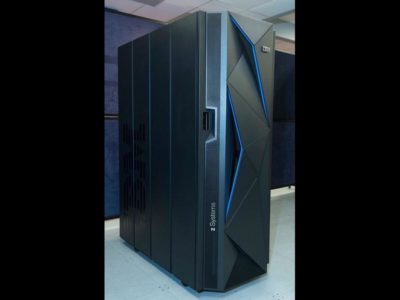
1. IBM z13s mainframeIBM z13s mainframe

Image: IBM

Security standards are constantly changing. Here are some of the latest software and hardware products to help keep your organization secure.

In February 2016, IBM announced the IBM z13s, a mainframe with cryptographic features built directly into the hardware. According to IBM it can decrypt at twice the speed of the generations before it.

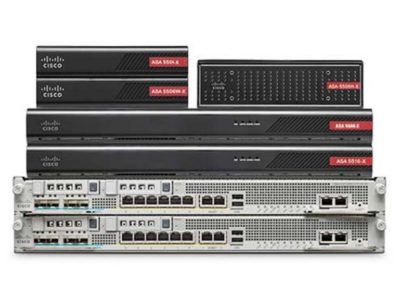
2. Cisco Firepower NGFW

Cisco Firepower NGFW

Image: Cisco

Cisco recently announced its Firepower series appliances with its next-generation firewall (NGFW) technology. There are 16 models in the series that include integrated NGIPS and advanced malware protection.

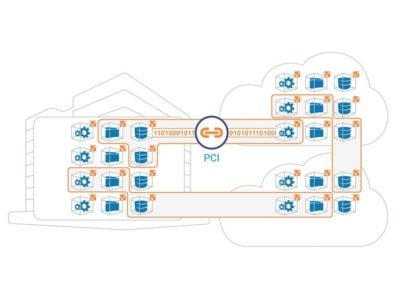
3. Illumio

Illumio

Image: Illumio

Illumio is a startup that provides adaptive security for the data center and cloud environments. The company recently achieved unicorn status as its value topped $1 billion, and it is consistently named a top enterprise security provider.

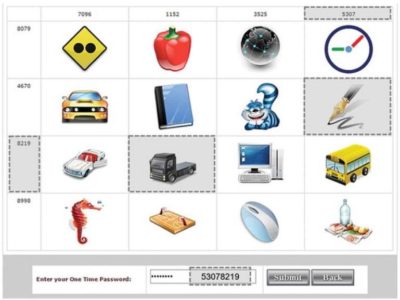
4. GOTPass

GOTPass

Image: University of Plymouth, H. Alsaiari, M. Papadaki, P. Dowland, and S. Furnell

GOTPass is a graphical authentication system developed by researchers at the University of Plymouth. It uses images to authenticate instead of traditional passwords.

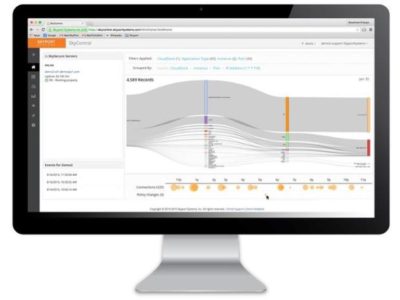
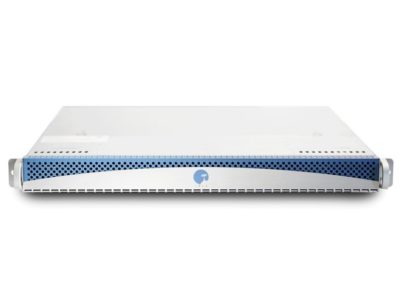
5. Skyport Systems SkySecure

Skyport Systems SkySecure

Image: Skyport Systems

SkySecure is an out-of-the-box enterprise security solution to protect application workloads. The systems includes hardware, software, and management tools.

6. Spikes Security Isla

Spikes Security Isla

Image: Spikes Security

The Isla is an enterprise appliance that “isolates and eliminates all browser-borne malware.” It was launched in mid-2015, but it was independently certified as invulnerable to web malware exploits in early 2016.

7. Blackphone 2

Blackphone 2

Image: Zack Whittaker/CNET

The Blackphone by Silent Circle is an Android-powered smartphone with a built-in security center to lock down your data. The most recent iteration, the Blackphone 2, released late last year.

8. Imation IronKey Enterprise H350

Imation IronKey Enterprise H350

Image: Imation

The IronKey Enterprise H350 is a rugged, military-grade encrypted hard drive. It is available in multiple capacities and is FIPS 140-2 Level 3 certified.

9. Bitdefender Total Security 2016

Bitdefender Total Security 2016

Image: Bitdefender

For home users and small businesses, the Total Security 2016 by Bitdefender is a great option. It stacks up well against key competitors and includes device anti-theft features.

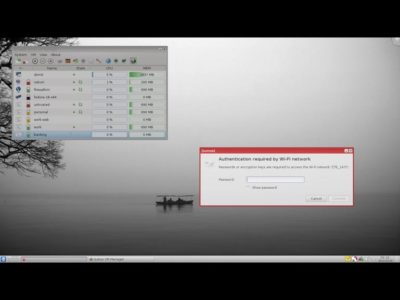
10. Qubes OS 3.1 rc2

Qubes OS 3.1 rc2

Image: Qubes

Qubes OS is a Linux-based, security-oriented OS that is focused on compartmentalization using VMs. It’s been around for a few years, but the latest version released in January 2016.

Have questions?

Get answers from Microsofts Cloud Solutions Partner!
Call us at: 856-745-9990 or visit: https://southjerseytechies.net/

South Jersey Techies, LL C is a full Managed Web and Technology Services Company providing IT Services, Website Design ServicesServer SupportNetwork ConsultingInternet PhonesCloud Solutions Provider and much more. Contact for More Information.

To read this article in its entirety click here.

10 Cool Tech Features for Your Next PC

Takeaway: Impressive new technologies are revolutionizing PC performance, but should you buy now or wait for more improvements? These details will help you decide.

It’s an exciting time for PC enthusiasts. I can’t remember a period when so many existing technologies were being upgraded to the next generation and new technologies were being introduced. Even non-enthusiasts need to know about the changes that are happening to the desktop PC.

But knowing when to upgrade your PC to the latest and greatest can be a difficult decision. Should you buy now or wait for the even more advanced technology that has been promised by the likes of Intel, AMD, and others? For power users, and a lot of IT professionals fall into this category, waiting for a specific technology can have a huge impact on their future productivity and ultimate success. I will list 10 PC-based technologies that are either new or soon to be released and leave it to you whether it is “got to have” or “can do without” technology.

Note: Release schedules, specifications, and prices are subject to change prior to formal release. Use this information as a guideline only.

Extra info: This article is available as a PDF download that includes 11 tables containing additional details on availability, configuration, and technical specifications.

1: USB 3.0

USB devices are ubiquitous, so it’s only natural to want to know more about the successor to USB 2.0. USB 3.0 increases the effective data transfer rate by a factor of more than six — a huge improvement over USB 2.0. It also provides more power than USB 2.0 when devices need it, 4.5 Watts versus 2.5 Watts, respectively, and less when they don’t. USB 3.0 is available now as a chip added to the motherboard or via an add-in card. AMD supports USB 3.0 natively and Intel has announced plans to support USB 3.0 in its 7-series Panther Point chipsets.

Additional resources

  • 10 things you should know about USB 2.0 and 3.0 (TechRepublic)
  • USB 3.0 (Wikipedia)

2: Intel Thunderbolt

Intel, along with Apple, has developed a technology to compete with USB called Thunderbolt — although Intel prefers to think of Thunderbolt as coexisting with USB. Originally codenamed “Light Peak” and making use of optical cables, Thunderbolt is copper-based, allowing for 10 watts of power over the copper. Thunderbolt combines PCI Express and DisplayPort protocols into one shared interface.

There is quite a bit of confusion about the total bandwidth of a Thunderbolt port. According to this Intel Technology Brief, “A Thunderbolt connector is capable of providing two full-duplex channels. Each channel provides bi-directional 10Gbps of bandwidth.” That is 20Gb/s upstream and 20Gb/s downstream. So why is Thunderbolt advertised at 10Gb/s or “only” twice the speed of USB 3.0? An Intel spokesman explained it this way in PC Magazine: “So in summation you have potential for up to 20Gb/s upstream AND 20Gb/s downstream, but any single device maxes out at 10Gb/s (you don’t ‘combine’ the two channels).”

Of course, most consumer storage devices don’t come anywhere near the 10Gb/s data rate, but that is changing with the faster SSDs and flash drives now being produced. Also, up to seven total devices can be daisy-chained to use the remaining 20Gb/s per direction total bandwidth. One or two of these can be high resolution DisplayPort v1.1a displays.

This speed comes at a price, though. A 2.0 meter copper-based Thunderbolt cable costs $49.00 USD, the cost due primarily to the Gennum GN2033 controllers and other electronics built into each end of the cable that performs the data moving and multiplexing magic. You also have to add the cost of the Thunderbolt controllers needed on both the host and peripheral device.

Expect Thunderbolt to be supported on Intel’s Ivy Bridge processors but don’t count on it being available on the 7-series Panther Point chipsets due out in March of 2012. There are limitations I won’t bore you with here, but they are listed in this article, along with other Thunderbolt details.

Thunderbolt using optical cable, also known as 50G Silicon Photonics Link (PDF), continues to be in the works and may appear as early as 2012. According to Dave Salvator of Intel, “Current supported data rate is two channels at 10Gbps bi-directional each.” Thunderbolt ports accept either copper or optical cables.

Additional resources

  • Thunderbolt Technology: The Transformational PC I/O (Intel)
  • Thunderbolt Web site (Intel)
  • Thunderbolt (interface) (Wikipedia)
  • Introducing Thunderbolt (Apple)

3: Serial ATA International Organization: Serial ATA Revision 3.0

That long name is the formal specification name of the follow-on to SATA Revision 2.0. SATA Revision 3.0 or SATA 6Gb/s doubles the effective data transfer rate of SATA Revision 2.0. Looking further out, the SATA Revision 3.2 specification is due by the end of 2011 that creates the SATA Express standard. SATA Express combines SATA software infrastructure and PCI Express to enable 8Gb/s using PCIe 2.0 or 16Gb/s using PCIe 3.0. Both SATA Revision 3.0 and SATA Express are intended to accommodate the increasing data speeds of sold-state and hybrid drives.

Except for Queued TRIM Command, SATA Revision 3.1 includes features primarily for non-PC devices.

Additional resources

  • Fast Just Got Faster:  SATA 6Gb/s (The Serial ATA International Organization [PDF])
  • SATA-IO Releases Revision 3.1 Specification (The Serial ATA International Organization [PDF])
  • SATA revision 3.0 (SATA 6 Gbit/s) (Wikipedia)

4: PCI Express 3.0

PCI Express 3.0 is the next generation standard for the Peripheral Component Interconnect Express, or PCIe. For average PC users, this means that their graphics cards and other extreme I/O add-in cards will be able to transfer data at twice the rate of PCIe 2.0.

PCI Express 3.0 uses a more efficient method of data encoding, 128b/130b, with a 1.5385% overhead versus the 20% overhead of 8b/10b used in the PCIe 2.0 specification. This allows for a doubling of the effective transfer rate even though the total bandwidth increases only 60% from 5GT/s to 8GT/s. Tom’s Hardware is reporting that the first three Sandy Bridge-E processors scheduled for release in November 2011 will have PCIe 3.0 capability but without the PCIe 3.0 certification.

Additional resources

  • PCI Express 3.0 (Wikipedia)
  • PCI Express 3.0 Frequently Asked Questions (PCI-SIG)

5: SSDs & SSD Toolbox

SSDs promise huge increases in performance over the most common bottleneck in a personal computer system, data access to and from hard drives. SSDs are approaching and even exceeding 500MB/s sequential read and write rates. But there are plenty of cons that come with that speedy SSD. SSDs have small capacities and are still expensive compared to hard disk drives. While they are available and have been for quite a while now, the technology is going through birthing pains, as exemplified by the continued compatibility issues with the SandForce SF-2200 series of controllers (see below).

Firmware issues continue to appear, though as in the case of the Intel “Addresses Bad Context 13x Error,” firmware updates to remediate the issue are available. SSDs require a different mindset than with traditional hard disk drives. To maximize life and performance, users need to be educated about defragmentation, Hibernation, AHCI and TRIM and Page File.

The Intel Solid-State Drive Toolbox (PDF) monitors and manages Intel’s SSDs and adds new features. These features include the Intel SSD Optimizer TRIM function, System Configuration Tuner, Secure Erase, access to the SMART data, and running diagnostics to check for read or write errors. OCZ offers a toolbox for their SSDs, and Samsung provides the SSD Magician Tool. SSD Tweaker optimizes Windows for your SSD, and a free version is available.

Additional resources

  • Solid-state drive (Wikipedia)
  • Intel SSD Toolbox Questions and Answers (Intel [PDF])

6: SandForce DuraClass SSD controllers

SandForce has developed a controller for SSDs that adds these DuraClass technology features to the base SSD drive:

  • Five-year expected life using inexpensive MLC flash memory
  • SATA 6Gb/s Interface
  • DuraWrite — Reduces write amplification to 0.5 (typical)
  • SandForce RAISE technology
  • (Redundant Array of Independent Silicon Elements) – Provides RAID-like redundant protection for single SSD computers
  • Automatic AES-128 encryption (SF-1000)
  • Automatic AES-256 encryption (SF-2000)
  • Currently available

Look for the SandForce DRIVEN logo when specing out an SSD or check out this list of SSDs that use the SandForce DuraClass Controllers. Before purchase, be aware that some users have reported problems (including some BSODs) with the SF-2200 controllers. SandForce continues to look into the issue and new firmware updates are in test now.

Additional resources

  • SandForce (Home page)
  • SandForce (Wikipedia)

7: AMD Bulldozer

Power users have been anxiously awaiting the details of AMD’s Bulldozer processors. The desktop processor models are called AMD FX and were officially launched on October 12, 2011. This is not your secretary’s processor — the full AMD FX lineup of CPUs is unlocked. Four models are available at the initial launch, one 4-core model, one 6-core model, and two 8-core models. The processors, codenamed Zambezi, have a 32nm die size. High-end FX models will ship with a sealed liquid cooling system made by Asetek, pictured here, though they will initially be limited to specific markets and not available at launch. Availability of the liquid cooling system in the U.S. is still to be determined.

Before you get too excited, you need to fully understand the exact meaning of a Bulldozer “core.” The Bulldozer microarchitecture employs one module with “two tightly-linked processor cores” that share a fetch, decode, and 256-bit floating-point units and 2MB of L2 memory cache. For example, four Bulldozer modules provide the eight “cores” of the FX-8000 series processors. Testing by AnandTech and Tom’s Hardware of an FX-8150 processor shows that single-threaded performance is similar to that of the Intel Core i5-2500K. Performance is better with higher workloads and multi-threaded applications that can utilize more of its eight “cores.”

Additional resources

  • AMD FX Processors (AMD)
  • AMD Hot Chips Bulldozer & Bobcat Presentation (SlideShare)
  • AMD “Bulldozer” Interactive Series – Introduction (YouTube)
  • Bulldozer (processor) (Wikipedia)

8: Intel Sandy Bridge-E

The next generation of Sandy Bridge processors is dubbed Sandy Bridge-E, with the E meaning Enthusiast. Unlike AMD, which delayed the release of its nex- generation processors, rumors are that the release date of three of the Sandy Bridge-E processors has been pushed up to November 2011. Performance increases of 12% to 65% are expected, compared to similar processors. While the Sandy Bridge-E processors will be built using the 32nm production process, the follow-on processor series, codenamed Ivy Bridge, which is expected in March 2012, will use the 22nm process.

It’s a little confusing, but the Sandy Bridge-E processers will use the new LGA 2011 socket and the X79 Patsburg chipset. The Ivy Bridge processors will use the existing LGA 1155 socket plus the existing 6-series Cougar Point chipset or the yet-to-be-released 7-series Panther Point chipset. As mentioned above, one advantage of the 7-series Panther Point chipset is that it will have native USB 3.0 support.

Like AMD, X-bit labs is reporting that top Sandy Bridge-E models will ship with a new liquid cooling system. The RTS2011C liquid-cooling system looks remarkably like the AMD cooler, which may be more than coincidental, since both are supposedly built by Asetek. This cooling solution will also be sold separately, which is of note since Sandy Bridge-E processors may ship without a cooler.

You will want to wait before purchasing a Sandy Bridge-E processor if you are interested in using hardware accelerated virtualization. Rumors are that the C1 stepping revision has a problem with VT-d, Virtualization Technology for Directed I/O, which will be fixed in the C2 stepping.

Additional resources

  • Intel Core i7-3960X (Sandy Bridge-E) And X79 Platform Preview (Tom’s Hardware)
  • LGA 2011 and Sandy Bridge-E News from IDF 2011 (X-bit labs)

9: DDR4 SDRAM

With publication of the DDR4 SDRAM standard not expected until mid-2012, don’t expect to see DDR4 memory in desktops anytime soon. Availability is confusing since a presentation by the JEDEC director at MemCon 2010 suggested 2015. But BeHardware.com claims that Hynix plans to begin mass production of DDR4 SDRAM in the second half of 2102. Regardless of DDR4 memory module production dates, supporting processors and chipsets may lag well behind — late 2013 is projected for AMD. Unless you are willing to wait until then, your next PC will contain DDR3 SDRAM memory. There is some good news for those wanting faster SDRAM in the near future. The FlyingSuicide Web site is reporting that Sandy Bridge-E processors will officially support DDR3 speeds up to 2133MHz. X-bit labs is reporting that Ivy Bridge processors will support DDR3 memory operating at 2800MHz, even though DDR3 memory at these speeds is not yet available. Either of these would be a great interim solution while waiting for DDR4, assuming of course that the rumors turn out to be accurate.

DDR4 is expected to use a point-to-point approach instead of dual- and triple-channel architecture, though JEDEC has not formally announced that it will be in the final spec. According to JDEC, “The DDR4 standard will be implemented with 3D support from the start.” This means that memory can be stacked using technologies like Through-Silicon Via (TSV). The voltage is expected to eventually decrease from 1.2V to 1.05V.

Additional resources

  • DDR4 SDRAM (Wikipedia)
  • JEDEC Announces Key Attributes of Upcoming DDR4 Standard (JEDEC)
  • DDR4: What we can Expect (bit-tech)

10: Microsoft Windows 8

The major change in Windows 8 begins with the UI, called the Metro UI. A new start screen with Live Tiles replaces shortcut icons. A touch screen monitor will obviously be required if you want to use the new interface with your fingers instead of a mouse. The hints so far are of a UI more befitting a tablet than a personal computer. Yes, you almost certainly will be able to turn off the Metro UI in the final release, but why upgrade to Windows 8 just to turn off its biggest selling feature? It is still too early to tell what other new features will be available that will increase productivity and make for a better user experience on a PC. Windows 8 is expected to support USB 3.0, but as of this time there is no definite news whether Thunderbolt will also be supported. With Thunderbolt coming to the PC in 2012, Microsoft would be remiss to overlook it.

Many questions remain as to whether Windows 8 will be a success on a desktop PC in the workplace:

  • Will users adopt the new interface — with or without a touch screen monitor?
  • Will employers invest in more expensive touch screen monitors?
  • Will Windows 8 be more productive?
  • Will reaching out to touch a monitor eight hours a day cause physiological pain or even harm?

Until more is known, expect businesses to take a cautious, even skeptical approach to Windows 8. Decide for yourself if you like the new interface- – preview Windows 8 by downloading the Windows Developer Preview, a pre-beta version for developers but available to everyone.

Additional resources

  • Windows 8 (Wikipedia)
  • Previewing “Windows 8? (Microsoft)
  • Windows 8 features explained: What’s new and how it works (Digital Trends)
  • Windows 8 features we know about so far (TechRepublic)
  • Building robust USB 3.0 support (Microsoft)

The bottom line

It’s taken 30 years, but I finally have a system that is fast enough for my needs. My Foxconn BlackOps, Intel Core 2 Quad Q9650 with RAID 10 system will more than suffice. Which leads to the obvious question: How much of this technology do you really need? The core wars between AMD and Intel continue, but realistically, how many of those Bulldozer “cores” can you keep busy in a world of single-threaded apps? Other technologies, like USB 3.0, Thunderbolt, SATA Revision 3.0, PCIe 3.0, SSDs, and SandForce promise immediate performance gains. Of course, needs vary, and whatever new technology you include in that next PC should be based on your individual needs.

With all of the buzz about the latest tablet or smart phone, the PC is still the workhorse for most cubicle residents. No matter how careful you are future-proofing your next personal computer, there will always be newer technologies on the horizon. But the next six months look like a great time to upgrade that relic sitting on your desktop you used to call a PC and get the bulk of the new technologies. Happy shopping!

Author’s note: I would like to thank SandForce, Intel, and AMD for their help with this article.


The best new features coming to Microsoft’s latest OS: Windows 10

Windows10

Microsoft continues to build out Windows 10 – with a bumper crop of new features announced at its Build conference last week.

These enhancements will be pushed to to Windows 10 users over the coming months, with many arriving in summer when the OS will get a major upgrade dubbed the Windows 10 Anniversary Edition.

Here are the key upgrades heading to Windows 10.

The write stuff

ink-SJTechies

Using a digital pen to write and scribble on the screen of Windows 10 PCs and tablets will get easier.

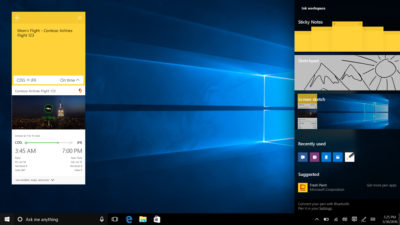
In a boost to devices that support such pens, such as the Microsoft’s Surface tablet, the OS’ new Windows Ink feature will allow users to jot down notes on the screen without unlocking the device.

Windows Ink will also allow users to write messages on sticky notes and, if appropriate, have them automatically translated into calendar appointments and reminders.

Support for Windows Ink in Microsoft Office, Maps, the Edge browser and other apps will allow users to draw, write and annotate using their pen. Windows Ink will make using the pen in Office more satisfying than it currently is, for example tidying up highlighted marks on documents so they neatly align with text.

Windows 10 will also gain the Ink Workspace, a hub for launching apps that support writing and sketching using the Surface Pen.

Ink everywhere

win10-inking-SJTechies

Support for drawing, writing and annotating using digital pens will likely come to many apps.

Microsoft says that support for Microsoft Ink will be easily added to Universal Windows Platform apps, requiring just two lines of XAML code.

Digital ruler

win10-ruler-SJTechies

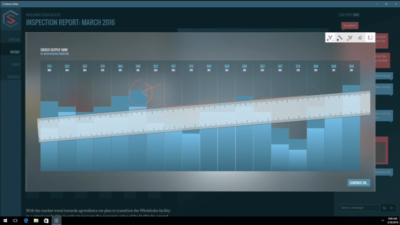
It sounds simple, but the new on-screen ruler should prove to be a useful addition for those who want to draw straight lines using a digital pen.

Smarter Cortana

cortana-SJTechies

The attraction of a virtual assistant is the simplicity with which they allow you to carry out tasks.

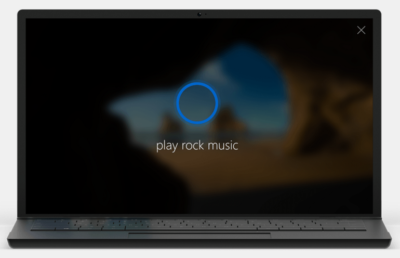
To ease the process of using Windows 10’s Cortana, the voice-controlled assistant will no longer require you to log into Windows, with users able to make a note, play music or set a reminder from the lock screen.

Cortana will also become more proactive and make suggestions based on a user’s past behaviour – offering to order lunch or to arrange transportation.

More apps will also be able to use Cortana to automatically complete tasks for users or to carry out actions based on context, such as the user’s current location or time of day.

Windows Hello comes to apps and the web

hello-SJTechies

Windows 10 already lets you log into the OS using your face.

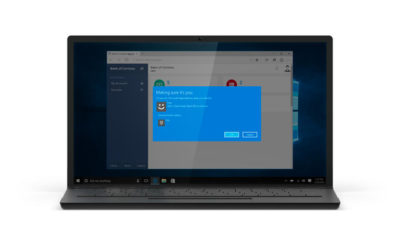
The anniversary edition will extend this biometric log-in to Windows apps and websites via Microsoft Edge. As with the OS, users will be able to authenticate their identity using a facial, iris or fingerprint scan.

Another new feature will allow users to unlock a PC running Windows 10 Enterprise Edition by tapping a Windows Hello-enabled phone, although Microsoft has said the feature will only be available on “select premium phones”.

Android app notifications on Windows 10

android-SJTechies

In future, notifications on Android devices will be able to show on Windows 10 PCs.

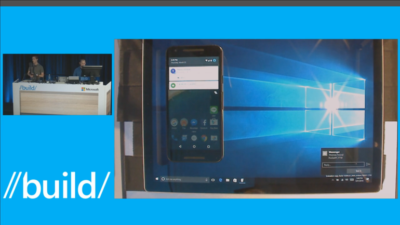
Any notification popping up on the Android notification panel can, via the Cortana Android app, also appear as a notification on a linked Windows 10 desktop.

Microsoft demoed the ability at its recent Build conference for developers.

Browser extensions

extensions-SJTechies

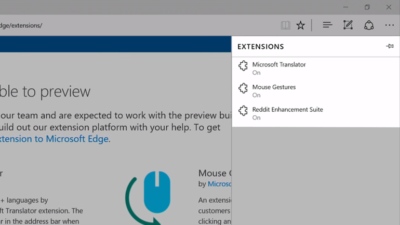
Microsoft’s Edge browser will soon gain support for extensions.

Extensions are small programs that can be downloaded to add new functionality to a browser, and are already found in Chrome, Firefox and other browsers today.

Support for extensions has already been added to Edge for those testing pre-release builds of Windows 10 under the Insider program.

The first extensions to be supported by Edge are Microsoft Translator, an extension that automatically translates pages in over 50 different languages, an extension to augment mouse gestures support, and a preview version of the Reddit Enhancement Suite.

Microsoft promises more extensions will be added later this year, including AdBlock, LastPass and Evernote.

Pinned browser tabs

pinned-tabs-SJTechies

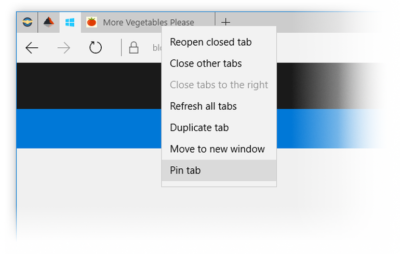
Microsoft is also adding to Edge the ability to pin your favorite sites and web apps so they always have a tab open in the browser.

Updated Maps app

maps-app-pc-SJTechies

The Maps app has several new features, as well as UI and performance improvements.

Additions include one-tap access to search and directions, the ability to view multiple searches and directions at the same time, labels for search results on the map and turn-by-turn directions read by Cortana.

The improved app is available now to those testing Windows 10 under the Insider program.

Access Linux command-line tools in Windows

bash-win10-SJTechies

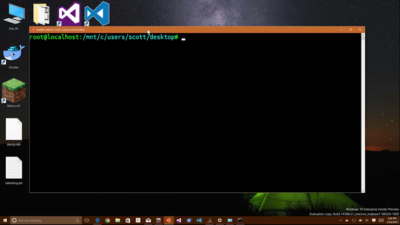
More one for developers, Microsoft is also bringing the ability to run the Bash shell to Windows.

The Bash shell is a command line interpreter that is available on many different Linux distributions, as well as Mac OS X.

The shell includes a host of tools that allow power users to carry out and orchestrate complex chains of commands.

Bash will be available via a Universal Windows Platform app, which will provide an image of the Linux distribution Ubuntu and run on the Windows 10 desktop.

Users will be able to use the Bash shell to download and install programs from the command line, as they do from inside Ubuntu. Microsoft says Ubuntu software will run as fast in the Windows app as it does natively, thanks to a software subsystem for handling Linux system calls.

Microsoft has described the app as offering a developer toolset. While it has access to the files on the Windows PC, the app only provides access to a command line — not a graphical desktop — and reportedly has limits on what it can be used for, such as not being able to run a server.

Have questions?

Get answers from Microsofts Cloud Solutions Partner!
Call us at: 856-745-9990 or visit: https://southjerseytechies.net/

South Jersey Techies, LL C is a full Managed Web and Technology Services Company providing IT Services, Website Design ServicesServer SupportNetwork ConsultingInternet PhonesCloud Solutions Provider and much more. Contact for More Information.

To read this article in its entirety click here.

Office 365 Exchange Online


Work smarter, anywhere, with hosted email for business.

Security and reliability

Exchange Online helps protect your information with advanced capabilities. Anti-malware and anti-spam filtering protect mailboxes. Get a Exchange Online Protection Trial or Office 365 Professional Trial to see how good it works. Data loss prevention capabilities prevent users from mistakenly sending sensitive information to unauthorized people. Globally redundant servers, premier disaster recovery capabilities, and a team of security experts monitoring Exchange Online around the clock safeguard your data. And with a guaranteed 99.9% uptime, financially-backed service level agreement, you can count on your email always being up and running.
Stay in control

Maintain control over your environment while gaining the advantage of hosting your email on Microsoft servers. Manage your organization efficiently with the Exchange admin center, an easy-to-use, web-based interface. Run In-Place eDiscovery across Exchange, SharePoint, and Skype for Business data from a single interface through the eDiscovery Center. With mobile device policies, you can create approved mobile device lists, enforce PIN lock, and remove confidential company data from lost phones. And IT-level phone support is available to you 24 hours a day, 7 days a week.


Easy to use and maintain

It’s easier than ever to provide your users with the business email they need to stay productive. Automatic patching eliminates the time and effort of maintaining your system. Give your users an In-Place Archive, so they can keep all their important data in one place. And provide them with anywhere access to email, calendar, and contacts on all major browsers and across devices. Integration with Outlook means they’ll enjoy a rich, familiar email experience with offline access.

Have questions?

Our Hosted Cloud Solution team is here to help.

Call us at: 856-745-9990 or Visit: https://southjerseytechies.net/

To learn more and how Office 365 Exchange Online can benefit your business please contact South Jersey Techies, LLC. South Jersey Techies, LLC is a certified Small and Midmarket Cloud Solutions Microsoft Partner.

To read this article in its entirety click here.

Tips for a Green PC

Takeaway:  Tips for making environmental choices whether buying a new computer or maintaining your current one.

To reduce energy intake you can use a power strip, monitor usage with utilities and unplug components when not in use.  Deciding to go green for current computers or buying a new computer can help with power management to cut down on wasted energy and costs.

Energy Star is a voluntary energy efficiency program that prevents greenhouse gas emissions with strict guidelines.  EPEAT is an assessment tool to help users compare and purchase computer equipment.  Both provide tools to help make an environmental choice.

epeat-logoenergystar-logo

Buying a New Computer Tips:

  • Research:  Find out if it is Energy Star rated, how much energy the computer will use and power management options.
  • Recommendations:  Check out product reviews from previous purchasers and from non-profit organizations that provide accurate feedback (Such as EPEAT and Energy Star)
  • Purify New PC:  Read the Hazardous Material Use Policy on manufacturer’s site.
  • Don’t be Greenwashed:  Research the company to make sure that their “Green Computer” is not a marketing campaign with few benefits towards the environment.
  • Green Guide:  If you would like user ratings and reviews for products, several websites provide these options as well as advice for purchasing new equipment. 

Upgrading Current Machine Tips:

  • General Health Check:  The three major components that play a role in energy are graphics card, microprocessor and monitor.
  • Replace CRT Monitor:  CRT Monitors may contain Lead, Mercury, Barium and more toxins.  Replace your old monitor with a new LCD or LED Monitor to save energy and money. 
  • Upgrading Memory:  Upgrading your RAM will increase the speed of your machine while lowering the power intake, which is a quick, inexpensive fix.
  • Greener Battery:  Similar to CRT Monitors, older laptop batteries contain hazardous chemicals such as lead.  Companies are starting to manufacturer Green Batteries that have a longer life expectancy using earth-friendly features.
  • Greener Power Supply:  The ability to scale the power required for particular actions with your power supply is an efficient way to save energy; while regular power supplies emit a steady rate of power at all times.


CALL US NOW!