Back to Top

Tech, Web, Cloud & Cabling Services

Category: Apple

Apple Category

Here are the top features of iOS 11

The 10 best features you won’t be able to live without

Ready for some new iPhone and iPad features? iOS 11 is now out of beta and ready for the public. Here are the best features that came with it.

Get ready to back up your iPhone and iPad: iOS 11 is here. Apple released the latest version of its mobile operating system on Tuesday, introducing us to a handful of brand-new features. In fact, this version of iOS feels like the most ambitious version of iOS that Apple has launched in a while. Here are the best new features that we already can’t live without. 

Siri’s new tricks

Siri is one of those features that keeps getting better with each software upgrade, and iOS 11 is no exception. This time, Siri gets a new voice, plus a super-helpful visual interface that lets you even edit your voice request with text input. And now, Siri is able to translate phrases for you—it can process English to Chinese, French, German, Italian, and Spanish. Apple said that it will add more languages in the months to come.


Customizable Control Center

Currently, Control Center in iOS 10 takes up two panels, so you have to navigate to the second panel to access volume controls. However, iOS 11 brings everything back to a single screen and relies more on 3D Touch. Not only that, but you can also customize which controls you’d like to have on there. You can add new controls to quickly access your Wallet, turn on Low Power Mode, and even start Screen Recording—an all-new feature for iOS.


New Live Photo effects

Apple has given us more reasons to want to take Live Photos, those GIF-like moving images. In iOS 11, you can add effects to your Live Photos after you take them. Find a Live Photo on your camera roll and then swipe up. You will be able to add a looping effect to your photo or make it “bounce” back-and-forth, similar to an Instagram Boomerang. You can also make it a long exposure shot for better photos of low-lit scenarios.


Drag-and-drop on iPad

iOS 11 makes for better multitasking on iPad. Now you can drag-and-drop images, links, and files between apps that are open side-by-side, either in Split View or Side Bar mode. In fact, you can drag-and-drop an app from Dock onto Side Bar mode, and drag that secondary app from the right to the left side of the screen.


Markup your screenshots

Everytime you take a screenshot in iOS 11, it will automatically remain floating on the lower left. You can swipe it offscreen to save it to your camera roll as per usual, or you can tap on it to go into Markup. So now, you can add handwritten notes or comments either with your finger or with your Apple Pencil if you’re using an iPad Pro.


Social profiles in Apple Music

Apple Music gets social in iOS 11. Taking a page from Spotify, Apple Music members now have a profile on the streaming app. You can use your profile page to showcase your favorite playlists, as well as the albums you’ve recently listened to. You can also follow friends on Apple Music, and their profile photo will show up next to the albums they’ve listened to. However, there is currently no way to listen to music on private or secret mode, so be ready for your Apple Music followers to get a glimpse at all your guilty pleasures.


Do Not Disturb While Driving

This feature could be a real life-saver. iOS 11 also introduces “Do Not Disturb While Driving” so that the screen goes totally dark when you’re on the road. You can activate this mode manually via Control Center or have it turn on automatically whenever you’re connected to CarPlay or a car’s Bluetooth. In addition, you can go into your Do Not Disturb Settings to setup an automatic response to all your incoming texts to alert people that you’re driving and will get back to them as soon as you arrive.


Document scanner in Notes

There’s no reason to run to the office scanner anymore, thanks to iOS 11. Using the Notes app you can now press the plus (+) sign to access an all-new document scanner. You can scan several documents at once and apply different filters. The scans can be saved inside your Notes, and you can also export them as PDF files that are Markup-friendly, so you can add your signature and send it back.


Search for handwritten Notes

Another cool feature that iOS 11 brings to Notes is the ability to search for things you’ve written our by hand. If you prefer to take notes using your finger or your Apple Pencil on iPad Pro, they are now searchable. 


QuickType keyboard improvements

iOS 11 also makes significant improvements to the software keyboard. On iPhone, you can press-down on the globe icon and choose one-handed mode. This will bring all the keys closer to either the left or right side of the screen to make it easier to type with one hand. You can also make one-handed mode your default keyboard by going into Settings. For iPad, you can now type numbers, symbols, and punctuation marks without switching to a secondary keyboard. Simply flick down on the key to insert the character you need. 

What we’re still waiting for

Apple previewed a lot of new features for iOS 11, but not all of them are yet available. Here’s a quick look at what’s to come later this fall.

1. Apple Pay Cash for sending or receiving cash within Messages

2. Indoor maps for Apple Maps to help you navigate popular shopping centers and major airports worldwide. 

Have questions?

Get answers from Microsofts Cloud Solutions Partner!
Call us at: 856-745-9990 or visit: https://southjerseytechies.net/

South Jersey Techies, LL C is a full Managed Web and Technology Services Company providing IT Services, Website Design ServicesServer SupportNetwork ConsultingInternet PhonesCloud Solutions Provider and much more. Contact for More Information.

To read this article in its entirety click here.

Uninstall now! Apple abandons QuickTime for Windows despite lingering critical flaws

Apple is giving up on QuickTime for Windows.

Yet another program is joining Java 6 and Windows XP as big-name software you do not want running on your PC. Security firmTrend Micro and the U.S. Department of Homeland Security are advising all Windows users to uninstall Apple’s QuickTime as soon as possible. (The advisory does not affect Mac users.)

The reason for getting rid of QuickTime for Windows is twofold. First, Apple told Trend Micro it is deprecating the software and will no longer deliver security updates for it. Second, there are two known critical vulnerabilities that could allow an attacker to take control of a system running QuickTime.

That’s a hellacious combo.

Apple was unavailable for comment at this writing, but a quick look at QuickTime’s download page shows the software is still publicly available. It hasn’t been updated since at least January, however.

Trend Micro says it does not yet know of any instances where the two potential security threats are being used in the wild but that could change. Trend Micro’s Zero Day Initiative recently published some technical details about the vulnerabilities. ZDI did this because its disclosure policy requires it to publish threat information when a “vendor indicates that the product is deprecated,” and thus won’t be patched.

If you’re a longtime user of iTunes you may be running QuickTime. To dump the program, open the Control Panel on your PC and then from the “category” view go to Programs > Uninstall a program. Once the list of installed programs populates, scroll down until you find QuickTime. Select it with your mouse, and then click Uninstall towards the top of the window. A pop-up window will then appear asking to confirm that you want to uninstall the program. Click Yes and you’ll be QuickTime-free in no time.

A survey published by Secunia Research in late 2015 found that Apple software is among the programs that are updated the least often by Windows users.

Why this matters: Whenever software is about to be abandoned it’s always a good idea to move away from it—or at least start planning to. That goes double for software with known flaws that allow the bad guys to execute code on your machine. QuickTime used to be an important piece of software for Windows users. But these days you don’t need it to watch movie trailers on Apple’s site and it’s no longer used by iTunes to play media on Windows. There’s little reason for the vast majority of Windows users to keep QuickTime on their PCs.

Have questions?

Get answers from Microsofts Cloud Solutions Partner!
Call us at: 856-745-9990 or visit: https://southjerseytechies.net/

South Jersey Techies, LL C is a full Managed Web and Technology Services Company providing IT Services, Website Design ServicesServer SupportNetwork ConsultingInternet PhonesCloud Solutions Provider and much more. Contact for More Information.

To read this article in its entirety click here.

The 50+ best features in iOS 11

With new apps like Files, a desktop-like Dock and countless smaller tweaks and advances, Apple’s new mobile OS offers plenty of enhancements.

credit: Apple

Apple’s upcoming iOS 11, already in public beta and due out this fall in its final form, delivers numerous improvements and changes for iPad and iPhone users. These include a host of new enterprise-useful features — especially for the iPad — as well as a variety of tweaks that will almost any user.

Here’s a rundown of the 50 or so most important things you need to know to get the most from Apple’s mobile platform.

Augmented reality

Apple’s newly introduced ARKit framework lets developers create augmented reality experiences that can be accessed using compatible (A9- and A10-processor-powered) iOS devices — meaning iPhones and iPads released since September 2015. The software only recognizes horizontal planes today, but this will change in the future, and it’s expected to help companies explore new opportunities, from online retail to gaming to unified communications. Apple’s AR partners include Valve/SteamVR, Unity and Epic Games.

credit: Apple

What’s critical here is that hundreds of millions of devices will immediately support AR once iOS 11 ships, making this an extremely viable VR platform development opportunity.

Machine intelligence

iOS 11 carries numerous smart features, all wrapped up in Apple’s ultra-private secure shells, in which your identity is protected by technologies including differential privacy. That commitment to privacy means Apple has been crafting smart solutions that work on a device rather than by sharing data with the less secure cloud. Apple also introduced Core ML, a general-purpose machine-learning framework that developers can use to integrate machine learning inside their apps. Here are some of the ways Apple has applied A.I. and machine learning in iOS 11:

  • When you type, the keyboard will suggest words you may have looked at recently, such as restaurant or place names or locations viewed in Safari or Messages.
  • The People folder in Photos becomes more accurate, and information about your friends will sync across all your Apple ID logged-in devices.
  • Photos can now recognize even more “Memories” events, including things such as nights out and anniversaries.
  • Based on what you are doing in other apps, iOS 11 can provide personalized recommendations in Safari, Maps, Messages and News.

Siri is the voice assistant front end to Apple’s systemwide machine intelligence. The latter is what gives Siri the capacity to make recommendations based on what you’ve been doing. iOS 11 adds several Siri-specific improvements.

  • Siri translation: Siri can now translate conversation between English, Chinese, French, German, Italian and Spanish.
  • Siri Kit improvements: Developers can use the SiriKit framework to integrate Siri support inside apps for ride scheduling, bill payments, banking, messaging, image search, VoIP calls, workouts, car controls and to-do lists.
  • Type to Siri: You can now choose to type your Siri requests rather than speak them. To do so, you must first enable the feature in Settings>General>Accessibility>Siri. Then toggle Type to Siri to On (green).

iPad Pro replaces more PCs

Apple has called the PC a “truck” and declared the iPad Pro to be the “only computer” you need. That said, it’s fair to note that while Apple’s tablets can replace computers in some situations, they can’t yet do so in all cases. Apple’s response has been to introduce numerous iPad-only improvements in iOS 11 that make the device far more productive. That means you’ll likely see Apple’s tablets replacing PCs in more scenarios.

credit: Apple

  • The Dock: The new, customizable Dock holds up to 15 apps (or folders containing apps). Three additional slots to the right of the Dock show a trio of the most recently used apps. You get to the Dock by swiping up from within any application.
  • Drag and drop: You can select a single item by tapping it, and if you continue to hold it — and then tap one or more additional items — you can select a number of items. You can then bring up the Dock, tap an app and place those items you selected on/in the app. This feature also works with the newly introduced Files browser (see below). Together, Files and drag-and-drop make working on an iPad feel much more like working on a computer than on a giant iPhone.
  • Split View: Apple has refined Split View on the iPad, introducing a new feature it calls Slide Over. It works like this: Summon the Dock by swiping up the screen (from within any app); you can then tap an app icon and drag it to the right side of the screen to open a narrow version of it. This makes it easy to switch between apps using the Dock and Split View. (If you have a keyboard, you can switch apps using the Mac-familiar Command-Tabbuttons.)
  • App Switcher: When you look at Control Center (swipe all the way up) you’ll also see Apple’s revised App Switcher. Here you’ll find thumbnails showing all your most recent apps and workspaces, giving you easy access to those you want. You’ll spend less time in the Home screen and more time working in the apps you need.
  • Apple Pencil: Tap the screen to instantly open Notes and begin writing. In other Apple apps, you can tap the screen to create an Instant Markup that lets you annotate a PDF or screenshot.

credit: Apple

Files: iOS gains a file system

The new Files app delivers something we’ve been hoping for since iOS first appeared in 2007: a file system. Open it up and you’ll find a Search bar and three different areas: LocationsFavorites and Tags.

credit: Apple

Locations lets you access files held in iCloud Drive, on your device or the trash (if they were recently deleted). You can also bring in files held in third-party services such as Dropbox.

Favorites is self-explanatory, but Tags is interesting: When you tap the Share item for any file, you’ll find a new +Tag item to the right of the file name at the top of the screen. Tap this and you can assign a new tag to the file. If you haven’t started using tags, you probably should, since they will help you find items across all your Apple devices.

Files also provides several other features:

  • Create a new folder and use iOS 11’s improved drag-and-drop support to drag multiple itemsinto it.
  • Sort files by namedatesize and tags.
  • Skip between list and icon-based views.
  • Drag items to other apps.
  • Long-press an item and you can Copy, Rename, Move, Share, Tags, Info, or  Delete it in the popover menu that appears.

Enterprise deployment — simplified

iOS 11 brings changes designed to make it easier to deploy Apple devices across the enterprise. Meanwhile, enterprise-focused Apple partners such as Deloitte, IBM, Cisco and JAMF now provide iOS deployment expertise and technologies as a service.

Among the enterprise deployment highlights in iOS 11:

  • MDM services can push iOS updates to supervised devices, even if they’re locked.
  • You can add any device to the Device Enrollment Program.
  • MDM commands can be set to execute only when a device has a wired connection — saving on corporate bandwidth.
  • A new restriction forbids enterprise users from adding their own VPN.
  • You can now enable signing and encryption in Mail and Exchange separately; before you could only enable signing and encryption at once.
  • Sysadmins can now configure home screen layout and app installs on Apple TV.
  • You can easily integrate Cisco Spark and WebEx meetings into iOS 11 apps.

A faster, smarter Safari

Quick and easy browsing of the web has bolstered Apple’s success since the iMac arrived in 1999, so the latest iteration of Safari in iOS will affect millions of users. The focus this year is on speed (you’ll like the faster scrolling) and security.

The security enhancements will likely have the biggest effect on users. These include better, easier cookie blocking and Intelligent Tracking Prevention, which uses built-in machine A.I. to reduce cross-site tracking by identifying and limiting this practice.

Safari supports a new video codec, HEVC (H.265). This will mean higher-quality video at much lower file sizes compared to the older H.264.

The browser’s search bar now allows you to track flights and define words.

PDF creation using the browser is also improved: Just tap Share and choose Markup as PDF to make a PDF you can annotate.

Finally, like the High Sierra version of the browser, Safari on iOS adds support for WebRTC. This opens the doors to cross-platform, browser-based video collaboration.

Business Chat bots

Apple at WWDC 2017 in June announced a key partnership with Nuance to create a bot-based customer service ecosystem for Messages, called “Business Chat.”  Apple’s plan is to integrate Nuance’s Digital Customer Engagement Platform with Apple Business Chat. This will enable new breeds of A.I.-based intelligent assistants in Messages and means you’ll see a little messages icon pop up on brand websites and in search results. Nuance’s asynchronous messaging tech is already used across other messaging platforms that support bots. Major companies, including Bank of America, Domino’s, FedEx and USAA, already use Nuance’s solution.

Enterprises exploring B2C or B2B bot technologies will find that Apple’s solution lets customers find your business and start conversations from Safari, Maps, Spotlight and Siri using tens of millions of mobile devices.

Your iOS, your Control Center

Every iOS user already interacts with Control Center. Swipe up and you can invoke numerous items for quick access. iOS 11 sees significant improvements here, including a redesign that combines everything in one window, brings in a range of new functions, and lets users choose which tools are available in their Control Center (Settings>Control Center).

This customization is limited, however; you can’t add third-party widgets at this time, and you cannot remove certain tools, such as those for Airplane Mode, Wi-Fi, AirDrop, Rotation Lock, AirPlay and Music.

Control Center has another handy talent: You get 3D Touch-like interaction even when using a device that doesn’t support 3D Touch. Force-touch the Torch widget and slide your finger to increase brightness, or touch, hold and slide the timer widget to very swiftly set a time, even if you’re using an iPhone SE.

Mightier Maps

Maps continues to improve, with features such as the introduction of new AR-like city flyover views. These use your iOS device’s camera and sensors to track your position and move you around 3D representations of key cities, such as London or New York. To explore these views, search for a major city and look for a Flyover button. Tap this to access the view. (Not every city is supported, so if the city you chose doesn’t have the button, keep trying.)

It’s an engaging feature that offers more potential as additional cities are added, but Apple has also worked hard to make Maps more effective for getting quickly from point A to point B. iOS 11 offers indoor maps for shopping malls, for instance, as well as airports and transit hubs. It also includes these key items:

  • A Do Not Disturb When Driving feature designed to keep you from getting distracted by incoming Notifications while behind the wheel.
  • A new Lane Guidance feature that shows you the correct highway lane to be in to make the turns you need to stay on course.
  • A speed limit display in Maps, beginning with those posted for U.S. roads.
  • A new “Light Guidance” mode that provides a bird’s-eye view so you can better scout out the journey ahead when using Maps for travel instructions.
  • A new way to access zoom mode: Just double tap a Map and, while keeping your finger pressed into the display, move your finger up and down to zoom in and out.

credit: Apple

Let’s work (better) together

No one really likes jumping through hoops to make devices work together. iOS 11 makes this a lot easier:

  • Automatic setup: Got a new iOS device? Just hold it near an iOS 11 device (or High Sierra Mac) you already own and are logged into using your Apple ID. Many of your personal settings, preferences and iCloud Keychain passwords will be carried over to your new device, so it is ready to use, fast.
  • Instant Wi-Fi: iOS 11 users can approve others to use their Wi-Fi network by holding the devices close together, authorizing them, and transferring the password automatically. This should help schools and enterprises more easily manage routine Wi-Fi password changes.
  • QR Code scanning: The Camera app will automatically scan and understand QR codes. Point your device at the code, tap to focus, and a notification box will let you respond to that code. This will come in useful for automatic setup of things such as Wi-Fi networks, HomeKit devices, contact cards, website URLs and more.
  • Core NFC: This new iOS 11 framework lets developers create apps that can read NFC tags. It’s a little limited at the moment — it only works one-way, so you can use it to access information about museum exhibits and visitor attractions rather than for more sophisticated payment systems.

The image thing

Apple’s been working hard to improve your images. Last year’s introduction of the bokeh effect in the iPhone 7 Plus was a great example of this, since it basically put a pro-photo portrait camera in your pocket. iOS 11 maintains this tradition:

  • The biggest enhancement is introduction of support for the HEIF photo format. Based on the video-focused HVEC format, HEIF is capable of saving images around half the file size of JPEGs but at much higher quality (up to 16-bit, versus 8-bit).
  • Apple has developed a way to transcode images from HEIF to JPEG on the fly, without performance degradation.
  • If you use an iPhone 7 Plus, Portrait Mode in iOS 11 supports optical image stabilization and HDR, so you can expect much better images in low light.
  • Apple has also added new filters to improve images, including one designed to make skin tones appear more natural.
  • Live Photos gains several improvements. Not only can you now share these live moments with others as GIF files (or as an mp4 on Android), but you get to choose the key image and can apply three new effects: loop, bounce and long exposure. (The latter blurs anything that’s moving within a frame so you can focus on the subject).

Document scanning and Notes

Apple’s Notes app spent years in the wilderness before getting much attention. By the time iOS 10 arrived, Notes had already become a sort of low-budget replacement for Evernote, but it gets much more versatility in iOS 11. Certainly, for business users it has become an excellent tool to keep receipts and other expenses in one place when traveling:

  • You can scan documents from within a Note; just tap the plus sign and choose Scan Documents, then point your device until the document is in focus and highlighted by a yellow tint. You can then keep, share or even sign the scan (the latter on the iPad Pro using an Apple Pencil).
  • Apple has added the capacity to draw inside Notes using the familiar sketch tools interface from the iPad.
  • You can pin notes to the top of your list, more easily search through your notes, and quickly place notes within subject folders.

A few more things

There are many more improvements within iOS 11, including a one-handed keyboard option, person-to-person payments within Messages, the capacity to record and broadcast what’s happening on-screen, and App Offloading, which lets you delete an app you don’t use often while keeping the app data. When you need it, just download the app again to use that data. You’ll also find improved screenshot annotation and significant additions to CareKit and ResearchKit, which provide a platform for health and medical equipment developers.

If this has whetted your appetite enough to try iOS 11 for yourself, you can register to join Apple’s iOS 11 Public Beta program. Otherwise, wait until the final version arrives, when the bugs should have been ironed out.

Have questions?

Get answers from Microsofts Cloud Solutions Partner!
Call us at: 856-745-9990 or visit: https://southjerseytechies.net/

South Jersey Techies, LL C is a full Managed Web and Technology Services Company providing IT Services, Website Design ServicesServer SupportNetwork ConsultingInternet PhonesCloud Solutions Provider and much more. Contact for More Information.

To read this article in its entirety click here.


Microsoft Office for iPad is here!

ipad-office

Edit, work, create, and get more done from your iPad, for free

ipad-office3

Four new, free apps are available on your iPad®. With both Microsoft OneDrive and Dropbox access, online storage—and access to your files—is always just a click away on your iPad. The new Microsoft Office apps give you the ability to flat out get more done.

  • With the new Microsoft Word app, you can edit, create, and save your docs, wherever work takes you
  • The new Excel app lets you analyze your data on the fly
  • Build and deliver your presentations—right from your tablet or phone—with the new PowerPoint app
  • The new Microsoft OneNote app helps you work collaboratively and stay organized on the go

With these apps, you can now access, edit, and save directly to your Dropbox account. You can even open and edit files that have already been saved in Dropbox.

Adding Dropbox is easy.  When you are in any of the new apps, follow these simple steps:

1. Tap on the arrow in the top left, then tap Open
2. Tap “Add a Place”
3. Select Dropbox

To get the Office apps for iPad®, open www.appstore.com/microsoftoffice from your iPad’s web browser.


Research: Apple rated highest for security on mobile devices

Mobile devices are almost universal in the enterprise in 2016. Tech Pro Research conducted a survey to see what devices employees are using for work, and how safe these devices are.

In new research conducted by Tech Pro Research, 98% of respondents said they use mobile devices for work. Smartphones and laptops were the most common, with 94% of respondents who use mobile devices using them. 74% of mobile device users said they work with tablets. Wearables haven’t found a widespread usage base in the workplace, with only 14% reporting using them. When users rated the security of devices based on vendors, Apple got the best ratings in all categories.smartphones

For smartphones Apple’s high ratings could be partially attributed to familiarity since 67% of respondents said employees at their company use iPhones. Only Samsung was close to Apple in terms of prevalence, and the company was way behind Apple in security ratings.

tablets

Apple also had the largest share of tablet use, and the highest security rankings, among respondents. 53% said they and their colleagues use iPads and 46% of users ranked security as very good or excellent.

laptops

Dell was the most popular brand among respondents, in terms of use for work, but it got third place in security ratings.

wearables

Security on wearables appears to still be developing, based on the mediocre security ratings among all brands, and the fact that security feature usage isn’t the norm for wearables yet.

Have questions?

Get answers from Microsofts Cloud Solutions Partner!
Call us at: 856-745-9990 or visit: https://southjerseytechies.net/

South Jersey Techies, LL C is a full Managed Web and Technology Services Company providing IT Services, Website Design ServicesServer SupportNetwork ConsultingInternet PhonesCloud Solutions Provider and much more. Contact for More Information.

To read this article in its entirety click here.

iPhone 7: What business users need to know

Apple recently announced the latest version of its flagship smartphone. Here are the features and functions that will matter to professionals.

iphone7lineup

The iPhone 7 is officially here. At an Apple event in California on Wednesday (September 7, coincidentally), the phone was unveiled by Tim Cook and the crew amid a variety of Apple announcements.

The first mention of the new device came in a now-deleted tweet that read: “New cameras. Water-resistant. Stereo speakers. Longer battery life. This is 7.” Apple is known for being tight-lipped until the last possible second, so it was definitely a surprise.

The phone has a new design, featuring an aluminum body with almost non-existent seams and is available in gold, silver, rose gold, black, and Jet Black. The home button was also redesigned, with Force sensitivity and a new Taptic engine. It can also be programmed by third-party applications and customized as well.

The above tweet wasn’t a fluke. The new enclosure is both water and dust resistant, with IP67 protection standard.

The new, 12-megapixel iPhone 7 camera has image stabilization and a wider f1.8 aperture lens that is made up of six distinct layers. The sensor for the camera is faster and more efficient, and a quad-LED flash can help users take better photos. The iPhone 7+ gets a second 12MP camera to use as a telephoto lens.

A new image processor helps balance colors and tone in an image, among many other features. This could be helpful for small marketing departments, or businesses that rely on image content, to produce better photos.

The front camera is a 7MP FaceTime HD camera. This will be helpful for road warriors and remote workers alike, as it could provide a better experience for mobile video conferencing.

The new Retina HD display is now 25% brighter than previous generations. The iPhone 7 has stereo speakers with twice the volume and better quality sound. If you want to use headphones, the traditional auxiliary input jack is gone, and the Apple EarPods now connect via Lightning connector only. If you have traditional headphones, though, Apple will include an adapter in the box with the new iPhone 7 and 7+.

Apple also debuted a wireless version of its earbuds called AirPods. They use a W1 chip to enable “intelligent connection” and users can access Siri through the AirPods with a tap. The batteries provide five hours of listening per charge.

In terms of performance, the iPhone 7 has a new A10 Fusion 64-bit, four core processor. Using two high-efficient cores, tasks like checking email will take less battery power. It also has stronger graphics performance while consuming less power than previous models. Pro apps, like those from Adobe, can perform better on the device as well.

Storage-wise, the new iPhones will be available with 32GB, 128GB, or 256GB of space.

apple_watch_series_2

Apple also announced the Apple Watch Series 2. The watch is swim-proof, which is a fancy way of saying that it is water resistant up to 50 meters. Its second-generation SiP (system in a package) has a dual-core processor that’s up to 50% faster, and a stronger GPU for better graphics performance as well.

A new display is easier to read, and the more powerful hardware allows for more complex apps to be built for the device. Built-in GPS will be good for business travelers, and developers can take advantage of it to build more contextual apps. Of course, watchOS 3 came to preview back in June, but Apple was expected to bring a new version of the hardware for quite some time.

Real-time collaboration is coming to the iWork suite as well. Apple showcased the functionality by editing the slide deck live on stage. Of course, Google Docs and Office 365 have had similar functionality for some time, and iWork has struggled to gain traction in the enterprise, but it’s a welcome update.

Have questions?

Get answers from Microsofts Cloud Solutions Partner!
Call us at: 856-745-9990 or visit: https://southjerseytechies.net/

South Jersey Techies, LL C is a full Managed Web and Technology Services Company providing IT Services, Website Design ServicesServer SupportNetwork ConsultingInternet PhonesCloud Solutions Provider and much more. Contact for More Information.

To read this article in its entirety click here.

See what’s new with Macbook

A Retina display that takes everything to the edge.

The moment you open your MacBook, its gorgeous 12-inch Retina display with edge-to-edge glass brings everything into focus. Every photo leaps off the screen in rich, vibrant detail. Over 3 million pixels render each letter with crystal clarity. And it all comes to light on the thinnest Retina display ever on a Mac, meticulously honed to deliver a bold visual experience within an impossibly minimal design.

Learn more about Design

Retina Display

A full-size keyboard.
In a fraction of the space.

We believe that a comfortable, full-size keyboard is essential for a great notebook experience. But to fit one into the elegantly thin MacBook, we had to completely rethink how a keyboard is engineered and constructed. We redesigned each key and its underlying mechanism — not only making the whole keyboard much thinner, but also allowing for more comfortable, precise, and responsive typing that just feels right.

Learn more about Design

keyboard MacBook2016

The trackpad, pushed even further with Force Touch.

MacBook comes with a different way to experience a trackpad. The Force Touch trackpad is engineered to deliver a responsive, uniform click no matter where you press the surface. And underneath, force sensors detect how much pressure you’re applying. You can now use a Force click to enable useful capabilities, like quickly looking up the definition of a word or previewing a file just by clicking and continuing to press the trackpad. You’ll also experience haptic feedback — a tactile vibration from the trackpad that adds the sense of touch to what you see on the screen. These advanced capabilities work in addition to all the intuitive Multi-Touch gestures Mac users love. You’ll be more in touch with your Mac than ever before. Without lifting a finger.

Learn more about Design

Fully equipped for a wireless world.

MacBook is designed to fit effortlessly into our increasingly wireless world. Just about anything you do with a notebook can now be done over the air, thanks to Apple software that takes full advantage of the latest Wi-Fi and Bluetooth wireless technology. So no matter where you are, you can connect to the web, transfer files, organize your photos, listen to music, and more — without being tied down.

Learn more about Design

MacBook2016


USB-C.Singularly versatile.

As long as we were including a port for charging your MacBook, we wanted to make sure it was the most advanced and versatile one available. The USB-C port puts just about everything you need in a port all in one place. This amazing port provides charging, speedy USB 3 data transfer, and video output in a reversible design that’s one-third the size of a USB 3 port, giving you the flexibility to easily connect your favorite devices.

The capability to connect to everything you need.

We gave a lot of consideration to the way MacBook connects to peripherals and power. We chose USB-C for its compact design and versatility. This single port lets you connect your charger; HDMI, DisplayPort, and VGA displays; USB devices like external drives; and your iPhone or iPad. All of which goes to show that sometimes less really is more.

Mackbook2016

A range of accessories lets you connect virtually any device to your MacBook. For instance, the USB-C Digital AV Multiport Adapter lets you connect your MacBook to an HDMI display, as well as a standard USB device and a USB-C charging cable.

Quietly astonishing.

MacBook has been engineered from the ground up for silent, efficient performance. It includes sixth-generation Intel Core M processors that run on just 5 watts of power, made even more efficient by optimizations throughout OS X. Together the processor and OS X sip so little energy that the system generates very little heat, so no fan is required to cool the computer. That means when your MacBook is working, you won’t hear a thing. And the logic board on which the processor sits has been painstakingly engineered to pack all the capability you expect in a Mac into as little space as possible.

Measurably faster.

MacBook features sixth-generation Intel Core m3, m5, and m7 processors with speeds of up to 1.3GHz and up to 25 percent faster graphics. It also comes with faster 1866MHz memory. So your MacBook is quicker and more responsive.

Learn more about Design

MacBook

All-day battery life.
Now even longer.

With the slim MacBook enclosure, all-day battery life simply would not be achievable using traditional rectangular batteries. So we developed our own battery technology specifically designed to make use of every last millimeter of available space. The result is a terraced, contoured battery design that not only fits perfectly inside the incredibly slim MacBook, but also is unlike anything seen before in a notebook. And now, thanks to more efficient processors and improved battery chemistry, battery life has been extended by an hour.

Learn more about Design

OS X

OS X is the operating system that powers everything you do on a Mac. With OS X El Capitan, it’s simple to do amazing things and delightful to do all the everyday things. And it works seamlessly with your apps and iOS devices.

Built-in Apps

Every Mac comes with apps for creativity and apps for productivity. It also comes with a collection of great apps for things you do every day, like surfng the web, sending mail and messages, and organizing your calendar. It even comes with an app for finding new apps. Your Mac is more than fully featured, it’s fully loaded.

Learn more about Built-in Apps

Pure invention.

Learn more about the
design of MacBook

Have questions?

Get answers from Microsofts Cloud Solutions Partner!
Call us at: 856-745-9990 or visit: https://southjerseytechies.net/

South Jersey Techies, LL C is a full Managed Web and Technology Services Company providing IT Services, Website Design ServicesServer SupportNetwork ConsultingInternet PhonesCloud Solutions Provider and much more. Contact for More Information.

To read this article in its entirety click here.

Surface Book i7 vs. MacBook Pro: Fight!

Now that Apple’s introduced the first major update to its MacBook Pro lineup in years, it’s time to square off the best of the best in Mac and PC laptops to see who currently prevails in this age-old rivalry. 

The contenders

The newest Surface Book is a top-of-the-line model with a Core i7-6600U, a GeForce GTX 965M, 16GB of RAM, and a 1TB SSD. The updated product line varies from $2,400 to $3,300 (our model) in price. All three net you a 6th-gen Skylake dual-core Core i7 chip, and all three get you the same Performance Base with a GeForce GTX 965M. The only differences are in the size of the SSD and how much RAM you get. Only the SSD would affect performance significantly.

On the Apple side, the contender is a $2,400 MacBook Pro 15 with a quad-core Core i7-6700HQ, 16GB of LPDDR/2133, and a 256GB SSD. I also had partial access to two MacBook Pro 13’s. The first was the non-touch bar model with a Core i5-6360U, 8GB of LPDDR/1866, and a 256GB SSD ($1,500). The second was the Touch Bar version with a Core i5-6267U, 8GB of LPDDR/2133, and a 256GB SSD ($1,800).

Why this contest isn’t rigged

Let’s make it clear from the outset: This isn’t a direct comparison of the laptops based on cost, but an attempt to compare the performance of the new MacBook Pros to that of similar PC laptops.

For those who’ve noticed the considerable price delta between the Surface Book i7 and the 15-inch MacBook Pro, the stack of other PCs used in this comparison will help smooth out that line. You might argue that it’s silly to compare a $3,300 Surface Book i7 against an $1,800 MacBook Pro 13, or a $1,100 Dell XPS 13 against an $1,800 MacBook Pro 13, or a $1,400 Dell XPS 15 against a $2,400 MacBook Pro 15. But these are all real-world models that you’ll find in a store, rather than configurations contrived to hit a number. Price differences are just part of the comparison puzzle.

For the same reason, we’re not loading the same OS on all the laptops—no OSX on PCs, no Windows on Macs. Real people wouldn’t do that, and neither will we.

Cinebench R15 multi-threaded performance

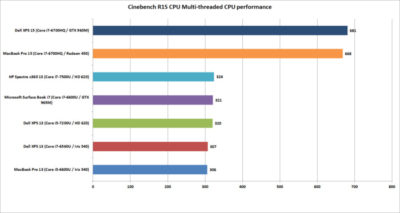
Our first test is Cinebench R15. This is a 3D rendering test based on Maxon’s Cinema4D engine. The test is heavily multi-threaded, and the more cores or threads you can throw at it, the better the performance. The test is is a pretty harsh reminder that if your tasks demand a quad-core, listen to them.

Between the two quad-cores, the Dell XPS 15 crosses the finish line first—but not by much. Let’s just call it mostly a tie.

Among the dual-cores, the Core i5-based MacBook Pro 13 is last, but not by much. It’s basically the same as the last-gen XPS 13 with a similar Core i7-6560U.

The surprise is where the Surface Book i7 finishes. Its 6th-gen CPU is hanging right with the 7th-generation Kaby Lake CPUs in the new HP Spectre x360 13 and the new Dell XPS 13.
Cinebench R15 single-threaded performance

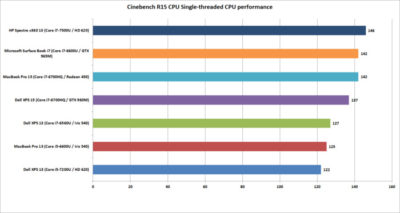
Cinebench R15 has an optional test that lets you measure the single-threaded performance. It’s a valuable way to gauge how fast a laptop will be in applications or tasks that don’t use all the cores available.

The surprise to many will be the result from the Dell XPS 13. Its 7th-generation Core i5 CPU could hang with the Core i7 chips on heavier loads, but on lighter loads, it ends up being last. That’s because Core i7 chips in laptops excel at short, “bursty” loads. Once you heat them up, the clock speeds crank back. When running a test in single-threaded mode, the Core i7’s advantage with short burst loads shows up big-time.

The real shocker is how the HP Spectre x360 with a 7th-gen CPU comes out the clear winner. The quad-core MacBook Pro 15 or Dell XPS 15 were expected to lead the pack, but nope. That Kaby Lake CPU is indeed pulling its weight.
Cinebench R15 OpenGL performance

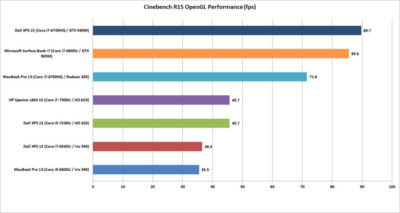
Our last Cinebench R15 test measures performance with OpenGL, a popular graphics API used for rendering professional CAD/CAM applications and a few games.

The results here break down into three bands. At the bottom is the new MacBook Pro 13 and an older Dell XPS 13 model. Both use Intel’s Skylake CPU and include “faster” Iris 540 graphics with 64MB of embedded DRAM inside the CPU. Both are nearly dead-even, which validates this test for comparing OSX to Windows 10 performance.

The second band up is a shocker to me. The pair of 7th-gen Kaby Lake laptops from Dell and HP are a good 25 percent faster than the 6th-gen Skylake laptops in OpenGL. The Iris 540 laptops were expected to come out in front. The results made us wonder whether this isn’t some driver optimization that Intel put into Kaby Lake but not Skylake.

The last band is the graphics performance of the discrete-GPU laptops. Unexpectedly, the GeForce GTX 960M in the XPS 15 finishes just ahead of the GTX 965M in the Surface Book i7. The MacBook Pro 15, with its Radeon Pro 450, finishes in a firm third place. Some MacBook Pro reviews have said the graphics don’t measure up in games, while in “work”-related tasks, they rules. So far, no one has seen that to be true.
GeekBench 4.01 multi-threaded performance

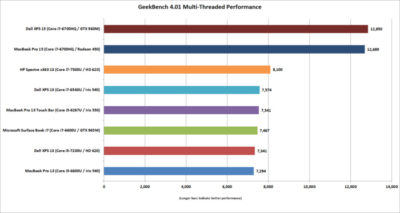
Another popular cross-platform benchmark is Primate Lab’s GeekBench. Experts may disdain its cross-platform results between ARM and x86. Within the same micro-architecture, however, it’s pretty kosher, especially when running the newest 4.01 version of the popular test. There is  also a score to report for the MacBook Pro 13 with Touch Bar

The first result we’ll look at is the multi-threaded performance. Like Cinebench R15, you can see the quad-core XPS 15 and MacBook Pro 15 step away from the dual-core laptops. It’s just more proof that if your tasks really need a quad-core chip, pay for it.

On the dual-cores, the redesigned HP Spectre x360 13 again shows the newest 7th-gen Core i7’s clock speed advantage over the Skylake models. The Surface Book i7 and MacBook Pro are pretty much dead-even. For MacBook Pro 13 fans that might be something to crow about, because we’re talking about a Core i5 MacBook Pro 13 vs. a Core i7 Surface Book.
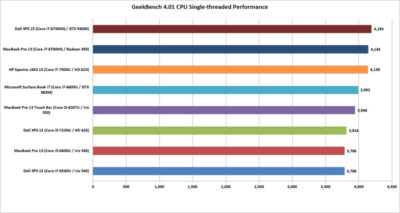
GeekBench 4.01 single-threaded performance

Moving on to the single-threaded performance in GeekBench 4.01, there are a few patterns we can discern. First, that 7th-gen Core i7 in the HP Spectre x360 13 is indeed faster in lighter loads, outpacing the Surface Book i7 and the Core i5-equipped MacBook Pro 13 with Touch Bar.

The Dell XPS 15 inches over the MacBook Pro 15, but the real takeaway is this: If you don’t do many multi-threaded tasks on your laptop, you don’t need a quad-core CPU.
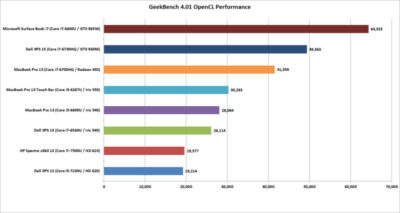
GeekBench 4.01 OpenCL performance

GeekBench also has an OpenCL test that simulates popular Computer Language tasks on a GPU that would normally be handled by the CPU.

The first takeaway: Unlike in the OpenGL performance tests, the older Iris 540 in the Skylake dual-cores is faster than the Kaby Lake integrated graphics for whatever tasks Prime Labs thinks best represent OpenCL.

The second takeaway: OpenCL loves fast GPUs. The Surface Book i7 and its GTX 965M run away with this test, and trash the MacBook Pro 13. For those who didn’t pony up for the MacBook Pro’s faster Radeon Pro 455 or 460 GPU, it’s hard to watch how thoroughly the the Surface Book i7 smokes the 450-equipped MacBook Pro. The Surface Book’s GTX 965M even makes a mockery of the GTX 960M in the XPS 15.
LuxMark 3.1 OpenCL GPU Render Performance

When you play the benchmarketing game, one truth that’s often overlooked is that no one test defines the entire category. You can’t take the results from Geek Bench 4.01 OpenCL and declare it representative of all OpenCL performance.

To balance Geek Bench 4.01, I also ran the free LuxMark 3.1 OpenCL test. This takes a scene and renders it using the LuxRender engine on the GPU (or CPU if you ask it to.)

The results put these GPUs a lot closer than the OpenCL numbers from Geek Bench 4.01 would have you believe. In the end, both the XPS 15 and Surface Book i7 again both clearly win. But would this be true if it were a Radeon 460 in the MacBook Pro 15? Probably not.

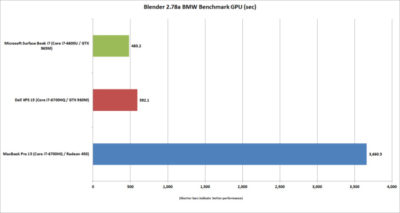
Blender 2.78 Performance

The last “work”-related graphics test we’ll run is Blender 2.78. This a free rendering application popular in a lot of indie movies. For a test render file, I used Mike Pan’s BMW Benchmark and set Blender to ray-trace the scene on the GPU rather than the CPU. The result is, frankly, beyond ugly. The Surface Book i7 finished in about eight minutes, and the XPS 15 took another two more minutes. The MacBook Pro 15 took more than an hour to complete the task.

This doesn’t mean the MacBook Pro 15’s Radeon Pro 450 is a dog. The other benchmarks should tell you that the Apple isn’t that bad in some tasks. Still, this kind of performance disparity indicates a serious problem at the OS or driver level, or something with this compile of Blender. Unless or until that mystery is solved, you’ll want to do your Blender renders on a PC laptop.
Tomb Raider performance

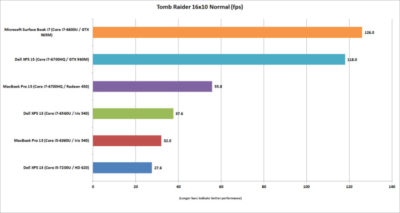
The last graphics test is Tomb Raider. It’s an older game available in both OSX and Windows and includes a built-in benchmark. While we could set the graphics settings the same on both platforms, we couldn’t quite sync the resolutions. Depending on the laptop, we could set the horizontal resolution at 1680-, 1650-, or 1600×1050 (the latter, for the Macs). The graphics setting on all of the laptops was Normal.

If you can’t bear to look, don’t: The Surface Book i7 and XPS 15 soundly thrashed the MacBook Pro 15. The Radeon Pro 460 would not make a difference here, either. If you want gaming performance at any decent levels, no surprise—buy a PC.
Battery life

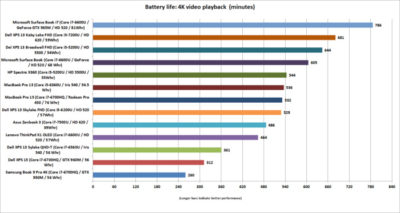
The final test is for all-important battery life. The same 4K-resolution were used, open-source Tears of Steel short video, looping continuously. On the Windows laptops, we used the Movies & TV player, and on OSX Sierra, we used QuickTime.

All of the laptops had their screens set at 250 to 260 nits in brightness. All laptops had the adaptive brightness setting turned off. All were tested with Wi-Fi disabled and with earbuds plugged into the analog ports. One thing to note: The Windows laptops are left in their default power settings, which means they use their last bits of battery life to shut off unused apps and slightly dim the screen. OSX was set not to dim the display on battery—otherwise, it immediately dims the screen once unplugged.

Our results on the pair of MacBook Pros were amazingly similar. Started both early in the morning and watched until they died in the early evening. Both were minutes apart.

Apple claims about 10 hours of run time in iTunes. We were pretty close in QuickTime at nearly 9 hours. The variance can be attributed to the video file and the settings the company uses.

For the MacBook Pro 15, that’s pretty impressive. The battery life for 15-inch laptops with quad-core CPUs, discrete graphics, and high-resolution screens tends to be mediocre. For example, look at the XPS 15 and its six hours of run time. (Dell offers an XPS 15 battery with about 50 percent more capacity—but it’s also heavier.)

Even worse is the Samsung Notebook 9 Pro, another quad-core laptop with the addition of a 4K screen. Ouch. Overall, I’d say the MacBook Pro 15 has decent battery life for a quad-core.

Moving to the MacBook Pro 13, the result is a little more nuanced. With roughly nine hours of run time, it compares well to some laptops, such as the XPS 13 with a QHD+ touchscreen. But there are a lot more PCs ahead of it. You know, like the Surface Book i7, which sets the bar at an amazing 13 hours of video run time. Other laptops with better video stamina include the newest XPS 13, HP’s redesigned Spectre x360 13, and even the older Surface Book. When you consider that all three are also generally faster, it’s not good.
The cost equation

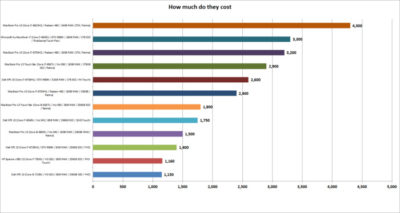
The most important question for users isn’t related to an obscure OpenCL benchmark but to how much these laptops cost. To help you understand just how much of a premium Apple and Microsoft are charging, I mapped out the cost of most of the laptops that appeared here, along with other configurations worth highlighting.

That top-spec Surface Book i7, formally known as Surface Book with Performance Base,  really pushes the boundaries of what people will pay for a dual-core laptop. To be fair, this is no ordinary laptop. It has a 1TB SSD and 16GB of RAM, plus pen support, a tablet mode, and probably class-leading GPU performance. But umm, yeah, 3,300 bucks.

Apple is no stranger to nose-bleed altitudes. When you throw a Core i7, 1TB SSD, and 16GB of RAM into the MacBook Pro 13 with Touch Bar, you’re looking at  $2,900. And you don’t even get the discrete GPU, touch, and tablet or pen support of the Surface Book. Apple’s most powerful MacBook Pro 15 tilts the meter all the way to $4,300. Granted, that’s with one of Intel’s priciest mobile CPUs and a whopping 2TB SSD, but that’s also the price of a modest used car.

Compared to a “normal” PC, both Microsoft and Apple give you a lot less performance for your cash. The Dell XPS 15, which pretty much aces the new MacBook Pro 15 except in battery life, is $1,400.

Take that Dell XPS 15 and load it up with a 1TB M.2 SSD, 32GB of RAM (which isn’t available on the MacBook Pro 15), a GTX 960M, 4K touchscreen, and a larger battery: $2,600. That’s only $200 more than what Apple charges for a machine with 16GB of RAM, a 256GB SSD, and the slowest Radeon Pro GPU.

You can do the same with the new HP Spectre x360 or Dell’s current XPS 13. Both give you a lot more value than either the MacBook Pro 13 or the MacBook Pro 13 Touch Bar.
Conclusion

Ten tests and one price comparison later, the PC wins. Again.

That’s no surprise. The MacBooks are caught in a tough spot—even if they were running higher-performance configurations. They’re both ultra-expensive compared to most PCs, and at the top-end, outclassed in GPU performance by Microsoft’s comparably expensive Surface Book i7.

It’s not all bad news for the Mac, though. The MacBook Pro 15’s battery life is impressive for a 15-inch laptop with a quad-core CPU and discrete GPU. Comparably powerful quad-core laptops we’ve seen can’t touch it in battery life. Even the MacBook Pro 13s do relatively well in battery life compared to a similar PC.

The problem for Apple and Mac fans is PC makers just don’t ever stand still. And as we know, Apple seemingly does that now with its Macs.

Have questions?

Get answers from Microsofts Cloud Solutions Partner!
Call us at: 856-745-9990 or visit: https://southjerseytechies.net/

South Jersey Techies, LL C is a full Managed Web and Technology Services Company providing IT Services, Website Design ServicesServer SupportNetwork ConsultingInternet PhonesCloud Solutions Provider and much more. Contact for More Information.

To read this article in its entirety click here.


What you need to know about iOS 5

Takeaway: The fifth generation iOS, the engine that powers Apple’s popular iPhone and iPad devices (among others), introduces several important changes and refinements.

Apple’s iOS, though only four years old, has changed the way users connect, purchase and maintain applications, collaborate, and more. The fifth generation iOS, the engine that powers Apple’s popular iPhone and iPad devices (among others), introduces several important changes and refinements. Here are the top 10 things you should know about Apple’s new iOS 5.

1: Requirements

The fall 2011-release iOS 5 upgrade works with a variety of current and legacy handsets, tablets, and devices. iOS 5 is compatible with the iPhone 3GS and iPhone 4. iOS 5 is also supported on the 3rd and 4th generation iPod Touch as well as the original iPad and iPad 2. There is no cost for the upgrade.

2: PC Free

One common complaint prior to iOS 5 has been that a computer was required to fully utilize and back up new iPads, iPhones, and iPod Touch devices. No more. iOS 5 severs the tether and makes it possible to activate and configure new devices without having to tie them to a computer. Further, with iCloud support, iOS 5 devices can be backed up automatically without having to use a computer.

3: Mail improvements

iOS 5 also introduces overdue Mail improvements. The new iOS provides indentation support, enables rich text (bold, italic, and underline) formatting, and can even flag messages. iCloud, meanwhile, helps ensure email accounts stay synchronized across multiple devices. As email’s importance continues to grow, such refinements on the iPhone and iPad platforms are a necessity.

4: Tabbed browsing

A seemingly minor innovation when originally introduced on computers, tabbed browsing enables users to maintain multiple active Web pages within a single browser instance. The feature has proven popular, especially as users have become more dependent upon Web-based applications and Web-based email. iOS 5 updates the Safari browser to bring tabbed browsing to compatible iPhones, iPod Touches, and iPads. This enables multiple concurrent Web page sessions and considerably simplifies the process of switching between open pages,.

5: Reminders

A cottage industry of iOS to-do and task list application providers has arisen over the past few years. That’s because Apple’s iOS didn’t previously do a very good job natively managing or synchronizing organizational tasks. Reminders is a new iOS 5 feature that addresses that shortcoming. With iCal, Outlook, and iCloud integration, changes automatically synchronize across multiple devices. Better yet, users can associate due dates and locations with the tasks they set. Productivity and efficiency result, while dependency upon a third-party application decreases or is eliminated altogether.

6: iCloud support

iCloud support within iOS 5 means applications, photos, music, settings, and other data isn’t lost if a compatible Apple device goes missing. Because iCloud stores data on the Web, files, configuration information, and even applications previously purchased on one device can be pushed to a replacement or other authorized device wirelessly. Calendars, contacts, and mail benefit from iCloud, which powers wireless synchronization between devices, too. iCloud even enables synchronizing iOS data with a PC, so Windows users benefit from iCloud/iOS 5 integration. And 5GB of free storage means the price is right.

7: iMessage

The simplicity and immediacy of text messaging has fueled its meteoric popularity. One can hardly even visit a neighborhood grocery or airport without hearing others’ text alert beeps. Built into the Messages app, iOS 5’s new iMessage feature enhances traditional messaging by adding support for sending photos, videos, locations, and contacts for iPad and iPod Touch users. iMessaging includes group messaging support, too, which better enables team collaboration and communication. iMessage also synchronizes iMessage conversations across multiple devices.

8: Notification Center

As iPhone and iPad use has grown within businesses and as users have loaded a veritable cornucopia of applications on those devices, mobile users sometimes feel assaulted by the number of updates, new email alerts, unread text messages, and other notifications.

Prior to iOS 5, all these different updates lived in different locations and sometimes proved distracting. iOS 5 users can take advantage of the new Notification Center to select which notifications they receive. And copping a popular feature I associate as being introduced with Microsoft Outlook 2003, new notifications appear briefly (in this case at the top center of the screen) before fading out of view. The Notification Center presentation of these messages is less distracting and doesn’t require switching applications, yet it still communicates the same information quickly.

9: AirPlay

Many users will find iOS 5’s new AirPlay innovation a critical component of the new OS. Others may never use it. But those who do will find the video mirroring feature an intriguing and convenient improvement in the mobile OS.

AirPlay enables presenters to wirelessly stream their iPad 2 display information to an HDTV via an Apple TV device. Attendees see exactly what’s on the presenter’s iPad, meaning iPads can fully replace desktop or laptop presentation systems in boardrooms, classrooms, conference rooms, and other presentation areas.

10: Calendar improvements

Calendar operations receive a needed boost within iOS 5, too. iOS 5-powered Calendars now synchronize across multiple devices leveraging Apple’s iCloud technology. Further, iPad users can display year views of their Calendar, while iPhone and iPod Touch users can display a weekly view of their calendar — previously unavailable options. Individual calendars can now be added and edited directly from iOS 5-powered iPhones, iPads, and iPod Touches. Possibly most important, though, is the fact that Calendar attachments are now viewable on compatible iOS 5 devices without having to switch applications.


To view the original article in it’s entirety, Click Here

The Biggest Tablet Rumors So Far

The latter half of 2012 should see some exciting developments in tech including a new iPhone,Windows Phone 8 smartphones, Microsoft’s Windows 8-powered Surface, Android 4.1 devices, and tablets, lots and lots of tablets.

Apple is expected to introduce a smaller iPad before December, Amazon may roll out its follow-up to the original Kindle Fire, and Samsung may be one of the first companies to get on board with Windows RT.

Here’s a look at some of the hottest tablet speculation that we may see turn into actual products before the holidays.

iPad Mini

Apple may be getting ready to stop competitors from invading the iPad’s turf with a low-priced 7-inch iPad to take on Amazon’s Kindle Fire and Google’s Nexus 7. Bloomberg recently reported that Apple was prepping a 7-inch tablet that would launch in October for $200. On Sunday the The New York Times reported a similar story to the news wire, but added the new iPad Mini will have a 7.85-inch screen.

The Kindle Fire and Google’s Nexus 7 are seeing some success against the iPad by not taking on the iPad. The two companies sell $200 tablets designed largely for content consumption instead of trying to offer an iPad-like device that can replace your laptop in a pinch.

The Fire and Nexus 7 each operate by providing deep hooks into each company’s content stores to make it easy for people to buy more movies, TV shows, apps, and games. The strategy of focusing on content consumption appeared to work for Amazon, and critics are already saying good things about Google’s Nexus 7.

Kindle Fire 2

Amazon announced the original Kindle Fire in September 2011 and, as we close in on the tablet’s one year anniversary, thoughts turn to what Amazon may have planned as a follow-up to this tablet.

A May Reuters report in May claimed the next Kindle Fire will offer an 8.9-inch display. Earlier in July, an analyst for NPD DisplaySearch told CNET that Amazon was prepping three versions of the Kindle Fire 2, including a 7-inch tablet with a screen with 1280-pixel-by-800-pixel resolution, a camera, and a 4G option.

The current Kindle Fire features a 7-inch display with a resolution of 1024 pixels by 600 pixels.

Kindle FirePad

The Times’ Sunday report about the mini iPad also claimed that Amazon is prepping a bigger version of the Fire to take on Apple’s tablet. There are no details about screen size or functionality, so it’s not clear what the purported device would be like or if it would actually be designed to take on the iPad.

More likely–at least in my view–is that Amazon would prep a larger version of the Kindle Fire that is better adapted to consuming visual content such as movies and gaming. But to keep the price low, Amazon would offer fewer hardware features than Apple’s tablet such as GPS, Bluetooth, and front- and rear-facing cameras.

Rumblings about a bigger Kindle Fire have been circulating for some time. The latest report before the Times claim was from BGR in June saying the new Amazon device would have a 10-inch display and quad-core processor.

Samsung RT

Samsung will have one of the first tablets out of the gate loaded with Windows RT, the version of Microsoft Windows 8 designed for ARM processors, according to Bloomberg.

The device will purportedly feature a Qualcomm Snapdragon processor, but no other device details are known. Samsung’s Windows RT tablet should debut in October when Windows 8 is set for a public launch.

Beyond the Rumors

We already know that Microsoft will roll out its Surface tablets later in 2012 and into 2013, and Acer in June said it plans to launch a Windows RT tablet in early 2013. As we get closer to the Windows 8 launch in October, more details should be announced about the upcoming crop of Windows 8-powered tablets.

To View Full Article Click Here

CALL US NOW!