Back to Top

Tech, Web, Cloud & Cabling Services

Tag Archives: Google+

Google+ tag

Google+ Social Network Launches

Google’s long expected second shot at taking on Facebook in the social networking space has arrived in the form of the Google+ Project. It has some interesting twists on the social networking model but is far from a Facebook-killer.

That Name

The terrible name is a bad start. Google+? Google+! I can’t even question or exclaim about the bad name without it looking bad in writing.

Pronounced “Google Plus,” the product is officially written as Google+ — making placing any punctuation after the name fairly awkward.

Seriously, I’m cursing whoever made the final decision to go with Google+ as a name. Wasn’t the Google +1 sharing service bad enough?

Now we have Google+, which in turn allows you to +1 things that you’ve Google+’d. My head hurts from writing that.

In this article, I’ll generally stick with the Google+ name except where Google Plus is more legible, due to punctuation.

The Google+ Project

What about the product itself? Google dubs Google+ as a “project” rather than a product, stressing it’s part of making Google itself more social rather than being a standalone social network to take on Facebook.

“It’s ‘Plus’ because it takes products from Google and makes them better and ‘project’ because it’s an ongoing set of products,” said Vic Gundotra, the senior vice president who oversees Google’s social products.

But is it Facebook competitor, I asked in a follow-up question. Google emailed back:

No. We realize that today people are increasingly connecting with one another on the web. But the ways in which we connect online are limited and don’t mimic our real-life relationships. The Google+ project is our attempt to make online sharing even better. We aren’t trying to replace what’s currently available, we just want to introduce a new way to connect online with the people that matter to you.

OK, but as the saying goes, if it looks like a duck and quacks like a duck, it’s probably a duck. And Google+ looks like and quacks like Facebook in several ways.

Circles

Most important, Google+ is a social network of your friends, family and other contacts, a way to connect to these people, just like Facebook.

Unlike Facebook, Google+ is built from the ground up around the concept of sharing material with groups of people, called “Circles.” Here’s an example of how they look:

The idea is that you can easily drag-and-drop people into different types of Circles, which you can then use for sharing different types of things.

For example, you can create a “Family” circle where you might chose to share things only with family members in it, while another “Work” circle might contain work colleagues who only see what you share to that.

Google+ Circles Vs Facebook Lists & Groups

While Facebook might not have been built from the beginning with a Circles-like sharing concept, Facebook does currently have two features that are similar: Friend Lists & Groups.

Added in December 2007, Friend Lists allow you to share some of your Facebook information with specific groups of friends (or other selected contacts) that you create. They’re also supposed to allow you to group message people in a list, though I couldn’t get this to work, when I tested it today.

Friend Lists don’t allow for selective sharing. But the updated Facebook Groups feature that came out last October does provide this, a way to share what you want with whom you want.

How does Circles weight up against these? I can’t say first hand. The Google+ product wasn’t live for me to test when I wrote this (our hands-on review will come later today).

Friend Lists are nice in that if you pick one person, such as below where I selected Facebook communications chief Elliott Schrage, you get relevant suggestions that appear (other Facebook execs who’ve friended me on Facebook):

But that list can’t be used, as best I can tell, to start an associated group to share just to these people. Instead, when I tested today, I was still forced to make a group, then pick people individually to add to that.

So, the drag-and-drop interface of Circles looks appealing. Then again, if you have hundreds of “friends,” it still might turn into too much organization. Maybe people will use it to create some select groups that they really want (family, close friends, those in a club, etc.). But if it turns into a wonderful tool, it’s hard to imagine that Facebook couldn’t easily match it.

Who’s In Your Circle?

There’s no limit to the number of circles you can create. But where do the people come from who will be in your circles?

First, any contacts you’ve stored through the Google Contacts service will be available. If you have no contacts, you can import them through the CSV format, which many contact services will export out to.

Google also said that it is looking into ways to directly important contacts from Yahoo and Microsoft. Facebook wasn’t mentioned.

That’s not surprising. Facebook hasn’t allowed the export of friends’ email addresses, except to … Yahoo and Microsoft. The stories below explains more about this:

What’s all this mean in practical terms? Everyone in Google+ will effectively be starting from scratch.

If you already use things like Gmail, you probably have Google Contacts that give you email addresses of your social network. If you don’t, you can import — and Yahoo and Microsoft may serve as go-betweens to help you bring information from Facebook into Google Plus.

From Email To Virtual Person

The bigger issue is that your contacts — be that from within Google or imported from Facebook — are basically just email addresses. The won’t have any social connection information with them.

Google Contacts won’t know that a particular person whose email address you have is friends with other people you know. A Facebook import won’t turn email addresses gathered from there into links with other people who use Facebook.

Instead, what will really jump start Google+ is if a significant number of people come into the system and start claiming profiles within it, effectively turning those email addresses into virtual people who have connections within Google Plus.

That’s a big if. If you’re already happy using Facebook, you may have no more incentive to use Google’s new social network than someone already happy using Google has to switch over to Bing. What you’re using is doing the job just fine.

Buzz Off Google Buzz

When people do get into the system, that does open up another way to add contacts. You’ll be able to search through other members who have registered.

But here’s the crazy thing. Those connections you may have already formed using Google Buzz? Remember, Google’s last attempt to take on Facebook from February 2010? None of that is being used for Google Plus. The two products are being kept completely separate.

I suspect Google’s trying to be as cautious as possible, in the wake of its settlement with the US Federal Trade Commission (see Google Settles FTC Charges Over Buzz, Agrees To 20 Years Of Privacy Audits). Buzz seems tainted, so keeping Google+ isolated from that may be deemed the most prudent course.

And what’s the future for Buzz, with Google+ coming out? Google told me in a follow-up email:

The short answer is it won’t have any major impact on Buzz at launch. Buzz users will still see a Buzz tab on their Google profile, and Buzz will continue working as it always has. Google+ users can also be Buzz users or can decide to just share their content using one of the products. Over time, we’ll determine what makes the most sense in terms of integrating the products.

Google+ Stream

Now let’s talk about how you see what’s being shared by those in your network, as well as what you can specifically share.

Information appears in your “Stream,” which is akin to Facebook’s news feed. At the top of your stream is a sharing box. Actually, two sharing boxes:

In the new black navigation bar that began showing up for some people this week, there’s a “Share” area to the right side. That bar, by the way, has been dubbed the “One Google” bar, Google told me. No matter where you are on Google, you’ll have the ability to share something out to Google Plus.

In the Stream itself, there’s a longer box, where you can enter a status update or use icons to upload and share photo and videos. You can also share links or your location, if you’ve allowed Google to track that for you. On mobile devices, you can select from a drop-down of nearby places to check-in.

The check-in feature also raises questions about Google Latitude — does it get absorbed into Google+ eventually? What about HotPot?

What do you see from others? Here’s an example:

In this screenshot, the person is viewing what’s been shared only by people in their “Bike Geeks” groups, as highlighted on the left side. By selecting another circle that’s listed, they would see only information being shared by that group.

Friends, Followers & Off-Network Friends

As with Twitter (or with Facebook, when it comes to fan pages), it’s possible with Google+ to follow other people on the network, even if they don’t reciprocate and follow you or friend you back.

Google says that if you follow someone this way, you’ll only see what they choose to share with everyone publicly. If they share some things more restrictively, with particular circles, for example, those outside of those circles won’t see that.

Somewhat related, you can be friends with people who aren’t formally part of Google Plus. If they’re an email-only contact and never formally join the service, you can still add them to circles and share with them.

When you do this, they’ll apparently be sent an email with whatever you wanted to share, a picture, an update and so on.

The downside is that if they’re not on Google Plus, they’ll get a notification anytime you share anything. So if you’re a big sharer, potentially you might hit some of your friends with a lot of email.

Where’s +1?

In the stream example above, there was a +1 button at the bottom of the photo. Yes, anything you like within Google+ can be +1?d, in the way that anything you like on Facebook can be liked with Facebook Like buttons.

If you do that, do your friends on Google+ see that action, in the way that friends on Facebook may see what you like? Nope. Not to my understanding,

Further more, all those Google +1 buttons that are now starting to appear on Google search worldwide? Those Google +1 buttons that publishers have diligently been adding to their sites since they were released earlier this month? Nothing from those button clicks flows back into Google Plus.

It’s crazy. It makes no sense. It’s as if Facebook launched its Like buttons but forgot to hook them up to flow information back into Facebook.

Right now, it remains the case that if you want to see what someone has +1?d, then you have to remember to go to their Google Profile page on a regular basis, then hope they’ve enabled the +1 tab on that profile, then rinse and repeat for other people.

Google told me that it would be “logical” to see +1 flow into Google+ and that “one could guess eventually” it will happen. So, I’m pretty sure we will see this happen. But when it will launch is unclear, and it really feels like an incredible mistake that it’s not part of the launch.

Google Sparks: Tips On What To Share

Time for more features. What if you started a social network and no one knew what to share? That’s a problem that Google Sparks is intended to solve.

Think of it like Google Alerts made to flow into Google Plus. Google Sparks lets you follow topics of interest:

You can browse suggestions or set up your own keyword-based searches. Then when you select a “Sparks” link, you’ll get a feed of search results that you might wish to share. Here’s an example of what Sparks might show for a fashion topic:

The relevancy is supposed to be tweaked to find especially sharable content that people are already clicking on, things that are very visual with photo and pictures.

I got a brief demo trying two searches, and the results didn’t thrill me. They were OK, but they didn’t feel particularly shareable. Still, the feature will probably be useful to some, and I can’t really assess the relevancy either way on such limited testing.

Hangouts: Group Video Chat

Google seems to be hanging most of its hopes that Google+ will attract people from Facebook on two main features, I’d say. One is the aforementioned Circles sharing feature. The other is the Hangout video chat feature.

With Hangouts, up to 10 people at a time can all interact through video:

The demo I saw of the system was compelling. As one participant spoke, the main image automatically changed to that person. You can also play video that everyone watches.

Gundotra spent some time talking with me about how Google has examined the social dynamics of video chat, to get people more comfortable participating. The key is to get several people all involved casually, rather than to barge in with a solitary invite.

He used a “talking to your neighbor” analogy to explain more. You’re probably are hesitant to knock a neighbor’s door and disturb them just because you want to talk. But if you saw them outside on their porch, Gundotra said, you’d probably feel better saying “Hi” when passing by. If two neighbors were sitting and talking, you’d probably feel rude not also stopping and chatting.

Hence the Hangouts name. When someone launches a Hangout, this shows up on the feed that goes out to their friends. As more people join, the notifications get updated to show the number participating. As that number rises, Google says even more people are compelled to take part.

The party ends at 10, however. No more can participate for scale reasons and also because the group dynamics get too hard, Gundotra said. If someone leaves, others can come in.

The puzzling thing to me is that Google’s not made it possible for anyone to stream the chat out to non-participants. If you have a group of friends, and not all can take part at once, others might be interested just to listen in.

Beyond that, Hangouts seems like a pretty awesome tool for those who wanted to record video shows. But there’s no way to save what happens.

Huddle: Group Text Chat

Somewhat related to Hangouts is Huddle, a group text chat service. I can’t really tell you more than that. Google didn’t cover this during my talk with them about Google Plus last week, so I’ve only got a screenshot for you and a promise will cover it more in our coming hands-on piece:

Huddle is for Android 2.0+ phones, iPhone 4.0+ phones and SMS, Google tells me.

Instant Upload

The last major feature of Google+ is called “Instant Upload.”

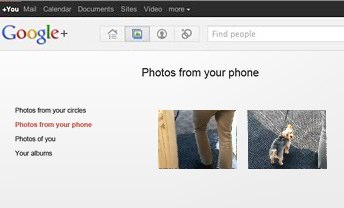
For those with Android phones, you can have any picture you take be uploaded to a centralized — and private — photo album area.

Google tells me they hope to bring it to other phones, as well.

Getting Google+

Want to try the service? Right now, it’s strictly invite only. Some press are being allowed in, along with others that Google hand picks. There’s no ETA on when wider invites will be available.

Unusually, this isn’t being called a beta test or an experiment but rather a “field trial” that’s meant to finally gather some feedback from outside Google itself.

The limited test is probably wise. It’ll give Google more time to discover things it might not have anticipated being problems, as was the case with Buzz.

As for a wider release, and possible success, it’s anyone’s guess. As I said earlier, if you’re happy using Facebook, there seems relatively little to make you want to switch over to Google Plus, at the moment.

Perhaps with further Google +1 integration, that might change. Perhaps if there are people who want a Facebook alternative, Google’s now got a core to build on for them. At least the guessing about what Google might be doing is over.
Migrate Facebook Data to Google+

You may not be ready to ditch Facebook for good, but now that you’ve had a chance to kick the tires on Google+, you might be ready to make it your go-to social network. The problem: You’ve built up a lot of friends, photos, videos, and other data on Facebook over the years, and you don’t want to simply lose all that data. Here’s how to migrate it all from Facebook to Google+.

Photo remixed from an original by Shutterstock.

When Google+ came out, it’s success was very much up in the air (remember Google Buzz?). However, it seems a lot of people have already thrown themselves into Google+ full force—Facebook may have 750 million users, but Google+ has already crossed the 20 million user milestone in only 30 days. If you’re ready to give it a shot as your main network, here’s what you need to do.

Migrate Your Friends

A social network is nothing without a group of friends with whom to talk, so the first thing you’ll want to do is migrate your friends. Not everyone you know is going to be on Google+ yet, but it’s a good idea to make sure you don’t leave anybody out—and you can always send those other late adopters an invite to encourage them.

The easiest way to migrate your Facebook friends is to import them through a Yahoo email address. I know that sounds awful, but hear me out: While a few people have created browser extensions and other migration methods, Facebook shuts them down pretty quickly, since they don’t like non-partners pulling friend data. In addition, the non-Yahoo methods usually add your Facebook friends to Google Contacts, which you probably don’t want. You may not have a Yahoo account, but that’s what makes this method great—no need to fill up your main address book with Facebook junk. Plus, it really does only take a few minutes.

To do this, head to mail.yahoo.com and click the Create New Account button (if you already have a Yahoo or Flickr account, you can skip this step). Once you’ve created an account, sign in and head to the Contacts tab. Click on “Import Contacts” and choose the Facebook option. You should now see all your Facebook friends in your Yahoo address book.

Lastly, head to Google+ and go to the Circles tab. Click “Find and Invite” and click the Yahoo button. It’ll add all your Yahoo Contacts (or Facebook Friends, in this case), to the Find and Invite page and you can add your Facebook friends to your circles. I, for one, was shocked at how many of my friends were already using Google+ without me knowing.

Migrate Your Photos

Migrating your photos is ridiculously easy with the previously mentioned Move Your Photos Chrome extension. Install it, click on its icon in the extension bar, and log in to your Facebook account. Select the photos you want to transfer and click the upload button at the very bottom of the page. You’ll see the progress in the lower right-hand corner. Don’t log out while it works, just let it do its thing.

When it’s done, you’ll see those albums in Google+. By default, they won’t be public, and you can adjust each album’s privacy settings by going into them and clicking on the “Edit” link under “Visible To”.

If you don’t want to use Chrome, you can grab a similar extension for Firefox, but you have to transfer albums one by one. If you have Chrome installed, I recommend using the Chrome extension just this once because it’s much faster.

Migrate Your Videos

The only way to migrate your videos, unfortunately, is to download the entirety of your Facebook data and re-upload them. To do this, head to Account > Account Settings, and scroll down to “Download Your Information”. Hit the “learn more” link and hit he Download button. It will take awhile to gather your info, but you’ll receive an email when it’s done, and you can download a ZIP file full of your photos, videos, and profile information.

Strangely, when I did this, one of my two videos was missing from the “videos” folder in the ZIP file. However, I was still able to download that video from Facebook by installing the Video Download Helper extension for Firefox, navigating to the video you want to download, playing it, and clicking the arrow next to Download Helper’s icon in the add-on bar.

Once you’ve wrangled all the videos you want to move to Google+, you’ll just have to upload them one by one. Head into Google+, click on your profile, and go to “Videos”. Hit the “Upload New Videos” link and re-upload your videos to your Google+ profile.

Update and View Both Networks at Once

Now that all your data’s been migrated, you can enjoy using Google+ as your main social network. However, chances are you still have a few friends on Facebook you want to keep up with. The best way to do this is with the Start Google Plus extension for both Chrome and Firefox. Once you install it, you’ll see a Facebook and Twitter icon in the upper right-hand corner, which you can click on to connect your other accounts. Once your Facebook account’s been linked, every status update you make on Google+ will have the option of posting to Facebook as well, just by clicking on the Facebook icon. It’ll take with it any links, pictures, or other data that the status contains.

Start Google Plus will also plug your Facebook feed into your Google+ feed, so you don’t even need to check Facebook anymore. Just check your Google+ feed, and it’ll show you all of Facebook’s news feed as well, with links to comment if you so desire.

If you prefer to not use an extension, you can also update your status on both networks at once using Facebook’s “Upload via Email” feature. Just head to Facebook’s mobile page, copy your Upload via Email email address, and add it to its own “Facebook” circle on Google+. From now on, when you update your status on Google+, you can just include your Facebook circle to send that status to Facebook as well. This method isn’t perfect, however: it’ll only work with statuses of up to 50 characters, and it doesn’t work with photos. However, it does work over mobile, which is nice, and without any extensions.

It’s also worth mentioning the previously mentioned Google+Facebook extension. While it’s a much easier way to update both statuses at once, it’s been hit by a bit of controversy, which you can read more about over at our post and on this Reddit thread. The company has responded to accusations of malware injection, and it seems more accidental than something that was actually of malicious intent, but we still recommending you use this at your own risk. The “update by email” method is still the safest, but this is a possibility as well. With other extensions out there like Start Google Plus, there’s really no reason to take the risk.


There isn’t a foolproof, one-step way to migrate your data, but this should help make the process quite a bit easier for you Google+ fans out there. Got any of your own migration tips to share? Let us know in the comments.


You can contact Whitson Gordon, the author of this post, at whitson@lifehacker.com. You can also find him on Twitter, Facebook, and lurking around our #tips page.


Google Apps or Office 365: What’s Best?

Microsoft took the beta label off of Office 365 last week, and many consider the cloud-based productivity suite a potshot at Google and Google Apps. Office 365 may offer cloud-based document, storage, and collaboration services that look like Google Apps, but the user experience and price tag are very different. Here’s a look at the major differences between them.

User Experience

The way the user interacts with the application suite may be the biggest difference between Google Apps and Office 365. When you use Google Apps, you live in your Web browser. You edit documents and spreadsheets in Google Docs through your browser, you get your email through Gmail, and you chat with colleagues using Google Talk – all in your browser.

Conversely, Office 365 requires you download a plug-in that will link your desktop with the cloud-based service. You’ll need Microsoft Office installed on your desktop already (to make use of offline and cloud-based features as opposed to webapps,) and you’ll need the .NET framework installed. You’ll also need Lync installed on your system as well if your organization will leverage instant messaging and chat. It’s a hefty list of system requirements you’ll need just to get started, especially compared to Google Apps’ requirements: a supported browser.

Document Collaboration

Microsoft Office documents are the de-facto standard in office environments, so it shouldn’t surprise anyone that Office 365 has an easier time with advanced formatting in Microsoft Word documents and Excel spreadsheets than Google Apps does. Microsoft has put a lot of time and effort into making sure the polish in Microsoft Office made it to Office 365. Office 365 users get the same templates, formatting features, and tools that desktop users get, and since the two services connect, you can create a slideshow in PowerPoint and upload it to Office 365 for editing later without worrying you’ll lose the formatting or images.

If your organization already makes heavy use of Microsoft Exchange for mail and Microsoft Office for productivity, Office 365 will appeal to those who want a familiar, robust tool. Google Apps, and specifically Google Docs, feels barren and plain by comparison, even if it’s more accessible and open.

Google Docs, on the other hand, does a solid job of importing most Microsoft Office documents, auto-saving them, and giving groups a way to all work in and on the same documents and files at the same time without stepping on each other. It’s definitely more bare-bones than Office 365, but it works seamlessly and without the need for desktop software.

Microsoft rolls in Sharepoint to handle document sharing and management, and depending on your opinion, it can be a good or a bad thing. Sharepoint adds a layer of complexity where Google allows more openness. While you do get the benefit of revision history, check-in/check-out, integration with Microsoft Office on the desktop, and integration with Sharepoint Web services with Office 365, Google Docs offers much of the same and lets you and others work in the same document at the same time and see who’s viewing and who edited last, all without the need for another platform.

Chat and Communication

Office 365’s presence tools, including Lync (formerly known as Office Communication Server) integrates with other Microsoft Office and Office 365 products so you can always see if someone is available for chat or a VoIP call, or who’s editing your document or viewing the same files that you are.

Google, on the other hand, already offers this with Google Talk and Google Voice. They’re not as tightly integrated with Google Docs as Lync is with Office 365, but they’re all there.

The only area where Office 365 and Lync outshine Google Talk and Google Voice is in screen-sharing and white-boarding, which Lync has natively but Google Talk does not. Again, Microsoft has more polish and shine on their applications, but feature-for-feature, they’re largely matched. Google Talk and Google Voice may be more Spartan, but they do have broader reach, especially for users who already have large contact lists.

Price

Google Apps Standard for your domain is free. Google Apps for Business offers two pricing plans: a flexible $5/user per month where you can add or remove users at will and pay the difference, and a $50/user per year plan where you commit for a year to get a discounted rate.

Office 365 requires the initial investment in Microsoft Office on your user desktops (as noted above: for use with some enterprise-level features,) some Microsoft Office Servers and services in your environment (like Active Directory if you plan to use those features,) but after that you’ll pay $6/user per month for the small business plan. If you don’t have Microsoft Office on your users’ desktops, you can pay another $12/user per month to get each one of them a copy of Microsoft Office Professional Plus.

Larger enterprises can choose tiered pricing plans that run from $10/user per month up to $27/user per month depending on how many services that want hosted in the cloud versus in their own environments. There’s no two ways about it: Office 365 will be more expensive for almost every business, but Microsoft thinks they have the feature depth to justify the price.

Which One’s Better?

The jury is still out, and even though Office 365 has been in beta for months, Microsoft has a lot of catching up to do if they want to win back enterprises that are looking for affordable cloud-based collaboration products. The familiarity that almost every business has with Microsoft Office may play a big role going forward, but the price tag will be something else they’ll have to overcome.

Feature-for-feature though, the two services offer the same basic functionality, although it can be said that Office 365 shines with polish and flare where Google Apps offers affordability and accessibility.


Top 10 Things to Love About Google Plus

Takeaway: Google+ includes several attention-grabbing items — like Circles, Google Takeout, and Sparks — but there are some great subtle features you should know about as well.

Have you heard about all the nifty things the new Google Plus social network can do? Of course you have. But have you dug around to see what’s really good beyond the headline items? Well we have, and we’ve brought back some small yet superb details to crow about.

1: Automatic photo uploading from your phone

At first, the Android app for Google+ seems like a nice way to check activity, post about how awesome it is to skip work for a ball game, and so on. But head into the app’s settings, enable Instant Upload, and the way you use your phone, and Google+, changes entirely. Everything you shoot is almost instantaneously synced to a private album in Google+. From there, it’s just one click to sharing the photo, but you’ll want to type out a sentence. Even if you don’t share your stuff, Google+ is basically freeing you from the need to find a cord, fire up a program, and monkey around with your phone storage — everything you shoot is in Google+, too. But you decide whether to put it out there.

2: Unlimited photo storage (pretty much) in Picasa

To make Google+ a place where people want to share their photos, among many, many competitors, Google had to pull out the big guns. In this case, those guns are server storage, something Google has more of than anybody else, by a good long shot. Google can offer almost unlimited photo storage in Picasa, so that photos smaller than 2048 by 2048 in pixels and videos less than 15 minutes long don’t “count” against your storage space. Shoot and shoot and share and shoot again, and Google just keeps smiling at your feeble attempts to take up space.

3: Quick, easy, undo-able photo editing, with I’m Feeling Lucky

Photo presentation in Google+ is a nice, content-forward experience, with a black backdrop and easy sharing or deletion. Even nicer is that Google threw a few of the most helpful photo filters and editing tools in there, too. Click the Actions button just underneath a photo, and you’ll get rotation tools — and more important, Edit Photo. A right-hand sidebar pops up with some Instagram-like filters: cross-process, Orton, and black-and-white. There’s auto-color and auto-contrast and the ever-helpful I’m Feeling Lucky button, which helps non-photo-nerds by applying the most common light and color corrections to your shots.

4: Profiles for better Google search results

Sensing some need to let actual people have a say over the machine math that produces search results, Google previously offered Google Profiles as a dedicated spot where you, the person, could have a say and show up in searches. But like the best advice about vegetables and tax receipts, Profiles weren’t widely adopted by the general user. As Google+ gains users, it’s making the Profile an essential tool in connecting to others and discovering interests, which in turn is causing users to more accurately and fully fill out their Profile. It’s a sweet syrup that helps us swallow the bitter bill of self-promotion, with the healthy result of having a say in what Google says about us.

5: Keyboard shortcuts, both built-in and add-on

Like most Google products, Google+ has a good built-in list of keyboard shortcuts that let you run through stream items, start a new post, and generally navigate the social realm without reaching for your mouse or moving your fingers onto the trackpad. If you want even more no-pointer-needed functionality, try the Google+ Manager for Firefox or Goo Plus Manager in Chrome.

6: Simultaneous YouTube video watching for groups

The group video chat Hangouts inside Google+ have received lots of attention and rave reviews, and for good reason. Hangouts are like group Skype chats, just with Google helping on the server side and with a more polite single-focus video window. But the part that gets less play is how everyone in the Hangout can see the same YouTube video at once, watching it in real time and commenting on specific moments (in text by default, but by voice if you’d like). That’s handy for training, presentation critiques, and other moments when you can’t all be around the same screen.

7: Drag-and-drop sharing

Technically, yes, you can grab links from other Web pages and drop them into Facebook or Twitter for sharing. But Google+ lets you snag photos, links, YouTube videos, and other items and just drag them into the sharing panel. You can even drag Web items into the Share box on that black Google toolbar we mentioned above for truly lazy content making.

8: The universal Google toolbar

Once you’ve activated Google+, nearly every Google Web service shows a kind of universal toolbar, black and seemingly bolted to the top of your viewing window. It provides universal notifications about new Google+ happenings in a little red number square, quick posting to your Google+ stream, and a quick click to see your profile. But it also somewhat normalizes the links to other Google services you’ll see (Gmail, Calendar, Documents, etc.) and provides a consistent feeling to Google’s Web services, a win/win for both the search giant and its most dedicated users.

9: Handy chat client to unburden Gmail

Google+ has the same kind of built-in Gmail/AIM chat window in its lower-left corner that Gmail offers. Gmail, which now does far more than it was originally built for (including free phone calls), could use some help lightening its loading time and memory bulk. So consider keeping Gmail for email and opening Google+ when you are available to be social.

10: Post-publish editing… Enough said

Inspiration comes a lot faster than clean, conscientious copy. On most social networks, that’s just too bad. Twitter and Facebook don’t let you clean up your words or remove photos — you have to delete your post entirely and destroy the comment or reply chain. Google+ provides a little arrow in the upper-right corner of all your posts that drops down to offer editing — as well as comment striking, turning off comments, and yes, post deletion if things really went the wrong way.

Windows 10: The end of computing as we know it

IT leaders considering a Windows 10 migration as a cornerstone initiative risk having a focus that is a decade behind.windows 10

Microsoft and I have been “partners” in computing since my father brought home a strange beige box with MS-DOS 2.11 installed. I remember a few years later shuffling through a half-dozen 3.5-inch floppy disks and watching in amazement as my C:\> prompt was replaced with the seemingly magical Windows 3.0 user interface, kicking off years of computing bliss (and occasional frustration) with the famed Wintel alliance at my side.

Much as my early days of computing were defined by Microsoft, CIOs, and even average computer-using “civilians,” hung on the company’s every announcement. A Service Pack release, let alone a new version of Windows, was a cornerstone item in most IT project portfolios. In the past few years, a confluence of developments brought us to today, where Windows 10 — Microsoft’s soon to be latest and greatest OS update — barely registers on most CIOs’ radars.

The end of desktop dominance

Sales of traditional desktops and laptops, and now even tablet computers, have been fading for several years. Perhaps the greatest contributor to this trend is the rise of hosted applications, whether they’re public web apps like Gmail, heavy-duty enterprise applications accessed through a browser, or cloud offerings. Increasingly, Windows is merely a portal to get to the web-based tools we need to get our jobs done.

Even the web browser, once the subject of complex anti-trust lawsuits and one of the greatest “battles” in technology history, has become largely irrelevant. Whether Chrome, Firefox, IE, or Safari is the “weapon of choice,” they’re now about as relevant to how we consume computing services as a Samsung TV vs. a Sony TV is to experiencing the latest episode of Game of Thrones.

The failed “Windows Everywhere” gambit

Microsoft did something bold with Windows 8 by attempting to create an OS that transparently adapted to the user’s device. Dock your tablet, and the OS would theoretically adapt to a keyboard and mouse-centric computing experience. For developers, write a single “Modern” app and easily run it on a variety of Microsoft products from Xboxes to phones.

Unfortunately, the gamble failed. Windows 8 was panned by enterprise customers, most of whom migrated from XP to Windows 7 as support for XP ended, even though Windows 8 was an available option. Consumers were confused by the new user interface, and developers opted to follow the money to the Android and iOS platforms.

Windows 10 promises to rectify many of the failures of Windows 8, much as Windows 7 helped the company regain its footing after stumbling with Vista. However, we’re in a very different place than the summer of 2009, when the iPhone was still largely scoffed at as a “serious” enterprise device, and most corporate software still ran on fat clients that necessitated a capable desktop. The world was clamoring for a better Windows; now, most of that excitement is reserved for the latest Android device or iPhone.

Freeing Windows

Microsoft seems to have recognized this trend, and has made upgrades to its desktop OS free for consumers and made its crown jewel, Microsoft Office, available on platforms ranging from Android phones, to Mac desktops, to web browsers. Rather than a destination in itself, the desktop is now a gateway to a company’s cloud offerings like iTunes, Azure, Siri, and Cortana. Even Google is in on this game, offering its own platform with just enough muscle to get a user online and connected to Google’s portfolio of services.

The bottom line for IT leaders

Even though Windows 10 may be relevant to your organization, it doesn’t mean you should let Microsoft define your enterprise computing strategy. It seems even the vaunted company realizes that Windows is little more than a gateway to higher value services. As IT leaders, we need to make sure we’ve acknowledged the same trend.

Have questions?

Get help from Microsoft’s Cloud Solutions Partner.
Call us at: 856-745-9990 or visit: https://southjerseytechies.net/

South Jersey Techies, LLC is a full Managed Web and Technology Services Company providing IT Services, Website Design ServicesServer SupportNetwork ConsultingInternet PhonesCloud Solutions Provider and much more. Contact for More Information.

To read this article in its entirety click here.

Watch out, Chrome, there’s new browser in town!

browser

With the latest release of Windows 10 and the Edge browser, Microsoft looks increasingly ready to tackle Chrome’s performance lead.

Over the years Microsoft has fallen behind its competitors in the battle to provide the best performing browser.

Google’s focus on making Chrome feel fast and responsive has won the browser millions of users at the expense of the more sluggish-feeling Internet Explorer (IE).

With the release of Windows 10, Microsoft is hoping to change the status quo and offer the fastest on-ramp to the web.

To this end it has been reworking how its new Edge browser handles JavaScript (JS), the default scripting language of the web.

JavaScript is at the core of the modern web, with heavy pages loading in tens of scripts that in turn fetch more JavaScript. If your browser is slow at JavaScript, it’s slow full-stop.

At the heart of every browser is a JavaScript engine that parses the JS, interprets its commands and compiles its instructions into machine code.

Like IE 11 before it, the Edge browser uses the Chakra JS engine, and Microsoft has been tweaking Chakra to give Edge a boost on Windows 10.

This fine tuning has allowed the Edge browser to outgun not only IE, but also the latest experimental builds of Chrome and Mozilla Firefox, according to benchmarks run by Microsoft.

The Octane and JetStream benchmarks measure JavaScript performance and importantly are not produced by Microsoft but by their rivals, Octane by Google and JetStream by Apple.

The tests found Edge to be 2.25 times faster than IE in the Octane 2.0 benchmark and 1.6 times faster in the JetStream benchmark.

“The key is that Microsoft Edge has already come a long way from IE11 in terms of improved JavaScript performance on both, benchmarks and real world web as it exists today,” said Gaurav Seth, principal PM lead for Chakra at Microsoft in blog post.

“As mentioned in the beginning, performance is a never-ending pursuit. We will continue pushing the performance boundaries for JavaScript in Microsoft Edge.”

Edge’s relative performance in Octane is a step above its showing when TechRepublic ran the benchmark earlier this year, which saw Edge achieving an 8.8 percent worse score than IE.

To check this latest performance win, we replicated the benchmark run by Microsoft using the same browsers under build 10122 of a 64-bit version of the Windows 10 Technical Preview.

Tests were run on a Toshiba Portege laptop. The machine has an 2.1GHz Intel Core i7 4600U processor, with 8GB of memory and a 256GB SSD.

Although Edge didn’t come out on top in our tests it did put in a good showing, bettering IE’s score by an impressive 44 percent and Firefox Nightly by five percent in the Octane test. Edge still lagged behind Chrome Canary by just under six percent in Octane, but came within spitting distance of Chrome in JetStream, racking up a benchmark just three percent shy of Google’s browser.While our benchmarks found Edge failing to match Microsoft’s claims, it does appear to be a noticeable step forward, leaving IE in the dust and edging closer to the performance of Chrome.

Edge doesn’t appear to have snatched the performance crown as of yet but with work continuing to improve the browser, Microsoft finally seems to have produced a contender in the browser wars.

Have questions?

Our small business team is here to help.
Call us at: 856-745-9990

South Jersey Techies, LLC is a full Managed Web and Technology Services Company providing IT Services, Website Design ServicesServer SupportNetwork ConsultingInternet PhonesCloud Solutions Provider and much more. Contact for More Information.

Android Dominates Apple & Microsoft

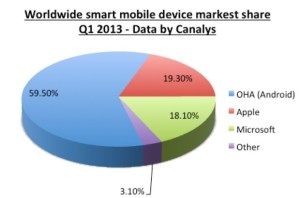
aam1 Takeaway:  Canalys’ Market Shares for Quarter 1 of 2013 showing that Android is dominating the Worldwide Smart Mobile Market.

After being released in 2007, this Linux-based operating system is the most used platform for smartphones. According to BBC News, Android has 900 million activations.

Android has 59.50% Market Share for the first quarter of 2013, according to Canalys.  Apple has 19.30% Market Share and Microsoft has 18.10%, together does not equal to the Android market.  The  Worldwide Smart Mobile Market includes Netbooks, Smarphones and Tablets

Chart

The Biggest Tablet Rumors So Far

The latter half of 2012 should see some exciting developments in tech including a new iPhone,Windows Phone 8 smartphones, Microsoft’s Windows 8-powered Surface, Android 4.1 devices, and tablets, lots and lots of tablets.

Apple is expected to introduce a smaller iPad before December, Amazon may roll out its follow-up to the original Kindle Fire, and Samsung may be one of the first companies to get on board with Windows RT.

Here’s a look at some of the hottest tablet speculation that we may see turn into actual products before the holidays.

iPad Mini

Apple may be getting ready to stop competitors from invading the iPad’s turf with a low-priced 7-inch iPad to take on Amazon’s Kindle Fire and Google’s Nexus 7. Bloomberg recently reported that Apple was prepping a 7-inch tablet that would launch in October for $200. On Sunday the The New York Times reported a similar story to the news wire, but added the new iPad Mini will have a 7.85-inch screen.

The Kindle Fire and Google’s Nexus 7 are seeing some success against the iPad by not taking on the iPad. The two companies sell $200 tablets designed largely for content consumption instead of trying to offer an iPad-like device that can replace your laptop in a pinch.

The Fire and Nexus 7 each operate by providing deep hooks into each company’s content stores to make it easy for people to buy more movies, TV shows, apps, and games. The strategy of focusing on content consumption appeared to work for Amazon, and critics are already saying good things about Google’s Nexus 7.

Kindle Fire 2

Amazon announced the original Kindle Fire in September 2011 and, as we close in on the tablet’s one year anniversary, thoughts turn to what Amazon may have planned as a follow-up to this tablet.

A May Reuters report in May claimed the next Kindle Fire will offer an 8.9-inch display. Earlier in July, an analyst for NPD DisplaySearch told CNET that Amazon was prepping three versions of the Kindle Fire 2, including a 7-inch tablet with a screen with 1280-pixel-by-800-pixel resolution, a camera, and a 4G option.

The current Kindle Fire features a 7-inch display with a resolution of 1024 pixels by 600 pixels.

Kindle FirePad

The Times’ Sunday report about the mini iPad also claimed that Amazon is prepping a bigger version of the Fire to take on Apple’s tablet. There are no details about screen size or functionality, so it’s not clear what the purported device would be like or if it would actually be designed to take on the iPad.

More likely–at least in my view–is that Amazon would prep a larger version of the Kindle Fire that is better adapted to consuming visual content such as movies and gaming. But to keep the price low, Amazon would offer fewer hardware features than Apple’s tablet such as GPS, Bluetooth, and front- and rear-facing cameras.

Rumblings about a bigger Kindle Fire have been circulating for some time. The latest report before the Times claim was from BGR in June saying the new Amazon device would have a 10-inch display and quad-core processor.

Samsung RT

Samsung will have one of the first tablets out of the gate loaded with Windows RT, the version of Microsoft Windows 8 designed for ARM processors, according to Bloomberg.

The device will purportedly feature a Qualcomm Snapdragon processor, but no other device details are known. Samsung’s Windows RT tablet should debut in October when Windows 8 is set for a public launch.

Beyond the Rumors

We already know that Microsoft will roll out its Surface tablets later in 2012 and into 2013, and Acer in June said it plans to launch a Windows RT tablet in early 2013. As we get closer to the Windows 8 launch in October, more details should be announced about the upcoming crop of Windows 8-powered tablets.

To View Full Article Click Here

Windows 10’s new features, how they work and how you can make them work for you.

The final version of Windows 10 won’t be available until 2015, but that doesn’t mean you can’t live the Windows 10 experience — the extremely pre-final experience — right now.

The technical preview is available right now and although things will likely change drastically between now and release, now’s a good chance to get acquainted.

And keep checking back. As the months close in on the new OS’s final release, expect all our How To coverage to be posted right here.

Windows 10 Technical Preview: 1

spartan

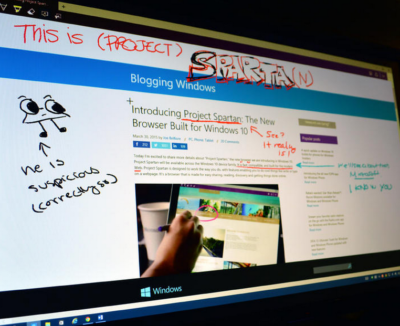
Build 10049 of the Windows 10 Pro Technical Preview just dropped, and with it comes Microsoft’s sexy, speedy new browser: Project Spartan.

The next-gen browser has several new features to try out, including a distraction-free reading view and a fast, secure rendering engine (which was available as an experimental feature in Build 9926). But the coolest new feature is inking — the ability to draw, write on, and generally mark up Web pages from directly within the browser. You can share your marked-up creations via email or through social networks, or you can save them to OneNote.

Start inking

When you see a Web page you want to “ink,” click the small icon that looks like a pen and paper in the upper right corner of the browser window. There are only about five icons total, so this shouldn’t be too difficult to find.

The Web page will refresh and the inking toolbar will appear over the regular toolbar. On the left side of the inking toolbar, you’ll see five icons: Pen, highlighter, eraser, text, and clip. The pen tool is selected by default, so you can just start scribbling away if you’d like (in medium thickness, light blue ink). If you want to change the color of your pen, click the pen icon to choose from 12 colors and three sizes.

To use a highlighter, which will let you highlight text and images instead of drawing over them, click the highlighter button. Click the highlighter button a second time to select your highlighter color and shape (six colors, three shapes).

Type some comments

Drop a connect pin

If you prefer typing to writing or drawing, you can use the text tool to make comments on the webpage. The text tool is a little different from the pen and highlighter tools: Instead of letting you put text wherever you want on the page, this tool lets you drop a comment pin and type text in a corresponding text box on the right side of the page. You can minimize the text box (the pin will remain visible) for less clutter.

When you select the text tool, your pointer will turn into a cross-hair. Click anywhere on the page to drop a comment pin. The pin will appear where you click, and a thin line will connect it to a corresponding text box on the right side of the page.

Click inside the text box to type your comment. To minimize the box, you can either click the minus sign in the upper right corner of the box, or you can click the corresponding comment pin. To delete both the comment pin and the text box, click the trash can icon in the lower right corner of the text box.

The clipping tool will also turn your cursor into a cross-hair, so you can clip out a section of the page. It works similar to the Snipping Tool — click the clipping tool icon, and the page will fade out until you select a section of it. Once you have a section selected, you’ll see a small copy icon in the lower right corner; click this to copy your clip (you can paste it into another program, such as Microsoft Paint, if you want to save it).

Don’t make any mistakes

As of right now, the eraser tool doesn’t do much. If you click on it, nothing happens. If you click on it again, a “Clear All” box appears, which you can click to clear the Web page of annotations.

I assume the eraser tool will be fixed before Project Spartan goes public, because right now there’s no way to fix an annotation mistake without clearing the entire page and starting over.

Share or save your masterpiece

On the right side of the inking toolbar, you’ll see a save icon and a share icon. To save your newly-annotated webpage, click the save icon.

Right now, Project Spartan will let you save your marked-up page as an HTML file – that is, you can add it to your Favorites or your reading list. In the future, you’ll also be able to save your projects in OneNote.

To share your work, click the share icon to open up Windows 10’s sharing sidebar. Because this is such a new build, Project Spartan’s sharing capabilities don’t appear to be turned on – but when they are, you’ll be able to share your creation with any app that supports Windows’ sharing sidebar.

Have questions?

Our small business team is here to help.
Call us at: 856-745-9990

South Jersey Techies, LLC is a full Managed Web and Technology Services Company providing IT Services, Website Design ServicesServer SupportNetwork ConsultingInternet PhonesCloud Solutions Provider and much more. Contact for More Information.

To read this article in its entirety click here.

Office 365 vs. Google Apps

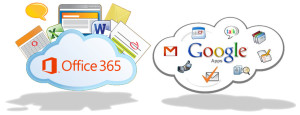
MSvGAMicrosoft and Google have been in a publicity rivalry over the services.  Days before the Google I/O Conference, Microsoft announced Sensia Halsovard, Arysta LifeScience and Sepco III have chosen Office 365 after using Google Apps.  Other companies have also switched to Office 365 are that Caltex Australia, FHI 360 and Santa Clara County

“Google Apps was difficult to use and lacked the capabilities our employees had grown accustomed to in Office,” said Dustin Collins, global head of IT infrastructure, Arysta LifeScience. “With Office 365 we’re able to interact and engage with each other more, allowing us to efficiently and quickly respond to new opportunities. As a result, we’re a more agile, competitive organization.”

Google offers a set price for their services, while Microsoft’s price varies by Residential and Company size.  The familiarity and dependability already established with Microsoft Office products is why many organizations are choosing Office 365 over Google Apps.

For more information on Hosted Services and Office 365

 please contact us 856-745-9990 or click here.


CALL US NOW!