Back to Top

Tech, Web, Cloud & Cabling Services

Category: Microsoft Windows 8 Pro

Windows / Microsoft Windows 8 Pro Category

Microsoft Office 365

Office when and where you need it

Work anywhere, anytime, on any device. Office 365 is ready when you are.

Your go-to Office—anywhere

Whether you’re working in your office or on the go, you get a familiar, top-of-the-line set of productivity tools. Office applications—always the latest versions—let you create, edit, and share from your PC/Mac or your iOS, Android™, or Windows device with anyone in real time.

Tools for the professional

Brand your business-class email address with your company name to build name recognition, and market your business with customized marketing materials that are easy to create. Connect better with customers and colleagues with a range of communication tools, fromemail and IM to social networking and video conferencing.

Tools for teamwork

With 1 TB of storage per user, you’ll have plenty of space for all your files. Plus, because your files are stored online, you can share with people in or outside your company, from wherever you’re working, whenever you need to. And with multi-party HD video, content sharing, and shared calendars, you’ll always be in sync with your team.

Easy setup and management

With step-by-step guidance, you can set up users easily and start using the services fast. You can access the easy-to-use admin center from anywhere to manage all your services. And Office 365 takes care of IT for you, so your services are always up and running and up to date.

Have questions?

Our small business team is here to help.
Call us at: 856-745-9990

South Jersey Techies, LLC is a full Managed Web and Technology Services Company providing IT Services, Website Design ServicesServer SupportNetwork ConsultingInternet PhonesCloud Solutions Provider and much more. Contact for More Information.
To read this article in its entirety click here.

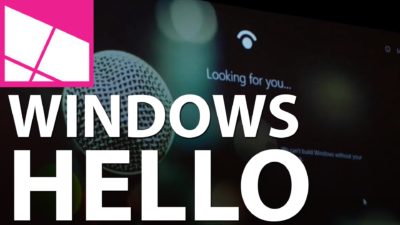
Microsoft will let you unlock Windows 10 with your face

Hello
With a quick glance at your Windows 10 laptop, you’ll be able to unlock it — without entering a password.

Microsoft introduced the latest new feature for Windows 10, called Windows Hello. The security tool will let you access your PC through facial recognition, an iris scan or a read of your fingerprint.

But before you get ready for your closeup, you’ll need get some special equipment — most PCs don’t come with biometric scanners installed (though some do). Windows Hello is primarily targeted at businesses and government agencies.

Microsoft opted not to rely on your webcam for facial recognition because the photos it captures are not terribly secure, and they’re easy to spoof. Instead, Microsoft got infrared cameras to do facial recognition for Windows Hello.

Facial recognition is possible on a low-grade camera. Google allows its Android phones to be unlocked with facial recognition, but the company warns that someone with a photo of you — or even someone who looks like you — will be able to unlock your phone too.

With the proper tools, faces, irises and fingerprints are possible to spoof, but it’s not easy — someone’s got to really want to break in to your PC to go through the trouble.

Microsoft opted for more robust security in Windows 10, because it wants to meet strict standards that companies and government agencies impose for secure logins. Microsoft said Windows Hello has a 1 in 100,000 false accept rate, which is very high. It’s a lot safer than a password, which, as we know, can easily be forgotten, lost, stolen or hacked.

Though it’s not necessarily aimed at the average PC buyer, consumers will be able to use the Windows Hello feature too.

Microsoft promised “plenty of exciting new Windows 10 devices to choose from which will support Windows Hello.” And if your PC already has a fingerprint reader, you’ll be able to login with a fingerprint scan.

Passport: Windows 10 will also support another new security feature, codenamed “Passport,” which lets you login to participating websites, apps or networks without a password. Microsoft said the list of sites and apps that support Passport is growing, but it didn’t say how many participate.

Microsoft is trying to position Passport as the end of passwords. Since you never enter a password to enter a website, “there is no shared password stored on their servers for a hacker to potentially compromise,” says Microsoft boldly in its press release.

But that’s not quite true. Passwords will still exist. Even if you can login to your email via Passport from your work PC, you’ll still need a password to login from your iPad. So passwords aren’t going away anytime soon — and they’ll still be stored on email providers’ servers, which means hackers could potentially still grab them in a cyberattack.

The primary way that Passport ensures that you’re you is through Windows Hello. Oddly, however, you can also enter a PIN into Passport, which is significantly less secure than a password.

Still, it’s about time that something replaces passwords, and Hello and Passport are good starts.

Have questions?

Get answers from Microsofts Cloud Solutions Partner
Call us at: 856-745-9990 or visit: https://southjerseytechies.net/

South Jersey Techies, LLC is a full Managed Web and Technology Services Company providing IT Services, Website Design ServicesServer SupportNetwork ConsultingInternet PhonesCloud Solutions Provider and much more. Contact for More Information.
To read this article in its entirety click here.

Office 365 Exchange Online


Work smarter, anywhere, with hosted email for business.

Security and reliability

Exchange Online helps protect your information with advanced capabilities. Anti-malware and anti-spam filtering protect mailboxes. Get a Exchange Online Protection Trial or Office 365 Professional Trial to see how good it works. Data loss prevention capabilities prevent users from mistakenly sending sensitive information to unauthorized people. Globally redundant servers, premier disaster recovery capabilities, and a team of security experts monitoring Exchange Online around the clock safeguard your data. And with a guaranteed 99.9% uptime, financially-backed service level agreement, you can count on your email always being up and running.

Stay in control

Maintain control over your environment while gaining the advantage of hosting your email on Microsoft servers. Manage your organization efficiently with the Exchange admin center, an easy-to-use, web-based interface. Run In-Place eDiscovery across Exchange, SharePoint, and Skype for Business data from a single interface through the eDiscovery Center. With mobile device policies, you can create approved mobile device lists, enforce PIN lock, and remove confidential company data from lost phones. And IT-level phone support is available to you 24 hours a day, 7 days a week.

Easy to use and maintain

It’s easier than ever to provide your users with the business email they need to stay productive. Automatic patching eliminates the time and effort of maintaining your system. Give your users an In-Place Archive, so they can keep all their important data in one place. And provide them with anywhere access to email, calendar, and contacts on all major browsers and across devices. Integration with Outlook means they’ll enjoy a rich, familiar email experience with offline access.

Have questions?

Our Hosted Cloud Solution team is here to help.

Call us at: 856-745-9990 or Visit: https://southjerseytechies.net/

To learn more and how Office 365 Exchange Online can benefit your business please contact South Jersey Techies, LLC. South Jersey Techies, LLC is a certified Small and Midmarket Cloud Solutions Microsoft Partner.

To read this article in its entirety click here.

Surface Pro 4 and Surface Book race ahead of iPad Pro and Pixel C at the high end

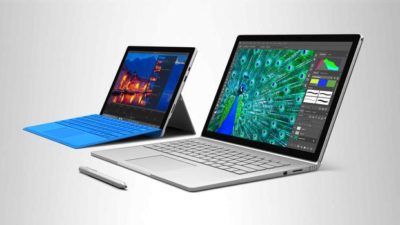
Microsoft gave its high-end Surface a leap forward on Tuesday with the unveiling of the Surface Pro 4 and the surprise launch of the Surface Book, the company’s first laptop.

surface-4-surface-book

Microsoft’s love affair with hardware just got more intense. If there were any doubts about the software juggernaut staying in the devices game, they were erased on Tuesday with one of the biggest and broadest hardware announcements in the company’s history.

Microsoft showed off a fleet of new and freshly updated Windows 10-powered devices in New York. The stars of the show were the Surface Pro 4 and the new Surface Book laptop, which were a potent answers to Apple’s recently unveiled iPad Pro and Google’s newly announed Pixel C.

According to Microsoft Devices lead engineer Panos Panay there are nearly 110 million devices running Windows 10. Most of the products Microsoft unveiled at Tuesday’s press event were intended to show how important mobile hardware and software integration with Windows 10 is to the company.

The event’s biggest surprise, the Surface Book, and the new Surface Pro 4 are powerful machines, and both aim to connect with both enterprise users and creative professionals. They succeed big time in the specs department. In terms of usability and adoption, we’ll know more after both are released on October 26.

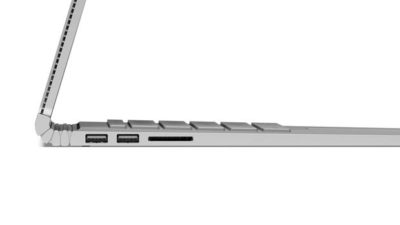
The Surface Book is Microsoft’s first laptop, and it’s a fiery, ambitious device. The specs are decked, particularly given that the price is comparable to a Macbook Pro. The Surface Book starts at $1499, and comes with a full Intel Core i5 or i7 processor, 1TB of storage, 16GB RAM, and a GPU designed for gaming and multimedia editing by the Xbox team. Additionally, the 13.5-inch screen (3000 x 2000 resolution) can detach to become a stand-alone tablet.

The Surface Pro 4 tablet runs Windows 10 and, like its predecessors, can serve as a full-fledged laptop replacement. The Surface Pro 4 is, as expected, somewhat thinner and 30 percent faster than the previous model. It has 16GB of RAM, and comes with up to a terabyte of storage, and a 12.3-inch screen (2736 x 1824 resolution). Microsoft cloud and productivity apps Cortana, Windows Hello, Microsoft Office, and OneDrive are deeply integrated. The Surface Pro 4 starts at $899.

When the Surface debuted in 2012 running Windows 8, the tablet seemed like an awkward, out-of-place device. Today, the Surface Pro has been owning and innovating in the high-end tablet space. It’s become a favorite of design professionals, IT administrators, and others who want a productivity tablet.

Arguably, the success of the Surface Pro helped pull Apple and Google into the high-end professional tablet market. Google’s comparable new Pixel C is similarly powerful, features a keyboard cover, and is deeply tied to the Google cloud ecosystem. Yet, Google’s device does not feel as durable as the Surface Pro 4, and Office is still often an essential tool for business users looking for a full laptop replacement.

Apple’s iPad Pro is a powerful professional and creative tool. Apple’s high-end tablet is larger and slightly more expensive than the Surface Pro 4. Microsoft is banking that the integration of Windows 10 and universal apps will help the Surface stand on par with the iPad Pro.

Microsoft’s attention to detail with peripheral devices like the Type Pro cover and the Surface Pen stylus may lend them a slight edge in the professional tablet market. The new Surface Pro Type Cover, notable for its “precision glass trackpad” is a significant refinement over the previous generation. The cover still costs 130 dollars, but is lighter, more responsive, and features more space between the keys than the previous version.

Microsoft has worked hard to make the stylus seem useful and cool. The new Surface Pen is intended to feel like writing on paper. The stylus features a tip with 1,024 points of pressure sensitivity, an eraser (yes, an eraser!), year-long battery life, and comes in five colors. When not in use the pen is held snugly to the top of the tablet by magnets. Microsoft took great care to display the tablet tilted in portrait mode like a clipboard, with a pen resting on top. The company emphasized the tablet itself “just fades into the background” when used by office workers, doctors, architects, and musicians.

surface-book-two

As with the Surface Pro 4 and Surface Book, the new Lumia 950 and 950 XL phones are powered by Windows 10, with special consideration to mobile productivity. The devices measure at 5.2 and 5.7 inches respectively, and feature an upgraded camera with a dedicated shutter release button.

The most unique and innovative announcement from Microsoft may have been the Display Doc. Intended to maximize workplace flexibility, and uncouple the enterprise user from the constraints of a laptop, the Microsoft Display Doc was initially announced at last spring’s Build conference as the Continuum docking station. The Display Doc is a small, square device that connects to any compatible Windows 10 mobile device like the Lumia 950 using three USB Type-3 ports, a DisplayPort and HDMI. When connected to a monitor using Display Doc, the phone will present a traditional Windows home screen, complete with the familiar Start button and icon tray. Though not as robust as a true desktop PC, the experience resembles desktop Windows and is able to manage productivity tasks like mail and messaging, document creation and sharing, and web browsing.

Windows 10 is at the core of the new Microsoft device environment. The company also announced updates to the Windows 10 universal app ecosystem [LINK], and a launch partnership with Facebook to expand the core Facebook, Messenger, and Instagram applications.

CEO Satya Nadella closed the event by stressing the importance of Windows 10 as a unified platform. Every device Microsoft released on Tuesday is a step towards fulfilling that vision. As impressive as the devices were, the biggest thing standing in their way perhaps is the stability of Windows 10

Have questions?

Get help from IT Experts/Microsofts Cloud Solutions Partner
Call us at: 856-745-9990 or visit: https://southjerseytechies.net/

South Jersey Techies, LLC is a full Managed Web and Technology Services Company providing IT Services, Website Design ServicesServer SupportNetwork ConsultingInternet PhonesCloud Solutions Provider and much more. Contact for More Information.
To read this article in its entirety click here.

Surface Book pre-orders sold out at Microsoft’s online store

If you were still thinking about placing an order for a new Microsoft Surface Book, then you will have to look somewhere other than the Microsoft store.

surfacebook

While there doesn’t seem to be a massive supply issue with the new Apple iPhone 6s smartphone, in the past we have seen Apple products sell out quickly and deliveries move from days, to weeks, to months. It seems that Microsoft’s new Surface Book may be generating more interest than planned.

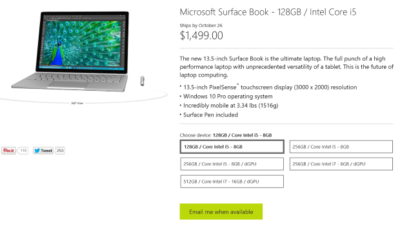
Last night I went to the online Microsoft Store to place an order for a base model Surface Book. I found that the only available status when choosing that model was, “Email me when available.” I jumped through the other four models and discovered the same thing. It seems Microsoft is sold out of pre-order stock for all models at its online store.

We reached out to Microsoft to try to find out more about stock status and when buyers could expect to place pre-orders. I also asked if there will be units in Microsoft retail stores on launch day, 26 October. Given that units are sold out online, we may even see people queue up for possible stock in stores.

A Microsoft spokesperson provided the following statement, “We’ve seen strong demand for Surface Book and have sold out of pre-order supply for October 26 availability. We will have limited quantities of Surface Book available in store on October 26 and will be updating online availability with new product ship dates soon.”

UPDATE: Microsoft updated its store and is no allowing customers to pre-order the five Surface Book variations. What you will find instead of an email me when available button is updated delivery expectations, ranging from five to six weeks for three models and seven to eight weeks for two models.

While I was disappointed that I couldn’t purchase a Surface Book through Microsoft directly, I found that Best Buy and Amazon will also be selling this new computer. Best Buy did not appear to be taking pre-orders, but I was able to purchase the Intel Core i5, 8GB, 128GB model from Amazon for $1,499.

The Amazon website does not appear to carry the 256GB i5 without dGPU or 256GB i7 models. The 256GB i5 with dGPU looks to be the only other model available for pre-order. The 512GB i7 model is on the site as an option, but redirects you to the Microsoft Store for purchase and it’s not avaialable there.

Have questions?

Get help from IT Experts/Microsofts Cloud Solutions Partner
Call us at: 856-745-9990 or visit: https://southjerseytechies.net/

South Jersey Techies, LLC is a full Managed Web and Technology Services Company providing IT Services, Website Design ServicesServer SupportNetwork ConsultingInternet PhonesCloud Solutions Provider and much more. Contact for More Information.
To read this article in its entirety click here.

First look: Five Office 2016 preview apps

At the Microsoft Ignite 2015 conference last month, the company showcased the latest iteration of its Office suite. Here’s a quick look at what you can expect.

Office 2016

Each month I compile lists of five apps that fall into various categories, such as apps to save you airfare, process monitors, and tools for protecting online privacy. This time around, however, I wanted to do something a little bit different and give you a glimpse of five applications that will eventually make up Microsoft Office 2016.

1: Word 2016

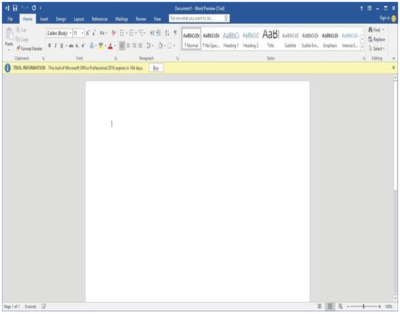
Microsoft is introducing two versions of Word 2016: a feature-rich desktop version and a lightweight, touch-optimized version. The desktop version looks and feels a lot like the previous version (Figure A), but Microsoft is introducing some new features, such as real-time co-authoring.

Figure A

Word 2016 Desktop Version

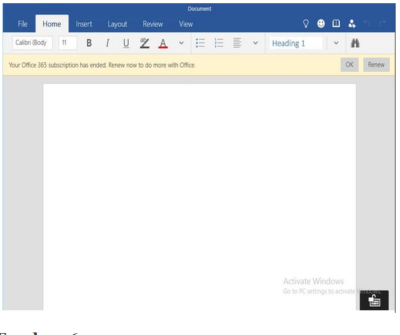
The touch-optimized version of Word (Figure B) is currently available only for use on the Windows 10 preview. It contains the essential features that users most commonly need to do their jobs, with a clean interface that’s ideal for touch screens, small screens, or for anyone who is intimidated by the desktop version’s exhaustive feature set.

Figure B

Word 2016 Touch-Optimized Version

2: Excel 2016

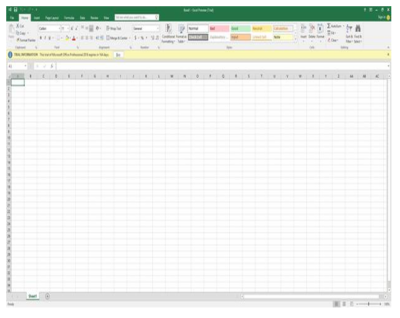
As is the case with Word, Microsoft is releasing two versions of Excel. The desktop version (Figure C) is much more feature rich and will likely be the best choice for hard-core Excel users. It includes new capabilities, such as business intelligence integrated directly into Excel and some data loss prevention features.

Figure C

Excel 2016 Desktop Version

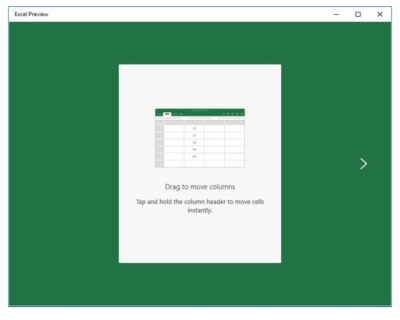
The touch-optimized version of Excel (Figure D) is similar to its Word counterpart, in that it’s designed to be lightweight and includes only the most commonly used features. Although more capable, this version of Excel reminds me a lot of the version that is included with Windows Phone 8.1.

Figure D

Excel 2016 Touch-Optimized Version

3: PowerPoint 2016

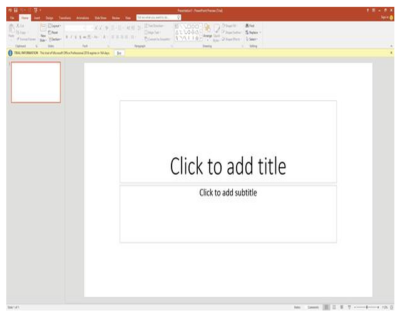
The PowerPoint 2016 preview doesn’t seem to have changed all that much from the previous version, either (Figure E). The most noticeable change to the interface is the addition of the Tell Me bar, a Cortana-like interface that will be shared by all of the Office 2016 applications. It allows users ask Office how to perform a particular task.

Figure E

PowerPoint 2016 Desktop Version

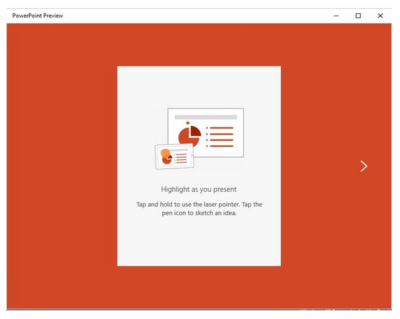
As with Word and Excel, Microsoft has also created a lighter weight, touch-optimized version of PowerPoint (Figure F).

Figure F

PowerPoint 2016 Touch-Optimized Version

4: OneNote 2016

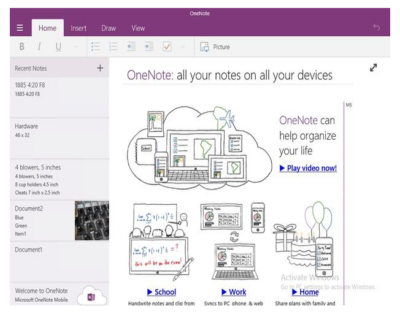
On the surface it is difficult to tell what, if anything is new in OneNote 2016 (Figure G), beyond the enhancements that exist for all the Office applications. Web searches for OneNote 2016 features have as yet failed to reveal anything significant. I admit that I don’t use OneNote often, so it is entirely possible that new features exist and I simply have not found them.

Figure G

OneNote 2016 Desktop Version

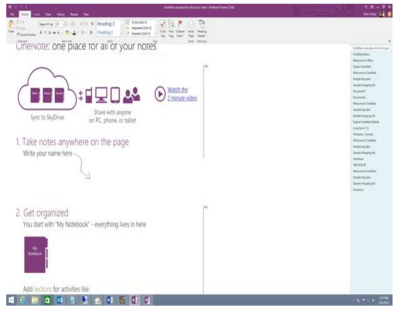
Although the desktop version of OneNote seems to be similar to OneNote 2013, the touch-optimized version (Figure H) has an intuitive interface that’s easy to use. The touch version is more full-featured than the version that was included with Windows Phone 8.1, but it doesn’t contain all the features of the desktop version.

Figure H

OneNote 2016 Touch-Optimized Version

5: Sway

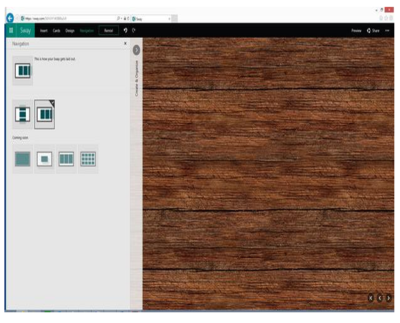
Microsoft PowerPoint has been around in one form or another for what seems like forever. During that time, it has become more refined, but it’s still basically just a slideshow tool. In Microsoft Office 2016, Microsoft is introducing Sway (Figure I) as a next-generation alternative to PowerPoint.

Figure I

Sway (Next Generation Alternative To PowerPoint)

There are two main differences between PowerPoint and Sway. First of all, PowerPoint is linear. A PowerPoint presentation has a first slide and it has a last slide and usually, a number of slides in between. In contrast, Sway is designed to be more organic and allow for more free-form presentations.

The other major difference between PowerPoint and Sway is that Sway is designed for Web content. A Sway presentation can include photos, YouTube videos, and items from Facebook, Twitter, OneDrive, etc. Some have argued that Sway is like OneNote because it aggregates information. However, OneNote is more of an organizational application, while Sway is designed for presentations.

Have questions?

Get help from Microsofts Cloud Solutions Partner!
Call us at: 856-745-9990

South Jersey Techies, LLC is a full Managed Web and Technology Services Company providing IT Services, Website Design ServicesServer SupportNetwork ConsultingInternet PhonesCloud Solutions Provider and much more. Contact for More Information.
To read this article in its entirety click here.

Pro tip: Sort table data in a Word document

sort word

Microsoft Word


Sorting data in a Word document isn’t something you routinely do. On the other hand, presenting list and table data is, so the potential exists that one day you’ll want to sort something. The good news is that it’s easy to sort data in a table or a list. In this article, I’ll show you how to do just that. We’ll work through a few simple sorting examples. You can use most any table, or you can download the example .docx or .doc file.

Behind the scenes

Word relies on paragraphs when sorting, which seems a bit odd within the context of a table (or list). The paragraph formatting mark determines where one paragraph ends and the next starts. As you can see in Figure A, there’s no paragraph mark in a table. The end-of-cell markers denote the end of each cell’s content. The similar marker at the end of each row (outside the right border) is an end-of-row marker. These markers also contain cell and row formatting. When sorting a table, Word relies on the end-of-row marker to identify where one row ends and the next begins, the same way the paragraph mark does. (To see a document’s formatting symbols, click Show/Hide in the Paragraph group on the Home tab.)

Figure A

Table end-of-row markers are similar to paragraph markers.

Sort by the first column

We’ll start with the simplest sort possible; we’ll sort a table by the values in the first column. To do so, select, the table by clicking its move handle (the small square in the top-left corner). If you don’t see this handle, check the view. It’s available only in Print Layout and Web Layout. With the entire table selected, do the following:

  1. Click the contextual Layout tab. In the Data group, click Sort — or click Sort in the Paragraph group on the Home tab. In Word 2003, choose Sort from the Table menu.
  2. The resulting dialog does a good job of anticipating the sort. Notice that the Header Row option (at the bottom) is selected. As a result, the Sort By field is set to Species — the label in the first column’s header (Figure B).
    Figure B

  3. This is exactly what we want, so click OK. Figure C shows the sorted table.
    Figure C

Before we move on, let’s discuss the Type and Using options to the right. We didn’t need to change either, but sometimes you will. The Type options are Text, Number, and Date. Word usually defaults to the appropriate data type. You can force a specific type by choosing a different option other than the one Word assumes (but you’ll rarely have reason to do so). The Using options defaults to Paragraph — we talked about that earlier.

Sort by the second column

That first exercise was easy. Let’s complicate things a bit by sorting by the second column. Fortunately, it’s just as easy as the first. Repeat steps 1 and 2 from the first exercise. Then, do the following:

  1. In the resulting dialog, click the Sort By drop-down.
  2. Choose Common Name, the header label for the second column.
  3. Click OK. Figure D shows the results of sorting by the second column.
    Figure D

That wasn’t any more difficult that the first sort. Tell Word which column contains the values you want to sort by and click OK — that’s it!

Sort by multiple columns

With only two sort tasks under your belt, you’re beginning to see how simple the sorting process in Word can be. Let’s complicate things a bit so you can see how flexible this feature truly is. Let’s sort by the Class column and then sort the bird and mammal groups in a secondary sort. Repeat steps 1 and 2 from the first two exercises. Then, do the following:

  1. To sort by the Class, choose Class from the Sort By drop-down.
  2. To further sort each class group, click Common Name from the Then by drop-down (Figure E). You could add a third column to the sort if the results warranted the additional grouping.
    Figure E

  3. Click OK to see the results shown in Figure F.
    Figure F

What about lists?

You might be wondering how to sort the same data in list form. Word handles the list sort the same way — the exact same way. Highlight the list and click Sort in the Paragraph group on the Home tab. In the resulting dialog, check the header option and set appropriately (if necessary). Then, determine the sort order by choosing the fields (columns), appropriately.Figure G shows the result of sorting the same data in list form.

Figure G

Sort a columnar list the same way you sort a table.


Microsoft updates support policy: New CPUs will require Windows 10

In a change to its longstanding support policy, Microsoft says PCs based on new CPU architectures, including Intel’s Skylake chips, will require Windows 10. A list of preferred systems will support older Windows versions on new hardware, but only for 18 months.

Windows 10

Enterprise customers are still the bulwark of Microsoft’s Windows business, in both the client and server segments.

Historically, those customers have also been among the most conservative, lagging years behind the latest releases of an operating system release. Those practices have been encouraged by Microsoft’s support lifecycle, which offers a generous ten years of support for each Windows release.

Effective today, that policy is changing in a subtle but significant way, with the addition of new hardware requirements for support of pre-Windows 10 releases. The company’s also publishing a preferred list of systems that will receive special attention for updates and support.

Yes, Windows 7 (currently in the Extended support phase) will continue to receive updates until January 14, 2020, and Windows 8.1 will be supported until January 10, 2023. But in a series of “clarifications” to its support policy today, the company announced that support for those older Windows versions will be available only for “previous generations of silicon.”

Going forward, as new silicon generations are introduced, they will require the latest Windows platform at that time for support… Windows 10 will be the only supported Windows platform on Intel’s upcoming “Kaby Lake” silicon, Qualcomm’s upcoming “8996” silicon, and AMD’s upcoming “Bristol Ridge” silicon.

The policy will be phased in beginning with systems based on Intel’s new 6th-generation CPUs (code-named Skylake), which debuted a few months ago. New consumer-based Skylake devices must run Windows 10 to be supported.

For enterprise customers that want to buy “future proof” new hardware based on Skylake processors running older Windows versions, Microsoft will publish “a list of specific new Skylake devices we will support to run Windows 7 and Windows 8.1.” That support will run for a period 18 months, until July 17, 2017, after which those enterprise customers will be expected to upgrade to Windows 10.

Examples of systems that will be on the initial release of the list include Dell’s Latitude 12, Latitude 13 7000 Ultrabook, and XPS 13; HP’s EliteBook Folio, EliteBook 1040 G3; and Lenovo’s ThinkPad T460s, X1 Carbon, and P70 models.

The list will continue to be updated, Microsoft says.

Any machine that earns a place on the elite enterprise support list will get very special treatment indeed, with the idea being to reassure corporate customers that these models are especially likely to perform well on Windows 10 in the new era of continuous updates:

For the listed systems, along with our OEM partners, we will perform special testing to help future proof customers’ investments, ensure regular validation of Windows Updates with the intent of reducing potential regressions including security concerns, and ensure all drivers will be on Windows Update with published BIOS/UEFI upgrading tools, which will help unlock the security and power management benefits of Windows 10 once the systems are upgraded.

These models also get special treatment for enterprises that are still planning their Windows 10 migration, with an 18-month grace period where the older OS versions are fully supported.

Through July 17, 2017, Skylake devices on the supported list will also be supported with Windows 7 and 8.1. During the 18-month support period, these systems should be upgraded to Windows 10 to continue receiving support after the period ends. After July 2017, the most critical Windows 7 and Windows 8.1 security updates will be addressed for these configurations, and will be released if the update does not risk the reliability or compatibility of the Windows 7/8.1 platform on other devices.

Of course, enterprise customers who want to stick with earlier Windows versions beyond that mid-2017 deadline have lots and lots of options, based on current generations of Intel processors such as the Broadwell and Haswell lines. Those systems, which are based on what Microsoft calls “downlevel silicon,” will continue to be fully supported for pre-Windows 10 operating systems.

In today’s blog post, Microsoft says it’s seeing “unprecedented demand from our enterprise customers” in Windows 10. Enterprise customers are especially interested in new Windows 10 security features like Credential Guard, which uses hardware virtualization to safeguard credentials from attack.

Windows 8-era enhancements like Secure Boot, which protects systems from being compromised by rootkits and bootkits, also require new hardware.

Not surprisingly, today’s announcement contains the usual cheery statements from Microsoft’s three biggest hardware partners: Dell, HP, and Lenovo. All three companies compete aggressively in the low-margin consumer market, where virtually all new systems will run Windows 10. But enterprises will pay premium prices for the improvements in battery life and security in Skylake-based mobile systems, making this the most attractive segment to target.

Have questions?

Get help from IT Experts/Microsofts Cloud Solutions Partner
Call us at: 856-745-9990 or visit: https://southjerseytechies.net/

South Jersey Techies, LL C is a full Managed Web and Technology Services Company providing IT Services, Website Design ServicesServer SupportNetwork ConsultingInternet PhonesCloud Solutions Provider and much more. Contact for More Information.
To read this article in its entirety click here.

When should businesses upgrade to Windows 10?

Looking at upgrading your business PCs to Windows 10 but not sure when to make the leap? Here are some issues to consider.

Business customers can often be years behind the state of the operating system art: right now most businesses are still running Windows 7, launched back in July 2009, having shown limited interest in Windows 8 which arrived in August 2012.Windows 10

Even when they buy new PCs, most companies today still downgrade them to Windows 7, so it’s usually home users that are first to take the plunge with the new software, whether they like it or not.

However, businesses may be significantly faster to adopt Windows 10, which arrives on 29 July (volume licensing customers will be able to download Windows 10 Enterprise and Windows 10 Education on Volume Licensing Service Center from 1 August) than previous versions of Microsoft’s operating system.

Part of the reason for the change is the huge public testing process – five million testers strong – that has preceded the arrival of Windows 10. As a result, the standard policy of waiting for the first service pack to arrive before rolling out a new OS is now longer the right one, says Stephen Kleynhans, research vice president at analyst Gartner.

However, that doesn’t mean firms should be full steam ahead with upgrades. “I’m not one who believes there is a need to rush to a new operating system. You want to let the ecosystem around the operating system mature a little bit before you jump right in,” he says.

Companies should wait until it’s clear if the line of business applications they use work happily with Windows 10, and whether they can find enough expertise to make sure any rollout is a smooth one. “All of that has to build up before you want to jump in and start running it in your production environment,” he said.

Kleynhans said businesses need to spend some time testing out Windows 10 in a controlled fashion: “Bring it into a lab, bring it into a test environment, let some folks run it for the rest of this year. Then, in 2016, get serious about it, start looking at it in a real test environment, start piloting it with some real users to see how it’s performing.”

He said that if all goes well companies should be ready to start deployments in the second half of 2016 or the beginning of 2017, depending on how large and complex their IT environment is.

“If you’re a large company nothing happens really fast. If you’re a small company the timeline is going to be a lot faster – if you’re testing with 10 people you might be testing with ten percent of the company.”

Starting the rollout a year to 18 months after the operating system is launched might seem like a long delay, but it would still be six months to a year faster than with previous upgrades.

Kleynhans said that it took most big companies 18 months of testing and remediation work before they were able to start rolling out Windows 7. In contrast, most companies will get Windows 10 testing and remediation done in less than six months.

The analyst said that some organizations are keen to get moving as soon as Windows 10 is available – such as those that are still using Windows XP or who have plans to deploy hybrid PC devices. But, for most companies, this will be too soon.

“There are pieces of the operating system targeted at the enterprise that we really haven’t had a chance to try out yet. You can’t consider significant production rollouts even in the most aggressive cases until later in the fall.”

He cited Windows Update for Business as a new tool that small and medium sized businesses will want to use, but that wasn’t part of the tech preview. There are also some other security components that haven’t been as broadly tested or available during the tech preview, he said.

As Ed Bott notes over at Tech Pro Research, other missing features will include the new unified sync client for OneDrive (the consumer cloud storage service) and OneDrive for Business (the cloud storage service for business Office 365 subscriptions). He predicts these will be wrapped up by late October, in time for Windows 10 PCs to hit the retail channel for the festive season.

Other factors to consider: at a prosaic level, the upgrade will inevitably cause disruption so don’t plan it for a busy time of year. If you’re in retail, starting the upgrade in November or December might be a career limiting decision for the CIO.

The state of your current infrastructure is another element to take into account. Gartner says that companies planning Windows 8.1 deployments should instead redirect their efforts toward earlier deployment of Windows 10.

“In almost all cases, enterprises currently planning to deploy Windows 8.1 should switch to Windows 10. Enterprises that already have Windows 8.1 deployed should continue with those deployments for the time being. Customers on Windows 7 with no plans for Windows 8.1 should begin evaluating Windows 10 for deployment in 2H16 or later,” the analyst firm said in a research note.

Equally, for some, the upgrade may never take place. David Gewirtz has no plans to upgrade any of his Windows 7 devices to Windows 10: “They work, they’re rock solid, and all their drivers are perfectly tuned to the hardware they’re running on,” he notes.

However long it takes enterprises to take the plunge, Windows 10 is likely to become widely adopted, if only because most firms will need to move off of Windows 7 eventually, while the relatively few who did move to Windows 8 will also update sooner rather than later. The pressures that forced companies to migrate off Windows XP and onto Windows 7 will eventually make them move from Windows 7 to Windows 10.

“Windows 7 comes to end of life in January 2020. That’s only four and half years away so you’re going to see the same sorts of pressures mount to get off of Windows 7. They need to go somewhere and they’ll go to Windows 10,” he said.

Have questions?

Get help from IT Experts/Microsofts Cloud Solutions Partner
Call us at: 856-745-9990 or visit: https://southjerseytechies.net/

South Jersey Techies, LLC is a full Managed Web and Technology Services Company providing IT Services, Website Design ServicesServer SupportNetwork ConsultingInternet PhonesCloud Solutions Provider and much more. Contact for More Information.
To read this article in its entirety click here.

Windows 10’s features

The new Windows 10 notifications will follow you everywhere

Windows 10 has a new notifications center for your apps — even the ones from your Windows Phone.

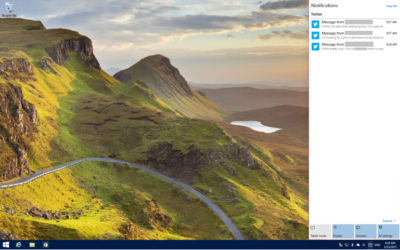
When you’re poking around Windows 10, you’ll notice something new: A small taskbar button that, when clicked, reveals a sidebar full of app notifications.

Welcome to the new notifications center, which is basically the Windows 10 version of the Action center in Windows Phone 8.1. The notifications center is part of Microsoft’s dream of “Windows everywhere” — it’s a universal notifications center that will pop up your app notifications across multiple platforms. Because who doesn’t want to be alerted about new Twitter followers on their phone, tablet, and now PC?

The new notifications center consists of two parts: The notifications area at the top, and the “quick actions” bar at the bottom. In the notifications area you’ll see notifications from various apps, including Twitter, Facebook, and your email account, as well as notifications from phone apps (e.g. alarms) if applicable.


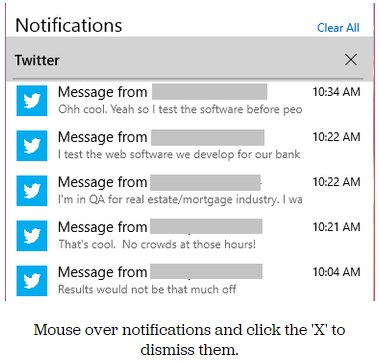
Mouse over notifications and click the ‘X’ to dismiss them.

You can dismiss notifications three different ways: You can mouse over the app name (e.g. Twitter) and click the ‘X’ next to it to dismiss all notifications from that app. You can also mouse over each individual notification and click the ‘X’ next to it to dismiss that specific notification. Or you can click Clear All in the upper right corner of the notifications center to dismiss all notifications from all apps. Because this is a “Windows everywhere” feature, notifications you dismiss in the notifications center will also be dismissed on your other Windows devices, such as your phone.

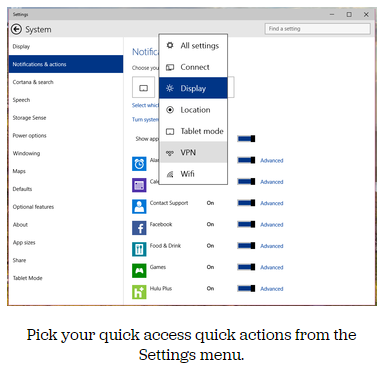
In the quick actions bar, you’ll see four quick-access buttons as well as an Expand link. Click Expand to see all quick actions. Actions include things like a Tablet Mode toggle button, a link to the Display settings, a link to all settings, and toggle buttons for Location and Wi-Fi. Tap a quick action button to toggle a setting (tablet mode, location, Wi-Fi) on or off, or to go directly to the settings menu so you can configure your display, connection, or VPN.

x4
Pick your quick access quick actions from the Settings menu.

To choose which quick actions appear above the break, go to Settings > Notifications & actions > Choose your quick actions. Here, you’ll see four small buttons that you can click on to swap out actions. If you’d prefer to have your Wi-Fi toggle on hand whenever you open the notifications bar, you can switch it for the Display button. Of course, you’ll always be able to see all of the quick actions by clicking Expand in the notifications bar.

x5
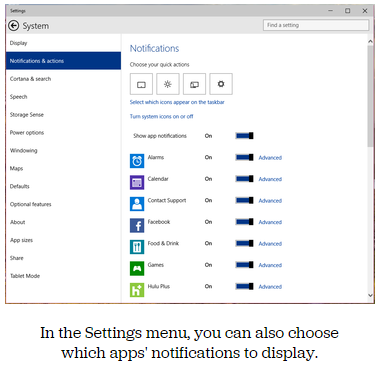
In the Settings menu, you can also choose which apps’ notifications to display.

Here, you can also pick and choose which app notifications you’ll see in the notifications bar. If you want to turn all notifications off, you can simply click the toggle next to Show App Notifications. You’ll no longer see pop-up banner notifications, nor will you see app notifications when you open the notifications center.

If you’d prefer to just turn off notifications for specific apps, you can do that, too — find the app in the list and click its toggle to Off. Next to each app in the list you’ll see a link to Advanced notifications settings for that app. Go into Advanced to turn off specific notifications for that app — either banner notifications (pop-ups in the lower right corner of your screen) or notifications in the notifications center.

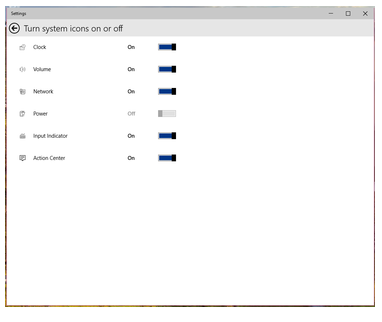
Want to turn your clock off? You can do that, too.

In the Notifications & Actions section, you can also clean up your taskbar by clicking “Select which icons to appear in the taskbar” (you can turn on and off things like the Network icon and the Volume icon), or by clicking “Turn system icons on or off.” In “Turn system icons on or off,” you can turn off the clock, input indicator or action center — in other words, you can turn off all system tray icons and have a completely icon-less system tray, if you so choose.

Have questions?

Want to get Windows 10?

Contact Our Expert IT business team
Call us at: 856-745-9990 or Visit: https://southjerseytechies.net/

South Jersey Techies, LLC is a full Managed Web and Technology Services Company providing IT Services, Website Design ServicesServer SupportNetwork ConsultingInternet PhonesCloud Solutions Provider and much more. Contact for More Information.
To read this article in its entirety click here.

CALL US NOW!