Back to Top

Tech, Web, Cloud & Cabling Services

Category: Utilities

Software / Utilities Category

12 Upcoming Fitness Devices to Watch

If you still think Fitbit’s wristbands are the coolest wearables around, you’re behind the times. These lesser-known fitness gadgets are designed to help improve your health, and they’re all worth a look.

FitnessDevices

12 worthy wearables, activity trackers and health gadgets

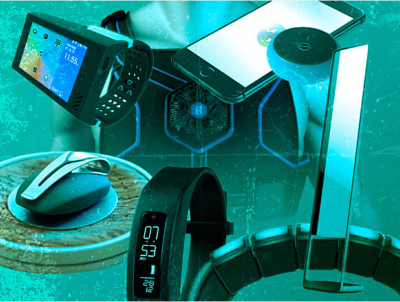
Everything is “smart” these days, it seems, especially when it comes to gadgets designed to help people improve their health and boost fitness levels. Smart mirrors and body scanners, smart running socks, a smart vest, smart drinking cups, smart sleeves and smart sleep masks are all now available, or will be soon. Many of these Internet of Things things are wearables — except for the “naked 3D” full-body mirror, of course— while others are designed to be carried in a pocket or clipped to a belt or bra.

The following 12 devices, many of which aren’t yet available, are all notable for some reason. So sit back, relax, take a sip from your smart water bottle, and check them out.

FitnessDevices1

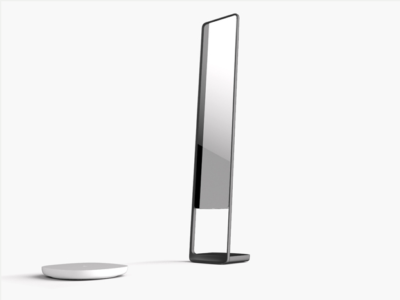
Naked 3D Fitness Tracker

What it is: Naked 3D Fitness Tracker isa full-length mirror with a built-in body scanner, and it’s “the world’s first 3D fitness tracker for consumers,” according to its manufacturer.The mirror incorporates Intel RealSense 3D sensors for body imaging, along with Wi-Fi and Bluetooth for setup and syncing data to its companion mobile app. The included turntable and scale rotates 360 degrees when you step on it. Its goal is to help you better understand your body and visualize progress toward goals.

Cool factor: Using the mobile app, you can create a “custom time lapse” of your body’s progress.

Uncool factor: It’s expensive and won’t be available for almost a year.

Price and availability: Currently available for preorder for $999 (discounted to $599 as of this writing), and it’s expected to ship in March 2017.

FitnessDevices2

AIO Sleeve

What it is: “The world’s first activity tracking compression sleeve,” AIO Sleeve claims to be more accurate than the average fitness tracker at gathering data, such as heart rate information, because it covers the entire arm, rather than just a wrist. The developer says the sleeve’s sensors go beyond typical step, distance, sleep and heart rate tracking by using ECG and MET readings, which tell you how your body responds to physical activity while you work out, so you know whether to step it up or slow down.

Cool factor: It provides ECG readings for workouts.

Uncool factor: The sleeve can’t possibly be comfortable in hot weather.

Price and availability: Currently available for preorder for between $99 and $130, and it’s expected to ship in September 2016.

FitnessDevices3

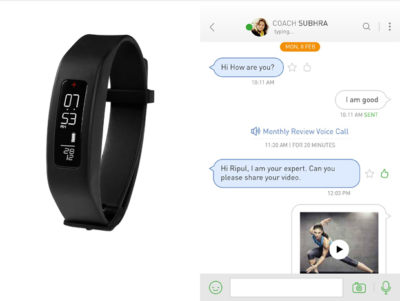
GOQii

What it is: GOQii is a digital fitness coaching service that pairs with a wearable activity tracker, and it’s designed to help you make sense of all the data your tracker collects. GOQii coaches are certified nutritionists, personal trainers and life coaches, and they aim to help you better understand your activity data, as well as use that data to make healthier choices, according to the developer.

Cool factor: The service includes a monthly call with a coach to review your data, and it lets you text message coaches from within the GOQii app. The service integrates with popular wearables from Fitbit, Jawbone, Google and Apple, so you can use it along with many different activity trackers.

Uncool factor: That name. It’s also a little pricey, but the monthly fee includes a tracker.

Price and availability: Currently available for $29 a month.

FitnessDevices4

Neuroon

What it is: A smart sleep mask, Neuroon promises to help you beat jetlag. A “smart pack” is embedded in the eye mask and contains four biometric sensors that measure EEG, EOG, pulse, motion and temperature, along with four LED lights (to help you “reschedule your body clock” when traveling across time zones) and two rechargeable lithium-ion batteries. A companion app syncs sleep data via Bluetooth.

Cool factor: It’s a sleep mask with built-in lights!

Uncool factor: How well will you really be able to sleep while wearing a sleep mask with built-in lights?

Price and availability: Currently available for $299.

FitnessDevices5

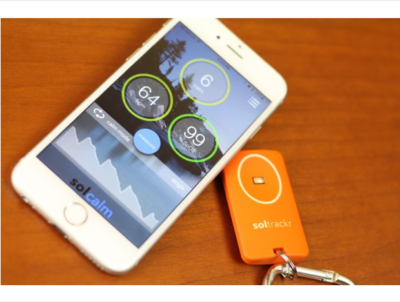
Soltrackr

What it is: Soltrackr is designed to measure UV radiation levels and provide personalized feedback via a mobile app. The device can help you determine how long you should stay in the sun, which SPF level sunscreen you need to apply, and how much vitamin D you absorb. The “wireless health companion” also promises to provide biofeedback, to optimize workouts and manage stress levels. It measures heart rate and blood oxygen levels, as well, and records improvements in cardiovascular fitness.

Cool factor: It’s reasonably priced and fits on a key ring.

Uncool factor: Does anyone really need another gadget to carry?

Availability: Now available for $49, though it’s currently backordered.

FitnessDevices6

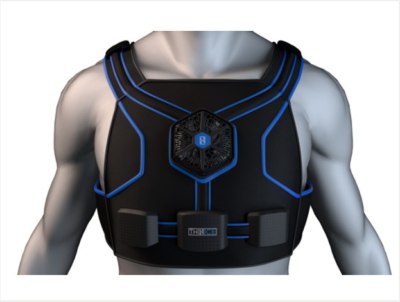
Thin Ice

What it is: Thin Ice is a piece of “smart clothing” that’s designed to be worn under clothes. Its goal is to help your body burn up to 1,000 additional calories each day, if you wear it for four hours. The garment, controlled by a mobile app, reportedly “cools parts of the body with high concentrations of thermo receptors, which stimulate the brown adipose tissue (BAT) pathway.” This specific pathway supposedly burns “bad fat,” which produces heat and eats calories in the process.

Cool factor: It’s supposed to burn calories without its user having to do anything.

Uncool factor: It sounds too good to be true, and the vest looks bulky.

Price and availability: Currently available for preorder for an “early bird” price of $99, and it’s expected to ship in November 2016.

FitnessDevices7

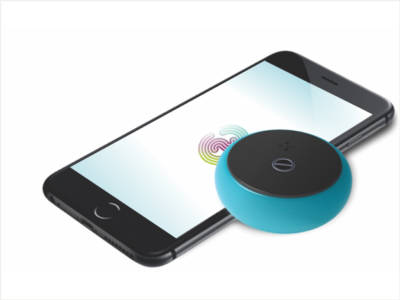
Zenytime

What it is: Zenytime is a Bluetooth-enabled puck that fits in a pocket, and you can whip it out, and then blow into it to measure two stress biomarkers: heart rate variability, and respiratory sinus arrhythmia. The developer says Zenytime checks “the actual impact of stress on [users’] brains and bodies in real-time.” The gadget, when paired with a mobile app, employs interactive breathing games to collect your baseline data and coach you toward reducing stress.

Cool factor: It’s available in multiple colors.

Uncool factor: If you don’t like games, you probably won’t like Zenytime.

Price and availability: Currently available for preorder for $99, and it’s expected to ship in June 2016.

FitnessDevices8

Spire

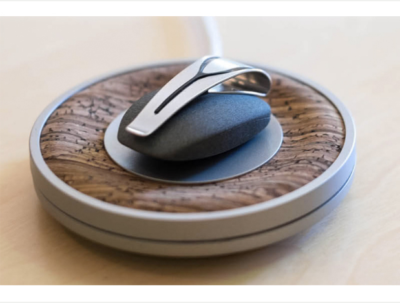
What it is: Spire is a small gadgetthat clips to a belt or bra, and it is designed to help you manage stress by monitoring your breathing patterns via the rise and fall of your chest or stomach. The device pairs with an iOS app, which charts inhales and exhales in real-time and provides alerts when your breathing patterns suggest you’re stressed. The app also provides guided meditation exercises.

Cool factor: Spire, which looks like a stone with a clip, “can tell you you’re stressed before you’re even aware of it yourself,” according to Outside magazine.

Uncool factor: A Forbes reviewer says he “occasionally got false reads.”

Price and availability: Currently available for $150.

FitnessDevices9

Rufus Cuff

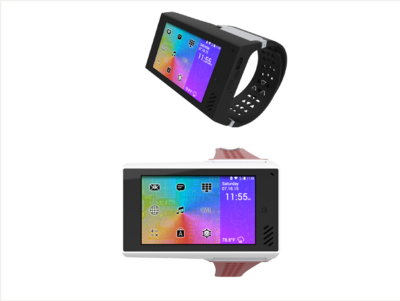
What it is: Rufus Cuff is an Android OS-based “wrist communicator” with a 3.2-inch color display that works as a standalone device for video and voice communications over Wi-Fi networks. The Cuff has an accelerometer, gyroscope and compass, as well as GPS for activity tracking. It’s designed for consumers and industrial users, and the developer says it can easily integrate into B2B communication networks that have an existing Wi-Fi infrastructure.” Rufus Cuff can also run apps, surf the Web, and do basically anything that an Android device can.

Cool factor: It’s a tiny tablet you wear on a wrist, and it’s made in the United States.

Uncool factor: Do you really want to wear a tiny tablet on your wrist?

Price and availability: Currently available for preorder for $299, and it’s expected to ship in July 2016.

FitnessDevices10

Sensoria Fitness Running System

What it is: Sensoria’s Fitness Running System combines two pairs of “smart socks,” two anklets, and a sports bra for women, or a smart t-shirt for men. The system measures steps, calories and pace to provide running feedback, such as how your feet land. The sports bra and shirt both monitor heart rate. Everything connects to the Sensoria Fitness mobile app. The developer recently released a new iOS app, Sensoria Walk, that’s designed to track steps, distance and cadence, and it’s meant for use by consumers and patients in rehab following a stroke or surgical procedure.

Cool factor: You don’t need to wear a chest strap or wristband for heart rate monitoring, and you get feedback on running performance.

Uncool factor: It’s a bit pricey.

Price and availability: Available now for $399 for men, and $389 for women.

FitnessDevices11

Nex

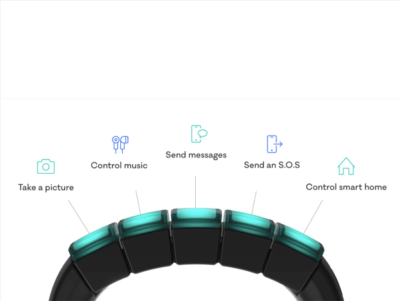
What it is: The Nex band is a modular wristband that features five touch-sensitive, LED-lit modules, called “Mods,” which snap on and off. Each Mod can be programmed using an iOS app, to do things such as track activities, control music, take pictures (via a connected smartphone), and manage smart home devices. Integration with thepopular IFTTT service lets you create other, similar “hacks,” as well. Nex’s developer offers an SDK and API to encourage third-party companies to add more functionality to its Mods.

Cool factor: The Wall Street Journal says Nex “feels like what the Apple Watch was supposed to be.”

Uncool factor: If you already wear an Apple or Android smartwatch, a Fitbit or other band, do you have any more room on your wrists for another wearable?

Price and availability: Available for preorder for $99, and it’s expected to ship during the summer of 2016.

FitnessDevices12

Vessyl

What it is: Vessyl is a”smart cup” that reportedly measures and tracks “everything you drink” from it, according to the developer. Trying to cut down on caffeine? The cup can track how much you consume. Want to lose weight? Vessyl tells you how many liquid calories you quaff. Need to cut out sugar? Vessyl monitors your liquid sweet-treat intake. Its associated mobile app shows stats and lets you set up “lenses” to track goals.

Cool factor: The cup looks sleek.

Uncool factor: It’s been in development since at least 2014 and is still not available.

Price and availability: Projected price is $199, but it’s unclear when Vessyl will be released.

Have questions?

Get answers from Microsofts Cloud Solutions Partner!
Call us at: 856-745-9990 or visit: https://southjerseytechies.net/

South Jersey Techies, LL C is a full Managed Web and Technology Services Company providing IT Services, Website Design ServicesServer SupportNetwork ConsultingInternet PhonesCloud Solutions Provider and much more. Contact for More Information.

To read this article in its entirety click here.

Check Out These Tools

Hopefully, why you should never trust Facebook is obvious by now. Perhaps you feel like you still need it, though — or stubbornly refuse to believe it is really all that bad, whether because you think it is not much of a risk or just do not believe the evidence.

You may take all reasonable precautions, including using no personally identifiable or sensitive information in your account or profile data. Maybe you use a password and email address for the account that you use for nothing else, and refuse to communicate with anyone who actually knows any personally identifiable information or secrets about you on Facebook. Even so, there are risks.

Facebook clearly is not concerned with your privacy any more than the absolute minimum required to keep itself in business. There’s no such thing as a trusted brand, but there is certainly such a thing as a brand that is thoroughly suspicious — and Facebook seems to fit the description when it comes to personal privacy. Any time Facebook appears to care about your privacy, keep in mind that it took Congressional posturing to keep the corporation in line even to that small degree.

It is clear that even when Facebook offers something that looks like some kind of privacy protection, the offer is not a promise, and relying on it is a recipe for disappointment. With that in mind, the problem of protecting even the most minimal sense of privacy while using Facebook seems insurmountable. Thanks to the efforts of a number of hackers and entrepreneurs who actually care about privacy — not only theirs, but that of others as well, even if only because it serves as a convenient business model — there are some options that can help at least a little.

In no particular order:

1. SaveFace
Untangle offers the SaveFace bookmarklet, a script that can be saved as a bookmark in your browser. When you click a bookmarklet, it does “something” — usually involving whatever page you happen to be visiting at that moment. In the case of SaveFace, you can visit your Facebook page then click on the bookmarklet to rest your privacy settings to Private. According to Untangle, it currently covers Contact Information; Search Settings; Friends, Tags, and Connections; and Personal Information and Posts.

2. ReclaimPrivacy.org
A similar bookmarklet is offered by ReclaimPrivacy.org. Unlike SaveFace, the purpose of ReclaimPrivacy.org’s tool is to scan your Facebook settings and detect certain types of privacy vulnerabilities in your account settings. In theory, at least, it should be more thorough than SaveFace — but less automated as a means of protecting yourself.

3. Connect In Private
At ConnectInPrivate there is an annoying tablike thing floating over the left-hand side of the page. Take a closer look: it reads “Secure Your Facebook Profile”. If you click on that, it takes you to a Facebook application that offers a fairly comprehensive Facebook privacy feature set. Of course, what it provides is little more than a convenience layer over manually adjusting your own Facebook privacy settings, but it can be used for free and, if you like that kind of thing, you might find it valuable.

Using Connect In Private’s Facebook privacy scanner is a remarkably tedious and uncomfortable process for something so simple. It involves reading, and thinking about, a series of questions about what kind of privacy preferences you have — in ways that are poorly defined, and requiring Facebook account access that should make the average security concerned user hesitate. Access to the source code is not exactly a matter of easy access the way it is with the JavaScript in the ReclaimPrivacy.org bookmarklet and the .js page it references, either.

A final word
Connect In Private has one definite advantage over the other tools, though: it is more actively maintained. As of this writing, ReclaimPrivacy.org’s script is not compatible with current Facebook privacy settings, and there is a note on the page to that effect. SaveFace is far from a complete solution, for that matter. None of them are perfect, and there is always a risk if you trust your private data to a site like Facebook. Each of them might help a little, though.

In the end, I for one find it difficult to trust the Facebook application offered by Connect In Private. Your mileage may vary.

To read the original article in it’s entirety Click Here

7 Google Chrome Tweaks for Efficiency

If you spend most of your workday with Google’s browser, you’ll want to put these Chrome tips to work so you can get more done in less time.

Live your best Chrome life

You probably live most of your computing day inside Google’s browser. Despite its tendency to be a resource hog, it’s still the most capable browser for its speed and optimization on the web’s most important sites.

But there’s always room to improve, especially given Chrome’s flexibility and strong feature set. This collection of tips will help you start the day off with just the sites you want, work quicker with keyboard commands, and ensure you can save the stuff you need for later use.

Stick a pin in it

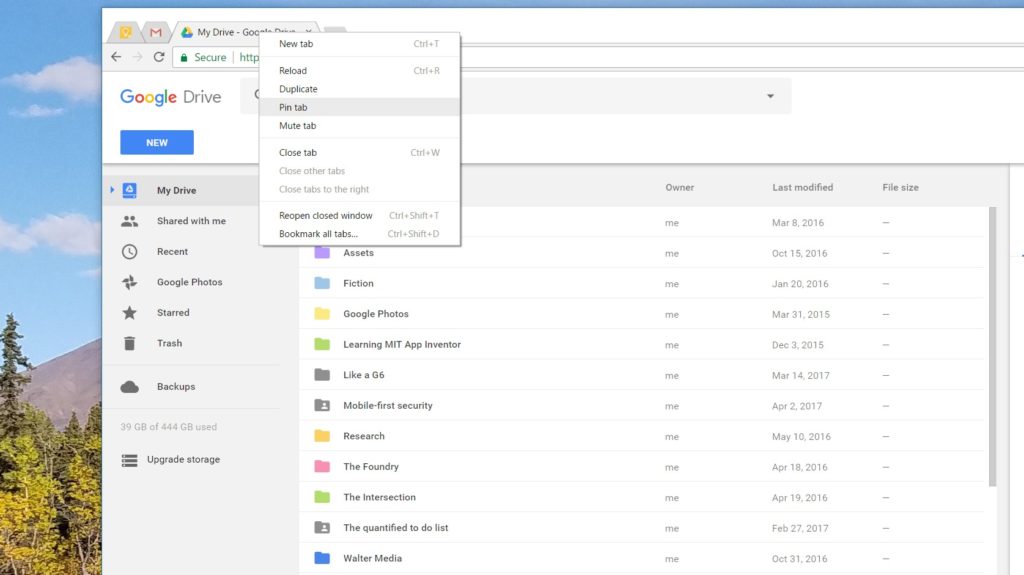
Pinning tabs that you use throughout the day saves you screen real estate and keeps you from having to reopen tabs several times over. Right-click on a tab and select Pin tab to minimize it to the left side of the browser. It’ll be identifiable by the page’s favicon.

Keep in mind, when you close the browser, those tabs will reopen as pinned tabs when you relaunch Chrome. So if you don’t want to start your next session with 10 pinned tabs, you’ll need to unpin them by right-clicking and then selecting Unpin tab before closing the browser.

Reopen that tab you didn’t mean to close

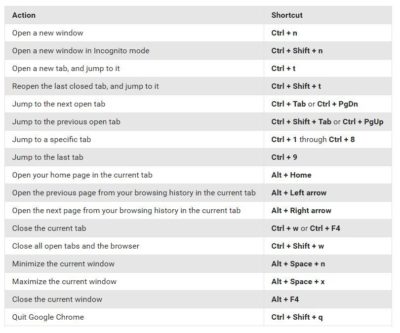
There’s one, specific hotkey command that saves my bacon about 25 times a day: Control-Shift-T, which reopens the last tab closed. When you’ve got 70 or so different tabs open, you’re bound to close the wrong one from time to time.

That’s why it behooves you to memorize this command. Better yet, take a few moments to learn some of the other hotkeys shown here that will help you zip through your tabs, close them all, or quit Chrome altogether. Just as hotkeys help you work faster in Windows, the same level of convenience applies to Chrome.

Grab a Chrome extension

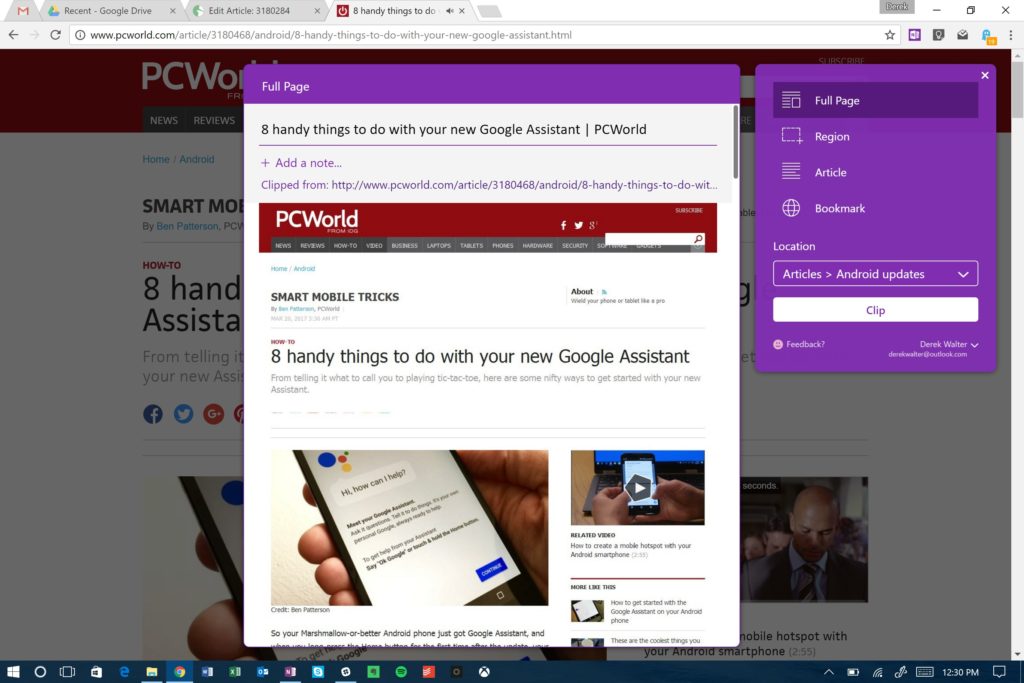
It’s very likely that your favorite desktop software has an accompanying Chrome extension that let’s you perform related tasks within the browser. If so, grab it. After all, the web touches a lot of aspects of the work you do. For example, Microsoft’s OneNote offers a useful Chrome extension for grabbing articles and other bits of the internet for later retrieval. Same goes for Evernote, another popular note-taking solution. And there’s a Chrome extension that notifies you of Skype alerts. Head to the Chrome Web Store to find the extensions you need.

Embrace Google Cloud Print

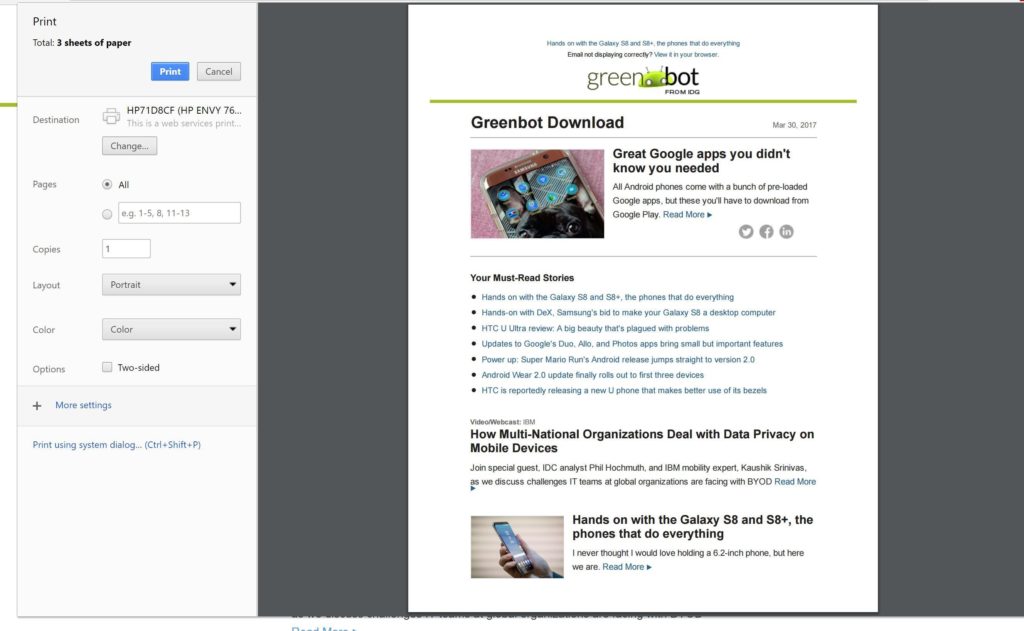
Google Cloud Print may still have that annoying beta tag, but it’s vastly improved since the service’s early days. It’s now reliable, and the fastest way to print a document without needing to futz with the Windows print menu.

Most printers can be added quite easily, so head to the Cloud Print site to enroll yours. Another great feature is that you can also save files right to Google Drive, helping you keep track of tax-payment confirmations or other key documents.

Know your history

Macs and iOS devices talk together very well through a feature called Handoff. Open a browser tab on the iPhone, and you can pull it up right away on your Mac.

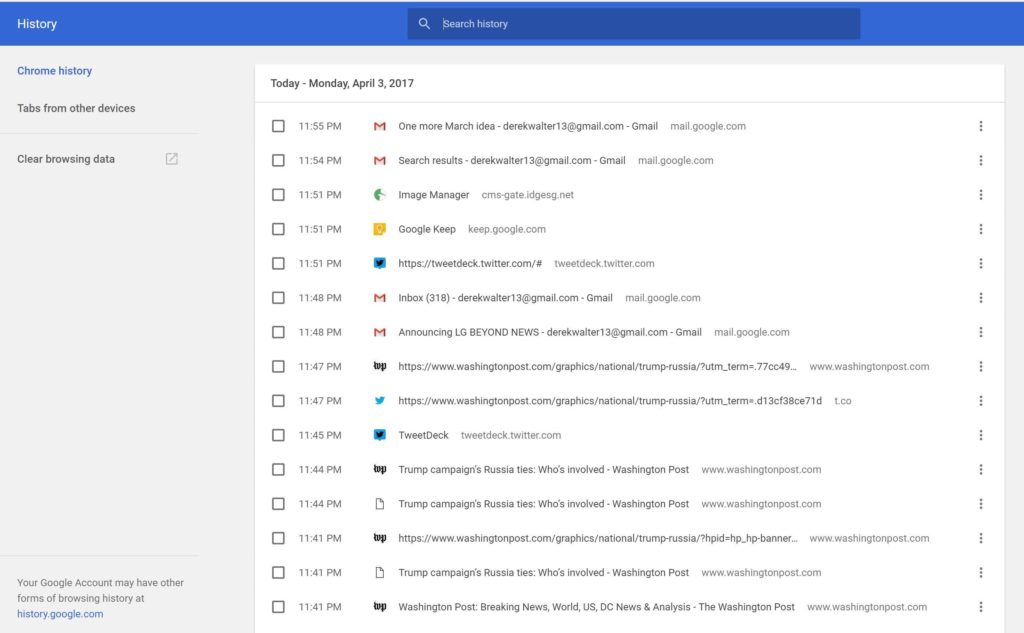
Chrome has created something that’s not quite as seamless, but gets the job done for those of us who live outside of Fortress Apple. Control-H pulls up a list of your most recent tabs from all your devices. Next, touch Tabs from other devices to choose the site you want to check out. You can select what you were just looking at or something from a while back.

Go big (with text)

Save your eyes from strain. You can expand the text on a browser page in a couple of different ways. Hit Control+ to zoom in, and Control- to zoom out. Alternatively, pinching-and-zooming on a PC with a touchscreen will do the trick and gives you a more direct feel for what you want to see.

Control 0 will return you to the normal page size once you’re done with the close inspection.

Start off right

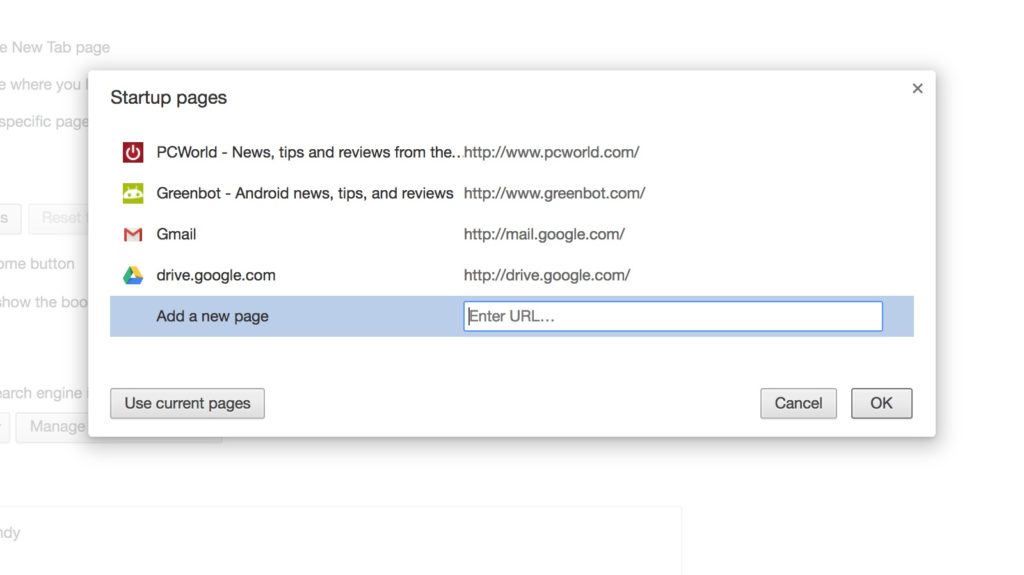
You can get right to work more quickly if you launch your browsing session with the sites you use most often. Go to Settings > On Startup and choose Open a specific page or set of pages.

Then, you can add your favorite pages by typing in the URLs or clicking the button for Use current pages. This’ll ensure that next time you launch Chrome, you can get right to work with the pages you need.

Have questions?

Get answers from Microsofts Cloud Solutions Partner!
Call us at: 856-745-9990 or visit: https://southjerseytechies.net/

South Jersey Techies, LL C is a full Managed Web and Technology Services Company providing IT Services, Website Design ServicesServer SupportNetwork ConsultingInternet PhonesCloud Solutions Provider and much more. Contact for More Information.

To read this article in its entirety click here.

49% of Businesses Hit by Ransomware

Ransom is the top motivation behind cyber attacks, according to a report from Radware, and IT professionals are most concerned about data loss. Here’s what you need to know.

Nearly half of businesses report that they were the subject of a cyber-ransom campaign in 2016, according to Radware’s, Global Application and Network Security Report 2016-2017.

Data loss topped the list of IT professionals’ cyber attack concerns, the report found, with 27% of tech leaders reporting this as their greatest worry. It was followed by service outage (19%), reputation loss (16%), and customer or partner loss (9%).

Malware or bot attacks hit half of all organizations surveyed in the last year. One reason for the pervasive attacks? The Internet of Things (IoT). Some 55% of respondents reported that IoT ecosystems had complicated their cybersecurity detection measures, as they create more vulnerabilities.

Ransomware attacks in particular continue to increase rapidly: 41% of respondents reported that ransom was the top motivator behind the cyber attacks they experienced in 2016. Meanwhile, 27% of respondents cited insider threats, 26% said political hacktivism, and 26% said competition.

While large-scale DDoS attacks dominated the headlines of 2016, this report found that only 4% of all attacks were more than 50 Gbps, while more than 83% of DDoS attacks reported were under 1 Gbps.

“One thing is clear: Money is the top motivator in the threat landscape today,” said Carl Herberger, vice president of security solutions at Radware, in a press release. “Attackers employ an ever-increasing number of tactics to steal valuable information, from ransom attacks that can lock up a company’s data, to DDoS attacks that act as a smoke screen for information theft, to direct brute force or injection attacks that grant direct access to internal data.”

Despite the growth in attacks, some 40% of organizations reported that they do not have an incident response plan in place, the survey found.

The report listed five cybersecurity predictions for 2017:

1. IoT will become an even larger risk. The Mirai IoT Botnet code is available to the public, making it more likely that cyber criminals of all experience levels are already strengthening their capabilities. “In 2017, exponentially more devices are expected to become targeted and enslaved into IoT botnets,” the press release stated. “IoT device manufacturers will have to face the issue of securing their devices before they are brought to market, as botnet attacks from these devices can generate large-scale attacks that easily exceed 1 Tbps.”

2. Ransomware attacks will continue to grow. These attacks will target phones, laptops, and company computers, and will likely take aim at healthcare devices such as defibrillators in the future, the press release stated.

3. Permanent Denial of Service (PDoS) attacks on data centers and IoT operations will rise. PDoS attacks, sometimes called “phlashing,” damage a system to the degree that it requires hardware replacement or reinstallation. These attacks are not new, but Radware predicts they are likely to become more pervasive in 2017 with the plethora of personal devices on the market.

4. Telephony DoS (TDoS) will become more sophisticated. These attacks, which cut off communications in a crisis, “could impede first responders’ situational awareness, exacerbate suffering and pain, and potentially increase loss of life,” the press release stated.

5. Public transportation system attacks will rise. As cars, trains, and planes become more automated, they also become more vulnerable to hackers, Radware stated.

You help your business avoid ransomware attacks and other cyber threats by keeping software up to date, backing up all information every day to a secure, offsite location, segmenting your network, performing penetration testing, and training staff on cyber security practices.

Have questions?

Get answers from Microsofts Cloud Solutions Partner!
Call us at: 856-745-9990 or visit: https://southjerseytechies.net/

South Jersey Techies, LL C is a full Managed Web and Technology Services Company providing IT Services, Website Design ServicesServer SupportNetwork ConsultingInternet PhonesCloud Solutions Provider and much more. Contact for More Information.

To read this article in its entirety click here.

4 WAYS TO SPEED UP YOUR PC

Speed Up Computer

How to make a computer faster: 4 ways to speed up your PC

By following a few simple guidelines, you can maintain your computer, help increase your PC speed, and help keep it running smoothly. This article discusses how to use the tools installed on your computer, plus a few safe and free downloads, to help make your computer faster, maintain your computer efficiently, and help safeguard your privacy when you’re online.

Note: Some of the tools mentioned in this article require you to be logged on as an administrator. If you aren’t logged on as an administrator, you can only change settings that apply to your user account.

1. Remove spyware, and help protect your computer from viruses

Spyware collects personal information without letting you know and without asking for permission. From the websites you visit to user names and passwords, spyware can put you and your confidential information at risk. In addition to privacy concerns, spyware can hamper your computer’s performance. To combat spyware, you might want to consider using Malwarebytes. This scan is a free service that helps check for and remove viruses. You should also download Microsoft Security Essentials for free to help guard your system in the future from viruses, spyware, adware, and other malicious software (also known as malware). Microsoft Security Essentials acts as a spyware removal tool and includes automatic updates to help keep your system protected from emerging threats.

2. Free up disk space

The Disk Cleanup tool helps you to free up space on your hard disk to improve the performance of your computer. The tool identifies files that you can safely delete and then enables you to choose whether you want to delete some or all of the identified files.

Use Disk Cleanup to:

– Remove temporary Internet files.
– Delete downloaded program files, such as Microsoft ActiveX controls and Java applets.
– Empty the Recycle Bin.
– Remove Windows temporary files, such as error reports.
– Delete optional Windows components that you don’t use.
– Delete installed programs that you no longer use.
– Remove unused restore points and shadow copies from System Restore.

Tip: Typically, temporary Internet files take the most amount of space because the browser caches each page you visit for faster access later.

To use Disk Cleanup:

Windows 7 users

1. Click Start, click All Programs, click Accessories, click System Tools, and then click Disk Cleanup. If several drives are available, you might be prompted to specify which drive you want to clean.

2. When Disk Cleanup has calculated how much space you can free up, in the Disk Cleanup for dialog box, scroll through the content of the Files to delete list.

3.  Clear the check boxes for files that you don’t want to delete, and then click OK.

4.  When prompted to confirm that you want to delete the specified files, click Yes.

After a few minutes, the process completes and the Disk Cleanup dialog box closes, leaving your computer cleaner, performing better, and potentially increasing your PC speed.  For more options, such as cleaning up System Restore and Shadow copy files, under Description, click Clean up system files, and then click the More Options tab.

Windows Vista users

1. In the Start menu, click All Programs, click Accessories, click System Tools, and then click Disk Cleanup.

2. In the Disk Cleanup Options dialog box, choose whether you want to clean up your own files only or all of the files on the computer.

3. If the Disk Cleanup: Drive Selection dialog box appears, select the hard disk drive that you want to clean up, and then click OK.

4. Click the Disk Cleanup tab, and then select the check boxes for the files you want to delete.

5. When you finish selecting the files you want to delete, click OK, and then, to confirm the operation, click Delete files. Disk Cleanup then removes all unnecessary files from your computer. This may take a few minutes.

The More Options tab is available when you choose to clean files from all users on the computer.

Windows XP users

1.  Click Start, point to All Programs, point to Accessories, point to System Tools, and then click Disk Cleanup. If several drives are available, you might be prompted to specify which drive you want to clean.

2.  In the Disk Cleanup for dialog box, scroll through the content of the Files to delete list.

3.  Clear the check boxes for files that you don’t want to delete, and then click OK.

4.  When prompted to confirm that you want to delete the specified files, click Yes.

After a few minutes, the process completes and the Disk Cleanup dialog box closes, leaving your computer cleaner and potentially performing better.

3. Speed up access to data

Disk fragmentation slows the overall performance of your system. When files are fragmented, the computer must search the hard disk as a file is opened (to piece it back together). The response time can be significantly longer.

Disk Defragmenter (sometimes shortened to Defrag by users) is a Windows utility that consolidates fragmented files and folders on your computer’s hard disk so that each occupies a single space on the disk. With your files stored neatly end to end, without fragmentation, reading and writing to the disk speeds up.

When to run Disk Defragmenter
In addition to running Disk Defragmenter at regular intervals (weekly is optimal), there are other times you should run it, too, such as when:

– You add a large number of files.
– Your free disk space totals 15 percent or less.
– You install new programs or a new version of the Windows operating system.

To use Disk Defragmenter:

Windows 7 users

1. Click Start, click All Programs, click Accessories, click System Tools, and then click Disk Defragmenter.


2. In the Disk Defragmenter dialog box, click the drives that you want to defragment, and then click the Analyze disk button. After the disk is analyzed, a dialog box appears, letting you know whether you should defragment the analyzed drives.

Tip: You should analyze a volume before defragmenting it to get an estimate of how long the defragmentation process will take.

3.  To defragment the selected drive or drives, click the Defragment disk button. In the Current status area, under the Progress column, you can monitor the process as it happens. After the defragmentation is complete, Disk Defragmenter displays the results.

4.  To display detailed information about the defragmented disk or partition, click View Report.

5.  To close the View Report dialog box, click Close.

6.  You can also schedule the Disk Defragmenter to run automatically. (Your computer might even be set up this way by default.) Under Schedule, it reads Scheduled defragmentation is turned on and then displays the time of day and frequency of defragmentation. If you want to turn off automatic defragmentation or to change the time or frequency, click Configure schedule (or Turn on Schedule, if it is not currently configured to run automatically). Change the settings, and then click OK.

7.  To close the Disk Defragmenter utility, on the title bar of the window, click the Close button.

Windows Vista users

1.  Open Disk Defragmenter: Click the Start button, click All Programs, click Accessories, click System Tools, and then click Disk Defragmenter. If you are prompted for an administrator password or confirmation, type the password or provide confirmation.

2.  In the Disk Defragmenter dialog box, click the drives that you want to defragment and then click the Analyze diskbutton. After the disk is analyzed, a dialog box appears letting you know whether you should defragment the analyzed drives.

Tip: You should analyze a volume before defragmenting it to get an estimate of how long the defragmentation process will take.

3.  To defragment the selected drive or drives, click the Defragment disk button. In the Current status area, under the Progress column, you can monitor the process as it happens. After the defragmentation is complete, Disk Defragmenter displays the results.

4.  To display detailed information about the defragmented disk or partition, click View Report.

5.  To close the View Report dialog box, click Close.

6.  You can also schedule the Disk Defragmenter to run automatically. (Your computer might be set up this way by default.) Click Modify schedule….

7.  In the Disk Defragmenter: Modify Schedule dialog box, choose how often, which day, and at what time of day you want defragmentation to occur, and then click OK.

8.  Click OK again.

Windows XP users

1.  Click Start, point to All Programs, point to Accessories, point to System Tools, and then click Disk Defragmenter.

2.  In the Disk Defragmenter dialog box, click the drives that you want to defragment and then click the Analyze button. After the disk is analyzed, a dialog box appears, letting you know whether you should defragment the analyzed drives.

Tip: You should analyze a volume before defragmenting it to get an estimate of how long the defragmentation process will take.

3.  To defragment the selected drive or drives, click the Defragment button. Note:In Windows Vista, there is no graphical user interface to demonstrate the progress—but your hard drive is still being defragmented.  After the defragmentation is complete, Disk Defragmenter displays the results.

4.  To display detailed information about the defragmented disk or partition, click View Report.

5.  To close the View Report dialog box, click Close.

6.  To close the Disk Defragmenter utility, on the title bar of the window, click the Close button.

Running Disk Cleanup and Disk Defragmenter on a regular basis is a proven way to help keep your computer running quickly and efficiently. If you’d like to learn how to schedule these tools and others to run automatically, please read Speed up your PC: Automate your computer maintenance schedule.

4. Detect and repair disk errors

In addition to running Disk Cleanup and Disk Defragmenter to optimize the performance of your computer, you can check the integrity of the files stored on your hard disk by running the Error Checking utility.

As you use your hard drive, it can develop bad sectors. Bad sectors slow down hard disk performance and sometimes make data writing (such as file saving) difficult or even impossible. The Error Checking utility scans the hard drive for bad sectors and scans for file system errors to see whether certain files or folders are misplaced.

If you use your computer daily, you should run this utility once a week to help prevent data loss.

Run the Error Checking utility:

1.  Close all open files.

2.  Click Start, and then click Computer.

3.  In the Computer window (My Computer in Windows XP), right-click the hard disk you want to search for bad sectors, and then click Properties.

4.  In the Properties dialog box, click the Tools tab.

5.  Click the Check Now button.

6.  In the Check Disk dialog box (called Error-checking in Windows 7), select the Scan for and attempt recovery of bad sectors check box, and then click Start.

7.  If bad sectors are found, choose to fix them.

Tip: Only select the “Automatically fix file system errors” check box if you think that your disk contains bad sectors.

To see the original article in its entirety click here.

11 Must-Have Back-to-School Gadgets

Whether you’re just starting high school or about to graduate college, our list of essential gear for students will ensure that you have a productive—and fun—school year.

SchoolGadgets1

New school year, new school gear

With classes back in session (or about to begin), hopefully you already have everything from your back-to-school list. Laptop? Check. The perfect bag for said laptop? Check. Schedule and text books? Check and check. Though your laptop and books are, of course, your school lifeline, there are some other gadgets you can add to your list to make your life easier. From practical picks (mice, keyboards, hard drives) to streaming sticks (hey, it’s all about that work/life balance!), our gear guide is full of recommendations designed to aid you in all the demands of student life.

SchoolGadgets2

Logitech K480 Bluetooth Multi-Device Keyboard

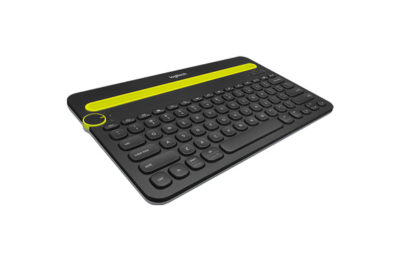
Your standard laptop keyboard is fine, but a wireless Bluetooth keyboard that you can sync with your mobile devices might be more comfortable for serious study work.Logitech’s K480 ($50 MSRP, $30 on Amazon) can be connected to three devices at once on any platform—Mac, PC, iOS, or Android—with familiar shortcut keys for all. It also has a handy groove at the top to prop up your phone or tablet.

SchoolGadgets3

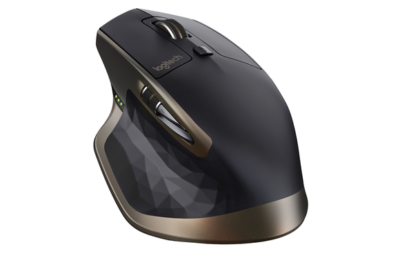
Logitech MX Master

Your laptop’s trackpad, however, is not going to cut it for extended use—you’ll be much more comfortable with a mouse. The MX Master ($100 MSRP, $70 on Amazon), also by Logitech, has customizable buttons, supports trackpad gestures, and is comfortable to use. It’s a wireless mouse; pick between Bluetooth or 2.4GHz radio frequency to connect.

SchoolGadgets4

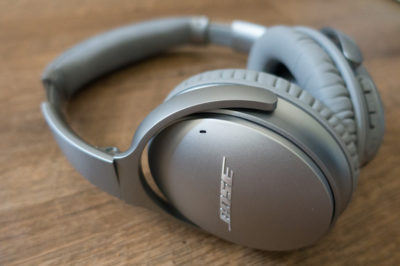
Bose QuietComfort 35 wireless headphones

A good pair of noise-cancelling headphones is a must—something to block out roommates (If you have them) or excess library/coffee shop sounds as you’re cranking out your midterm paper. Bose’s QuietComfort 35 ($349.95 MSRP, same price onAmazon) is a pricey pair, but worth it—they’re wireless, so they won’t get in the way as you’re moving about. There’s no way to disable the noise-cancelling feature, but that’s okay—they run for 20 hours on a single charge. While the audio quality varies, the noise-cancelling feature is second to none.

SchoolGadgets5

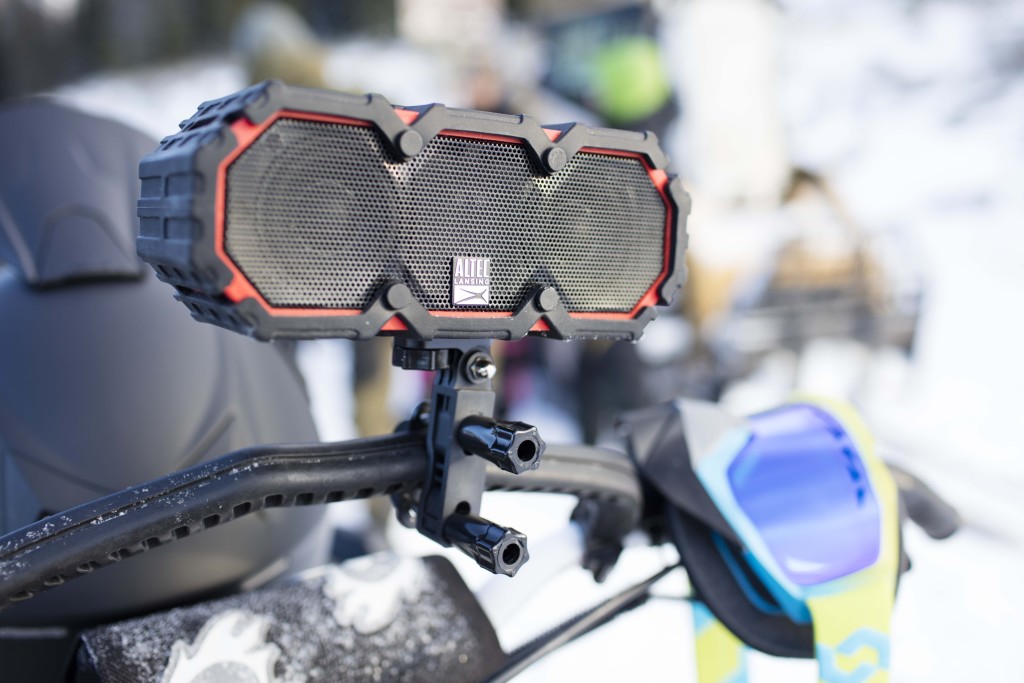
Altec Lansing Mini Life Jacket 3

You’ll want a great-sounding Bluetooth speaker, but one that’s easy to schlep around from party to party, and one that won’t die if it gets into an accident with a red cup.Altec Lansing’s Mini Life Jacket 3 ($100 MSRP, same price on Best Buy) has a rugged exterior that’s also waterproof—it can survive a dunk for up to 30 minutes—so it’s up for the challenge. We were impressed with its good fidelity and sound quality, and loved that it comes with a hardware kit for you to mount the speaker on your bike as you cruise around campus. And at $100, it’s priced for students, too.

SchoolGadgets6

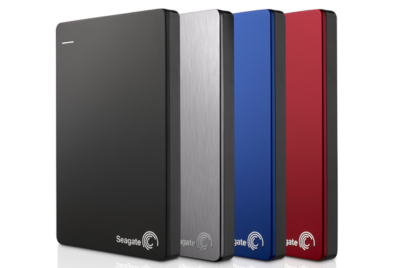
Seagate Backup Plus Slim Portable

A hard drive may not be the most exciting thing on our list, but it’s the most practical—you’ll need something to back up your hard work just in case your laptop crashes.Seagate’s Backup Plus Slim Portable ($50 to $90 MSRP, same price on Amazon) will do just that. It’s compact, comes in a variety of capacities, and is available in four different colors and finishes.

SchoolGadgets7

Fitbit Alta

A smartwatch or fitness tracker is a must-have for maintaining your work-study balance. If you’re looking for a device that handles your push notifications, reminders, and more, then go with an all-around smartwatch that’s an extension of your phone. For iPhone users, that’s easy—go with the Apple Watch ($299 MSRP and up, available at the Apple Store). For Android users, we like the Huawei Watch ($350 MSRP and up, $299 and up on Amazon) for its style, features, and customizable options.

If it’s just the fitness stuff you’re after, you can’t go wrong with the Fitbit Alta ($129.95 MSRP, $119 on Amazon). This sleek activity tracker monitors your workouts, steps, and sleep automatically, and pairs it all within the Fitbit app on your phone (it’s compatible with both iOS and Android phones) so that you can keep an eye on your habits. Reminding yourself to stay active in between study sessions has never been so easy.

SchoolGadgets8

Livescribe 3

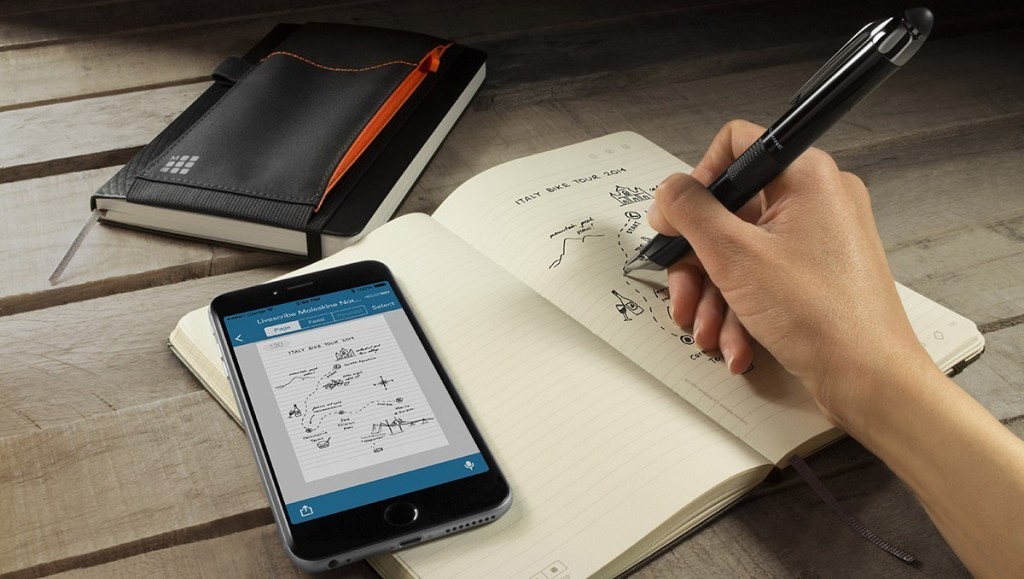
Spend one lecture with the Livescribe 3 Smartpen ($150 MSRP, $138.84 on Amazon) and corresponding app for your smartphone, and you’ll never want to go back to a regular old Bic. As you write in the Livescribe’s specialty notebooks, the smartpen sends a digital copy of your hand-written notes to your phone via Bluetooth, so you can access them at any time. It can also record audio notes through the Livescribe app on your smartphone, which get linked to your hand-written notes. When reviewing notes later, tap any word to hear what your professor was saying at that moment. If you’ve left yourself a doodle, abbreviation, or mnemonic device, tapping that word will bring you right back to the lecture. The pen itself can last 14 hours on a single charge.

SchoolGadgets9

Roku Streaming Stick

Your dorm may include a cable hookup for your TV, but it won’t play well with your Netflix subscription. The solution? Roku’s Streaming Stick ($50 MSRP, $39.01 onAmazon) a thumb-sized device that plugs into your TV or monitor’s HDMI port that streams web-based content—Netflix, Hulu, HBO Now, and more. It’s fast, has a dedicated remote, and is compatible with most of the major streaming content players.

SchoolGadgets10

OtterBox Universe Case System

Some school days, you never know what kind of gear you’ll need. Will your smartphone make it through the day without needing a recharge? Will you want to snap a picture of something being presented during lecture? What if you need to quickly transfer a file to a classmate?

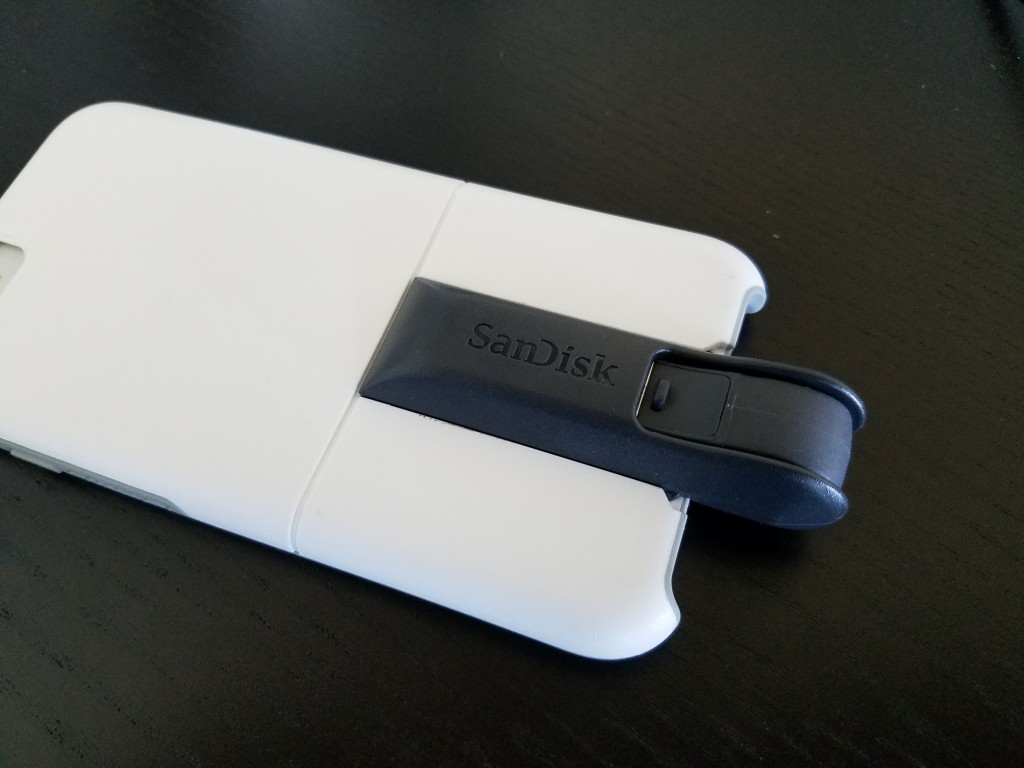
OtterBox’s Universe Case System ($49.95 MSRP for the base, modules are extra; $44.95 on Amazon) has extra add-ons that can help you do all of those things. This system consists of various accessory modules that you can attach to your iPhone via its protective case—so you can snap on a battery pack ($50 on Amazon), a flash drive (64GB for $60 on Amazon), a tripod ($30 on Amazon), and more in a pinch.

SchoolGadgets11

Anker PowerCore 20100

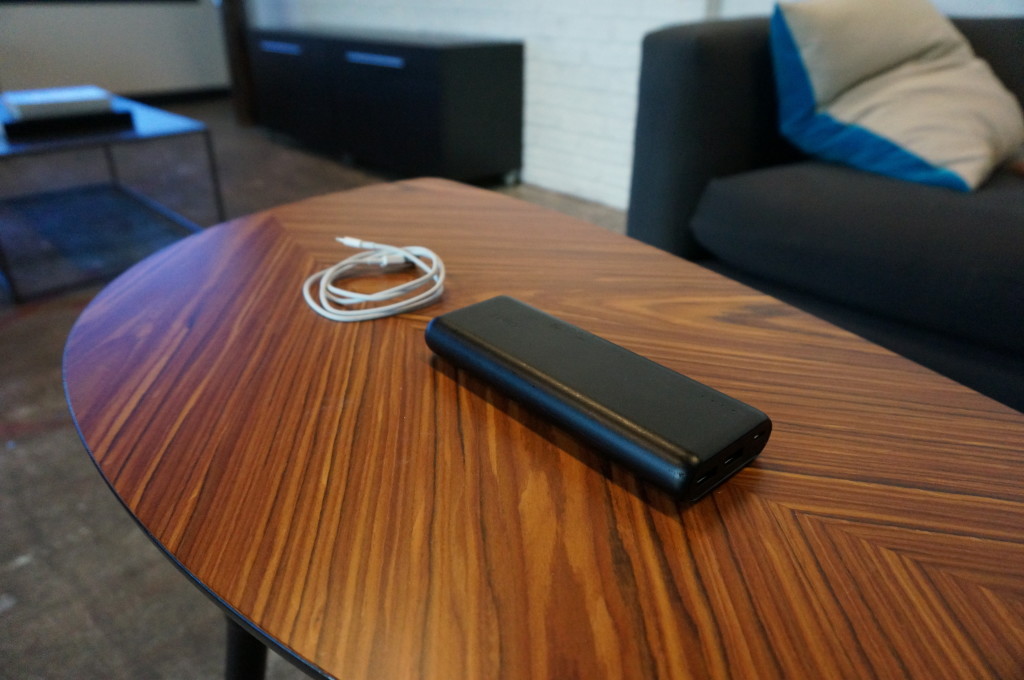
A one-device battery pack might not cut it—you may want a dedicated battery pack for a long school day, to power up your tablet or other gear besides your phone. Anker’s PowerCore 20100 ($80 MSRP, $43 on Amazon) is small, light, and powerful, with two USB ports to charge two devices at once. Its whopping 20,000mAh battery can charge your phone seven times, or your iPad mini (or other small tablet) twice.

SchoolGadgets12

Stir Kinetic Desk M1

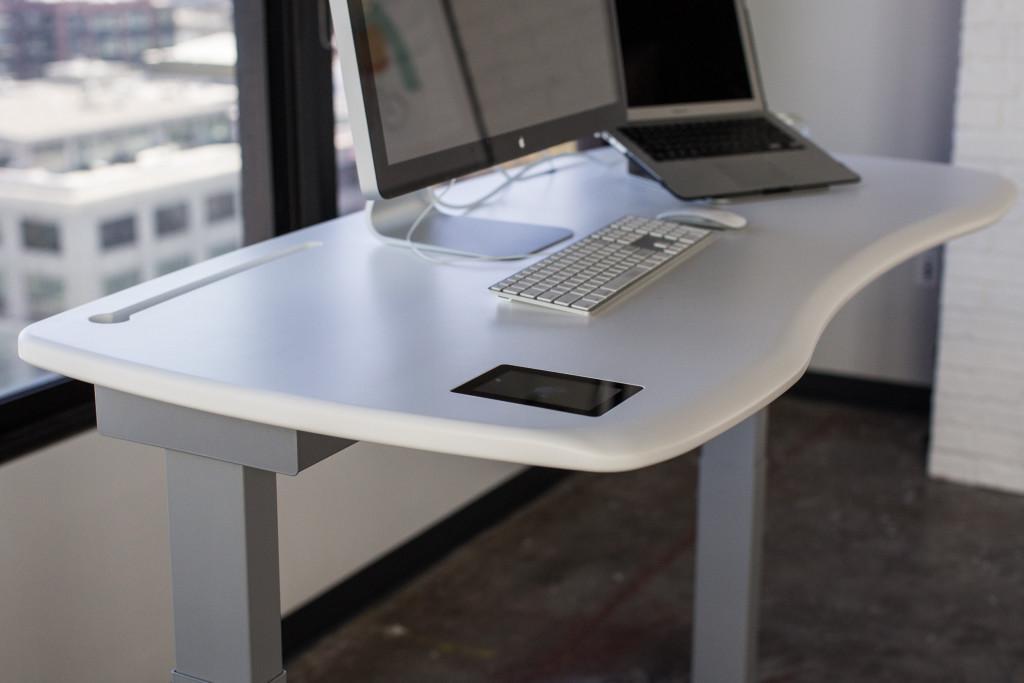
Standing desks are still having a moment in the health-tech spotlight, so if you’re considering a splurge on a new desk setup, dream big with Stir’s Kinetic Desk M1 ($2,990 MSRP, same price on Amazon). This smart desk is a well-built, comfortable workstation that smoothly adjusts between sitting and standing positions set to your preferences. You can tell the desk how often you’d like to stand up, and it will gently “nudge” you into your standing position by slightly raising up to coax you to move. The future is here, and this desk is proof.

Don’t have an extra $3,000 lying around? Grovemade’s Desk Collection (pictured in first slide) will keep your desk organized—and make it look like a million bucks for a fraction of the cost.

Have questions?

Get answers from Microsofts Cloud Solutions Partner!
Call us at: 856-745-9990 or visit: https://southjerseytechies.net/

South Jersey Techies, LL C is a full Managed Web and Technology Services Company providing IT Services, Website Design ServicesServer SupportNetwork ConsultingInternet PhonesCloud Solutions Provider and much more. Contact for More Information.

To read this article in its entirety click here.
11 Ergonomic Gadgets Your Body Will Love

If you spend most of your day at a desk, any one of these tech tools will make your work station more comfortable and give your body some much-needed relief.

Ergonomics – they do a body good
Ergonomic-Gadgets

Do you work long hours on your computer? If so, we know the feeling and have identified a list of gadgets that you can use at your workstation, and which offer the necessary support and comfort as you work. While some may require making some adjustments or take some getting used to, your body will grow to love any of these devices — in the form of reduced aches and pain.

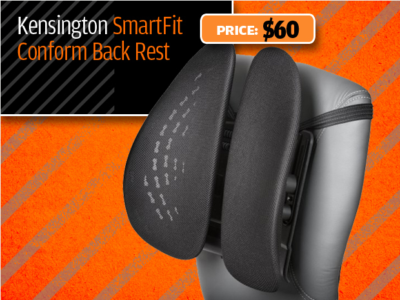
Kensington SmartFit Conform Back Rest
Kensington-Smartfit-back-rest

If you don’t have an ergonomic chair, the Kensington SmartFit Conform Back Rest lets you convert a plain office chair into one. The attachment fits onto most chairs with a back, and delivers support for your spine and lumbar using two ventilated back panels resting on four independent springs. The fit can be slightly adjusted for support that is highly comfortable, while the fabric itself can be removed for washing.

Price: $60

[ Find it on Amazon ]

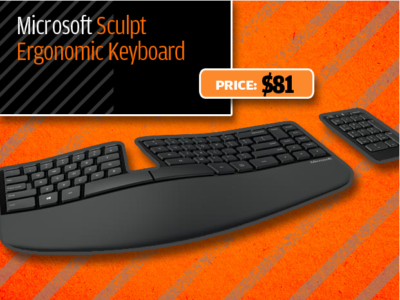
Microsoft Sculpt Ergonomic Keyboard
Microsoft-Ergonomic-Keyboard

The Microsoft Sculpt Ergonomic Keyboard sets a new standard for the support and comfort of your wrist for those who type a lot at work. The split keyboard layout and arc shape of this wireless keyboard helps keep hands and arms in a relaxed position to significantly reduce the risk of repetitive stress injuries. The numeric keypad comes as a separate device so right-handers can hold their mouse at a more accessible angle. Though the keyboard does take some getting used to, you’re soon be wondering why you ever settled for the cramped layout of a normal keyboard.

Price: $81

[ Find it on Amazon ]

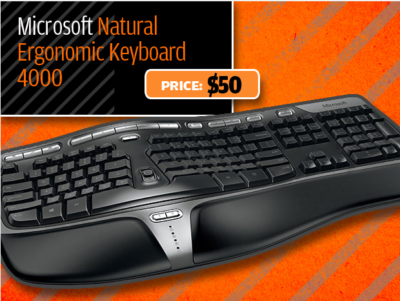
Microsoft Natural Ergonomic Keyboard 4000
Microsoft-Ergonomic-Keyboard-4000

The Microsoft Natural Ergonomic Keyboard 4000 adopts a similar split keyboard layout and arc shape of the Sculpt Ergonomic keyboard, though in a more conventional wired keyboard design. In addition, it comes with additional multimedia buttons that can be customized to quickly access files, launch web pages and create hot keys shortcuts to get things done faster. A dedicated slider located in the middle of the Natural Ergonomic Keyboard 4000 also makes it easy to zoom in and out.

Price: $50

[ Find it on Amazon ]

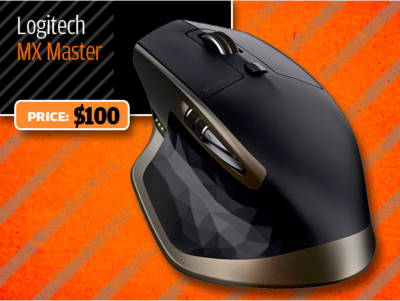
Logitech MX Master
Logitech-MX-Master

The Logitech MX Master is a wireless desktop mouse that offers a sculpted design meant to support your hand and wrist in a comfortable and natural position. Aside from the usual plethora of technologies such as dual Bluetooth and RF wireless modes and support for pairing with up to three devices, the MX Master also comes with a couple of additional capabilities that should reduce wrist fatigue. For example, a speed-adaptive scroll wheel makes scrolling through long documents easier than ever with its ability to automatically shift between normal “click-to-click” scrolling to hyper fast scroll, while a thumb wheel offers side-to-side scrolling.

Price: $100

[ Find it on Amazon ]

Kensington Expert Mouse Wireless Trackball
Kensington-Trackball

Users who find that a normal mouse just doesn’t cut it for them will appreciate the use of a trackball-based solution such as the Kensington Expert Mouse Wireless Trackball. The giant trackball help keeps wrist and hand movement is kept to a minimum, and uses optical tracking technology for smooth control. Notably, the Expert Mouse Wireless Trackball works just as well for right-handed and left-handed users, while a scroll ring positioned around the trackball also makes it easy to scroll up and down lengthy documents or Web pages.

Price: $100

[ Find it on Amazon ]

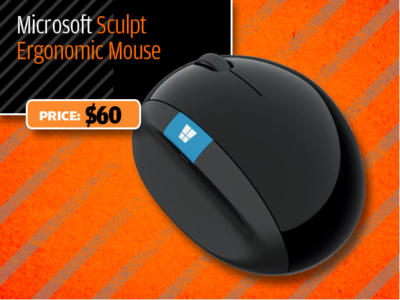
Microsoft Sculpt Ergonomic Mouse
Microsoft-Ergonomic-Mouse

Shaped almost like a slightly squashed softball, the Microsoft Sculpt Ergonomic Mousewas created to offer a more natural hand, wrist and forearm posture. While its ergonomic design may take get some getting used to, the Sculpt Ergonomic Mouse is arguably more like a normal mouse than some of the other vertical mouse designs on the market. A thumb scoop is positioned to help maintain the correct hand and wrist position, while the scroll wheel supports four ways scrolling: Left, right, front and back.

Price: $60

[ Find it on Amazon ]

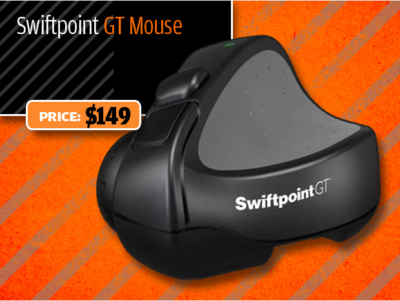
Swiftpoint GT Mouse
Swiftpoint-GT-Mouse

The Swiftpoint GT mouse is a compact, travel-friendly mouse designed to reduce fatigue caused by your normal portable mouse. The Swiftpoint GT’s pen-like grip is more natural than the claw grip that is necessary for many of the travel mouse out there, yet is small enough to be used on your laptop next to the touchpad. Moreover, it has a touch surface that enables a full range of touch gestures such as swiping, flicking and zooming. You can also easily “park” the Swiftpoint GT on your laptop when moving between meetings with its included magnetic clip.

Price: $149

[ Find it on Amazon ]

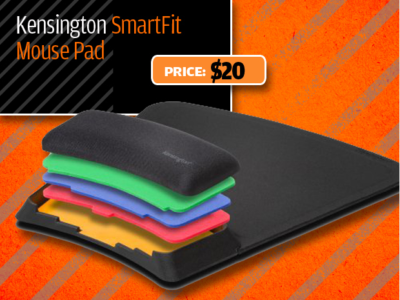
Kensington SmartFit Mouse Pad
Kensington-Smartfit-Mouse-Pad

The Kensington SmartFit Mouse Pad is created to combat improper positioning of one’s wrist when using a mouse. It comes with a soft gel support to relief pressure points on the wrist, and stands out from your run-of-the-mill mousepad by how its height can be adjusted with the use of removable inserts. A nonskid base adds stability, while an anti-microbial surface to resist strains and odors to set the SmartFit Mouse Pad further apart from the rest.

Price: $20

[ Find it on Amazon ]

Ergotron WorkFit-P, Sit-Stand Workstation
Ergotron-Workstation

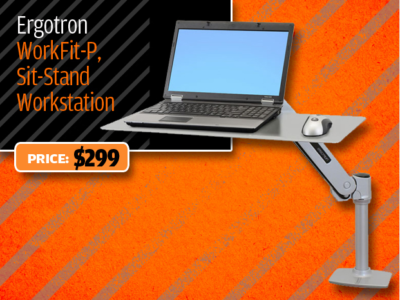
Laptop users looking to get off their butts in the office can consider the Ergotron WorkFit-P, Sit-Stand Workstation, an elegant height-adjustable laptop stand. Made of solid-aluminum construction, the WorkFit-P works like a standard monitor arm in how it can be quickly adjusted various positions – including for use while standing. The large surface has more than adequate space for a laptop and external mouse, and can also serve as an adjustable tray for writing or drawing with a graphics tablet.

Price: $299

[ Find it on Amazon ]

HiRise for MacBook
HiRise-MacBook

While its name suggests that it can only be used for a MacBook, the HiRise for MacBook is a height-adjustable stand that works just as well for other laptops. The beautiful brushed metal design aside, the stand lifts your laptop up to a half foot off the desk, bringing it to a more optimal height for your overstrained eyes. You will need a separate keyboard and mouse to work with your machine, but laptop’ keyboard and trackpad were never great for ergonomics anyway.

Price: $70

[ Find it on Amazon ]

Ergotron MX Mini Desk Mount Arm
MX-Mini-Desk-Mount-Arm

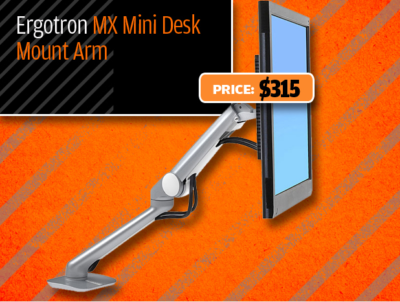
The Ergotron MX Mini Desk Mount Arm is a monitor arm that offers a slim profile without giving up on the expansive height adjustment range of full-fledged monitor arms, including full tilt, pan and rotation capability. This means you can set the ideal height and angle for optimal individual comfort, and adjust it as necessary to avoid the morning or mid-afternoon glare. The MX Mini Desk Mount Arm works with lightweight LCD monitors of up to 24-inches, as well as tablets such as the Apple’s iPad and Microsoft’s Surface.

Price: $315

[ Find it on Amazon ]

Have questions?

Get answers from Microsofts Cloud Solutions Partner!
Call us at: 856-745-9990 or visit: https://southjerseytechies.net/

South Jersey Techies, LL C is a full Managed Web and Technology Services Company providing IT Services, Website Design ServicesServer SupportNetwork ConsultingInternet PhonesCloud Solutions Provider and much more. Contact for More Information.

To read this article in its entirety click here.
10 Free Anti-Malware Tools to Try

Over the last few years, anti-malware software has become increasingly costly. But believe it or not, there are still ways to protect your computer for free. In this article, I will list 10 free utilities you can use to either prevent malware infections or to help clean up the mess once a PC becomes infected.

1: AVG Anti-Virus Free Edition 2011
I have been using AVG’s free antivirus product for a few years now, and although it isn’t perfect, it seems to be at least as good as most of the commercial anti-malware products. AVG’s free edition provides basic protection against viruses and spyware, but the company also offers a more comprehensive security suite called AVG Internet Security 2011. This suite offers the same anti-malware protection as the free edition, but it also provides real-time protection against Internet search and social networking sites.

2: Comodo Antivirus
Comodo Antivirus takes a different approach to virus protection than most other antivirus products do. Comodo is based on the idea that it is foolish to allow code to run without first proving itself to be benign. So Comodo implements a default denial until an executable proves itself trustworthy. To keep the software from being too chatty, Comodo executes unknown code in an isolated sandbox where its behavior can be monitored without running the risk of the executable harming the system.

3: PC Tools AntiVirus Free 2011
PC Tools AntiVirus Free 2011 is a basic antivirus / anti-spyware program that is designed to protect Windows desktops against various forms of malware. Besides its basic detection capabilities, PC Tools includes a feature called Search Defender that is designed to warn you about unsafe Web sites (or phishing sites) before you click on them. The software also includes a File Guard component that monitors the file system and blocks attempted malware infections in real time.

4: Avast Free Antivirus
Like AVG, Avast sells comprehensive security suites, but makes its basic antivirus / anti-spyware product available for free to home users. Although I have never used Avast Free Antivirus, I’ve recently noticed posts in various message boards from people who claim that Avast provides better protection than some of the commercial products.

5: Ad-Aware Free Internet Security
Although it was originally designed as a product for detecting adware, Lavasoft’s Ad-Aware has evolved into a complete anti-malware product. Ad-Aware Free Internet Security provides real-time protection against spyware, rootkits, and more. It also includes a utility called The Neutralizer, which you can use to clean a PC that has already been infected.

6: HijackThis
HijackThis is one of my favorite anti-malware utilities, but it’s not for the faint of heart. HijackThis is designed to compile a report of critical file and registry settings that are often prone to viral infections. The thing that makes HijackThis difficult to use is that it makes no distinction between malicious and legitimate entries. As a result, you can end up doing even more damage to a PC unless you know what you are doing. Even so, I consider HijackThis to be a must-have utility.

7: Microsoft Security Essentials
Microsoft provides free antivirus protection for home users through a relatively new application called Microsoft Security Essentials. Microsoft Security Essentials is based on the same ForeFront technology as Microsoft’s enterprise class anti-malware software. The difference is that Microsoft Security Essentials is available solely to home users and businesses with fewer than 10 Windows desktops.

8: Windows Defender
Microsoft’s Windows Defender is a free anti-spyware utility for Windows. It’s not comprehensive, but it does a surprisingly good job of protecting Windows as long as you install it before an infection occurs.
Windows Defender is included with Windows Vista and Windows 7, but you can also download a version for Windows XP. If you are using Windows 7 or Windows Vista, Windows Defender is disabled by default. You can enable Windows Defender by typing the word Defender into the Windows search box and then double-clicking on the Windows Defender option. When you do, Windows will tell you that Windows Defender is turned off and will give you the opportunity to enable it.

9: Malicious Software Removal Tool
Although not a comprehensive antivirus tool by any stretch of the imagination, Microsoft’s Malicious Software Removal Tool does a good job of detecting and removing the most common viruses. The Malicious Software Removal Tool works with Windows 7, Vista, XP, and Server 2003. Microsoft releases updates to this tool on the second Tuesday of each month.

10: McAfee virus removal tools
McAfee makes commercial antivirus products, but it also offers some free tools for removing viruses. Specifically, it offers tools for removing Sasser, Bagle, Zafi, Mydoom, Lovsan / Balster, Klez, and Bugbear. You can download all of these tools here

To view the original article in it’s entirety Click Here

10 Commandments of Windows Security

With the introduction of Windows 7, many PC and notebook users may feel more secure than they did using older versions of the Microsoft operating system. Newer OSs have more security features, offer better out-of-the-box security settings and have closed many of the historical security holes. Windows 7, for example, has changed the default User Account Control level so that it’s harder for rogue programs to run without first explicitly gaining the user’s permission.

[Also read 3 steps to protect your personal data]

However, feeling too secure can be dangerous. With that in mind, here are 10 tips–commandments, if you will–for ensuring your desktop or notebook computer can be used productively as well as safely. Many of the recommended tools are free, and all are affordable–and certainly less expensive than the potential problems of an unsecured computer. Similarly, many will take you only a minute or two to perform–again, far less time than you’d spend recovering from a security problem.

Yes, Windows 8 is on the way; it’ll be many years before that version runs on a majority of the installed base. So these tips are focused at the computers you are actually using today–especially Windows 7 computers, though most of the advice also applies to Windows Vista or XP machines.

1st commandment: Start with new hardware

Today’s new hardware–motherboards, BIOS, CPUs, hard drives, and the system as a whole–includes more security “baked in,” even before the operating system is installed. Examples include Trusted Platform Modules (TPM), which embed cryptographic security directly into the hard drive or other component, Unified Extensible Hardware Interface (UEFI) firmware instead of the traditional BIOS, and Intel’s vPro security and management technologies. For example, machines with UEFI and TPM will, as part of each boot-up, check the computer’s firmware and boot-up binaries to confirm they have not been infected with malware.

If you are working with an existing machine, consider doing a fresh install of the operating system, after completing one (or several) full backup. Ideally, the operating system would be the newest version rather than what was previously installed. (Products like LapLink’s PC-Mover can reduce the effort of saving and migrating settings and even application software–although applications should be freshly installed if possible, as well.)

Even if you’re working with an existing machine, consider swapping in new hard drives that include built-in encryption. Drives that support the OPAL Storage Specification standard enable companies to manage encrypted drives from multiple vendors–and have also helped reduce the extra cost for an encrypted drive from $100 to nearly zero. After-market drives often include migration tools to speed and simplify a drive swap.

If a self-encrypted drive isn’t an option, look at using full-disk encryption software, such as Windows’ BitLocker (available only on Enterprise or Ultimate Windows Vista, 7 or 8 ) or a third-party tool.

2nd commandment: Use current OS versions and automatically get OS and application updates

If you aren’t using the most current commercial version of the operating system, it’s time to upgrade. Additionally, make sure you set the software to automatically apply updates (not just the OS, but all applications) and periodically turn off the computer, which is when many updates are auto-applied. An appalling number of security breaches occur because applications lack important security fixes that have been available for a year or more.

The computer vendor may also include helpful update tools. For example, Lenovo includes an update process that is designed to show all BIOS and driver updates available for that particular model. You can also manually start the update-check apps process. This may take several cycles, particularly for the first time around, if some updates require other updates.

“Third-party software is usually the vector that security intrusions come through, not the operating system,” says Ed Bott, a Windows expert and ZDNet blogger. Flash, Adobe Reader and Java are three of the biggest targets, Bott says. While many programs include their own automatic update checker, Bott urges using a tool like Ninite orSecunia Personal Software Inspector, which automate update checking for all the applications on your computer.

3rd commandment: Use Windows’ new security tools (and/or third party software)

Windows 7 includes a number of security controls and tools through its Actions Center (which replaces the Security Center), and other tools are available via the Control Panel, including:

  • Windows Firewall: With its basic settings, this wards off basic attacks, and you can use its advanced settings for more specific control. There are also third-party firewall programs available.
  • Microsoft’s Microsoft Security Essentials and Windows Defender. These tools secure your computer against viruses, spyware
    and other malware.

Obviously another option is to invest in third-party security software, like individual anti-virus, anti-spam and other programs, or a security suite, such as Symantec’s.

4th commandment: Set up (or remove) user accounts

Historically in Windows, the default account had administrator privileges–meaning that programs capable of taking unwanted insecure actions wouldn’t have to first ask the user if they could run. Starting with Vista, Microsoft added User Account Control (UAC), which asked non-administrator users for permission to run certain programs or actions. With Windows 7, UAC still protects systems but less intrusively.

Even so, managing which user accounts are–and aren’t–available contributes to security in the following ways:

  • Establishes non-administrative user account(s) for each user.
  • Disables or removes user accounts that aren’t used or shouldn’t be there.
  • Disables the “guest” account, unless it’s needed. If it is needed, a password should be required for elevating privileges, to prevent unauthorized changes to the system.

Consider renaming the administrator account so that it’s not obvious to an intruder. Since this account can’t be “locked out,” password attacks can be performed indefinitely; changing the name makes the account less of a target.

5th commandment: Set passwords

Set the main Windows password, as well as the Power/Time to lock the system, with a screen saver, and require a password to resume activity.

Also, depending on the sensitivity of information on your system (did someone say “online banking”?), consider password alternatives, such as:

  • Smartcard reader (contact or contactless)
  • Biometric facial recognition
  • RSA software and external token
  • Password “gesture” (e.g., Android tablets)

Another option is two-factor authentication, such as requiring both a fingerprint and a password.

6th commandment: Add/activate anti-theft tools

Invest in, install and activate anti-theft tools that can either lock the system; conduct an IP trace; report, take and send pictures; and even wipe the computer when a lost or stolen computer reconnects to the Internet. An example is Absolute Software’s Lojack for Laptops.

Vendors like Lenovo are embedding Absolute’s CompuTrace Agent into the BIOS, so even if somebody erases or replaces the hard drive, the agent is automatically re-installed.

Computers that include Intel Anti-Theft technology in their hardware let you add additional security services, such as automatically locking the main board until it receives the “unlock” password, lock or wipe if a machine goes too long without connecting to the Internet or if a user fails the login process too many times. Intel Anti-Theft is typically part of third-party security products like CompuTrace, adding perhaps $3/year, and as the anti-theft option on WinMagic’s full disk encryption product.

7th commandment: Turn off sharing and other unneeded services

Windows allows you to share resources that are on your computer, like file-sharing (Shared Folders) and print sharing. Your computer’s Internet connection management utility (Windows includes one, but many systems have their own) lets you define each network as either Public, Home or Work. If you mis-set a connection, your Shared Folders will be visible to other computers on the network.

Suggested Desktop Security Reading

  • Windows 7: Explore New and Improved Security Features (Microsoft)
  • Security checklist for Windows 7 (Microsoft)
  • Enhancing Endpoint Security for Windows Desktops,” Derek Melber, President and CTO of BrainCore.Net
  • Best Practices: Windows Desktop, IT Security for the University of Missouri

If you are behind a firewall, when your computer’s Internet connection manager tool asks you what kind of location/connect it is, you can call it either a Home or Work network, Bott says. But specify Public network if you are connecting directly to the Internet (e.g., at home or in the office), if you don’t have a hardware router but instead are directly connected to the cable modem, or if you are connecting to a public network like a Wi-Fi hotspot or a hotel or conference Ethernet. This will ensure that no local sharing is allowed.

In general, disable any services and remove programs you don’t need. For example, if you’re sure your applications won’t need it, you may want to uninstall Java. If your machine has Internet Information Services (IIS) running but doesn’t need it, disable that, as well.

8th commandment: Secure your Web browser and other applications

Web browsers access Web sites that neither you nor your company control (and these sites, in turn, may have ads or link to other content that they don’t control). Any of these may try to inject malware onto your computer.

[Also read 10 ways to secure browsing in the enterprise]

Today’s browsers include more security, like “private browsing” session modes that prevent any personal information from being stored, or don’t save cookies or history for a session. However, this may interfere with productivity.

Check each browser’s security options and select the ones that look useful, like Firefox’s “Warn me when sites try to install add-ons” and “Block reported attack sites.”

Set Microsoft Internet Explorer to have the highest security setting you can tolerate (since higher security often means you have to click more often), suggests Tom Henderson, Managing Director of ExtremeLabs.com, an Indianapolis, Indiana technology testing lab.

Additionally, look for browser “extensions” and add-ons that increase your browser’s security, in a more per-tab, per-site or per-tab-session way. For example, the popular NoScript Firefox add-on allows JavaScript, Java, Flash and other plug-ins to be executed only by trusted Web sites of your choice.

PDF readers may also be vulnerable to JavaScript attacks within the documents they’re rendering. Make sure your PDF reader is secure; consider disabling JavaScript within it.

9th commandment: Rope in Autorun

AutoRun is a major threat vector for viruses and other malware in Windows XP and Windows Vista. [Editor’s note: Simson Garfinkel called Autorun an “OS design flaw” all the way back in 2006.] With this function, the operating systems automatically begins executing a program when it sees an autorun.inf file in the root directory of a new drive, such as a network drive, a CD or a flash drive. So, if you haven’t yet moved to Windows 7, make sure you’ve got all the security updates for the OS version you are running. (See MS Security Advisory: Update for Windows Autorun.

With Windows 7, all the security settings are “No Autorun.” When you attach external media like CDs, DVDs, SD cards and USB flash drives, they will give you a dialog box offering to run a program, but by default, nothing happens automatically.

10th commandment: Consider application whitelisting and other controls “Whitelisting” refers to a list of everything you allow on your computer, including e-mail addresses your mail program can accept, Web sites your browser is allowed to connect to and applications the operating system is allowed to run. Whitelisting may not be a match for e-mail or Web browsing, but for preventing unwanted applications from running–such as malware or zero-day attacks–it may be a good additional tool.

Windows 7 includes AppLocker, a whitelisting utility, or you can buy third-party white-listing products for either individual computers or groups of networked computers. For home users, Windows 7 has fairly robust parental controls that can restrict access by time-of-day or by site, and log Web access, Bott says.

Conclusion: It’s easy to become more secure

As you can see, there is a lot you can do affordably, even to existing Windows systems, to increase their security. It shouldn’t take a lot of time or money to do; however, it may take a lot of both if you don’t do anything and something avoidable goes wrong.

To View Entire Article Click Here

10 Killer Cheap Upgrades for Your PC

Looking to put more pep in your PC’s step? These surprisingly cheap PC upgrades and accessories do the trick without breaking the bank.

PCupgrades1

No need to break the bank

Sure, swanky new Surface Pros and $1,200 graphics cards may capture all the headlines, but on a practical level, the real story is that PCs aren’t cheap. But if your computer’s starting to feel pokey, there’s fortunately no reason to rush out a spend hundreds on a new one.

Investing small amounts in key new PC hardware can keep your computer running strong for years to come. These upgrades—most costing well under $100—breathe new life into slow machines. You just have to be strategic and make sure you’re putting your money in the best place for your particular system.

PCupgrades2

Speed up your PC with an SSD

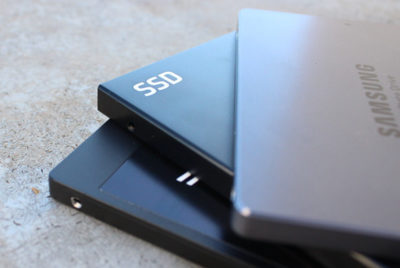
Let’s start in the most obvious place. If your PC still runs with a mechanical hard drive, swapping it out with an SSD will make it feel like a whole new computer. SSDs inject face-melting speed into a PC, drastically improving boot times, file transfers, and overall system responsiveness.

A lot of PCs don’t have SSDs, for two reasons: Solid-state drives use to be extravagantly expensive, and computer makers often charge hefty mark-ups for upgrading to an SSD. Fortunately, SSD prices have plummeted in recent years. Superb models like theSamsung 850 EVO ($89.39 for 250GB on Amazon) and the OCZ Trion 150 ($45 for 120GB on Amazon) can be found for well under $100 online. If you find the storage capacities a bit too tight, you can always install the SSD as a boot drive alongside your current hard drive.

A word of warning about SSDs, and all the hardware discussed in this article: You can often find lower prices if you sift through Amazon or Newegg for no-name or lesser-known brands. But you’re gambling on reliability and support when you move away from established PC hardware makers. Stick with name brand gear unless you absolutely, positively can’t afford it.

PCupgrades3

Mass storage is dirt cheap

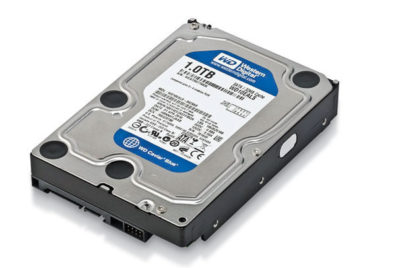
Good news if your available storage space is filled to the brim: Traditional hard drives are even cheaper than SSDs these days. A 1TB Western Digital Blue hard drive spinning at a speedy 7,200rpm will only set you back $50 on Amazon, while a 3TB WD Blue drive is just $90 on Amazon (albeit at a slower 5,400rpm).

Hybrid drives blend the best of both worlds, combining a large amount of traditional storage with a small, speedy flash storage cache. The drive monitors your oft-used files and keeps them on the cache, where they benefit from SSD-esque speeds. A Seagate 1TB hybrid drive goes for $85 on Amazon with an 8GB SSD cache, or $114 on Amazonwith a 32GB cache.

PCupgrades4

Add RAM for more multitasking

If your computer’s having trouble running multiple tasks simultaneously, low memory is a likely culprit. Two gigabytes of RAM is the absolute minimum modern Windows systems need to run smoothly, and even PCs with 4GB of memory can start to feel pokey if you’re running several programs, keep a dozen Chrome tabs open, or game with some background processes still running.

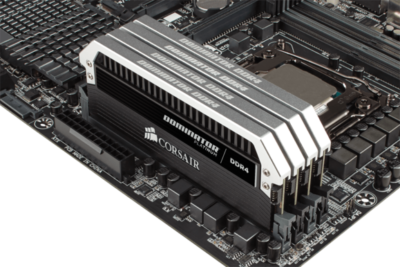
Fortunately, memory is dirt cheap. Picking up an 8GB memory kit from Corsair ($36 for 2x4GB kit on Amazon) or Kingston ($36 for 2x4GB kit on Amazon)—two reliable brands I’ve had nothing but success with personally—will set you back less than $5 per gigabyte.

Just be sure to get the right type of memory for your PC! RAM comes in all sorts of different packages. The easiest way to tell what type of RAM resides in your PC is to download the free, superb CPU-Z software, then open the Memory tab and look for the “type” option.

PCupgrades5

MAYBE upgrade your CPU

A pokey PC may be the result of an outdated processor. Unfortunately, replacing your CPU often means replacing your motherboard too, making the endeavor pretty pricey. But not always—especially if you have an AMD-powered system.

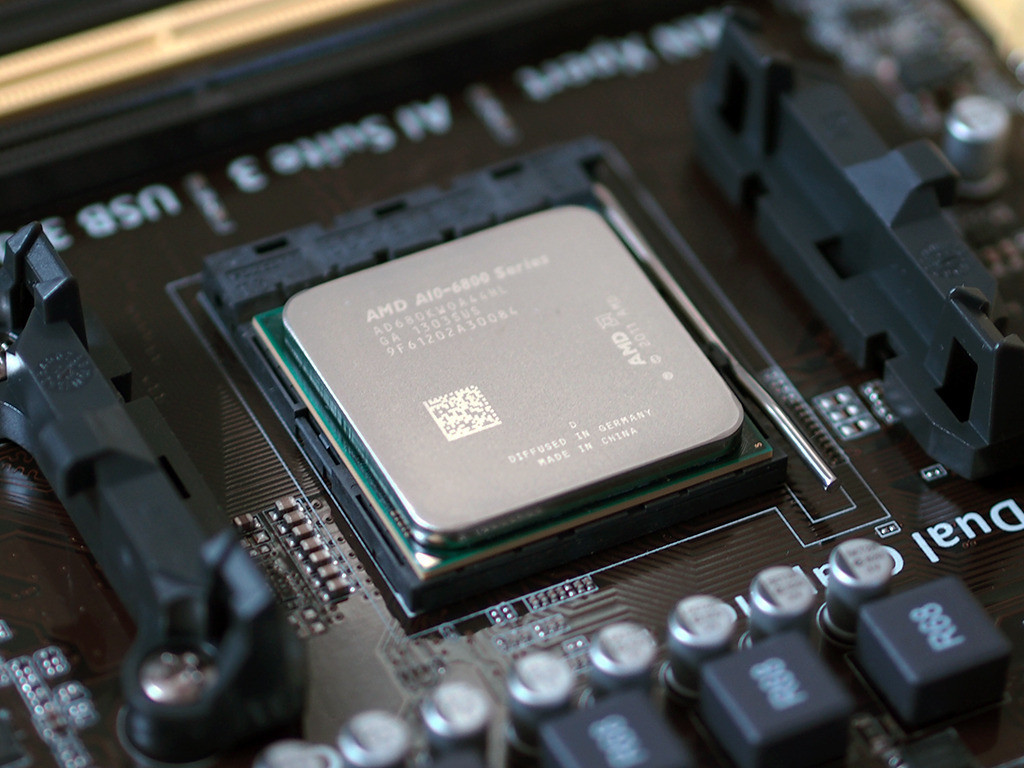
AMD’s AM3+ and FM2 motherboards have been powering AMD’s CPUs and APUs, respectively, since mid-2012. Since many prebuilt AMD systems sport modest processors, upgrading to a modern CPU can give your PC a shot in the arm. If you’re on FM3+, the new Athlon X4 860K ($75 on Amazon) is a solid entry-level quad-core processor for gaming, while the 8-core FX-8320E ($130 on Amazon) is a great step-up option and price-to-performance champion. If you have an FM2-based system with an AMD APU, the A10-7860K ($110 on Amazon) could be a solid upgrade, complete withintegrated graphics that let you get into e-sports games at modest frame rates.

Intel switches out its motherboards and socket types much more often, and its chips tend to be much more expensive. Replacing Intel chips aren’t really an affordable upgrade in most cases.

It’s important to make sure your new chip is compatible with your existing motherboard! Before you buy, fire up CPU-Z and search for the “Package” entry in the main CPU tab to see what sort of socket your motherboard packs.

PCupgrades6

Gaming doesn’t have to be expensive

Want to dip your toes into PC gaming? Despite what fearmongers may tell you, gaming doesn’t have to cost an arm and a leg.

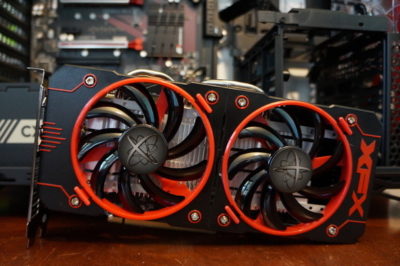
AMD’s Radeon RX 460 ($110 and up on Newegg) delivers great performance in e-sports games like League of Legends and Overwatch. It also lets you play modern games at a console-esque 30 frames per second with High graphics settings at 1080p, or up to 60fps at Medium settings. That’s damned good for a hair over $100. Even better: Many models pull their power directly from your motherboard, with no need for additional power connectors. That makes AMD’s budget card a great option for adding gaming capabilities to prebuilt “big box” PCs from the likes of HP and Dell, as they often pack modest power supplies that lack extra connectors.

Be careful though: Some of the more potent Radeon RX 460 models require extra 6-pin power connectors. You don’t want that if you don’t have one available—unless you want to buy a power supply, too. A 500 watt power supply from a reputable company doesn’t cost much, as evidenced by the EVGA 500 W1, which only costs $35 on Amazon.

PCupgrades7

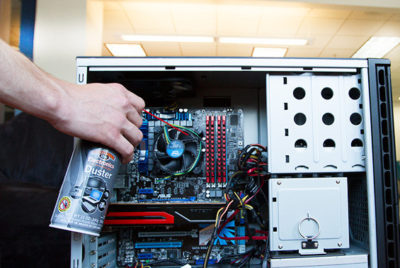
Buy some canned air

No, seriously. If you haven’t cleaned out your PC in a year or more, mounds of dust and debris can be collected inside. Clogged fans and exhaust ports lead to overheating, which leads to your PC throttling back performance. Single containers of canned air can be relatively pricey; grab a four pack ($16.22 on Amazon) for a lower price and enough air to clean out your PC for years to come.

PCupgrades8

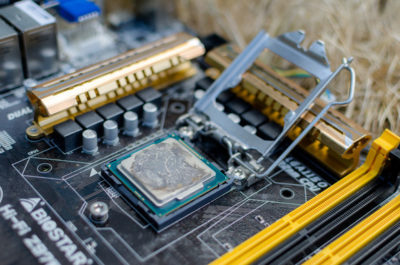
Improve your cooling, improve your performance

If your PC’s still running hot after blowing out the dust, the thermal paste coating the area where your CPU or GPU touches its cooler could be old, dry, and ineffective, especially if you’ve had the equipment for several years.

First, install SpeedFan and double check that your CPU or GPU is indeed overheating. If one (or both!) is, grab a syringe of thermal paste—Arctic Silver 5 ($7.43 on Amazon)—then use guides to installing a CPU cooler and refreshing your graphics card to help you apply new thermal paste after scraping off the old stuff.

Still running hot overall? Try adding a case fan or two. Case fans from reputable vendors are shockingly cheap ($7.91 from Cooler Master on Amazon, or $9 from NZXT on Amazon) and can be installed in mere minutes.

PCupgrades9

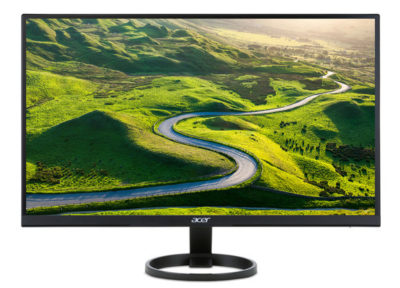
A better monitor

You spend most of your time interacting with your computer’s input and output devices, so it’s definitely worth investing in decent peripherals if you spend considerable time at your PC.

Start with your monitor. If you’re still using a lower-resolution display or (shudder) a fat CRT display, embracing a high-definition 1080p monitor will provide a huge step up in usability. It won’t break the bank either: You can buy a 1080p HP with a 21.5-inch IPS screen for just $100 on Amazon. IPS screens provide a much more vibrant image than the twisted-nematic panels found in most budget monitors.

Alternatively, if you’re a gamer with a Radeon graphics card, consider buying a monitor that supports AMD’s FreeSync technology. FreeSync synchronizes the refresh rate of your graphics card and display to eliminate stutter and screen tearing in games. While monitors with Nvidia’s competing G-Sync technology fetch steep price premiums, FreeSync adds minimal cost to a display. A 22-inch 1080p FreeSync display by ViewSonic costs just $110 on Amazon, for example.

PCupgrades10

Aural bliss

Treat your ears, too. The speakers that come bundled with prebuilt PCs tend to be utter garbage. While audio gear pricing can escalate to frightening levels, some of our favorite headsets will set you back less than a Benjamin.

If you’re a gamer, our favorite all-around gaming headset is the Kingston HyperX Cloud($67.93 on Amazon). The sound quality is second to none in this bracket, the build quality is superb, and it’s extremely comfortable—though its microphone is merely average.

Don’t need a mic? Music lovers will find a lot to love in the Sennheiser HD 280 Pro ($99.95 on Amazon), which I’ve personally been using for years now. The comfortably snug cans lack the extreme bass kick of, say, Beats or Monster headphones, but make up for it by delivering rich, accurate, and dynamic audio across the full sound spectrum. They’re beloved among Amazon buyers for a reason.

PCupgrades11

Enhance the parts you physically touch

If you’re used to crappy bundled PC keyboards, or laptop keyboards, upgrading to a mechanical keyboard will change your life. The well-reviewed Logitech G610 Orion withCherry MX Brown or Red switches only costs $90 on Amazon.That’s probably more than most people have spent on a keyboard before, but it’s cheap by mechanical standards. Once you’ve tried it, you won’t be able to go back to a rubber-dome board.

Likewise, investing in a decent mouse makes interacting with your PC that much more pleasant. The Razer DeathAdder ($42.69 on Amazon) is ostensibly a gaming mouse, but its ergonomic design and high DPI sensor help it feel good in your palm and generate nice, smooth cursor movements. I’ve been using one for more than five years now, and grimace whenever i’m forced to use a cheap mouse bundled with a prebuilt PC.

PCupgrades12

But first…

Speeding up your well-loved PC doesn’t actually have to cost any money. You’ll find a few tips repeated from here—seriously, buy an SSD—but for the most part, it focuses on no-cost software solutions for potentially boosting your computer’s performance. Try those before dropping dough on new gear!

Have questions?

Get answers from Microsofts Cloud Solutions Partner!
Call us at: 856-745-9990 or visit: https://southjerseytechies.net/

South Jersey Techies, LL C is a full Managed Web and Technology Services Company providing IT Services, Website Design ServicesServer SupportNetwork ConsultingInternet PhonesCloud Solutions Provider and much more. Contact for More Information.

To read this article in its entirety click here.
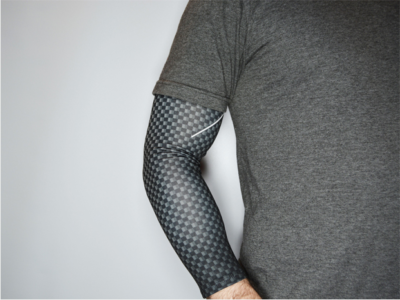
CALL US NOW!