Back to Top

Tech, Web, Cloud & Cabling Services

Category: Free Software

Software / Free Software Category

10 Killer Cheap Upgrades for Your PC

Looking to put more pep in your PC’s step? These surprisingly cheap PC upgrades and accessories do the trick without breaking the bank.

PCupgrades1

No need to break the bank

Sure, swanky new Surface Pros and $1,200 graphics cards may capture all the headlines, but on a practical level, the real story is that PCs aren’t cheap. But if your computer’s starting to feel pokey, there’s fortunately no reason to rush out a spend hundreds on a new one.

Investing small amounts in key new PC hardware can keep your computer running strong for years to come. These upgrades—most costing well under $100—breathe new life into slow machines. You just have to be strategic and make sure you’re putting your money in the best place for your particular system.
PCupgrades2

Speed up your PC with an SSD

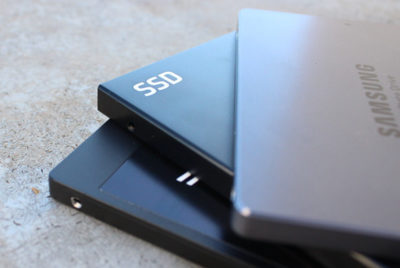
Let’s start in the most obvious place. If your PC still runs with a mechanical hard drive, swapping it out with an SSD will make it feel like a whole new computer. SSDs inject face-melting speed into a PC, drastically improving boot times, file transfers, and overall system responsiveness.

A lot of PCs don’t have SSDs, for two reasons: Solid-state drives use to be extravagantly expensive, and computer makers often charge hefty mark-ups for upgrading to an SSD. Fortunately, SSD prices have plummeted in recent years. Superb models like theSamsung 850 EVO ($89.39 for 250GB on Amazon) and the OCZ Trion 150 ($45 for 120GB on Amazon) can be found for well under $100 online. If you find the storage capacities a bit too tight, you can always install the SSD as a boot drive alongside your current hard drive.

A word of warning about SSDs, and all the hardware discussed in this article: You can often find lower prices if you sift through Amazon or Newegg for no-name or lesser-known brands. But you’re gambling on reliability and support when you move away from established PC hardware makers. Stick with name brand gear unless you absolutely, positively can’t afford it.
PCupgrades3

Mass storage is dirt cheap

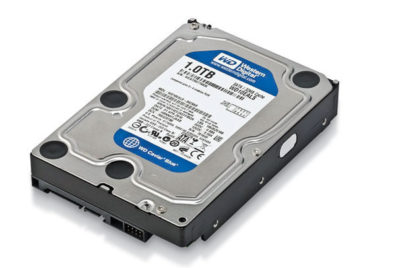
Good news if your available storage space is filled to the brim: Traditional hard drives are even cheaper than SSDs these days. A 1TB Western Digital Blue hard drive spinning at a speedy 7,200rpm will only set you back $50 on Amazon, while a 3TB WD Blue drive is just $90 on Amazon (albeit at a slower 5,400rpm).

Hybrid drives blend the best of both worlds, combining a large amount of traditional storage with a small, speedy flash storage cache. The drive monitors your oft-used files and keeps them on the cache, where they benefit from SSD-esque speeds. A Seagate 1TB hybrid drive goes for $85 on Amazon with an 8GB SSD cache, or $114 on Amazonwith a 32GB cache.
PCupgrades4

Add RAM for more multitasking

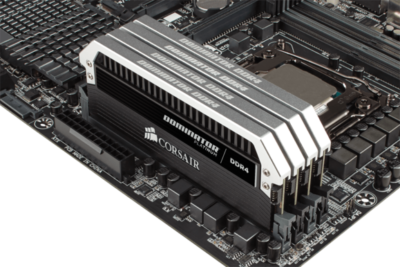
If your computer’s having trouble running multiple tasks simultaneously, low memory is a likely culprit. Two gigabytes of RAM is the absolute minimum modern Windows systems need to run smoothly, and even PCs with 4GB of memory can start to feel pokey if you’re running several programs, keep a dozen Chrome tabs open, or game with some background processes still running.

Fortunately, memory is dirt cheap. Picking up an 8GB memory kit from Corsair ($36 for 2x4GB kit on Amazon) or Kingston ($36 for 2x4GB kit on Amazon)—two reliable brands I’ve had nothing but success with personally—will set you back less than $5 per gigabyte.

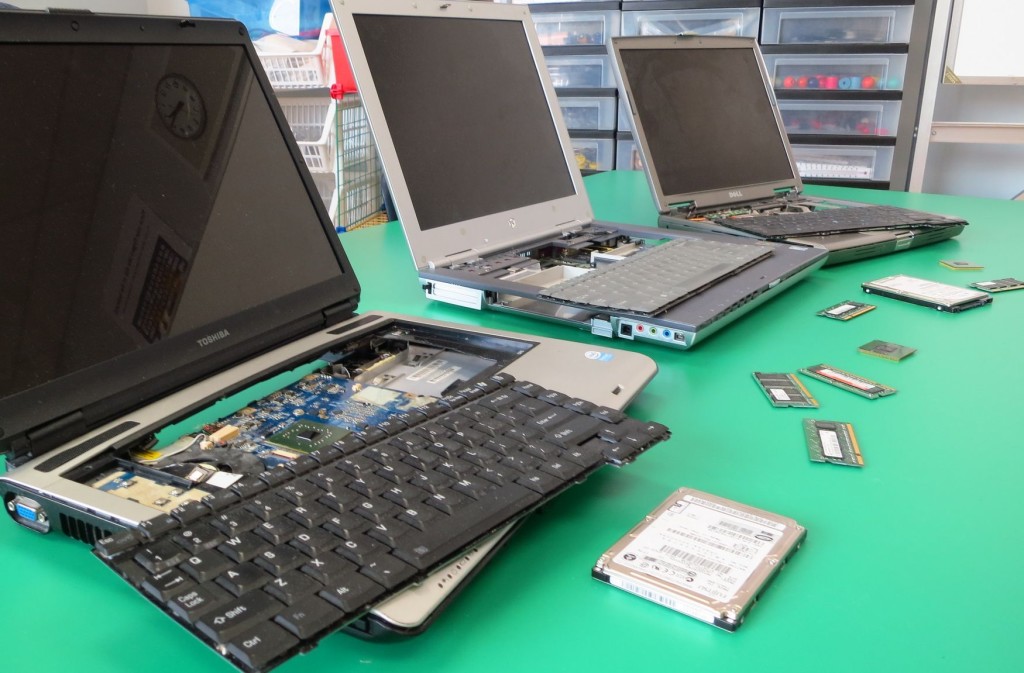
Just be sure to get the right type of memory for your PC! RAM comes in all sorts of different packages. The easiest way to tell what type of RAM resides in your PC is to download the free, superb CPU-Z software, then open the Memory tab and look for the “type” option.
PCupgrades5

MAYBE upgrade your CPU

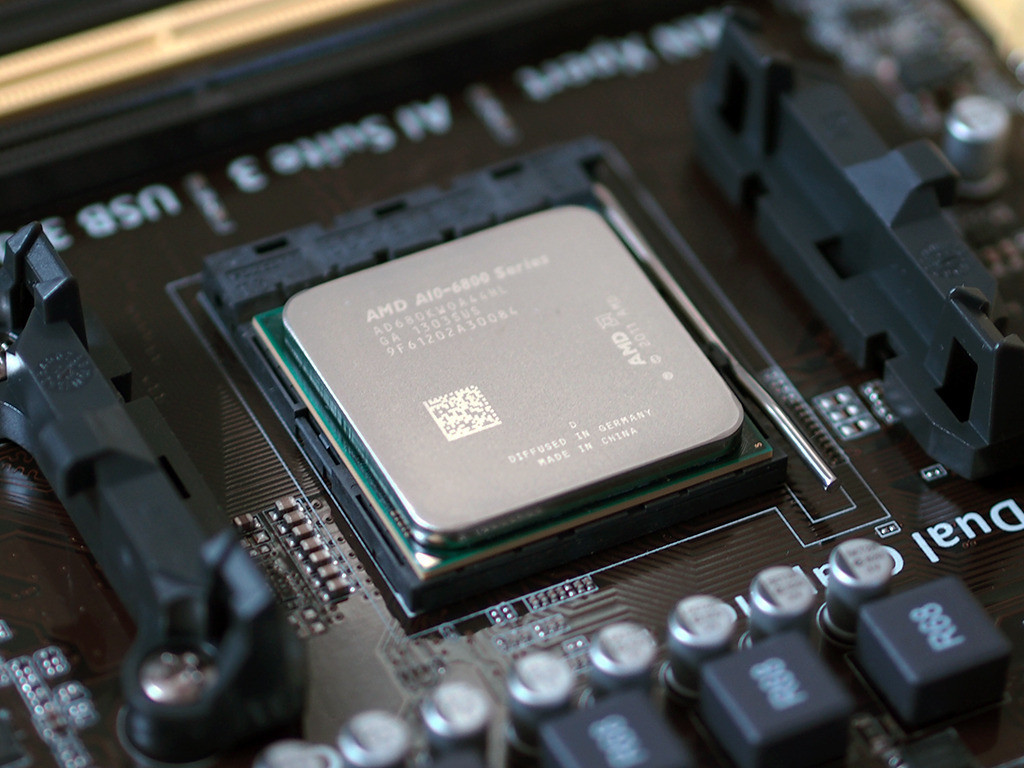
A pokey PC may be the result of an outdated processor. Unfortunately, replacing your CPU often means replacing your motherboard too, making the endeavor pretty pricey. But not always—especially if you have an AMD-powered system.

AMD’s AM3+ and FM2 motherboards have been powering AMD’s CPUs and APUs, respectively, since mid-2012. Since many prebuilt AMD systems sport modest processors, upgrading to a modern CPU can give your PC a shot in the arm. If you’re on FM3+, the new Athlon X4 860K ($75 on Amazon) is a solid entry-level quad-core processor for gaming, while the 8-core FX-8320E ($130 on Amazon) is a great step-up option and price-to-performance champion. If you have an FM2-based system with an AMD APU, the A10-7860K ($110 on Amazon) could be a solid upgrade, complete withintegrated graphics that let you get into e-sports games at modest frame rates.

Intel switches out its motherboards and socket types much more often, and its chips tend to be much more expensive. Replacing Intel chips aren’t really an affordable upgrade in most cases.

It’s important to make sure your new chip is compatible with your existing motherboard! Before you buy, fire up CPU-Z and search for the “Package” entry in the main CPU tab to see what sort of socket your motherboard packs.
PCupgrades6

Gaming doesn’t have to be expensive

Want to dip your toes into PC gaming? Despite what fearmongers may tell you, gaming doesn’t have to cost an arm and a leg.

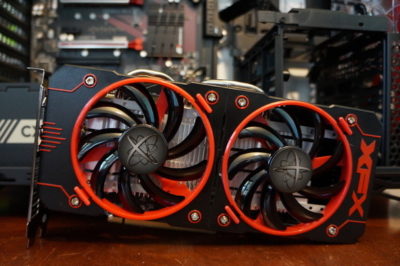
AMD’s Radeon RX 460 ($110 and up on Newegg) delivers great performance in e-sports games like League of Legends and Overwatch. It also lets you play modern games at a console-esque 30 frames per second with High graphics settings at 1080p, or up to 60fps at Medium settings. That’s damned good for a hair over $100. Even better: Many models pull their power directly from your motherboard, with no need for additional power connectors. That makes AMD’s budget card a great option for adding gaming capabilities to prebuilt “big box” PCs from the likes of HP and Dell, as they often pack modest power supplies that lack extra connectors.

Be careful though: Some of the more potent Radeon RX 460 models require extra 6-pin power connectors. You don’t want that if you don’t have one available—unless you want to buy a power supply, too. A 500 watt power supply from a reputable company doesn’t cost much, as evidenced by the EVGA 500 W1, which only costs $35 on Amazon.
PCupgrades7

Buy some canned air

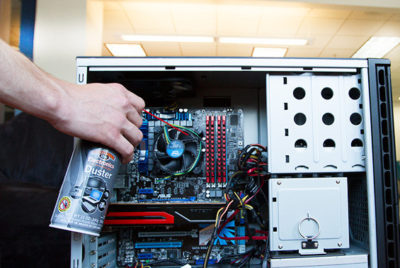
No, seriously. If you haven’t cleaned out your PC in a year or more, mounds of dust and debris can be collected inside. Clogged fans and exhaust ports lead to overheating, which leads to your PC throttling back performance. Single containers of canned air can be relatively pricey; grab a four pack ($16.22 on Amazon) for a lower price and enough air to clean out your PC for years to come.
PCupgrades8

Improve your cooling, improve your performance

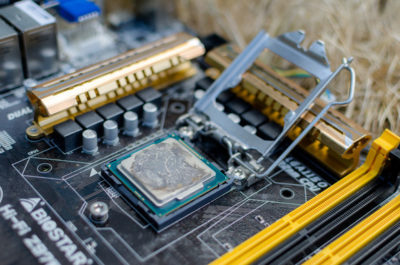
If your PC’s still running hot after blowing out the dust, the thermal paste coating the area where your CPU or GPU touches its cooler could be old, dry, and ineffective, especially if you’ve had the equipment for several years.

First, install SpeedFan and double check that your CPU or GPU is indeed overheating. If one (or both!) is, grab a syringe of thermal paste—Arctic Silver 5 ($7.43 on Amazon)—then use guides to installing a CPU cooler and refreshing your graphics card to help you apply new thermal paste after scraping off the old stuff.

Still running hot overall? Try adding a case fan or two. Case fans from reputable vendors are shockingly cheap ($7.91 from Cooler Master on Amazon, or $9 from NZXT on Amazon) and can be installed in mere minutes.
PCupgrades9

A better monitor

You spend most of your time interacting with your computer’s input and output devices, so it’s definitely worth investing in decent peripherals if you spend considerable time at your PC.

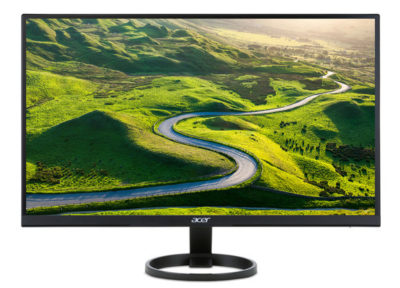
Start with your monitor. If you’re still using a lower-resolution display or (shudder) a fat CRT display, embracing a high-definition 1080p monitor will provide a huge step up in usability. It won’t break the bank either: You can buy a 1080p HP with a 21.5-inch IPS screen for just $100 on Amazon. IPS screens provide a much more vibrant image than the twisted-nematic panels found in most budget monitors.

Alternatively, if you’re a gamer with a Radeon graphics card, consider buying a monitor that supports AMD’s FreeSync technology. FreeSync synchronizes the refresh rate of your graphics card and display to eliminate stutter and screen tearing in games. While monitors with Nvidia’s competing G-Sync technology fetch steep price premiums, FreeSync adds minimal cost to a display. A 22-inch 1080p FreeSync display by ViewSonic costs just $110 on Amazon, for example.

PCupgrades10

Aural bliss

Treat your ears, too. The speakers that come bundled with prebuilt PCs tend to be utter garbage. While audio gear pricing can escalate to frightening levels, some of our favorite headsets will set you back less than a Benjamin.

If you’re a gamer, our favorite all-around gaming headset is the Kingston HyperX Cloud($67.93 on Amazon). The sound quality is second to none in this bracket, the build quality is superb, and it’s extremely comfortable—though its microphone is merely average.

Don’t need a mic? Music lovers will find a lot to love in the Sennheiser HD 280 Pro ($99.95 on Amazon), which I’ve personally been using for years now. The comfortably snug cans lack the extreme bass kick of, say, Beats or Monster headphones, but make up for it by delivering rich, accurate, and dynamic audio across the full sound spectrum. They’re beloved among Amazon buyers for a reason.
PCupgrades11

Enhance the parts you physically touch

If you’re used to crappy bundled PC keyboards, or laptop keyboards, upgrading to a mechanical keyboard will change your life. The well-reviewed Logitech G610 Orion withCherry MX Brown or Red switches only costs $90 on Amazon.That’s probably more than most people have spent on a keyboard before, but it’s cheap by mechanical standards. Once you’ve tried it, you won’t be able to go back to a rubber-dome board.

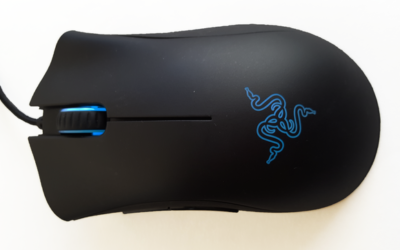
Likewise, investing in a decent mouse makes interacting with your PC that much more pleasant. The Razer DeathAdder ($42.69 on Amazon) is ostensibly a gaming mouse, but its ergonomic design and high DPI sensor help it feel good in your palm and generate nice, smooth cursor movements. I’ve been using one for more than five years now, and grimace whenever i’m forced to use a cheap mouse bundled with a prebuilt PC.
PCupgrades12

But first…

Speeding up your well-loved PC doesn’t actually have to cost any money. You’ll find a few tips repeated from here—seriously, buy an SSD—but for the most part, it focuses on no-cost software solutions for potentially boosting your computer’s performance. Try those before dropping dough on new gear!

Have questions?

Get answers from Microsofts Cloud Solutions Partner!
Call us at: 856-745-9990 or visit: https://southjerseytechies.net/

South Jersey Techies, LL C is a full Managed Web and Technology Services Company providing IT Services, Website Design ServicesServer SupportNetwork ConsultingInternet PhonesCloud Solutions Provider and much more. Contact for More Information.

To read this article in its entirety click here.

The end is near: Say goodbye to the Windows 10 free upgrade

The deadline for a free Windows 10 upgrade is right around the corner. Find out what happens after the offer expires.

Windows 10-July29

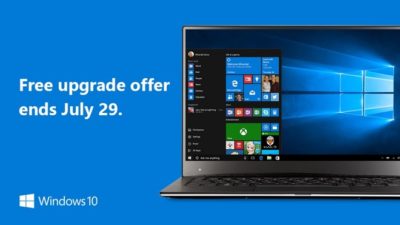
Don’t look now, but July 29, 2016, is coming up fast. That is the one-year anniversary of the release of Windows 10, which means the ability to upgrade to the new operating system for FREE will soon expire. (If you are interested, you can take a look at the official countdown here.)

In a January 21, 2015, Windows Experience blog post titled The next generation of Windows: Windows 10, we learned that Windows 10 would be a free upgrade. Author Terry Myerson said:

Today was a monumental day for us on the Windows team because we shared our desire to redefine the relationship we have with you—our customers. We announced that a free upgrade for Windows 10 will be made available to customers running Windows 7, Windows 8.1, and Windows Phone 8.1 who upgrade in the first year after launch.

A little over six months later, on July 28, 2015, Myerson penned another Windows Experience blog post, titled Windows 10 Free Upgrade Available in 190 Countries Today, in which he reiterated the free upgrade policy:

From the beginning, Windows 10 has been unique—built with feedback from five million Windows Insiders, delivered as a service with ongoing innovations and security updates, and offered as a free upgrade to genuine Windows 7, Windows 8.1 and Windows Phone 8.1 customers.

If you’ve been reading articles by Woody Leonhard or Paul Thurrott in recent months, you know that Microsoft has been upping its game with the Get Windows 10, or GWX, program it built into Windows 7 and Windows 8.1. It really wants every Windows user everywhere to be running Windows 10.

Any holdouts—Windows 7 or Windows 8.1 users who have been sticking to their guns so far—have only a few more weeks to go before losing their chance to get Windows 10 for free.

In a recent Windows Experience blog post titled Windows 10 Now on 300 Million Active Devices – Free Upgrade Offer to End Soon, Yusuf Mehdi, the corporate vice president of Microsoft’s Windows and Devices Group, said:

…we want to remind you that if you haven’t taken advantage of the free upgrade offer, now is the time. The free upgrade offer to Windows 10 was a first for Microsoft, helping people upgrade faster than ever before. And time is running out. The free upgrade offer will end on July 29 and we want to make sure you don’t miss out. After July 29th, you’ll be able to continue to get Windows 10 on a new device, or purchase a full version of Windows 10 Home for $119.

What will Windows 10 cost after July 29?

As Mehdi pointed out in his post, you will be able to purchase a full version of Windows 10 Home for $119.

But how much will Windows 10 Pro cost?

Well, if you head over to the Microsoft Store right now, you’ll find that you can purchase both Windows 10 Home and Windows 10 Pro as a download or on a USB flash drive. Windows 10 Pro will cost you $199.99. And moving past the July 29 deadline for the free upgrade, it’s a pretty safe bet that prices will remain the same—especially since they’re the same price points that the full versions of Windows 8.1 Home and Pro sold for when that operating system was new.

Will there be upgrade versions of Windows 10 after July 29?

Since Microsoft provided free upgrades for a full year, I wonder if there will be upgrade packages for Windows 7 and Windows 8.1 users who decide to upgrade to Windows 10 after July 29. I suppose that it’s possible, but then again, maybe not. When Microsoft introduced Windows 8.1 packages, it offered only the full versions—there were no upgrade versions of Windows 8.1. With that in mind, it’s easy to speculate that this may also be the case with Windows 10.

Have questions?

Get answers from Microsofts Cloud Solutions Partner!
Call us at: 856-745-9990 or visit: https://southjerseytechies.net/

South Jersey Techies, LL C is a full Managed Web and Technology Services Company providing IT Services, Website Design ServicesServer SupportNetwork ConsultingInternet PhonesCloud Solutions Provider and much more. Contact for More Information.

Windows 10: Here’s Microsoft’s new look Start menu

Microsoft has changed the look of the Start menu in Windows 10.

The revamped Start menu is due to be added to Windows 10 this summer, as part of a major update coined the ‘Windows 10 Anniversary Edition’.

Microsoft revealed the updated appearance in an early build of the OS, which it released to testers in the Windows 10 Insider program on Friday.

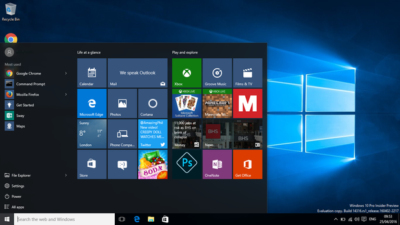
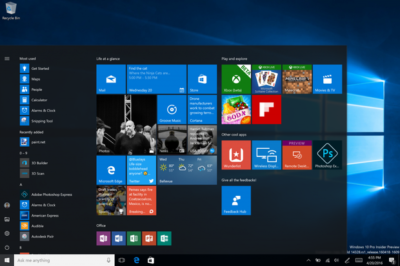
The new look Start menu makes the ‘All Apps’ list visible by default on the left-hand side. In another new addition, a selection of the user’s ‘Most-used’ apps are shown at the top of this permanently visible ‘All Apps’ list. Microsoft says the change should reduce the clicking and scrolling needed to access apps.

The Power, Settings and File Explorer icons are also always visible in the left rail of the Start menu and the ‘Recently added’ section will display three entries, instead of one. Any folders that users have added to the Start menu are now immediately accessible without having to click the hamburger icon.

win10

The old look start menu

updated-startmenu-windows10

The new look start menu

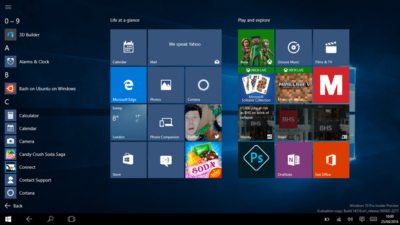
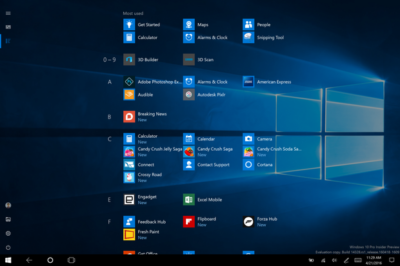
The look of the Start menu in tablet mode has also been overhauled, turning the ‘All Apps’ list into a fullscreen menu, reminiscent of the Windows 8.1 Start screen. Gabe Aul, VP for Microsoft’s engineering systems team, says the switch to fullscreen was a ‘top request from Windows Insiders’, adding that ‘the grid-like implementation of the full-screen ‘All Apps’ list aims to provide efficiency while taking advantage of the additional real estate on the Start screen on a tablet’.

win10tab

The old look ‘All Apps’ list in tablet mode.

full-screen-allapps-windows10

The new look ‘All Apps’ list in tablet mode.

The final Start menu change is designed to make it easier to toggle between pinned tiles and the ‘All Apps’ list, by providing the option to do so in the menu’s left rail.

More helpful Cortana and other changes

The latest Windows Insider build, 14328, also includes a raft of features that will be available to all users following the Anniversary Update.

These new components include Windows Ink, which allows users to more easily write notes on touchscreen PCs and tablets using a digital pen. The addition of Windows Ink to Windows 10 allows users to write on digital sticky notes, draw on digital whiteboards and annotate content in a variety of apps, including Maps, Microsoft Edge, and Office. Microsoft wants support for drawing and writing using a digital pen to be present in many Windows 10 apps and says that adding support for Windows Ink only requires developers to write two lines of code.

Windows 10’s digital assistant Cortana has also been tweaked. Users will no longer have to log into Windows to use Cortana and instead will be able to use voice commands to get Cortana to make notes, play music or set a reminder from the lock screen.

Cortana can now also be used to set photo reminders, for example the user could take a picture of a cheese they want to buy next time they’re in a store, and add reminders based on content from another Windows 10 app, for example telling a user to read an article they flagged as interesting in the Edge browser. Cortana is now also accessible to all users, with Windows 10 no longer requiring users to sign-in before they can ask simple questions of the digital assistant.

Other changes include the ability to search files on OneDrive cloud storage that aren’t synced locally, tweaks to the look of and what is displayed in the Action Center and via notifications, various changes to the Taskbar — including easier access to the calendar and the removal of the File Explorer icon, as well as updates to the Settings app and lock screen.

As this is an early build of Windows 10, some of these features may change before reaching the general public, based on feedback from testers in the Windows Insider program.

Have questions?

Get answers from Microsofts Cloud Solutions Partner!
Call us at: 856-745-9990 or visit: https://southjerseytechies.net/

South Jersey Techies, LL C is a full Managed Web and Technology Services Company providing IT Services, Website Design ServicesServer SupportNetwork ConsultingInternet PhonesCloud Solutions Provider and much more. Contact for More Information.

IRS launches iPhone, Android apps for taxpayers

Everyone’s favorite government agency, the Internal Revenue Service, has launched its own mobile application.

Released last week to iPhone and Android users, the free IRS2Go provides a few tidbits of information that could make April 15 a bit less stressful.

Those of us fortunate enough to qualify for a refund can find out exactly when Uncle Sam will be sending out that check. Entering your Social Security number (which the IRS says is masked and encrypted), filing status, and expected refund amount delivers the due date for your payment.

People who file their federal taxes electronically can check their refund status about 72 hours after they get an e-mail from the IRS acknowledging the receipt of their tax return. Those still doing things the old-fashioned way–on paper–will have to wait around three or four weeks after filing before they can learn when their refund check will arrive.

According to the agency, around 70 percent of the 142 million individual tax returns filed last year were done electronically.

Beyond providing the refund status, the app lets you subscribe to tax tips and updates sent each day during tax season and less frequently the rest of the year. IRS2Go also points you to the agency’s own Twitter feed where you can learn even more about filing your taxes.

“This new smart phone app reflects our commitment to modernizing the agency and engaging taxpayers where they want when they want it,” IRS Commissioner Doug Shulman said in a statement. “As technology evolves and younger taxpayers get their information in new ways, we will keep innovating to make it easy for all taxpayers to access helpful information.”

The IRS has increasingly been moving taxpayers toward e-filing and encouraging them to access more information electronically as a way to cut costs. Last year, the agency announced that it would no longer mail paper income tax packages to individuals and businesses since all of that information is freely available online or through libraries and post offices. The IRS is also looking for other ways to take advantage of technology, especially the move toward mobile.

This phone app is a first step for us,” Shulman said. “We will look for additional ways to expand and refine our use of smartphones and other new technologies to help meet the needs of taxpayers.”

To view the original article in it’s entirety, Click Here

Windows phones’ free-fall may force Microsoft to push harder on Windows 10 adoption

Microsoft needs to protect its access to your wallet.

Windows_Phone_logo


Poor little Windows phone could have a bigger effect on Microsoft’s business than you’d think. As the company’s mobile device strategy continues to disintegrate, Microsoft may feel compelled to push harder on Windows 10 adoption and paid services to prove it can survive without a viable smartphone—and that could be bad news for consumers.

The raw numbers are shocking: Microsoft sold a minuscule 2.3 million Lumia phones last quarter, down from 8.6 million a year ago. Phone revenue declines will only “steepen” during the current quarter, chief financial officer Amy Hood warned during a conference call. That’s dragged down Microsoft’s results as a company, too.

Chief executive Satya Nadella opened his remarks to analysts optimistically, however, by noting that Windows 10 now powers 270 million devices in active use, a steady increase in its user base since the formal launch of Windows 10 last July. Later on, he summed up Microsoft’s message: “In this world, what matters most is the mobility of a person’s experience, not any one single device,” he said.

Will Wall Street buy it? If it does, Nadella will be free to continue. But if investors begin to get cold feet, you might see Microsoft push Windows 10 more aggressively to keep its numbers up.

Microsoft

Selling hardware to sell services

Nadella’s strategy is simple enough: grow Microsoft’s revenues, in part by convincing customers to adopt its paid subscription services. The most direct way is through sales of Surface or Lumia hardware. If that fails, then a third-party Windows 10 PC will suffice. Failing that, Microsoft apps like Bing or Cortana running on iOS or Android are acceptable as well.

But what Microsoft really wants is to sign you up for paid subscription services: Office 365 and Xbox Live, plus the corresponding enterprise licenses for Windows 10, Office 365, and Azure. ”Overall, the thing that we’re most focused on with Office 365 is how do we make sure we have the Office 365 endpoints everywhere, [with] good usage,” Nadella said.

bing-home-page

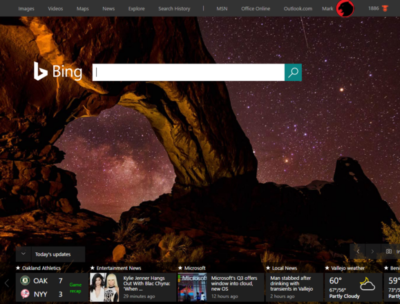
According to Verto, which measures online audience across all devices, Microsoft has four online properties with more than 100 million users per month: Microsoft Live (177.1 million), Bing (138.9 million), Microsoft Office (136.3 million), and MSN (121.5 million). Skype has 83.7 million users.

Viewed through the lens of “constant currency” adjustments that discount inflation, Microsoft’s strategy seems to be working: commercial Office 365 license revenue was up 7 percent, consumer Office 365 license revenue by 6 percent. Windows non-Pro revenue growth was 15 percent, though Pro revenue to the commercial market dipped by 11 percent. Xbox Live active users are now at 46 million, up 24 percent from a year ago.

Hidden dangers

Peer a little closer, though, and you begin to see signals that may be worrying the more impatient sectors of Wall Street. For one, device revenue is expected to continue falling. Save for a $12.7 billion holiday quarter, revenue in Microsoft’s “More Personal Computing” group has bumped along each quarter for the past year at about $9.3 billion or so. It’s expected to fall to between $8.7 billion and $9 billion this quarter, CFO Amy Hood said, apparently all attributable to the decline in phone sales.

The PC is the most frequently used device to access Microsoft services, Verto found, with 195.6 million monthly users. The smartphone is second, with 85.8 million users—but few of those devices are Windows phones.

lumia950

”Microsoft is clearly in an interesting position,” said Hannu Verkasalo, the chief executive of Verto, in an emailed statement.Microsoft has said in the past that the service matters more than the device, and the company does have software traction. “They have quickly pushed their mobile reach with their new device agnostic strategy,” Verkasalo continued.

Here’s the catch: “Even though they still have twice as many users using Microsoft services on PCs versus smartphones,” Verksala pointed out, “the mobile segment is the growth area.”Lacking a viable mobile device, Microsoft is missing out on opportunities to get even closer to users—and their wallets—in this growth area.

There’s also some evidence that Microsoft isn’t selling services as quickly as it could. Microsoft added just 1.6 million Office 365 consumer subscribers during the quarter, for a total of just 22.2 million users. Remember, at least 60 million Windows 10 PCs were sold during that quarter alone.

Keep your eyes open

All this means that the process of locking in customers to the Microsoft platform might be taking longer than expected. To date, investors haven’t minded, generally cheering Nadella’s leadership and sending the company’s stock up to near its all-time high in 1999.

But given Microsoft’s lower earnings and revenue—and downward guidance in key business units—it’s possible Microsoft may come under greater pressure to make its Windows 10 vision a reality. That’s not necessarily great news for consumers.

We all know how Microsoft originally made Windows 10 a free update, then began essentially forcing upgrades on users. To be fair, the company hasn’t stopped rolling out updates and new features, with the so-called Anniversary Update on the horizon.

So far, the company has taken the same “softly, softly” approach to Office 365: New Skype for Business features essentially require Office 365, as do new unsafe email warnings for Outlook. But what might Microsoft do if it feels it needs to make Office 365 stickier—put all of Office Online behind a paywall, perhaps?

Several analysts questioned Microsoft about potential profit margin declines. Nadella and other Microsoft executives indicated they’re staying the course. Eventually, though, Wall Street is going to take a harder look at how Microsoft’s strategy is playing out—and the one-year anniversary of Windows 10 could be the ideal time.

Say what you will about Windows 10 and privacy—Microsoft remains generally benign. But if investors start putting the screws in, you can’t help but wonder if there will be more pressure to pay up.

Have questions?

Get answers from Microsofts Cloud Solutions Partner!
Call us at: 856-745-9990 or visit: https://southjerseytechies.net/

South Jersey Techies, LL C is a full Managed Web and Technology Services Company providing IT Services, Website Design ServicesServer SupportNetwork ConsultingInternet PhonesCloud Solutions Provider and much more. Contact for More Information.

To read this article in its entirety click here.
Free Outlook Tools

Free Outlook tools on CodeTwo’s website

Take a look at  CodeTwo free tools on www.codetwo.com. These little Outlook add-ins resolve many common Outlook problems and can make your everyday work easier.

Here is a list of FREE tools that CodeTwo offers:

  • Outlook Sync
  • Outlook Export
  • Attach Unblocker
  • CatMan
  • PST Ghostbuster
  • FolderSync Addin
  • NetCalendars
  • AutoConfig
  • AutoLogin
  • Outlook Attachment Reminder
  • Active Directory Photos
  • Outlook Reply All Reminder

Five Uninstall Tools That Really Work

Takeaway: Remove all traces of unwanted programs with the help of these uninstall tools.

It never ceases to amaze me how many applications include built-in uninstallers, yet leave fragments behind when you remove them. Fortunately, you don’t have to be at the mercy of an application’s own uninstall tool. A number of commercial uninstall tools are available that do a good job cleaning up your computer. Here are five to consider.

1. Revo Uninstaller:

When you launch Revo Uninstaller, it automatically displays a list of the applications it can uninstall (Figure A). However, this is far from being the software’s only useful function. The Tools section provides access to commonly used operating system tools, such as the Registry Editor, Group Policy Editor, and the System Properties Sheet. Even better, the software offers an option for getting rid of junk files. This includes things like temporary files that were created upon opening Microsoft Office documents but that were never removed. The software also features something called Hunter Mode, in which you can drag a bull’s-eye icon over a file or an icon and then click the mouse to remove that particular item. You can download a free trial of Revo Uninstaller.

2: Your Uninstall Tool

Another uninstall tool worth considering is Your Uninstaller. As with the Revo Uninstall Tool, launching Your Uninstaller displays a list of the items that can be removed. On my lab system, however, your uninstall tool found significantly more software than The Revo Uninstall Tool did.

In addition to its software removal capabilities, Your Uninstaller contains a disk cleaner, which gets rid of junk files. There is also a feature called Trace Erase, which helps protect your privacy by clearing your history.

My two personal favorite features are the File Shredder, which securely deletes files, and the Startup Manager. The Startup Manager allows you to control what gets launched at system startup. This feature could prove invaluable in cleaning malware infections. You can download a trial version of Your Uninstall tool.

3: IObit Uninstaller

Like the other uninstall tools, IObit Uninstaller starts by listing all the programs that can be uninstalled. Although this program lacks the bells and whistles of some of the other utilities, it has two features that make it worthwhile. One is the Forced Uninstall button, which is great for removing stubborn applications. The other is the way that IOBit Uninstaller categorizes applications. The software will tell you which applications are rarely used, recently installed, or consume a lot of disk space. IOBit Uninstaller is FREE.

4: Advanced Uninstaller Pro

Advanced Uninstaller Pro is a more comprehensive software removal application than some of the others. In addition to offering basic removal capabilities, this free tool can monitor the installation of an application to ensure that the application can be completely removed later on without leaving behind any fragments. Advanced Uninstaller Pro also offers several specialized cleaning utilities that are designed to clean up things like the Windows Start menu, the registry, and even your fonts.

5: Cleanse Uninstaller Pro

Cleanse Uninstaller Pro offers basic software removal capabilities, along with a number of other useful features. It includes a Force Uninstall option and a Startup Manager, as well as a junk finder. It also provides some more unusual features, such as registry backup capabilities (as well as the ability to do a system-level restore) and even a file burner that lets you burn files to disk prior to removing them. You can download a free trial of Cleanse Uninstaller Pro.

To View Full Article Click Here

Ribbon Hero 2: Clippy’s Second Chance

It’s a fun game! No, it’s an Office Tutorial! No, it’s both!

Welcome to Ribbon Hero 2!

You’ve tried games that test your card playing, your imaginary farming skills, and your ability to hurl small birds. Finally there’s a game that will make you better at your job.

Do you feel like you’re using Word, Excel, PowerPoint, and OneNote the same way version after version, or have you avoided using one of these apps because you don’t know how? And you know there’s so much more Office could be doing for you if only you knew how to access it? No more! Straight from the secret lairs of Office Labs we present Ribbon Hero 2: Clippy’s Second Chance.

Yes, we turned Office into a game! If you’re going to spend time immersed in the inner workings of Office, by golly it should be fun. In Ribbon Hero 2, you’ll hop on board Clippy’s stolen time machine and explore different time periods. With each time period, you get to explore a new game board with challenges you must complete to get to the next level. Each challenge takes you into Word, Excel, PowerPoint, or OneNote to complete a task. Discover new Office features by actually using them, with a hint button to fall back on in case you get stuck. Race for a high score with colleagues, classmates and friends, or even put your score on your resume to show off your Office skills!

For those of you who have been paying attention, we’ve done this before. That’s how we got the “2” on the end of the title. So what’s different? *deep breath* Clippy, comic strips, colorful graphics, surprise animations, multiple levels, time travel, upside-down Clippy, space ships, Greek Gods, bow-and-arrow battles, and a ton of useful Office features.

Need more convincing? Get a sneak peek of Ribbon Hero 2 in this video:

Have FUN!

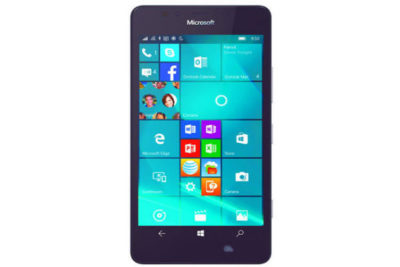
PC Remote App with Windows Mobile 8 Phone

pcremoteappTakeaway:  How to use PC Remote App & Server software to control your PC with a Windows 8 Phone.

PC Remote App is an easy and secure way to remote into your PC from a Windows 8 Phone.  Two versions are available, PC Remote (free) and PC Remote Pro ($2.99).  

Step 1 – Install PC Remote Server

1.  Download the PC Remote Server from http://www.pcremoteserver.com/PCRemoteSetup.msi
2.  Run PCRemoteSetup.msi file
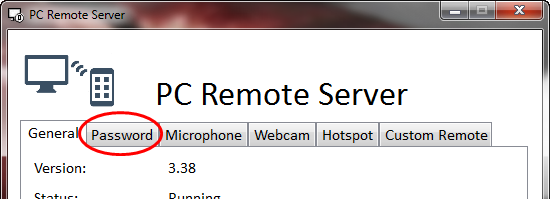
3.  After install, you can setup a password.  Select “Password” Tab.

pcremoteapp_server

5.  Check “Enable”
6.  Enter the password
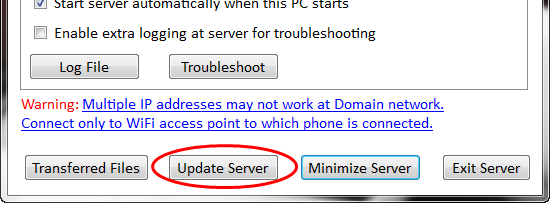
7.  Select the “General” Tab and then Click “Update Server”.

pcremoteapp_server2

Step 2 – Download PC Remote Mobile Client

1.  Open Windows Phone Store App.
2.  Search for “PCRemote” (Select Free version) and tap “Install”.
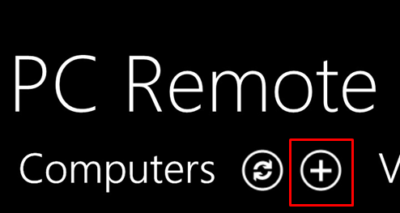
3.  Select “+” to add the IP address of the server machine.

pcremoteapp_mobile

4.  Insert the IP address of the server machine and password you selected in Step 1.
5.  Return to the main screen and select your machine.
6.  From the control menu you can choose multiple control options.

pcremoteapp_mobile2


CALL US NOW!