Back to Top

Tech, Web, Cloud & Cabling Services

Category: Search Engines

Search Engines Category

Obama Wants To Build The Most Powerful Supercomputer In The World By 2025

Super Computer

Yesterday, on July 29, the White House made a pretty big announcement for the computing world: by 2025, the U.S. hopes to have on its hands a supercomputer so powerful that it can perform one quintillion, or 1018, operations each second. For those baffled by that unfathomably large number, it’s a billion billion.

This plan is part of an Executive Order, issued by President Obama, to see the creation of an ambitious scheme called the National Strategic Computing Initiative (NSCI). The ultimate aim for the next decade is to maintain the U.S.’s current position as world leaders in the development of High-Performance Computing (HPC) systems.

Marrying incredibly powerful computers with vast amounts of storage, supercomputers have been pivotal in a variety of research fields, helping scientists to model an array of physical systems and natural phenomena. For example, researchers can simulate what happens when galaxies collide, or when molecules interact with one another. They can even help us to predict short- and longer-term trends involving different scenarios, such as the potential impacts of climate change, or what could happen during a disease outbreak.

Although the performance of these computers can be assessed in a variety of ways, a common measure is “flops,” or the number of calculations that can be performed each second. As it stands, the speediest supercomputer is China’s Tianhe-2, which, running at 33.86 petaflops, is capable of quadrillions of calculations per second, BBC News reports. But Obama wants to reach the next level, stepping into the exascale realm. Exascale computers are those capable of at least an exaflop, which is about a thousand times the speed of petascale systems. So that’s a pretty big leap.

But the potential of such systems could be huge. With the capacity to rapidly analyze such vast amounts of data, scientists could make significant progress in fields such as personalized medicine. By processing huge medical databases, scientists could better predict how certain drugs may interact with different populations of people or individuals with certain genetic variations, identifying those that may be particularly susceptible or unsuitable for various therapies. Furthermore, the storage and processing capacities could allow scientists to combine real data with simulations, which could allow for better predictions of weather or climate change, for example.

Although there seems to have been a focus on speed, the President’s Council of Advisors on Science and Technology has pointed out that high-performance computing isn’t just about flops, but also ability. In order for the field to progress, researchers need to create systems that are capable of keeping up with huge amounts of rapidly growing and changing data. There is clearly a lot of work to be done, but the ambitious goal does not sound unachievable.

Have questions?

Get help from IT Experts/Microsofts Cloud Solutions Partner
Call us at: 856-745-9990 or visit: https://southjerseytechies.net/

South Jersey Techies, LLC is a full Managed Web and Technology Services Company providing IT Services, Website Design ServicesServer SupportNetwork ConsultingInternet PhonesCloud Solutions Provider and much more. Contact for More Information.

To read this article in its entirety click here.

Migrate Facebook Data to Google+

You may not be ready to ditch Facebook for good, but now that you’ve had a chance to kick the tires on Google+, you might be ready to make it your go-to social network. The problem: You’ve built up a lot of friends, photos, videos, and other data on Facebook over the years, and you don’t want to simply lose all that data. Here’s how to migrate it all from Facebook to Google+.

Photo remixed from an original by Shutterstock.

When Google+ came out, it’s success was very much up in the air (remember Google Buzz?). However, it seems a lot of people have already thrown themselves into Google+ full force—Facebook may have 750 million users, but Google+ has already crossed the 20 million user milestone in only 30 days. If you’re ready to give it a shot as your main network, here’s what you need to do.

Migrate Your Friends

A social network is nothing without a group of friends with whom to talk, so the first thing you’ll want to do is migrate your friends. Not everyone you know is going to be on Google+ yet, but it’s a good idea to make sure you don’t leave anybody out—and you can always send those other late adopters an invite to encourage them.

The easiest way to migrate your Facebook friends is to import them through a Yahoo email address. I know that sounds awful, but hear me out: While a few people have created browser extensions and other migration methods, Facebook shuts them down pretty quickly, since they don’t like non-partners pulling friend data. In addition, the non-Yahoo methods usually add your Facebook friends to Google Contacts, which you probably don’t want. You may not have a Yahoo account, but that’s what makes this method great—no need to fill up your main address book with Facebook junk. Plus, it really does only take a few minutes.

To do this, head to mail.yahoo.com and click the Create New Account button (if you already have a Yahoo or Flickr account, you can skip this step). Once you’ve created an account, sign in and head to the Contacts tab. Click on “Import Contacts” and choose the Facebook option. You should now see all your Facebook friends in your Yahoo address book.

Lastly, head to Google+ and go to the Circles tab. Click “Find and Invite” and click the Yahoo button. It’ll add all your Yahoo Contacts (or Facebook Friends, in this case), to the Find and Invite page and you can add your Facebook friends to your circles. I, for one, was shocked at how many of my friends were already using Google+ without me knowing.

Migrate Your Photos

Migrating your photos is ridiculously easy with the previously mentioned Move Your Photos Chrome extension. Install it, click on its icon in the extension bar, and log in to your Facebook account. Select the photos you want to transfer and click the upload button at the very bottom of the page. You’ll see the progress in the lower right-hand corner. Don’t log out while it works, just let it do its thing.

When it’s done, you’ll see those albums in Google+. By default, they won’t be public, and you can adjust each album’s privacy settings by going into them and clicking on the “Edit” link under “Visible To”.

If you don’t want to use Chrome, you can grab a similar extension for Firefox, but you have to transfer albums one by one. If you have Chrome installed, I recommend using the Chrome extension just this once because it’s much faster.

Migrate Your Videos

The only way to migrate your videos, unfortunately, is to download the entirety of your Facebook data and re-upload them. To do this, head to Account > Account Settings, and scroll down to “Download Your Information”. Hit the “learn more” link and hit he Download button. It will take awhile to gather your info, but you’ll receive an email when it’s done, and you can download a ZIP file full of your photos, videos, and profile information.

Strangely, when I did this, one of my two videos was missing from the “videos” folder in the ZIP file. However, I was still able to download that video from Facebook by installing the Video Download Helper extension for Firefox, navigating to the video you want to download, playing it, and clicking the arrow next to Download Helper’s icon in the add-on bar.

Once you’ve wrangled all the videos you want to move to Google+, you’ll just have to upload them one by one. Head into Google+, click on your profile, and go to “Videos”. Hit the “Upload New Videos” link and re-upload your videos to your Google+ profile.

Update and View Both Networks at Once

Now that all your data’s been migrated, you can enjoy using Google+ as your main social network. However, chances are you still have a few friends on Facebook you want to keep up with. The best way to do this is with the Start Google Plus extension for both Chrome and Firefox. Once you install it, you’ll see a Facebook and Twitter icon in the upper right-hand corner, which you can click on to connect your other accounts. Once your Facebook account’s been linked, every status update you make on Google+ will have the option of posting to Facebook as well, just by clicking on the Facebook icon. It’ll take with it any links, pictures, or other data that the status contains.

Start Google Plus will also plug your Facebook feed into your Google+ feed, so you don’t even need to check Facebook anymore. Just check your Google+ feed, and it’ll show you all of Facebook’s news feed as well, with links to comment if you so desire.

If you prefer to not use an extension, you can also update your status on both networks at once using Facebook’s “Upload via Email” feature. Just head to Facebook’s mobile page, copy your Upload via Email email address, and add it to its own “Facebook” circle on Google+. From now on, when you update your status on Google+, you can just include your Facebook circle to send that status to Facebook as well. This method isn’t perfect, however: it’ll only work with statuses of up to 50 characters, and it doesn’t work with photos. However, it does work over mobile, which is nice, and without any extensions.

It’s also worth mentioning the previously mentioned Google+Facebook extension. While it’s a much easier way to update both statuses at once, it’s been hit by a bit of controversy, which you can read more about over at our post and on this Reddit thread. The company has responded to accusations of malware injection, and it seems more accidental than something that was actually of malicious intent, but we still recommending you use this at your own risk. The “update by email” method is still the safest, but this is a possibility as well. With other extensions out there like Start Google Plus, there’s really no reason to take the risk.


There isn’t a foolproof, one-step way to migrate your data, but this should help make the process quite a bit easier for you Google+ fans out there. Got any of your own migration tips to share? Let us know in the comments.


You can contact Whitson Gordon, the author of this post, at whitson@lifehacker.com. You can also find him on Twitter, Facebook, and lurking around our #tips page.



 

Chrome Surpasses IE as Top Browser

Google Chrome Just Passed Internet Explorer To Become The World’s Most Popular Web Browser

After months of chipping away at its lead, Google Chrome has finally overtaken Internet Explorer to become most popular web browser worldwide. Chrome’s share of the market rose to 32.8% in the week ending May 20, while Internet Explorer’s share of the market dropped to 31.9%, according to new data from StatCounter, via TheNextWeb. This marks the first full week that Chrome has beaten Explorer. Google’s browser had previously topped Explorer for a single day back in March. Mozilla’s Firefox is the third most popular browser with just more than a 25% of the market.

Google Chrome:

Google Chrome is a web browser developed by Google that uses the WebKit layout engine and application framework.

It was first released as a beta version for Microsoft Windows on 2 September 2008, and the public stable release was on 11 December 2008.

The name is derived from the graphical user interface frame, or “chrome”, of web browsers. As of October 2010, Chrome was the third most widely used browser, with 8.47% of worldwide usage share of web browsers, according to Net Applications.


In September 2008, Google released a large portion of Chrome’s source code, including its V8 JavaScript engine, as an open source project entitled Chromium. This move enabled third-party developers to study the underlying source code and help port the browser to Mac OS X and Linux.

A Google spokesperson also expressed hope that other browsers would adopt V8 to improve web applications performances. The Google-authored portion of Chromium is released under the permissive BSD license, which allows portions to be incorporated into both open source and closed-source software programs.

Other portions of the source code are subject to a variety of open-source licenses. Chromium implements the same feature set as Chrome, but lacks built in automatic updates and Google branding, and most notably has a blue-colored logo in place of the multicolored Google logo.

History For six years, Google’s Chief Executive Eric Schmidt was against the idea of building an independent web browser. He stated, “At the time, Google was a small company,” and he didn’t want to go through “bruising browser wars”.

However, after co-founders Sergey Brin and Larry Page hired several Firefox developers and built a demonstration of Chrome, Mr. Schmidt admitted that “It was so good that it essentially forced me to change my mind.”

To View Entire Article Click Here

Chrome Labels HTTP Sites ‘Not Secure

Google sends a nudge toward the unencrypted web

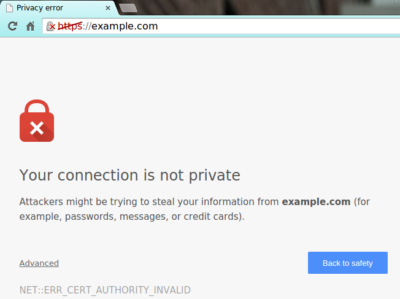
Starting in July, Google Chrome marked all HTTP sites as “not secure,” according to a blog post published today by Chrome security product manager Emily Schechter. Chrome currently displays a neutral information icon, but starting with version 68, the browser is warning users with an extra notification in the address bar. Chrome currently marks HTTPS-encrypted sites with a green lock icon and “Secure” sign.

Google has been nudging users away from unencrypted sites for years, but this is the most forceful nudge yet. Google search began down-ranking unencrypted sites in 2015, and the following year, the Chrome team instituted a similar warning for unencrypted password fields.

The Chrome team said the announcement was mostly brought on by increased HTTPS adoption. Eighty-one of the top 100 sites on the web default to HTTPS, and a strong majority of Chrome traffic is already encrypted. “Based on the awesome rate that sites have been migrating to HTTPS and the strong trajectory through this year,” Schechter said, “we think that in July the balance was tipped enough so that we can mark all HTTP sites.”

HTTPS encryption protects the channel between your browser and the website you’re visiting, ensuring no one in the middle can tamper with the traffic or spy on what you’re doing. Without that encryption, someone with access to your router or ISP could intercept information sent to websites or inject malware into otherwise legitimate pages.

HTTPS has also become much easier to implement through automated services like Let’s Encrypt, giving sites even less of an excuse not to adopt it. As part of the same post, Google pointed to its own Lighthouse tool, which includes tools for migrating a website to HTTPS.


7 Google Chrome Tweaks for Efficiency

If you spend most of your workday with Google’s browser, you’ll want to put these Chrome tips to work so you can get more done in less time.

Live your best Chrome life

You probably live most of your computing day inside Google’s browser. Despite its tendency to be a resource hog, it’s still the most capable browser for its speed and optimization on the web’s most important sites.

But there’s always room to improve, especially given Chrome’s flexibility and strong feature set. This collection of tips will help you start the day off with just the sites you want, work quicker with keyboard commands, and ensure you can save the stuff you need for later use.

Stick a pin in it

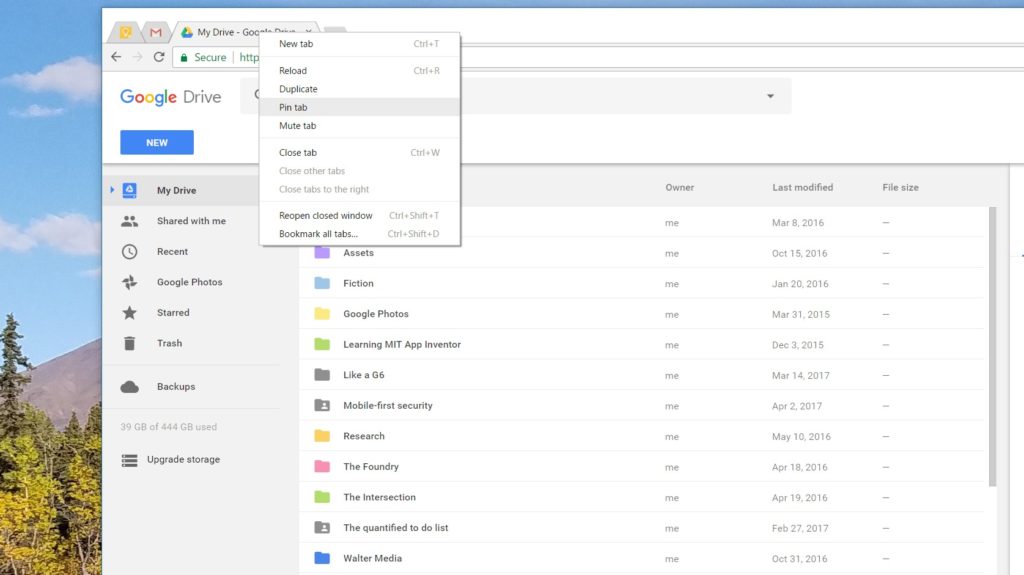
Pinning tabs that you use throughout the day saves you screen real estate and keeps you from having to reopen tabs several times over. Right-click on a tab and select Pin tab to minimize it to the left side of the browser. It’ll be identifiable by the page’s favicon.

Keep in mind, when you close the browser, those tabs will reopen as pinned tabs when you relaunch Chrome. So if you don’t want to start your next session with 10 pinned tabs, you’ll need to unpin them by right-clicking and then selecting Unpin tab before closing the browser.

Reopen that tab you didn’t mean to close

There’s one, specific hotkey command that saves my bacon about 25 times a day: Control-Shift-T, which reopens the last tab closed. When you’ve got 70 or so different tabs open, you’re bound to close the wrong one from time to time.

That’s why it behooves you to memorize this command. Better yet, take a few moments to learn some of the other hotkeys shown here that will help you zip through your tabs, close them all, or quit Chrome altogether. Just as hotkeys help you work faster in Windows, the same level of convenience applies to Chrome.

Grab a Chrome extension

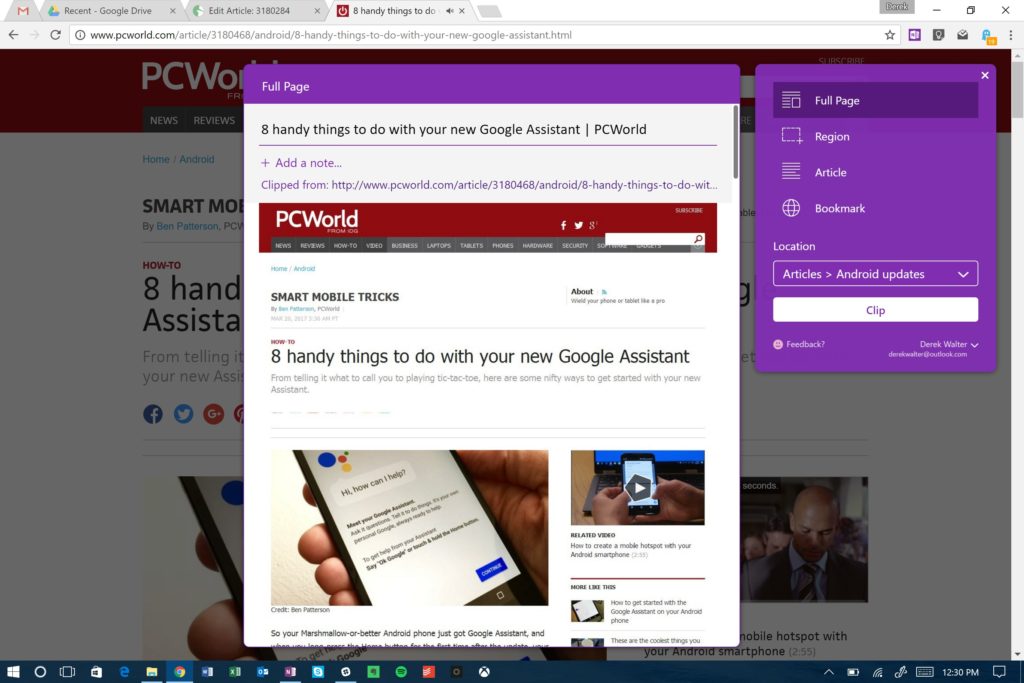
It’s very likely that your favorite desktop software has an accompanying Chrome extension that let’s you perform related tasks within the browser. If so, grab it. After all, the web touches a lot of aspects of the work you do. For example, Microsoft’s OneNote offers a useful Chrome extension for grabbing articles and other bits of the internet for later retrieval. Same goes for Evernote, another popular note-taking solution. And there’s a Chrome extension that notifies you of Skype alerts. Head to the Chrome Web Store to find the extensions you need.

Embrace Google Cloud Print

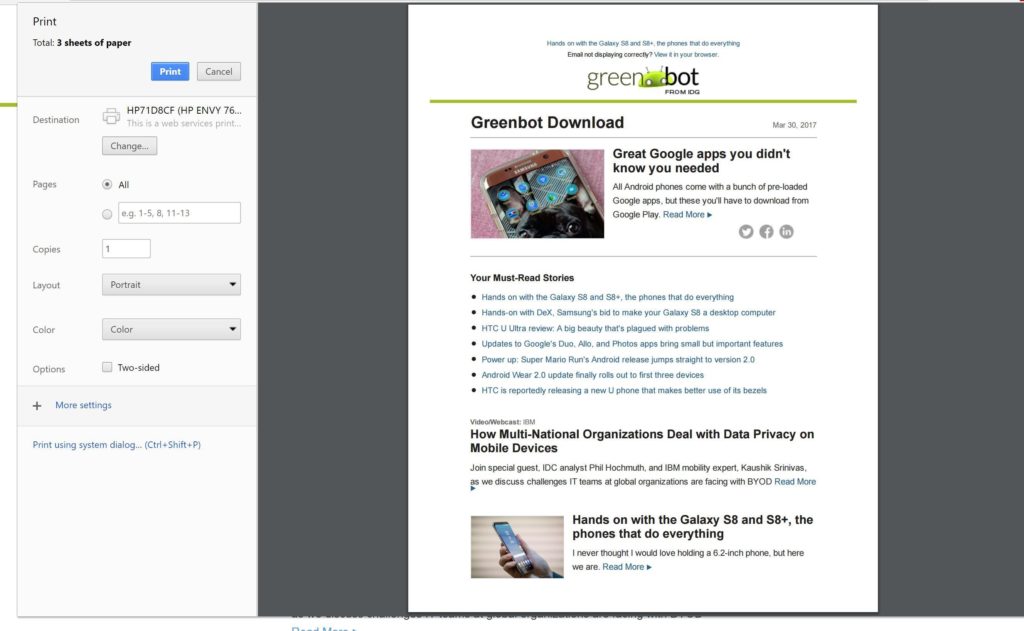
Google Cloud Print may still have that annoying beta tag, but it’s vastly improved since the service’s early days. It’s now reliable, and the fastest way to print a document without needing to futz with the Windows print menu.

Most printers can be added quite easily, so head to the Cloud Print site to enroll yours. Another great feature is that you can also save files right to Google Drive, helping you keep track of tax-payment confirmations or other key documents.

Know your history

Macs and iOS devices talk together very well through a feature called Handoff. Open a browser tab on the iPhone, and you can pull it up right away on your Mac.

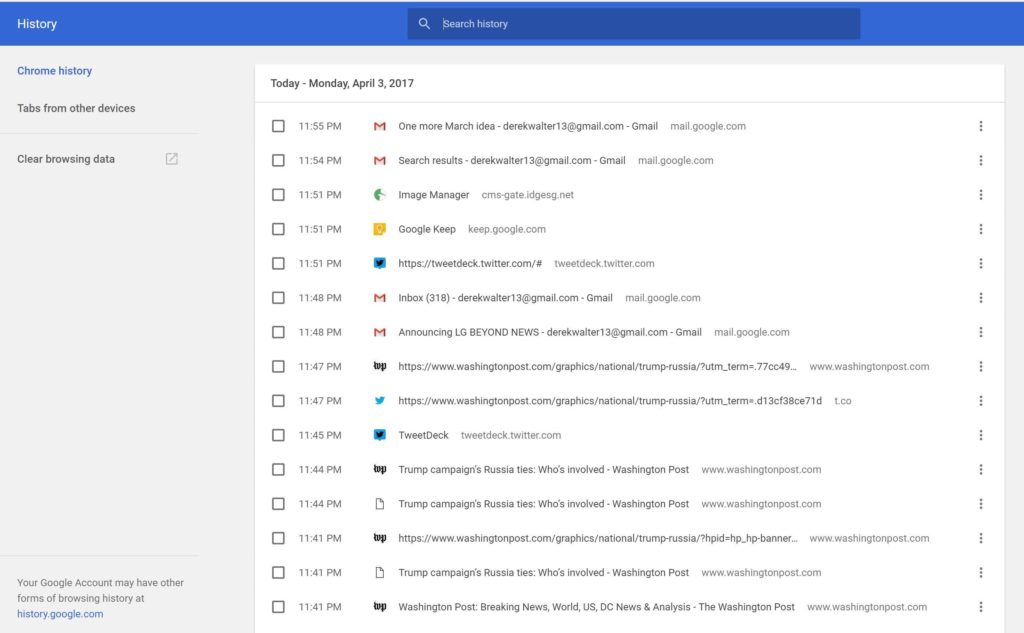
Chrome has created something that’s not quite as seamless, but gets the job done for those of us who live outside of Fortress Apple. Control-H pulls up a list of your most recent tabs from all your devices. Next, touch Tabs from other devices to choose the site you want to check out. You can select what you were just looking at or something from a while back.

Go big (with text)

Save your eyes from strain. You can expand the text on a browser page in a couple of different ways. Hit Control+ to zoom in, and Control- to zoom out. Alternatively, pinching-and-zooming on a PC with a touchscreen will do the trick and gives you a more direct feel for what you want to see.

Control 0 will return you to the normal page size once you’re done with the close inspection.

Start off right

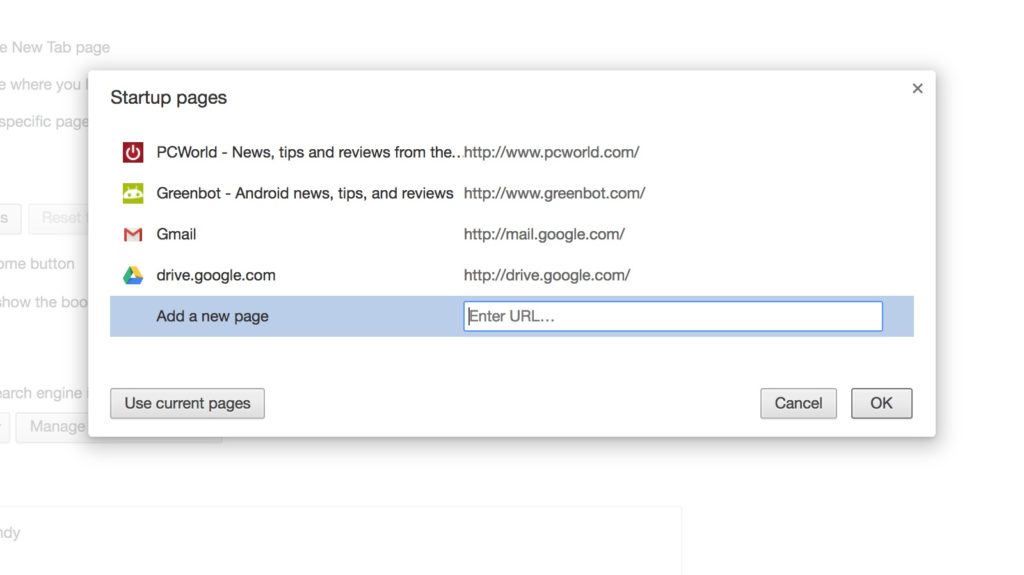
You can get right to work more quickly if you launch your browsing session with the sites you use most often. Go to Settings > On Startup and choose Open a specific page or set of pages.

Then, you can add your favorite pages by typing in the URLs or clicking the button for Use current pages. This’ll ensure that next time you launch Chrome, you can get right to work with the pages you need.

Have questions?

Get answers from Microsofts Cloud Solutions Partner!
Call us at: 856-745-9990 or visit: https://southjerseytechies.net/

South Jersey Techies, LL C is a full Managed Web and Technology Services Company providing IT Services, Website Design ServicesServer SupportNetwork ConsultingInternet PhonesCloud Solutions Provider and much more. Contact for More Information.

To read this article in its entirety click here.

When free Windows 10 becomes Expensive. You Must Know this!!

Is Microsoft really going to charge $100 to $200 to users who want the Pro edition or who don’t qualify for the free upgrade? Lets take a look at some alternative pricing ideas.

In Last week’s article, qw showed you how to reserve your free copy of Windows 10 upgrade from your Windows 7 and Windows 8.1 System. As you may know, the free upgrade will move you to the same edition of Windows that you’re currently running.


Windows 10 cost

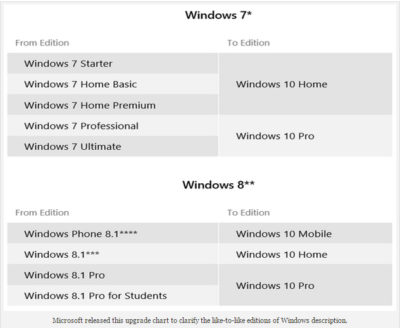
“When you upgrade, you’ll stay on like-to-like editions of Windows. For example, Windows 7 Home Premium will upgrade to Windows 10 Home.”

However, what if you get Windows 10 Home and then decide that you would like Windows 10 Pro? How much will it cost to upgrade? What if you are running Windows Vista or XP? Or, what if you are planning on building your own system and want to install Windows 10 from scratch? How much will you have to pay for Windows 10? Let’s take a closer look.

The free upgrade chart

Along with the like-to-like editions description, Microsoft presented an upgrade chart (Figure A).

Figure A

sjt-blog-photo-windows

As you can see, this is how Microsoft will be doling out the free editions of Windows 10. For those getting the Pro edition of Windows 10, this will be perfect. And for most folks getting the Home edition of Windows 10, this will be a fine deal. However, what if you’re really a Pro type of user who just happened to end up with a Home edition of Windows 7/8? Will you be satisfied with the Home edition of Windows 10?

For example, my main system is running Windows 8.1 Pro with Media Center. However, my laptop is running the standard Windows 8.1, because that’s what was preinstalled when I purchased it last year from Dell. I’ve always wished that it had the Pro edition, as there are certain features that I’ve grown accustomed to on the Pro edition that I sorely miss, such as being able to configure my laptop as a Remote Desktop host.

I know that I won’t be satisfied with the Home edition of Windows 10 on my laptop.

The Windows 10 Pro Pack

Microsoft has released statements to various technology media sites, such as CNET, confirming the existence of an upgrade package called the Windows 10 Pro Pack that will allow you to move up from the Windows 10 Home edition to Pro edition. The Windows 10 Pro Pack will cost $99 (USD).

While that might not sound like a lot, when compared to FREE, it seems kind of unfair.

I understand that I’m getting a like-to-like edition upgrade, but I was hoping for some kind of break. After all, I’ve been a loyal Microsoft customer for years.

How about selling the Windows 10 Pro Pack for $39.99 for a limited time? Say, 90 days after launch? That would be more than acceptable to me–and it’s not unprecedented.

As you may remember, back when Windows 8 was first launched in October of 2012, upgrades to the Pro edition were priced at just $39.99 for anyone using an existing product. That offer ran until January 31, 2013. After that, the price of Windows 8 went up to the regular price point.

Retail packages

Microsoft has also released the MSRP for copies of the new operating system. Windows 10 Home will sell for $119 and Windows 10 Pro will sell for $199. Again, this seems to be a pretty stiff deal when compared to FREE.

This is the price that anyone using Windows XP or Windows Vista on a system that’s capable of running Windows 10 will have to pay for the full install of the new operating system. This also applies to users who are planning on building their own systems.

If the goal is to really get everyone off of old operating systems and onto Windows 10, Microsoft should offer these folks a special price for a limited time.

Again, such a deal is not unprecedented. When Windows 8 first came out, the retail package of the Pro edition cost $69.99.

If Windows XP/Vista users and system builders could get Windows 10 Pro for $69.99 for the first 90 days after launch, I think that a lot more people would go for it than if they have to pay $199.

What’s your take?

If you get a free Windows 10 Home upgrade, will you be satisfied–or will you want to move up to Windows 10 Pro? If so, would you be willing to pay $39 for the upgrade? If you don’t qualify for the free upgrade, would you be willing to pay $69 for Windows 10? Let us know

Have questions?

Microsoft’s Partner are here to help.
Call us at: 856-745-9990 or visit: http://southjerseytechies.net/

South Jersey Techies, LLC is a full Managed Web and Technology Services Company providing IT Services, Website Design ServicesServer SupportNetwork ConsultingInternet PhonesCloud Solutions Provider and much more. Contact for More Information.

To read this article in its entirety click here.

Office 365 Exchange Online


Work smarter, anywhere, with hosted email for business.

Security and reliability

Exchange Online helps protect your information with advanced capabilities. Anti-malware and anti-spam filtering protect mailboxes. Get a Exchange Online Protection Trial or Office 365 Professional Trial to see how good it works. Data loss prevention capabilities prevent users from mistakenly sending sensitive information to unauthorized people. Globally redundant servers, premier disaster recovery capabilities, and a team of security experts monitoring Exchange Online around the clock safeguard your data. And with a guaranteed 99.9% uptime, financially-backed service level agreement, you can count on your email always being up and running.

Stay in control

Maintain control over your environment while gaining the advantage of hosting your email on Microsoft servers. Manage your organization efficiently with the Exchange admin center, an easy-to-use, web-based interface. Run In-Place eDiscovery across Exchange, SharePoint, and Skype for Business data from a single interface through the eDiscovery Center. With mobile device policies, you can create approved mobile device lists, enforce PIN lock, and remove confidential company data from lost phones. And IT-level phone support is available to you 24 hours a day, 7 days a week.

Easy to use and maintain

It’s easier than ever to provide your users with the business email they need to stay productive. Automatic patching eliminates the time and effort of maintaining your system. Give your users an In-Place Archive, so they can keep all their important data in one place. And provide them with anywhere access to email, calendar, and contacts on all major browsers and across devices. Integration with Outlook means they’ll enjoy a rich, familiar email experience with offline access.

Have questions?

Our Hosted Cloud Solution team is here to help.

Call us at: 856-745-9990 or Visit: https://southjerseytechies.net/

To learn more and how Office 365 Exchange Online can benefit your business please contact South Jersey Techies, LLC. South Jersey Techies, LLC is a certified Small and Midmarket Cloud Solutions Microsoft Partner.

To read this article in its entirety click here.

Chrome turns 50 and stands at a crossroads

As Google reaches a major milestone, let’s reflect on its uncertain future.

google_chrome

Google’s Chrome browser has just reached a major milestone, hitting its 50th release.

For Google, it’s a moment for positive reflection. To emphasize Chrome’s might, the company points to the browser’s 771 billion page loads per month, 1 billion monthly active mobile users, 9.1 billion auto-filled forms, and 145 million malicious webpages averted. One might also point to Chrome’s ever-growing usage, accounting for 47 percent of all worldwide pageviews, including mobile, according to StatCounter.

Indeed, Chrome has become an indispensable tool for many web users, and has served as a leader in the browser world. It introduced the idea of limiting menu clutter around actual webpages, and popularized the syncing of bookmarks, tabs, and browser history across devices. After all these years, it remains PCWorld’s most highly-recommended web browser.

Yet for all the good Chrome has done, Google’s browser now stands at a crossroads. Aside from just another way to browse the Internet, it’s unclear exactly what Google wants Chrome to be.

Browser or platform?

In the beginning, Google’s key tenets for Chrome were speed and simplicity. The browser’s minimal menu system (or “chrome,” hence the name) got out of the way, and its JavaScript engine crushed the competition as websites grew more advanced in the late aughts.

Those advantages are less pronounced now. Nearly every other browser has embraced restraint with their own chrome, and Chrome is no longer the clear victor in benchmarks. Meanwhile, the ever-increasing demands of the modern web have given Chrome a reputation for being a resource hog and a battery killer, even if other browsers aren’t markedly better.

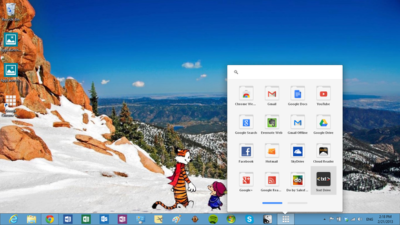
A few years after Chrome launched, Google started broadening its ambitions. It introduced the Chrome Web Store, and eventually the concept of native Chrome apps with offline functionality. A Chrome app launcher followed, along with push notifications from web services and Google Now. These new features were supposed to turn Chrome into a platform-within-a-platform on Windows and Mac, while making Chrome OS into a legitimate desktop operating system.

fullscreenapplauncher

But over the last year, Google has dismantled or abandoned many of those efforts. The Chrome notification center is now dead on Windows and Mac, as Google considersembracing native notifications on those platforms. The Chrome Web Store fell into disrepair years ago, and Google has shown little interest in cleaning it up. The Chrome app launcher got nixed on Windows, Mac, and Linux because no one was using it.

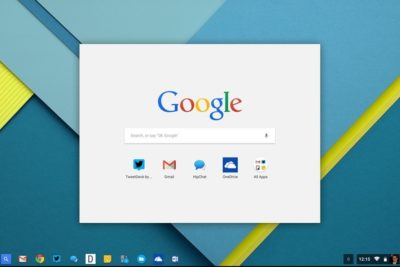
As for Chrome OS, its future is far from certain. Although the platform has traction in the education world, and probably isn’t going away, a merged Chrome-Android operating system for consumers seems likely.

chromeoslauncher

Amid all these retrenchments, Chrome has introduced no big noteworthy features to its desktop browser. The most interesting browser developments are instead happening on alternatives such as Microsoft Edge (with its page annotation and embedded Cortana assistant) and Vivaldi (with its web panels and tab stacking).

Google may arguably be more interested in mobile Chrome, now that smartphone usage has eclipsed the desktop. But in a world of apps, Facebook, and Instant Articles, the idea that users will spend significant amounts of time in a browser seems quaint. Perhaps that’s why Google’s 1 billion mobile user statistic is on a monthly basis, not a daily one.

So as Google celebrates Chrome’s 50th release, it should also ask itself what Chrome is now trying to accomplish. Will it recommit to its original focus on speed and simplicity, or will it try to innovate with new features? Is Chrome a platform unto itself, or just a really good way to access webpages? Are the fates of the desktop and mobile versions intertwined, or are they separate? If Google can’t answer those questions, version 100 might not be so celebratory.

Have questions?

Get answers from Microsofts Cloud Solutions Partner!
Call us at: 856-745-9990 or visit: https://southjerseytechies.net/

South Jersey Techies, LL C is a full Managed Web and Technology Services Company providing IT Services, Website Design ServicesServer SupportNetwork ConsultingInternet PhonesCloud Solutions Provider and much more. Contact for More Information.

To read this article in its entirety click here.

Windows 10 will be available via USB flash drive or DVD

USB flash drives

There is a possibility that microsoft will be selling Windows 10 on USB flash drives.

As you may know, installing an operating system from a USB flash drive is easier and faster than installing it from an optical disc. A USB flash drive is not as bulky as an optical disc and doesn’t require an external case. You just take it out of your pocket, pull off the cap, and insert it into your computer’s USB port. USB flash drives are faster than optical drives too. USB flash drives have read and write speeds that measure in 10x megabytes per second (MB/s), while optical disc read and write speeds measure in 1x MB/s.

With that in mind, it’s no surprise that there are a multitude of articles on the web that describe how to create a Windows installation package on a USB flash drive. Microsoft even provides a tool that facilitates the procedure.

With Windows 10 on the horizon, there have been rumors floating around the web that in addition to making the upgrade available as a download, Microsoft will also be selling the retail copies of the new operating system on both DVD and USB flash drive.

As a regular follower of the German website WinFuture, I recently encountered an article that indicates that Microsoft will indeed be selling the 32-bit and 64-bit versions of Windows 10 Home and Pro on USB flash drives in addition to the DVD option. Having a USB flash drive option makes sense, because tablets don’t come with optical disc drives.

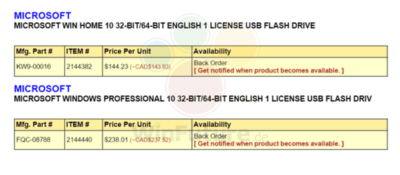
The WinFuture article contained a screen shot (Figure A) showing catalog details of the USB offerings. As you can see, it appears that the USB flash drive will contain both the 32-bit and 64-bit versions. Presumably, the USB flash drives will sell for the same price as the DVDs.

Figure Afigurea

Windows 10 Home and Pro will be sold on USB flash drives.

You can find a number of software reseller sites (mostly Canadian) with advertisements for the USB flash drive offerings of Windows 10 by Googling the part numbers shown in the screenshot: FQC-08788 for the Pro edition and KW9-00016 for the Home edition. However, keep in mind that we’ll have a clearer vision of the USB flash drive offerings once we get closer to the Windows 10 launch date of July 29th.

Have questions?

Get help from Microsofts Cloud Solutions Partner!
Call us at: 856-745-9990 or Visit: https://southjerseytechies.net/

South Jersey Techies, LLC is a full Managed Web and Technology Services Company providing IT Services, Website Design ServicesServer SupportNetwork ConsultingInternet PhonesCloud Solutions Provider and much more. Contact for More Information.

To read thsi article in its entirety click here.

How I deleted Google from my life

I realized handing over my entire life to one platform had its downsides.

I deleted Google from my life, and I can show you how to do it, too.

After being a devoted Googler for many years, I realized putting all my data on one platform had its downsides. A couple of factors in particular drove me to make a clean break.

Deleting Google for privacy and security

The appeal of escaping Google comes down to privacy. Google collects an alarming amount of data about you. It’s safe to say that if you’re not a paying customer then you’re the product being sold, and that’s Google’s business model.

Security goes hand-in-hand with that. I’m sure Google’s servers are closely guarded, but I still didn’t want all my data to be concentrated in one place.

To Google’s credit, the company gives you tools to opt out of the give-us-your-private-data-for-our-services game altogether. We cover the basics in these two articles:

  • How to download your Google data so you can see what’s being recorded.
  • How to delete your Google data to protect yourself.

Deleting Google for social impact

Another reason to get rid of Google is make your choice as a consumer for a healthier, more responsible media. As a working journalist, I’m acutely aware that Google and Facebook jointly dominate the media distribution and discovery landscape. With no strong competitors to Google Search in particular, Google’s algorithms hold unprecedented sway over the discourse in our society.

The importance of search discovery means that publishers and journalists must write stories to match the queries typed in by readers. That means coverage is guided by readers’ preconceived notions about a news event, not by objective reporting. That’s a deeply disturbing state of affairs for any democratic society.

Google outwardly seems as dedicated to responsible stewardship as one could hope, but it’s still concerning enough to merit supporting alternatives and competitors.

How my Google-free experiment started

When I decided to drop Google, I had just left a full-time job at a company that used Google mail and other apps. I stopped using all Google products while I freelanced. Note: If you’re an Android user, this is basically a no-go. Fortunately, I use a combination of Windows PCs, Macs, and iOS devices, so I wasn’t trapped.

Everyone uses Google differently, but I focused on forgoing the services that are core to the experience: Gmail, Docs, Drive, Calendar, Maps, and Search.

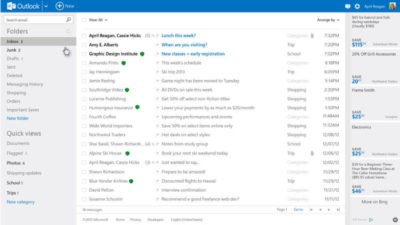
Dropping Gmail was easier than expected. I tried Yahoo! Mail, but there were too many ads for my taste. The web interface for Apple Mail at icloud.com was just adequate. I found Microsoft’s overhauled Outlook web interface (and truly excellent mobile app) was the best alternative.

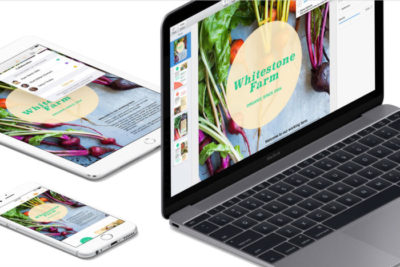
Apple’s iWork for iCloud lets you use its productivity applications and share content across devices.

Instead of Docs, I tried Office 365 and iWork for iCloud. I liked them both better than Docs because I prefer native apps to web apps, and because I think both have more elegant designs—especially iCloud. Apple’s iWork for iCloud is similar to Docs in that it’s online-only, and designed for collaboration. It also has a mobile app. Office 365 will be pretty familiar to anyone who’s worked with Office’s desktop versions.

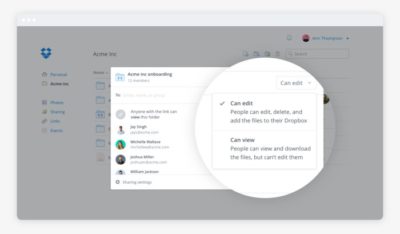
It was also pretty easy to kick Drive to the curb. Cloud storage competitors abound. I always preferred Dropbox to Drive anyway because I find that its OS X and Windows apps are better-integrated into the OS’s normal file browsing experience. Google Drive feels like it’s meant to be a place to store documents and back up files, not seamlessly augment your local storage—even though it does that in some ways.

Dropbox’s file-sharing features are competitive and in some ways better than those in Google Docs.

Google Calendar has plenty of competition. This is a more personal choice, and people can get very attached—consider the furor when Microsoft shuttered Sunrise Calendar. On the other hand, it inspired us to find third-party alternative calendars, which could also replace Google Calendar.

What didn’t go well

I tried Apple Maps. I tried Waze. Google Maps is still the best.

I couldn’t quit everything Google offered so easily. Google Maps alternatives were a challenge. Your best bets are Waze or Apple Maps, but let’s be honest—they have nothing on Google Maps. Unlike Apple Maps, Waze has a web app, and powerful community-sourced data is its biggest selling point. But guess what? Google uses Waze’s data in Maps! So rather than gaining that feature, you’re just losing all the stuff Maps has that Waze doesn’t.

Google Search rules for a reason. The only two decent alternatives I found were Bing and DuckDuckGo.

Bing is as good or better than Google in many respects, but Google’s algorithms and semantic search win hands-down.

Bing is a strong competitor. Some features, like video search, are even better than what Google offers. But Bing’s algorithm and the semantic search show more cracks than Google’s do.

DuckDuckGo isn’t as full-featured, but it records no user data—that’s the primary selling point of the platform. Both search options were passable, but Google has nailed semantic search with a precision that no one else can touch.

Back in Google’s grasp

I lived Google-free for five months, compromises and all. Then I was hired at a new job that required me to use Google. I considered the experiment a success, to the point that I was dismayed to abandon it at the new gig.

Google has us in its grasp for good reason. Looking back at my life without it, I can honestly say some alternatives couldn’t compare. Your mileage may vary based on which services you value most. If you decide to delete Google from your life, too, let us know how it goes on our Facebook page.

Have questions?

Get answers from Microsofts Cloud Solutions Partner!
Call us at: 856-745-9990 or visit: https://southjerseytechies.net/

South Jersey Techies, LL C is a full Managed Web and Technology Services Company providing IT Services, Website Design ServicesServer SupportNetwork ConsultingInternet PhonesCloud Solutions Provider and much more. Contact for More Information.

To read this article in its entirety click here.

CALL US NOW!